INSTALLING DEVICE DRIVER
BY: ROLAND SEAN R. LAURE
Installing device drivers
 Now that you successfully
installed the operating system,
you’ll need to configure the
devices such as Video Cards,
Network Interface Cards,
Sound Cards, etc. by installing
the device drivers of each. In
many cases, if Windows
recognizes the device, drivers
will be installed automatically. In
some cases, generic drivers are
installed so that the devices will
work properly.
Device Driver
 provides an interface that allows the operating system and other software to
interact with the device, without having to deal with the particular hardware
implementation of the device. The device drivers are installed into the
operating system on demand, extending the functionality of the operating
system
 When a specific device driver either not be found or not be installed, the
operating system may load a generic device driver. A generic device driver
may not be as well-suited to the device as a specific device driver:
The generic device driver may be missing features that the specific device
driver would provide.
The operation of a generic device driver may be inefficient, meaning that
the computer system’s performance would slow down.
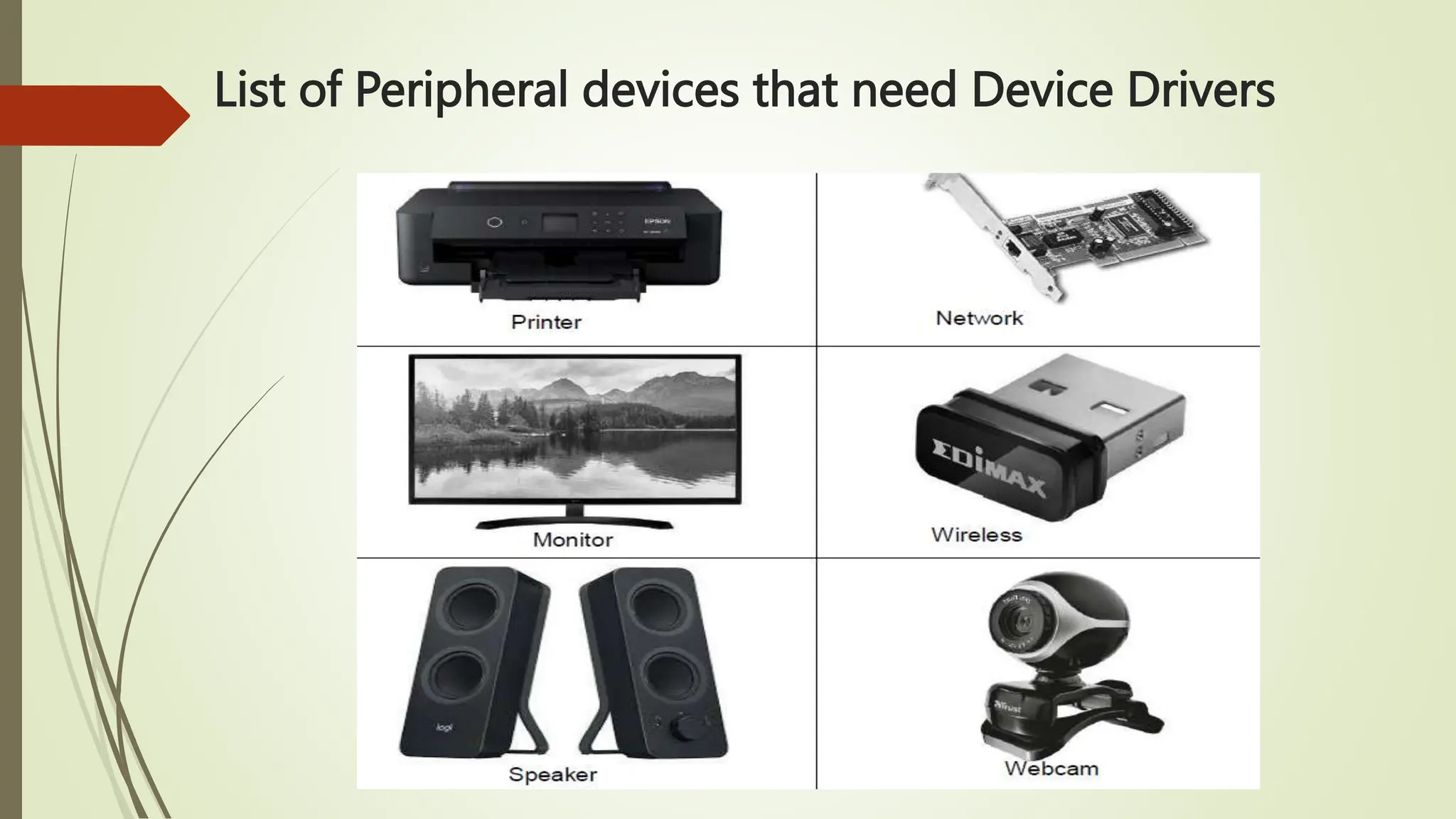
List of Peripheral devices that need Device Drivers
Steps in Installing a device driver automatically:
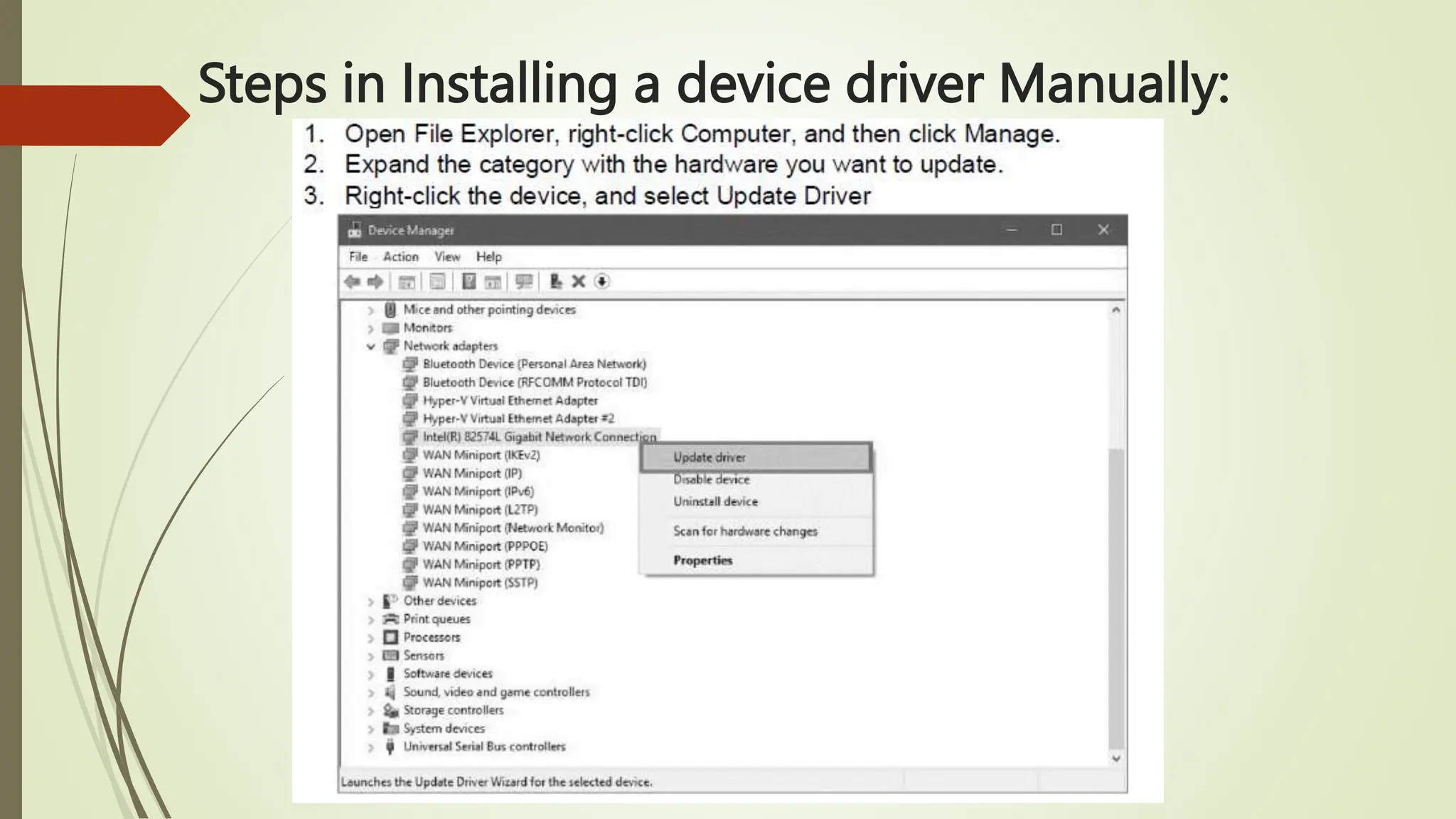
Steps in Installing a device driver Manually:
Driver Pack
Solution
Driver Pack Solution
 is a free driver updater tool that, with just a few
clicks, finds the proper device drivers your
computer needs and then downloads and
installs them for you — no clicking through
any wizards or installation prompts.
Steps
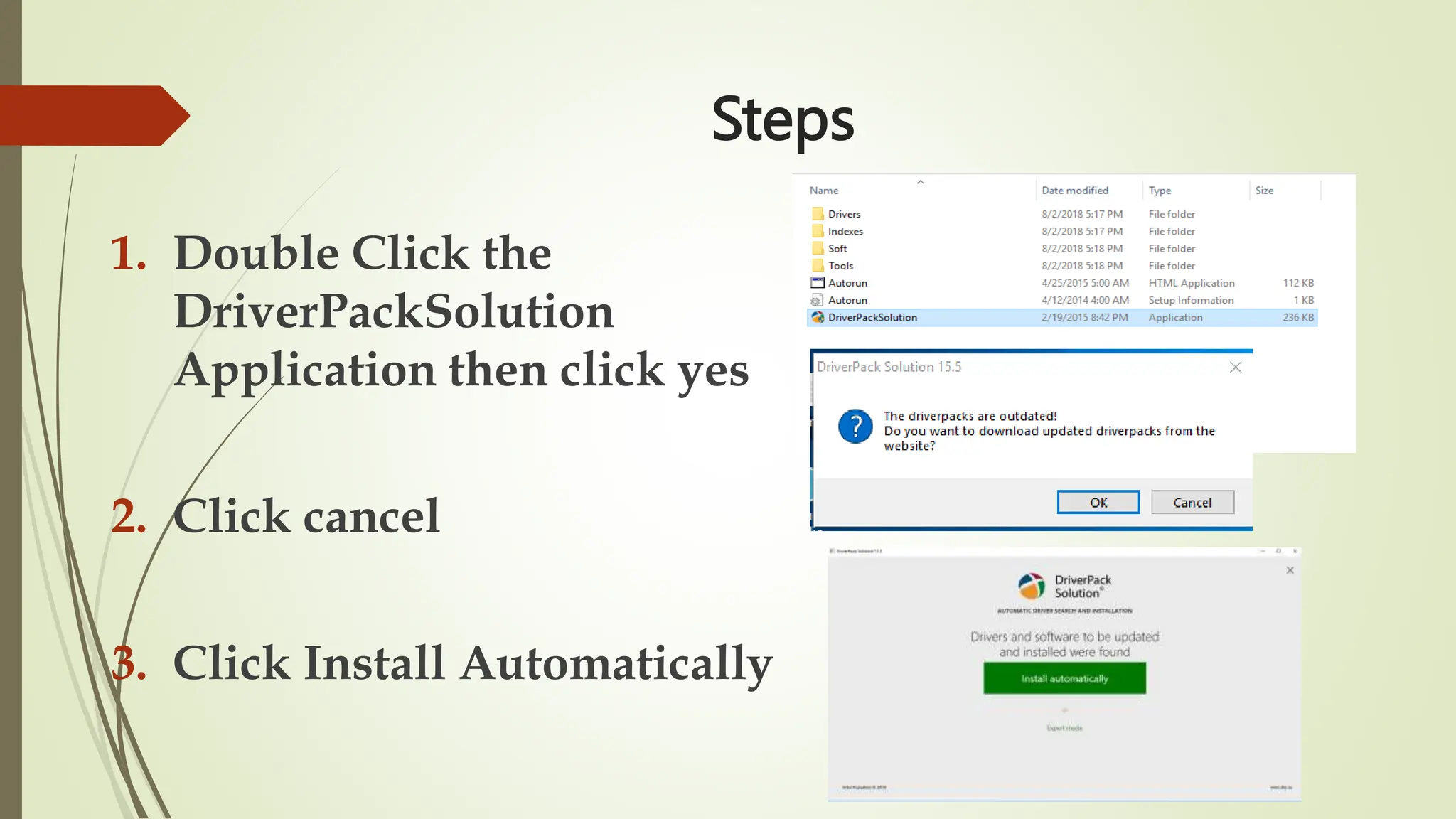
1. Double Click the
DriverPackSolution
Application then click yes
2. Click cancel
3. Click Install Automatically
Steps
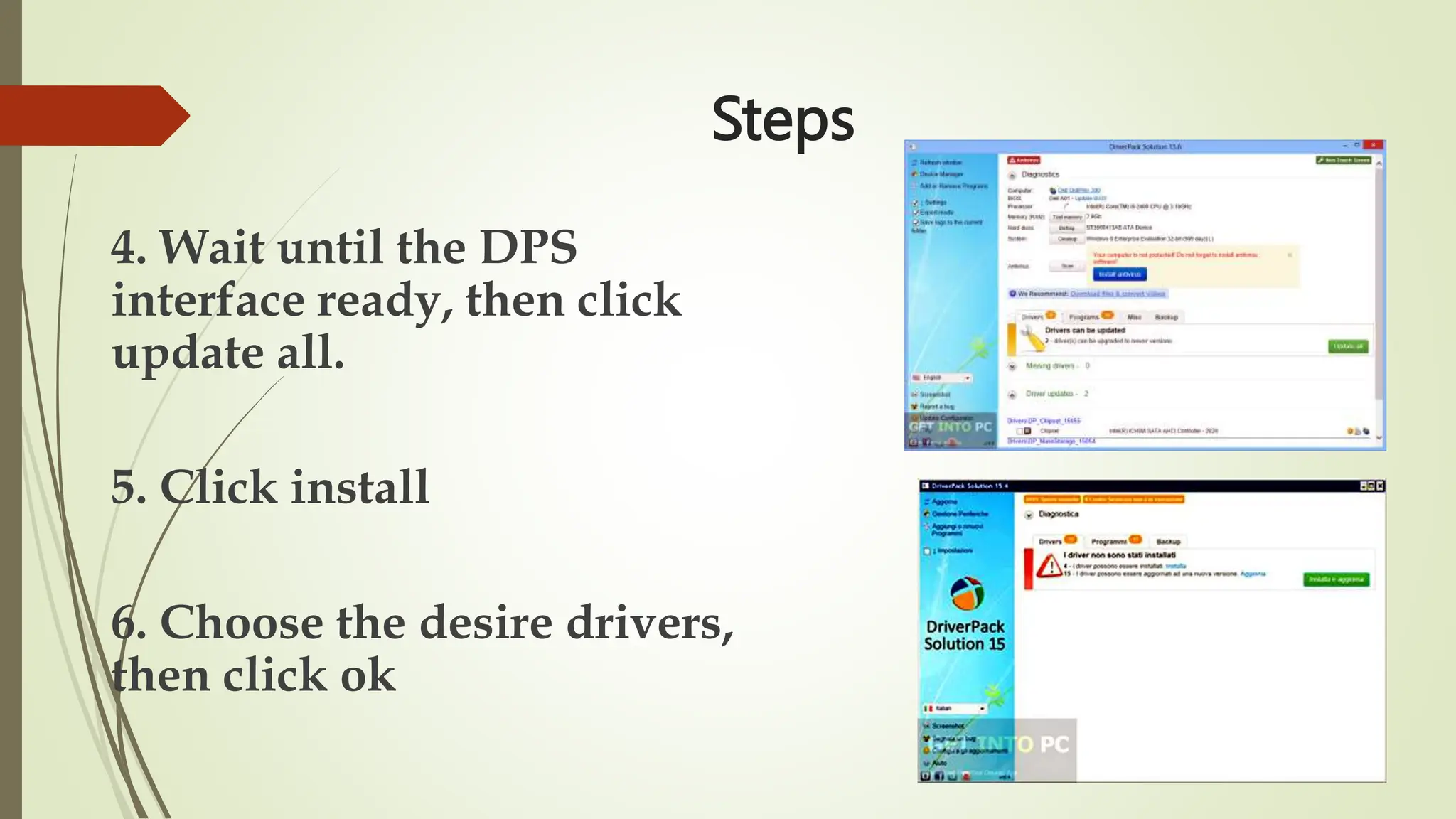
4. Wait until the DPS
interface ready, then click
update all.
5. Click install
6. Choose the desire drivers,
then click ok
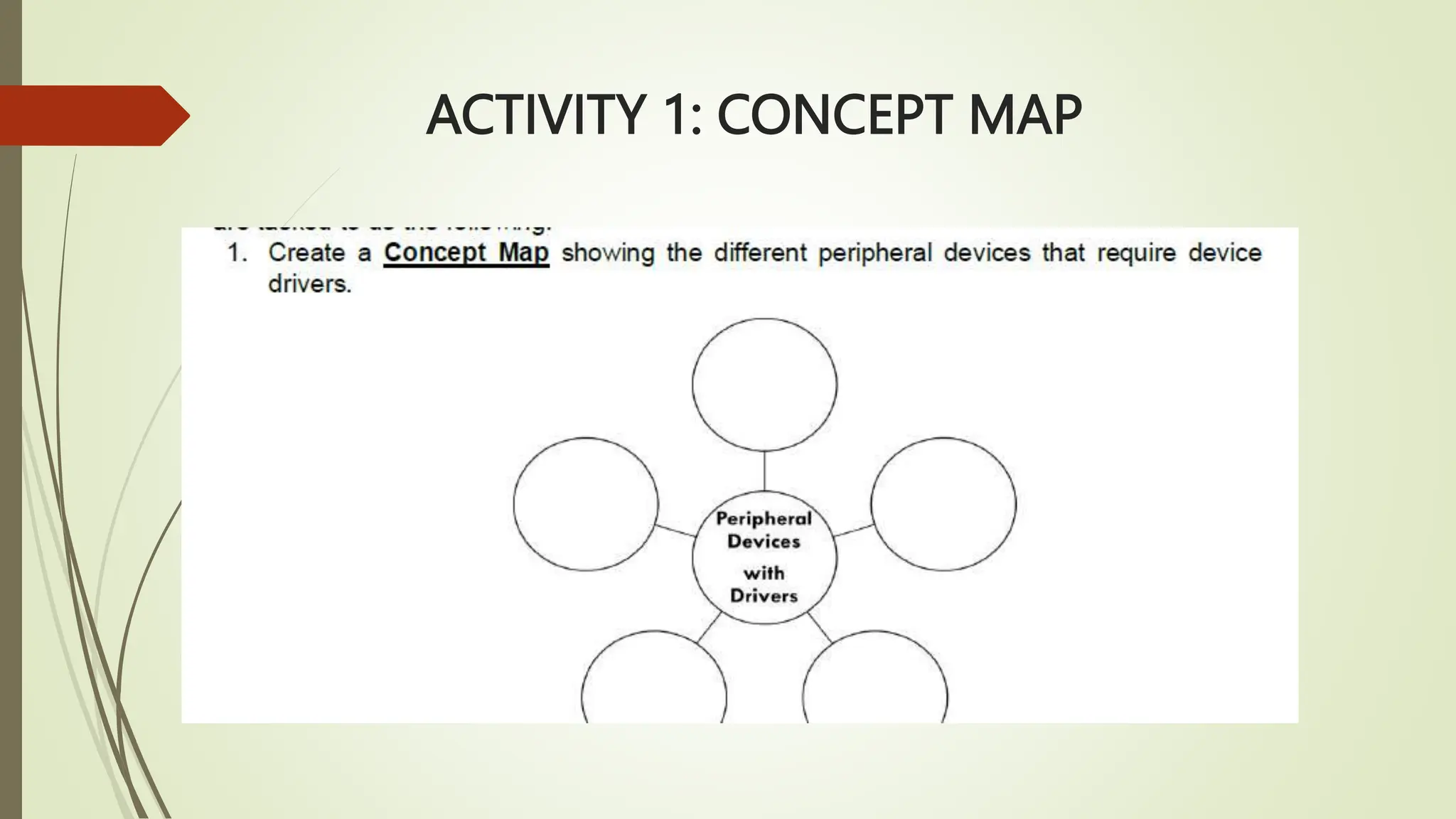
ACTIVITY 1: CONCEPT MAP
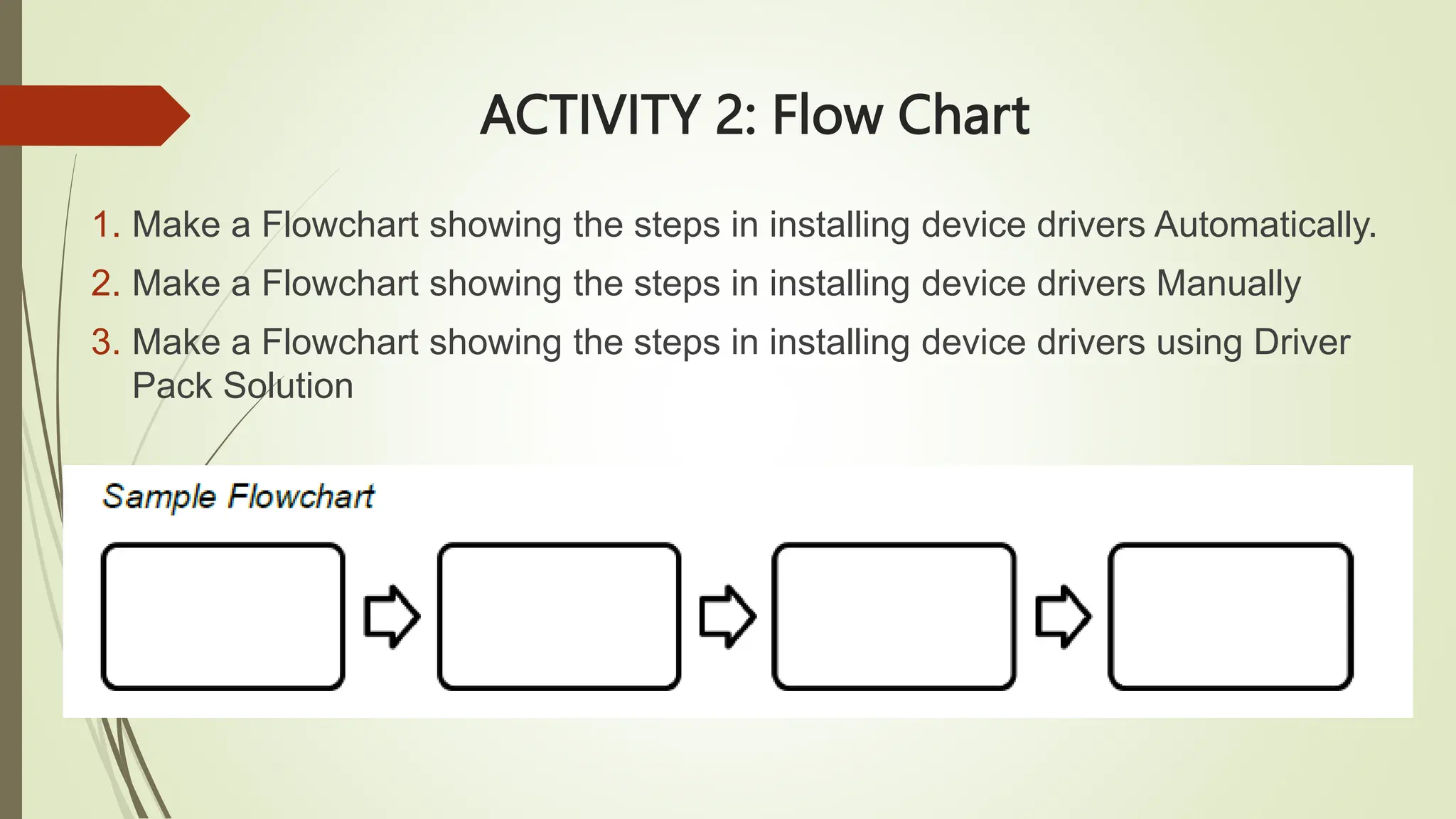
ACTIVITY 2: Flow Chart
1. Make a Flowchart showing the steps in installing device drivers Automatically.
2. Make a Flowchart showing the steps in installing device drivers Manually
3. Make a Flowchart showing the steps in installing device drivers using Driver
Pack Solution
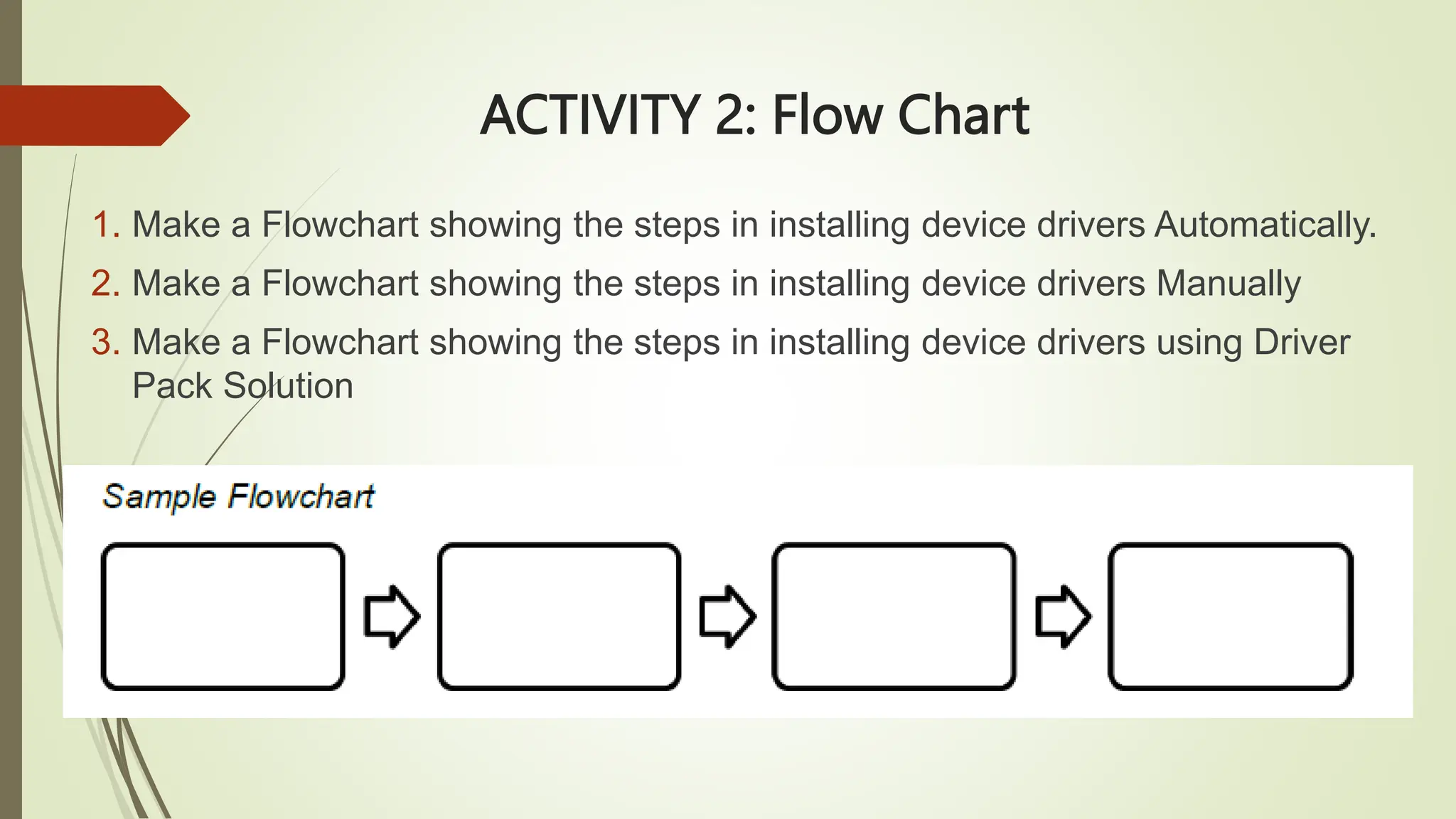
ACTIVITY 2: Flow Chart
1. Make a Flowchart showing the steps in installing device drivers Automatically.
2. Make a Flowchart showing the steps in installing device drivers Manually
3. Make a Flowchart showing the steps in installing device drivers using Driver
Pack Solution
Process Question:
1. What do you think is the importance of
knowing the hardware specifications before
installing a Device Driver?
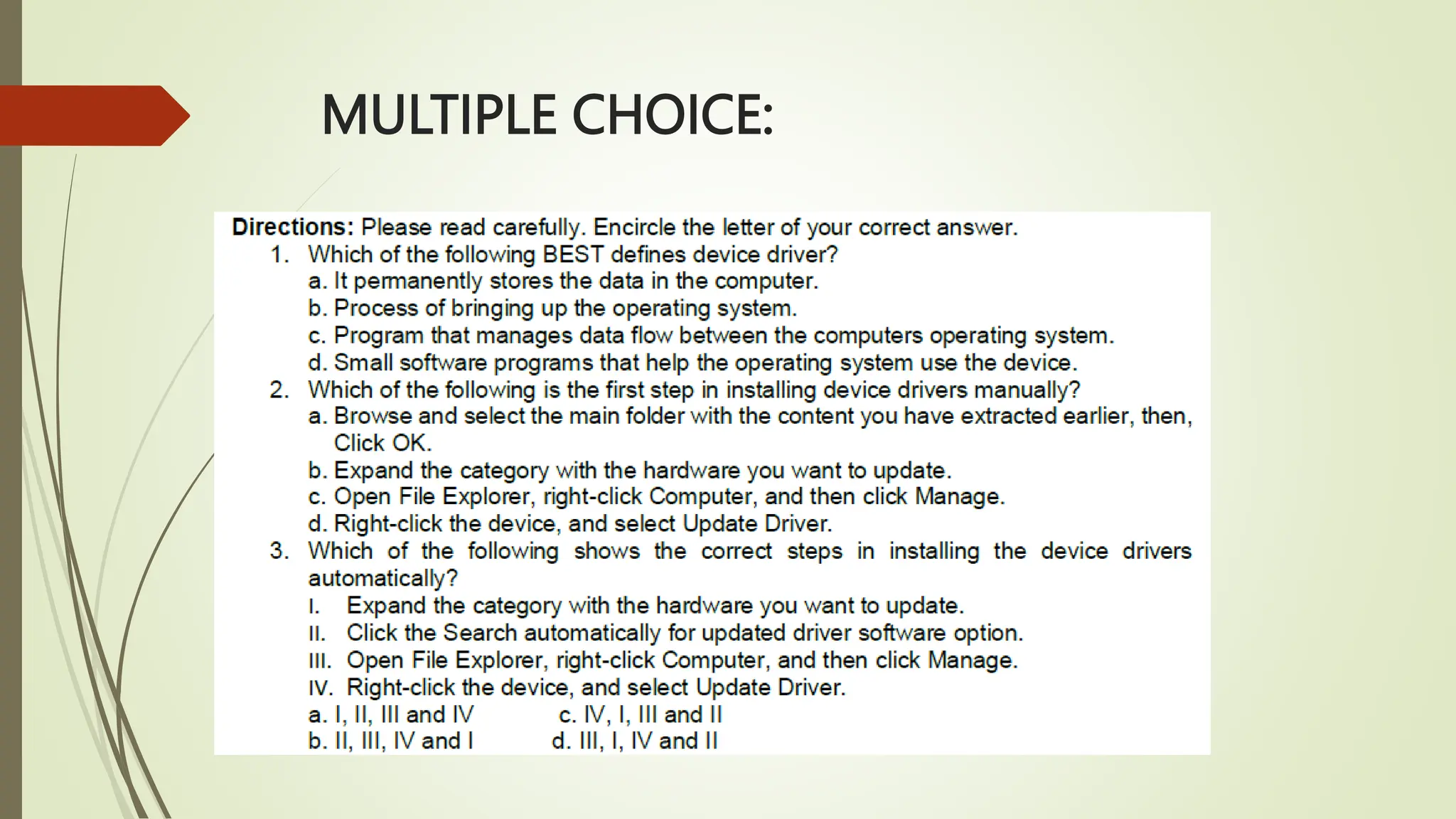
MULTIPLE CHOICE:
MULTIPLE CHOICE:

Copy of LESSON 9 - INSTALLING DEVICE DRIVER.pptx

  • 1.
    INSTALLING DEVICE DRIVER BY:ROLAND SEAN R. LAURE
  • 3.
    Installing device drivers Now that you successfully installed the operating system, you’ll need to configure the devices such as Video Cards, Network Interface Cards, Sound Cards, etc. by installing the device drivers of each. In many cases, if Windows recognizes the device, drivers will be installed automatically. In some cases, generic drivers are installed so that the devices will work properly.
  • 4.
    Device Driver  providesan interface that allows the operating system and other software to interact with the device, without having to deal with the particular hardware implementation of the device. The device drivers are installed into the operating system on demand, extending the functionality of the operating system  When a specific device driver either not be found or not be installed, the operating system may load a generic device driver. A generic device driver may not be as well-suited to the device as a specific device driver: The generic device driver may be missing features that the specific device driver would provide. The operation of a generic device driver may be inefficient, meaning that the computer system’s performance would slow down.
  • 5.
    List of Peripheraldevices that need Device Drivers
  • 6.
    Steps in Installinga device driver automatically:
  • 7.
    Steps in Installinga device driver automatically:
  • 8.
    Steps in Installinga device driver Manually:
  • 9.
    Steps in Installinga device driver Manually:
  • 10.
  • 11.
    Driver Pack Solution is a free driver updater tool that, with just a few clicks, finds the proper device drivers your computer needs and then downloads and installs them for you — no clicking through any wizards or installation prompts.
  • 12.
    Steps 1. Double Clickthe DriverPackSolution Application then click yes 2. Click cancel 3. Click Install Automatically
  • 13.
    Steps 4. Wait untilthe DPS interface ready, then click update all. 5. Click install 6. Choose the desire drivers, then click ok
  • 14.
  • 15.
    ACTIVITY 2: FlowChart 1. Make a Flowchart showing the steps in installing device drivers Automatically. 2. Make a Flowchart showing the steps in installing device drivers Manually 3. Make a Flowchart showing the steps in installing device drivers using Driver Pack Solution
  • 16.
    ACTIVITY 2: FlowChart 1. Make a Flowchart showing the steps in installing device drivers Automatically. 2. Make a Flowchart showing the steps in installing device drivers Manually 3. Make a Flowchart showing the steps in installing device drivers using Driver Pack Solution
  • 17.
    Process Question: 1. Whatdo you think is the importance of knowing the hardware specifications before installing a Device Driver?
  • 18.
  • 19.

Editor's Notes

  • #3 Directions: Complete the KW Chart about the Device Driver