Window XP
By: Madiha Khadim
What is an operating system ?
• An operating system (OS) is a collection of software
that manages computer hardware resources and
provides common services for compute programs. The
operating system is an essential component of
the system software in a computer system. Application
programs usually require an operating system to
function.
An Operating system is a program which acts as an
interface between user of computer & the computer
hardware.
Control panel manages all configuration of computer
Operating system.
Purpose:
The purpose of an Operating system is to provide an
environment in which a user may perform programs.
The Primary goal of an O.S. is thus to make the
computer system convenient to use. A Secondary goal is
to use the computer hardware is an efficient manner.
What is the difference between 32-bit and
64-bit versions of operating system?
• The terms 32-bit and 64-bit refer to the way a computer's
processor (also called a CPU), handles information. The 64-bit
version of Windows handles large amounts of random access
memory (RAM) more effectively than a 32-bit system. 32 bit
system has a limit of 4GB RAM to process data where as the
64 bit operating system has 2^64 bits
18,446,744,073,709,551,616 bytes, or about 18.4 Exabyte's) of
memory of space to address and supports to process data.
What is File System ?
• In computing, a file system (or file system) is used to control
how information is stored and retrieved. Without a file system,
information placed in a storage area would be one large body of
information with no way to tell where one piece of information
stops and the next begins.
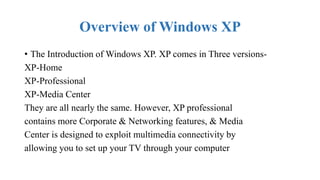
Overview of Windows XP
• The Introduction of Windows XP. XP comes in Three versions-
XP-Home
XP-Professional
XP-Media Center
They are all nearly the same. However, XP professional
contains more Corporate & Networking features, & Media
Center is designed to exploit multimedia connectivity by
allowing you to set up your TV through your computer
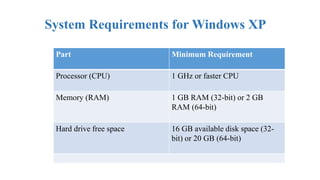
System Requirements for Windows XP
Part Minimum Requirement
Processor (CPU) 1 GHz or faster CPU
Memory (RAM) 1 GB RAM (32-bit) or 2 GB
RAM (64-bit)
Hard drive free space 16 GB available disk space (32-
bit) or 20 GB (64-bit)
Make a bootable USB drive and save your
computer
• In the past, Microsoft Windows was installed by disc, CD- or DVD-
ROM, or the floppy disc – and optical data carriers are also gradually
disappearing from the scene. Instead, the operating system is either
preinstalled on the system partition of a new computer or laptop, or
you acquire Windows directly online, complete with a digital
license, and download it yourself.
• But if you need an external installation medium, many people
nowadays use a bootable USB drive. It’s quicker and more compact
that an optical data carrier, and so is perfectly suited for setting up (or
resetting) a system.
How to Install Windows operating system
step by step procedure.
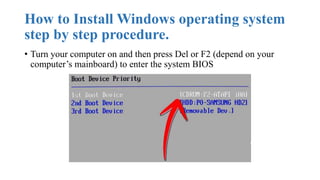
• Turn your computer on and then press Del or F2 (depend on your
computer’s mainboard) to enter the system BIOS
Go to Boot menu and choose Boot From
CD/DVD
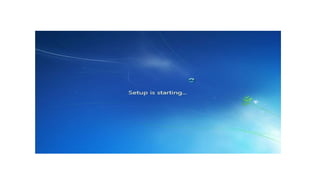
Load your Windows DVD and boot it. It will
now load the setup files.
Loading process
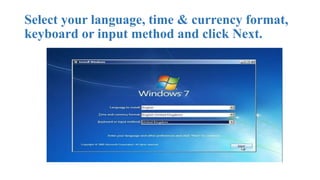
Select your language, time & currency format,
keyboard or input method and click Next.
Click Install now.
Check I accept the license terms and
click Next.
Click Upgrade if you already have a previous Windows version
or Custom (advanced) if you don’t have a previous Windows version
or want to install a fresh copy of Windows 7.
Select the drive where you want to install Windows 7 and
click Next. If you want to make any partitions, click Drive options
(advanced), make the partitions and then click Next.
Drive Options Menu: Windows warns that it may need to create a
few partitions for the system, Click "OK" to continue.
It will now start installing Windows 7. The first step,
(i.e. Copying Windows files) was already done when you booted
the Windows 7 DVD so it will complete instantly.
After completing the first step, it will expand (decompress) the
files that it had copied.
Type your desired user name in the text-box and
click Next. It will automatically fill up the computer name.
If you want to set a password, type it in the
text-boxes and click Next.
Type your product key in the text-box and click Next. You can also skip
this step and simply click Next if you want to type the product key
later. Windows will run only for 30 days if you do that.
Select your desired option for Windows Updates.
Select your time and click Next.
If you are connected to any network, it will
ask you to set the network’s location.
Window is finalizing your settings
Welcome Screen
Preparing your desktop
…..And there you have a fresh copy of Windows 7
installed!
Windows update
THANK YOU 

Window xp

  • 1.
  • 2.
    What is anoperating system ? • An operating system (OS) is a collection of software that manages computer hardware resources and provides common services for compute programs. The operating system is an essential component of the system software in a computer system. Application programs usually require an operating system to function.
  • 3.
    An Operating systemis a program which acts as an interface between user of computer & the computer hardware. Control panel manages all configuration of computer Operating system. Purpose: The purpose of an Operating system is to provide an environment in which a user may perform programs. The Primary goal of an O.S. is thus to make the computer system convenient to use. A Secondary goal is to use the computer hardware is an efficient manner.
  • 4.
    What is thedifference between 32-bit and 64-bit versions of operating system? • The terms 32-bit and 64-bit refer to the way a computer's processor (also called a CPU), handles information. The 64-bit version of Windows handles large amounts of random access memory (RAM) more effectively than a 32-bit system. 32 bit system has a limit of 4GB RAM to process data where as the 64 bit operating system has 2^64 bits 18,446,744,073,709,551,616 bytes, or about 18.4 Exabyte's) of memory of space to address and supports to process data.
  • 5.
    What is FileSystem ? • In computing, a file system (or file system) is used to control how information is stored and retrieved. Without a file system, information placed in a storage area would be one large body of information with no way to tell where one piece of information stops and the next begins.
  • 6.
    Overview of WindowsXP • The Introduction of Windows XP. XP comes in Three versions- XP-Home XP-Professional XP-Media Center They are all nearly the same. However, XP professional contains more Corporate & Networking features, & Media Center is designed to exploit multimedia connectivity by allowing you to set up your TV through your computer
  • 7.
    System Requirements forWindows XP Part Minimum Requirement Processor (CPU) 1 GHz or faster CPU Memory (RAM) 1 GB RAM (32-bit) or 2 GB RAM (64-bit) Hard drive free space 16 GB available disk space (32- bit) or 20 GB (64-bit)
  • 8.
    Make a bootableUSB drive and save your computer • In the past, Microsoft Windows was installed by disc, CD- or DVD- ROM, or the floppy disc – and optical data carriers are also gradually disappearing from the scene. Instead, the operating system is either preinstalled on the system partition of a new computer or laptop, or you acquire Windows directly online, complete with a digital license, and download it yourself. • But if you need an external installation medium, many people nowadays use a bootable USB drive. It’s quicker and more compact that an optical data carrier, and so is perfectly suited for setting up (or resetting) a system.
  • 9.
    How to InstallWindows operating system step by step procedure. • Turn your computer on and then press Del or F2 (depend on your computer’s mainboard) to enter the system BIOS
  • 10.
    Go to Bootmenu and choose Boot From CD/DVD
  • 11.
    Load your WindowsDVD and boot it. It will now load the setup files.
  • 12.
  • 13.
    Select your language,time & currency format, keyboard or input method and click Next.
  • 14.
  • 16.
    Check I acceptthe license terms and click Next.
  • 17.
    Click Upgrade ifyou already have a previous Windows version or Custom (advanced) if you don’t have a previous Windows version or want to install a fresh copy of Windows 7.
  • 18.
    Select the drivewhere you want to install Windows 7 and click Next. If you want to make any partitions, click Drive options (advanced), make the partitions and then click Next.
  • 20.
    Drive Options Menu:Windows warns that it may need to create a few partitions for the system, Click "OK" to continue.
  • 22.
    It will nowstart installing Windows 7. The first step, (i.e. Copying Windows files) was already done when you booted the Windows 7 DVD so it will complete instantly.
  • 23.
    After completing thefirst step, it will expand (decompress) the files that it had copied.
  • 26.
    Type your desireduser name in the text-box and click Next. It will automatically fill up the computer name.
  • 27.
    If you wantto set a password, type it in the text-boxes and click Next.
  • 28.
    Type your productkey in the text-box and click Next. You can also skip this step and simply click Next if you want to type the product key later. Windows will run only for 30 days if you do that.
  • 29.
    Select your desiredoption for Windows Updates.
  • 30.
    Select your timeand click Next.
  • 31.
    If you areconnected to any network, it will ask you to set the network’s location.
  • 32.
    Window is finalizingyour settings
  • 33.
  • 34.
  • 37.
    …..And there youhave a fresh copy of Windows 7 installed!
  • 38.
  • 40.