
Installing Drivers
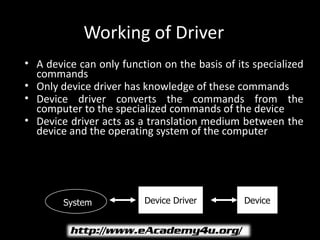
Working of Driver
• A device can only function on the basis of its specialized
  commands
• Only device driver has knowledge of these commands
• Device driver converts the commands from the
  computer to the specialized commands of the device
• Device driver acts as a translation medium between the
  device and the operating system of the computer


        System           Device Driver         Device
Uses of Drivers
• Updates - Enables updates for a hardware device to
  be independent of the operating system

• Troubleshooting - Used in case of a problem with a
  hardware device

• Better Performance - Provides for better usage of
  the system
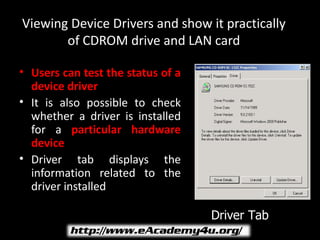
Viewing Device Drivers and show it practically
       of CDROM drive and LAN card

• Users can test the status of a
  device driver
• It is also possible to check
  whether a driver is installed
  for a particular hardware
  device
• Driver tab displays the
  information related to the
  driver installed

                                   Driver Tab
Driver Signing
• The Microsoft Windows Hardware Quality Lab
  ( WHQL ) test program certifies device drivers that
  meet a certain standard
• A digital signature is embedded in the device
  drivers that pass the WHQL test and these drivers
  are called signed drivers
• Updated drivers have to go through testing process
  again to get a new digital signature
• There are three options for driver signing Ignore,
  Warn and Block
Driver Signing
• Automatic installation of a new unsigned device
  driver can lead to following problems:
   – Installation of inferior drivers – can corrupt
     system memory and cause errors in functioning of
     system
   – Overwriting of system files – leads to
     compatibility problems. Devices that use these
     files will stop functioning and working of entire
     system deteriorate
   – Viruses
   – Installation of incompatible drivers
Complying with HCL
• Microsoft maintains a list of devices that have
  passed compatibility test of Microsoft Windows
  and are of high quality. This list is known as
  Hardware Compatibility List (HCL)
• You can comply with HCL by ensuring that
  Microsoft has certified all the devices connected
  to your computer
• It is possible to recognize and deal with unsigned
  driver files and system files with the help of the
  File Signature Verification tool
Show sigverif command practically
• Installing the driver using add hardware wizard
• Viewing signed driver from msinfo32
How to Become Perfect
• Read and understand the instructional
  manual or text file that is supplied with the
  driver
• Incorrect installation or updating of drivers
  can corrupt the operating system
• Keep in touch with driver manufacturer for
  latest updates.
• Search the manufacturer’s web site for
  available updated versions of the driver.
How to Become Perfect
•   It is also useful to check for updated versions of
    drivers on websites such as www.driverzone.com,
    www.driversguide.com and www.drivershq.com
•   Be very cautious in following the instructions when
    you are uninstalling a driver
Troubleshooting
• Any incorrect operation with respect to hardware
  drivers can cause great harm to the system.
• Various problems that may occur are:
   – Computer does not Work Properly after Installation of
     New Driver
   – Computer does not Update a Driver in Memory
   – Cannot Download Driver Updates from the Windows
     Update Site

Installing driver

  • 1.
  • 2.
    Working of Driver •A device can only function on the basis of its specialized commands • Only device driver has knowledge of these commands • Device driver converts the commands from the computer to the specialized commands of the device • Device driver acts as a translation medium between the device and the operating system of the computer System Device Driver Device
  • 3.
    Uses of Drivers •Updates - Enables updates for a hardware device to be independent of the operating system • Troubleshooting - Used in case of a problem with a hardware device • Better Performance - Provides for better usage of the system
  • 4.
    Viewing Device Driversand show it practically of CDROM drive and LAN card • Users can test the status of a device driver • It is also possible to check whether a driver is installed for a particular hardware device • Driver tab displays the information related to the driver installed Driver Tab
  • 5.
    Driver Signing • TheMicrosoft Windows Hardware Quality Lab ( WHQL ) test program certifies device drivers that meet a certain standard • A digital signature is embedded in the device drivers that pass the WHQL test and these drivers are called signed drivers • Updated drivers have to go through testing process again to get a new digital signature • There are three options for driver signing Ignore, Warn and Block
  • 6.
    Driver Signing • Automaticinstallation of a new unsigned device driver can lead to following problems: – Installation of inferior drivers – can corrupt system memory and cause errors in functioning of system – Overwriting of system files – leads to compatibility problems. Devices that use these files will stop functioning and working of entire system deteriorate – Viruses – Installation of incompatible drivers
  • 7.
    Complying with HCL •Microsoft maintains a list of devices that have passed compatibility test of Microsoft Windows and are of high quality. This list is known as Hardware Compatibility List (HCL) • You can comply with HCL by ensuring that Microsoft has certified all the devices connected to your computer • It is possible to recognize and deal with unsigned driver files and system files with the help of the File Signature Verification tool
  • 8.
    Show sigverif commandpractically • Installing the driver using add hardware wizard • Viewing signed driver from msinfo32
  • 9.
    How to BecomePerfect • Read and understand the instructional manual or text file that is supplied with the driver • Incorrect installation or updating of drivers can corrupt the operating system • Keep in touch with driver manufacturer for latest updates. • Search the manufacturer’s web site for available updated versions of the driver.
  • 10.
    How to BecomePerfect • It is also useful to check for updated versions of drivers on websites such as www.driverzone.com, www.driversguide.com and www.drivershq.com • Be very cautious in following the instructions when you are uninstalling a driver
  • 11.
    Troubleshooting • Any incorrectoperation with respect to hardware drivers can cause great harm to the system. • Various problems that may occur are: – Computer does not Work Properly after Installation of New Driver – Computer does not Update a Driver in Memory – Cannot Download Driver Updates from the Windows Update Site