Windows 2012 r2 Server Installation
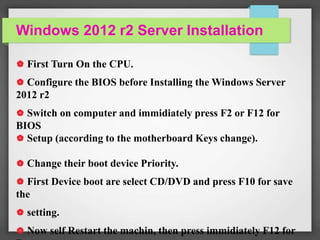
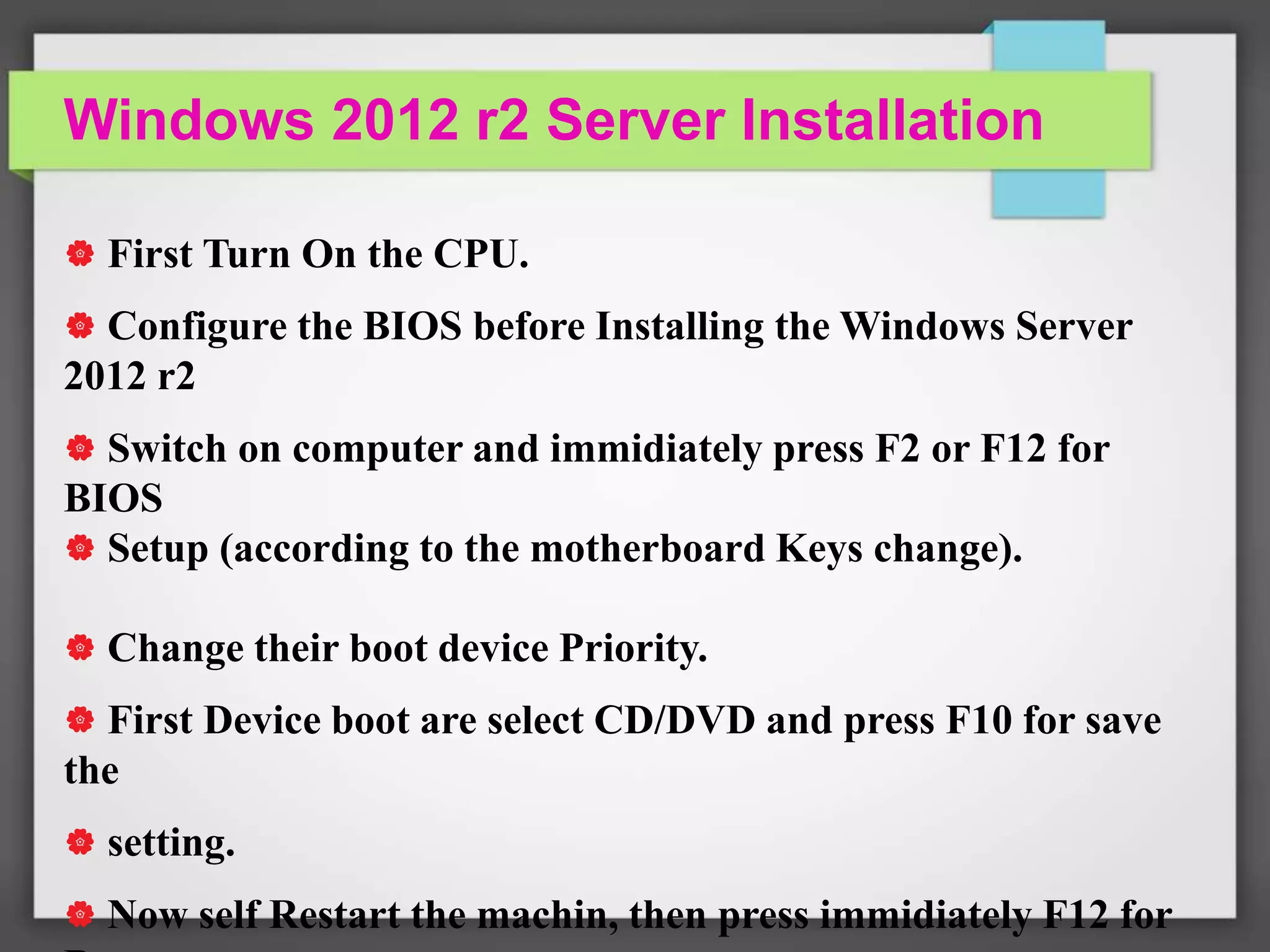
 First Turn On the CPU.
 Configure the BIOS before Installing the Windows Server
2012 r2
 Switch on computer and immidiately press F2 or F12 for
BIOS
 Setup (according to the motherboard Keys change).
 Change their boot device Priority.
 First Device boot are select CD/DVD and press F10 for save
the
 setting.
 Now self Restart the machin, then press immidiately F12 for
Windows 2012 r2 Server Installation
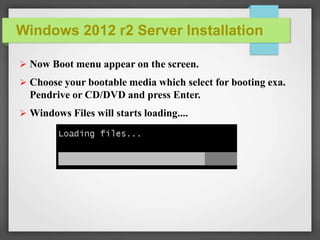
 Now Boot menu appear on the screen.
 Choose your bootable media which select for booting exa.
Pendrive or CD/DVD and press Enter.
 Windows Files will starts loading....
Windows 2012 r2 Server Installation
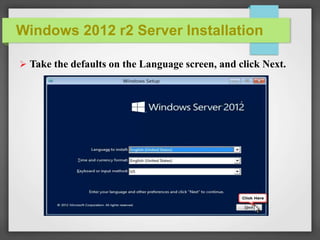
 Take the defaults on the Language screen, and click Next.
Windows 2012 r2 Server Installation
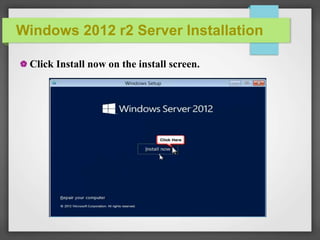
 Click Install now on the install screen.
Windows 2012 r2 Server Installation
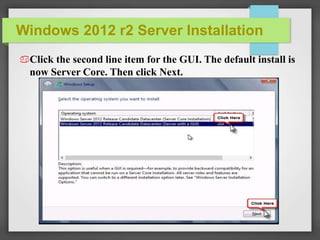
Click the second line item for the GUI. The default install is
now Server Core. Then click Next.
Windows 2012 r2 Server Installation
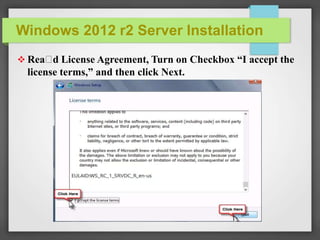
 Rea d License Agreement, Turn on Checkbox “I accept the
license terms,” and then click Next.
Windows 2012 r2 Server Installation
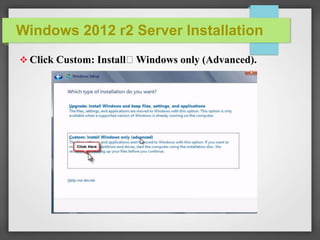
 Click Custom: Install Windows only (Advanced).
Windows 2012 r2 Server Installation
 [Optional:] Click drive options; then you can create custom
partitions.
Windows 2012 r2 Server Installation
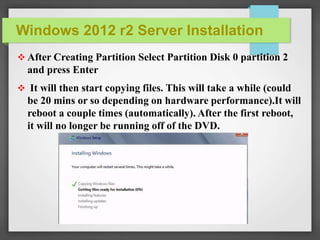
 After Creating Partition Select Partition Disk 0 partition 2
and press Enter
 It will then start copying files. This will take a while (could
be 20 mins or so depending on hardware performance).It will
reboot a couple times (automatically). After the first reboot,
it will no longer be running off of the DVD.
Windows 2012 r2 Server Installation
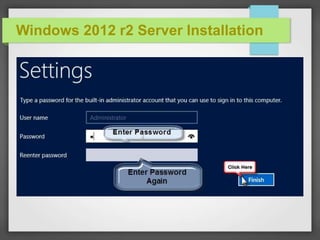
 In the Password box, enter a new password for this
computer. It must meet complexity requirements. Re-enter
the password in the second password box, and then click
Finish.
Windows 2012 r2 Server Installation
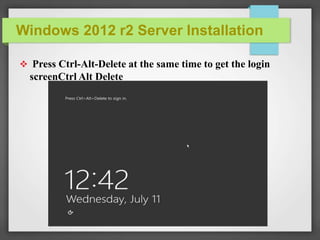
 Press Ctrl-Alt-Delete at the same time to get the login
screenCtrl Alt Delete
Windows 2012 r2 Server Installation
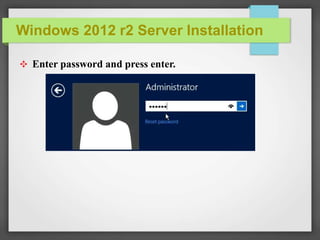
✥ Enter password and press enter.
Windows 2012 r2 Server Installation
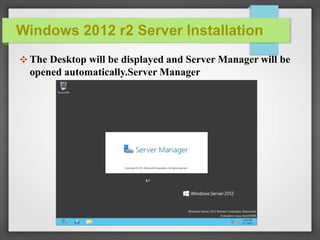
✥ The Desktop will be displayed and Server Manager will be
opened automatically.Server Manager
Windows 2012 r2 Server Installation
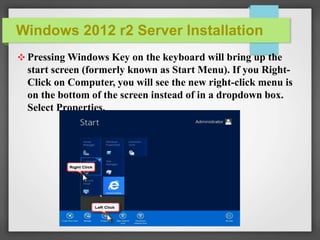
✥ Pressing Windows Key on the keyboard will bring up the
start screen (formerly known as Start Menu). If you Right-
Click on Computer, you will see the new right-click menu is
on the bottom of the screen instead of in a dropdown box.
Select Properties.
Windows 2012 r2 Server Installation
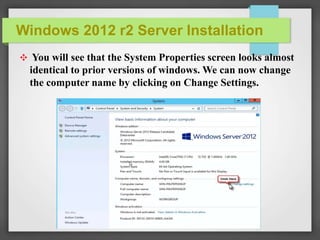
✥ You will see that the System Properties screen looks almost
identical to prior versions of windows. We can now change
the computer name by clicking on Change Settings.
Windows 2012 r2 Server Installation
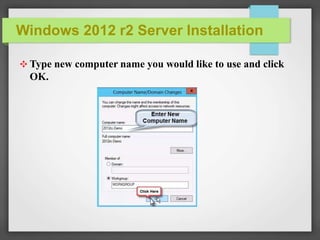
✥ Type new computer name you would like to use and click
OK.
Windows 2012 r2 Server Installation
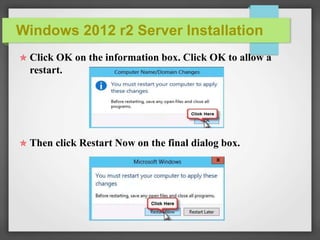
✯ Click OK on the information box. Click OK to allow a
restart.
✯ Then click Restart Now on the final dialog box.
Windows 2012 r2 Server Installation
✯ When the computer restarts it will have the new name, just
login.
✯ Now Computer are start.
✯ Windows 2012 r2 Server Installation Completed
Thanking You

Windows 2012 r2 server installation

  • 1.
    Windows 2012 r2Server Installation  First Turn On the CPU.  Configure the BIOS before Installing the Windows Server 2012 r2  Switch on computer and immidiately press F2 or F12 for BIOS  Setup (according to the motherboard Keys change).  Change their boot device Priority.  First Device boot are select CD/DVD and press F10 for save the  setting.  Now self Restart the machin, then press immidiately F12 for
  • 2.
    Windows 2012 r2Server Installation  Now Boot menu appear on the screen.  Choose your bootable media which select for booting exa. Pendrive or CD/DVD and press Enter.  Windows Files will starts loading....
  • 3.
    Windows 2012 r2Server Installation  Take the defaults on the Language screen, and click Next.
  • 4.
    Windows 2012 r2Server Installation  Click Install now on the install screen.
  • 5.
    Windows 2012 r2Server Installation Click the second line item for the GUI. The default install is now Server Core. Then click Next.
  • 6.
    Windows 2012 r2Server Installation  Rea d License Agreement, Turn on Checkbox “I accept the license terms,” and then click Next.
  • 7.
    Windows 2012 r2Server Installation  Click Custom: Install Windows only (Advanced).
  • 8.
    Windows 2012 r2Server Installation  [Optional:] Click drive options; then you can create custom partitions.
  • 9.
    Windows 2012 r2Server Installation  After Creating Partition Select Partition Disk 0 partition 2 and press Enter  It will then start copying files. This will take a while (could be 20 mins or so depending on hardware performance).It will reboot a couple times (automatically). After the first reboot, it will no longer be running off of the DVD.
  • 10.
    Windows 2012 r2Server Installation  In the Password box, enter a new password for this computer. It must meet complexity requirements. Re-enter the password in the second password box, and then click Finish.
  • 11.
    Windows 2012 r2Server Installation
  • 12.
    Windows 2012 r2Server Installation  Press Ctrl-Alt-Delete at the same time to get the login screenCtrl Alt Delete
  • 13.
    Windows 2012 r2Server Installation ✥ Enter password and press enter.
  • 14.
    Windows 2012 r2Server Installation ✥ The Desktop will be displayed and Server Manager will be opened automatically.Server Manager
  • 15.
    Windows 2012 r2Server Installation ✥ Pressing Windows Key on the keyboard will bring up the start screen (formerly known as Start Menu). If you Right- Click on Computer, you will see the new right-click menu is on the bottom of the screen instead of in a dropdown box. Select Properties.
  • 16.
    Windows 2012 r2Server Installation ✥ You will see that the System Properties screen looks almost identical to prior versions of windows. We can now change the computer name by clicking on Change Settings.
  • 17.
    Windows 2012 r2Server Installation ✥ Type new computer name you would like to use and click OK.
  • 18.
    Windows 2012 r2Server Installation ✯ Click OK on the information box. Click OK to allow a restart. ✯ Then click Restart Now on the final dialog box.
  • 19.
    Windows 2012 r2Server Installation ✯ When the computer restarts it will have the new name, just login. ✯ Now Computer are start. ✯ Windows 2012 r2 Server Installation Completed Thanking You