Files and Folders
Logging On
1.Put your bag under the desk
2.Log onto the computer
If you have forgot your password put your hand up
Files and Folders
Starter Activity: Rules
How many rules and user responsibilities can you
remember. You agreed to these last week!
Be ready to explain them to the rest of the class.
Files and Folders
In this lesson you will learn all about file
management. You will create a set of folders in
your home folder, save a file into your home
folder and access a document in a shared folder.
Lesson
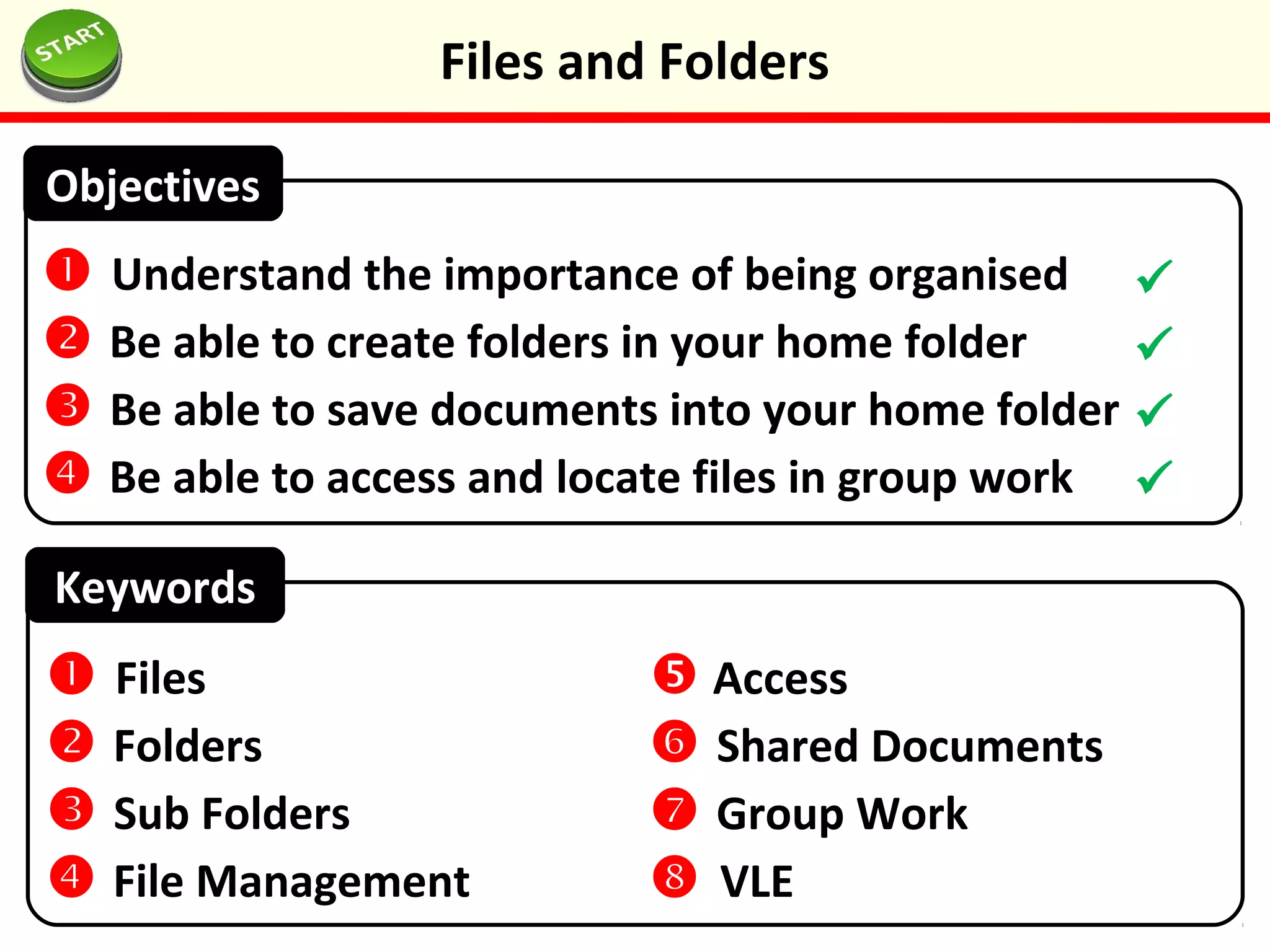
Objectives
 Understand the importance of being organised
 Be able to create folders in your home folder
 Be able to save documents into your home folder
 Be able to access and locate files in group work
Files and Folders
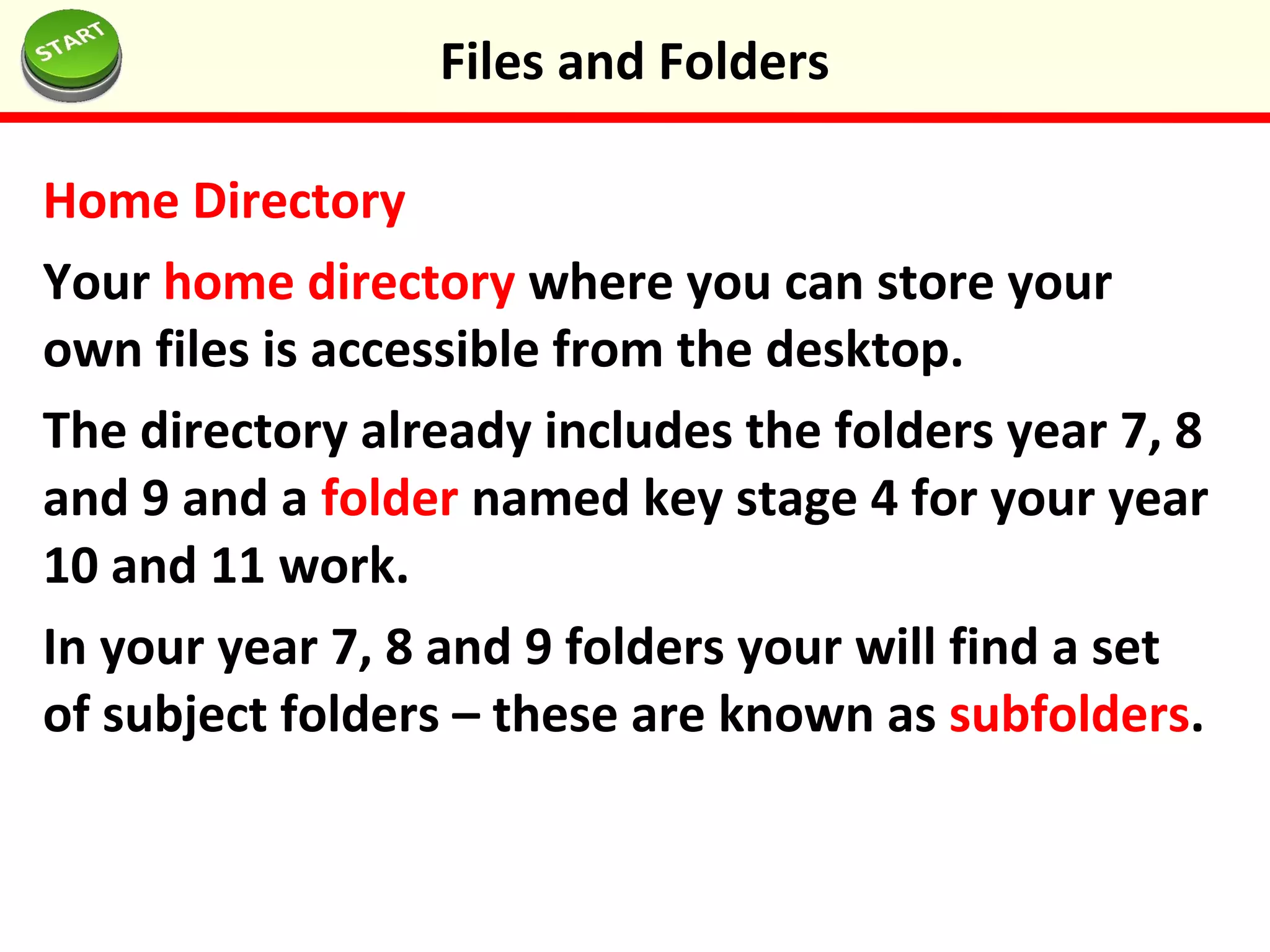
File Management
Why is it important to name your files
appropriately and organised them into folders?
Files and Folders
Home Directory
Your home directory where you can store your
own files is accessible from the desktop.
The directory already includes the folders year 7, 8
and 9 and a folder named key stage 4 for your year
10 and 11 work.
In your year 7, 8 and 9 folders your will find a set
of subject folders – these are known as subfolders.
Files and Folders
Task 3: Creating Folders
Navigate to: Year 7 > IT and Computing>
Create the following sub folders:
1.Getting Started
2.Functional Skills
3.Staying Safe Online
4.Computer Basics
5.Programming in Scratch
6.Sound Editing
Files and Folders
Task 4: Accessing Shared Documents
1.On your desktop click on Groupwork
2.Open on the IT and Computing Folder
3.Open the Getting Started Folder
4.Open the document called VLE
5.You will see a picture of the Virtual Learning
Environment (VLE) – you will learn more about
this next week
6.Close the document
Files and Folders
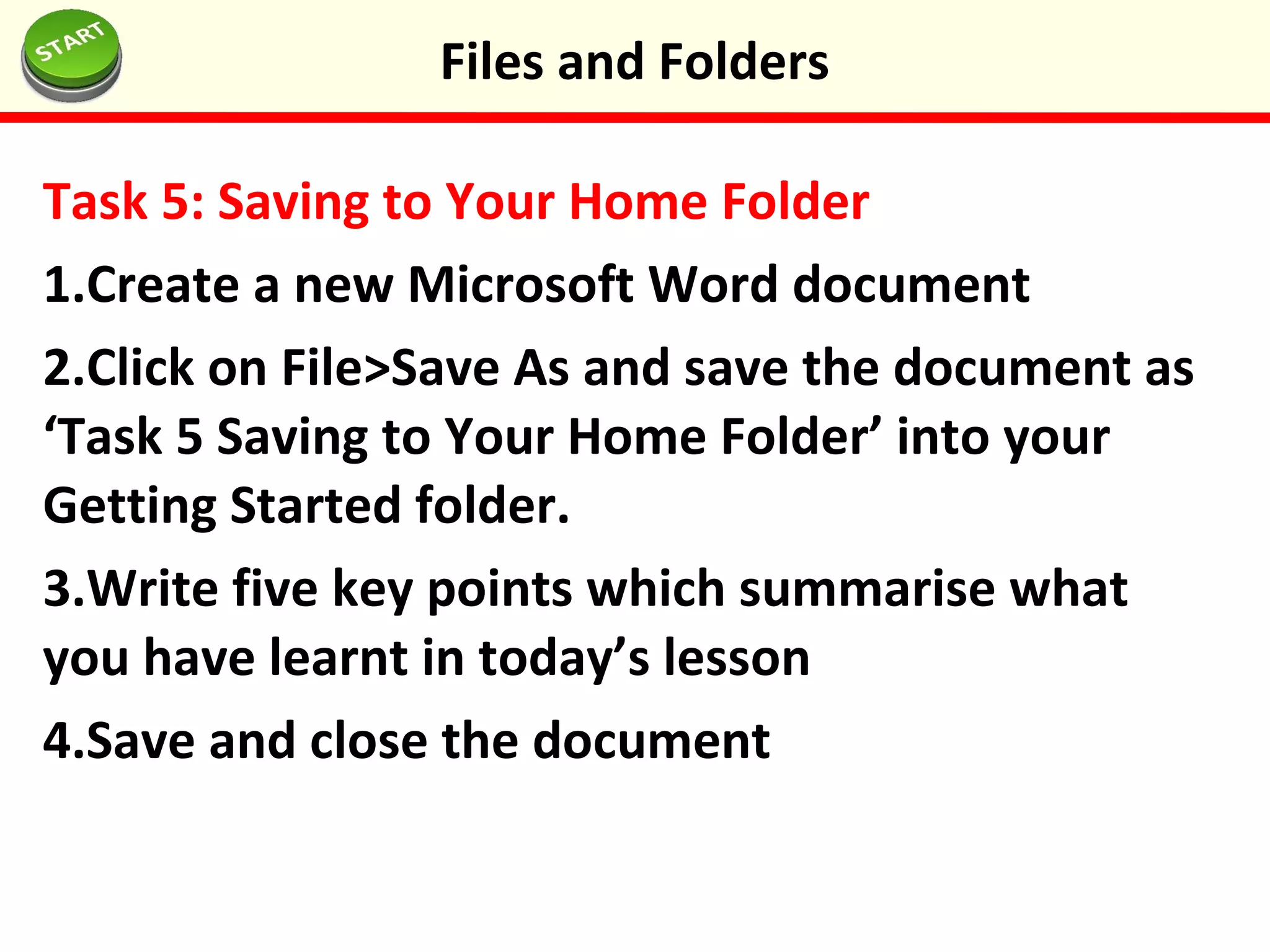
Task 5: Saving to Your Home Folder
1.Create a new Microsoft Word document
2.Click on File>Save As and save the document as
‘Task 5 Saving to Your Home Folder’ into your
Getting Started folder.
3.Write five key points which summarise what
you have learnt in today’s lesson
4.Save and close the document
Files and Folders
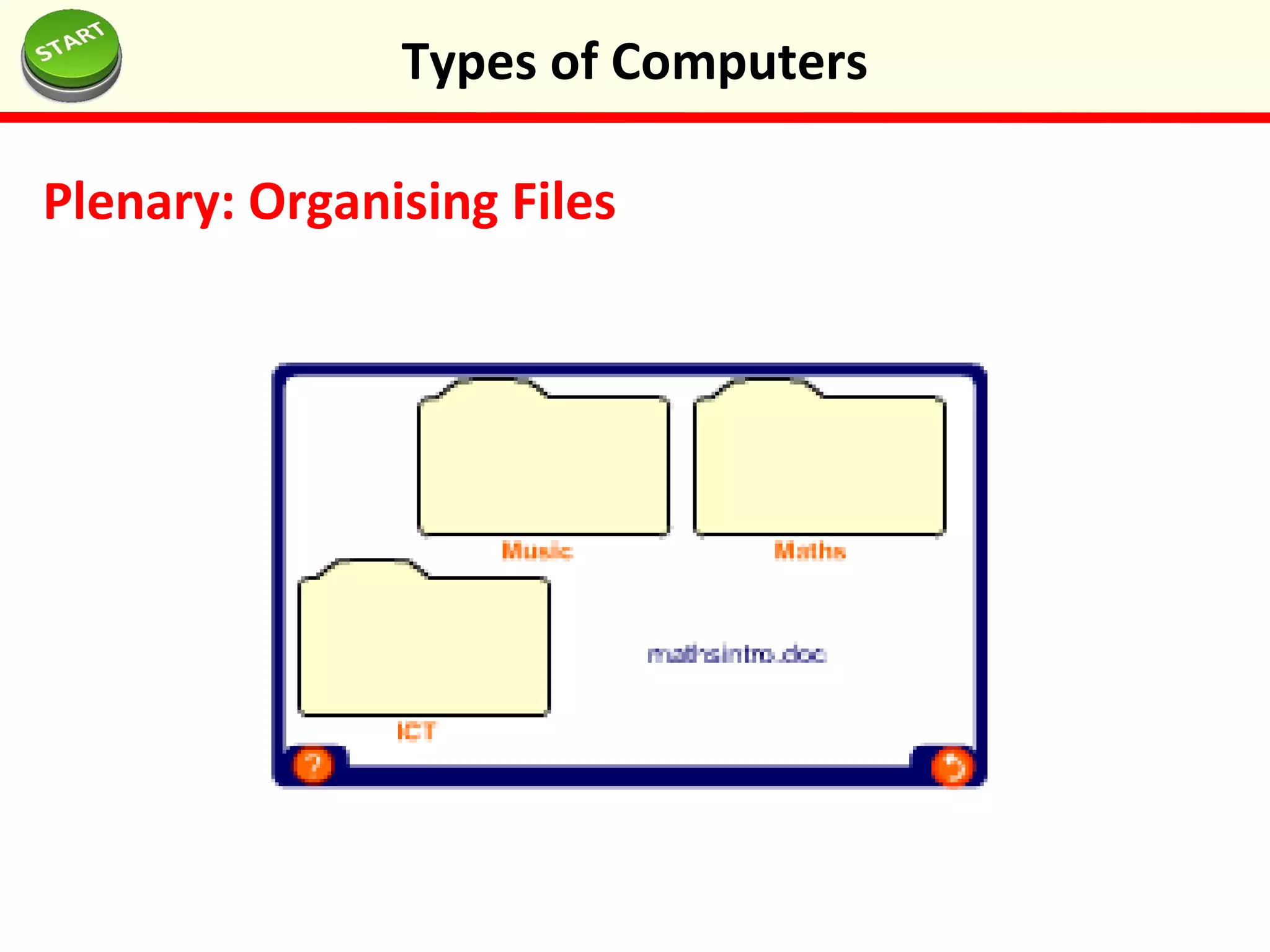
Plenary: Organising Files
Types of Computers
Keywords
 Understand the importance of being organised
 Be able to create folders in your home folder
 Be able to save documents into your home folder
 Be able to access and locate files in group work
Objectives
 Files
 Folders
 Sub Folders
 File Management
 Access
 Shared Documents
 Group Work
 VLE




Files and Folders

Files and Folders

  • 1.
  • 2.
    Logging On 1.Put yourbag under the desk 2.Log onto the computer If you have forgot your password put your hand up Files and Folders
  • 3.
    Starter Activity: Rules Howmany rules and user responsibilities can you remember. You agreed to these last week! Be ready to explain them to the rest of the class. Files and Folders
  • 4.
    In this lessonyou will learn all about file management. You will create a set of folders in your home folder, save a file into your home folder and access a document in a shared folder. Lesson Objectives  Understand the importance of being organised  Be able to create folders in your home folder  Be able to save documents into your home folder  Be able to access and locate files in group work Files and Folders
  • 5.
    File Management Why isit important to name your files appropriately and organised them into folders? Files and Folders
  • 6.
    Home Directory Your homedirectory where you can store your own files is accessible from the desktop. The directory already includes the folders year 7, 8 and 9 and a folder named key stage 4 for your year 10 and 11 work. In your year 7, 8 and 9 folders your will find a set of subject folders – these are known as subfolders. Files and Folders
  • 7.
    Task 3: CreatingFolders Navigate to: Year 7 > IT and Computing> Create the following sub folders: 1.Getting Started 2.Functional Skills 3.Staying Safe Online 4.Computer Basics 5.Programming in Scratch 6.Sound Editing Files and Folders
  • 8.
    Task 4: AccessingShared Documents 1.On your desktop click on Groupwork 2.Open on the IT and Computing Folder 3.Open the Getting Started Folder 4.Open the document called VLE 5.You will see a picture of the Virtual Learning Environment (VLE) – you will learn more about this next week 6.Close the document Files and Folders
  • 9.
    Task 5: Savingto Your Home Folder 1.Create a new Microsoft Word document 2.Click on File>Save As and save the document as ‘Task 5 Saving to Your Home Folder’ into your Getting Started folder. 3.Write five key points which summarise what you have learnt in today’s lesson 4.Save and close the document Files and Folders
  • 10.
  • 11.
    Keywords  Understand theimportance of being organised  Be able to create folders in your home folder  Be able to save documents into your home folder  Be able to access and locate files in group work Objectives  Files  Folders  Sub Folders  File Management  Access  Shared Documents  Group Work  VLE     Files and Folders

Editor's Notes

  • #7  portable  easy to use  don’t take up much space  connected to the Internet