FILES AND FOLDER
MANAGEMENT
After this chapter the student will be able
to;
 Use the different types of storage media.
 Be able to create, save and transfer files.
 Convert units for data storage.
Chapter
3
FILES
A file is a basic unit of storage on a computer
holding related data or information.
The data could be in form of text, music , videos, etc
and you store this data on various storage devices.
As you work on a computer, you create several files
containing data and information.
Every file stored on a computer should have a
name and is represented by an image(icon)
An Icon is a small graphical representation of a
program.
1A-2
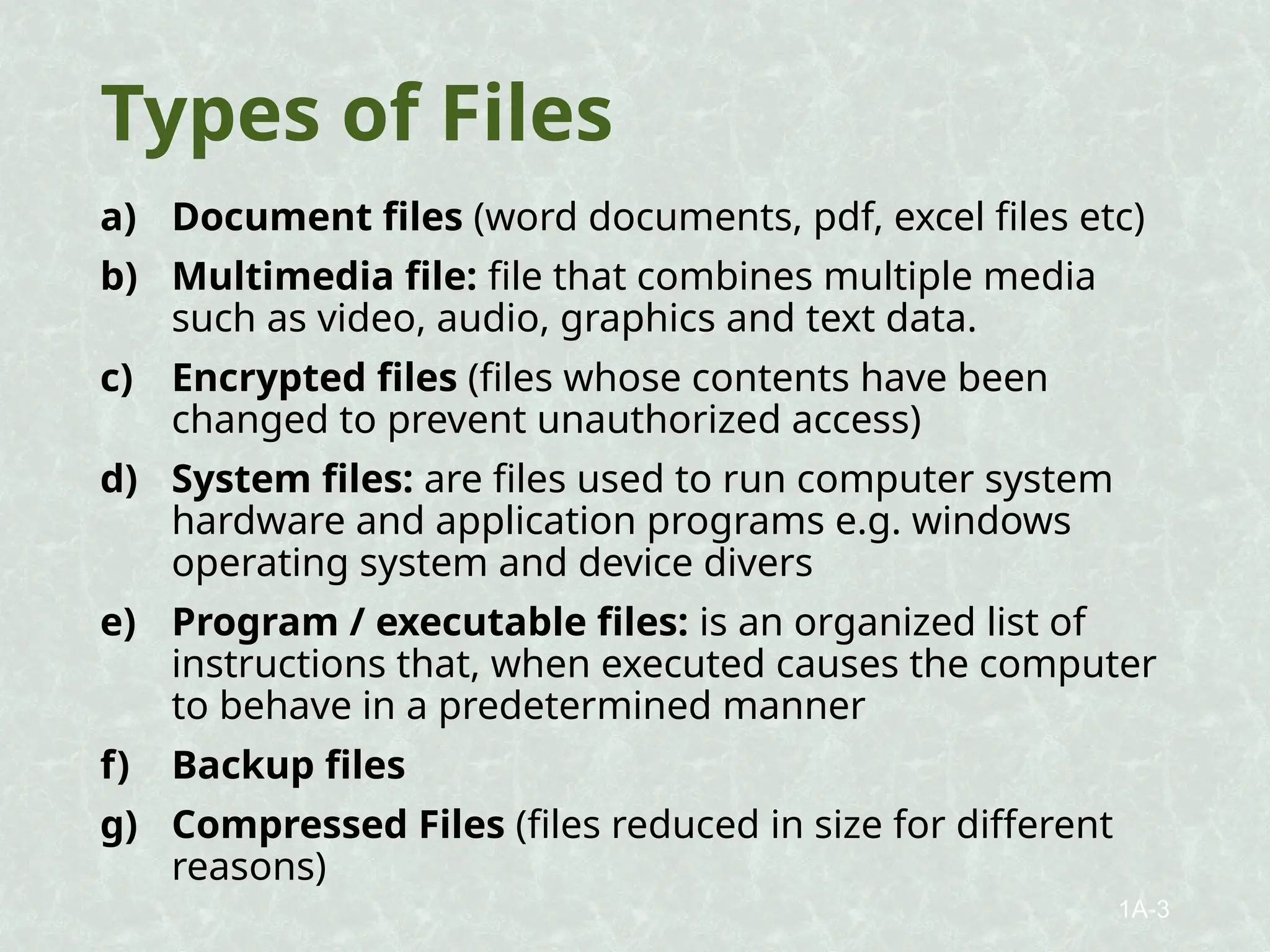
Types of Files
a) Document files (word documents, pdf, excel files etc)
b) Multimedia file: file that combines multiple media
such as video, audio, graphics and text data.
c) Encrypted files (files whose contents have been
changed to prevent unauthorized access)
d) System files: are files used to run computer system
hardware and application programs e.g. windows
operating system and device divers
e) Program / executable files: is an organized list of
instructions that, when executed causes the computer
to behave in a predetermined manner
f) Backup files
g) Compressed Files (files reduced in size for different
reasons)
1A-3
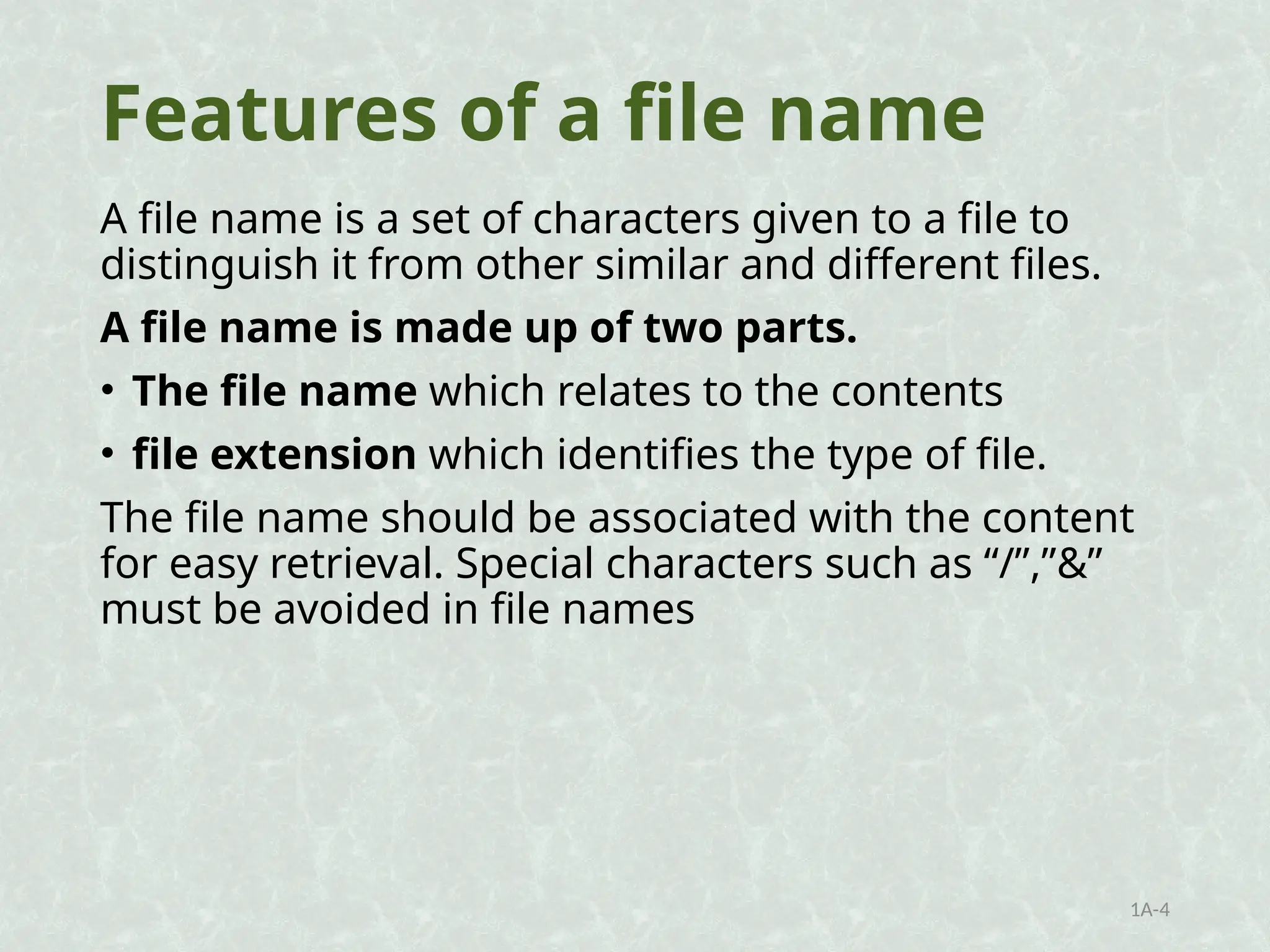
Features of a file name
A file name is a set of characters given to a file to
distinguish it from other similar and different files.
A file name is made up of two parts.
• The file name which relates to the contents
• file extension which identifies the type of file.
The file name should be associated with the content
for easy retrieval. Special characters such as “/”,”&”
must be avoided in file names
1A-4
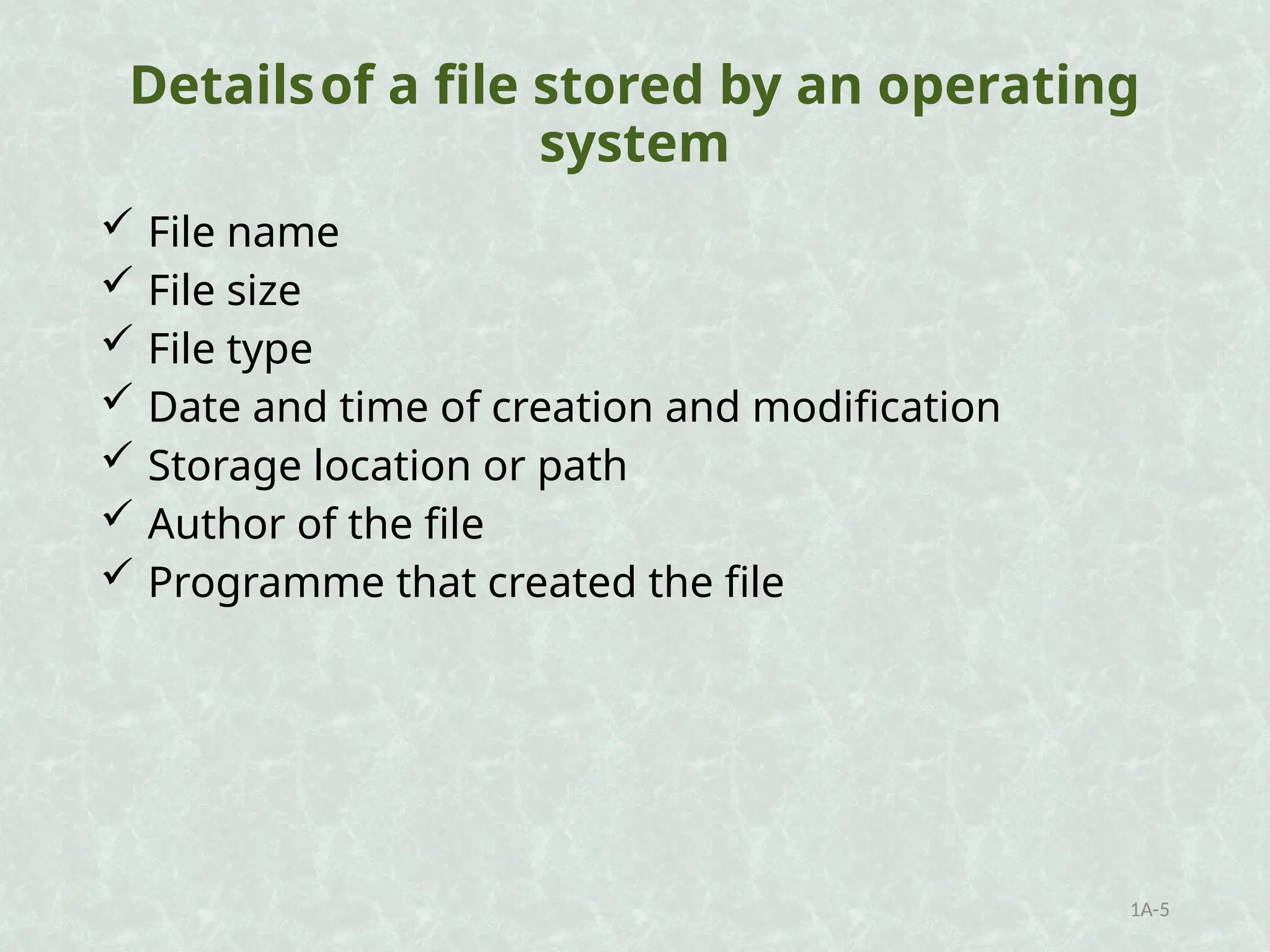
Detailsof a file stored by an operating
system
 File name
 File size
 File type
 Date and time of creation and modification
 Storage location or path
 Author of the file
 Programme that created the file
1A-5
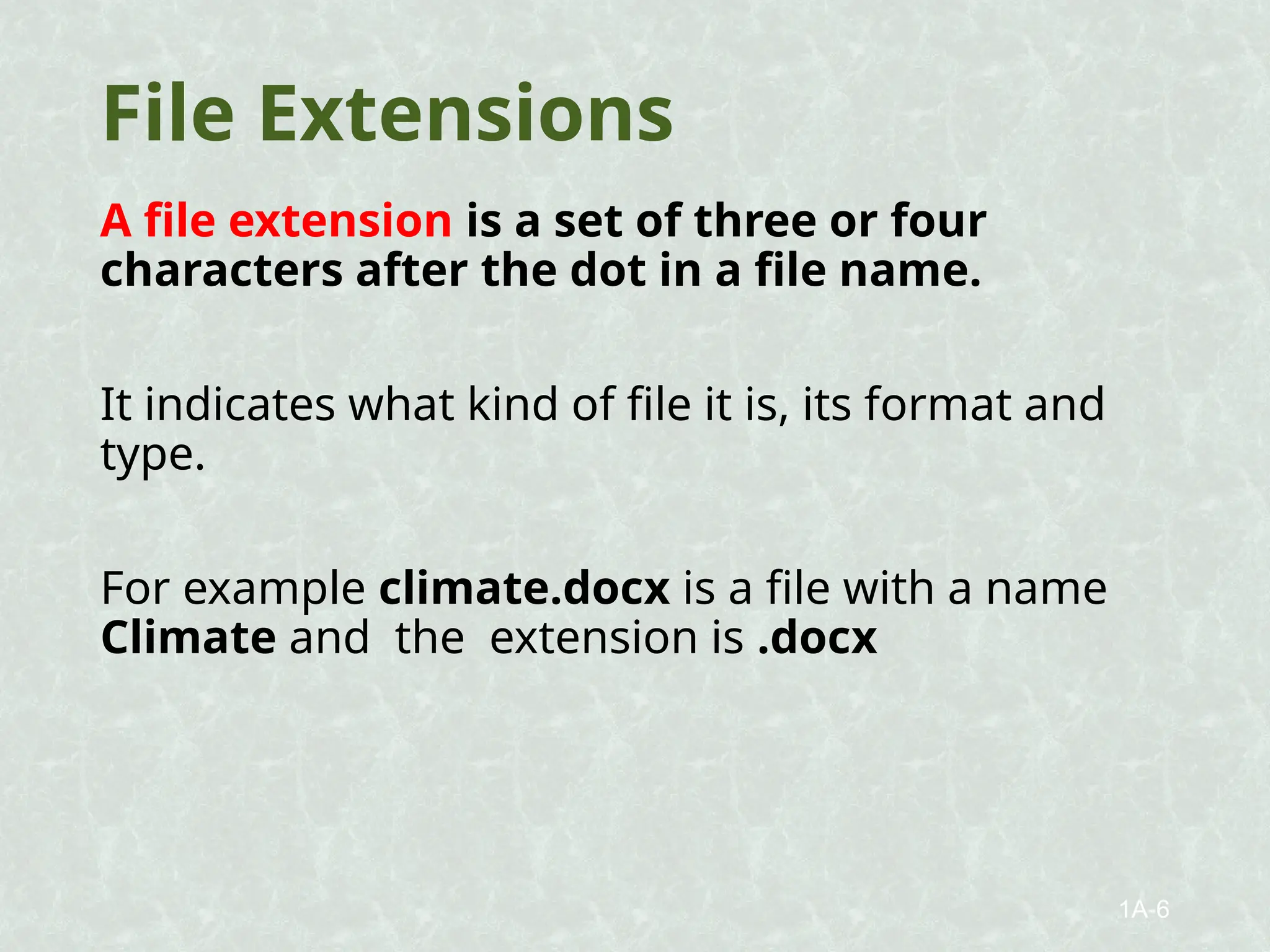
File Extensions
A file extension is a set of three or four
characters after the dot in a file name.
It indicates what kind of file it is, its format and
type.
For example climate.docx is a file with a name
Climate and the extension is .docx
1A-6
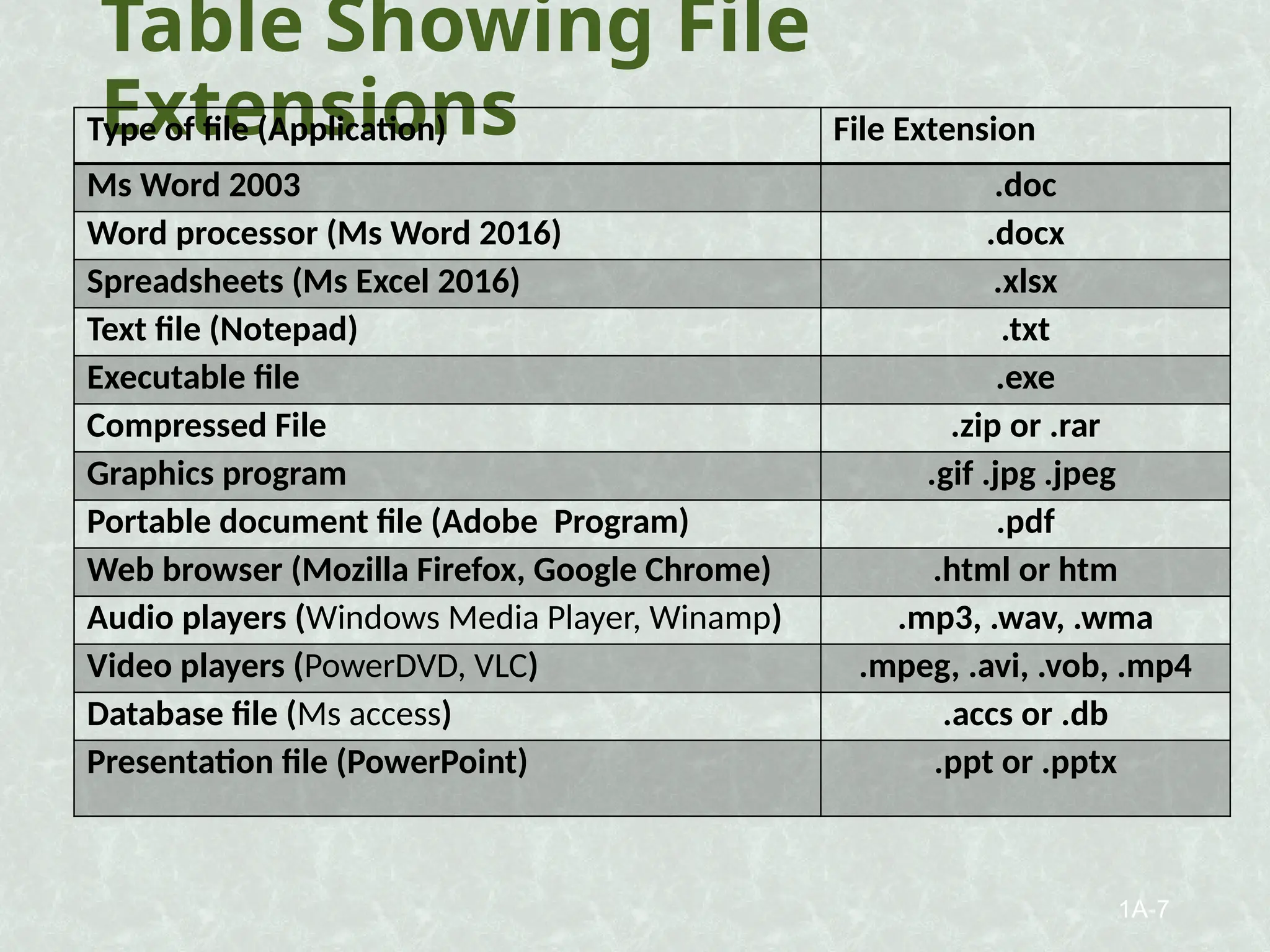
Table Showing File
Extensions
Type of file (Application) File Extension
Ms Word 2003 .doc
Word processor (Ms Word 2016) .docx
Spreadsheets (Ms Excel 2016) .xlsx
Text file (Notepad) .txt
Executable file .exe
Compressed File .zip or .rar
Graphics program .gif .jpg .jpeg
Portable document file (Adobe Program) .pdf
Web browser (Mozilla Firefox, Google Chrome) .html or htm
Audio players (Windows Media Player, Winamp) .mp3, .wav, .wma
Video players (PowerDVD, VLC) .mpeg, .avi, .vob, .mp4
Database file (Ms access) .accs or .db
Presentation file (PowerPoint) .ppt or .pptx
1A-7
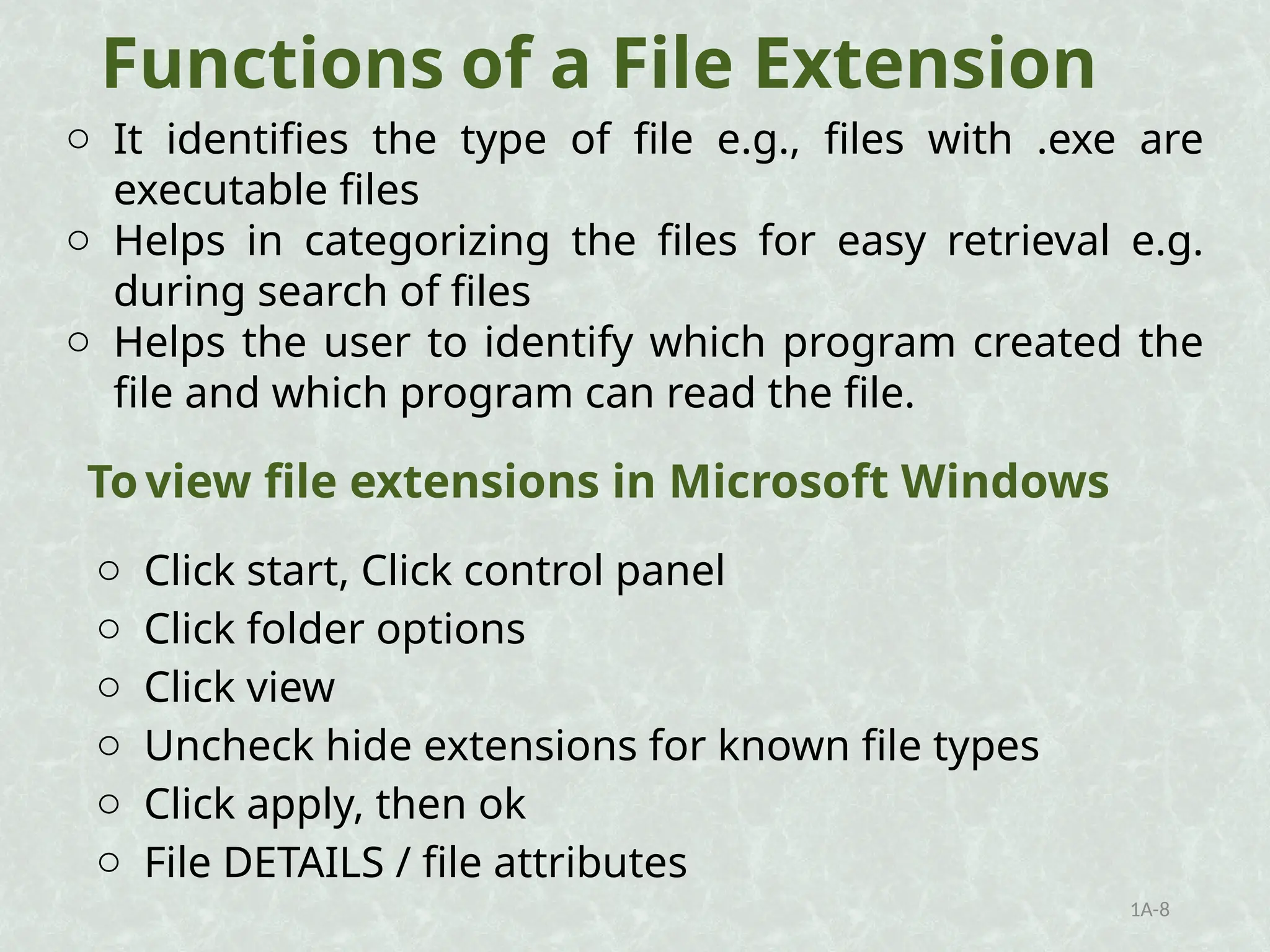
Functions of a File Extension
o It identifies the type of file e.g., files with .exe are
executable files
o Helps in categorizing the files for easy retrieval e.g.
during search of files
o Helps the user to identify which program created the
file and which program can read the file.
1A-8
o Click start, Click control panel
o Click folder options
o Click view
o Uncheck hide extensions for known file types
o Click apply, then ok
o File DETAILS / file attributes
To view file extensions in Microsoft Windows
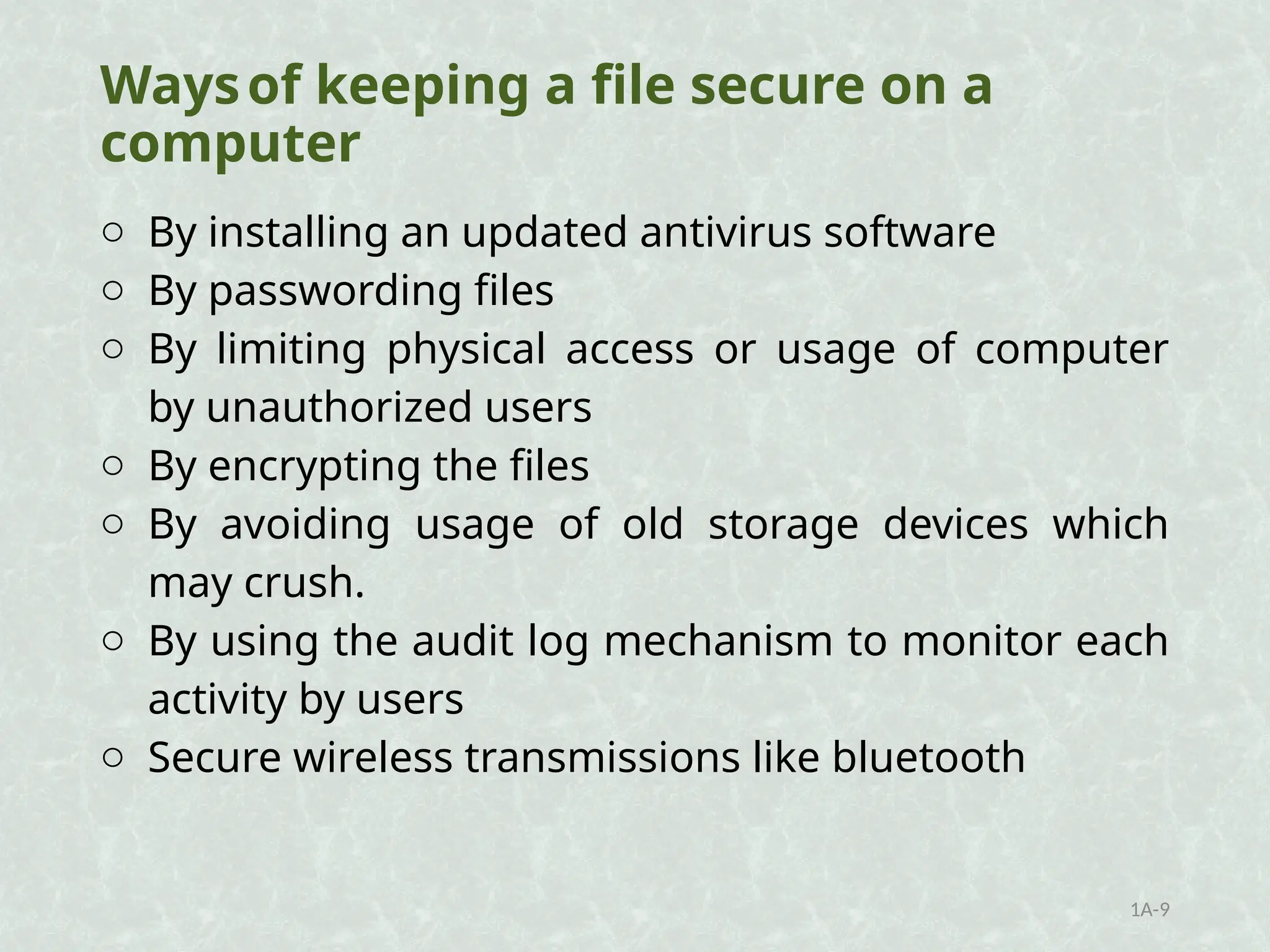
Waysof keeping a file secure on a
computer
o By installing an updated antivirus software
o By passwording files
o By limiting physical access or usage of computer
by unauthorized users
o By encrypting the files
o By avoiding usage of old storage devices which
may crush.
o By using the audit log mechanism to monitor each
activity by users
o Secure wireless transmissions like bluetooth
1A-9
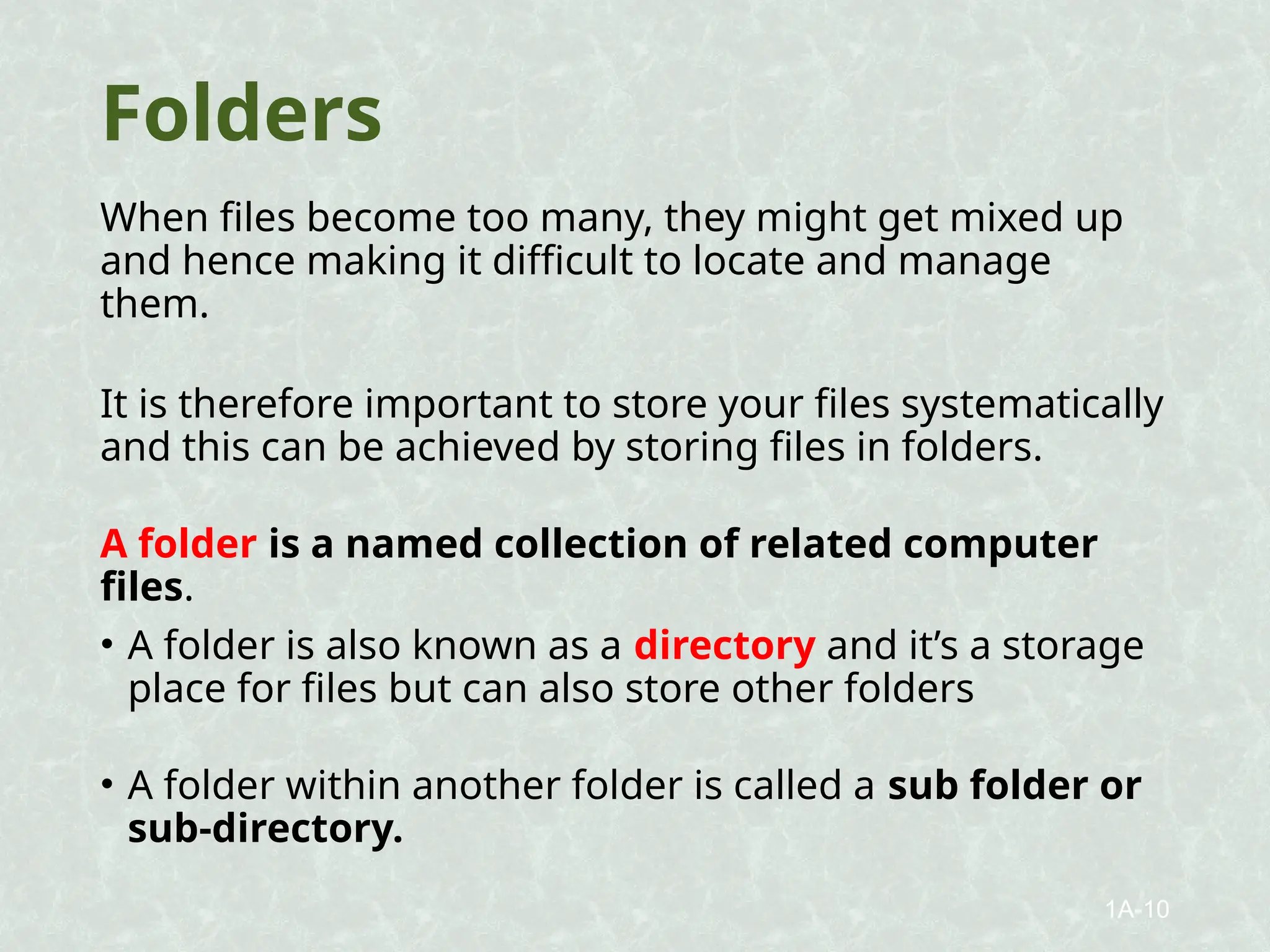
Folders
When files become too many, they might get mixed up
and hence making it difficult to locate and manage
them.
It is therefore important to store your files systematically
and this can be achieved by storing files in folders.
A folder is a named collection of related computer
files.
• A folder is also known as a directory and it’s a storage
place for files but can also store other folders
• A folder within another folder is called a sub folder or
sub-directory.
1A-10
Tasks that can be carried out on files
and folders
Once files and folders are created, several
actions can be performed on them for
better management.
Before any action is performed on a file or
folder, it has to be selected.
These actions include cutting, copying,
Pasting, Moving, Renaming and
deleting.
1A-11
a) Cut – this is when a file is moved from one
location to another without leaving a copy
behind.
b) Copy – is used when a duplicate of a file is
needed leaving the original copy intact.
c) Paste – this is placing of the cut or copied
file in a selected area of a document.
d) Rename – this means changing the original
name of a file to a new name.
e) Delete – this means removing a file from the
computer. (Files removed from the computer
are placed in the recycle bin until the recycle
bin is emptied by deleting the files there.
1A-12
Tasks that can be carried out on files
and folders
 Printing
 Deleting
 Renaming
 Searching
 Moving
 Restoring
 Copying and pasting
 Selecting
 Editing
 Formatting
 Storing or backing up
1A-13
Procedures for carrying out common
tasks on files and folders
•Creating a New folder on the desktop
 Right-click on any empty or free part of the
desktop,
 From the drop-down menu, select new,
 Then choose the folder,
 Give the folder an appropriate name and press the
enter key.
•Renaming a file/folder
 Right-click on the file/folder you wish to rename,
 Select the rename option,
 Give the folder a new name and confirm by
pressing the enter key. 1A-14
Ways of moving a folder or file
•You can move the file/folder in any one of following two ways;
 You can first click and drag the file to another folder or
 You can also right-click on the file and choose cut option
from the drop down menu that appears, then you go to the
destination area and right click in space and choose paste
from the options that appear on the drop down menu.
Deleting a folder
 Right click on the folder
 Choose the delete option
Or
 Click on the file and press the delete button on the
keyboard.
1A-15
• Burning data to a disc
• Transferring files between different storage
media.
• Storage of files on the cloud.
1A-16
File Path
This refers to the exact location of a file. It
includes the drive letter, folder, sub folder and file
name.
Activity 1: Create a folder on the desktop and
name it Seeta High School . Go ahead and create
a Microsoft word file and save it as Timetable
inside that folder.
1A-17
Activity 2: Open the folder Seeta High School and
create another folder inside call it Mukono. Drag the
document Timetable and drop it into this new created
folder.
Now open the folder Mukono and open the document.
Type this line “ICT is the best subject on this planet.”
Save and close the file.
Identify the file path again following the same
procedure as before.
1A-18
Identifying a File Path
Open the folder created above.
Select the file and then right click on the file.
Select Properties from that menu.
From the prompt that appears identify the;
Location
Folder where its located
Size of the file
Date it was created and modified.
1A-19
The result obtained for the location of the file is
known as the file path. It identifies the;
 Drive letter
 User Profile
 The folder and subfolder(if
present) where its saved.
 The filename
1A-20
Major folders/directories on a
computer
 A recycle bin: this is a folder where deleted items are
temporarily stored allowing users to recover them
before permanent deletion.
 My Computer: A directory that provides access to
computer storage hardware devices and drives.
 Desktop: This is the primary location where user files
and shortcuts are placed for easy access.
 Documents: A folder for storing user-generated
documents and files.
 Downloads: Files downloaded from the internet are
often saved in this folder.
 Pictures (or "Photos"): Typically used to store image files
and photographs.
 Music: Designed for storing audio files and music tracks.
 Videos: Intended for storing video files.
 Network: This folder allows users to browse and access
1A-21
Measurement of Storage
Capacity
Identify the following storage media.
1A-22
All storage devices covered in the previous
chapter have different storage capacities.
The same thing applies to files and folders since
they are all managed on storage devices.
1A-23
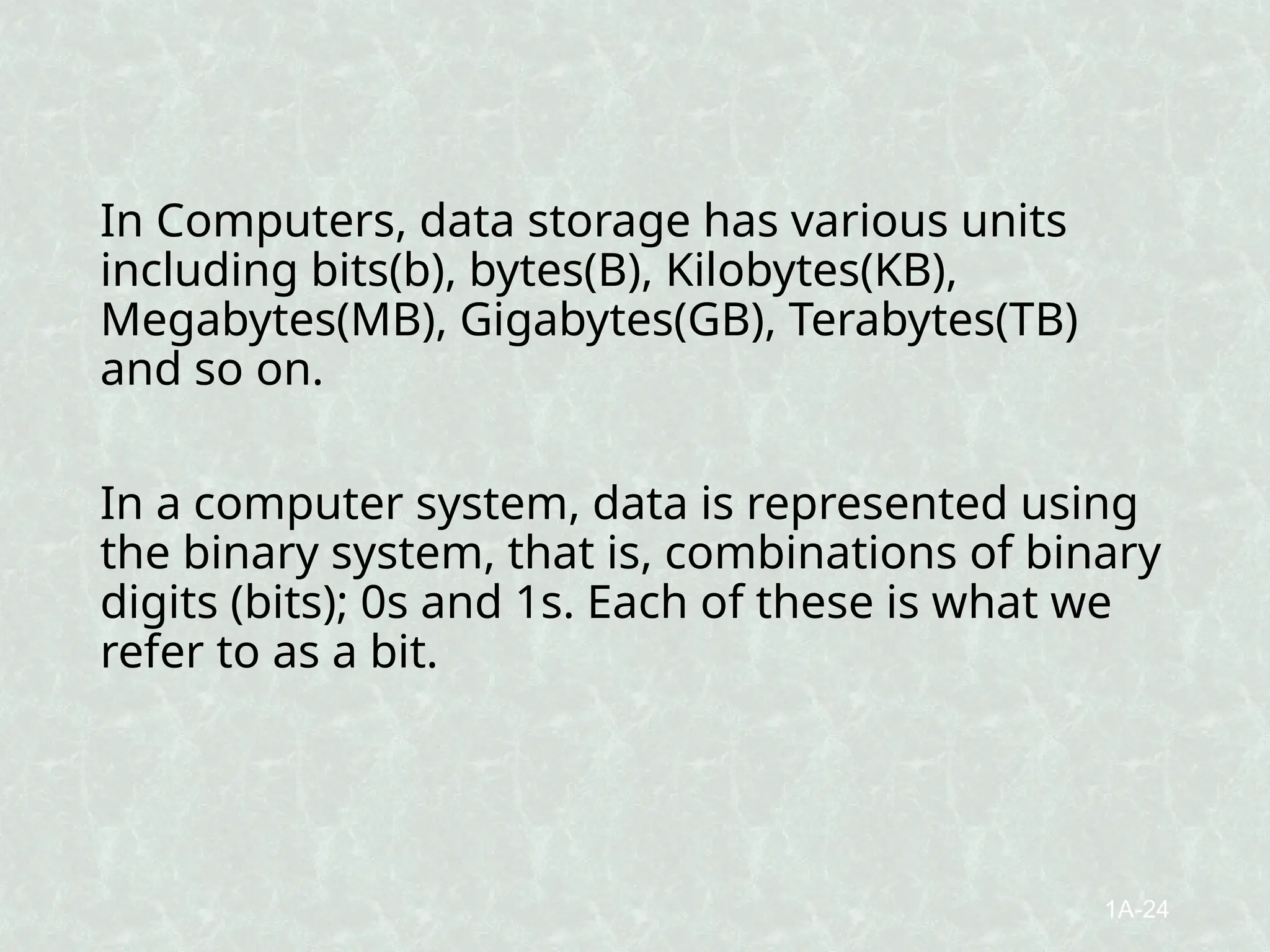
In Computers, data storage has various units
including bits(b), bytes(B), Kilobytes(KB),
Megabytes(MB), Gigabytes(GB), Terabytes(TB)
and so on.
In a computer system, data is represented using
the binary system, that is, combinations of binary
digits (bits); 0s and 1s. Each of these is what we
refer to as a bit.
1A-24
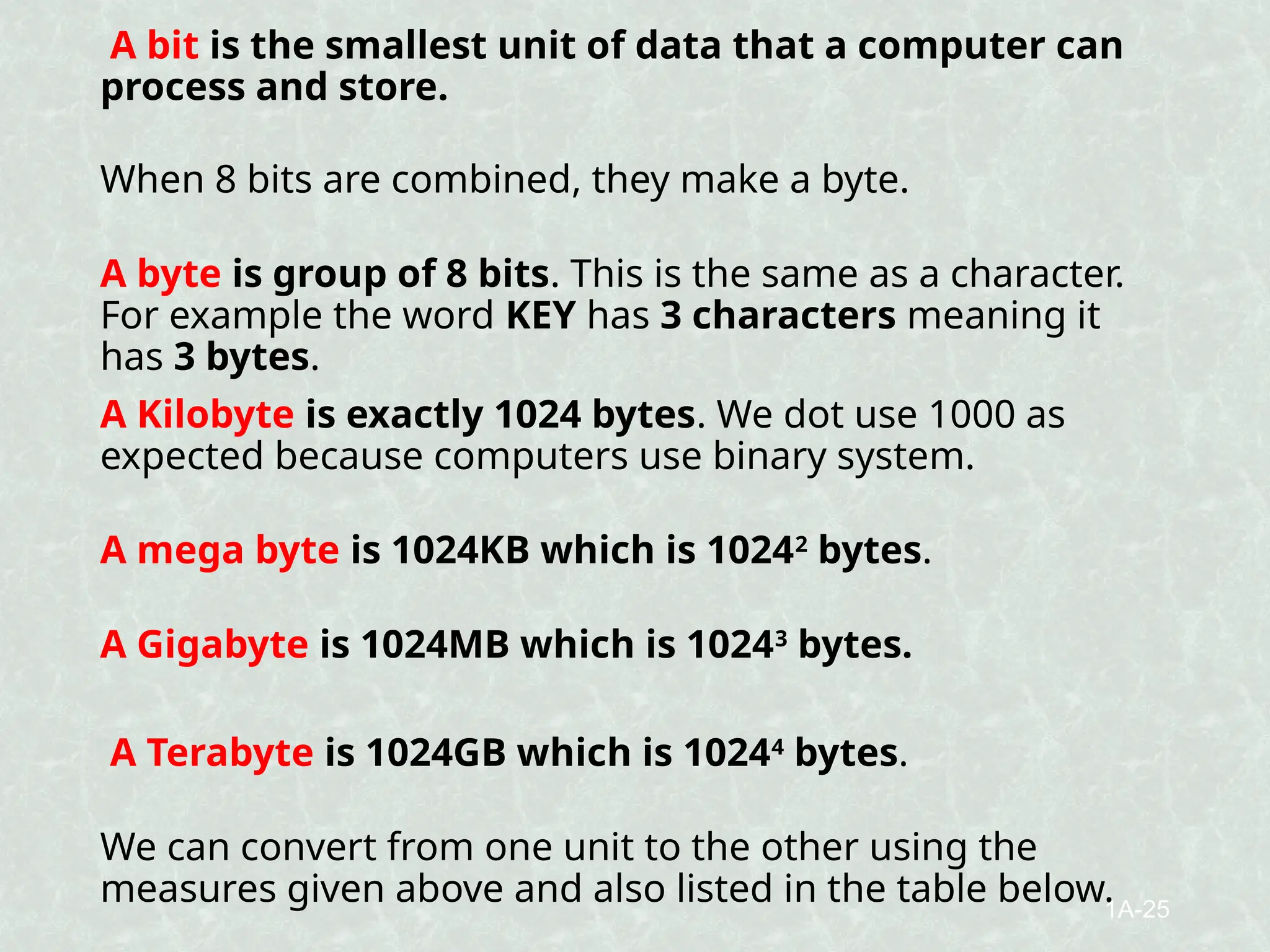
A bit is the smallest unit of data that a computer can
process and store.
When 8 bits are combined, they make a byte.
A byte is group of 8 bits. This is the same as a character.
For example the word KEY has 3 characters meaning it
has 3 bytes.
A Kilobyte is exactly 1024 bytes. We dot use 1000 as
expected because computers use binary system.
A mega byte is 1024KB which is 10242
bytes.
A Gigabyte is 1024MB which is 10243
bytes.
A Terabyte is 1024GB which is 10244
bytes.
We can convert from one unit to the other using the
measures given above and also listed in the table below.
1A-25
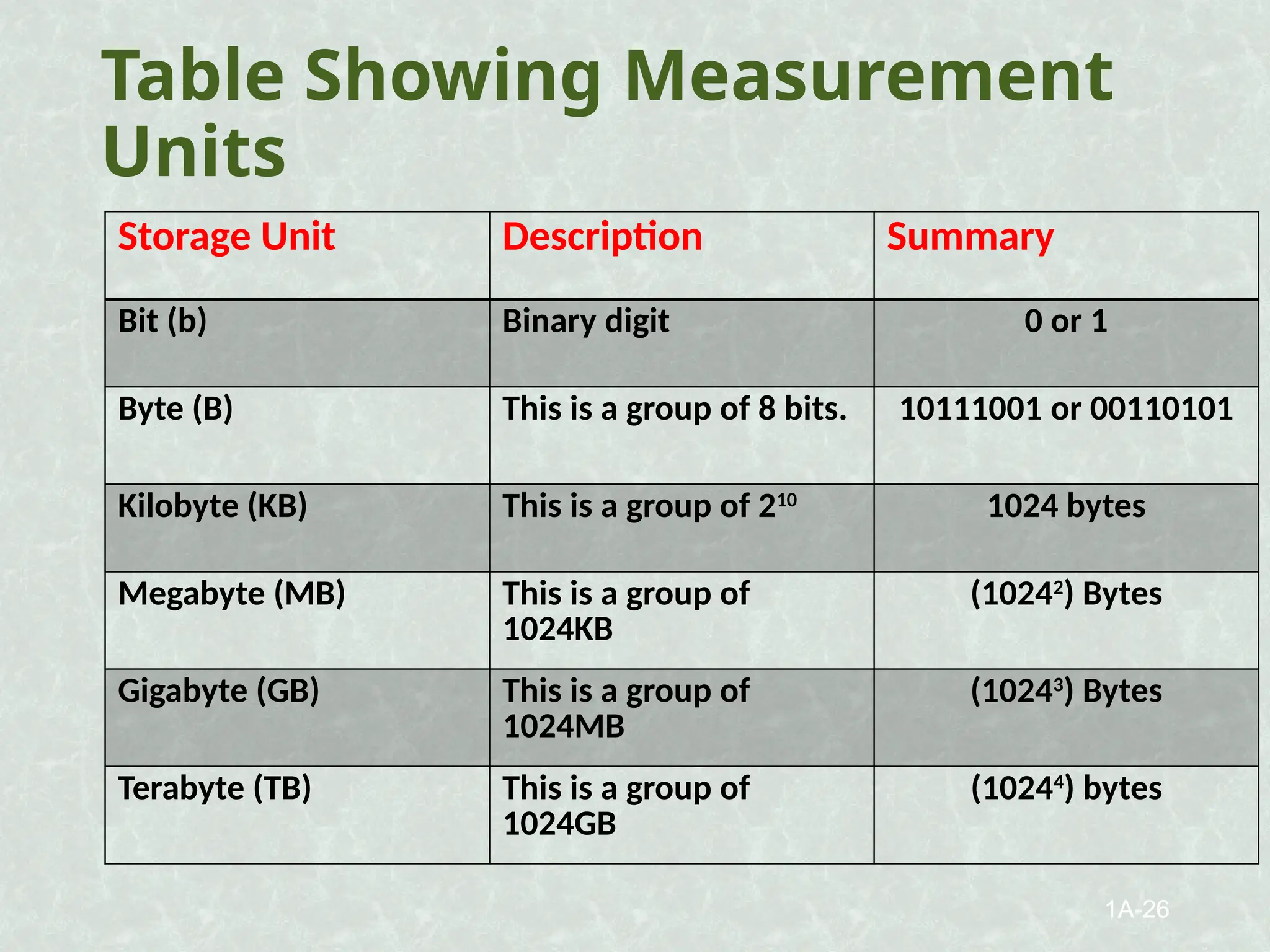
Table Showing Measurement
Units
Storage Unit Description Summary
Bit (b) Binary digit 0 or 1
Byte (B) This is a group of 8 bits. 10111001 or 00110101
Kilobyte (KB) This is a group of 210
1024 bytes
Megabyte (MB) This is a group of
1024KB
(10242
) Bytes
Gigabyte (GB) This is a group of
1024MB
(10243
) Bytes
Terabyte (TB) This is a group of
1024GB
(10244
) bytes
1A-26
End of Chapter

Chapter 3 File and Folder Management.pptx

  • 1.
    FILES AND FOLDER MANAGEMENT Afterthis chapter the student will be able to;  Use the different types of storage media.  Be able to create, save and transfer files.  Convert units for data storage. Chapter 3
  • 2.
    FILES A file isa basic unit of storage on a computer holding related data or information. The data could be in form of text, music , videos, etc and you store this data on various storage devices. As you work on a computer, you create several files containing data and information. Every file stored on a computer should have a name and is represented by an image(icon) An Icon is a small graphical representation of a program. 1A-2
  • 3.
    Types of Files a)Document files (word documents, pdf, excel files etc) b) Multimedia file: file that combines multiple media such as video, audio, graphics and text data. c) Encrypted files (files whose contents have been changed to prevent unauthorized access) d) System files: are files used to run computer system hardware and application programs e.g. windows operating system and device divers e) Program / executable files: is an organized list of instructions that, when executed causes the computer to behave in a predetermined manner f) Backup files g) Compressed Files (files reduced in size for different reasons) 1A-3
  • 4.
    Features of afile name A file name is a set of characters given to a file to distinguish it from other similar and different files. A file name is made up of two parts. • The file name which relates to the contents • file extension which identifies the type of file. The file name should be associated with the content for easy retrieval. Special characters such as “/”,”&” must be avoided in file names 1A-4
  • 5.
    Detailsof a filestored by an operating system  File name  File size  File type  Date and time of creation and modification  Storage location or path  Author of the file  Programme that created the file 1A-5
  • 6.
    File Extensions A fileextension is a set of three or four characters after the dot in a file name. It indicates what kind of file it is, its format and type. For example climate.docx is a file with a name Climate and the extension is .docx 1A-6
  • 7.
    Table Showing File Extensions Typeof file (Application) File Extension Ms Word 2003 .doc Word processor (Ms Word 2016) .docx Spreadsheets (Ms Excel 2016) .xlsx Text file (Notepad) .txt Executable file .exe Compressed File .zip or .rar Graphics program .gif .jpg .jpeg Portable document file (Adobe Program) .pdf Web browser (Mozilla Firefox, Google Chrome) .html or htm Audio players (Windows Media Player, Winamp) .mp3, .wav, .wma Video players (PowerDVD, VLC) .mpeg, .avi, .vob, .mp4 Database file (Ms access) .accs or .db Presentation file (PowerPoint) .ppt or .pptx 1A-7
  • 8.
    Functions of aFile Extension o It identifies the type of file e.g., files with .exe are executable files o Helps in categorizing the files for easy retrieval e.g. during search of files o Helps the user to identify which program created the file and which program can read the file. 1A-8 o Click start, Click control panel o Click folder options o Click view o Uncheck hide extensions for known file types o Click apply, then ok o File DETAILS / file attributes To view file extensions in Microsoft Windows
  • 9.
    Waysof keeping afile secure on a computer o By installing an updated antivirus software o By passwording files o By limiting physical access or usage of computer by unauthorized users o By encrypting the files o By avoiding usage of old storage devices which may crush. o By using the audit log mechanism to monitor each activity by users o Secure wireless transmissions like bluetooth 1A-9
  • 10.
    Folders When files becometoo many, they might get mixed up and hence making it difficult to locate and manage them. It is therefore important to store your files systematically and this can be achieved by storing files in folders. A folder is a named collection of related computer files. • A folder is also known as a directory and it’s a storage place for files but can also store other folders • A folder within another folder is called a sub folder or sub-directory. 1A-10
  • 11.
    Tasks that canbe carried out on files and folders Once files and folders are created, several actions can be performed on them for better management. Before any action is performed on a file or folder, it has to be selected. These actions include cutting, copying, Pasting, Moving, Renaming and deleting. 1A-11
  • 12.
    a) Cut –this is when a file is moved from one location to another without leaving a copy behind. b) Copy – is used when a duplicate of a file is needed leaving the original copy intact. c) Paste – this is placing of the cut or copied file in a selected area of a document. d) Rename – this means changing the original name of a file to a new name. e) Delete – this means removing a file from the computer. (Files removed from the computer are placed in the recycle bin until the recycle bin is emptied by deleting the files there. 1A-12
  • 13.
    Tasks that canbe carried out on files and folders  Printing  Deleting  Renaming  Searching  Moving  Restoring  Copying and pasting  Selecting  Editing  Formatting  Storing or backing up 1A-13
  • 14.
    Procedures for carryingout common tasks on files and folders •Creating a New folder on the desktop  Right-click on any empty or free part of the desktop,  From the drop-down menu, select new,  Then choose the folder,  Give the folder an appropriate name and press the enter key. •Renaming a file/folder  Right-click on the file/folder you wish to rename,  Select the rename option,  Give the folder a new name and confirm by pressing the enter key. 1A-14
  • 15.
    Ways of movinga folder or file •You can move the file/folder in any one of following two ways;  You can first click and drag the file to another folder or  You can also right-click on the file and choose cut option from the drop down menu that appears, then you go to the destination area and right click in space and choose paste from the options that appear on the drop down menu. Deleting a folder  Right click on the folder  Choose the delete option Or  Click on the file and press the delete button on the keyboard. 1A-15
  • 16.
    • Burning datato a disc • Transferring files between different storage media. • Storage of files on the cloud. 1A-16
  • 17.
    File Path This refersto the exact location of a file. It includes the drive letter, folder, sub folder and file name. Activity 1: Create a folder on the desktop and name it Seeta High School . Go ahead and create a Microsoft word file and save it as Timetable inside that folder. 1A-17
  • 18.
    Activity 2: Openthe folder Seeta High School and create another folder inside call it Mukono. Drag the document Timetable and drop it into this new created folder. Now open the folder Mukono and open the document. Type this line “ICT is the best subject on this planet.” Save and close the file. Identify the file path again following the same procedure as before. 1A-18
  • 19.
    Identifying a FilePath Open the folder created above. Select the file and then right click on the file. Select Properties from that menu. From the prompt that appears identify the; Location Folder where its located Size of the file Date it was created and modified. 1A-19
  • 20.
    The result obtainedfor the location of the file is known as the file path. It identifies the;  Drive letter  User Profile  The folder and subfolder(if present) where its saved.  The filename 1A-20
  • 21.
    Major folders/directories ona computer  A recycle bin: this is a folder where deleted items are temporarily stored allowing users to recover them before permanent deletion.  My Computer: A directory that provides access to computer storage hardware devices and drives.  Desktop: This is the primary location where user files and shortcuts are placed for easy access.  Documents: A folder for storing user-generated documents and files.  Downloads: Files downloaded from the internet are often saved in this folder.  Pictures (or "Photos"): Typically used to store image files and photographs.  Music: Designed for storing audio files and music tracks.  Videos: Intended for storing video files.  Network: This folder allows users to browse and access 1A-21
  • 22.
    Measurement of Storage Capacity Identifythe following storage media. 1A-22
  • 23.
    All storage devicescovered in the previous chapter have different storage capacities. The same thing applies to files and folders since they are all managed on storage devices. 1A-23
  • 24.
    In Computers, datastorage has various units including bits(b), bytes(B), Kilobytes(KB), Megabytes(MB), Gigabytes(GB), Terabytes(TB) and so on. In a computer system, data is represented using the binary system, that is, combinations of binary digits (bits); 0s and 1s. Each of these is what we refer to as a bit. 1A-24
  • 25.
    A bit isthe smallest unit of data that a computer can process and store. When 8 bits are combined, they make a byte. A byte is group of 8 bits. This is the same as a character. For example the word KEY has 3 characters meaning it has 3 bytes. A Kilobyte is exactly 1024 bytes. We dot use 1000 as expected because computers use binary system. A mega byte is 1024KB which is 10242 bytes. A Gigabyte is 1024MB which is 10243 bytes. A Terabyte is 1024GB which is 10244 bytes. We can convert from one unit to the other using the measures given above and also listed in the table below. 1A-25
  • 26.
    Table Showing Measurement Units StorageUnit Description Summary Bit (b) Binary digit 0 or 1 Byte (B) This is a group of 8 bits. 10111001 or 00110101 Kilobyte (KB) This is a group of 210 1024 bytes Megabyte (MB) This is a group of 1024KB (10242 ) Bytes Gigabyte (GB) This is a group of 1024MB (10243 ) Bytes Terabyte (TB) This is a group of 1024GB (10244 ) bytes 1A-26
  • 27.