Riah E. Encarnacion
Oman Tourism College
Muscat, Sultanate of Oman
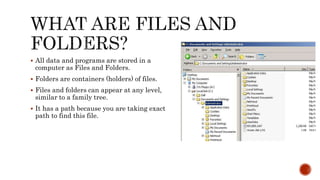
 All data and programs are stored in a
computer as Files and Folders.
 Folders are containers (holders) of files.
 Files and folders can appear at any level,
similar to a family tree.
 It has a path because you are taking exact
path to find this file.
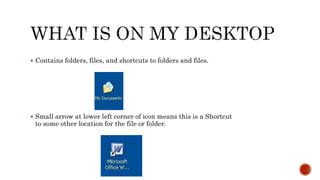
 Contains folders, files, and shortcuts to folders and files.
 Small arrow at lower left corner of icon means this is a Shortcut
to some other location for the file or folder.
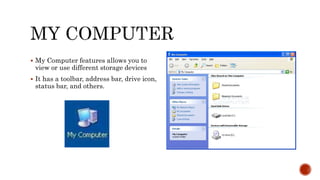
 My Computer features allows you to
view or use different storage devices
 It has a toolbar, address bar, drive icon,
status bar, and others.
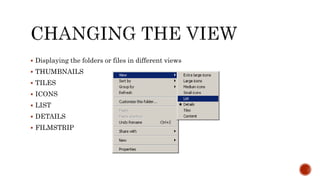
 Displaying the folders or files in different views
 THUMBNAILS
 TILES
 ICONS
 LIST
 DETAILS
 FILMSTRIP
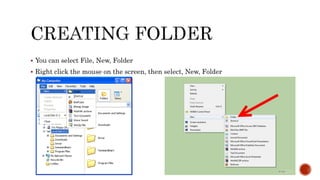
 You can select File, New, Folder
 Right click the mouse on the screen, then select, New, Folder
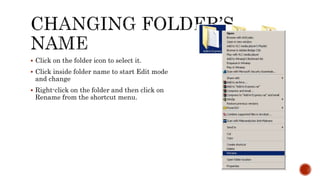
 Click on the folder icon to select it.
 Click inside folder name to start Edit mode
and change
 Right-click on the folder and then click on
Rename from the shortcut menu.
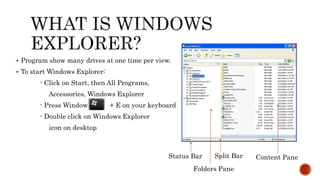
 Program show many drives at one time per view.
 To start Windows Explorer:
- Click on Start, then All Programs,
Accessories, Windows Explorer
- Press Window + E on your keyboard
- Double click on Windows Explorer
icon on desktop
Status Bar
Folders Pane
Content PaneSplit Bar
 To copy a file or folder:
- Select Edit and then Copy. Move to a new location and then select, Edit,
Paste.
- Press Ctrl + C, move to new location and then press Ctrl + V.
Message: “This folder already contains a file named ‘_____’”
This message prompts you that the file you want to save has the same file
name already saved in the destination folder.
 When file or folder is moved, it goes to a new location and is Removed from the
first location.
 When folder is moved, all subfolders and files move as wel.
 To move a file or folder:
- Select Edit, Cut, then move to a new location and select Edit, Paste.
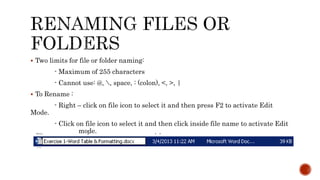
 Two limits for file or folder naming:
- Maximum of 255 characters
- Cannot use: @, , space, : (colon), <, >, |
 To Rename :
- Right – click on file icon to select it and then press F2 to activate Edit
Mode.
- Click on file icon to select it and then click inside file name to activate Edit
mode.
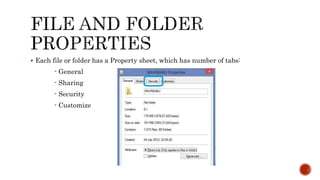
 Each file or folder has a Property sheet, which has number of tabs:
- General
- Sharing
- Security
- Customize
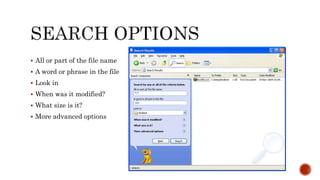
 All or part of the file name
 A word or phrase in the file
 Look in
 When was it modified?
 What size is it?
 More advanced options
 Files in the Recycle Bin can be Restored or Emptied
 Delete completely without Recycle Bin
- Press and Hold Shift key when deleting the file

Files and Folders in Windows 7

  • 1.
    Riah E. Encarnacion OmanTourism College Muscat, Sultanate of Oman
  • 2.
     All dataand programs are stored in a computer as Files and Folders.  Folders are containers (holders) of files.  Files and folders can appear at any level, similar to a family tree.  It has a path because you are taking exact path to find this file.
  • 3.
     Contains folders,files, and shortcuts to folders and files.  Small arrow at lower left corner of icon means this is a Shortcut to some other location for the file or folder.
  • 4.
     My Computerfeatures allows you to view or use different storage devices  It has a toolbar, address bar, drive icon, status bar, and others.
  • 5.
     Displaying thefolders or files in different views  THUMBNAILS  TILES  ICONS  LIST  DETAILS  FILMSTRIP
  • 6.
     You canselect File, New, Folder  Right click the mouse on the screen, then select, New, Folder
  • 7.
     Click onthe folder icon to select it.  Click inside folder name to start Edit mode and change  Right-click on the folder and then click on Rename from the shortcut menu.
  • 8.
     Program showmany drives at one time per view.  To start Windows Explorer: - Click on Start, then All Programs, Accessories, Windows Explorer - Press Window + E on your keyboard - Double click on Windows Explorer icon on desktop Status Bar Folders Pane Content PaneSplit Bar
  • 9.
     To copya file or folder: - Select Edit and then Copy. Move to a new location and then select, Edit, Paste. - Press Ctrl + C, move to new location and then press Ctrl + V. Message: “This folder already contains a file named ‘_____’” This message prompts you that the file you want to save has the same file name already saved in the destination folder.
  • 10.
     When fileor folder is moved, it goes to a new location and is Removed from the first location.  When folder is moved, all subfolders and files move as wel.  To move a file or folder: - Select Edit, Cut, then move to a new location and select Edit, Paste.
  • 11.
     Two limitsfor file or folder naming: - Maximum of 255 characters - Cannot use: @, , space, : (colon), <, >, |  To Rename : - Right – click on file icon to select it and then press F2 to activate Edit Mode. - Click on file icon to select it and then click inside file name to activate Edit mode.
  • 12.
     Each fileor folder has a Property sheet, which has number of tabs: - General - Sharing - Security - Customize
  • 13.
     All orpart of the file name  A word or phrase in the file  Look in  When was it modified?  What size is it?  More advanced options
  • 14.
     Files inthe Recycle Bin can be Restored or Emptied  Delete completely without Recycle Bin - Press and Hold Shift key when deleting the file