1.5 File Management
We are going to learn:
• The difference between a file and a
folder.
• The difference between “save” and
“save as.”
• To recognize file types by their icons.
We are going to learn:
• How to create a folder
• How to change file and folder names.
• How to copy, cut and paste files and
folders.
• How to drag and drop files and folders.
We are going to learn:
• The difference between cut and copy.
• How to make changes to a file and save
the changes.
• The importance of keeping your files
organized.
File
Management
MATTERS!
File
Management
MATTERS!
File Management
Between primary and secondary storage
capabilities, your computer has the ability to
store and retrieve VAST amounts of data!
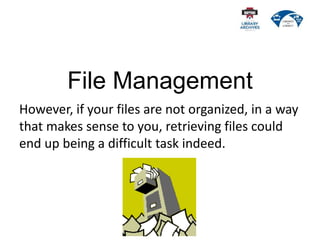
File Management
However, if your files are not organized, in a way
that makes sense to you, retrieving files could
end up being a difficult task indeed.
My Documents
One of the default locations in which the
computer saves your files is called “My
Documents.” This can be located on your
computer’s hard drive and/or on a server on
your network.
My Documents
If you don’t “tell” the computer to do
otherwise, it will save your:
• music files to the My Music folder
• pictures to the My Pictures folder
• videos to the My Video folders.
My Files
You have a USB drive with all of your work files
on it. You have over 1000 files!
Can you imagine sorting through that many
files?
How to Manage Files
Organizing files and saving them to a computer
or external storage device is very similar to
how we used to set up filing systems in a filing
cabinet.
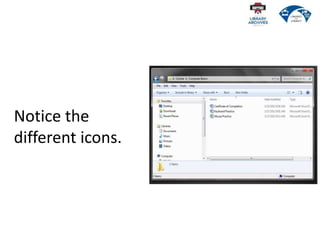
Notice the different icons for
these files.
What kind of file type goes
with each icon?
Time To Practice!
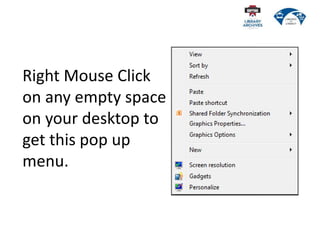
Right Mouse Click
on any empty space
on your desktop to
get this pop up
menu.
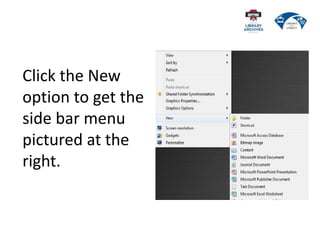
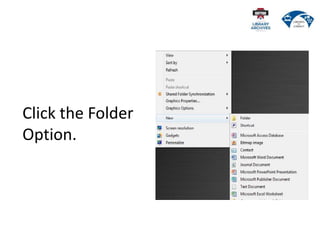
Click the New
option to get the
side bar menu
pictured at the
right.
Click the Folder
Option.
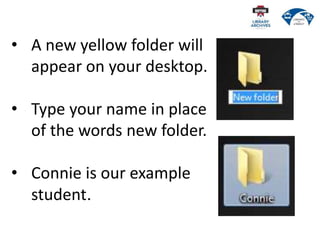
• A new yellow folder will
appear on your desktop.
• Type your name in place
of the words new folder.
• Connie is our example
student.
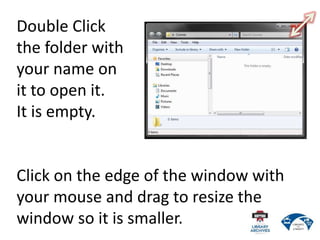
Double Click
the folder with
your name on
it to open it.
It is empty.
Click on the edge of the window with
your mouse and drag to resize the
window so it is smaller.
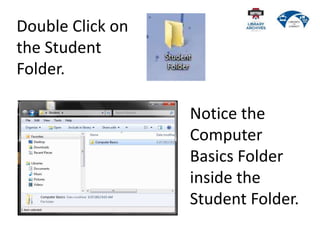
Double Click on
the Student
Folder.
Notice the
Computer
Basics Folder
inside the
Student Folder.
Resize your 2 folder windows so you can
see both at the same time.
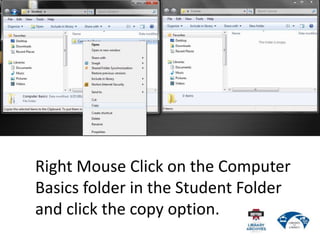
Right Mouse Click on the Computer
Basics folder in the Student Folder
and click the copy option.
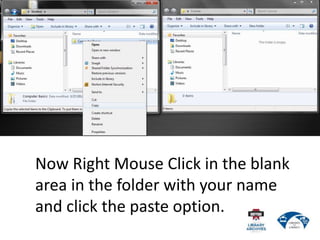
Now Right Mouse Click in the blank
area in the folder with your name
and click the paste option.
An exact copy of the student
folder will appear in the folder
with your name.
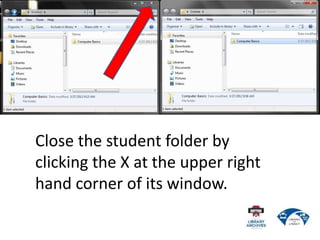
Close the student folder by
clicking the X at the upper right
hand corner of its window.
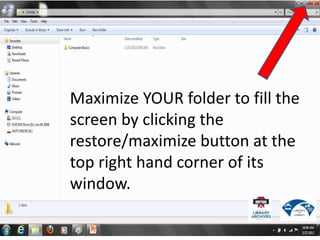
Maximize YOUR folder to fill the
screen by clicking the
restore/maximize button at the
top right hand corner of its
window.
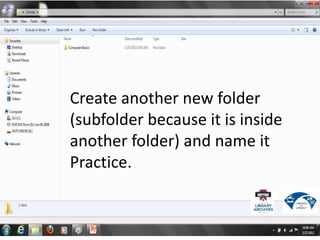
Create another new folder
(subfolder because it is inside
another folder) and name it
Practice.
Restore this folder to its
previous size by clicking the
restore/maximize button at the
top right hand corner of the
screen again.
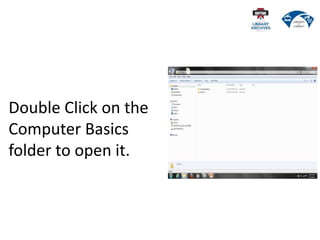
Double Click on the
Computer Basics
folder to open it.
Notice the
different icons.
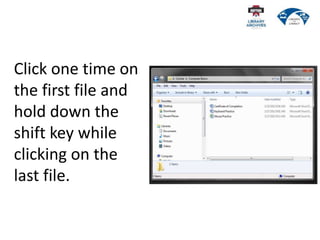
Click one time on
the first file and
hold down the
shift key while
clicking on the
last file.
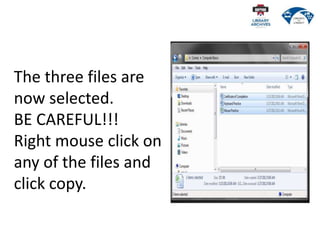
The three files are
now selected.
BE CAREFUL!!!
Right mouse click on
any of the files and
click copy.
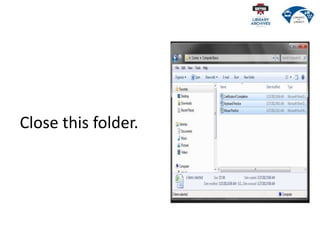
Close this folder.
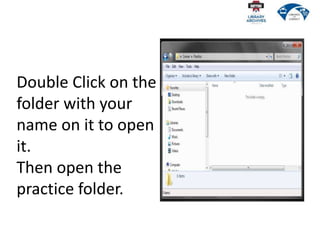
Double Click on the
folder with your
name on it to open
it.
Then open the
practice folder.
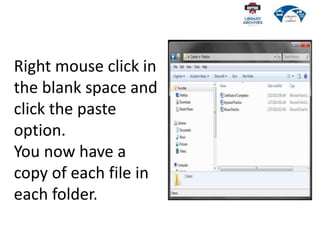
Right mouse click in
the blank space and
click the paste
option.
You now have a
copy of each file in
each folder.
• You can also cut and paste files
between files using the right mouse
click method
OR
• by using the Ctrl X to cut and Ctrl V
to paste method you learned in the
keyboarding practice document.
This practice session was done using
existing files.
Even though you can move files from
one folder to another, it is IMPORTANT
that you know how to save a file to the
correct location when you create it!
File Management Practice
DEMONSTRATION
File Management Practice
Follow your handout and what I am
doing to complete this practice.
You will start by opening Microsoft
Word on your computer.
File Management Practice
• Click the start button at the bottom
left hand corner of your desktop.
• Click on “All Programs.”
• Use your mouse to scroll or the
arrow keys to choose “Microsoft
Office.”
• Then click “Microsoft Word.”

1.5 File Management Presentation.pptx

  • 1.
  • 2.
    We are goingto learn: • The difference between a file and a folder. • The difference between “save” and “save as.” • To recognize file types by their icons.
  • 3.
    We are goingto learn: • How to create a folder • How to change file and folder names. • How to copy, cut and paste files and folders. • How to drag and drop files and folders.
  • 4.
    We are goingto learn: • The difference between cut and copy. • How to make changes to a file and save the changes. • The importance of keeping your files organized.
  • 5.
  • 6.
  • 7.
    File Management Between primaryand secondary storage capabilities, your computer has the ability to store and retrieve VAST amounts of data!
  • 8.
    File Management However, ifyour files are not organized, in a way that makes sense to you, retrieving files could end up being a difficult task indeed.
  • 9.
    My Documents One ofthe default locations in which the computer saves your files is called “My Documents.” This can be located on your computer’s hard drive and/or on a server on your network.
  • 10.
    My Documents If youdon’t “tell” the computer to do otherwise, it will save your: • music files to the My Music folder • pictures to the My Pictures folder • videos to the My Video folders.
  • 11.
    My Files You havea USB drive with all of your work files on it. You have over 1000 files! Can you imagine sorting through that many files?
  • 12.
    How to ManageFiles Organizing files and saving them to a computer or external storage device is very similar to how we used to set up filing systems in a filing cabinet.
  • 13.
    Notice the differenticons for these files. What kind of file type goes with each icon?
  • 14.
  • 15.
    Right Mouse Click onany empty space on your desktop to get this pop up menu.
  • 16.
    Click the New optionto get the side bar menu pictured at the right.
  • 17.
  • 18.
    • A newyellow folder will appear on your desktop. • Type your name in place of the words new folder. • Connie is our example student.
  • 19.
    Double Click the folderwith your name on it to open it. It is empty. Click on the edge of the window with your mouse and drag to resize the window so it is smaller.
  • 20.
    Double Click on theStudent Folder. Notice the Computer Basics Folder inside the Student Folder.
  • 21.
    Resize your 2folder windows so you can see both at the same time.
  • 22.
    Right Mouse Clickon the Computer Basics folder in the Student Folder and click the copy option.
  • 23.
    Now Right MouseClick in the blank area in the folder with your name and click the paste option.
  • 24.
    An exact copyof the student folder will appear in the folder with your name.
  • 25.
    Close the studentfolder by clicking the X at the upper right hand corner of its window.
  • 26.
    Maximize YOUR folderto fill the screen by clicking the restore/maximize button at the top right hand corner of its window.
  • 27.
    Create another newfolder (subfolder because it is inside another folder) and name it Practice.
  • 28.
    Restore this folderto its previous size by clicking the restore/maximize button at the top right hand corner of the screen again.
  • 29.
    Double Click onthe Computer Basics folder to open it.
  • 30.
  • 31.
    Click one timeon the first file and hold down the shift key while clicking on the last file.
  • 32.
    The three filesare now selected. BE CAREFUL!!! Right mouse click on any of the files and click copy.
  • 33.
  • 34.
    Double Click onthe folder with your name on it to open it. Then open the practice folder.
  • 35.
    Right mouse clickin the blank space and click the paste option. You now have a copy of each file in each folder.
  • 36.
    • You canalso cut and paste files between files using the right mouse click method OR • by using the Ctrl X to cut and Ctrl V to paste method you learned in the keyboarding practice document.
  • 37.
    This practice sessionwas done using existing files. Even though you can move files from one folder to another, it is IMPORTANT that you know how to save a file to the correct location when you create it!
  • 38.
  • 39.
    File Management Practice Followyour handout and what I am doing to complete this practice. You will start by opening Microsoft Word on your computer.
  • 40.
    File Management Practice •Click the start button at the bottom left hand corner of your desktop. • Click on “All Programs.” • Use your mouse to scroll or the arrow keys to choose “Microsoft Office.” • Then click “Microsoft Word.”