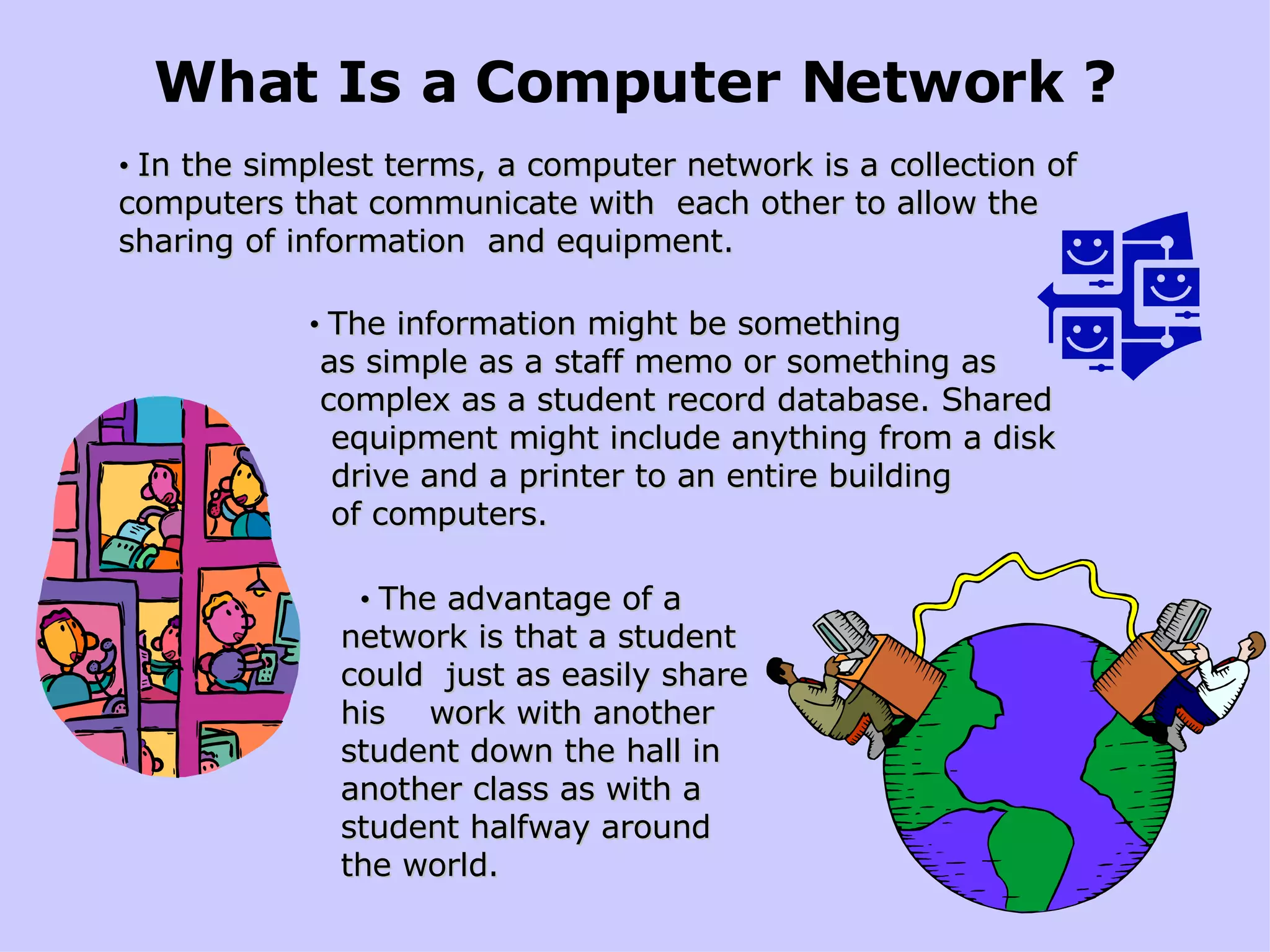
What Is a Computer Network ? • In the simplest terms, a computer network is a collection of computers that communicate with  each other to allow the sharing of information  and equipment. • The information might be something  as simple as a staff memo or something as  complex as a student record database. Shared  equipment might include anything from a disk  drive and a printer to an entire building  of computers. • The advantage of a network is that a student could  just as easily share his  work with another student down the hall in another class as with a student halfway around the world.
The Internet Is the Largest  Network in Existence.
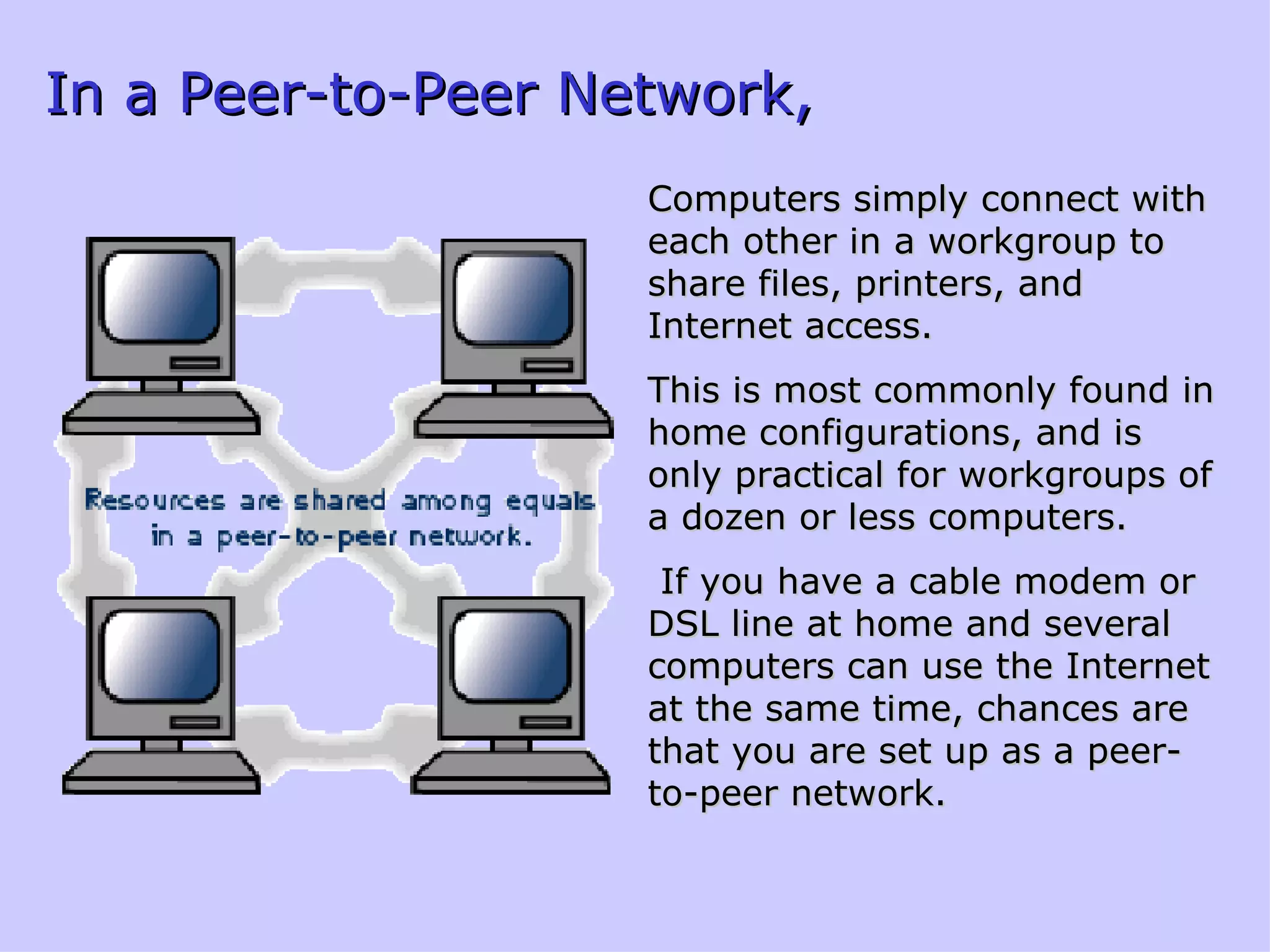
In a Peer-to-Peer Network, Computers simply connect with each other in a workgroup to share files, printers, and Internet access.  This is most commonly found in home configurations, and is only practical for workgroups of a dozen or less computers. If you have a cable modem or DSL line at home and several computers can use the Internet at the same time, chances are that you are set up as a peer-to-peer network.
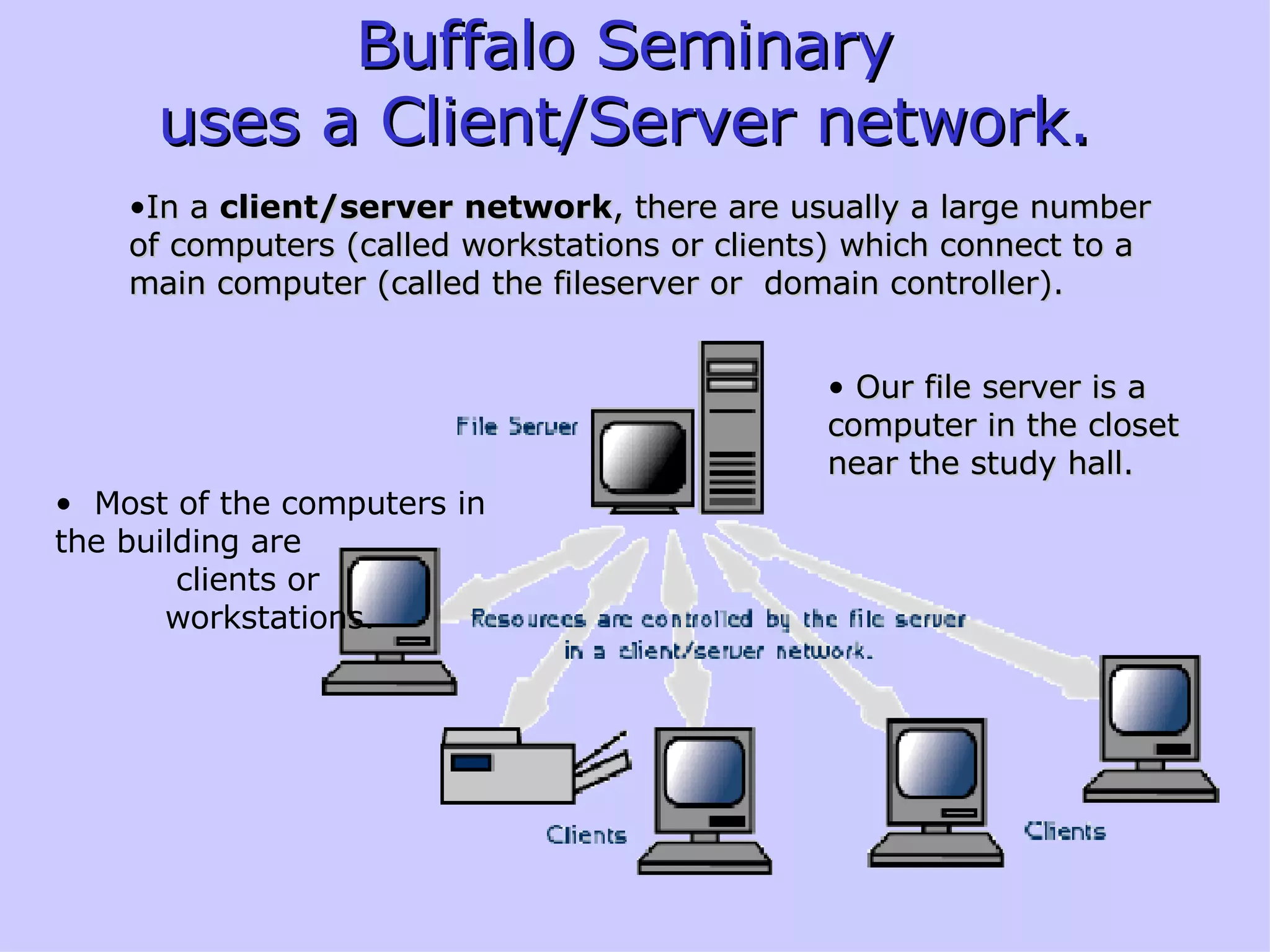
Buffalo Seminary  uses a Client/Server network.  In a  client/server network , there are usually a large number of computers (called workstations or clients) which connect to a main computer (called the fileserver or  domain controller). Most of the computers in the building are  clients or  workstations. Our file server is a computer in the closet near the study hall.
Where to find stuff Open My Documents…  You’ll find your files. When you create a document and save it – this is where it will be saved automatically.   Now, open My Computer… You’ll find all the folders on the server that you have access to.
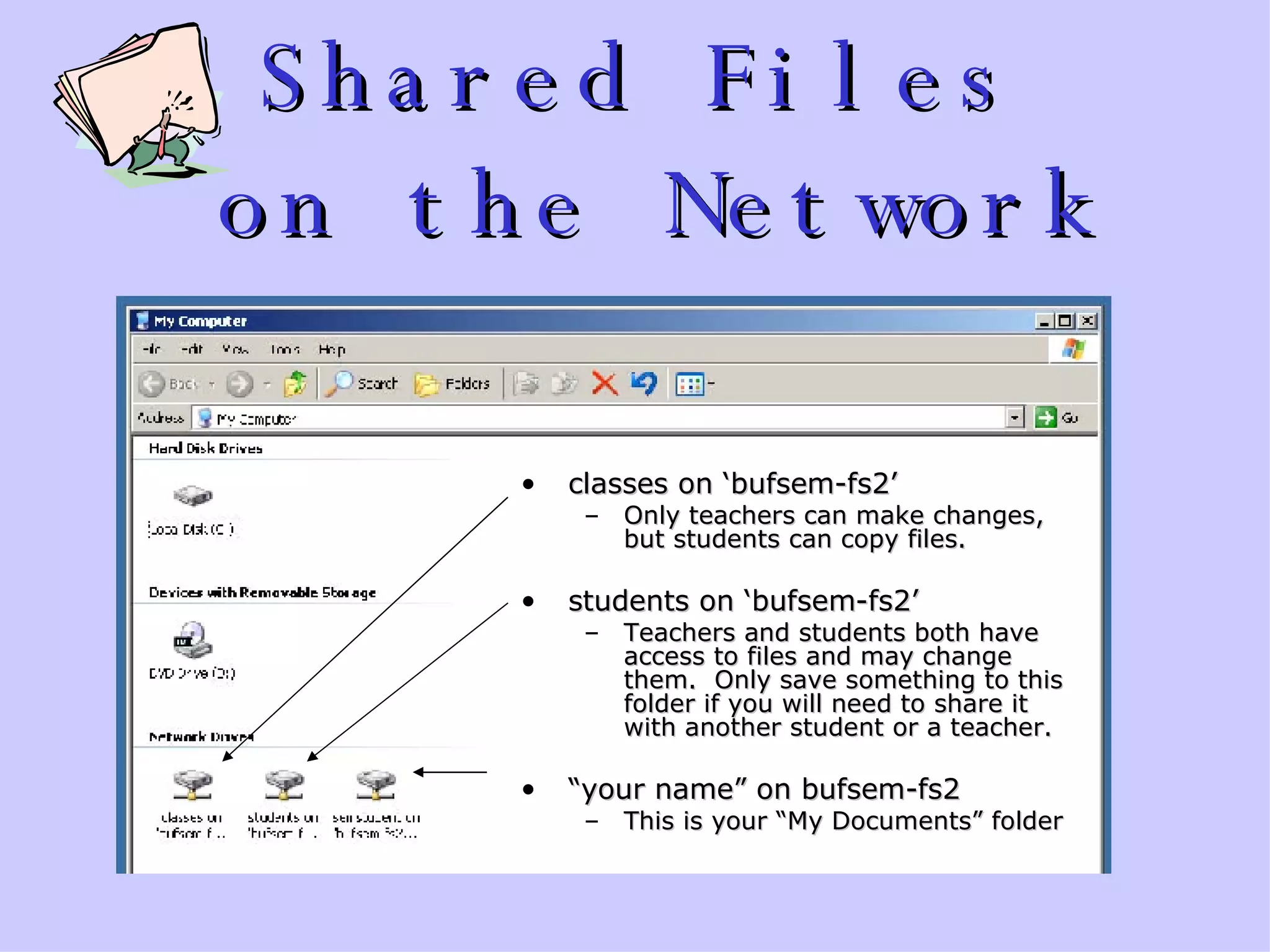
Shared Files  on the Network   classes on ‘bufsem-fs2’ Only teachers can make changes, but students can copy files.  students on ‘bufsem-fs2’ Teachers and students both have access to files and may change them.  Only save something to this folder if you will need to share it with another student or a teacher. “ your name” on bufsem-fs2 This is your “My Documents” folder
All of these files are really saved on the server, so that you can work on them from any computer in the school. My documents Students on Bufsem-fs2 Classes on Bufsem-fs2 Note: each computer has a name so that it can be a member of the network domain (just like you have a username to be a member)  The name of the network server is  Bufsem-fs2
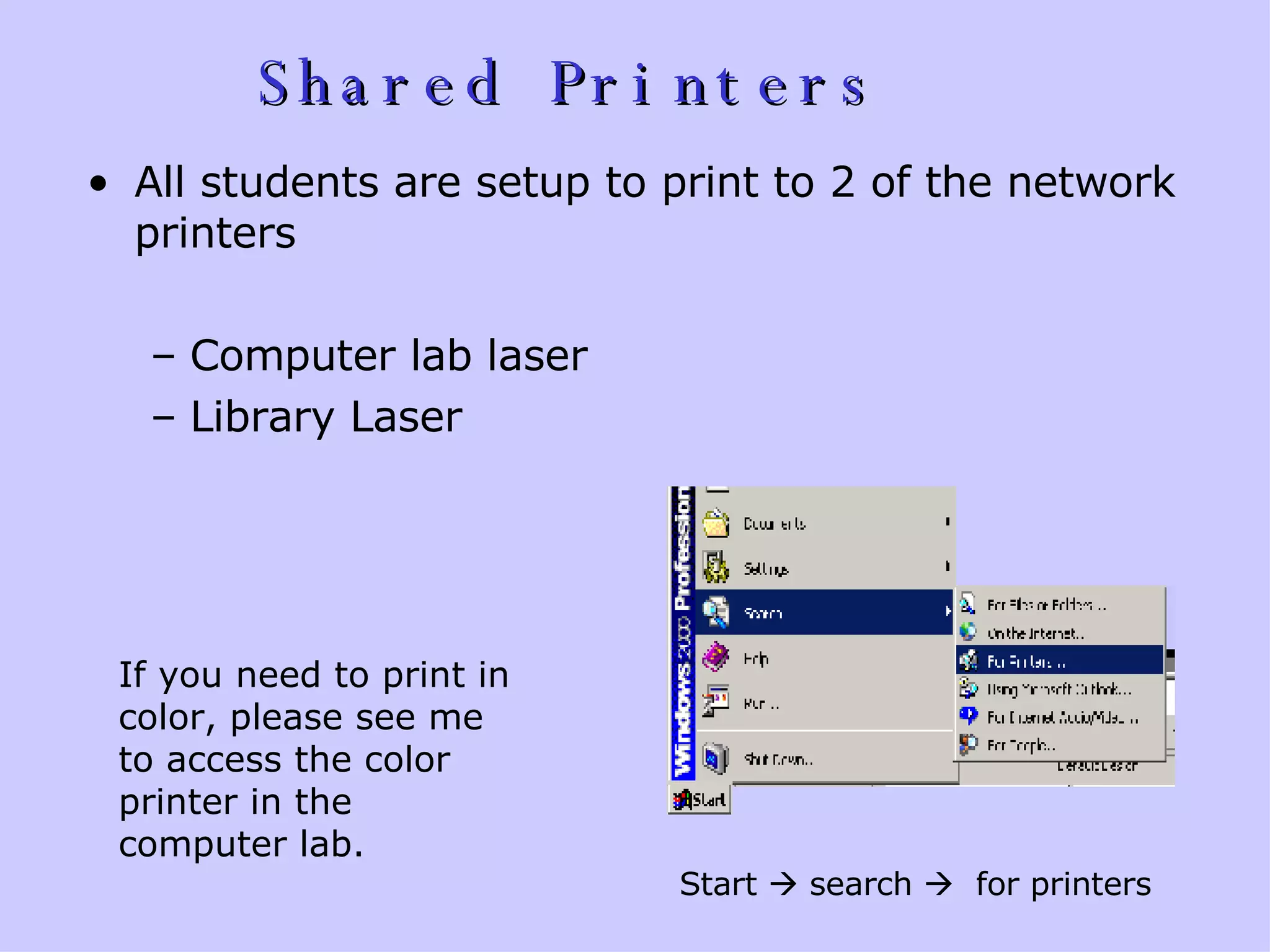
Shared Printers   All students are setup to print to 2 of the network printers Computer lab laser  Library Laser Start    search     for printers If you need to print in color, please see me to access the color printer in the computer lab.
Working with files and folders
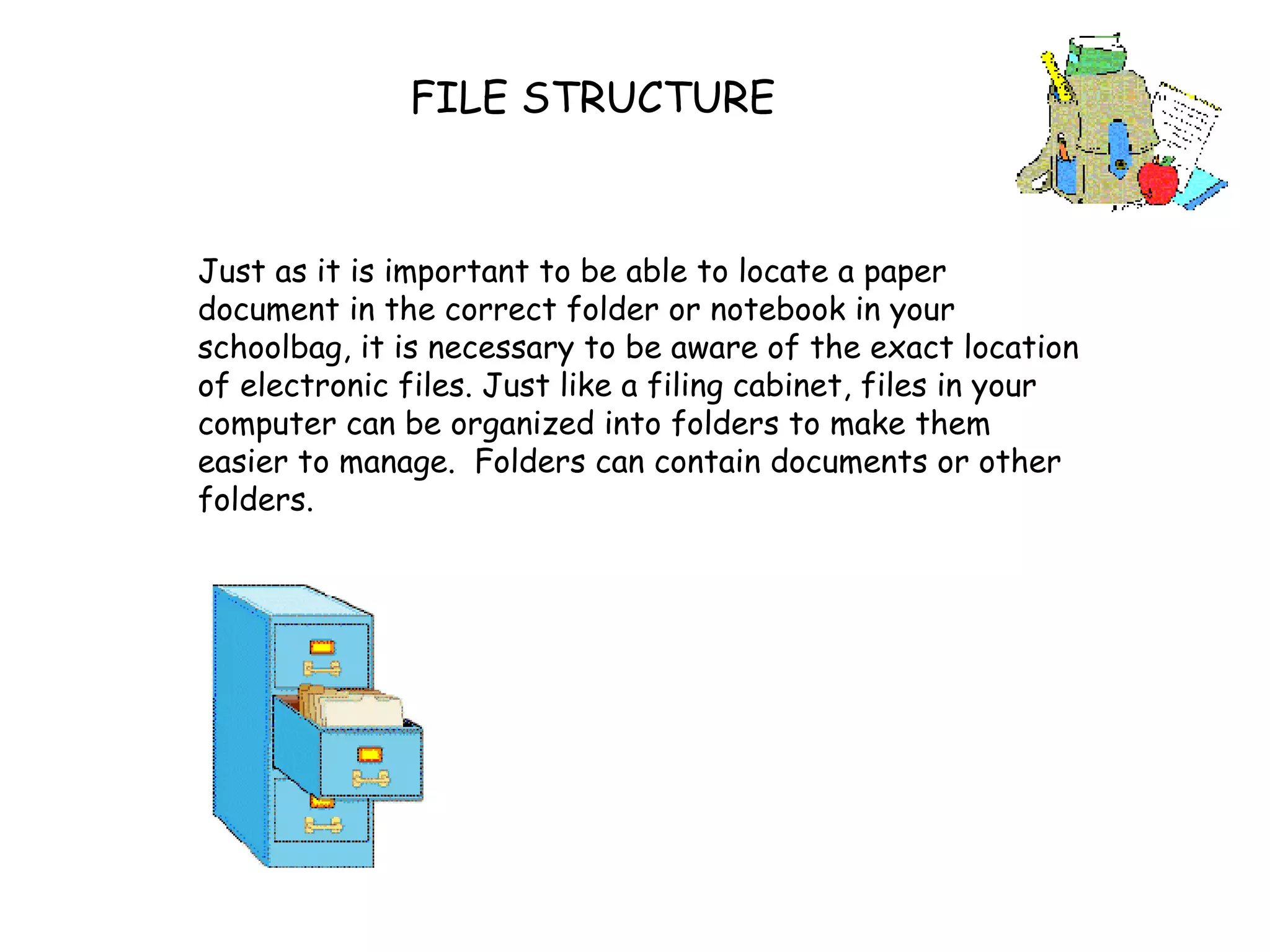
FILE STRUCTURE Just as it is important to be able to locate a paper document in the correct folder or notebook in your schoolbag, it is necessary to be aware of the exact location of electronic files. Just like a filing cabinet, files in your computer can be organized into folders to make them easier to manage.  Folders can contain documents or other folders.
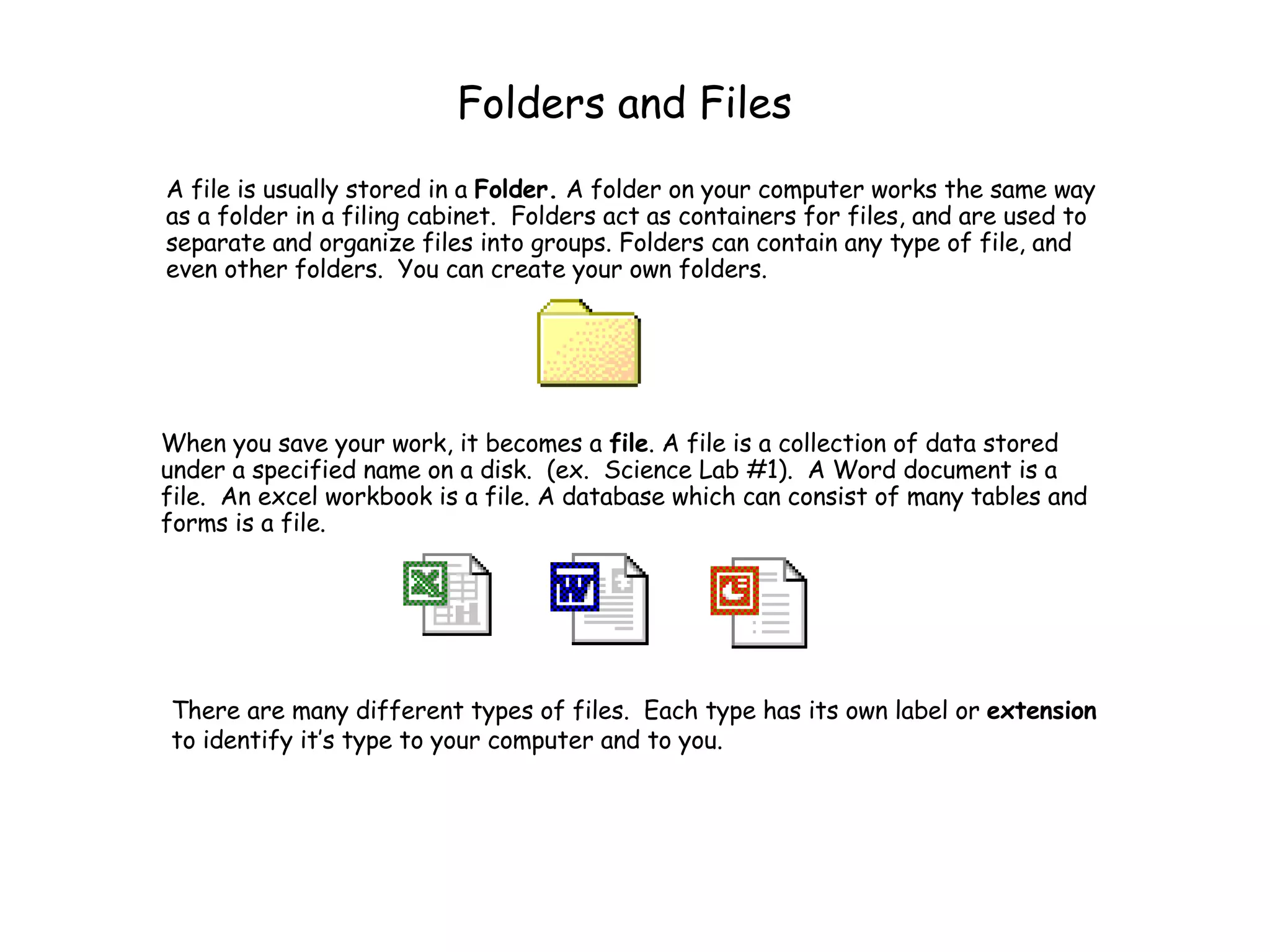
Folders and Files A file is usually stored in a  Folder.  A folder on your computer works the same way as a folder in a filing cabinet.  Folders  act as containers for files, and are used to separate and organize files into groups. Folders can contain any type of file, and even other folders.  You can create your own folders. When you save your work, it becomes a  file . A file is a collection of data stored under a specified name on a disk.  (ex.  Science Lab #1).  A Word document is a file.  An excel workbook is a file. A database which can consist of many tables and forms is a file.  There are many different types of files.  Each type has its own label or  extension  to identify it’s type to your computer and to you.
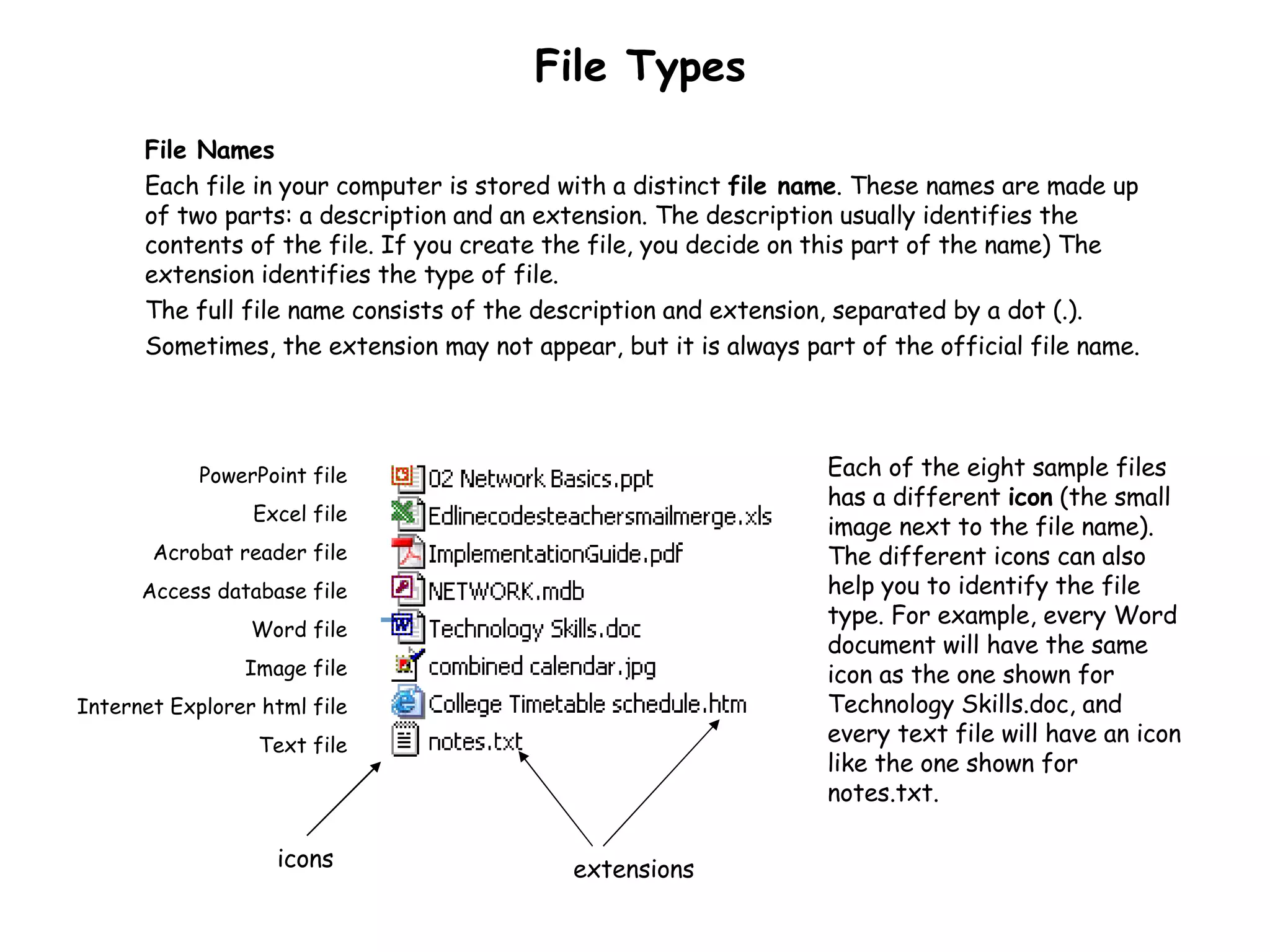
File Types File Names Each file in your computer is stored with a distinct  file name . These names are made up of two parts: a description and an extension. The description usually identifies the contents of the file. If you create the file, you decide on this part of the name) The extension identifies the type of file.  The full file name consists of the description and extension, separated by a dot (.).  Sometimes, the extension may not appear, but it is always part of the official file name. Each of the eight sample files  has a different  icon  (the small image next to the file name). The different icons can also help you to identify the file type. For example, every Word document will have the same icon as the one shown for Technology Skills.doc, and every text file will have an icon like the one shown for notes.txt.  PowerPoint file Excel file Acrobat reader file Access database file Word file Image file Internet Explorer html file Text file extensions icons
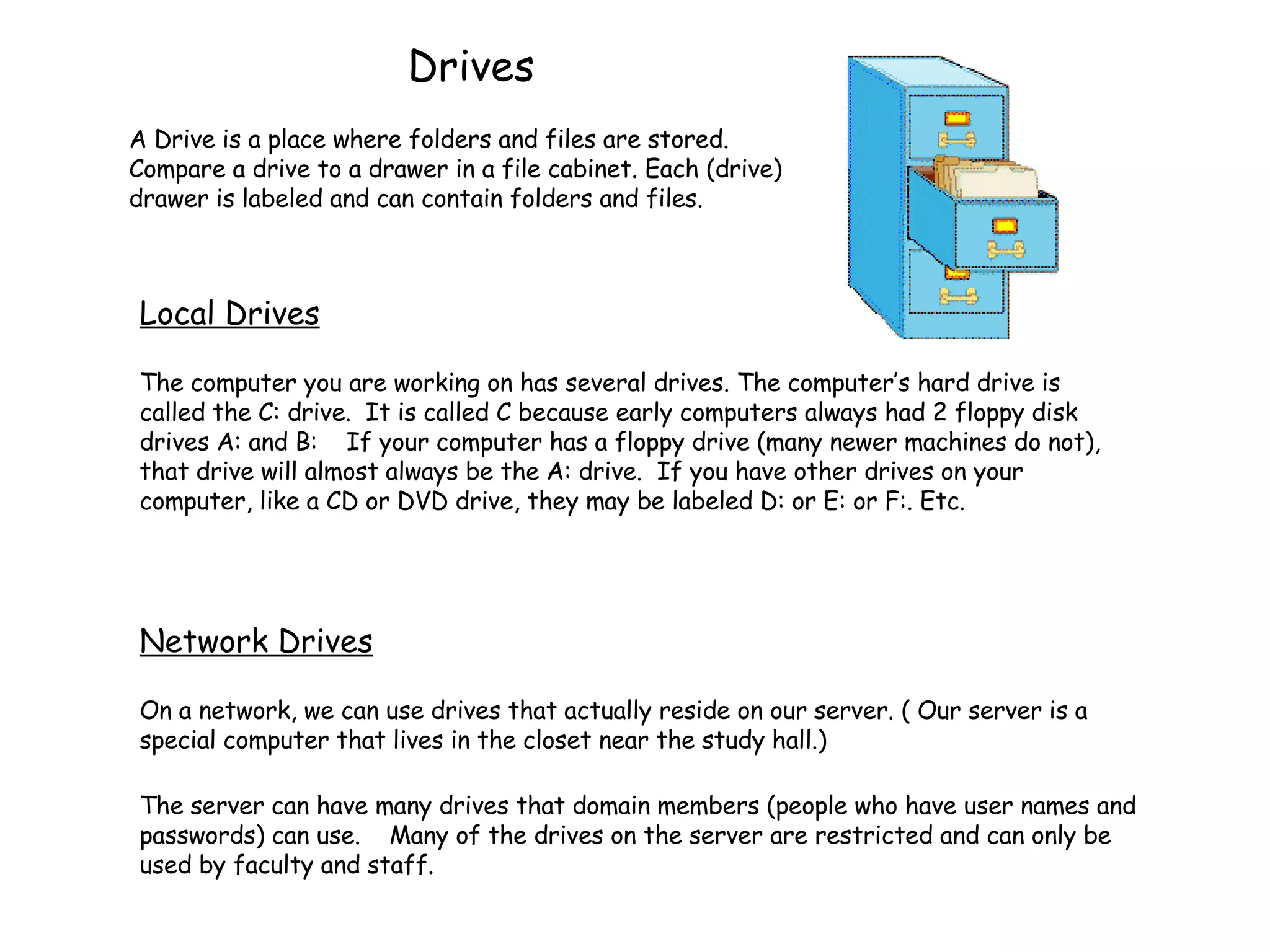
Drives A Drive is a place where folders and files are stored. Compare a drive to a drawer in a file cabinet. Each (drive) drawer is labeled and can contain folders and files. The computer you are working on has several drives. The computer’s hard drive is called the C: drive.  It is called C because early computers always had 2 floppy disk drives A: and B:  If your computer has a floppy drive (many newer machines do not), that drive will almost always be the A: drive.  If you have other drives on your computer, like a CD or DVD drive, they may be labeled D: or E: or F:. Etc. Network Drives On a network, we can use drives that actually reside on our server. ( Our server is a special computer that lives in the closet near the study hall.)  The server can have many drives that domain members (people who have user names and passwords) can use.  Many of the drives on the server are restricted and can only be used by faculty and staff. Local Drives
Our Network Drives There are three network drives that students have access to.  These are labeled with names, and letters; Students on Bufsem-fs2 (L:) This drive is for you to store files and folders that you need to share with other students or teachers. You can add folders and label them so that you can both find them.  Your teachers may ask you to create new folders for a class or class project.  Classes on Bufsem-fs2 (K:) This drive is for teachers to use to post information that they may want you to use for your class work.  Students can not store documents on this drive, but can copy the teachers documents and store them either in the “Students” drive or in their own “My Documents” folder Your Name on Bufsem-fs2 (Z:) This drive is your “My Documents” folder.  This directory is your own private storage area on the network.
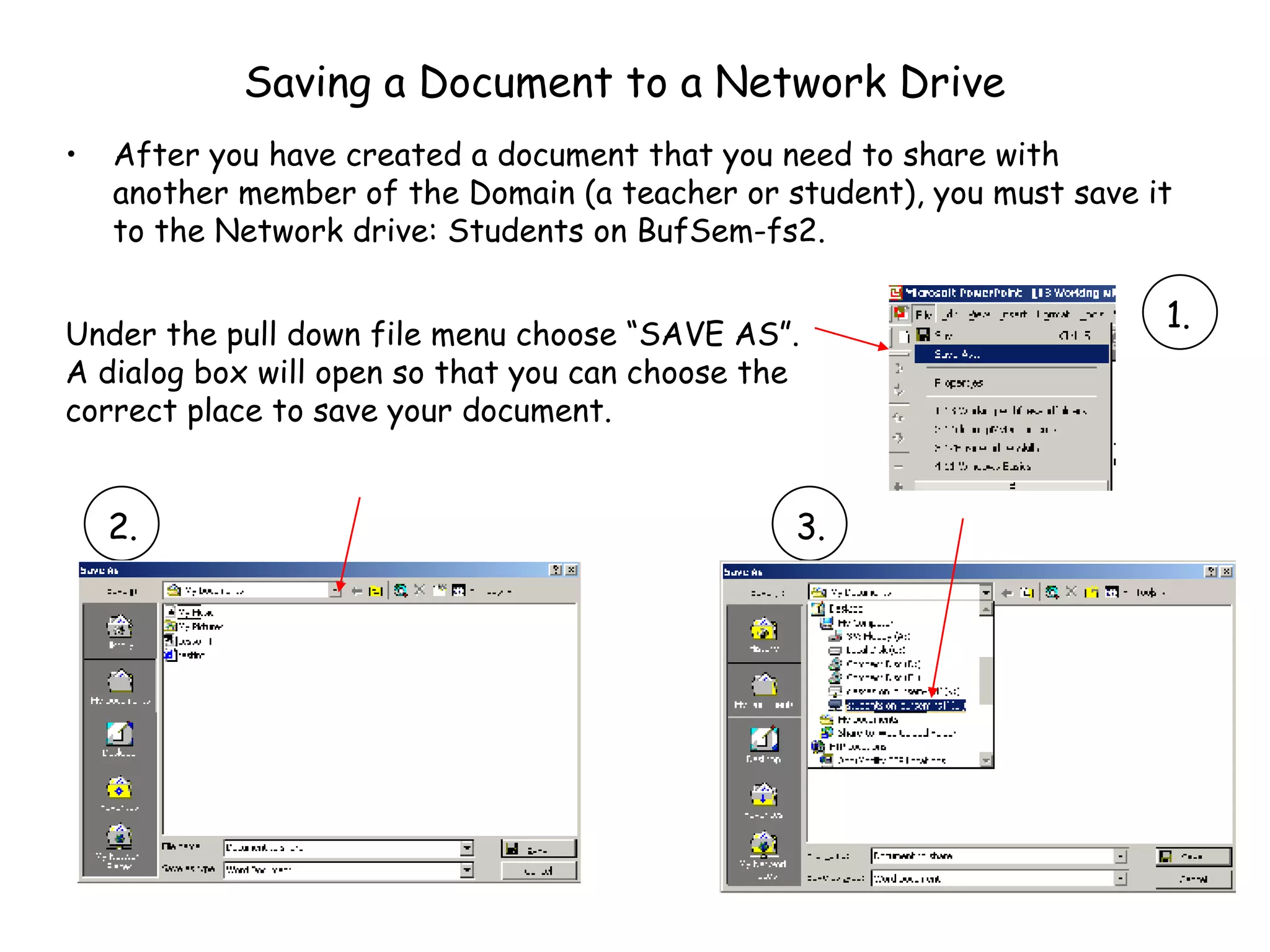
Saving a Document to a Network Drive After you have created a document that you need to share with another member of the Domain (a teacher or student), you must save it to the Network drive: Students on BufSem-fs2. RE DO THIS IMAGE Under the pull down file menu choose “SAVE AS”.  A dialog box will open so that you can choose the correct place to save your document. 1. 2. 3.
My Computer For those of you who are visual learners, these last few pages were probably confusing – take heart – the next slides will demonstrate this important concept clearly.
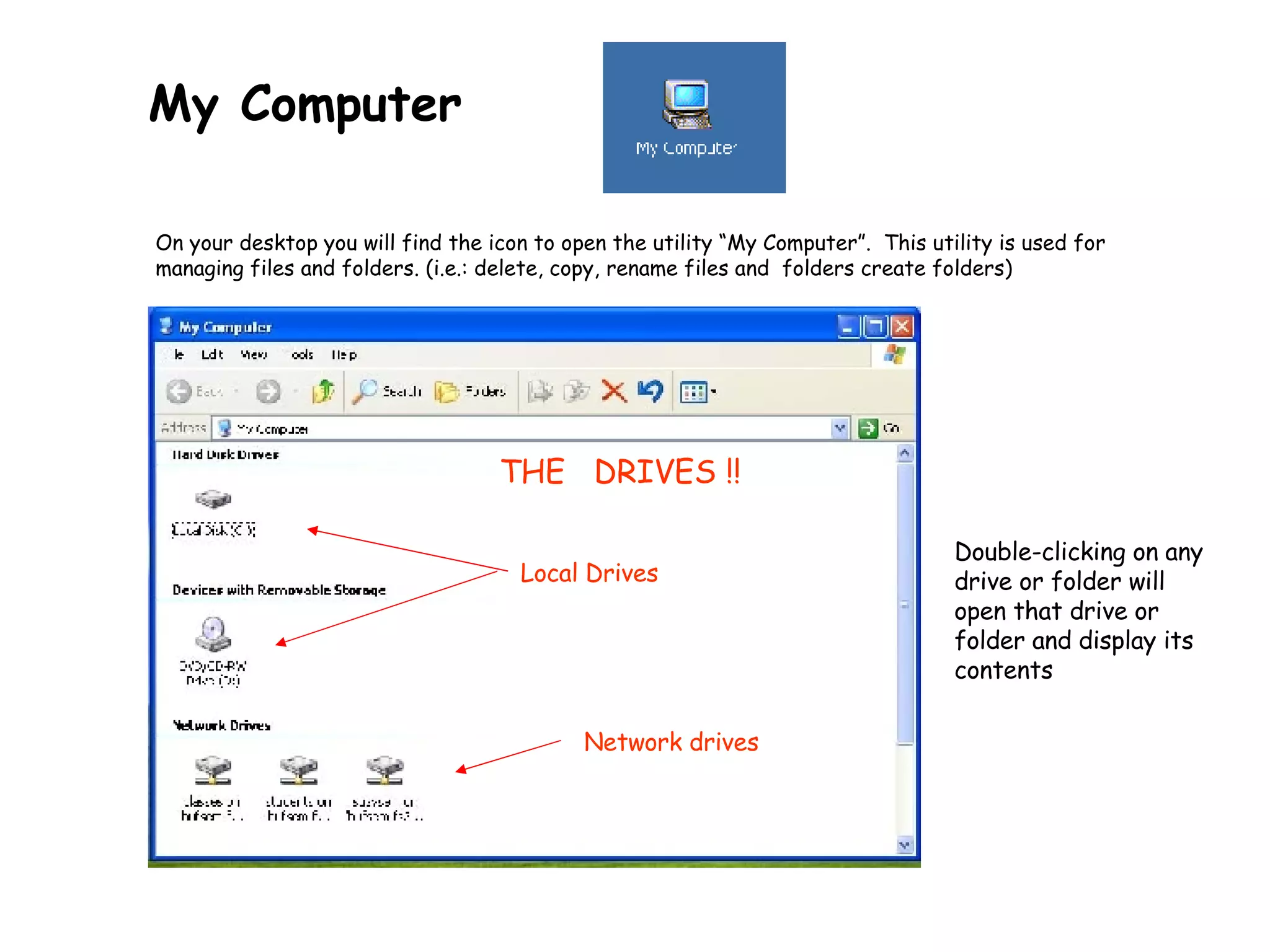
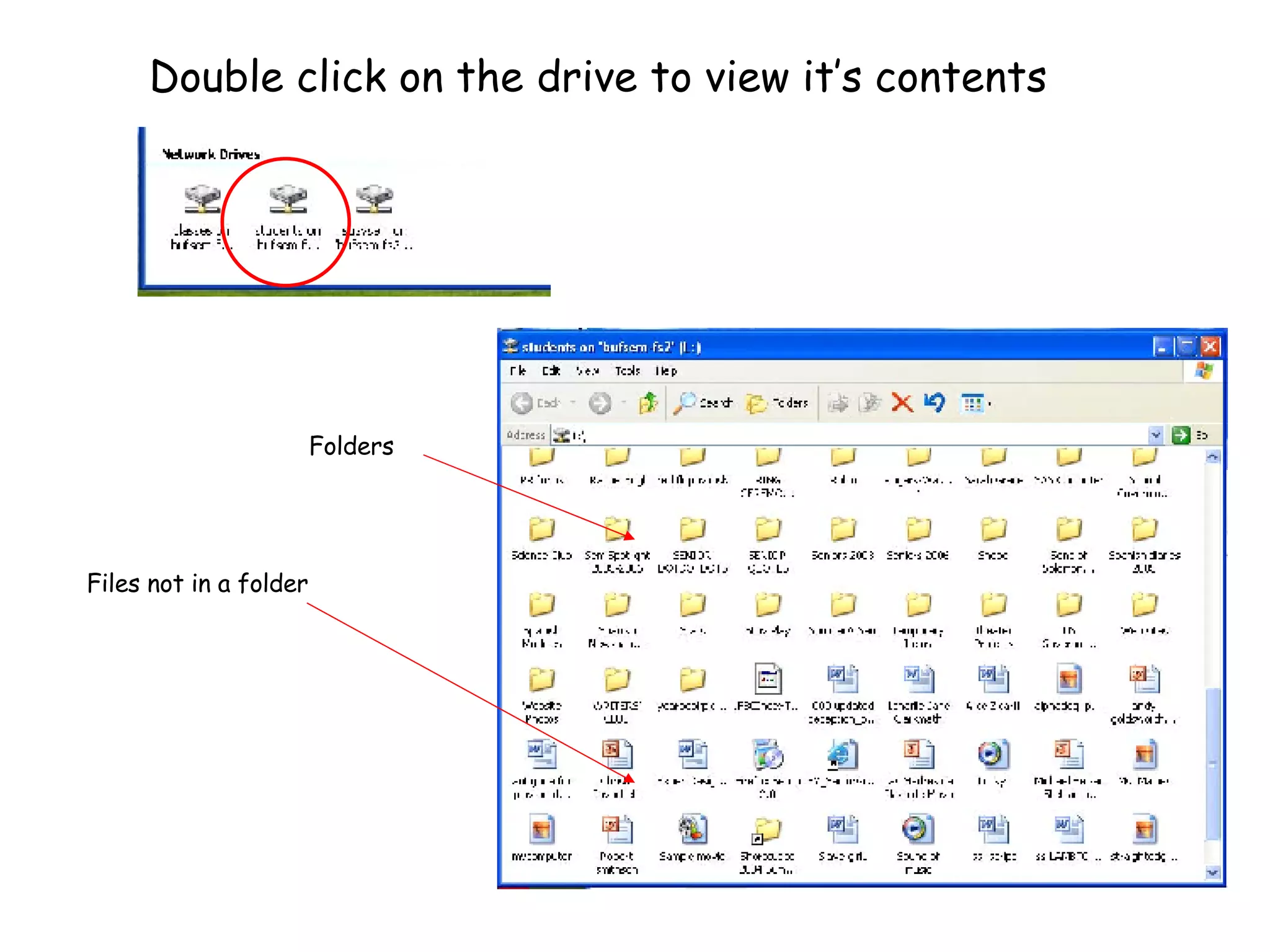
My Computer   On your desktop you will find the icon to open the utility “My Computer”.  This utility is used for managing files and folders.  (i.e.: delete, copy, rename files and  folders create folders) THE  DRIVES !! Double-clicking on any drive or folder will open that drive or folder and display its contents Local Drives Network drives
Double click on the drive to view it’s contents Files not in a folder Folders
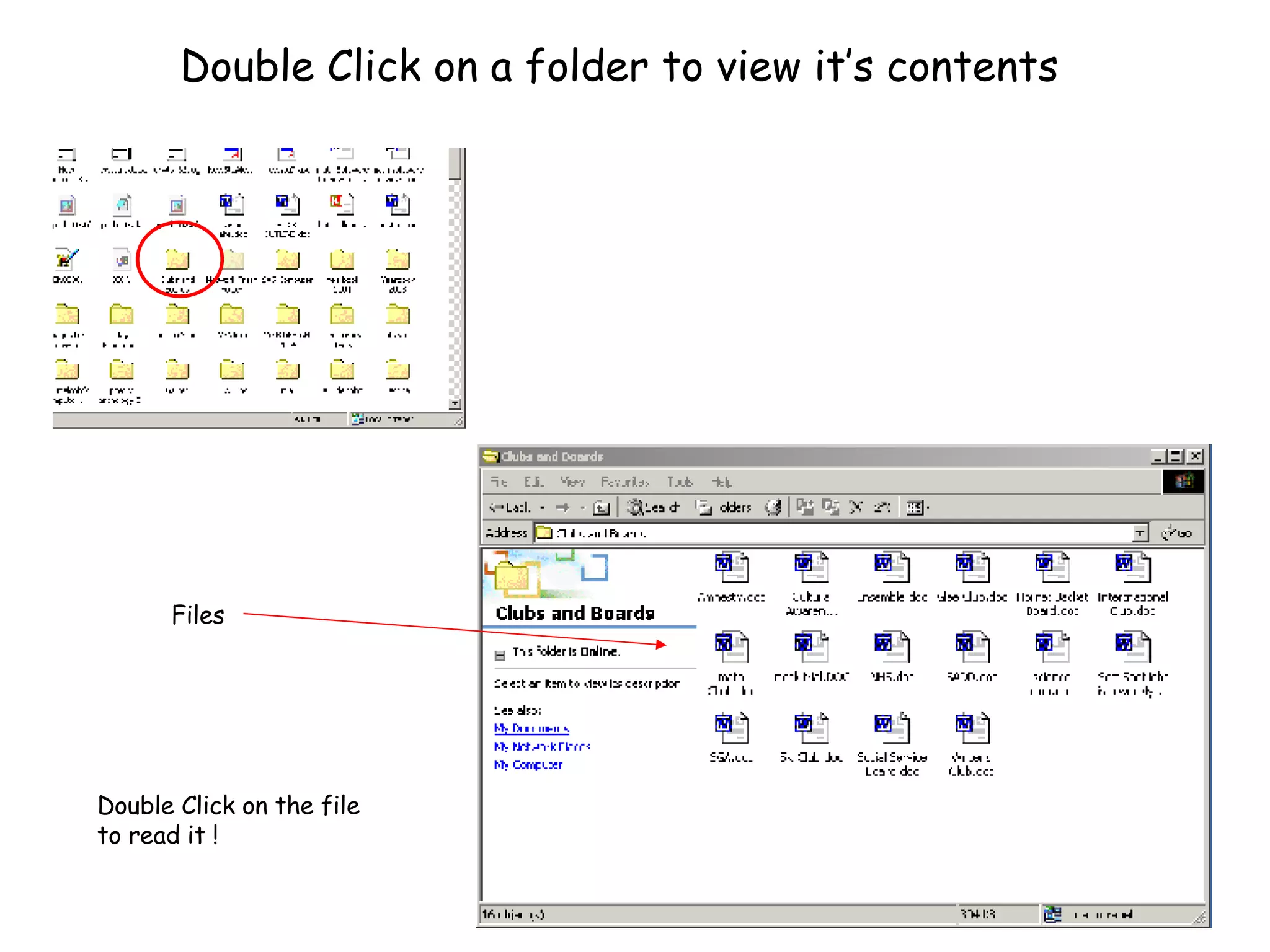
Double Click on a folder to view it’s contents Files  Double Click on the file to read it !
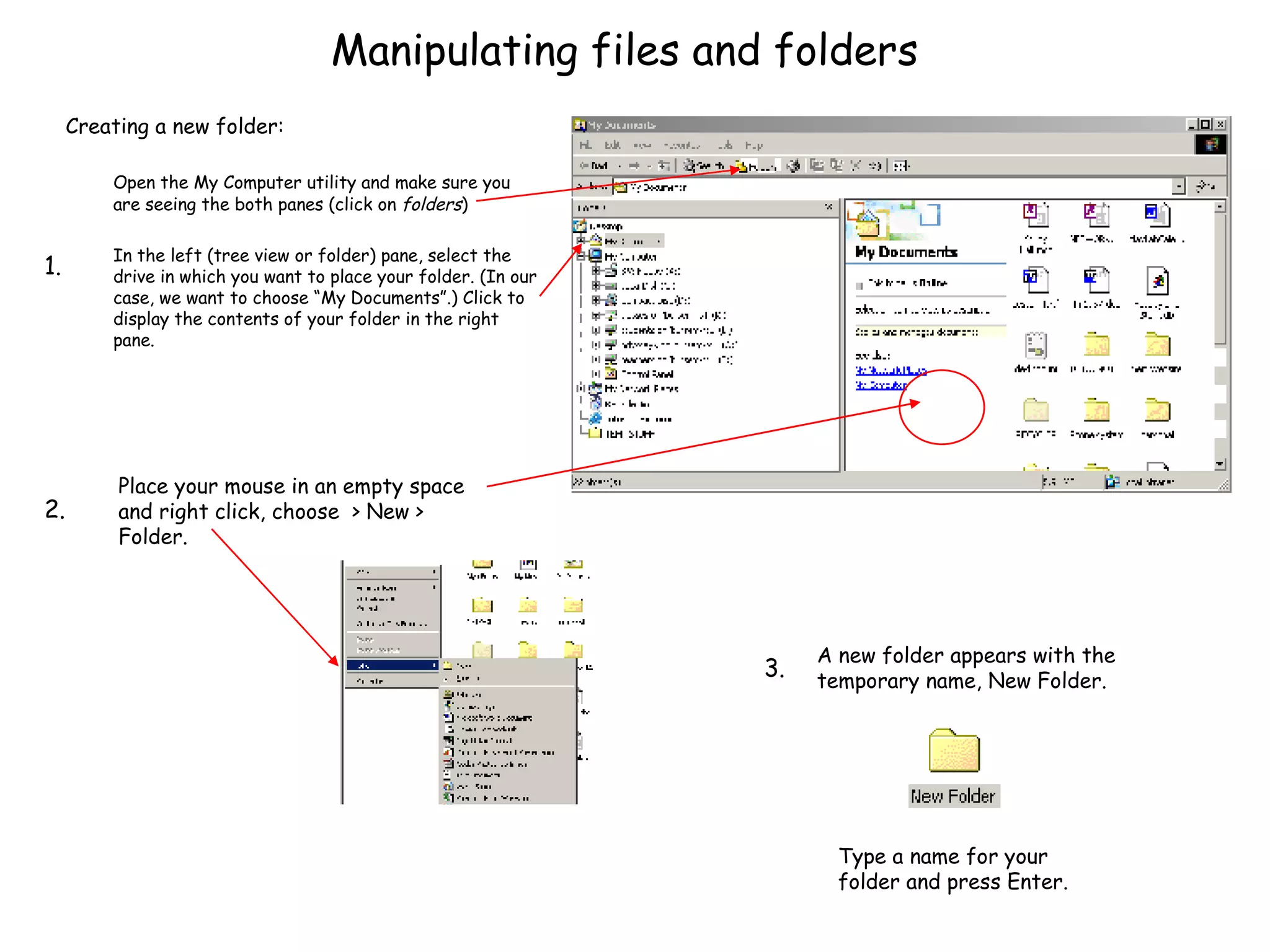
Manipulating files and folders Creating a new folder: Open the My Computer utility and make sure you are seeing the both panes (click on  folders ) In the left (tree view or folder) pane, select the drive in which you want to place your folder. (In our case, we want to choose “My Documents”.) Click to display the contents of your folder in the right pane. Place your mouse in an empty space and right click, choose  > New > Folder.  Type a name for your folder and press Enter. A new folder appears with the temporary name, New Folder. 1. 2. 3.
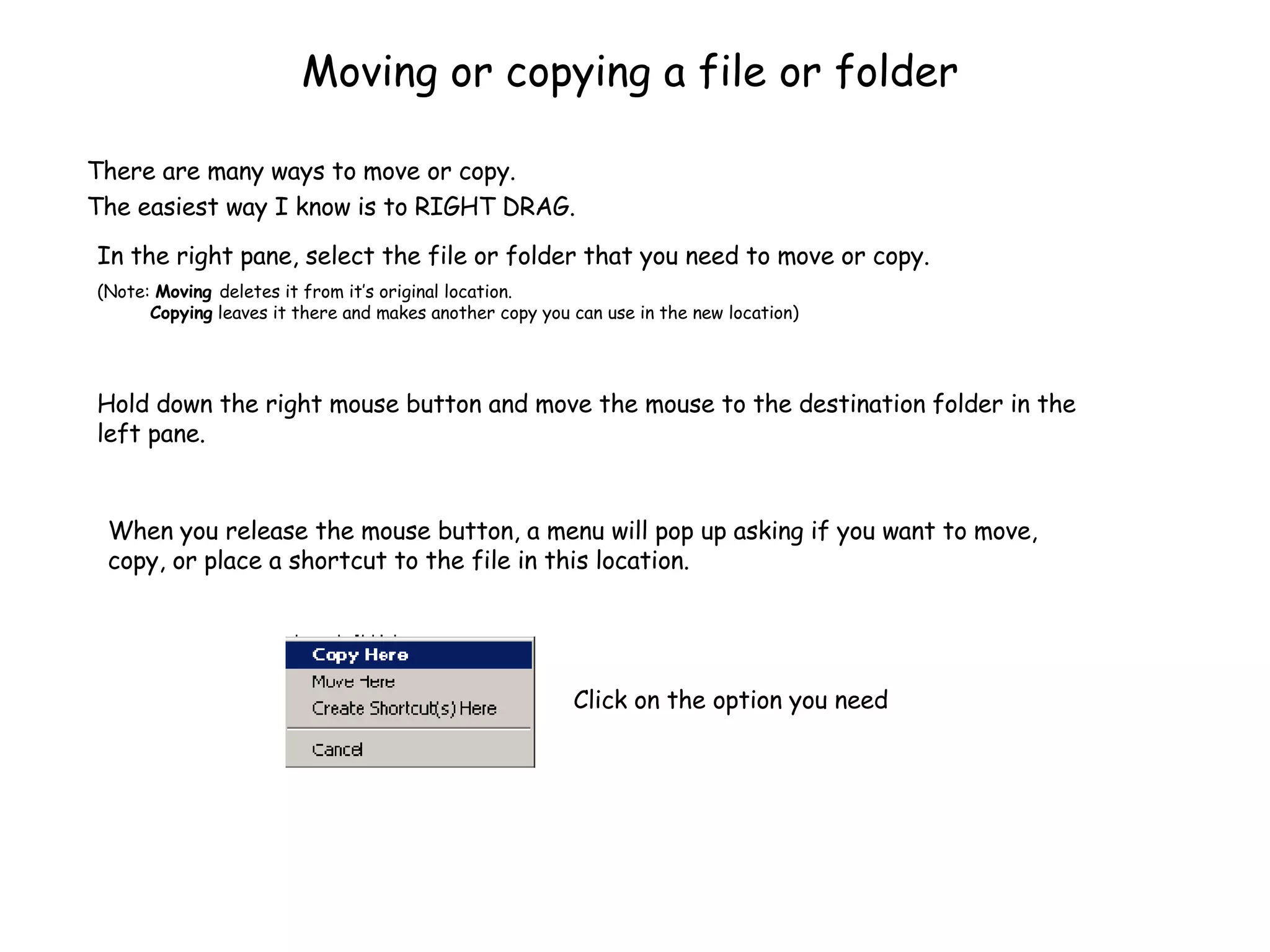
Moving or copying a file or folder There are many ways to move or copy.  The easiest way I know is to RIGHT DRAG. In the right pane, select the file or folder that you need to move or copy. (Note:  Moving  deletes it from it’s original location.    Copying  leaves it there and makes another copy you can use in the new location) Hold down the right mouse button and move the mouse to the destination folder in the left pane. When you release the mouse button, a menu will pop up asking if you want to move, copy, or place a shortcut to the file in this location. Click on the option you need
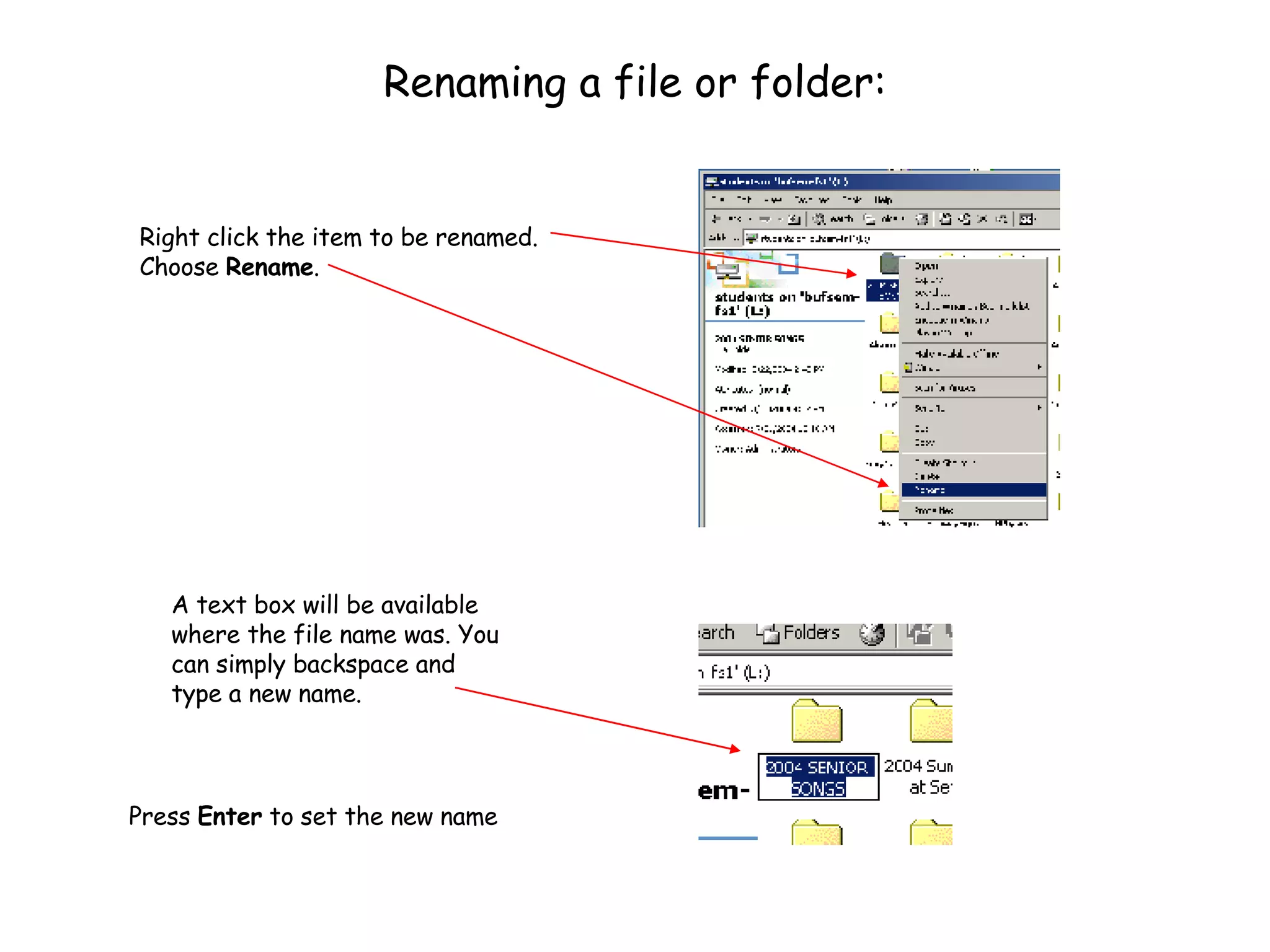
Renaming a file or folder: Right click the item to be renamed.  Choose  Rename .  Press  Enter  to set the new name A text box will be available where the file name was. You can simply backspace and type a new name.
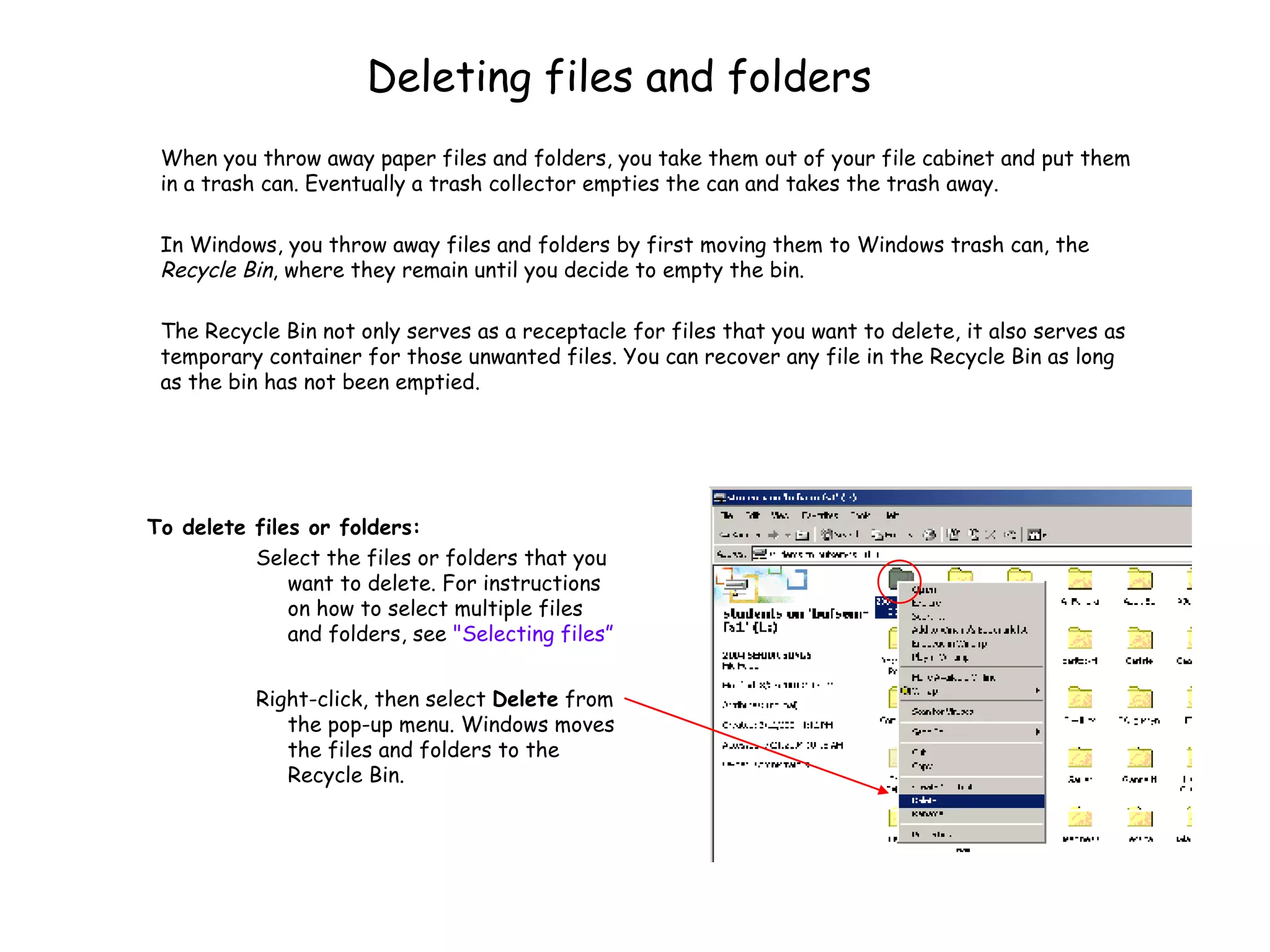
Deleting files and folders To delete files or folders:   Select the files or folders that you want to delete. For instructions on how to select multiple files and folders, see  "Selecting files ” Right-click, then select  Delete  from the pop-up menu. Windows moves the files and folders to the Recycle Bin.  When you throw away paper files and folders, you take them out of your file cabinet and put them in a trash can. Eventually a trash collector empties the can and takes the trash away.  In Windows, you throw away files and folders by first moving them to Windows trash can, the  Recycle Bin , where they remain until you decide to empty the bin.  The Recycle Bin not only serves as a receptacle for files that you want to delete, it also serves as temporary container for those unwanted files. You can recover any file in the Recycle Bin as long as the bin has not been emptied.
Selecting Multiple Files If you need to move, copy or delete more than one file at a time, here is a time-saving tip If the files are  adjacent hold down the  “shift”  key Click on the first file in the group Click on the last file in the group Release the shift key Now you can complete the action If the files are  scattered Hold down the  “CTRL”  key Click on each file that you want Now you can complete the action BACK
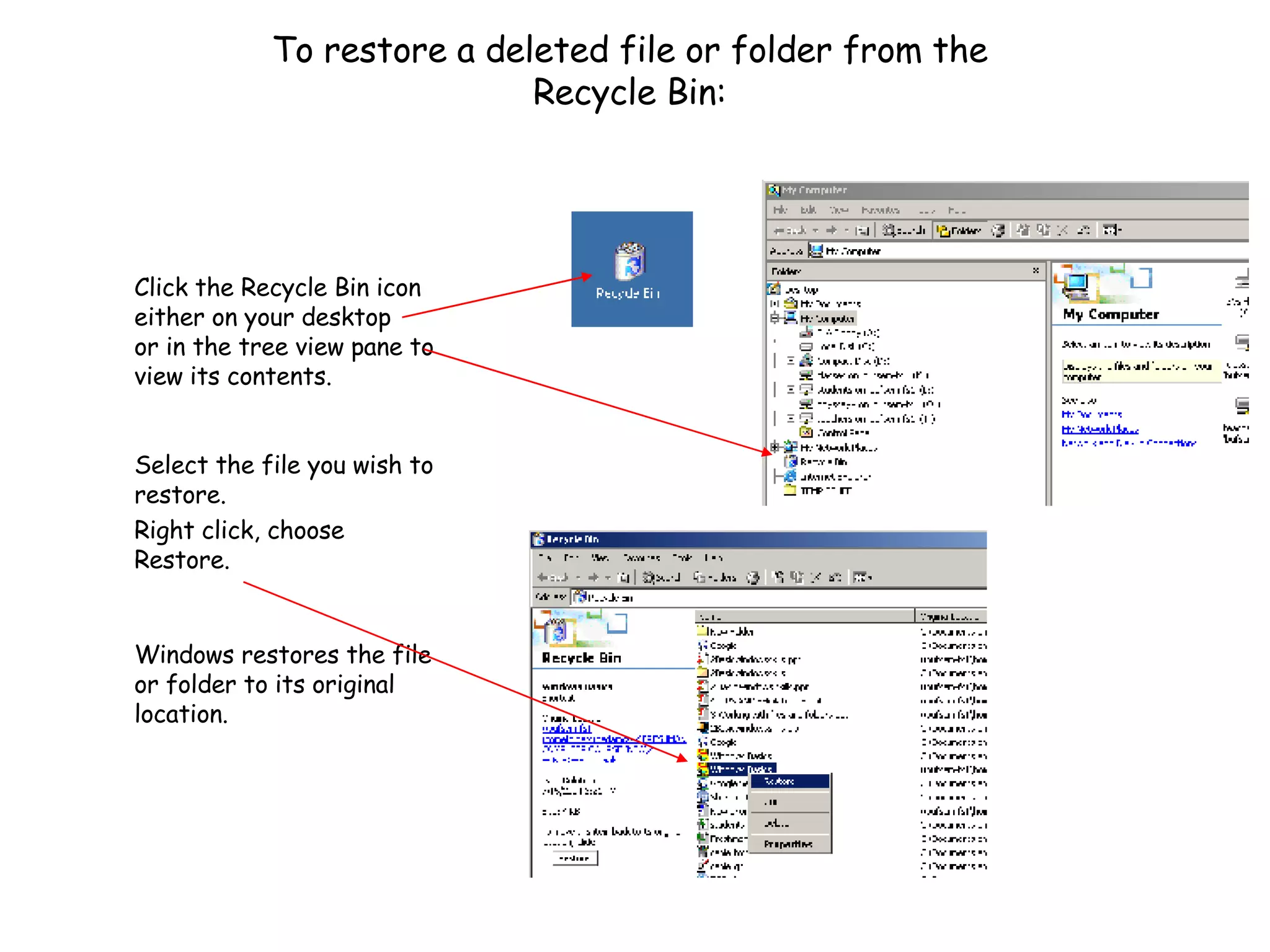
To restore a deleted file or folder from the Recycle Bin: Click the Recycle Bin icon either on your desktop or in the tree view pane to view its contents.   Select the file you wish to restore. Right click, choose Restore.   Windows restores the file or folder to its original location.
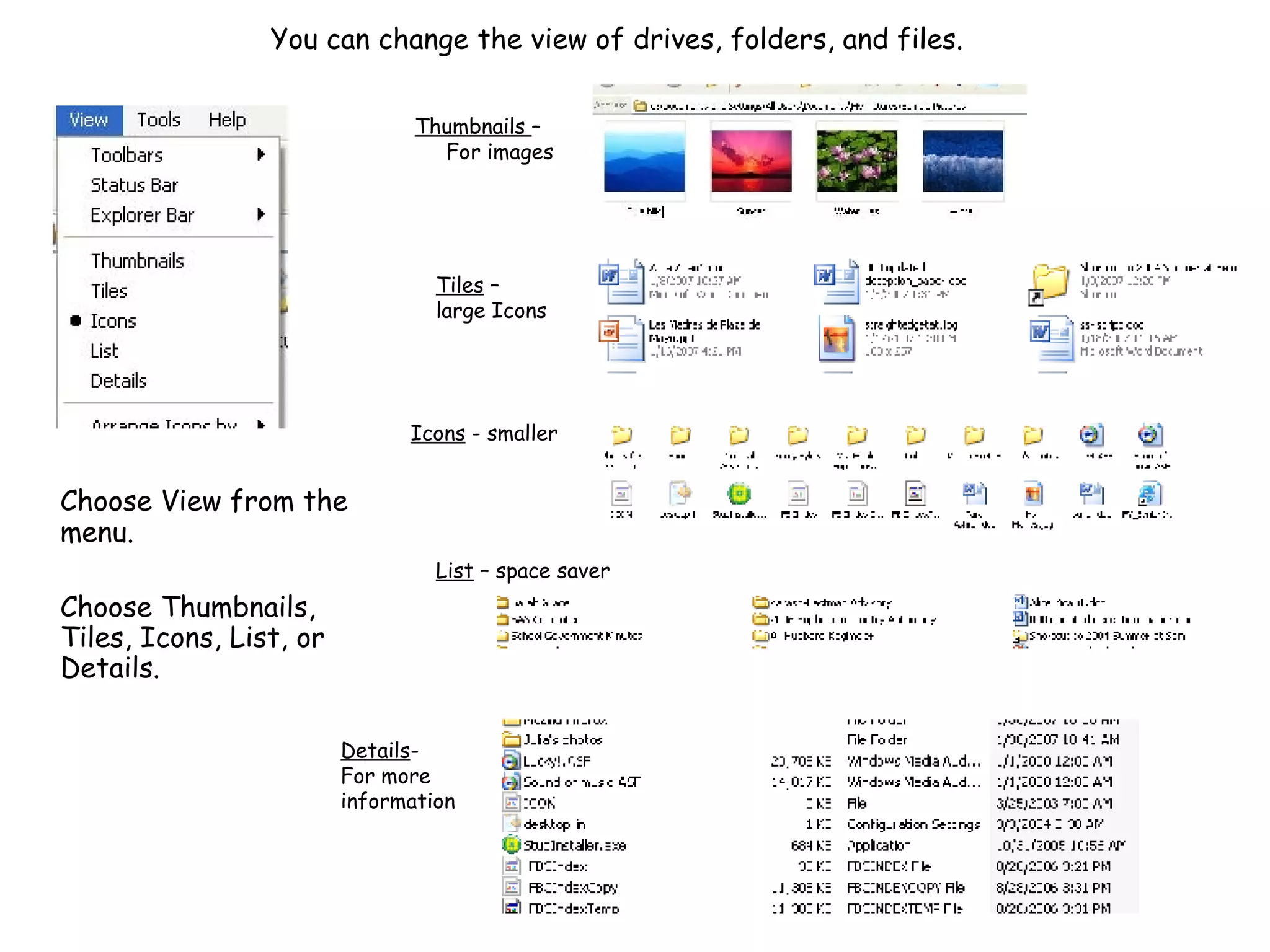
You can change the view of drives, folders, and files.   Choose View from the menu.  Choose Thumbnails, Tiles, Icons, List, or Details. Icons  - smaller Tiles  –  large Icons Details - For more information Thumbnails  –   For images List  – space saver
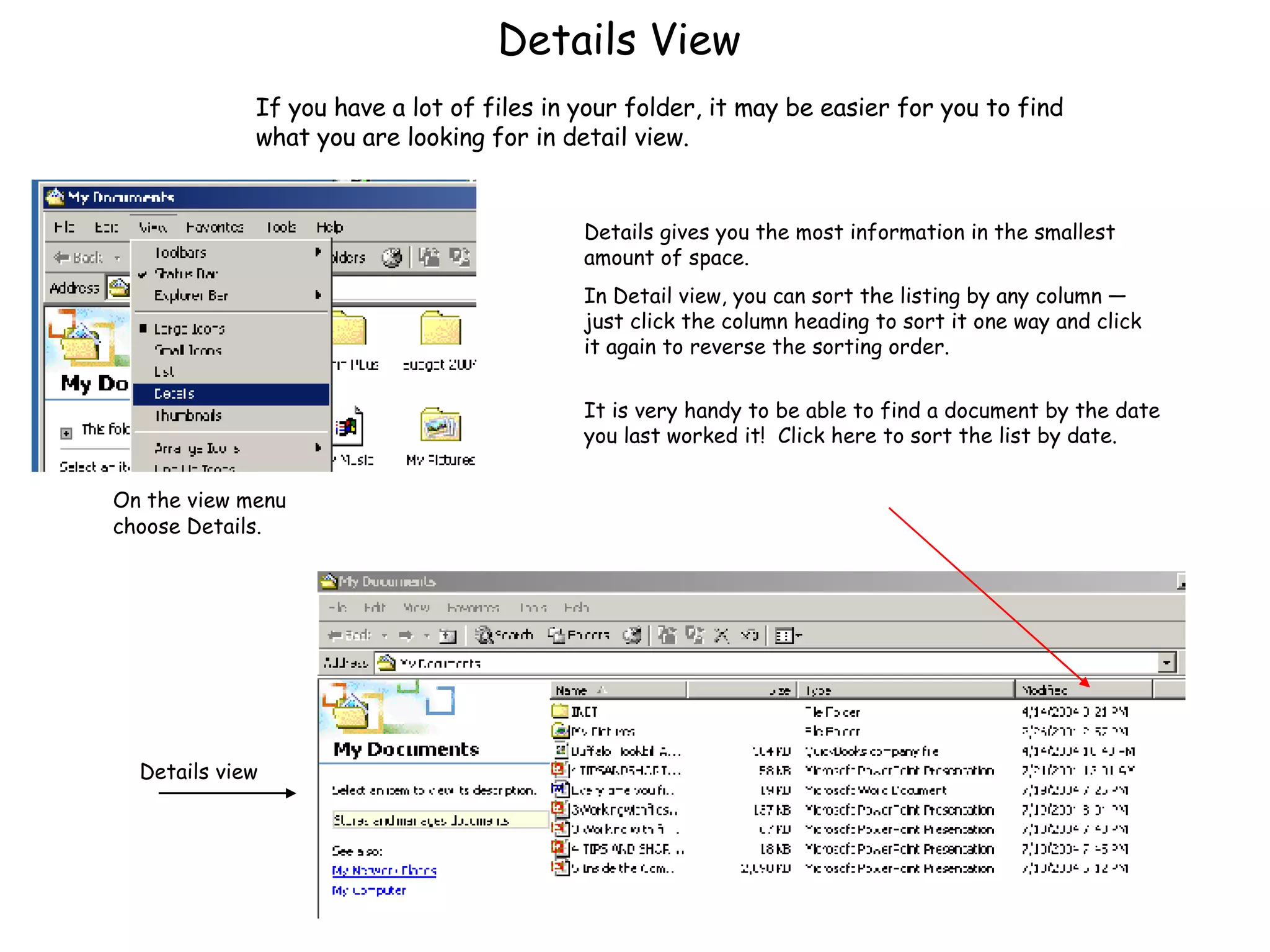
Details View On the view menu choose Details. Details gives you the most information in the smallest amount of space.  In Detail view, you can sort the listing by any column — just click the column heading to sort it one way and click it again to reverse the sorting order. It is very handy to be able to find a document by the date you last worked it!  Click here to sort the list by date. Details view If you have a lot of files in your folder, it may be easier for you to find what you are looking for in detail view.
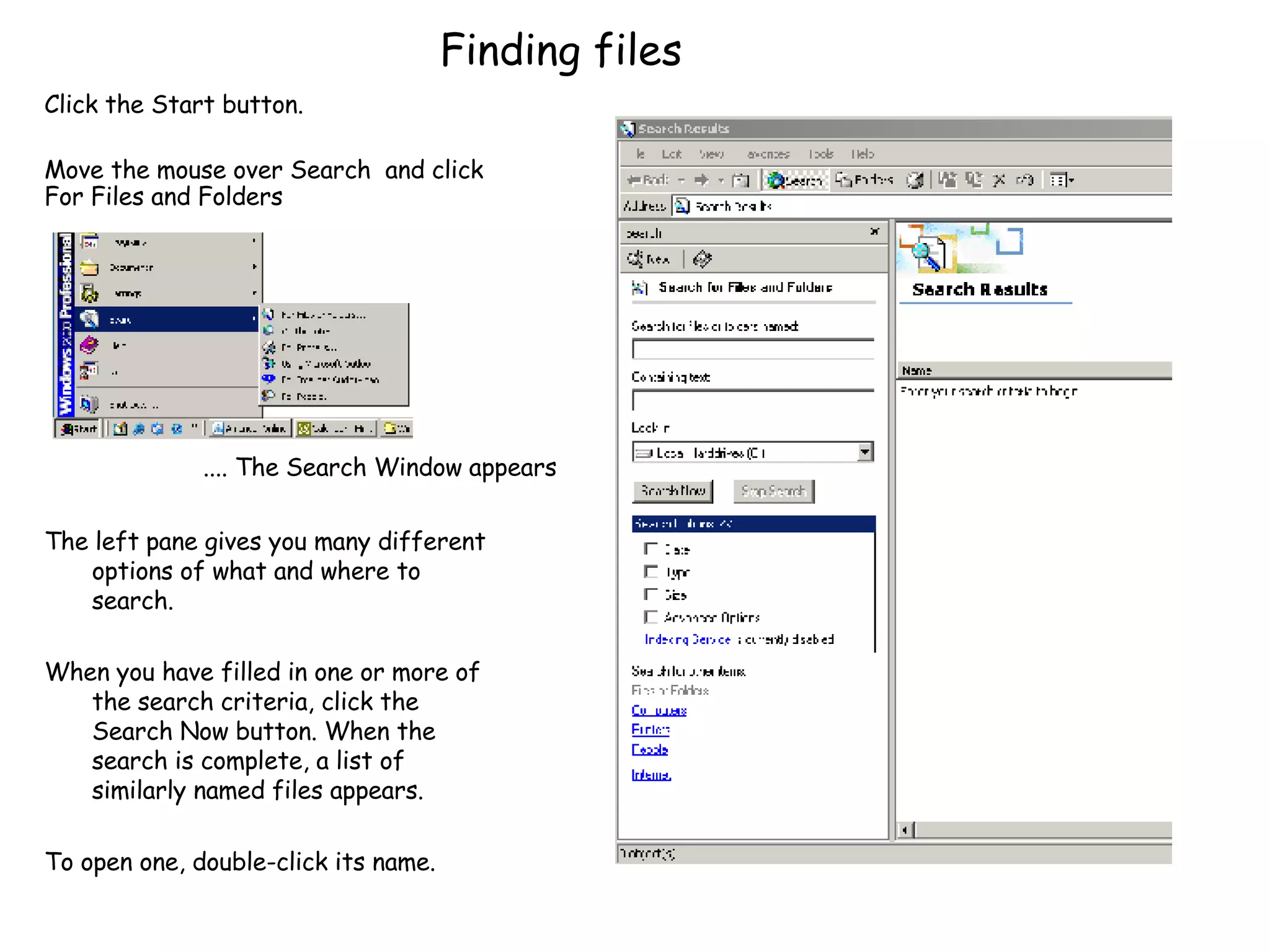
Finding files The left pane gives you many different options of what and where to search. When you have filled in one or more of the search criteria, click the Search Now button. When the search is complete, a list of similarly named files appears. To open one, double-click its name.  .... The Search Window appears Click the Start button. Move the mouse over Search  and click For Files and Folders
HUH?
Cleaning up My Documents
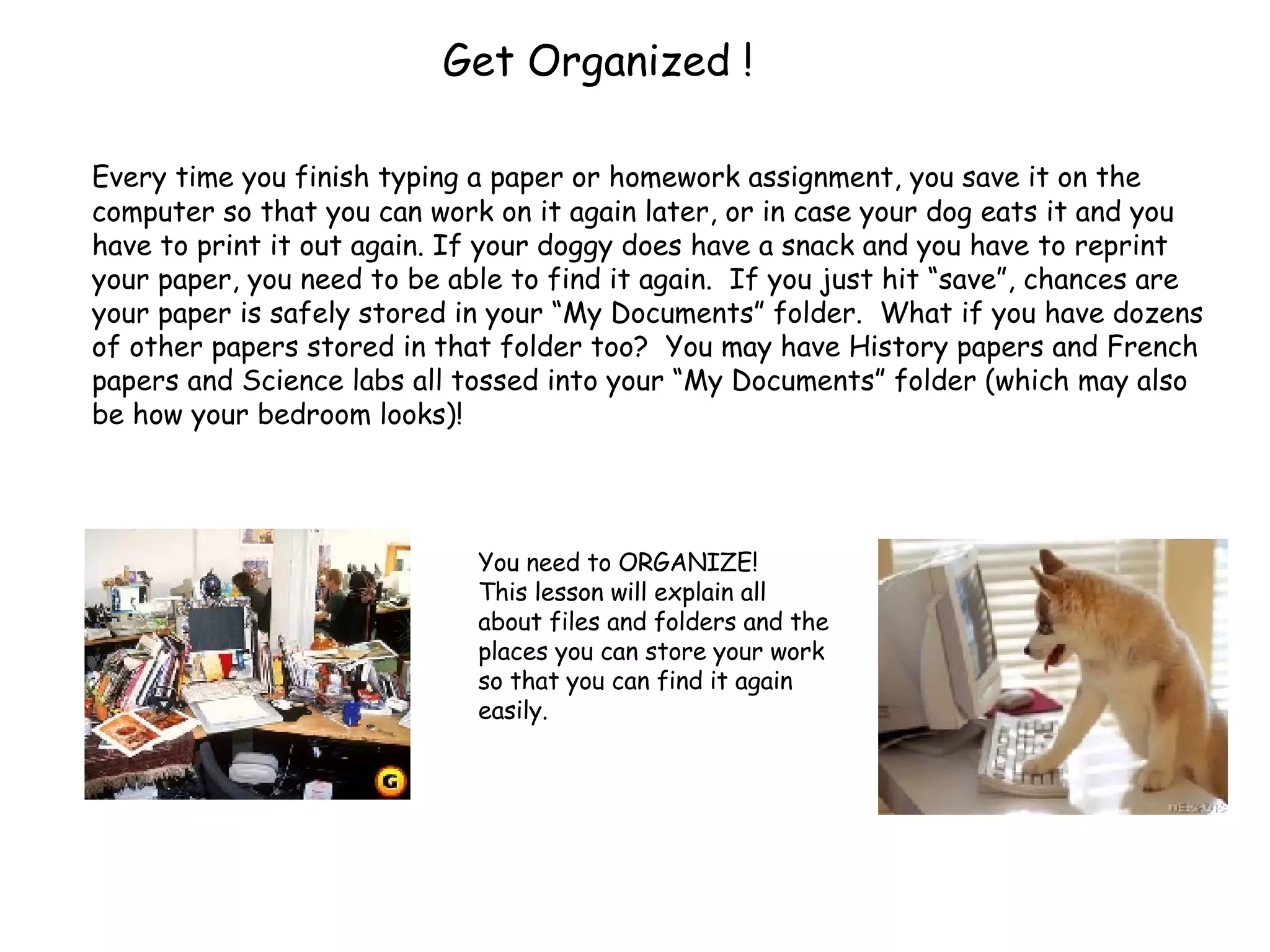
Get Organized ! Every time you finish typing a paper or homework assignment, you save it on the computer so that you can work on it again later, or in case your dog eats it and you have to print it out again. If your doggy does have a snack and you have to reprint your paper, you need to be able to find it again.  If you just hit “save”, chances are your paper is safely stored in your “My Documents” folder.  What if you have dozens of other papers stored in that folder too?  You may have History papers and French papers and Science labs all tossed into your “My Documents” folder (which may also be how your bedroom looks)!  You need to ORGANIZE!  This lesson will explain all about files and folders and the places you can store your work so that you can find it again easily.
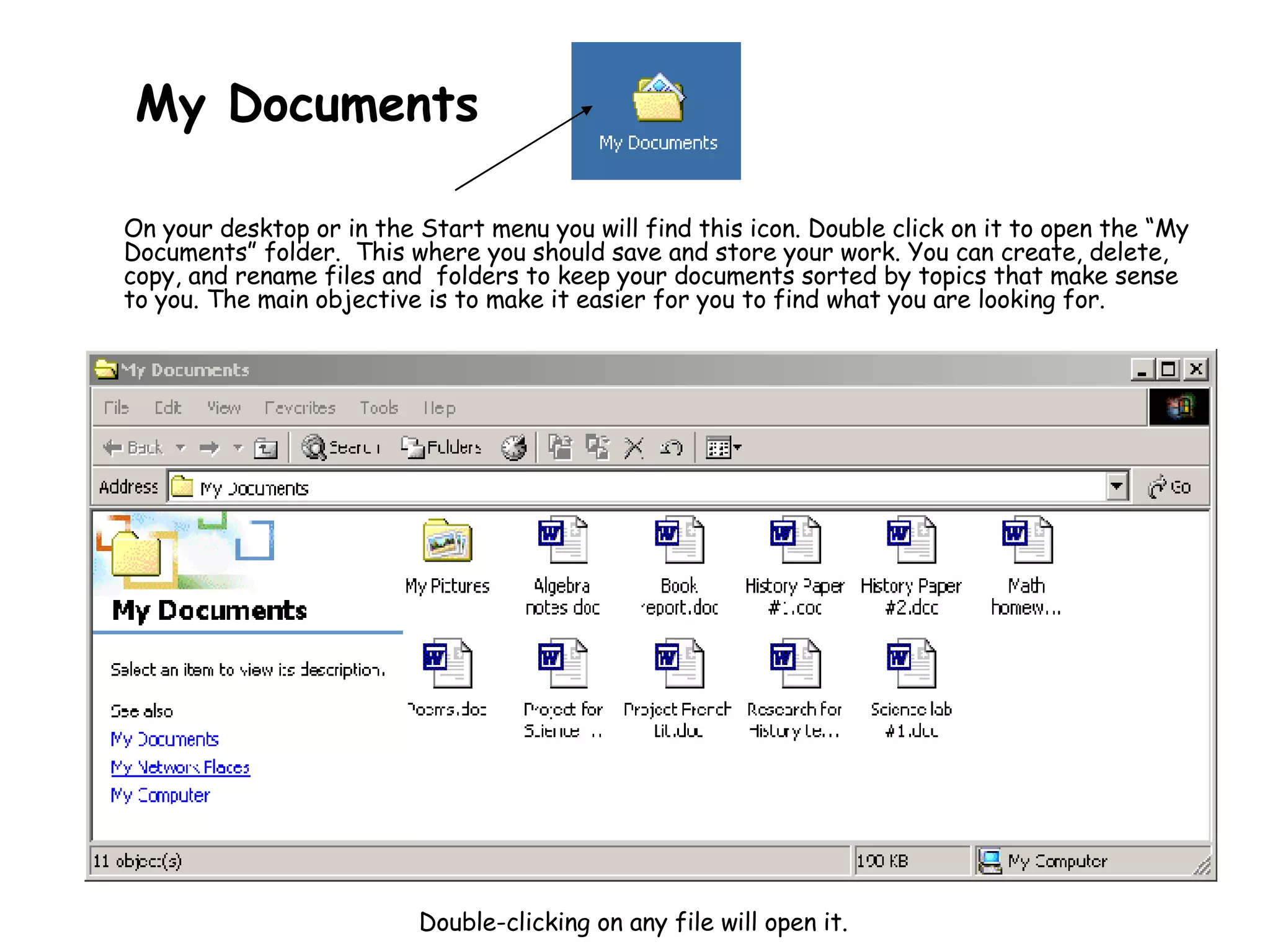
My Documents On your desktop or in the Start menu you will find this icon. Double click on it to open the “My Documents” folder.  This where you should save and store your work. You can create,  delete, copy, and rename files and  folders  to keep your documents sorted by topics that make sense to you. The main objective is to make it easier for you to find what you are looking for. Double-clicking on any file will open it.
Let’s clean this up ! This folder contains all of the schoolwork that you have saved so far this year.  There are documents from all your classes lumped together.  Yikes!!  OK – let’s get organized!  What you need is a separate folder for each class! Let’s make the new folders first, then we can move the documents into the correct folders.
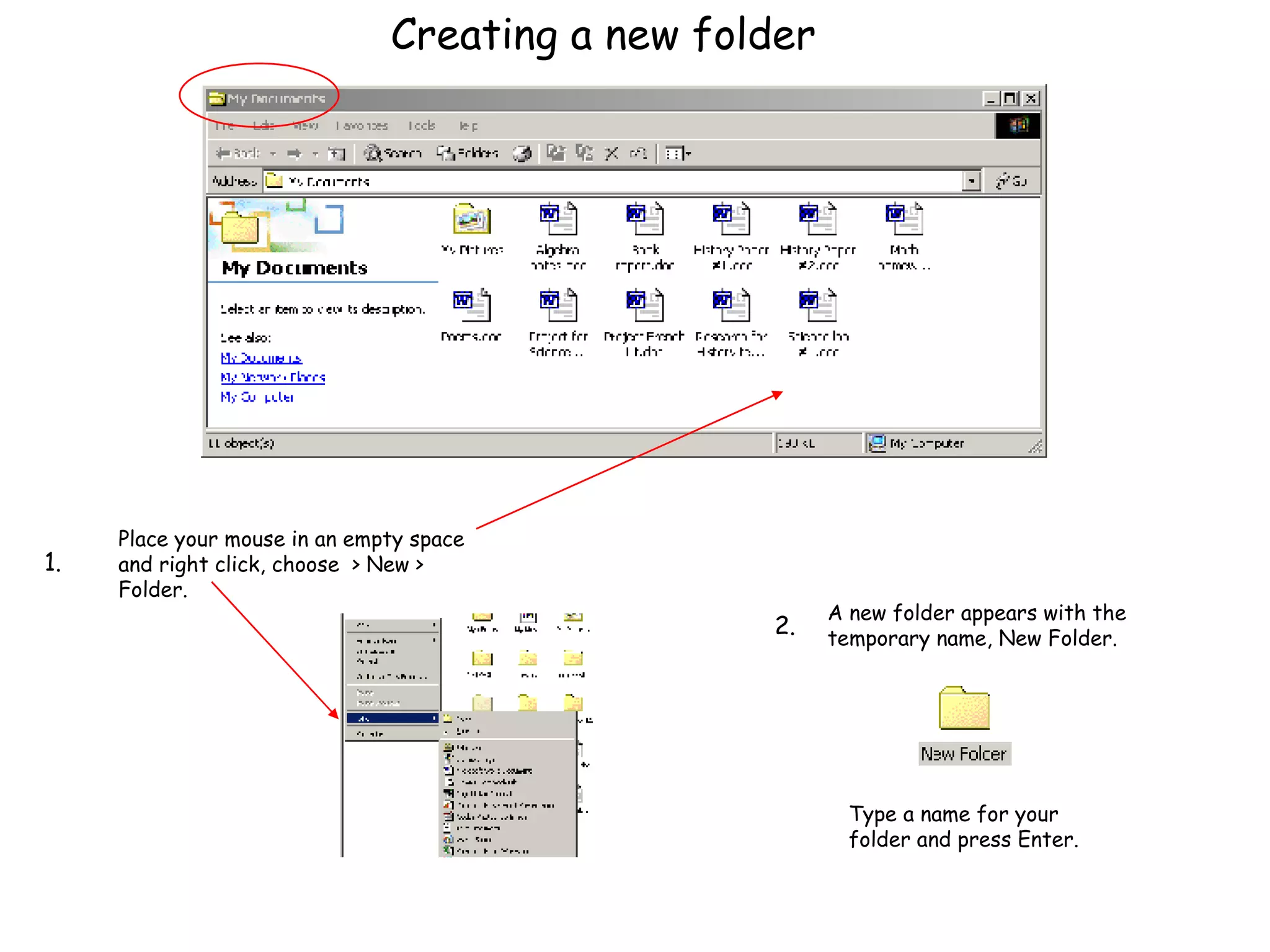
Creating a new folder Place your mouse in an empty space and right click, choose  > New > Folder.  Type a name for your folder and press Enter. A new folder appears with the temporary name, New Folder. 1. 2.
Now that you’ve created a folder for each class, you’re my Documents folder should look like this.
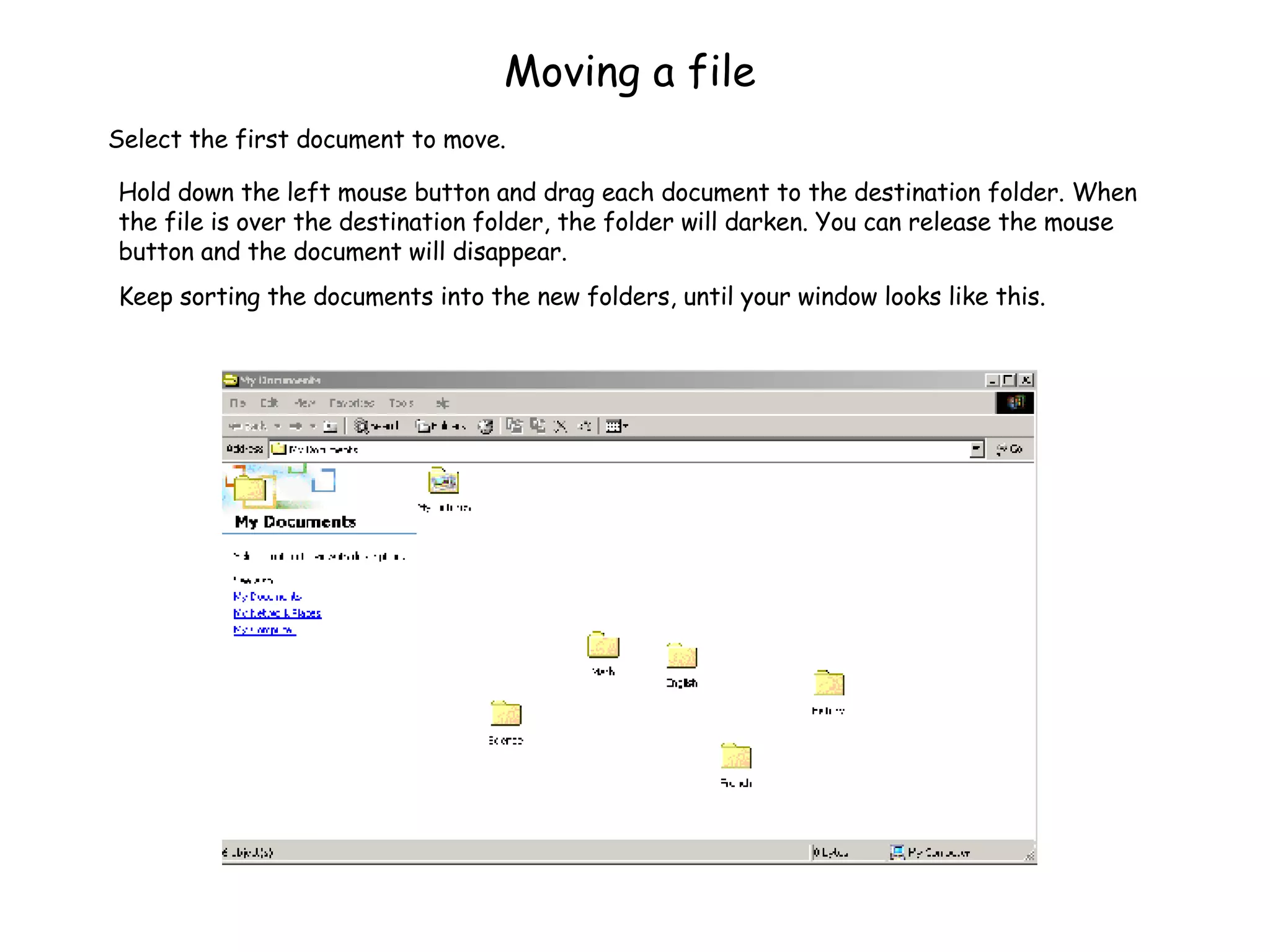
Moving a file Hold down the left mouse button and drag each document to the destination folder. When the file is over the destination folder, the folder will darken. You can release the mouse button and the document will disappear. Keep sorting the documents into the new folders, until your window looks like this. Select the first document to move.
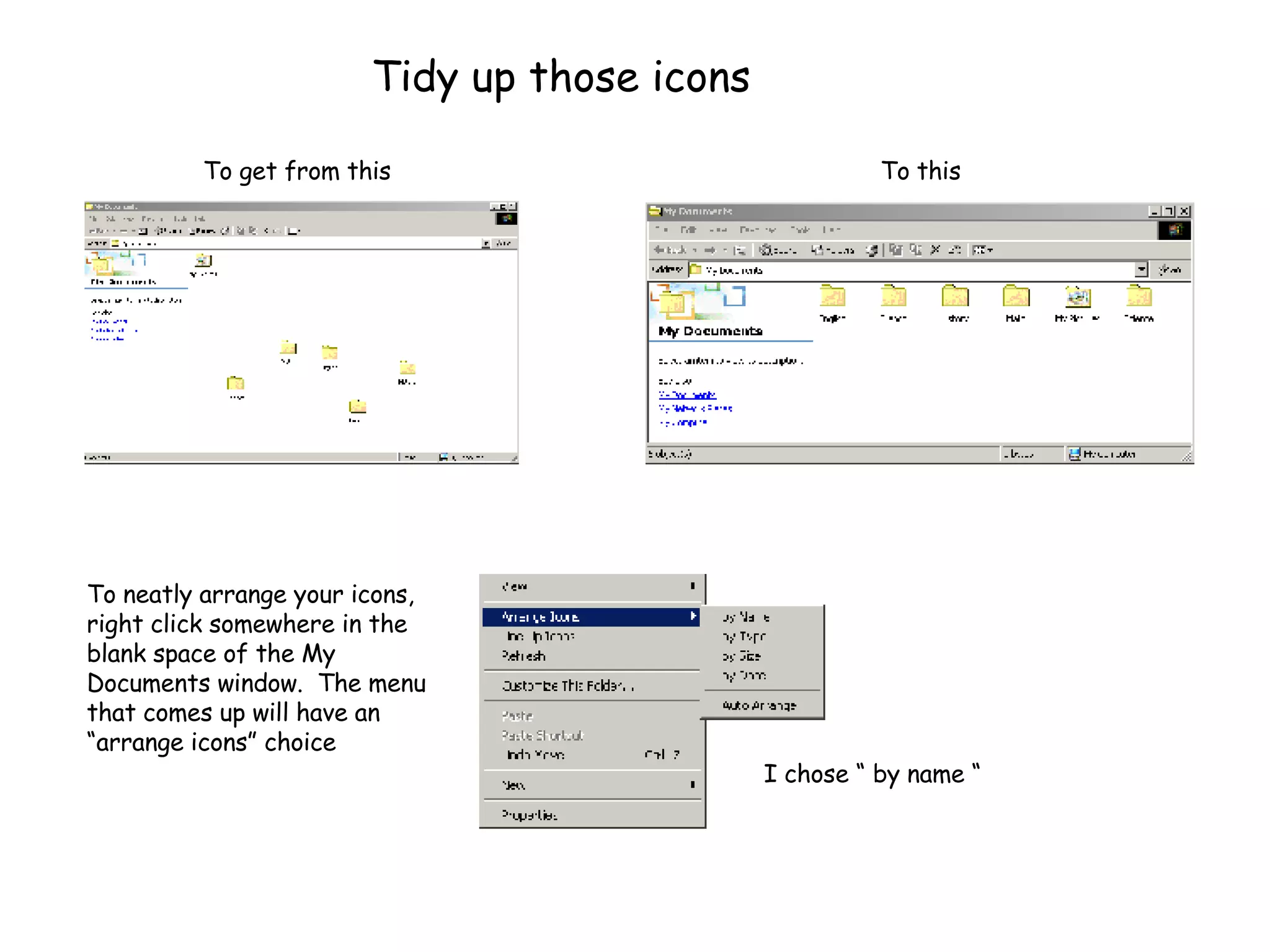
Tidy up those icons To neatly arrange your icons, right click somewhere in the blank space of the My Documents window.  The menu that comes up will have an “arrange icons” choice I chose “ by name “ To get from this To this
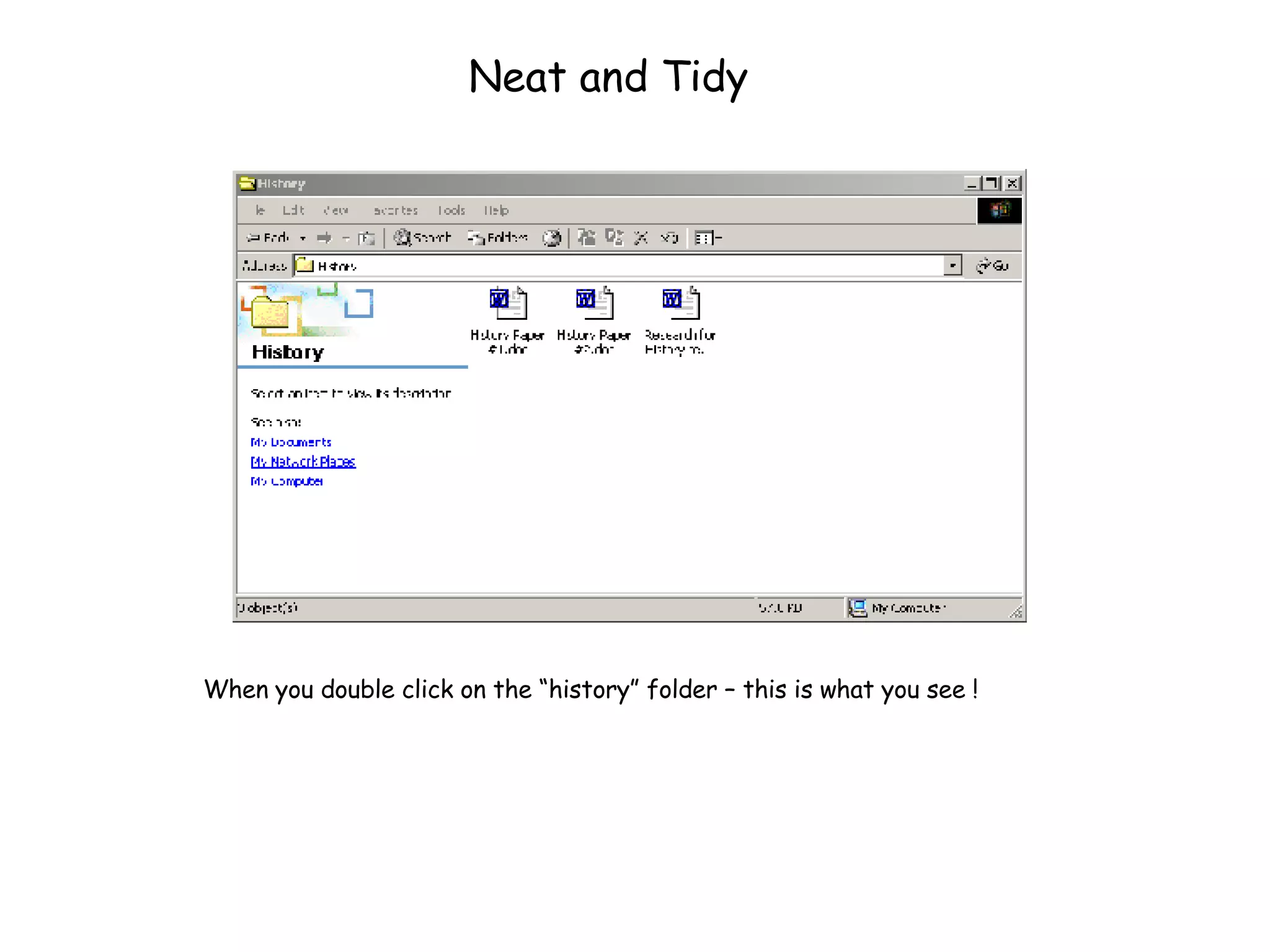
Neat and Tidy When you double click on the “history” folder – this is what you see !

05 Network, Files And Folders

  • 1.
    What Is aComputer Network ? • In the simplest terms, a computer network is a collection of computers that communicate with each other to allow the sharing of information and equipment. • The information might be something as simple as a staff memo or something as complex as a student record database. Shared equipment might include anything from a disk drive and a printer to an entire building of computers. • The advantage of a network is that a student could just as easily share his work with another student down the hall in another class as with a student halfway around the world.
  • 2.
    The Internet Isthe Largest Network in Existence.
  • 3.
    In a Peer-to-PeerNetwork, Computers simply connect with each other in a workgroup to share files, printers, and Internet access. This is most commonly found in home configurations, and is only practical for workgroups of a dozen or less computers. If you have a cable modem or DSL line at home and several computers can use the Internet at the same time, chances are that you are set up as a peer-to-peer network.
  • 4.
    Buffalo Seminary uses a Client/Server network.  In a client/server network , there are usually a large number of computers (called workstations or clients) which connect to a main computer (called the fileserver or domain controller). Most of the computers in the building are clients or workstations. Our file server is a computer in the closet near the study hall.
  • 5.
    Where to findstuff Open My Documents… You’ll find your files. When you create a document and save it – this is where it will be saved automatically. Now, open My Computer… You’ll find all the folders on the server that you have access to.
  • 6.
    Shared Files on the Network classes on ‘bufsem-fs2’ Only teachers can make changes, but students can copy files. students on ‘bufsem-fs2’ Teachers and students both have access to files and may change them. Only save something to this folder if you will need to share it with another student or a teacher. “ your name” on bufsem-fs2 This is your “My Documents” folder
  • 7.
    All of thesefiles are really saved on the server, so that you can work on them from any computer in the school. My documents Students on Bufsem-fs2 Classes on Bufsem-fs2 Note: each computer has a name so that it can be a member of the network domain (just like you have a username to be a member) The name of the network server is Bufsem-fs2
  • 8.
    Shared Printers All students are setup to print to 2 of the network printers Computer lab laser Library Laser Start  search  for printers If you need to print in color, please see me to access the color printer in the computer lab.
  • 9.
    Working with filesand folders
  • 10.
    FILE STRUCTURE Justas it is important to be able to locate a paper document in the correct folder or notebook in your schoolbag, it is necessary to be aware of the exact location of electronic files. Just like a filing cabinet, files in your computer can be organized into folders to make them easier to manage.  Folders can contain documents or other folders.
  • 11.
    Folders and FilesA file is usually stored in a Folder. A folder on your computer works the same way as a folder in a filing cabinet. Folders act as containers for files, and are used to separate and organize files into groups. Folders can contain any type of file, and even other folders. You can create your own folders. When you save your work, it becomes a file . A file is a collection of data stored under a specified name on a disk. (ex. Science Lab #1). A Word document is a file. An excel workbook is a file. A database which can consist of many tables and forms is a file. There are many different types of files. Each type has its own label or extension to identify it’s type to your computer and to you.
  • 12.
    File Types FileNames Each file in your computer is stored with a distinct file name . These names are made up of two parts: a description and an extension. The description usually identifies the contents of the file. If you create the file, you decide on this part of the name) The extension identifies the type of file. The full file name consists of the description and extension, separated by a dot (.). Sometimes, the extension may not appear, but it is always part of the official file name. Each of the eight sample files has a different icon (the small image next to the file name). The different icons can also help you to identify the file type. For example, every Word document will have the same icon as the one shown for Technology Skills.doc, and every text file will have an icon like the one shown for notes.txt. PowerPoint file Excel file Acrobat reader file Access database file Word file Image file Internet Explorer html file Text file extensions icons
  • 13.
    Drives A Driveis a place where folders and files are stored. Compare a drive to a drawer in a file cabinet. Each (drive) drawer is labeled and can contain folders and files. The computer you are working on has several drives. The computer’s hard drive is called the C: drive. It is called C because early computers always had 2 floppy disk drives A: and B: If your computer has a floppy drive (many newer machines do not), that drive will almost always be the A: drive. If you have other drives on your computer, like a CD or DVD drive, they may be labeled D: or E: or F:. Etc. Network Drives On a network, we can use drives that actually reside on our server. ( Our server is a special computer that lives in the closet near the study hall.) The server can have many drives that domain members (people who have user names and passwords) can use. Many of the drives on the server are restricted and can only be used by faculty and staff. Local Drives
  • 14.
    Our Network DrivesThere are three network drives that students have access to. These are labeled with names, and letters; Students on Bufsem-fs2 (L:) This drive is for you to store files and folders that you need to share with other students or teachers. You can add folders and label them so that you can both find them. Your teachers may ask you to create new folders for a class or class project. Classes on Bufsem-fs2 (K:) This drive is for teachers to use to post information that they may want you to use for your class work. Students can not store documents on this drive, but can copy the teachers documents and store them either in the “Students” drive or in their own “My Documents” folder Your Name on Bufsem-fs2 (Z:) This drive is your “My Documents” folder. This directory is your own private storage area on the network.
  • 15.
    Saving a Documentto a Network Drive After you have created a document that you need to share with another member of the Domain (a teacher or student), you must save it to the Network drive: Students on BufSem-fs2. RE DO THIS IMAGE Under the pull down file menu choose “SAVE AS”. A dialog box will open so that you can choose the correct place to save your document. 1. 2. 3.
  • 16.
    My Computer Forthose of you who are visual learners, these last few pages were probably confusing – take heart – the next slides will demonstrate this important concept clearly.
  • 17.
    My Computer On your desktop you will find the icon to open the utility “My Computer”. This utility is used for managing files and folders. (i.e.: delete, copy, rename files and folders create folders) THE DRIVES !! Double-clicking on any drive or folder will open that drive or folder and display its contents Local Drives Network drives
  • 18.
    Double click onthe drive to view it’s contents Files not in a folder Folders
  • 19.
    Double Click ona folder to view it’s contents Files Double Click on the file to read it !
  • 20.
    Manipulating files andfolders Creating a new folder: Open the My Computer utility and make sure you are seeing the both panes (click on folders ) In the left (tree view or folder) pane, select the drive in which you want to place your folder. (In our case, we want to choose “My Documents”.) Click to display the contents of your folder in the right pane. Place your mouse in an empty space and right click, choose  > New > Folder. Type a name for your folder and press Enter. A new folder appears with the temporary name, New Folder. 1. 2. 3.
  • 21.
    Moving or copyinga file or folder There are many ways to move or copy. The easiest way I know is to RIGHT DRAG. In the right pane, select the file or folder that you need to move or copy. (Note: Moving deletes it from it’s original location. Copying leaves it there and makes another copy you can use in the new location) Hold down the right mouse button and move the mouse to the destination folder in the left pane. When you release the mouse button, a menu will pop up asking if you want to move, copy, or place a shortcut to the file in this location. Click on the option you need
  • 22.
    Renaming a fileor folder: Right click the item to be renamed. Choose Rename . Press Enter to set the new name A text box will be available where the file name was. You can simply backspace and type a new name.
  • 23.
    Deleting files andfolders To delete files or folders: Select the files or folders that you want to delete. For instructions on how to select multiple files and folders, see "Selecting files ” Right-click, then select Delete from the pop-up menu. Windows moves the files and folders to the Recycle Bin. When you throw away paper files and folders, you take them out of your file cabinet and put them in a trash can. Eventually a trash collector empties the can and takes the trash away. In Windows, you throw away files and folders by first moving them to Windows trash can, the Recycle Bin , where they remain until you decide to empty the bin. The Recycle Bin not only serves as a receptacle for files that you want to delete, it also serves as temporary container for those unwanted files. You can recover any file in the Recycle Bin as long as the bin has not been emptied.
  • 24.
    Selecting Multiple FilesIf you need to move, copy or delete more than one file at a time, here is a time-saving tip If the files are adjacent hold down the “shift” key Click on the first file in the group Click on the last file in the group Release the shift key Now you can complete the action If the files are scattered Hold down the “CTRL” key Click on each file that you want Now you can complete the action BACK
  • 25.
    To restore adeleted file or folder from the Recycle Bin: Click the Recycle Bin icon either on your desktop or in the tree view pane to view its contents. Select the file you wish to restore. Right click, choose Restore. Windows restores the file or folder to its original location.
  • 26.
    You can changethe view of drives, folders, and files. Choose View from the menu. Choose Thumbnails, Tiles, Icons, List, or Details. Icons - smaller Tiles – large Icons Details - For more information Thumbnails – For images List – space saver
  • 27.
    Details View Onthe view menu choose Details. Details gives you the most information in the smallest amount of space. In Detail view, you can sort the listing by any column — just click the column heading to sort it one way and click it again to reverse the sorting order. It is very handy to be able to find a document by the date you last worked it! Click here to sort the list by date. Details view If you have a lot of files in your folder, it may be easier for you to find what you are looking for in detail view.
  • 28.
    Finding files Theleft pane gives you many different options of what and where to search. When you have filled in one or more of the search criteria, click the Search Now button. When the search is complete, a list of similarly named files appears. To open one, double-click its name. .... The Search Window appears Click the Start button. Move the mouse over Search and click For Files and Folders
  • 29.
  • 30.
    Cleaning up MyDocuments
  • 31.
    Get Organized !Every time you finish typing a paper or homework assignment, you save it on the computer so that you can work on it again later, or in case your dog eats it and you have to print it out again. If your doggy does have a snack and you have to reprint your paper, you need to be able to find it again. If you just hit “save”, chances are your paper is safely stored in your “My Documents” folder. What if you have dozens of other papers stored in that folder too? You may have History papers and French papers and Science labs all tossed into your “My Documents” folder (which may also be how your bedroom looks)! You need to ORGANIZE! This lesson will explain all about files and folders and the places you can store your work so that you can find it again easily.
  • 32.
    My Documents Onyour desktop or in the Start menu you will find this icon. Double click on it to open the “My Documents” folder. This where you should save and store your work. You can create, delete, copy, and rename files and folders to keep your documents sorted by topics that make sense to you. The main objective is to make it easier for you to find what you are looking for. Double-clicking on any file will open it.
  • 33.
    Let’s clean thisup ! This folder contains all of the schoolwork that you have saved so far this year. There are documents from all your classes lumped together. Yikes!! OK – let’s get organized! What you need is a separate folder for each class! Let’s make the new folders first, then we can move the documents into the correct folders.
  • 34.
    Creating a newfolder Place your mouse in an empty space and right click, choose  > New > Folder. Type a name for your folder and press Enter. A new folder appears with the temporary name, New Folder. 1. 2.
  • 35.
    Now that you’vecreated a folder for each class, you’re my Documents folder should look like this.
  • 36.
    Moving a fileHold down the left mouse button and drag each document to the destination folder. When the file is over the destination folder, the folder will darken. You can release the mouse button and the document will disappear. Keep sorting the documents into the new folders, until your window looks like this. Select the first document to move.
  • 37.
    Tidy up thoseicons To neatly arrange your icons, right click somewhere in the blank space of the My Documents window. The menu that comes up will have an “arrange icons” choice I chose “ by name “ To get from this To this
  • 38.
    Neat and TidyWhen you double click on the “history” folder – this is what you see !