
Statistics
Research Methods
What’s in this PowerPoint?
• Why learning statistics?
• Two Perspectives of Statistics
• Descriptive Statistics
• Inferential Statistics
Why is my evil
lecturer forcing me
to learn statistics?
Why oh why? 
• What do you learn in this class?
 Research
• What is research?
 To answer some interesting questions
• How do you answer the research questions?
 Collect data
 Explain & analyze the data
• Numbers = data
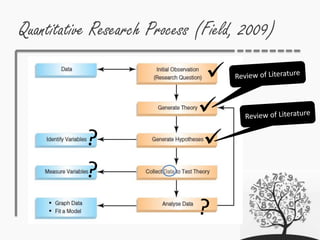
Quantitative Research Process (Field, 2009)



So you’ve done hypothesis…
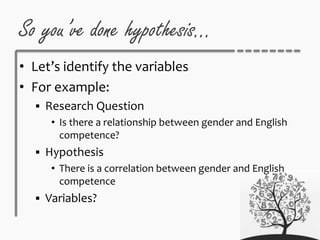
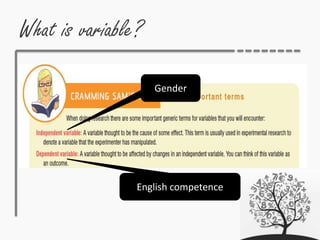
• Let’s identify the variables
• For example:
 Research Question
• Is there a relationship between gender and English
competence?
 Hypothesis
• There is a correlation between gender and English
competence
 Variables?
What is variable?
Gender
English competence
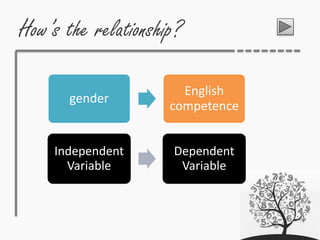
How’s the relationship?
gender
English
competence
Independent
Variable
Dependent
Variable
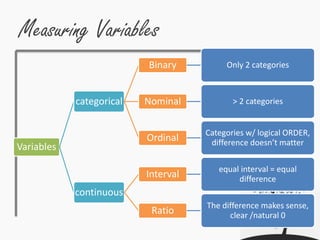
Measuring Variables
Variables
categorical
Binary Only 2 categories
Nominal > 2 categories
Ordinal
Categories w/ logical ORDER,
difference doesn’t matter
continuous
Interval
equal interval = equal
difference
Ratio
The difference makes sense,
clear /natural 0
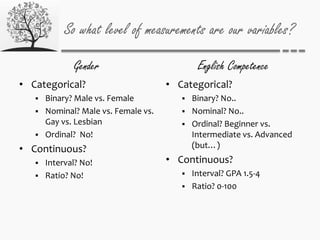
So what level of measurements are our variables?
Gender
• Categorical?
 Binary? Male vs. Female
 Nominal? Male vs. Female vs.
Gay vs. Lesbian
 Ordinal? No!
• Continuous?
 Interval? No!
 Ratio? No!
English Competence
• Categorical?
 Binary? No..
 Nominal? No..
 Ordinal? Beginner vs.
Intermediate vs. Advanced
(but…)
• Continuous?
 Interval? GPA 1.5-4
 Ratio? 0-100
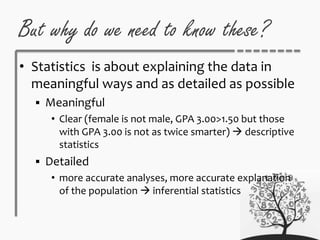
But why do we need to know these?
• Statistics is about explaining the data in
meaningful ways and as detailed as possible
 Meaningful
• Clear (female is not male, GPA 3.00>1.50 but those
with GPA 3.00 is not as twice smarter)  descriptive
statistics
 Detailed
• more accurate analyses, more accurate explanation
of the population  inferential statistics
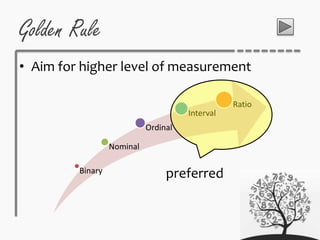
Golden Rule
• Aim for higher level of measurement
Binary
Nominal
Ordinal
Interval
Ratio
preferred
Data
Preparation
Data – what is it?
• In Quantitative research, data mostly consist
of numbers or words that are converted to
numbers (such as in discourse analysis)
How to prepare your data?
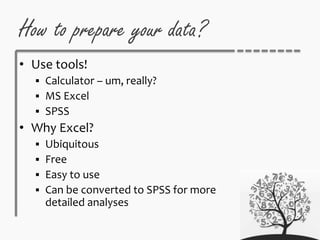
• Use tools!
 Calculator – um, really?
 MS Excel
 SPSS
• Why Excel?
 Ubiquitous
 Free
 Easy to use
 Can be converted to SPSS for more
detailed analyses
Preparing the Data in MS Excel
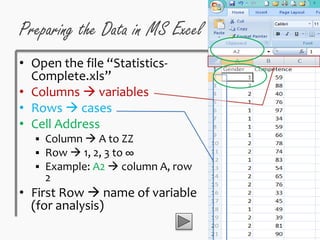
• Open the file “Statistics-
Complete.xls”
• Columns  variables
• Rows  cases
• Cell Address
 Column  A to ZZ
 Row  1, 2, 3 to ∞
 Example: A2  column A, row
2
• First Row  name of variable
(for analysis)
Perspectives of
Statistics
Two perspectives
• Descriptive Statistics
 To describe or summarize the data
 Results of the data only
• Inferential Statistics
 To make inferences about the population from
the data (sample)
Descriptive
Statistics
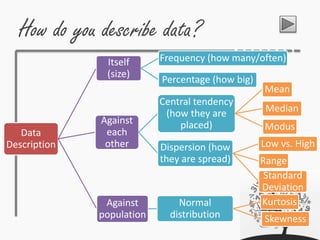
How do you describe data?
Data
Description
Itself
(size)
Frequency (how many/often)
Percentage (how big)
Against
each
other
Central tendency
(how they are
placed)
Mean
Median
Modus
Dispersion (how
they are spread)
Low vs. High
Range
Standard
Deviation
Against
population
Normal
distribution
Kurtosis
Skewness
Let’s learn and practice
• See the file “Statistics-complete.xls”
• You will find the data for the variables “gender” and
“competence”
• Variable in columns, cases in rows
• Variable naming rules (for exporting to SPSS)
 Short, explanatory
 Must be unique
 No spaces, blanks, or !,?, ‘, and *
 Must begin with a letter, followed by either a letter, any
digit, a full stop or symbols @, #, _ or $
 Cannot end with a full stop or underscore
 Are not case sensitive
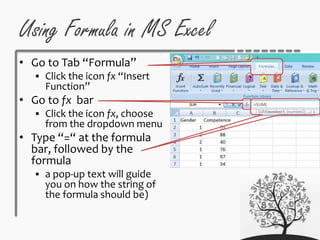
Using Formula in MS Excel
• Go to Tab “Formula”
 Click the icon fx “Insert
Function”
• Go to fx bar
 Click the icon fx, choose
from the dropdown menu
• Type “=“ at the formula
bar, followed by the
formula
 a pop-up text will guide
you on how the string of
the formula should be)
How do you describe data? By Itself
• Frequency – how many? How often?
 A.k.a. tallies, To count up the number of things or
people in different categories
• Raw frequencies
 COUNT – the number of cases (e.g. how many
cases)
 COUNTIF – the number of cases based on certain
conditions (e.g. how many males/females)
 SUM – the total of certain numbers (e.g. combining
2 variables)
How do you describe data? By Itself
• Group Sum/Percentage – how big?
 Raw frequencies can be converted into
percentages
 Graphical display of data (a.k.a. pie charts)
 Other ways to display data (histogram, line)
• How?
 Group the data – using COUNTIF
 Insert Chart – using Tab “Insert” |
“Column” or “Pie”
How do you describe your data? Against each other
• Central Tendency – how are they placed
among each other?
 The tendency of a set of numbers to cluster
around a particular value (Brown)
 What are they?
• Mean
• Mode
• Median
How do you describe your data? Against each other
 Mean
 A.k.a. average
 Sum of all values in a distribution divided by the
number of values
 AVERAGE
How do you describe your data? Against each other
 Mode
• Frequently occurring values in a set of numbers
• MODE
How do you describe your data? Against each other
 Median
• The middle value
• The data needs to be sorted from smallest to highest
• MEDIAN
How do you describe your data? Against each other
• Dispersion
 To what extent the individual values vary away
from the central tendency
 What are they?
• Low-High
• Range
• Standard Deviation
How do you describe your data? Against each other
 Low-High
• The lowest and the highest values
• MIN, MAX
 Range
• The highest – the lowest + 1
• Input the MIN and MAX and calculate
 Standard Deviation
• To what extent a set of scores varies in
relation to the mean
• STDEV
How do you describe your data? Against the population
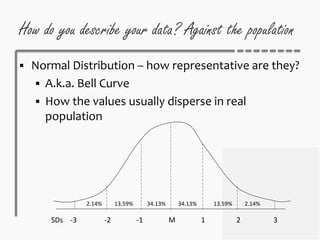
 Normal Distribution – how representative are they?
 A.k.a. Bell Curve
 How the values usually disperse in real
population
SDs -3 -2 -1 M 1 2 3
2.14% 13.59% 34.13% 34.13% 13.59% 2.14%
How do you describe your data? Against the population
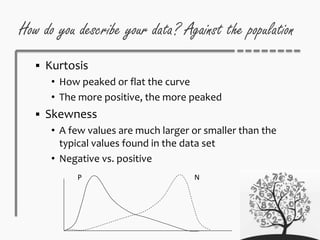
 Kurtosis
• How peaked or flat the curve
• The more positive, the more peaked
 Skewness
• A few values are much larger or smaller than the
typical values found in the data set
• Negative vs. positive
NP
Checking Normality in MS Excel
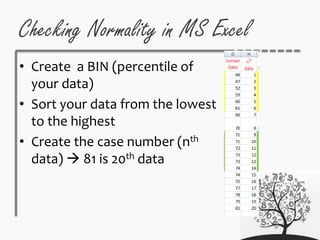
• Create a BIN (percentile of
your data)
• Sort your data from the lowest
to the highest
• Create the case number (nth
data)  81 is 20th data
Using Normality Percentage
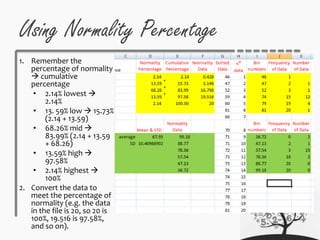
1. Remember the
percentage of normality
 cumulative
percentage
• 2.14% lowest 
2.14%
• 13. 59% low  15.73%
(2.14 + 13.59)
• 68.26% mid 
83.99% (2.14 + 13.59
+ 68.26)
• 13.59% high 
97.58%
• 2.14% highest 
100%
2. Convert the data to
meet the percentage of
normality (e.g. the data
in the file is 20, so 20 is
100%, 19.516 is 97.58%,
and so on).
Using Normality Percentage
3. Identify the bin
numbers (cut points)
 E.g. 100% is 20th data
case in the file  81
 97.58% is the approx.
19th data case  79
4. Decide how many times
the data occur within
the bin numbers
[FREQUENCY]  46-47
pts = 1 time, 46-52 pts= 2
times, and so on; the
final one 81 should be
20 times
5. Decide the number of
the data  under 47 is 1
score, 47-52 is 2 scores,
and so on.
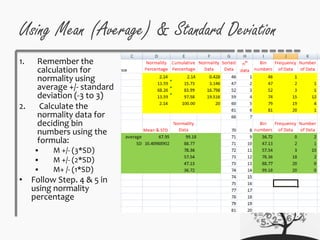
Using Mean (Average) & Standard Deviation
1. Remember the
calculation for
normality using
average +/- standard
deviation (-3 to 3)
2. Calculate the
normality data for
deciding bin
numbers using the
formula:
 M +/- (3*SD)
 M +/- (2*SD)
 M+ /- (1*SD)
• Follow Step. 4 & 5 in
using normality
percentage
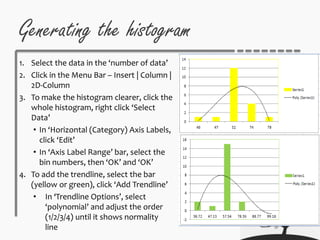
Generating the histogram
1. Select the data in the ‘number of data’
2. Click in the Menu Bar – Insert | Column |
2D-Column
3. To make the histogram clearer, click the
whole histogram, right click ‘Select
Data’
• In ‘Horizontal (Category) Axis Labels,
click ‘Edit’
• In ‘Axis Label Range’ bar, select the
bin numbers, then ‘OK’ and ‘OK’
4. To add the trendline, select the bar
(yellow or green), click ‘Add Trendline’
• In ‘Trendline Options’, select
‘polynomial’ and adjust the order
(1/2/3/4) until it shows normality
line
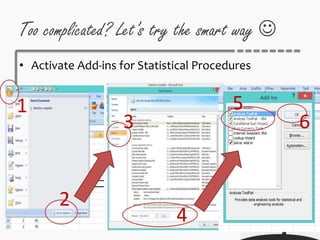
Too complicated? Let’s try the smart way 
• Activate Add-ins for Statistical Procedures
1
2
3
4
5
6
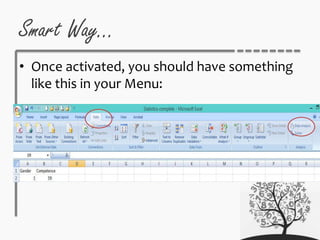
Smart Way…
• Once activated, you should have something
like this in your Menu:
How to do descriptive Statistic?
• Menu | Data Analysis | Descriptive Statistics
• Select the data range that you want as an
Input Range
• Select the output range
• Tick Summary Statistics
• Voila! 
Inferential
Statistics

Descriptive Statistics

  • 1.
  • 2.
    What’s in thisPowerPoint? • Why learning statistics? • Two Perspectives of Statistics • Descriptive Statistics • Inferential Statistics
  • 3.
    Why is myevil lecturer forcing me to learn statistics?
  • 4.
    Why oh why? • What do you learn in this class?  Research • What is research?  To answer some interesting questions • How do you answer the research questions?  Collect data  Explain & analyze the data • Numbers = data
  • 5.
    Quantitative Research Process(Field, 2009)   
  • 6.
    So you’ve donehypothesis… • Let’s identify the variables • For example:  Research Question • Is there a relationship between gender and English competence?  Hypothesis • There is a correlation between gender and English competence  Variables?
  • 7.
  • 8.
  • 9.
    Measuring Variables Variables categorical Binary Only2 categories Nominal > 2 categories Ordinal Categories w/ logical ORDER, difference doesn’t matter continuous Interval equal interval = equal difference Ratio The difference makes sense, clear /natural 0
  • 10.
    So what levelof measurements are our variables? Gender • Categorical?  Binary? Male vs. Female  Nominal? Male vs. Female vs. Gay vs. Lesbian  Ordinal? No! • Continuous?  Interval? No!  Ratio? No! English Competence • Categorical?  Binary? No..  Nominal? No..  Ordinal? Beginner vs. Intermediate vs. Advanced (but…) • Continuous?  Interval? GPA 1.5-4  Ratio? 0-100
  • 11.
    But why dowe need to know these? • Statistics is about explaining the data in meaningful ways and as detailed as possible  Meaningful • Clear (female is not male, GPA 3.00>1.50 but those with GPA 3.00 is not as twice smarter)  descriptive statistics  Detailed • more accurate analyses, more accurate explanation of the population  inferential statistics
  • 12.
    Golden Rule • Aimfor higher level of measurement Binary Nominal Ordinal Interval Ratio preferred
  • 13.
  • 14.
    Data – whatis it? • In Quantitative research, data mostly consist of numbers or words that are converted to numbers (such as in discourse analysis)
  • 15.
    How to prepareyour data? • Use tools!  Calculator – um, really?  MS Excel  SPSS • Why Excel?  Ubiquitous  Free  Easy to use  Can be converted to SPSS for more detailed analyses
  • 16.
    Preparing the Datain MS Excel • Open the file “Statistics- Complete.xls” • Columns  variables • Rows  cases • Cell Address  Column  A to ZZ  Row  1, 2, 3 to ∞  Example: A2  column A, row 2 • First Row  name of variable (for analysis)
  • 17.
  • 18.
    Two perspectives • DescriptiveStatistics  To describe or summarize the data  Results of the data only • Inferential Statistics  To make inferences about the population from the data (sample)
  • 19.
  • 20.
    How do youdescribe data? Data Description Itself (size) Frequency (how many/often) Percentage (how big) Against each other Central tendency (how they are placed) Mean Median Modus Dispersion (how they are spread) Low vs. High Range Standard Deviation Against population Normal distribution Kurtosis Skewness
  • 21.
    Let’s learn andpractice • See the file “Statistics-complete.xls” • You will find the data for the variables “gender” and “competence” • Variable in columns, cases in rows • Variable naming rules (for exporting to SPSS)  Short, explanatory  Must be unique  No spaces, blanks, or !,?, ‘, and *  Must begin with a letter, followed by either a letter, any digit, a full stop or symbols @, #, _ or $  Cannot end with a full stop or underscore  Are not case sensitive
  • 22.
    Using Formula inMS Excel • Go to Tab “Formula”  Click the icon fx “Insert Function” • Go to fx bar  Click the icon fx, choose from the dropdown menu • Type “=“ at the formula bar, followed by the formula  a pop-up text will guide you on how the string of the formula should be)
  • 23.
    How do youdescribe data? By Itself • Frequency – how many? How often?  A.k.a. tallies, To count up the number of things or people in different categories • Raw frequencies  COUNT – the number of cases (e.g. how many cases)  COUNTIF – the number of cases based on certain conditions (e.g. how many males/females)  SUM – the total of certain numbers (e.g. combining 2 variables)
  • 24.
    How do youdescribe data? By Itself • Group Sum/Percentage – how big?  Raw frequencies can be converted into percentages  Graphical display of data (a.k.a. pie charts)  Other ways to display data (histogram, line) • How?  Group the data – using COUNTIF  Insert Chart – using Tab “Insert” | “Column” or “Pie”
  • 25.
    How do youdescribe your data? Against each other • Central Tendency – how are they placed among each other?  The tendency of a set of numbers to cluster around a particular value (Brown)  What are they? • Mean • Mode • Median
  • 26.
    How do youdescribe your data? Against each other  Mean  A.k.a. average  Sum of all values in a distribution divided by the number of values  AVERAGE
  • 27.
    How do youdescribe your data? Against each other  Mode • Frequently occurring values in a set of numbers • MODE
  • 28.
    How do youdescribe your data? Against each other  Median • The middle value • The data needs to be sorted from smallest to highest • MEDIAN
  • 29.
    How do youdescribe your data? Against each other • Dispersion  To what extent the individual values vary away from the central tendency  What are they? • Low-High • Range • Standard Deviation
  • 30.
    How do youdescribe your data? Against each other  Low-High • The lowest and the highest values • MIN, MAX  Range • The highest – the lowest + 1 • Input the MIN and MAX and calculate  Standard Deviation • To what extent a set of scores varies in relation to the mean • STDEV
  • 31.
    How do youdescribe your data? Against the population  Normal Distribution – how representative are they?  A.k.a. Bell Curve  How the values usually disperse in real population SDs -3 -2 -1 M 1 2 3 2.14% 13.59% 34.13% 34.13% 13.59% 2.14%
  • 32.
    How do youdescribe your data? Against the population  Kurtosis • How peaked or flat the curve • The more positive, the more peaked  Skewness • A few values are much larger or smaller than the typical values found in the data set • Negative vs. positive NP
  • 33.
    Checking Normality inMS Excel • Create a BIN (percentile of your data) • Sort your data from the lowest to the highest • Create the case number (nth data)  81 is 20th data
  • 34.
    Using Normality Percentage 1.Remember the percentage of normality  cumulative percentage • 2.14% lowest  2.14% • 13. 59% low  15.73% (2.14 + 13.59) • 68.26% mid  83.99% (2.14 + 13.59 + 68.26) • 13.59% high  97.58% • 2.14% highest  100% 2. Convert the data to meet the percentage of normality (e.g. the data in the file is 20, so 20 is 100%, 19.516 is 97.58%, and so on).
  • 35.
    Using Normality Percentage 3.Identify the bin numbers (cut points)  E.g. 100% is 20th data case in the file  81  97.58% is the approx. 19th data case  79 4. Decide how many times the data occur within the bin numbers [FREQUENCY]  46-47 pts = 1 time, 46-52 pts= 2 times, and so on; the final one 81 should be 20 times 5. Decide the number of the data  under 47 is 1 score, 47-52 is 2 scores, and so on.
  • 36.
    Using Mean (Average)& Standard Deviation 1. Remember the calculation for normality using average +/- standard deviation (-3 to 3) 2. Calculate the normality data for deciding bin numbers using the formula:  M +/- (3*SD)  M +/- (2*SD)  M+ /- (1*SD) • Follow Step. 4 & 5 in using normality percentage
  • 37.
    Generating the histogram 1.Select the data in the ‘number of data’ 2. Click in the Menu Bar – Insert | Column | 2D-Column 3. To make the histogram clearer, click the whole histogram, right click ‘Select Data’ • In ‘Horizontal (Category) Axis Labels, click ‘Edit’ • In ‘Axis Label Range’ bar, select the bin numbers, then ‘OK’ and ‘OK’ 4. To add the trendline, select the bar (yellow or green), click ‘Add Trendline’ • In ‘Trendline Options’, select ‘polynomial’ and adjust the order (1/2/3/4) until it shows normality line
  • 38.
    Too complicated? Let’stry the smart way  • Activate Add-ins for Statistical Procedures 1 2 3 4 5 6
  • 39.
    Smart Way… • Onceactivated, you should have something like this in your Menu:
  • 40.
    How to dodescriptive Statistic? • Menu | Data Analysis | Descriptive Statistics • Select the data range that you want as an Input Range • Select the output range • Tick Summary Statistics • Voila! 
  • 41.