Organizing and
Presenting Data
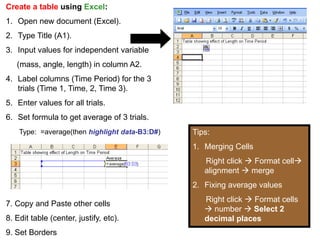
Create a table using Excel:
1. Open new document (Excel).
2. Type Title (A1).
3. Input values for independent variable
   (mass, angle, length) in column A2.
4. Label columns (Time Period) for the 3
   trials (Time 1, Time, 2, Time 3).
5. Enter values for all trials.
6. Set formula to get average of 3 trials.
    Type: =average(then highlight data-B3:D#)   Tips:
                                                1. Merging Cells
                                                   Right click  Format cell
                                                   alignment  merge
                                                2. Fixing average values
                                                   Right click  Format cells
7. Copy and Paste other cells
                                                    number  Select 2
8. Edit table (center, justify, etc).              decimal places
9. Set Borders
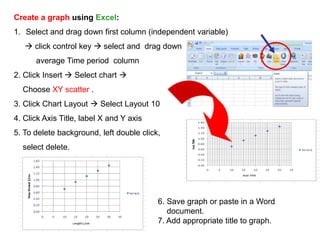
Create a graph using Excel:
1. Select and drag down first column (independent variable)
    click control key  select and drag down
      average Time period column
2. Click Insert  Select chart 
  Choose XY scatter .
3. Click Chart Layout  Select Layout 10
4. Click Axis Title, label X and Y axis
5. To delete background, left double click,
  select delete.


                                          6. Save graph or paste in a Word
                                             document.
                                          7. Add appropriate title to graph.
Using the graph to predict swing height:
1. Right click on any data point in the graph
    Select Add Trend line  Select Power.
2. Making projections: (target- 2.8 sec)
   Backward forecast: enter number lower
   than shortest length (9.99- this shows
   curve of line from 0)
   Forward forecast: Right click on trend line
    Format trend line  Options 
   Forward  enter 50 or higher
3. Finding 2.8 sec (Time Period):
   Left Double click anywhere on scale 
   Format axis  Scale  Change major
   unit (5 or 10) for X axis Change major
   unit for Y axis (0.2)
4. Mark predicted length based on a 2.8
   Time Period.
PLAYGROUND DESIGN LAB
       (Swings)

Creating tables and graphs (excel) 2011 2012

  • 1.
  • 2.
    Create a tableusing Excel: 1. Open new document (Excel). 2. Type Title (A1). 3. Input values for independent variable (mass, angle, length) in column A2. 4. Label columns (Time Period) for the 3 trials (Time 1, Time, 2, Time 3). 5. Enter values for all trials. 6. Set formula to get average of 3 trials. Type: =average(then highlight data-B3:D#) Tips: 1. Merging Cells Right click  Format cell alignment  merge 2. Fixing average values Right click  Format cells 7. Copy and Paste other cells  number  Select 2 8. Edit table (center, justify, etc). decimal places 9. Set Borders
  • 3.
    Create a graphusing Excel: 1. Select and drag down first column (independent variable)  click control key  select and drag down average Time period column 2. Click Insert  Select chart  Choose XY scatter . 3. Click Chart Layout  Select Layout 10 4. Click Axis Title, label X and Y axis 5. To delete background, left double click, select delete. 6. Save graph or paste in a Word document. 7. Add appropriate title to graph.
  • 4.
    Using the graphto predict swing height: 1. Right click on any data point in the graph  Select Add Trend line  Select Power. 2. Making projections: (target- 2.8 sec) Backward forecast: enter number lower than shortest length (9.99- this shows curve of line from 0) Forward forecast: Right click on trend line  Format trend line  Options  Forward  enter 50 or higher 3. Finding 2.8 sec (Time Period): Left Double click anywhere on scale  Format axis  Scale  Change major unit (5 or 10) for X axis Change major unit for Y axis (0.2) 4. Mark predicted length based on a 2.8 Time Period.
  • 5.