Configurations Made Easy:
7/7/2014
We’re your friendly
neighborhood VAR…
 Devoted to improving your productivity
 Focused solely on New England - since 1989
 Support staff of 14 applications engineers
 5 Elite Engineers
Crystal Yazvac –
CSWE, Applications
Engineer
 B.S. from Purdue in
2003
 SolidWorks user since
2001
 Joined CAPINC in July
2010
 What is the Excel Design Table?
 Accessing the Table
 Common Configurable Items
 Creating/Modifying Configurations
 Adding/Modifying the Table
 Parameters
 Custom Properties
 Hole Wizard
 Demo
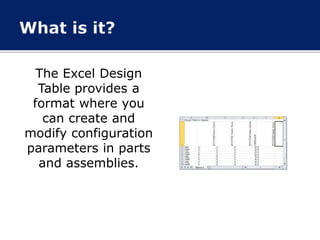
The Excel Design
Table provides a
format where you
can create and
modify configuration
parameters in parts
and assemblies.
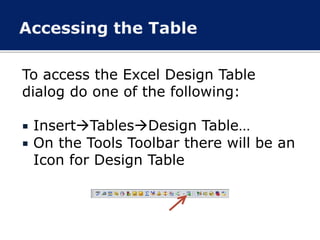
To access the Excel Design Table
dialog do one of the following:
 InsertTablesDesign Table…
 On the Tools Toolbar there will be an
Icon for Design Table
 Dimensions
 Change Size
 Features or Component
 Suppress or Unsuppress
 Material
 Change Type
 Custom Properties
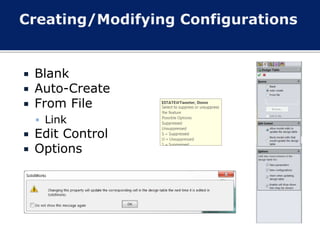
 Blank
 Auto-Create
 From File
 Link
 Edit Control
 Options
 Double-click items (features, sketches,
etc.) in the graphics area or
FeatureManager design tree to add
their configurable parameters to the
table.
 To remove an item from the table,
right-click its column header and click
Delete.
 The item is removed from the table. It
remains unchanged in the model.
 To control parameters
 http://help.solidworks.com/2014/English
/SolidWorks/sldworks/r_Summary_of_D
esign_Table_Parameters.htm?id=d66e99
7b3edc440c82ec46eeae3225c2
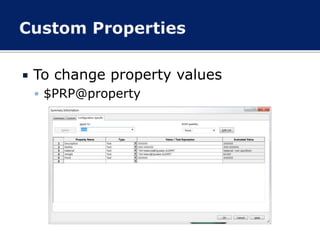
 To change property values
 $PRP@property
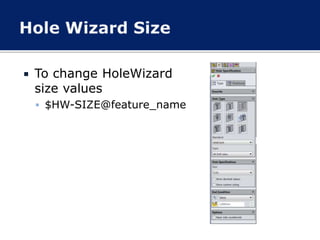
 To change HoleWizard
size values
 $HW-SIZE@feature_name
 Not Your Average Design Table:
 http://blog.capinc.com/2014/06/smarter
-than-your-average-design-table/
 Configurations Made Easy:
 http://www.capinc.com/events/webinars
/recorded-webinars/configurations-
made-easy-2
 Crystal Yazvac:
 cyazvac@capinc.com
Crystal Yazvac: cyazvac@capinc.com

Configurations Made Easy - Excel Design Tables

  • 1.
  • 2.
    We’re your friendly neighborhoodVAR…  Devoted to improving your productivity  Focused solely on New England - since 1989  Support staff of 14 applications engineers  5 Elite Engineers
  • 3.
    Crystal Yazvac – CSWE,Applications Engineer  B.S. from Purdue in 2003  SolidWorks user since 2001  Joined CAPINC in July 2010
  • 4.
     What isthe Excel Design Table?  Accessing the Table  Common Configurable Items  Creating/Modifying Configurations  Adding/Modifying the Table  Parameters  Custom Properties  Hole Wizard  Demo
  • 5.
    The Excel Design Tableprovides a format where you can create and modify configuration parameters in parts and assemblies.
  • 6.
    To access theExcel Design Table dialog do one of the following:  InsertTablesDesign Table…  On the Tools Toolbar there will be an Icon for Design Table
  • 7.
     Dimensions  ChangeSize  Features or Component  Suppress or Unsuppress  Material  Change Type  Custom Properties
  • 8.
     Blank  Auto-Create From File  Link  Edit Control  Options
  • 9.
     Double-click items(features, sketches, etc.) in the graphics area or FeatureManager design tree to add their configurable parameters to the table.  To remove an item from the table, right-click its column header and click Delete.  The item is removed from the table. It remains unchanged in the model.
  • 10.
     To controlparameters  http://help.solidworks.com/2014/English /SolidWorks/sldworks/r_Summary_of_D esign_Table_Parameters.htm?id=d66e99 7b3edc440c82ec46eeae3225c2
  • 11.
     To changeproperty values  $PRP@property
  • 12.
     To changeHoleWizard size values  $HW-SIZE@feature_name
  • 14.
     Not YourAverage Design Table:  http://blog.capinc.com/2014/06/smarter -than-your-average-design-table/  Configurations Made Easy:  http://www.capinc.com/events/webinars /recorded-webinars/configurations- made-easy-2
  • 15.
     Crystal Yazvac: cyazvac@capinc.com
  • 16.