CONTROL SYSTEMS
THEORY
MATLAB & SIMULINK
CHAPTER 9
STB 35103
Objectives


To use the MATLAB to design a cascade
compensator



To use SIMULINK to simulate the response
of a system
SISOTOOL


You are going to learn how to design or
improve a control system using MATLAB
control system toolbox Root Locus Design
Graphical User Interface (GUI).



There are two design tools in the MATLAB
that you can use for root locus:



sisotool
rltool
SISOTOOL


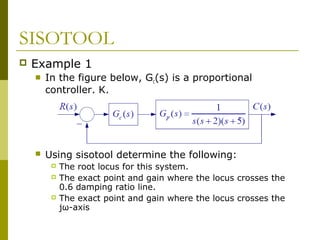
Example 1


In the figure below, Gc(s) is a proportional
controller, K,



Using sisotool determine the following:





The root locus for this system.
The exact point and gain where the locus crosses the
0.6 damping ratio line.
The exact point and gain where the locus crosses the
jω-axis
SISOTOOL
to make the plant model and start the
SISO design tool, at the MATLAB prompt
type
>>Gp = tf(1,[1 7 10 0])
>>sisotool




To add a damping ratio line,


Left click + design constrain + new
Constraint type: damping ratio
 Damping ratio > 0.6

SISOTOOL
Move the closed loop poles until it
intersect the damping ratio.
 Get the value of gain, K, and the
coordinate of the intersect.

SIMULINK


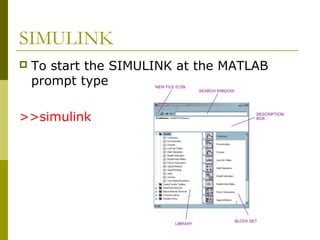
To start the SIMULINK at the MATLAB
prompt type

>>simulink
SIMULINK






To see the content of the blockset, click on
the "+" sign at the beginning of each toolbox.
To start a model click on the NEW FILE ICON
as shown in the screenshot above.
Alternately, you may use keystrokes CTRL+N.
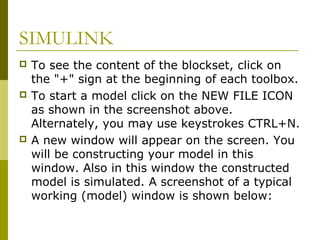
A new window will appear on the screen. You
will be constructing your model in this
window. Also in this window the constructed
model is simulated. A screenshot of a typical
working (model) window is shown below:
SIMULINK


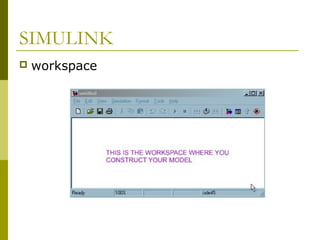
workspace
SIMULINK


Two basic elements in SIMULINK


Blocks




used to generate, modify, combine, output, and
display signals

Lines


Lines are used to transfer signals from one block to
another.
SIMULINK


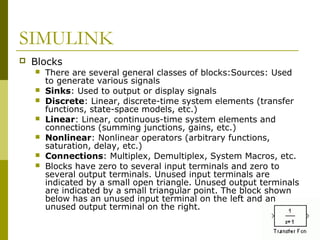
Blocks








There are several general classes of blocks:Sources: Used
to generate various signals
Sinks: Used to output or display signals
Discrete: Linear, discrete-time system elements (transfer
functions, state-space models, etc.)
Linear: Linear, continuous-time system elements and
connections (summing junctions, gains, etc.)
Nonlinear: Nonlinear operators (arbitrary functions,
saturation, delay, etc.)
Connections: Multiplex, Demultiplex, System Macros, etc.
Blocks have zero to several input terminals and zero to
several output terminals. Unused input terminals are
indicated by a small open triangle. Unused output terminals
are indicated by a small triangular point. The block shown
below has an unused input terminal on the left and an
unused output terminal on the right.
SIMULINK


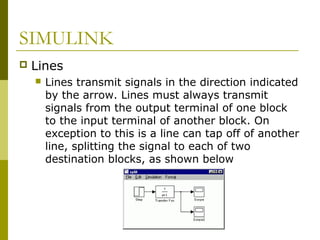
Lines


Lines transmit signals in the direction indicated
by the arrow. Lines must always transmit
signals from the output terminal of one block
to the input terminal of another block. On
exception to this is a line can tap off of another
line, splitting the signal to each of two
destination blocks, as shown below
SIMULINK


Modifying blocks


A block can be modified by double-clicking on
it.

[1] → 1

[ 1 1] → s + 1
[ 1 2 1] → s 2 + 2s + 1
[ 1 2 0] → s 2 + 2 s + 0
SIMULINK


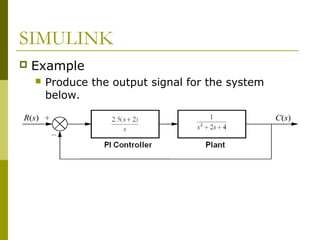
Example


Produce the output signal for the system
below.
SIMULINK


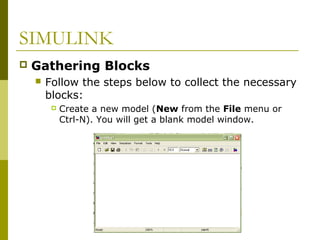
Gathering Blocks


Follow the steps below to collect the necessary
blocks:


Create a new model (New from the File menu or
Ctrl-N). You will get a blank model window.
SIMULINK
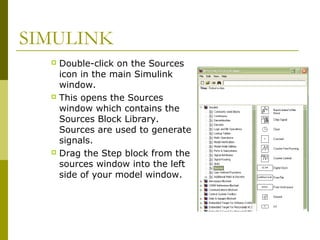
Double-click on the Sources
icon in the main Simulink
window.
 This opens the Sources
window which contains the
Sources Block Library.
Sources are used to generate
signals.
 Drag the Step block from the
sources window into the left
side of your model window.

SIMULINK
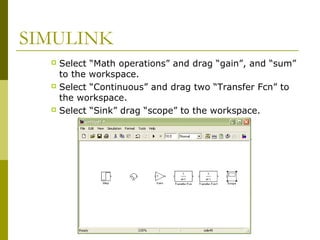
Select “Math operations” and drag “gain”, and “sum”
to the workspace.
 Select “Continuous” and drag two “Transfer Fcn” to
the workspace.
 Select “Sink” drag “scope” to the workspace.

SIMULINK


Modify blocks







Follow these steps to properly modify the blocks in
your model.Double-click your Sum block. Since you
will want the second input to be subtracted, enter
+- into the list of signs field. Close the dialog box.
Double-click your Gain block. Change the gain to
2.5 and close the dialog box.
Double-click the leftmost Transfer Function block.
Change the numerator to [1 2] and the
denominator to [1 0]. Close the dialog box.
Double-click the rightmost Transfer Function block.
Leave the numerator [1], but change the
denominator to [1 2 4]. Close the dialog box. Your
model should appear as:
SIMULINK


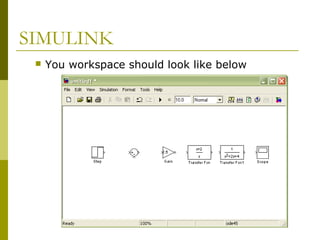
You workspace should look like below
SIMULINK


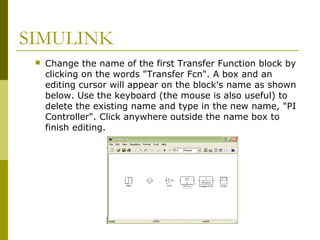
Change the name of the first Transfer Function block by
clicking on the words "Transfer Fcn". A box and an
editing cursor will appear on the block's name as shown
below. Use the keyboard (the mouse is also useful) to
delete the existing name and type in the new name, "PI
Controller". Click anywhere outside the name box to
finish editing.
SIMULINK


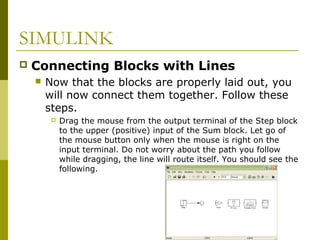
Connecting Blocks with Lines


Now that the blocks are properly laid out, you
will now connect them together. Follow these
steps.


Drag the mouse from the output terminal of the Step block
to the upper (positive) input of the Sum block. Let go of
the mouse button only when the mouse is right on the
input terminal. Do not worry about the path you follow
while dragging, the line will route itself. You should see the
following.
SIMULINK


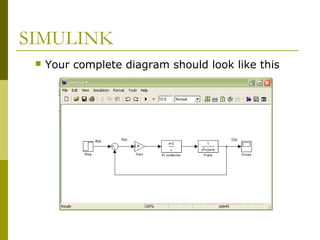
Your complete diagram should look like this
SIMULINK


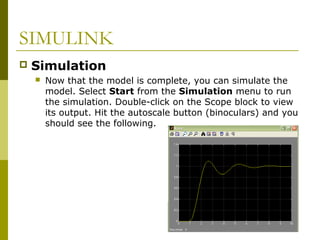
Simulation


Now that the model is complete, you can simulate the
model. Select Start from the Simulation menu to run
the simulation. Double-click on the Scope block to view
its output. Hit the autoscale button (binoculars) and you
should see the following.

Control chap9

  • 1.
    CONTROL SYSTEMS THEORY MATLAB &SIMULINK CHAPTER 9 STB 35103
  • 2.
    Objectives  To use theMATLAB to design a cascade compensator  To use SIMULINK to simulate the response of a system
  • 3.
    SISOTOOL  You are goingto learn how to design or improve a control system using MATLAB control system toolbox Root Locus Design Graphical User Interface (GUI).  There are two design tools in the MATLAB that you can use for root locus:   sisotool rltool
  • 4.
    SISOTOOL  Example 1  In thefigure below, Gc(s) is a proportional controller, K,  Using sisotool determine the following:    The root locus for this system. The exact point and gain where the locus crosses the 0.6 damping ratio line. The exact point and gain where the locus crosses the jω-axis
  • 5.
    SISOTOOL to make theplant model and start the SISO design tool, at the MATLAB prompt type >>Gp = tf(1,[1 7 10 0]) >>sisotool   To add a damping ratio line,  Left click + design constrain + new Constraint type: damping ratio  Damping ratio > 0.6 
  • 6.
    SISOTOOL Move the closedloop poles until it intersect the damping ratio.  Get the value of gain, K, and the coordinate of the intersect. 
  • 7.
    SIMULINK  To start theSIMULINK at the MATLAB prompt type >>simulink
  • 8.
    SIMULINK    To see thecontent of the blockset, click on the "+" sign at the beginning of each toolbox. To start a model click on the NEW FILE ICON as shown in the screenshot above. Alternately, you may use keystrokes CTRL+N. A new window will appear on the screen. You will be constructing your model in this window. Also in this window the constructed model is simulated. A screenshot of a typical working (model) window is shown below:
  • 9.
  • 10.
    SIMULINK  Two basic elementsin SIMULINK  Blocks   used to generate, modify, combine, output, and display signals Lines  Lines are used to transfer signals from one block to another.
  • 11.
    SIMULINK  Blocks        There are severalgeneral classes of blocks:Sources: Used to generate various signals Sinks: Used to output or display signals Discrete: Linear, discrete-time system elements (transfer functions, state-space models, etc.) Linear: Linear, continuous-time system elements and connections (summing junctions, gains, etc.) Nonlinear: Nonlinear operators (arbitrary functions, saturation, delay, etc.) Connections: Multiplex, Demultiplex, System Macros, etc. Blocks have zero to several input terminals and zero to several output terminals. Unused input terminals are indicated by a small open triangle. Unused output terminals are indicated by a small triangular point. The block shown below has an unused input terminal on the left and an unused output terminal on the right.
  • 12.
    SIMULINK  Lines  Lines transmit signalsin the direction indicated by the arrow. Lines must always transmit signals from the output terminal of one block to the input terminal of another block. On exception to this is a line can tap off of another line, splitting the signal to each of two destination blocks, as shown below
  • 13.
    SIMULINK  Modifying blocks  A blockcan be modified by double-clicking on it. [1] → 1 [ 1 1] → s + 1 [ 1 2 1] → s 2 + 2s + 1 [ 1 2 0] → s 2 + 2 s + 0
  • 14.
    SIMULINK  Example  Produce the outputsignal for the system below.
  • 15.
    SIMULINK  Gathering Blocks  Follow thesteps below to collect the necessary blocks:  Create a new model (New from the File menu or Ctrl-N). You will get a blank model window.
  • 16.
    SIMULINK Double-click on theSources icon in the main Simulink window.  This opens the Sources window which contains the Sources Block Library. Sources are used to generate signals.  Drag the Step block from the sources window into the left side of your model window. 
  • 17.
    SIMULINK Select “Math operations”and drag “gain”, and “sum” to the workspace.  Select “Continuous” and drag two “Transfer Fcn” to the workspace.  Select “Sink” drag “scope” to the workspace. 
  • 18.
    SIMULINK  Modify blocks     Follow thesesteps to properly modify the blocks in your model.Double-click your Sum block. Since you will want the second input to be subtracted, enter +- into the list of signs field. Close the dialog box. Double-click your Gain block. Change the gain to 2.5 and close the dialog box. Double-click the leftmost Transfer Function block. Change the numerator to [1 2] and the denominator to [1 0]. Close the dialog box. Double-click the rightmost Transfer Function block. Leave the numerator [1], but change the denominator to [1 2 4]. Close the dialog box. Your model should appear as:
  • 19.
  • 20.
    SIMULINK  Change the nameof the first Transfer Function block by clicking on the words "Transfer Fcn". A box and an editing cursor will appear on the block's name as shown below. Use the keyboard (the mouse is also useful) to delete the existing name and type in the new name, "PI Controller". Click anywhere outside the name box to finish editing.
  • 21.
    SIMULINK  Connecting Blocks withLines  Now that the blocks are properly laid out, you will now connect them together. Follow these steps.  Drag the mouse from the output terminal of the Step block to the upper (positive) input of the Sum block. Let go of the mouse button only when the mouse is right on the input terminal. Do not worry about the path you follow while dragging, the line will route itself. You should see the following.
  • 22.
  • 23.
    SIMULINK  Simulation  Now that themodel is complete, you can simulate the model. Select Start from the Simulation menu to run the simulation. Double-click on the Scope block to view its output. Hit the autoscale button (binoculars) and you should see the following.