Simulink Modelling The Basics
What is Simulink? Simulink is a graphical extension to MATLAB for the modeling and simulation of systems.  In Simulink, systems are drawn on screen as  Block diagrams . Many elements of block diagrams are available (such as transfer functions, summing junctions, etc.), as well as virtual input devices (such as function generators) and output devices (such as oscilloscopes).  Simulink is integrated with MATLAB and data can be easily transferred between the programs. In this tutorial, we will introduce the basics of using Simulink to model and simulate a system.
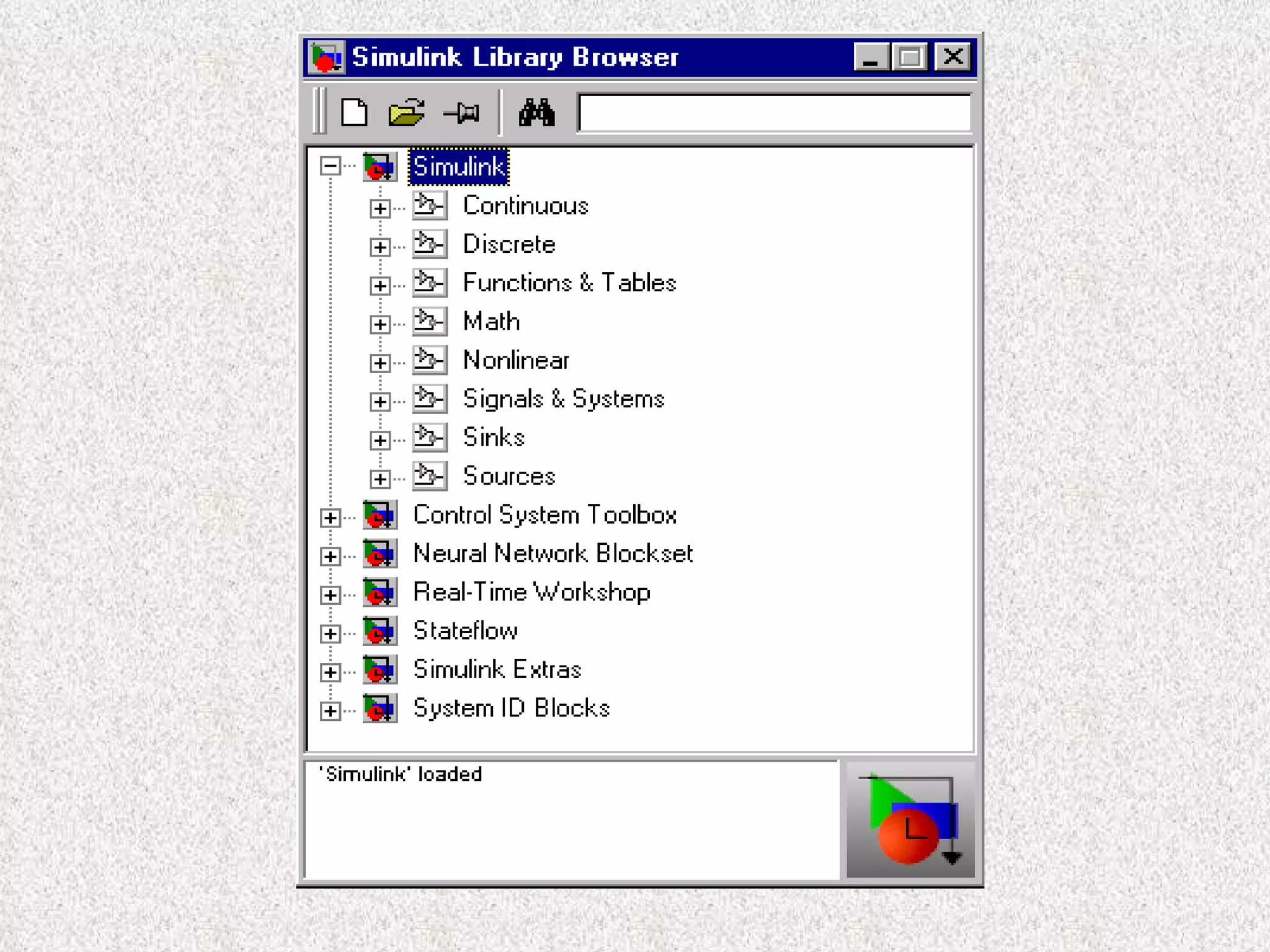
Starting Simulink To start Simulink, you must first start MATLAB -  Click the Simulink icon on the MATLAB toolbar   Enter  simulink  at the MATLAB prompt. This opens the Simulink Library Browser.
 
Basic Elements There are two major classes of elements in Simulink:  blocks  and  lines . Blocks are used to generate, modify, combine, output, and display signals. Lines are used to transfer signals from one block to another.
Blocks Continuous :  Linear, continuous-time system elements (integrators, transfer functions, state-space models, etc.)  Discrete :  Linear, discrete-time system elements (integrators, transfer functions, state-space models, etc.)  Functions & Tables :  User-defined functions and tables for interpolating function values  Math :  Mathematical operators (sum, gain, dot product, etc.)  Nonlinear :  Nonlinear operators (coulomb/viscous friction, switches, relays, etc.)  Signals & Systems :  Blocks for controlling/monitoring signals and for creating subsystems  Sinks :  Used to output or display signals (displays, scopes, graphs, etc.)  Sources : Used to generate various signals (step, ramp, sinusoidal, etc.)
Lines Lines transmit signals in the direction indicated by the arrow. Lines must always transmit signals from the output terminal of one block to the input terminal of another block.  Lines can never inject a signal  into  another line; lines must be combined through the use of a block such as a summing junction.
Modelling - Example
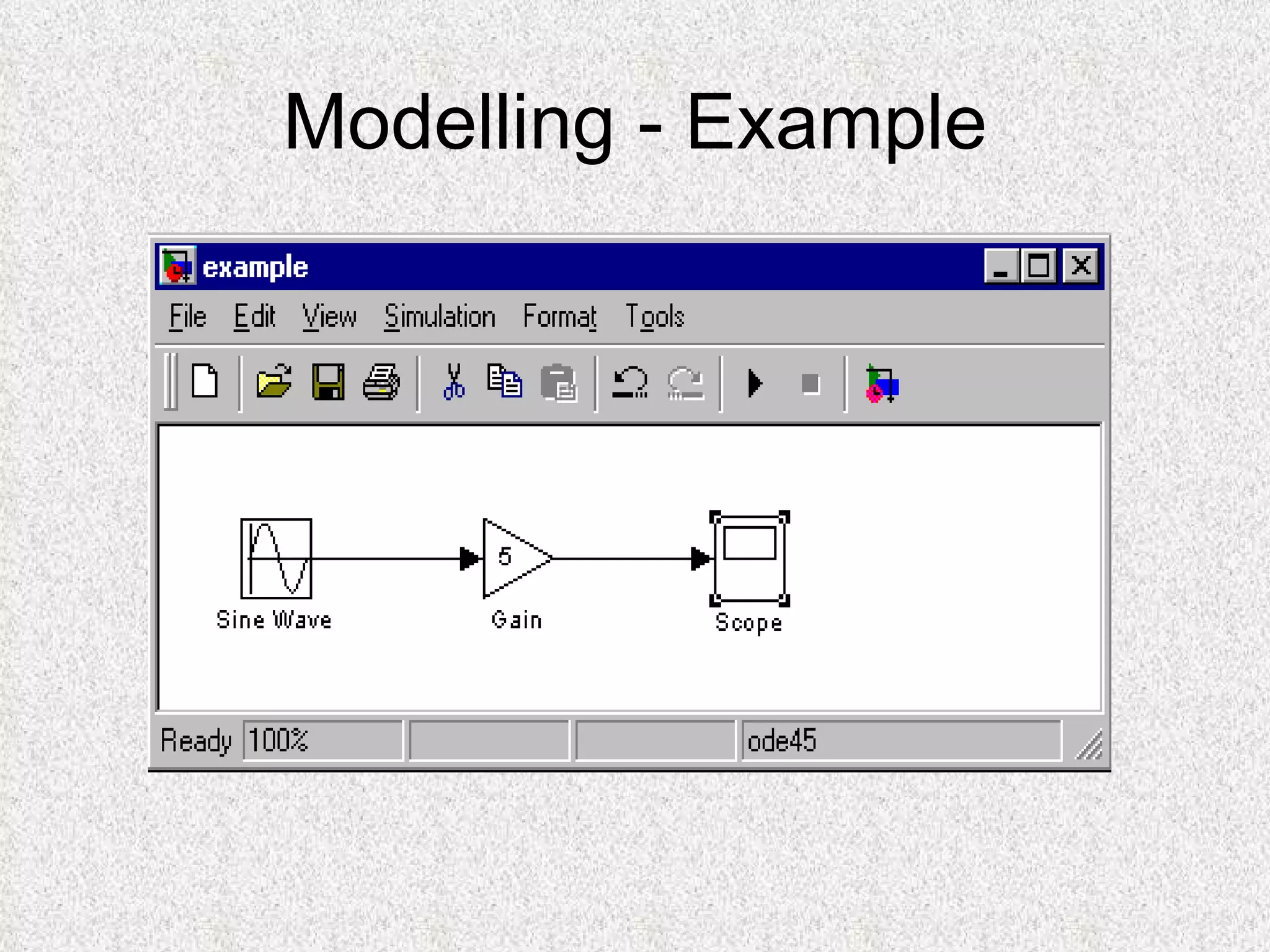
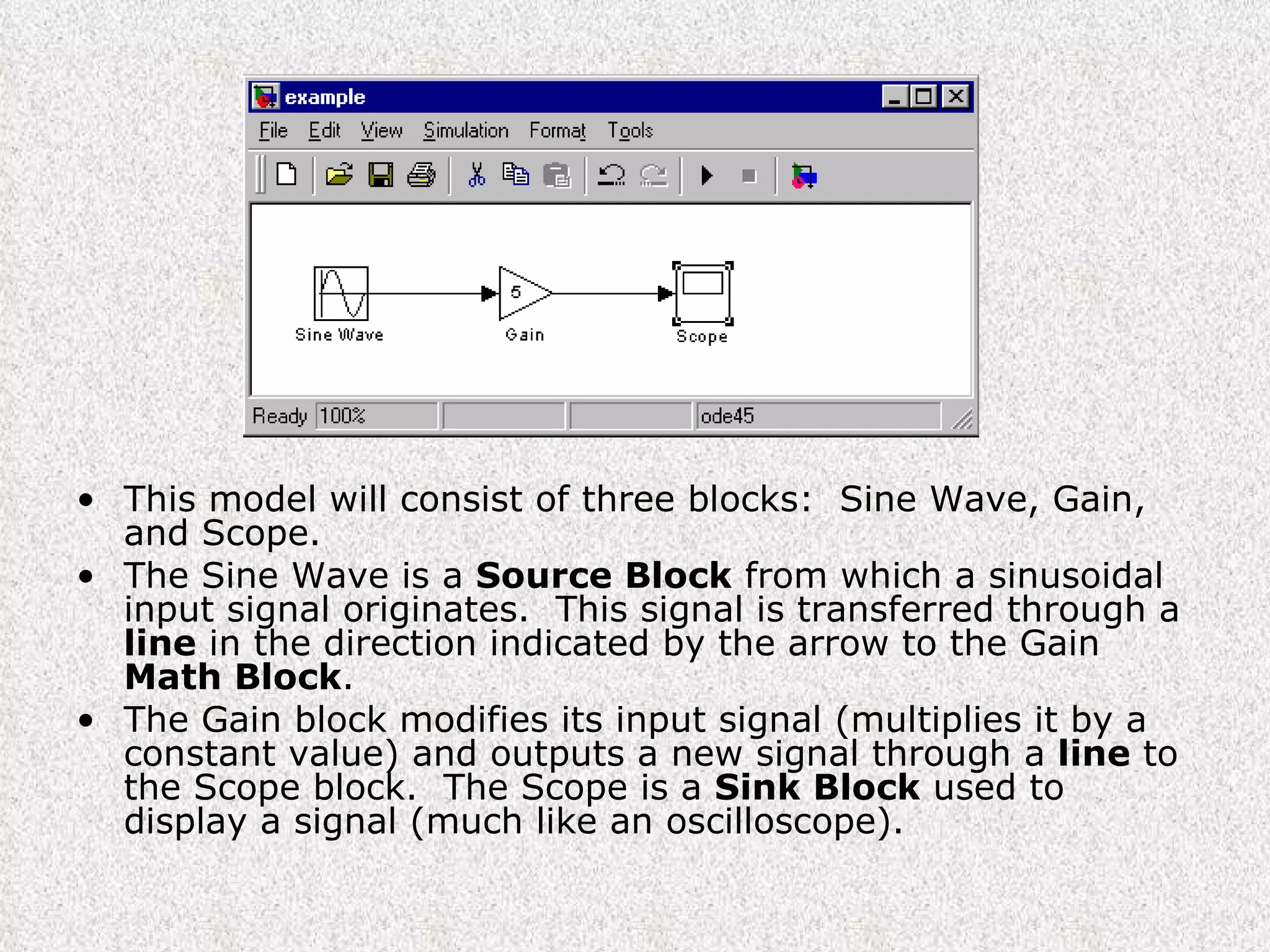
This model will consist of three blocks:  Sine Wave, Gain, and Scope.   The Sine Wave is a  Source Block  from which a sinusoidal input signal originates.  This signal is transferred through a  line  in the direction indicated by the arrow to the Gain  Math Block .   The Gain block modifies its input signal (multiplies it by a constant value) and outputs a new signal through a  line  to the Scope block.  The Scope is a  Sink Block  used to display a signal (much like an oscilloscope).
Creating a Block Diagram Building the system model is then accomplished through a series of steps:  The necessary blocks are gathered from the Library Browser and placed in the model window.  The parameters of the blocks are then modified to correspond with the system we are modeling.  Finally, the blocks are connected with lines to complete the model.
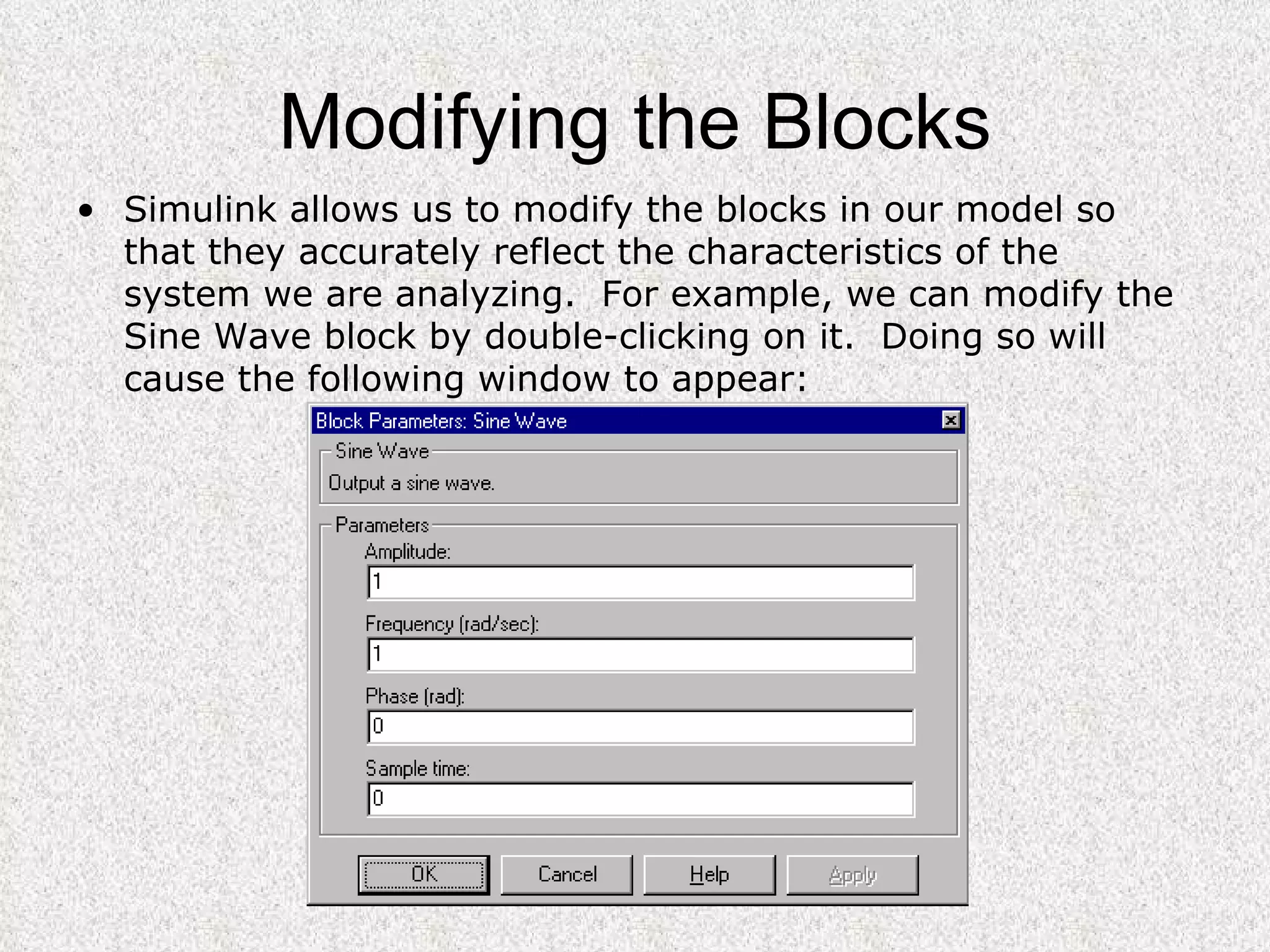
Modifying the Blocks Simulink allows us to modify the blocks in our model so that they accurately reflect the characteristics of the system we are analyzing.  For example, we can modify the Sine Wave block by double-clicking on it.  Doing so will cause the following window to appear:
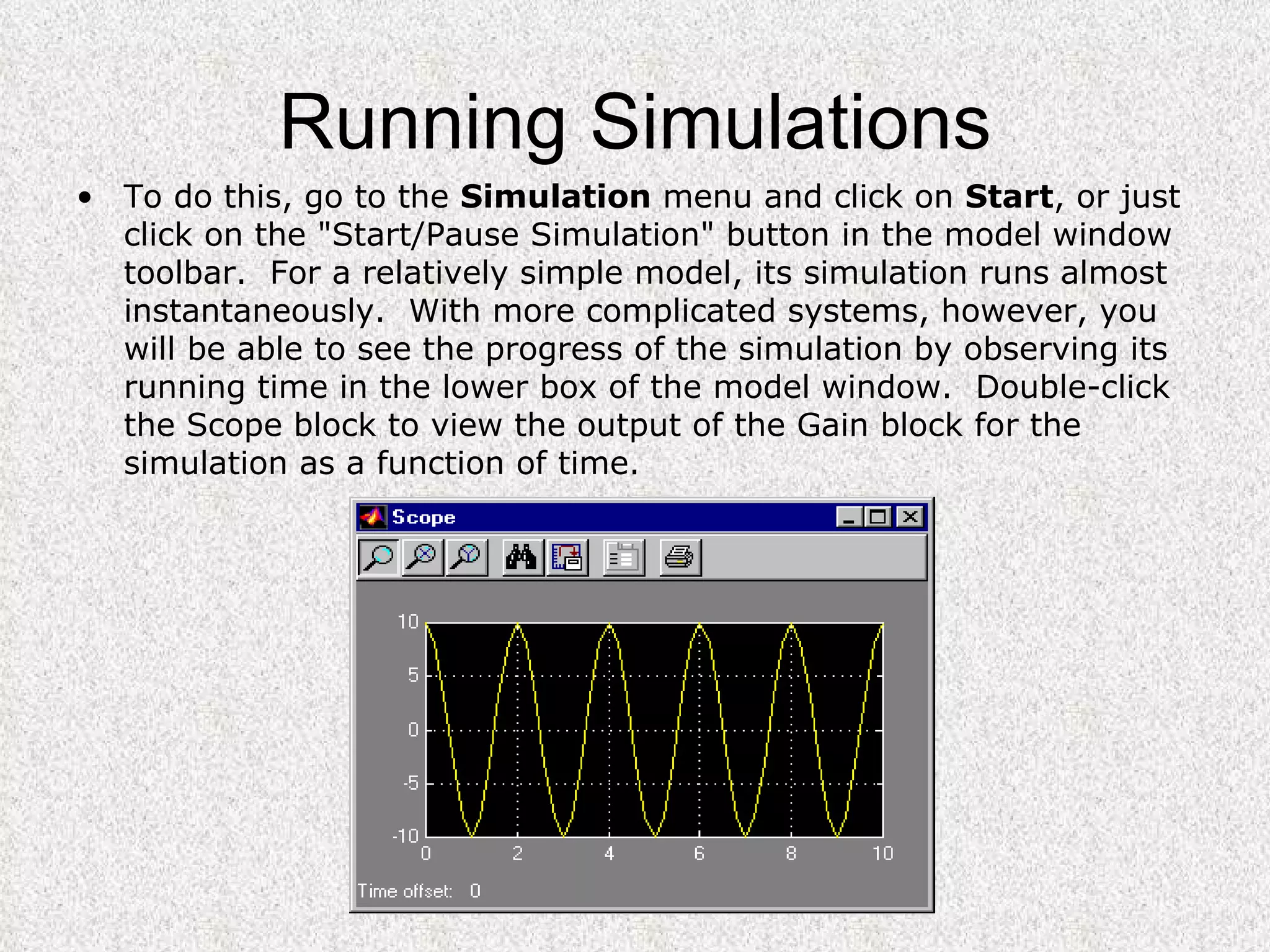
Running Simulations To do this, go to the  Simulation  menu and click on  Start , or just click on the "Start/Pause Simulation" button in the model window toolbar.  For a relatively simple model, its simulation runs almost instantaneously.  With more complicated systems, however, you will be able to see the progress of the simulation by observing its running time in the lower box of the model window.  Double-click the Scope block to view the output of the Gain block for the simulation as a function of time.
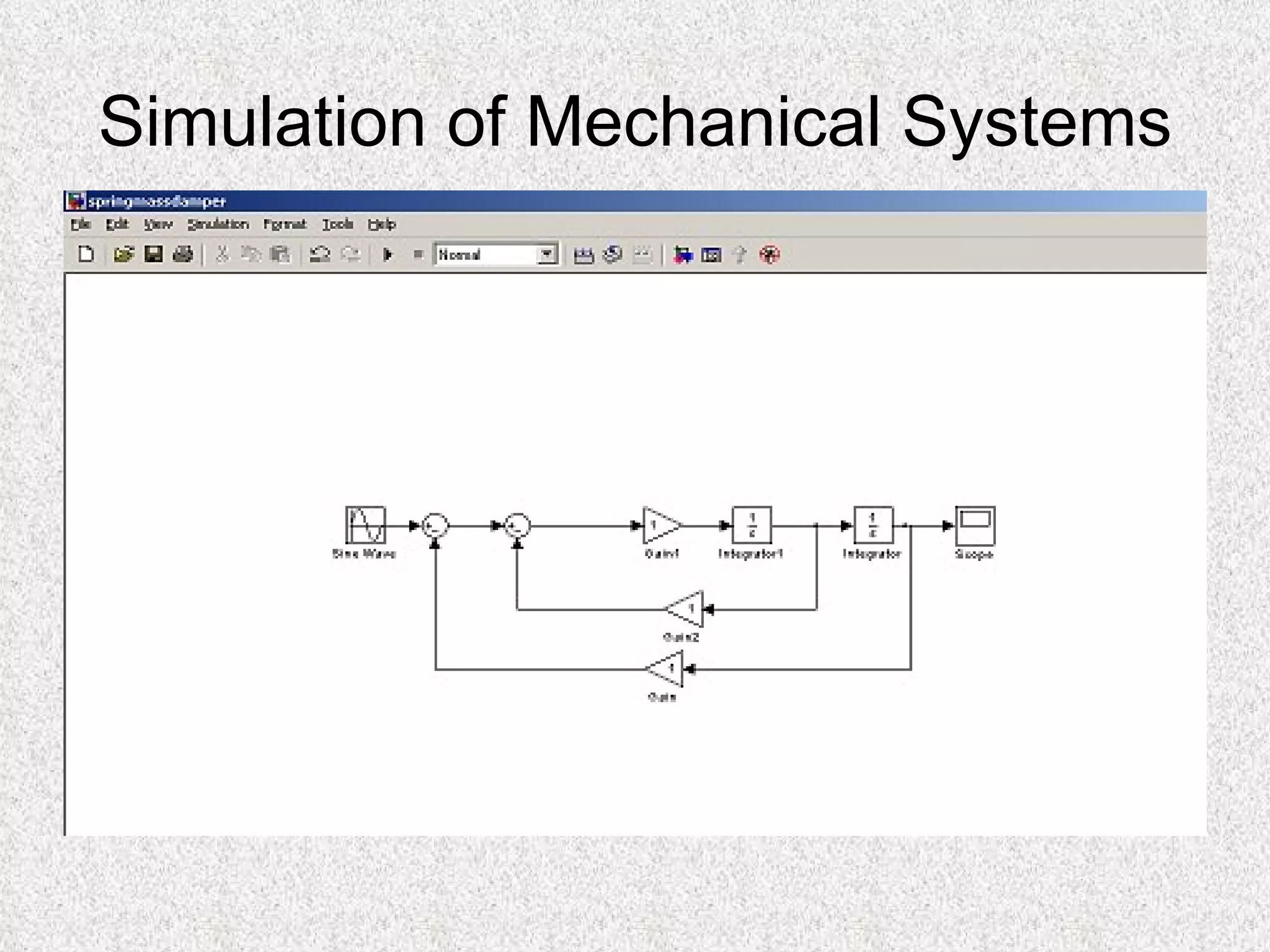
Simulation of Mechanical Systems

Simulink

  • 1.
  • 2.
    What is Simulink?Simulink is a graphical extension to MATLAB for the modeling and simulation of systems. In Simulink, systems are drawn on screen as Block diagrams . Many elements of block diagrams are available (such as transfer functions, summing junctions, etc.), as well as virtual input devices (such as function generators) and output devices (such as oscilloscopes). Simulink is integrated with MATLAB and data can be easily transferred between the programs. In this tutorial, we will introduce the basics of using Simulink to model and simulate a system.
  • 3.
    Starting Simulink Tostart Simulink, you must first start MATLAB - Click the Simulink icon on the MATLAB toolbar Enter simulink at the MATLAB prompt. This opens the Simulink Library Browser.
  • 4.
  • 5.
    Basic Elements Thereare two major classes of elements in Simulink: blocks and lines . Blocks are used to generate, modify, combine, output, and display signals. Lines are used to transfer signals from one block to another.
  • 6.
    Blocks Continuous : Linear, continuous-time system elements (integrators, transfer functions, state-space models, etc.) Discrete :  Linear, discrete-time system elements (integrators, transfer functions, state-space models, etc.) Functions & Tables :  User-defined functions and tables for interpolating function values Math :  Mathematical operators (sum, gain, dot product, etc.) Nonlinear :  Nonlinear operators (coulomb/viscous friction, switches, relays, etc.) Signals & Systems :  Blocks for controlling/monitoring signals and for creating subsystems Sinks :  Used to output or display signals (displays, scopes, graphs, etc.) Sources : Used to generate various signals (step, ramp, sinusoidal, etc.)
  • 7.
    Lines Lines transmitsignals in the direction indicated by the arrow. Lines must always transmit signals from the output terminal of one block to the input terminal of another block. Lines can never inject a signal into another line; lines must be combined through the use of a block such as a summing junction.
  • 8.
  • 9.
    This model willconsist of three blocks:  Sine Wave, Gain, and Scope.  The Sine Wave is a Source Block from which a sinusoidal input signal originates.  This signal is transferred through a line in the direction indicated by the arrow to the Gain Math Block .  The Gain block modifies its input signal (multiplies it by a constant value) and outputs a new signal through a line to the Scope block.  The Scope is a Sink Block used to display a signal (much like an oscilloscope).
  • 10.
    Creating a BlockDiagram Building the system model is then accomplished through a series of steps: The necessary blocks are gathered from the Library Browser and placed in the model window. The parameters of the blocks are then modified to correspond with the system we are modeling. Finally, the blocks are connected with lines to complete the model.
  • 11.
    Modifying the BlocksSimulink allows us to modify the blocks in our model so that they accurately reflect the characteristics of the system we are analyzing.  For example, we can modify the Sine Wave block by double-clicking on it.  Doing so will cause the following window to appear:
  • 12.
    Running Simulations Todo this, go to the Simulation menu and click on Start , or just click on the "Start/Pause Simulation" button in the model window toolbar.  For a relatively simple model, its simulation runs almost instantaneously.  With more complicated systems, however, you will be able to see the progress of the simulation by observing its running time in the lower box of the model window.  Double-click the Scope block to view the output of the Gain block for the simulation as a function of time.
  • 13.