MIT OpenCourseWare
http://ocw.mit.edu


6.094 Introduction to MATLAB®
January (IAP) 2009


For information about citing these materials or our Terms of Use, visit: http://ocw.mit.edu/terms.
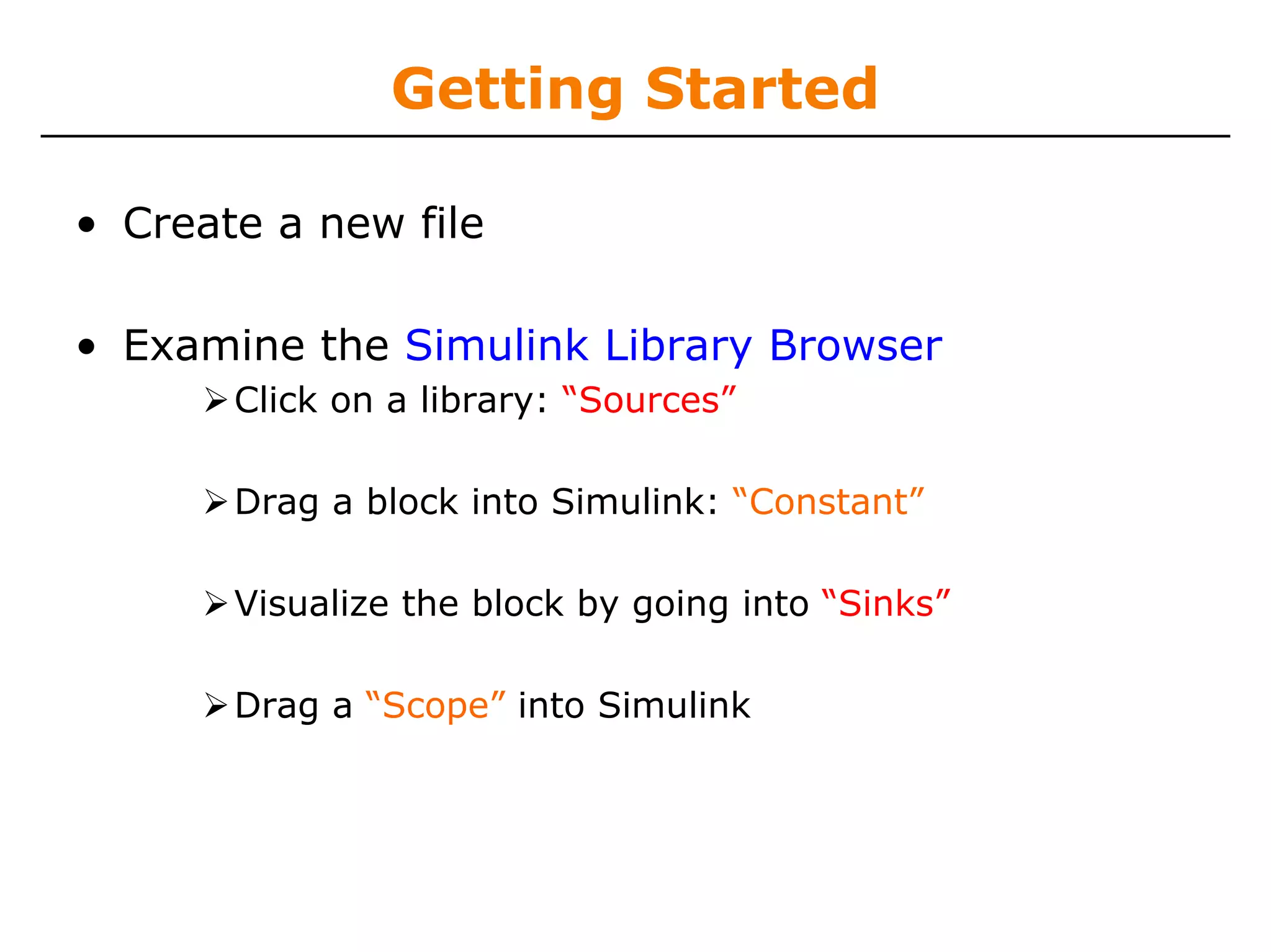
6.094
Introduction to Programming in MATLAB®


          Lecture 5: Simulink®


             Sourav Dey
           Danilo Šćepanović
              Ankit Patel
              Patrick Ho

                IAP 2009
What is Simulink?

• A model-based equation solver

• Some analysis packages (ANSYS, Multisim) have
  built in equations modeling complex engineering
  problems.
       Save lots of time
       Can only be used for tackling specific problems


• Simulink lets you build a GUI-based model and
  simulates the result.
       Unlimited complexity (constrained by runtime and
       memory)
       Adaptable for any field
       Downside? You have to do the modeling work
Getting Started

• Create a new file

• Examine the Simulink Library Browser
       Click on a library: “Sources”

       Drag a block into Simulink: “Constant”

       Visualize the block by going into “Sinks”

       Drag a “Scope” into Simulink
Connections

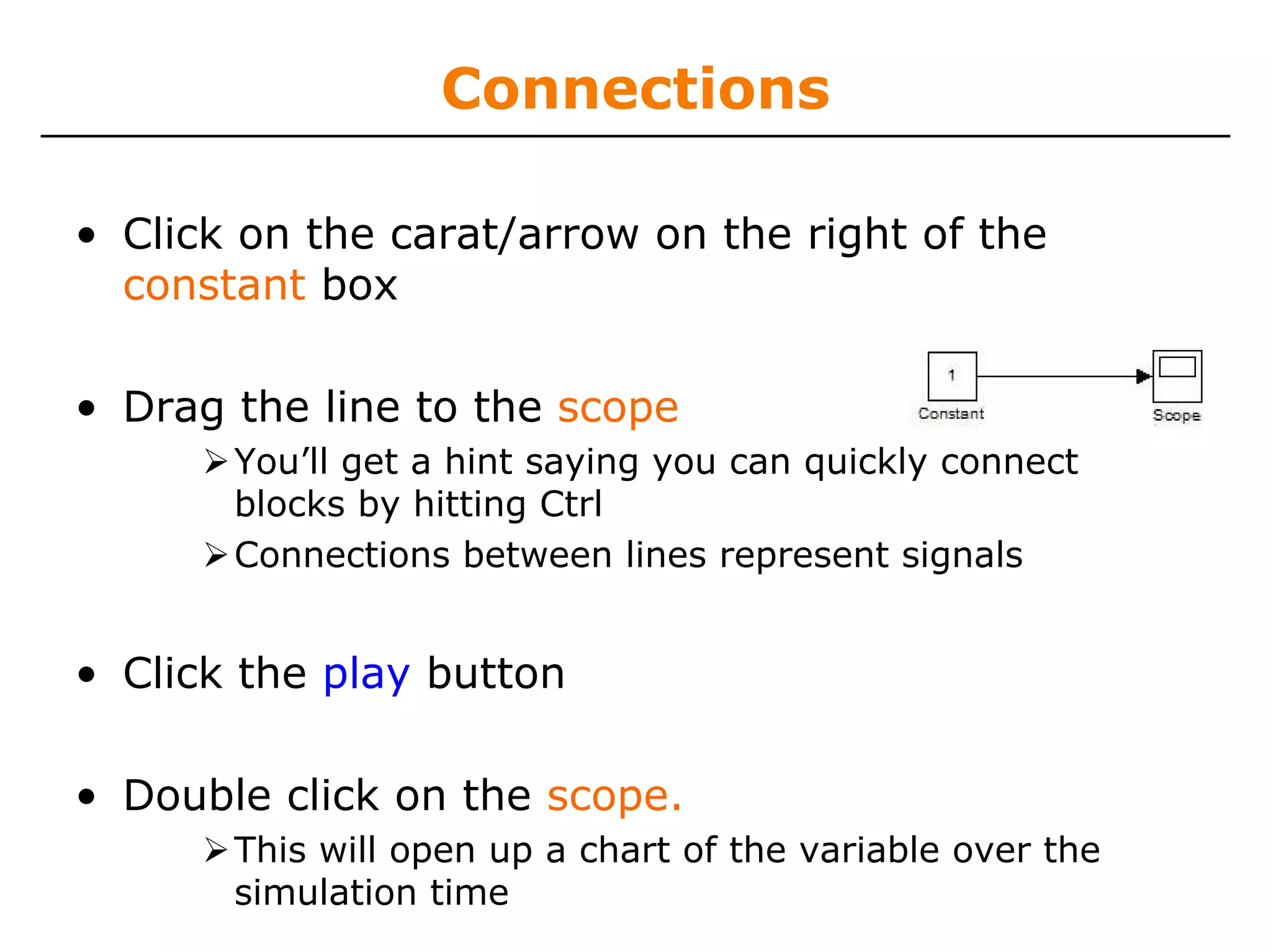
• Click on the carat/arrow on the right of the
  constant box

• Drag the line to the scope
       You’ll get a hint saying you can quickly connect
       blocks by hitting Ctrl
       Connections between lines represent signals


• Click the play button

• Double click on the scope.
       This will open up a chart of the variable over the
       simulation time
Simulink Math

• Everything is visual in Simulink!

• Click on the library Continuous
       Drag the integrator block between the constant and
       the scope


• Play and click on scope.

• What happens?
       Simulink has a built in ODE solver
       The equation that represents your model is solved by
       Simulink
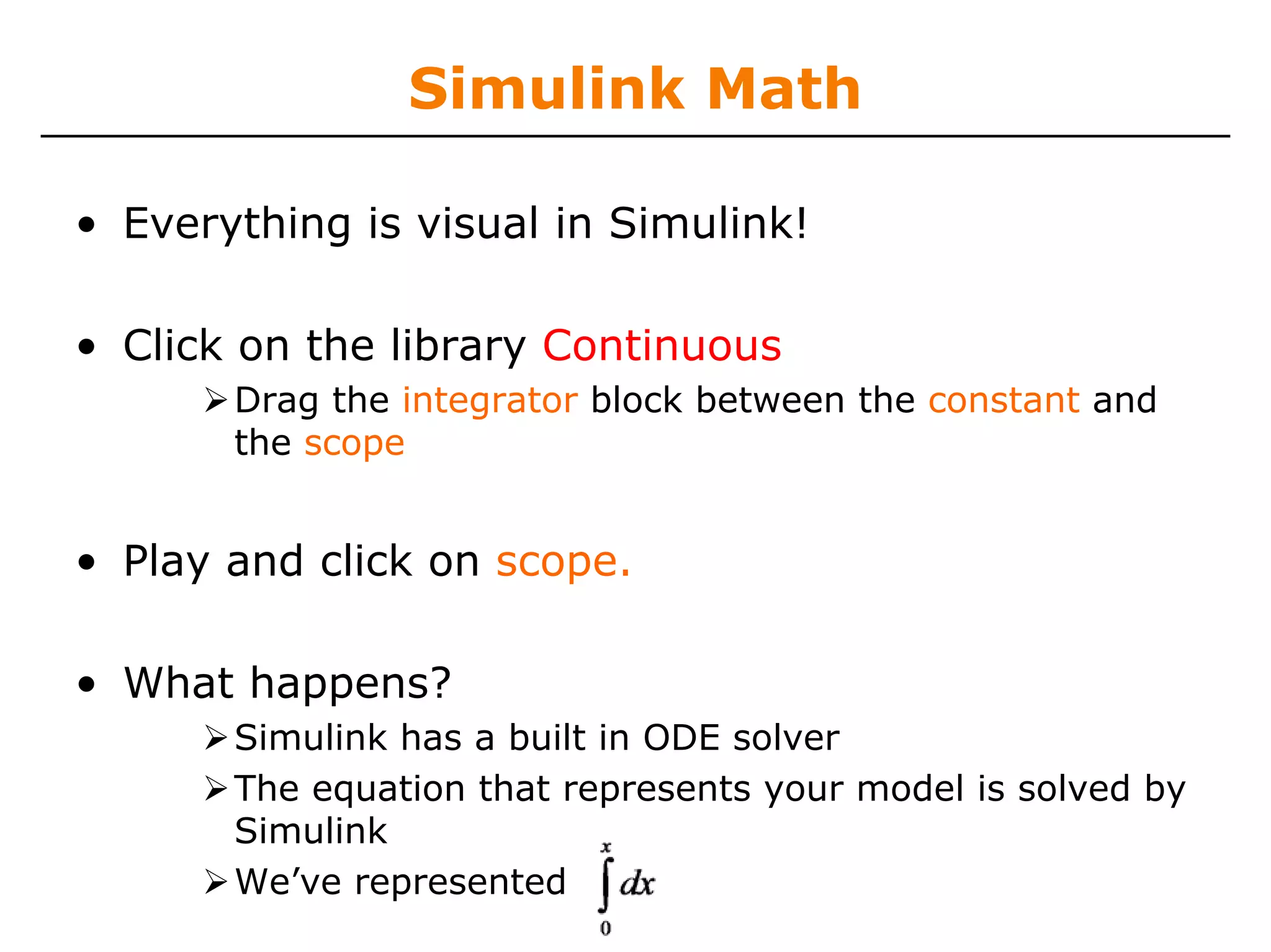
       We’ve represented
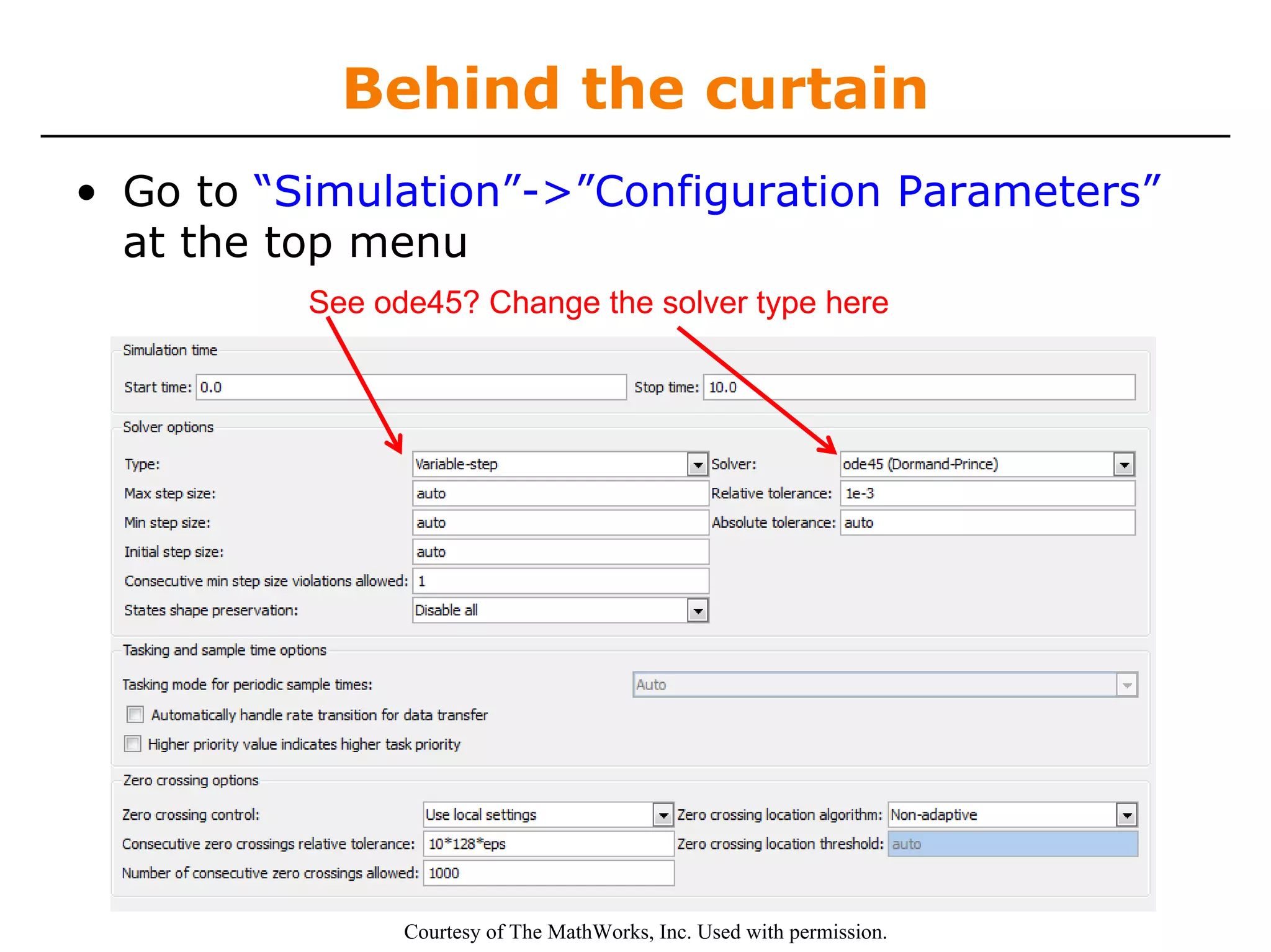
Behind the curtain
• Go to “Simulation”->”Configuration Parameters”
  at the top menu
          See ode45? Change the solver type here


                Courtesy of The MathWorks, Inc. Used with permission.
So what’s going on?

• The toolboxes Simulink provides you are full of
  modeling tools

• By selecting components that correspond to your
  model, you can design a simulation
Toolboxes

• Math
        Takes the signal and performs a math operation
   » Add, subtract, round, multiply, gain, angle
• Continuous
        Adds differential equations to the system
   » Integrals, Derivatives, Transfer Functions,
     State Space
• Discontinuities
         Adds nonlinearities to your system
• Discrete
         Simulates discrete difference equations
         Useful for digital systems
Building systems

• Sources
  » Step input, white noise, custom input, sine
    wave, ramp input,
      Provides input to your system
• Sinks
  » Scope: Outputs to plot
  » simout: Outputs to a MATLAB vector on workspace
  » MATLAB mat file
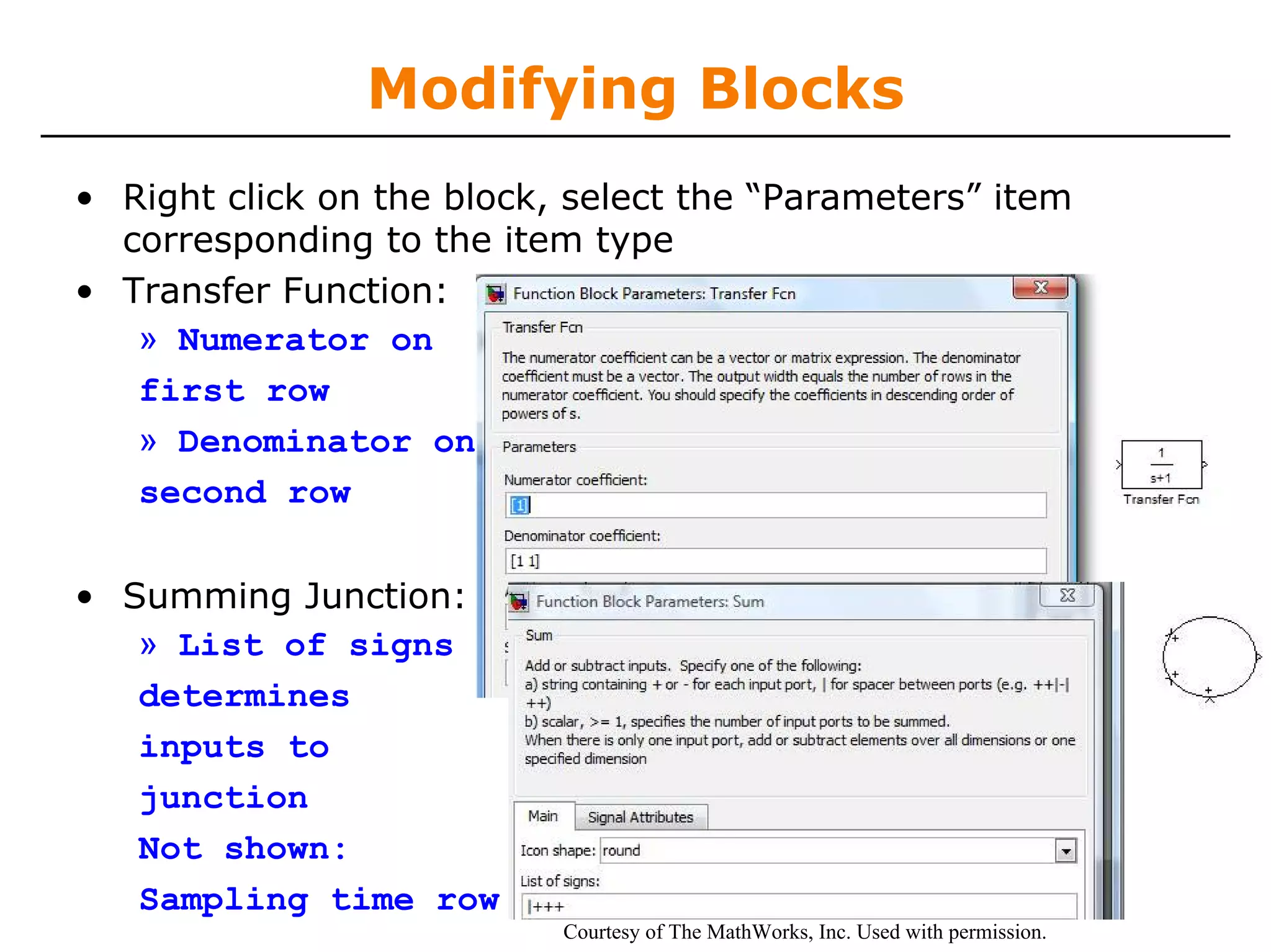
Modifying Blocks
• Right click on the block, select the “Parameters” item
  corresponding to the item type
• Transfer Function:
   » Numerator on
   first row
   » Denominator on
   second row

• Summing Junction:
   » List of signs
   determines
   inputs to
   junction
   Not shown:
   Sampling time row
                           Courtesy of The MathWorks, Inc. Used with permission.
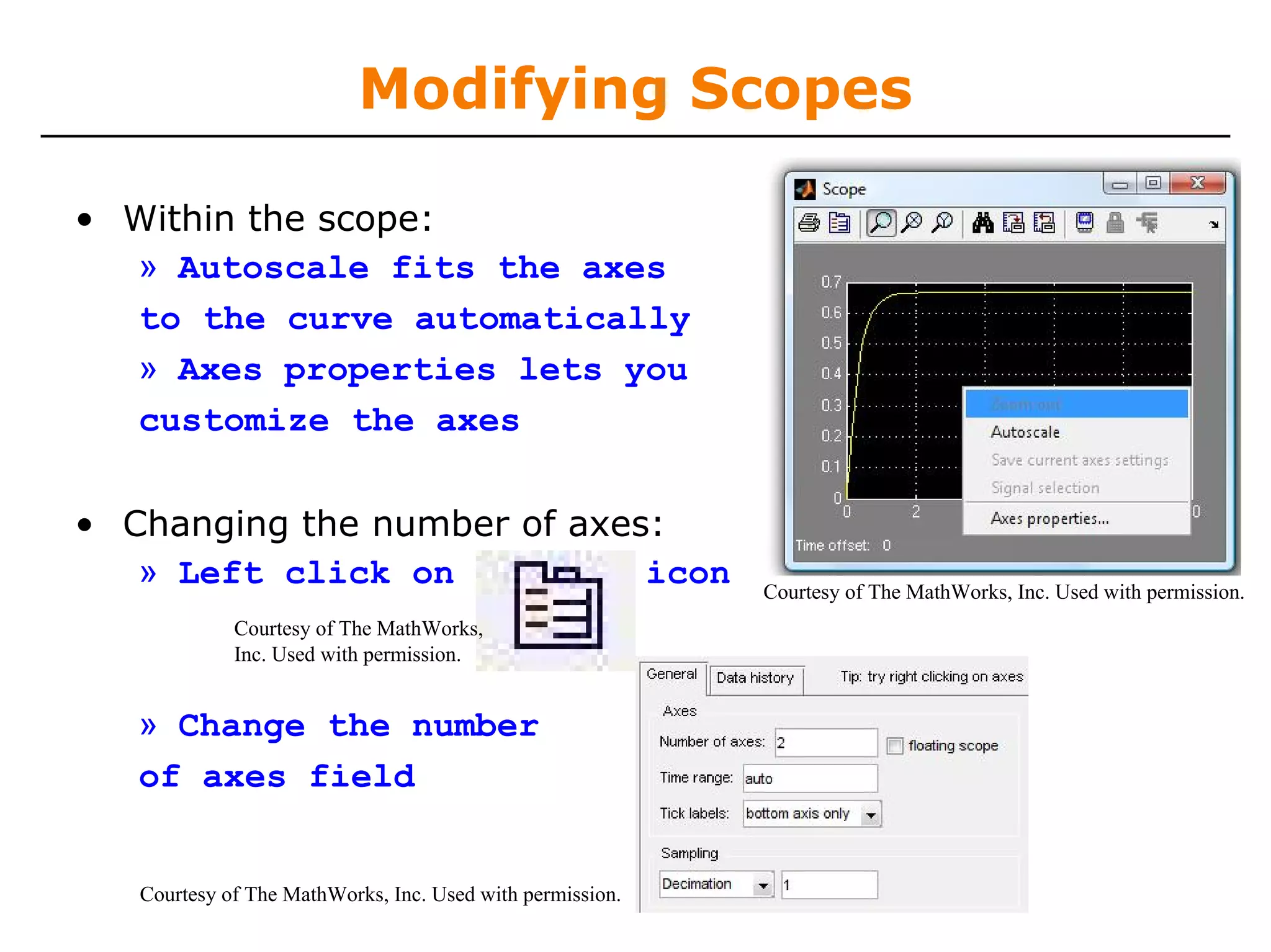
Modifying Scopes

• Within the scope:
  » Autoscale fits the axes
  to the curve automatically
  » Axes properties lets you
  customize the axes

• Changing the number of axes:
   » Left click on           icon                          Courtesy of The MathWorks, Inc. Used with permission.
             Courtesy of The MathWorks,
             Inc. Used with permission.


   » Change the number
   of axes field


   Courtesy of The MathWorks, Inc. Used with permission.
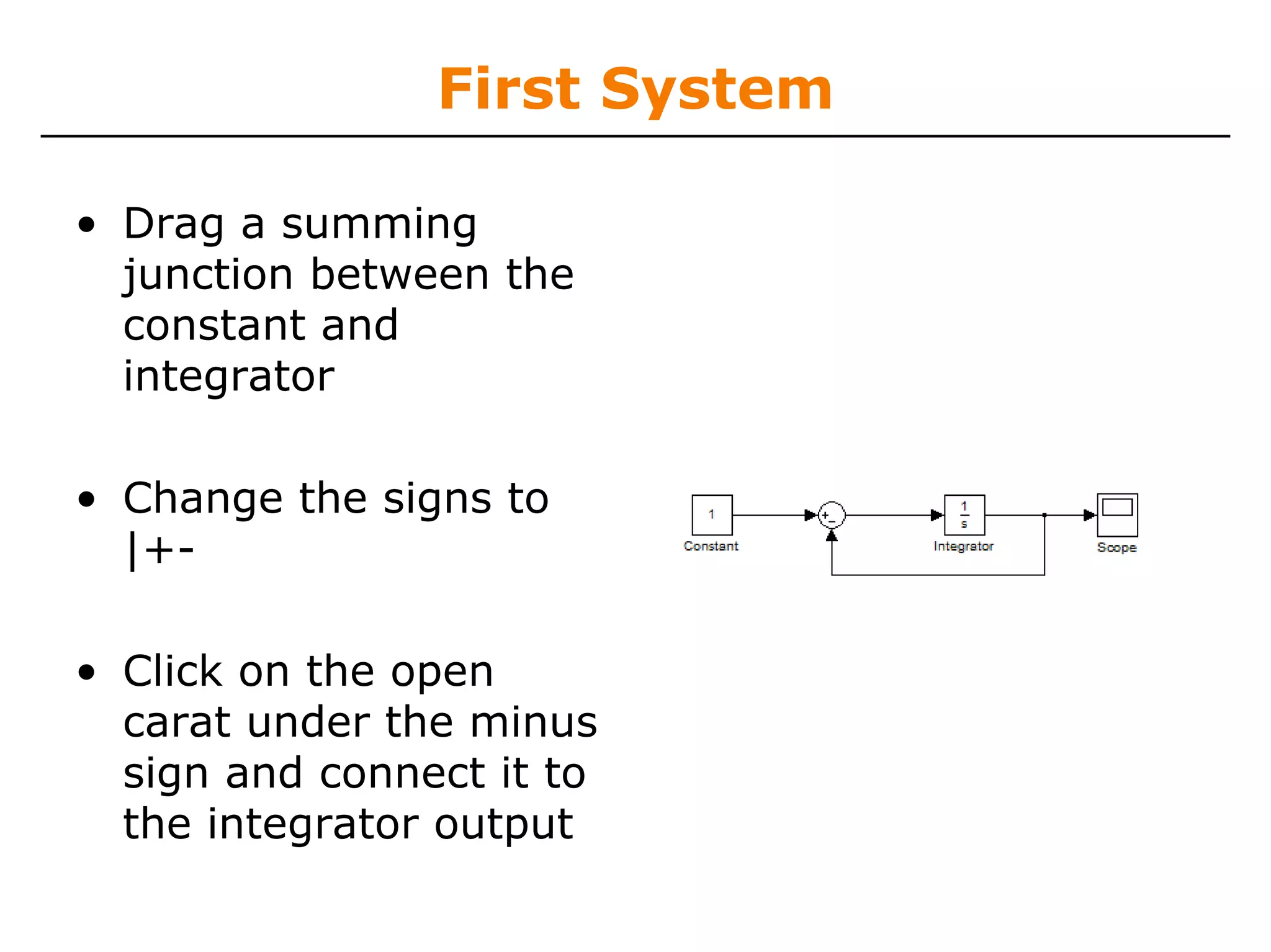
First System

• Drag a summing
  junction between the
  constant and
  integrator

• Change the signs to
  |+-

• Click on the open
  carat under the minus
  sign and connect it to
  the integrator output
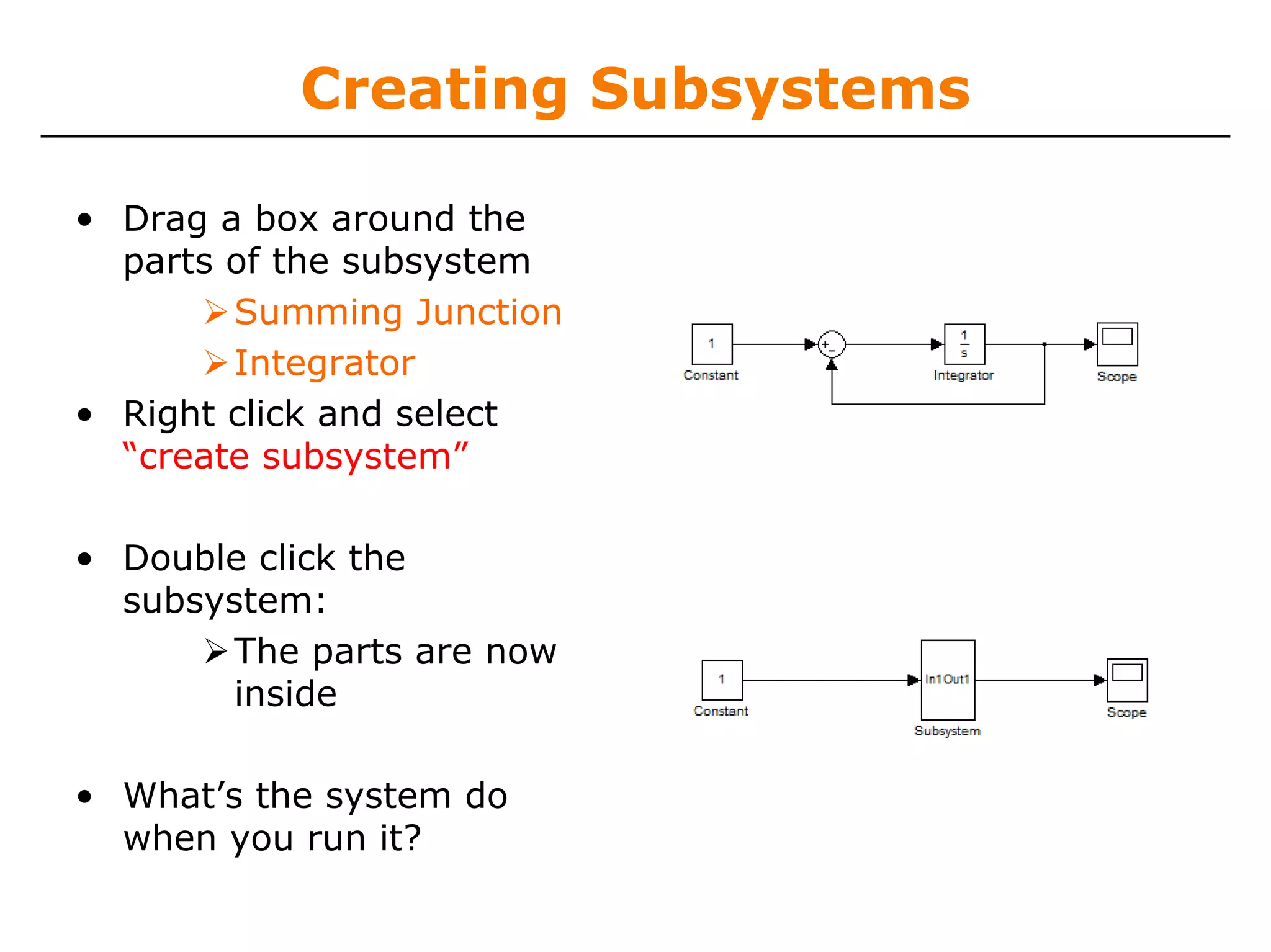
Creating Subsystems

• Drag a box around the
  parts of the subsystem
        Summing Junction
        Integrator
• Right click and select
  “create subsystem”

• Double click the
  subsystem:
       The parts are now
       inside

• What’s the system do
  when you run it?
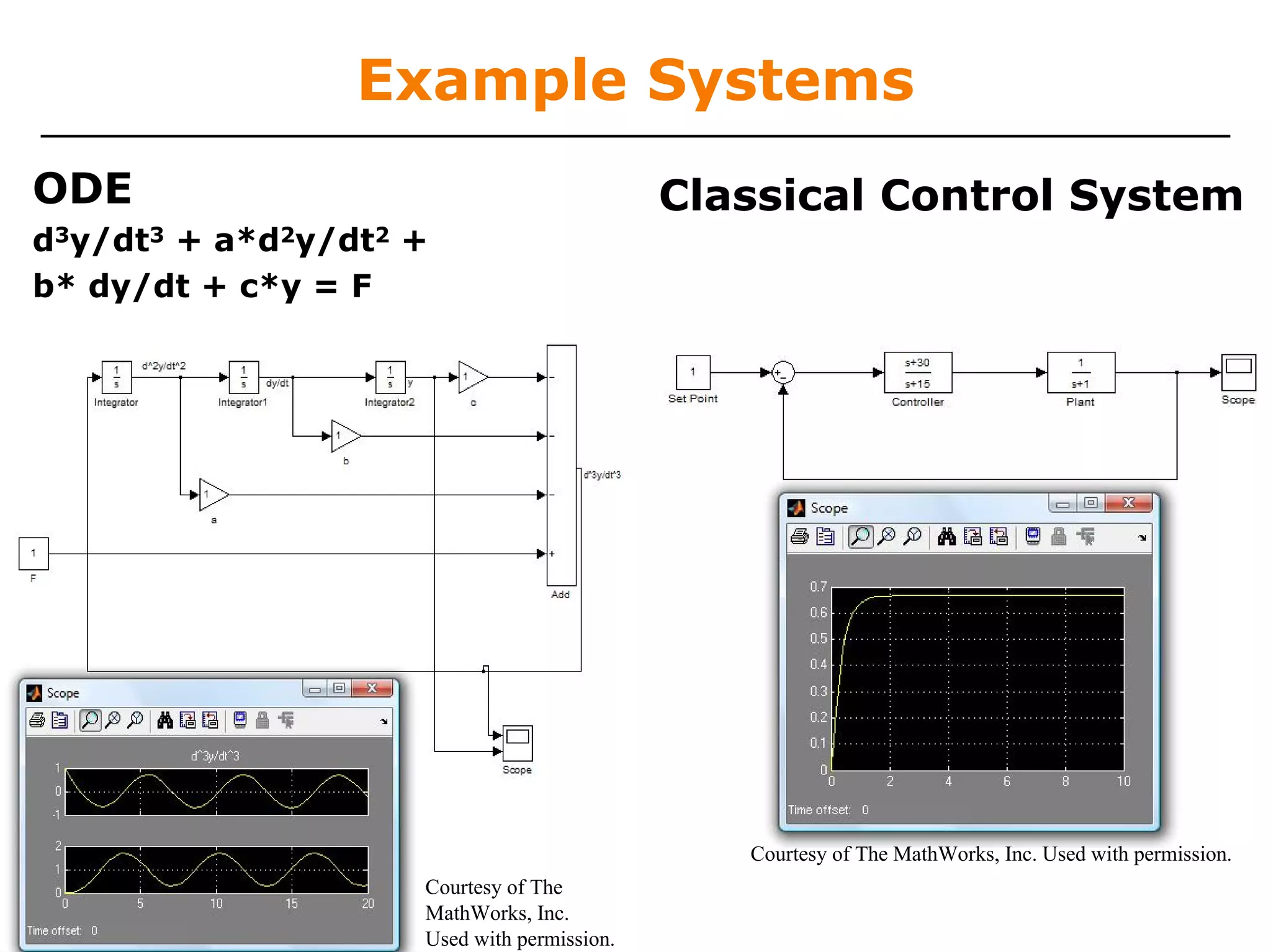
Example Systems
ODE                                         Classical Control System
d3y/dt3 + a*d2y/dt2 +
b* dy/dt + c*y = F


                                               Courtesy of The MathWorks, Inc. Used with permission.
                    Courtesy of The
                    MathWorks, Inc.
                    Used with permission.
Example: Nervous System

• Neural circuits in animals often exhibit oscillatory behavior

• Use Simulink to model one behavior of this type:
        Locomotion
             – Limbs go “Left-right, left-right, left-right”


• Locomotive behaviors are generated by “central pattern
  generators,” which oscillate on their own naturally

• When connected to an appendage, the central pattern
  generator will adapt its frequency and move the
  appendage. Open “RIOCPGDemo.mdl”

•   Model based on Iwasaki, T., Zheng, M. (2006a). Sensory feedback
    mechanism underlying entrainment of central pattern generator to
    mechanical resonance. Biological Cybernetics, 94(4), 245-261
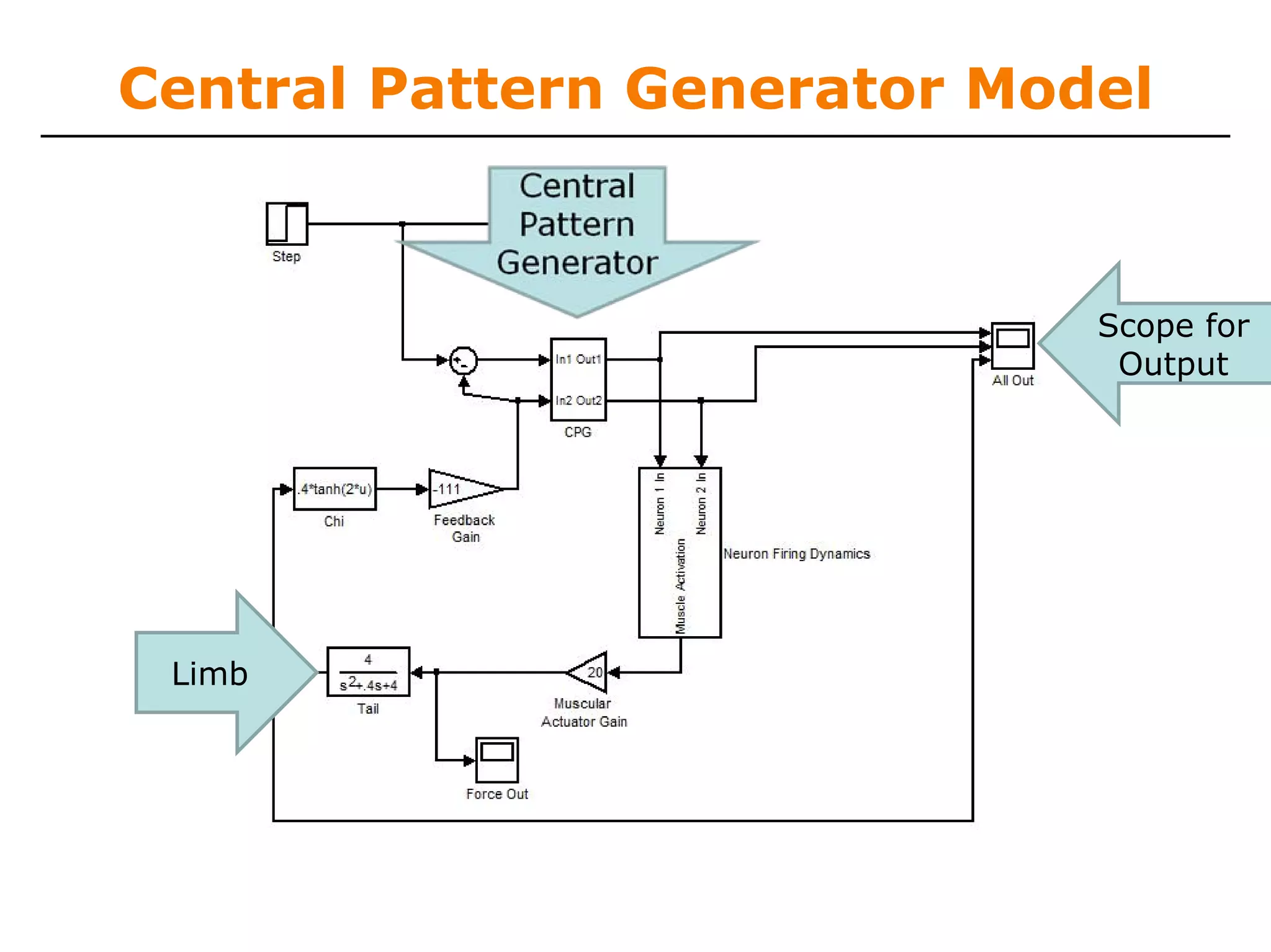
Central Pattern Generator Model


                             Scope for
                              Output


 Limb
Playing with the model

• Look at scopes
       What are the output signals?
• Delete signals
       Especially the signal after the feedback gain
• Change gains
       Muscular actuator gains
       Switch feedback gain from negative to positive
• Look inside subsystems
       What’s inside the CPG?
       What’s inside the neuron firing dynamics?
Toolboxes

• Simulink has many advanced toolboxes
        Control Systems
        Neural Networks
        Signal Processing
        SimMechanics
        Virtual Reality
        Real Time

• Hopefully you’ll get to use some of these powerful tools!
learn matlab for ease Lec5

  • 1.
    MIT OpenCourseWare http://ocw.mit.edu 6.094 Introductionto MATLAB® January (IAP) 2009 For information about citing these materials or our Terms of Use, visit: http://ocw.mit.edu/terms.
  • 2.
    6.094 Introduction to Programmingin MATLAB® Lecture 5: Simulink® Sourav Dey Danilo Šćepanović Ankit Patel Patrick Ho IAP 2009
  • 3.
    What is Simulink? •A model-based equation solver • Some analysis packages (ANSYS, Multisim) have built in equations modeling complex engineering problems. Save lots of time Can only be used for tackling specific problems • Simulink lets you build a GUI-based model and simulates the result. Unlimited complexity (constrained by runtime and memory) Adaptable for any field Downside? You have to do the modeling work
  • 4.
    Getting Started • Createa new file • Examine the Simulink Library Browser Click on a library: “Sources” Drag a block into Simulink: “Constant” Visualize the block by going into “Sinks” Drag a “Scope” into Simulink
  • 5.
    Connections • Click onthe carat/arrow on the right of the constant box • Drag the line to the scope You’ll get a hint saying you can quickly connect blocks by hitting Ctrl Connections between lines represent signals • Click the play button • Double click on the scope. This will open up a chart of the variable over the simulation time
  • 6.
    Simulink Math • Everythingis visual in Simulink! • Click on the library Continuous Drag the integrator block between the constant and the scope • Play and click on scope. • What happens? Simulink has a built in ODE solver The equation that represents your model is solved by Simulink We’ve represented
  • 7.
    Behind the curtain •Go to “Simulation”->”Configuration Parameters” at the top menu See ode45? Change the solver type here Courtesy of The MathWorks, Inc. Used with permission.
  • 8.
    So what’s goingon? • The toolboxes Simulink provides you are full of modeling tools • By selecting components that correspond to your model, you can design a simulation
  • 9.
    Toolboxes • Math Takes the signal and performs a math operation » Add, subtract, round, multiply, gain, angle • Continuous Adds differential equations to the system » Integrals, Derivatives, Transfer Functions, State Space • Discontinuities Adds nonlinearities to your system • Discrete Simulates discrete difference equations Useful for digital systems
  • 10.
    Building systems • Sources » Step input, white noise, custom input, sine wave, ramp input, Provides input to your system • Sinks » Scope: Outputs to plot » simout: Outputs to a MATLAB vector on workspace » MATLAB mat file
  • 11.
    Modifying Blocks • Rightclick on the block, select the “Parameters” item corresponding to the item type • Transfer Function: » Numerator on first row » Denominator on second row • Summing Junction: » List of signs determines inputs to junction Not shown: Sampling time row Courtesy of The MathWorks, Inc. Used with permission.
  • 12.
    Modifying Scopes • Withinthe scope: » Autoscale fits the axes to the curve automatically » Axes properties lets you customize the axes • Changing the number of axes: » Left click on icon Courtesy of The MathWorks, Inc. Used with permission. Courtesy of The MathWorks, Inc. Used with permission. » Change the number of axes field Courtesy of The MathWorks, Inc. Used with permission.
  • 13.
    First System • Draga summing junction between the constant and integrator • Change the signs to |+- • Click on the open carat under the minus sign and connect it to the integrator output
  • 14.
    Creating Subsystems • Draga box around the parts of the subsystem Summing Junction Integrator • Right click and select “create subsystem” • Double click the subsystem: The parts are now inside • What’s the system do when you run it?
  • 15.
    Example Systems ODE Classical Control System d3y/dt3 + a*d2y/dt2 + b* dy/dt + c*y = F Courtesy of The MathWorks, Inc. Used with permission. Courtesy of The MathWorks, Inc. Used with permission.
  • 16.
    Example: Nervous System •Neural circuits in animals often exhibit oscillatory behavior • Use Simulink to model one behavior of this type: Locomotion – Limbs go “Left-right, left-right, left-right” • Locomotive behaviors are generated by “central pattern generators,” which oscillate on their own naturally • When connected to an appendage, the central pattern generator will adapt its frequency and move the appendage. Open “RIOCPGDemo.mdl” • Model based on Iwasaki, T., Zheng, M. (2006a). Sensory feedback mechanism underlying entrainment of central pattern generator to mechanical resonance. Biological Cybernetics, 94(4), 245-261
  • 17.
    Central Pattern GeneratorModel Scope for Output Limb
  • 18.
    Playing with themodel • Look at scopes What are the output signals? • Delete signals Especially the signal after the feedback gain • Change gains Muscular actuator gains Switch feedback gain from negative to positive • Look inside subsystems What’s inside the CPG? What’s inside the neuron firing dynamics?
  • 19.
    Toolboxes • Simulink hasmany advanced toolboxes Control Systems Neural Networks Signal Processing SimMechanics Virtual Reality Real Time • Hopefully you’ll get to use some of these powerful tools!