Computer Literacy
BASICS: A
Comprehensive Guide
to IC3, 5th Edition
Lesson 26
Communication Services
1 Morrison / Wells / Ruffolo
Lesson26
Morrison / Wells / Ruffolo CLB: A Comp Guide to IC3 5E
Objectives
 Describe the components for electronic
communication and identify several Internet
communication services.
 Explain the purposes of usernames,
passwords, and credentials.
 Manage e-mail folders.
 Create and send e-mail messages.
222
Lesson26
Morrison / Wells / Ruffolo CLB: A Comp Guide to IC3 5E
Objectives (continued)
 Receive and open e-mail messages and
attachments.
 Respond and reply to e-mail messages.
 Create an e-mail signature and manage
e-mail messages automatically.
 Create appropriate professional and informal
messages.
333
Lesson26
Morrison / Wells / Ruffolo CLB: A Comp Guide to IC3 5E
Words to Know
 Plain Text format
 protocols
 Rich Text Format
 signature
 spam
 user agent
 username
 archiving
 channel
 conversation
 credentials
 domain name
 HTML (Hypertext
Markup Language)
 password
444
Lesson26
Morrison / Wells / Ruffolo CLB: A Comp Guide to IC3 5E
Describing Components of
Electronic Communication
 Electronic communication is the technology that
transmits text, numbers, voice, and video from one
computer or device to another.
 Electronic communication requires a user agent,
which is a software application such as an e-mail,
text messaging, or instant messaging program.
 The sender is the computer sending the message;
the receiver is the computer receiving the message;
and the channel is the media transporting the
message.
5
Lesson26
Morrison / Wells / Ruffolo CLB: A Comp Guide to IC3 5E
Describing Components of Electronic
Communication (continued)
 Protocols are the rules that govern the
transfer of data, and ensure that information
created by one system can be interpreted
and read by another system.
 The communication is completed when the
information is transferred between user
agents.
6
Lesson26
Morrison / Wells / Ruffolo CLB: A Comp Guide to IC3 5E
Identifying Internet
Communication Services
 The Internet provides a wide range of
services including the following:
– E-mail (electronic mail) enables you to combine
numerous media into a single message and then
quickly exchange information in dynamic, two-way
communications.
– Instant messaging allows you to send and receive
messages in real time while you and someone
else are both connected to the Internet.
7
Lesson26
Morrison / Wells / Ruffolo CLB: A Comp Guide to IC3 5E
Identifying Internet Communication
Services (continued)
– Text messaging enables you to send short
messages from one cell phone to another, or from
the Web to a cell phone.
– Voice over IP (VoIP) is a methodology and group
of technologies that transport voice, data, and
video communication using Internet Protocol (IP)
networks such as the Internet.
8
Lesson26
Morrison / Wells / Ruffolo CLB: A Comp Guide to IC3 5E
Identifying Internet Communication
Services (continued)
– Online conferencing, also called video
conferencing, uses computer networks to transmit
audio and video data so that two or more
participants can conduct a conference at different
sites.
– Chat rooms are Web sites that allow real-time
communication so you can exchange messages
with others through the computer.
9
Lesson26
Morrison / Wells / Ruffolo CLB: A Comp Guide to IC3 5E
Identifying Internet Communication
Services (continued)
– Social networking sites are Web sites that provide
a way to build online communities of people who
share common interests or activities.
– A blog (short for Web log) is a type of personal
journal created by one person or by a group.
– Message boards and newsgroups provide bulletin
board systems that serve as discussion sites;
users can post messages asking for assistance.
10
Lesson26
Morrison / Wells / Ruffolo CLB: A Comp Guide to IC3 5E
Using E-Mail Communication
 E-mail is similar to regular mail. You have a
message, an address, and a carrier that
transfers the message from one location to
another.
 The methods used to access e-mail have
multiplied, and many are offered for a monthly
fee or even at no charge.
 Microsoft Outlook.com, Windows Live Mail,
Google Gmail, and Yahoo Mail are examples of
Web-based e-mail services.
11
Lesson26
Morrison / Wells / Ruffolo CLB: A Comp Guide to IC3 5E
Using E-Mail Communication
(continued)
 When you set up an e-mail account, the service
provider requires credentials before you can access
the service features.
 Credentials are stored on the server of the
e-mail provider and include information to
authenticate your identity, such as a username and a
password.
 A username is a name that identifies you when you
log on to a Web site or an Internet service.
 A password is a word or string of characters that
provides access to the service features.
12
Lesson26
Morrison / Wells / Ruffolo CLB: A Comp Guide to IC3 5E
Using E-Mail Communication
(continued)
 Your credentials can be used for e-mail and for a
variety of other options such as setting up an online
checking account or placing an online order.
 Each user on the Internet must have a unique
e-mail address, which consists of three parts: the
user name, the @ symbol, and a domain name.
 A domain name is an address of a computer
network connection that identifies the owner of the
address.
13
Lesson26
Morrison / Wells / Ruffolo CLB: A Comp Guide to IC3 5E
Managing E-Mail with Microsoft
Outlook
 Microsoft Outlook is a versatile Office application
you can use to manage e-mail, and organize
contacts, appointments, and tasks.
 As you work with e-mail messages, you can
manage other types of data.
 For example, you can add contacts to your
address book, schedule a meeting on your
calendar, and add tasks to your to-do list directly
from an incoming e-mail message.
14
Lesson26
Morrison / Wells / Ruffolo CLB: A Comp Guide to IC3 5E
Managing E-Mail with Microsoft
Outlook (continued)
15
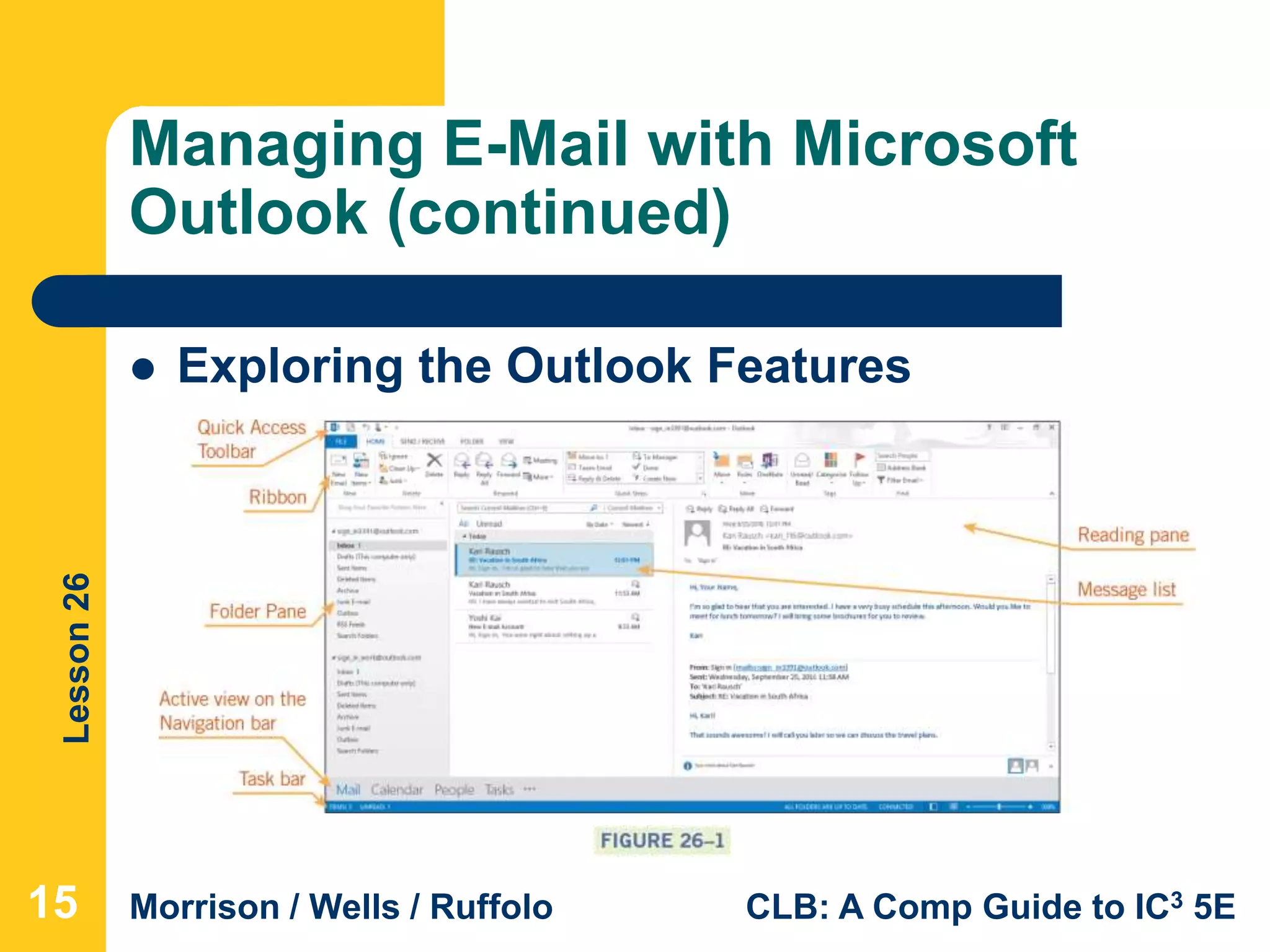
 Exploring the Outlook Features
Lesson26
Morrison / Wells / Ruffolo CLB: A Comp Guide to IC3 5E
Managing E-Mail with Microsoft
Outlook (continued)
 Managing E-Mail Account Folders
 Outlook allows you to manage multiple e-mail accounts
by organizing the messages in standard folders such as
Inbox, Drafts, Sent Items, and Outbox. You can also add
customized folders.
 Mail management is handled mainly through the Inbox
where Outlook displays incoming messages.
 Archiving is the process of backing up your e-mail
messages. Outlook runs an AutoArchive feature every 14
days, and you can choose settings to control deleting old
messages or moving them to an archive data file.
16
Lesson26
Morrison / Wells / Ruffolo CLB: A Comp Guide to IC3 5E
Managing E-Mail with Microsoft
Outlook (continued)
 Creating and Saving an E-Mail Message
 You can send an e-mail message to multiple
recipients, and the message goes to all the
addresses at the same time.
 You can type the e-mail for the recipients, or you can
access the addresses in your contacts.
 You can send a courtesy copy (Cc) or a blind copy
(Bcc) to another recipient. Other recipients can see
the address of the courtesy copy but they cannot see
the address of a blind copy.
 The subject should be brief but descriptive.
17
Lesson26
Morrison / Wells / Ruffolo CLB: A Comp Guide to IC3 5E
Managing E-Mail with Microsoft
Outlook (continued)
 Creating and Saving an E-Mail Message (continued)
 The body of the message should be clear, concise, and
free from spelling errors.
 Outlook and other e-mail programs provide at least two
formatting options: HTML (Hypertext Markup
Language) and Plain Text format.
 HTML supports text formatting options such as multiple
fonts, bold text, colored headings, graphics, and links to
Web sites. Plain text format contains only text.
 Rich Text Format, which is a Microsoft format, is similar
to HTML but is supported only by Microsoft e-mail
applications.
18
Lesson26
Morrison / Wells / Ruffolo CLB: A Comp Guide to IC3 5E
Managing E-Mail with Microsoft
Outlook (continued)
 Attaching a File and Sending a Message
 You can include attachments such as
pictures or documents in an e-mail message.
When recipients receive the message, they
can open or save the attached file.
 You can add a tag to the message header to
indicate if the message is high or low priority.
19
Lesson26
Morrison / Wells / Ruffolo CLB: A Comp Guide to IC3 5E
Managing E-Mail with Microsoft
Outlook (continued)
 Attaching a File and Sending a Message
(continued)
 Sometimes e-mail messages “bounce back” and
are undeliverable. This can happen if:
– The address is typed incorrectly.
– The server is busy and the process is not completed
within the specified amount of time.
– The recipient has blocked messages from the sender.
– The recipient’s mailbox is full.
– The recipient’s security settings reject attachments or
attachments with executable programs.
20
Lesson26
Morrison / Wells / Ruffolo CLB: A Comp Guide to IC3 5E
Managing E-Mail with Microsoft
Outlook (continued)
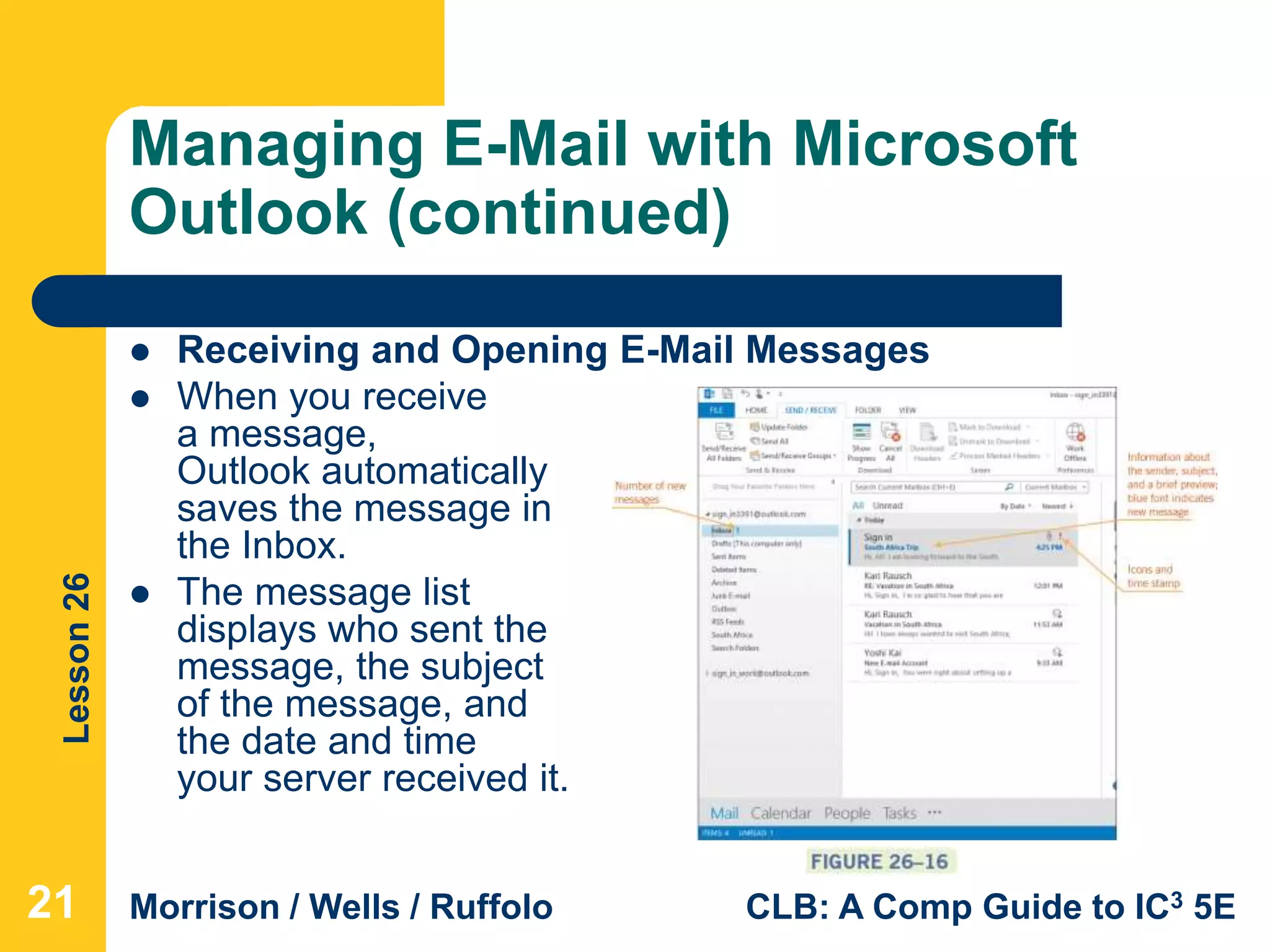
 Receiving and Opening E-Mail Messages
 When you receive
a message,
Outlook automatically
saves the message in
the Inbox.
 The message list
displays who sent the
message, the subject
of the message, and
the date and time
your server received it.
21
Lesson26
Morrison / Wells / Ruffolo CLB: A Comp Guide to IC3 5E
Managing E-Mail with Microsoft
Outlook (continued)
 Receiving and Opening E-Mail Messages
(continued)
 When selected, the entire message displays in the
Reading pane and scroll bars can be used to
navigate through the message.
 You can organize the message list by date or you
can filter it so that only unread messages display.
 You can search for keywords in messages that
display in the message list.
 You can manually mark a message as unread.
22
Lesson26
Morrison / Wells / Ruffolo CLB: A Comp Guide to IC3 5E
Managing E-Mail with Microsoft
Outlook (continued)
 Receiving and Opening E-Mail Messages (continued)
 A red exclamation point icon indicates the sender
considers the message urgent, or a high priority; a paper
clip icon indicates that the message has an attached file.
 You can add a flag icon as a reminder to follow up on the
message.
 Spam is unsolicited e-mail, often used to advertise
products and services.
 Most Internet service providers have tools that filter spam
messages to help you avoid them.
23
Lesson26
Morrison / Wells / Ruffolo CLB: A Comp Guide to IC3 5E
Managing E-Mail with Microsoft
Outlook (continued)
 Opening E-Mail Attachments
 You can preview an attachment in the
Reading pane or you can open the file in an
application such as Word or Adobe Reader.
 You can also print an attached document or
save the attachment file to your computer or
device.
24
Lesson26
Morrison / Wells / Ruffolo CLB: A Comp Guide to IC3 5E
Managing E-Mail with Microsoft
Outlook (continued)
 Responding and Replying to a Message
 The easiest way to reply to an e-mail message is
to use the Reply command.
 The original message is included along with your
reply with “RE:” preceding the text in the subject
line.
 If more than one person is displayed as an
e-mail recipient, you can use the Reply All
command to reply to all recipients at the same
time.
25
Lesson26
Morrison / Wells / Ruffolo CLB: A Comp Guide to IC3 5E
Managing E-Mail with Microsoft
Outlook (continued)
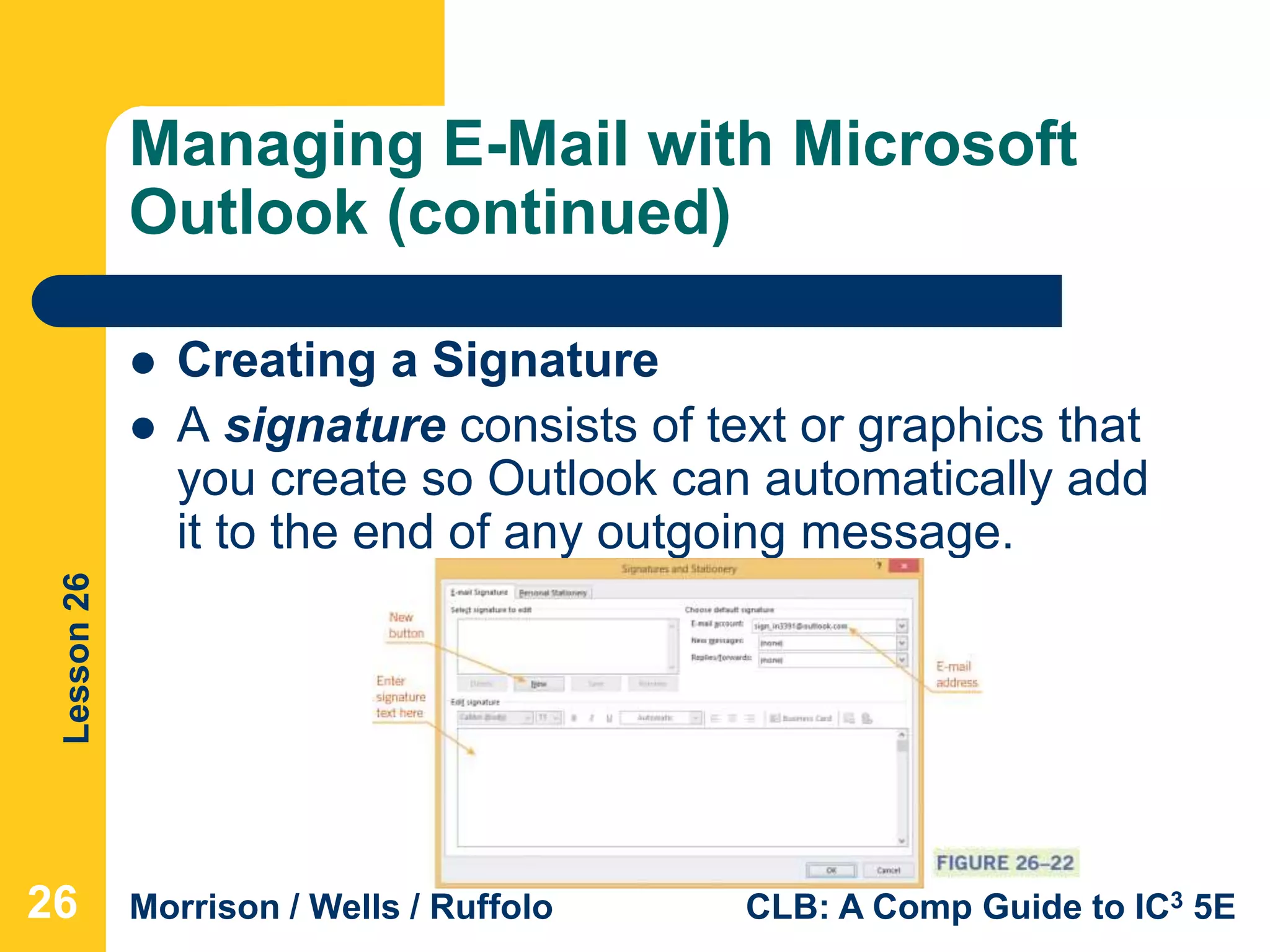
 Creating a Signature
 A signature consists of text or graphics that
you create so Outlook can automatically add
it to the end of any outgoing message.
26
Lesson26
Morrison / Wells / Ruffolo CLB: A Comp Guide to IC3 5E
Managing E-Mail with Microsoft
Outlook (continued)
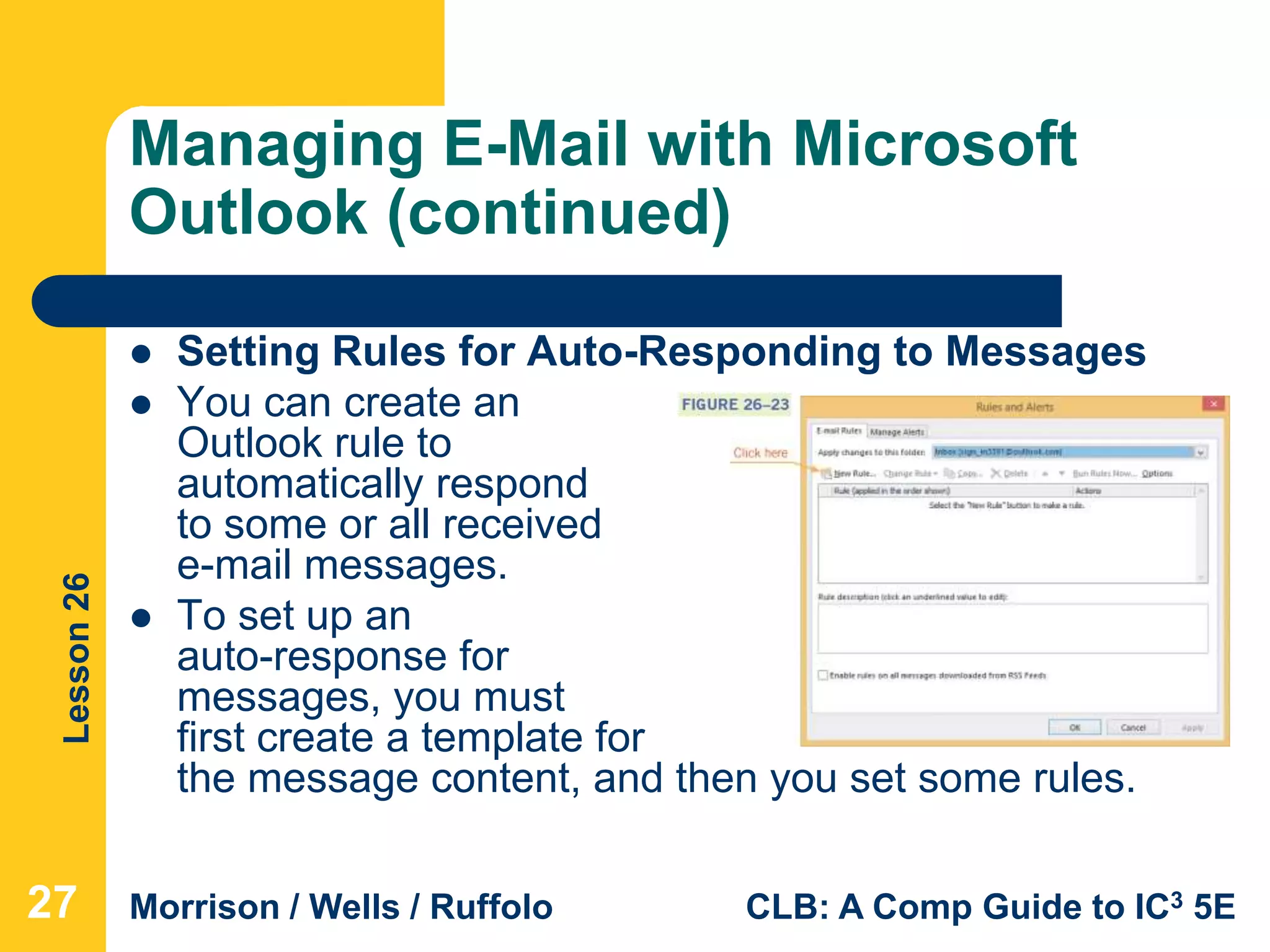
 Setting Rules for Auto-Responding to Messages
 You can create an
Outlook rule to
automatically respond
to some or all received
e-mail messages.
 To set up an
auto-response for
messages, you must
first create a template for
the message content, and then you set some rules.
27
Lesson26
Morrison / Wells / Ruffolo CLB: A Comp Guide to IC3 5E
Managing E-Mail with Microsoft
Outlook (continued)
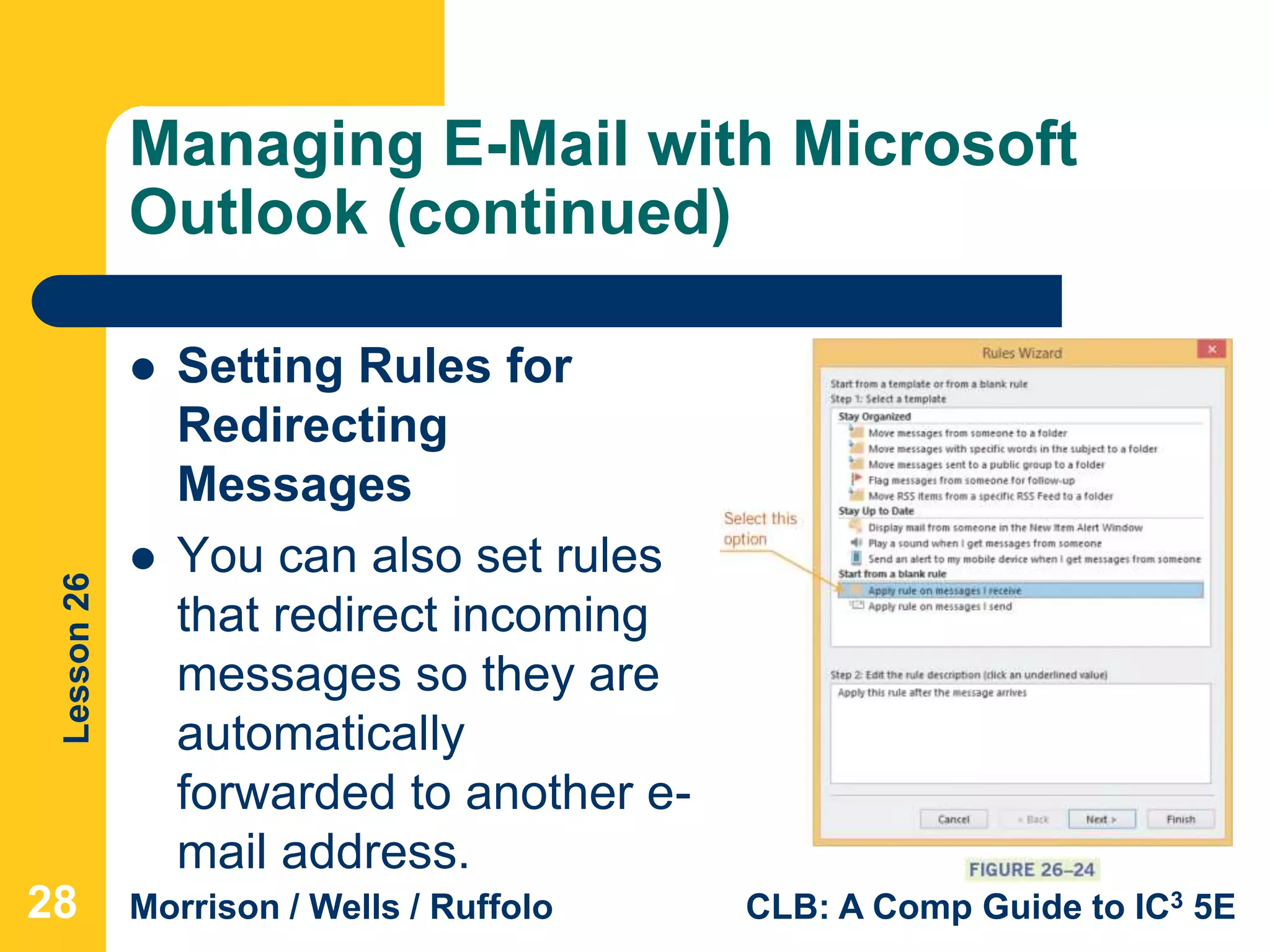
 Setting Rules for
Redirecting
Messages
 You can also set rules
that redirect incoming
messages so they are
automatically
forwarded to another e-
mail address.
28
Lesson26
Morrison / Wells / Ruffolo CLB: A Comp Guide to IC3 5E
Managing E-Mail with Microsoft
Outlook (continued)
 Cleaning Up Your Folders
 Outlook provides a Clean Up Folder feature
that automatically removes redundant
messages from conversations.
 Another way to clean up folders is to
manually delete the messages.
29
Lesson26
Morrison / Wells / Ruffolo CLB: A Comp Guide to IC3 5E
Creating Appropriate Messages
 The fast-paced media used for electronic
communication demands a writing style that is
clear and concise without sacrificing speed.
 When writing professional communications, the
language should be more formal and the
information should be stated in complete
sentences.
 E-mails create electronic trails that document
discussions, contact information, and access to
attached files.
30
Lesson26
Morrison / Wells / Ruffolo CLB: A Comp Guide to IC3 5E
Creating Appropriate Messages
(continued)
 E-mail messages are not private; they can be
restored and reviewed.
 To avoid sending a message you may later
regret, consider the following options:
– Discuss the issue with someone else before you
send an e-mail.
– Do not include the e-mail address in the To line
while you are creating the message.
31
Lesson26
Morrison / Wells / Ruffolo CLB: A Comp Guide to IC3 5E
Creating Appropriate Messages
(continued)
– Before you click Send, make sure you are
sending the message to the right people, and
proofread everything to confirm you have no
misspelled words or grammatical errors.
– Save the message overnight as a draft and then
reevaluate your response the next day.
32
Lesson26
Morrison / Wells / Ruffolo CLB: A Comp Guide to IC3 5E
Summary
In this lesson, you learned:
 Electronic communication is the technology that
enables users to transmit text, numbers, voice, and
video from one computer or device to another.
 The Internet provides many communication services,
such as e-mail, instant messaging, and text
messaging, to billions of users around the world.
333333
Lesson26
Morrison / Wells / Ruffolo CLB: A Comp Guide to IC3 5E
Summary (continued)
 Even as technology evolves and provides new and
enhanced methods of electronic communications, e-
mail is still widely used.
 Outlook provides several features that enable you to
access calendars, contacts, and tasks as you work
with e-mail messages.
 Creating an e-mail involves entering the e-mail
addresses of the recipients, adding a subject line,
and typing the message.
343434
Lesson26
Morrison / Wells / Ruffolo CLB: A Comp Guide to IC3 5E
Summary (continued)
 E-mail messages are organized in folders. You can
use the standard folders provided in the default
settings, or you can create your own personal folders
to store messages.
 In response to an incoming message, you can reply
to the message, forward the message to a new
recipient, delete the message, or save the message.
 You can automatically add a signature at the end of
any outgoing messages.
353535
Lesson26
Morrison / Wells / Ruffolo CLB: A Comp Guide to IC3 5E
Summary (continued)
 Special e-mail features enable you to automatically
respond and forward incoming messages to another
address.
 When creating e-mail messages, whether for
professional or informal communications, it is
important that the message is clear and accurate.
363636

Computer Literacy Lesson 26

  • 1.
    Computer Literacy BASICS: A ComprehensiveGuide to IC3, 5th Edition Lesson 26 Communication Services 1 Morrison / Wells / Ruffolo
  • 2.
    Lesson26 Morrison / Wells/ Ruffolo CLB: A Comp Guide to IC3 5E Objectives  Describe the components for electronic communication and identify several Internet communication services.  Explain the purposes of usernames, passwords, and credentials.  Manage e-mail folders.  Create and send e-mail messages. 222
  • 3.
    Lesson26 Morrison / Wells/ Ruffolo CLB: A Comp Guide to IC3 5E Objectives (continued)  Receive and open e-mail messages and attachments.  Respond and reply to e-mail messages.  Create an e-mail signature and manage e-mail messages automatically.  Create appropriate professional and informal messages. 333
  • 4.
    Lesson26 Morrison / Wells/ Ruffolo CLB: A Comp Guide to IC3 5E Words to Know  Plain Text format  protocols  Rich Text Format  signature  spam  user agent  username  archiving  channel  conversation  credentials  domain name  HTML (Hypertext Markup Language)  password 444
  • 5.
    Lesson26 Morrison / Wells/ Ruffolo CLB: A Comp Guide to IC3 5E Describing Components of Electronic Communication  Electronic communication is the technology that transmits text, numbers, voice, and video from one computer or device to another.  Electronic communication requires a user agent, which is a software application such as an e-mail, text messaging, or instant messaging program.  The sender is the computer sending the message; the receiver is the computer receiving the message; and the channel is the media transporting the message. 5
  • 6.
    Lesson26 Morrison / Wells/ Ruffolo CLB: A Comp Guide to IC3 5E Describing Components of Electronic Communication (continued)  Protocols are the rules that govern the transfer of data, and ensure that information created by one system can be interpreted and read by another system.  The communication is completed when the information is transferred between user agents. 6
  • 7.
    Lesson26 Morrison / Wells/ Ruffolo CLB: A Comp Guide to IC3 5E Identifying Internet Communication Services  The Internet provides a wide range of services including the following: – E-mail (electronic mail) enables you to combine numerous media into a single message and then quickly exchange information in dynamic, two-way communications. – Instant messaging allows you to send and receive messages in real time while you and someone else are both connected to the Internet. 7
  • 8.
    Lesson26 Morrison / Wells/ Ruffolo CLB: A Comp Guide to IC3 5E Identifying Internet Communication Services (continued) – Text messaging enables you to send short messages from one cell phone to another, or from the Web to a cell phone. – Voice over IP (VoIP) is a methodology and group of technologies that transport voice, data, and video communication using Internet Protocol (IP) networks such as the Internet. 8
  • 9.
    Lesson26 Morrison / Wells/ Ruffolo CLB: A Comp Guide to IC3 5E Identifying Internet Communication Services (continued) – Online conferencing, also called video conferencing, uses computer networks to transmit audio and video data so that two or more participants can conduct a conference at different sites. – Chat rooms are Web sites that allow real-time communication so you can exchange messages with others through the computer. 9
  • 10.
    Lesson26 Morrison / Wells/ Ruffolo CLB: A Comp Guide to IC3 5E Identifying Internet Communication Services (continued) – Social networking sites are Web sites that provide a way to build online communities of people who share common interests or activities. – A blog (short for Web log) is a type of personal journal created by one person or by a group. – Message boards and newsgroups provide bulletin board systems that serve as discussion sites; users can post messages asking for assistance. 10
  • 11.
    Lesson26 Morrison / Wells/ Ruffolo CLB: A Comp Guide to IC3 5E Using E-Mail Communication  E-mail is similar to regular mail. You have a message, an address, and a carrier that transfers the message from one location to another.  The methods used to access e-mail have multiplied, and many are offered for a monthly fee or even at no charge.  Microsoft Outlook.com, Windows Live Mail, Google Gmail, and Yahoo Mail are examples of Web-based e-mail services. 11
  • 12.
    Lesson26 Morrison / Wells/ Ruffolo CLB: A Comp Guide to IC3 5E Using E-Mail Communication (continued)  When you set up an e-mail account, the service provider requires credentials before you can access the service features.  Credentials are stored on the server of the e-mail provider and include information to authenticate your identity, such as a username and a password.  A username is a name that identifies you when you log on to a Web site or an Internet service.  A password is a word or string of characters that provides access to the service features. 12
  • 13.
    Lesson26 Morrison / Wells/ Ruffolo CLB: A Comp Guide to IC3 5E Using E-Mail Communication (continued)  Your credentials can be used for e-mail and for a variety of other options such as setting up an online checking account or placing an online order.  Each user on the Internet must have a unique e-mail address, which consists of three parts: the user name, the @ symbol, and a domain name.  A domain name is an address of a computer network connection that identifies the owner of the address. 13
  • 14.
    Lesson26 Morrison / Wells/ Ruffolo CLB: A Comp Guide to IC3 5E Managing E-Mail with Microsoft Outlook  Microsoft Outlook is a versatile Office application you can use to manage e-mail, and organize contacts, appointments, and tasks.  As you work with e-mail messages, you can manage other types of data.  For example, you can add contacts to your address book, schedule a meeting on your calendar, and add tasks to your to-do list directly from an incoming e-mail message. 14
  • 15.
    Lesson26 Morrison / Wells/ Ruffolo CLB: A Comp Guide to IC3 5E Managing E-Mail with Microsoft Outlook (continued) 15  Exploring the Outlook Features
  • 16.
    Lesson26 Morrison / Wells/ Ruffolo CLB: A Comp Guide to IC3 5E Managing E-Mail with Microsoft Outlook (continued)  Managing E-Mail Account Folders  Outlook allows you to manage multiple e-mail accounts by organizing the messages in standard folders such as Inbox, Drafts, Sent Items, and Outbox. You can also add customized folders.  Mail management is handled mainly through the Inbox where Outlook displays incoming messages.  Archiving is the process of backing up your e-mail messages. Outlook runs an AutoArchive feature every 14 days, and you can choose settings to control deleting old messages or moving them to an archive data file. 16
  • 17.
    Lesson26 Morrison / Wells/ Ruffolo CLB: A Comp Guide to IC3 5E Managing E-Mail with Microsoft Outlook (continued)  Creating and Saving an E-Mail Message  You can send an e-mail message to multiple recipients, and the message goes to all the addresses at the same time.  You can type the e-mail for the recipients, or you can access the addresses in your contacts.  You can send a courtesy copy (Cc) or a blind copy (Bcc) to another recipient. Other recipients can see the address of the courtesy copy but they cannot see the address of a blind copy.  The subject should be brief but descriptive. 17
  • 18.
    Lesson26 Morrison / Wells/ Ruffolo CLB: A Comp Guide to IC3 5E Managing E-Mail with Microsoft Outlook (continued)  Creating and Saving an E-Mail Message (continued)  The body of the message should be clear, concise, and free from spelling errors.  Outlook and other e-mail programs provide at least two formatting options: HTML (Hypertext Markup Language) and Plain Text format.  HTML supports text formatting options such as multiple fonts, bold text, colored headings, graphics, and links to Web sites. Plain text format contains only text.  Rich Text Format, which is a Microsoft format, is similar to HTML but is supported only by Microsoft e-mail applications. 18
  • 19.
    Lesson26 Morrison / Wells/ Ruffolo CLB: A Comp Guide to IC3 5E Managing E-Mail with Microsoft Outlook (continued)  Attaching a File and Sending a Message  You can include attachments such as pictures or documents in an e-mail message. When recipients receive the message, they can open or save the attached file.  You can add a tag to the message header to indicate if the message is high or low priority. 19
  • 20.
    Lesson26 Morrison / Wells/ Ruffolo CLB: A Comp Guide to IC3 5E Managing E-Mail with Microsoft Outlook (continued)  Attaching a File and Sending a Message (continued)  Sometimes e-mail messages “bounce back” and are undeliverable. This can happen if: – The address is typed incorrectly. – The server is busy and the process is not completed within the specified amount of time. – The recipient has blocked messages from the sender. – The recipient’s mailbox is full. – The recipient’s security settings reject attachments or attachments with executable programs. 20
  • 21.
    Lesson26 Morrison / Wells/ Ruffolo CLB: A Comp Guide to IC3 5E Managing E-Mail with Microsoft Outlook (continued)  Receiving and Opening E-Mail Messages  When you receive a message, Outlook automatically saves the message in the Inbox.  The message list displays who sent the message, the subject of the message, and the date and time your server received it. 21
  • 22.
    Lesson26 Morrison / Wells/ Ruffolo CLB: A Comp Guide to IC3 5E Managing E-Mail with Microsoft Outlook (continued)  Receiving and Opening E-Mail Messages (continued)  When selected, the entire message displays in the Reading pane and scroll bars can be used to navigate through the message.  You can organize the message list by date or you can filter it so that only unread messages display.  You can search for keywords in messages that display in the message list.  You can manually mark a message as unread. 22
  • 23.
    Lesson26 Morrison / Wells/ Ruffolo CLB: A Comp Guide to IC3 5E Managing E-Mail with Microsoft Outlook (continued)  Receiving and Opening E-Mail Messages (continued)  A red exclamation point icon indicates the sender considers the message urgent, or a high priority; a paper clip icon indicates that the message has an attached file.  You can add a flag icon as a reminder to follow up on the message.  Spam is unsolicited e-mail, often used to advertise products and services.  Most Internet service providers have tools that filter spam messages to help you avoid them. 23
  • 24.
    Lesson26 Morrison / Wells/ Ruffolo CLB: A Comp Guide to IC3 5E Managing E-Mail with Microsoft Outlook (continued)  Opening E-Mail Attachments  You can preview an attachment in the Reading pane or you can open the file in an application such as Word or Adobe Reader.  You can also print an attached document or save the attachment file to your computer or device. 24
  • 25.
    Lesson26 Morrison / Wells/ Ruffolo CLB: A Comp Guide to IC3 5E Managing E-Mail with Microsoft Outlook (continued)  Responding and Replying to a Message  The easiest way to reply to an e-mail message is to use the Reply command.  The original message is included along with your reply with “RE:” preceding the text in the subject line.  If more than one person is displayed as an e-mail recipient, you can use the Reply All command to reply to all recipients at the same time. 25
  • 26.
    Lesson26 Morrison / Wells/ Ruffolo CLB: A Comp Guide to IC3 5E Managing E-Mail with Microsoft Outlook (continued)  Creating a Signature  A signature consists of text or graphics that you create so Outlook can automatically add it to the end of any outgoing message. 26
  • 27.
    Lesson26 Morrison / Wells/ Ruffolo CLB: A Comp Guide to IC3 5E Managing E-Mail with Microsoft Outlook (continued)  Setting Rules for Auto-Responding to Messages  You can create an Outlook rule to automatically respond to some or all received e-mail messages.  To set up an auto-response for messages, you must first create a template for the message content, and then you set some rules. 27
  • 28.
    Lesson26 Morrison / Wells/ Ruffolo CLB: A Comp Guide to IC3 5E Managing E-Mail with Microsoft Outlook (continued)  Setting Rules for Redirecting Messages  You can also set rules that redirect incoming messages so they are automatically forwarded to another e- mail address. 28
  • 29.
    Lesson26 Morrison / Wells/ Ruffolo CLB: A Comp Guide to IC3 5E Managing E-Mail with Microsoft Outlook (continued)  Cleaning Up Your Folders  Outlook provides a Clean Up Folder feature that automatically removes redundant messages from conversations.  Another way to clean up folders is to manually delete the messages. 29
  • 30.
    Lesson26 Morrison / Wells/ Ruffolo CLB: A Comp Guide to IC3 5E Creating Appropriate Messages  The fast-paced media used for electronic communication demands a writing style that is clear and concise without sacrificing speed.  When writing professional communications, the language should be more formal and the information should be stated in complete sentences.  E-mails create electronic trails that document discussions, contact information, and access to attached files. 30
  • 31.
    Lesson26 Morrison / Wells/ Ruffolo CLB: A Comp Guide to IC3 5E Creating Appropriate Messages (continued)  E-mail messages are not private; they can be restored and reviewed.  To avoid sending a message you may later regret, consider the following options: – Discuss the issue with someone else before you send an e-mail. – Do not include the e-mail address in the To line while you are creating the message. 31
  • 32.
    Lesson26 Morrison / Wells/ Ruffolo CLB: A Comp Guide to IC3 5E Creating Appropriate Messages (continued) – Before you click Send, make sure you are sending the message to the right people, and proofread everything to confirm you have no misspelled words or grammatical errors. – Save the message overnight as a draft and then reevaluate your response the next day. 32
  • 33.
    Lesson26 Morrison / Wells/ Ruffolo CLB: A Comp Guide to IC3 5E Summary In this lesson, you learned:  Electronic communication is the technology that enables users to transmit text, numbers, voice, and video from one computer or device to another.  The Internet provides many communication services, such as e-mail, instant messaging, and text messaging, to billions of users around the world. 333333
  • 34.
    Lesson26 Morrison / Wells/ Ruffolo CLB: A Comp Guide to IC3 5E Summary (continued)  Even as technology evolves and provides new and enhanced methods of electronic communications, e- mail is still widely used.  Outlook provides several features that enable you to access calendars, contacts, and tasks as you work with e-mail messages.  Creating an e-mail involves entering the e-mail addresses of the recipients, adding a subject line, and typing the message. 343434
  • 35.
    Lesson26 Morrison / Wells/ Ruffolo CLB: A Comp Guide to IC3 5E Summary (continued)  E-mail messages are organized in folders. You can use the standard folders provided in the default settings, or you can create your own personal folders to store messages.  In response to an incoming message, you can reply to the message, forward the message to a new recipient, delete the message, or save the message.  You can automatically add a signature at the end of any outgoing messages. 353535
  • 36.
    Lesson26 Morrison / Wells/ Ruffolo CLB: A Comp Guide to IC3 5E Summary (continued)  Special e-mail features enable you to automatically respond and forward incoming messages to another address.  When creating e-mail messages, whether for professional or informal communications, it is important that the message is clear and accurate. 363636