Presented by Celia Bandelier
1
What is E-Mail?
 E-mail is the most popular use of the
Internet today. It’s one of the best ways
to stay in touch with family, friends, and
business associates. E-mail is short for
Electronic Mail.
2
Sending E-mail
 Sending e-mail is a lot like sending a
regular letter except e-mail arrives in the
recipient’s mailbox within minutes (most
of the time), and prompts a quick reply.
You can even include documents,
pictures, sounds, movies and links to
other on-line resources. You can even
send the same letter to several people
with the click of a button.
3
Great Things About E-mail
 You can access your account from
anywhere.
 You don’t have to own your own
computer to have an e-mail account.
 You have a personal account that is
password protected.
 You can keep in touch with friends.
 In some cases, it is FREE.
4
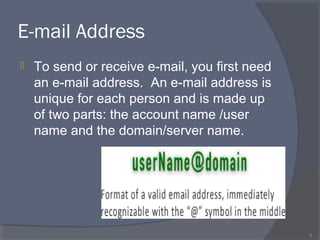
E-mail Address
 To send or receive e-mail, you first need
an e-mail address. An e-mail address is
unique for each person and is made up
of two parts: the account name /user
name and the domain/server name.
5
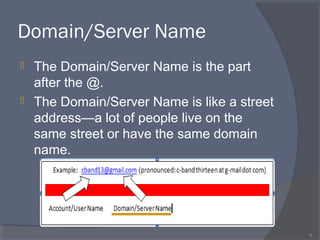
Domain/Server Name
 The Domain/Server Name is the part
after the @.
 The Domain/Server Name is like a street
address—a lot of people live on the
same street or have the same domain
name.
6
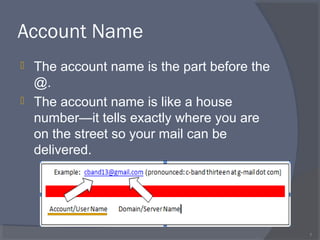
Account Name
 The account name is the part before the
@.
 The account name is like a house
number—it tells exactly where you are
on the street so your mail can be
delivered.
7
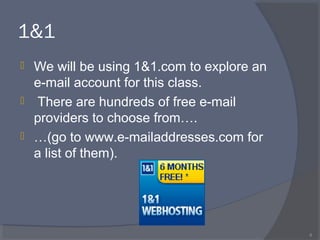
1&1
 We will be using 1&1.com to explore an
e-mail account for this class.
 There are hundreds of free e-mail
providers to choose from….
 …(go to www.e-mailaddresses.com for
a list of them).
8
1&1
 1&1 is being used because a Roanoke
Public Library Board Member is allowing
us to use his account so that everyone
will be looking at the same thing.
 Note: All email accounts have the same basic
structure. The names and placements of items
change depending on the Service Provider
chosen.
9
Open Internet Service Provider
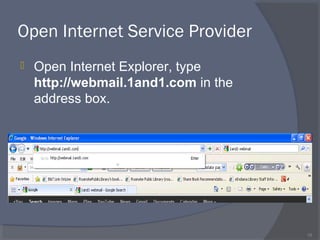
 Open Internet Explorer, type
http://webmail.1and1.com in the
address box.
10
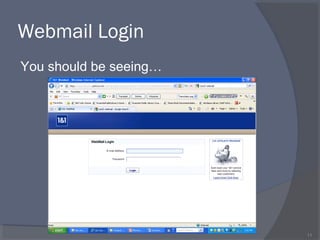
Webmail Login
11
You should be seeing…
Enter User Name
 User names will be as follows:
 student1@minstrelsong.com
 student2@minstrelsong.com
 student3@minstrelsong.com
 student4@minstrelsong.com
 student5@minstrelsong.com
 student6@minstrelsong.com
 student7@minstrelsong.com
 student8@minstrelsong.com
 Note: Instructor will assign you a number.
12
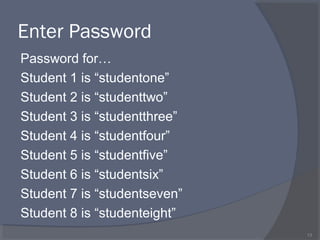
Enter Password
Password for…
Student 1 is “studentone”
Student 2 is “studenttwo”
Student 3 is “studentthree”
Student 4 is “studentfour”
Student 5 is “studentfive”
Student 6 is “studentsix”
Student 7 is “studentseven”
Student 8 is “studenteight”
13
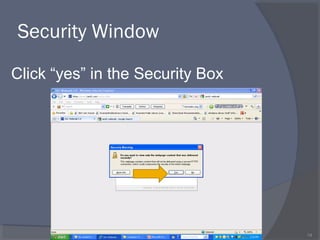
Security Window
14
Click “yes” in the Security Box
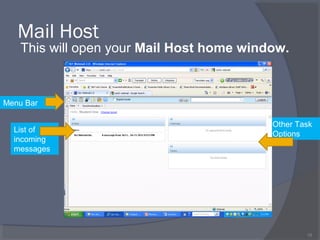
Mail Host
This will open your Mail Host home window.
15
Menu Bar
List of
incoming
messages
Messages you have
Number of messages you have
Other Task
Options
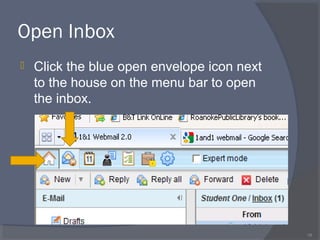
Open Inbox
 Click the blue open envelope icon next
to the house on the menu bar to open
the inbox.
16
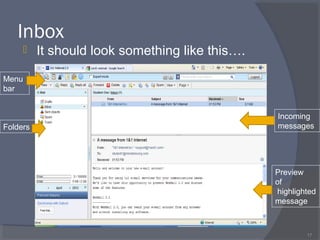
Inbox
 It should look something like this….
17
Folders
Menu
bar
Incoming
messages
Preview
of
highlighted
message
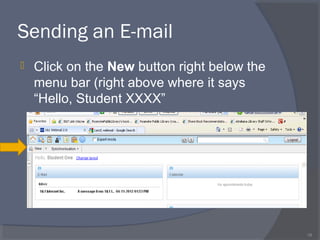
Sending an E-mail
 Click on the New button right below the
menu bar (right above where it says
“Hello, Student XXXX”
18
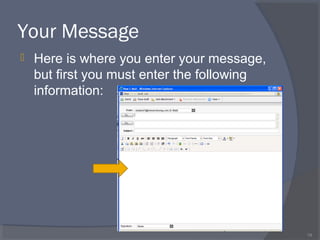
Your Message
 Here is where you enter your message,
but first you must enter the following
information:
19
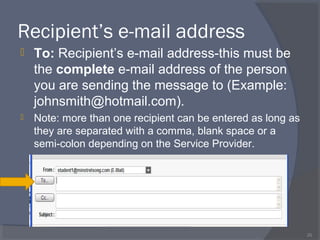
Recipient’s e-mail address
 To: Recipient’s e-mail address-this must be
the complete e-mail address of the person
you are sending the message to (Example:
johnsmith@hotmail.com).
 Note: more than one recipient can be entered as long as
they are separated with a comma, blank space or a
semi-colon depending on the Service Provider.
20
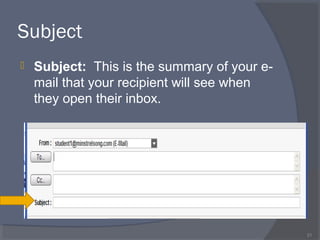
Subject
 Subject: This is the summary of your e-
mail that your recipient will see when
they open their inbox.
21
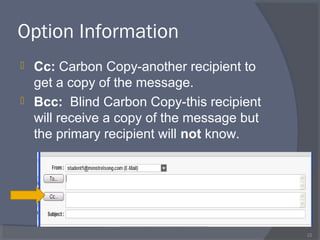
Option Information
 Cc: Carbon Copy-another recipient to
get a copy of the message.
 Bcc: Blind Carbon Copy-this recipient
will receive a copy of the message but
the primary recipient will not know.
22
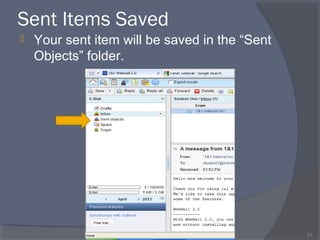
Sent Items Saved
23
 Your sent item will be saved in the “Sent
Objects” folder.
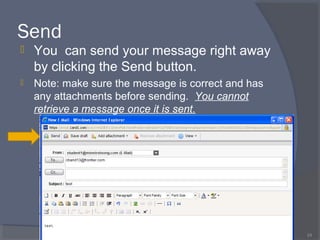
Send
 You can send your message right away
by clicking the Send button.
 Note: make sure the message is correct and has
any attachments before sending. You cannot
retrieve a message once it is sent.
24
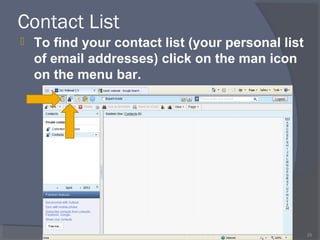
Contact List
 To find your contact list (your personal list
of email addresses) click on the man icon
on the menu bar.
25
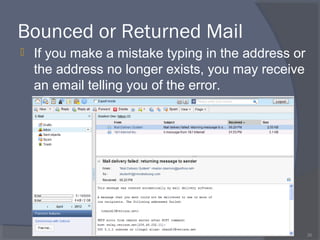
Bounced or Returned Mail
 If you make a mistake typing in the address or
the address no longer exists, you may receive
an email telling you of the error.
26
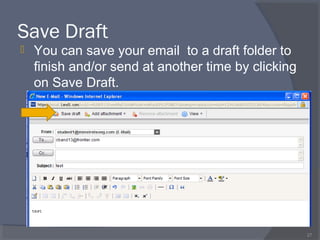
Save Draft
 You can save your email to a draft folder to
finish and/or send at another time by clicking
on Save Draft.
27
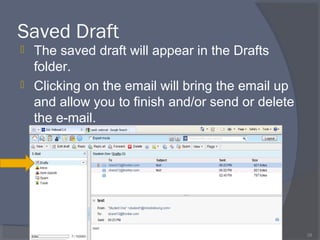
Saved Draft
 The saved draft will appear in the Drafts
folder.
 Clicking on the email will bring the email up
and allow you to finish and/or send or delete
the e-mail.
28
Exercises
 Compose a test message either to
yourself or to a class member.
 Send the message.
29
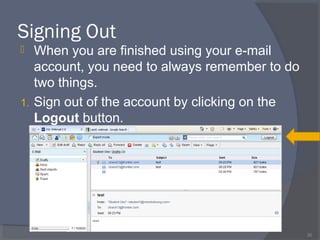
Signing Out
 When you are finished using your e-mail
account, you need to always remember to do
two things.
1. Sign out of the account by clicking on the
Logout button.
30
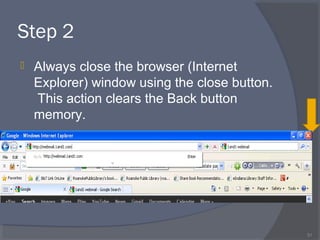
Step 2
 Always close the browser (Internet
Explorer) window using the close button.
This action clears the Back button
memory.
31
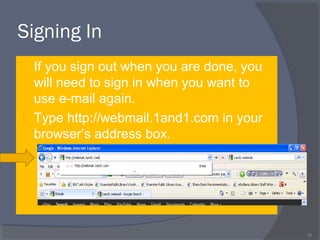
Signing In
 If you sign out when you are done, you
will need to sign in when you want to
use e-mail again.
1. Type http://webmail.1and1.com in your
browser’s address box.
32
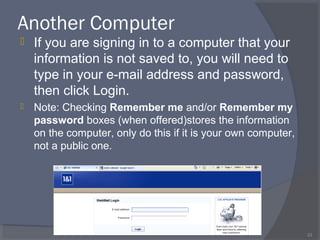
Another Computer
 If you are signing in to a computer that your
information is not saved to, you will need to
type in your e-mail address and password,
then click Login.
 Note: Checking Remember me and/or Remember my
password boxes (when offered)stores the information
on the computer, only do this if it is your own computer,
not a public one.
33
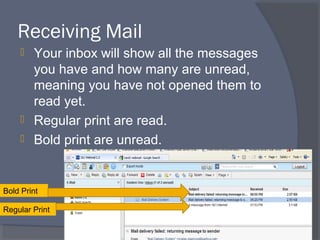
Receiving Mail
 Your inbox will show all the messages
you have and how many are unread,
meaning you have not opened them to
read yet.
 Regular print are read.
 Bold print are unread.
34
Regular Print
Bold Print
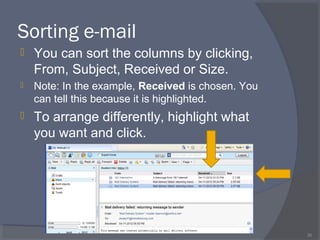
Sorting e-mail
 You can sort the columns by clicking,
From, Subject, Received or Size.
 Note: In the example, Received is chosen. You
can tell this because it is highlighted.
 To arrange differently, highlight what
you want and click.
35
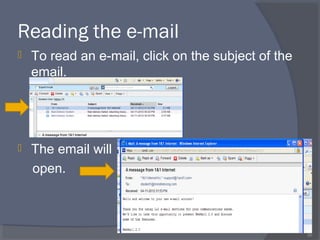
Reading the e-mail
 To read an e-mail, click on the subject of the
email.
 The email will
open.
36
Options after Opening e-mail
You can:
 Reply to it.
 Forward it.
 Delete it.
 Save it.
 Report it as spam/ junk mail
 Print it.
37
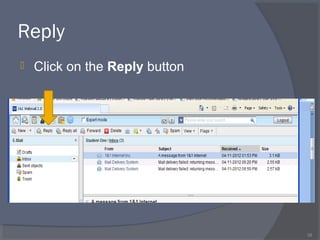
Reply
 Click on the Reply button
38
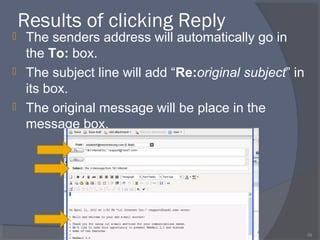
Results of clicking Reply
 The senders address will automatically go in
the To: box.
 The subject line will add “Re:original subject” in
its box.
 The original message will be place in the
message box.
39
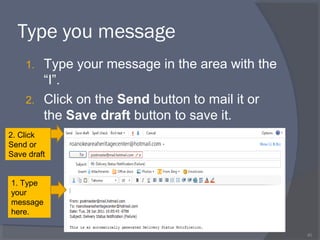
Type you message
1. Type your message in the area with the
“I”.
2. Click on the Send button to mail it or
the Save draft button to save it.
40
1. Type
your
message
here.
2. Click
Send or
Save draft
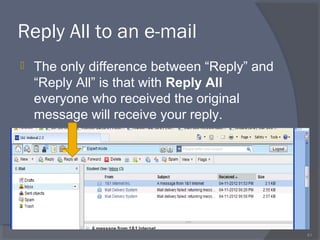
Reply All to an e-mail
 The only difference between “Reply” and
“Reply All” is that with Reply All
everyone who received the original
message will receive your reply.
41
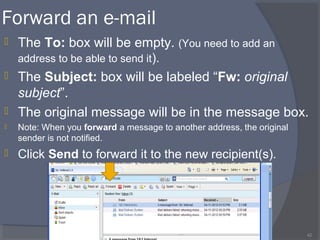
Forward an e-mail
 The To: box will be empty. (You need to add an
address to be able to send it).
 The Subject: box will be labeled “Fw: original
subject”.
 The original message will be in the message box.
 Note: When you forward a message to another address, the original
sender is not notified.
 Click Send to forward it to the new recipient(s).
42
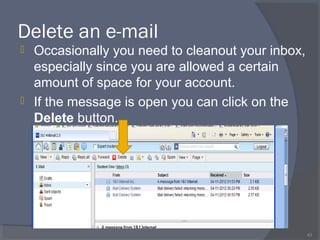
Delete an e-mail
 Occasionally you need to cleanout your inbox,
especially since you are allowed a certain
amount of space for your account.
 If the message is open you can click on the
Delete button.
43
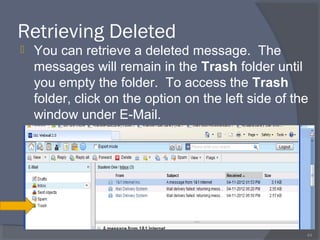
Retrieving Deleted
 You can retrieve a deleted message. The
messages will remain in the Trash folder until
you empty the folder. To access the Trash
folder, click on the option on the left side of the
window under E-Mail.
44
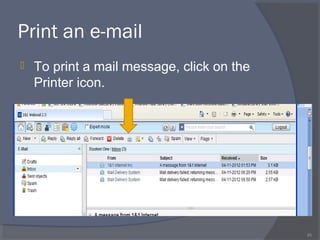
Print an e-mail
 To print a mail message, click on the
Printer icon.
45
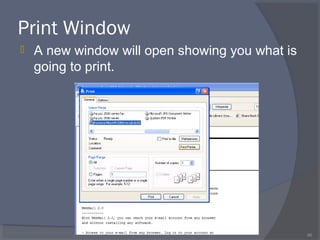
Print Window
 A new window will open showing you what is
going to print.
46
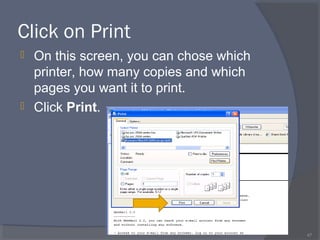
Click on Print
 On this screen, you can chose which
printer, how many copies and which
pages you want it to print.
 Click Print.
47
Exercises
1. Reply to a message in your inbox using
the Reply button.
2. Forward a message in your inbox to
someone else in the class.
3. Delete a message in your inbox.
4. Print a message in your inbox.
48
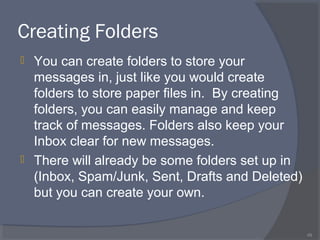
Creating Folders
 You can create folders to store your
messages in, just like you would create
folders to store paper files in. By creating
folders, you can easily manage and keep
track of messages. Folders also keep your
Inbox clear for new messages.
 There will already be some folders set up in
(Inbox, Spam/Junk, Sent, Drafts and Deleted)
but you can create your own.
49
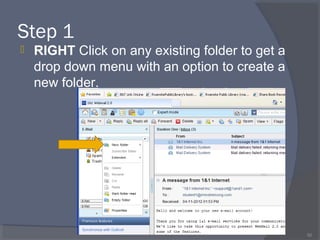
Step 1
 RIGHT Click on any existing folder to get a
drop down menu with an option to create a
new folder.
50
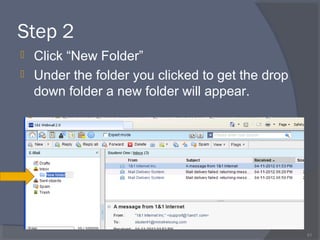
Step 2
 Click “New Folder”
 Under the folder you clicked to get the drop
down folder a new folder will appear.
51
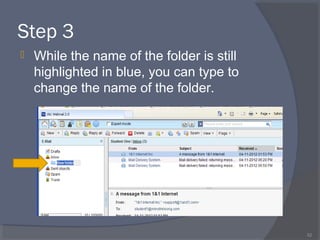
Step 3
 While the name of the folder is still
highlighted in blue, you can type to
change the name of the folder.
52
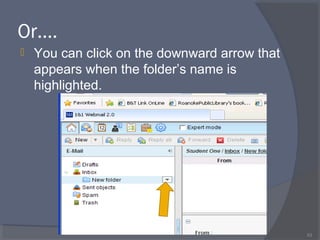
Or….
 You can click on the downward arrow that
appears when the folder’s name is
highlighted.
53
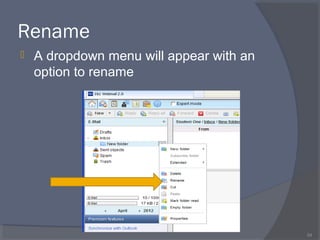
 A dropdown menu will appear with an
option to rename
54
Rename
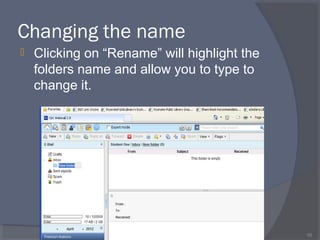
Changing the name
 Clicking on “Rename” will highlight the
folders name and allow you to type to
change it.
55
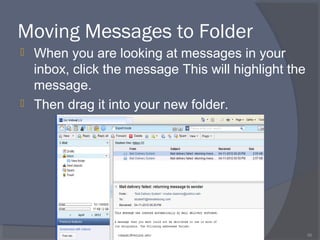
Moving Messages to Folder
 When you are looking at messages in your
inbox, click the message This will highlight the
message.
 Then drag it into your new folder.
56
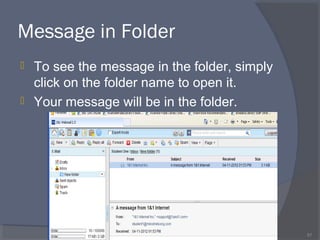
 To see the message in the folder, simply
click on the folder name to open it.
 Your message will be in the folder.
57
Message in Folder
Exercises
 Create a new folder and call it your
name
 Move a message from your inbox to
your new folder
 Create another new folder, Call it my
new folder
 Rename the folder with your name. Call
it my second folder
 Delete my second folder
58
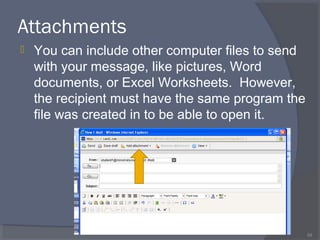
Attachments
 You can include other computer files to send
with your message, like pictures, Word
documents, or Excel Worksheets. However,
the recipient must have the same program the
file was created in to be able to open it.
59
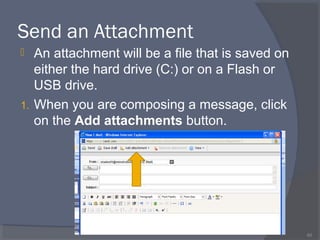
Send an Attachment
 An attachment will be a file that is saved on
either the hard drive (C:) or on a Flash or
USB drive.
1. When you are composing a message, click
on the Add attachments button.
60
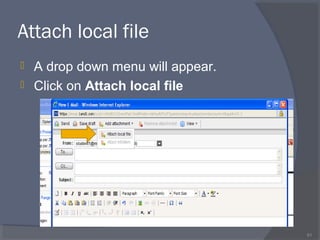
Attach local file
 A drop down menu will appear.
 Click on Attach local file
61
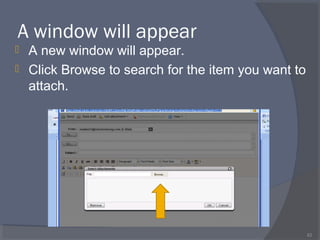
A window will appear
 A new window will appear.
 Click Browse to search for the item you want to
attach.
62
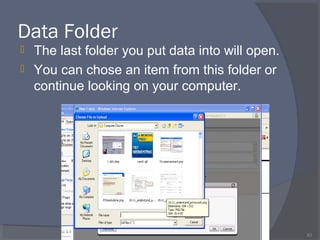
Data Folder
 The last folder you put data into will open.
 You can chose an item from this folder or
continue looking on your computer.
63
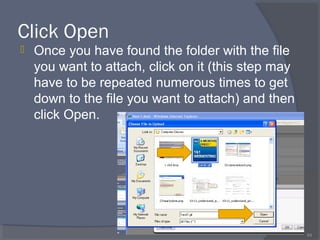
Click Open
 Once you have found the folder with the file
you want to attach, click on it (this step may
have to be repeated numerous times to get
down to the file you want to attach) and then
click Open.
64
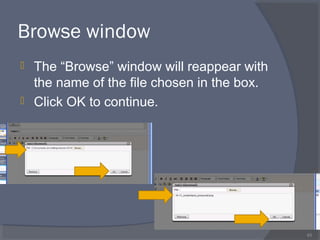
Browse window
 The “Browse” window will reappear with
the name of the file chosen in the box.
 Click OK to continue.
65
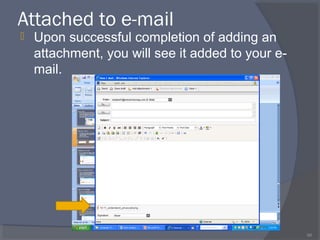
Attached to e-mail
 Upon successful completion of adding an
attachment, you will see it added to your e-
mail.
66
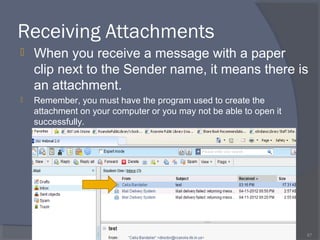
Receiving Attachments
 When you receive a message with a paper
clip next to the Sender name, it means there is
an attachment.
 Remember, you must have the program used to create the
attachment on your computer or you may not be able to open it
successfully.
67
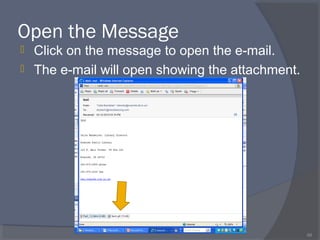
Open the Message
 Click on the message to open the e-mail.
 The e-mail will open showing the attachment.
68
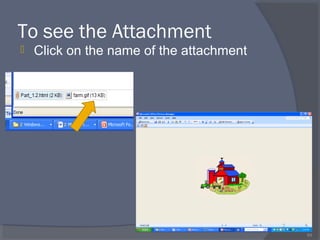
To see the Attachment
 Click on the name of the attachment
69
WARNING!
 Never open an attachment from
someone you do not know or trust.
Viruses are carried through attachments
and can harm your computer when they
are opened/downloaded.
 Viruses are only spread if you OPEN the
file that contains the virus. Just opening
the e-mail message DOES NOT spread
the virus.
70
Exercises
 Send an attachment to a classmate.
 Open the attachment you received from
a classmate.
71
The End
 Any Question?
 Please fill out the questionnaire
 For more information, contact the
Library at 260-672-2989 or
director@roanoke.lib.in.us or come in
and talk to a librarian.
72

E mail basics (bob's)

  • 1.
    Presented by CeliaBandelier 1
  • 2.
    What is E-Mail? E-mail is the most popular use of the Internet today. It’s one of the best ways to stay in touch with family, friends, and business associates. E-mail is short for Electronic Mail. 2
  • 3.
    Sending E-mail  Sendinge-mail is a lot like sending a regular letter except e-mail arrives in the recipient’s mailbox within minutes (most of the time), and prompts a quick reply. You can even include documents, pictures, sounds, movies and links to other on-line resources. You can even send the same letter to several people with the click of a button. 3
  • 4.
    Great Things AboutE-mail  You can access your account from anywhere.  You don’t have to own your own computer to have an e-mail account.  You have a personal account that is password protected.  You can keep in touch with friends.  In some cases, it is FREE. 4
  • 5.
    E-mail Address  Tosend or receive e-mail, you first need an e-mail address. An e-mail address is unique for each person and is made up of two parts: the account name /user name and the domain/server name. 5
  • 6.
    Domain/Server Name  TheDomain/Server Name is the part after the @.  The Domain/Server Name is like a street address—a lot of people live on the same street or have the same domain name. 6
  • 7.
    Account Name  Theaccount name is the part before the @.  The account name is like a house number—it tells exactly where you are on the street so your mail can be delivered. 7
  • 8.
    1&1  We willbe using 1&1.com to explore an e-mail account for this class.  There are hundreds of free e-mail providers to choose from….  …(go to www.e-mailaddresses.com for a list of them). 8
  • 9.
    1&1  1&1 isbeing used because a Roanoke Public Library Board Member is allowing us to use his account so that everyone will be looking at the same thing.  Note: All email accounts have the same basic structure. The names and placements of items change depending on the Service Provider chosen. 9
  • 10.
    Open Internet ServiceProvider  Open Internet Explorer, type http://webmail.1and1.com in the address box. 10
  • 11.
  • 12.
    Enter User Name User names will be as follows:  student1@minstrelsong.com  student2@minstrelsong.com  student3@minstrelsong.com  student4@minstrelsong.com  student5@minstrelsong.com  student6@minstrelsong.com  student7@minstrelsong.com  student8@minstrelsong.com  Note: Instructor will assign you a number. 12
  • 13.
    Enter Password Password for… Student1 is “studentone” Student 2 is “studenttwo” Student 3 is “studentthree” Student 4 is “studentfour” Student 5 is “studentfive” Student 6 is “studentsix” Student 7 is “studentseven” Student 8 is “studenteight” 13
  • 14.
  • 15.
    Mail Host This willopen your Mail Host home window. 15 Menu Bar List of incoming messages Messages you have Number of messages you have Other Task Options
  • 16.
    Open Inbox  Clickthe blue open envelope icon next to the house on the menu bar to open the inbox. 16
  • 17.
    Inbox  It shouldlook something like this…. 17 Folders Menu bar Incoming messages Preview of highlighted message
  • 18.
    Sending an E-mail Click on the New button right below the menu bar (right above where it says “Hello, Student XXXX” 18
  • 19.
    Your Message  Hereis where you enter your message, but first you must enter the following information: 19
  • 20.
    Recipient’s e-mail address To: Recipient’s e-mail address-this must be the complete e-mail address of the person you are sending the message to (Example: johnsmith@hotmail.com).  Note: more than one recipient can be entered as long as they are separated with a comma, blank space or a semi-colon depending on the Service Provider. 20
  • 21.
    Subject  Subject: Thisis the summary of your e- mail that your recipient will see when they open their inbox. 21
  • 22.
    Option Information  Cc:Carbon Copy-another recipient to get a copy of the message.  Bcc: Blind Carbon Copy-this recipient will receive a copy of the message but the primary recipient will not know. 22
  • 23.
    Sent Items Saved 23 Your sent item will be saved in the “Sent Objects” folder.
  • 24.
    Send  You cansend your message right away by clicking the Send button.  Note: make sure the message is correct and has any attachments before sending. You cannot retrieve a message once it is sent. 24
  • 25.
    Contact List  Tofind your contact list (your personal list of email addresses) click on the man icon on the menu bar. 25
  • 26.
    Bounced or ReturnedMail  If you make a mistake typing in the address or the address no longer exists, you may receive an email telling you of the error. 26
  • 27.
    Save Draft  Youcan save your email to a draft folder to finish and/or send at another time by clicking on Save Draft. 27
  • 28.
    Saved Draft  Thesaved draft will appear in the Drafts folder.  Clicking on the email will bring the email up and allow you to finish and/or send or delete the e-mail. 28
  • 29.
    Exercises  Compose atest message either to yourself or to a class member.  Send the message. 29
  • 30.
    Signing Out  Whenyou are finished using your e-mail account, you need to always remember to do two things. 1. Sign out of the account by clicking on the Logout button. 30
  • 31.
    Step 2  Alwaysclose the browser (Internet Explorer) window using the close button. This action clears the Back button memory. 31
  • 32.
    Signing In  Ifyou sign out when you are done, you will need to sign in when you want to use e-mail again. 1. Type http://webmail.1and1.com in your browser’s address box. 32
  • 33.
    Another Computer  Ifyou are signing in to a computer that your information is not saved to, you will need to type in your e-mail address and password, then click Login.  Note: Checking Remember me and/or Remember my password boxes (when offered)stores the information on the computer, only do this if it is your own computer, not a public one. 33
  • 34.
    Receiving Mail  Yourinbox will show all the messages you have and how many are unread, meaning you have not opened them to read yet.  Regular print are read.  Bold print are unread. 34 Regular Print Bold Print
  • 35.
    Sorting e-mail  Youcan sort the columns by clicking, From, Subject, Received or Size.  Note: In the example, Received is chosen. You can tell this because it is highlighted.  To arrange differently, highlight what you want and click. 35
  • 36.
    Reading the e-mail To read an e-mail, click on the subject of the email.  The email will open. 36
  • 37.
    Options after Openinge-mail You can:  Reply to it.  Forward it.  Delete it.  Save it.  Report it as spam/ junk mail  Print it. 37
  • 38.
    Reply  Click onthe Reply button 38
  • 39.
    Results of clickingReply  The senders address will automatically go in the To: box.  The subject line will add “Re:original subject” in its box.  The original message will be place in the message box. 39
  • 40.
    Type you message 1.Type your message in the area with the “I”. 2. Click on the Send button to mail it or the Save draft button to save it. 40 1. Type your message here. 2. Click Send or Save draft
  • 41.
    Reply All toan e-mail  The only difference between “Reply” and “Reply All” is that with Reply All everyone who received the original message will receive your reply. 41
  • 42.
    Forward an e-mail The To: box will be empty. (You need to add an address to be able to send it).  The Subject: box will be labeled “Fw: original subject”.  The original message will be in the message box.  Note: When you forward a message to another address, the original sender is not notified.  Click Send to forward it to the new recipient(s). 42
  • 43.
    Delete an e-mail Occasionally you need to cleanout your inbox, especially since you are allowed a certain amount of space for your account.  If the message is open you can click on the Delete button. 43
  • 44.
    Retrieving Deleted  Youcan retrieve a deleted message. The messages will remain in the Trash folder until you empty the folder. To access the Trash folder, click on the option on the left side of the window under E-Mail. 44
  • 45.
    Print an e-mail To print a mail message, click on the Printer icon. 45
  • 46.
    Print Window  Anew window will open showing you what is going to print. 46
  • 47.
    Click on Print On this screen, you can chose which printer, how many copies and which pages you want it to print.  Click Print. 47
  • 48.
    Exercises 1. Reply toa message in your inbox using the Reply button. 2. Forward a message in your inbox to someone else in the class. 3. Delete a message in your inbox. 4. Print a message in your inbox. 48
  • 49.
    Creating Folders  Youcan create folders to store your messages in, just like you would create folders to store paper files in. By creating folders, you can easily manage and keep track of messages. Folders also keep your Inbox clear for new messages.  There will already be some folders set up in (Inbox, Spam/Junk, Sent, Drafts and Deleted) but you can create your own. 49
  • 50.
    Step 1  RIGHTClick on any existing folder to get a drop down menu with an option to create a new folder. 50
  • 51.
    Step 2  Click“New Folder”  Under the folder you clicked to get the drop down folder a new folder will appear. 51
  • 52.
    Step 3  Whilethe name of the folder is still highlighted in blue, you can type to change the name of the folder. 52
  • 53.
    Or….  You canclick on the downward arrow that appears when the folder’s name is highlighted. 53
  • 54.
     A dropdownmenu will appear with an option to rename 54 Rename
  • 55.
    Changing the name Clicking on “Rename” will highlight the folders name and allow you to type to change it. 55
  • 56.
    Moving Messages toFolder  When you are looking at messages in your inbox, click the message This will highlight the message.  Then drag it into your new folder. 56
  • 57.
     To seethe message in the folder, simply click on the folder name to open it.  Your message will be in the folder. 57 Message in Folder
  • 58.
    Exercises  Create anew folder and call it your name  Move a message from your inbox to your new folder  Create another new folder, Call it my new folder  Rename the folder with your name. Call it my second folder  Delete my second folder 58
  • 59.
    Attachments  You caninclude other computer files to send with your message, like pictures, Word documents, or Excel Worksheets. However, the recipient must have the same program the file was created in to be able to open it. 59
  • 60.
    Send an Attachment An attachment will be a file that is saved on either the hard drive (C:) or on a Flash or USB drive. 1. When you are composing a message, click on the Add attachments button. 60
  • 61.
    Attach local file A drop down menu will appear.  Click on Attach local file 61
  • 62.
    A window willappear  A new window will appear.  Click Browse to search for the item you want to attach. 62
  • 63.
    Data Folder  Thelast folder you put data into will open.  You can chose an item from this folder or continue looking on your computer. 63
  • 64.
    Click Open  Onceyou have found the folder with the file you want to attach, click on it (this step may have to be repeated numerous times to get down to the file you want to attach) and then click Open. 64
  • 65.
    Browse window  The“Browse” window will reappear with the name of the file chosen in the box.  Click OK to continue. 65
  • 66.
    Attached to e-mail Upon successful completion of adding an attachment, you will see it added to your e- mail. 66
  • 67.
    Receiving Attachments  Whenyou receive a message with a paper clip next to the Sender name, it means there is an attachment.  Remember, you must have the program used to create the attachment on your computer or you may not be able to open it successfully. 67
  • 68.
    Open the Message Click on the message to open the e-mail.  The e-mail will open showing the attachment. 68
  • 69.
    To see theAttachment  Click on the name of the attachment 69
  • 70.
    WARNING!  Never openan attachment from someone you do not know or trust. Viruses are carried through attachments and can harm your computer when they are opened/downloaded.  Viruses are only spread if you OPEN the file that contains the virus. Just opening the e-mail message DOES NOT spread the virus. 70
  • 71.
    Exercises  Send anattachment to a classmate.  Open the attachment you received from a classmate. 71
  • 72.
    The End  AnyQuestion?  Please fill out the questionnaire  For more information, contact the Library at 260-672-2989 or director@roanoke.lib.in.us or come in and talk to a librarian. 72