Copyright ©2009 by K. Plantenberg
Restricted use only
Chapter 2
Orthographic Projection
Basic Topics
Advanced Topics
Exercises
Copyright ©2009 by K. Plantenberg
Restricted use only
Ortho. Projection: Basic Topics
2.1) Engineering Graphics Overview
Summary
2.2) Orthographic Projection
2.3) The Glass Box Method
2.4) The Standard Views
2.5) Lines Used in an Orthographic Projection
2.6) Rules for Line Creation and Use
2.7) Creating an Orthographic Projection
Copyright ©2009 by K. Plantenberg
Restricted use only
Ortho. Proj.: Advanced Topics
2.8) Auxiliary Views
Copyright ©2009 by K. Plantenberg
Restricted use only
Ortho. Projection: Exercises
Exercise 2-1: Principle views
Exercise 2-2: Line types
Exercise 2-3: Line use in an orthographic
projection
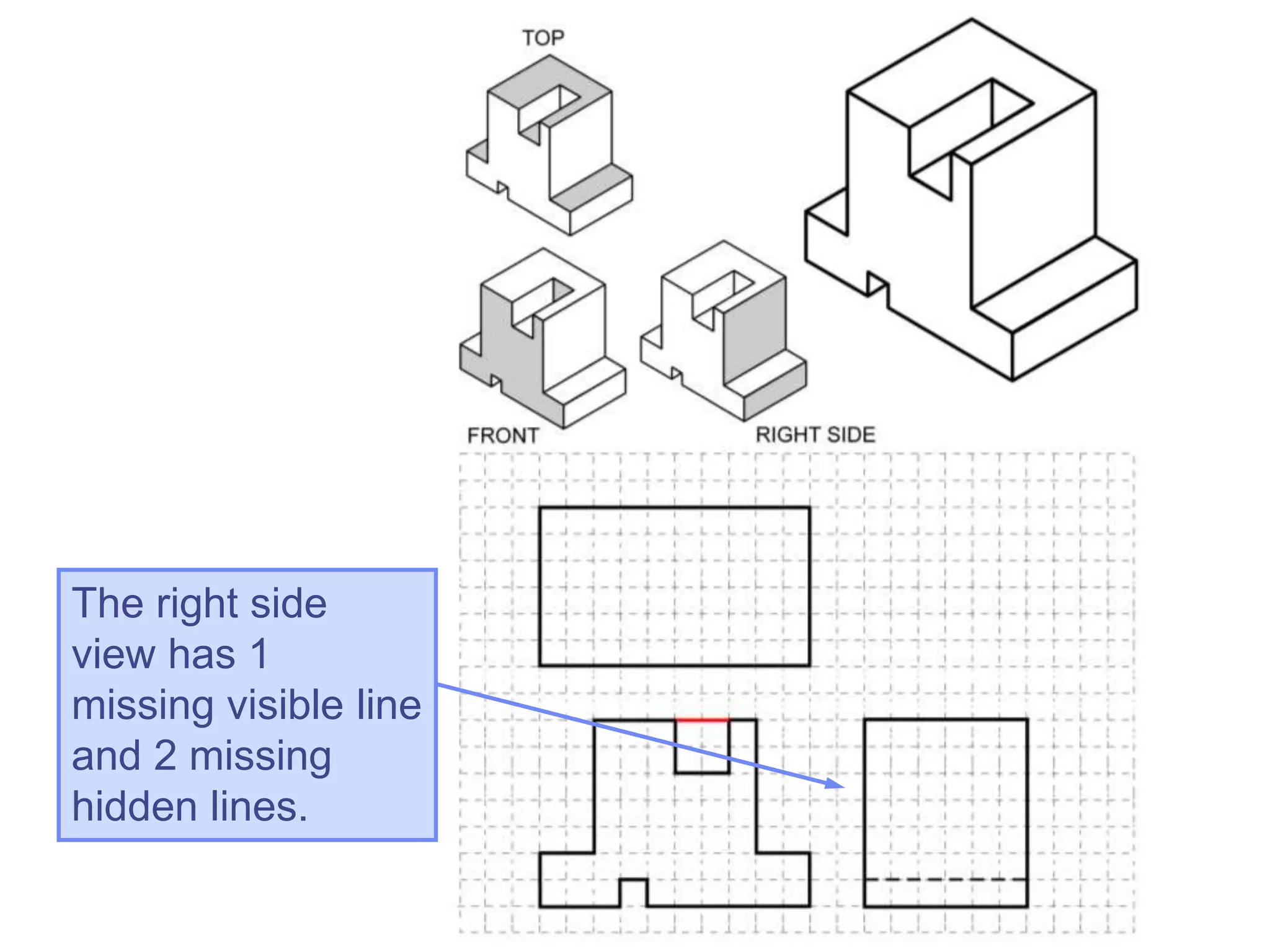
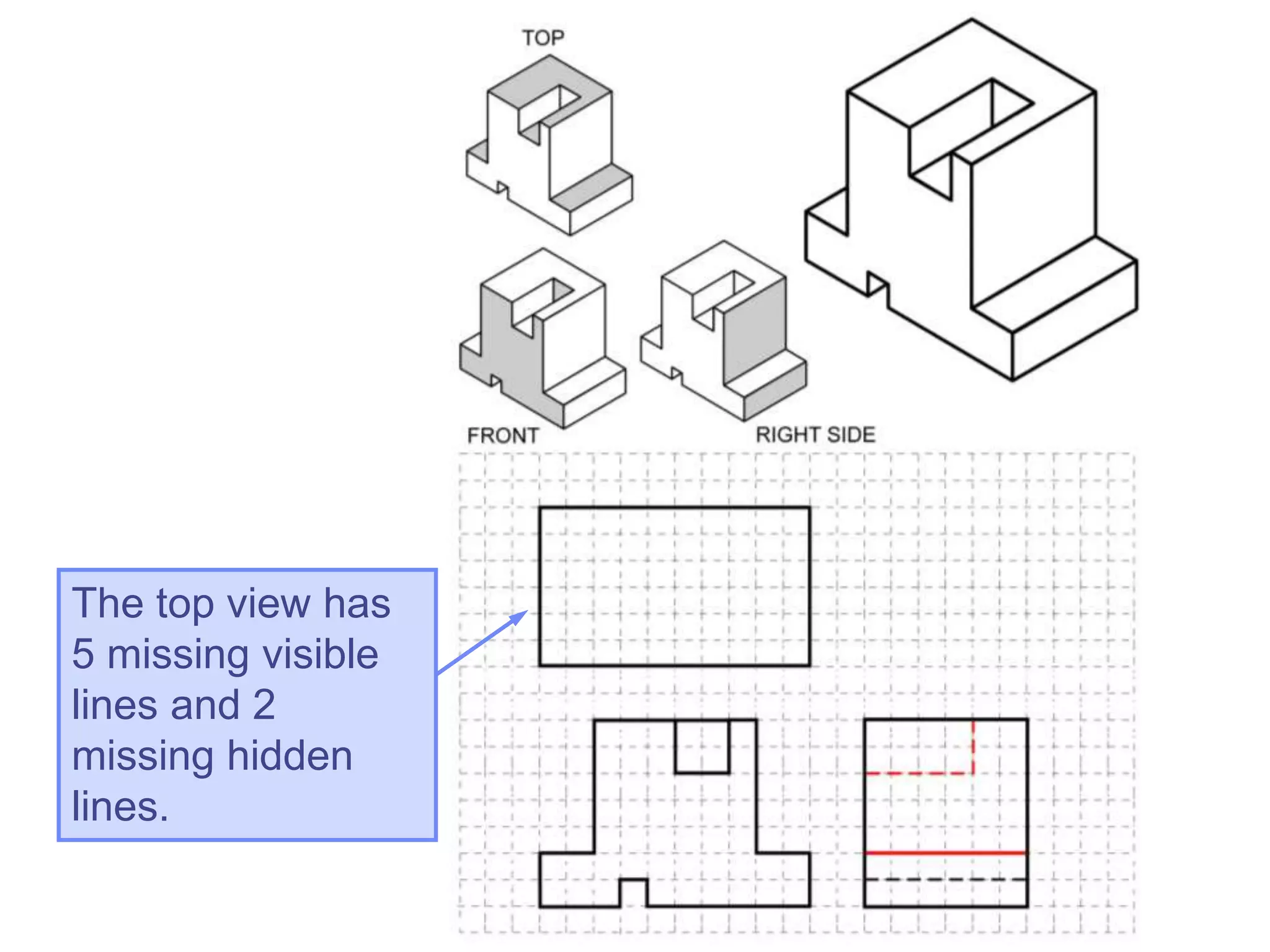
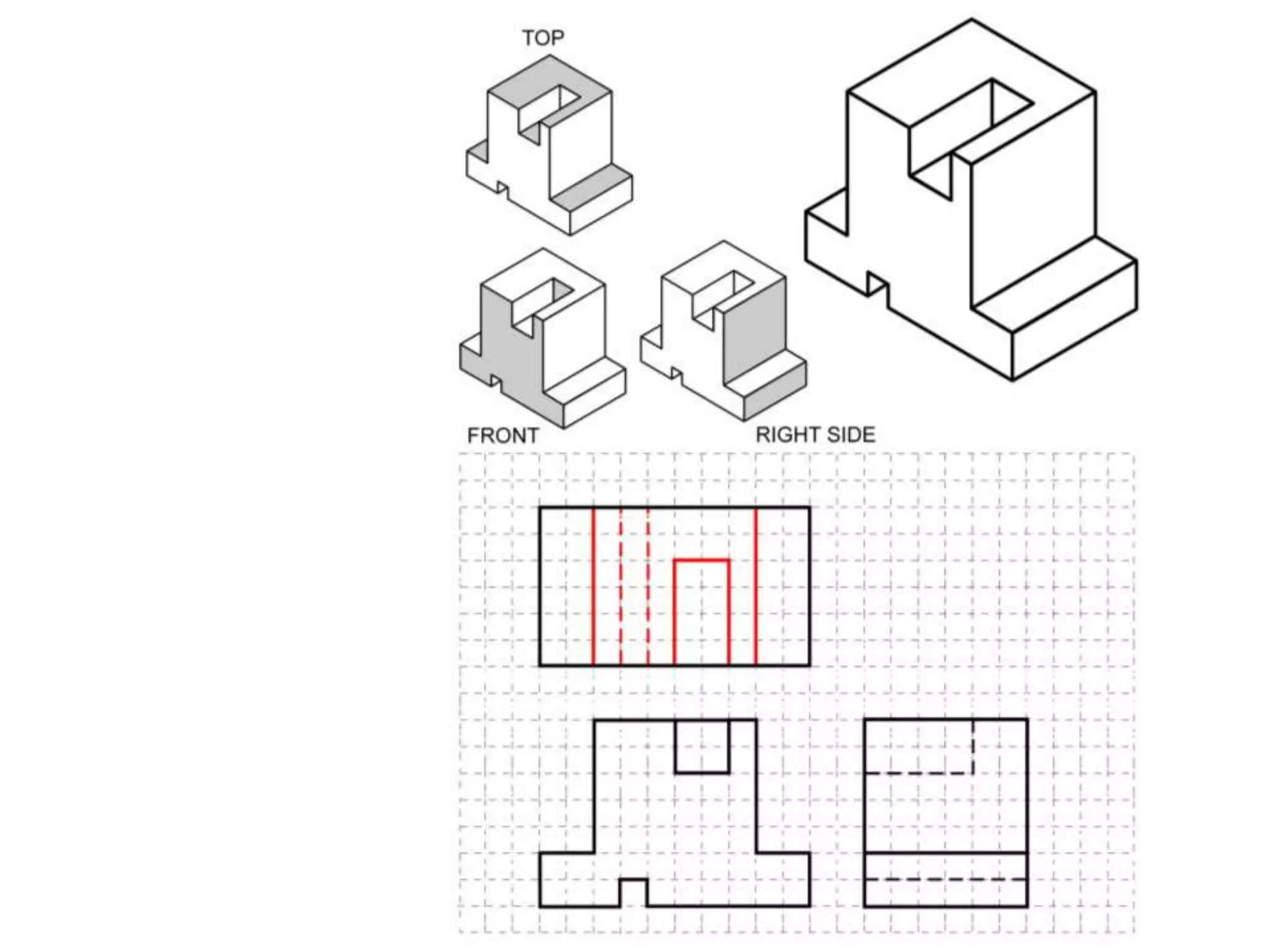
Exercise 2-4: Missing lines 1
Exercise 2-5: Missing lines 2
Exercise 2-8: Drawing an orthographic
projection 1
Exercise 2-9: Drawing an orthographic
projection 2
Copyright ©2009 by K. Plantenberg
Restricted use only
Ortho. Projection: Exercises
Exercise 2-12: Auxiliary views
Copyright ©2009 by K. Plantenberg
Restricted use only
Engineering Graphics
2.1) Introduction to
Engineering Graphics
Copyright ©2009 by K. Plantenberg
Restricted use only
Engineering Graphics
 What is Engineering Graphics?
 What is an Engineering Drawing?
A drawing that communicates an idea or design.
A set of rules and guidelines that help you
create an Engineering Drawing.
Copyright ©2009 by K. Plantenberg
Restricted use only
Engineering Graphics
 Examples of Engineering Drawings
→ Mechanical Engineers
• Detailed drawing of a part that needs to be
machined.
→ Electrical Engineers
• A circuit schematic.
• Circuit board layout.
→ Civil Engineers
• Plans for a bridge.
• Road layout.
Copyright ©2009 by K. Plantenberg
Restricted use only
Orthographic Projection
Summary
Copyright ©2009 by K. Plantenberg
Restricted use only
Summary
 What will we learn in Chapter 2?
→ How to create an orthographic projection.
 Key points
→ An orthographic projection is a 2-D
representation of a 3-D object.
Copyright ©2009 by K. Plantenberg
Restricted use only
Orthographic Projection
2.2) Orthographic Projection
Introduction
Copyright ©2009 by K. Plantenberg
Restricted use only
Introduction
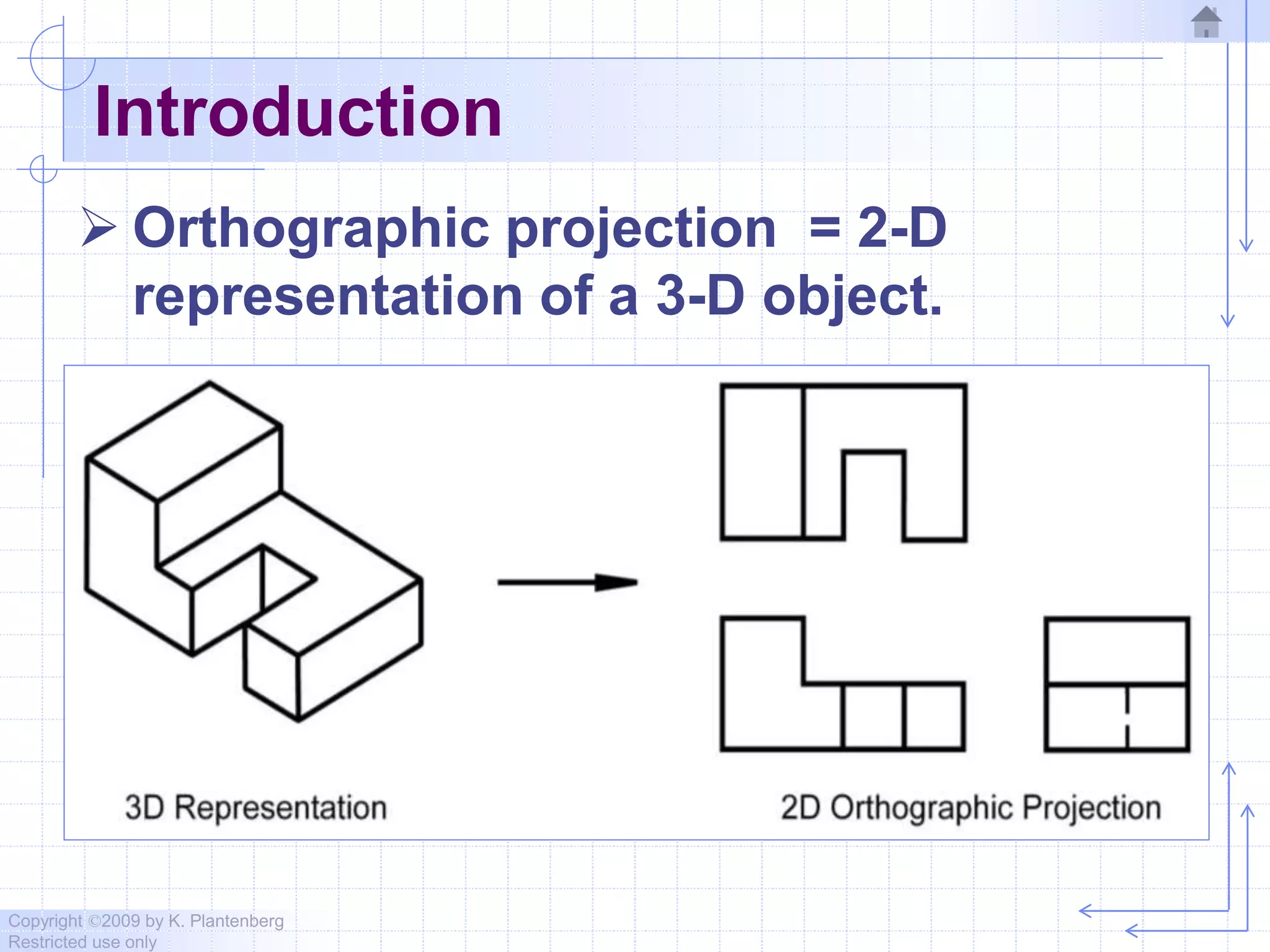
 Orthographic projection = 2-D
representation of a 3-D object.
Copyright ©2009 by K. Plantenberg
Restricted use only
Introduction
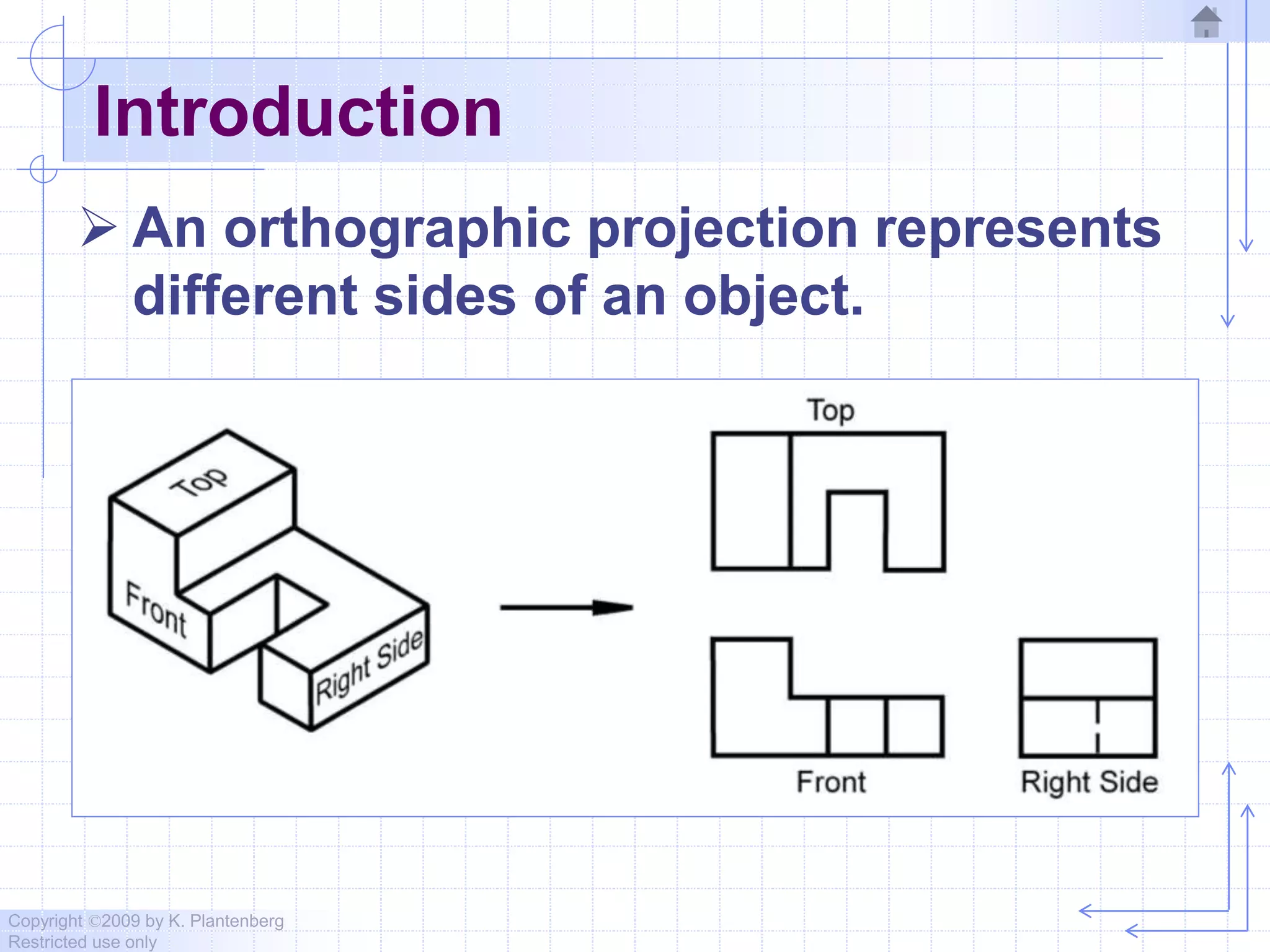
 An orthographic projection represents
different sides of an object.
Copyright ©2009 by K. Plantenberg
Restricted use only
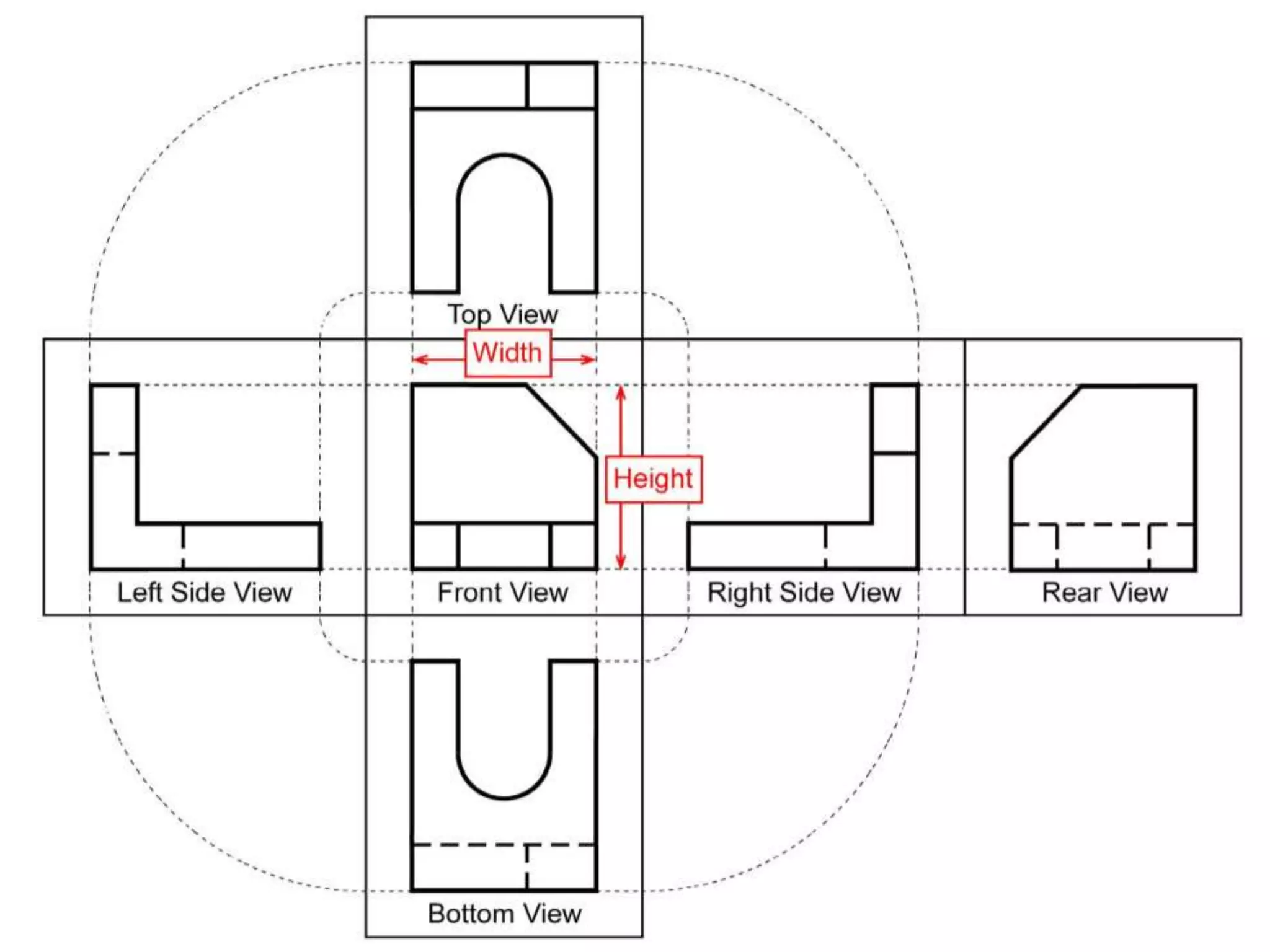
The Six Principle Views
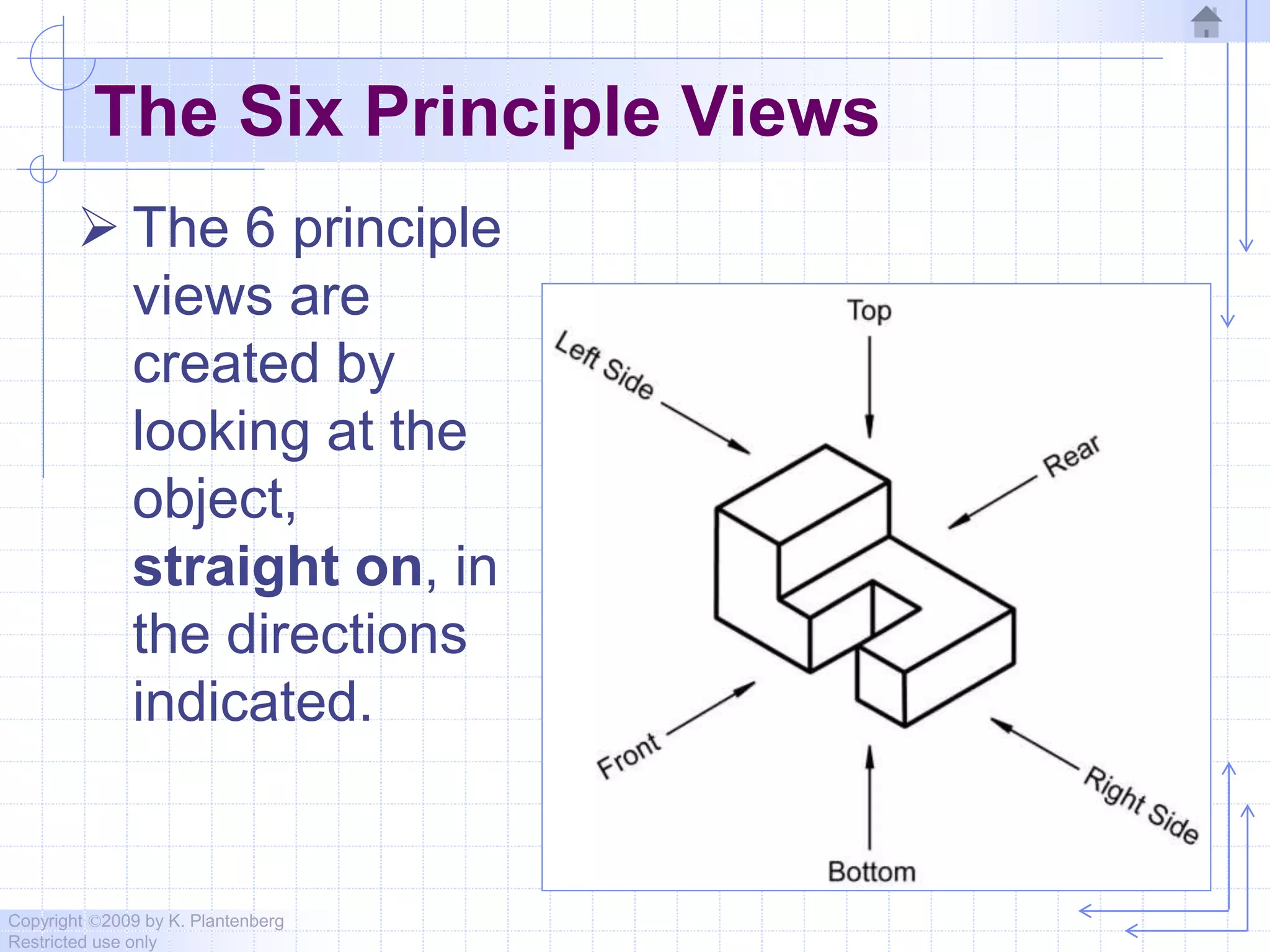
 The 6 principle
views are
created by
looking at the
object,
straight on, in
the directions
indicated.
Copyright ©2009 by K. Plantenberg
Restricted use only
Orthographic Projection
2.3) The Glass Box Method
Copyright ©2009 by K. Plantenberg
Restricted use only
The Glass Box Method
 How do we create the 6 principle
views?
The Glass Box Method
Copyright ©2009 by K. Plantenberg
Restricted use only
Glass Box Method
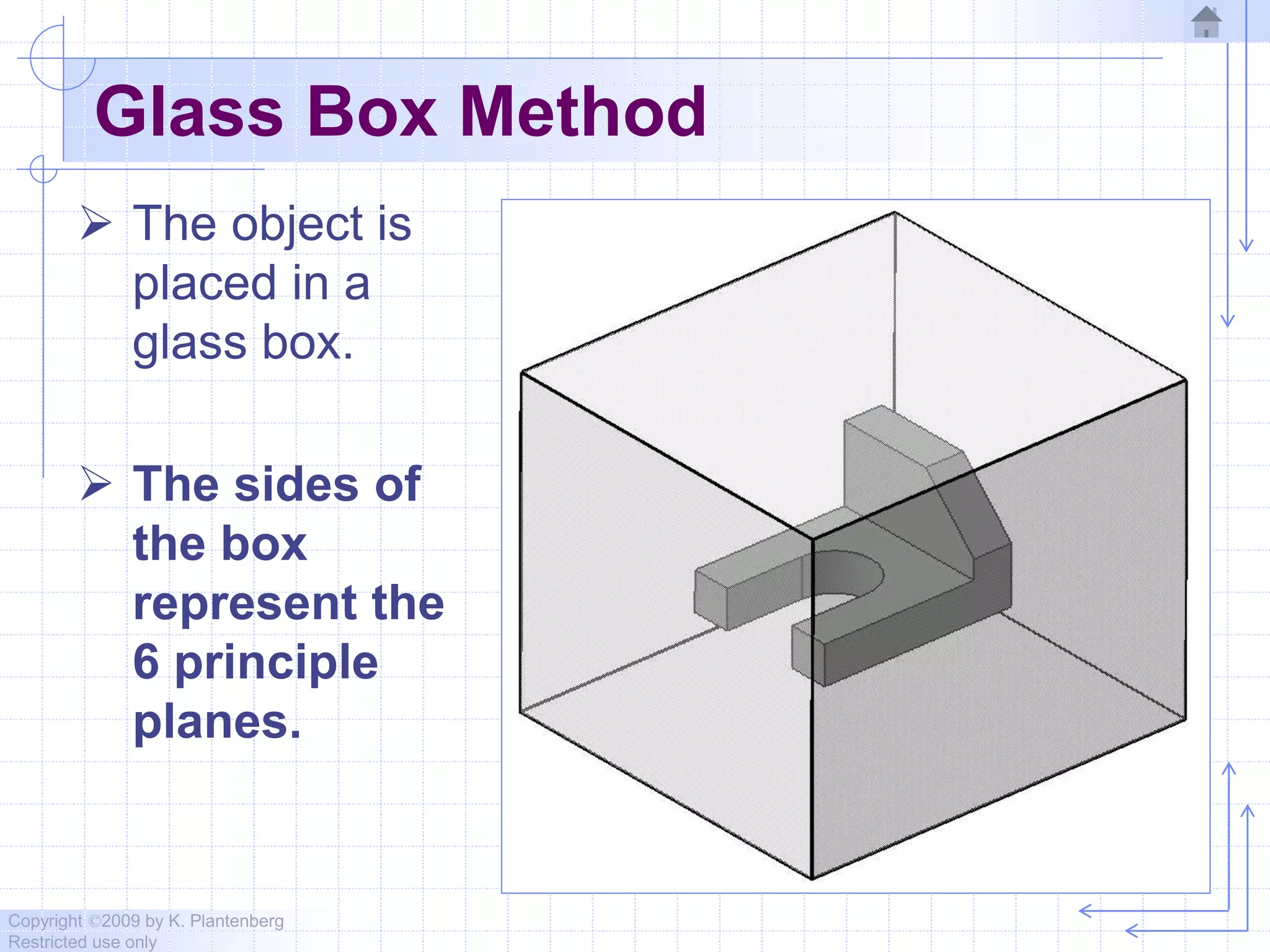
 The object is
placed in a
glass box.
 The sides of
the box
represent the
6 principle
planes.
Copyright ©2009 by K. Plantenberg
Restricted use only
Glass Box Method
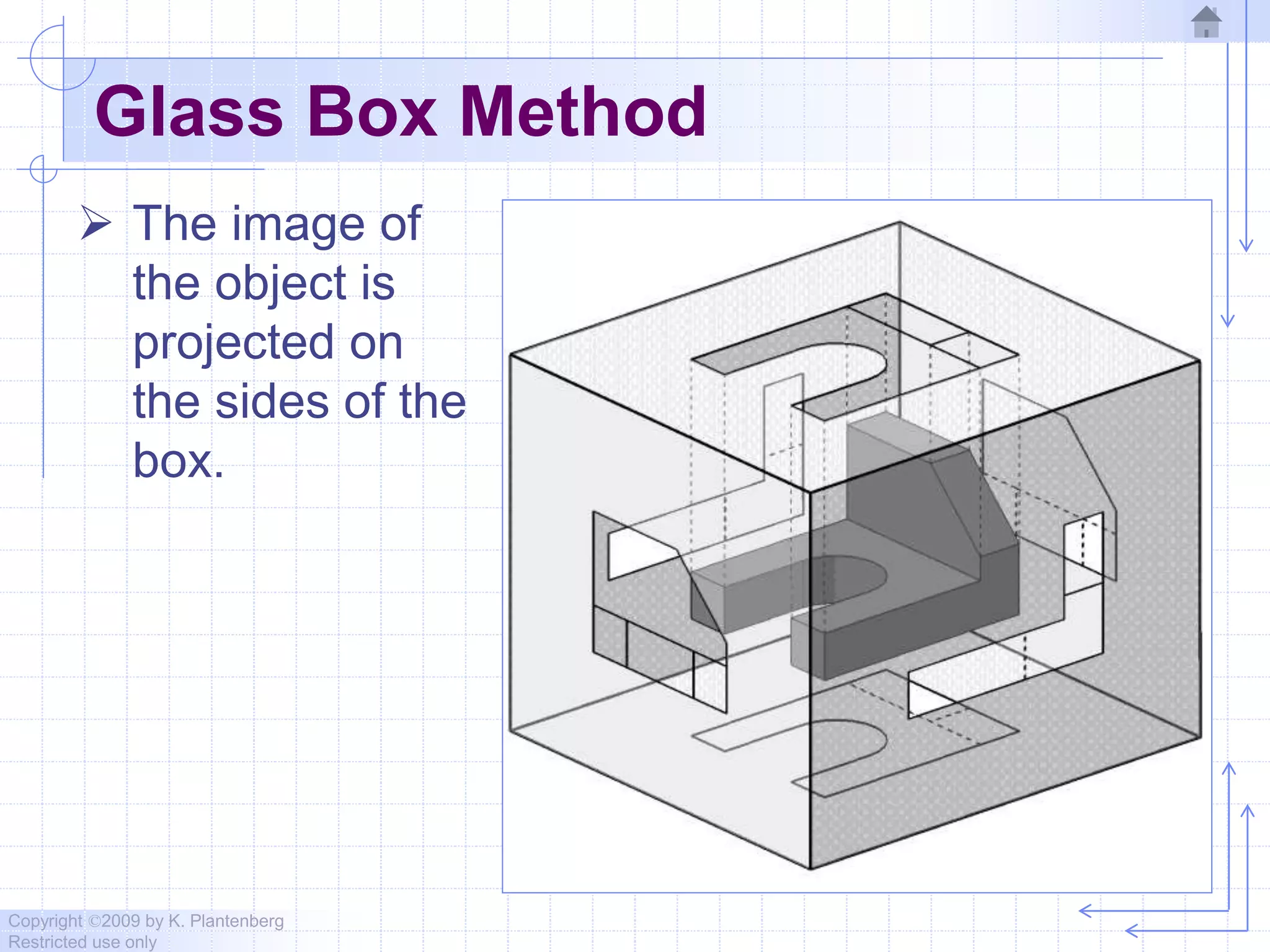
 The image of
the object is
projected on
the sides of the
box.
Copyright ©2009 by K. Plantenberg
Restricted use only
Glass Box Method
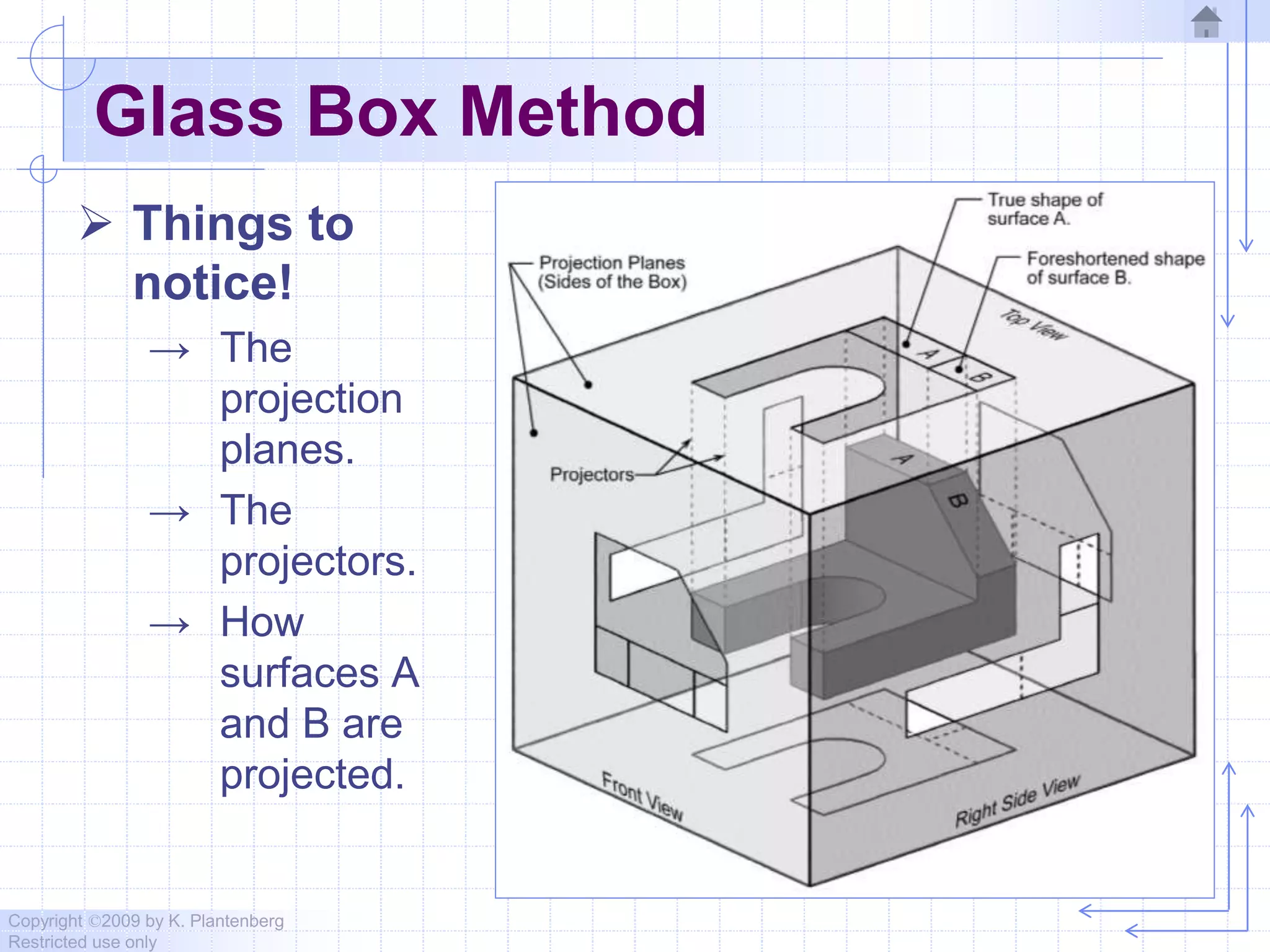
 Things to
notice!
→ The
projection
planes.
→ The
projectors.
→ How
surfaces A
and B are
projected.
Copyright ©2009 by K. Plantenberg
Restricted use only
Glass Box Method
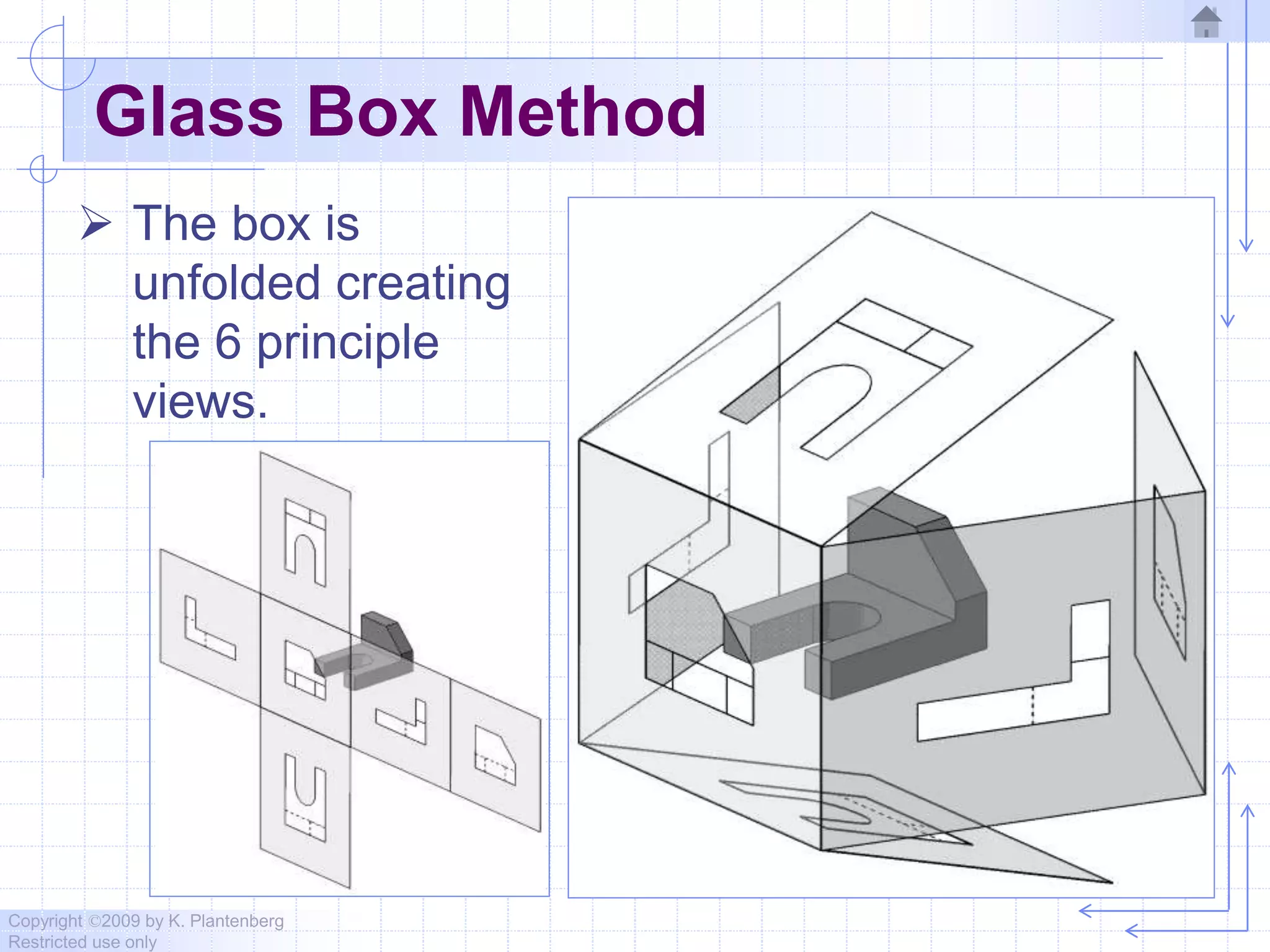
 The box is
unfolded creating
the 6 principle
views.
Copyright ©2009 by K. Plantenberg
Restricted use only
Exercise 2-1
Principle Views
Copyright ©2009 by K. Plantenberg
Restricted use only
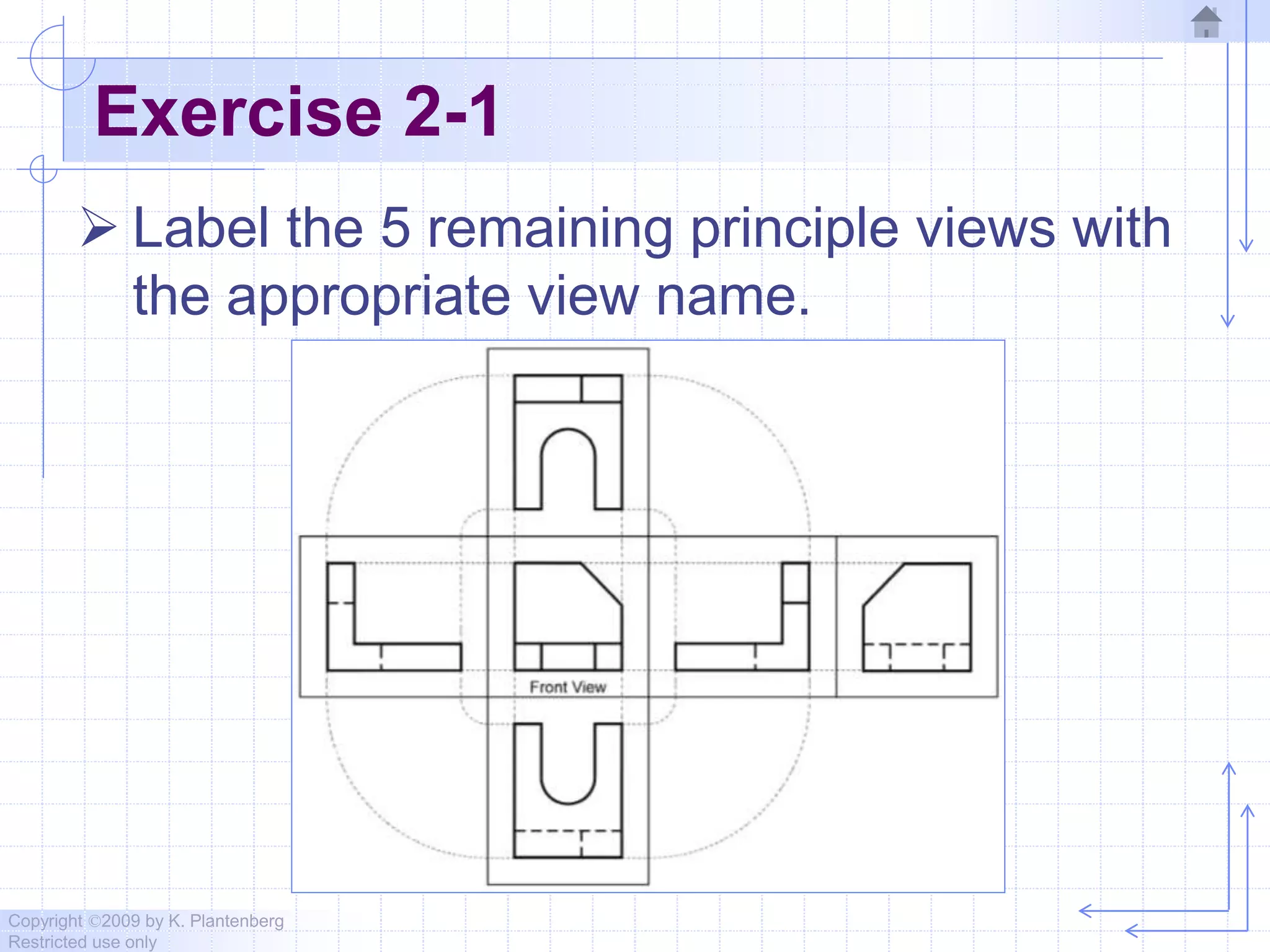
Exercise 2-1
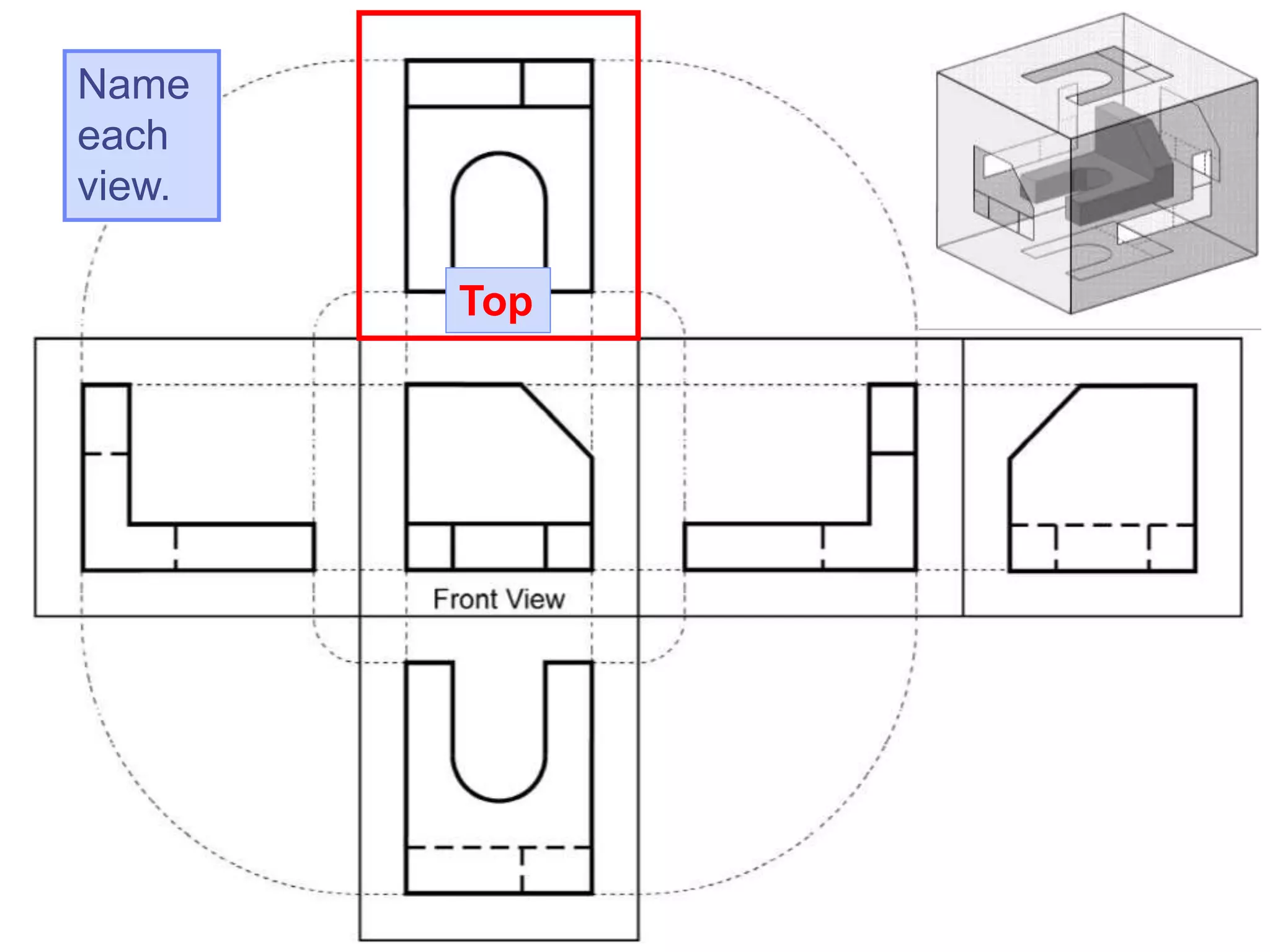
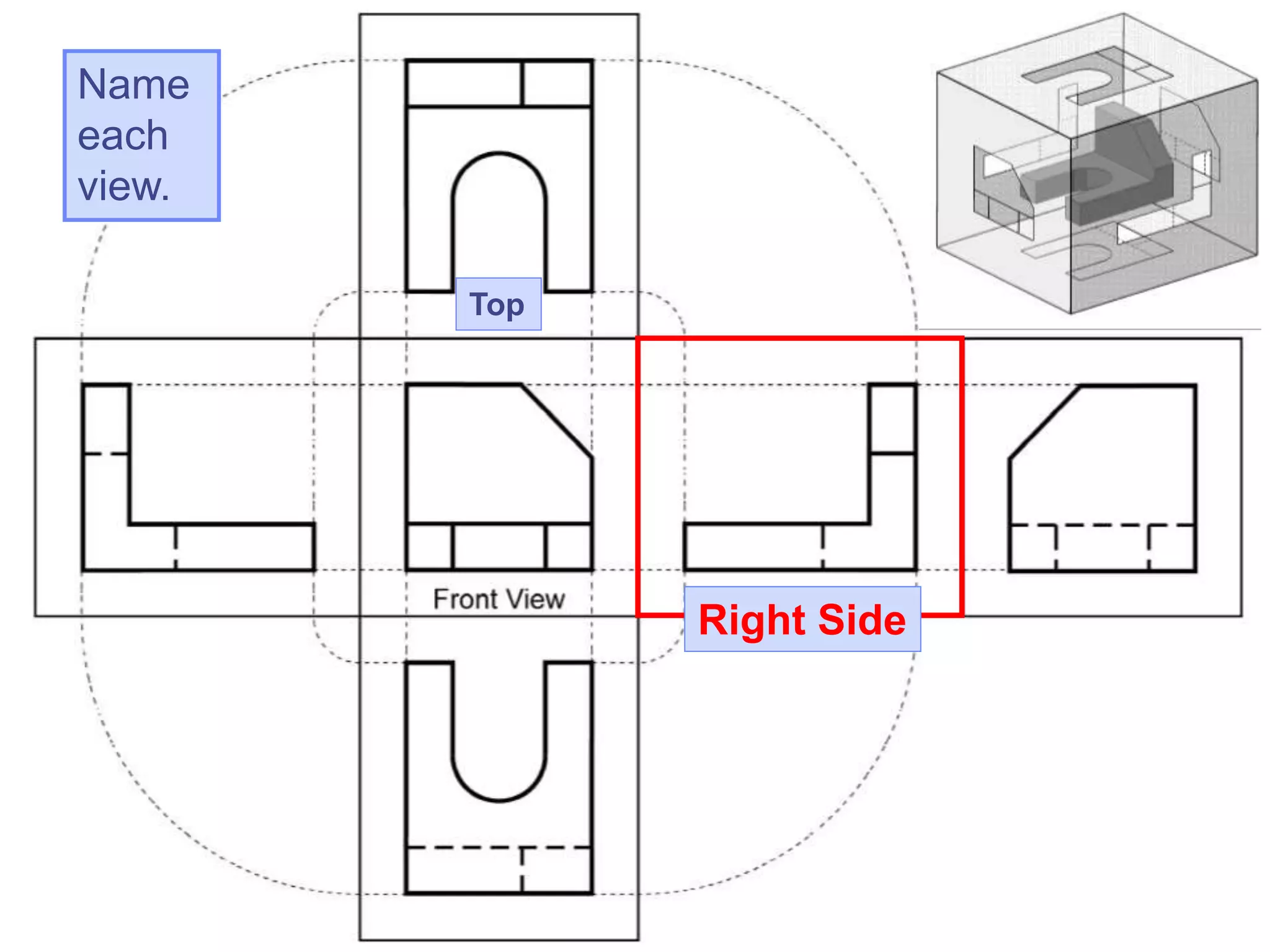
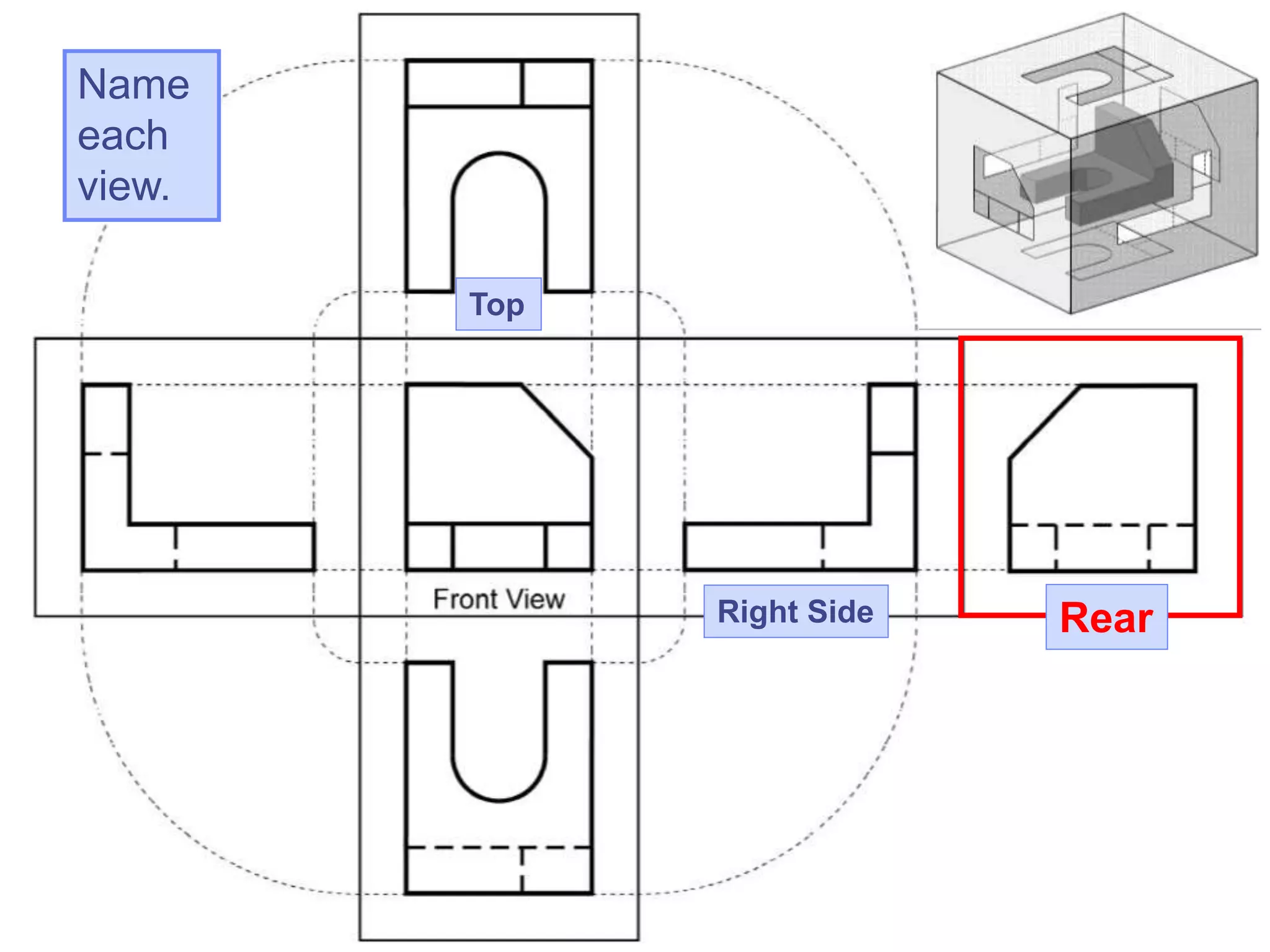
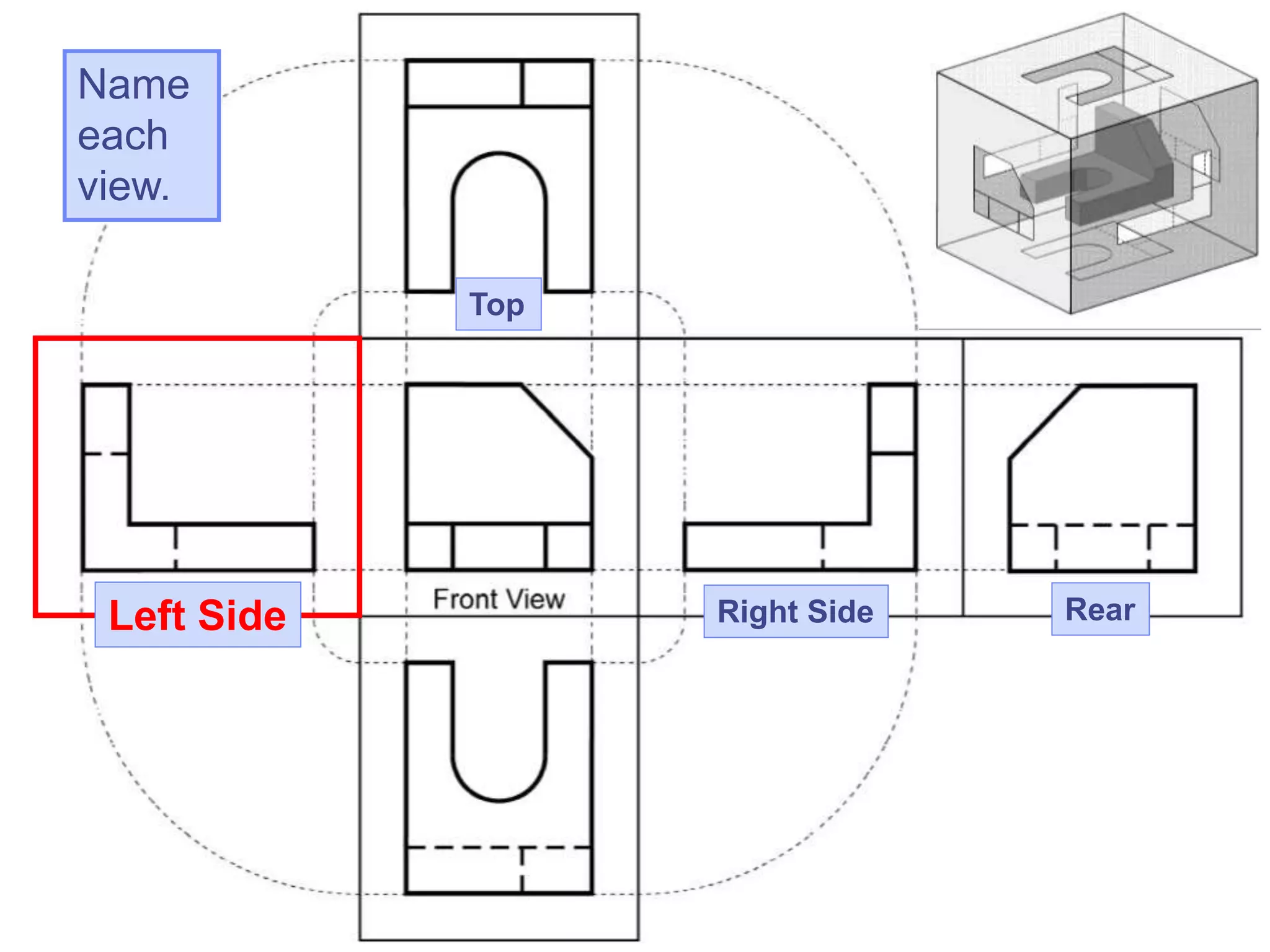
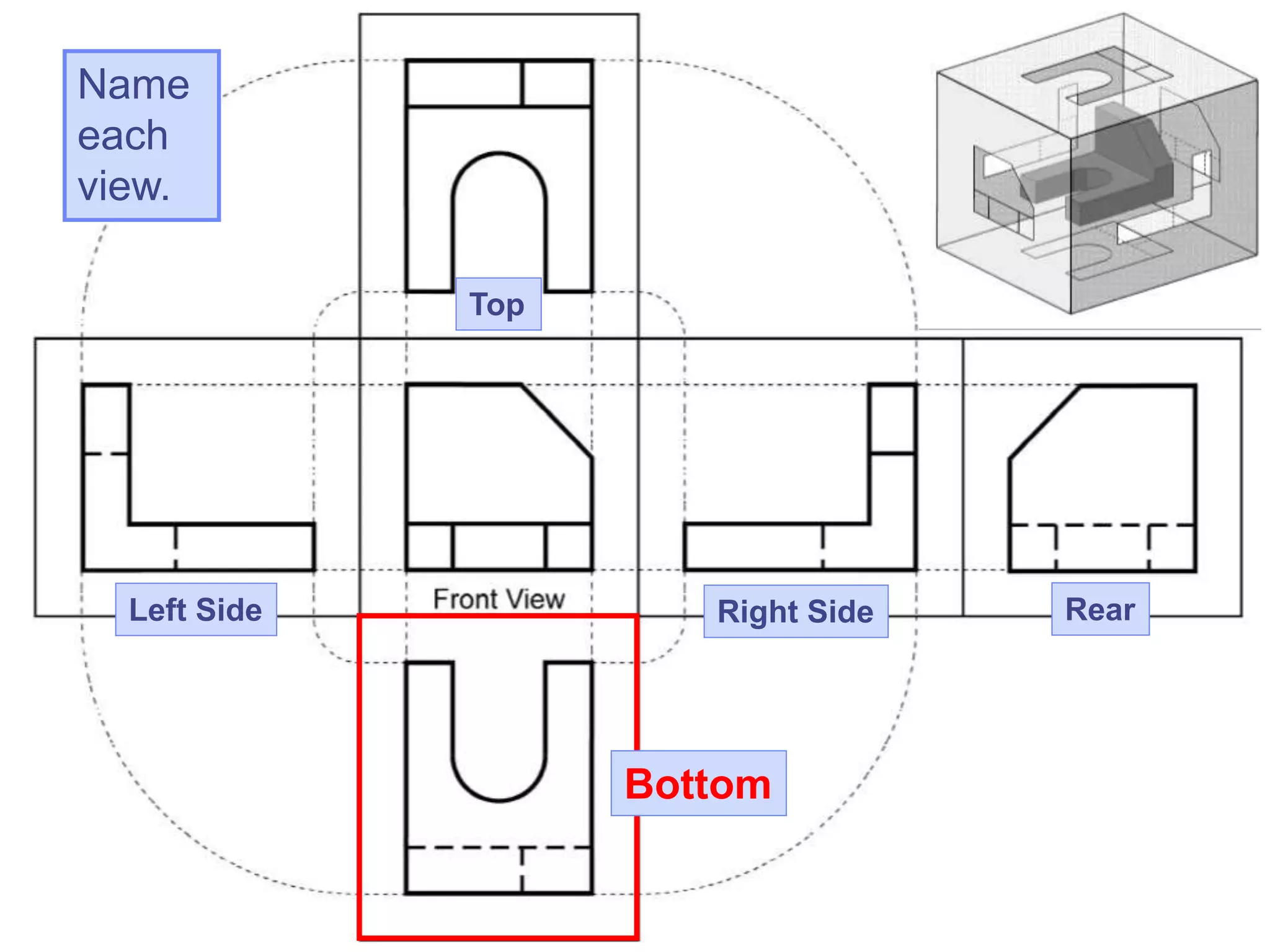
 Label the 5 remaining principle views with
the appropriate view name.
Name
each
view.
Top
Name
each
view.
Top
Right Side
Name
each
view.
Top
RearRight Side
Name
each
view.
Top
RearLeft Side Right Side
Name
each
view.
Top
RearLeft Side
Bottom
Right Side
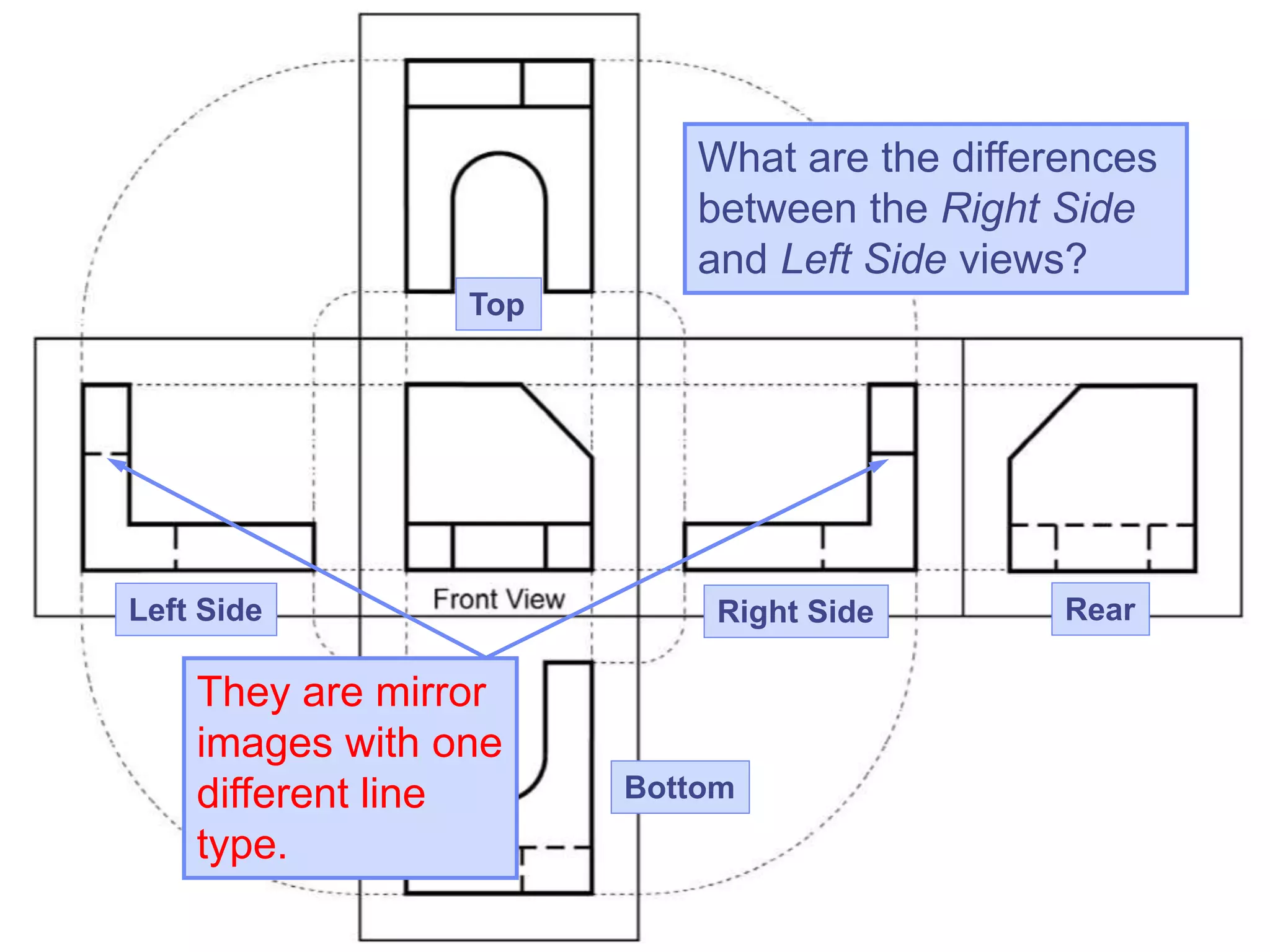
What are the differences
between the Right Side
and Left Side views?
Top
Right Side RearLeft Side
Bottom
They are mirror
images with one
different line
type.
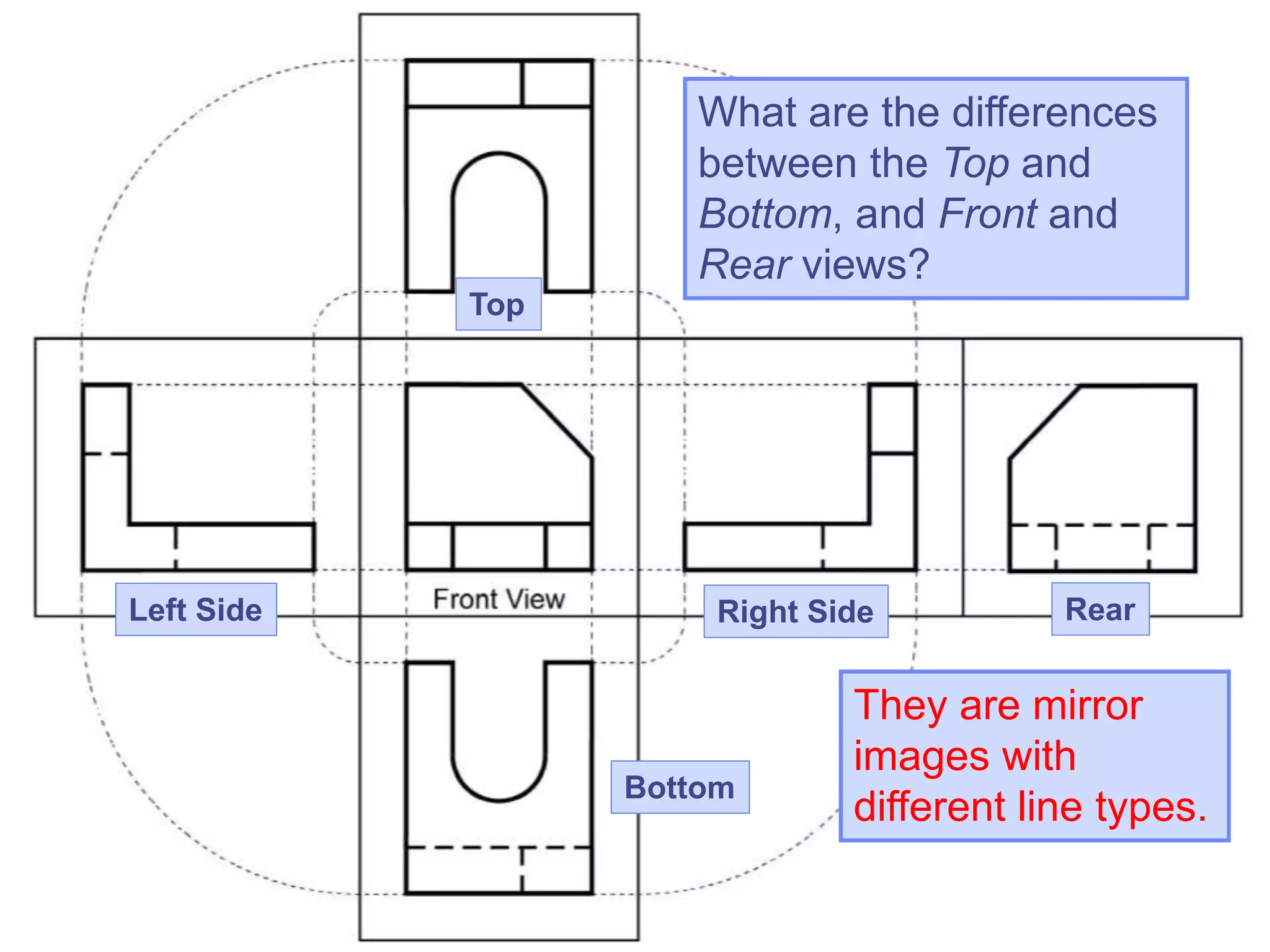
What are the differences
between the Top and
Bottom, and Front and
Rear views?
Top
Right Side RearLeft Side
Bottom
They are mirror
images with
different line types.
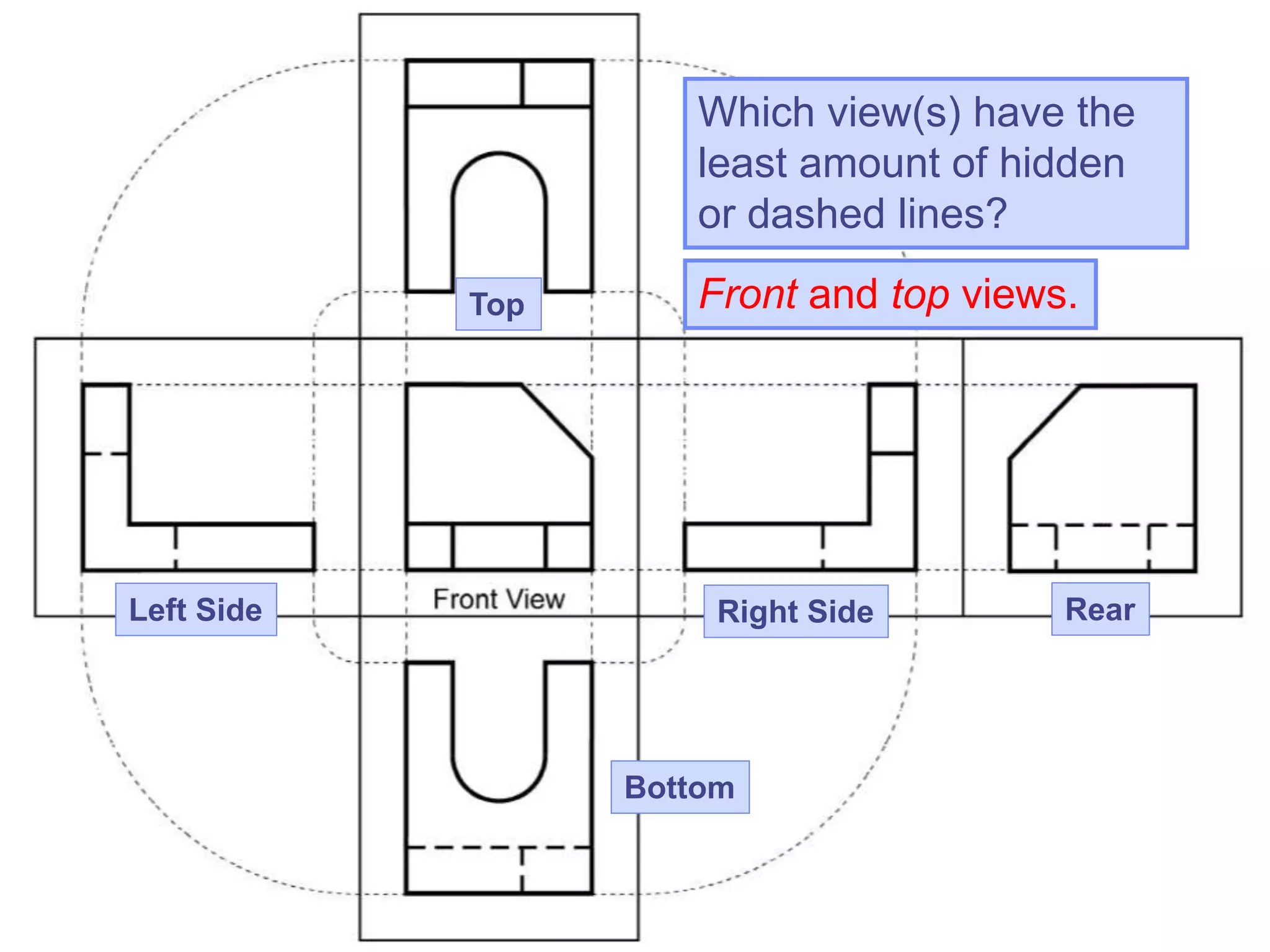
Which view(s) have the
least amount of hidden
or dashed lines?
Top
Right Side RearLeft Side
Bottom
Front and top views.
Copyright ©2009 by K. Plantenberg
Restricted use only
Orthographic Projection
2.4) The Standard Views
Copyright ©2009 by K. Plantenberg
Restricted use only
Standard Views
 When constructing an orthographic
projection, we need to include enough
views to completely describe the true
shape of the part.
→ Complex part = more views
→ Simple part = less views
Copyright ©2009 by K. Plantenberg
Restricted use only
Standard Views
 The standard views used in an
orthographic projection are;
→ Front view
→ Top view
→ Right side view
 The remaining 3 views usually don’t
add any new information.
Copyright ©2009 by K. Plantenberg
Restricted use only
Standard Views
 How many views do we need to
completely describe a block?
Copyright ©2009 by K. Plantenberg
Restricted use only
Standard Views
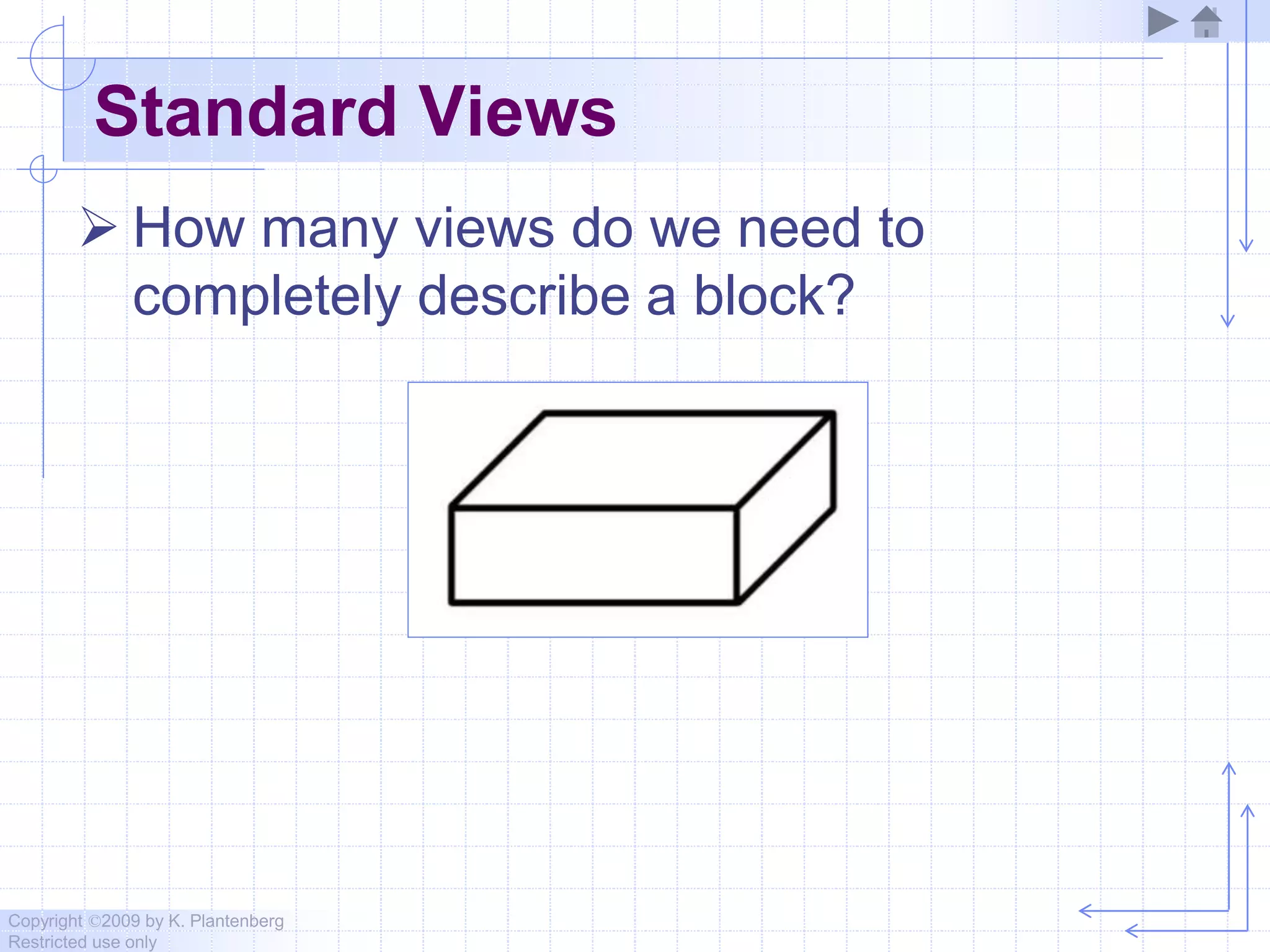
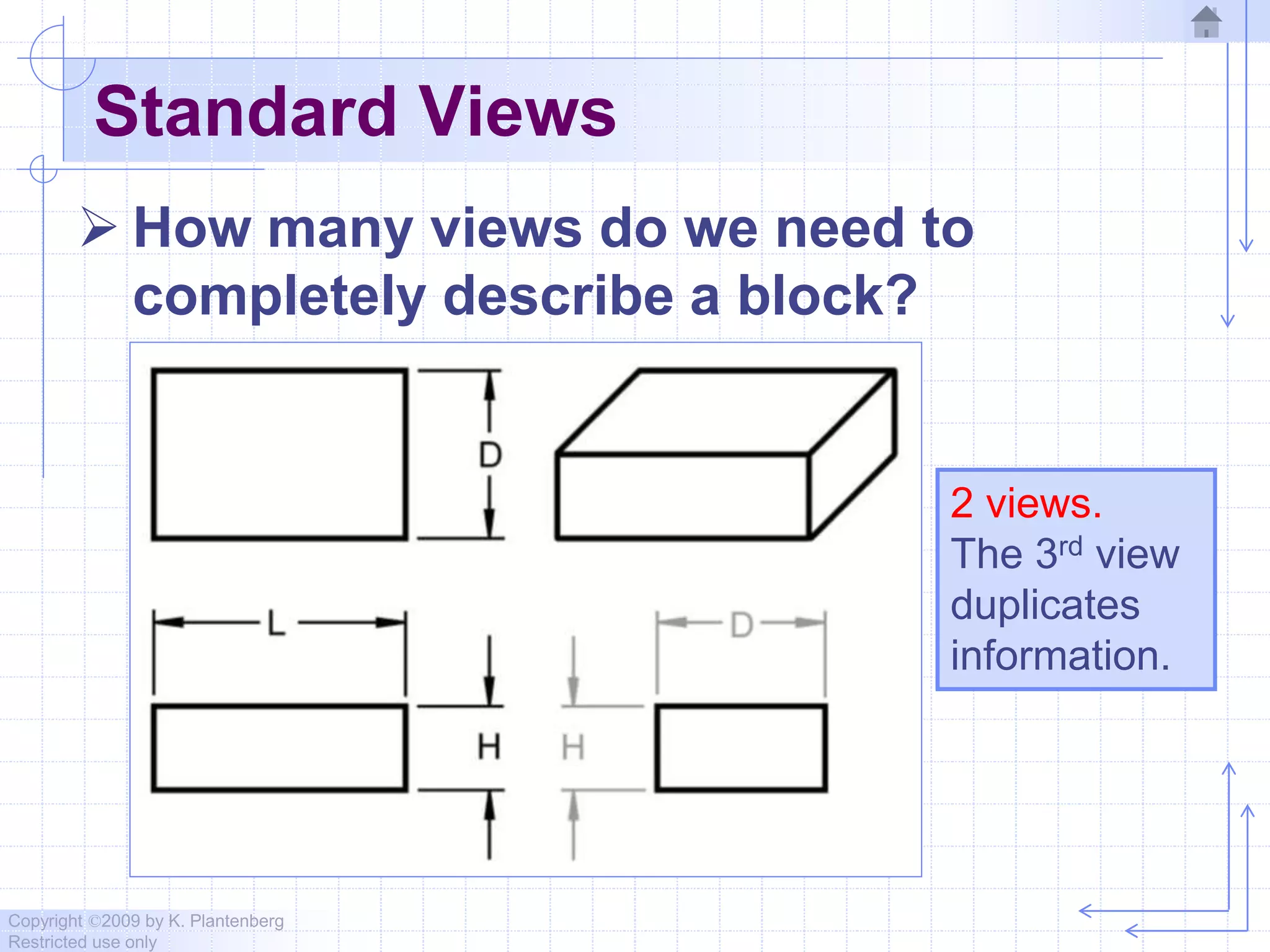
 How many views do we need to
completely describe a block?
2 views.
The 3rd view
duplicates
information.
Copyright ©2009 by K. Plantenberg
Restricted use only
Standard Views
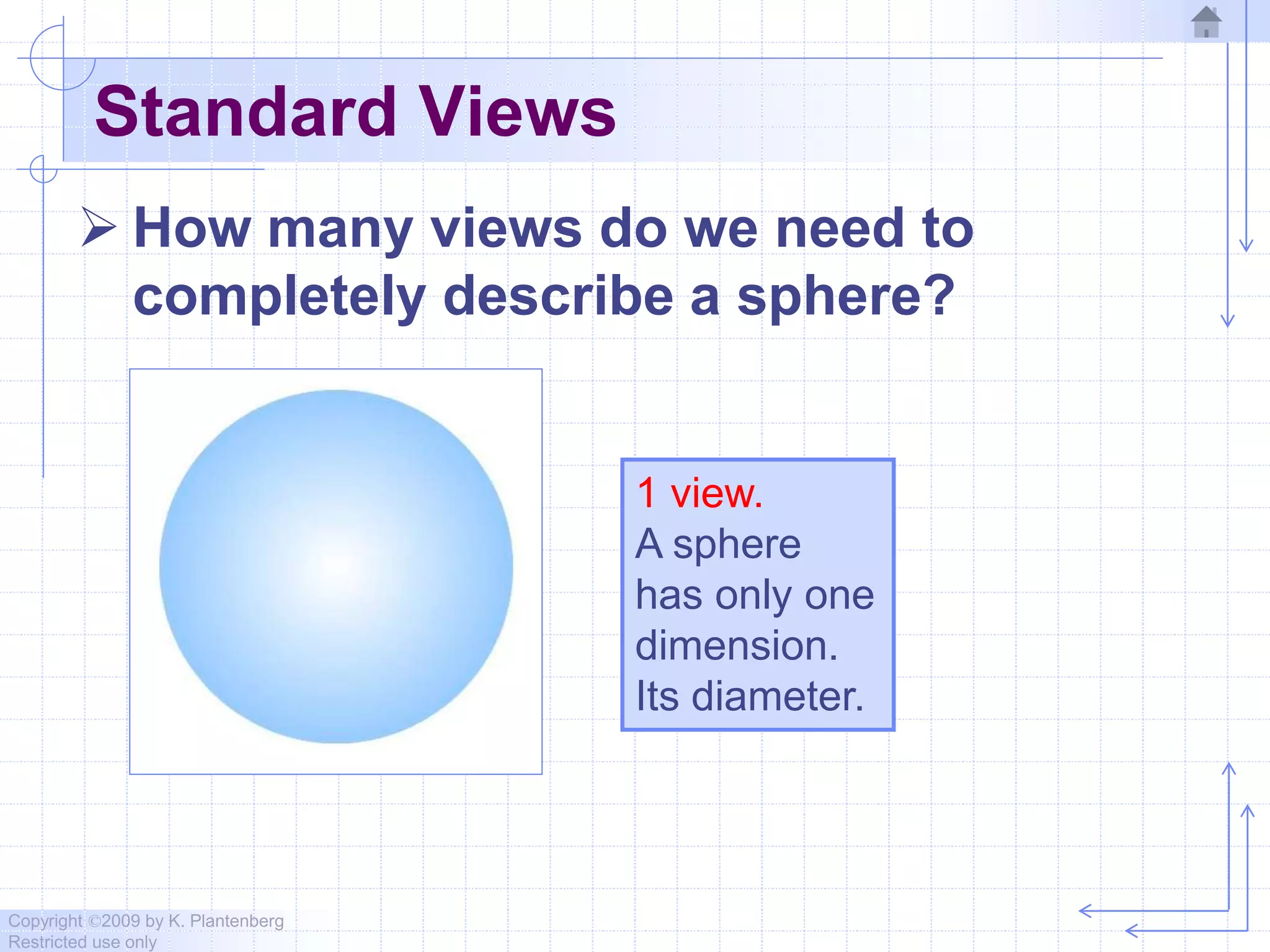
 How many views do we need to
completely describe a sphere?
1 view.
A sphere
has only one
dimension.
Its diameter.
Copyright ©2009 by K. Plantenberg
Restricted use only
Front View
 The front view shows the most features
or characteristics of the object.
→ It usually contains the least amount of
hidden lines.
→ The front view is chosen first and the other
views are based on the orientation of the
front view.
Copyright ©2009 by K. Plantenberg
Restricted use only
View Alignment
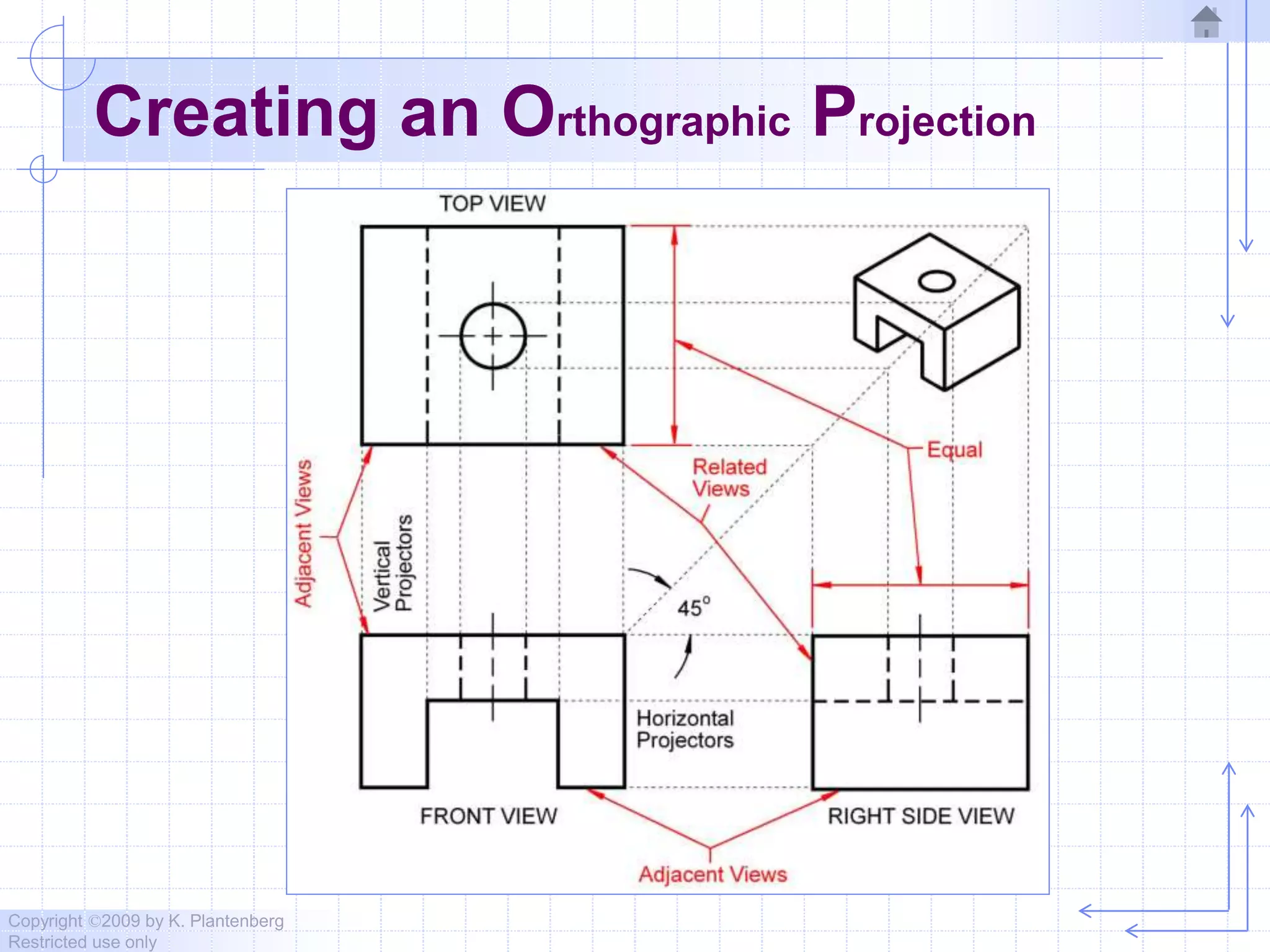
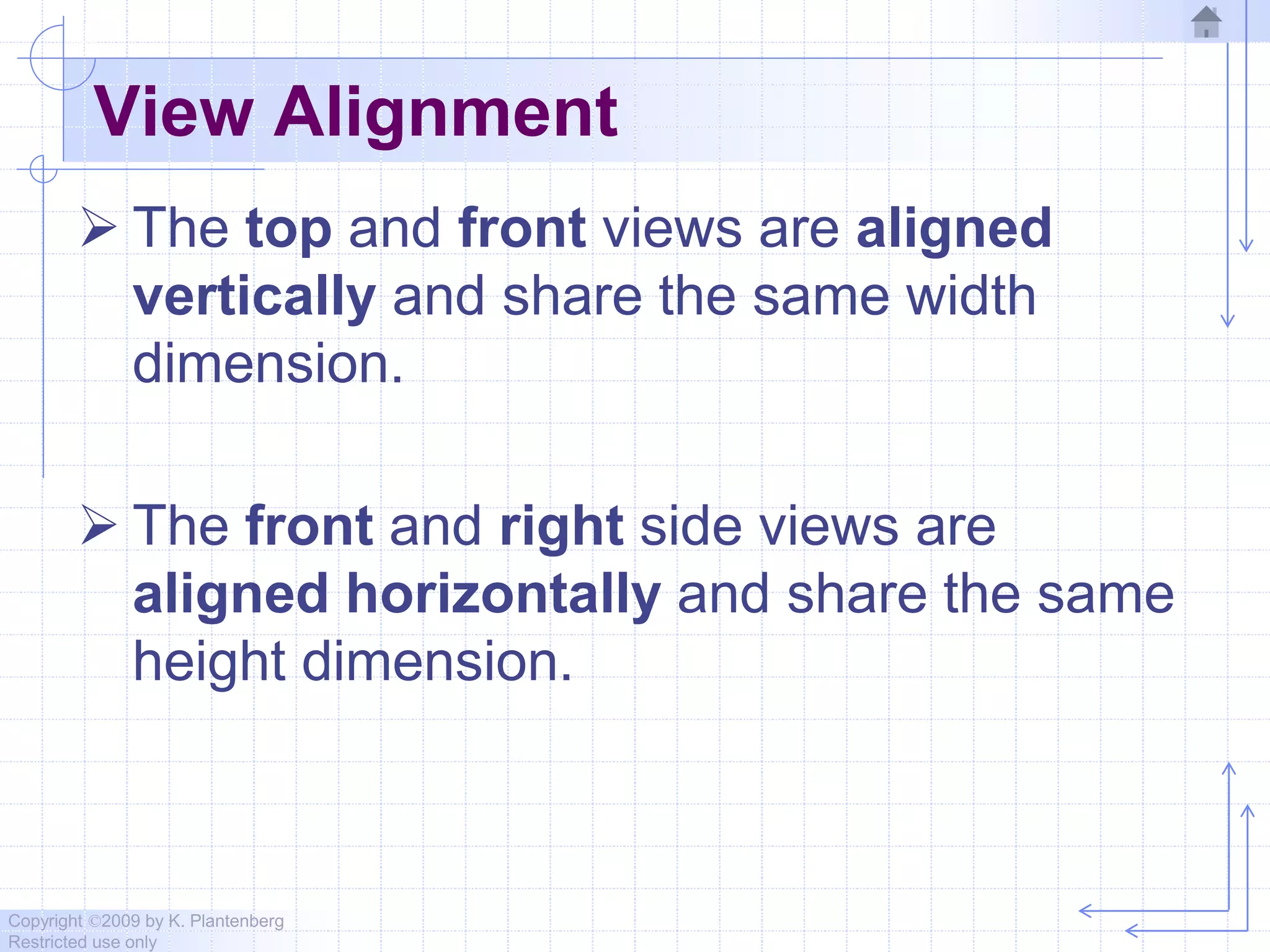
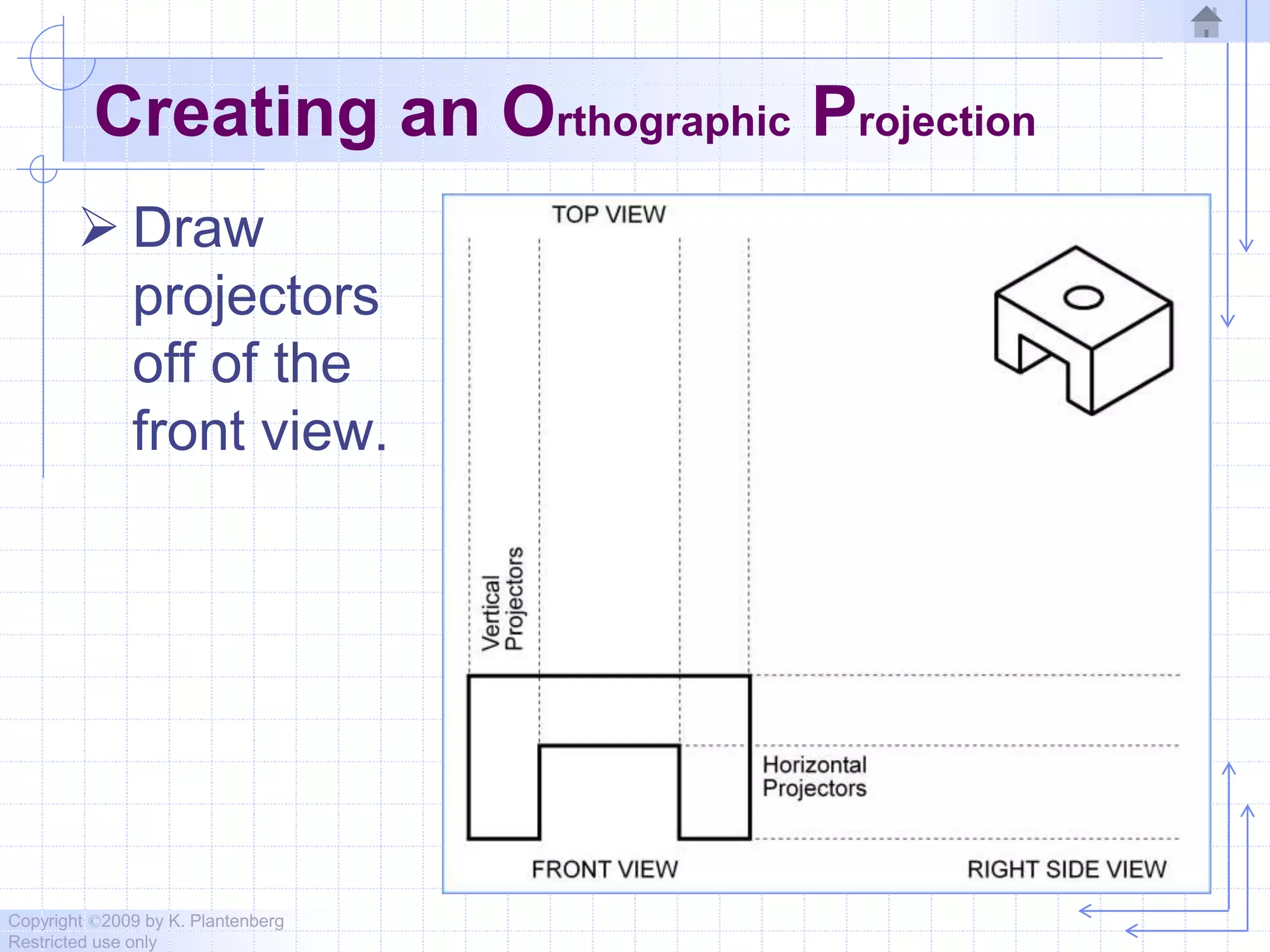
 The top and front views are aligned
vertically and share the same width
dimension.
 The front and right side views are
aligned horizontally and share the same
height dimension.
Copyright ©2009 by K. Plantenberg
Restricted use only
Orthographic Projection
2.5) Lines Types Used in an
Orthographic Projection
Copyright ©2009 by K. Plantenberg
Restricted use only
Line Type and Weight
 Line type and line weight provide
valuable information to the print
reader.
 For example, line type and weight can
answer the following questions.
→ Is the feature visible or hidden from view?
→ Is the line part of the object or part of a
dimension?
→ Is the line indicating symmetry?
Copyright ©2009 by K. Plantenberg
Restricted use only
Line Type and Weight
 There are four commonly used line
types;
→ continuous
→ hidden
→ center
→ phantom
Copyright ©2009 by K. Plantenberg
Restricted use only
Line Type and Weight
 Some lines are more important than
others. Importance is indicated by line
weight or thickness.
→ The thicker the line, the more important it is.
Copyright ©2009 by K. Plantenberg
Restricted use only
Line Types
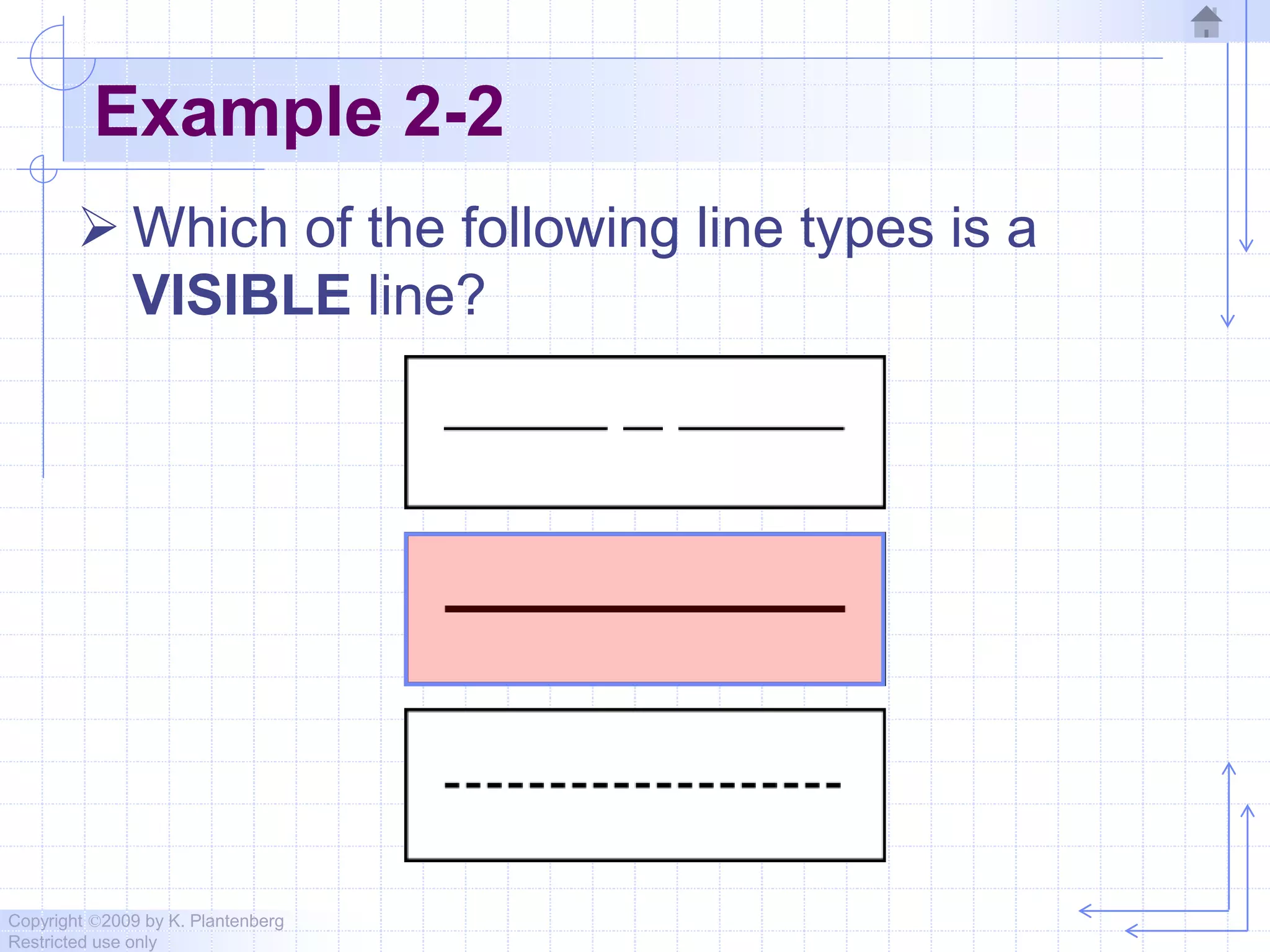
 Visible lines:
→ Visible lines represent visible edges and
boundaries.
→ Continuous and thick (0.5 - 0.6 mm).
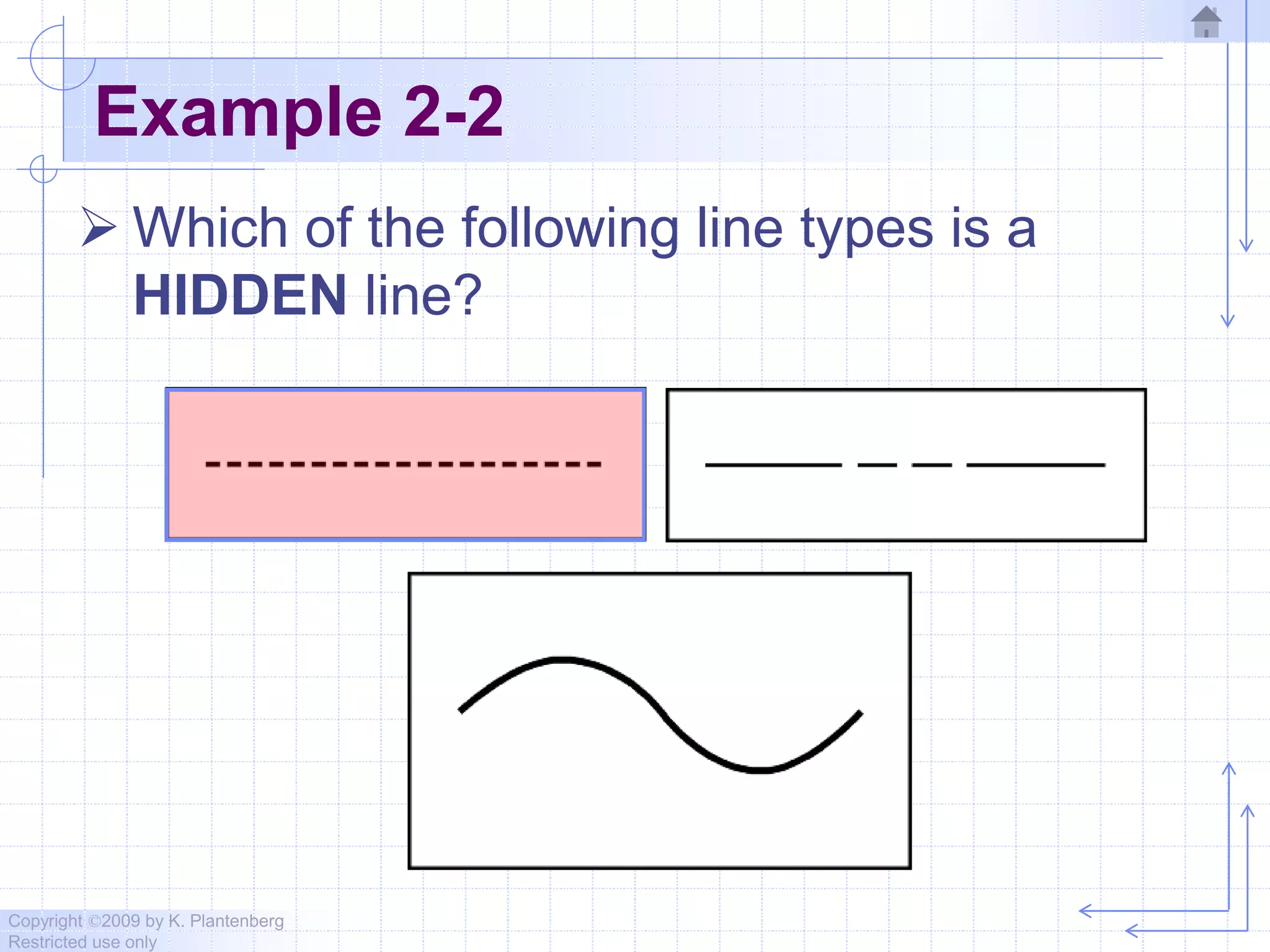
 Hidden lines:
→ Hidden lines represent edges and
boundaries that cannot be seen.
→ Dashed and medium thick
(0.35 - 0.45 mm).
Copyright ©2009 by K. Plantenberg
Restricted use only
Line Types
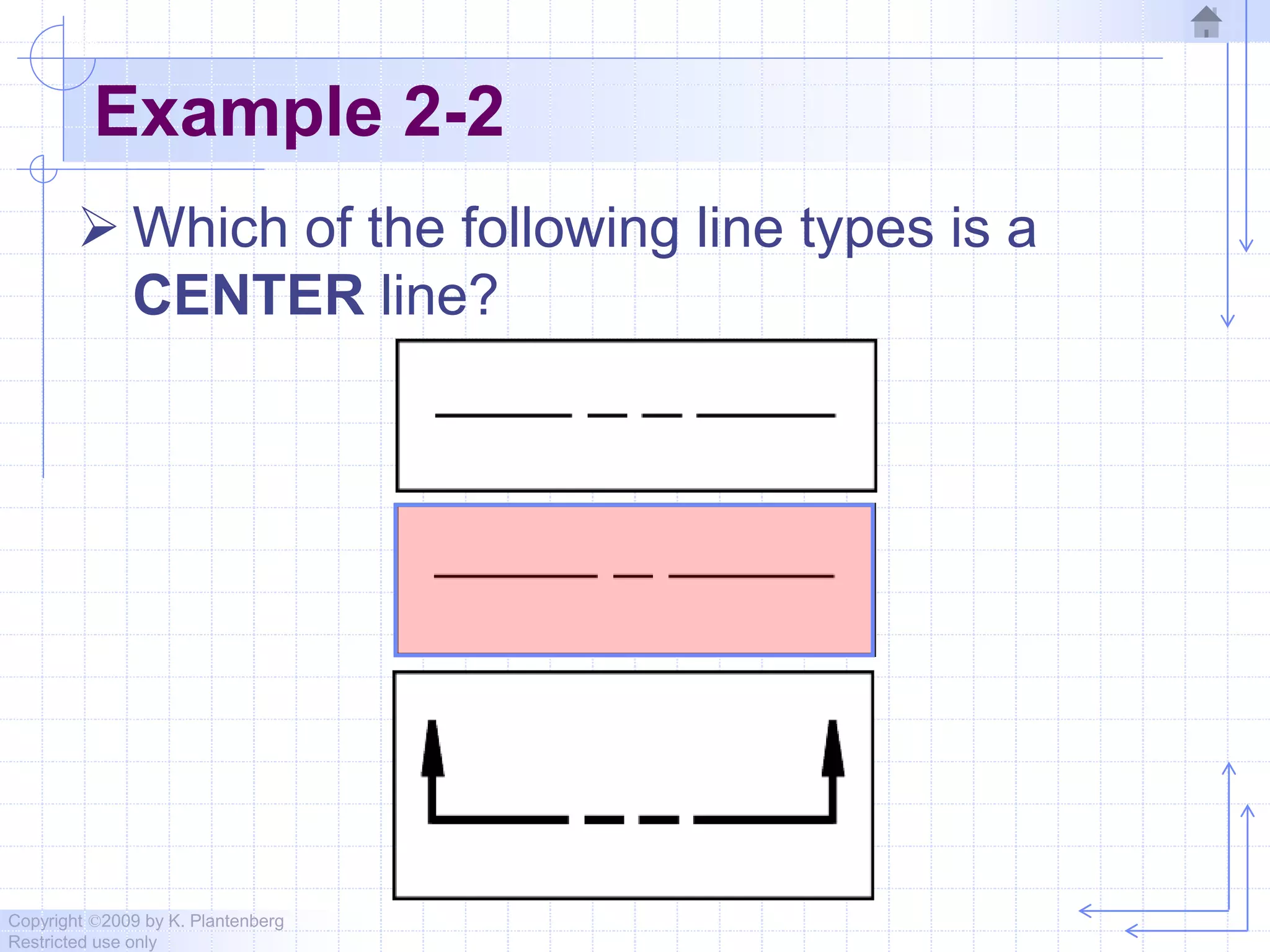
 Center lines:
→ Represent axes of symmetry.
→ Long dash – short dash and thin
(0.3 mm).
Copyright ©2009 by K. Plantenberg
Restricted use only
Line Types
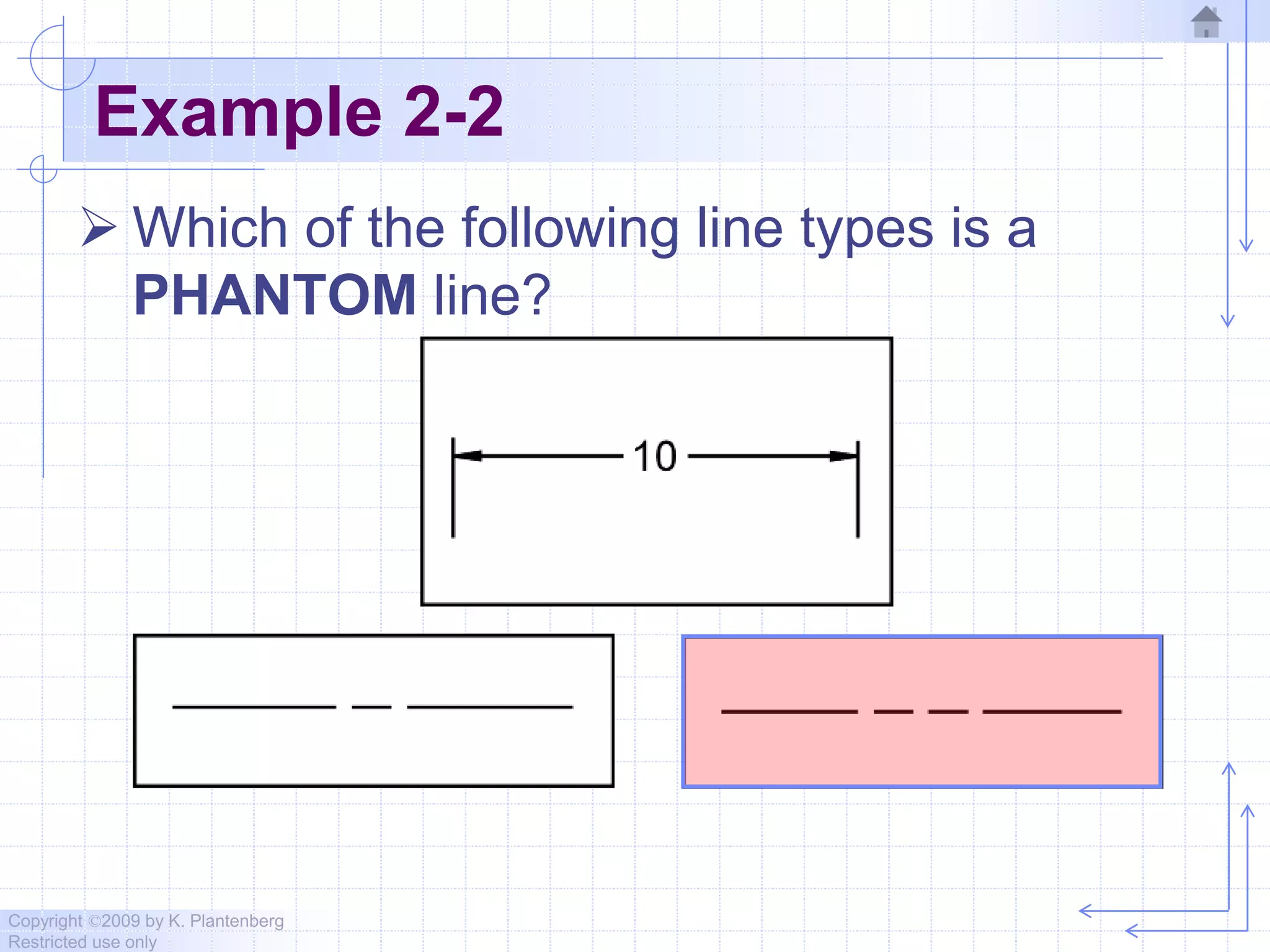
 Phantom line:
→ Phantom lines are used to indicate
imaginary features.
• alternate positions of moving parts
• adjacent positions of related parts
→ The line type is long dash – short dash –
short dash and the line weight is usually
thin (0.3 mm).
Copyright ©2009 by K. Plantenberg
Restricted use only
Line Types
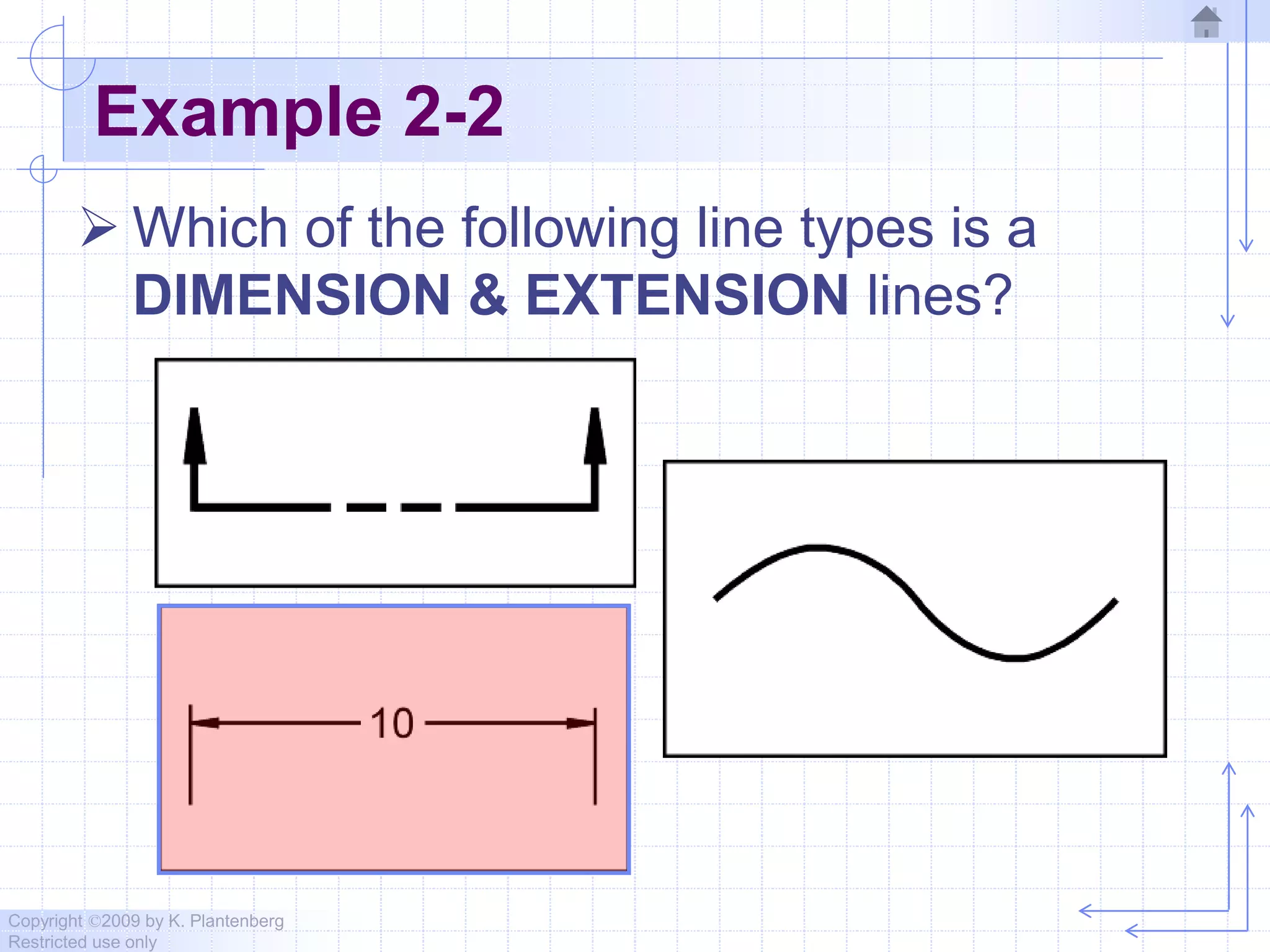
 Dimension and Extension lines:
→ Dimension and extension lines are used to
show the size of an object.
• In general, a dimension line is placed between
two extension lines and is terminated by
arrowheads, which indicates the direction and
extent of the dimension.
→ The line type is continuous and the line
weight is thin (0.3 mm).
Copyright ©2009 by K. Plantenberg
Restricted use only
Line Types
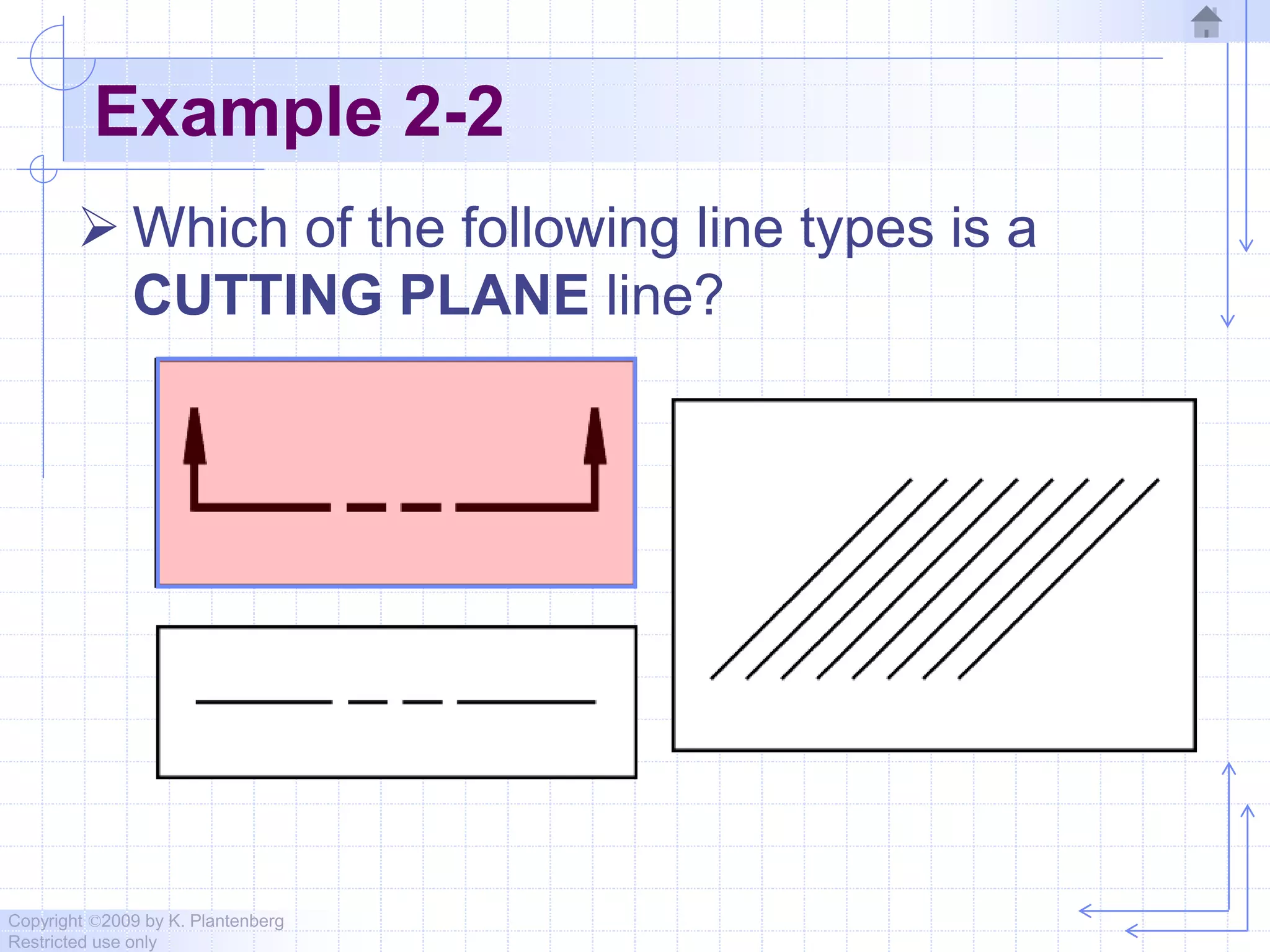
 Cutting Plane line:
→ Cutting plane lines are used to show where
an imaginary cut has been made through
the object in order to view interior features.
→ The line type is phantom and the line
weight is very thick (0.6 to 0.8 mm).
→ Arrows are placed at both ends of the
cutting plane line to indicate the direction of
sight.
Copyright ©2009 by K. Plantenberg
Restricted use only
Line Types
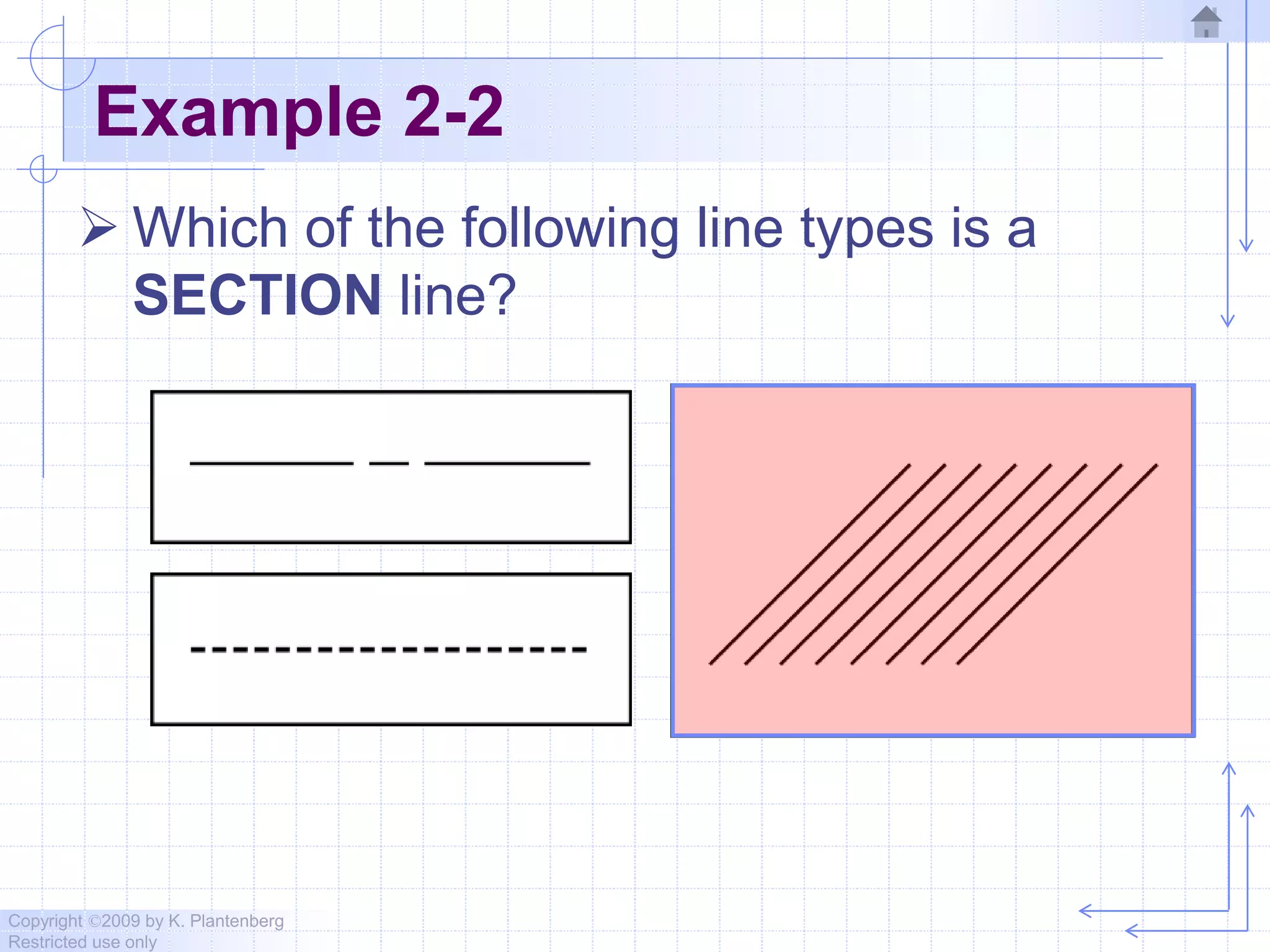
 Section line:
→ Section lines are used to show areas that
have been cut by the cutting plane.
→ Section lines are grouped in parallel line
patterns and usually drawn at a 45 angle.
→ The line type is usually continuous and the
line weight is thin (0.3 mm).
Copyright ©2009 by K. Plantenberg
Restricted use only
Line Types
 Break line:
→ Break lines are used to show imaginary
breaks in objects.
→ A break line is usually made up of a series
of connecting arcs.
→ The line type is continuous and the line
weight is usually thick (0.5 – 0.6 mm).
Copyright ©2009 by K. Plantenberg
Restricted use only
Exercise 2-2
Line types
Copyright ©2009 by K. Plantenberg
Restricted use only
Example 2-2
 Which of the following line types is a
VISIBLE line?
Copyright ©2009 by K. Plantenberg
Restricted use only
Example 2-2
 Which of the following line types is a
HIDDEN line?
Copyright ©2009 by K. Plantenberg
Restricted use only
Example 2-2
 Which of the following line types is a
CENTER line?
Copyright ©2009 by K. Plantenberg
Restricted use only
Example 2-2
 Which of the following line types is a
PHANTOM line?
Copyright ©2009 by K. Plantenberg
Restricted use only
Example 2-2
 Which of the following line types is a
DIMENSION & EXTENSION lines?
Copyright ©2009 by K. Plantenberg
Restricted use only
Example 2-2
 Which of the following line types is a
CUTTING PLANE line?
Copyright ©2009 by K. Plantenberg
Restricted use only
Example 2-2
 Which of the following line types is a
SECTION line?
Copyright ©2009 by K. Plantenberg
Restricted use only
Example 2-2
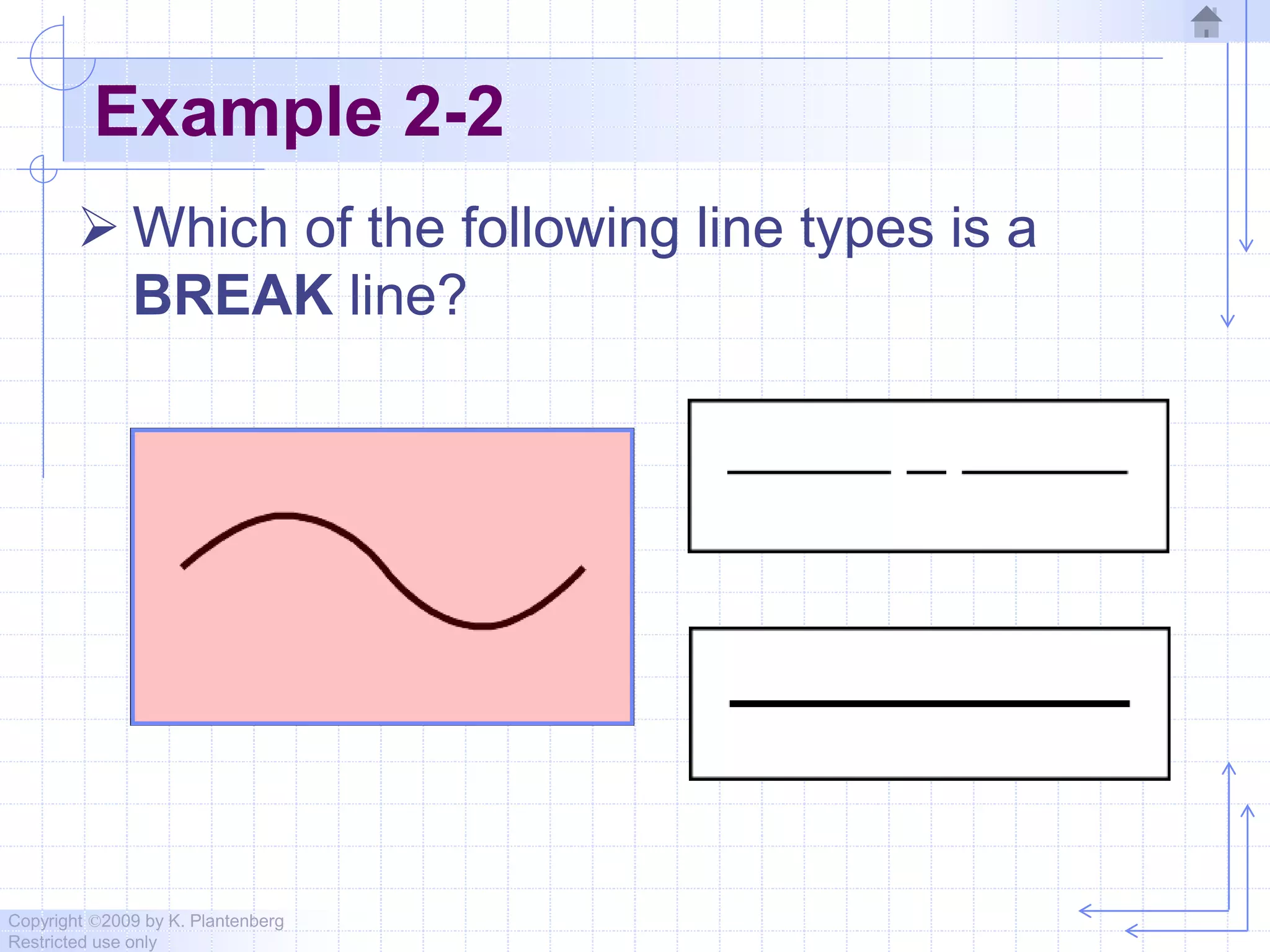
 Which of the following line types is a
BREAK line?
Copyright ©2009 by K. Plantenberg
Restricted use only
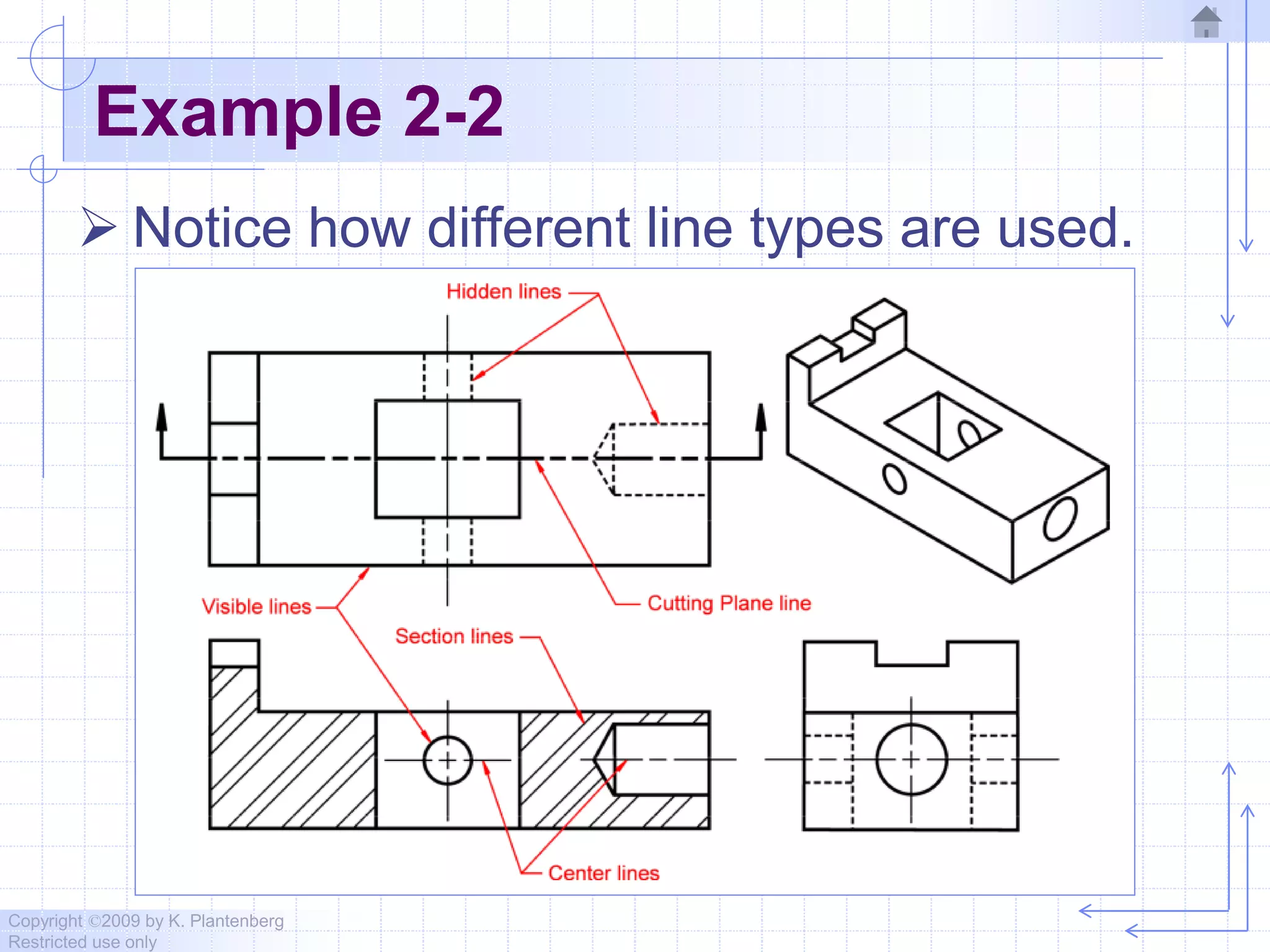
Example 2-2
 Notice how different line types are used.
Copyright ©2009 by K. Plantenberg
Restricted use only
Exercise 2-3
Line use in an orthographic
projection
Copyright ©2009 by K. Plantenberg
Restricted use only
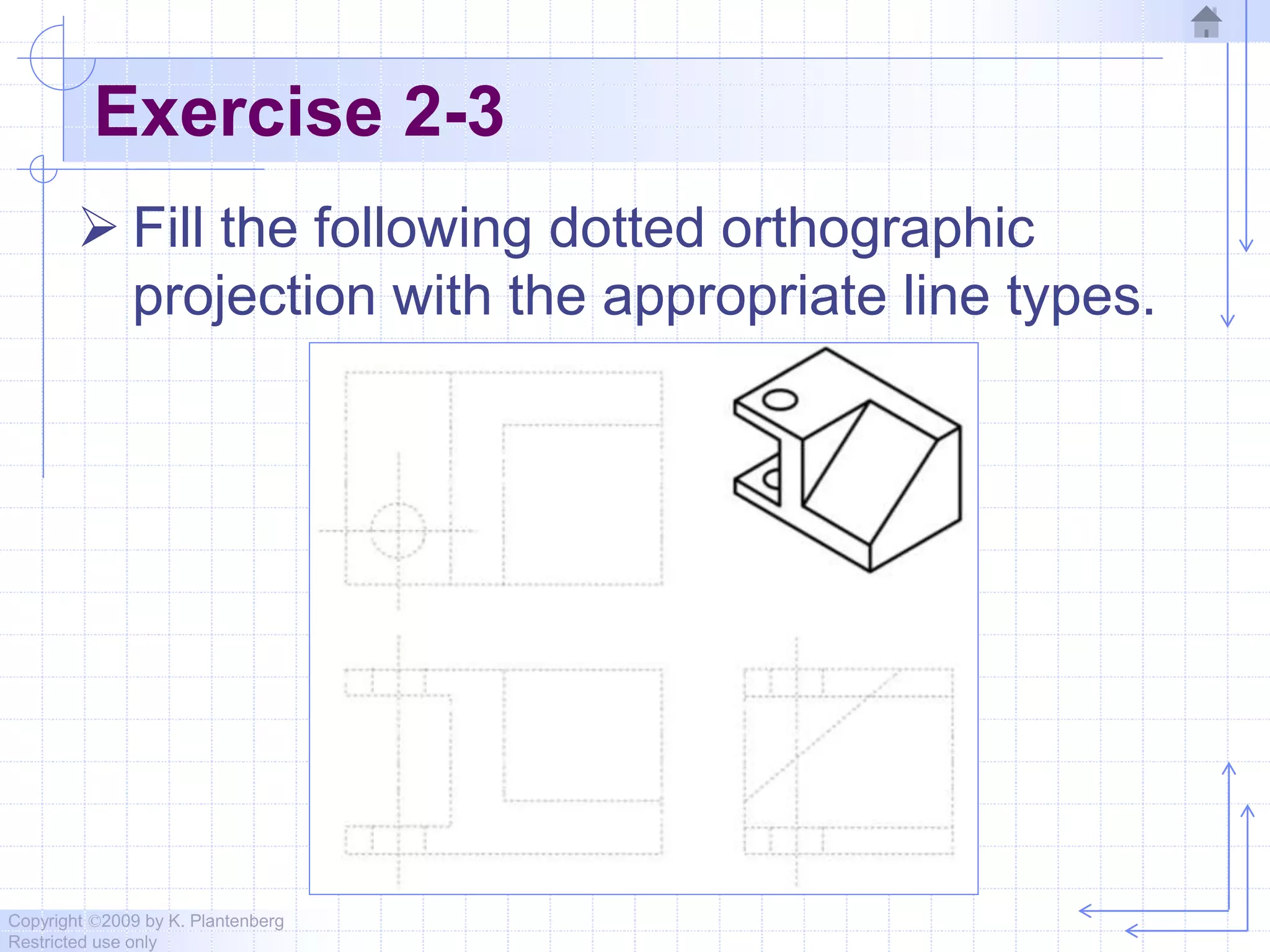
Exercise 2-3
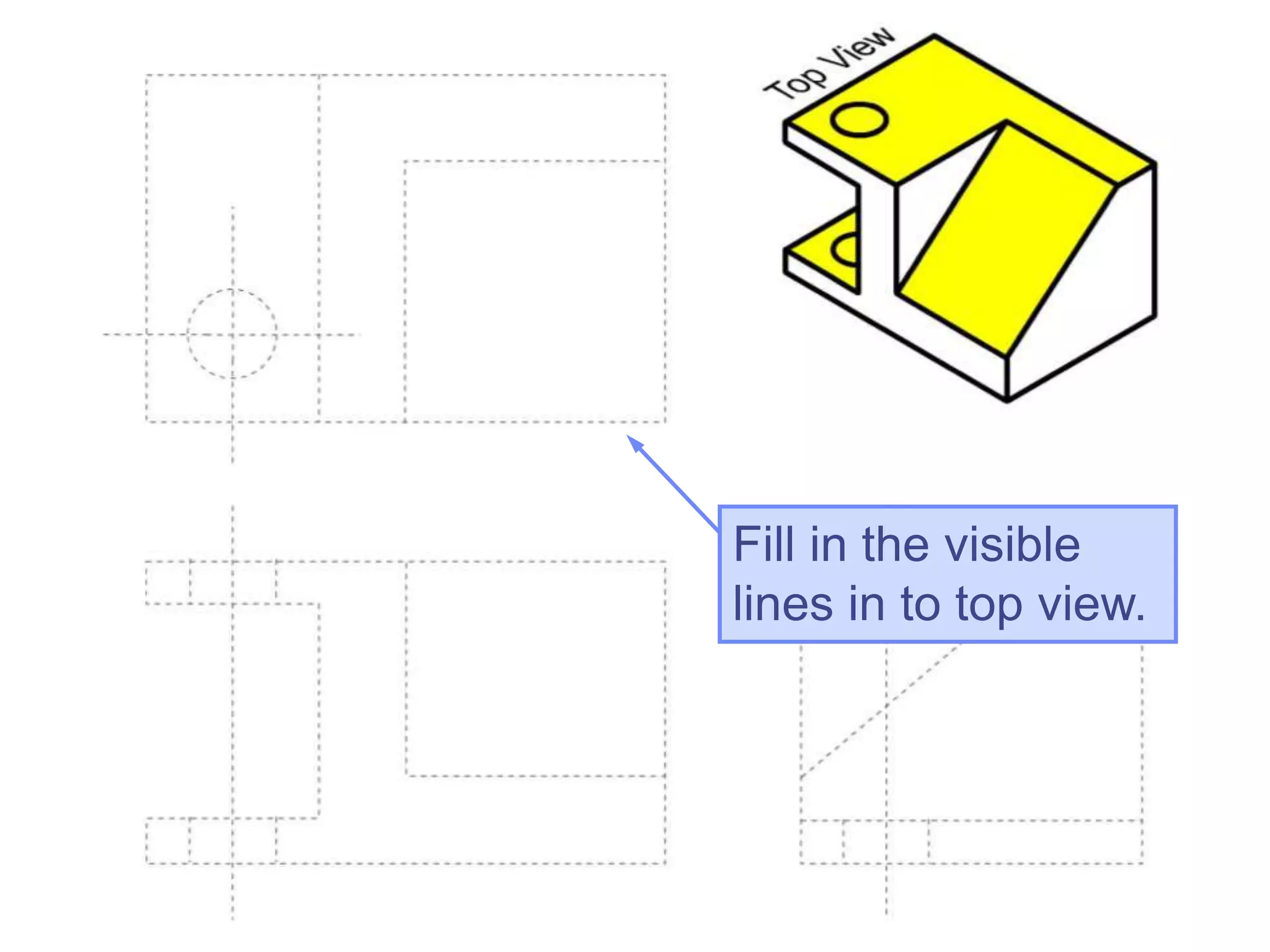
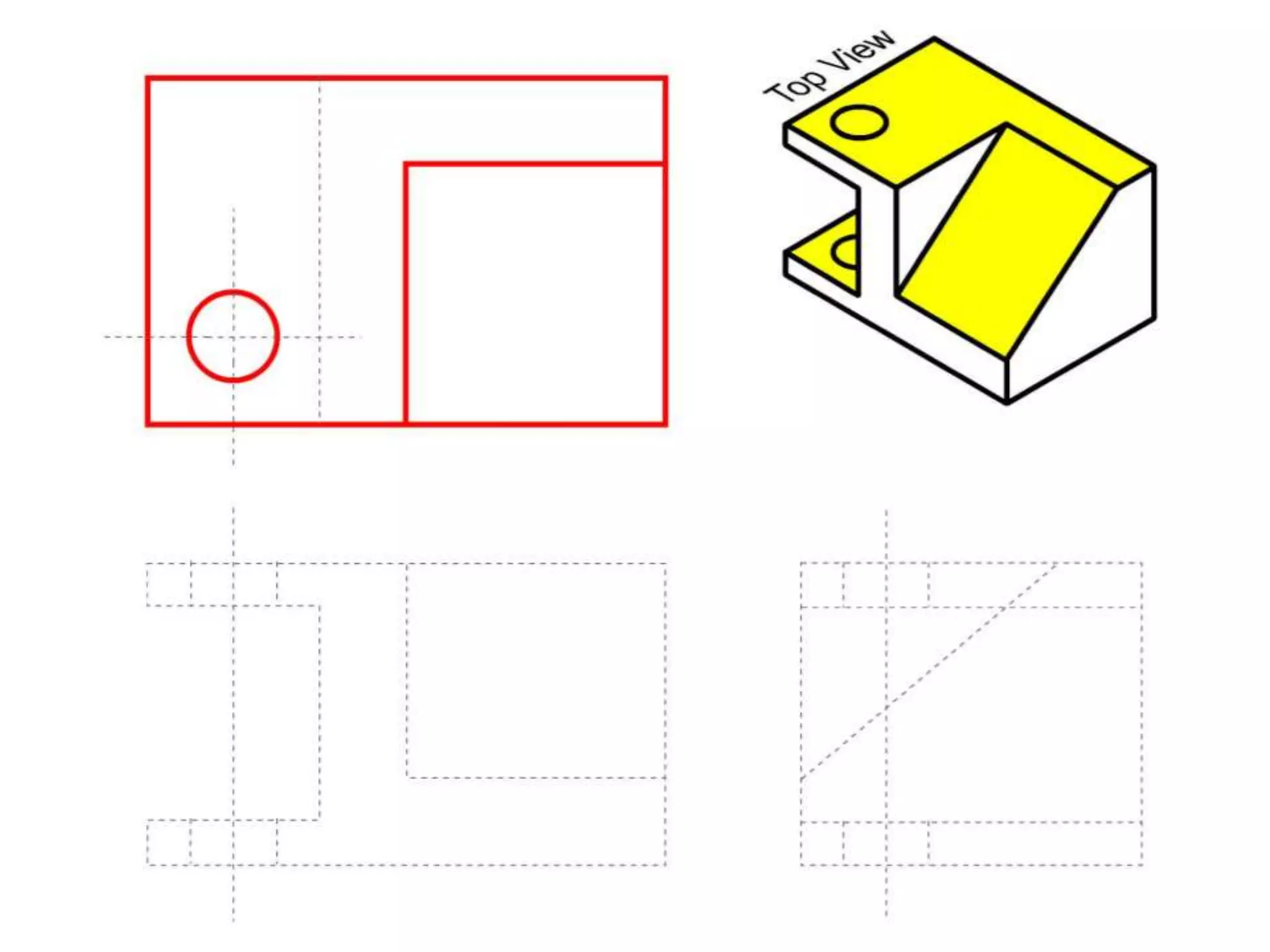
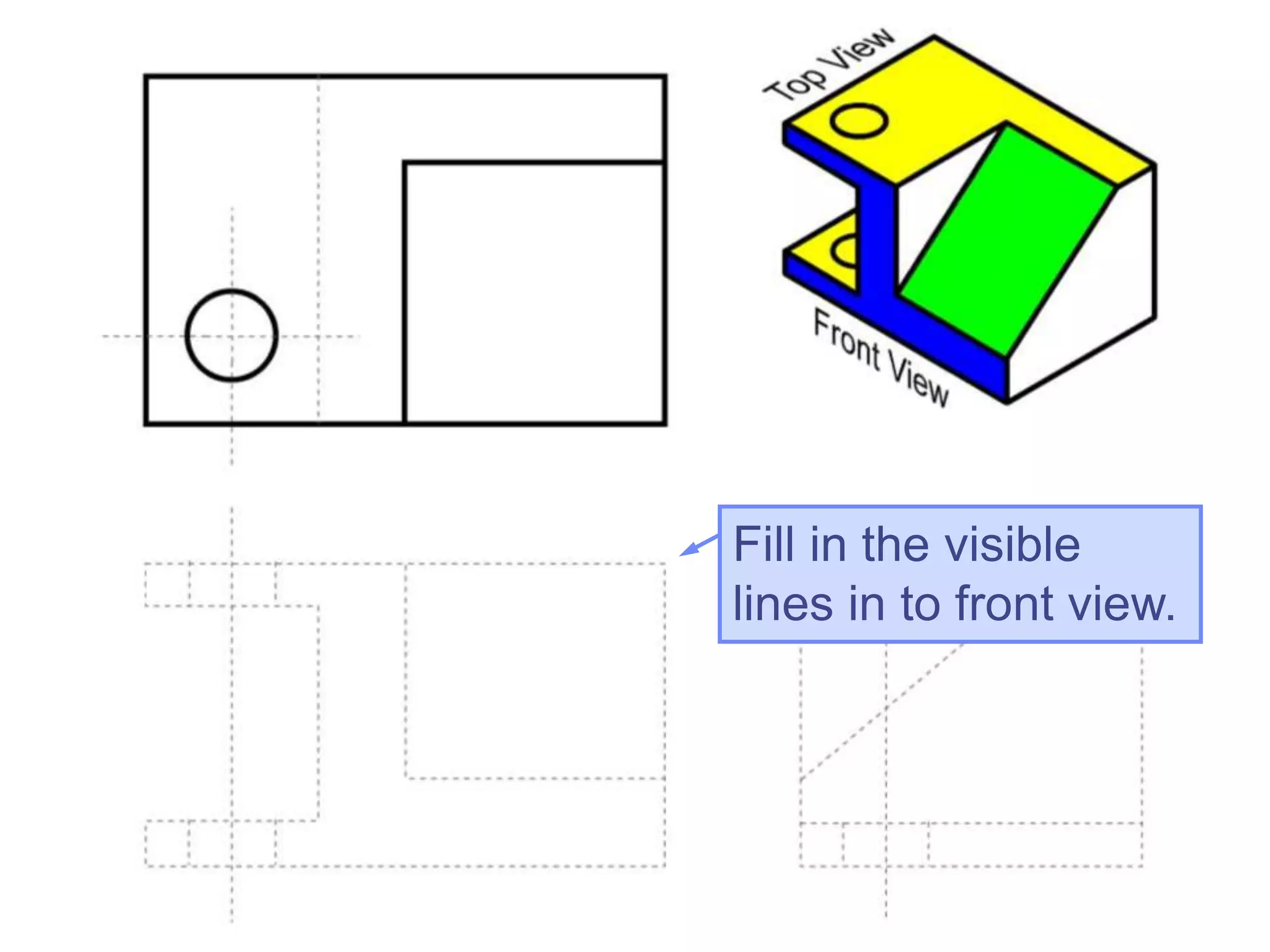
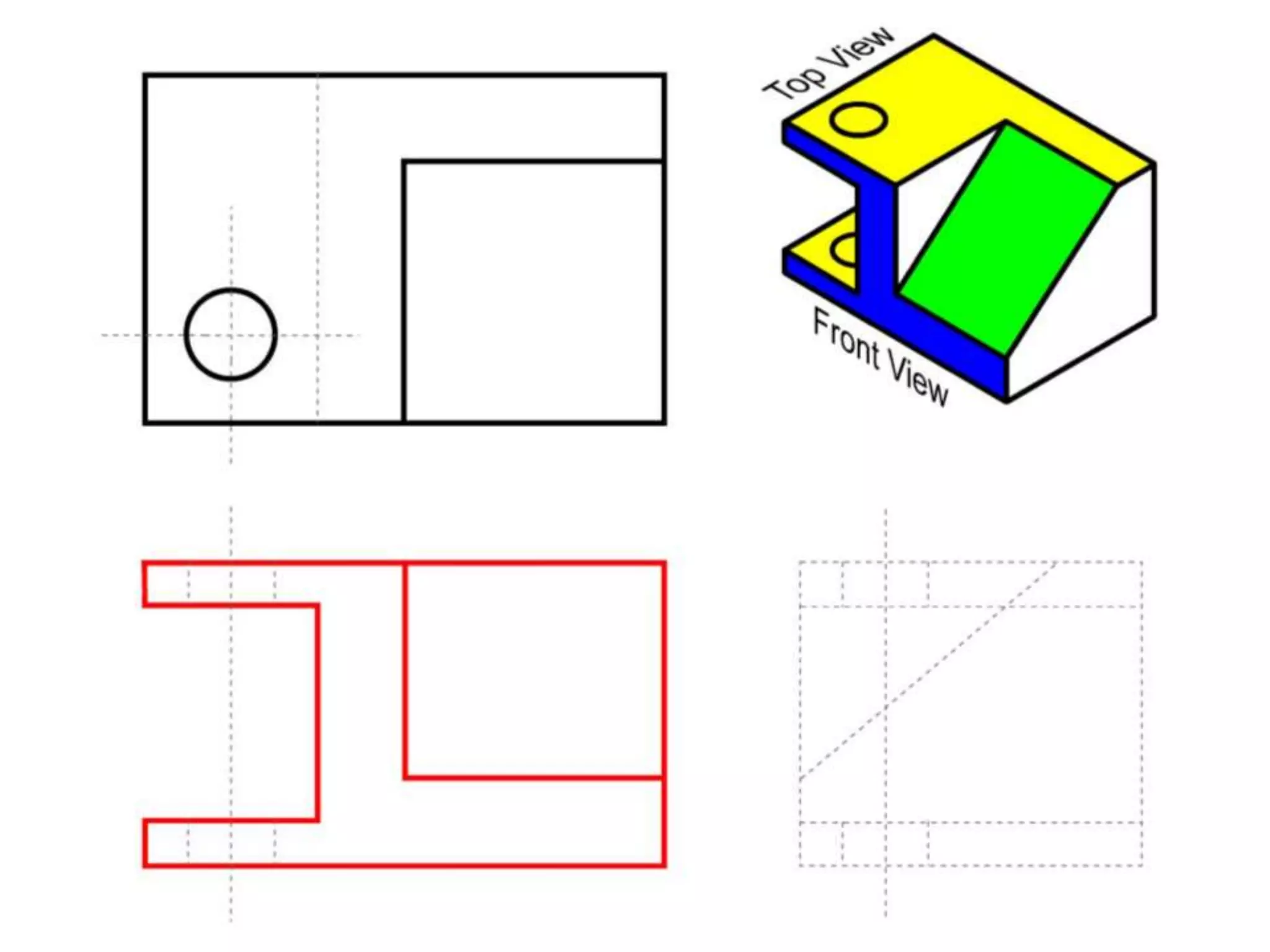
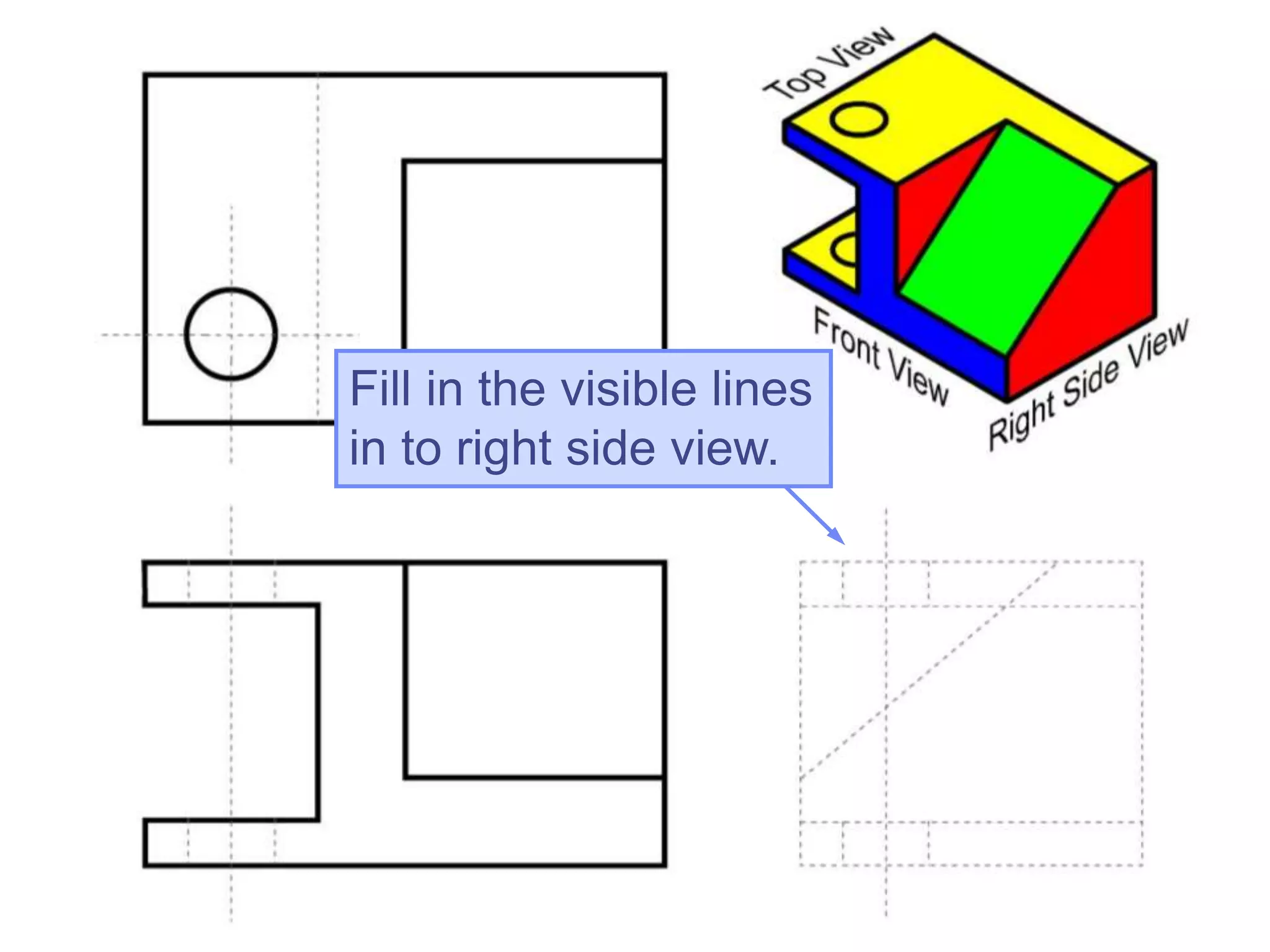
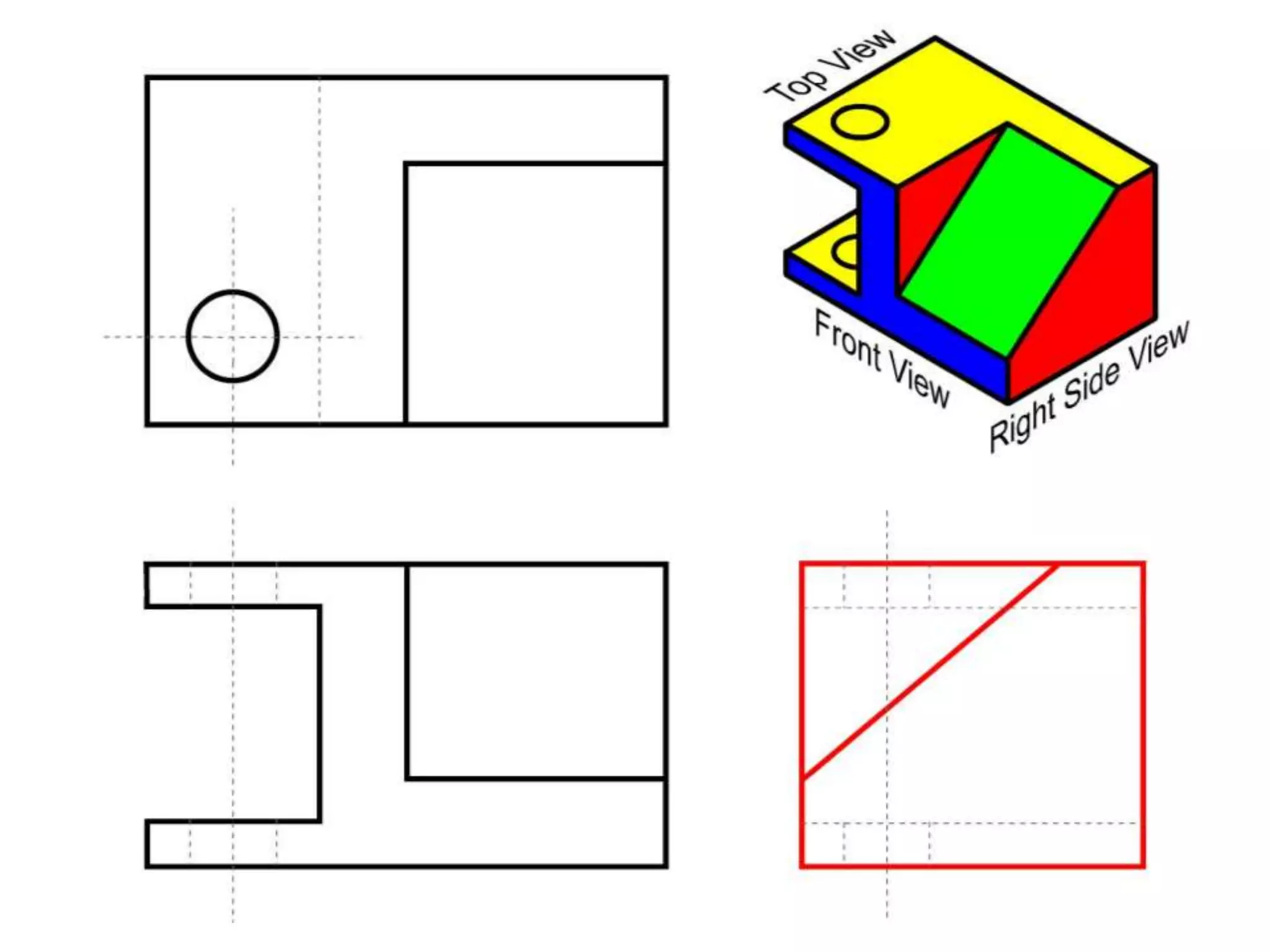
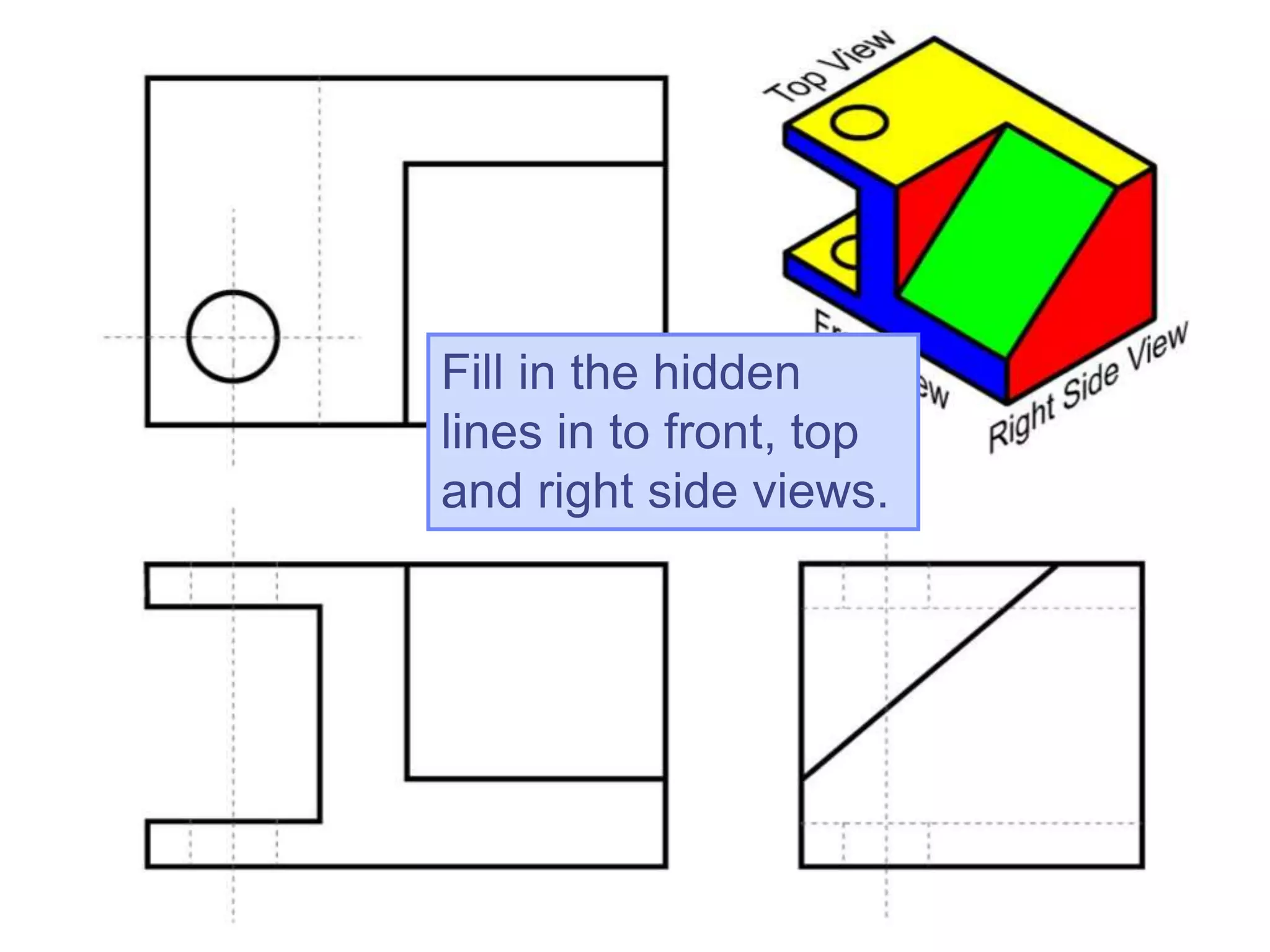
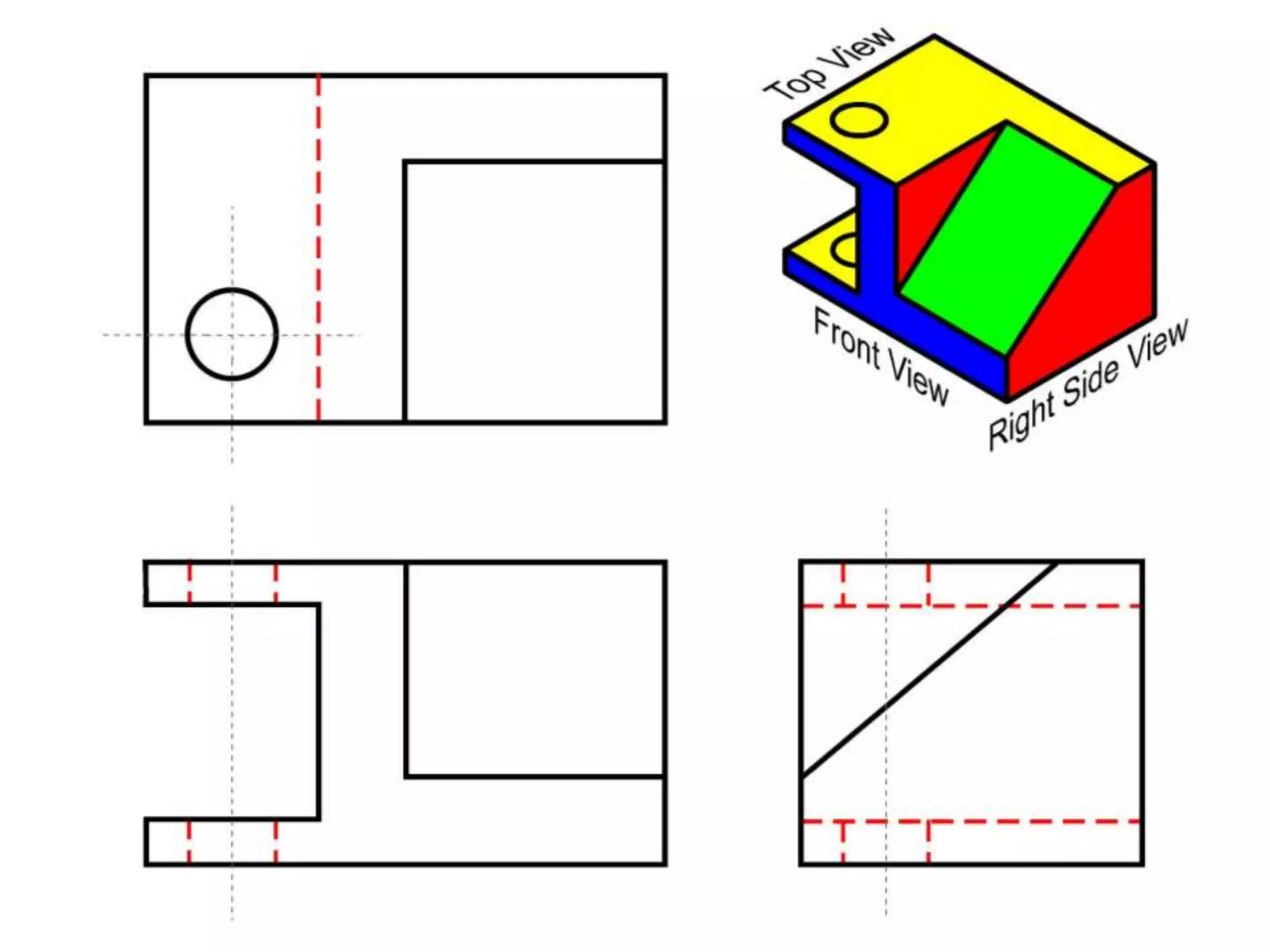
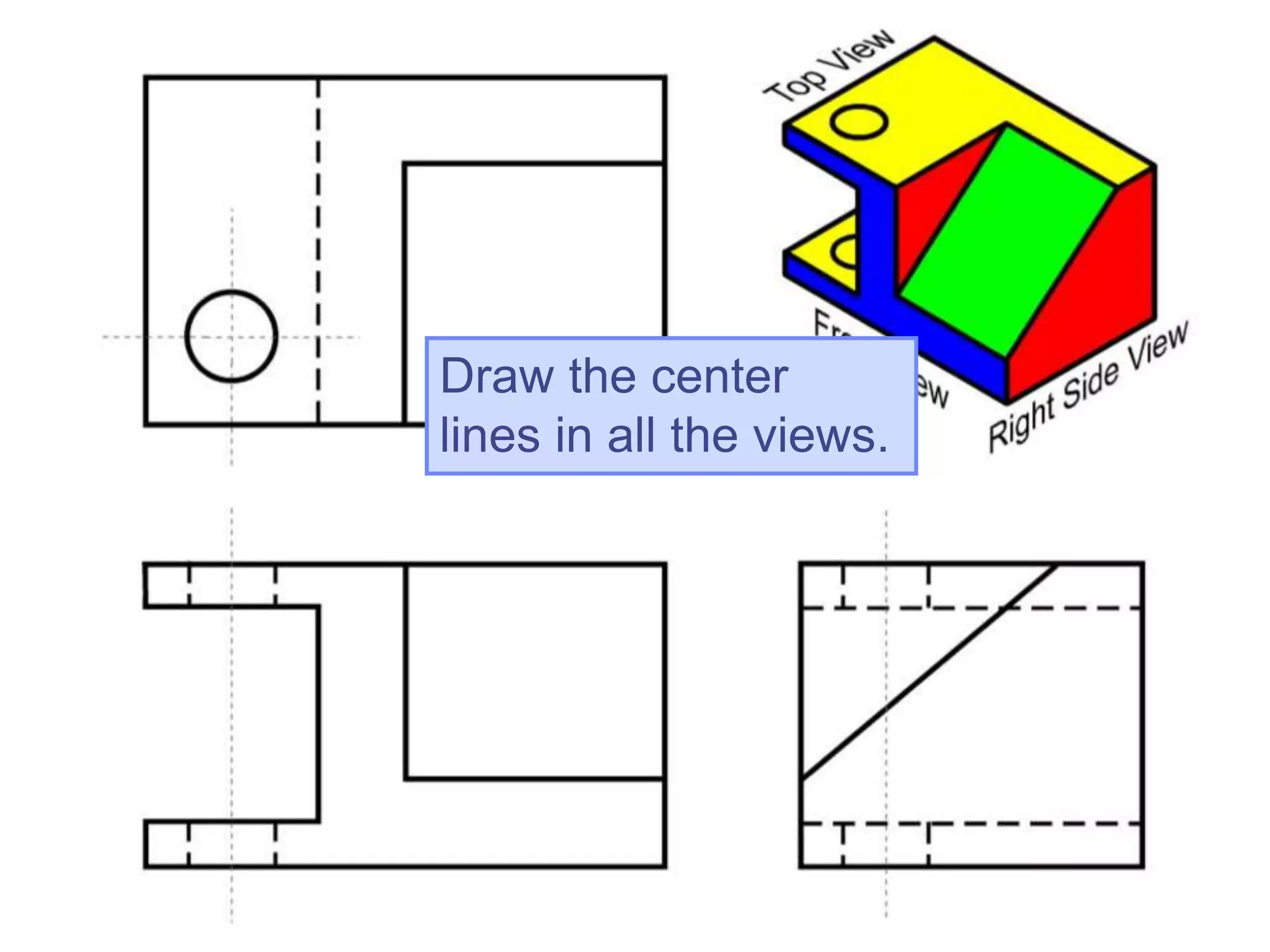
 Fill the following dotted orthographic
projection with the appropriate line types.
Fill in the visible
lines in to top view.
Fill in the visible
lines in to front view.
Fill in the visible lines
in to right side view.
Fill in the hidden
lines in to front, top
and right side views.
Draw the center
lines in all the views.
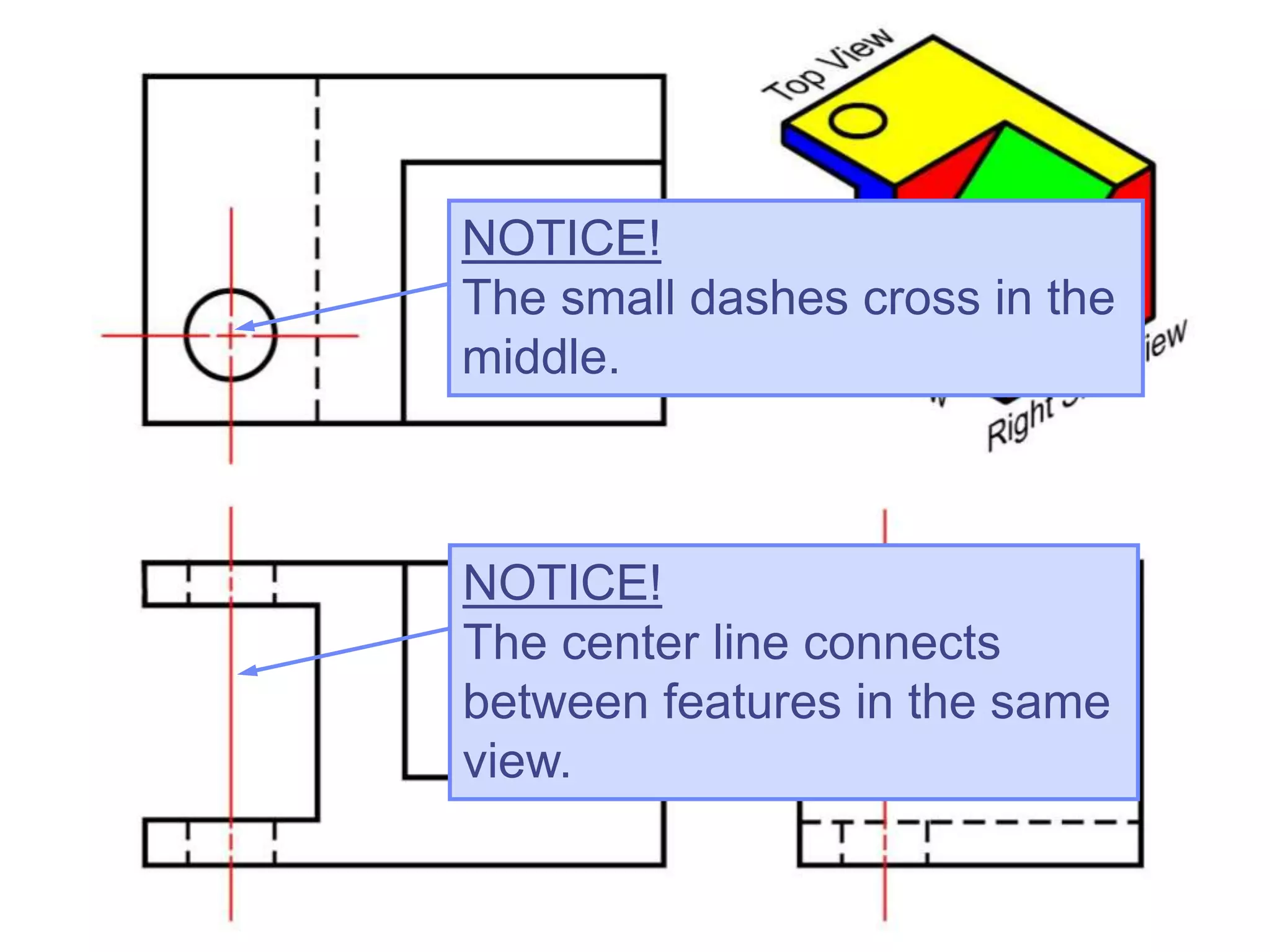
NOTICE!
The small dashes cross in the
middle.
NOTICE!
The center line connects
between features in the same
view.
Copyright ©2009 by K. Plantenberg
Restricted use only
Orthographic Projection
2.6) Rules for Line Creation and Use
Copyright ©2009 by K. Plantenberg
Restricted use only
Rules for Line Creation and Use
 The following rules will help us create
lines that communicate effectively.
→ CAUTION! Due to computer automation,
some of the rules may be hard to follow.
Copyright ©2009 by K. Plantenberg
Restricted use only
Using Hidden Lines
 Hidden lines represent edges and
boundaries that cannot be seen.
Copyright ©2009 by K. Plantenberg
Restricted use only
Creating Hidden Lines
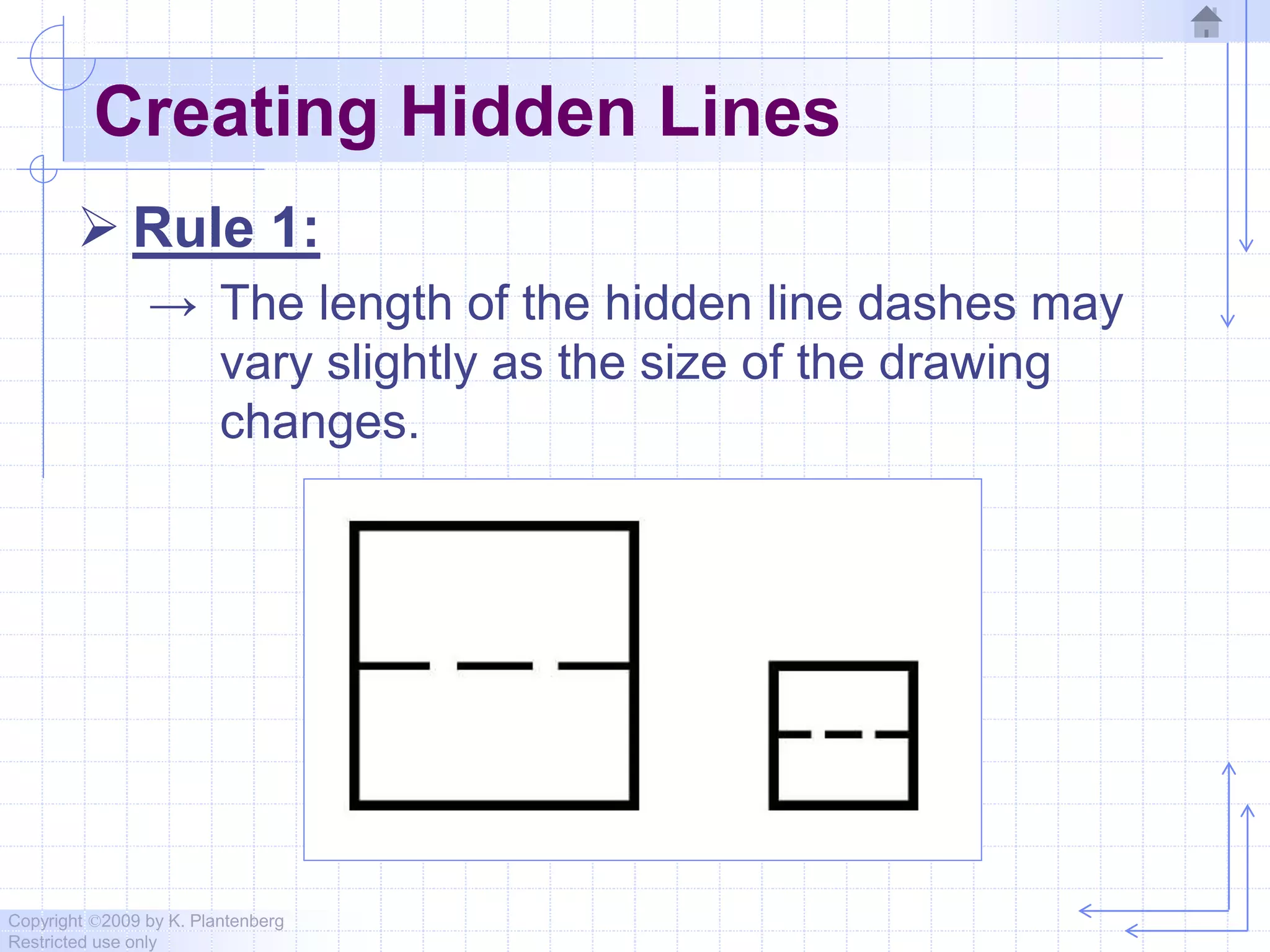
 Rule 1:
→ The length of the hidden line dashes may
vary slightly as the size of the drawing
changes.
Copyright ©2009 by K. Plantenberg
Restricted use only
Creating Hidden Lines
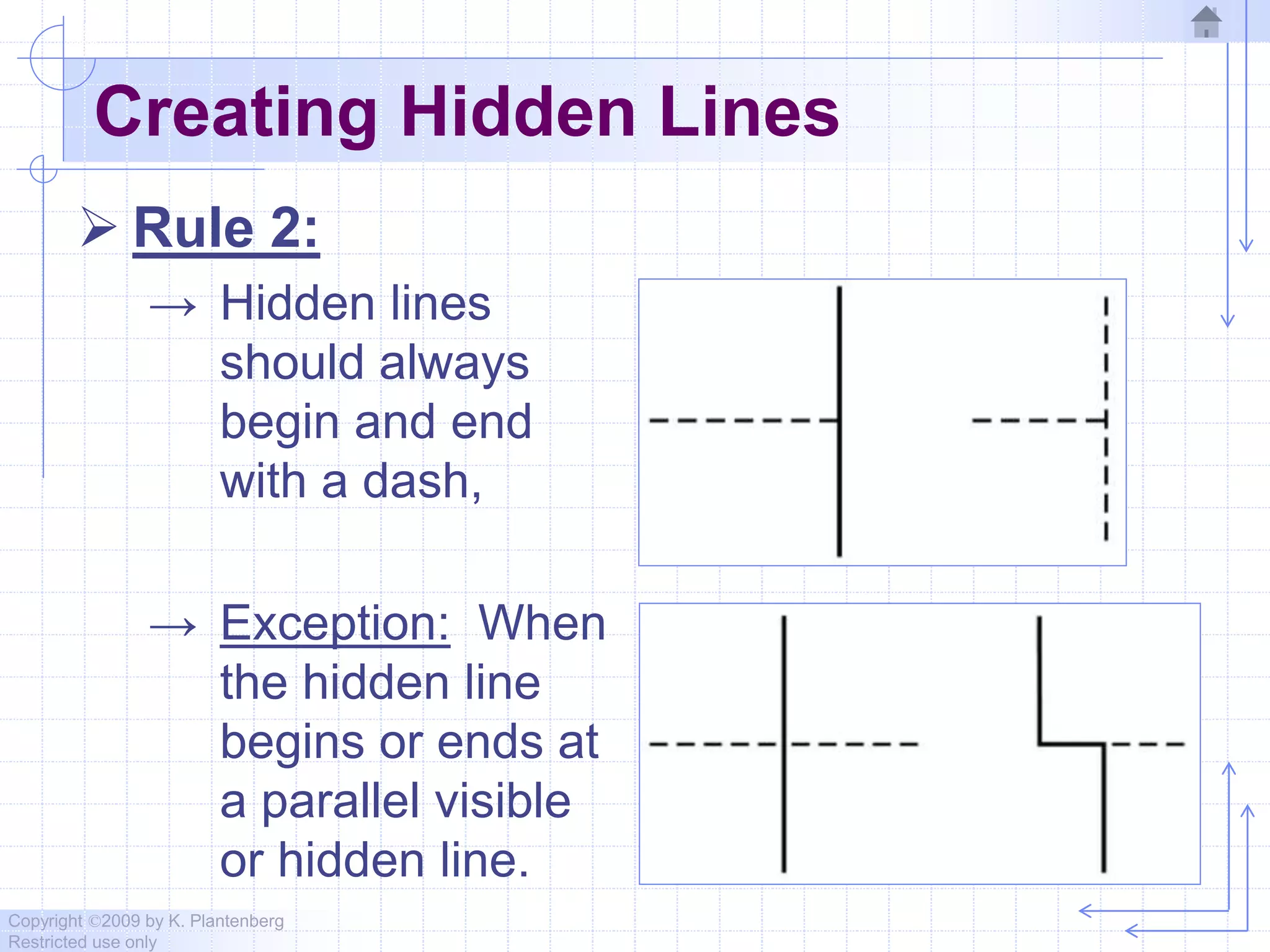
 Rule 2:
→ Hidden lines
should always
begin and end
with a dash,
→ Exception: When
the hidden line
begins or ends at
a parallel visible
or hidden line.
Copyright ©2009 by K. Plantenberg
Restricted use only
Creating Hidden Lines
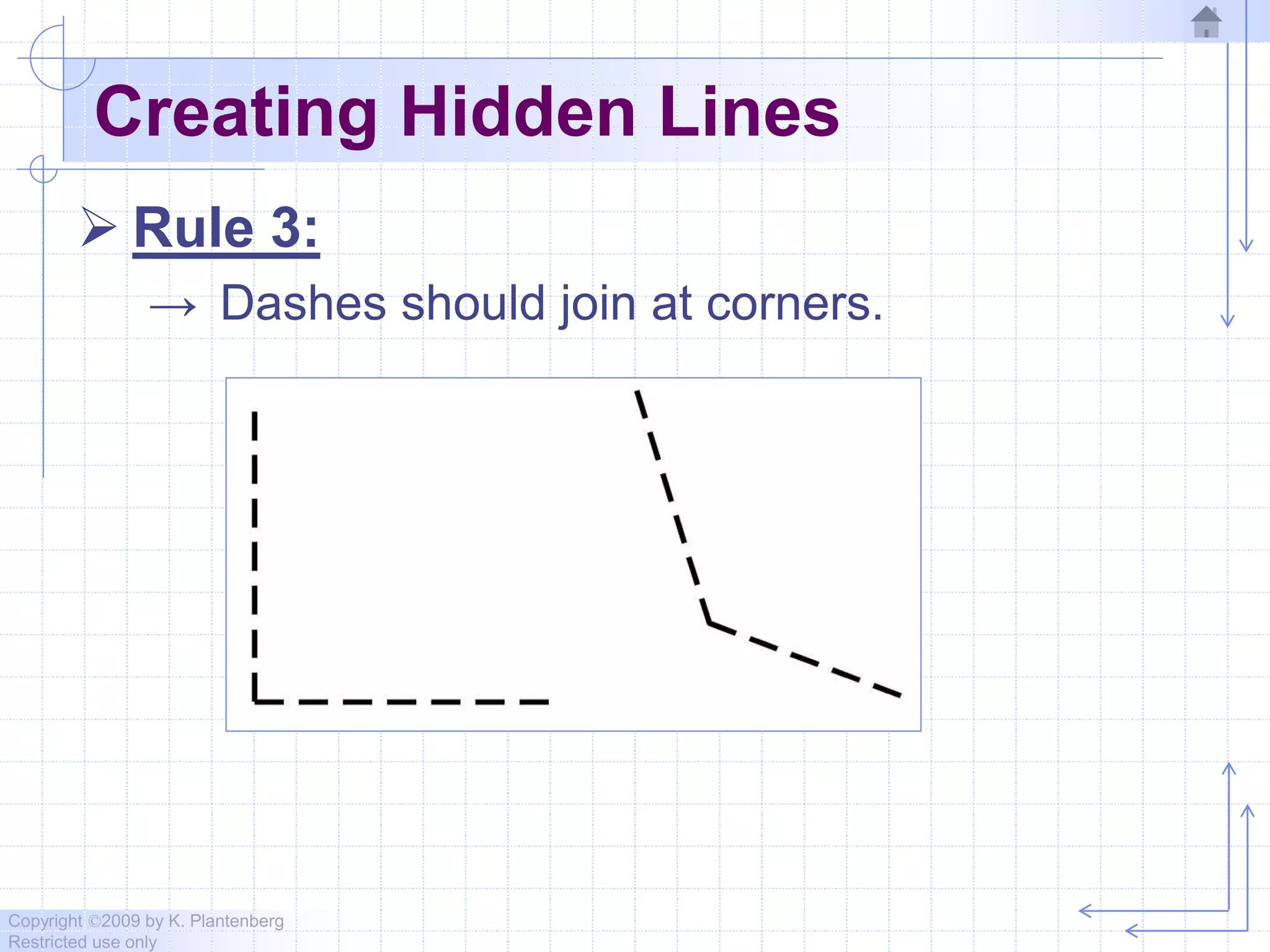
 Rule 3:
→ Dashes should join at corners.
Copyright ©2009 by K. Plantenberg
Restricted use only
Using Center Lines
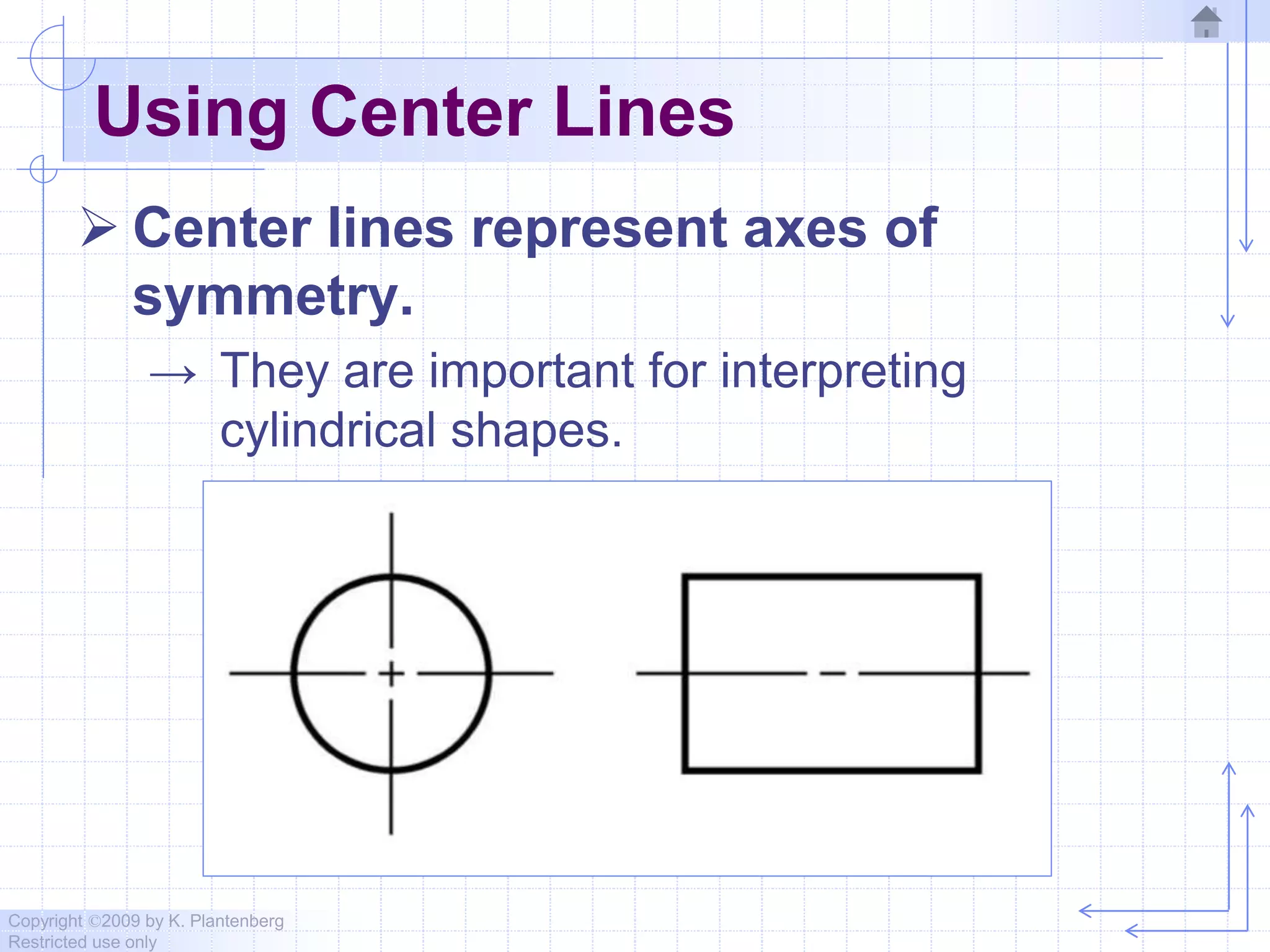
 Center lines represent axes of
symmetry.
→ They are important for interpreting
cylindrical shapes.
Copyright ©2009 by K. Plantenberg
Restricted use only
Using Center Lines
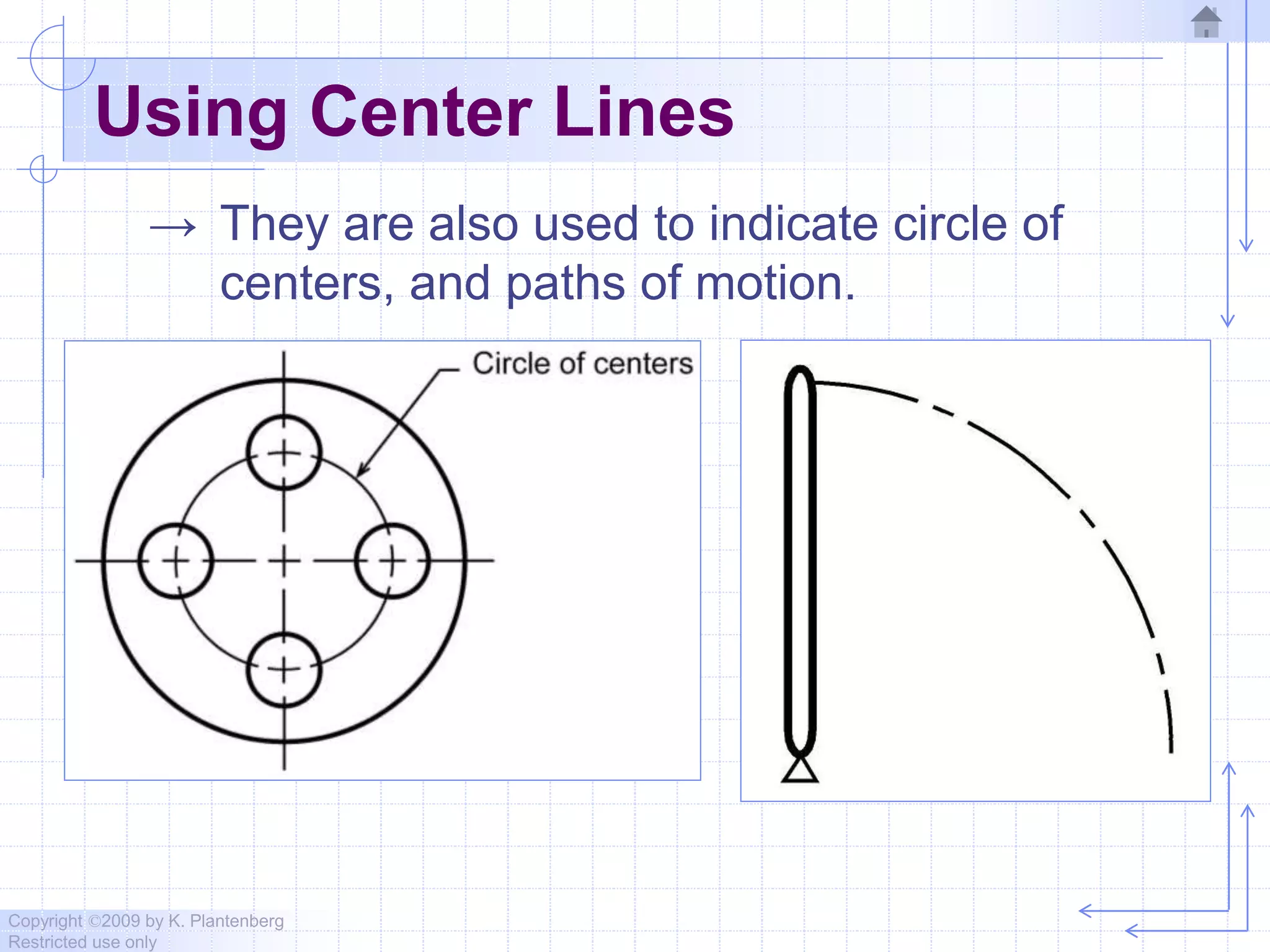
→ They are also used to indicate circle of
centers, and paths of motion.
Copyright ©2009 by K. Plantenberg
Restricted use only
Creating Center Lines
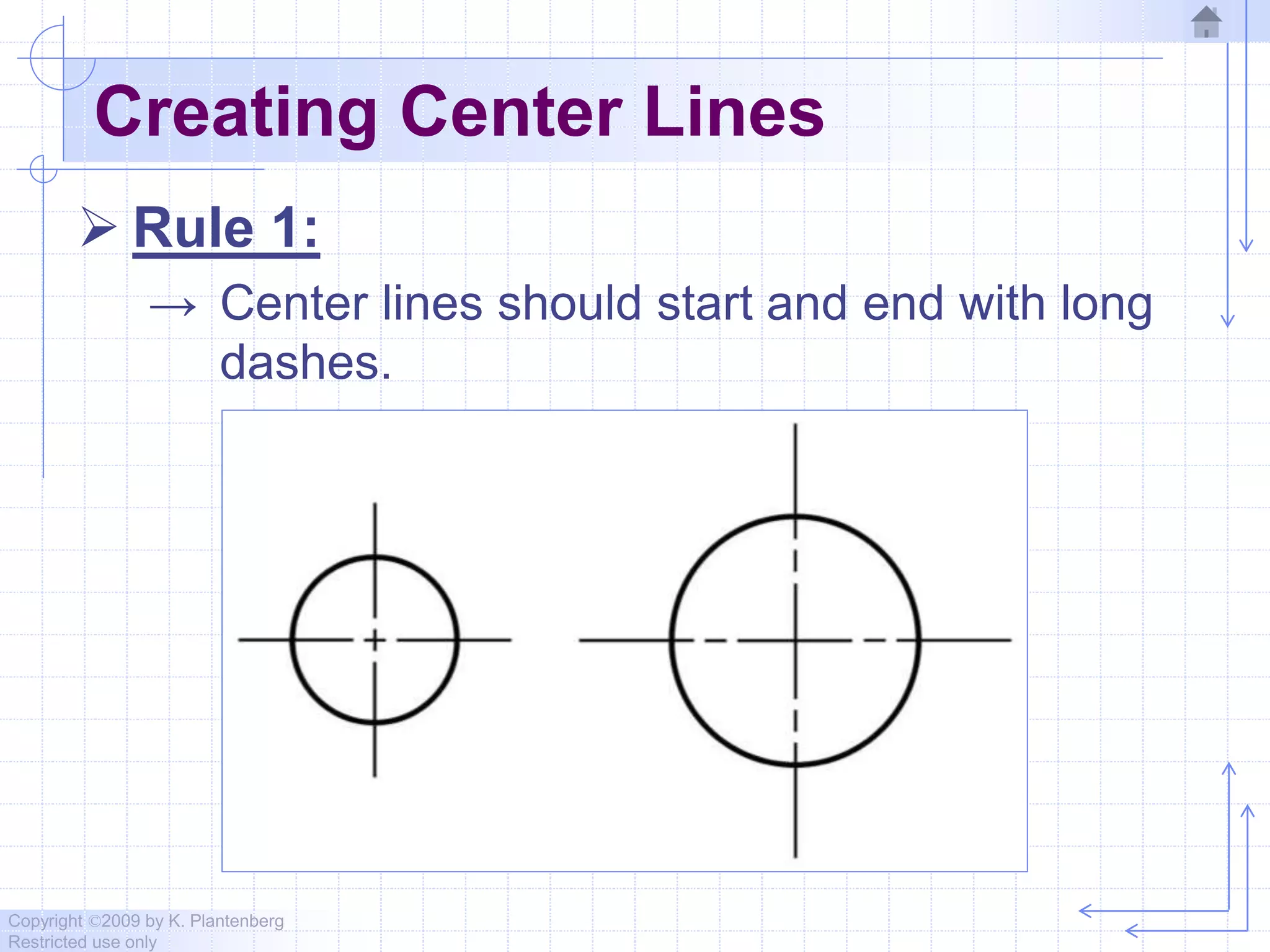
 Rule 1:
→ Center lines should start and end with long
dashes.
Copyright ©2009 by K. Plantenberg
Restricted use only
Creating Center Lines
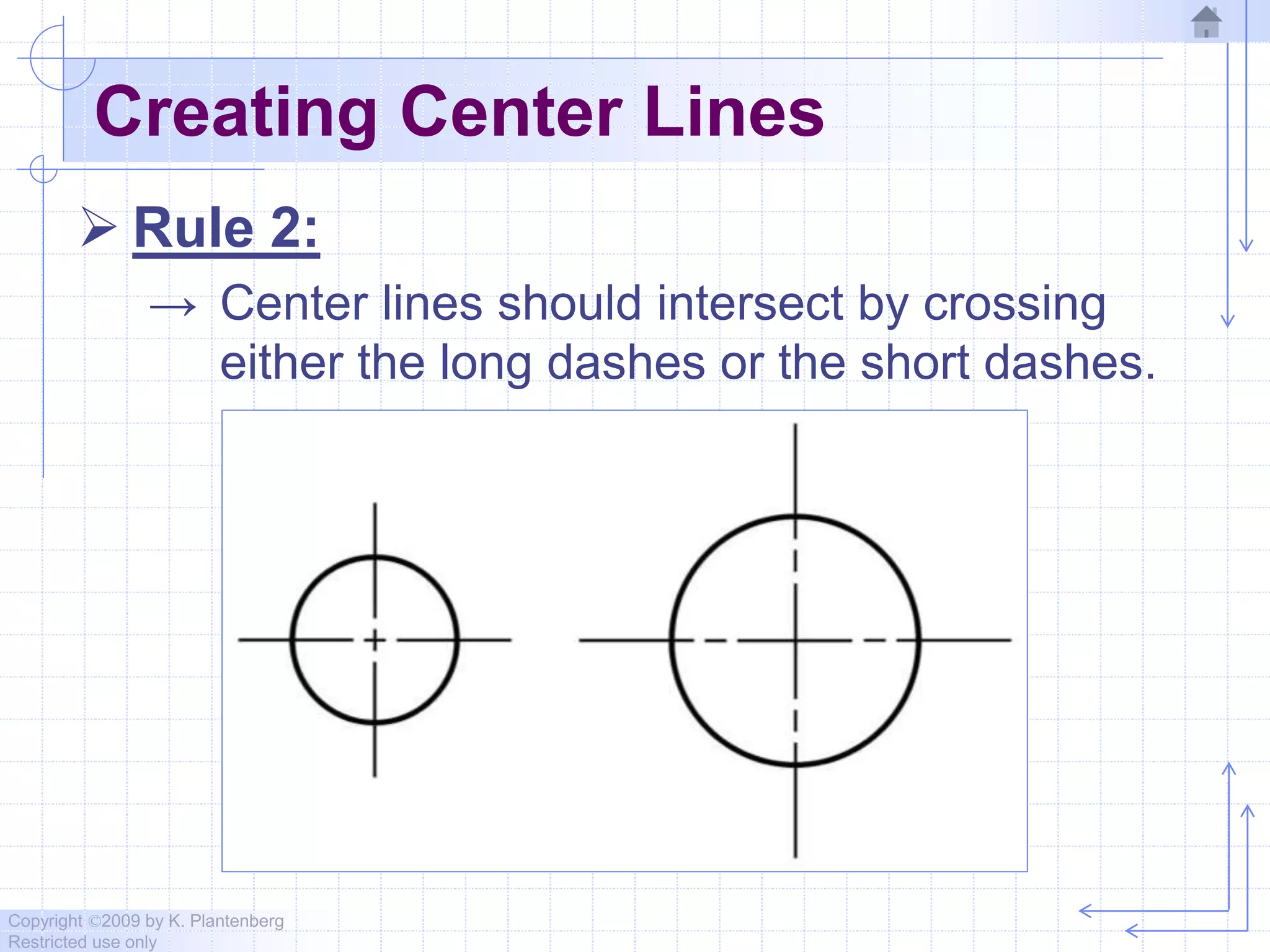
 Rule 2:
→ Center lines should intersect by crossing
either the long dashes or the short dashes.
Copyright ©2009 by K. Plantenberg
Restricted use only
Creating Center Lines
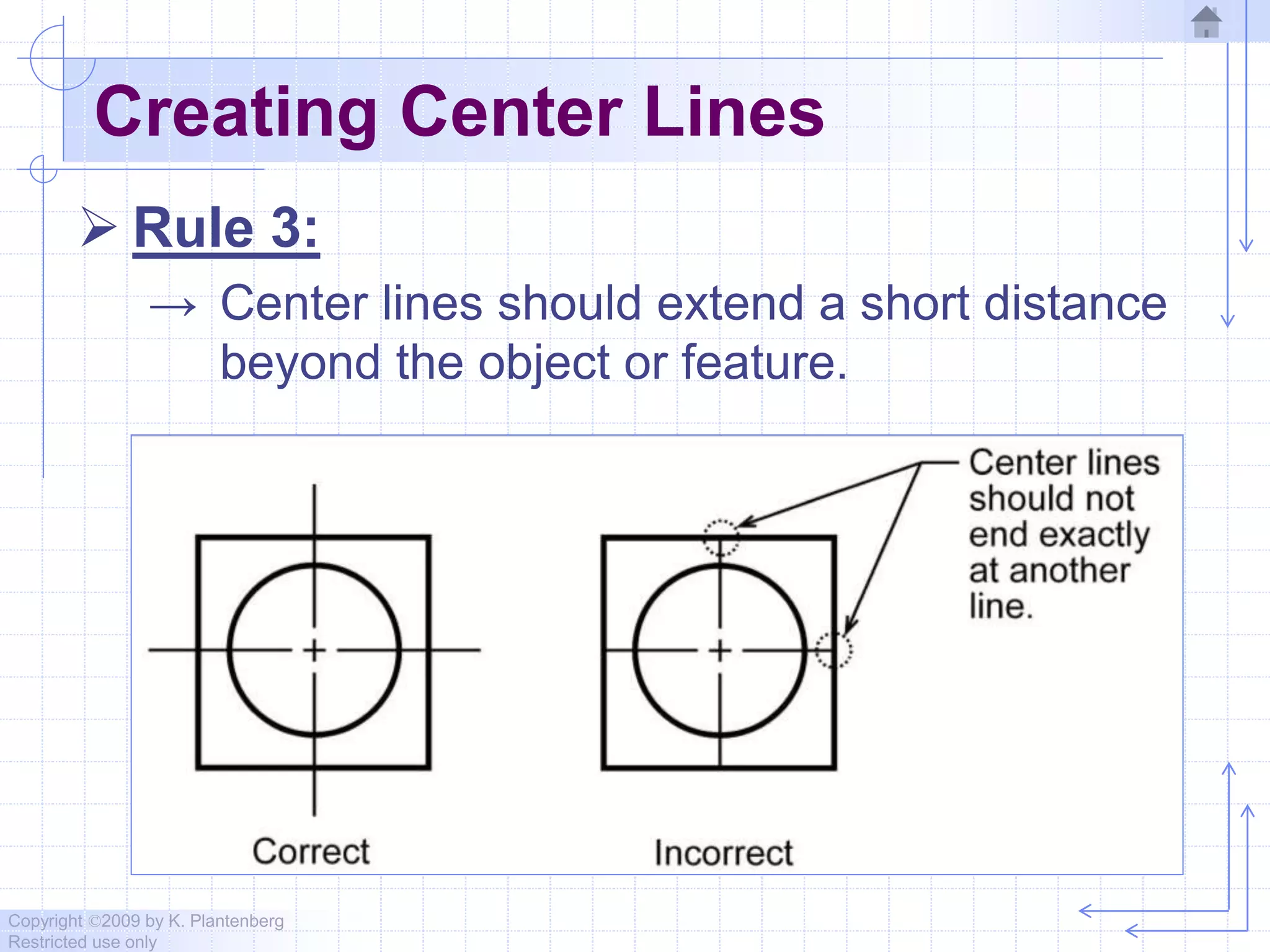
 Rule 3:
→ Center lines should extend a short distance
beyond the object or feature.
Copyright ©2009 by K. Plantenberg
Restricted use only
Creating Center Lines
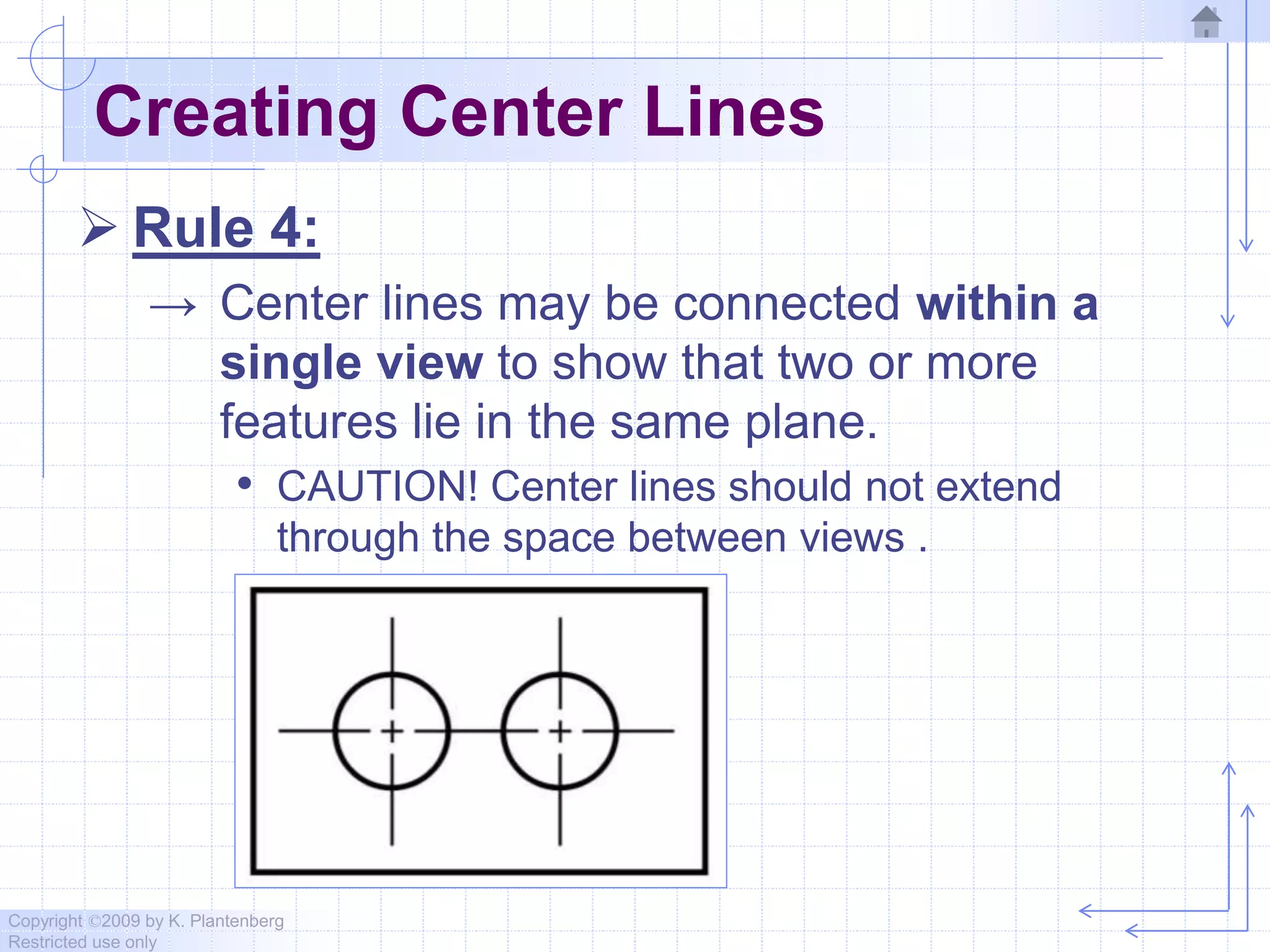
 Rule 4:
→ Center lines may be connected within a
single view to show that two or more
features lie in the same plane.
• CAUTION! Center lines should not extend
through the space between views .
Copyright ©2009 by K. Plantenberg
Restricted use only
Using Phantom Lines
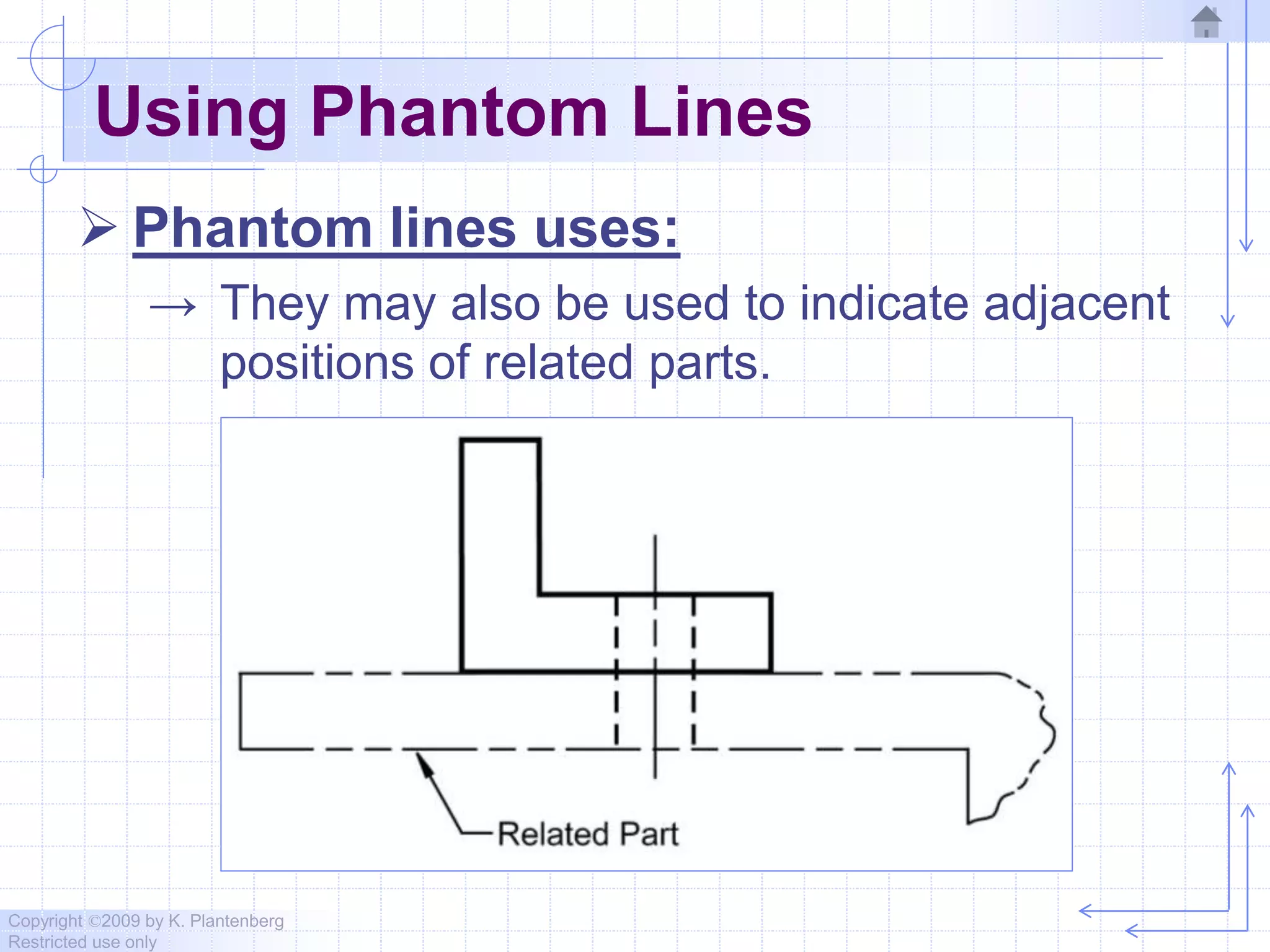
 Phantom lines uses:
→ They may also be used to indicate adjacent
positions of related parts.
Copyright ©2009 by K. Plantenberg
Restricted use only
Using Phantom Lines
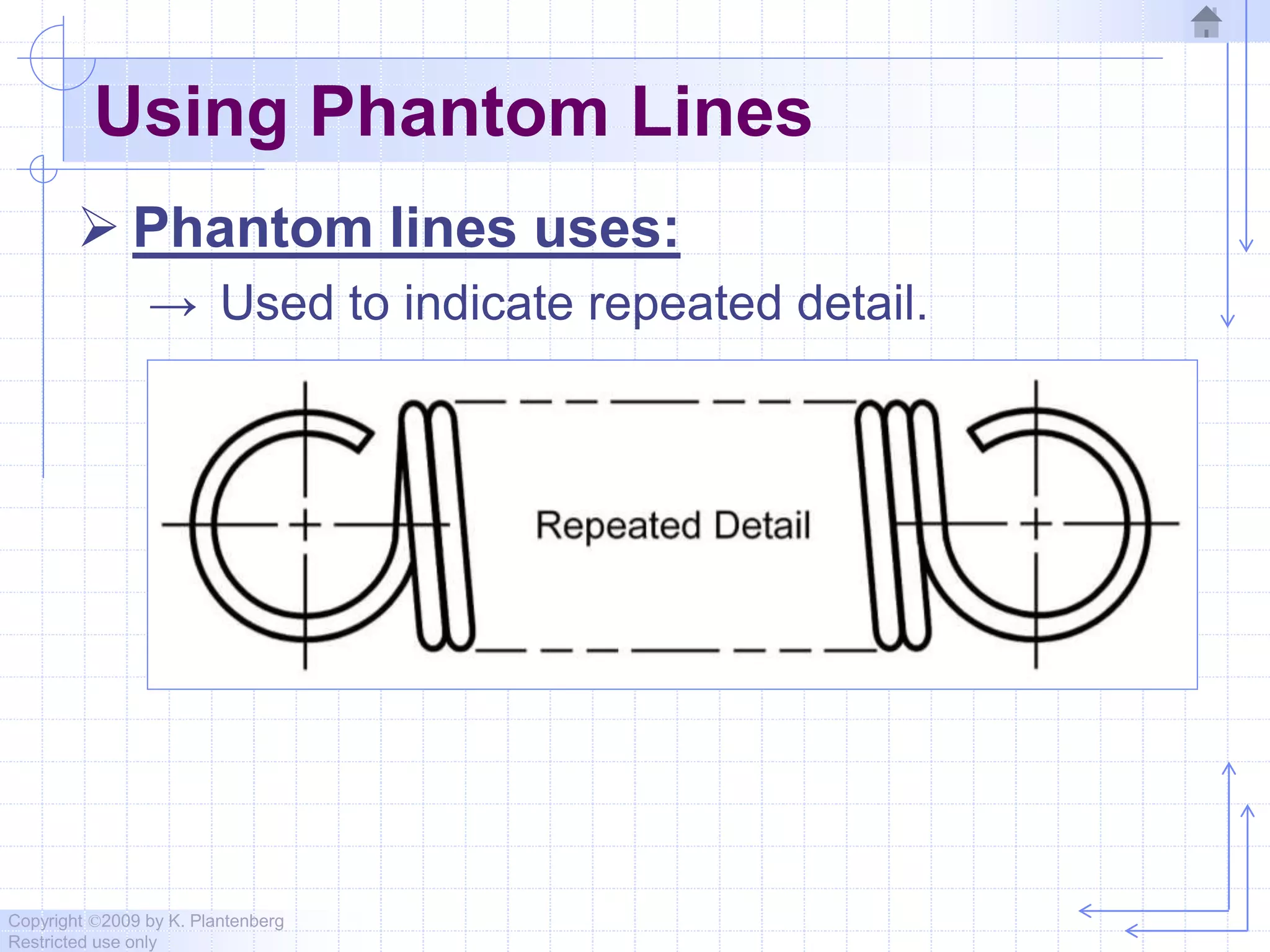
 Phantom lines uses:
→ Used to indicate repeated detail.
Copyright ©2009 by K. Plantenberg
Restricted use only
Using Phantom Lines
 Phantom lines uses:
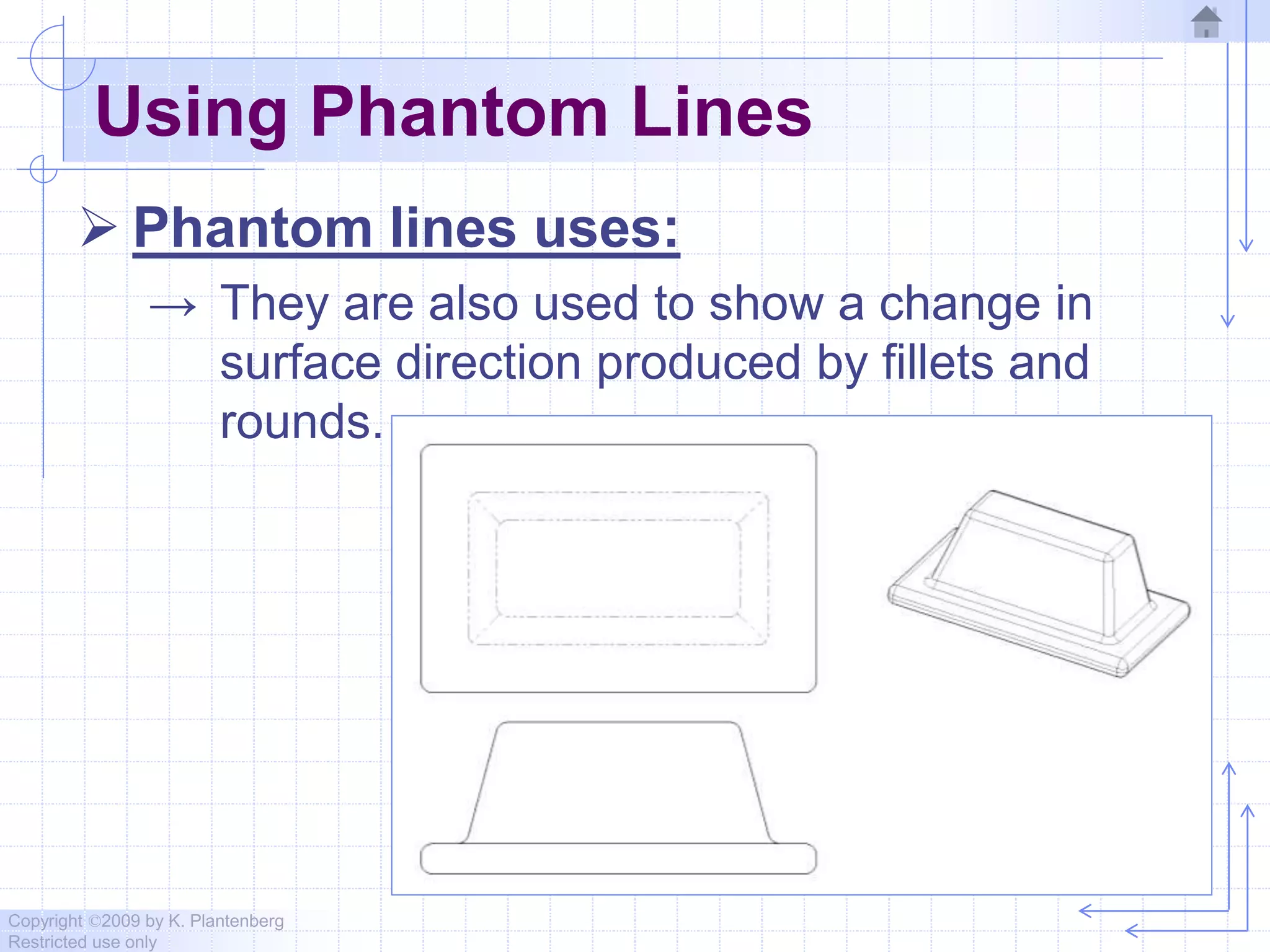
→ They are also used to show a change in
surface direction produced by fillets and
rounds.
Copyright ©2009 by K. Plantenberg
Restricted use only
Using Phantom Lines
 Phantom lines uses:
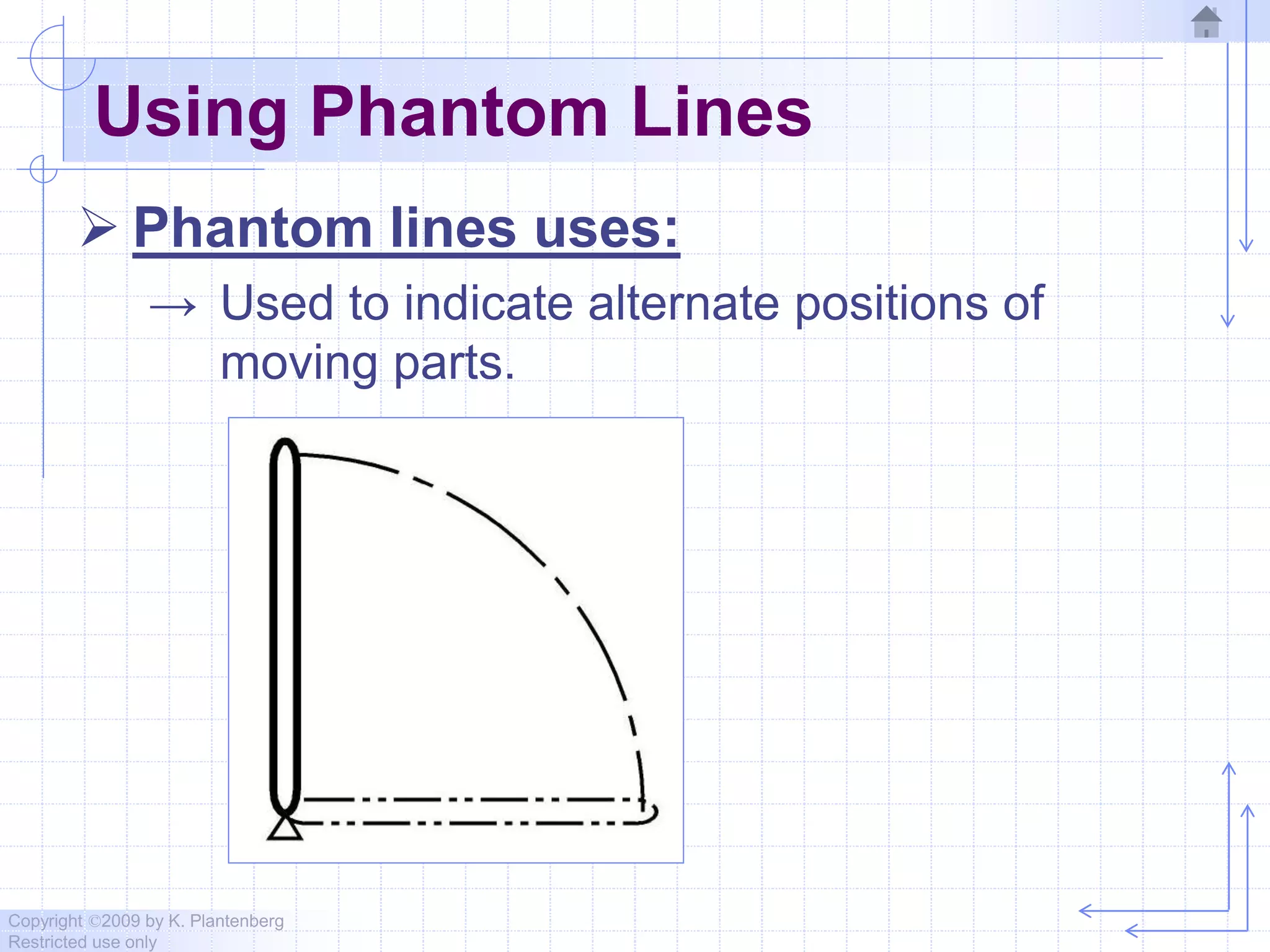
→ Used to indicate alternate positions of
moving parts.
Copyright ©2009 by K. Plantenberg
Restricted use only
Creating Phantom Lines
 Rule 1:
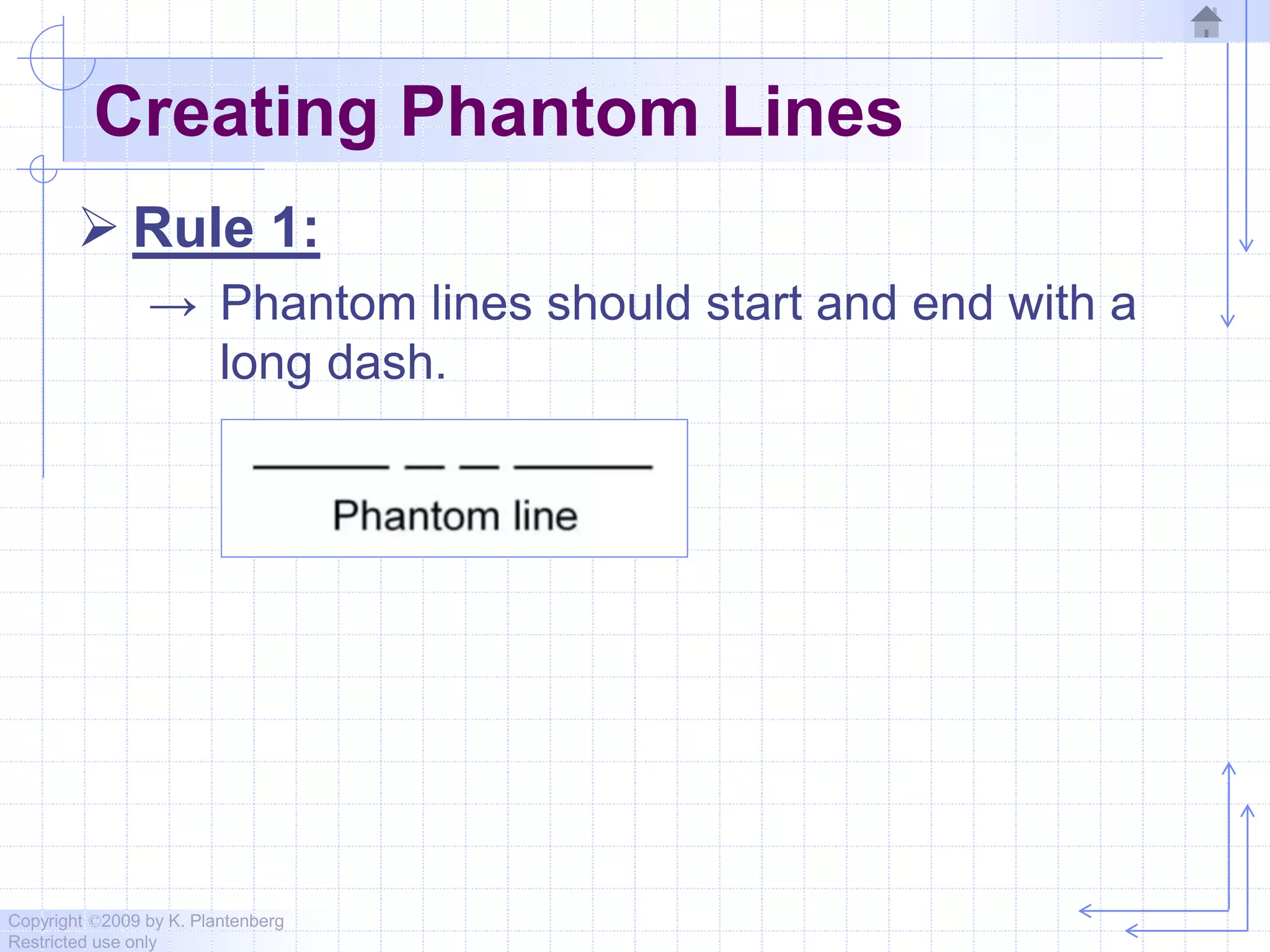
→ Phantom lines should start and end with a
long dash.
Copyright ©2009 by K. Plantenberg
Restricted use only
Using Break Lines
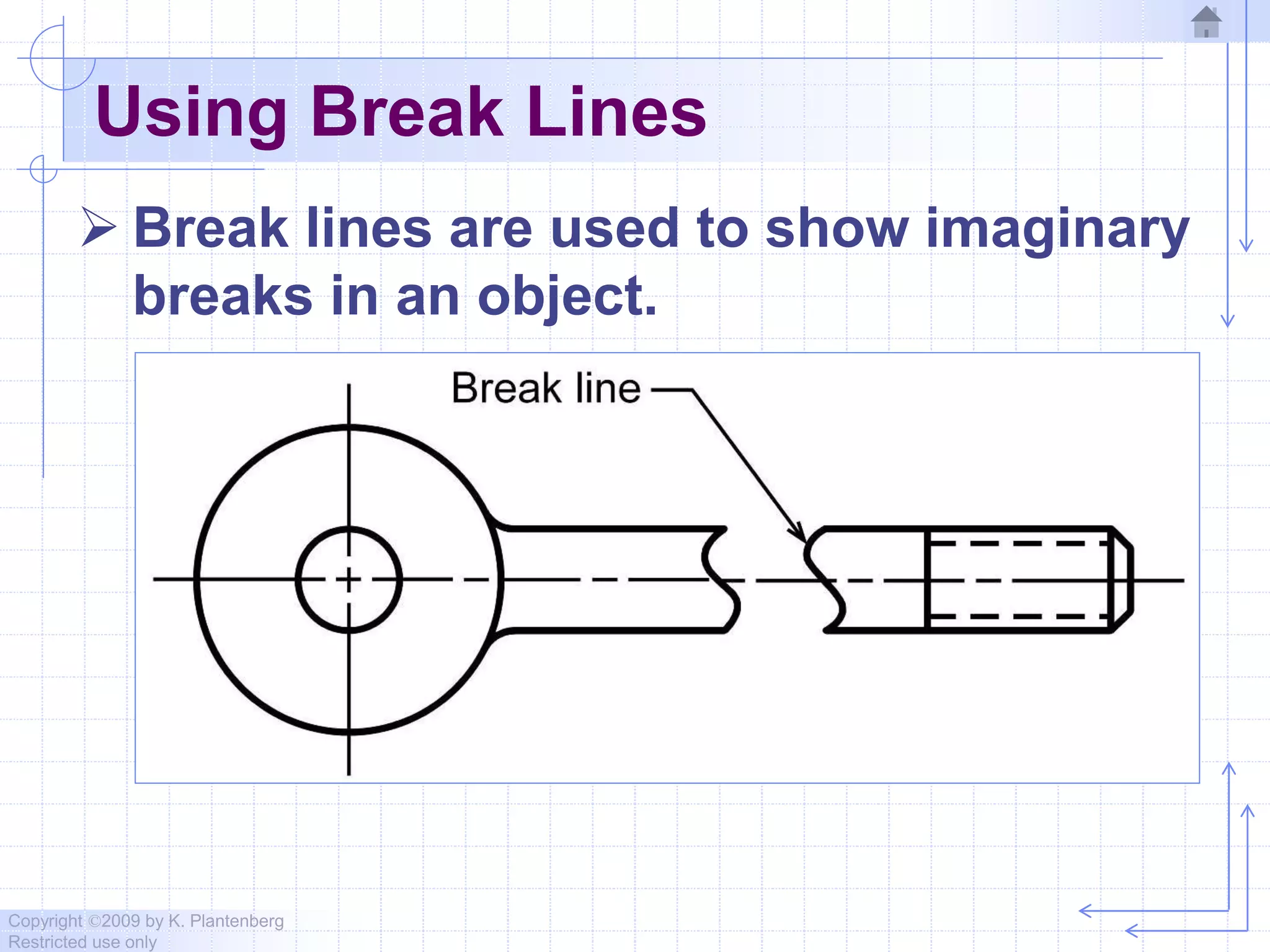
 Break lines are used to show imaginary
breaks in an object.
Copyright ©2009 by K. Plantenberg
Restricted use only
Creating Break Lines
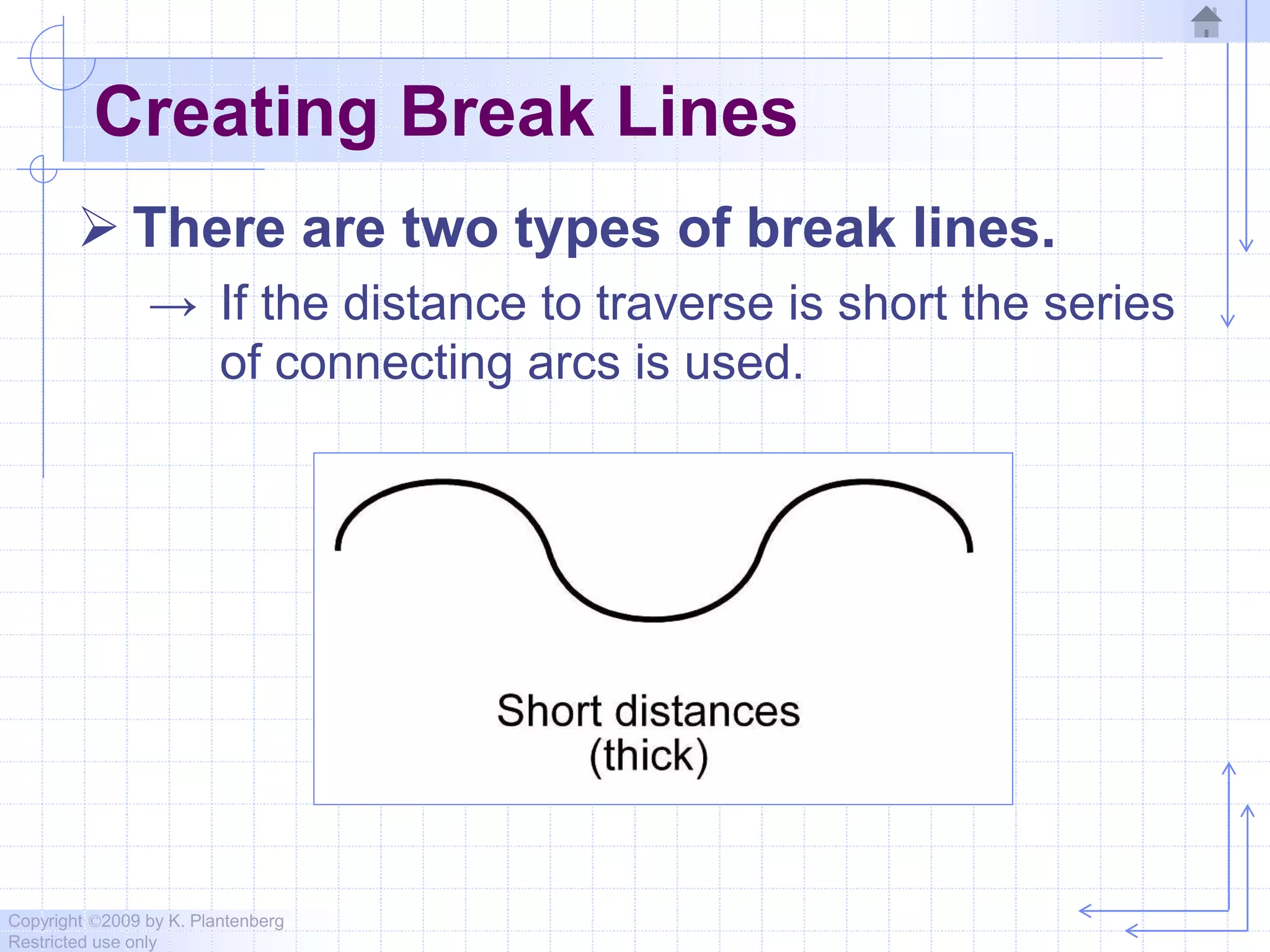
 There are two types of break lines.
→ If the distance to traverse is short the series
of connecting arcs is used.
Copyright ©2009 by K. Plantenberg
Restricted use only
Creating Break Lines
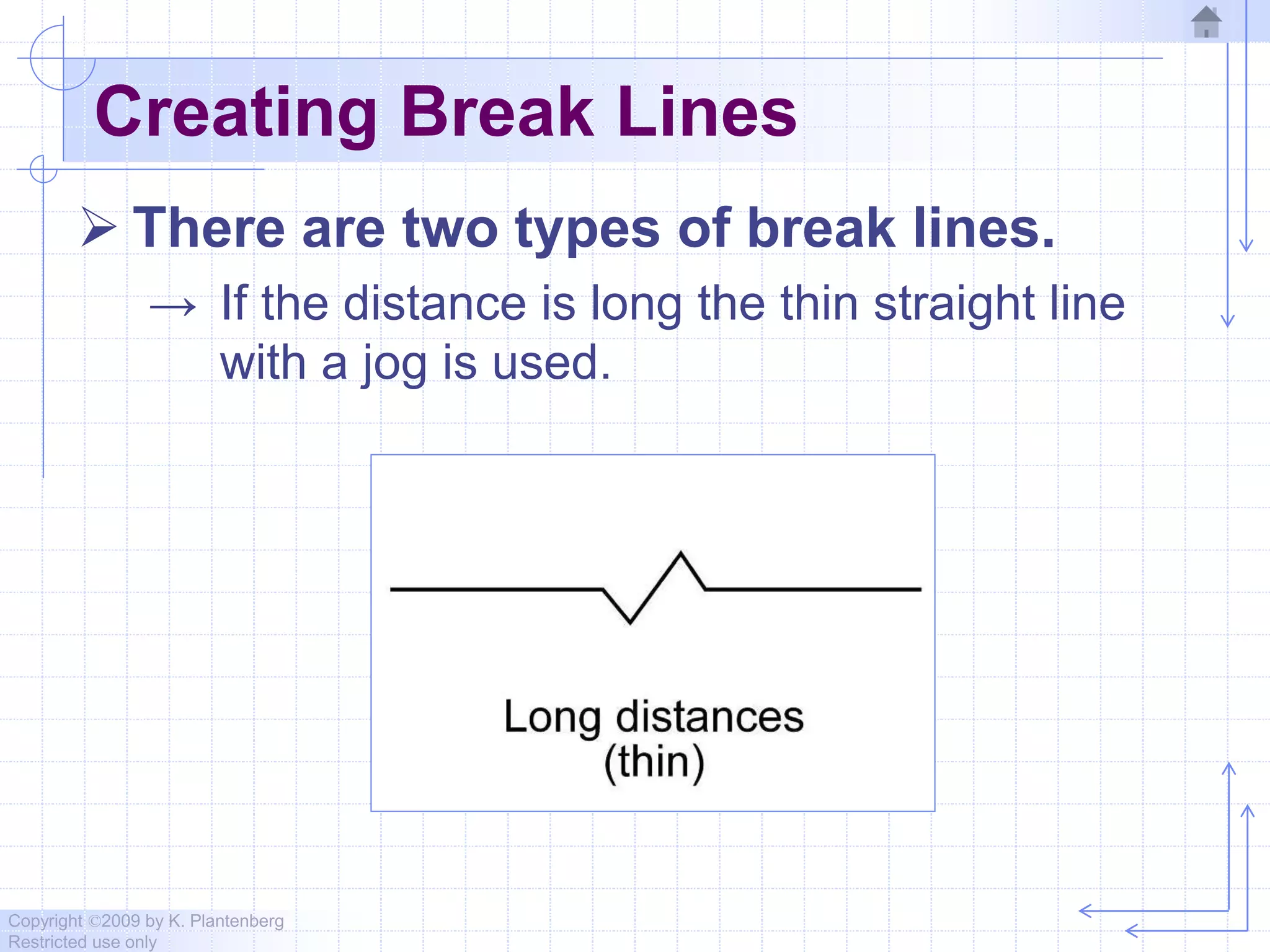
 There are two types of break lines.
→ If the distance is long the thin straight line
with a jog is used.
Copyright ©2009 by K. Plantenberg
Restricted use only
Line Precedence
 If two lines occur in the same place, the
line that is considered to be the least
important is omitted.
 Lines in order of precedence/importance
are as follows;
→ Cutting plane line
→ Visible line
→ Hidden line
→ Centerline
Copyright ©2009 by K. Plantenberg
Restricted use only
Orthographic Projection
2.7) Creating an
Orthographic Projection
Copyright ©2009 by K. Plantenberg
Restricted use only
Creating an Orthographic Projection
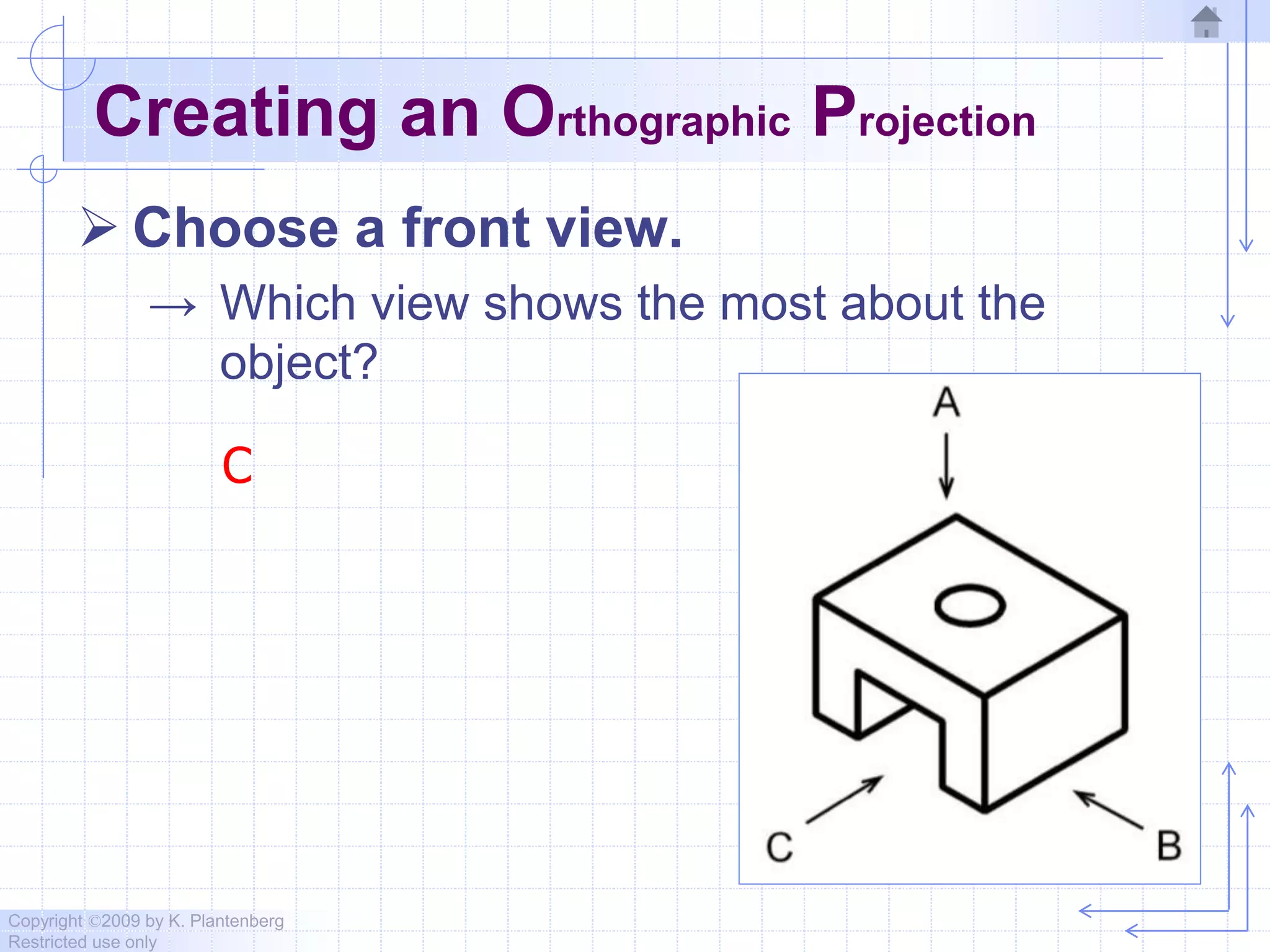
 Choose a front view.
→ Which view shows the most about the
object?
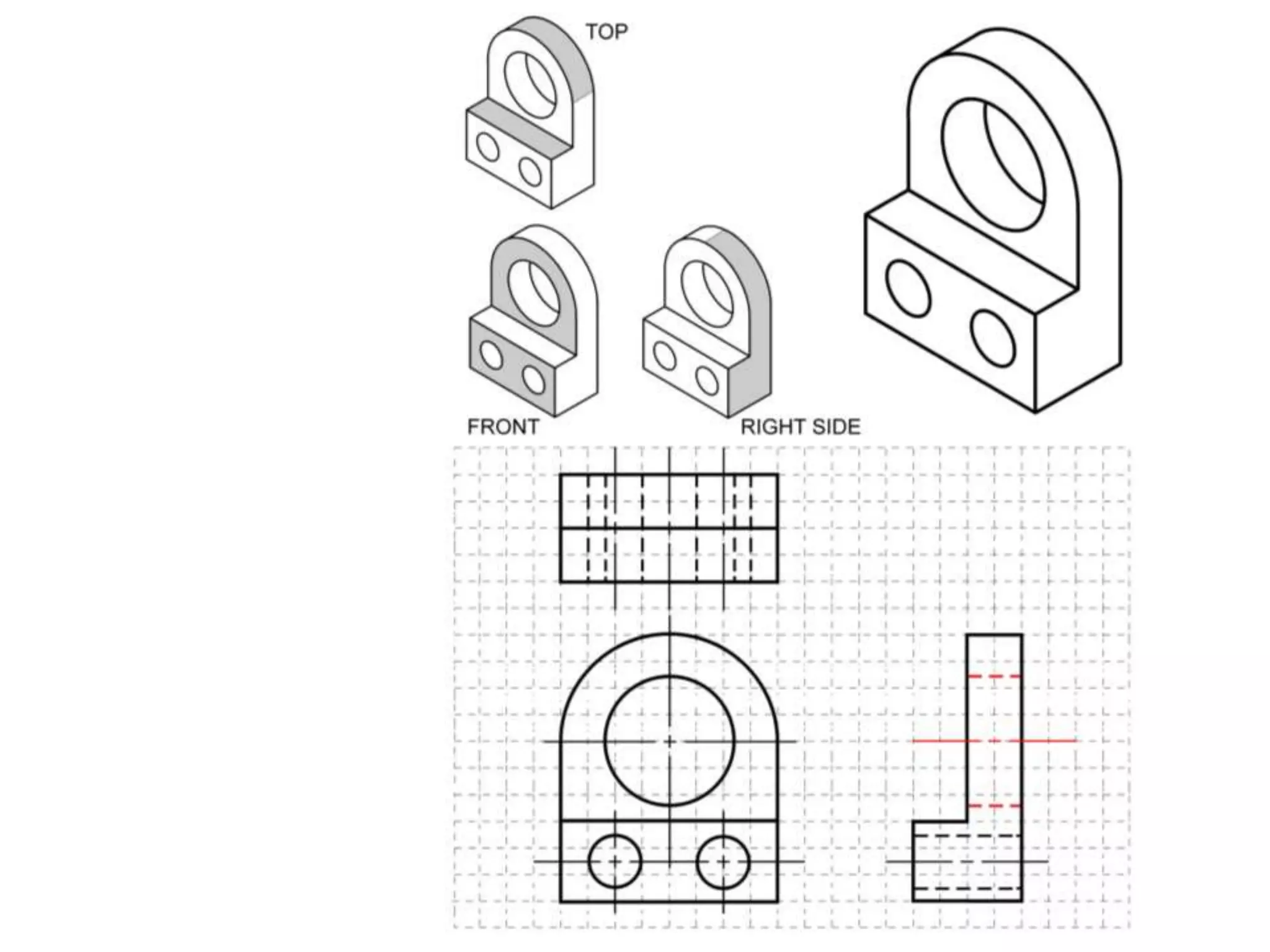
C
Copyright ©2009 by K. Plantenberg
Restricted use only
Creating an Orthographic Projection
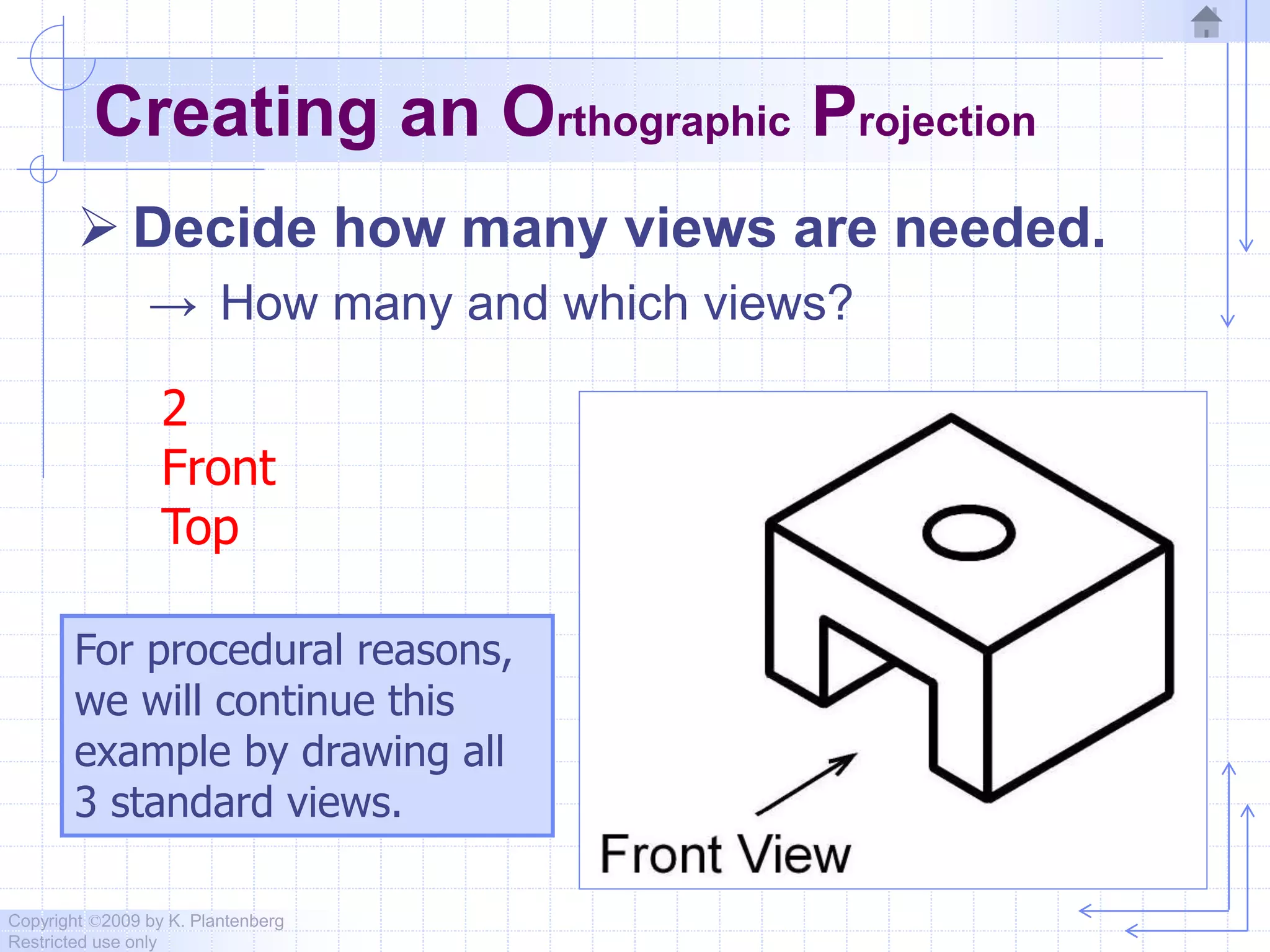
 Decide how many views are needed.
→ How many and which views?
2
Front
Top
For procedural reasons,
we will continue this
example by drawing all
3 standard views.
Copyright ©2009 by K. Plantenberg
Restricted use only
Creating an Orthographic Projection
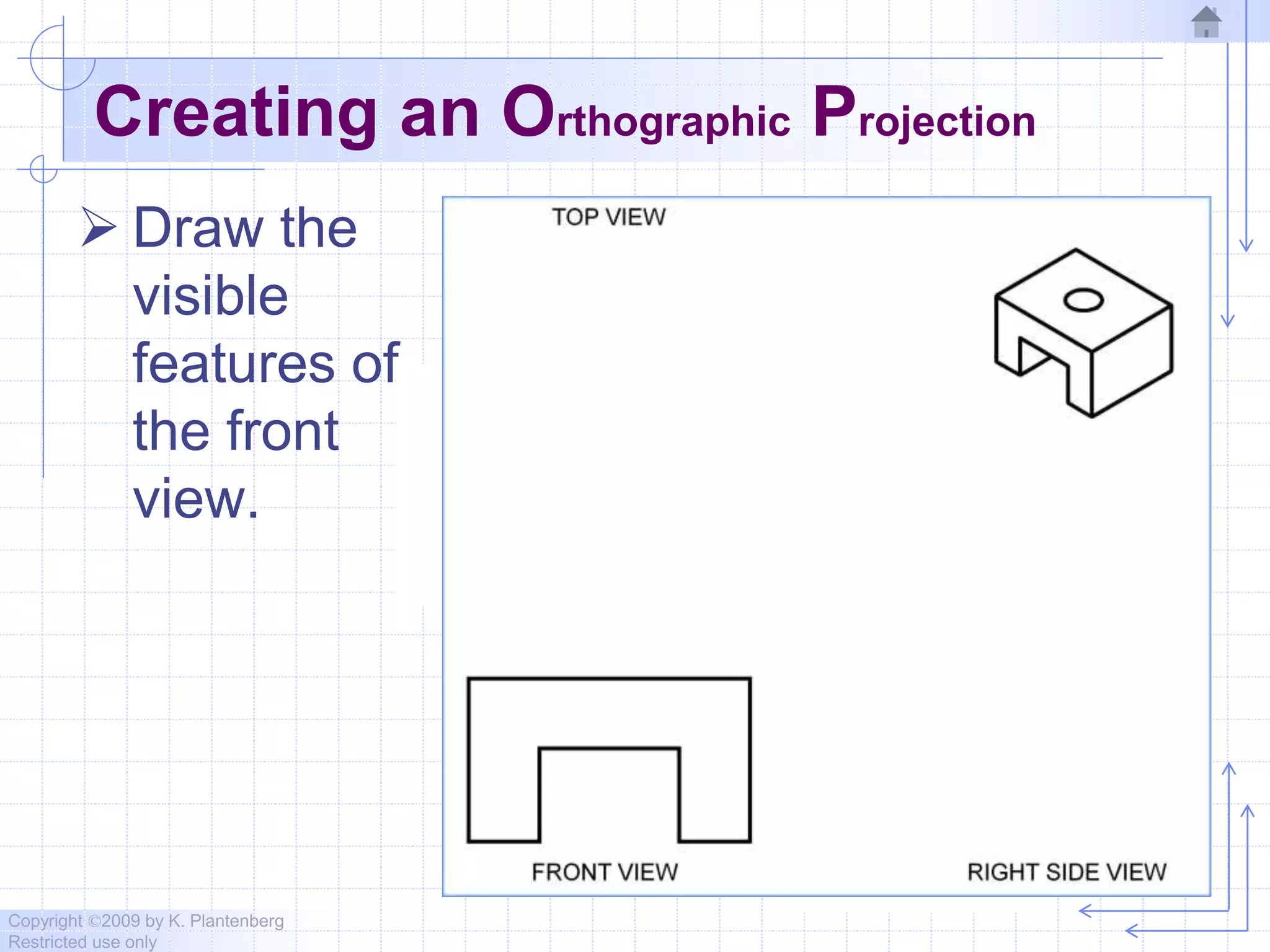
 Draw the
visible
features of
the front
view.
Copyright ©2009 by K. Plantenberg
Restricted use only
Creating an Orthographic Projection
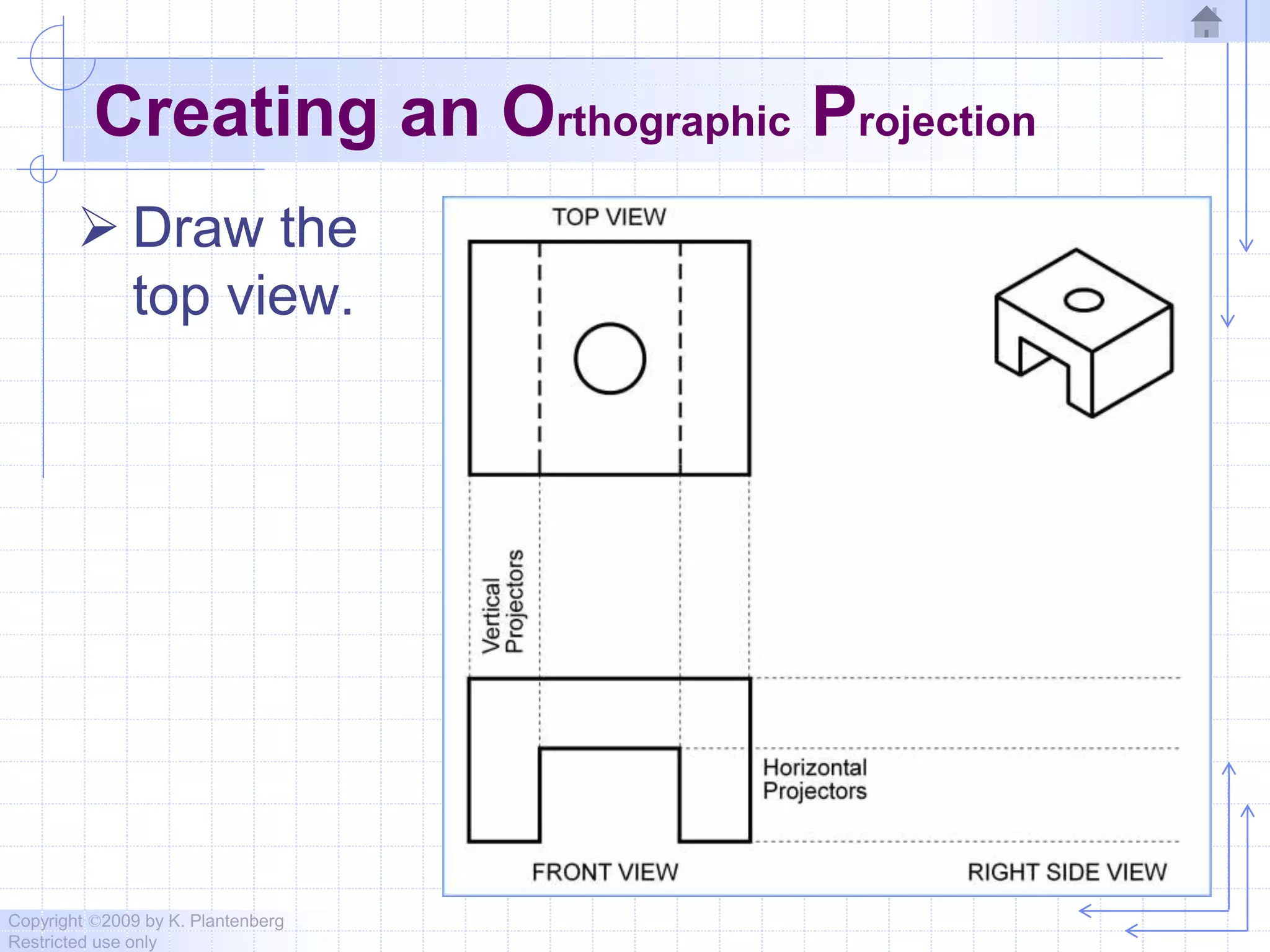
 Draw
projectors
off of the
front view.
Copyright ©2009 by K. Plantenberg
Restricted use only
Creating an Orthographic Projection
 Draw the
top view.
Copyright ©2009 by K. Plantenberg
Restricted use only
Creating an Orthographic Projection
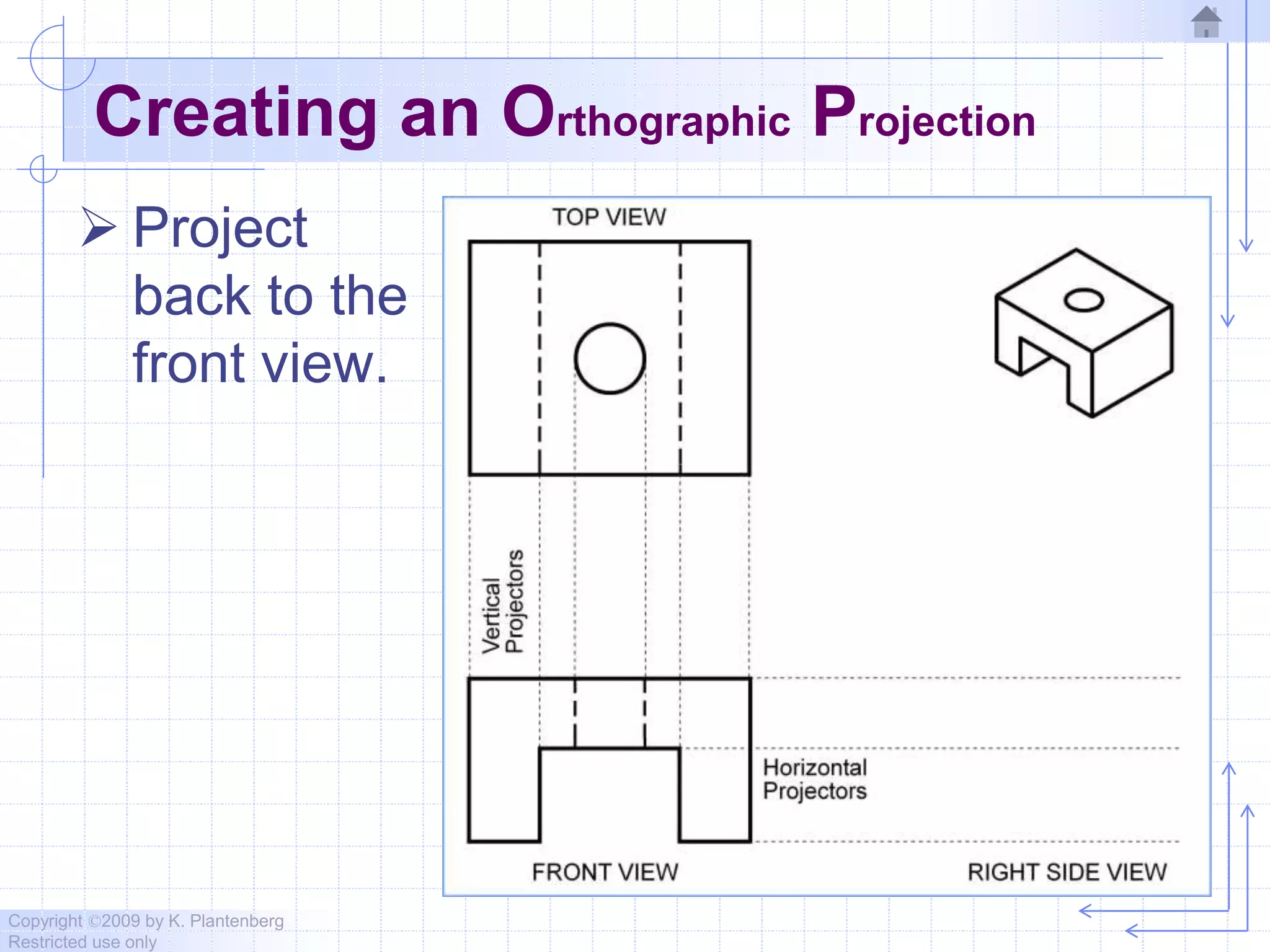
 Project
back to the
front view.
Copyright ©2009 by K. Plantenberg
Restricted use only
Creating an Orthographic Projection
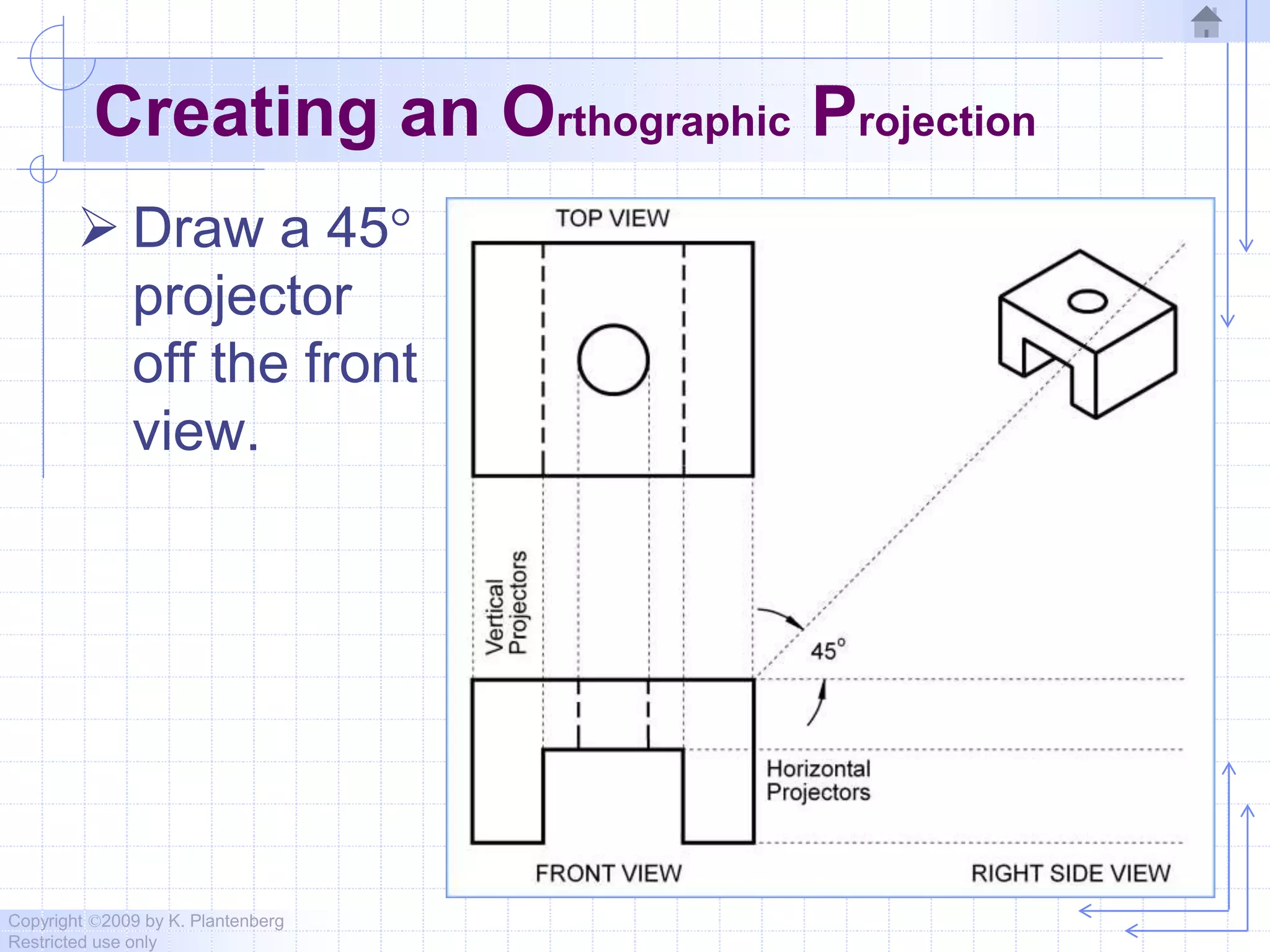
 Draw a 45
projector
off the front
view.
Copyright ©2009 by K. Plantenberg
Restricted use only
Creating an Orthographic Projection
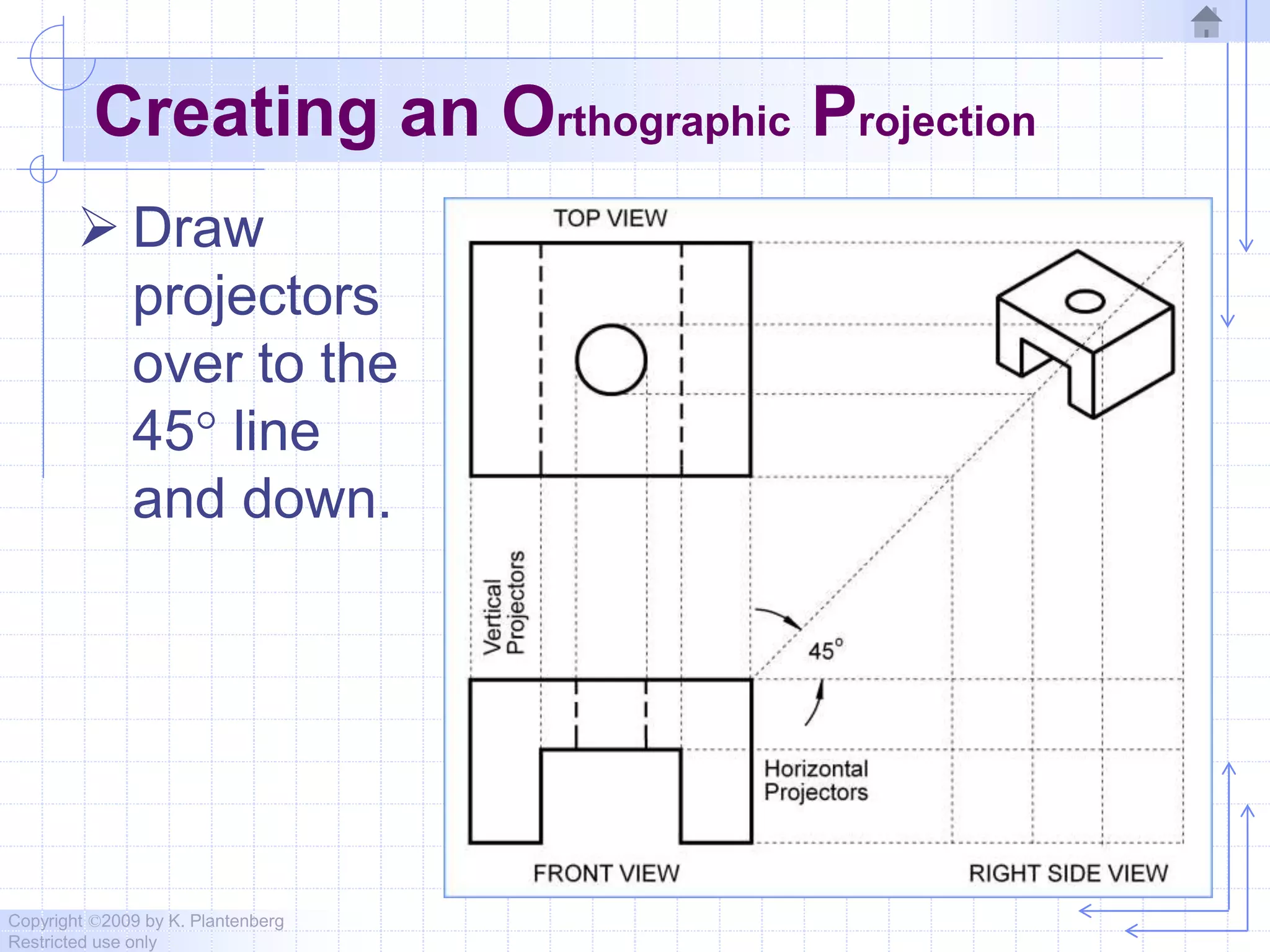
 Draw
projectors
over to the
45 line
and down.
Copyright ©2009 by K. Plantenberg
Restricted use only
Creating an Orthographic Projection
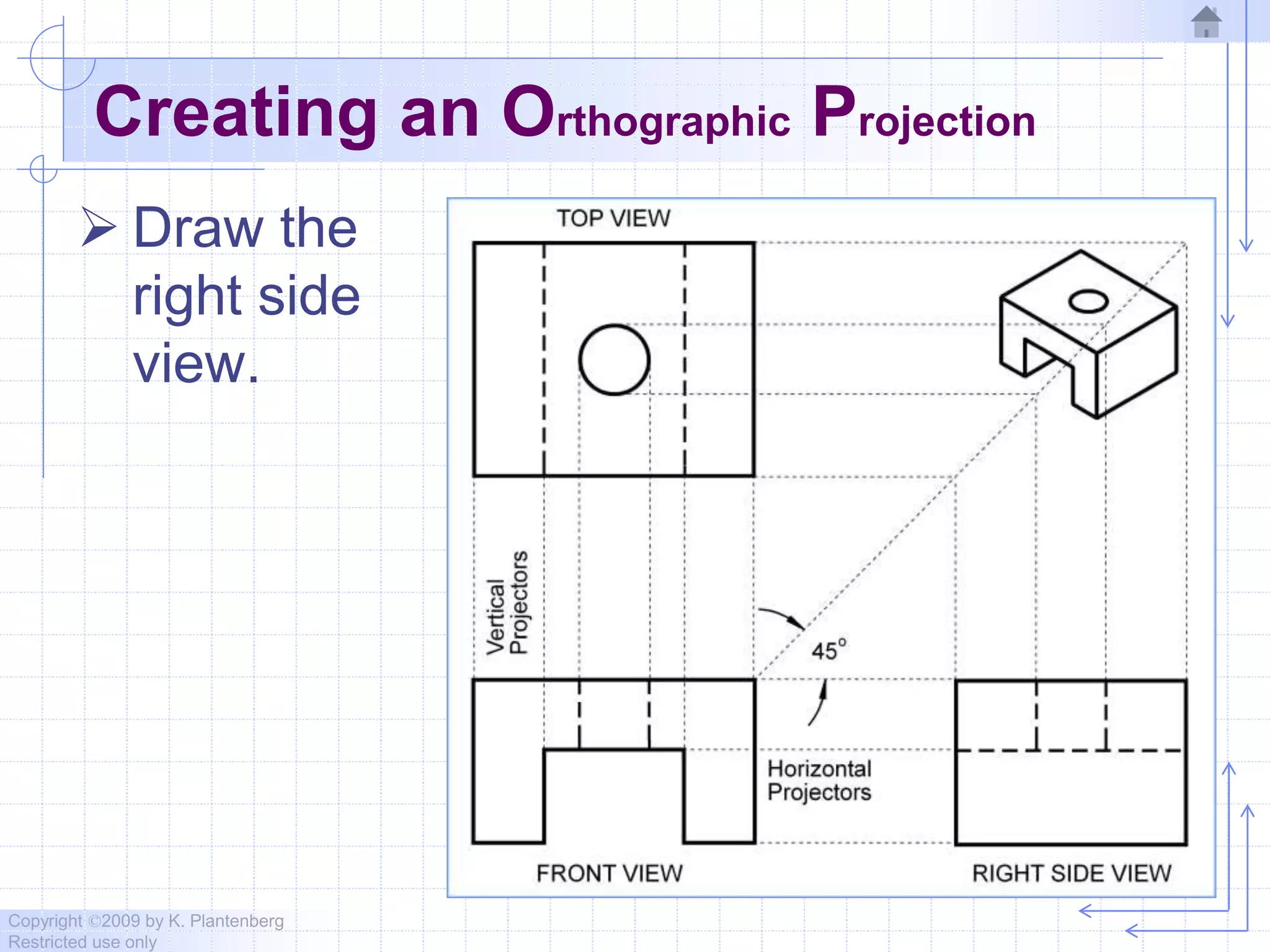
 Draw the
right side
view.
Copyright ©2009 by K. Plantenberg
Restricted use only
Creating an Orthographic Projection
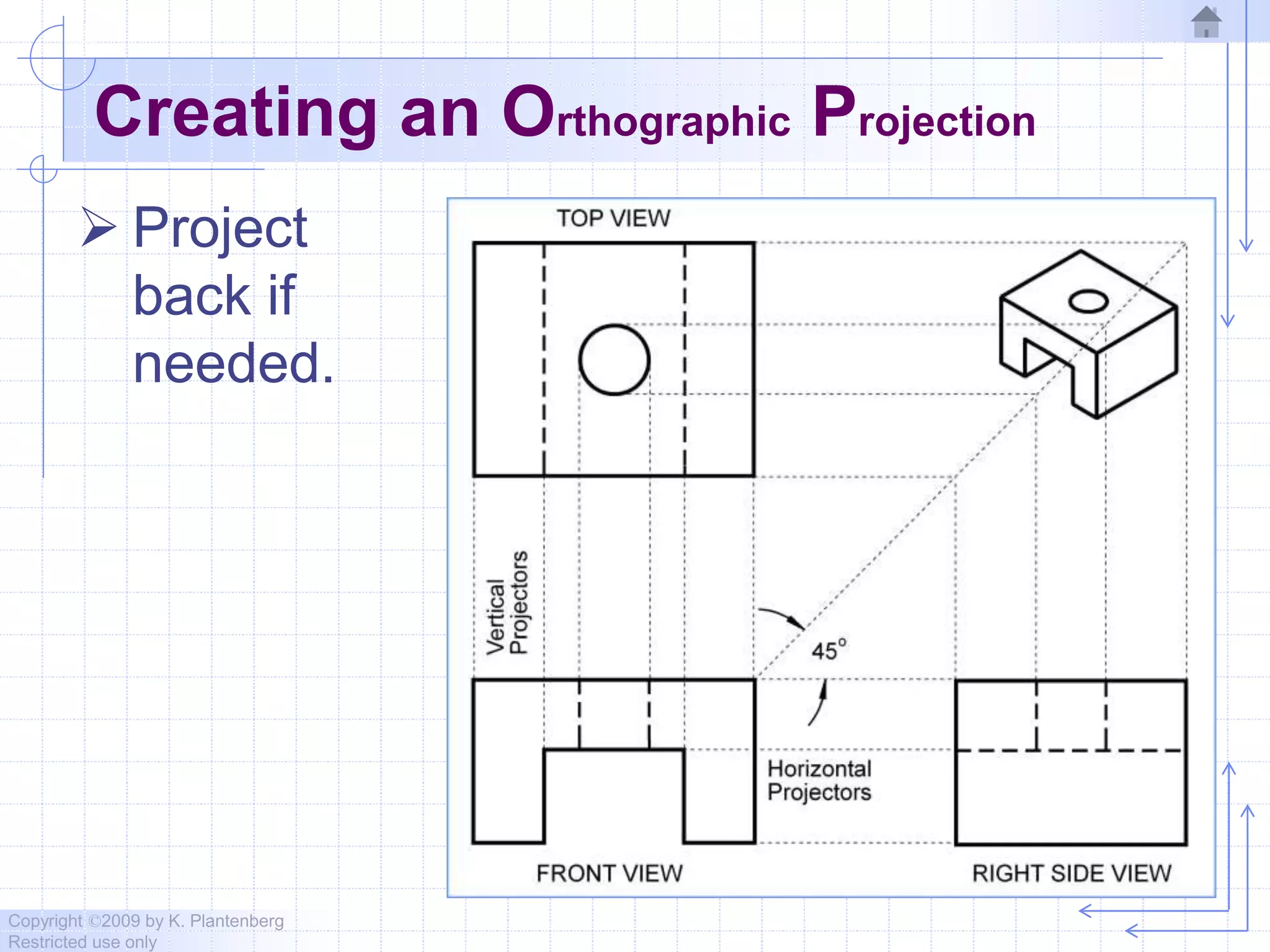
 Project
back if
needed.
Copyright ©2009 by K. Plantenberg
Restricted use only
Creating an Orthographic Projection
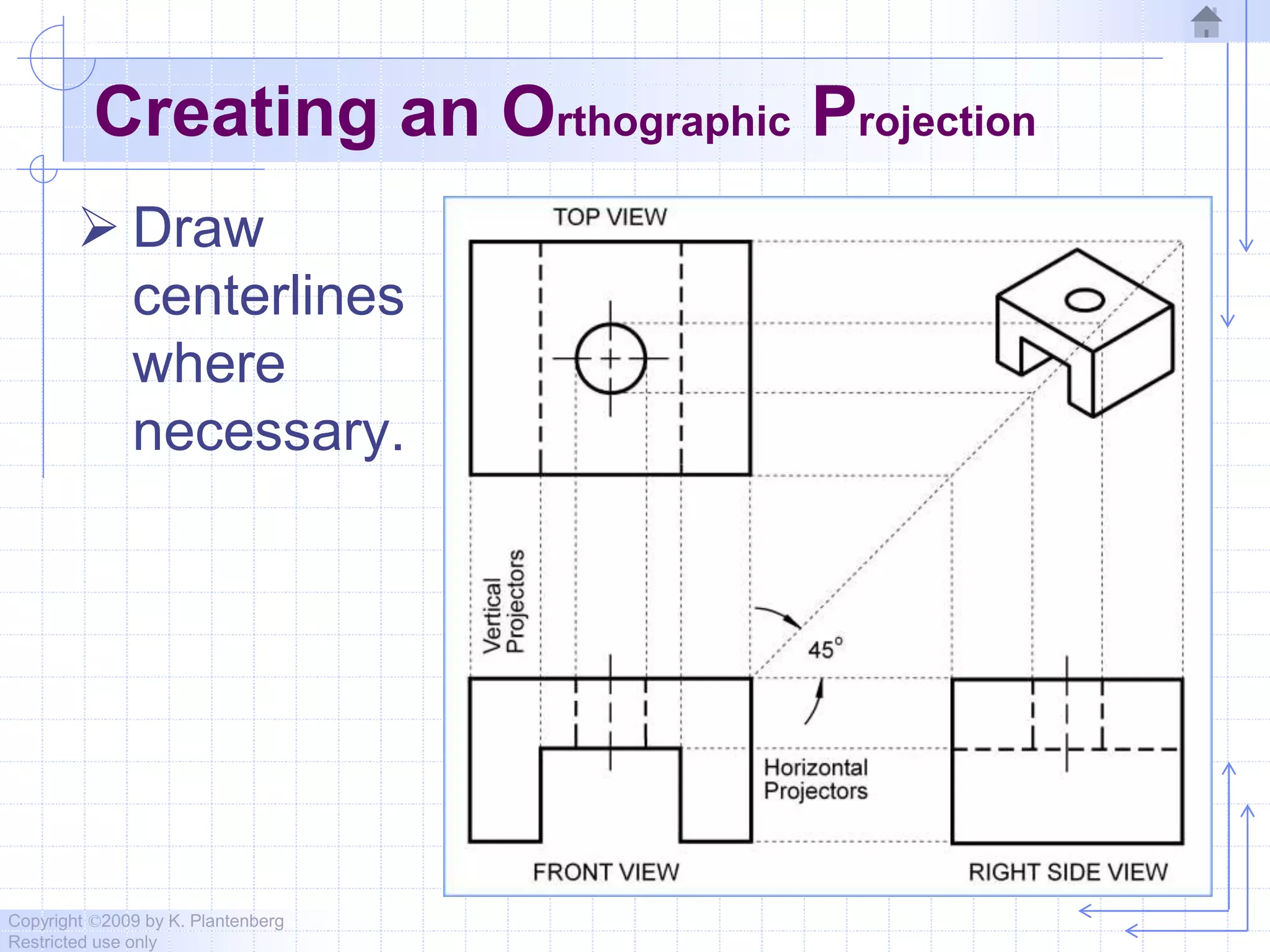
 Draw
centerlines
where
necessary.
Copyright ©2009 by K. Plantenberg
Restricted use only
Creating an Orthographic Projection
Copyright ©2009 by K. Plantenberg
Restricted use only
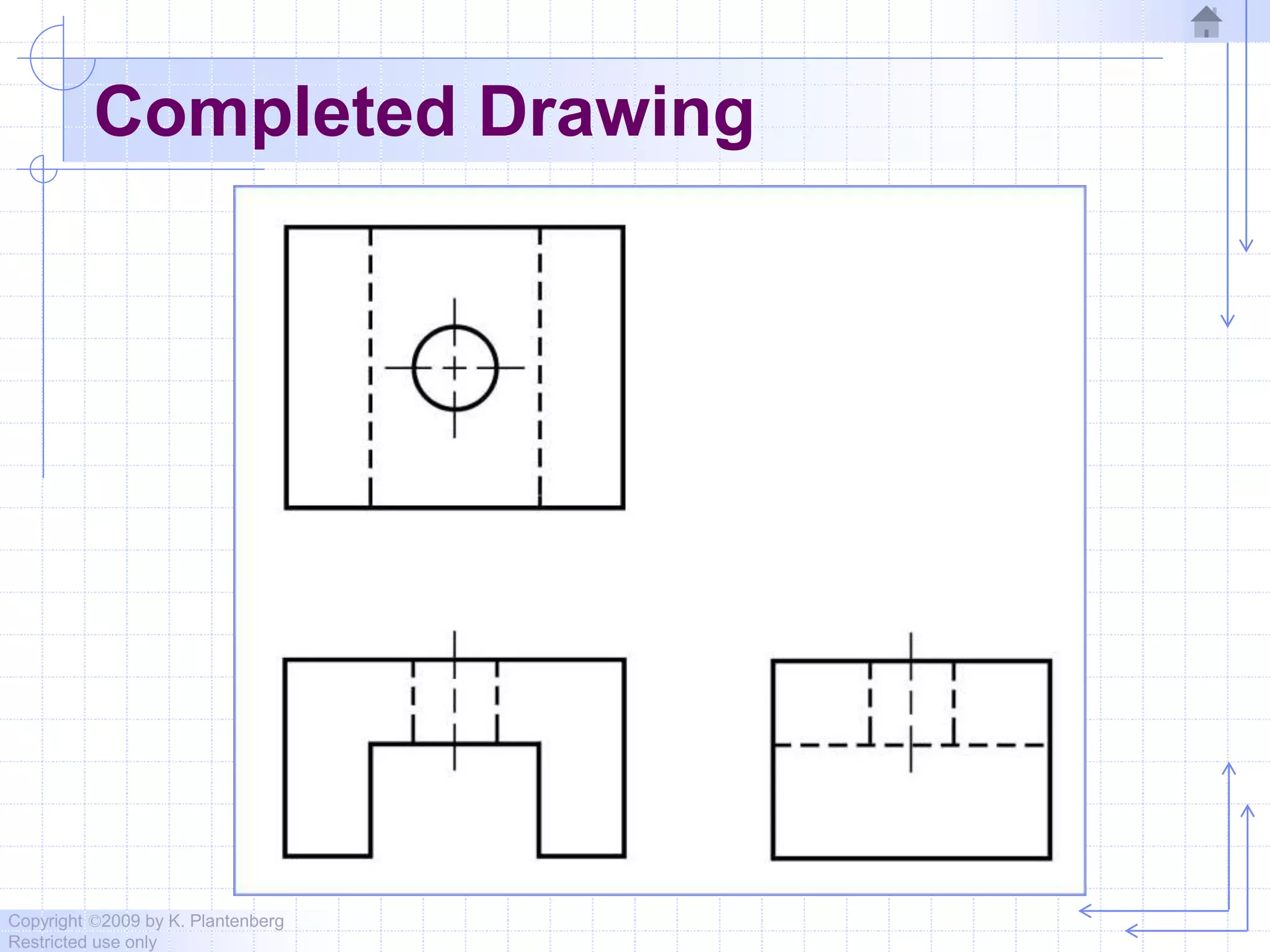
Completed Drawing
Copyright ©2009 by K. Plantenberg
Restricted use only
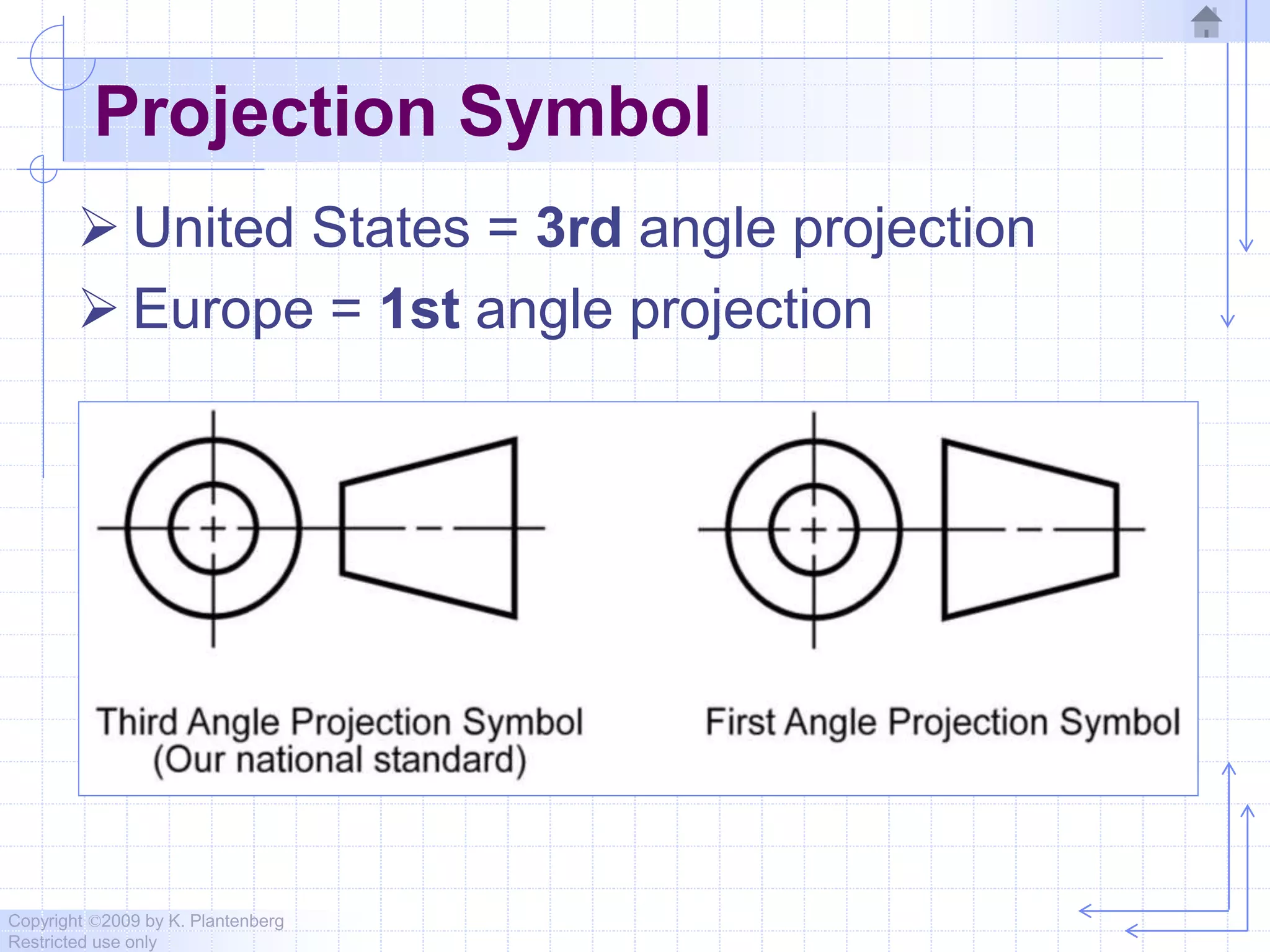
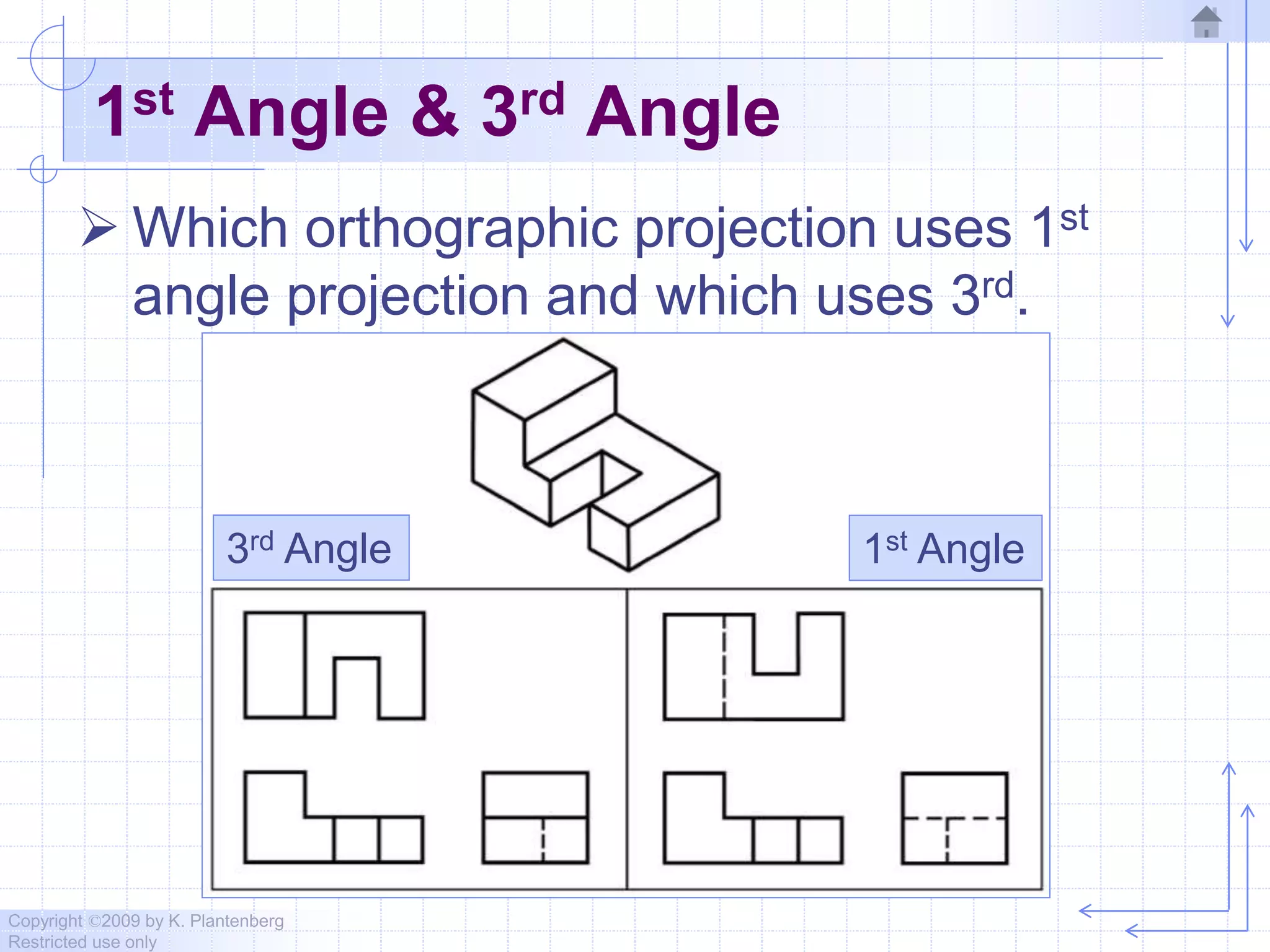
Projection Symbol
 United States = 3rd angle projection
 Europe = 1st angle projection
Copyright ©2009 by K. Plantenberg
Restricted use only
1st Angle & 3rd Angle
 Which orthographic projection uses 1st
angle projection and which uses 3rd.
3rd Angle 1st Angle
Copyright ©2009 by K. Plantenberg
Restricted use only
Exercise 2-4
Missing lines 1
Copyright ©2009 by K. Plantenberg
Restricted use only
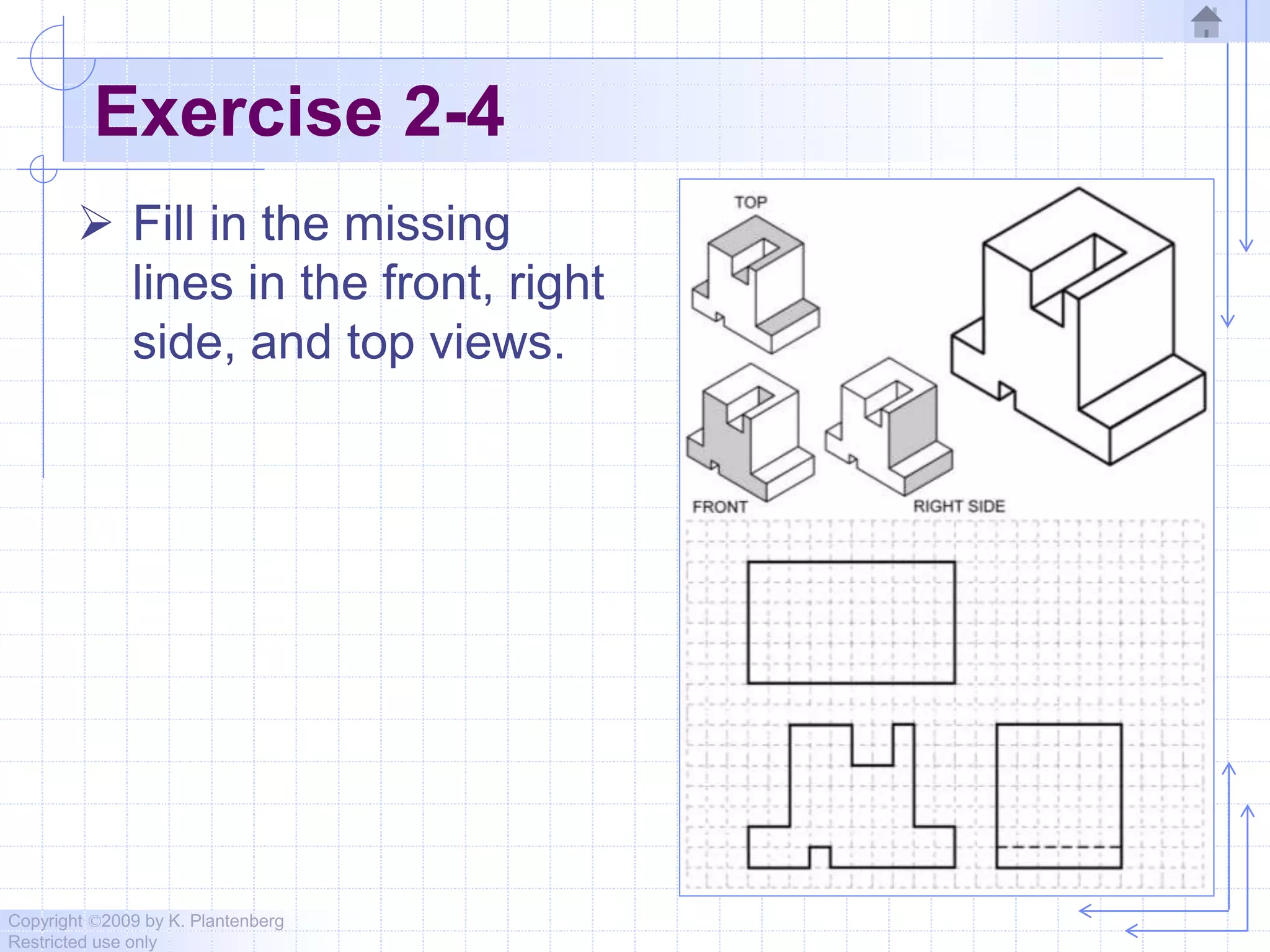
Exercise 2-4
 Fill in the missing
lines in the front, right
side, and top views.
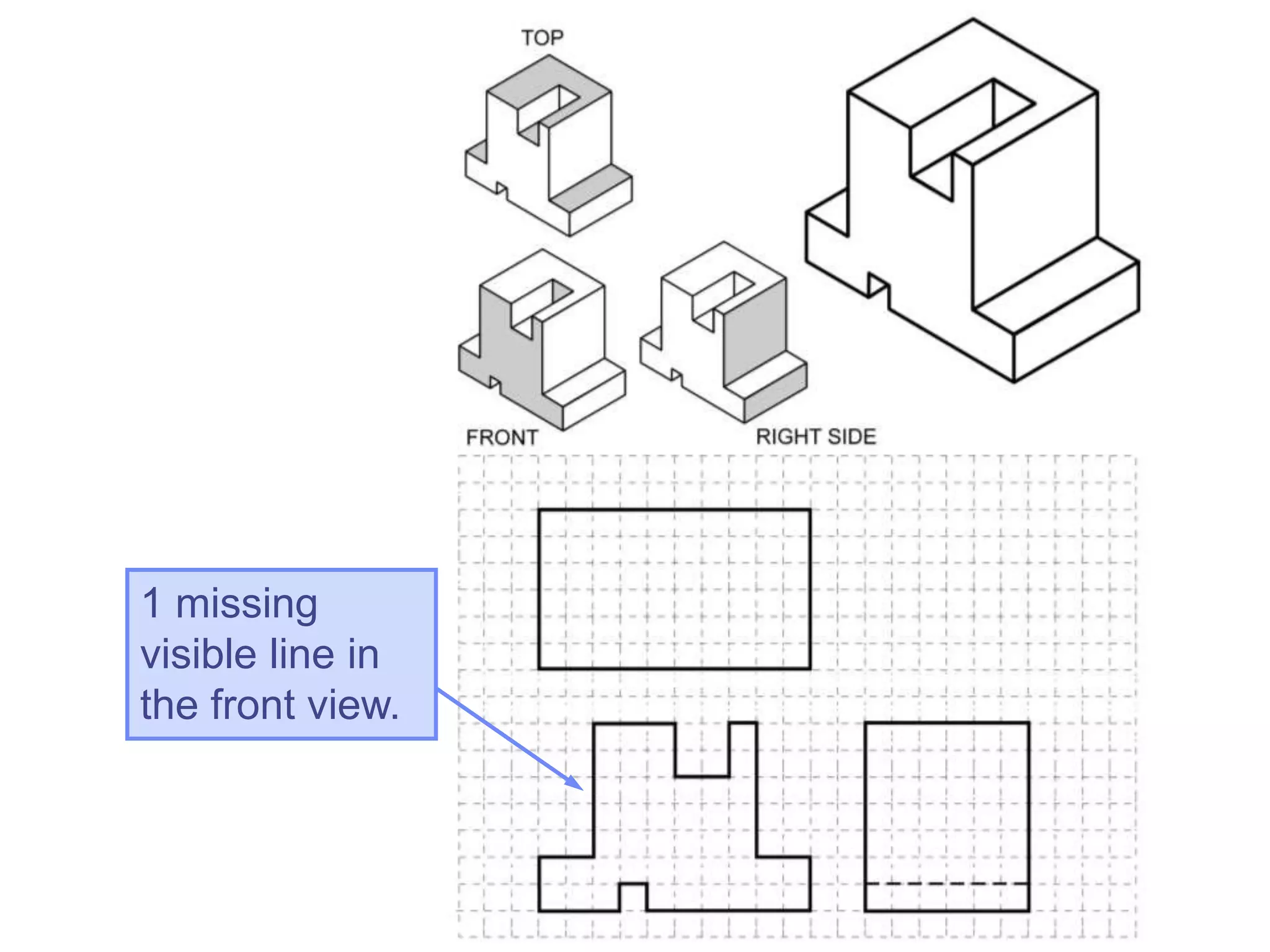
1 missing
visible line in
the front view.
The right side
view has 1
missing visible line
and 2 missing
hidden lines.
The top view has
5 missing visible
lines and 2
missing hidden
lines.
Copyright ©2009 by K. Plantenberg
Restricted use only
Exercise 2-5
Missing lines 2
Copyright ©2009 by K. Plantenberg
Restricted use only
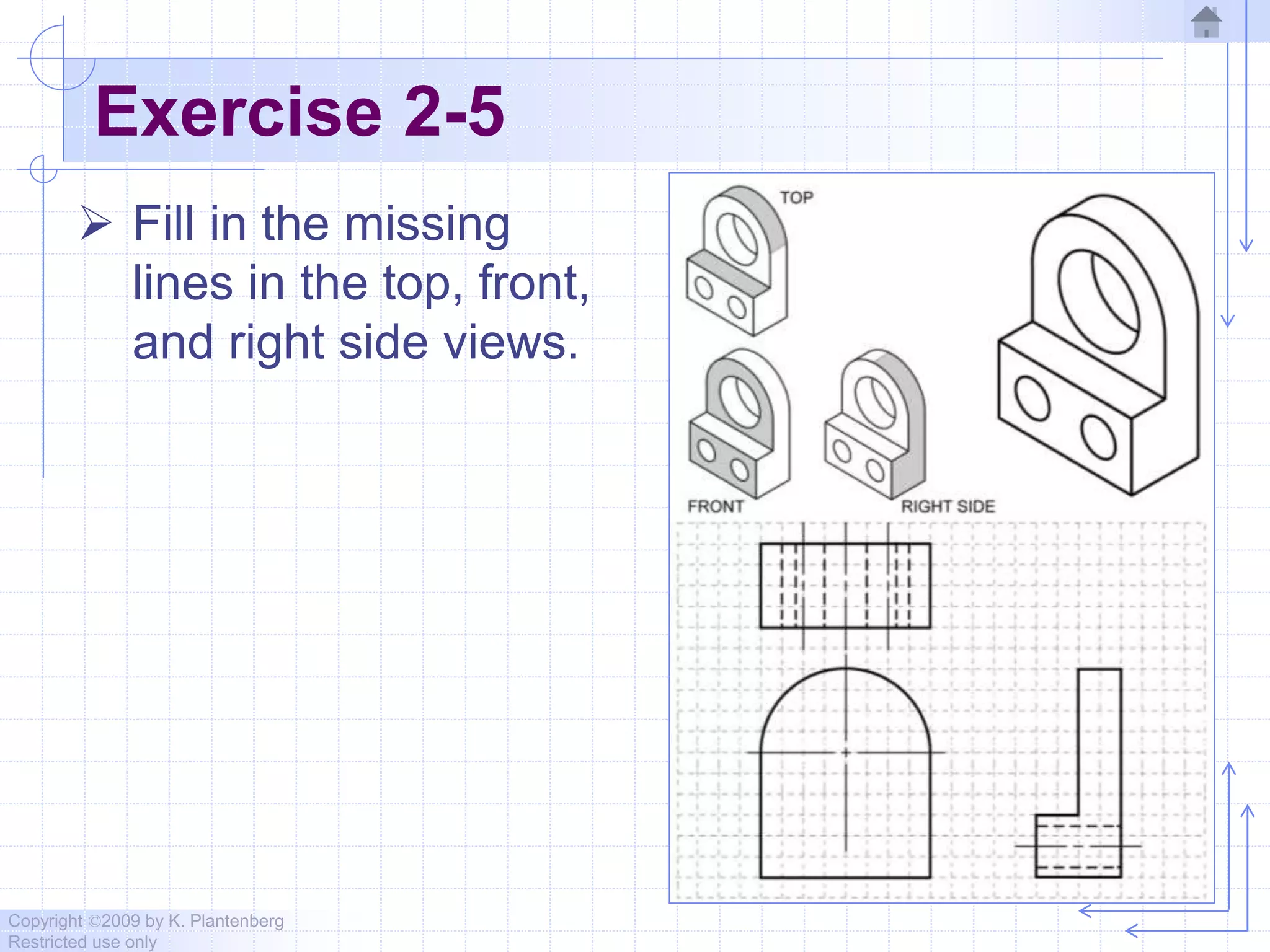
Exercise 2-5
 Fill in the missing
lines in the top, front,
and right side views.
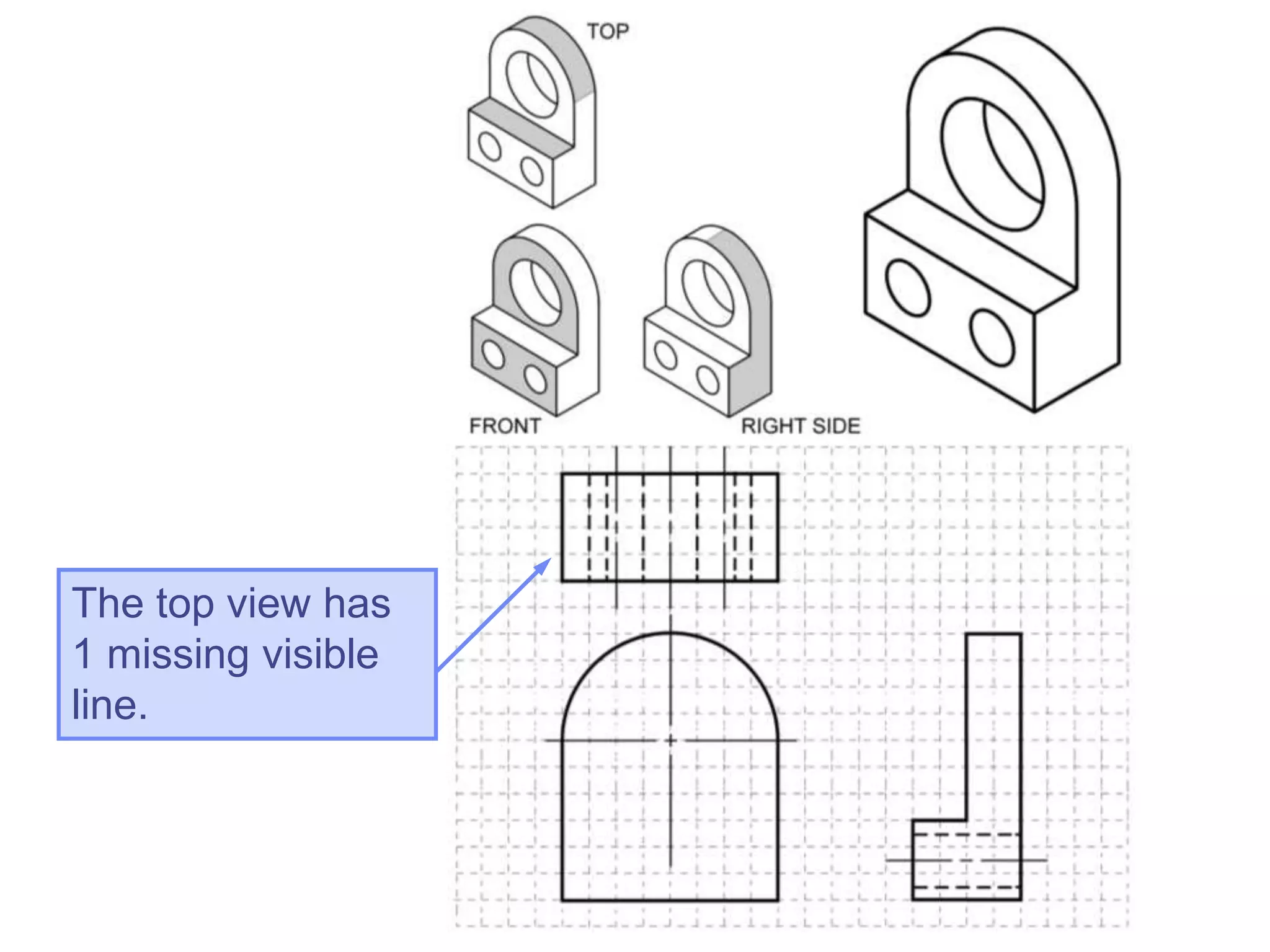
The top view has
1 missing visible
line.
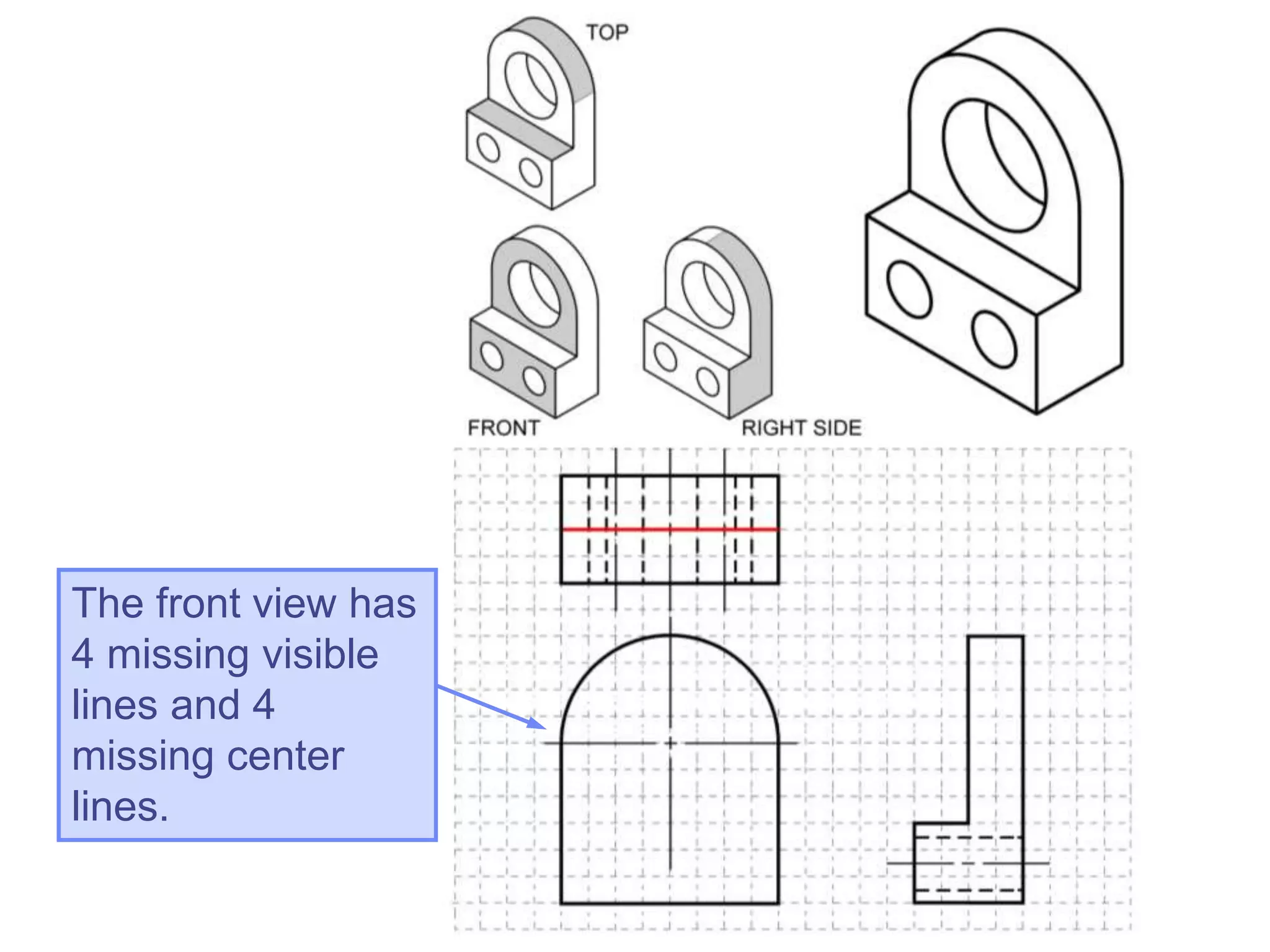
The front view has
4 missing visible
lines and 4
missing center
lines.
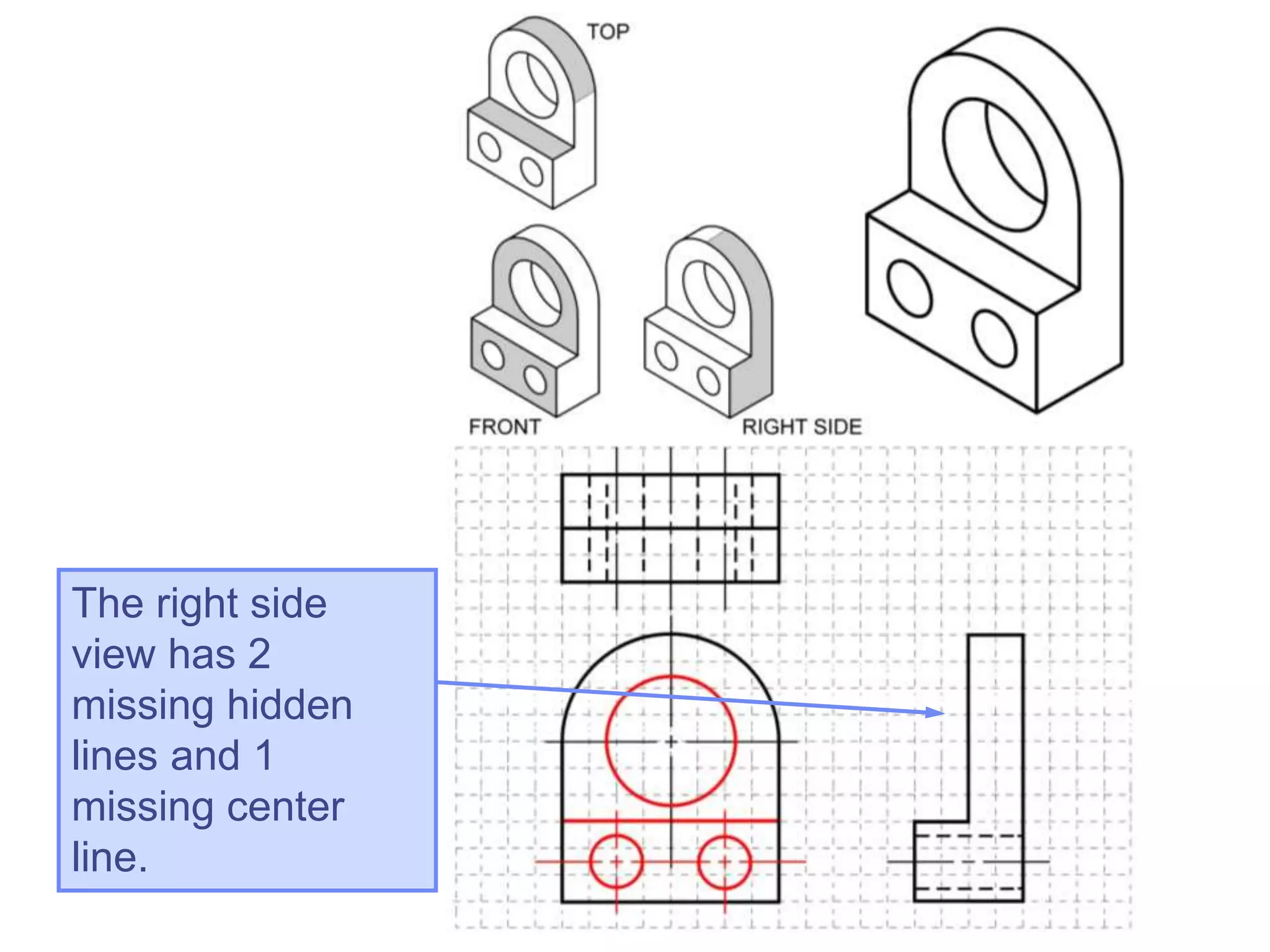
The right side
view has 2
missing hidden
lines and 1
missing center
line.
Copyright ©2009 by K. Plantenberg
Restricted use only
Exercise 2-8
Drawing an orthographic
projection 1
Copyright ©2009 by K. Plantenberg
Restricted use only
Exercise 2-8
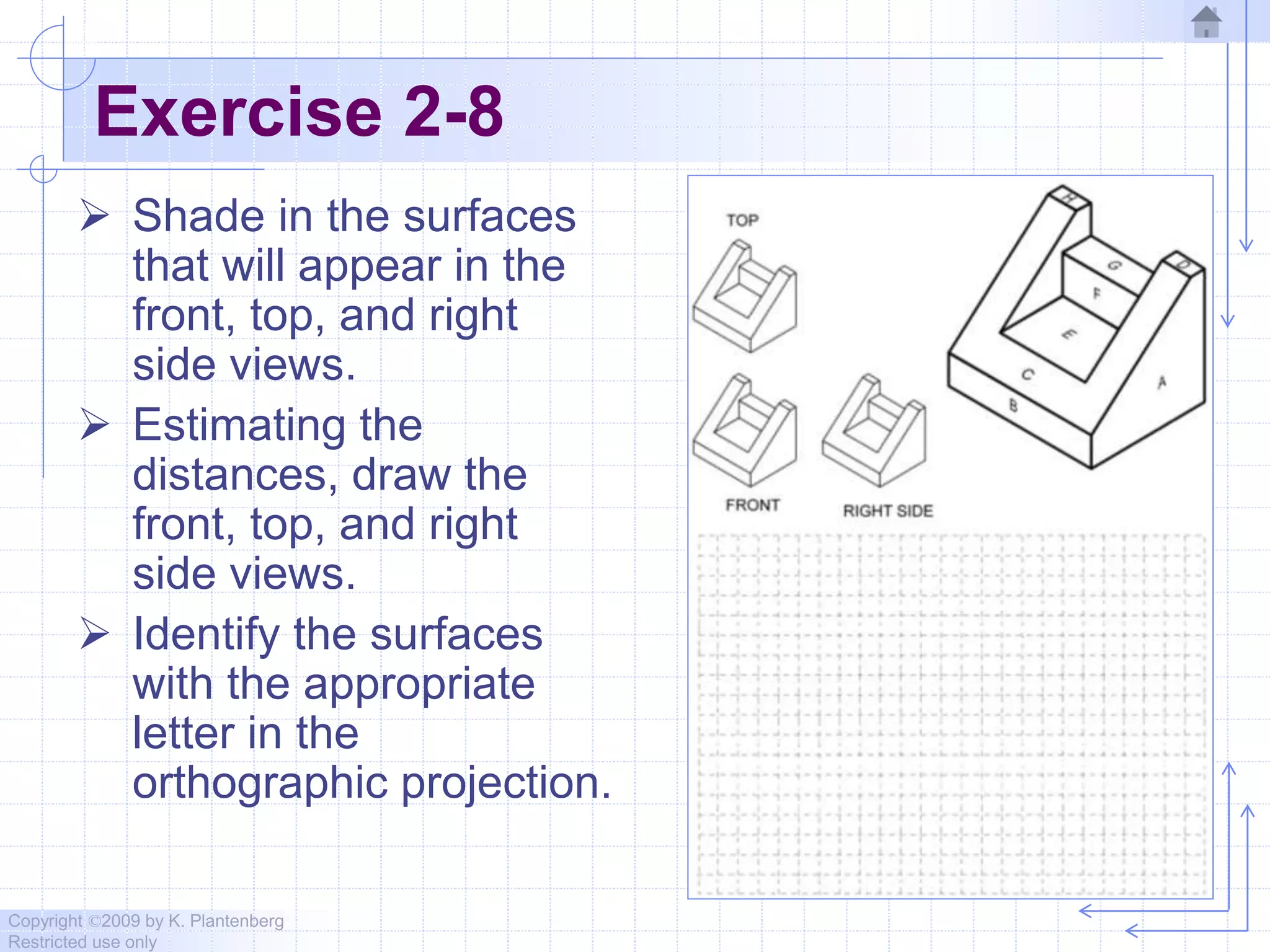
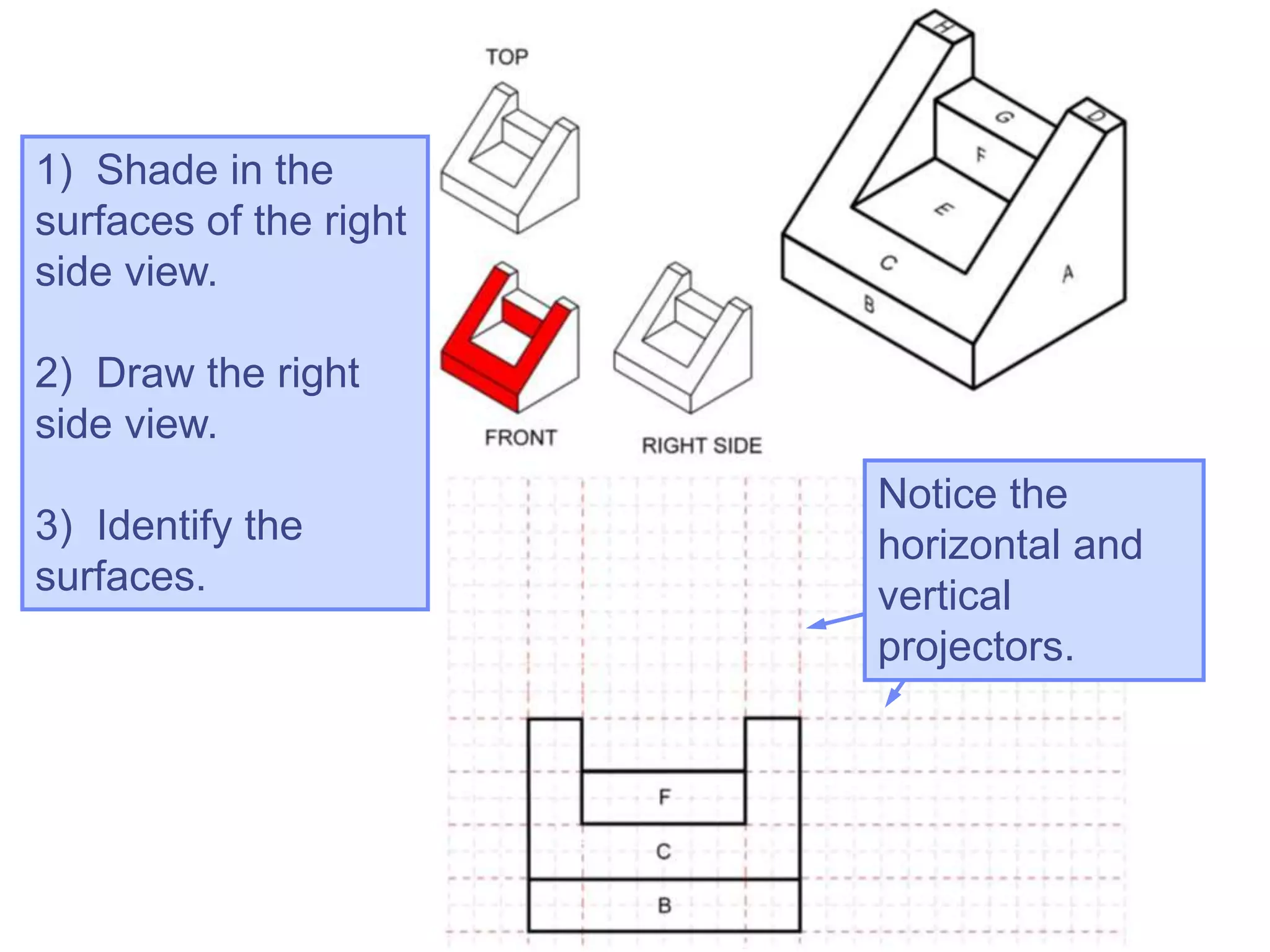
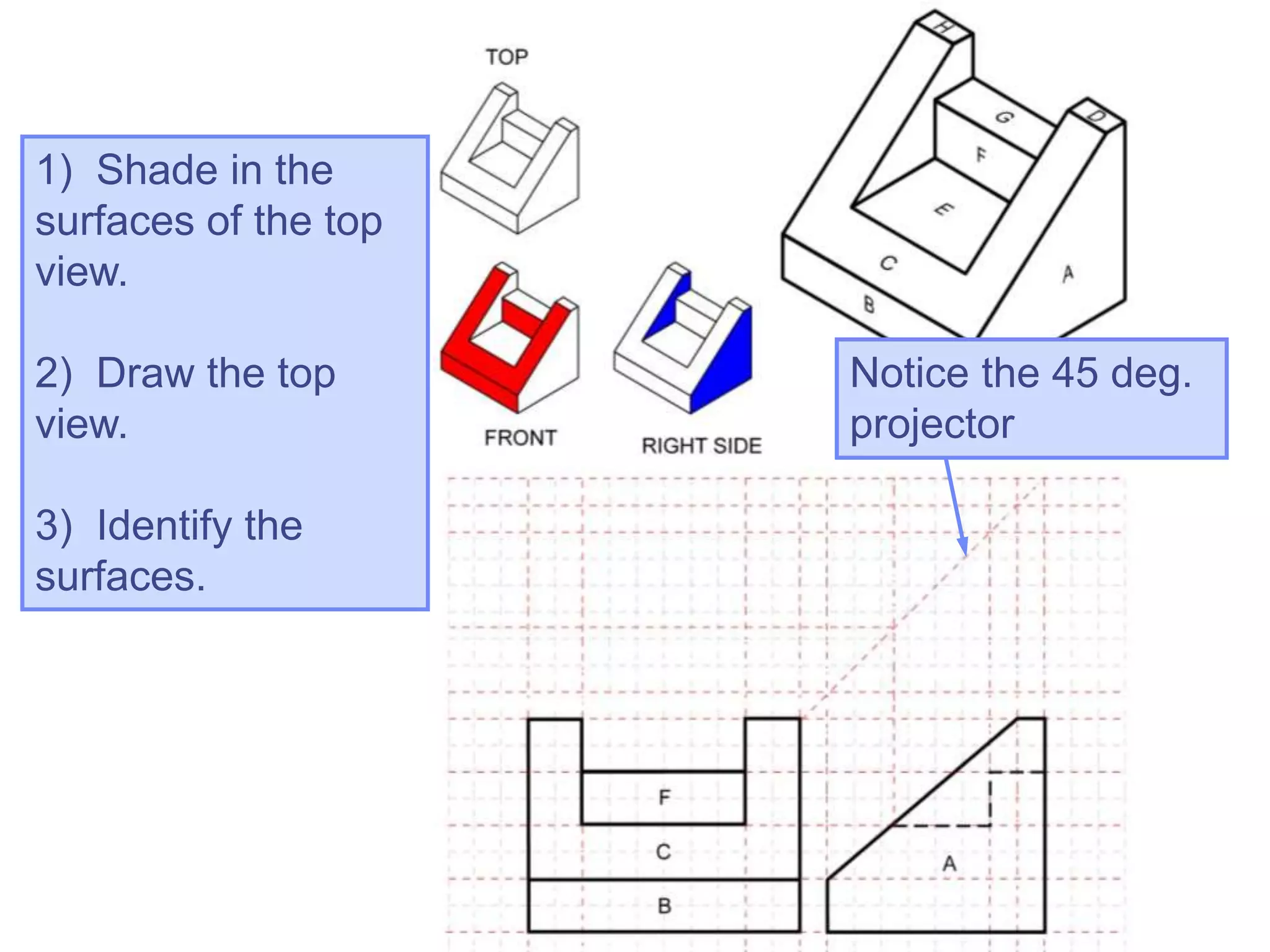
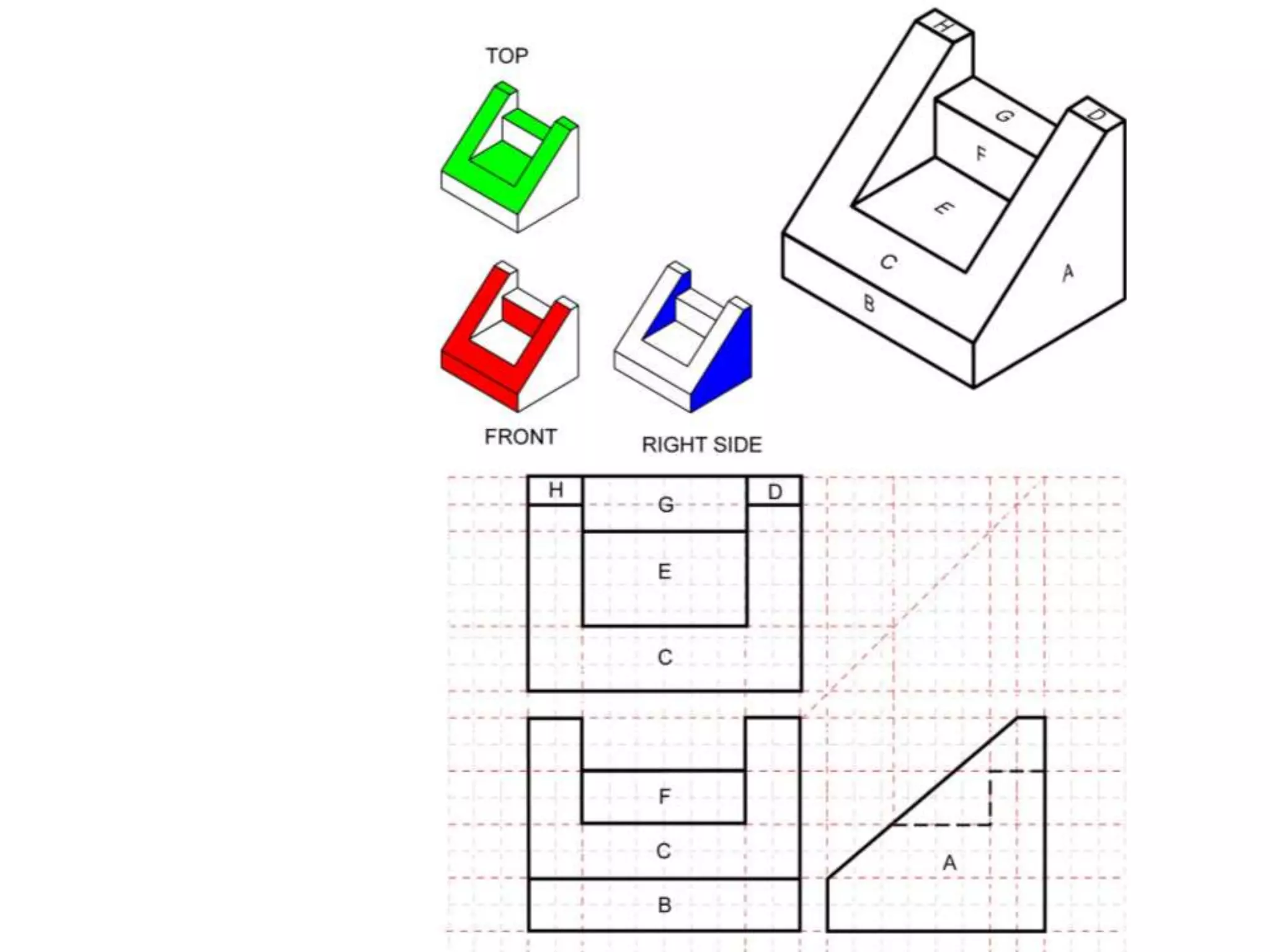
 Shade in the surfaces
that will appear in the
front, top, and right
side views.
 Estimating the
distances, draw the
front, top, and right
side views.
 Identify the surfaces
with the appropriate
letter in the
orthographic projection.
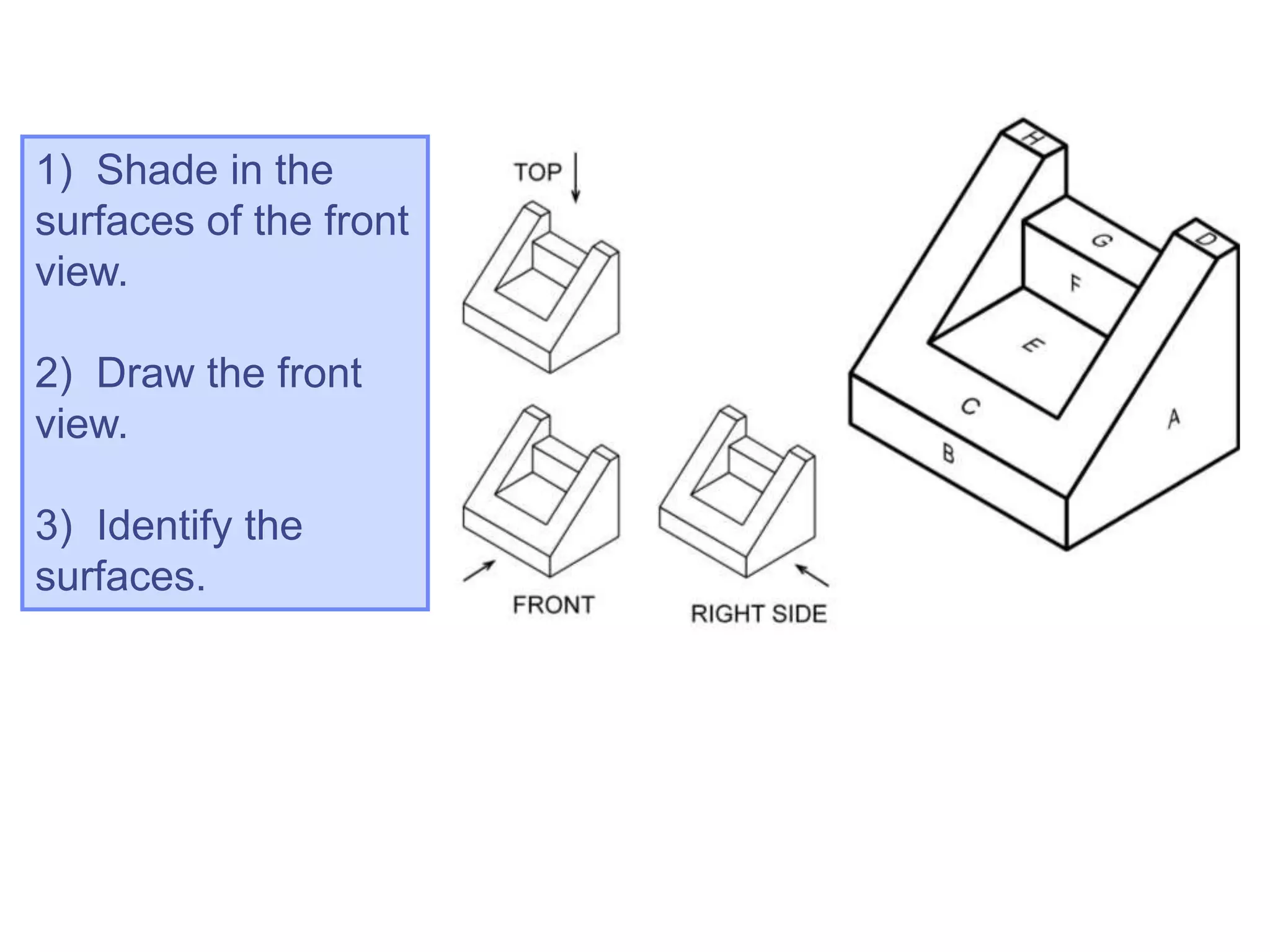
1) Shade in the
surfaces of the front
view.
2) Draw the front
view.
3) Identify the
surfaces.
1) Shade in the
surfaces of the right
side view.
2) Draw the right
side view.
3) Identify the
surfaces.
Notice the
horizontal and
vertical
projectors.
1) Shade in the
surfaces of the top
view.
2) Draw the top
view.
3) Identify the
surfaces.
Notice the 45 deg.
projector
Copyright ©2009 by K. Plantenberg
Restricted use only
Exercise 2-9
Drawing an orthographic
projection 2
Copyright ©2009 by K. Plantenberg
Restricted use only
Exercise 2-9
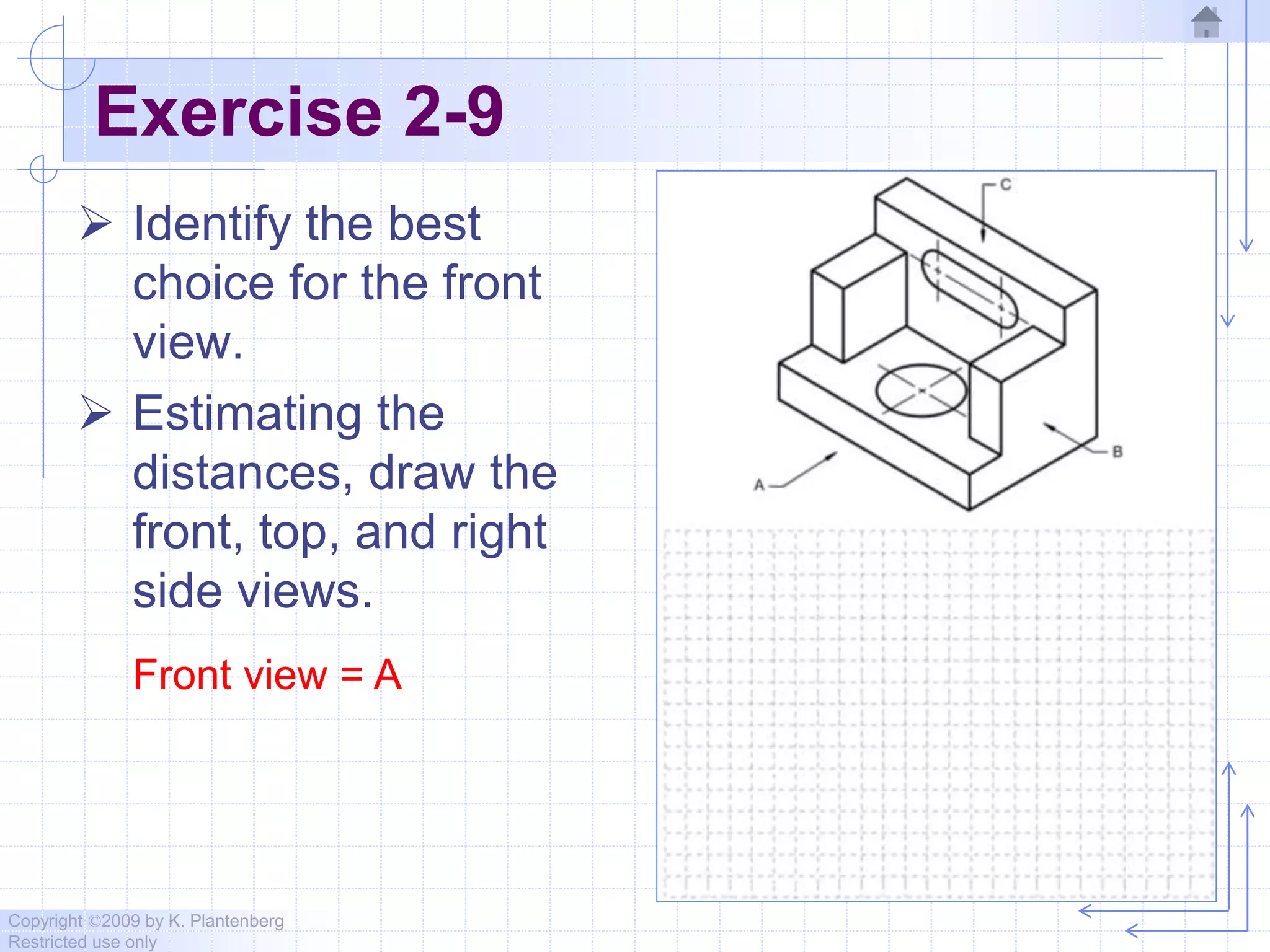
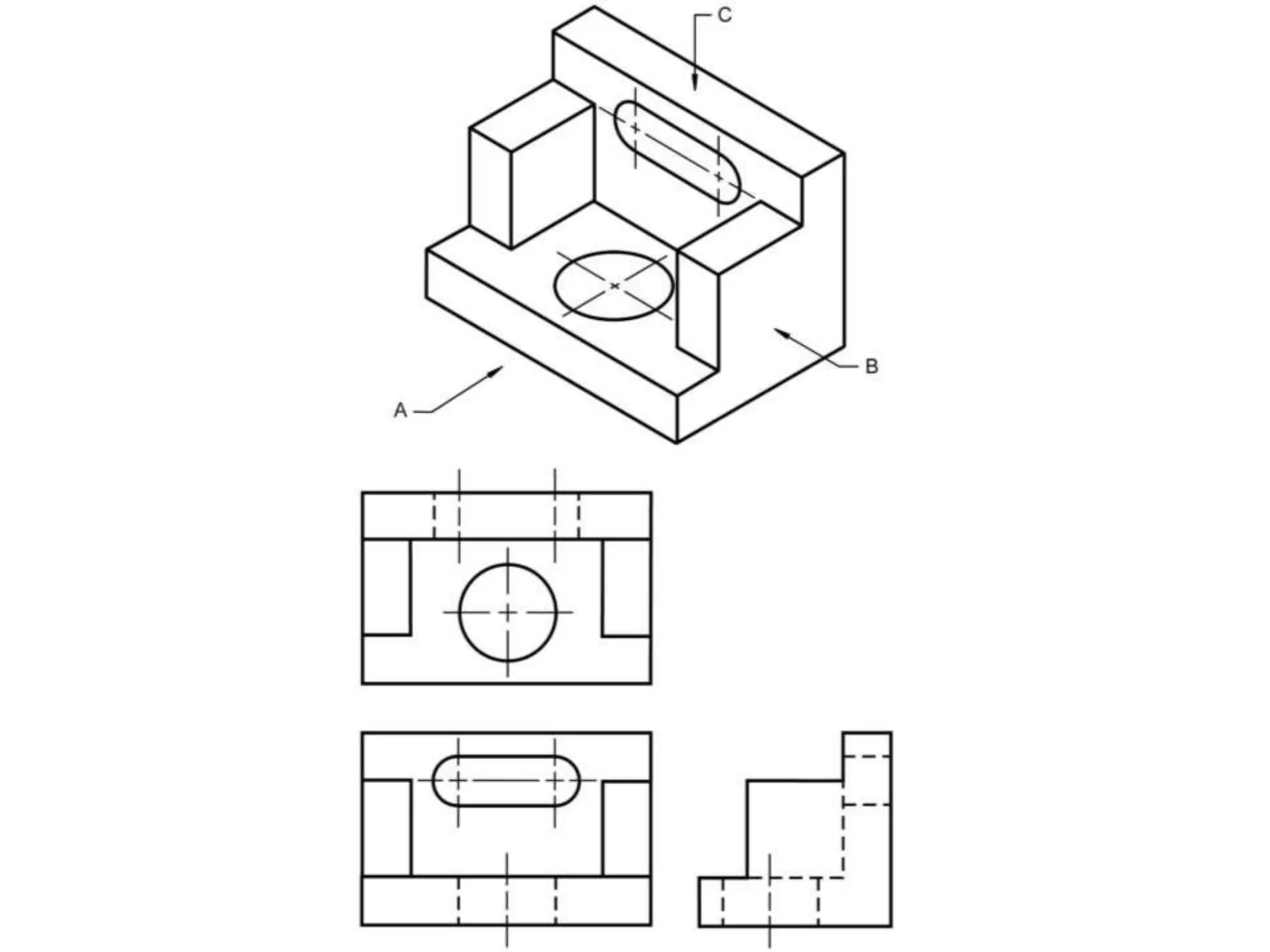
 Identify the best
choice for the front
view.
 Estimating the
distances, draw the
front, top, and right
side views.
Front view = A
Copyright ©2009 by K. Plantenberg
Restricted use only
Orthographic Projection
2.8) Auxiliary Views
Copyright ©2009 by K. Plantenberg
Restricted use only
Auxiliary Views
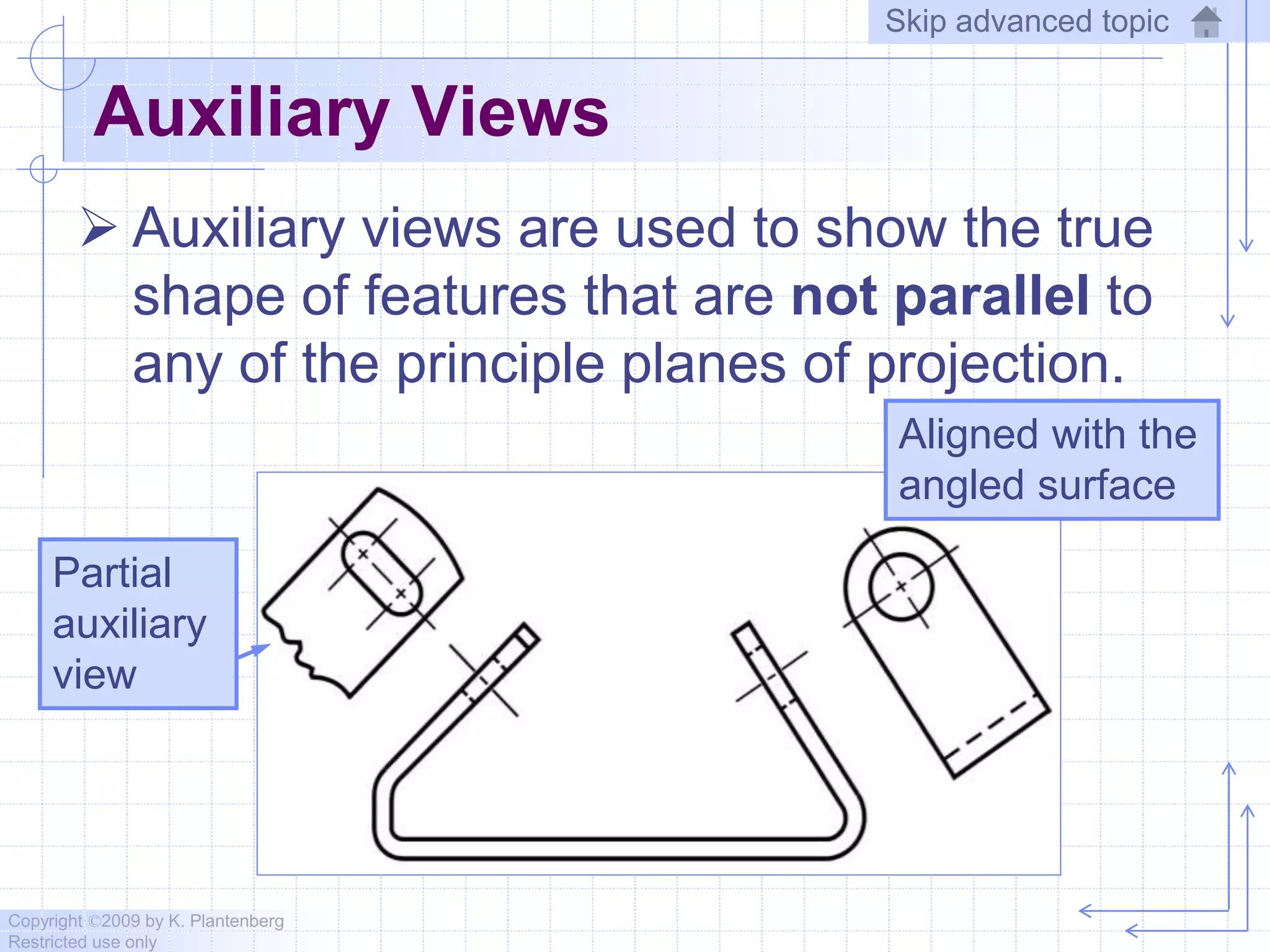
 Auxiliary views are used to show the true
shape of features that are not parallel to
any of the principle planes of projection.
Aligned with the
angled surface
Partial
auxiliary
view
Skip advanced topic
Copyright ©2009 by K. Plantenberg
Restricted use only
Exercise 2-12
Auxiliary View
Copyright ©2009 by K. Plantenberg
Restricted use only
Exercise 2-12
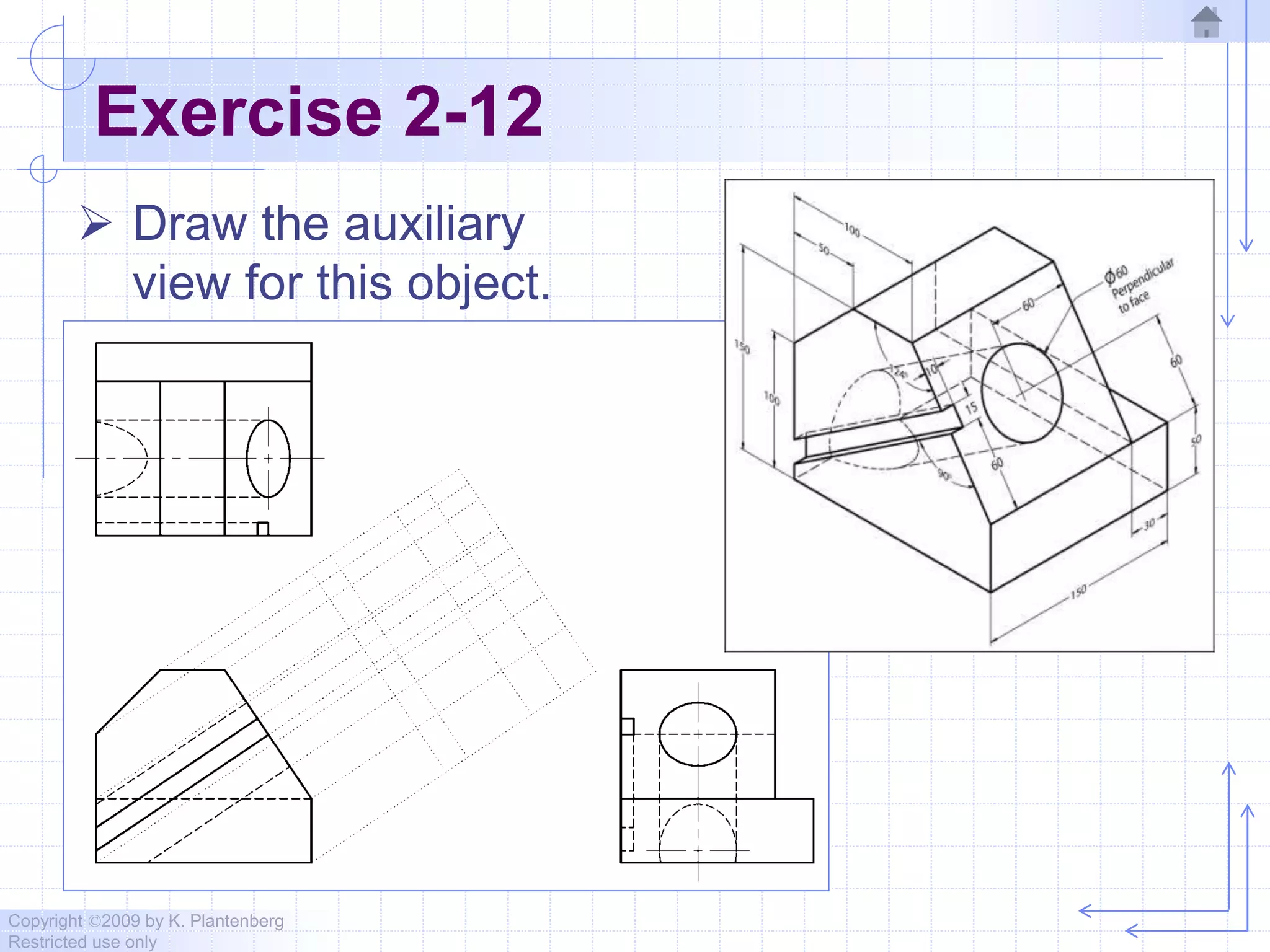
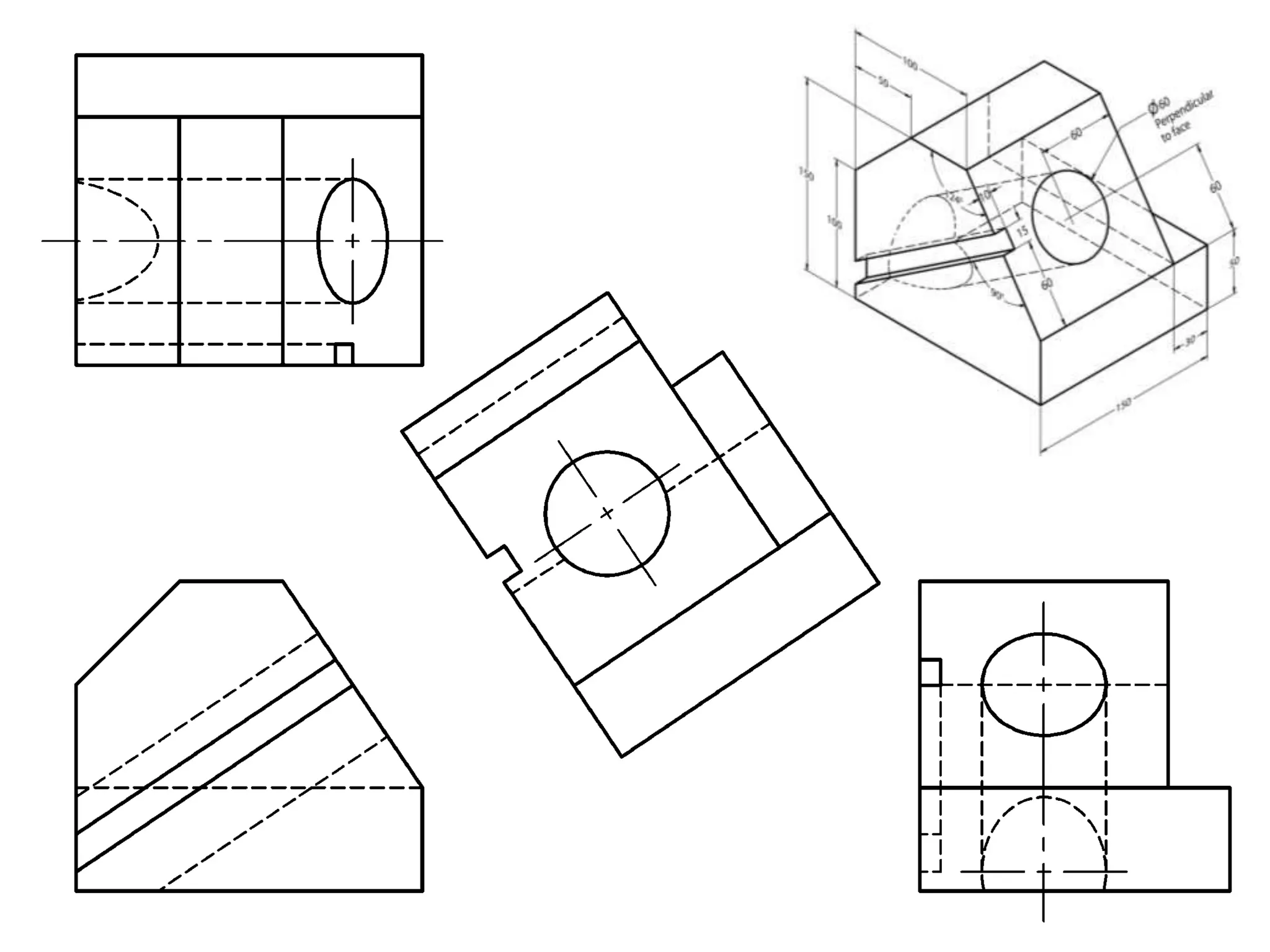
 Draw the auxiliary
view for this object.
Chapter 2   orthographic projection - 2010

Chapter 2 orthographic projection - 2010

  • 1.
    Copyright ©2009 byK. Plantenberg Restricted use only Chapter 2 Orthographic Projection Basic Topics Advanced Topics Exercises
  • 2.
    Copyright ©2009 byK. Plantenberg Restricted use only Ortho. Projection: Basic Topics 2.1) Engineering Graphics Overview Summary 2.2) Orthographic Projection 2.3) The Glass Box Method 2.4) The Standard Views 2.5) Lines Used in an Orthographic Projection 2.6) Rules for Line Creation and Use 2.7) Creating an Orthographic Projection
  • 3.
    Copyright ©2009 byK. Plantenberg Restricted use only Ortho. Proj.: Advanced Topics 2.8) Auxiliary Views
  • 4.
    Copyright ©2009 byK. Plantenberg Restricted use only Ortho. Projection: Exercises Exercise 2-1: Principle views Exercise 2-2: Line types Exercise 2-3: Line use in an orthographic projection Exercise 2-4: Missing lines 1 Exercise 2-5: Missing lines 2 Exercise 2-8: Drawing an orthographic projection 1 Exercise 2-9: Drawing an orthographic projection 2
  • 5.
    Copyright ©2009 byK. Plantenberg Restricted use only Ortho. Projection: Exercises Exercise 2-12: Auxiliary views
  • 6.
    Copyright ©2009 byK. Plantenberg Restricted use only Engineering Graphics 2.1) Introduction to Engineering Graphics
  • 7.
    Copyright ©2009 byK. Plantenberg Restricted use only Engineering Graphics  What is Engineering Graphics?  What is an Engineering Drawing? A drawing that communicates an idea or design. A set of rules and guidelines that help you create an Engineering Drawing.
  • 8.
    Copyright ©2009 byK. Plantenberg Restricted use only Engineering Graphics  Examples of Engineering Drawings → Mechanical Engineers • Detailed drawing of a part that needs to be machined. → Electrical Engineers • A circuit schematic. • Circuit board layout. → Civil Engineers • Plans for a bridge. • Road layout.
  • 9.
    Copyright ©2009 byK. Plantenberg Restricted use only Orthographic Projection Summary
  • 10.
    Copyright ©2009 byK. Plantenberg Restricted use only Summary  What will we learn in Chapter 2? → How to create an orthographic projection.  Key points → An orthographic projection is a 2-D representation of a 3-D object.
  • 11.
    Copyright ©2009 byK. Plantenberg Restricted use only Orthographic Projection 2.2) Orthographic Projection Introduction
  • 12.
    Copyright ©2009 byK. Plantenberg Restricted use only Introduction  Orthographic projection = 2-D representation of a 3-D object.
  • 13.
    Copyright ©2009 byK. Plantenberg Restricted use only Introduction  An orthographic projection represents different sides of an object.
  • 14.
    Copyright ©2009 byK. Plantenberg Restricted use only The Six Principle Views  The 6 principle views are created by looking at the object, straight on, in the directions indicated.
  • 15.
    Copyright ©2009 byK. Plantenberg Restricted use only Orthographic Projection 2.3) The Glass Box Method
  • 16.
    Copyright ©2009 byK. Plantenberg Restricted use only The Glass Box Method  How do we create the 6 principle views? The Glass Box Method
  • 17.
    Copyright ©2009 byK. Plantenberg Restricted use only Glass Box Method  The object is placed in a glass box.  The sides of the box represent the 6 principle planes.
  • 18.
    Copyright ©2009 byK. Plantenberg Restricted use only Glass Box Method  The image of the object is projected on the sides of the box.
  • 19.
    Copyright ©2009 byK. Plantenberg Restricted use only Glass Box Method  Things to notice! → The projection planes. → The projectors. → How surfaces A and B are projected.
  • 20.
    Copyright ©2009 byK. Plantenberg Restricted use only Glass Box Method  The box is unfolded creating the 6 principle views.
  • 21.
    Copyright ©2009 byK. Plantenberg Restricted use only Exercise 2-1 Principle Views
  • 22.
    Copyright ©2009 byK. Plantenberg Restricted use only Exercise 2-1  Label the 5 remaining principle views with the appropriate view name.
  • 23.
  • 24.
  • 25.
  • 26.
  • 27.
  • 28.
    What are thedifferences between the Right Side and Left Side views? Top Right Side RearLeft Side Bottom They are mirror images with one different line type.
  • 29.
    What are thedifferences between the Top and Bottom, and Front and Rear views? Top Right Side RearLeft Side Bottom They are mirror images with different line types.
  • 30.
    Which view(s) havethe least amount of hidden or dashed lines? Top Right Side RearLeft Side Bottom Front and top views.
  • 31.
    Copyright ©2009 byK. Plantenberg Restricted use only Orthographic Projection 2.4) The Standard Views
  • 32.
    Copyright ©2009 byK. Plantenberg Restricted use only Standard Views  When constructing an orthographic projection, we need to include enough views to completely describe the true shape of the part. → Complex part = more views → Simple part = less views
  • 33.
    Copyright ©2009 byK. Plantenberg Restricted use only Standard Views  The standard views used in an orthographic projection are; → Front view → Top view → Right side view  The remaining 3 views usually don’t add any new information.
  • 34.
    Copyright ©2009 byK. Plantenberg Restricted use only Standard Views  How many views do we need to completely describe a block?
  • 35.
    Copyright ©2009 byK. Plantenberg Restricted use only Standard Views  How many views do we need to completely describe a block? 2 views. The 3rd view duplicates information.
  • 36.
    Copyright ©2009 byK. Plantenberg Restricted use only Standard Views  How many views do we need to completely describe a sphere? 1 view. A sphere has only one dimension. Its diameter.
  • 37.
    Copyright ©2009 byK. Plantenberg Restricted use only Front View  The front view shows the most features or characteristics of the object. → It usually contains the least amount of hidden lines. → The front view is chosen first and the other views are based on the orientation of the front view.
  • 38.
    Copyright ©2009 byK. Plantenberg Restricted use only View Alignment  The top and front views are aligned vertically and share the same width dimension.  The front and right side views are aligned horizontally and share the same height dimension.
  • 40.
    Copyright ©2009 byK. Plantenberg Restricted use only Orthographic Projection 2.5) Lines Types Used in an Orthographic Projection
  • 41.
    Copyright ©2009 byK. Plantenberg Restricted use only Line Type and Weight  Line type and line weight provide valuable information to the print reader.  For example, line type and weight can answer the following questions. → Is the feature visible or hidden from view? → Is the line part of the object or part of a dimension? → Is the line indicating symmetry?
  • 42.
    Copyright ©2009 byK. Plantenberg Restricted use only Line Type and Weight  There are four commonly used line types; → continuous → hidden → center → phantom
  • 43.
    Copyright ©2009 byK. Plantenberg Restricted use only Line Type and Weight  Some lines are more important than others. Importance is indicated by line weight or thickness. → The thicker the line, the more important it is.
  • 44.
    Copyright ©2009 byK. Plantenberg Restricted use only Line Types  Visible lines: → Visible lines represent visible edges and boundaries. → Continuous and thick (0.5 - 0.6 mm).  Hidden lines: → Hidden lines represent edges and boundaries that cannot be seen. → Dashed and medium thick (0.35 - 0.45 mm).
  • 45.
    Copyright ©2009 byK. Plantenberg Restricted use only Line Types  Center lines: → Represent axes of symmetry. → Long dash – short dash and thin (0.3 mm).
  • 46.
    Copyright ©2009 byK. Plantenberg Restricted use only Line Types  Phantom line: → Phantom lines are used to indicate imaginary features. • alternate positions of moving parts • adjacent positions of related parts → The line type is long dash – short dash – short dash and the line weight is usually thin (0.3 mm).
  • 47.
    Copyright ©2009 byK. Plantenberg Restricted use only Line Types  Dimension and Extension lines: → Dimension and extension lines are used to show the size of an object. • In general, a dimension line is placed between two extension lines and is terminated by arrowheads, which indicates the direction and extent of the dimension. → The line type is continuous and the line weight is thin (0.3 mm).
  • 48.
    Copyright ©2009 byK. Plantenberg Restricted use only Line Types  Cutting Plane line: → Cutting plane lines are used to show where an imaginary cut has been made through the object in order to view interior features. → The line type is phantom and the line weight is very thick (0.6 to 0.8 mm). → Arrows are placed at both ends of the cutting plane line to indicate the direction of sight.
  • 49.
    Copyright ©2009 byK. Plantenberg Restricted use only Line Types  Section line: → Section lines are used to show areas that have been cut by the cutting plane. → Section lines are grouped in parallel line patterns and usually drawn at a 45 angle. → The line type is usually continuous and the line weight is thin (0.3 mm).
  • 50.
    Copyright ©2009 byK. Plantenberg Restricted use only Line Types  Break line: → Break lines are used to show imaginary breaks in objects. → A break line is usually made up of a series of connecting arcs. → The line type is continuous and the line weight is usually thick (0.5 – 0.6 mm).
  • 51.
    Copyright ©2009 byK. Plantenberg Restricted use only Exercise 2-2 Line types
  • 52.
    Copyright ©2009 byK. Plantenberg Restricted use only Example 2-2  Which of the following line types is a VISIBLE line?
  • 53.
    Copyright ©2009 byK. Plantenberg Restricted use only Example 2-2  Which of the following line types is a HIDDEN line?
  • 54.
    Copyright ©2009 byK. Plantenberg Restricted use only Example 2-2  Which of the following line types is a CENTER line?
  • 55.
    Copyright ©2009 byK. Plantenberg Restricted use only Example 2-2  Which of the following line types is a PHANTOM line?
  • 56.
    Copyright ©2009 byK. Plantenberg Restricted use only Example 2-2  Which of the following line types is a DIMENSION & EXTENSION lines?
  • 57.
    Copyright ©2009 byK. Plantenberg Restricted use only Example 2-2  Which of the following line types is a CUTTING PLANE line?
  • 58.
    Copyright ©2009 byK. Plantenberg Restricted use only Example 2-2  Which of the following line types is a SECTION line?
  • 59.
    Copyright ©2009 byK. Plantenberg Restricted use only Example 2-2  Which of the following line types is a BREAK line?
  • 60.
    Copyright ©2009 byK. Plantenberg Restricted use only Example 2-2  Notice how different line types are used.
  • 61.
    Copyright ©2009 byK. Plantenberg Restricted use only Exercise 2-3 Line use in an orthographic projection
  • 62.
    Copyright ©2009 byK. Plantenberg Restricted use only Exercise 2-3  Fill the following dotted orthographic projection with the appropriate line types.
  • 63.
    Fill in thevisible lines in to top view.
  • 65.
    Fill in thevisible lines in to front view.
  • 67.
    Fill in thevisible lines in to right side view.
  • 69.
    Fill in thehidden lines in to front, top and right side views.
  • 71.
    Draw the center linesin all the views.
  • 72.
    NOTICE! The small dashescross in the middle. NOTICE! The center line connects between features in the same view.
  • 73.
    Copyright ©2009 byK. Plantenberg Restricted use only Orthographic Projection 2.6) Rules for Line Creation and Use
  • 74.
    Copyright ©2009 byK. Plantenberg Restricted use only Rules for Line Creation and Use  The following rules will help us create lines that communicate effectively. → CAUTION! Due to computer automation, some of the rules may be hard to follow.
  • 75.
    Copyright ©2009 byK. Plantenberg Restricted use only Using Hidden Lines  Hidden lines represent edges and boundaries that cannot be seen.
  • 76.
    Copyright ©2009 byK. Plantenberg Restricted use only Creating Hidden Lines  Rule 1: → The length of the hidden line dashes may vary slightly as the size of the drawing changes.
  • 77.
    Copyright ©2009 byK. Plantenberg Restricted use only Creating Hidden Lines  Rule 2: → Hidden lines should always begin and end with a dash, → Exception: When the hidden line begins or ends at a parallel visible or hidden line.
  • 78.
    Copyright ©2009 byK. Plantenberg Restricted use only Creating Hidden Lines  Rule 3: → Dashes should join at corners.
  • 79.
    Copyright ©2009 byK. Plantenberg Restricted use only Using Center Lines  Center lines represent axes of symmetry. → They are important for interpreting cylindrical shapes.
  • 80.
    Copyright ©2009 byK. Plantenberg Restricted use only Using Center Lines → They are also used to indicate circle of centers, and paths of motion.
  • 81.
    Copyright ©2009 byK. Plantenberg Restricted use only Creating Center Lines  Rule 1: → Center lines should start and end with long dashes.
  • 82.
    Copyright ©2009 byK. Plantenberg Restricted use only Creating Center Lines  Rule 2: → Center lines should intersect by crossing either the long dashes or the short dashes.
  • 83.
    Copyright ©2009 byK. Plantenberg Restricted use only Creating Center Lines  Rule 3: → Center lines should extend a short distance beyond the object or feature.
  • 84.
    Copyright ©2009 byK. Plantenberg Restricted use only Creating Center Lines  Rule 4: → Center lines may be connected within a single view to show that two or more features lie in the same plane. • CAUTION! Center lines should not extend through the space between views .
  • 85.
    Copyright ©2009 byK. Plantenberg Restricted use only Using Phantom Lines  Phantom lines uses: → They may also be used to indicate adjacent positions of related parts.
  • 86.
    Copyright ©2009 byK. Plantenberg Restricted use only Using Phantom Lines  Phantom lines uses: → Used to indicate repeated detail.
  • 87.
    Copyright ©2009 byK. Plantenberg Restricted use only Using Phantom Lines  Phantom lines uses: → They are also used to show a change in surface direction produced by fillets and rounds.
  • 88.
    Copyright ©2009 byK. Plantenberg Restricted use only Using Phantom Lines  Phantom lines uses: → Used to indicate alternate positions of moving parts.
  • 89.
    Copyright ©2009 byK. Plantenberg Restricted use only Creating Phantom Lines  Rule 1: → Phantom lines should start and end with a long dash.
  • 90.
    Copyright ©2009 byK. Plantenberg Restricted use only Using Break Lines  Break lines are used to show imaginary breaks in an object.
  • 91.
    Copyright ©2009 byK. Plantenberg Restricted use only Creating Break Lines  There are two types of break lines. → If the distance to traverse is short the series of connecting arcs is used.
  • 92.
    Copyright ©2009 byK. Plantenberg Restricted use only Creating Break Lines  There are two types of break lines. → If the distance is long the thin straight line with a jog is used.
  • 93.
    Copyright ©2009 byK. Plantenberg Restricted use only Line Precedence  If two lines occur in the same place, the line that is considered to be the least important is omitted.  Lines in order of precedence/importance are as follows; → Cutting plane line → Visible line → Hidden line → Centerline
  • 94.
    Copyright ©2009 byK. Plantenberg Restricted use only Orthographic Projection 2.7) Creating an Orthographic Projection
  • 95.
    Copyright ©2009 byK. Plantenberg Restricted use only Creating an Orthographic Projection  Choose a front view. → Which view shows the most about the object? C
  • 96.
    Copyright ©2009 byK. Plantenberg Restricted use only Creating an Orthographic Projection  Decide how many views are needed. → How many and which views? 2 Front Top For procedural reasons, we will continue this example by drawing all 3 standard views.
  • 97.
    Copyright ©2009 byK. Plantenberg Restricted use only Creating an Orthographic Projection  Draw the visible features of the front view.
  • 98.
    Copyright ©2009 byK. Plantenberg Restricted use only Creating an Orthographic Projection  Draw projectors off of the front view.
  • 99.
    Copyright ©2009 byK. Plantenberg Restricted use only Creating an Orthographic Projection  Draw the top view.
  • 100.
    Copyright ©2009 byK. Plantenberg Restricted use only Creating an Orthographic Projection  Project back to the front view.
  • 101.
    Copyright ©2009 byK. Plantenberg Restricted use only Creating an Orthographic Projection  Draw a 45 projector off the front view.
  • 102.
    Copyright ©2009 byK. Plantenberg Restricted use only Creating an Orthographic Projection  Draw projectors over to the 45 line and down.
  • 103.
    Copyright ©2009 byK. Plantenberg Restricted use only Creating an Orthographic Projection  Draw the right side view.
  • 104.
    Copyright ©2009 byK. Plantenberg Restricted use only Creating an Orthographic Projection  Project back if needed.
  • 105.
    Copyright ©2009 byK. Plantenberg Restricted use only Creating an Orthographic Projection  Draw centerlines where necessary.
  • 106.
    Copyright ©2009 byK. Plantenberg Restricted use only Creating an Orthographic Projection
  • 107.
    Copyright ©2009 byK. Plantenberg Restricted use only Completed Drawing
  • 108.
    Copyright ©2009 byK. Plantenberg Restricted use only Projection Symbol  United States = 3rd angle projection  Europe = 1st angle projection
  • 109.
    Copyright ©2009 byK. Plantenberg Restricted use only 1st Angle & 3rd Angle  Which orthographic projection uses 1st angle projection and which uses 3rd. 3rd Angle 1st Angle
  • 110.
    Copyright ©2009 byK. Plantenberg Restricted use only Exercise 2-4 Missing lines 1
  • 111.
    Copyright ©2009 byK. Plantenberg Restricted use only Exercise 2-4  Fill in the missing lines in the front, right side, and top views.
  • 112.
    1 missing visible linein the front view.
  • 113.
    The right side viewhas 1 missing visible line and 2 missing hidden lines.
  • 114.
    The top viewhas 5 missing visible lines and 2 missing hidden lines.
  • 116.
    Copyright ©2009 byK. Plantenberg Restricted use only Exercise 2-5 Missing lines 2
  • 117.
    Copyright ©2009 byK. Plantenberg Restricted use only Exercise 2-5  Fill in the missing lines in the top, front, and right side views.
  • 118.
    The top viewhas 1 missing visible line.
  • 119.
    The front viewhas 4 missing visible lines and 4 missing center lines.
  • 120.
    The right side viewhas 2 missing hidden lines and 1 missing center line.
  • 122.
    Copyright ©2009 byK. Plantenberg Restricted use only Exercise 2-8 Drawing an orthographic projection 1
  • 123.
    Copyright ©2009 byK. Plantenberg Restricted use only Exercise 2-8  Shade in the surfaces that will appear in the front, top, and right side views.  Estimating the distances, draw the front, top, and right side views.  Identify the surfaces with the appropriate letter in the orthographic projection.
  • 124.
    1) Shade inthe surfaces of the front view. 2) Draw the front view. 3) Identify the surfaces.
  • 125.
    1) Shade inthe surfaces of the right side view. 2) Draw the right side view. 3) Identify the surfaces. Notice the horizontal and vertical projectors.
  • 126.
    1) Shade inthe surfaces of the top view. 2) Draw the top view. 3) Identify the surfaces. Notice the 45 deg. projector
  • 128.
    Copyright ©2009 byK. Plantenberg Restricted use only Exercise 2-9 Drawing an orthographic projection 2
  • 129.
    Copyright ©2009 byK. Plantenberg Restricted use only Exercise 2-9  Identify the best choice for the front view.  Estimating the distances, draw the front, top, and right side views. Front view = A
  • 131.
    Copyright ©2009 byK. Plantenberg Restricted use only Orthographic Projection 2.8) Auxiliary Views
  • 132.
    Copyright ©2009 byK. Plantenberg Restricted use only Auxiliary Views  Auxiliary views are used to show the true shape of features that are not parallel to any of the principle planes of projection. Aligned with the angled surface Partial auxiliary view Skip advanced topic
  • 133.
    Copyright ©2009 byK. Plantenberg Restricted use only Exercise 2-12 Auxiliary View
  • 134.
    Copyright ©2009 byK. Plantenberg Restricted use only Exercise 2-12  Draw the auxiliary view for this object.