Chapter 2: Exploring the Desktop The Complete Guide to Linux System Administration
Objectives Understand the graphical system used by Linux Configure basic features of the GNOME and KDE desktop interfaces Use graphical utilities such as editors, terminals, and browsers Use productivity applications such as e-mail, calendar, and word processing
Linux Graphical Desktops Graphical display  Optional Most users choose to use GUI X window system Foundation of graphical display
Understanding the  X Window System Project Athena Graphical environment for UNIX Make UNIX easier to use Eventually called X Window System Released as public domain software in 1985 The XFree86 project  Dedicated to creating version of X for Intel-based versions of UNIX
How the X Window  System Functions Macintosh and Windows graphical environments Successful because they run on widely available computer hardware Developers of X took a different approach Difficult to install Xfree86 project Virtually all video cards are now automatically configured by the Linux installation program
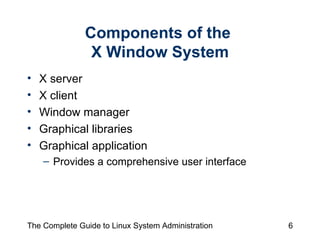
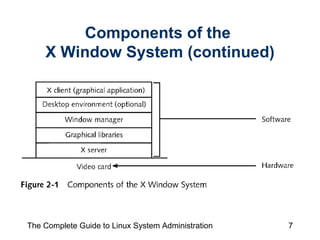
Components of the  X Window System X server X client Window manager Graphical libraries Graphical application  Provides a comprehensive user interface
Components of the  X Window System (continued)
Components of the  X Window System (continued) During Linux installation process Xfree86 X server program installed Use different components at any “level” in  graphical system twm (tab window manager) Basic window manager  Available on most Linux distributions Does not include desktop interface Used to launch other graphical applications
Components of the  X Window System (continued) Window managers available for Linux twm  fvwm (feeble virtual window manager) wm2 Window Maker and Afterstep mwm (motif window manager) olwm (openlook window manager) kwm
Components of the  X Window System (continued) Graphical library Installed on Linux system like any other application Provides tools for other applications KDE Qt GNOME Gtk+ Default desktop in Red Hat Linux
Starting X startx Standard command to start Xwindow system
Desktop Interfaces Graphical environment  Provides collection of functions and utilities  Makes using computer easier for those who do not have many commands memorized KDE interface Most widely used desktop environment on Linux systems Installed by default for most distributions, except Red Hat
Desktop Interfaces (continued) KDE interface includes suite of applications Internet access  System maintenance  Personal productivity  Other basic tasks Panel Set of icons at bottom of screen
Desktop Interfaces (continued) GNOME desktop Stands for GNU object model environment Very similar to KDE Includes panel with integrated taskbar Applications included similar to those with KDE Installed by default for Red Hat
The Graphical Login Screen Provided X display manager xdm Display manager selects which programs to start based on session chosen by user Session  Defines set of graphical programs to run when user logs in
Working with Graphical Windows Use mouse and keyboard to manipulate graphical windows open on graphical desktop Can perform actions using mouse Maximize and minimize windows Close windows Resize and move windows Has internal “clipboard”
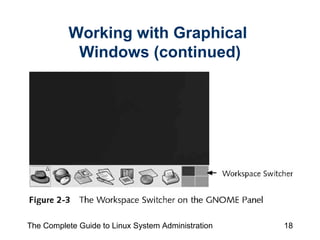
Working with Graphical  Windows (continued) Common to have multiple windows open at same time on desktop Workspace  Empty background  Can open application windows Typically have four Sometimes called virtual desktops Can use keyboard shortcuts
Working with Graphical  Windows (continued)
Configuring GNOME and KDE GNOME and KDE  Both highly configurable
Switching Between Desktop Interfaces switchdesk Followed by name of desktop to switch to Desktop switcher Graphical version Must exit X Window System and log in again for change to take effect
Saving Your Configuration Between Logins On logout GNOME can note which application windows were open  Same applications are opened automatically at next login  Can also save configuration between logins
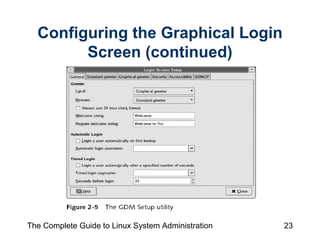
Configuring the Graphical  Login Screen Before you are permitted to configure most parts of graphical login screen Must be logged in as root or enter root password  Select system settings, then Login Screen on GNOME main menu Or runrun gdmsetup command Configure login options
Configuring the Graphical Login Screen (continued)
Configuring the Graphical Login Screen (continued) Theme  Collection of colors, fonts, and images that give display certain look and feel Face browser  Feature of graphical login screen  Causes it to display small graphic image for each user
The Panel Bar across bottom of GNOME desktop interface KDE includes similar bar Displays: Main menu of desktop interface Icons of programs you use frequently Workspace switcher Labeled button for each open window Date and time indicator Other informational items
The Panel (continued) Right-click any icon to: Move Remove View/edit properties Can have multiple panels on desktop at same time
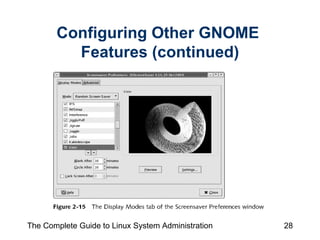
Configuring Other GNOME Features Configure many additional features of desktop interface, including: Background Keyboard shortcuts Menus and toolbars Preferred applications Windows Theme
Configuring Other GNOME  Features (continued)
Core Graphical Utilities Three key types of applications File manager Text editor Web browser
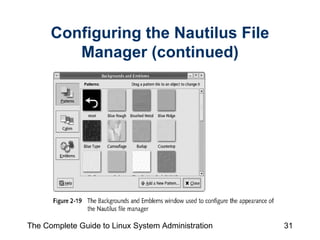
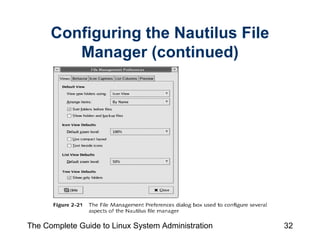
Configuring the Nautilus File Manager Nautilus file manager Provided with GNOME Can configure how Nautilus operates  Using Preferences
Configuring the Nautilus File Manager (continued)
Configuring the Use  of Other Utilities gedit Default text editor  Used to open text files in GNOME Choose web browser that GNOME opens whenever Web page selected
Popular Graphical Programs Graphical personal productivity applications for Linux
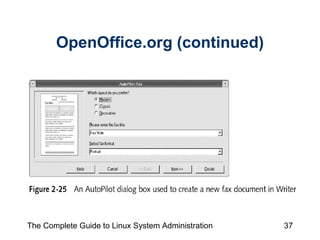
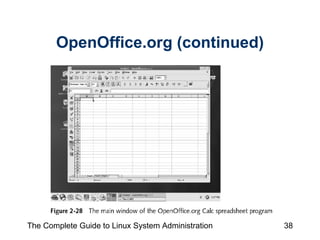
OpenOffice.org Office suite similar to Microsoft Office Includes: Writer Calc Impress Draw Database integration
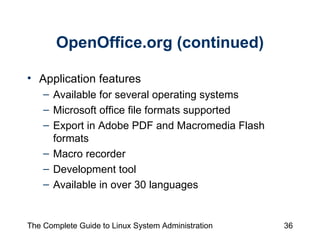
OpenOffice.org (continued) Application features Available for several operating systems Microsoft office file formats supported Export in Adobe PDF and Macromedia Flash formats Macro recorder Development tool Available in over 30 languages
OpenOffice.org (continued)
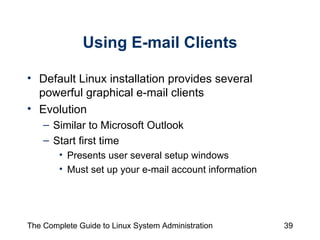
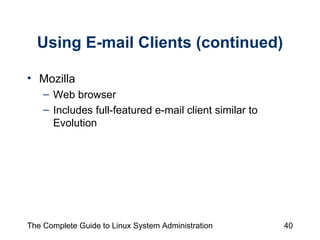
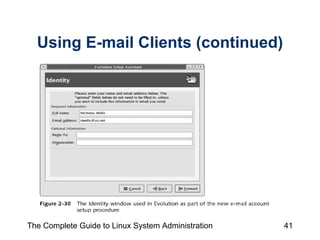
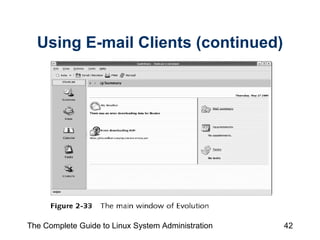
Using E-mail Clients Default Linux installation provides several powerful graphical e-mail clients Evolution Similar to Microsoft Outlook  Start first time  Presents user several setup windows  Must set up your e-mail account information
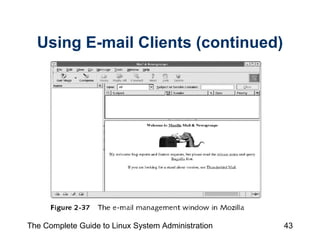
Using E-mail Clients (continued) Mozilla Web browser Includes full-featured e-mail client similar to Evolution
Using E-mail Clients (continued)
Summary X Window System  Powerful and flexible graphical environment Components include:  X server that interacts with video card  X client graphical application Window manager or desktop interface provides user interface to X Graphical libraries make it easier to create new graphical applications
Summary (continued) KDE and GNOME  Provide convenient desktop interface with: Icons  Menus Taskbars Graphical windows can be manipulated using mouse actions Ability to use multiple workspaces Can save current state of desktop interface
Summary (continued) KDE and GNOME include graphical utilities used for common system administration and management tasks OpenOffice.org  Full-featured office suite similar to Microsoft office Linux provides several e-mail readers Evolution Mozilla

Ch02

  • 1.
    Chapter 2: Exploringthe Desktop The Complete Guide to Linux System Administration
  • 2.
    Objectives Understand thegraphical system used by Linux Configure basic features of the GNOME and KDE desktop interfaces Use graphical utilities such as editors, terminals, and browsers Use productivity applications such as e-mail, calendar, and word processing
  • 3.
    Linux Graphical DesktopsGraphical display Optional Most users choose to use GUI X window system Foundation of graphical display
  • 4.
    Understanding the X Window System Project Athena Graphical environment for UNIX Make UNIX easier to use Eventually called X Window System Released as public domain software in 1985 The XFree86 project Dedicated to creating version of X for Intel-based versions of UNIX
  • 5.
    How the XWindow System Functions Macintosh and Windows graphical environments Successful because they run on widely available computer hardware Developers of X took a different approach Difficult to install Xfree86 project Virtually all video cards are now automatically configured by the Linux installation program
  • 6.
    Components of the X Window System X server X client Window manager Graphical libraries Graphical application Provides a comprehensive user interface
  • 7.
    Components of the X Window System (continued)
  • 8.
    Components of the X Window System (continued) During Linux installation process Xfree86 X server program installed Use different components at any “level” in graphical system twm (tab window manager) Basic window manager Available on most Linux distributions Does not include desktop interface Used to launch other graphical applications
  • 9.
    Components of the X Window System (continued) Window managers available for Linux twm fvwm (feeble virtual window manager) wm2 Window Maker and Afterstep mwm (motif window manager) olwm (openlook window manager) kwm
  • 10.
    Components of the X Window System (continued) Graphical library Installed on Linux system like any other application Provides tools for other applications KDE Qt GNOME Gtk+ Default desktop in Red Hat Linux
  • 11.
    Starting X startxStandard command to start Xwindow system
  • 12.
    Desktop Interfaces Graphicalenvironment Provides collection of functions and utilities Makes using computer easier for those who do not have many commands memorized KDE interface Most widely used desktop environment on Linux systems Installed by default for most distributions, except Red Hat
  • 13.
    Desktop Interfaces (continued)KDE interface includes suite of applications Internet access System maintenance Personal productivity Other basic tasks Panel Set of icons at bottom of screen
  • 14.
    Desktop Interfaces (continued)GNOME desktop Stands for GNU object model environment Very similar to KDE Includes panel with integrated taskbar Applications included similar to those with KDE Installed by default for Red Hat
  • 15.
    The Graphical LoginScreen Provided X display manager xdm Display manager selects which programs to start based on session chosen by user Session Defines set of graphical programs to run when user logs in
  • 16.
    Working with GraphicalWindows Use mouse and keyboard to manipulate graphical windows open on graphical desktop Can perform actions using mouse Maximize and minimize windows Close windows Resize and move windows Has internal “clipboard”
  • 17.
    Working with Graphical Windows (continued) Common to have multiple windows open at same time on desktop Workspace Empty background Can open application windows Typically have four Sometimes called virtual desktops Can use keyboard shortcuts
  • 18.
    Working with Graphical Windows (continued)
  • 19.
    Configuring GNOME andKDE GNOME and KDE Both highly configurable
  • 20.
    Switching Between DesktopInterfaces switchdesk Followed by name of desktop to switch to Desktop switcher Graphical version Must exit X Window System and log in again for change to take effect
  • 21.
    Saving Your ConfigurationBetween Logins On logout GNOME can note which application windows were open Same applications are opened automatically at next login Can also save configuration between logins
  • 22.
    Configuring the Graphical Login Screen Before you are permitted to configure most parts of graphical login screen Must be logged in as root or enter root password Select system settings, then Login Screen on GNOME main menu Or runrun gdmsetup command Configure login options
  • 23.
    Configuring the GraphicalLogin Screen (continued)
  • 24.
    Configuring the GraphicalLogin Screen (continued) Theme Collection of colors, fonts, and images that give display certain look and feel Face browser Feature of graphical login screen Causes it to display small graphic image for each user
  • 25.
    The Panel Baracross bottom of GNOME desktop interface KDE includes similar bar Displays: Main menu of desktop interface Icons of programs you use frequently Workspace switcher Labeled button for each open window Date and time indicator Other informational items
  • 26.
    The Panel (continued)Right-click any icon to: Move Remove View/edit properties Can have multiple panels on desktop at same time
  • 27.
    Configuring Other GNOMEFeatures Configure many additional features of desktop interface, including: Background Keyboard shortcuts Menus and toolbars Preferred applications Windows Theme
  • 28.
    Configuring Other GNOME Features (continued)
  • 29.
    Core Graphical UtilitiesThree key types of applications File manager Text editor Web browser
  • 30.
    Configuring the NautilusFile Manager Nautilus file manager Provided with GNOME Can configure how Nautilus operates Using Preferences
  • 31.
    Configuring the NautilusFile Manager (continued)
  • 32.
    Configuring the NautilusFile Manager (continued)
  • 33.
    Configuring the Use of Other Utilities gedit Default text editor Used to open text files in GNOME Choose web browser that GNOME opens whenever Web page selected
  • 34.
    Popular Graphical ProgramsGraphical personal productivity applications for Linux
  • 35.
    OpenOffice.org Office suitesimilar to Microsoft Office Includes: Writer Calc Impress Draw Database integration
  • 36.
    OpenOffice.org (continued) Applicationfeatures Available for several operating systems Microsoft office file formats supported Export in Adobe PDF and Macromedia Flash formats Macro recorder Development tool Available in over 30 languages
  • 37.
  • 38.
  • 39.
    Using E-mail ClientsDefault Linux installation provides several powerful graphical e-mail clients Evolution Similar to Microsoft Outlook Start first time Presents user several setup windows Must set up your e-mail account information
  • 40.
    Using E-mail Clients(continued) Mozilla Web browser Includes full-featured e-mail client similar to Evolution
  • 41.
  • 42.
  • 43.
  • 44.
    Summary X WindowSystem Powerful and flexible graphical environment Components include: X server that interacts with video card X client graphical application Window manager or desktop interface provides user interface to X Graphical libraries make it easier to create new graphical applications
  • 45.
    Summary (continued) KDEand GNOME Provide convenient desktop interface with: Icons Menus Taskbars Graphical windows can be manipulated using mouse actions Ability to use multiple workspaces Can save current state of desktop interface
  • 46.
    Summary (continued) KDEand GNOME include graphical utilities used for common system administration and management tasks OpenOffice.org Full-featured office suite similar to Microsoft office Linux provides several e-mail readers Evolution Mozilla