
LINUX SYSTEM AND 
NETWORK ADMINISTRATION 
K1/ 4, SSeeccoonndd fflloooorr,, SSeeccttoorr--1155//1166 
MMaarrkkeett,, VVaasshhii,, NNaavvii MMuummbbaaii.
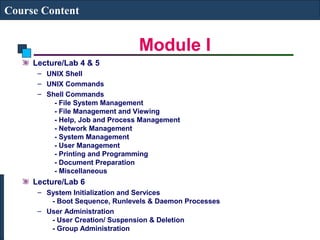
Module I 
Course Content 
Lecture/Lab 1 
– Introduction to UNIX 
- UNIX Operating System Architecture 
– Linux Operating System 
– Users, Groups and Permissions 
- Examining Permissions 
Lecture/Lab 2 
– Linux Installation 
– Hard Disk Partition Details 
– Linux File System 
- ext2 / ext3 
– Dual Boot Installation 
Lecture/Lab 3 
– Desktop Familiarization 
- Text and GUI Mode 
- Virtual Terminals 
- GNOME and KDE Desktop
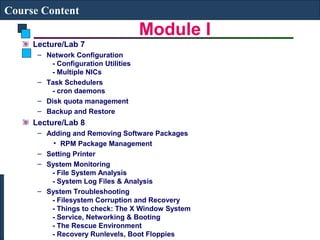
Module I 
Course Content 
Lecture/Lab 4 & 5 
– UNIX Shell 
– UNIX Commands 
– Shell Commands 
- File System Management 
- File Management and Viewing 
- Help, Job and Process Management 
- Network Management 
- System Management 
- User Management 
- Printing and Programming 
- Document Preparation 
- Miscellaneous 
Lecture/Lab 6 
– System Initialization and Services 
- Boot Sequence, Runlevels & Daemon Processes 
– User Administration 
- User Creation/ Suspension & Deletion 
- Group Administration
Module I 
Course Content 
Lecture/Lab 7 
– Network Configuration 
- Configuration Utilities 
- Multiple NICs 
– Task Schedulers 
- cron daemons 
– Disk quota management 
– Backup and Restore 
Lecture/Lab 8 
– Adding and Removing Software Packages 
• RPM Package Management 
– Setting Printer 
– System Monitoring 
- File System Analysis 
- System Log Files & Analysis 
– System Troubleshooting 
- Filesystem Corruption and Recovery 
- Things to check: The X Window System 
- Service, Networking & Booting 
- The Rescue Environment 
- Recovery Runlevels, Boot Floppies
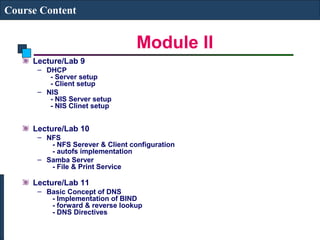
Module II 
Course Content 
Lecture/Lab 9 
– DHCP 
- Server setup 
- Client setup 
– NIS 
- NIS Server setup 
- NIS Clinet setup 
Lecture/Lab 10 
– NFS 
- NFS Serever & Client configuration 
- autofs implementation 
– Samba Server 
- File & Print Service 
Lecture/Lab 11 
– Basic Concept of DNS 
- Implementation of BIND 
- forward & reverse lookup 
- DNS Directives
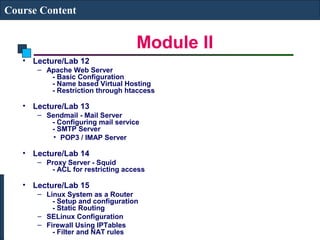
Module II 
Course Content 
• Lecture/Lab 12 
– Apache Web Server 
- Basic Configuration 
- Name based Virtual Hosting 
- Restriction through htaccess 
• Lecture/Lab 13 
– Sendmail - Mail Server 
- Configuring mail service 
- SMTP Server 
• POP3 / IMAP Server 
• Lecture/Lab 14 
– Proxy Server - Squid 
- ACL for restricting access 
• Lecture/Lab 15 
– Linux System as a Router 
- Setup and configuration 
- Static Routing 
– SELinux Configuration 
– Firewall Using IPTables 
- Filter and NAT rules
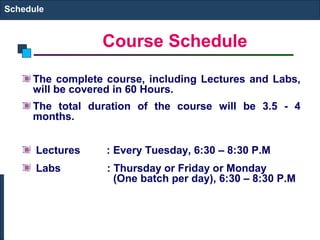
Course Schedule 
Schedule 
The complete course, including Lectures and Labs, 
will be covered in 60 Hours. 
The total duration of the course will be 3.5 - 4 
months. 
Lectures : Every Tuesday, 6:30 – 8:30 P.M 
Labs : Thursday or Friday or Monday 
(One batch per day), 6:30 – 8:30 P.M
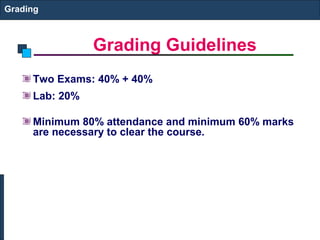
Grading Guidelines 
Grading 
Two Exams: 40% + 40% 
Lab: 20% 
Minimum 80% attendance and minimum 60% marks 
are necessary to clear the course.
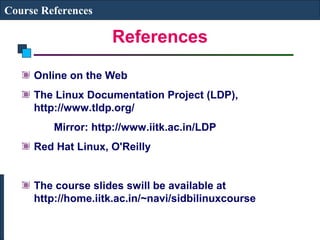
References 
Course References 
Online on the Web 
The Linux Documentation Project (LDP), 
http://www.tldp.org/ 
Mirror: http://www.iitk.ac.in/LDP 
Red Hat Linux, O'Reilly 
The course slides swill be available at 
http://home.iitk.ac.in/~navi/sidbilinuxcourse
Introduction to Linux 
UNIX/LINUX OPERATING SYSTEM 
Introduction to Unix 
History of UNIX 
What is LINUX 
LINUX Distributions 
Unix OS Structure 
Unix File System 
Unix Directories, Files and Inodes 
Users, Groups and Permissions
UNIX 
Introduction to Linux 
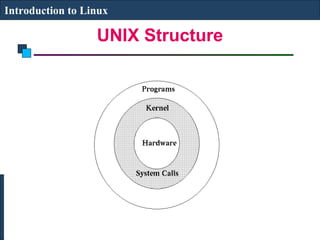
Unix is a multi-user, multi-tasking operating 
system. 
You can have many users logged into a system 
simultaneously, each running many programs. 
It's the kernel's job to keep each process and user 
separate and to regulate access to system 
hardware, including cpu, memory, disk and other 
I/O devices.
Introduction to Linux 
History of UNIX 
First Version was created in Bell Labs in 1969. 
Some of the Bell Labs programmers who had 
worked on this project, Ken Thompson, Dennis 
Ritchie, Rudd Canaday, and Doug McIlroy 
designed and implemented the first version of the 
Unix File System on a PDP-7 along with a few 
utilities. It was given the name UNIX by Brian 
Kernighan. 
00:00:00 Hours, Jan 1, 1970 is time zero for UNIX. It 
is also called as epoch.
Introduction to Linux 
History of UNIX 
1973 Unix is re-written mostly in C, a new language 
developed by Dennis Ritchie. 
Being written in this high-level language greatly 
decreased the effort needed to port it to new 
machines.
Introduction to Linux 
History of UNIX 
1977 There were about 500 Unix sites world-wide. 
1980 BSD 4.1 (Berkeley Software Development) 
1983 SunOS, BSD 4.2, System V 
1988 AT&T and Sun Microsystems jointly develop 
System V Release 4 (SVR4). This later developed 
into UnixWare and Solaris 2. 
1991 Linux was originated.
Introduction to Linux 
What is LINUX 
Linux is a free Unix-type operating system 
originally created by Linus Torvalds with the 
assistance of developers around the world. 
It originated in 1991 as a personal project of Linus 
Torvalds, a Finnish graduate student. 
The Kernel version 1.0 was released in 1994 and 
today the most recent stable version is 2.6.9 
Developed under the GNU General Public License , 
the source code for Linux is freely available to 
everyone.
Introduction to Linux 
LINUX Distributions 
Mandrake: http://www.mandrakesoft.com/ 
RedHat: http://www.redhat.com/ 
Fedora: http://fedora.redhat.com/ 
SuSE/Novell: http://www.suse.com/ 
Debian: http://www.debian.org/ 
Red Hat Enterprise Linux is a Enterprise targeted 
Operating System. It based on mature Open 
Source technology and available at a cost with one 
year Red Hat Network subscription for upgrade 
and support contract.
Introduction to Linux 
UNIX Structure
Introduction to Linux 
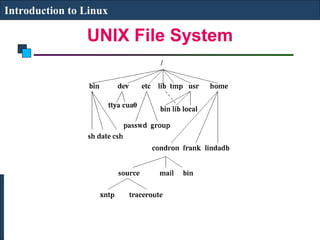
UNIX File System
File System 
Introduction to Linux 
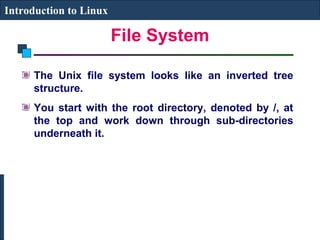
The Unix file system looks like an inverted tree 
structure. 
You start with the root directory, denoted by /, at 
the top and work down through sub-directories 
underneath it.
File System 
Introduction to Linux 
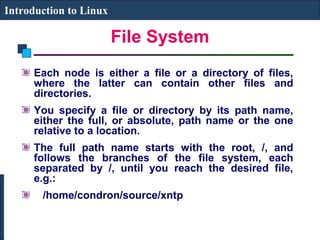
Each node is either a file or a directory of files, 
where the latter can contain other files and 
directories. 
You specify a file or directory by its path name, 
either the full, or absolute, path name or the one 
relative to a location. 
The full path name starts with the root, /, and 
follows the branches of the file system, each 
separated by /, until you reach the desired file, 
e.g.: 
/home/condron/source/xntp
File System 
Introduction to Linux 
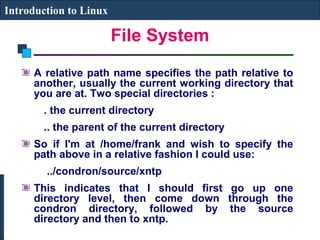
A relative path name specifies the path relative to 
another, usually the current working directory that 
you are at. Two special directories : 
. the current directory 
.. the parent of the current directory 
So if I'm at /home/frank and wish to specify the 
path above in a relative fashion I could use: 
../condron/source/xntp 
This indicates that I should first go up one 
directory level, then come down through the 
condron directory, followed by the source 
directory and then to xntp.
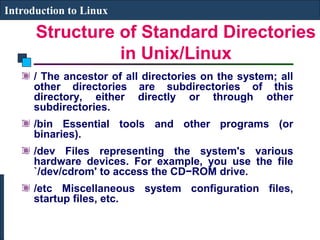
Structure of Standard Directories 
in Unix/Linux 
Introduction to Linux 
/ The ancestor of all directories on the system; all 
other directories are subdirectories of this 
directory, either directly or through other 
subdirectories. 
/bin Essential tools and other programs (or 
binaries). 
/dev Files representing the system's various 
hardware devices. For example, you use the file 
`/dev/cdrom' to access the CD−ROM drive. 
/etc Miscellaneous system configuration files, 
startup files, etc.
Introduction to Linux 
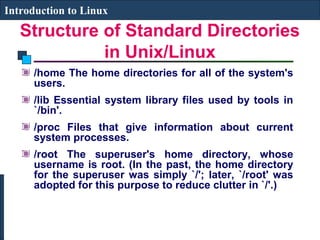
Structure of Standard Directories 
in Unix/Linux 
/home The home directories for all of the system's 
users. 
/lib Essential system library files used by tools in 
`/bin'. 
/proc Files that give information about current 
system processes. 
/root The superuser's home directory, whose 
username is root. (In the past, the home directory 
for the superuser was simply `/'; later, `/root' was 
adopted for this purpose to reduce clutter in `/'.)
Introduction to Linux 
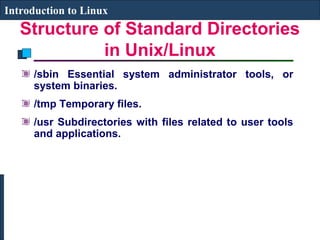
Structure of Standard Directories 
in Unix/Linux 
/sbin Essential system administrator tools, or 
system binaries. 
/tmp Temporary files. 
/usr Subdirectories with files related to user tools 
and applications.
Introduction to Linux 
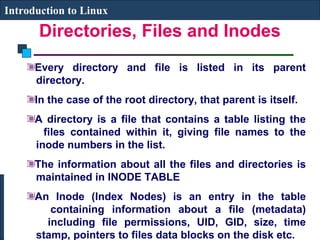
Directories, Files and Inodes 
Every directory and file is listed in its parent 
directory. 
In the case of the root directory, that parent is itself. 
A directory is a file that contains a table listing the 
files contained within it, giving file names to the 
inode numbers in the list. 
The information about all the files and directories is 
maintained in INODE TABLE 
An Inode (Index Nodes) is an entry in the table 
containing information about a file (metadata) 
including file permissions, UID, GID, size, time 
stamp, pointers to files data blocks on the disk etc.
Introduction to Linux 
Users, Groups and Access 
Permissions 
In UNIX/LINUX, there is a concept of user and an 
associated group 
The system determines whether or not a user or 
group can access a file or program based on the 
permissions assigned to them. 
Apart from all the users, there is a special user 
called Super User or the root which has permission 
to access any file and directory
Introduction to Linux 
Access Permissions 
There are three permissions for any file, directory 
or application program. 
The following lists the symbols used to denote 
each, along with a brief description: 
r — Indicates that a given category of user can 
read a file. 
w — Indicates that a given category of user can 
write to a file. 
x — Indicates that a given category of user can 
execute the file.
Introduction to Linux 
Access Permissions 
Each of the three permissions are assigned to 
three defined categories of users. 
The categories are: 
owner — The owner of the file or 
application. 
group — The group that owns the file or 
application. 
others — All users with access to the 
system.
Introduction to Linux 
Access Permissions 
One can easily view the permissions for a file by 
invoking a long format listing using the command 
ls -l. 
For instance, if the user juan creates an executable 
file named test, the output of the command ls -l 
test would look like this: 
-rwxrwxr-x 1 juan student 0 Sep 26 12:25 test
Introduction to Linux 
Access Permissions 
The permissions for this file are listed are listed at 
the start of the line, starting with rwx. 
This first set of symbols define owner access. 
The next set of rwx symbols define group access 
The last set of symbols defining access permitted 
for all other users.
Introduction to Linux 
Access Permissions 
This listing indicates that the file is readable, 
writable, and executable by the user who owns the 
file (user juan) as well as the group owning the file 
(which is a group named student). 
The file is also world-readable and world-executable, 
but not world-writable.
Introduction to Linux 
Listing the Content of a Directory 
ls is used to list the contents of a directory. 
If the command ls is written with parameter –l then 
the command lists contents of the working 
directory with details. Example: 
$ ls –l
Introduction to Linux 
Moving in Directories 
cd try_it 
Changes the directory to try_it 
pwd 
Prints present working directory (e.g. 
/home/smith/try_it) 
cd .. Move to superior directory 
pwd : Prints /home/smith 
cd /home The absolute path 
pwd : Prints /home 
cd The system is returned to the user home 
directory 
pwd : Print /home/smith
Introduction to Linux 
Make Directory 
The command mkdir my_dir 
makes new directory my_dir (the path is given 
relative) as a subdirectory of the current directory.
Introduction to Linux 
Remove Directory 
The command rmdir your_dir 
removes directory your_dir if it is empty.
Copy File 
Introduction to Linux 
The command cp file_1 file_2 
copies file_1 to file_2. The both files must be in the 
same working directory. If they are in various 
directories, the path must be given.
Introduction to Linux 
Rename and/or Move the File 
The command mv file_1 file_2 
moves file_1 to file_2 
The both files must be in the same working 
directory. 
If they are in different directories, the path must be 
given. 
The file_1 is removed from the disk.
Introduction to Linux 
Remove File 
The command rm file_a 
removes the file_a from the system 
If you use wildcard. For example 
rm h*c 
you will remove all files beginning with h and 
ending with c which are in working directory. 
If you write 
rm * 
you will erase all files from your working directory.
Introduction to Linux 
Access Permission of File/Directory 
The ownership of the file or directory can be 
changed using the command 
chown <owner> <file/directory name> 
The group of the file or directory can be changed 
using the command 
chgrp <group> <file/directory name> 
The permissions of the file can be changed using 
chmod command 
chmod -R ### <filename or directory> 
-R is optional and when used with directories will 
traverse all the sub-directories of the target 
directory changing ALL the permissions to ###.
Introduction to Linux 
Access Permission of 
File/Directory 
The #'s can be: 
0 = Nothing 
1 = Execute 
2 = Write 
3 = Execute & Write (2 + 1) 
4 = Read 
5 = Execute & Read (4 + 1) 
6 = Read & Write (4 + 2) 
7 = Execute & Read & Write (4 + 2 + 1)
Introduction to Linux 
Assignment 
Login as guest (password is guest) 
Find the present Directory 
Write the root directory structure 
Write a few commands available in /bin and /sbin directory 
Find the guest directory 
Write the permissions of guest directory 
Create a new Directory test in guest directory 
Copy the file /etc/resolv.conf in test directory 
Rename the test directory to testing 
Delete the testing directory 
Change the permissions of guest directory to 700 
Change the permissions of /tmp directory to 700

Linux administration classes in mumbai

  • 1.
    LINUX SYSTEM AND NETWORK ADMINISTRATION K1/ 4, SSeeccoonndd fflloooorr,, SSeeccttoorr--1155//1166 MMaarrkkeett,, VVaasshhii,, NNaavvii MMuummbbaaii.
  • 3.
    Module I CourseContent Lecture/Lab 1 – Introduction to UNIX - UNIX Operating System Architecture – Linux Operating System – Users, Groups and Permissions - Examining Permissions Lecture/Lab 2 – Linux Installation – Hard Disk Partition Details – Linux File System - ext2 / ext3 – Dual Boot Installation Lecture/Lab 3 – Desktop Familiarization - Text and GUI Mode - Virtual Terminals - GNOME and KDE Desktop
  • 4.
    Module I CourseContent Lecture/Lab 4 & 5 – UNIX Shell – UNIX Commands – Shell Commands - File System Management - File Management and Viewing - Help, Job and Process Management - Network Management - System Management - User Management - Printing and Programming - Document Preparation - Miscellaneous Lecture/Lab 6 – System Initialization and Services - Boot Sequence, Runlevels & Daemon Processes – User Administration - User Creation/ Suspension & Deletion - Group Administration
  • 5.
    Module I CourseContent Lecture/Lab 7 – Network Configuration - Configuration Utilities - Multiple NICs – Task Schedulers - cron daemons – Disk quota management – Backup and Restore Lecture/Lab 8 – Adding and Removing Software Packages • RPM Package Management – Setting Printer – System Monitoring - File System Analysis - System Log Files & Analysis – System Troubleshooting - Filesystem Corruption and Recovery - Things to check: The X Window System - Service, Networking & Booting - The Rescue Environment - Recovery Runlevels, Boot Floppies
  • 6.
    Module II CourseContent Lecture/Lab 9 – DHCP - Server setup - Client setup – NIS - NIS Server setup - NIS Clinet setup Lecture/Lab 10 – NFS - NFS Serever & Client configuration - autofs implementation – Samba Server - File & Print Service Lecture/Lab 11 – Basic Concept of DNS - Implementation of BIND - forward & reverse lookup - DNS Directives
  • 7.
    Module II CourseContent • Lecture/Lab 12 – Apache Web Server - Basic Configuration - Name based Virtual Hosting - Restriction through htaccess • Lecture/Lab 13 – Sendmail - Mail Server - Configuring mail service - SMTP Server • POP3 / IMAP Server • Lecture/Lab 14 – Proxy Server - Squid - ACL for restricting access • Lecture/Lab 15 – Linux System as a Router - Setup and configuration - Static Routing – SELinux Configuration – Firewall Using IPTables - Filter and NAT rules
  • 8.
    Course Schedule Schedule The complete course, including Lectures and Labs, will be covered in 60 Hours. The total duration of the course will be 3.5 - 4 months. Lectures : Every Tuesday, 6:30 – 8:30 P.M Labs : Thursday or Friday or Monday (One batch per day), 6:30 – 8:30 P.M
  • 9.
    Grading Guidelines Grading Two Exams: 40% + 40% Lab: 20% Minimum 80% attendance and minimum 60% marks are necessary to clear the course.
  • 10.
    References Course References Online on the Web The Linux Documentation Project (LDP), http://www.tldp.org/ Mirror: http://www.iitk.ac.in/LDP Red Hat Linux, O'Reilly The course slides swill be available at http://home.iitk.ac.in/~navi/sidbilinuxcourse
  • 11.
    Introduction to Linux UNIX/LINUX OPERATING SYSTEM Introduction to Unix History of UNIX What is LINUX LINUX Distributions Unix OS Structure Unix File System Unix Directories, Files and Inodes Users, Groups and Permissions
  • 12.
    UNIX Introduction toLinux Unix is a multi-user, multi-tasking operating system. You can have many users logged into a system simultaneously, each running many programs. It's the kernel's job to keep each process and user separate and to regulate access to system hardware, including cpu, memory, disk and other I/O devices.
  • 13.
    Introduction to Linux History of UNIX First Version was created in Bell Labs in 1969. Some of the Bell Labs programmers who had worked on this project, Ken Thompson, Dennis Ritchie, Rudd Canaday, and Doug McIlroy designed and implemented the first version of the Unix File System on a PDP-7 along with a few utilities. It was given the name UNIX by Brian Kernighan. 00:00:00 Hours, Jan 1, 1970 is time zero for UNIX. It is also called as epoch.
  • 14.
    Introduction to Linux History of UNIX 1973 Unix is re-written mostly in C, a new language developed by Dennis Ritchie. Being written in this high-level language greatly decreased the effort needed to port it to new machines.
  • 15.
    Introduction to Linux History of UNIX 1977 There were about 500 Unix sites world-wide. 1980 BSD 4.1 (Berkeley Software Development) 1983 SunOS, BSD 4.2, System V 1988 AT&T and Sun Microsystems jointly develop System V Release 4 (SVR4). This later developed into UnixWare and Solaris 2. 1991 Linux was originated.
  • 16.
    Introduction to Linux What is LINUX Linux is a free Unix-type operating system originally created by Linus Torvalds with the assistance of developers around the world. It originated in 1991 as a personal project of Linus Torvalds, a Finnish graduate student. The Kernel version 1.0 was released in 1994 and today the most recent stable version is 2.6.9 Developed under the GNU General Public License , the source code for Linux is freely available to everyone.
  • 17.
    Introduction to Linux LINUX Distributions Mandrake: http://www.mandrakesoft.com/ RedHat: http://www.redhat.com/ Fedora: http://fedora.redhat.com/ SuSE/Novell: http://www.suse.com/ Debian: http://www.debian.org/ Red Hat Enterprise Linux is a Enterprise targeted Operating System. It based on mature Open Source technology and available at a cost with one year Red Hat Network subscription for upgrade and support contract.
  • 18.
    Introduction to Linux UNIX Structure
  • 19.
    Introduction to Linux UNIX File System
  • 20.
    File System Introductionto Linux The Unix file system looks like an inverted tree structure. You start with the root directory, denoted by /, at the top and work down through sub-directories underneath it.
  • 21.
    File System Introductionto Linux Each node is either a file or a directory of files, where the latter can contain other files and directories. You specify a file or directory by its path name, either the full, or absolute, path name or the one relative to a location. The full path name starts with the root, /, and follows the branches of the file system, each separated by /, until you reach the desired file, e.g.: /home/condron/source/xntp
  • 22.
    File System Introductionto Linux A relative path name specifies the path relative to another, usually the current working directory that you are at. Two special directories : . the current directory .. the parent of the current directory So if I'm at /home/frank and wish to specify the path above in a relative fashion I could use: ../condron/source/xntp This indicates that I should first go up one directory level, then come down through the condron directory, followed by the source directory and then to xntp.
  • 23.
    Structure of StandardDirectories in Unix/Linux Introduction to Linux / The ancestor of all directories on the system; all other directories are subdirectories of this directory, either directly or through other subdirectories. /bin Essential tools and other programs (or binaries). /dev Files representing the system's various hardware devices. For example, you use the file `/dev/cdrom' to access the CD−ROM drive. /etc Miscellaneous system configuration files, startup files, etc.
  • 24.
    Introduction to Linux Structure of Standard Directories in Unix/Linux /home The home directories for all of the system's users. /lib Essential system library files used by tools in `/bin'. /proc Files that give information about current system processes. /root The superuser's home directory, whose username is root. (In the past, the home directory for the superuser was simply `/'; later, `/root' was adopted for this purpose to reduce clutter in `/'.)
  • 25.
    Introduction to Linux Structure of Standard Directories in Unix/Linux /sbin Essential system administrator tools, or system binaries. /tmp Temporary files. /usr Subdirectories with files related to user tools and applications.
  • 26.
    Introduction to Linux Directories, Files and Inodes Every directory and file is listed in its parent directory. In the case of the root directory, that parent is itself. A directory is a file that contains a table listing the files contained within it, giving file names to the inode numbers in the list. The information about all the files and directories is maintained in INODE TABLE An Inode (Index Nodes) is an entry in the table containing information about a file (metadata) including file permissions, UID, GID, size, time stamp, pointers to files data blocks on the disk etc.
  • 27.
    Introduction to Linux Users, Groups and Access Permissions In UNIX/LINUX, there is a concept of user and an associated group The system determines whether or not a user or group can access a file or program based on the permissions assigned to them. Apart from all the users, there is a special user called Super User or the root which has permission to access any file and directory
  • 28.
    Introduction to Linux Access Permissions There are three permissions for any file, directory or application program. The following lists the symbols used to denote each, along with a brief description: r — Indicates that a given category of user can read a file. w — Indicates that a given category of user can write to a file. x — Indicates that a given category of user can execute the file.
  • 29.
    Introduction to Linux Access Permissions Each of the three permissions are assigned to three defined categories of users. The categories are: owner — The owner of the file or application. group — The group that owns the file or application. others — All users with access to the system.
  • 30.
    Introduction to Linux Access Permissions One can easily view the permissions for a file by invoking a long format listing using the command ls -l. For instance, if the user juan creates an executable file named test, the output of the command ls -l test would look like this: -rwxrwxr-x 1 juan student 0 Sep 26 12:25 test
  • 31.
    Introduction to Linux Access Permissions The permissions for this file are listed are listed at the start of the line, starting with rwx. This first set of symbols define owner access. The next set of rwx symbols define group access The last set of symbols defining access permitted for all other users.
  • 32.
    Introduction to Linux Access Permissions This listing indicates that the file is readable, writable, and executable by the user who owns the file (user juan) as well as the group owning the file (which is a group named student). The file is also world-readable and world-executable, but not world-writable.
  • 33.
    Introduction to Linux Listing the Content of a Directory ls is used to list the contents of a directory. If the command ls is written with parameter –l then the command lists contents of the working directory with details. Example: $ ls –l
  • 34.
    Introduction to Linux Moving in Directories cd try_it Changes the directory to try_it pwd Prints present working directory (e.g. /home/smith/try_it) cd .. Move to superior directory pwd : Prints /home/smith cd /home The absolute path pwd : Prints /home cd The system is returned to the user home directory pwd : Print /home/smith
  • 35.
    Introduction to Linux Make Directory The command mkdir my_dir makes new directory my_dir (the path is given relative) as a subdirectory of the current directory.
  • 36.
    Introduction to Linux Remove Directory The command rmdir your_dir removes directory your_dir if it is empty.
  • 37.
    Copy File Introductionto Linux The command cp file_1 file_2 copies file_1 to file_2. The both files must be in the same working directory. If they are in various directories, the path must be given.
  • 38.
    Introduction to Linux Rename and/or Move the File The command mv file_1 file_2 moves file_1 to file_2 The both files must be in the same working directory. If they are in different directories, the path must be given. The file_1 is removed from the disk.
  • 39.
    Introduction to Linux Remove File The command rm file_a removes the file_a from the system If you use wildcard. For example rm h*c you will remove all files beginning with h and ending with c which are in working directory. If you write rm * you will erase all files from your working directory.
  • 40.
    Introduction to Linux Access Permission of File/Directory The ownership of the file or directory can be changed using the command chown <owner> <file/directory name> The group of the file or directory can be changed using the command chgrp <group> <file/directory name> The permissions of the file can be changed using chmod command chmod -R ### <filename or directory> -R is optional and when used with directories will traverse all the sub-directories of the target directory changing ALL the permissions to ###.
  • 41.
    Introduction to Linux Access Permission of File/Directory The #'s can be: 0 = Nothing 1 = Execute 2 = Write 3 = Execute & Write (2 + 1) 4 = Read 5 = Execute & Read (4 + 1) 6 = Read & Write (4 + 2) 7 = Execute & Read & Write (4 + 2 + 1)
  • 42.
    Introduction to Linux Assignment Login as guest (password is guest) Find the present Directory Write the root directory structure Write a few commands available in /bin and /sbin directory Find the guest directory Write the permissions of guest directory Create a new Directory test in guest directory Copy the file /etc/resolv.conf in test directory Rename the test directory to testing Delete the testing directory Change the permissions of guest directory to 700 Change the permissions of /tmp directory to 700