Red Hat Linux Essentials
Presented By Haitham Raik
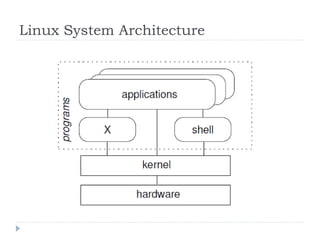
Linux System Architecture
Linux Ideas and History
What is Open Source?
 Open source: software and source code available to
all
 The freedom to distribute software and source code
 The ability to modify and create derived works
 Integrity of author's code
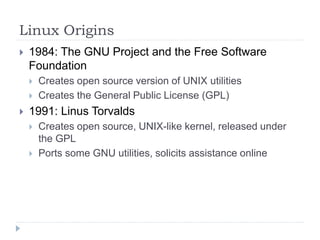
Linux Origins
 1984: The GNU Project and the Free Software
Foundation
 Creates open source version of UNIX utilities
 Creates the General Public License (GPL)
 1991: Linus Torvalds
 Creates open source, UNIX-like kernel, released under
the GPL
 Ports some GNU utilities, solicits assistance online
Red Hat Distributions
 Red Hat Enterprise Linux
 Stable, thoroughly tested software
 Professional support services
 Centralized management tools for large networks
 Fedora
 More, newer applications
 Community supported (no official Red Hat support)
 For personal systems
Linux Principles
 Everything is a file (including hardware)
 Small, single-purpose programs
 Ability to chain programs together to perform
complex tasks
 Avoid captive user interfaces
 Configuration data stored in text
Unit 1: Linux Usage Basics
Logging into a Linux System
 Login Prompt displayed:
 When linux first loads after booting the system
 After another user has logged out
 Login prompt may be:
 Graphical login
 Text-based (shell or virtual consoles):
 Login using username and password
 Each user has a home directory for personal file
storage
Switching Between Virtual Consoles and the
Graphical Environment
 A typical Linux system will run six virtual consoles
and one graphical console
 Switch among virtual consoles by typing: Ctrl-Alt-
F[1-6]
 Access the graphical console by typing Ctrl-Alt-F7
Linux Command Line
 The shell is where commands are invoked
 A command is typed at a shell prompt
 Prompt usually ends in a dollar sign ($)
 After typing a command press Enter to invoke it
 The shell will try to obey the command
 Another prompt will appear
 Example:
$ date
Thu Feb 14 12:28:05 BST 2011
$
Changing Your Password
 Passwords control access to the system
 Change the password the first time you log in
 Change it regularly thereafter
 Select a password that is hard to guess
 To change your password using the desktop
environment navigate to System -> Preferences ->
About Me and then click Password.
 To change your password from a terminal: passwd
Root User
 The root user: a special administrative account
 Also called the superuser
 root has near complete control over the system
...and a nearly unlimited capacity to damage it!
 Do not login as root unless necessary
Changing Identity
 su – creates new shell as root
 sudo command runs command as root
 id shows information on the current user
Unit 2: Running Commands and
Getting Help
Running Commands
 Commands under Linux are files, stored in
directories like /bin and /usr/bin
 Run them from the shell, simply by typing their name
 Commands have the following syntax:
 command options arguments
 Each item is separated by a space
 Options modify a command’s behavior
 Single-letter options usually preceded by –
 For example: -abc or –a –b –c
 Full word options usually preceded by –
 For example: --help
Running Command (cont.)
 Arguments are filenames or other data needed by
the command
 Multiple commands can be separated by ;
time-consuming-program; ls
 Alternatively, use && to arrange for subsequent
commands to run only if earlier ones succeeded:
 Commands are case-sensitive (usually lower-case)
Running Command (cont.)
 For example, echo simply displays its arguments:
$echo
$echo Hello there
Hello there
$ECHO SHOUT
bash: ECHO: command not found
Running Command (cont.)
 Other simple examples:
 date: display date and time
 cal: display calendar
 who: lists the users currently logged in
 wc: counts bytes, words, and lines in its input
 cat: displays files’ content
Chaining Commands Together
 The | symbol makes a pipe between two commands
 For example to count how many users are logged in:
$ who | wc –l
 Another example, to join all the text files together
and count the words, lines and characters in the
result:
$ cat *.txt | wc
Unix Command Feedback
 Typically, successful commands do not give any
output
 Messages are displayed in the case of errors
 The rm command is typical
 If it manages to delete the specified file, it does so silently
 There is no ‘File shopping_list has been removed’
message
 But if the command fails for whatever reason, a message
is displayed
Command History
 Often it is desired to repeat a previously-executed
command
 The shell keeps a command history for this
purpose
 Use the Up and Down cursor keys to scroll through the
list of previous commands
 Press Enter to execute the displayed command
 Commands can also be edited before being run
 Use the built-in command history to display the
lines remembered
Command History (cont.)
 Use !! to refer to the previous command, for example
$ rm index.html
$ echo !!
echo rm index.html
rm index.html
 More often useful is !string, which inserts the most recent
command which started with string
 Useful for repeating particular commands without modification:
$ ls *.txt
notes.txt report.txt
$ !ls
ls *.txt
notes.txt report.txt
Command History (Cont.)
 The event designator !$ refers to the last argument
of the previous command
$ ls -l long_file_name.html
-rw-r--r-- 1 jeff users 11170 Oct 31 10:47
long_file_name.html
$ rm !$
rm long_file_name.html
 Similarly, !ˆ refers to the first argument
Getting Help
 Don’t try to memorize everything!
 Many levels of help:
 whatis
 command --help
 man and info
 /usr/share/doc
 Red Hat Documentation
whatis
 Finds manual pages with the given name and lists
them
 Displays short descriptions of commands
 Uses a database that is updated nightly
 The database can be updated using makewhatis
 Often not available immediately after install
$whatis cal
cal (1) - displays a calendar
The --help Option
 Displays usage summary and argument list
 Used by most, but not all, commands
$ date --help
Usage: date [OPTION]... [+FORMAT] or:
date [-u|--utc|--universal]
[MMDDhhmm[[CC]YY][.ss]]
Display the current time in the given
FORMAT,
or set the system date.
...argument list omitted...
Reading Usage Summaries
 Printed by --help, man and others
 Used to describe the syntax of a command
 Arguments in [] are optional
 Arguments in CAPS or <> are variables
 Text followed by ... represents a list
 x|y|z means "x or y or z"
 -abc means "any mix of -a, -b or -c"
The man Command
 Provides documentation for commands
 Almost every command has a man "page"
 Pages are grouped into "chapters"
 Collectively referred to as the Linux Manual
 man [<chapter>] <command>
Navigating man Pages
 While viewing a man page
 Navigate with arrows, PgUp, PgDn
 /text searches for text
 n/N goes to next/previous match
 q quits
 Searching the Manual
 man -k keyword lists all matching pages
The info Command
 Similar to man, but often more in-depth
 Run info without args to list all page
 info pages are structured like a web site
 Each page is divided into "nodes"
 Links to nodes are preceded by *
 info [command]
Navigating info Pages
 While viewing an info page
 Navigate with arrows, PgUp, PgDn
 Tab moves to next link
 Enter follows the selected link
 n/p /u goes to the next/previous/up-one node
 s text searches for text (default: last search)
 q quits info
Extended Documentation
 The /usr/share/doc directory
 Subdirectories for most installed packages
 Location of docs that do not fit elsewhere
 Example configuration files
 HTML/PDF/PS documentation
 License details
Red Hat Documentation
 Available on docs CD or Red Hat website
 Installation Guide
 Deployment Guide
 Virtualization Guide
Unit 3: Browsing the Filesystem
Files
 Data can be stored in a file
 Each file has a filename
 A label referring to a particular file
 Permitted characters include letters, digits, hyphens (-),
underscores (_), and dots (.)
 Case-sensitive — NewsCrew.mov is a different file from
NewScrew.mov
 A directory is a collection of files and/or other
directories
 The ls command lists the names of files
Linux File Hierarchy
 Because a directory can contain other directories,
we get a directory hierarchy
 The ‘top level’ of the hierarchy is the root directory
 Files and directories can be named by a path
 The root directory is referred to as /
 Paths are delimited by /
 If a path refers to a directory it can end in / (optional)
File and Directory Names
 Names may be up to 255 characters
 All characters are valid, except the forward slash
 Names are case-sensitive
 Example: MAIL, Mail, mail, and mAiL
Absolute and Relative Pathnames
 Absolute pathnames
 Begin with a forward slash
 Complete "road map" to file location
 Can be used anytime you wish to specify a file name
 Relative pathnames
 Do not begin with a slash
 Can be used as a shorter way to specify a file name
 Specify location relative to your current working Directory
Current Working Directory
 Each shell and system process has a current
working directory.
 pwd displays the absolute path to the shell’s current
working directory.
 For example:
$pwd
/home/raik
Changing Directories
 cd changes directories
 To an absolute or relative path:
 cd /home/raik/work
 cd project/docs
 Every directory contains two special directories
(Special Dot Directories)
 The directory .. points to the parent directory
$ls .. Will list the files in the parent directory
 The directory . points to the current directory
$ls ./foo is the same file as foo
 Previous working directory
$cd -
Changing Directories (cont.)
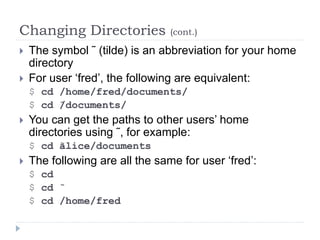
 The symbol ˜ (tilde) is an abbreviation for your home
directory
 For user ‘fred’, the following are equivalent:
$ cd /home/fred/documents/
$ cd ˜/documents/
 You can get the paths to other users’ home
directories using ˜, for example:
$ cd ˜alice/documents
 The following are all the same for user ‘fred’:
$ cd
$ cd ˜
$ cd /home/fred
Listing Directory Contents
 Lists the contents of the current directory or a
specified directory
 Usage:
 ls [options] [files_or_dirs]
 Example:
 ls -a (include hidden files)
 ls -l (display extra information)
 ls -R (recurse through directories)
 ls -ld (directory and symlink information)
Some Important Directories
 Home Directories: /root,/home/username
 User Executables: /bin, /usr/bin, /usr/local/bin
 System Executables: /sbin, /usr/sbin, /usr/local/sbin
 Other Mountpoints: /media, /mnt
 Configuration: /etc
 Temporary Files: /tmp
 Kernels and Bootloader: /boot
 Server Data: /var, /srv
 System Information: /proc, /sys
 Shared Libraries: /lib, /usr/lib, /usr/local/lib
Copying Files and Directories
 To copy the contents of a file into another file, use
the cp command:
 cp - copy files and directories
 Usage:
 cp [options] file destination
 More than one file may be copied at a time if the
destination is a directory:
 cp [options] file1 file2 destination
Copying Files and Directories: The
Destination
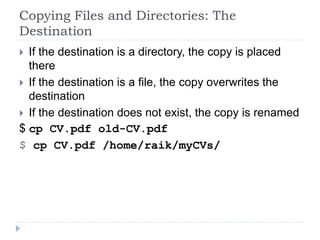
 If the destination is a directory, the copy is placed
there
 If the destination is a file, the copy overwrites the
destination
 If the destination does not exist, the copy is renamed
$ cp CV.pdf old-CV.pdf
$ cp CV.pdf /home/raik/myCVs/
Moving and Renaming Files and Directories
 mv can rename files or directories, or move them to
different directories
 It is equivalent to copying and then deleting
 Usage:
 mv [options] file destination
 Options:
 -f, force overwrite, even if target already exists
 -i, ask user interactively before overwriting files
 More than one file may be moved at a time if the
destination is a directory:
Moving and Renaming Files and Directories
(cont.)
 For example, to rename poetry.txt to poems.txt:
$ mv poetry.txt poems.txt
 To move one file in the current directory to
somewhere else:
$ mv file1 ˜/old-stuff/file1
 To move more than one file in the current
directory to another directory:
$ mv file1 ˜file2 /old-stuff/
Creating and Removing Files
 touch – create empty files or update file timestamps
$touch shopping_list
 To delete a file, use the rm (‘remove’) command
 Usage:
 rm [options] <file>...
 Simply pass the name of the file to be deleted as an
argument:
$ rm shopping_list
 The file and its contents are removed
 There is no recycle bin
 There is no ‘unrm’ command
 The ls command can be used to confirm the deletion
Creating and Removing Files (cont.)
 Examples with options:
 rm -i file (interactive)
 rm -r directory (recursive)
 rm -f file (force)
Creating and Removing Directories
 mkdir creates new, empty directories
 For example, to make a directory for storing
company accounts:
$mkdir Accounts
 rmdir removes empty directories
$rmdir OldAccounts
 rm -r recursively removes directory trees
$rm -r OldAccounts
 Be careful — rm can be a dangerous tool if misused
Filename Completion
 The shell can making typing filenames easier
 Once an unambiguous prefix has been typed,
pressing Tab will automatically ‘type’ the rest
 For example, after typing this:
$ rm sho
pressing Tab may turn it into this:
$ rm shopping_list
 This also works with command names:
 For example, da may be completed to date if no other
commands start ‘da’
Specifying Files with Wildcards
 Use the * wildcard to specify multiple filenames to a
program:
$ ls -l *.txt
 Just using * on its own will expand to all the files in
the current directory:
$ rm * (All the files, that is, except the hidden ones)
 The wildcard ? matches exactly one character:
$ rm -v data.?
removing data.1
removing data.2
removing data.3
Specifying Multiple Files
 Most programs can be given a list of files
 For example, to delete several files at once:
$ rm oldnotes.txt tmp.txt stuff.doc
 To make several directories in one go:
$ mkdir Accounts Reports
 For example, to remove two files, one after another:
$ rm notes.txt morenotes.txt
 If a filename contains spaces, or characters which
are interpreted by the shell (such as *), put single
quotes around them:
$ rm ’Beatles - Strawberry Fields.mp3’
Determining File Content
 Files can contain many types of data
 Check file type with file before opening to determine
appropriate command or application to use
 Usage:
 file [options] <filename> …
Using Nautilus
 Graphical filesystem browser
 Accessed via...
 Desktop icons
 Home: Your home directory
 Computer: Root filesystem, network resources and
removable media
 Applications->System Tools->File Browser
Unit 4: Users, Groups and
Permissions
Users
 Anyone using a Linux computer is a user
 The system keeps track of different users, by username
 Every user is assigned a unique User ID number (UID)
 Users' names and UIDs are stored in /etc/passwd
 Users are assigned a home directory and a shell
 Users cannot read, write or execute each others' files
without permission
 Use su to switch to a different user
 Quicker than logging off and back on again
 su prompts you for the user’s password:
$ su - bob
Password:
Groups
 Users are assigned to groups
 Each group is assigned a unique Group ID number
(gid)
 Groups allowing security to be managed for
collections of people with different requirements
 GIDs are stored in /etc/group
 Each user is given their own private group
 Can be added to other groups for additional access
 All users in a group can share files that belong to the
group
Linux File Security
 Every file is owned by a UID and a GID
 Every process runs as a UID and one or more GIDs
 Usually determined by who runs the process
 Three access categories
 Processes running with the same UID as the file
 Processes running with the same GID as the file
 All other processes
Permissions Precedence
 If UID matches, user permissions apply
 Otherwise, if GID matches, group permissions apply
 If neither match, other permissions apply
Permission Types
 Four symbols are used when displaying permissions:
 r: permission to read a file or list a directory's contents
 w: permission to write to a file or create and remove files
from a directory
 x: permission to execute a program or change into a
directory and do a long listing of the directory
 -: no permission (in place of the r, w, or x)
Examining Permissions
 File permissions may be viewed using ls –l
$ ls -l /bin/login
-rwxr-xr-x 1 root root 19080 Apr 1 18:26 /bin/login
 File type and permissions represented by a 10-
character string
 Interpreting Permissions
 -rwxr-x--- 1 andersen trusted 2948 Oct 11 14:07 myscript
 Read, Write and Execute for the owner, andersen
 Read and Execute for members of the trusted group
 No access for all others
Changing File Ownership
 Only root can change a file's owner
 Only root or the owner can change a file's group
 Ownership is changed with chown:
 chown [-R] user_name file|directory
 Example:
$ chown aaronc logfile.txt (Makes logfile.txt be owned
by the user aaronc)
$ chown -R root /usr/local/share/misc/
 Group-Ownership is changed with chgrp
 chgrp [-R] group_name file|directory
 Example:
$ chgrp staff report.txt (Makes staff be the group owner
of the file logfile.txt)
$ chgrp -R staff shared-directory
Changing Permissions – Symbolic Method
 To change access modes:
 chmod [-R] mode file
 Where mode is (comma-separated):
 u,g or o for user, group and other
 + or - for grant or deny
 r, w or x for read, write and execute
 Examples:
 chmod u+rwx, g-rw, o-rwx my-file
 chmod -R u+rwx, g-rw, o-rwx my-directory
Change Permission – Numeric Method
 Uses a three-digit mode number
 first digit specifies owner's permissions
 second digit specifies group permissions
 third digit represents others' permissions
 Permissions are calculated by adding
 4 (for read)
 2 (for write)
 1 (for execute)
 Example:
 chmod 640 myfile
Changing Permissions - Nautilus
 Nautilus can be used to set the permissions and
group membership of files and directories.
 In a Nautilus window, right-click on a file
 Select Properties from the context menu
 Select the Permissions tab
Unit 5: Using the bash Shell
bash Shell
 Linux’s most popular command interpreter is called
bash
 The Bourne-Again Shell
 More sophisticated than the original sh by Steve Bourne
 Can be run as sh, as a replacement for the original Unix
shell
 Gives you a prompt and waits for a command to be
entered
Command Line Wildcards
 * - matches zero or more characters
 ? - matches any single character
 [0-9] - matches a range of numbers
 [abc] - matches any of the character in the list
 [^abc] - matches all except the characters in the list
The Tab Key
 Type Tab to complete command lines:
 For the command name, it will complete a command
name
 For an argument, it will complete a file name
 Examples
$ xte<Tab>
$ xterm
$ ls myf<Tab>
$ ls myfile.txt
History
 bash stores a history of commands you've entered,
which can be used to repeat commands
 Use history command to see list of "remembered"
commands
$ history
14 cd /tmp
15 ls -l
16 cd
17 cp /etc/passwd .
18 vi passwd
... output truncated ...
History Tricks
 Use the up and down keys to scroll through
previous commands
 Type Ctrl-r to search for a command in command
history
The tilde
 Tilde ( ~ )
 May refer to your home directory
$ cat ~/.bash_profile
 May refer to another user's home directory
$ ls ~julie/public_html
Commands and Braced Sets
 Command Expansion: $() or ``
 Prints output of one command as an argument to another
$ echo "This system's name is $(hostname)”
This system's name is server1.example.com
 Brace Expansion: { }
 Shorthand for printing repetitive strings
$ echo file{1,3,5}
file1 file3 file5
$ rm -f file{1,3,5}
Commands Editing Tricks
 Ctrl-a moves to beginning of line
 Ctrl-e moves to end of line
 Ctrl-u deletes to beginning of line
 Ctrl-k deletes to end of line
 Ctrl-arrow moves left or right by word
gnome-terminal
 A shell runs in the terminal window
 gnome-terminal is a graphical interface terminal
 Applications->Accessories->Terminal
 Graphical terminal emulator that supports multiple
"tabbed" shells
 Ctrl-Shift-t creates a new tab
 Ctrl-PgUp/PgDn switches to next/prev tab
 Ctrl-Shift-c copies selected text
 Ctrl-Shift-v pastes text to the prompt
Shell Variables
 Shell variables can be used to store temporary
values
 Set a shell variable’s value as follows:
$ files="notes.txt report.txt“
 The double quotes are needed because the value contains a
space
 Easiest to put them in all the time
 Print out the value of a shell variable with the echo
command:
$ echo $files
 Use the set command (with no arguments) to list all
the shell variables
Environment Variables
 Shell variables are private to the shell
 A special type of shell variables called environment
variables are passed to programs run from the shell
 A program’s environment is the set of environment
variables it can access
 use export to export a shell variable into the
environment:
$ files="notes.txt report.txt"
$ export files
 Or combine those into one line:
$ export files="notes.txt report.txt"
 The env command lists environment variables
Finding Files
 find can find files by any combination of a wide
number of criteria, including name
 Structure: find directories criteria
 Simplest possible example: find .
 Finding files with a simple criterion:
$ find . -name manual.html
Looks for files under the current directory whose name
is manual.html
 The criteria always begin with a single hyphen, even
though they have long names
Finding Files (cont.)
 find accepts many different criteria; two of the most
useful are:
 -name pattern: selects files whose name matches the
shell-style wildcard pattern
 -type d, -type f: select directories or plain files,
respectively
 You can have complex selections involving ‘and’,
‘or’, and ‘not’
Scripting Basics
 Shell scripts are text files that contain a series of
commands or statements to be executed.
 Shell scripts are useful for:
 Automating commonly used commands
 Performing system administration and troubleshooting
 Creating simple applications
 Manipulation of text or files
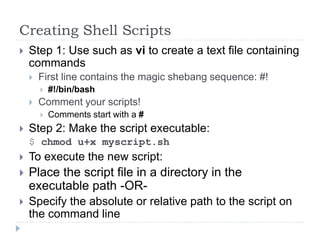
Creating Shell Scripts
 Step 1: Use such as vi to create a text file containing
commands
 First line contains the magic shebang sequence: #!
 #!/bin/bash
 Comment your scripts!
 Comments start with a #
 Step 2: Make the script executable:
$ chmod u+x myscript.sh
 To execute the new script:
 Place the script file in a directory in the
executable path -OR-
 Specify the absolute or relative path to the script on
the command line
Sample Shell Script
#!/bin/bash
# This script displays some information
about your environment
echo "Greetings. The date and time are
$(date)"
echo "Your working directory is: $(pwd)"
Unit 6: Standard I/O and Pipes
Standard Input and Output
 Linux provides three I/O channels to Programs:
 Standard input (STDIN) - keyboard by default
 Standard output (STDOUT) - terminal window by
default
 Standard error (STDERR) - terminal window by
default
Standard Input and Output (cont.)
Standard Input
 Programs can read data from their standard input
file
 Abbreviated to stdin
 By default, this reads from the keyboard
 Characters typed into an interactive program (e.g., a
text editor) go to stdin
Standard Output
 Programs can write data to their standard output
file
 Abbreviated to stdout
 Used for a program’s normal output
 By default this is printed on the terminal
Standard Error
 Programs can write data to their standard error
output
 Standard error is similar to standard output, but used
for error and warning messages
 Abbreviated to stderr
 Useful to separate program output from any program
errors
 By default this is written to your terminal
 So it gets ‘mixed in’ with the standard output
Redirecting Command Input From a File
 The < symbol indicates the file to read input from:
$ wc < thesis.txt
 The file specified becomes the program’s standard
input (STDIN)
Sending Multiple Lines to STDIN
 Redirect multiple lines from keyboard to STDIN with
<<WORD
 All text until WORD is sent to STDIN
$ mail -s "Please Call" jane@example.com
<<END
> Hi Jane,
>
> Please give me a call when you get in. We
may need
> to do some maintenance on server1.
>
> Details when you're on-site,
> Boris
> END
Redirecting Command Output to a File
 STDOUT and STDERR can be redirected to files:
 command operator filename
 Supported operators include:
 > Redirect STDOUT to file
 2> Redirect STDERR to file
 &> Redirect all output to file
 Example:
$ who > users.txt
 The program’s standard output goes into the file
 If the file already exists, it is overwritten
 Use >> to append to a file: $ date >> log.txt
Redirecting Command Output to a File
(cont.)
 More Examples:
 > and < can be used at the same time:
$ filter < input-file > output-file
 This command generates output and errors when run
as non-root:
$ find /etc -name passwd
 Operators can be used to store output and errors:
$ find /etc -name passwd > find.out
$ find /etc -name passwd 2> /dev/null
$ find /etc -name passwd > find.out 2>
find.err
Redirecting Command Output to Another
Command - Piping
 Pipes (the | character) can connect commands:
command1 | command2
 A pipe channels the output of one program to the
input of another
 For example, pipe the output of echo into the
program rev:
$ echo Happy Birthday! | rev
!yadhtriB yppaH
 STDERR is not forwarded across pipes
 Used to combine the functionality of multiple tools
command1 | command2 | command3... etc
Redirecting Command Output to Another
Command – Piping (cont.)
 More Examples:
 less: View input one page at a time:
$ ls -l /etc | less
 mail: Send input via email:
$ echo "test email" | mail -s "test“
user@example.com
 lpr : Send input to a printer
$ echo "test print" | lpr
$ echo "test print" | lpr -P printer_name
 The following two commands are equivalent:
$ wc < my_file.txt
$ cat my_file.txt | wc
Combining Output and Errors
 Some programs affect both STDOUT and STDERR
 &>: Redirects all output:
$ find /etc -name passwd &> find.all
 2>&1: Redirects STDERR to STDOUT
 Useful for sending all output through a pipe
$ find /etc -name passwd 2>&1 | less
 (): Combines STDOUTs of multiple programs
$ ( cal 2007 ; cal 2008 ) | less
Redirecting to Multiple Targets (tee)
 The tee program makes a ‘T-junction’ in a pipeline
 It copies data from stdin to stdout, and also to a file
 Like > and | combined
 $ command1 | tee filename | command2
 Stores STDOUT of command1 in filename, then
pipes to command2
 last | tee everyone.txt | wc > count.txt
Scripting: for loops
 Performs actions on each member of a set of values
 Structure: for varname in list; do
commands...; done
 Example:
for NAME in joe jane julie
do
ADDRESS="$NAME@example.com"
MESSAGE='Projects are due today!'
echo $MESSAGE | mail -s Reminder $ADDRESS
done
Scripting: for loops (cont.)
 Can also use command-output and file lists:
 for num in $(seq 1 10)
 Assigns 1-10 to $num
 seq X Y prints the numbers X through Y
 for file in *.txt
 Assigns names of text files to $file
Unit 7: Text Processing Tools
Tools for Extracting Text
 File Contents: less and cat
 File Excerpts: head and tail
 Extract by Column: cut
 Extract by Keyword: grep
Viewing File Content
 cat: dump one or more files to STDOUT
 less: view file or STDIN one page at a time
 Useful commands while viewing:
 /text searches for text
 n/N jumps to the next/previous match
 v opens the file in a text editor
 less is the pager used by man
Viewing File Excerpts
 head: Display the first 10 lines of a file
 Use -n to change number of lines displayed
 tail: Display the last 10 lines of a file
 Use -n to change number of lines displayed
 Use -f to "follow" subsequent additions to the file
 Very useful for monitoring log files!
Extracting Text by Keyword
 Prints lines of files or STDIN where a pattern is
matched:
$ grep 'john' /etc/passwd
$ date --help | grep year
 Use -i to search case-insensitively
 Use -n to print line numbers of matches
 Use -v to print lines not containing pattern
 Use -AX to include the X lines after each match
 Use -BX to include the X lines before each
match
Extracting Text by Column
 Display specific columns of file or STDIN data
$ cut -d: -f1 /etc/passwd
$ grep root /etc/passwd | cut -d: -f7
 Use -d to specify the column delimiter (default is
TAB)
 Use -f to specify the column to print
 Use -c to cut by characters
$ cut -c2-5 /usr/share/dict/words
Tools for Analyzing Text
 Text Stats: wc
 Sorting Text: sort
 Spell Check: aspell
Getting Text Statistics
 Counts words, lines, bytes and characters
 Can act upon a file or STDIN
$ wc story.txt
39 237 1901 story.txt
 Use -l for only line count
 Use -w for only word count
 Use -c for only byte count
 Use -m for character count (not displayed)
Sorting Text
 Sorts text to STDOUT - original file unchanged
$ sort [options] file(s)
 Common options:
 -r performs a reverse (descending) sort
 -n performs a numeric sort
 -f ignores (folds) case of characters in strings
 -u (unique) removes duplicate lines in output
 -t c uses c as a field separator
 -k X sorts by c-delimited field X
 Can be used multiple times
Eliminating Duplicate Lines
 sort -u: removes duplicate lines from input
 uniq: removes duplicate adjacent lines from input
 Use -c to count number of occurrences
 Use with sort for best effect:
$ sort userlist.txt | uniq -c
Spell Checking
 Interactively spell-check files:
$ aspell check letter.txt
 Non-interactively list mis-spelled words in STDIN
$ aspell list < letter.txt
$ aspell list < letter.txt | wc -l
Tools for Manipulating Text
 Alter (translate) Characters: tr
 Converts characters in one set to corresponding
characters in another set
 Only reads data from STDIN
$ tr 'a-z' 'A-Z' < lowercase.txt
 Alter (stream editor) Strings: sed
 Performs search/replace operations on a stream of text
 Normally does not alter source file
 Use -i.bak to back-up and alter source file
Tools for Manipulating Text (cont.)
 sed Examples
 Quote search and replace instructions!
 sed addresses
 sed 's/dog/cat/g' pets
 sed '1,50s/dog/cat/g' pets
 sed '/digby/,/duncan/s/dog/cat/g' pets
 Multiple sed instructions
 sed -e 's/dog/cat/' -e 's/hi/lo/' pets
 sed -f myedits pets
Regular Expression
 ^ represents beginning of line
 $ represents end of line
 Character classes as in bash:
 [abc], [^abc]
 [[:upper:]], [^[:upper:]]
 [[:alpha:]], [^[:alpha:]]
 Used by:
 grep, sed, less, others
Unit 8: vim An Advanced Text Editor
Red hat linux essentials

Red hat linux essentials

  • 1.
    Red Hat LinuxEssentials Presented By Haitham Raik
  • 2.
  • 3.
  • 4.
    What is OpenSource?  Open source: software and source code available to all  The freedom to distribute software and source code  The ability to modify and create derived works  Integrity of author's code
  • 5.
    Linux Origins  1984:The GNU Project and the Free Software Foundation  Creates open source version of UNIX utilities  Creates the General Public License (GPL)  1991: Linus Torvalds  Creates open source, UNIX-like kernel, released under the GPL  Ports some GNU utilities, solicits assistance online
  • 6.
    Red Hat Distributions Red Hat Enterprise Linux  Stable, thoroughly tested software  Professional support services  Centralized management tools for large networks  Fedora  More, newer applications  Community supported (no official Red Hat support)  For personal systems
  • 7.
    Linux Principles  Everythingis a file (including hardware)  Small, single-purpose programs  Ability to chain programs together to perform complex tasks  Avoid captive user interfaces  Configuration data stored in text
  • 8.
    Unit 1: LinuxUsage Basics
  • 9.
    Logging into aLinux System  Login Prompt displayed:  When linux first loads after booting the system  After another user has logged out  Login prompt may be:  Graphical login  Text-based (shell or virtual consoles):  Login using username and password  Each user has a home directory for personal file storage
  • 10.
    Switching Between VirtualConsoles and the Graphical Environment  A typical Linux system will run six virtual consoles and one graphical console  Switch among virtual consoles by typing: Ctrl-Alt- F[1-6]  Access the graphical console by typing Ctrl-Alt-F7
  • 11.
    Linux Command Line The shell is where commands are invoked  A command is typed at a shell prompt  Prompt usually ends in a dollar sign ($)  After typing a command press Enter to invoke it  The shell will try to obey the command  Another prompt will appear  Example: $ date Thu Feb 14 12:28:05 BST 2011 $
  • 12.
    Changing Your Password Passwords control access to the system  Change the password the first time you log in  Change it regularly thereafter  Select a password that is hard to guess  To change your password using the desktop environment navigate to System -> Preferences -> About Me and then click Password.  To change your password from a terminal: passwd
  • 13.
    Root User  Theroot user: a special administrative account  Also called the superuser  root has near complete control over the system ...and a nearly unlimited capacity to damage it!  Do not login as root unless necessary
  • 14.
    Changing Identity  su– creates new shell as root  sudo command runs command as root  id shows information on the current user
  • 15.
    Unit 2: RunningCommands and Getting Help
  • 16.
    Running Commands  Commandsunder Linux are files, stored in directories like /bin and /usr/bin  Run them from the shell, simply by typing their name  Commands have the following syntax:  command options arguments  Each item is separated by a space  Options modify a command’s behavior  Single-letter options usually preceded by –  For example: -abc or –a –b –c  Full word options usually preceded by –  For example: --help
  • 17.
    Running Command (cont.) Arguments are filenames or other data needed by the command  Multiple commands can be separated by ; time-consuming-program; ls  Alternatively, use && to arrange for subsequent commands to run only if earlier ones succeeded:  Commands are case-sensitive (usually lower-case)
  • 18.
    Running Command (cont.) For example, echo simply displays its arguments: $echo $echo Hello there Hello there $ECHO SHOUT bash: ECHO: command not found
  • 19.
    Running Command (cont.) Other simple examples:  date: display date and time  cal: display calendar  who: lists the users currently logged in  wc: counts bytes, words, and lines in its input  cat: displays files’ content
  • 20.
    Chaining Commands Together The | symbol makes a pipe between two commands  For example to count how many users are logged in: $ who | wc –l  Another example, to join all the text files together and count the words, lines and characters in the result: $ cat *.txt | wc
  • 21.
    Unix Command Feedback Typically, successful commands do not give any output  Messages are displayed in the case of errors  The rm command is typical  If it manages to delete the specified file, it does so silently  There is no ‘File shopping_list has been removed’ message  But if the command fails for whatever reason, a message is displayed
  • 22.
    Command History  Oftenit is desired to repeat a previously-executed command  The shell keeps a command history for this purpose  Use the Up and Down cursor keys to scroll through the list of previous commands  Press Enter to execute the displayed command  Commands can also be edited before being run  Use the built-in command history to display the lines remembered
  • 23.
    Command History (cont.) Use !! to refer to the previous command, for example $ rm index.html $ echo !! echo rm index.html rm index.html  More often useful is !string, which inserts the most recent command which started with string  Useful for repeating particular commands without modification: $ ls *.txt notes.txt report.txt $ !ls ls *.txt notes.txt report.txt
  • 24.
    Command History (Cont.) The event designator !$ refers to the last argument of the previous command $ ls -l long_file_name.html -rw-r--r-- 1 jeff users 11170 Oct 31 10:47 long_file_name.html $ rm !$ rm long_file_name.html  Similarly, !ˆ refers to the first argument
  • 25.
    Getting Help  Don’ttry to memorize everything!  Many levels of help:  whatis  command --help  man and info  /usr/share/doc  Red Hat Documentation
  • 26.
    whatis  Finds manualpages with the given name and lists them  Displays short descriptions of commands  Uses a database that is updated nightly  The database can be updated using makewhatis  Often not available immediately after install $whatis cal cal (1) - displays a calendar
  • 27.
    The --help Option Displays usage summary and argument list  Used by most, but not all, commands $ date --help Usage: date [OPTION]... [+FORMAT] or: date [-u|--utc|--universal] [MMDDhhmm[[CC]YY][.ss]] Display the current time in the given FORMAT, or set the system date. ...argument list omitted...
  • 28.
    Reading Usage Summaries Printed by --help, man and others  Used to describe the syntax of a command  Arguments in [] are optional  Arguments in CAPS or <> are variables  Text followed by ... represents a list  x|y|z means "x or y or z"  -abc means "any mix of -a, -b or -c"
  • 29.
    The man Command Provides documentation for commands  Almost every command has a man "page"  Pages are grouped into "chapters"  Collectively referred to as the Linux Manual  man [<chapter>] <command>
  • 30.
    Navigating man Pages While viewing a man page  Navigate with arrows, PgUp, PgDn  /text searches for text  n/N goes to next/previous match  q quits  Searching the Manual  man -k keyword lists all matching pages
  • 31.
    The info Command Similar to man, but often more in-depth  Run info without args to list all page  info pages are structured like a web site  Each page is divided into "nodes"  Links to nodes are preceded by *  info [command]
  • 32.
    Navigating info Pages While viewing an info page  Navigate with arrows, PgUp, PgDn  Tab moves to next link  Enter follows the selected link  n/p /u goes to the next/previous/up-one node  s text searches for text (default: last search)  q quits info
  • 33.
    Extended Documentation  The/usr/share/doc directory  Subdirectories for most installed packages  Location of docs that do not fit elsewhere  Example configuration files  HTML/PDF/PS documentation  License details
  • 34.
    Red Hat Documentation Available on docs CD or Red Hat website  Installation Guide  Deployment Guide  Virtualization Guide
  • 35.
    Unit 3: Browsingthe Filesystem
  • 36.
    Files  Data canbe stored in a file  Each file has a filename  A label referring to a particular file  Permitted characters include letters, digits, hyphens (-), underscores (_), and dots (.)  Case-sensitive — NewsCrew.mov is a different file from NewScrew.mov  A directory is a collection of files and/or other directories  The ls command lists the names of files
  • 37.
    Linux File Hierarchy Because a directory can contain other directories, we get a directory hierarchy  The ‘top level’ of the hierarchy is the root directory  Files and directories can be named by a path  The root directory is referred to as /  Paths are delimited by /  If a path refers to a directory it can end in / (optional)
  • 38.
    File and DirectoryNames  Names may be up to 255 characters  All characters are valid, except the forward slash  Names are case-sensitive  Example: MAIL, Mail, mail, and mAiL
  • 39.
    Absolute and RelativePathnames  Absolute pathnames  Begin with a forward slash  Complete "road map" to file location  Can be used anytime you wish to specify a file name  Relative pathnames  Do not begin with a slash  Can be used as a shorter way to specify a file name  Specify location relative to your current working Directory
  • 40.
    Current Working Directory Each shell and system process has a current working directory.  pwd displays the absolute path to the shell’s current working directory.  For example: $pwd /home/raik
  • 41.
    Changing Directories  cdchanges directories  To an absolute or relative path:  cd /home/raik/work  cd project/docs  Every directory contains two special directories (Special Dot Directories)  The directory .. points to the parent directory $ls .. Will list the files in the parent directory  The directory . points to the current directory $ls ./foo is the same file as foo  Previous working directory $cd -
  • 42.
    Changing Directories (cont.) The symbol ˜ (tilde) is an abbreviation for your home directory  For user ‘fred’, the following are equivalent: $ cd /home/fred/documents/ $ cd ˜/documents/  You can get the paths to other users’ home directories using ˜, for example: $ cd ˜alice/documents  The following are all the same for user ‘fred’: $ cd $ cd ˜ $ cd /home/fred
  • 43.
    Listing Directory Contents Lists the contents of the current directory or a specified directory  Usage:  ls [options] [files_or_dirs]  Example:  ls -a (include hidden files)  ls -l (display extra information)  ls -R (recurse through directories)  ls -ld (directory and symlink information)
  • 44.
    Some Important Directories Home Directories: /root,/home/username  User Executables: /bin, /usr/bin, /usr/local/bin  System Executables: /sbin, /usr/sbin, /usr/local/sbin  Other Mountpoints: /media, /mnt  Configuration: /etc  Temporary Files: /tmp  Kernels and Bootloader: /boot  Server Data: /var, /srv  System Information: /proc, /sys  Shared Libraries: /lib, /usr/lib, /usr/local/lib
  • 45.
    Copying Files andDirectories  To copy the contents of a file into another file, use the cp command:  cp - copy files and directories  Usage:  cp [options] file destination  More than one file may be copied at a time if the destination is a directory:  cp [options] file1 file2 destination
  • 46.
    Copying Files andDirectories: The Destination  If the destination is a directory, the copy is placed there  If the destination is a file, the copy overwrites the destination  If the destination does not exist, the copy is renamed $ cp CV.pdf old-CV.pdf $ cp CV.pdf /home/raik/myCVs/
  • 47.
    Moving and RenamingFiles and Directories  mv can rename files or directories, or move them to different directories  It is equivalent to copying and then deleting  Usage:  mv [options] file destination  Options:  -f, force overwrite, even if target already exists  -i, ask user interactively before overwriting files  More than one file may be moved at a time if the destination is a directory:
  • 48.
    Moving and RenamingFiles and Directories (cont.)  For example, to rename poetry.txt to poems.txt: $ mv poetry.txt poems.txt  To move one file in the current directory to somewhere else: $ mv file1 ˜/old-stuff/file1  To move more than one file in the current directory to another directory: $ mv file1 ˜file2 /old-stuff/
  • 49.
    Creating and RemovingFiles  touch – create empty files or update file timestamps $touch shopping_list  To delete a file, use the rm (‘remove’) command  Usage:  rm [options] <file>...  Simply pass the name of the file to be deleted as an argument: $ rm shopping_list  The file and its contents are removed  There is no recycle bin  There is no ‘unrm’ command  The ls command can be used to confirm the deletion
  • 50.
    Creating and RemovingFiles (cont.)  Examples with options:  rm -i file (interactive)  rm -r directory (recursive)  rm -f file (force)
  • 51.
    Creating and RemovingDirectories  mkdir creates new, empty directories  For example, to make a directory for storing company accounts: $mkdir Accounts  rmdir removes empty directories $rmdir OldAccounts  rm -r recursively removes directory trees $rm -r OldAccounts  Be careful — rm can be a dangerous tool if misused
  • 52.
    Filename Completion  Theshell can making typing filenames easier  Once an unambiguous prefix has been typed, pressing Tab will automatically ‘type’ the rest  For example, after typing this: $ rm sho pressing Tab may turn it into this: $ rm shopping_list  This also works with command names:  For example, da may be completed to date if no other commands start ‘da’
  • 53.
    Specifying Files withWildcards  Use the * wildcard to specify multiple filenames to a program: $ ls -l *.txt  Just using * on its own will expand to all the files in the current directory: $ rm * (All the files, that is, except the hidden ones)  The wildcard ? matches exactly one character: $ rm -v data.? removing data.1 removing data.2 removing data.3
  • 54.
    Specifying Multiple Files Most programs can be given a list of files  For example, to delete several files at once: $ rm oldnotes.txt tmp.txt stuff.doc  To make several directories in one go: $ mkdir Accounts Reports  For example, to remove two files, one after another: $ rm notes.txt morenotes.txt  If a filename contains spaces, or characters which are interpreted by the shell (such as *), put single quotes around them: $ rm ’Beatles - Strawberry Fields.mp3’
  • 55.
    Determining File Content Files can contain many types of data  Check file type with file before opening to determine appropriate command or application to use  Usage:  file [options] <filename> …
  • 56.
    Using Nautilus  Graphicalfilesystem browser  Accessed via...  Desktop icons  Home: Your home directory  Computer: Root filesystem, network resources and removable media  Applications->System Tools->File Browser
  • 57.
    Unit 4: Users,Groups and Permissions
  • 58.
    Users  Anyone usinga Linux computer is a user  The system keeps track of different users, by username  Every user is assigned a unique User ID number (UID)  Users' names and UIDs are stored in /etc/passwd  Users are assigned a home directory and a shell  Users cannot read, write or execute each others' files without permission  Use su to switch to a different user  Quicker than logging off and back on again  su prompts you for the user’s password: $ su - bob Password:
  • 59.
    Groups  Users areassigned to groups  Each group is assigned a unique Group ID number (gid)  Groups allowing security to be managed for collections of people with different requirements  GIDs are stored in /etc/group  Each user is given their own private group  Can be added to other groups for additional access  All users in a group can share files that belong to the group
  • 60.
    Linux File Security Every file is owned by a UID and a GID  Every process runs as a UID and one or more GIDs  Usually determined by who runs the process  Three access categories  Processes running with the same UID as the file  Processes running with the same GID as the file  All other processes
  • 61.
    Permissions Precedence  IfUID matches, user permissions apply  Otherwise, if GID matches, group permissions apply  If neither match, other permissions apply
  • 62.
    Permission Types  Foursymbols are used when displaying permissions:  r: permission to read a file or list a directory's contents  w: permission to write to a file or create and remove files from a directory  x: permission to execute a program or change into a directory and do a long listing of the directory  -: no permission (in place of the r, w, or x)
  • 63.
    Examining Permissions  Filepermissions may be viewed using ls –l $ ls -l /bin/login -rwxr-xr-x 1 root root 19080 Apr 1 18:26 /bin/login  File type and permissions represented by a 10- character string  Interpreting Permissions  -rwxr-x--- 1 andersen trusted 2948 Oct 11 14:07 myscript  Read, Write and Execute for the owner, andersen  Read and Execute for members of the trusted group  No access for all others
  • 64.
    Changing File Ownership Only root can change a file's owner  Only root or the owner can change a file's group  Ownership is changed with chown:  chown [-R] user_name file|directory  Example: $ chown aaronc logfile.txt (Makes logfile.txt be owned by the user aaronc) $ chown -R root /usr/local/share/misc/  Group-Ownership is changed with chgrp  chgrp [-R] group_name file|directory  Example: $ chgrp staff report.txt (Makes staff be the group owner of the file logfile.txt) $ chgrp -R staff shared-directory
  • 65.
    Changing Permissions –Symbolic Method  To change access modes:  chmod [-R] mode file  Where mode is (comma-separated):  u,g or o for user, group and other  + or - for grant or deny  r, w or x for read, write and execute  Examples:  chmod u+rwx, g-rw, o-rwx my-file  chmod -R u+rwx, g-rw, o-rwx my-directory
  • 66.
    Change Permission –Numeric Method  Uses a three-digit mode number  first digit specifies owner's permissions  second digit specifies group permissions  third digit represents others' permissions  Permissions are calculated by adding  4 (for read)  2 (for write)  1 (for execute)  Example:  chmod 640 myfile
  • 67.
    Changing Permissions -Nautilus  Nautilus can be used to set the permissions and group membership of files and directories.  In a Nautilus window, right-click on a file  Select Properties from the context menu  Select the Permissions tab
  • 68.
    Unit 5: Usingthe bash Shell
  • 69.
    bash Shell  Linux’smost popular command interpreter is called bash  The Bourne-Again Shell  More sophisticated than the original sh by Steve Bourne  Can be run as sh, as a replacement for the original Unix shell  Gives you a prompt and waits for a command to be entered
  • 70.
    Command Line Wildcards * - matches zero or more characters  ? - matches any single character  [0-9] - matches a range of numbers  [abc] - matches any of the character in the list  [^abc] - matches all except the characters in the list
  • 71.
    The Tab Key Type Tab to complete command lines:  For the command name, it will complete a command name  For an argument, it will complete a file name  Examples $ xte<Tab> $ xterm $ ls myf<Tab> $ ls myfile.txt
  • 72.
    History  bash storesa history of commands you've entered, which can be used to repeat commands  Use history command to see list of "remembered" commands $ history 14 cd /tmp 15 ls -l 16 cd 17 cp /etc/passwd . 18 vi passwd ... output truncated ...
  • 73.
    History Tricks  Usethe up and down keys to scroll through previous commands  Type Ctrl-r to search for a command in command history
  • 74.
    The tilde  Tilde( ~ )  May refer to your home directory $ cat ~/.bash_profile  May refer to another user's home directory $ ls ~julie/public_html
  • 75.
    Commands and BracedSets  Command Expansion: $() or ``  Prints output of one command as an argument to another $ echo "This system's name is $(hostname)” This system's name is server1.example.com  Brace Expansion: { }  Shorthand for printing repetitive strings $ echo file{1,3,5} file1 file3 file5 $ rm -f file{1,3,5}
  • 76.
    Commands Editing Tricks Ctrl-a moves to beginning of line  Ctrl-e moves to end of line  Ctrl-u deletes to beginning of line  Ctrl-k deletes to end of line  Ctrl-arrow moves left or right by word
  • 77.
    gnome-terminal  A shellruns in the terminal window  gnome-terminal is a graphical interface terminal  Applications->Accessories->Terminal  Graphical terminal emulator that supports multiple "tabbed" shells  Ctrl-Shift-t creates a new tab  Ctrl-PgUp/PgDn switches to next/prev tab  Ctrl-Shift-c copies selected text  Ctrl-Shift-v pastes text to the prompt
  • 78.
    Shell Variables  Shellvariables can be used to store temporary values  Set a shell variable’s value as follows: $ files="notes.txt report.txt“  The double quotes are needed because the value contains a space  Easiest to put them in all the time  Print out the value of a shell variable with the echo command: $ echo $files  Use the set command (with no arguments) to list all the shell variables
  • 79.
    Environment Variables  Shellvariables are private to the shell  A special type of shell variables called environment variables are passed to programs run from the shell  A program’s environment is the set of environment variables it can access  use export to export a shell variable into the environment: $ files="notes.txt report.txt" $ export files  Or combine those into one line: $ export files="notes.txt report.txt"  The env command lists environment variables
  • 80.
    Finding Files  findcan find files by any combination of a wide number of criteria, including name  Structure: find directories criteria  Simplest possible example: find .  Finding files with a simple criterion: $ find . -name manual.html Looks for files under the current directory whose name is manual.html  The criteria always begin with a single hyphen, even though they have long names
  • 81.
    Finding Files (cont.) find accepts many different criteria; two of the most useful are:  -name pattern: selects files whose name matches the shell-style wildcard pattern  -type d, -type f: select directories or plain files, respectively  You can have complex selections involving ‘and’, ‘or’, and ‘not’
  • 82.
    Scripting Basics  Shellscripts are text files that contain a series of commands or statements to be executed.  Shell scripts are useful for:  Automating commonly used commands  Performing system administration and troubleshooting  Creating simple applications  Manipulation of text or files
  • 83.
    Creating Shell Scripts Step 1: Use such as vi to create a text file containing commands  First line contains the magic shebang sequence: #!  #!/bin/bash  Comment your scripts!  Comments start with a #  Step 2: Make the script executable: $ chmod u+x myscript.sh  To execute the new script:  Place the script file in a directory in the executable path -OR-  Specify the absolute or relative path to the script on the command line
  • 84.
    Sample Shell Script #!/bin/bash #This script displays some information about your environment echo "Greetings. The date and time are $(date)" echo "Your working directory is: $(pwd)"
  • 85.
    Unit 6: StandardI/O and Pipes
  • 86.
    Standard Input andOutput  Linux provides three I/O channels to Programs:  Standard input (STDIN) - keyboard by default  Standard output (STDOUT) - terminal window by default  Standard error (STDERR) - terminal window by default
  • 87.
    Standard Input andOutput (cont.)
  • 88.
    Standard Input  Programscan read data from their standard input file  Abbreviated to stdin  By default, this reads from the keyboard  Characters typed into an interactive program (e.g., a text editor) go to stdin
  • 89.
    Standard Output  Programscan write data to their standard output file  Abbreviated to stdout  Used for a program’s normal output  By default this is printed on the terminal
  • 90.
    Standard Error  Programscan write data to their standard error output  Standard error is similar to standard output, but used for error and warning messages  Abbreviated to stderr  Useful to separate program output from any program errors  By default this is written to your terminal  So it gets ‘mixed in’ with the standard output
  • 91.
    Redirecting Command InputFrom a File  The < symbol indicates the file to read input from: $ wc < thesis.txt  The file specified becomes the program’s standard input (STDIN)
  • 92.
    Sending Multiple Linesto STDIN  Redirect multiple lines from keyboard to STDIN with <<WORD  All text until WORD is sent to STDIN $ mail -s "Please Call" jane@example.com <<END > Hi Jane, > > Please give me a call when you get in. We may need > to do some maintenance on server1. > > Details when you're on-site, > Boris > END
  • 93.
    Redirecting Command Outputto a File  STDOUT and STDERR can be redirected to files:  command operator filename  Supported operators include:  > Redirect STDOUT to file  2> Redirect STDERR to file  &> Redirect all output to file  Example: $ who > users.txt  The program’s standard output goes into the file  If the file already exists, it is overwritten  Use >> to append to a file: $ date >> log.txt
  • 94.
    Redirecting Command Outputto a File (cont.)  More Examples:  > and < can be used at the same time: $ filter < input-file > output-file  This command generates output and errors when run as non-root: $ find /etc -name passwd  Operators can be used to store output and errors: $ find /etc -name passwd > find.out $ find /etc -name passwd 2> /dev/null $ find /etc -name passwd > find.out 2> find.err
  • 95.
    Redirecting Command Outputto Another Command - Piping  Pipes (the | character) can connect commands: command1 | command2  A pipe channels the output of one program to the input of another  For example, pipe the output of echo into the program rev: $ echo Happy Birthday! | rev !yadhtriB yppaH  STDERR is not forwarded across pipes  Used to combine the functionality of multiple tools command1 | command2 | command3... etc
  • 96.
    Redirecting Command Outputto Another Command – Piping (cont.)  More Examples:  less: View input one page at a time: $ ls -l /etc | less  mail: Send input via email: $ echo "test email" | mail -s "test“ user@example.com  lpr : Send input to a printer $ echo "test print" | lpr $ echo "test print" | lpr -P printer_name  The following two commands are equivalent: $ wc < my_file.txt $ cat my_file.txt | wc
  • 97.
    Combining Output andErrors  Some programs affect both STDOUT and STDERR  &>: Redirects all output: $ find /etc -name passwd &> find.all  2>&1: Redirects STDERR to STDOUT  Useful for sending all output through a pipe $ find /etc -name passwd 2>&1 | less  (): Combines STDOUTs of multiple programs $ ( cal 2007 ; cal 2008 ) | less
  • 98.
    Redirecting to MultipleTargets (tee)  The tee program makes a ‘T-junction’ in a pipeline  It copies data from stdin to stdout, and also to a file  Like > and | combined  $ command1 | tee filename | command2  Stores STDOUT of command1 in filename, then pipes to command2  last | tee everyone.txt | wc > count.txt
  • 99.
    Scripting: for loops Performs actions on each member of a set of values  Structure: for varname in list; do commands...; done  Example: for NAME in joe jane julie do ADDRESS="$NAME@example.com" MESSAGE='Projects are due today!' echo $MESSAGE | mail -s Reminder $ADDRESS done
  • 100.
    Scripting: for loops(cont.)  Can also use command-output and file lists:  for num in $(seq 1 10)  Assigns 1-10 to $num  seq X Y prints the numbers X through Y  for file in *.txt  Assigns names of text files to $file
  • 101.
    Unit 7: TextProcessing Tools
  • 102.
    Tools for ExtractingText  File Contents: less and cat  File Excerpts: head and tail  Extract by Column: cut  Extract by Keyword: grep
  • 103.
    Viewing File Content cat: dump one or more files to STDOUT  less: view file or STDIN one page at a time  Useful commands while viewing:  /text searches for text  n/N jumps to the next/previous match  v opens the file in a text editor  less is the pager used by man
  • 104.
    Viewing File Excerpts head: Display the first 10 lines of a file  Use -n to change number of lines displayed  tail: Display the last 10 lines of a file  Use -n to change number of lines displayed  Use -f to "follow" subsequent additions to the file  Very useful for monitoring log files!
  • 105.
    Extracting Text byKeyword  Prints lines of files or STDIN where a pattern is matched: $ grep 'john' /etc/passwd $ date --help | grep year  Use -i to search case-insensitively  Use -n to print line numbers of matches  Use -v to print lines not containing pattern  Use -AX to include the X lines after each match  Use -BX to include the X lines before each match
  • 106.
    Extracting Text byColumn  Display specific columns of file or STDIN data $ cut -d: -f1 /etc/passwd $ grep root /etc/passwd | cut -d: -f7  Use -d to specify the column delimiter (default is TAB)  Use -f to specify the column to print  Use -c to cut by characters $ cut -c2-5 /usr/share/dict/words
  • 107.
    Tools for AnalyzingText  Text Stats: wc  Sorting Text: sort  Spell Check: aspell
  • 108.
    Getting Text Statistics Counts words, lines, bytes and characters  Can act upon a file or STDIN $ wc story.txt 39 237 1901 story.txt  Use -l for only line count  Use -w for only word count  Use -c for only byte count  Use -m for character count (not displayed)
  • 109.
    Sorting Text  Sortstext to STDOUT - original file unchanged $ sort [options] file(s)  Common options:  -r performs a reverse (descending) sort  -n performs a numeric sort  -f ignores (folds) case of characters in strings  -u (unique) removes duplicate lines in output  -t c uses c as a field separator  -k X sorts by c-delimited field X  Can be used multiple times
  • 110.
    Eliminating Duplicate Lines sort -u: removes duplicate lines from input  uniq: removes duplicate adjacent lines from input  Use -c to count number of occurrences  Use with sort for best effect: $ sort userlist.txt | uniq -c
  • 111.
    Spell Checking  Interactivelyspell-check files: $ aspell check letter.txt  Non-interactively list mis-spelled words in STDIN $ aspell list < letter.txt $ aspell list < letter.txt | wc -l
  • 112.
    Tools for ManipulatingText  Alter (translate) Characters: tr  Converts characters in one set to corresponding characters in another set  Only reads data from STDIN $ tr 'a-z' 'A-Z' < lowercase.txt  Alter (stream editor) Strings: sed  Performs search/replace operations on a stream of text  Normally does not alter source file  Use -i.bak to back-up and alter source file
  • 113.
    Tools for ManipulatingText (cont.)  sed Examples  Quote search and replace instructions!  sed addresses  sed 's/dog/cat/g' pets  sed '1,50s/dog/cat/g' pets  sed '/digby/,/duncan/s/dog/cat/g' pets  Multiple sed instructions  sed -e 's/dog/cat/' -e 's/hi/lo/' pets  sed -f myedits pets
  • 114.
    Regular Expression  ^represents beginning of line  $ represents end of line  Character classes as in bash:  [abc], [^abc]  [[:upper:]], [^[:upper:]]  [[:alpha:]], [^[:alpha:]]  Used by:  grep, sed, less, others
  • 115.
    Unit 8: vimAn Advanced Text Editor

Editor's Notes

  • #11 Switch to virtual console is important in cases like the display driver is corrupted
  • #12 The dollar represents the prompt in this course — do not type it
  • #13 Terminal is an interface to the shell
  • #45 Each user has a home directory for personal file storage; for the root it is /root for other users it is /home/username