The Microsoft
               Word


ALLEN NATIONAL HIGH SCHOOL
• It allows you to create professional looking
documents quickly and efficiently.
• It
  enables you to create letters, reports,
manuals, newsletters, and brochures.

• It
   improves the layout and graphics of your
documents.

• It helps you create tables, personalized
envelopes, and mailing labels.
• Documents   can easily be send electronically.
• Spell check feature is provided.
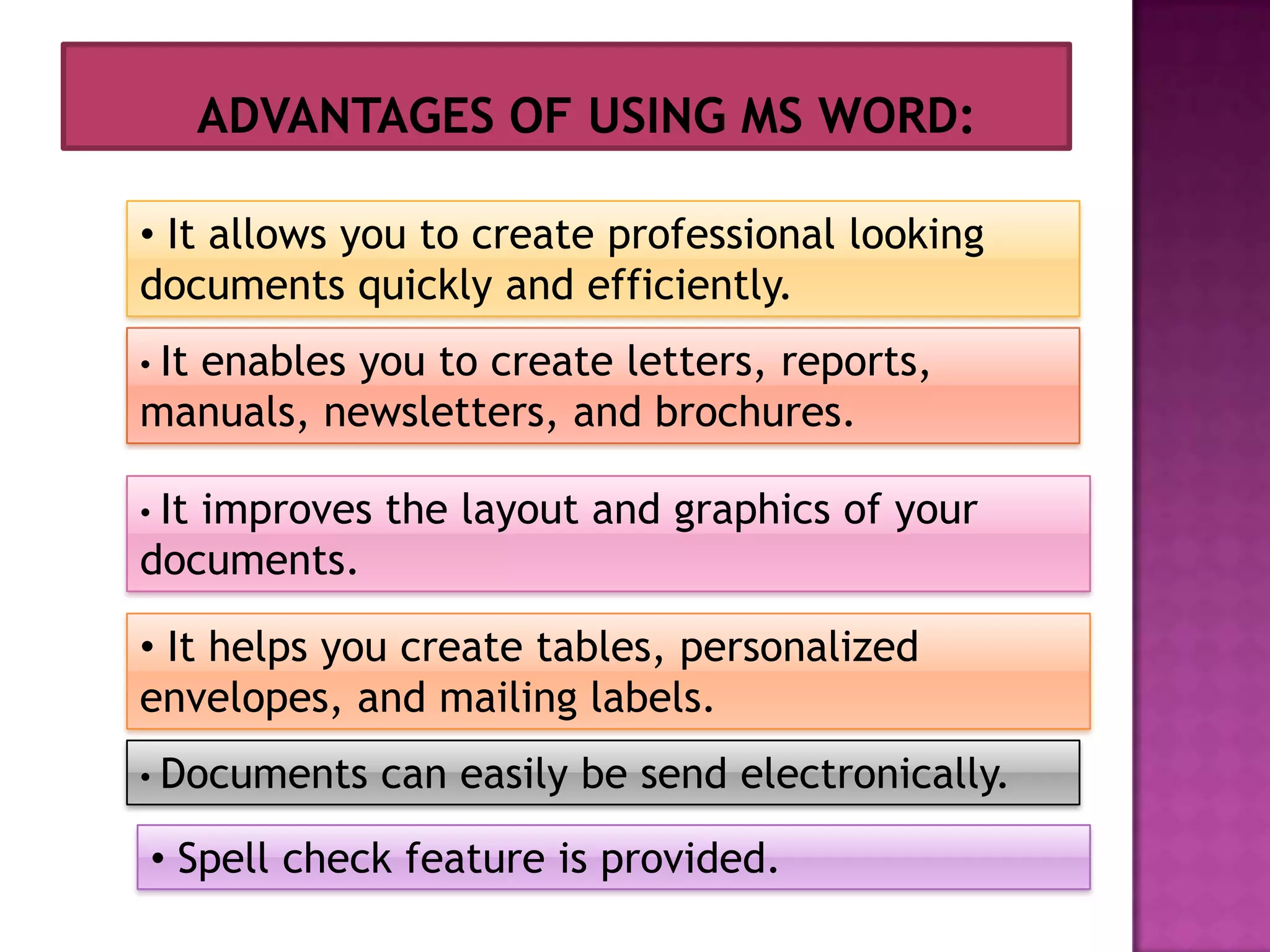
LONG COMMAND:
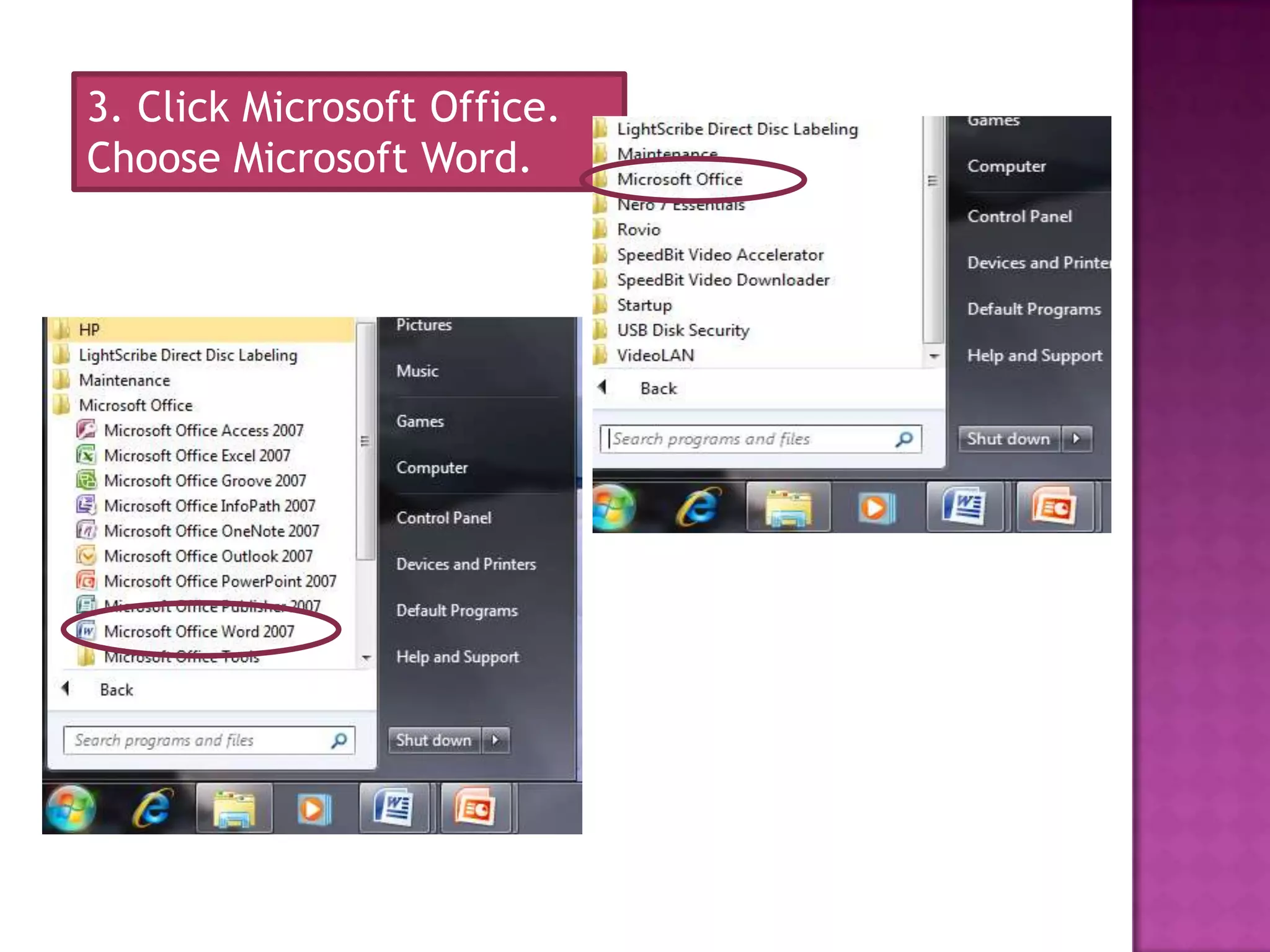
1. Click the Start
   Button on the
   Windows Taskbar.


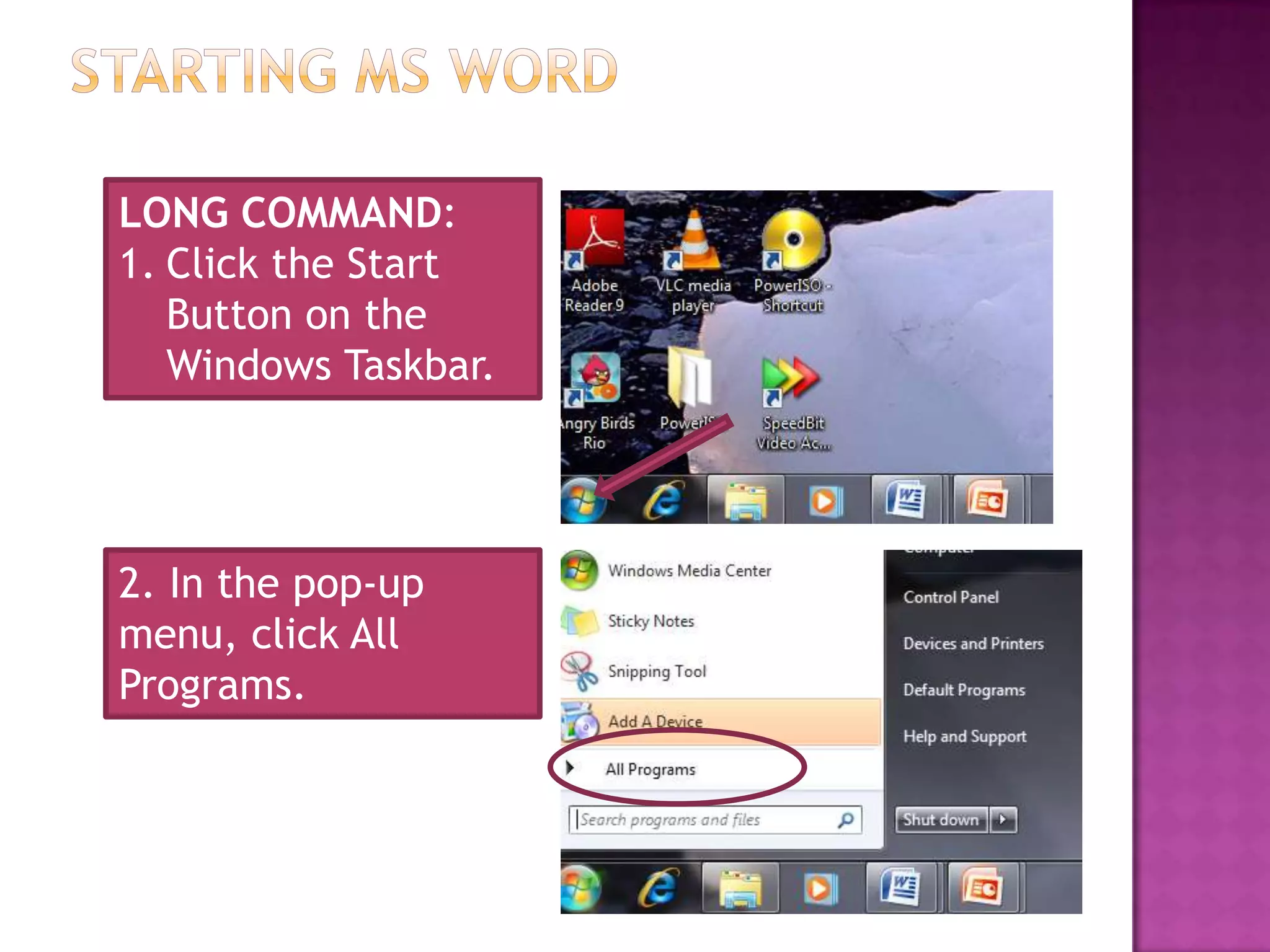
2. In the pop-up
menu, click All
Programs.
3. Click Microsoft Office.
Choose Microsoft Word.
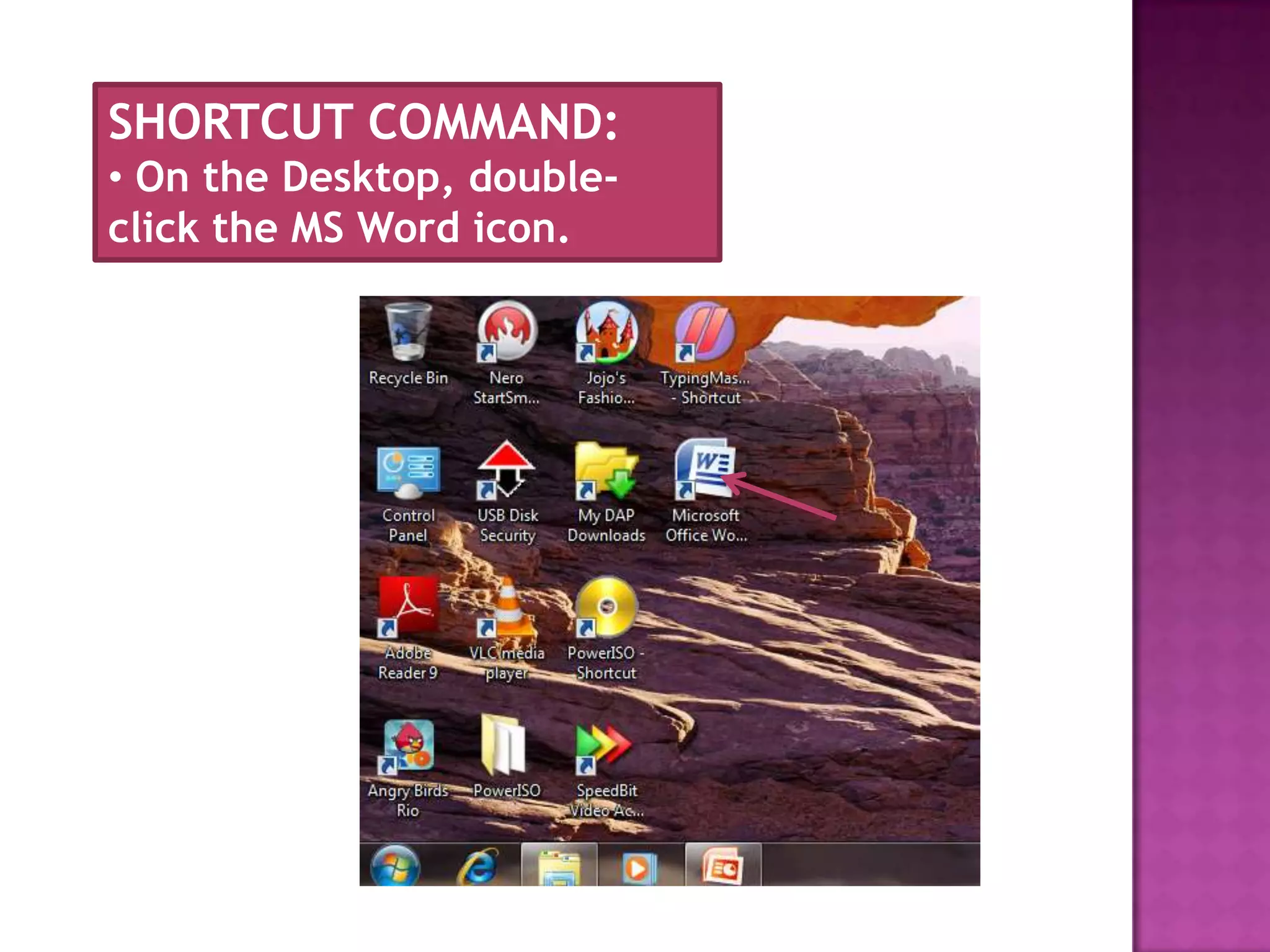
SHORTCUT COMMAND:
• On the Desktop, double-
click the MS Word icon.
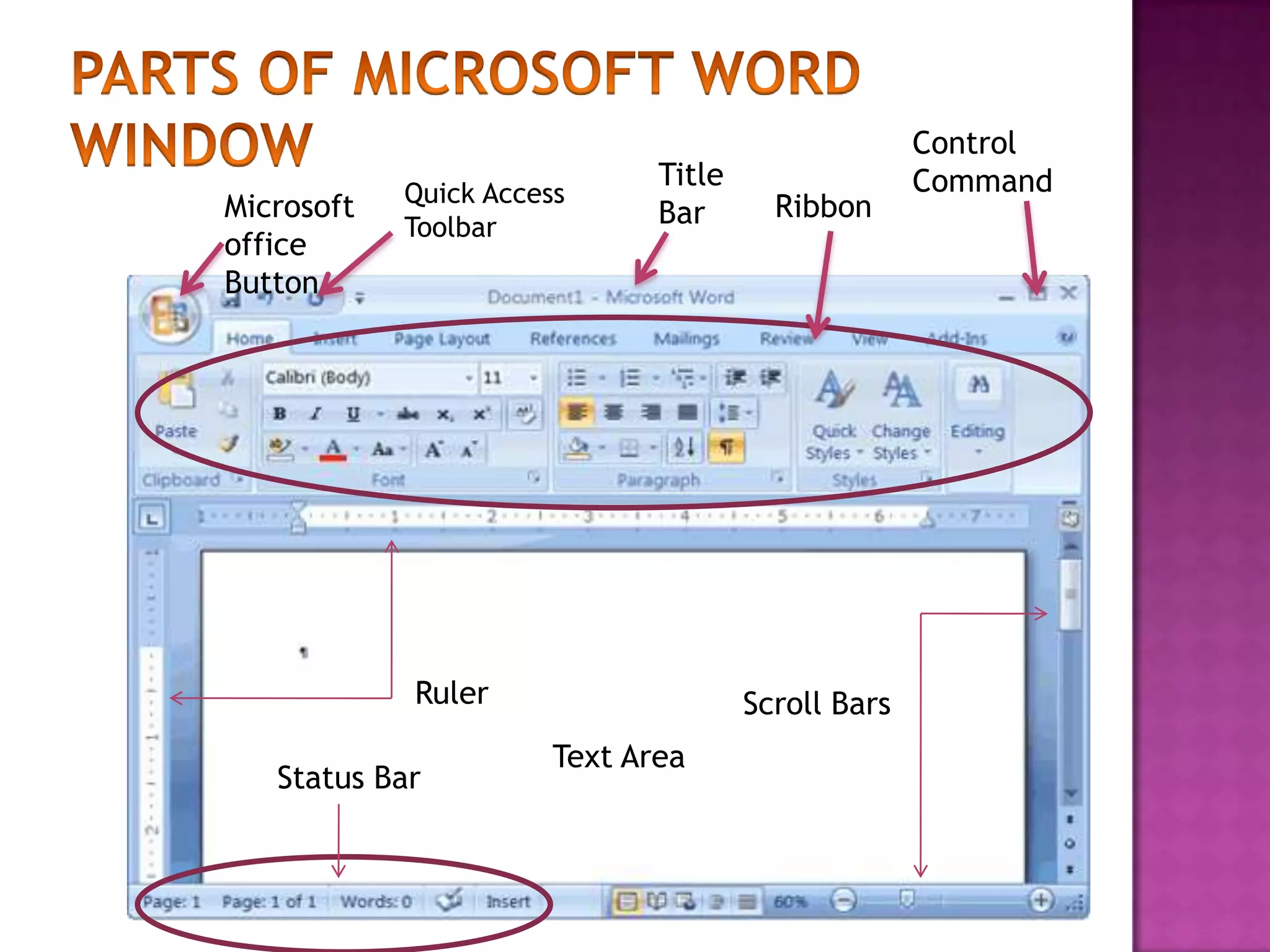
Control
                              Title                 Command
            Quick Access
Microsoft                     Bar       Ribbon
            Toolbar
office
Button


            Ruler                     Scroll Bars
                       Text Area
   Status Bar
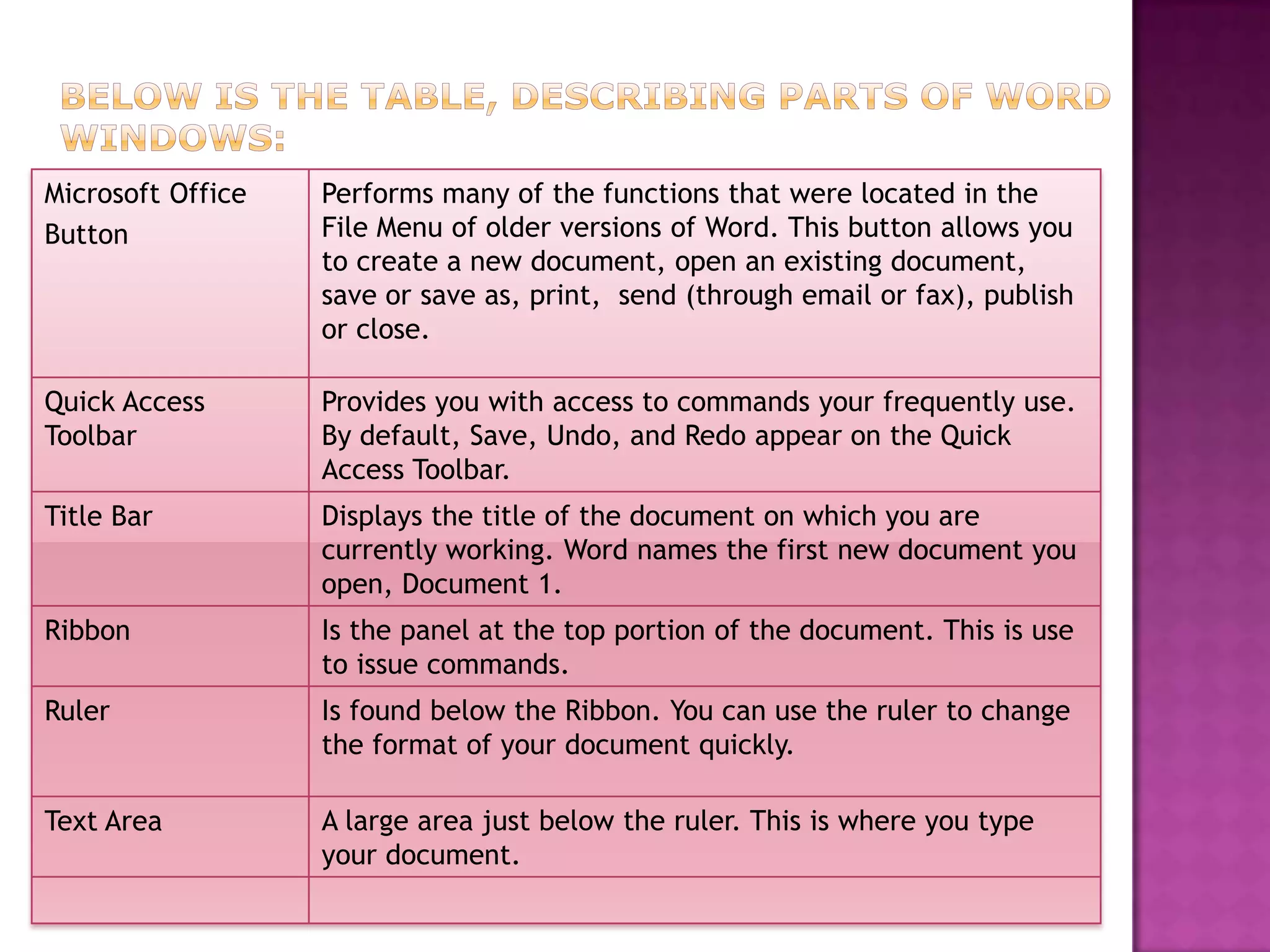
Microsoft Office   Performs many of the functions that were located in the
Button             File Menu of older versions of Word. This button allows you
                   to create a new document, open an existing document,
                   save or save as, print, send (through email or fax), publish
                   or close.

Quick Access       Provides you with access to commands your frequently use.
Toolbar            By default, Save, Undo, and Redo appear on the Quick
                   Access Toolbar.
Title Bar          Displays the title of the document on which you are
                   currently working. Word names the first new document you
                   open, Document 1.
Ribbon             Is the panel at the top portion of the document. This is use
                   to issue commands.
Ruler              Is found below the Ribbon. You can use the ruler to change
                   the format of your document quickly.

Text Area          A large area just below the ruler. This is where you type
                   your document.
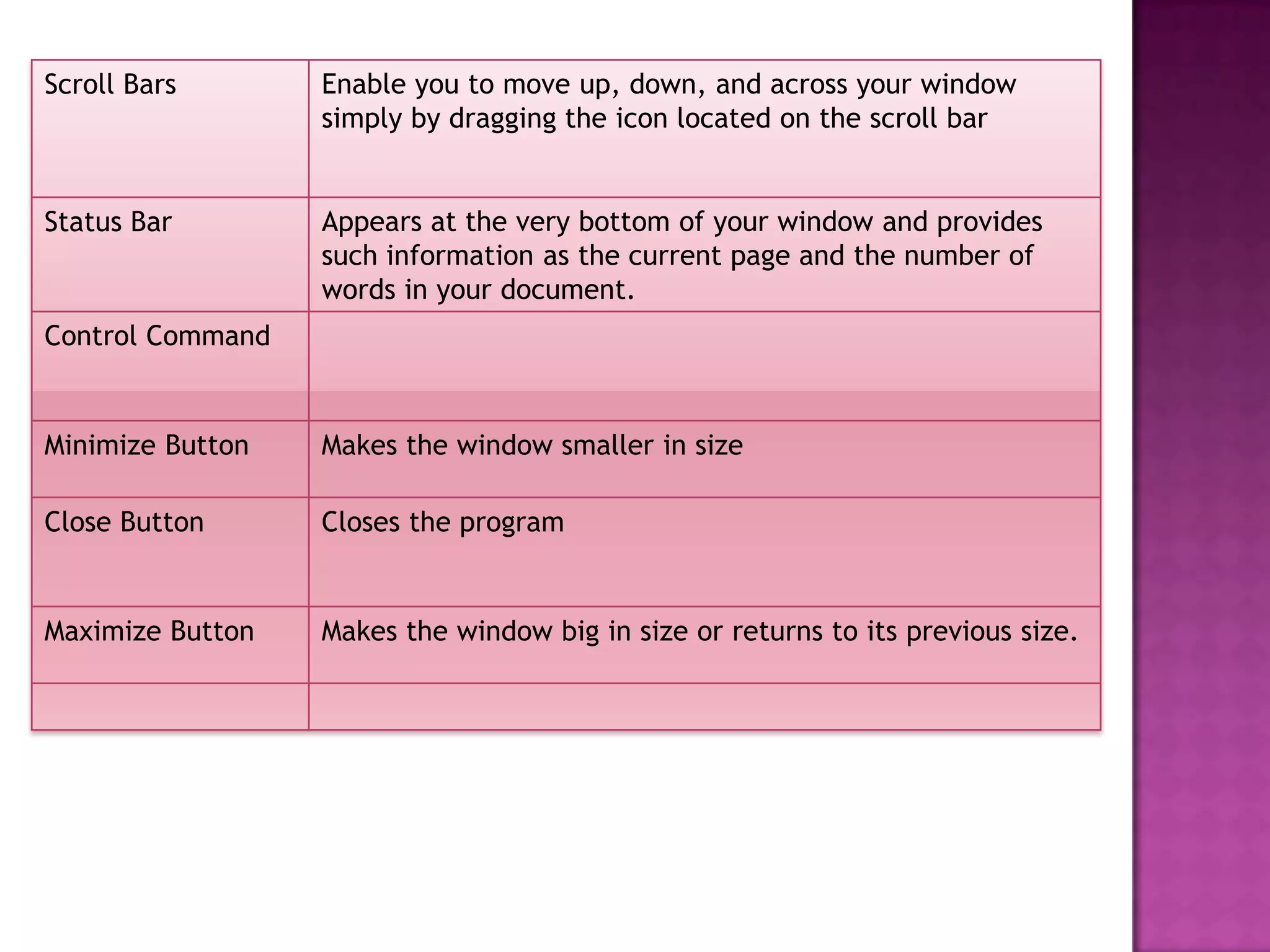
Scroll Bars       Enable you to move up, down, and across your window
                  simply by dragging the icon located on the scroll bar


Status Bar        Appears at the very bottom of your window and provides
                  such information as the current page and the number of
                  words in your document.
Control Command


Minimize Button   Makes the window smaller in size

Close Button      Closes the program


Maximize Button   Makes the window big in size or returns to its previous size.

Introduction to word processing

  • 1.
    The Microsoft Word ALLEN NATIONAL HIGH SCHOOL
  • 3.
    • It allowsyou to create professional looking documents quickly and efficiently. • It enables you to create letters, reports, manuals, newsletters, and brochures. • It improves the layout and graphics of your documents. • It helps you create tables, personalized envelopes, and mailing labels. • Documents can easily be send electronically. • Spell check feature is provided.
  • 4.
    LONG COMMAND: 1. Clickthe Start Button on the Windows Taskbar. 2. In the pop-up menu, click All Programs.
  • 5.
    3. Click MicrosoftOffice. Choose Microsoft Word.
  • 6.
    SHORTCUT COMMAND: • Onthe Desktop, double- click the MS Word icon.
  • 7.
    Control Title Command Quick Access Microsoft Bar Ribbon Toolbar office Button Ruler Scroll Bars Text Area Status Bar
  • 8.
    Microsoft Office Performs many of the functions that were located in the Button File Menu of older versions of Word. This button allows you to create a new document, open an existing document, save or save as, print, send (through email or fax), publish or close. Quick Access Provides you with access to commands your frequently use. Toolbar By default, Save, Undo, and Redo appear on the Quick Access Toolbar. Title Bar Displays the title of the document on which you are currently working. Word names the first new document you open, Document 1. Ribbon Is the panel at the top portion of the document. This is use to issue commands. Ruler Is found below the Ribbon. You can use the ruler to change the format of your document quickly. Text Area A large area just below the ruler. This is where you type your document.
  • 9.
    Scroll Bars Enable you to move up, down, and across your window simply by dragging the icon located on the scroll bar Status Bar Appears at the very bottom of your window and provides such information as the current page and the number of words in your document. Control Command Minimize Button Makes the window smaller in size Close Button Closes the program Maximize Button Makes the window big in size or returns to its previous size.