Chapter 3C# Windows Forms
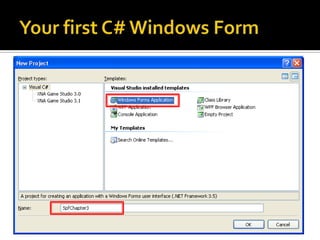
Your first C# Windows Form
IDE: Code Editor and Property WindowCode Editor Missing: how to get it back?Property Window Missing: how to get it back?
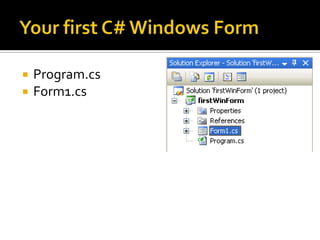
Your first C# Windows FormProgram.csForm1.cs
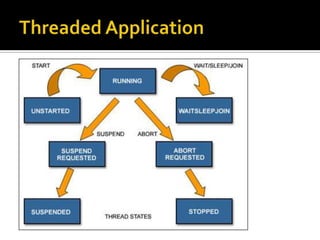
Program.csWindow Applications allow multi-threadingSingle Threaded Apartment [STAThread]Multi Thread Apartment [MTAThread][STAThread]            // Attribute for Main() method       static void Main()Application.Run(new Form1());// Begins running a standard                                             // application on the current                                             // thread
Threaded Application
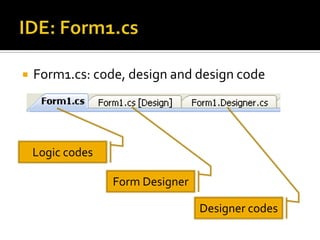
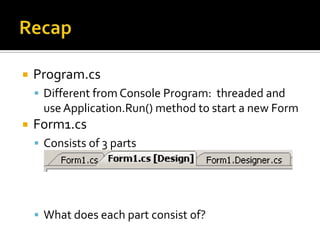
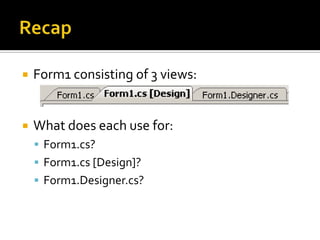
IDE: Form1.csForm1.cs: code, design and design codeLogic codesForm DesignerDesigner codes
IDE: Form1.csContain the logic you put inHow to view this panel?In solution explorer: Double-click Form1.csMenu: View > code   OR   click on [view code icon]
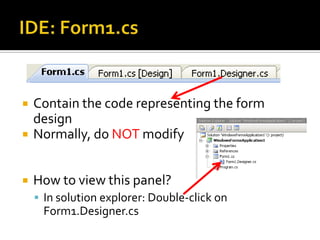
IDE: Form1.csContain the code representing the form designNormally, do NOT modifyHow to view this panel?In solution explorer: Double-click on Form1.Designer.cs
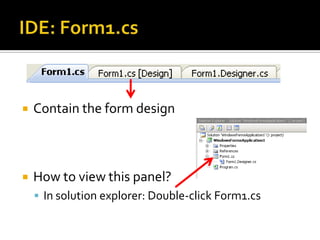
IDE: Form1.csContain the form designHow to view this panel?In solution explorer: Double-click Form1.cs
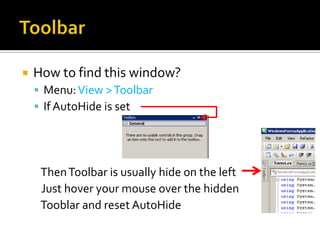
ToolbarHow to find this window?Menu: View > ToolbarIf AutoHide is set   Then Toolbar is usually hide on the left   Just hover your mouse over the hiddenTooblar and reset AutoHide
ToolbarToolbar window is Context sensitiveIt will show the controls ONLY in the Design View:  Eg Form1.cs [Design]
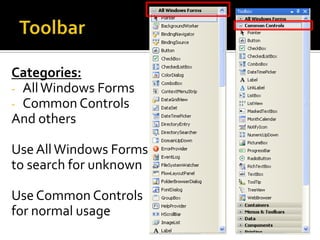
ToolbarCategories:All Windows Forms
Common ControlsAnd othersUse All Windows Formsto search for unknownUse Common Controlsfor normal usage
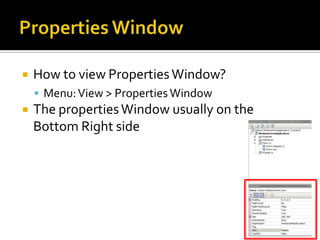
Properties WindowHow to view Properties Window?Menu: View > Properties WindowThe properties Window usually on the Bottom Right side
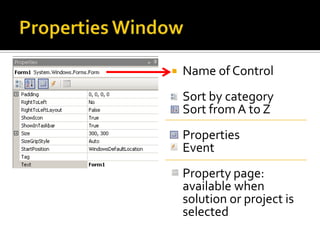
Properties WindowName of ControlSort by categorySort from A to ZPropertiesEventProperty page: available when solution or project is selected
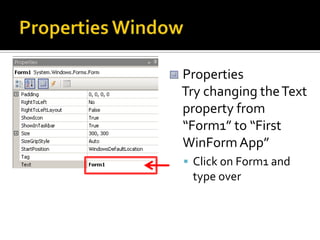
Properties WindowProperties    Try changing the Text property from “Form1” to “First WinForm App”Click on Form1 and type over
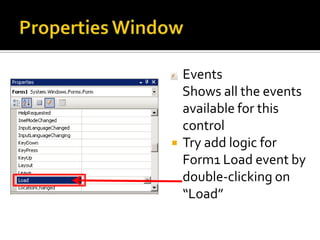
Properties WindowEvents    Shows all the events available for this controlTry add logic for Form1 Load event by double-clicking on “Load”
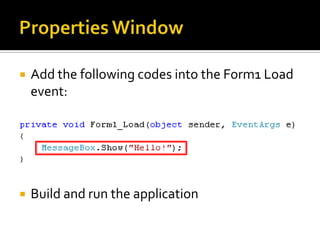
Properties WindowAdd the following codes into the Form1 Load event:Build and run the application
Adding Common ControlsThree types of Common ControlDisplay : 	Eg LabelInput : 		Eg Textbox, ButtonOutput: 	Eg Label
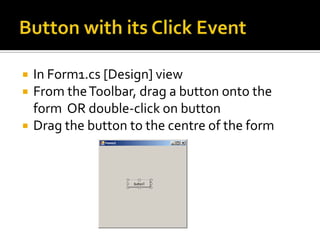
Button with its Click EventIn Form1.cs [Design] viewFrom the Toolbar, drag a button onto the form  OR double-click on buttonDrag the button to the centre of the form
Button with its Click EventGo to Button Click event code:Double-click on                            ORSelect button1, Click on       Icon, then double-clicking on Click event
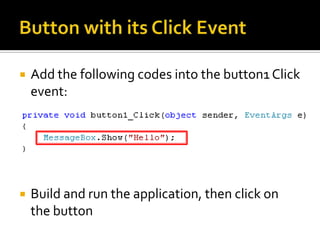
Button with its Click EventAdd the following codes into the button1 Click event:Build and run the application, then click on the button
Exercise 3.1Make use of Button control, its Click event and output to Message BoxFor those with textbook: page 28 - 51For those without textbook          http://alturl.com/uiak      Your First C# Windows Form    Adding Controls to a Blank C# Form    Properties of a C# Control    Adding C# Code to a Button
Next LessonMore controls and problem solving exercises
RecapA new Windows Forms Application has 2 *.cs files?.cs?.csWhat are these two files?
RecapProgram.csDifferent from Console Program:  threaded and use Application.Run() method to start a new FormForm1.csConsists of 3 partsWhat does each part consist of?
RecapForm1 consisting of 3 views:What does each use for:Form1.cs?Form1.cs [Design]?Form1.Designer.cs?
RecapWindows application with at least one formA form may containButtonTextBoxLabel… EtcEvent driven/activated : program responses toButton ClickMouse MoveKeypress
RecapExercise 3.1:  Button with click event that output a message
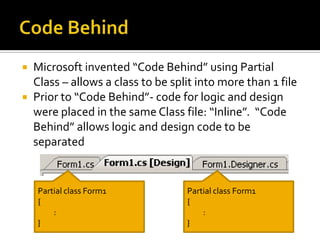
Code BehindMicrosoft invented “Code Behind” using Partial Class – allows a class to be split into more than 1 filePrior to “Code Behind”- code for logic and design were placed in the same Class file: “Inline”.  “Code Behind” allows logic and design code to be separatedPartial class Form1{         :}Partial class Form1{         :}
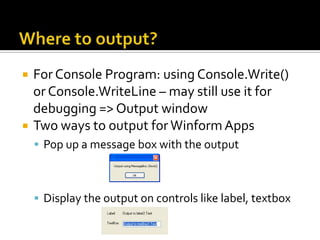
Where to output?For Console Program: using Console.Write() or Console.WriteLine – may still use it for debugging => Output windowTwo ways to output for Winform AppsPop up a message box with the outputDisplay the output on controls like label, textbox
How to input?Get inputs from various controlsTextBox:  Text property (Eg textBox1.Text)CheckBox: Checked property (Eg checkBox1.Checked)ListBox: SelectedIndex property
Naming Convention for WinFormUnderscore is used only with events: eg Form1_Load, button1_ClickDo NOT use hungarian  (lblName, btnProcess), but some programmers do use hungarian for GUI controls: Eg a submit button might be btnSubmit, a name label might be lblName – the textbook uses hungarian for GUI controlsAlternatively, spell in full: EgbuttonSubmit, labelName (need not know what prefix for which control)
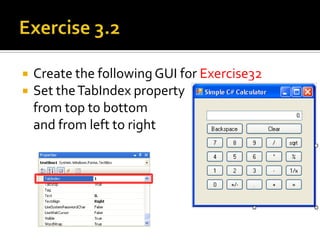
Exercise 3.2Create the following GUI for Exercise32Set the TabIndex property    from top to bottom    and from left to right
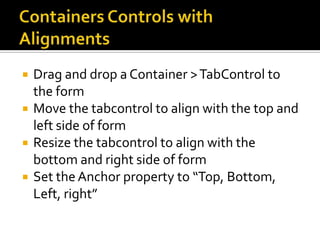
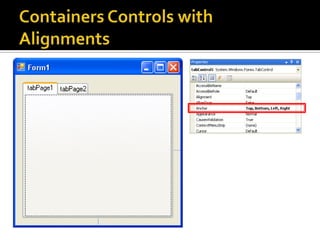
Containers Controls with AlignmentsDrag and drop a Container > TabControl to the formMove the tabcontrol to align with the top and left side of formResize the tabcontrol to align with the bottom and right side of formSet the Anchor property to “Top, Bottom, Left, right”
Containers Controls with Alignments
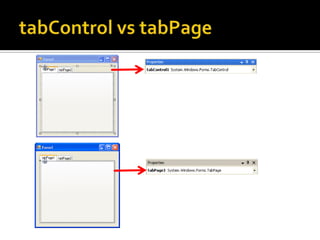
tabControlvstabPage
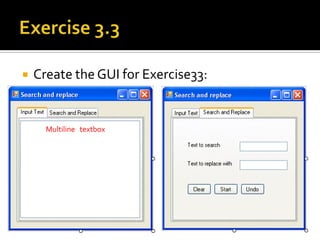
Exercise 3.3Create the GUI for Exercise33:Multiline   textbox
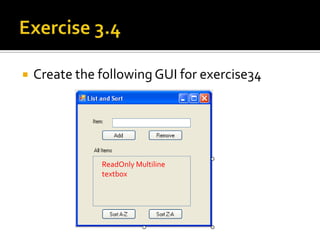
Exercise 3.4Create the following GUI for exercise34ReadOnly Multiline   textbox
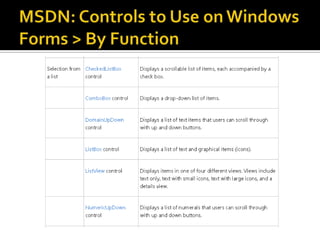
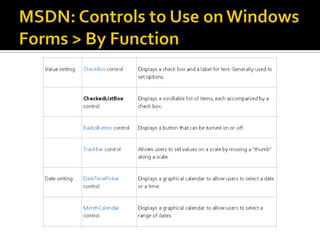
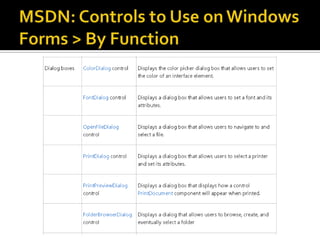
Where to go from here?MSDN> Windows Forms Programming     > Controls to Use on Windows Forms     > By Function    URL: http://alturl.com/u63m
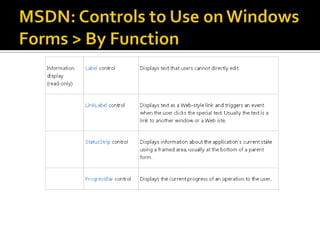
MSDN: Controls to Use on Windows Forms > By Function
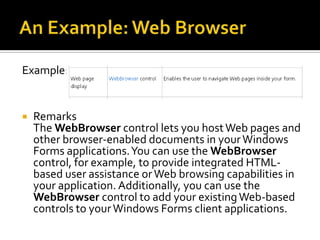
An Example: Web BrowserExample:Remarks     The WebBrowser control lets you host Web pages and other browser-enabled documents in your Windows Forms applications. You can use the WebBrowser control, for example, to provide integrated HTML-based user assistance or Web browsing capabilities in your application. Additionally, you can use the WebBrowser control to add your existing Web-based controls to your Windows Forms client applications.
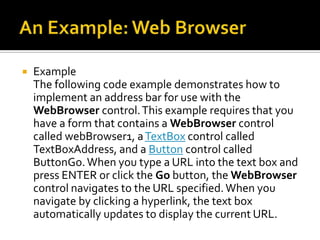
An Example: Web BrowserExample     The following code example demonstrates how to implement an address bar for use with the WebBrowser control. This example requires that you have a form that contains a WebBrowser control called webBrowser1, a TextBox control called TextBoxAddress, and a Button control called ButtonGo. When you type a URL into the text box and press ENTER or click the Go button, the WebBrowser control navigates to the URL specified. When you navigate by clicking a hyperlink, the text box automatically updates to display the current URL.
An Example: Web BrowserCreate the GUIProgram the code (code behind)
SummaryCode Behind using Partial ClassHow to use the Form DesignerHow to find information on Controls using MSDNNext Lesson:  problem solvingNext week: variables and conditional logic
RecapCode Behind using Partial ClassHow to use the Form DesignerHow to find information on Controls using MSDN
Problem SolvingNext part of the lesson focus on problem solving with the same set of questions from the console program
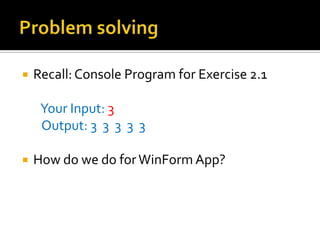
Problem solvingRecall: Console Program for Exercise 2.1       Your Input: 3       Output: 3  3  3  3  3How do we do for WinForm App?
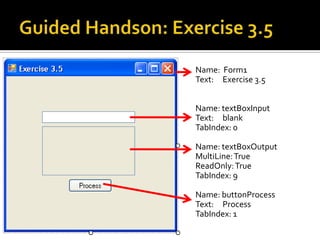
Guided Handson: Exercise 3.5Name:  Form1Text:     Exercise 3.5Name: textBoxInputText:     blankTabIndex: 0Name: textBoxOutputMultiLine: TrueReadOnly: TrueTabIndex: 9Name: buttonProcessText:     ProcessTabIndex: 1
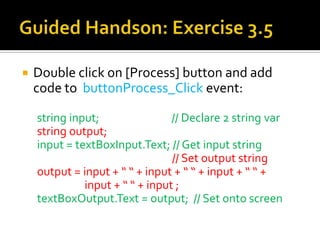
Guided Handson: Exercise 3.5Double click on [Process] button and add code to  buttonProcess_Click event:      string input;                             // Declare 2 string var      string output;      input = textBoxInput.Text; // Get input string                                                            // Set output string      output = input + “ “ + input + “ “ + input + “ “ +                         input + “ “ + input ;textBoxOutput.Text = output;  // Set onto screen
Guided Handson: Exercise 3.5Output:
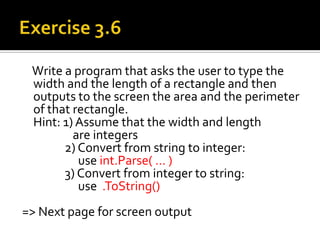
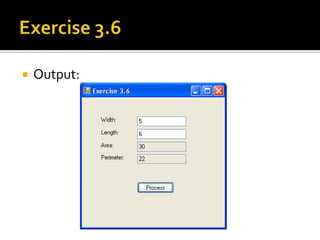
Exercise 3.6    Write a program that asks the user to type the width and the length of a rectangle and then outputs to the screen the area and the perimeter of that rectangle.	Hint: 1) Assume that the width and length                    are integers                2) Convert from string to integer:                      use int.Parse( … )                3) Convert from integer to string:                     use  .ToString()=> Next page for screen output
Exercise 3.6Output:
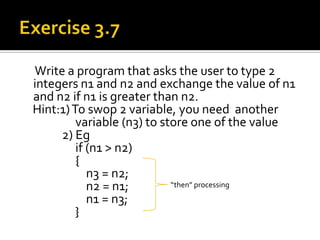
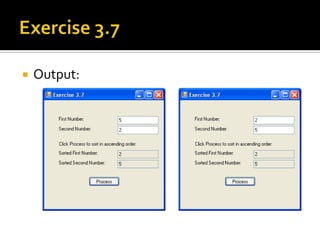
Exercise 3.7     Write a program that asks the user to type 2 integers n1 and n2 and exchange the value of n1 and n2 if n1 is greater than n2.    Hint:1) To swop 2 variable, you need  another                     variable (n3) to store one of the value               2) Eg                    if (n1 > n2)                    {                        n3 = n2;                        n2 = n1;                        n1 = n3;                    }  “then” processing
Exercise 3.7Output:
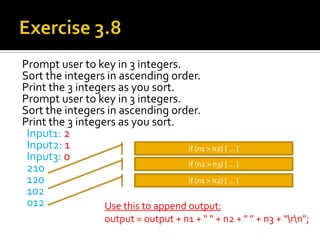
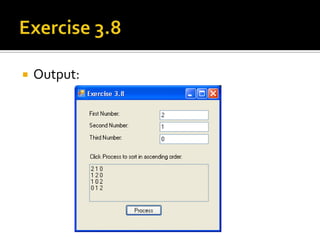
Exercise 3.8Prompt user to key in 3 integers.Sort the integers in ascending order.Print the 3 integers as you sort.Prompt user to key in 3 integers.Sort the integers in ascending order.Print the 3 integers as you sort.  Input1: 2  Input2: 1  Input3: 0  210  120  102  012if (n1 > n2) { … }if (n2 > n3) { … }if (n1 > n2) { … }Use this to append output:output = output + n1 + " " + n2 + " " + n3 + “\r\n";
Exercise 3.8Output:
Exercise 3.9Using the information from MSDN: GUI and codes, design a simple but interesting application.  After you have completed, screen capture the application and paste into a word document.   In the reference section, list the resources you have used.    MSDN> Windows Forms Programming     > Controls to Use on Windows Forms     > By Function    URL: http://alturl.com/u63m

Spf chapter 03 WinForm

  • 1.
  • 2.
    Your first C#Windows Form
  • 3.
    IDE: Code Editorand Property WindowCode Editor Missing: how to get it back?Property Window Missing: how to get it back?
  • 4.
    Your first C#Windows FormProgram.csForm1.cs
  • 5.
    Program.csWindow Applications allowmulti-threadingSingle Threaded Apartment [STAThread]Multi Thread Apartment [MTAThread][STAThread] // Attribute for Main() method static void Main()Application.Run(new Form1());// Begins running a standard // application on the current // thread
  • 6.
  • 7.
    IDE: Form1.csForm1.cs: code,design and design codeLogic codesForm DesignerDesigner codes
  • 8.
    IDE: Form1.csContain thelogic you put inHow to view this panel?In solution explorer: Double-click Form1.csMenu: View > code OR click on [view code icon]
  • 9.
    IDE: Form1.csContain thecode representing the form designNormally, do NOT modifyHow to view this panel?In solution explorer: Double-click on Form1.Designer.cs
  • 10.
    IDE: Form1.csContain theform designHow to view this panel?In solution explorer: Double-click Form1.cs
  • 11.
    ToolbarHow to findthis window?Menu: View > ToolbarIf AutoHide is set Then Toolbar is usually hide on the left Just hover your mouse over the hiddenTooblar and reset AutoHide
  • 12.
    ToolbarToolbar window isContext sensitiveIt will show the controls ONLY in the Design View: Eg Form1.cs [Design]
  • 13.
  • 14.
    Common ControlsAnd othersUseAll Windows Formsto search for unknownUse Common Controlsfor normal usage
  • 15.
    Properties WindowHow toview Properties Window?Menu: View > Properties WindowThe properties Window usually on the Bottom Right side
  • 16.
    Properties WindowName ofControlSort by categorySort from A to ZPropertiesEventProperty page: available when solution or project is selected
  • 17.
    Properties WindowProperties Try changing the Text property from “Form1” to “First WinForm App”Click on Form1 and type over
  • 18.
    Properties WindowEvents Shows all the events available for this controlTry add logic for Form1 Load event by double-clicking on “Load”
  • 19.
    Properties WindowAdd thefollowing codes into the Form1 Load event:Build and run the application
  • 20.
    Adding Common ControlsThreetypes of Common ControlDisplay : Eg LabelInput : Eg Textbox, ButtonOutput: Eg Label
  • 21.
    Button with itsClick EventIn Form1.cs [Design] viewFrom the Toolbar, drag a button onto the form OR double-click on buttonDrag the button to the centre of the form
  • 22.
    Button with itsClick EventGo to Button Click event code:Double-click on ORSelect button1, Click on Icon, then double-clicking on Click event
  • 23.
    Button with itsClick EventAdd the following codes into the button1 Click event:Build and run the application, then click on the button
  • 24.
    Exercise 3.1Make useof Button control, its Click event and output to Message BoxFor those with textbook: page 28 - 51For those without textbook http://alturl.com/uiak Your First C# Windows Form Adding Controls to a Blank C# Form Properties of a C# Control Adding C# Code to a Button
  • 25.
    Next LessonMore controlsand problem solving exercises
  • 26.
    RecapA new WindowsForms Application has 2 *.cs files?.cs?.csWhat are these two files?
  • 27.
    RecapProgram.csDifferent from ConsoleProgram: threaded and use Application.Run() method to start a new FormForm1.csConsists of 3 partsWhat does each part consist of?
  • 28.
    RecapForm1 consisting of3 views:What does each use for:Form1.cs?Form1.cs [Design]?Form1.Designer.cs?
  • 29.
    RecapWindows application withat least one formA form may containButtonTextBoxLabel… EtcEvent driven/activated : program responses toButton ClickMouse MoveKeypress
  • 30.
    RecapExercise 3.1: Button with click event that output a message
  • 31.
    Code BehindMicrosoft invented“Code Behind” using Partial Class – allows a class to be split into more than 1 filePrior to “Code Behind”- code for logic and design were placed in the same Class file: “Inline”. “Code Behind” allows logic and design code to be separatedPartial class Form1{ :}Partial class Form1{ :}
  • 32.
    Where to output?ForConsole Program: using Console.Write() or Console.WriteLine – may still use it for debugging => Output windowTwo ways to output for Winform AppsPop up a message box with the outputDisplay the output on controls like label, textbox
  • 33.
    How to input?Getinputs from various controlsTextBox: Text property (Eg textBox1.Text)CheckBox: Checked property (Eg checkBox1.Checked)ListBox: SelectedIndex property
  • 34.
    Naming Convention forWinFormUnderscore is used only with events: eg Form1_Load, button1_ClickDo NOT use hungarian (lblName, btnProcess), but some programmers do use hungarian for GUI controls: Eg a submit button might be btnSubmit, a name label might be lblName – the textbook uses hungarian for GUI controlsAlternatively, spell in full: EgbuttonSubmit, labelName (need not know what prefix for which control)
  • 35.
    Exercise 3.2Create thefollowing GUI for Exercise32Set the TabIndex property from top to bottom and from left to right
  • 36.
    Containers Controls withAlignmentsDrag and drop a Container > TabControl to the formMove the tabcontrol to align with the top and left side of formResize the tabcontrol to align with the bottom and right side of formSet the Anchor property to “Top, Bottom, Left, right”
  • 37.
  • 38.
  • 39.
    Exercise 3.3Create theGUI for Exercise33:Multiline textbox
  • 40.
    Exercise 3.4Create thefollowing GUI for exercise34ReadOnly Multiline textbox
  • 41.
    Where to gofrom here?MSDN> Windows Forms Programming > Controls to Use on Windows Forms > By Function URL: http://alturl.com/u63m
  • 42.
    MSDN: Controls toUse on Windows Forms > By Function
  • 43.
    MSDN: Controls toUse on Windows Forms > By Function
  • 44.
    MSDN: Controls toUse on Windows Forms > By Function
  • 45.
    MSDN: Controls toUse on Windows Forms > By Function
  • 46.
    An Example: WebBrowserExample:Remarks The WebBrowser control lets you host Web pages and other browser-enabled documents in your Windows Forms applications. You can use the WebBrowser control, for example, to provide integrated HTML-based user assistance or Web browsing capabilities in your application. Additionally, you can use the WebBrowser control to add your existing Web-based controls to your Windows Forms client applications.
  • 47.
    An Example: WebBrowserExample The following code example demonstrates how to implement an address bar for use with the WebBrowser control. This example requires that you have a form that contains a WebBrowser control called webBrowser1, a TextBox control called TextBoxAddress, and a Button control called ButtonGo. When you type a URL into the text box and press ENTER or click the Go button, the WebBrowser control navigates to the URL specified. When you navigate by clicking a hyperlink, the text box automatically updates to display the current URL.
  • 48.
    An Example: WebBrowserCreate the GUIProgram the code (code behind)
  • 49.
    SummaryCode Behind usingPartial ClassHow to use the Form DesignerHow to find information on Controls using MSDNNext Lesson: problem solvingNext week: variables and conditional logic
  • 50.
    RecapCode Behind usingPartial ClassHow to use the Form DesignerHow to find information on Controls using MSDN
  • 51.
    Problem SolvingNext partof the lesson focus on problem solving with the same set of questions from the console program
  • 52.
    Problem solvingRecall: ConsoleProgram for Exercise 2.1 Your Input: 3 Output: 3 3 3 3 3How do we do for WinForm App?
  • 53.
    Guided Handson: Exercise3.5Name: Form1Text: Exercise 3.5Name: textBoxInputText: blankTabIndex: 0Name: textBoxOutputMultiLine: TrueReadOnly: TrueTabIndex: 9Name: buttonProcessText: ProcessTabIndex: 1
  • 54.
    Guided Handson: Exercise3.5Double click on [Process] button and add code to buttonProcess_Click event: string input; // Declare 2 string var string output; input = textBoxInput.Text; // Get input string // Set output string output = input + “ “ + input + “ “ + input + “ “ + input + “ “ + input ;textBoxOutput.Text = output; // Set onto screen
  • 55.
  • 56.
    Exercise 3.6 Write a program that asks the user to type the width and the length of a rectangle and then outputs to the screen the area and the perimeter of that rectangle. Hint: 1) Assume that the width and length are integers 2) Convert from string to integer: use int.Parse( … ) 3) Convert from integer to string: use .ToString()=> Next page for screen output
  • 57.
  • 58.
    Exercise 3.7 Write a program that asks the user to type 2 integers n1 and n2 and exchange the value of n1 and n2 if n1 is greater than n2. Hint:1) To swop 2 variable, you need another variable (n3) to store one of the value 2) Eg if (n1 > n2) { n3 = n2; n2 = n1; n1 = n3; } “then” processing
  • 59.
  • 60.
    Exercise 3.8Prompt userto key in 3 integers.Sort the integers in ascending order.Print the 3 integers as you sort.Prompt user to key in 3 integers.Sort the integers in ascending order.Print the 3 integers as you sort. Input1: 2 Input2: 1 Input3: 0 210 120 102 012if (n1 > n2) { … }if (n2 > n3) { … }if (n1 > n2) { … }Use this to append output:output = output + n1 + " " + n2 + " " + n3 + “\r\n";
  • 61.
  • 62.
    Exercise 3.9Using theinformation from MSDN: GUI and codes, design a simple but interesting application. After you have completed, screen capture the application and paste into a word document. In the reference section, list the resources you have used. MSDN> Windows Forms Programming > Controls to Use on Windows Forms > By Function URL: http://alturl.com/u63m
  • 63.
    SummaryWinForm AppForm1.cs andProgram.cs (main() is threaded and use Application.Run to start FORM1)GUI design using Toolbar ControlsEvent activation – eg Button ClickProblem solving – same as what we did in console program