6.  WinForms:  GUI Programming    in .NET
Objectives “ .NET supports two types of form-based apps,  WinForms  and  WebForms .  WinForms are the traditional, desktop GUI apps.  The great news is that Visual Studio .NET enables quick, drag-and-drop construction of form-based applications…” Event-driven, code-behind programming Visual Studio .NET WinForms Controls
Part 1 Event-driven, code-behind programming…
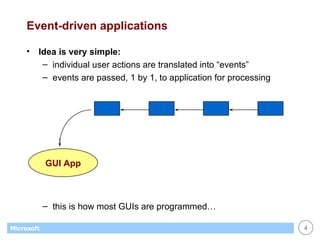
Event-driven applications Idea is very simple: individual user actions are translated into “events” events are passed, 1 by 1, to application for processing this is how most GUIs are programmed… GUI App
GUI-based events Mouse move Mouse click Mouse double-click Key press Button click Menu selection Change in focus Window activation etc.
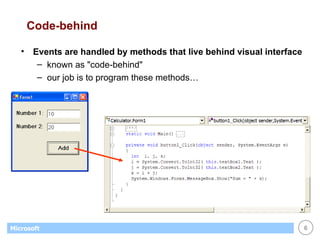
Code-behind Events are handled by methods that live behind visual interface known as "code-behind" our job is to program these methods…
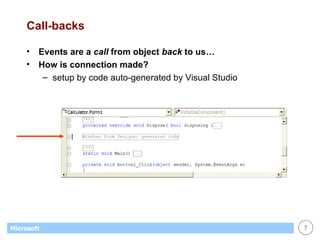
Call-backs Events are a  call  from object  back  to us… How is connection made? setup by code auto-generated by Visual Studio
Part 2 Visual Studio .NET…
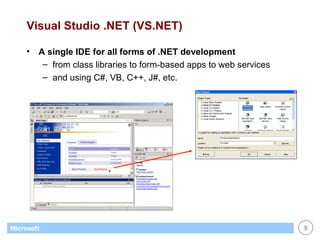
Visual Studio .NET (VS.NET) A single IDE for all forms of .NET development from class libraries to form-based apps to web services and using C#, VB, C++, J#, etc.
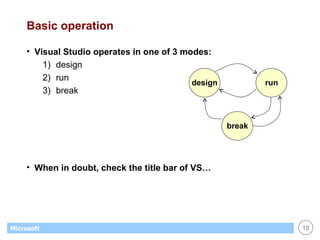
Basic operation Visual Studio operates in one of 3 modes: design run break When in doubt, check the title bar of VS… design run break
Example: a windowing application GUI apps are based on the notion of  forms  and  controls … a form represents a window a form contains 0 or more controls a control interacts with the user Let's create a GUI app in a series of steps…
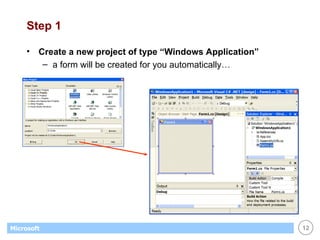
Step 1 Create a new project of type “Windows Application” a form will be created for you automatically…
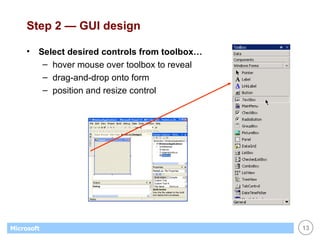
Step 2 — GUI design Select desired controls from toolbox… hover mouse over toolbox to reveal drag-and-drop onto form position and resize control
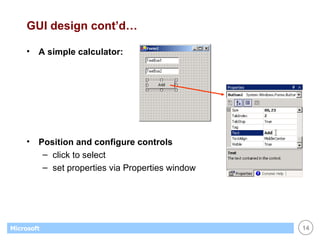
GUI design cont’d… A simple calculator: Position and configure controls click to select set properties via Properties window
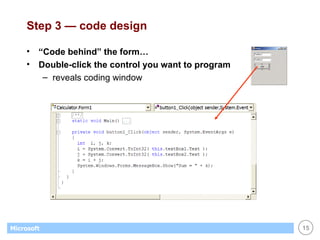
Step 3 — code design “Code behind” the form… Double-click the control you want to program reveals coding window
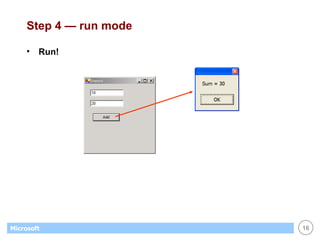
Step 4 — run mode Run!
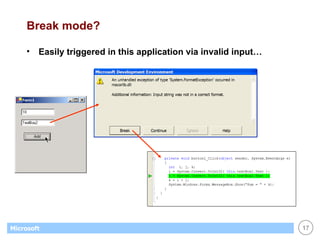
Break mode? Easily triggered in this application via invalid input…
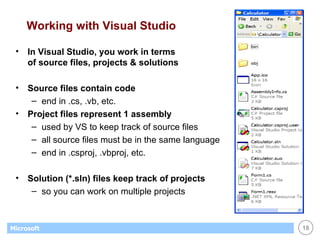
Working with Visual Studio In Visual Studio, you work in terms  of source files, projects & solutions Source files contain code end in .cs, .vb, etc. Project files represent 1 assembly used by VS to keep track of source files all source files must be in the same language end in .csproj, .vbproj, etc. Solution (*.sln) files keep track of projects so you can work on multiple projects
Part 3 WinForms…
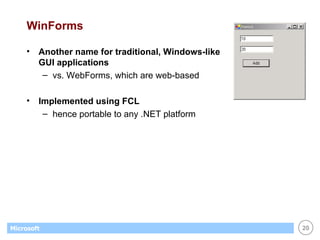
WinForms Another name for traditional, Windows-like  GUI applications vs. WebForms, which are web-based Implemented using FCL hence portable to any .NET platform
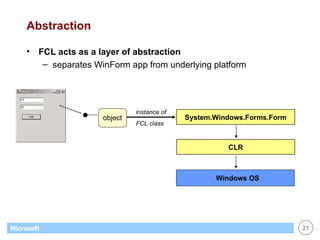
Abstraction FCL acts as a layer of abstraction separates WinForm app from underlying platform System.Windows.Forms.Form CLR Windows OS instance of  FCL class object
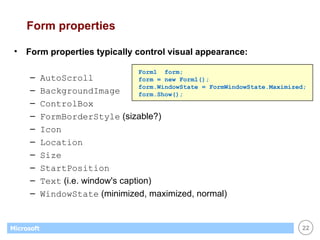
Form properties Form properties typically control visual appearance: AutoScroll BackgroundImage ControlBox FormBorderStyle  (sizable?) Icon Location Size StartPosition Text  (i.e. window's caption) WindowState  (minimized, maximized, normal) Form1  form; form = new Form1(); form.WindowState = FormWindowState.Maximized; form.Show();
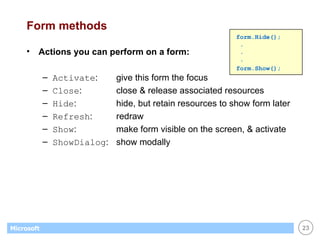
Form methods Actions you can perform on a form: Activate : give this form the focus Close : close & release associated resources Hide : hide, but retain resources to show form later Refresh : redraw Show : make form visible on the screen, & activate ShowDialog :  show modally form.Hide();  . . . form.Show();
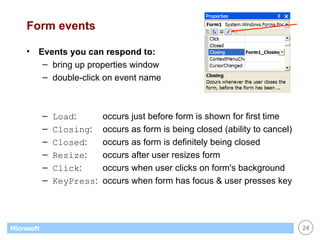
Form events Events you can respond to: bring up properties window double-click on event name Load : occurs just before form is shown for first time Closing : occurs as form is being closed (ability to cancel) Closed : occurs as form is definitely being closed Resize : occurs after user resizes form Click : occurs when user clicks on form's background KeyPress :  occurs when form has focus & user presses key
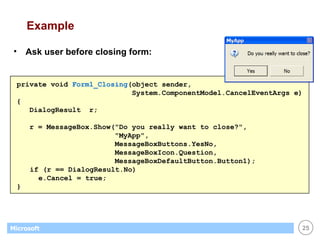
Example Ask user before closing form: private void  Form1_Closing (object sender,  System.ComponentModel.CancelEventArgs e) { DialogResult  r; r = MessageBox.Show("Do you really want to close?",  "MyApp",  MessageBoxButtons.YesNo,  MessageBoxIcon.Question,  MessageBoxDefaultButton.Button1);   if (r == DialogResult.No)   e.Cancel = true; }
Part 4 Controls…
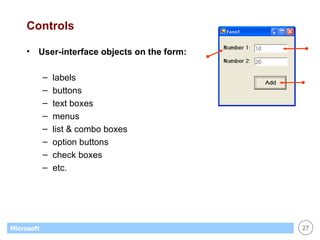
Controls User-interface objects on the form: labels buttons text boxes menus list & combo boxes option buttons check boxes etc.
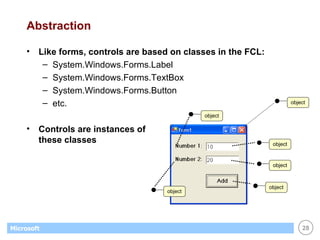
Abstraction Like forms, controls are based on classes in the FCL: System.Windows.Forms.Label System.Windows.Forms.TextBox System.Windows.Forms.Button etc. Controls are instances of  these classes object object object object object object
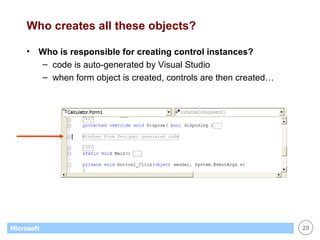
Who creates all these objects? Who is responsible for creating control instances? code is auto-generated by Visual Studio when form object is created, controls are then created…
Naming conventions Set control's name via Name property A common naming scheme is based on prefixes: cmdOK  refers to a command button control lstNames  refers to a list box control   txtFirstName  refers to a text box control
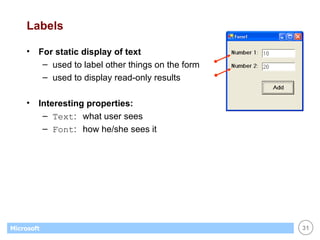
Labels For static display of text used to label other things on the form used to display read-only results Interesting properties: Text : what user sees Font : how he/she sees it
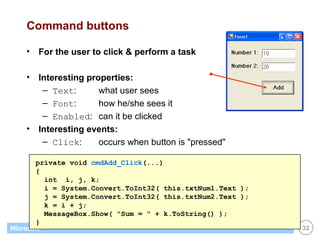
Command buttons For the user to click & perform a task Interesting properties: Text : what user sees Font : how he/she sees it Enabled : can it be clicked Interesting events: Click : occurs when button is "pressed" private void  cmdAdd_Click (...) { int  i, j, k; i = System.Convert.ToInt32( this.txtNum1.Text ); j = System.Convert.ToInt32( this.txtNum2.Text ); k = i + j;  MessageBox.Show( "Sum = " + k.ToString() ); }
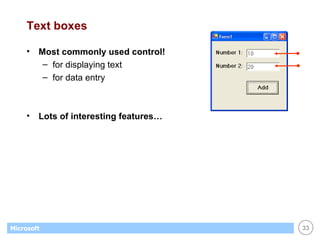
Text boxes Most commonly used control! for displaying text for data entry Lots of interesting features…
Text box properties Basic properties: Text : denotes the entire contents of text box (a string) Modified : has text been modified by user? (True / False) ReadOnly :  set if you want user to view text, but not modify Do you want multi-line text boxes? MultiLine : True allows multiple lines of text Lines : array of strings, one for each line in text box ScrollBars : none, horizontal, vertical, or both
Text box events Interesting events: Enter ,  Leave : occurs on change in focus KeyPress : occurs on ascii keypress KeyDown ,  KeyUp : occurs on any key combination TextChanged : occurs whenever text is modified Validating  and  Validated Validating gives you a chance to cancel on invalid input
List Boxes Great for displaying / maintaining list of data list of strings list of objects (list box calls ToString() to display) Customer[]  customers; . .  // create & fill array with objects... . // display customers in list box   foreach (Customer c in customers) this.listBox1.Items.Add(c); // display name of selected customer (if any) Customer  c; c = (Customer) this.listBox1.SelectedItem; if (c == null) return; else MessageBox.Show(c.Name);
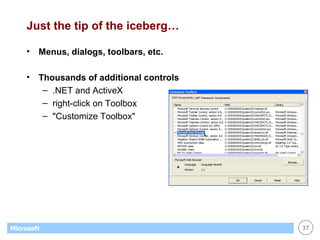
Just the tip of the iceberg… Menus, dialogs, toolbars, etc. Thousands of additional controls .NET and ActiveX right-click on Toolbox "Customize Toolbox"
Summary Event-driven programming is very intuitive for GUI apps Forms are the first step in GUI design each form represents a window on the screen form designer enables drag-and-drop GUI construction Users interact primarily with form's controls labels, text boxes, buttons, etc. implies that GUI programming is control programming
References Books: R. Grimes, "Developing Applications with Visual Studio .NET" Best books on building GUIs are VB-based: J. Savage, "The VB.NET Coach" (introductory) F. Balena, "Programming Microsoft VB .NET (Core Reference)" (broad coverage, intermediate level)
Lab? Work on lab #3, "WinForms"…

06 win forms

  • 1.
    6. WinForms: GUI Programming in .NET
  • 2.
    Objectives “ .NETsupports two types of form-based apps, WinForms and WebForms . WinForms are the traditional, desktop GUI apps. The great news is that Visual Studio .NET enables quick, drag-and-drop construction of form-based applications…” Event-driven, code-behind programming Visual Studio .NET WinForms Controls
  • 3.
    Part 1 Event-driven,code-behind programming…
  • 4.
    Event-driven applications Ideais very simple: individual user actions are translated into “events” events are passed, 1 by 1, to application for processing this is how most GUIs are programmed… GUI App
  • 5.
    GUI-based events Mousemove Mouse click Mouse double-click Key press Button click Menu selection Change in focus Window activation etc.
  • 6.
    Code-behind Events arehandled by methods that live behind visual interface known as "code-behind" our job is to program these methods…
  • 7.
    Call-backs Events area call from object back to us… How is connection made? setup by code auto-generated by Visual Studio
  • 8.
    Part 2 VisualStudio .NET…
  • 9.
    Visual Studio .NET(VS.NET) A single IDE for all forms of .NET development from class libraries to form-based apps to web services and using C#, VB, C++, J#, etc.
  • 10.
    Basic operation VisualStudio operates in one of 3 modes: design run break When in doubt, check the title bar of VS… design run break
  • 11.
    Example: a windowingapplication GUI apps are based on the notion of forms and controls … a form represents a window a form contains 0 or more controls a control interacts with the user Let's create a GUI app in a series of steps…
  • 12.
    Step 1 Createa new project of type “Windows Application” a form will be created for you automatically…
  • 13.
    Step 2 —GUI design Select desired controls from toolbox… hover mouse over toolbox to reveal drag-and-drop onto form position and resize control
  • 14.
    GUI design cont’d…A simple calculator: Position and configure controls click to select set properties via Properties window
  • 15.
    Step 3 —code design “Code behind” the form… Double-click the control you want to program reveals coding window
  • 16.
    Step 4 —run mode Run!
  • 17.
    Break mode? Easilytriggered in this application via invalid input…
  • 18.
    Working with VisualStudio In Visual Studio, you work in terms of source files, projects & solutions Source files contain code end in .cs, .vb, etc. Project files represent 1 assembly used by VS to keep track of source files all source files must be in the same language end in .csproj, .vbproj, etc. Solution (*.sln) files keep track of projects so you can work on multiple projects
  • 19.
  • 20.
    WinForms Another namefor traditional, Windows-like GUI applications vs. WebForms, which are web-based Implemented using FCL hence portable to any .NET platform
  • 21.
    Abstraction FCL actsas a layer of abstraction separates WinForm app from underlying platform System.Windows.Forms.Form CLR Windows OS instance of FCL class object
  • 22.
    Form properties Formproperties typically control visual appearance: AutoScroll BackgroundImage ControlBox FormBorderStyle (sizable?) Icon Location Size StartPosition Text (i.e. window's caption) WindowState (minimized, maximized, normal) Form1 form; form = new Form1(); form.WindowState = FormWindowState.Maximized; form.Show();
  • 23.
    Form methods Actionsyou can perform on a form: Activate : give this form the focus Close : close & release associated resources Hide : hide, but retain resources to show form later Refresh : redraw Show : make form visible on the screen, & activate ShowDialog : show modally form.Hide(); . . . form.Show();
  • 24.
    Form events Eventsyou can respond to: bring up properties window double-click on event name Load : occurs just before form is shown for first time Closing : occurs as form is being closed (ability to cancel) Closed : occurs as form is definitely being closed Resize : occurs after user resizes form Click : occurs when user clicks on form's background KeyPress : occurs when form has focus & user presses key
  • 25.
    Example Ask userbefore closing form: private void Form1_Closing (object sender, System.ComponentModel.CancelEventArgs e) { DialogResult r; r = MessageBox.Show("Do you really want to close?", "MyApp", MessageBoxButtons.YesNo, MessageBoxIcon.Question, MessageBoxDefaultButton.Button1); if (r == DialogResult.No) e.Cancel = true; }
  • 26.
  • 27.
    Controls User-interface objectson the form: labels buttons text boxes menus list & combo boxes option buttons check boxes etc.
  • 28.
    Abstraction Like forms,controls are based on classes in the FCL: System.Windows.Forms.Label System.Windows.Forms.TextBox System.Windows.Forms.Button etc. Controls are instances of these classes object object object object object object
  • 29.
    Who creates allthese objects? Who is responsible for creating control instances? code is auto-generated by Visual Studio when form object is created, controls are then created…
  • 30.
    Naming conventions Setcontrol's name via Name property A common naming scheme is based on prefixes: cmdOK refers to a command button control lstNames refers to a list box control txtFirstName refers to a text box control
  • 31.
    Labels For staticdisplay of text used to label other things on the form used to display read-only results Interesting properties: Text : what user sees Font : how he/she sees it
  • 32.
    Command buttons Forthe user to click & perform a task Interesting properties: Text : what user sees Font : how he/she sees it Enabled : can it be clicked Interesting events: Click : occurs when button is "pressed" private void cmdAdd_Click (...) { int i, j, k; i = System.Convert.ToInt32( this.txtNum1.Text ); j = System.Convert.ToInt32( this.txtNum2.Text ); k = i + j; MessageBox.Show( "Sum = " + k.ToString() ); }
  • 33.
    Text boxes Mostcommonly used control! for displaying text for data entry Lots of interesting features…
  • 34.
    Text box propertiesBasic properties: Text : denotes the entire contents of text box (a string) Modified : has text been modified by user? (True / False) ReadOnly : set if you want user to view text, but not modify Do you want multi-line text boxes? MultiLine : True allows multiple lines of text Lines : array of strings, one for each line in text box ScrollBars : none, horizontal, vertical, or both
  • 35.
    Text box eventsInteresting events: Enter , Leave : occurs on change in focus KeyPress : occurs on ascii keypress KeyDown , KeyUp : occurs on any key combination TextChanged : occurs whenever text is modified Validating and Validated Validating gives you a chance to cancel on invalid input
  • 36.
    List Boxes Greatfor displaying / maintaining list of data list of strings list of objects (list box calls ToString() to display) Customer[] customers; . . // create & fill array with objects... . // display customers in list box foreach (Customer c in customers) this.listBox1.Items.Add(c); // display name of selected customer (if any) Customer c; c = (Customer) this.listBox1.SelectedItem; if (c == null) return; else MessageBox.Show(c.Name);
  • 37.
    Just the tipof the iceberg… Menus, dialogs, toolbars, etc. Thousands of additional controls .NET and ActiveX right-click on Toolbox "Customize Toolbox"
  • 38.
    Summary Event-driven programmingis very intuitive for GUI apps Forms are the first step in GUI design each form represents a window on the screen form designer enables drag-and-drop GUI construction Users interact primarily with form's controls labels, text boxes, buttons, etc. implies that GUI programming is control programming
  • 39.
    References Books: R.Grimes, "Developing Applications with Visual Studio .NET" Best books on building GUIs are VB-based: J. Savage, "The VB.NET Coach" (introductory) F. Balena, "Programming Microsoft VB .NET (Core Reference)" (broad coverage, intermediate level)
  • 40.
    Lab? Work onlab #3, "WinForms"…