Practical File


                    Workshop
                        On
                   Visual Basic


Submitted To:                       Submitted By:
Prof Anil Sharma                    Alisha Korpal

                                    BCA


                                                    1
INDEX
Sno                                Topic                                  Page no
1     Introduction to VB                                                  3

2     Tool Box                                                            4

3     Property                                                            5

4     Description -- Properties                                           6

5     Description -- Controls                                             7

6     Application 1: Showing labels and text boxes                        8

7     Description -- Command button                                       9

8     Application 2: To Perform Arithmetic Operations on two numbers      10

9     Description – Controls                                              13

10    App 3 : Detail of any option click                                  14

11    App 4 : Application Form                                            17

12    Description -- control                                              20

13    App 5: Traffic lights                                               21

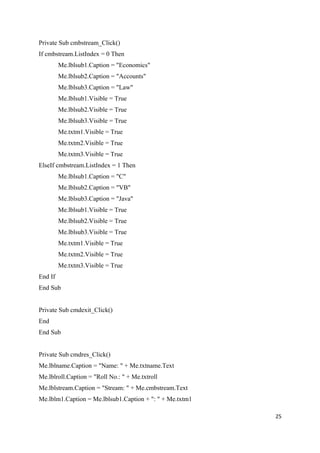
14    App 6: Getting marks of student and print result in another form    24

15    App 7: Moving the list item across two different lists              28

16    App 8: Formatting Text                                              31

17    App 9: with the help of menus perform Arithmetic operation          36

18    App 10: Print the series on form                                    39

19    App 11: Puzzle                                                      41

20    App 12: Print table on the Form                                     47

21    App 13: Getting a string input from user and move it along border   49


                                                                               2
Introduction to VB
Visual basic is an event driven programming. In event driven programming, the interface
components have the ability to recognize user events and then, if possible a response is given
to the event occurred. The response of identical interface components to an event can
different in different situations. In addition, an interface component may also respond to
multiple events.

In event driven programming an application is built up as a series of response to user event.
For instance, you may consider a calculator application, which is good example of an
application that is event driven.

Featues
   •   It is successor of BASIC language.
   •   VB supports event driven programming.
   •   Common Programming Platform VB provides a common programming platform
       across all MS – Office applications.

   •   Quick Development VB offers many tools that provide a quick and easy way to
       develop applications.

   •   Wizards VB also provides many wizards that can automate tasks or even automate
       coding.

   •   Quick Error Detection /Correction The VB development environment provides
       tools for quick editing, testing and debugging


                                                                                            3
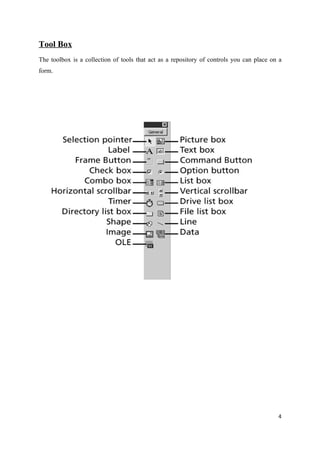
Tool Box
The toolbox is a collection of tools that act as a repository of controls you can place on a
form.


                                                                                          4
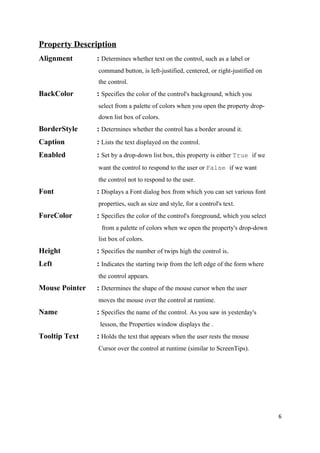
Properties
Each property has a name so we can work with a particular property, and each property has a
value that either we or Visual Basic assigns. For example, Visual Basic always names the
first command button we add to a project Command1. Therefore, the Name property for the
first command button holds the value Command1


                                                                                         5
Property Description
Alignment       : Determines whether text on the control, such as a label or
                command button, is left-justified, centered, or right-justified on
                the control.
BackColor       : Specifies the color of the control's background, which you
                select from a palette of colors when you open the property drop-
                down list box of colors.
BorderStyle     : Determines whether the control has a border around it.
Caption         : Lists the text displayed on the control.
Enabled         : Set by a drop-down list box, this property is either True if we
                want the control to respond to the user or False if we want
                the control not to respond to the user.
Font            : Displays a Font dialog box from which you can set various font
                properties, such as size and style, for a control's text.
ForeColor       : Specifies the color of the control's foreground, which you select
                 from a palette of colors when we open the property's drop-down
                list box of colors.
Height          : Specifies the number of twips high the control is.
Left            : Indicates the starting twip from the left edge of the form where
                the control appears.
Mouse Pointer   : Determines the shape of the mouse cursor when the user
                moves the mouse over the control at runtime.
Name            : Specifies the name of the control. As you saw in yesterday's
                 lesson, the Properties window displays the .
Tooltip Text    : Holds the text that appears when the user rests the mouse
                Cursor over the control at runtime (similar to ScreenTips).


                                                                                      6
CONTROLS
 1. Selection Pointer
       Selection pointer is used to select the pointer control from the tool box.
 2. Label
       The label control displays text. Although your user cannot alter the text that
       appears on a label, you can, at runtime, change the label's text through code.
 3. The Text Box Control
       Use a text box control when we want the user to type something, such
        as an answer to a prompt, when we want to collect values, such as
        name and address information. Often, a default value is helpful for
        users, and Visual Basic program can supply an initial value.


                                                                                        7
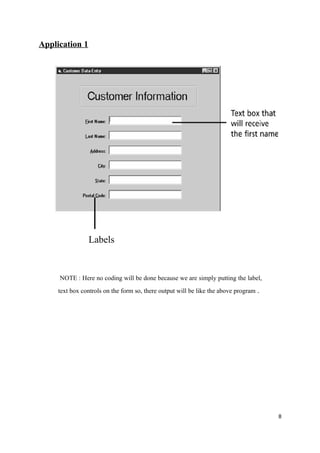
Application 1


                Labels


     NOTE : Here no coding will be done because we are simply putting the label,
     text box controls on the form so, there output will be like the above program .


                                                                                       8
4. Command Button
            Command button is used to perform some kind of
            operations although other controls can also perform.
            This button is used to begin, interrupt or end a process.


                                                                        9
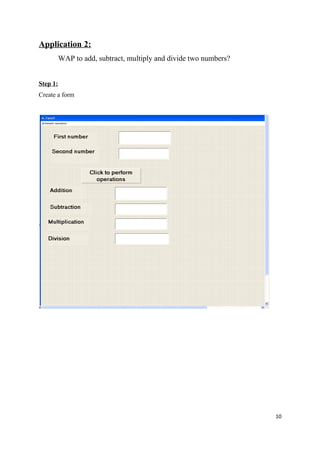
Application 2:
          WAP to add, subtract, multiply and divide two numbers?


Step 1:
Create a form


                                                                   10
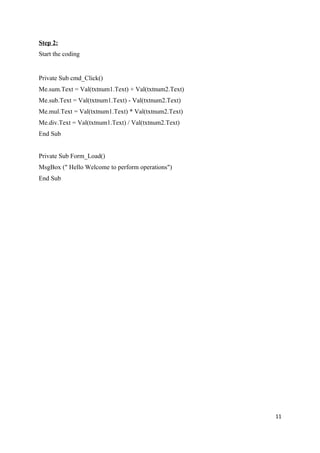
Step 2:
Start the coding


Private Sub cmd_Click()
Me.sum.Text = Val(txtnum1.Text) + Val(txtnum2.Text)
Me.sub.Text = Val(txtnum1.Text) - Val(txtnum2.Text)
Me.mul.Text = Val(txtnum1.Text) * Val(txtnum2.Text)
Me.div.Text = Val(txtnum1.Text) / Val(txtnum2.Text)
End Sub


Private Sub Form_Load()
MsgBox (" Hello Welcome to perform operations")
End Sub


                                                      11
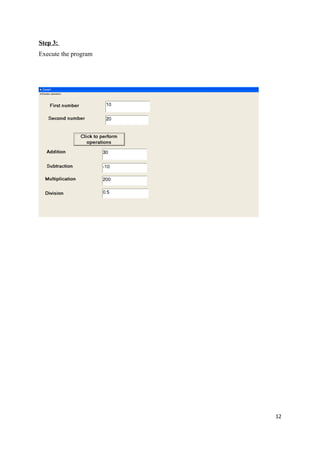
Step 3:
Execute the program


                      12
5. Check Box
        Check boxes are used to allow a user select multiple choices.
        For example a student can choose any five subjects out of
        available 7 subjects. Now the subject chosen the 5 subject
        he/she wants to choose they can.
6. Option Box
        An option button also known as radio button is used to display
        an option that can be turned on or off. Usually option buttons
        are used for a group of options wherefrom user can select just
        one.
        For example a student can have option for choosing the
        medium either Hindi or English so the student has to choose the
        one option.
7. Frames
         A frame control is used to separate different group of
         controls on form.
8. Combo Box
        A combo box control combines the feature of a text box and a
        list box.
9. List Box
        A list box control display a list of item from which the user can
        select one or more items


                                                                            13
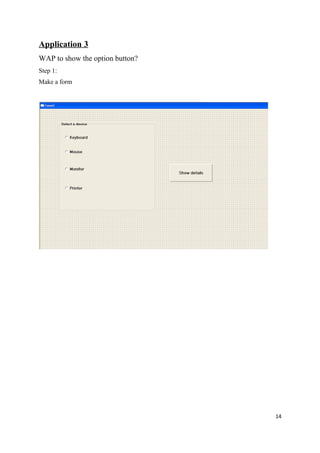
Application 3
WAP to show the option button?
Step 1:
Make a form


                                 14
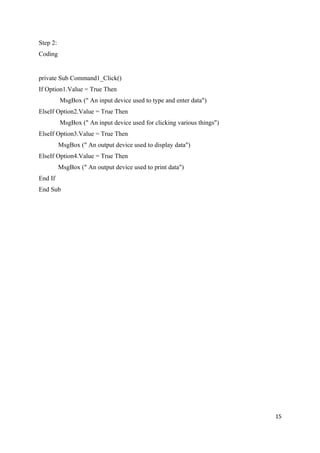
Step 2:
Coding


private Sub Command1_Click()
If Option1.Value = True Then
          MsgBox (" An input device used to type and enter data")
ElseIf Option2.Value = True Then
          MsgBox (" An input device used for clicking various things")
ElseIf Option3.Value = True Then
          MsgBox (" An output device used to display data")
ElseIf Option4.Value = True Then
          MsgBox (" An output device used to print data")
End If
End Sub


                                                                         15
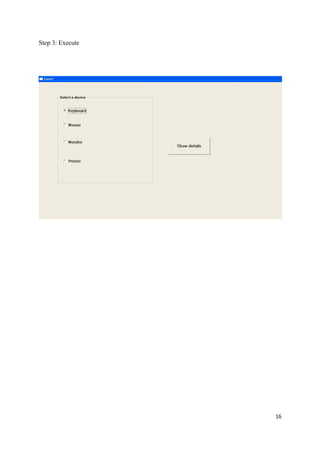
Step 3: Execute


                  16
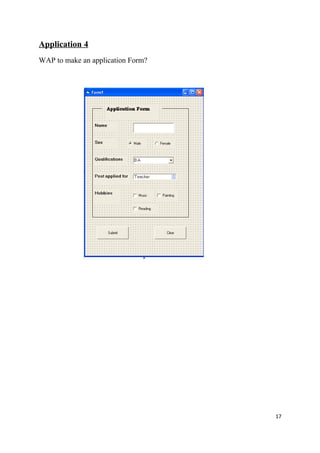
Application 4
WAP to make an application Form?


                                   17
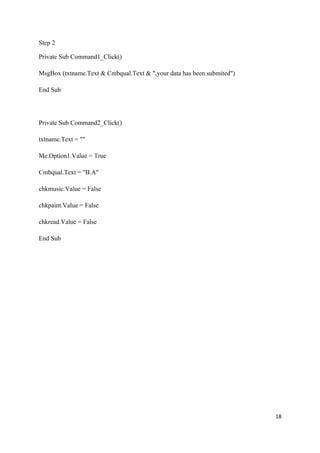
Step 2

Private Sub Command1_Click()

MsgBox (txtname.Text & Cmbqual.Text & ",your data has been submited")

End Sub


Private Sub Command2_Click()

txtname.Text = ""

Me.Option1.Value = True

Cmbqual.Text = "B.A"

chkmusic.Value = False

chkpaint.Value = False

chkread.Value = False

End Sub


                                                                        18
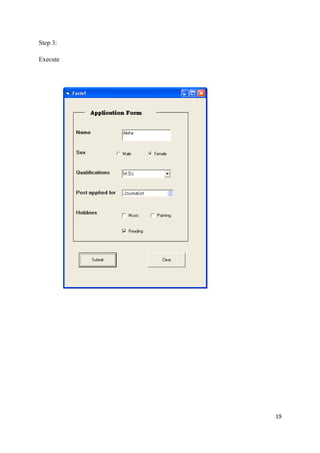
Step 3:

Execute


          19
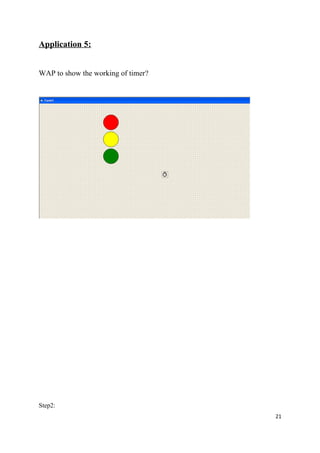
10. Timer:
             The timer control is an invisible control which is added to form
             if some task is to be repeated regular intervals


11.Shapes
             The shape control is a graphical control that is used to display a
             rectangle, oval, circle or rounded square.


                                                                                  20
Application 5:


WAP to show the working of timer?


Step2:
                                    21
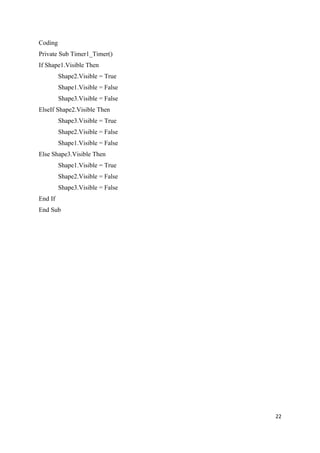
Coding
Private Sub Timer1_Timer()
If Shape1.Visible Then
         Shape2.Visible = True
         Shape1.Visible = False
         Shape3.Visible = False
ElseIf Shape2.Visible Then
         Shape3.Visible = True
         Shape2.Visible = False
         Shape1.Visible = False
Else Shape3.Visible Then
         Shape1.Visible = True
         Shape2.Visible = False
         Shape3.Visible = False
End If
End Sub


                                  22
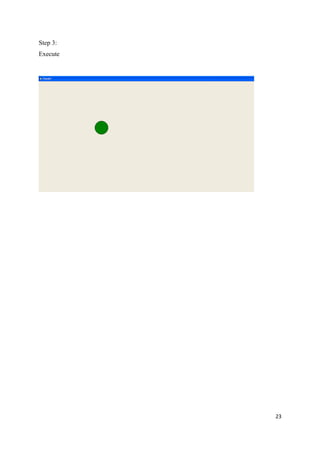
Step 3:
Execute


          23
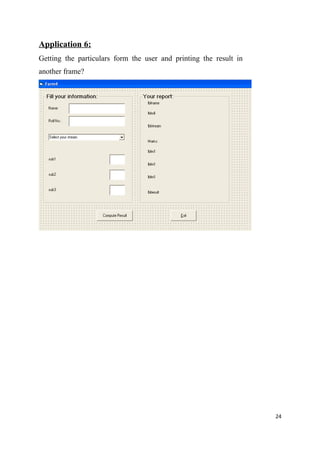
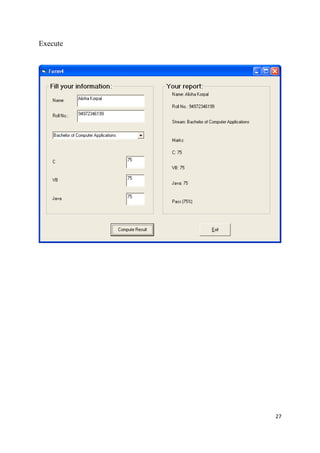
Application 6:
Getting the particulars form the user and printing the result in
another frame?


                                                                   24
Private Sub cmbstream_Click()
If cmbstream.ListIndex = 0 Then
         Me.lblsub1.Caption = "Economics"
         Me.lblsub2.Caption = "Accounts"
         Me.lblsub3.Caption = "Law"
         Me.lblsub1.Visible = True
         Me.lblsub2.Visible = True
         Me.lblsub3.Visible = True
         Me.txtm1.Visible = True
         Me.txtm2.Visible = True
         Me.txtm3.Visible = True
ElseIf cmbstream.ListIndex = 1 Then
         Me.lblsub1.Caption = "C"
         Me.lblsub2.Caption = "VB"
         Me.lblsub3.Caption = "Java"
         Me.lblsub1.Visible = True
         Me.lblsub2.Visible = True
         Me.lblsub3.Visible = True
         Me.txtm1.Visible = True
         Me.txtm2.Visible = True
         Me.txtm3.Visible = True
End If
End Sub


Private Sub cmdexit_Click()
End
End Sub


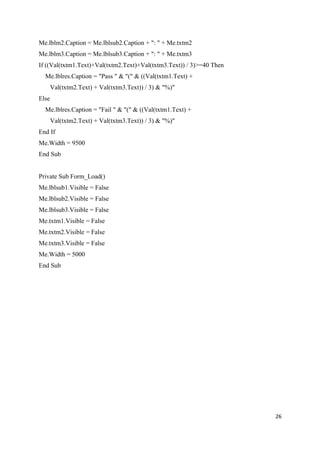
Private Sub cmdres_Click()
Me.lblname.Caption = "Name: " + Me.txtname.Text
Me.lblroll.Caption = "Roll No.: " + Me.txtroll
Me.lblstream.Caption = "Stream: " + Me.cmbstream.Text
Me.lblm1.Caption = Me.lblsub1.Caption + ": " + Me.txtm1

                                                          25
Me.lblm2.Caption = Me.lblsub2.Caption + ": " + Me.txtm2
Me.lblm3.Caption = Me.lblsub3.Caption + ": " + Me.txtm3
If ((Val(txtm1.Text)+Val(txtm2.Text)+Val(txtm3.Text)) / 3)>=40 Then
  Me.lblres.Caption = "Pass " & "(" & ((Val(txtm1.Text) +
       Val(txtm2.Text) + Val(txtm3.Text)) / 3) & "%)"
Else
  Me.lblres.Caption = "Fail " & "(" & ((Val(txtm1.Text) +
       Val(txtm2.Text) + Val(txtm3.Text)) / 3) & "%)"
End If
Me.Width = 9500
End Sub


Private Sub Form_Load()
Me.lblsub1.Visible = False
Me.lblsub2.Visible = False
Me.lblsub3.Visible = False
Me.txtm1.Visible = False
Me.txtm2.Visible = False
Me.txtm3.Visible = False
Me.Width = 5000
End Sub


                                                                      26
Execute


          27
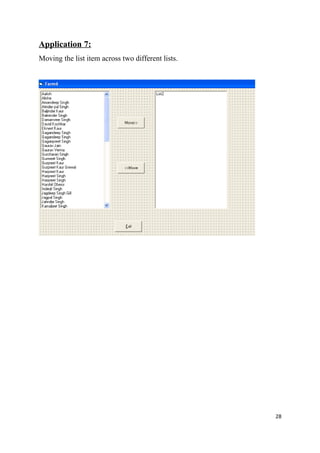
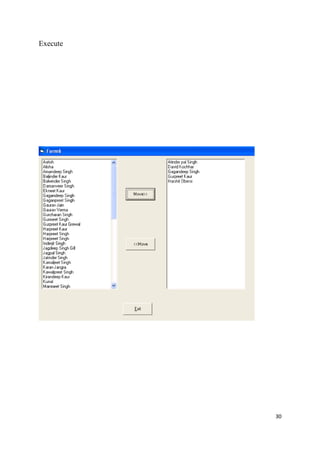
Application 7:
Moving the list item across two different lists.


                                                   28
Coding


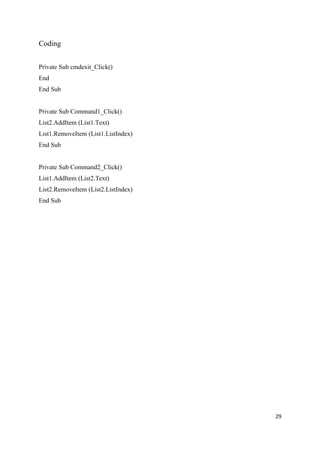
Private Sub cmdexit_Click()
End
End Sub


Private Sub Command1_Click()
List2.AddItem (List1.Text)
List1.RemoveItem (List1.ListIndex)
End Sub


Private Sub Command2_Click()
List1.AddItem (List2.Text)
List2.RemoveItem (List2.ListIndex)
End Sub


                                     29
Execute


          30
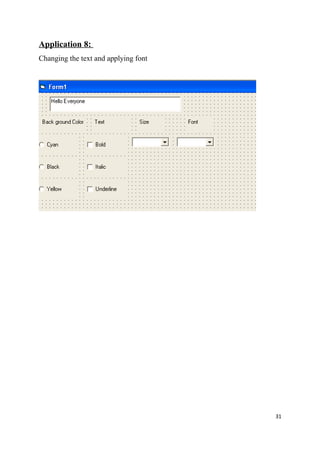
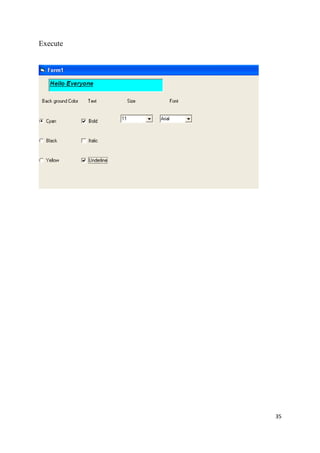
Application 8:
Changing the text and applying font


                                      31
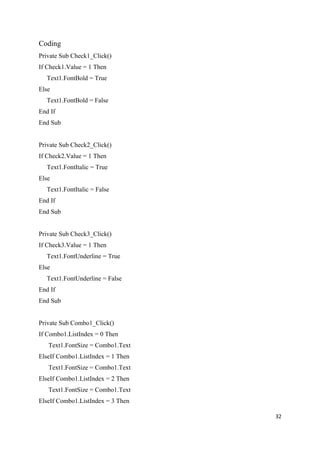
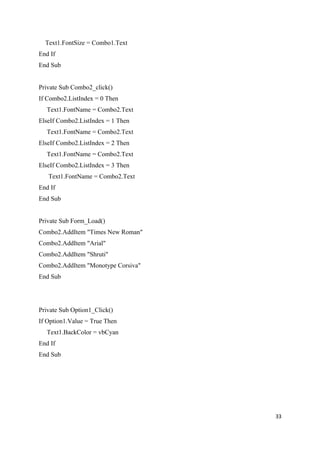
Coding
Private Sub Check1_Click()
If Check1.Value = 1 Then
  Text1.FontBold = True
Else
  Text1.FontBold = False
End If
End Sub


Private Sub Check2_Click()
If Check2.Value = 1 Then
  Text1.FontItalic = True
Else
  Text1.FontItalic = False
End If
End Sub


Private Sub Check3_Click()
If Check3.Value = 1 Then
  Text1.FontUnderline = True
Else
  Text1.FontUnderline = False
End If
End Sub


Private Sub Combo1_Click()
If Combo1.ListIndex = 0 Then
   Text1.FontSize = Combo1.Text
ElseIf Combo1.ListIndex = 1 Then
   Text1.FontSize = Combo1.Text
ElseIf Combo1.ListIndex = 2 Then
   Text1.FontSize = Combo1.Text
ElseIf Combo1.ListIndex = 3 Then

                                   32
Text1.FontSize = Combo1.Text
End If
End Sub


Private Sub Combo2_click()
If Combo2.ListIndex = 0 Then
  Text1.FontName = Combo2.Text
ElseIf Combo2.ListIndex = 1 Then
  Text1.FontName = Combo2.Text
ElseIf Combo2.ListIndex = 2 Then
  Text1.FontName = Combo2.Text
ElseIf Combo2.ListIndex = 3 Then
   Text1.FontName = Combo2.Text
End If
End Sub


Private Sub Form_Load()
Combo2.AddItem "Times New Roman"
Combo2.AddItem "Arial"
Combo2.AddItem "Shruti"
Combo2.AddItem "Monotype Corsiva"
End Sub


Private Sub Option1_Click()
If Option1.Value = True Then
  Text1.BackColor = vbCyan
End If
End Sub


                                    33
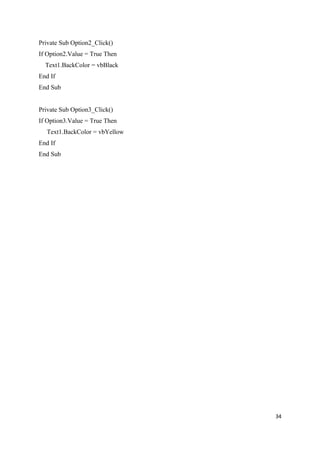
Private Sub Option2_Click()
If Option2.Value = True Then
  Text1.BackColor = vbBlack
End If
End Sub


Private Sub Option3_Click()
If Option3.Value = True Then
  Text1.BackColor = vbYellow
End If
End Sub


                               34
Execute


          35
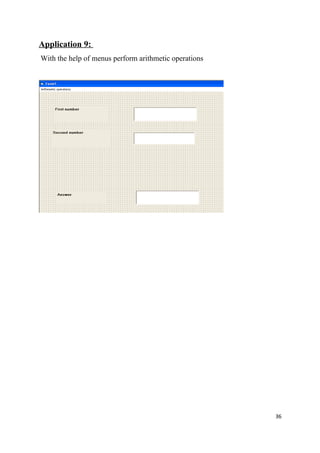
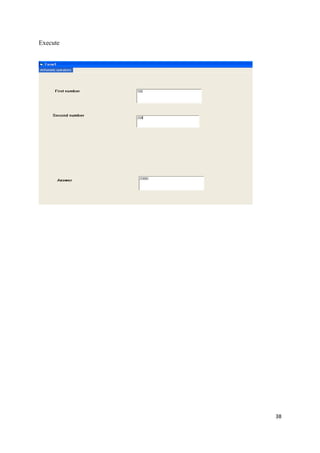
Application 9:
With the help of menus perform arithmetic operations


                                                       36
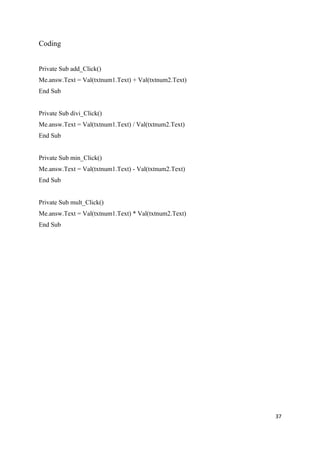
Coding


Private Sub add_Click()
Me.answ.Text = Val(txtnum1.Text) + Val(txtnum2.Text)
End Sub


Private Sub divi_Click()
Me.answ.Text = Val(txtnum1.Text) / Val(txtnum2.Text)
End Sub


Private Sub min_Click()
Me.answ.Text = Val(txtnum1.Text) - Val(txtnum2.Text)
End Sub


Private Sub mult_Click()
Me.answ.Text = Val(txtnum1.Text) * Val(txtnum2.Text)
End Sub


                                                       37
Execute


          38
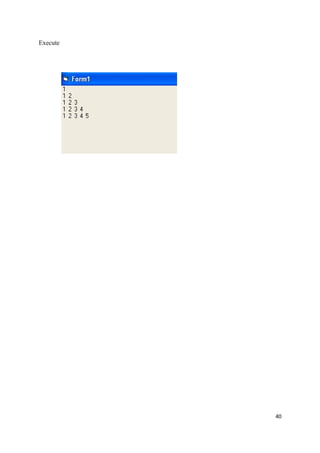
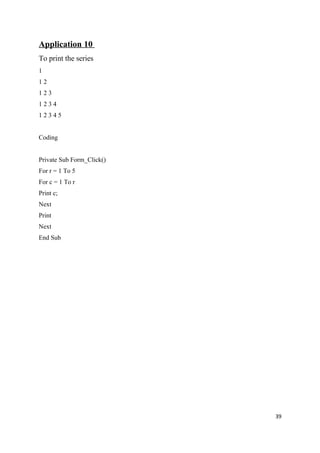
Application 10
To print the series
1
12
123
1234
12345


Coding


Private Sub Form_Click()
For r = 1 To 5
For c = 1 To r
Print c;
Next
Print
Next
End Sub


                           39
Execute


          40
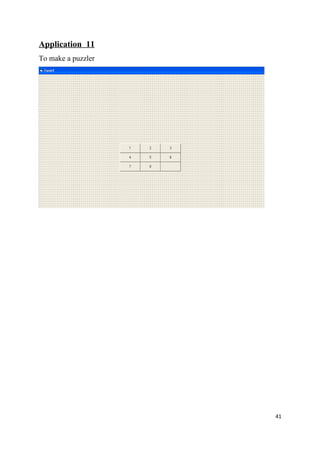
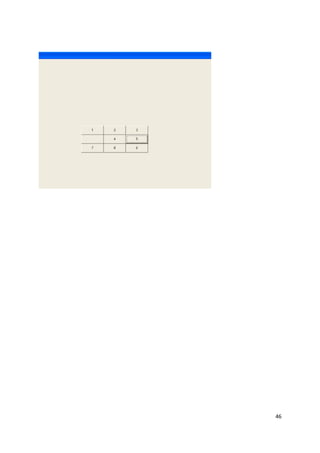
Application 11
To make a puzzler


                    41
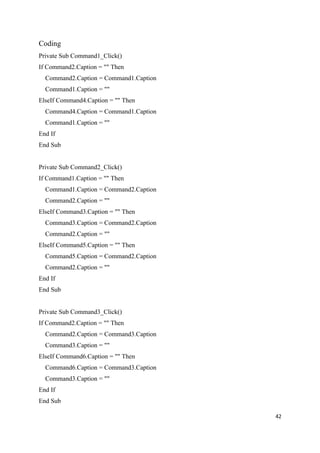
Coding
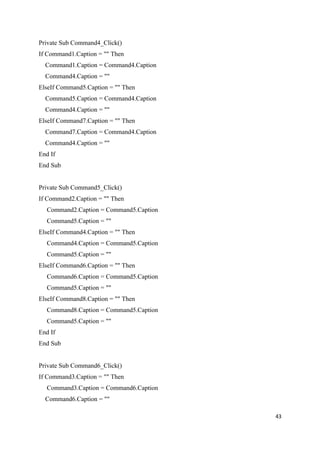
Private Sub Command1_Click()
If Command2.Caption = "" Then
  Command2.Caption = Command1.Caption
  Command1.Caption = ""
ElseIf Command4.Caption = "" Then
  Command4.Caption = Command1.Caption
  Command1.Caption = ""
End If
End Sub


Private Sub Command2_Click()
If Command1.Caption = "" Then
  Command1.Caption = Command2.Caption
  Command2.Caption = ""
ElseIf Command3.Caption = "" Then
  Command3.Caption = Command2.Caption
  Command2.Caption = ""
ElseIf Command5.Caption = "" Then
  Command5.Caption = Command2.Caption
  Command2.Caption = ""
End If
End Sub


Private Sub Command3_Click()
If Command2.Caption = "" Then
  Command2.Caption = Command3.Caption
  Command3.Caption = ""
ElseIf Command6.Caption = "" Then
  Command6.Caption = Command3.Caption
  Command3.Caption = ""
End If
End Sub

                                        42
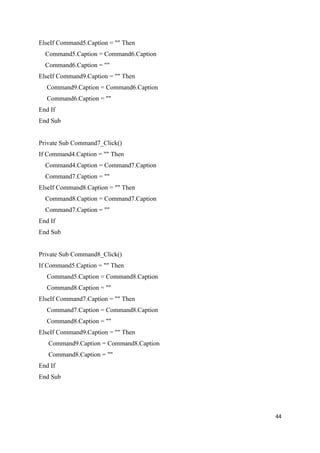
Private Sub Command4_Click()
If Command1.Caption = "" Then
  Command1.Caption = Command4.Caption
  Command4.Caption = ""
ElseIf Command5.Caption = "" Then
  Command5.Caption = Command4.Caption
  Command4.Caption = ""
ElseIf Command7.Caption = "" Then
  Command7.Caption = Command4.Caption
  Command4.Caption = ""
End If
End Sub


Private Sub Command5_Click()
If Command2.Caption = "" Then
  Command2.Caption = Command5.Caption
  Command5.Caption = ""
ElseIf Command4.Caption = "" Then
  Command4.Caption = Command5.Caption
  Command5.Caption = ""
ElseIf Command6.Caption = "" Then
  Command6.Caption = Command5.Caption
  Command5.Caption = ""
ElseIf Command8.Caption = "" Then
  Command8.Caption = Command5.Caption
  Command5.Caption = ""
End If
End Sub


Private Sub Command6_Click()
If Command3.Caption = "" Then
  Command3.Caption = Command6.Caption
  Command6.Caption = ""

                                        43
ElseIf Command5.Caption = "" Then
  Command5.Caption = Command6.Caption
  Command6.Caption = ""
ElseIf Command9.Caption = "" Then
  Command9.Caption = Command6.Caption
  Command6.Caption = ""
End If
End Sub


Private Sub Command7_Click()
If Command4.Caption = "" Then
  Command4.Caption = Command7.Caption
  Command7.Caption = ""
ElseIf Command8.Caption = "" Then
  Command8.Caption = Command7.Caption
  Command7.Caption = ""
End If
End Sub


Private Sub Command8_Click()
If Command5.Caption = "" Then
  Command5.Caption = Command8.Caption
  Command8.Caption = ""
ElseIf Command7.Caption = "" Then
  Command7.Caption = Command8.Caption
  Command8.Caption = ""
ElseIf Command9.Caption = "" Then
   Command9.Caption = Command8.Caption
   Command8.Caption = ""
End If
End Sub


                                         44
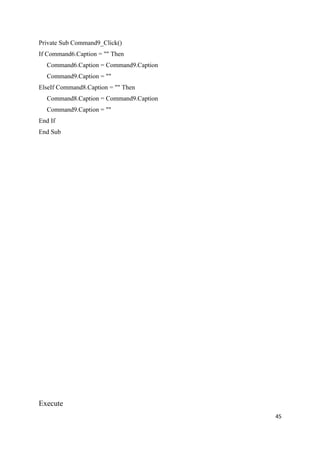
Private Sub Command9_Click()
If Command6.Caption = "" Then
  Command6.Caption = Command9.Caption
  Command9.Caption = ""
ElseIf Command8.Caption = "" Then
  Command8.Caption = Command9.Caption
  Command9.Caption = ""
End If
End Sub


Execute
                                        45
46
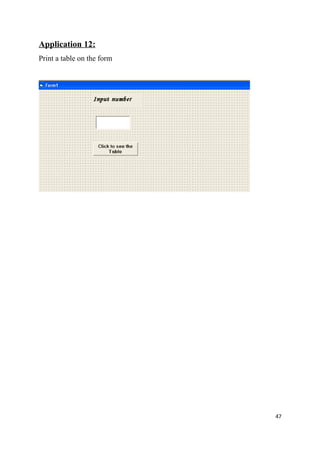
Application 12:
Print a table on the form


                            47
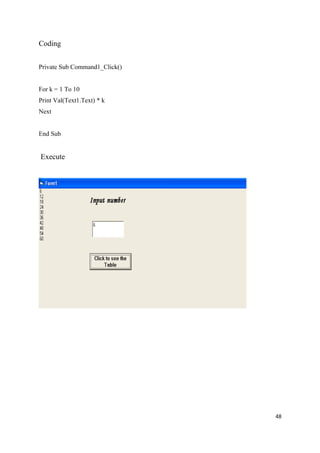
Coding


Private Sub Command1_Click()


For k = 1 To 10
Print Val(Text1.Text) * k
Next


End Sub


Execute


                               48
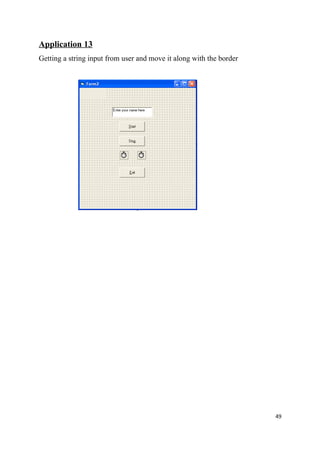
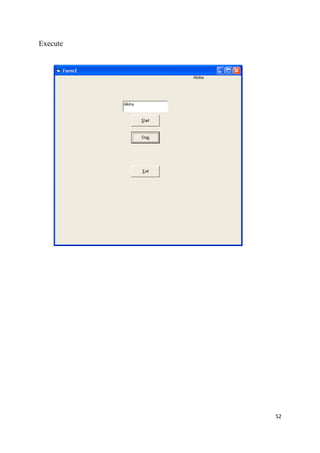
Application 13
Getting a string input from user and move it along with the border


                                                                     49
Coding


Private Sub cmdstart_Click()
Me.Label1.Caption = Me.Text1.Text
Me.Timer1.Enabled = True
End Sub


Private Sub cmdstop_Click()
Me.Timer1.Enabled = False
Me.Timer2.Enabled = False
End Sub


Private Sub cmdexit_Click()
End
End Sub


Private Sub Form_Load()
Me.Timer1.Enabled = False
Me.Label1.Left = 0
End Sub


Private Sub Text1_Click()
Me.Text1.Text = ""
Me.Text1.SetFocus
End Sub


Private Sub Timer1_Timer()
If Me.Label1.Left <= 6600 Then
  Me.Label1.Left = Me.Label1.Left + 10
ElseIf Me.Label1.Top <= 6600 Then
  Me.Label1.Top = Me.Label1.Top + 10
Else
  Timer1.Enabled = False

                                         50
Timer2.Enabled = True
End If
End Sub


Private Sub Timer2_Timer()
If Me.Label1.Left >= 0 Then
  Me.Label1.Left = Me.Label1.Left - 10
ElseIf Me.Label1.Top >= 0 Then
  Me.Label1.Top = Me.Label1.Top - 10
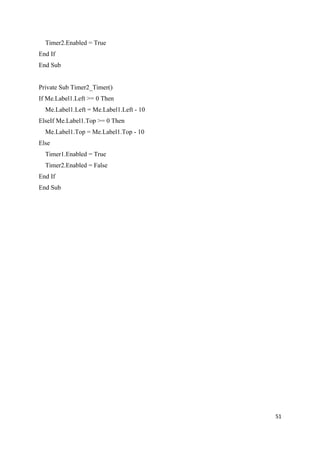
Else
  Timer1.Enabled = True
  Timer2.Enabled = False
End If
End Sub


                                         51
Execute


          52
53

Visual basic

  • 1.
    Practical File Workshop On Visual Basic Submitted To: Submitted By: Prof Anil Sharma Alisha Korpal BCA 1
  • 2.
    INDEX Sno Topic Page no 1 Introduction to VB 3 2 Tool Box 4 3 Property 5 4 Description -- Properties 6 5 Description -- Controls 7 6 Application 1: Showing labels and text boxes 8 7 Description -- Command button 9 8 Application 2: To Perform Arithmetic Operations on two numbers 10 9 Description – Controls 13 10 App 3 : Detail of any option click 14 11 App 4 : Application Form 17 12 Description -- control 20 13 App 5: Traffic lights 21 14 App 6: Getting marks of student and print result in another form 24 15 App 7: Moving the list item across two different lists 28 16 App 8: Formatting Text 31 17 App 9: with the help of menus perform Arithmetic operation 36 18 App 10: Print the series on form 39 19 App 11: Puzzle 41 20 App 12: Print table on the Form 47 21 App 13: Getting a string input from user and move it along border 49 2
  • 3.
    Introduction to VB Visualbasic is an event driven programming. In event driven programming, the interface components have the ability to recognize user events and then, if possible a response is given to the event occurred. The response of identical interface components to an event can different in different situations. In addition, an interface component may also respond to multiple events. In event driven programming an application is built up as a series of response to user event. For instance, you may consider a calculator application, which is good example of an application that is event driven. Featues • It is successor of BASIC language. • VB supports event driven programming. • Common Programming Platform VB provides a common programming platform across all MS – Office applications. • Quick Development VB offers many tools that provide a quick and easy way to develop applications. • Wizards VB also provides many wizards that can automate tasks or even automate coding. • Quick Error Detection /Correction The VB development environment provides tools for quick editing, testing and debugging 3
  • 4.
    Tool Box The toolboxis a collection of tools that act as a repository of controls you can place on a form. 4
  • 5.
    Properties Each property hasa name so we can work with a particular property, and each property has a value that either we or Visual Basic assigns. For example, Visual Basic always names the first command button we add to a project Command1. Therefore, the Name property for the first command button holds the value Command1 5
  • 6.
    Property Description Alignment : Determines whether text on the control, such as a label or command button, is left-justified, centered, or right-justified on the control. BackColor : Specifies the color of the control's background, which you select from a palette of colors when you open the property drop- down list box of colors. BorderStyle : Determines whether the control has a border around it. Caption : Lists the text displayed on the control. Enabled : Set by a drop-down list box, this property is either True if we want the control to respond to the user or False if we want the control not to respond to the user. Font : Displays a Font dialog box from which you can set various font properties, such as size and style, for a control's text. ForeColor : Specifies the color of the control's foreground, which you select from a palette of colors when we open the property's drop-down list box of colors. Height : Specifies the number of twips high the control is. Left : Indicates the starting twip from the left edge of the form where the control appears. Mouse Pointer : Determines the shape of the mouse cursor when the user moves the mouse over the control at runtime. Name : Specifies the name of the control. As you saw in yesterday's lesson, the Properties window displays the . Tooltip Text : Holds the text that appears when the user rests the mouse Cursor over the control at runtime (similar to ScreenTips). 6
  • 7.
    CONTROLS 1. SelectionPointer Selection pointer is used to select the pointer control from the tool box. 2. Label The label control displays text. Although your user cannot alter the text that appears on a label, you can, at runtime, change the label's text through code. 3. The Text Box Control Use a text box control when we want the user to type something, such as an answer to a prompt, when we want to collect values, such as name and address information. Often, a default value is helpful for users, and Visual Basic program can supply an initial value. 7
  • 8.
    Application 1 Labels NOTE : Here no coding will be done because we are simply putting the label, text box controls on the form so, there output will be like the above program . 8
  • 9.
    4. Command Button Command button is used to perform some kind of operations although other controls can also perform. This button is used to begin, interrupt or end a process. 9
  • 10.
    Application 2: WAP to add, subtract, multiply and divide two numbers? Step 1: Create a form 10
  • 11.
    Step 2: Start thecoding Private Sub cmd_Click() Me.sum.Text = Val(txtnum1.Text) + Val(txtnum2.Text) Me.sub.Text = Val(txtnum1.Text) - Val(txtnum2.Text) Me.mul.Text = Val(txtnum1.Text) * Val(txtnum2.Text) Me.div.Text = Val(txtnum1.Text) / Val(txtnum2.Text) End Sub Private Sub Form_Load() MsgBox (" Hello Welcome to perform operations") End Sub 11
  • 12.
  • 13.
    5. Check Box Check boxes are used to allow a user select multiple choices. For example a student can choose any five subjects out of available 7 subjects. Now the subject chosen the 5 subject he/she wants to choose they can. 6. Option Box An option button also known as radio button is used to display an option that can be turned on or off. Usually option buttons are used for a group of options wherefrom user can select just one. For example a student can have option for choosing the medium either Hindi or English so the student has to choose the one option. 7. Frames A frame control is used to separate different group of controls on form. 8. Combo Box A combo box control combines the feature of a text box and a list box. 9. List Box A list box control display a list of item from which the user can select one or more items 13
  • 14.
    Application 3 WAP toshow the option button? Step 1: Make a form 14
  • 15.
    Step 2: Coding private SubCommand1_Click() If Option1.Value = True Then MsgBox (" An input device used to type and enter data") ElseIf Option2.Value = True Then MsgBox (" An input device used for clicking various things") ElseIf Option3.Value = True Then MsgBox (" An output device used to display data") ElseIf Option4.Value = True Then MsgBox (" An output device used to print data") End If End Sub 15
  • 16.
  • 17.
    Application 4 WAP tomake an application Form? 17
  • 18.
    Step 2 Private SubCommand1_Click() MsgBox (txtname.Text & Cmbqual.Text & ",your data has been submited") End Sub Private Sub Command2_Click() txtname.Text = "" Me.Option1.Value = True Cmbqual.Text = "B.A" chkmusic.Value = False chkpaint.Value = False chkread.Value = False End Sub 18
  • 19.
  • 20.
    10. Timer: The timer control is an invisible control which is added to form if some task is to be repeated regular intervals 11.Shapes The shape control is a graphical control that is used to display a rectangle, oval, circle or rounded square. 20
  • 21.
    Application 5: WAP toshow the working of timer? Step2: 21
  • 22.
    Coding Private Sub Timer1_Timer() IfShape1.Visible Then Shape2.Visible = True Shape1.Visible = False Shape3.Visible = False ElseIf Shape2.Visible Then Shape3.Visible = True Shape2.Visible = False Shape1.Visible = False Else Shape3.Visible Then Shape1.Visible = True Shape2.Visible = False Shape3.Visible = False End If End Sub 22
  • 23.
  • 24.
    Application 6: Getting theparticulars form the user and printing the result in another frame? 24
  • 25.
    Private Sub cmbstream_Click() Ifcmbstream.ListIndex = 0 Then Me.lblsub1.Caption = "Economics" Me.lblsub2.Caption = "Accounts" Me.lblsub3.Caption = "Law" Me.lblsub1.Visible = True Me.lblsub2.Visible = True Me.lblsub3.Visible = True Me.txtm1.Visible = True Me.txtm2.Visible = True Me.txtm3.Visible = True ElseIf cmbstream.ListIndex = 1 Then Me.lblsub1.Caption = "C" Me.lblsub2.Caption = "VB" Me.lblsub3.Caption = "Java" Me.lblsub1.Visible = True Me.lblsub2.Visible = True Me.lblsub3.Visible = True Me.txtm1.Visible = True Me.txtm2.Visible = True Me.txtm3.Visible = True End If End Sub Private Sub cmdexit_Click() End End Sub Private Sub cmdres_Click() Me.lblname.Caption = "Name: " + Me.txtname.Text Me.lblroll.Caption = "Roll No.: " + Me.txtroll Me.lblstream.Caption = "Stream: " + Me.cmbstream.Text Me.lblm1.Caption = Me.lblsub1.Caption + ": " + Me.txtm1 25
  • 26.
    Me.lblm2.Caption = Me.lblsub2.Caption+ ": " + Me.txtm2 Me.lblm3.Caption = Me.lblsub3.Caption + ": " + Me.txtm3 If ((Val(txtm1.Text)+Val(txtm2.Text)+Val(txtm3.Text)) / 3)>=40 Then Me.lblres.Caption = "Pass " & "(" & ((Val(txtm1.Text) + Val(txtm2.Text) + Val(txtm3.Text)) / 3) & "%)" Else Me.lblres.Caption = "Fail " & "(" & ((Val(txtm1.Text) + Val(txtm2.Text) + Val(txtm3.Text)) / 3) & "%)" End If Me.Width = 9500 End Sub Private Sub Form_Load() Me.lblsub1.Visible = False Me.lblsub2.Visible = False Me.lblsub3.Visible = False Me.txtm1.Visible = False Me.txtm2.Visible = False Me.txtm3.Visible = False Me.Width = 5000 End Sub 26
  • 27.
  • 28.
    Application 7: Moving thelist item across two different lists. 28
  • 29.
    Coding Private Sub cmdexit_Click() End EndSub Private Sub Command1_Click() List2.AddItem (List1.Text) List1.RemoveItem (List1.ListIndex) End Sub Private Sub Command2_Click() List1.AddItem (List2.Text) List2.RemoveItem (List2.ListIndex) End Sub 29
  • 30.
  • 31.
    Application 8: Changing thetext and applying font 31
  • 32.
    Coding Private Sub Check1_Click() IfCheck1.Value = 1 Then Text1.FontBold = True Else Text1.FontBold = False End If End Sub Private Sub Check2_Click() If Check2.Value = 1 Then Text1.FontItalic = True Else Text1.FontItalic = False End If End Sub Private Sub Check3_Click() If Check3.Value = 1 Then Text1.FontUnderline = True Else Text1.FontUnderline = False End If End Sub Private Sub Combo1_Click() If Combo1.ListIndex = 0 Then Text1.FontSize = Combo1.Text ElseIf Combo1.ListIndex = 1 Then Text1.FontSize = Combo1.Text ElseIf Combo1.ListIndex = 2 Then Text1.FontSize = Combo1.Text ElseIf Combo1.ListIndex = 3 Then 32
  • 33.
    Text1.FontSize = Combo1.Text EndIf End Sub Private Sub Combo2_click() If Combo2.ListIndex = 0 Then Text1.FontName = Combo2.Text ElseIf Combo2.ListIndex = 1 Then Text1.FontName = Combo2.Text ElseIf Combo2.ListIndex = 2 Then Text1.FontName = Combo2.Text ElseIf Combo2.ListIndex = 3 Then Text1.FontName = Combo2.Text End If End Sub Private Sub Form_Load() Combo2.AddItem "Times New Roman" Combo2.AddItem "Arial" Combo2.AddItem "Shruti" Combo2.AddItem "Monotype Corsiva" End Sub Private Sub Option1_Click() If Option1.Value = True Then Text1.BackColor = vbCyan End If End Sub 33
  • 34.
    Private Sub Option2_Click() IfOption2.Value = True Then Text1.BackColor = vbBlack End If End Sub Private Sub Option3_Click() If Option3.Value = True Then Text1.BackColor = vbYellow End If End Sub 34
  • 35.
  • 36.
    Application 9: With thehelp of menus perform arithmetic operations 36
  • 37.
    Coding Private Sub add_Click() Me.answ.Text= Val(txtnum1.Text) + Val(txtnum2.Text) End Sub Private Sub divi_Click() Me.answ.Text = Val(txtnum1.Text) / Val(txtnum2.Text) End Sub Private Sub min_Click() Me.answ.Text = Val(txtnum1.Text) - Val(txtnum2.Text) End Sub Private Sub mult_Click() Me.answ.Text = Val(txtnum1.Text) * Val(txtnum2.Text) End Sub 37
  • 38.
  • 39.
    Application 10 To printthe series 1 12 123 1234 12345 Coding Private Sub Form_Click() For r = 1 To 5 For c = 1 To r Print c; Next Print Next End Sub 39
  • 40.
  • 41.
  • 42.
    Coding Private Sub Command1_Click() IfCommand2.Caption = "" Then Command2.Caption = Command1.Caption Command1.Caption = "" ElseIf Command4.Caption = "" Then Command4.Caption = Command1.Caption Command1.Caption = "" End If End Sub Private Sub Command2_Click() If Command1.Caption = "" Then Command1.Caption = Command2.Caption Command2.Caption = "" ElseIf Command3.Caption = "" Then Command3.Caption = Command2.Caption Command2.Caption = "" ElseIf Command5.Caption = "" Then Command5.Caption = Command2.Caption Command2.Caption = "" End If End Sub Private Sub Command3_Click() If Command2.Caption = "" Then Command2.Caption = Command3.Caption Command3.Caption = "" ElseIf Command6.Caption = "" Then Command6.Caption = Command3.Caption Command3.Caption = "" End If End Sub 42
  • 43.
    Private Sub Command4_Click() IfCommand1.Caption = "" Then Command1.Caption = Command4.Caption Command4.Caption = "" ElseIf Command5.Caption = "" Then Command5.Caption = Command4.Caption Command4.Caption = "" ElseIf Command7.Caption = "" Then Command7.Caption = Command4.Caption Command4.Caption = "" End If End Sub Private Sub Command5_Click() If Command2.Caption = "" Then Command2.Caption = Command5.Caption Command5.Caption = "" ElseIf Command4.Caption = "" Then Command4.Caption = Command5.Caption Command5.Caption = "" ElseIf Command6.Caption = "" Then Command6.Caption = Command5.Caption Command5.Caption = "" ElseIf Command8.Caption = "" Then Command8.Caption = Command5.Caption Command5.Caption = "" End If End Sub Private Sub Command6_Click() If Command3.Caption = "" Then Command3.Caption = Command6.Caption Command6.Caption = "" 43
  • 44.
    ElseIf Command5.Caption ="" Then Command5.Caption = Command6.Caption Command6.Caption = "" ElseIf Command9.Caption = "" Then Command9.Caption = Command6.Caption Command6.Caption = "" End If End Sub Private Sub Command7_Click() If Command4.Caption = "" Then Command4.Caption = Command7.Caption Command7.Caption = "" ElseIf Command8.Caption = "" Then Command8.Caption = Command7.Caption Command7.Caption = "" End If End Sub Private Sub Command8_Click() If Command5.Caption = "" Then Command5.Caption = Command8.Caption Command8.Caption = "" ElseIf Command7.Caption = "" Then Command7.Caption = Command8.Caption Command8.Caption = "" ElseIf Command9.Caption = "" Then Command9.Caption = Command8.Caption Command8.Caption = "" End If End Sub 44
  • 45.
    Private Sub Command9_Click() IfCommand6.Caption = "" Then Command6.Caption = Command9.Caption Command9.Caption = "" ElseIf Command8.Caption = "" Then Command8.Caption = Command9.Caption Command9.Caption = "" End If End Sub Execute 45
  • 46.
  • 47.
    Application 12: Print atable on the form 47
  • 48.
    Coding Private Sub Command1_Click() Fork = 1 To 10 Print Val(Text1.Text) * k Next End Sub Execute 48
  • 49.
    Application 13 Getting astring input from user and move it along with the border 49
  • 50.
    Coding Private Sub cmdstart_Click() Me.Label1.Caption= Me.Text1.Text Me.Timer1.Enabled = True End Sub Private Sub cmdstop_Click() Me.Timer1.Enabled = False Me.Timer2.Enabled = False End Sub Private Sub cmdexit_Click() End End Sub Private Sub Form_Load() Me.Timer1.Enabled = False Me.Label1.Left = 0 End Sub Private Sub Text1_Click() Me.Text1.Text = "" Me.Text1.SetFocus End Sub Private Sub Timer1_Timer() If Me.Label1.Left <= 6600 Then Me.Label1.Left = Me.Label1.Left + 10 ElseIf Me.Label1.Top <= 6600 Then Me.Label1.Top = Me.Label1.Top + 10 Else Timer1.Enabled = False 50
  • 51.
    Timer2.Enabled = True EndIf End Sub Private Sub Timer2_Timer() If Me.Label1.Left >= 0 Then Me.Label1.Left = Me.Label1.Left - 10 ElseIf Me.Label1.Top >= 0 Then Me.Label1.Top = Me.Label1.Top - 10 Else Timer1.Enabled = True Timer2.Enabled = False End If End Sub 51
  • 52.
  • 53.