Chapter 3 – Introduction to C# Programming Outline 3.1  Introduction 3.2  Simple Program: Printing a Line of Text 3.3  Another Simple Program: Adding Integers 3.4  Memory Concepts 3.5  Arithmetic 3.6  Decision Making: Equality and Relational Operators
3.1  Introduction Console applications No visual components Only text output Two types MS-DOS prompt Used in Windows 95/98/ME Command prompt Used in windows 2000/NT/XP Windows applications Forms with several output types Contain Graphical User Interfaces (GUIs)
3.2  Simple Program: Printing a line of text Comments Comments can be created using //… Multi-lines comments use /* … */ Comments are ignored by the compiler Used only for human readers Namespaces Groups related C# features into a categories Allows the easy reuse of code Many namespaces are found in the .NET framework library Must be referenced in order to be used White Space Includes spaces, newline characters and tabs
3.2  Simple Program: Printing a line of text Keywords Words that cannot be used as variable or class names or any other capacity Have a specific unchangeable function within the language Example:  class   All keywords are lowercase Classes Class names can only be one word long (i.e. no white space in class name ) Class names are capitalized, with each additional English word capitalized as well (e.g., MyFirstProgram ) Each class name is an identifier Can contain letters, digits, and underscores (_) Cannot start with digits Can start with the at symbol (@)
3.2  Simple Program: Printing a line of text Class bodies start with a left brace ({) Class bodies end with a right brace (}) Methods Building blocks of programs The  Main  method Each console or windows application must have exactly one All programs start by executing the  Main  method Braces are used to start ({) and end (}) a method Statements Anything in quotes (“) is considered a string Every statement must end in a semicolon (;)
3.2  Simple Program: Printing a line of text Graphical User Interface GUIs are used to make it easier to get data from the user as well as display data to the user Message boxes Within the  System.Windows.Forms  namespace Used to prompt or display information to the user
Welcome1.cs Program Output 1   // Fig. 3.1: Welcome1.cs 2   // A first program in C#. 3   4   using  System; 5   6   class  Welcome1 7   { 8   static   void  Main(  string [] args ) 9   { 10   Console.WriteLine(  "Welcome to C# Programming!"  ); 11   } 12   } Welcome to C# Programming!   These are two single line comments. They are ignored by the compiler and are only used to aid other programmers. They use the double slash (//) This is the using directive. It lets the compiler know that it should include the System namespace. This is a blank line. It means nothing to the compiler and is only used to add clarity to the program. This is the beginning of the Welcome1 class definition. It starts with the  class  keyword and then the name of the class. This is the start of the Main method. In this case it instructs the program to do everything This is a string of characters that Console.WriteLine instructs the compiler to output
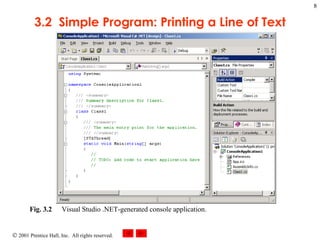
3.2  Simple Program: Printing a Line of Text Fig. 3.2 Visual Studio .NET-generated console application.
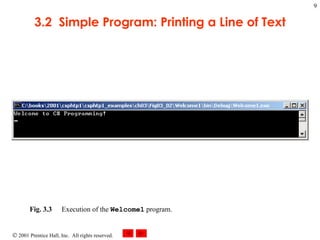
3.2  Simple Program: Printing a Line of Text Fig. 3.3 Execution of the  Welcome1  program.
Welcome2.cs Program Output 1  // Fig. 3.4: Welcome2.cs 2  // Printing a line with multiple statements. 3  4  using  System; 5  6  class  Welcome2 7  { 8  static   void  Main(  string [] args ) 9  { 10  Console.Write(  "Welcome to "  ); 11   Console.WriteLine(  "C# Programming!"  ); 12  } 13  } Welcome to C# Programming!   Console.WriteLine will pick up where the line ends.  This will cause the output to be on one line even though it is on two in the code.
Welcome3.cs Program Output 1  // Fig. 3.5: Welcome3.cs 2  // Printing multiple lines with a single statement. 3  4  using  System; 5  6  class  Welcome3 7  { 8  static   void  Main(  string [] args ) 9  { 10   Console.WriteLine(  "Welcome\nto\nC#\nProgramming!"  ); 11  } 12  } Welcome to C# Programming!   The \n escape sequence is used to put output on the next line.  This causes the output to be on several lines even though it is only on one in the code.
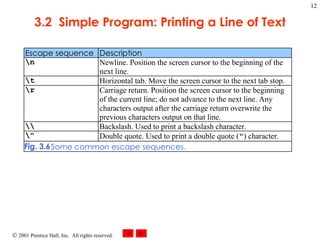
3.2  Simple Program: Printing a Line of Text
Welcome4.cs Program Output 1  // Fig. 3.7: Welcome4.cs 2  // Printing multiple lines in a dialog Box. 3  4  using  System; 5   using  System.Windows.Forms; 6  7  class  Welcome4 8  { 9  static   void   Main (  string [] args ) 10  { 11   MessageBox.Show(  "Welcome\nto\nC#\nprogramming!"  ); 12  } 13  } The System.Windows.Forms namespace allows the programmer to use the MessageBox class. This will display the contents in a message box as opposed to in the console window.
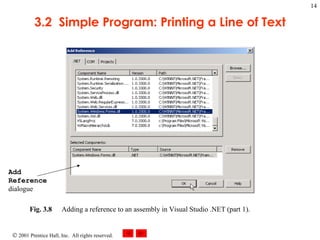
3.2  Simple Program: Printing a Line of Text Fig. 3.8 Adding a reference to an assembly in Visual Studio .NET (part 1). Add Reference  dialogue
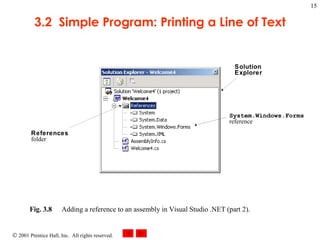
3.2  Simple Program: Printing a Line of Text Fig. 3.8 Adding a reference to an assembly in Visual Studio .NET (part 2). References   folder Solution Explorer System.Windows.Forms   reference
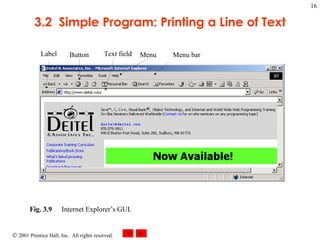
3.2  Simple Program: Printing a Line of Text Fig. 3.9 Internet Explorer’s GUI.  Text field Menu Button Label Menu bar
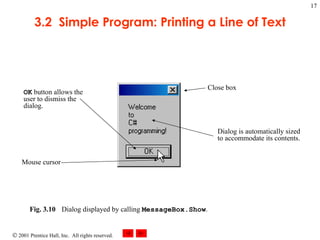
3.2  Simple Program: Printing a Line of Text Fig. 3.10 Dialog displayed by calling  MessageBox.Show .  OK  button allows the user to dismiss the dialog. Dialog is automatically sized to accommodate its contents. Mouse cursor Close box
3.3  Another Simple Program: Adding Integers Primitive data types Data types that are built into C# String, Int, Double, Char, Long 15 primitive data types (chapter 4) Each data type name is a C# keyword Same type variables can be declared on separate lines or on one line Console.ReadLine() Used to get a value from the user input Int32.Parse() Used to convert a string argument to an integer Allows math to be preformed once the string is converted
Addition.cs 1  // Fig. 3.11: Addition.cs 2  // An addition program. 3  4  using  System; 5  6   class  Addition 7  { 8  static   void  Main(  string [] args ) 9  { 10   string  firstNumber,  // first string entered by user 11   secondNumber;  // second string entered by user 12  13   int  number1,  // first number to add 14  number2,  // second number to add 15  sum;  // sum of number1 and number2 16  17  // prompt for and read first number from user as string 18   Console.Write(  "Please enter the first integer: "  ); 19   firstNumber = Console.ReadLine(); 20  21  // read second number from user as string 22  Console.Write(  "\nPlease enter the second integer: "  ); 23  secondNumber = Console.ReadLine(); 24  25  // convert numbers from type string to type int 26   number1 = Int32.Parse( firstNumber ); 27  number2 = Int32.Parse( secondNumber ); 28  29  // add numbers 30   sum = number1 + number2; 31  This is the start of class Addition Two string variables defined over two lines The comment after the declaration is used to briefly state the variable purpose These are three  int s that are declared over several lines and only use one semicolon. Each is separated by a coma. Console.ReadLine is used to take the users input and place it into a variable. This line is considered a prompt because it asks the user to input data. Int32.Parse is used to convert the given string into an integer. It is then stored in a variable. The two numbers are added and stored in the variable sum.
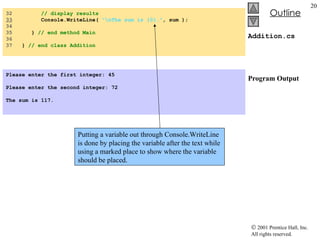
Addition.cs Program Output 32  // display results 33   Console.WriteLine(  "\nThe sum is {0}." , sum ); 34  35  }  // end method Main 36  37  }  // end class Addition Please enter the first integer: 45   Please enter the second integer: 72   The sum is 117. Putting a variable out through Console.WriteLine is done by placing the variable after the text while using a marked place to show where the variable should be placed.
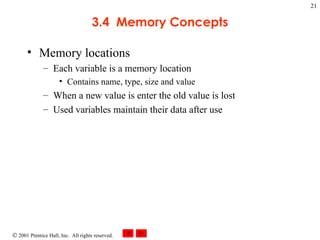
3.4  Memory Concepts Memory locations Each variable is a memory location Contains name, type, size and value When a new value is enter the old value is lost Used variables maintain their data after use
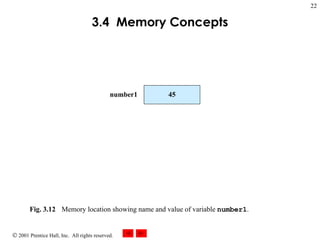
3.4  Memory Concepts Fig. 3.12 Memory location showing name and value of variable  number1 .  number1 45
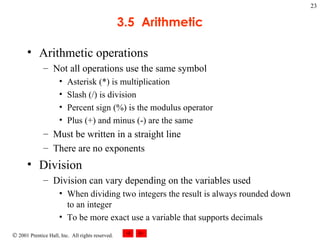
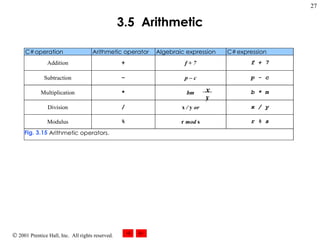
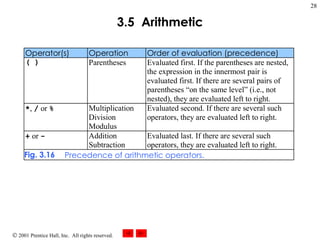
3.5  Arithmetic Arithmetic operations Not all operations use the same symbol Asterisk (*) is multiplication Slash (/) is division Percent sign (%) is the modulus operator Plus (+) and minus (-) are the same Must be written in a straight line There are no exponents Division Division can vary depending on the variables used When dividing two integers the result is always rounded down to an integer To be more exact use a variable that supports decimals
3.5  Arithmetic Order Parenthesis are done first Division, multiplication and modulus are done second Left to right Addition and subtraction are done last Left to right
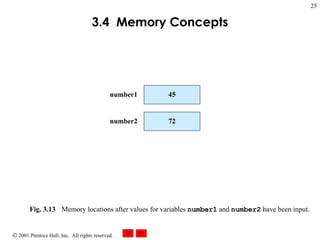
3.4  Memory Concepts Fig. 3.13 Memory locations after values for variables  number1  and  number2  have been input.  number1 45 number2 72
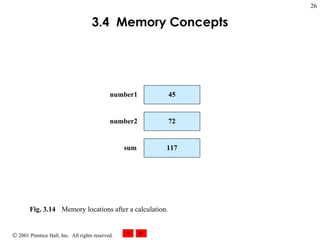
3.4  Memory Concepts Fig. 3.14 Memory locations after a calculation.  number1 45 number2 72 sum 117
3.5  Arithmetic x y
3.5  Arithmetic
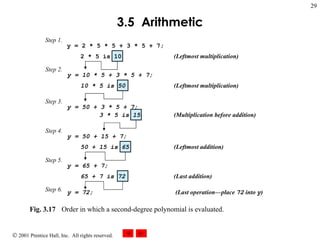
3.5  Arithmetic Fig. 3.17 Order in which a second-degree polynomial is evaluated.  Step 1. Step 2. Step 5. Step 3. Step 4. Step 6. y = 2 * 5 * 5 + 3 * 5 + 7; 2 * 5 is 10  (Leftmost multiplication) y = 10 * 5 + 3 * 5 + 7; 10 * 5 is 50  (Leftmost multiplication) y = 50 + 3 * 5 + 7; 3 * 5 is 15  (Multiplication before addition) y = 50 + 15 + 7; 50 + 15 is 65  (Leftmost addition) y = 65 + 7; 65 + 7 is 72  (Last addition) y = 72;  (Last operation—place  72  into  y )
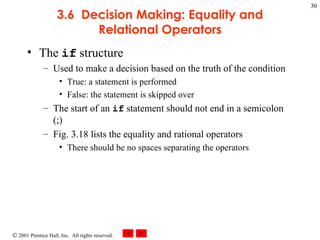
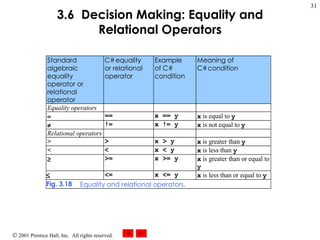
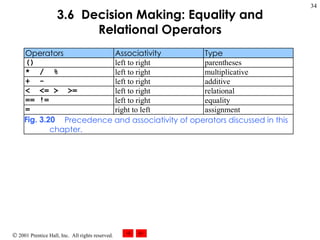
3.6  Decision Making: Equality and Relational Operators The  if  structure Used to make a decision based on the truth of the condition True: a statement is performed False: the statement is skipped over The start of an  if  statement should not end in a semicolon (;) Fig. 3.18 lists the equality and rational operators There should be no spaces separating the operators
3.6  Decision Making: Equality and Relational Operators
Comparison.cs 1  // Fig. 3.19: Comparison.cs 2  // Using if statements, relational operators and equality 3  // operators. 4  5  using  System; 6  7  class  Comparison 8  { 9  static void  Main(  string [] args ) 10  { 11  int  number1,  // first number to compare 12  number2;  // second number to compare 13  14  // read in first number from user 15  Console.Write(  &quot;Please enter first integer: &quot;  ); 16   number1 = Int32.Parse( Console.ReadLine() ); 17  18  // read in second number from user 19  Console.Write(  &quot;\nPlease enter second integer: &quot;  ); 20  number2 = Int32.Parse( Console.ReadLine() ); 21  22  if  ( number1 == number2 ) 23   Console.WriteLine( number1 +  &quot; == &quot;  + number2 ); 24  25  if  ( number1 != number2 ) 26   Console.WriteLine( number1 +  &quot; != &quot;  + number2 ); 27  28  if  ( number1 < number2 ) 29   Console.WriteLine( number1 +  &quot; < &quot;  + number2 ); 30  31  if  ( number1 > number2 ) 32   Console.WriteLine( number1 +  &quot; > &quot;  +  number2 ); 33  Combining these two methods eliminates the need for a temporary string variable. If number1 is the same as number2 this line is preformed If number1 does not equal number2 this line of code is executed. If number1 is less than number2 the program will use this line If number1 is greater than number2 this line will be preformed
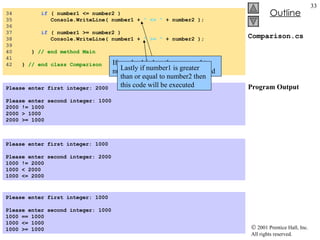
Comparison.cs Program Output 34  if  ( number1 <= number2 ) 35  Console.WriteLine( number1 +  &quot; <= &quot;  + number2 ); 36  37  if  ( number1 >= number2 ) 38  Console.WriteLine( number1 +  &quot; >= &quot;  + number2 ); 39  40  }  // end method Main 41  42  }  // end class Comparison Please enter first integer: 2000   Please enter second integer: 1000 2000 != 1000 2000 > 1000 2000 >= 1000 Please enter first integer: 1000   Please enter second integer: 2000 1000 != 2000 1000 < 2000 1000 <= 2000 Please enter first integer: 1000   Please enter second integer: 1000 1000 == 1000 1000 <= 1000 1000 >= 1000 If number1 is less than or equal to number2 then this code will be used Lastly if number1 is greater than or equal to number2 then this code will be executed
3.6  Decision Making: Equality and Relational Operators

Csphtp1 03

  • 1.
    Chapter 3 –Introduction to C# Programming Outline 3.1 Introduction 3.2 Simple Program: Printing a Line of Text 3.3 Another Simple Program: Adding Integers 3.4 Memory Concepts 3.5 Arithmetic 3.6 Decision Making: Equality and Relational Operators
  • 2.
    3.1 IntroductionConsole applications No visual components Only text output Two types MS-DOS prompt Used in Windows 95/98/ME Command prompt Used in windows 2000/NT/XP Windows applications Forms with several output types Contain Graphical User Interfaces (GUIs)
  • 3.
    3.2 SimpleProgram: Printing a line of text Comments Comments can be created using //… Multi-lines comments use /* … */ Comments are ignored by the compiler Used only for human readers Namespaces Groups related C# features into a categories Allows the easy reuse of code Many namespaces are found in the .NET framework library Must be referenced in order to be used White Space Includes spaces, newline characters and tabs
  • 4.
    3.2 SimpleProgram: Printing a line of text Keywords Words that cannot be used as variable or class names or any other capacity Have a specific unchangeable function within the language Example: class All keywords are lowercase Classes Class names can only be one word long (i.e. no white space in class name ) Class names are capitalized, with each additional English word capitalized as well (e.g., MyFirstProgram ) Each class name is an identifier Can contain letters, digits, and underscores (_) Cannot start with digits Can start with the at symbol (@)
  • 5.
    3.2 SimpleProgram: Printing a line of text Class bodies start with a left brace ({) Class bodies end with a right brace (}) Methods Building blocks of programs The Main method Each console or windows application must have exactly one All programs start by executing the Main method Braces are used to start ({) and end (}) a method Statements Anything in quotes (“) is considered a string Every statement must end in a semicolon (;)
  • 6.
    3.2 SimpleProgram: Printing a line of text Graphical User Interface GUIs are used to make it easier to get data from the user as well as display data to the user Message boxes Within the System.Windows.Forms namespace Used to prompt or display information to the user
  • 7.
    Welcome1.cs Program Output1 // Fig. 3.1: Welcome1.cs 2 // A first program in C#. 3 4 using System; 5 6 class Welcome1 7 { 8 static void Main( string [] args ) 9 { 10 Console.WriteLine( &quot;Welcome to C# Programming!&quot; ); 11 } 12 } Welcome to C# Programming! These are two single line comments. They are ignored by the compiler and are only used to aid other programmers. They use the double slash (//) This is the using directive. It lets the compiler know that it should include the System namespace. This is a blank line. It means nothing to the compiler and is only used to add clarity to the program. This is the beginning of the Welcome1 class definition. It starts with the class keyword and then the name of the class. This is the start of the Main method. In this case it instructs the program to do everything This is a string of characters that Console.WriteLine instructs the compiler to output
  • 8.
    3.2 SimpleProgram: Printing a Line of Text Fig. 3.2 Visual Studio .NET-generated console application.
  • 9.
    3.2 SimpleProgram: Printing a Line of Text Fig. 3.3 Execution of the Welcome1 program.
  • 10.
    Welcome2.cs Program Output1 // Fig. 3.4: Welcome2.cs 2 // Printing a line with multiple statements. 3 4 using System; 5 6 class Welcome2 7 { 8 static void Main( string [] args ) 9 { 10 Console.Write( &quot;Welcome to &quot; ); 11 Console.WriteLine( &quot;C# Programming!&quot; ); 12 } 13 } Welcome to C# Programming! Console.WriteLine will pick up where the line ends. This will cause the output to be on one line even though it is on two in the code.
  • 11.
    Welcome3.cs Program Output1 // Fig. 3.5: Welcome3.cs 2 // Printing multiple lines with a single statement. 3 4 using System; 5 6 class Welcome3 7 { 8 static void Main( string [] args ) 9 { 10 Console.WriteLine( &quot;Welcome\nto\nC#\nProgramming!&quot; ); 11 } 12 } Welcome to C# Programming! The \n escape sequence is used to put output on the next line. This causes the output to be on several lines even though it is only on one in the code.
  • 12.
    3.2 SimpleProgram: Printing a Line of Text
  • 13.
    Welcome4.cs Program Output1 // Fig. 3.7: Welcome4.cs 2 // Printing multiple lines in a dialog Box. 3 4 using System; 5 using System.Windows.Forms; 6 7 class Welcome4 8 { 9 static void Main ( string [] args ) 10 { 11 MessageBox.Show( &quot;Welcome\nto\nC#\nprogramming!&quot; ); 12 } 13 } The System.Windows.Forms namespace allows the programmer to use the MessageBox class. This will display the contents in a message box as opposed to in the console window.
  • 14.
    3.2 SimpleProgram: Printing a Line of Text Fig. 3.8 Adding a reference to an assembly in Visual Studio .NET (part 1). Add Reference dialogue
  • 15.
    3.2 SimpleProgram: Printing a Line of Text Fig. 3.8 Adding a reference to an assembly in Visual Studio .NET (part 2). References folder Solution Explorer System.Windows.Forms reference
  • 16.
    3.2 SimpleProgram: Printing a Line of Text Fig. 3.9 Internet Explorer’s GUI. Text field Menu Button Label Menu bar
  • 17.
    3.2 SimpleProgram: Printing a Line of Text Fig. 3.10 Dialog displayed by calling MessageBox.Show . OK button allows the user to dismiss the dialog. Dialog is automatically sized to accommodate its contents. Mouse cursor Close box
  • 18.
    3.3 AnotherSimple Program: Adding Integers Primitive data types Data types that are built into C# String, Int, Double, Char, Long 15 primitive data types (chapter 4) Each data type name is a C# keyword Same type variables can be declared on separate lines or on one line Console.ReadLine() Used to get a value from the user input Int32.Parse() Used to convert a string argument to an integer Allows math to be preformed once the string is converted
  • 19.
    Addition.cs 1 // Fig. 3.11: Addition.cs 2 // An addition program. 3 4 using System; 5 6 class Addition 7 { 8 static void Main( string [] args ) 9 { 10 string firstNumber, // first string entered by user 11 secondNumber; // second string entered by user 12 13 int number1, // first number to add 14 number2, // second number to add 15 sum; // sum of number1 and number2 16 17 // prompt for and read first number from user as string 18 Console.Write( &quot;Please enter the first integer: &quot; ); 19 firstNumber = Console.ReadLine(); 20 21 // read second number from user as string 22 Console.Write( &quot;\nPlease enter the second integer: &quot; ); 23 secondNumber = Console.ReadLine(); 24 25 // convert numbers from type string to type int 26 number1 = Int32.Parse( firstNumber ); 27 number2 = Int32.Parse( secondNumber ); 28 29 // add numbers 30 sum = number1 + number2; 31 This is the start of class Addition Two string variables defined over two lines The comment after the declaration is used to briefly state the variable purpose These are three int s that are declared over several lines and only use one semicolon. Each is separated by a coma. Console.ReadLine is used to take the users input and place it into a variable. This line is considered a prompt because it asks the user to input data. Int32.Parse is used to convert the given string into an integer. It is then stored in a variable. The two numbers are added and stored in the variable sum.
  • 20.
    Addition.cs Program Output32 // display results 33 Console.WriteLine( &quot;\nThe sum is {0}.&quot; , sum ); 34 35 } // end method Main 36 37 } // end class Addition Please enter the first integer: 45   Please enter the second integer: 72   The sum is 117. Putting a variable out through Console.WriteLine is done by placing the variable after the text while using a marked place to show where the variable should be placed.
  • 21.
    3.4 MemoryConcepts Memory locations Each variable is a memory location Contains name, type, size and value When a new value is enter the old value is lost Used variables maintain their data after use
  • 22.
    3.4 MemoryConcepts Fig. 3.12 Memory location showing name and value of variable number1 . number1 45
  • 23.
    3.5 ArithmeticArithmetic operations Not all operations use the same symbol Asterisk (*) is multiplication Slash (/) is division Percent sign (%) is the modulus operator Plus (+) and minus (-) are the same Must be written in a straight line There are no exponents Division Division can vary depending on the variables used When dividing two integers the result is always rounded down to an integer To be more exact use a variable that supports decimals
  • 24.
    3.5 ArithmeticOrder Parenthesis are done first Division, multiplication and modulus are done second Left to right Addition and subtraction are done last Left to right
  • 25.
    3.4 MemoryConcepts Fig. 3.13 Memory locations after values for variables number1 and number2 have been input. number1 45 number2 72
  • 26.
    3.4 MemoryConcepts Fig. 3.14 Memory locations after a calculation. number1 45 number2 72 sum 117
  • 27.
  • 28.
  • 29.
    3.5 ArithmeticFig. 3.17 Order in which a second-degree polynomial is evaluated. Step 1. Step 2. Step 5. Step 3. Step 4. Step 6. y = 2 * 5 * 5 + 3 * 5 + 7; 2 * 5 is 10 (Leftmost multiplication) y = 10 * 5 + 3 * 5 + 7; 10 * 5 is 50 (Leftmost multiplication) y = 50 + 3 * 5 + 7; 3 * 5 is 15 (Multiplication before addition) y = 50 + 15 + 7; 50 + 15 is 65 (Leftmost addition) y = 65 + 7; 65 + 7 is 72 (Last addition) y = 72; (Last operation—place 72 into y )
  • 30.
    3.6 DecisionMaking: Equality and Relational Operators The if structure Used to make a decision based on the truth of the condition True: a statement is performed False: the statement is skipped over The start of an if statement should not end in a semicolon (;) Fig. 3.18 lists the equality and rational operators There should be no spaces separating the operators
  • 31.
    3.6 DecisionMaking: Equality and Relational Operators
  • 32.
    Comparison.cs 1 // Fig. 3.19: Comparison.cs 2 // Using if statements, relational operators and equality 3 // operators. 4 5 using System; 6 7 class Comparison 8 { 9 static void Main( string [] args ) 10 { 11 int number1, // first number to compare 12 number2; // second number to compare 13 14 // read in first number from user 15 Console.Write( &quot;Please enter first integer: &quot; ); 16 number1 = Int32.Parse( Console.ReadLine() ); 17 18 // read in second number from user 19 Console.Write( &quot;\nPlease enter second integer: &quot; ); 20 number2 = Int32.Parse( Console.ReadLine() ); 21 22 if ( number1 == number2 ) 23 Console.WriteLine( number1 + &quot; == &quot; + number2 ); 24 25 if ( number1 != number2 ) 26 Console.WriteLine( number1 + &quot; != &quot; + number2 ); 27 28 if ( number1 < number2 ) 29 Console.WriteLine( number1 + &quot; < &quot; + number2 ); 30 31 if ( number1 > number2 ) 32 Console.WriteLine( number1 + &quot; > &quot; + number2 ); 33 Combining these two methods eliminates the need for a temporary string variable. If number1 is the same as number2 this line is preformed If number1 does not equal number2 this line of code is executed. If number1 is less than number2 the program will use this line If number1 is greater than number2 this line will be preformed
  • 33.
    Comparison.cs Program Output34 if ( number1 <= number2 ) 35 Console.WriteLine( number1 + &quot; <= &quot; + number2 ); 36 37 if ( number1 >= number2 ) 38 Console.WriteLine( number1 + &quot; >= &quot; + number2 ); 39 40 } // end method Main 41 42 } // end class Comparison Please enter first integer: 2000   Please enter second integer: 1000 2000 != 1000 2000 > 1000 2000 >= 1000 Please enter first integer: 1000   Please enter second integer: 2000 1000 != 2000 1000 < 2000 1000 <= 2000 Please enter first integer: 1000   Please enter second integer: 1000 1000 == 1000 1000 <= 1000 1000 >= 1000 If number1 is less than or equal to number2 then this code will be used Lastly if number1 is greater than or equal to number2 then this code will be executed
  • 34.
    3.6 DecisionMaking: Equality and Relational Operators