Word Processing
Understanding Microsoft Word 10
Benefits of a Word Processor
Word Processing
Is the use of a computer and software to
produce written documents such as
letters, memos, forms and reports.
Word Processing
 Move the insertion point
 Correct text
 Change text appearance
 Change text format
 Select text to move, copy, or delete
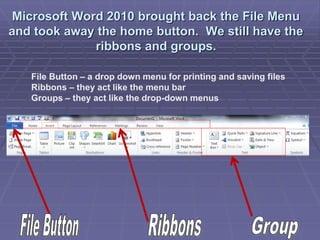
Microsoft Word 2010 brought back the File Menu
and took away the home button. We still have the
ribbons and groups.
File Button – a drop down menu for printing and saving files
Ribbons – they act like the menu bar
Groups – they act like the drop-down menus
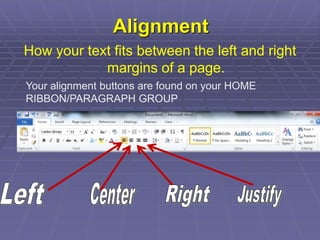
Alignment
How your text fits between the left and right
margins of a page.
Your alignment buttons are found on your HOME
RIBBON/PARAGRAPH GROUP
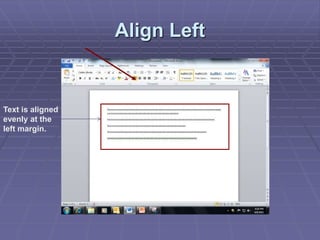
Align Left
Text is aligned
evenly at the
left margin.
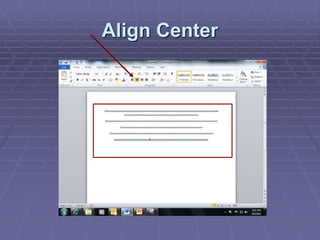
Align Center
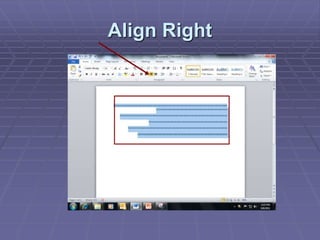
Align Right
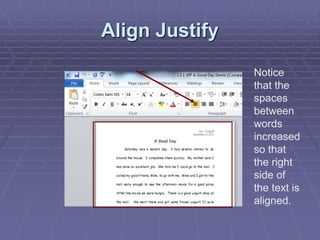
Align Justify
Notice
that the
spaces
between
words
increased
so that
the right
side of
the text is
aligned.
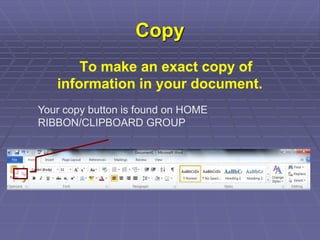
Copy
To make an exact copy of
information in your document.
Your copy button is found on HOME
RIBBON/CLIPBOARD GROUP
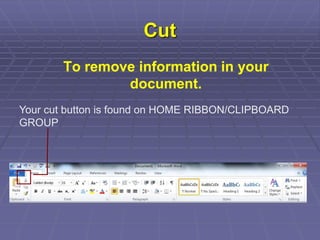
Cut
To remove information in your
document.
Your cut button is found on HOME RIBBON/CLIPBOARD
GROUP
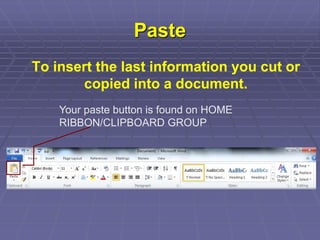
Paste
To insert the last information you cut or
copied into a document.
Your paste button is found on HOME
RIBBON/CLIPBOARD GROUP
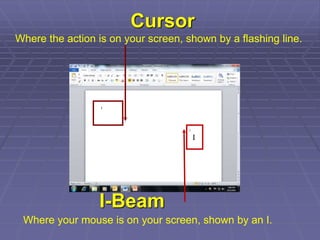
Cursor
Where the action is on your screen, shown by a flashing line.
I
I-Beam
Where your mouse is on your screen, shown by an I.
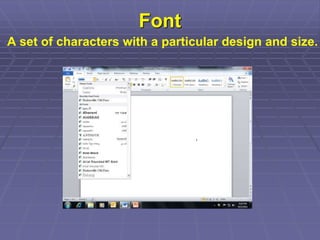
Font
A set of characters with a particular design and size.
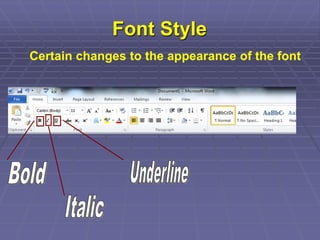
Font Style
Certain changes to the appearance of the font
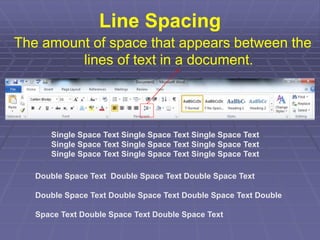
Line Spacing
The amount of space that appears between the
lines of text in a document.
Single Space Text Single Space Text Single Space Text
Double Space Text Double Space Text Double Space Text
Double Space Text Double Space Text Double Space Text Double
Space Text Double Space Text Double Space Text
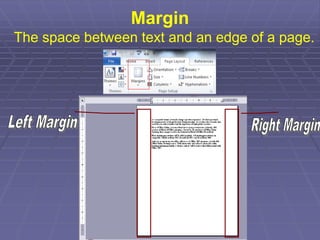
Margin
The space between text and an edge of a page.
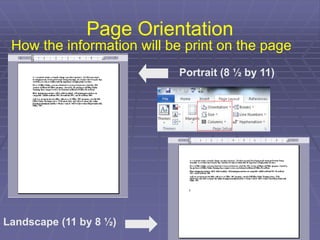
Page Orientation
How the information will be print on the page
Portrait (8 ½ by 11)
Landscape (11 by 8 ½)
Word Wrap
A feature in most word processors that
automatically moves words to the next line as
you type.
You only have to press the Enter key when you
want to leave a blank line or start a new
paragraph.
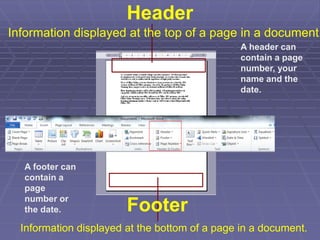
Header
A header can
contain a page
number, your
name and the
date.
Information displayed at the bottom of a page in a document.
Information displayed at the top of a page in a document.
Footer
A footer can
contain a
page
number or
the date.
Undo and Redo
When working in a document, you will
sometimes delete text accidentally or change
your mind about editing or formatting changes
you made. This is when the Undo command is
useful. The undo command will reverse a
number of recent actions.
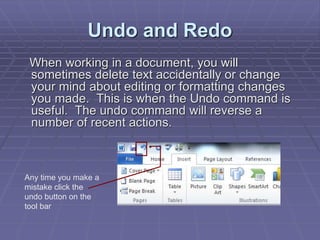
Any time you make a
mistake click the
undo button on the
tool bar
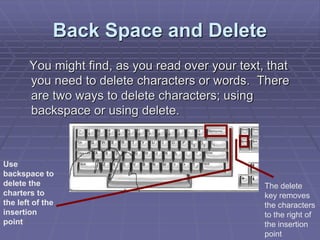
Back Space and Delete
You might find, as you read over your text, that
you need to delete characters or words. There
are two ways to delete characters; using
backspace or using delete.
Use
backspace to
delete the
charters to
the left of the
insertion
point
The delete
key removes
the characters
to the right of
the insertion
point
Using These Terms in Word
Now you know some terms in MS Word
lets see how to use them.
Using you note sheet, write down the steps to
complete some simple formatting
commands.
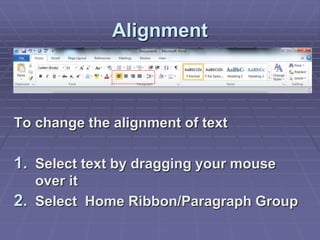
Alignment
To change the alignment of text
1. Select text by dragging your mouse
over it
2. Select Home Ribbon/Paragraph Group
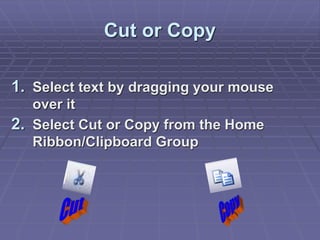
Cut or Copy
1. Select text by dragging your mouse
over it
2. Select Cut or Copy from the Home
Ribbon/Clipboard Group
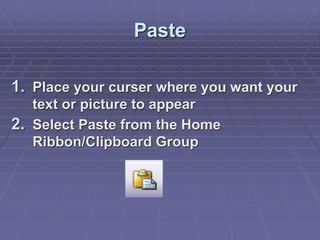
Paste
1. Place your curser where you want your
text or picture to appear
2. Select Paste from the Home
Ribbon/Clipboard Group
You can also access the Cut,
Copy, and Paste commands by
right-clicking the mouse button
on the selected text and
choosing the commands on the
shortcut menu.
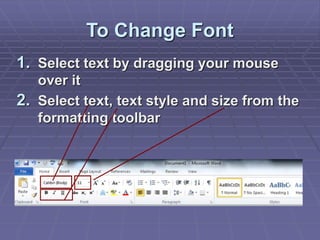
To Change Font
1. Select text by dragging your mouse
over it
2. Select text, text style and size from the
formatting toolbar
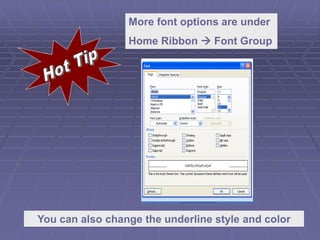
More font options are under
Home Ribbon  Font Group
You can also change the underline style and color
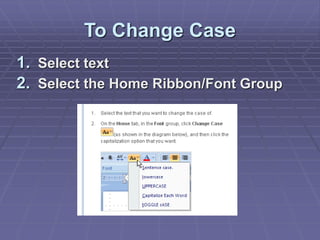
To Change Case
1. Select text
2. Select the Home Ribbon/Font Group
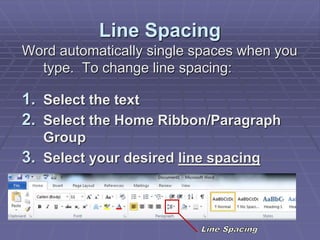
Line Spacing
Word automatically single spaces when you
type. To change line spacing:
1. Select the text
2. Select the Home Ribbon/Paragraph
Group
3. Select your desired line spacing
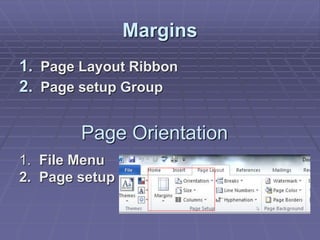
Margins
1. Page Layout Ribbon
2. Page setup Group
Page Orientation
1. File Menu
2. Page setup
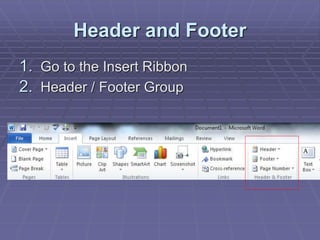
Header and Footer
1. Go to the Insert Ribbon
2. Header / Footer Group

GRADE 7 LESSON 5 MS WORD INTRO.ppt

  • 1.
  • 2.
    Benefits of aWord Processor Word Processing Is the use of a computer and software to produce written documents such as letters, memos, forms and reports. Word Processing  Move the insertion point  Correct text  Change text appearance  Change text format  Select text to move, copy, or delete
  • 3.
    Microsoft Word 2010brought back the File Menu and took away the home button. We still have the ribbons and groups. File Button – a drop down menu for printing and saving files Ribbons – they act like the menu bar Groups – they act like the drop-down menus
  • 4.
    Alignment How your textfits between the left and right margins of a page. Your alignment buttons are found on your HOME RIBBON/PARAGRAPH GROUP
  • 5.
    Align Left Text isaligned evenly at the left margin.
  • 6.
  • 7.
  • 8.
    Align Justify Notice that the spaces between words increased sothat the right side of the text is aligned.
  • 9.
    Copy To make anexact copy of information in your document. Your copy button is found on HOME RIBBON/CLIPBOARD GROUP
  • 10.
    Cut To remove informationin your document. Your cut button is found on HOME RIBBON/CLIPBOARD GROUP
  • 11.
    Paste To insert thelast information you cut or copied into a document. Your paste button is found on HOME RIBBON/CLIPBOARD GROUP
  • 12.
    Cursor Where the actionis on your screen, shown by a flashing line. I I-Beam Where your mouse is on your screen, shown by an I.
  • 13.
    Font A set ofcharacters with a particular design and size.
  • 14.
    Font Style Certain changesto the appearance of the font
  • 15.
    Line Spacing The amountof space that appears between the lines of text in a document. Single Space Text Single Space Text Single Space Text Single Space Text Single Space Text Single Space Text Single Space Text Single Space Text Single Space Text Double Space Text Double Space Text Double Space Text Double Space Text Double Space Text Double Space Text Double Space Text Double Space Text Double Space Text
  • 16.
    Margin The space betweentext and an edge of a page.
  • 17.
    Page Orientation How theinformation will be print on the page Portrait (8 ½ by 11) Landscape (11 by 8 ½)
  • 18.
    Word Wrap A featurein most word processors that automatically moves words to the next line as you type. You only have to press the Enter key when you want to leave a blank line or start a new paragraph.
  • 19.
    Header A header can containa page number, your name and the date. Information displayed at the bottom of a page in a document. Information displayed at the top of a page in a document. Footer A footer can contain a page number or the date.
  • 20.
    Undo and Redo Whenworking in a document, you will sometimes delete text accidentally or change your mind about editing or formatting changes you made. This is when the Undo command is useful. The undo command will reverse a number of recent actions. Any time you make a mistake click the undo button on the tool bar
  • 21.
    Back Space andDelete You might find, as you read over your text, that you need to delete characters or words. There are two ways to delete characters; using backspace or using delete. Use backspace to delete the charters to the left of the insertion point The delete key removes the characters to the right of the insertion point
  • 22.
    Using These Termsin Word Now you know some terms in MS Word lets see how to use them. Using you note sheet, write down the steps to complete some simple formatting commands.
  • 23.
    Alignment To change thealignment of text 1. Select text by dragging your mouse over it 2. Select Home Ribbon/Paragraph Group
  • 24.
    Cut or Copy 1.Select text by dragging your mouse over it 2. Select Cut or Copy from the Home Ribbon/Clipboard Group
  • 25.
    Paste 1. Place yourcurser where you want your text or picture to appear 2. Select Paste from the Home Ribbon/Clipboard Group
  • 26.
    You can alsoaccess the Cut, Copy, and Paste commands by right-clicking the mouse button on the selected text and choosing the commands on the shortcut menu.
  • 27.
    To Change Font 1.Select text by dragging your mouse over it 2. Select text, text style and size from the formatting toolbar
  • 28.
    More font optionsare under Home Ribbon  Font Group You can also change the underline style and color
  • 29.
    To Change Case 1.Select text 2. Select the Home Ribbon/Font Group
  • 30.
    Line Spacing Word automaticallysingle spaces when you type. To change line spacing: 1. Select the text 2. Select the Home Ribbon/Paragraph Group 3. Select your desired line spacing
  • 31.
    Margins 1. Page LayoutRibbon 2. Page setup Group Page Orientation 1. File Menu 2. Page setup
  • 32.
    Header and Footer 1.Go to the Insert Ribbon 2. Header / Footer Group