Sultanate of Oman

Sultan Qaboos University

College of Education

Instructional and Learning Technologies


            Microsoft
            Word 2003
             Lesson
Done by: Dalal Mohammed AL-Dhafari

ID: 83486

Course: Distance Education
Microsoft Word Lesson


Introduction:
Word 2003 is the word processing software in the Microsoft 2003 Office
Suite. It allows you to create a variety of professional-looking documents
such as letters, flyers, and more.


Main objective:
By the end of this lesson, Students will be able to create file by using Microsoft Word.

        1-Identify the Word Processing interface.

        2-Edit the text and format it.

        3-Enhance your text by inserting picture

        4-Save the document and apply it in their field
The objectives                           The process

1    Students will be able to Identify the         Open the Microsoft Word software from
     Word Processing interface.                     Programs.

                                                   Identify the Microsoft Word toolbar,
                                                    menu bar and work area.

2    Students will be able to Edit the text        Select the text using the mouse.
     and format it.
                                                   Click to (Font color) to change the text
                                                    color.

                                                   Click to (Font size) to change the text size.

                                                   To transfer information from one line to
                                                    another use copy, cut and paste.
                                                   Create a Bulleted List for the steps.

3    Students will be able to Enhance              Select the place to insert picture.
     your text by inserting picture.
                                                   From (Insert), chose (picture).

                                                   Chose the picture that you want.


4    Students will be able to Save the             Click File on the Menu Bar.
     document and apply it in their field.
                                                   Select Save


Self Assessment Questions:
    1- What type of MS word related to?

    2- How could you use the keyboard and Mouse and use their function in MS
       Word?

    3- When are you using MS Word, How could you get help from the software
       without using Internet?

    4- I your view, what fields that you can use MS Word in it?
Objective 1: Students will be able to Identify the Word Processing interface.

Content:

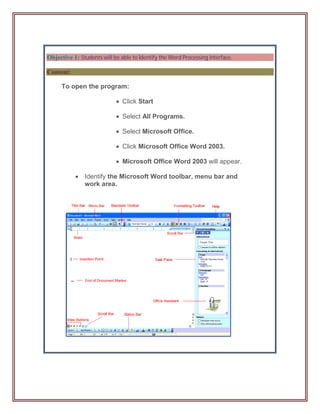
      To open the program:

                             Click Start

                             Select All Programs.

                             Select Microsoft Office.

                             Click Microsoft Office Word 2003.

                             Microsoft Office Word 2003 will appear.

            Identify the Microsoft Word toolbar, menu bar and
             work area.
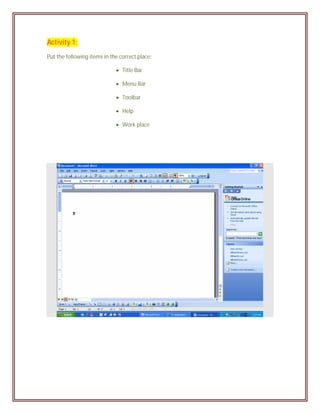
Activity 1:
Put the following items in the correct place:

                              Title Bar

                              Menu Bar

                              Toolbar

                              Help

                              Work place
Objective 2: Students will be able to Edit the text and format it.

Content:

                 To Change the Color of Text:
                      Select the text you want to change.
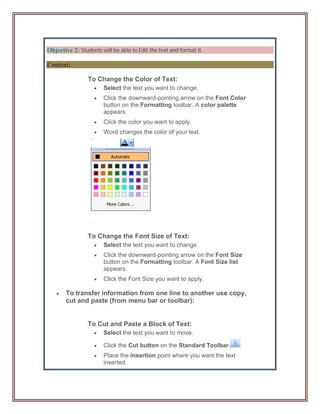
                      Click the downward-pointing arrow on the Font Color
                       button on the Formatting toolbar. A color palette
                       appears.
                      Click the color you want to apply.
                      Word changes the color of your text.


                 To Change the Font Size of Text:
                      Select the text you want to change.
                      Click the downward-pointing arrow on the Font Size
                       button on the Formatting toolbar. A Font Size list
                       appears.
                      Click the Font Size you want to apply.

      To transfer information from one line to another use copy,
       cut and paste (from menu bar or toolbar):


                 To Cut and Paste a Block of Text:
                      Select the text you want to move.

                      Click the Cut button on the Standard Toolbar.
                      Place the insertion point where you want the text
                       inserted.
    Click the Paste button.
               To Copy and Paste a Block of Text:
                      Select the text you want to move.
                      Click the Copy button on the Standard Toolbar.
                      Place the insertion point where you want the text
                       inserted.

                      Click the Paste button.


               To Create a Bulleted List:
                      Click the     Bullets button on the Formatting
                       toolbar.
                      Type the first item on your list and press Enter.
                      The next line will begin automatically with a new bullet.
                      Type the next item on your list and press Enter.
                      When your list is complete, press the Enter key twice
                       to stop the bulleted list.


Activity 1:
      - write a simple letter to your friends about the family day that include:

              - the title

              - the sender

              - the content

              - the receiver

      - Use "14" for the font size and (black or blue) color for font color.
Feedback:


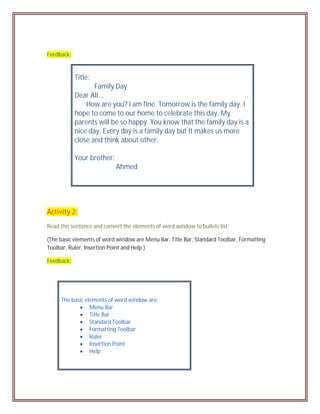
            Title:
                   Family Day
            Dear Ali..,
                How are you? I am fine. Tomorrow is the family day. I
            hope to come to our home to celebrate this day. My
            parents will be so happy. You know that the family day is a
            nice day. Every day is a family day but It makes us more
            close and think about other.

            Your brother:
                            Ahmed


Activity 2:
Read this sentence and convert the elements of word window to bullets list:

(The basic elements of word window are Menu Bar, Title Bar, Standard Toolbar, Formatting
Toolbar, Ruler, Insertion Point and Help.)

Feedback:


     The basic elements of word window are:
             Menu Bar
             Title Bar
             Standard Toolbar
             Formatting Toolbar
             Ruler
             Insertion Point
             Help
Activity 3:
       - Omar writes this sentence:

                (Oman is a beautiful and a nice country)

       Then he cut these word “and a nice” without using cut icon from menu bar or toolbar.

       What is the step that Omar use to cut the word?

Feedback:


               By right click the mouse, chose “cut”.

               Press (Ctrl + X) from keyboard.
Objective 3: Students will be able to Enhance your text by inserting picture.

Content:

                 To Insert Clip Art:
                      Place the insertion point where you want to insert the clip.
                      Click Insert on the Menu Bar.
                      Select Picture and then Clip Art from the cascading menu.
                       The Insert Clip Art menu opens on the Task Pane.
                      Type a keyword in the Search Text: field.
                      Click Search.
                  AND
                      Specify your search by using the Other Search Options.
                               Search in: - specifies where Word will search for clip
                               art. As long as the check box for Everywhere is
                               checked, Word will search through All Collections.
                               Results should be: - specified what type of file Word
                               will search for (video, audio, photographs, clip art). As
                               long as the check box for All Media Types is
                               checked, Word will search through All Media Files.
                      Double-click the clip art or picture to add to the document.
Activity 1:
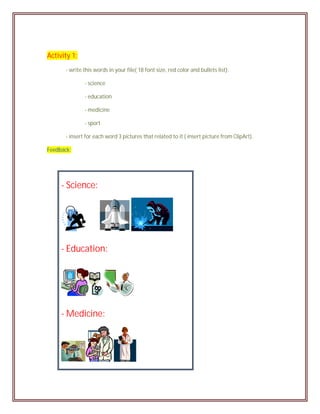
       - write this words in your file( 18 font size, red color and bullets list):

               - science

               - education

               - medicine

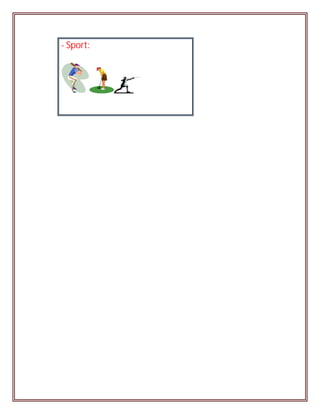
               - sport

       - insert for each word 3 pictures that related to it ( insert picture from ClipArt).

Feedback:


     - Science:


     - Education:


     - Medicine:
- Sport:
Objective 4: Students will be able to Save the document and apply it in their field.

Content:

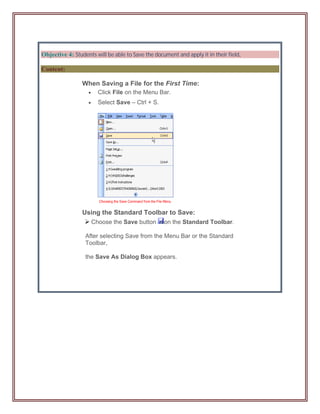
                 When Saving a File for the First Time:
                        Click File on the Menu Bar.
                        Select Save – Ctrl + S.


                 Using the Standard Toolbar to Save:
                       Choose the Save button      on the Standard Toolbar.

                  After selecting Save from the Menu Bar or the Standard
                  Toolbar,

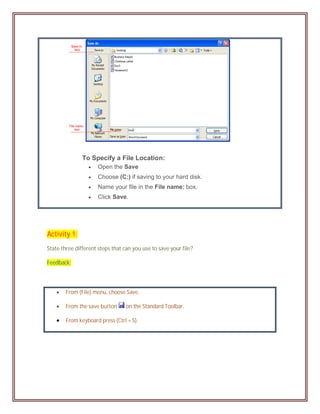
                  the Save As Dialog Box appears.
To Specify a File Location:
                    Open the Save
                    Choose (C:) if saving to your hard disk.
                    Name your file in the File name: box.
                    Click Save.


Activity 1:
State three different steps that can you use to save your file?

Feedback:


       From (File) menu, choose Save.

       From the save button      on the Standard Toolbar.

       From keyboard press (Ctrl + S).
Activity 2:

Create document about India Country and followed this steps:
                   Open New Word.
                   Write short paragraph about “India” (For example from
                    Wiikipedia Web site)
                   Use Font Color to change the color of text (Select
                    Blue Color)
                   Use Font Size to change the Font Size of text (Select
                    14)
                   From Insert, select Picture, and then Clip Art.
                   Select Picture that related to India.
                   Put the picture at the beginning of text.
                   From File, select Save As.
                   Choose (C) to saving your file.
                   Name your file in the File name (India).
                   Click Save.


Feedback:

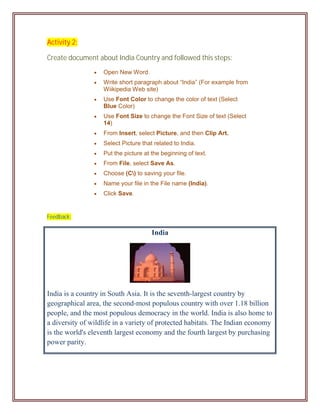
                                       India


India is a country in South Asia. It is the seventh-largest country by
geographical area, the second-most populous country with over 1.18 billion
people, and the most populous democracy in the world. India is also home to
a diversity of wildlife in a variety of protected habitats. The Indian economy
is the world's eleventh largest economy and the fourth largest by purchasing
power parity.
Resource:


   - Text Book

            -The "information Technology" Book, grade 5, 2008

                   Unit 4 ( Microsoft Word).

   - Visit this web site:

   http://www.gcflearnfree.org/computer/topic.aspx?id=91

   - Computer software(Microsoft Word 2003)

   - Computer and Internet

(Ms word2003)

  • 1.
    Sultanate of Oman SultanQaboos University College of Education Instructional and Learning Technologies Microsoft Word 2003 Lesson Done by: Dalal Mohammed AL-Dhafari ID: 83486 Course: Distance Education
  • 2.
    Microsoft Word Lesson Introduction: Word2003 is the word processing software in the Microsoft 2003 Office Suite. It allows you to create a variety of professional-looking documents such as letters, flyers, and more. Main objective: By the end of this lesson, Students will be able to create file by using Microsoft Word. 1-Identify the Word Processing interface. 2-Edit the text and format it. 3-Enhance your text by inserting picture 4-Save the document and apply it in their field
  • 3.
    The objectives The process 1 Students will be able to Identify the  Open the Microsoft Word software from Word Processing interface. Programs.  Identify the Microsoft Word toolbar, menu bar and work area. 2 Students will be able to Edit the text  Select the text using the mouse. and format it.  Click to (Font color) to change the text color.  Click to (Font size) to change the text size.  To transfer information from one line to another use copy, cut and paste.  Create a Bulleted List for the steps. 3 Students will be able to Enhance  Select the place to insert picture. your text by inserting picture.  From (Insert), chose (picture).  Chose the picture that you want. 4 Students will be able to Save the  Click File on the Menu Bar. document and apply it in their field.  Select Save Self Assessment Questions: 1- What type of MS word related to? 2- How could you use the keyboard and Mouse and use their function in MS Word? 3- When are you using MS Word, How could you get help from the software without using Internet? 4- I your view, what fields that you can use MS Word in it?
  • 4.
    Objective 1: Studentswill be able to Identify the Word Processing interface. Content: To open the program:  Click Start  Select All Programs.  Select Microsoft Office.  Click Microsoft Office Word 2003.  Microsoft Office Word 2003 will appear.  Identify the Microsoft Word toolbar, menu bar and work area.
  • 5.
    Activity 1: Put thefollowing items in the correct place:  Title Bar  Menu Bar  Toolbar  Help  Work place
  • 6.
    Objective 2: Studentswill be able to Edit the text and format it. Content: To Change the Color of Text:  Select the text you want to change.  Click the downward-pointing arrow on the Font Color button on the Formatting toolbar. A color palette appears.  Click the color you want to apply.  Word changes the color of your text. To Change the Font Size of Text:  Select the text you want to change.  Click the downward-pointing arrow on the Font Size button on the Formatting toolbar. A Font Size list appears.  Click the Font Size you want to apply.  To transfer information from one line to another use copy, cut and paste (from menu bar or toolbar): To Cut and Paste a Block of Text:  Select the text you want to move.  Click the Cut button on the Standard Toolbar.  Place the insertion point where you want the text inserted.
  • 7.
    Click the Paste button. To Copy and Paste a Block of Text:  Select the text you want to move.  Click the Copy button on the Standard Toolbar.  Place the insertion point where you want the text inserted.  Click the Paste button. To Create a Bulleted List:  Click the Bullets button on the Formatting toolbar.  Type the first item on your list and press Enter.  The next line will begin automatically with a new bullet.  Type the next item on your list and press Enter.  When your list is complete, press the Enter key twice to stop the bulleted list. Activity 1: - write a simple letter to your friends about the family day that include: - the title - the sender - the content - the receiver - Use "14" for the font size and (black or blue) color for font color.
  • 8.
    Feedback: Title: Family Day Dear Ali.., How are you? I am fine. Tomorrow is the family day. I hope to come to our home to celebrate this day. My parents will be so happy. You know that the family day is a nice day. Every day is a family day but It makes us more close and think about other. Your brother: Ahmed Activity 2: Read this sentence and convert the elements of word window to bullets list: (The basic elements of word window are Menu Bar, Title Bar, Standard Toolbar, Formatting Toolbar, Ruler, Insertion Point and Help.) Feedback: The basic elements of word window are:  Menu Bar  Title Bar  Standard Toolbar  Formatting Toolbar  Ruler  Insertion Point  Help
  • 9.
    Activity 3: - Omar writes this sentence: (Oman is a beautiful and a nice country) Then he cut these word “and a nice” without using cut icon from menu bar or toolbar. What is the step that Omar use to cut the word? Feedback:  By right click the mouse, chose “cut”.  Press (Ctrl + X) from keyboard.
  • 10.
    Objective 3: Studentswill be able to Enhance your text by inserting picture. Content: To Insert Clip Art:  Place the insertion point where you want to insert the clip.  Click Insert on the Menu Bar.  Select Picture and then Clip Art from the cascading menu. The Insert Clip Art menu opens on the Task Pane.  Type a keyword in the Search Text: field.  Click Search. AND  Specify your search by using the Other Search Options. Search in: - specifies where Word will search for clip art. As long as the check box for Everywhere is checked, Word will search through All Collections. Results should be: - specified what type of file Word will search for (video, audio, photographs, clip art). As long as the check box for All Media Types is checked, Word will search through All Media Files.  Double-click the clip art or picture to add to the document.
  • 11.
    Activity 1: - write this words in your file( 18 font size, red color and bullets list): - science - education - medicine - sport - insert for each word 3 pictures that related to it ( insert picture from ClipArt). Feedback: - Science: - Education: - Medicine:
  • 12.
  • 13.
    Objective 4: Studentswill be able to Save the document and apply it in their field. Content: When Saving a File for the First Time:  Click File on the Menu Bar.  Select Save – Ctrl + S. Using the Standard Toolbar to Save: Choose the Save button on the Standard Toolbar. After selecting Save from the Menu Bar or the Standard Toolbar, the Save As Dialog Box appears.
  • 14.
    To Specify aFile Location:  Open the Save  Choose (C:) if saving to your hard disk.  Name your file in the File name: box.  Click Save. Activity 1: State three different steps that can you use to save your file? Feedback:  From (File) menu, choose Save.  From the save button on the Standard Toolbar.  From keyboard press (Ctrl + S).
  • 15.
    Activity 2: Create documentabout India Country and followed this steps:  Open New Word.  Write short paragraph about “India” (For example from Wiikipedia Web site)  Use Font Color to change the color of text (Select Blue Color)  Use Font Size to change the Font Size of text (Select 14)  From Insert, select Picture, and then Clip Art.  Select Picture that related to India.  Put the picture at the beginning of text.  From File, select Save As.  Choose (C) to saving your file.  Name your file in the File name (India).  Click Save. Feedback: India India is a country in South Asia. It is the seventh-largest country by geographical area, the second-most populous country with over 1.18 billion people, and the most populous democracy in the world. India is also home to a diversity of wildlife in a variety of protected habitats. The Indian economy is the world's eleventh largest economy and the fourth largest by purchasing power parity.
  • 16.
    Resource: - Text Book -The "information Technology" Book, grade 5, 2008 Unit 4 ( Microsoft Word). - Visit this web site: http://www.gcflearnfree.org/computer/topic.aspx?id=91 - Computer software(Microsoft Word 2003) - Computer and Internet