BOROUGH OF WEST CHESTER
   Information Technology Training – Session 6 – July 19, 2012


     •   SharePoint
     •   Accessing Your Email Remotely
     •   West Chester Employee’s Technology Newsletter
     •   West Chester Employee’s Technology Twitter Feed
     •   New - Windows Malware Prevention Tool
     •   Quick Tips!
     •   Microsoft Word Shortcuts
     •   Microsoft Excel Shortcuts
     •   Questions & Answers


                           William Mann, Chief Information Officer
What Exactly is Microsoft SharePoint Anyway?


     Microsoft SharePoint makes it easier for people to work
     together.

     Using SharePoint 2010, you can set up Web sites to share
     information with others, manage documents from start to finish,
     and publish reports to help everyone make better decisions.


           The main SharePoint site is a place where commonly
           accessed files such as HR documents, policies,
           procedures and other organization wide resources can
           be easily accessed by everyone.
Who Has Access to Microsoft SharePoint Anyway?


       Everyone has basic access to Microsoft SharePoint.
       Microsoft Licensing is broken down into 2 subscriptions.

       Plan 1 & Plan E3.

       Plan 1 provides the user with access to Microsoft email.

       Plan E3 provides the user with access to Microsoft
       email, Microsoft SharePoint and Lync.


            Management personal have E3 subscriptions while the
            remainder of the staff have Plan 1 licenses.
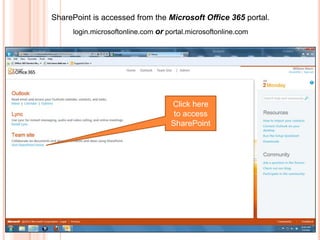
SharePoint is accessed from the Microsoft Office 365 portal.
     login.microsoftonline.com or portal.microsoftonline.com


                                   Click here
                                    to access
                                   SharePoint
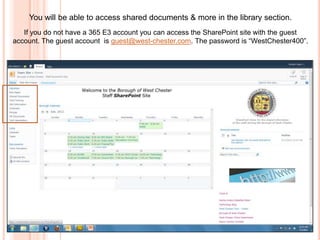
You will be able to access shared documents & more in the library section.
   If you do not have a 365 E3 account you can access the SharePoint site with the guest
account. The guest account is guest@west-chester.com. The password is “WestChester400”.
You will be able to access shared documents & more in the library section.


               At the main SharePoint Site you can access the following:


               •   Borough Shared Documents
               •   Borough Shared Calendars
               •   Internet Links
               •   Discussion Boards
               •   Your Very Own SharePoint Site*


                                    * If you have a E3 Office 365 Account
Proceed to
 SharePoint
Demonstration
      Demonstration Content
      • Logging in for E3 users
      • Logging in for E1 users
      • Calendars
      • Libraries & Documents

        E3 Account Users
      • Creating Libraries (E3)
      • Uploading Files (E3)
      • Edit Page preview
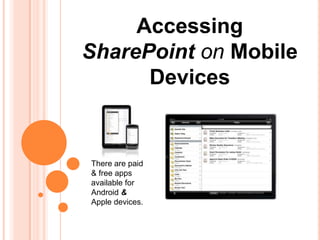
Accessing
SharePoint on Mobile
      Devices


There are paid
& free apps
available for
Android &
Apple devices.
The Many Ways You Can
     Access Email


     There are more ways then ever now to connect to your
        email and I wanted to cover some of them here.
Accessing Email Remotely
   In addition to the Microsoft Outlook client you can access your
   email through the OWA (Outlook Web Access) portal.


                   login.microsoftonline.com
                   portal.microsoftonline.com


                                                Demonstration
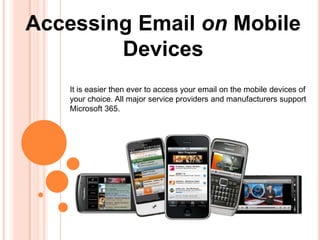
Accessing Email on Mobile
        Devices
    It is easier then ever to access your email on the mobile devices of
    your choice. All major service providers and manufacturers support
    Microsoft 365.
Setting up Email on Mobile
         Devices
    It is also easier than ever before to setup email on these devices.
    You will need a couple of things to setup your account.


                     1. Your email address
                     2. Your email password
                     3. Server Address (m.outlook.com)


                            Different providers may ask for this
                            information in varying ways but the
                            information needed is the same.
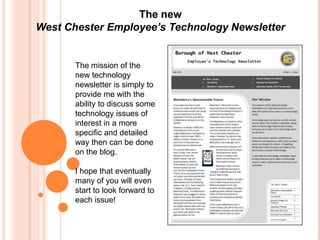
The new
West Chester Employee’s Technology Newsletter


       The mission of the
       new technology
       newsletter is simply to
       provide me with the
       ability to discuss some
       technology issues of
       interest in a more
       specific and detailed
       way then can be done
       on the blog.

       I hope that eventually
       many of you will even
       start to look forward to
       each issue!
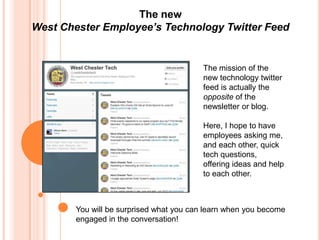
The new
West Chester Employee’s Technology Twitter Feed


                                          The mission of the
                                          new technology twitter
                                          feed is actually the
                                          opposite of the
                                          newsletter or blog.

                                          Here, I hope to have
                                          employees asking me,
                                          and each other, quick
                                          tech questions,
                                          offering ideas and help
                                          to each other.


        You will be surprised what you can learn when you become
        engaged in the conversation!
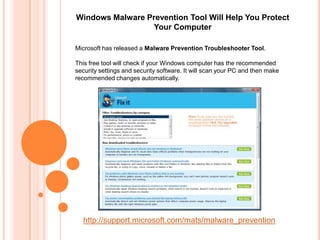
Windows Malware Prevention Tool Will Help You Protect
                 Your Computer

Microsoft has released a Malware Prevention Troubleshooter Tool.

This free tool will check if your Windows computer has the recommended
security settings and security software. It will scan your PC and then make
recommended changes automatically.


  http://support.microsoft.com/mats/malware_prevention
Quick Tips!


Internet Explorer: You can make the browser [full screen] with
the F11 key. The same key returns the browser to a normal
window.

Print Screen: You can save any screenshot as an image by
selecting the [print Screen] button and pasting it into Word or any
paint program. Once in the program select the “paste” option or
simply select the [Ctrl] and [V] keys.

Outlook: You can quickly delete all the contents in your “trash
folder” by right clicking on the folder and choosing “empty folder”.
You can also do this to your “junk mail” folder.

Find Your Files: You can (windows 7) right click on any
shortcut and select “open file location”. For Windows XP right
click on the shortcut, select “properties” then click “find target”.
This will open a window with the file folder in which the file is
residing.
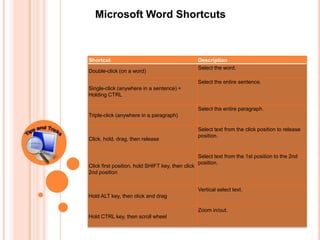
Microsoft Word Shortcuts


Shortcut                                           Description
                                                   Select the word.
Double-click (on a word)

                                                   Select the entire sentence.
Single-click (anywhere in a sentence) +
Holding CTRL

                                                   Select the entire paragraph.
Triple-click (anywhere in a paragraph)

                                                   Select text from the click position to release
                                                   position.
Click, hold, drag, then release


                                                   Select text from the 1st position to the 2nd
                                                   position.
Click first position, hold SHIFT key, then click
2nd position


                                                   Vertical select text.
Hold ALT key, then click and drag

                                                   Zoom in/out.
Hold CTRL key, then scroll wheel
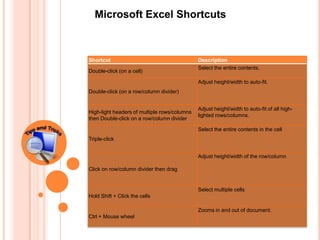
Microsoft Excel Shortcuts


Shortcut                                      Description
                                              Select the entire contents.
Double-click (on a cell)

                                              Adjust height/width to auto-fit.
Double-click (on a row/column divider)


                                              Adjust height/width to auto-fit of all high-
High-light headers of multiple rows/columns
                                              lighted rows/columns.
then Double-click on a row/column divider

                                              Select the entire contents in the cell
Triple-click


                                              Adjust height/width of the row/column

Click on row/column divider then drag


                                              Select multiple cells
Hold Shift + Click the cells

                                              Zooms in and out of document.
Ctrl + Mouse wheel
What’s Around The Corner?
It’s time for any
  technology questions!


Thank You for attending and I hope to schedule our
next training for fall 2012. Please send me any ideas
or suggestions for training topics.

SharePoint & More

  • 1.
    BOROUGH OF WESTCHESTER Information Technology Training – Session 6 – July 19, 2012 • SharePoint • Accessing Your Email Remotely • West Chester Employee’s Technology Newsletter • West Chester Employee’s Technology Twitter Feed • New - Windows Malware Prevention Tool • Quick Tips! • Microsoft Word Shortcuts • Microsoft Excel Shortcuts • Questions & Answers William Mann, Chief Information Officer
  • 2.
    What Exactly isMicrosoft SharePoint Anyway? Microsoft SharePoint makes it easier for people to work together. Using SharePoint 2010, you can set up Web sites to share information with others, manage documents from start to finish, and publish reports to help everyone make better decisions. The main SharePoint site is a place where commonly accessed files such as HR documents, policies, procedures and other organization wide resources can be easily accessed by everyone.
  • 3.
    Who Has Accessto Microsoft SharePoint Anyway? Everyone has basic access to Microsoft SharePoint. Microsoft Licensing is broken down into 2 subscriptions. Plan 1 & Plan E3. Plan 1 provides the user with access to Microsoft email. Plan E3 provides the user with access to Microsoft email, Microsoft SharePoint and Lync. Management personal have E3 subscriptions while the remainder of the staff have Plan 1 licenses.
  • 4.
    SharePoint is accessedfrom the Microsoft Office 365 portal. login.microsoftonline.com or portal.microsoftonline.com Click here to access SharePoint
  • 5.
    You will beable to access shared documents & more in the library section. If you do not have a 365 E3 account you can access the SharePoint site with the guest account. The guest account is guest@west-chester.com. The password is “WestChester400”.
  • 6.
    You will beable to access shared documents & more in the library section. At the main SharePoint Site you can access the following: • Borough Shared Documents • Borough Shared Calendars • Internet Links • Discussion Boards • Your Very Own SharePoint Site* * If you have a E3 Office 365 Account
  • 7.
    Proceed to SharePoint Demonstration Demonstration Content • Logging in for E3 users • Logging in for E1 users • Calendars • Libraries & Documents E3 Account Users • Creating Libraries (E3) • Uploading Files (E3) • Edit Page preview
  • 8.
    Accessing SharePoint on Mobile Devices There are paid & free apps available for Android & Apple devices.
  • 9.
    The Many WaysYou Can Access Email There are more ways then ever now to connect to your email and I wanted to cover some of them here.
  • 10.
    Accessing Email Remotely In addition to the Microsoft Outlook client you can access your email through the OWA (Outlook Web Access) portal. login.microsoftonline.com portal.microsoftonline.com Demonstration
  • 11.
    Accessing Email onMobile Devices It is easier then ever to access your email on the mobile devices of your choice. All major service providers and manufacturers support Microsoft 365.
  • 12.
    Setting up Emailon Mobile Devices It is also easier than ever before to setup email on these devices. You will need a couple of things to setup your account. 1. Your email address 2. Your email password 3. Server Address (m.outlook.com) Different providers may ask for this information in varying ways but the information needed is the same.
  • 13.
    The new West ChesterEmployee’s Technology Newsletter The mission of the new technology newsletter is simply to provide me with the ability to discuss some technology issues of interest in a more specific and detailed way then can be done on the blog. I hope that eventually many of you will even start to look forward to each issue!
  • 14.
    The new West ChesterEmployee’s Technology Twitter Feed The mission of the new technology twitter feed is actually the opposite of the newsletter or blog. Here, I hope to have employees asking me, and each other, quick tech questions, offering ideas and help to each other. You will be surprised what you can learn when you become engaged in the conversation!
  • 15.
    Windows Malware PreventionTool Will Help You Protect Your Computer Microsoft has released a Malware Prevention Troubleshooter Tool. This free tool will check if your Windows computer has the recommended security settings and security software. It will scan your PC and then make recommended changes automatically. http://support.microsoft.com/mats/malware_prevention
  • 16.
    Quick Tips! Internet Explorer:You can make the browser [full screen] with the F11 key. The same key returns the browser to a normal window. Print Screen: You can save any screenshot as an image by selecting the [print Screen] button and pasting it into Word or any paint program. Once in the program select the “paste” option or simply select the [Ctrl] and [V] keys. Outlook: You can quickly delete all the contents in your “trash folder” by right clicking on the folder and choosing “empty folder”. You can also do this to your “junk mail” folder. Find Your Files: You can (windows 7) right click on any shortcut and select “open file location”. For Windows XP right click on the shortcut, select “properties” then click “find target”. This will open a window with the file folder in which the file is residing.
  • 17.
    Microsoft Word Shortcuts Shortcut Description Select the word. Double-click (on a word) Select the entire sentence. Single-click (anywhere in a sentence) + Holding CTRL Select the entire paragraph. Triple-click (anywhere in a paragraph) Select text from the click position to release position. Click, hold, drag, then release Select text from the 1st position to the 2nd position. Click first position, hold SHIFT key, then click 2nd position Vertical select text. Hold ALT key, then click and drag Zoom in/out. Hold CTRL key, then scroll wheel
  • 18.
    Microsoft Excel Shortcuts Shortcut Description Select the entire contents. Double-click (on a cell) Adjust height/width to auto-fit. Double-click (on a row/column divider) Adjust height/width to auto-fit of all high- High-light headers of multiple rows/columns lighted rows/columns. then Double-click on a row/column divider Select the entire contents in the cell Triple-click Adjust height/width of the row/column Click on row/column divider then drag Select multiple cells Hold Shift + Click the cells Zooms in and out of document. Ctrl + Mouse wheel
  • 19.
  • 20.
    It’s time forany technology questions! Thank You for attending and I hope to schedule our next training for fall 2012. Please send me any ideas or suggestions for training topics.