William Mann, CGCIO
Borough of West Chester
Training
William Mann, CGCIO
Borough of West Chester
October 3, 2019
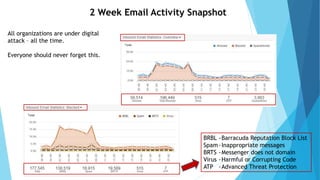
2 Week Email Activity Snapshot
All organizations are under digital
attack – all the time.
Everyone should never forget this.
BRBL -Barracuda Reputation Block List
Spam-Inappropriate messages
BRTS -Messenger does not domain
Virus -Harmful or Corrupting Code
ATP -Advanced Threat Protection
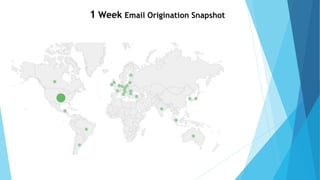
1 Week Email Origination Snapshot
Training objectives
You are the first line of defense against cyber-attacks targeting information and
information systems.
The purpose of this training is to help you identify the information that must be protected,
common threats against information and information systems, best practices and policies to
safeguard information and information systems' confidentiality, integrity, and availability.
This training can also help you recognize and report cybersecurity incidents.
What is cybersecurity?
Borough of West Chester personnel must use cybersecurity
best practices listed in this training to safeguard our
organization’s information from cyber threats.
“Cybersecurity" is the action taken to protect information
and information systems from unauthorized access, use,
disclosure, disruption, modification, or destruction.
What is sensitive
information?
Sensitive information is information
that has a degree of confidentiality
such that its loss, misuse,
unauthorized access, or
modification could compromise
confidentiality and adversely affect
the Borough of West Chester’s
interests or the privacy of
individuals.
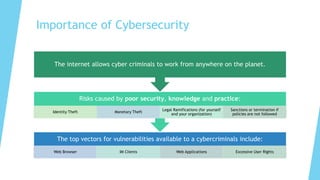
Importance of Cybersecurity
The top vectors for vulnerabilities available to a cybercriminals include:
Web Browser IM Clients Web Applications Excessive User Rights
Risks caused by poor security, knowledge and practice:
Identity Theft Monetary Theft
Legal Ramifications (for yourself
and your organization)
Sanctions or termination if
policies are not followed
The internet allows cyber criminals to work from anywhere on the planet.
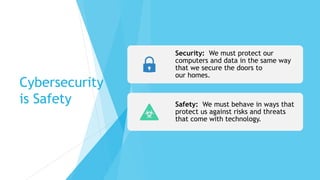
Cybersecurity
is Safety
Security: We must protect our
computers and data in the same way
that we secure the doors to
our homes.
Safety: We must behave in ways that
protect us against risks and threats
that come with technology.
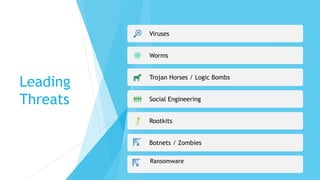
Leading
Threats
Viruses
Worms
Trojan Horses / Logic Bombs
Social Engineering
Rootkits
Botnets / Zombies
Ransomware
Viruses
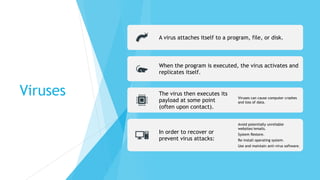
A virus attaches itself to a program, file, or disk.
When the program is executed, the virus activates and
replicates itself.
The virus then executes its
payload at some point
(often upon contact).
Viruses can cause computer crashes
and loss of data.
In order to recover or
prevent virus attacks:
Avoid potentially unreliable
websites/emails.
System Restore.
Re-install operating system.
Use and maintain anti-virus software.
Worms
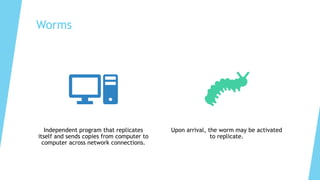
Independent program that replicates
itself and sends copies from computer to
computer across network connections.
Upon arrival, the worm may be activated
to replicate.
Logic Bombs & Trojan Horses
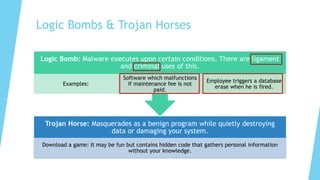
Trojan Horse: Masquerades as a benign program while quietly destroying
data or damaging your system.
Download a game: It may be fun but contains hidden code that gathers personal information
without your knowledge.
Logic Bomb: Malware executes upon certain conditions. There are ligament
and criminal uses of this.
Examples:
Software which malfunctions
if maintenance fee is not
paid.
Employee triggers a database
erase when he is fired.
Social
Engineering
Social engineering manipulates people into
performing actions or divulging confidential
information.
This is similar to fraud.
The term applies to the use of deception to gain
information, commit fraud, or access computer
systems.
Phishing:
Counterfeit Email
Phishing: A seemingly trustworthy entity asks for
sensitive information such as SSN, credit card
numbers, login IDs or passwords via e-mail.
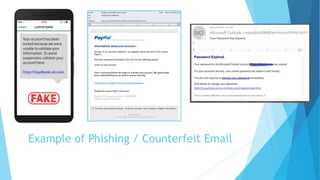
Example of Phishing / Counterfeit Email
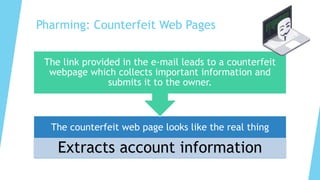
Pharming: Counterfeit Web Pages
The counterfeit web page looks like the real thing
Extracts account information
The link provided in the e-mail leads to a counterfeit
webpage which collects important information and
submits it to the owner.
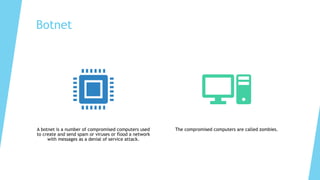
Botnet
A botnet is a number of compromised computers used
to create and send spam or viruses or flood a network
with messages as a denial of service attack.
The compromised computers are called zombies.
Ransomware
Users are shown instructions for how to pay a fee to get the
decryption key. The costs can range from a few hundred
dollars to thousands, payable to cybercriminals in Bitcoin.
Ransomware encrypts a victim's files. The attacker then
demands a ransom from the victim to restore access to the
data upon payment.
How Ransomware Works
1. One of the most common methods today is through malicious spam. The email
might include booby-trapped attachments, such as PDFs or Word documents. It
might also contain links to malicious websites.
2. Then there is Malspam which uses social engineering in order to trick people into
opening attachments or clicking on links by appearing as legitimate—whether
that’s by seeming to be from a trusted institution or a friend. Cybercriminals use
social engineering in other types of ransomware attacks, such as posing as the FBI
in order to scare users into paying them a sum of money to unlock their files.
3. Another popular infection method is Malvertising. Malvertising, or malicious
advertising, is the use of online advertising to distribute malware with little to no
user interaction required. While browsing the web, users can be directed to
criminal servers without ever clicking on an ad. These servers catalog details
about victim computers and their locations, and then select the malware best
suited to deliver. Often, that malware is ransomware.
There are several ways ransomware can take control of your computer.
Types of
Ransomware
Scareware
 Scareware, as it turns out, is not that scary. It includes
rogue security software and tech support scams. You
might receive a pop-up message claiming that malware
was discovered and the only way to get rid of it is to
pay up. If you do nothing, you’ll likely continue to be
bombarded with pop-ups, but your files are essentially
safe.
Be aware: legitimate cybersecurity software programs
will not solicit customers in this way.
Types of
Ransomware
Screen lockers
 When lock-screen ransomware gets on your computer, it
means you’re frozen out of your PC entirely. Upon
starting up your computer, a full-size window will
appear, often accompanied by an official-looking FBI or
US Department of Justice seal saying illegal activity has
been detected on your computer and you must pay a
fine.
Be aware: The FBI would not freeze you out of your
computer or demand payment for illegal activity. If
they suspected you of a crime, they would go
through the appropriate legal channels.
Types of
Ransomware
Encrypting ransomware
 These are the guys who snatch up your files and encrypt
them, demanding payment in order to decrypt and
redeliver. The reason why this type of ransomware is so
dangerous is because once cybercriminals get ahold of
your files, no security software or system restore can
return them to you.
 Unless you pay the ransom—for the most part, they’re
gone.
 And even if you do pay up, there’s no guarantee the
cybercriminals will give you those files back.
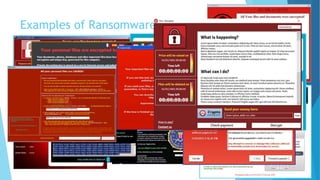
Examples of Ransomware
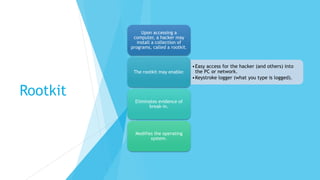
Rootkit
Upon accessing a
computer, a hacker may
install a collection of
programs, called a rootkit.
•Easy access for the hacker (and others) into
the PC or network.
•Keystroke logger (what you type is logged).
The rootkit may enable:
Eliminates evidence of
break-in.
Modifies the operating
system.
Identifying
Security
Compromises
 Symptoms:
 Antivirus software detects a problem.
 Disk space disappears unexpectedly.
 Pop-ups suddenly appear, sometimes selling
security software.
 Files or transactions appear that should not be
there.
 The computer slows down to a crawl.
 Unusual messages, sounds, or displays on your
monitor.
 The mouse pointer moves by itself.
 The computer spontaneously shuts down or
reboots.
Malware Detection
• Spyware symptoms:
• Changes to your browser
homepage/start page.
• Ending up on a strange site when
conducting a search.
• System-based firewall is turned off
automatically.
• Lots of network activity while not
particularly active.
• Excessive pop-up windows.
• New icons, programs, favorites which
you did not add.
• Frequent firewall alerts about unknown
programs when trying to access the
Internet.
• Poor system performance.
Anti-Virus and
Anti-Spyware
Software
Anti-virus software detects certain types of malware
and can destroy it before any damage is done.
Install and maintain anti-virus and anti-spyware
software.
Be sure to keep anti-virus software updated.
Many free and commercial options exist.
Firewalls
A firewall acts as a barrier between
your computer/private network and
the internet. A firewall prevents many
hacker connections to your computer.
Firewalls filter network packets that
enter or leave your computer
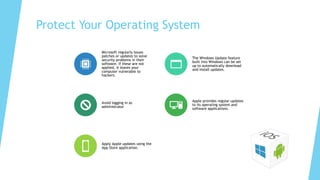
Protect Your Operating System
Microsoft regularly issues
patches or updates to solve
security problems in their
software. If these are not
applied, it leaves your
computer vulnerable to
hackers.
The Windows Update feature
built into Windows can be set
up to automatically download
and install updates.
Avoid logging in as
administrator
Apple provides regular updates
to its operating system and
software applications.
Apply Apple updates using the
App Store application.
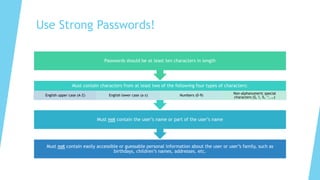
Use Strong Passwords!
Must not contain easily accessible or guessable personal information about the user or user’s family, such as
birthdays, children’s names, addresses, etc.
Must not contain the user’s name or part of the user’s name
Must contain characters from at least two of the following four types of characters:
English upper case (A-Z) English lower case (a-z) Numbers (0-9)
Non-alphanumeric special
characters ($, !, %, ^, …)
Passwords should be at least ten characters in length
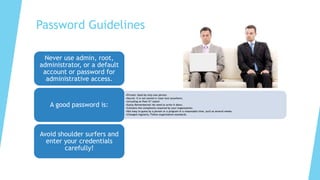
Password Guidelines
Never use admin, root,
administrator, or a default
account or password for
administrative access.
•Private: Used by only one person.
•Secret: It is not stored in clear text anywhere,
•including on Post-It® notes!
•Easily Remembered: No need to write it down.
•Contains the complexity required by your organization.
•Not easy to guess by a person or a program in a reasonable time, such as several weeks.
•Changed regularly: Follow organization standards.
A good password is:
Avoid shoulder surfers and
enter your credentials
carefully!
Password
Managers
Using a password manager is an easy, quick way to make
your online life more secure. You won't need to remember
a unique, long, complex password for every online
account. The password manager remembers each
password for you, minimizing your risk next time there's a
massive data breach.
The only password you'll need to remember is the single
"master" password to the password manager itself.
Three Recommended Password Managers
LastPass
LastPass is recommended because of its ease of use, support for all major
platforms, wide range of features and variety of configurations. The free version
of LastPass syncs across an unlimited number of devices and has almost as many
features as the paid version.
You don't need to install an application on your computer to use LastPass.
Instead, the software lives entirely in browser extensions and in a full-featured
web interface.
dashlane
Dashlane's killer feature remains its bulk password changer, which can reset
hundreds of your passwords at once, saving you time and worry in the event of a
major data breach. There's also a scanner that goes through your email inbox on
iOS or Android to find online accounts you may have forgotten about. The
password manager is well designed, easy to use and possibly the best at filling
out your personal information in online forms.
Three Recommended Password Managers
Keeper
Keeper is fast and full-featured, has a robust web interface, stores files and
documents of any kind, offers perhaps the best security of any password
manager and is now cheaper than both Dashlane and LastPass.
The trade-off for that enhanced security is a bit of inconvenience: Keeper
chooses not to have a bulk password changer, and it won't let you create a PIN to
quickly access the mobile app. If you have an older phone that can't read your
fingerprint or your face, you'll have to enter the full master password every time.
Three Recommended Password Managers
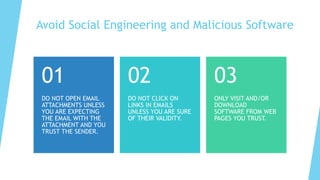
Avoid Social Engineering and Malicious Software
DO NOT OPEN EMAIL
ATTACHMENTS UNLESS
YOU ARE EXPECTING
THE EMAIL WITH THE
ATTACHMENT AND YOU
TRUST THE SENDER.
01
DO NOT CLICK ON
LINKS IN EMAILS
UNLESS YOU ARE SURE
OF THEIR VALIDITY.
02
ONLY VISIT AND/OR
DOWNLOAD
SOFTWARE FROM WEB
PAGES YOU TRUST.
03
Avoid Hacker
Tricks
Be sure to have a good firewall or pop-up blocker
installed.
Pop-up blockers do not always block ALL pop-ups so
always close a pop-up window using the ‘X’ in the
upper corner.
Never click “yes,” “accept” or even “cancel.”
Infected USB drives are often left unattended by
hackers in public places.
Secure Business Transactions
ALWAYS USE SECURE BROWSER TO
DO ONLINE ACTIVITIES.
FREQUENTLY DELETE TEMP FILES,
COOKIES, HISTORY, SAVED
PASSWORDS ETC.
Backup
Important
Information
No security measure is 100% reliable.
Even the best hardware fails.
What information is important to you?
Is your backup:
• Recent?
• Off-site & Secure?
• Incremental and at least 2 weeks of versions?
• Encrypted?
• Tested?
What Defenses Do
We Have in Place?
 Axcient Local & Cloud Backup
 Bitdefender Antivirus
 Barracuda CloudGen Firewalls
 Barracuda Security Essentials
 Email Security
 Cloud Archiving Service
 Cloud-to-Cloud Backup
 Barracuda Advanced Threat
Protection
 Real Time AI
 Account Takeover
 Domain Fraud
 Forensics and Incident Response
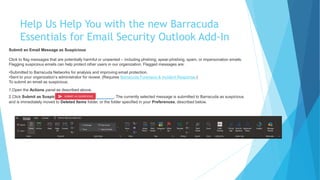
Help Us Help You with the new Barracuda
Essentials for Email Security Outlook Add-In
Submit an Email Message as Suspicious
Click to flag messages that are potentially harmful or unwanted – including phishing, spear-phishing, spam, or impersonation emails.
Flagging suspicious emails can help protect other users in our organization. Flagged messages are:
•Submitted to Barracuda Networks for analysis and improving email protection.
•Sent to your organization’s administrator for review. (Requires Barracuda Forensics & Incident Response.)
To submit an email as suspicious:
1.Open the Actions panel as described above.
2.Click Submit as Suspicious . The currently selected message is submitted to Barracuda as suspicious
and is immediately moved to Deleted Items folder, or the folder specified in your Preferences, described below.
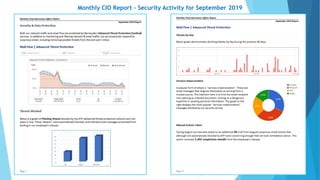
Monthly CIO Report – Security Activity for September 2019
Security Awareness Training

Security Awareness Training

  • 1.
    William Mann, CGCIO Boroughof West Chester Training William Mann, CGCIO Borough of West Chester October 3, 2019
  • 5.
    2 Week EmailActivity Snapshot All organizations are under digital attack – all the time. Everyone should never forget this. BRBL -Barracuda Reputation Block List Spam-Inappropriate messages BRTS -Messenger does not domain Virus -Harmful or Corrupting Code ATP -Advanced Threat Protection
  • 6.
    1 Week EmailOrigination Snapshot
  • 7.
    Training objectives You arethe first line of defense against cyber-attacks targeting information and information systems. The purpose of this training is to help you identify the information that must be protected, common threats against information and information systems, best practices and policies to safeguard information and information systems' confidentiality, integrity, and availability. This training can also help you recognize and report cybersecurity incidents.
  • 8.
    What is cybersecurity? Boroughof West Chester personnel must use cybersecurity best practices listed in this training to safeguard our organization’s information from cyber threats. “Cybersecurity" is the action taken to protect information and information systems from unauthorized access, use, disclosure, disruption, modification, or destruction.
  • 9.
    What is sensitive information? Sensitiveinformation is information that has a degree of confidentiality such that its loss, misuse, unauthorized access, or modification could compromise confidentiality and adversely affect the Borough of West Chester’s interests or the privacy of individuals.
  • 10.
    Importance of Cybersecurity Thetop vectors for vulnerabilities available to a cybercriminals include: Web Browser IM Clients Web Applications Excessive User Rights Risks caused by poor security, knowledge and practice: Identity Theft Monetary Theft Legal Ramifications (for yourself and your organization) Sanctions or termination if policies are not followed The internet allows cyber criminals to work from anywhere on the planet.
  • 11.
    Cybersecurity is Safety Security: Wemust protect our computers and data in the same way that we secure the doors to our homes. Safety: We must behave in ways that protect us against risks and threats that come with technology.
  • 12.
    Leading Threats Viruses Worms Trojan Horses /Logic Bombs Social Engineering Rootkits Botnets / Zombies Ransomware
  • 13.
    Viruses A virus attachesitself to a program, file, or disk. When the program is executed, the virus activates and replicates itself. The virus then executes its payload at some point (often upon contact). Viruses can cause computer crashes and loss of data. In order to recover or prevent virus attacks: Avoid potentially unreliable websites/emails. System Restore. Re-install operating system. Use and maintain anti-virus software.
  • 14.
    Worms Independent program thatreplicates itself and sends copies from computer to computer across network connections. Upon arrival, the worm may be activated to replicate.
  • 15.
    Logic Bombs &Trojan Horses Trojan Horse: Masquerades as a benign program while quietly destroying data or damaging your system. Download a game: It may be fun but contains hidden code that gathers personal information without your knowledge. Logic Bomb: Malware executes upon certain conditions. There are ligament and criminal uses of this. Examples: Software which malfunctions if maintenance fee is not paid. Employee triggers a database erase when he is fired.
  • 16.
    Social Engineering Social engineering manipulatespeople into performing actions or divulging confidential information. This is similar to fraud. The term applies to the use of deception to gain information, commit fraud, or access computer systems.
  • 18.
    Phishing: Counterfeit Email Phishing: Aseemingly trustworthy entity asks for sensitive information such as SSN, credit card numbers, login IDs or passwords via e-mail.
  • 19.
    Example of Phishing/ Counterfeit Email
  • 20.
    Pharming: Counterfeit WebPages The counterfeit web page looks like the real thing Extracts account information The link provided in the e-mail leads to a counterfeit webpage which collects important information and submits it to the owner.
  • 21.
    Botnet A botnet isa number of compromised computers used to create and send spam or viruses or flood a network with messages as a denial of service attack. The compromised computers are called zombies.
  • 22.
    Ransomware Users are showninstructions for how to pay a fee to get the decryption key. The costs can range from a few hundred dollars to thousands, payable to cybercriminals in Bitcoin. Ransomware encrypts a victim's files. The attacker then demands a ransom from the victim to restore access to the data upon payment.
  • 23.
    How Ransomware Works 1.One of the most common methods today is through malicious spam. The email might include booby-trapped attachments, such as PDFs or Word documents. It might also contain links to malicious websites. 2. Then there is Malspam which uses social engineering in order to trick people into opening attachments or clicking on links by appearing as legitimate—whether that’s by seeming to be from a trusted institution or a friend. Cybercriminals use social engineering in other types of ransomware attacks, such as posing as the FBI in order to scare users into paying them a sum of money to unlock their files. 3. Another popular infection method is Malvertising. Malvertising, or malicious advertising, is the use of online advertising to distribute malware with little to no user interaction required. While browsing the web, users can be directed to criminal servers without ever clicking on an ad. These servers catalog details about victim computers and their locations, and then select the malware best suited to deliver. Often, that malware is ransomware. There are several ways ransomware can take control of your computer.
  • 24.
    Types of Ransomware Scareware  Scareware,as it turns out, is not that scary. It includes rogue security software and tech support scams. You might receive a pop-up message claiming that malware was discovered and the only way to get rid of it is to pay up. If you do nothing, you’ll likely continue to be bombarded with pop-ups, but your files are essentially safe. Be aware: legitimate cybersecurity software programs will not solicit customers in this way.
  • 25.
    Types of Ransomware Screen lockers When lock-screen ransomware gets on your computer, it means you’re frozen out of your PC entirely. Upon starting up your computer, a full-size window will appear, often accompanied by an official-looking FBI or US Department of Justice seal saying illegal activity has been detected on your computer and you must pay a fine. Be aware: The FBI would not freeze you out of your computer or demand payment for illegal activity. If they suspected you of a crime, they would go through the appropriate legal channels.
  • 26.
    Types of Ransomware Encrypting ransomware These are the guys who snatch up your files and encrypt them, demanding payment in order to decrypt and redeliver. The reason why this type of ransomware is so dangerous is because once cybercriminals get ahold of your files, no security software or system restore can return them to you.  Unless you pay the ransom—for the most part, they’re gone.  And even if you do pay up, there’s no guarantee the cybercriminals will give you those files back.
  • 27.
  • 28.
    Rootkit Upon accessing a computer,a hacker may install a collection of programs, called a rootkit. •Easy access for the hacker (and others) into the PC or network. •Keystroke logger (what you type is logged). The rootkit may enable: Eliminates evidence of break-in. Modifies the operating system.
  • 29.
    Identifying Security Compromises  Symptoms:  Antivirussoftware detects a problem.  Disk space disappears unexpectedly.  Pop-ups suddenly appear, sometimes selling security software.  Files or transactions appear that should not be there.  The computer slows down to a crawl.  Unusual messages, sounds, or displays on your monitor.  The mouse pointer moves by itself.  The computer spontaneously shuts down or reboots.
  • 30.
    Malware Detection • Spywaresymptoms: • Changes to your browser homepage/start page. • Ending up on a strange site when conducting a search. • System-based firewall is turned off automatically. • Lots of network activity while not particularly active. • Excessive pop-up windows. • New icons, programs, favorites which you did not add. • Frequent firewall alerts about unknown programs when trying to access the Internet. • Poor system performance.
  • 31.
    Anti-Virus and Anti-Spyware Software Anti-virus softwaredetects certain types of malware and can destroy it before any damage is done. Install and maintain anti-virus and anti-spyware software. Be sure to keep anti-virus software updated. Many free and commercial options exist.
  • 32.
    Firewalls A firewall actsas a barrier between your computer/private network and the internet. A firewall prevents many hacker connections to your computer. Firewalls filter network packets that enter or leave your computer
  • 33.
    Protect Your OperatingSystem Microsoft regularly issues patches or updates to solve security problems in their software. If these are not applied, it leaves your computer vulnerable to hackers. The Windows Update feature built into Windows can be set up to automatically download and install updates. Avoid logging in as administrator Apple provides regular updates to its operating system and software applications. Apply Apple updates using the App Store application.
  • 34.
    Use Strong Passwords! Mustnot contain easily accessible or guessable personal information about the user or user’s family, such as birthdays, children’s names, addresses, etc. Must not contain the user’s name or part of the user’s name Must contain characters from at least two of the following four types of characters: English upper case (A-Z) English lower case (a-z) Numbers (0-9) Non-alphanumeric special characters ($, !, %, ^, …) Passwords should be at least ten characters in length
  • 35.
    Password Guidelines Never useadmin, root, administrator, or a default account or password for administrative access. •Private: Used by only one person. •Secret: It is not stored in clear text anywhere, •including on Post-It® notes! •Easily Remembered: No need to write it down. •Contains the complexity required by your organization. •Not easy to guess by a person or a program in a reasonable time, such as several weeks. •Changed regularly: Follow organization standards. A good password is: Avoid shoulder surfers and enter your credentials carefully!
  • 36.
    Password Managers Using a passwordmanager is an easy, quick way to make your online life more secure. You won't need to remember a unique, long, complex password for every online account. The password manager remembers each password for you, minimizing your risk next time there's a massive data breach. The only password you'll need to remember is the single "master" password to the password manager itself.
  • 37.
    Three Recommended PasswordManagers LastPass LastPass is recommended because of its ease of use, support for all major platforms, wide range of features and variety of configurations. The free version of LastPass syncs across an unlimited number of devices and has almost as many features as the paid version. You don't need to install an application on your computer to use LastPass. Instead, the software lives entirely in browser extensions and in a full-featured web interface.
  • 38.
    dashlane Dashlane's killer featureremains its bulk password changer, which can reset hundreds of your passwords at once, saving you time and worry in the event of a major data breach. There's also a scanner that goes through your email inbox on iOS or Android to find online accounts you may have forgotten about. The password manager is well designed, easy to use and possibly the best at filling out your personal information in online forms. Three Recommended Password Managers
  • 39.
    Keeper Keeper is fastand full-featured, has a robust web interface, stores files and documents of any kind, offers perhaps the best security of any password manager and is now cheaper than both Dashlane and LastPass. The trade-off for that enhanced security is a bit of inconvenience: Keeper chooses not to have a bulk password changer, and it won't let you create a PIN to quickly access the mobile app. If you have an older phone that can't read your fingerprint or your face, you'll have to enter the full master password every time. Three Recommended Password Managers
  • 40.
    Avoid Social Engineeringand Malicious Software DO NOT OPEN EMAIL ATTACHMENTS UNLESS YOU ARE EXPECTING THE EMAIL WITH THE ATTACHMENT AND YOU TRUST THE SENDER. 01 DO NOT CLICK ON LINKS IN EMAILS UNLESS YOU ARE SURE OF THEIR VALIDITY. 02 ONLY VISIT AND/OR DOWNLOAD SOFTWARE FROM WEB PAGES YOU TRUST. 03
  • 41.
    Avoid Hacker Tricks Be sureto have a good firewall or pop-up blocker installed. Pop-up blockers do not always block ALL pop-ups so always close a pop-up window using the ‘X’ in the upper corner. Never click “yes,” “accept” or even “cancel.” Infected USB drives are often left unattended by hackers in public places.
  • 42.
    Secure Business Transactions ALWAYSUSE SECURE BROWSER TO DO ONLINE ACTIVITIES. FREQUENTLY DELETE TEMP FILES, COOKIES, HISTORY, SAVED PASSWORDS ETC.
  • 43.
    Backup Important Information No security measureis 100% reliable. Even the best hardware fails. What information is important to you? Is your backup: • Recent? • Off-site & Secure? • Incremental and at least 2 weeks of versions? • Encrypted? • Tested?
  • 44.
    What Defenses Do WeHave in Place?  Axcient Local & Cloud Backup  Bitdefender Antivirus  Barracuda CloudGen Firewalls  Barracuda Security Essentials  Email Security  Cloud Archiving Service  Cloud-to-Cloud Backup  Barracuda Advanced Threat Protection  Real Time AI  Account Takeover  Domain Fraud  Forensics and Incident Response
  • 45.
    Help Us HelpYou with the new Barracuda Essentials for Email Security Outlook Add-In Submit an Email Message as Suspicious Click to flag messages that are potentially harmful or unwanted – including phishing, spear-phishing, spam, or impersonation emails. Flagging suspicious emails can help protect other users in our organization. Flagged messages are: •Submitted to Barracuda Networks for analysis and improving email protection. •Sent to your organization’s administrator for review. (Requires Barracuda Forensics & Incident Response.) To submit an email as suspicious: 1.Open the Actions panel as described above. 2.Click Submit as Suspicious . The currently selected message is submitted to Barracuda as suspicious and is immediately moved to Deleted Items folder, or the folder specified in your Preferences, described below.
  • 46.
    Monthly CIO Report– Security Activity for September 2019