Navigating through
              Citrix
           Technology Literacy
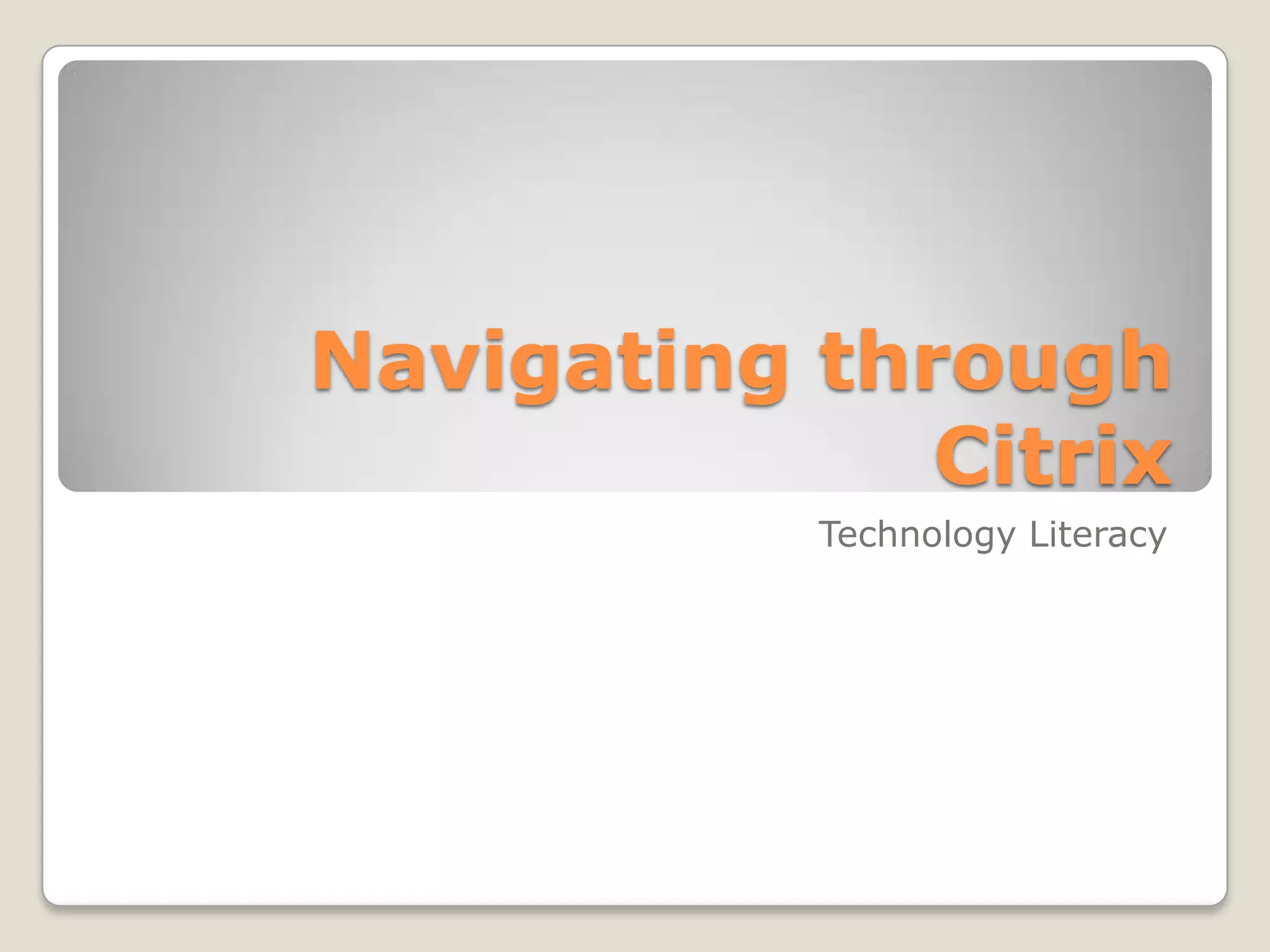
Double Click Internet Explorer
Shortcut
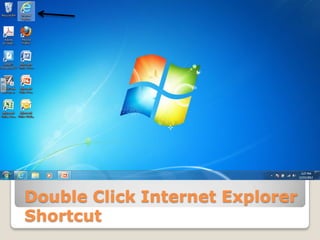
Click Citrix under Quick Links
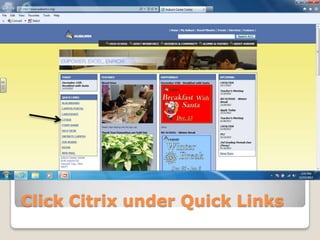
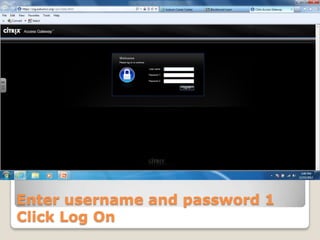
Enter username and password 1
Click Log On
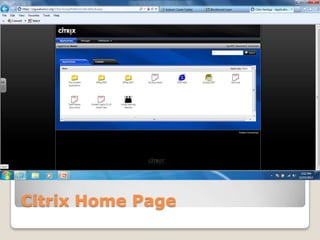
Citrix Home Page
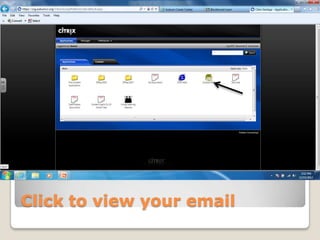
Click to view your email
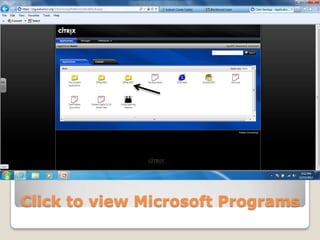
Click to view Microsoft Programs
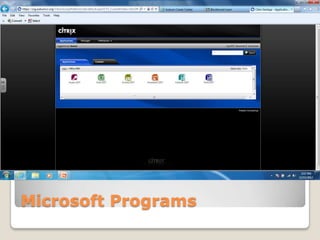
Microsoft Programs
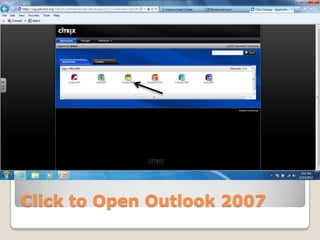
Click to Open Outlook 2007
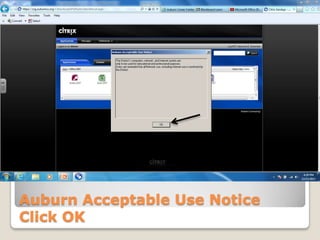
Auburn Acceptable Use Notice
Click OK
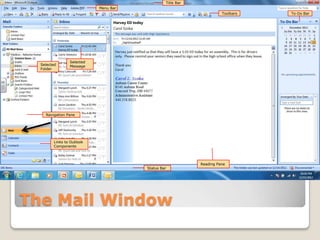
Title Bar
                           Menu Bar
                                                                     Toolbars   To-Do Bar


                Selected
  Selected      Message
  Folder


    Navigation Pane


        Links to Outlook
        Components


                                                           Reading Pane
                                      Status Bar


The Mail Window
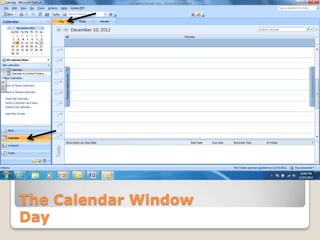
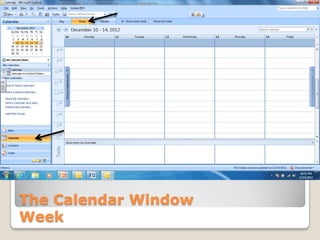
The Calendar Window
Day
The Calendar Window
Week
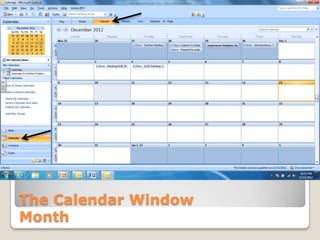
The Calendar Window
Month
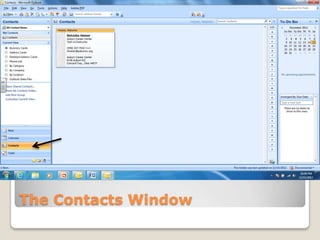
The Contacts Window
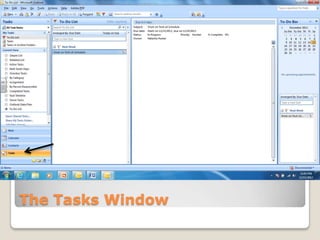
The Tasks Window
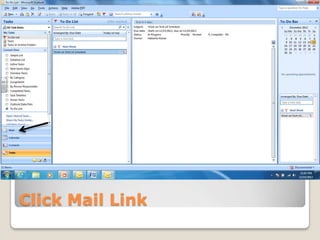
Click Mail Link
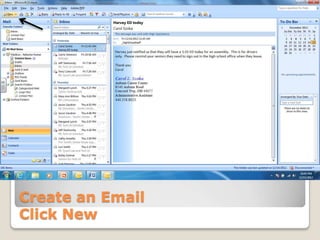
Create an Email
Click New
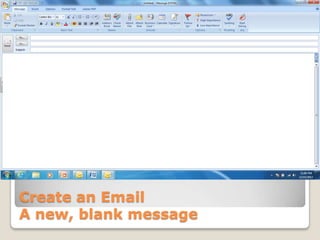
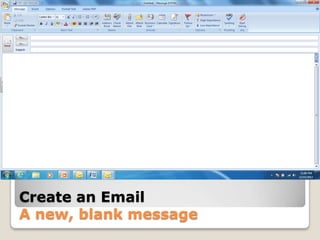
Create an Email
A new, blank message
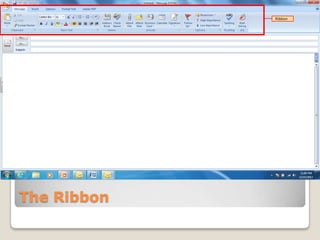
Ribbon


The Ribbon
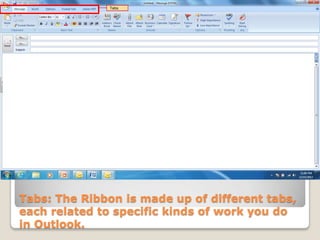
Tabs


Tabs: The Ribbon is made up of different tabs,
each related to specific kinds of work you do
in Outlook.
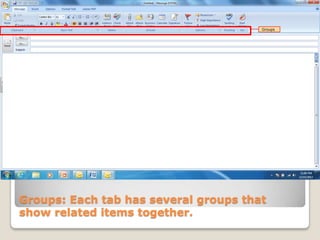
Groups


Groups: Each tab has several groups that
show related items together.
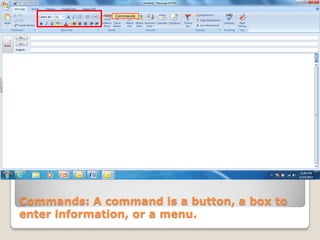
Commands


Commands: A command is a button, a box to
enter information, or a menu.
Create an Email
A new, blank message
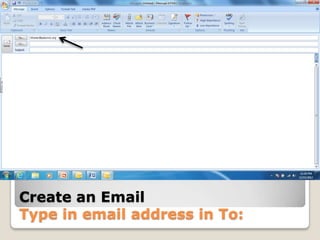
Create an Email
Type in email address in To:
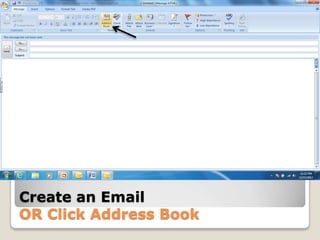
Create an Email
OR Click Address Book
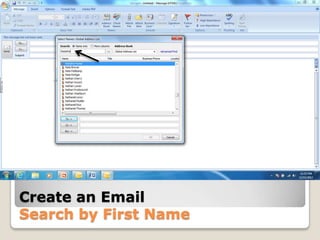
Create an Email
Search by First Name
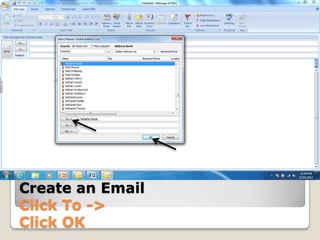
Create an Email
Click To ->
Click OK
Create an Email
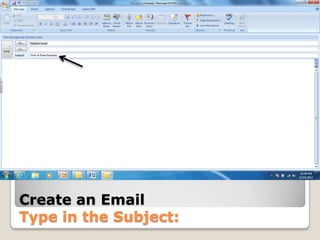
Type in the Subject:
Create an Email
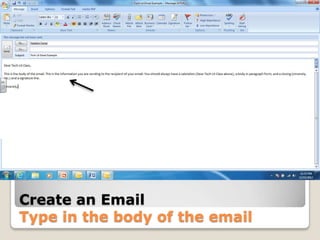
Type in the body of the email
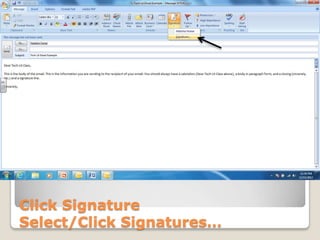
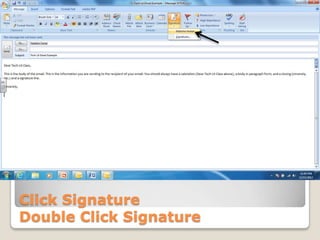
Click Signature
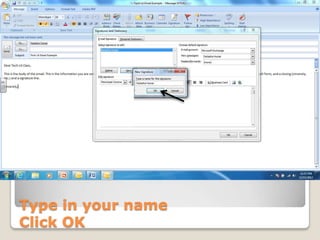
Select/Click Signatures…
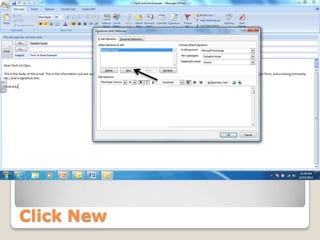
Click New
Type in your name
Click OK
Create an Email
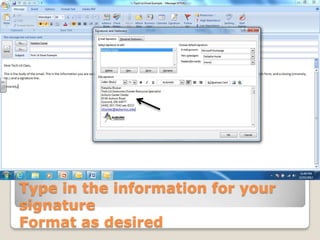
Type in the information for your
signature
Format as desired
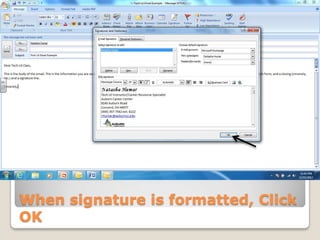
When signature is formatted, Click
OK
Click Signature
Double Click Signature
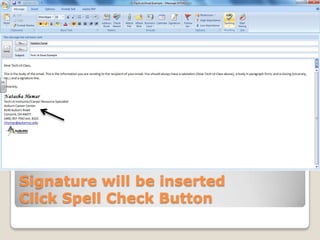
Signature will be inserted
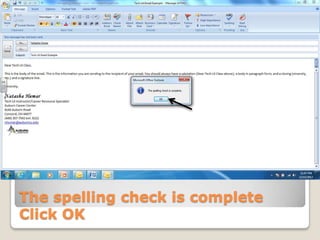
Click Spell Check Button
The spelling check is complete
Click OK
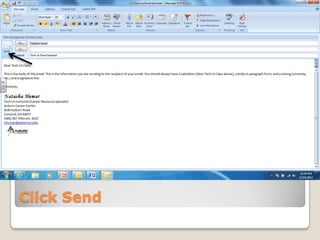
Click Send
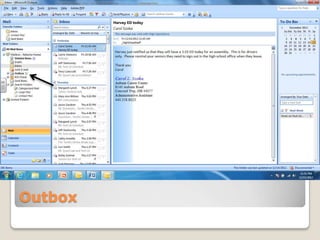
Outbox
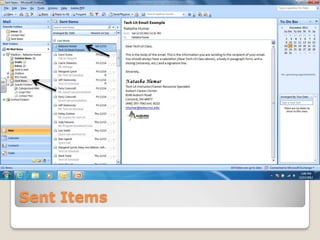
Sent Items

Navigating Through Citrix