Technology Training
SESSION 15 – DECEMBER 17, 2014
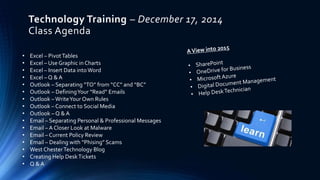
Technology Training – December 17, 2014
Class Agenda
• Excel – PivotTables
• Excel – Use Graphic in Charts
• Excel – Insert Data intoWord
• Excel – Q & A
• Outlook – Separating “TO” from “CC” and “BC”
• Outlook – DefiningYour “Read” Emails
• Outlook – WriteYour Own Rules
• Outlook – Connect to Social Media
• Outlook – Q & A
• Email – Separating Personal & Professional Messages
• Email – A Closer Look at Malware
• Email – Current Policy Review
• Email – Dealing with “Phising” Scams
• West ChesterTechnology Blog
• Creating Help DeskTickets
• Q & A
Microsoft Excel Tips – Pivot Tables
Pivot tables are one of Excel's most powerful features. A pivot table allows you to
extract the significance from a large, detailed data set.
Microsoft Excel Tips – Pivot Tables
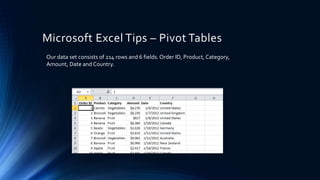
Our data set consists of 214 rows and 6 fields.Order ID, Product, Category,
Amount, Date and Country.
Microsoft Excel Tips – Pivot Tables
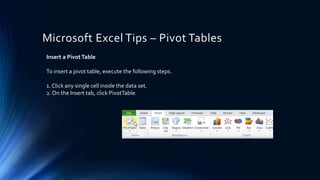
Insert a PivotTable
To insert a pivot table, execute the following steps.
1. Click any single cell inside the data set.
2. On the Insert tab, click PivotTable.
Microsoft Excel Tips – Pivot Tables
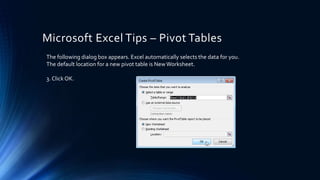
The following dialog box appears. Excel automatically selects the data for you.
The default location for a new pivot table is NewWorksheet.
3. Click OK.
Microsoft Excel Tips – Pivot Tables
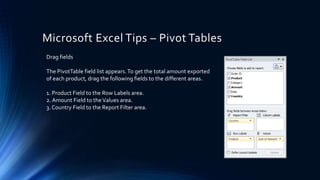
Drag fields
The PivotTable field list appears.To get the total amount exported
of each product, drag the following fields to the different areas.
1. Product Field to the Row Labels area.
2. Amount Field to theValues area.
3. Country Field to the Report Filter area.
Microsoft Excel Tips – Pivot Tables
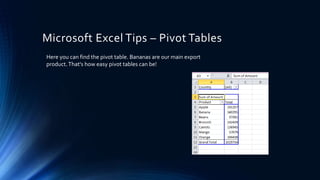
Here you can find the pivot table. Bananas are our main export
product.That's how easy pivot tables can be!
Microsoft Excel Tips – Pivot Tables
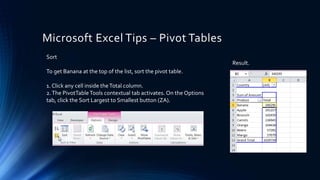
Sort
To get Banana at the top of the list, sort the pivot table.
1. Click any cell inside theTotal column.
2.The PivotTableTools contextual tab activates. On the Options
tab, click the Sort Largest to Smallest button (ZA).
Result.
Excel – Use Graphics in Charts
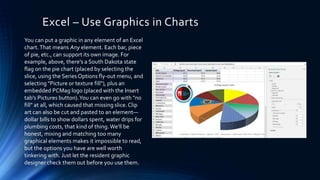
You can put a graphic in any element of an Excel
chart.That means Any element. Each bar, piece
of pie, etc., can support its own image. For
example, above, there's a South Dakota state
flag on the pie chart (placed by selecting the
slice, using the SeriesOptions fly-out menu, and
selecting "Picture or texture fill"), plus an
embedded PCMag logo (placed with the Insert
tab's Pictures button).You can even go with "no
fill" at all, which caused that missing slice. Clip
art can also be cut and pasted to an element—
dollar bills to show dollars spent, water drips for
plumbing costs, that kind of thing.We'll be
honest, mixing and matching too many
graphical elements makes it impossible to read,
but the options you have are well worth
tinkering with. Just let the resident graphic
designer check them out before you use them.
Excel – Insert Excel data into Word
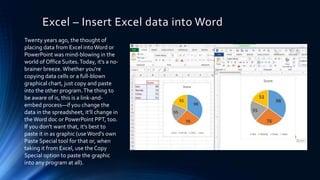
Twenty years ago, the thought of
placing data from Excel intoWord or
PowerPoint was mind-blowing in the
world of Office Suites.Today, it's a no-
brainer breeze.Whether you're
copying data cells or a full-blown
graphical chart, just copy and paste
into the other program.The thing to
be aware of is, this is a link-and-
embed process—if you change the
data in the spreadsheet, it'll change in
theWord doc or PowerPoint PPT, too.
If you don't want that, it's best to
paste it in as graphic (useWord's own
Paste Special tool for that or, when
taking it from Excel, use the Copy
Special option to paste the graphic
into any program at all).
Microsoft Excel
Outlook – Separating “TO from “CC” and “BC”
Did you know you can create a special "Inbox – CC" folder to gather all the
emails that aren't sent directly to you; that way, the inbox is focused on only
the most important emails.
To set this up, go to Rules > New Rules….Then click the "Advanced Options"
button. In the RulesWizard, select "where my name is not in theTo box" and
then in the next screen, "move it to the specified folder." (Alternatively, set up
aVIP email folder and move "emails sent only to me" into that special folder.)
Outlook – Defining your “Read” Emails
Outlook colors unread emails differently from messages
you've already read. However, it's all too easy for an email
to be marked as read when you've barely given it a passing
glance, which can make you overlook something
important.
To prevent this, select File > Options > Mail, and then click
the Reading Pane button. Check the "Mark items as read
when viewed in the Reading Pane" checkbox. Adjust the
number of seconds you want the message to appear in the
Reading Pane before Outlook marks it as read.The default
is 5 seconds. Let's say you set it to 30 seconds.
After that, while you preview messages in the Reading
Pane, only the emails that appear there longer than 30
seconds will be marked automatically as read.
Outlook – WriteYour Own Rules
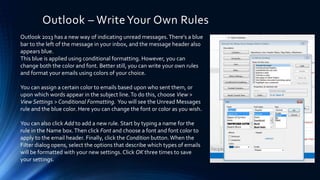
Outlook 2013 has a new way of indicating unread messages.There's a blue
bar to the left of the message in your inbox, and the message header also
appears blue.
This blue is applied using conditional formatting. However, you can
change both the color and font. Better still, you can write your own rules
and format your emails using colors of your choice.
You can assign a certain color to emails based upon who sent them, or
upon which words appear in the subject line.To do this, choose View >
View Settings > Conditional Formatting. You will see the Unread Messages
rule and the blue color. Here you can change the font or color as you wish.
You can also click Add to add a new rule. Start by typing a name for the
rule in the Name box.Then click Font and choose a font and font color to
apply to the email header. Finally, click the Condition button. When the
Filter dialog opens, select the options that describe which types of emails
will be formatted with your new settings.Click OK three times to save
your settings.
Outlook – Connect to Social Media
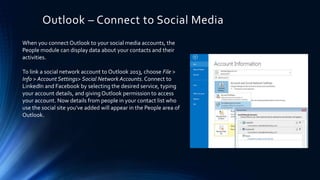
When you connect Outlook to your social media accounts, the
People module can display data about your contacts and their
activities.
To link a social network account to Outlook 2013, choose File >
Info > Account Settings> Social Network Accounts. Connect to
LinkedIn and Facebook by selecting the desired service, typing
your account details, and givingOutlook permission to access
your account. Now details from people in your contact list who
use the social site you've added will appear in the People area of
Outlook.
Email – Separating Personal & Professional Messages
Our email policy is in the process of being reviewed and modified
to more effectively deal with the challenges faced by
organizations today.
Here are some basic rules to understand and follow:
1. Keep your personal and professional email separate. Do not mix the
two up!
2. Do not open attachments that you did not specifically request.
3. Do not click on hyperlinks included in email messages that you did not
specifically request.
Email - Separating Personal & Professional Messages
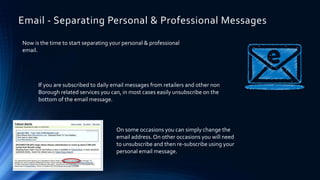
Now is the time to start separating your personal & professional
email.
If you are subscribed to daily email messages from retailers and other non
Borough related services you can, in most cases easily unsubscribe on the
bottom of the email message.
On some occasions you can simply change the
email address. On other occasions you will need
to unsubscribe and then re-subscribe using your
personal email message.
Microsoft Outlook
The reason this is important is that the majority of the malware
that jeopardizes the Borough’s data is originating in personal
email.
You do not what to be in a position in which you
must explain why you were using Borough email
for personal business and that it was your
personal email that placed our data and security
at risk.
Email - Separating Personal & Professional Messages
You can avoid this by simply taking the time to
separate your email accounts.
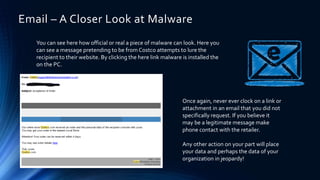
You can see here how official or real a piece of malware can look. Here you
can see a message pretending to be from Costco attempts to lure the
recipient to their website. By clicking the here link malware is installed the
on the PC.
Email – A Closer Look at Malware
Once again, never ever clock on a link or
attachment in an email that you did not
specifically request. If you believe it
may be a legitimate message make
phone contact with the retailer.
Any other action on your part will place
your data and perhaps the data of your
organization in jeopardy!
1. Email messages, attachments, and other data—is discoverable and may be used as
evidence—for or against any organization — in litigation.
2. Email that is related to current, pending, or potential litigation shall be retained,
archived, and produced during e-discovery, the evidence-gathering phase of litigation.
3. Employers are allowed to routinely purge electronic archives of data that is not
relevant to ongoing litigation or pending cases.
4. All email is archived and may be retrieved as part of an open records request or an
internal investigation.
5. Borough of West Chester email shall not contain profanity or illegal action of any kind.
6. Borough ofWest Chester email shall not be used to conduct personal business.
Email – Current Policy and Procedure Review
Email – Dealing with “Phising”Scams
Windows OS vs. Mobile
There are many exciting projects and changes planned to begin
with the new year and here are some of the highlights.
• SharePoint
• OneDrive for Business
• MicrosoftAzure
• Digital Document Management
• Help DeskTechnician
A Look to 2015
West Chester Technology Blog
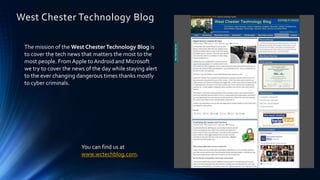
The mission of the West ChesterTechnology Blog is
to cover the tech news that matters the most to the
most people. From Apple to Android and Microsoft
we try to cover the news of the day while staying alert
to the ever changing dangerous times thanks mostly
to cyber criminals.
You can find us at
www.wctechblog.com.
Creating Help Desk Work Orders
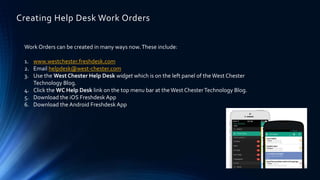
Work Orders can be created in many ways now.These include:
1. www.westchester.freshdesk.com
2. Email helpdesk@west-chester.com
3. Use the West Chester Help Desk widget which is on the left panel of theWest Chester
Technology Blog.
4. Click the WC Help Desk link on the top menu bar at the West ChesterTechnology Blog.
5. Download the iOS Freshdesk App
6. Download the Android Freshdesk App
Technology Training - Session 15

Technology Training - Session 15

  • 1.
    Technology Training SESSION 15– DECEMBER 17, 2014
  • 2.
    Technology Training –December 17, 2014 Class Agenda • Excel – PivotTables • Excel – Use Graphic in Charts • Excel – Insert Data intoWord • Excel – Q & A • Outlook – Separating “TO” from “CC” and “BC” • Outlook – DefiningYour “Read” Emails • Outlook – WriteYour Own Rules • Outlook – Connect to Social Media • Outlook – Q & A • Email – Separating Personal & Professional Messages • Email – A Closer Look at Malware • Email – Current Policy Review • Email – Dealing with “Phising” Scams • West ChesterTechnology Blog • Creating Help DeskTickets • Q & A
  • 3.
    Microsoft Excel Tips– Pivot Tables Pivot tables are one of Excel's most powerful features. A pivot table allows you to extract the significance from a large, detailed data set.
  • 4.
    Microsoft Excel Tips– Pivot Tables Our data set consists of 214 rows and 6 fields.Order ID, Product, Category, Amount, Date and Country.
  • 5.
    Microsoft Excel Tips– Pivot Tables Insert a PivotTable To insert a pivot table, execute the following steps. 1. Click any single cell inside the data set. 2. On the Insert tab, click PivotTable.
  • 6.
    Microsoft Excel Tips– Pivot Tables The following dialog box appears. Excel automatically selects the data for you. The default location for a new pivot table is NewWorksheet. 3. Click OK.
  • 7.
    Microsoft Excel Tips– Pivot Tables Drag fields The PivotTable field list appears.To get the total amount exported of each product, drag the following fields to the different areas. 1. Product Field to the Row Labels area. 2. Amount Field to theValues area. 3. Country Field to the Report Filter area.
  • 8.
    Microsoft Excel Tips– Pivot Tables Here you can find the pivot table. Bananas are our main export product.That's how easy pivot tables can be!
  • 9.
    Microsoft Excel Tips– Pivot Tables Sort To get Banana at the top of the list, sort the pivot table. 1. Click any cell inside theTotal column. 2.The PivotTableTools contextual tab activates. On the Options tab, click the Sort Largest to Smallest button (ZA). Result.
  • 10.
    Excel – UseGraphics in Charts You can put a graphic in any element of an Excel chart.That means Any element. Each bar, piece of pie, etc., can support its own image. For example, above, there's a South Dakota state flag on the pie chart (placed by selecting the slice, using the SeriesOptions fly-out menu, and selecting "Picture or texture fill"), plus an embedded PCMag logo (placed with the Insert tab's Pictures button).You can even go with "no fill" at all, which caused that missing slice. Clip art can also be cut and pasted to an element— dollar bills to show dollars spent, water drips for plumbing costs, that kind of thing.We'll be honest, mixing and matching too many graphical elements makes it impossible to read, but the options you have are well worth tinkering with. Just let the resident graphic designer check them out before you use them.
  • 11.
    Excel – InsertExcel data into Word Twenty years ago, the thought of placing data from Excel intoWord or PowerPoint was mind-blowing in the world of Office Suites.Today, it's a no- brainer breeze.Whether you're copying data cells or a full-blown graphical chart, just copy and paste into the other program.The thing to be aware of is, this is a link-and- embed process—if you change the data in the spreadsheet, it'll change in theWord doc or PowerPoint PPT, too. If you don't want that, it's best to paste it in as graphic (useWord's own Paste Special tool for that or, when taking it from Excel, use the Copy Special option to paste the graphic into any program at all).
  • 12.
  • 13.
    Outlook – Separating“TO from “CC” and “BC” Did you know you can create a special "Inbox – CC" folder to gather all the emails that aren't sent directly to you; that way, the inbox is focused on only the most important emails. To set this up, go to Rules > New Rules….Then click the "Advanced Options" button. In the RulesWizard, select "where my name is not in theTo box" and then in the next screen, "move it to the specified folder." (Alternatively, set up aVIP email folder and move "emails sent only to me" into that special folder.)
  • 14.
    Outlook – Definingyour “Read” Emails Outlook colors unread emails differently from messages you've already read. However, it's all too easy for an email to be marked as read when you've barely given it a passing glance, which can make you overlook something important. To prevent this, select File > Options > Mail, and then click the Reading Pane button. Check the "Mark items as read when viewed in the Reading Pane" checkbox. Adjust the number of seconds you want the message to appear in the Reading Pane before Outlook marks it as read.The default is 5 seconds. Let's say you set it to 30 seconds. After that, while you preview messages in the Reading Pane, only the emails that appear there longer than 30 seconds will be marked automatically as read.
  • 15.
    Outlook – WriteYourOwn Rules Outlook 2013 has a new way of indicating unread messages.There's a blue bar to the left of the message in your inbox, and the message header also appears blue. This blue is applied using conditional formatting. However, you can change both the color and font. Better still, you can write your own rules and format your emails using colors of your choice. You can assign a certain color to emails based upon who sent them, or upon which words appear in the subject line.To do this, choose View > View Settings > Conditional Formatting. You will see the Unread Messages rule and the blue color. Here you can change the font or color as you wish. You can also click Add to add a new rule. Start by typing a name for the rule in the Name box.Then click Font and choose a font and font color to apply to the email header. Finally, click the Condition button. When the Filter dialog opens, select the options that describe which types of emails will be formatted with your new settings.Click OK three times to save your settings.
  • 16.
    Outlook – Connectto Social Media When you connect Outlook to your social media accounts, the People module can display data about your contacts and their activities. To link a social network account to Outlook 2013, choose File > Info > Account Settings> Social Network Accounts. Connect to LinkedIn and Facebook by selecting the desired service, typing your account details, and givingOutlook permission to access your account. Now details from people in your contact list who use the social site you've added will appear in the People area of Outlook.
  • 17.
    Email – SeparatingPersonal & Professional Messages Our email policy is in the process of being reviewed and modified to more effectively deal with the challenges faced by organizations today. Here are some basic rules to understand and follow: 1. Keep your personal and professional email separate. Do not mix the two up! 2. Do not open attachments that you did not specifically request. 3. Do not click on hyperlinks included in email messages that you did not specifically request.
  • 18.
    Email - SeparatingPersonal & Professional Messages Now is the time to start separating your personal & professional email. If you are subscribed to daily email messages from retailers and other non Borough related services you can, in most cases easily unsubscribe on the bottom of the email message. On some occasions you can simply change the email address. On other occasions you will need to unsubscribe and then re-subscribe using your personal email message.
  • 19.
  • 20.
    The reason thisis important is that the majority of the malware that jeopardizes the Borough’s data is originating in personal email. You do not what to be in a position in which you must explain why you were using Borough email for personal business and that it was your personal email that placed our data and security at risk. Email - Separating Personal & Professional Messages You can avoid this by simply taking the time to separate your email accounts.
  • 21.
    You can seehere how official or real a piece of malware can look. Here you can see a message pretending to be from Costco attempts to lure the recipient to their website. By clicking the here link malware is installed the on the PC. Email – A Closer Look at Malware Once again, never ever clock on a link or attachment in an email that you did not specifically request. If you believe it may be a legitimate message make phone contact with the retailer. Any other action on your part will place your data and perhaps the data of your organization in jeopardy!
  • 22.
    1. Email messages,attachments, and other data—is discoverable and may be used as evidence—for or against any organization — in litigation. 2. Email that is related to current, pending, or potential litigation shall be retained, archived, and produced during e-discovery, the evidence-gathering phase of litigation. 3. Employers are allowed to routinely purge electronic archives of data that is not relevant to ongoing litigation or pending cases. 4. All email is archived and may be retrieved as part of an open records request or an internal investigation. 5. Borough of West Chester email shall not contain profanity or illegal action of any kind. 6. Borough ofWest Chester email shall not be used to conduct personal business. Email – Current Policy and Procedure Review
  • 23.
    Email – Dealingwith “Phising”Scams Windows OS vs. Mobile
  • 24.
    There are manyexciting projects and changes planned to begin with the new year and here are some of the highlights. • SharePoint • OneDrive for Business • MicrosoftAzure • Digital Document Management • Help DeskTechnician A Look to 2015
  • 25.
    West Chester TechnologyBlog The mission of the West ChesterTechnology Blog is to cover the tech news that matters the most to the most people. From Apple to Android and Microsoft we try to cover the news of the day while staying alert to the ever changing dangerous times thanks mostly to cyber criminals. You can find us at www.wctechblog.com.
  • 26.
    Creating Help DeskWork Orders Work Orders can be created in many ways now.These include: 1. www.westchester.freshdesk.com 2. Email helpdesk@west-chester.com 3. Use the West Chester Help Desk widget which is on the left panel of theWest Chester Technology Blog. 4. Click the WC Help Desk link on the top menu bar at the West ChesterTechnology Blog. 5. Download the iOS Freshdesk App 6. Download the Android Freshdesk App