Basic
Computer
Skills
.
Learning Objectives:
1. Understand the Basic Parts of a Desktop
Computer and their functions
2. Explain the components of Microsoft Office
Application (MS Word and MS Powerpoint)
3. Use presentation software to create, edit, and
publish appropriate file.
Why Learn to Use a Computer?
• To open up a world of information
• To easily access government &
other organizations
• To connect with family &
friends
• To have fun!
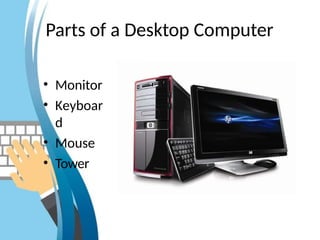
Parts of a Desktop Computer
• Monitor
• Keyboar
d
• Mouse
• Tower
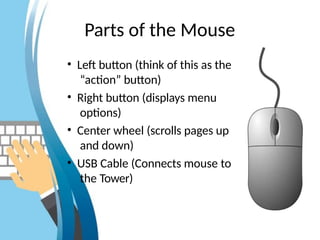
Parts of the Mouse
• Left button (think of this as the
“action” button)
• Right button (displays menu
options)
• Center wheel (scrolls pages up
and down)
• USB Cable (Connects mouse to
the Tower)
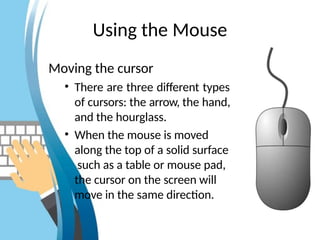
Using the Mouse
Moving the cursor
• There are three different types
of cursors: the arrow, the hand,
and the hourglass.
• When the mouse is moved
along the top of a solid surface
such as a table or mouse pad,
the cursor on the screen will
move in the same direction.
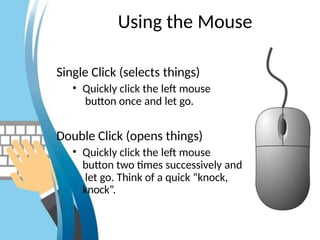
Using the Mouse
Single Click (selects things)
• Quickly click the left mouse
button once and let go.
Double Click (opens things)
• Quickly click the left mouse
button two times successively and
let go. Think of a quick “knock,
knock”.
Using the Mouse
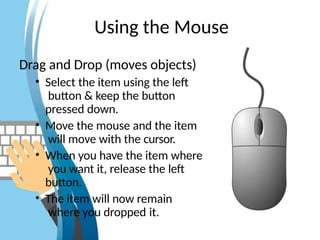
Drag and Drop (moves objects)
• Select the item using the left
button & keep the button
pressed down.
• Move the mouse and the item
will move with the cursor.
• When you have the item where
you want it, release the left
button.
• The item will now remain
where you dropped it.
Using the Mouse
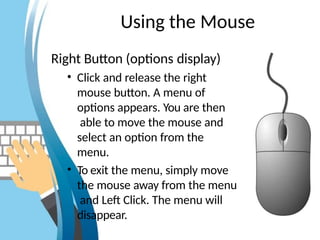
Right Button (options display)
• Click and release the right
mouse button. A menu of
options appears. You are then
able to move the mouse and
select an option from the
menu.
• To exit the menu, simply move
the mouse away from the menu
and Left Click. The menu will
disappear.
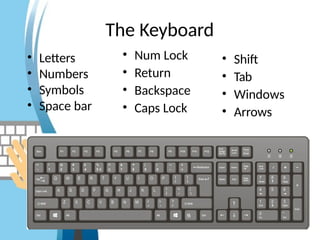
The Keyboard
• Num Lock
• Return
• Backspace
• Caps Lock
• Shift
• Tab
• Windows
• Arrows
• Letters
• Numbers
• Symbols
• Space bar
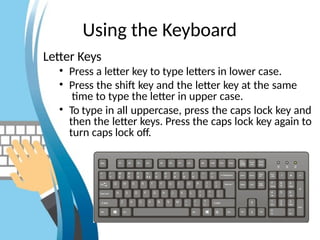
Using the Keyboard
Letter Keys
• Press a letter key to type letters in lower case.
• Press the shift key and the letter key at the same
time to type the letter in upper case.
• To type in all uppercase, press the caps lock key and
then the letter keys. Press the caps lock key again to
turn caps lock off.
Using the Keyboard
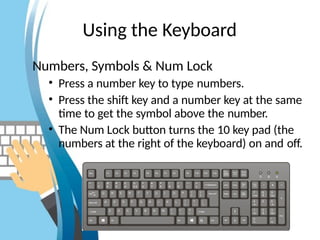
Numbers, Symbols & Num Lock
• Press a number key to type numbers.
• Press the shift key and a number key at the same
time to get the symbol above the number.
• The Num Lock button turns the 10 key pad (the
numbers at the right of the keyboard) on and off.
Using the Keyboard
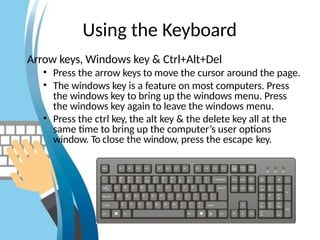
Arrow keys, Windows key & Ctrl+Alt+Del
• Press the arrow keys to move the cursor around the page.
• The windows key is a feature on most computers. Press
the windows key to bring up the windows menu. Press
the windows key again to leave the windows menu.
• Press the ctrl key, the alt key & the delete key all at the
same time to bring up the computer’s user options
window. To close the window, press the escape key.
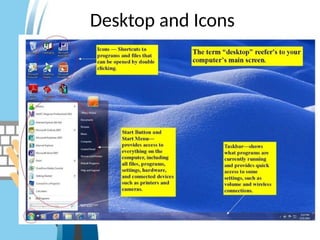
Desktop and Icons
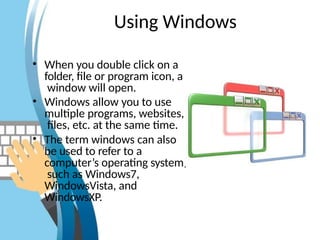
Using Windows
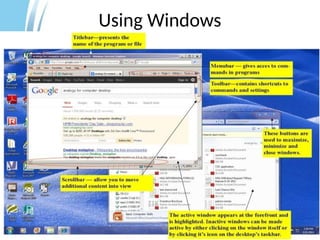
• When you double click on a
folder, file or program icon, a
window will open.
• Windows allow you to use
multiple programs, websites,
files, etc. at the same time.
• The term windows can also
be used to refer to a
computer’s operating system,
such as Windows7,
WindowsVista, and
WindowsXP.
Using Windows
The Internet
Ways to Navigate the Internet
Navigating with the Address Bar
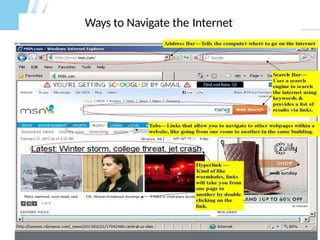
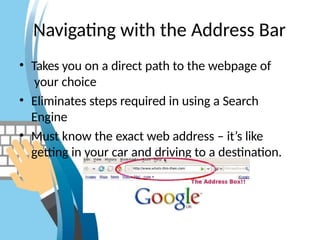
• Takes you on a direct path to the webpage of
your choice
• Eliminates steps required in using a Search
Engine
• Must know the exact web address – it’s like
getting in your car and driving to a destination.
Navigating with Search Engines
• Good to use when you do not know a specific
website address
• Uses keywords to scour the internet
• Provides a list of relevant sites
• Places PAID AD results FIRST on the list. These
are highlighted and are usually the first three
or so links.
• Similar to travel agents – they’ll help you get
to where you want to go.
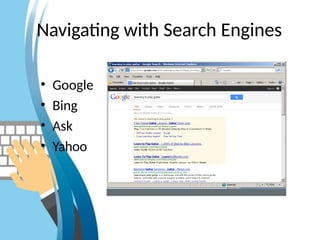
Navigating with Search Engines
• Google
• Bing
• Ask
• Yahoo
Navigating with Hyperlinks
• Following links
= surfing the web
• A good way to
discover new sites
• Fast and easy
• It is possible to end up someplace you don’t
want to be.
• Similar to streets, airplanes and boats – they
are gateways between different places.
Navigating with Tabs
• Move within a trusted website
• Explore without “leaving the building”
• They are similar to elevators, halls, and
doorways, all contained within the same
structure.
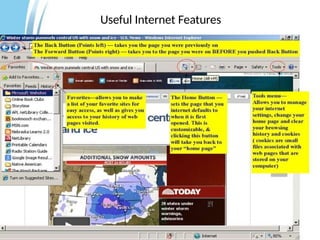
Useful Internet Features
Using Email
• Allows you to send/receive massages.
• You can attach and send/receive documents
and pictures.
• Create a contact list and address book
• Information is stored in the “cloud” and is
unlikely to be lost.
• It’s like sending a letter in the mail – except
you don’t have to wait for a mail carrier!
Using Email
Many FREE services
are available
online
• Hotmail
• Gmail
• Yahoo
Using Email
• Inbox – shows messages that have been
received
• Sent – shows messages that have been sent to
others
• New – creates new message
• Reply – replies to sender of a message
that was received
• Forward – sends message received to a new
address
Safety on the Internet
• If it’s sounds too good to be true, it
is (you will never win P1,000,000 or
a car on the internet.)
• A website is only secure if the web
address begins with https://
• Do not give your debit or credit card
information to unsecure websites or
businesses you don’t trust.
• If you don’t feel comfortable with
what you are seeing or doing, don’t
proceed.
• Be careful with who you give your
personal information to.
• Overall, just remember to use your
best judgment and common sense.
Microsoft Office Application
(Word, Power Point, Excel)
(ICT)
Microsoft Office
Word
(ICT)
What is Microsoft Word?
Microsoft Word is a word-processing program,
designed to help you create professional-quality
documents. With the finest document
formatting tools, Word helps you organize and
write your documents more efficiently. Word
also includes powerful editing and revising
tools
so that you can collaborate with others easily.
By default, documents saved in Word are saved
with the .docx extension.
Microsoft Word Program Features
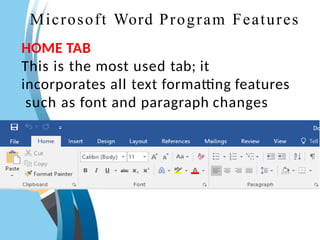
HOME TAB
This is the most used tab; it
incorporates all text formatting features
such as font and paragraph changes
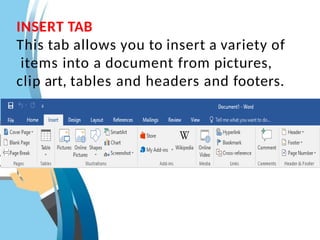
INSERT TAB
This tab allows you to insert a variety of
items into a document from pictures,
clip art, tables and headers and footers.
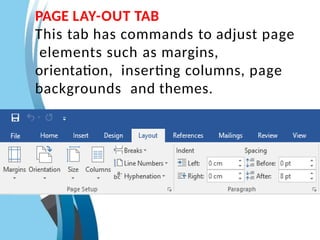
PAGE LAY-OUT TAB
This tab has commands to adjust page
elements such as margins,
orientation, inserting columns, page
backgrounds and themes.
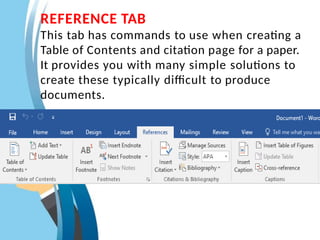
REFERENCE TAB
This tab has commands to use when creating a
Table of Contents and citation page for a paper.
It provides you with many simple solutions to
create these typically difficult to produce
documents.
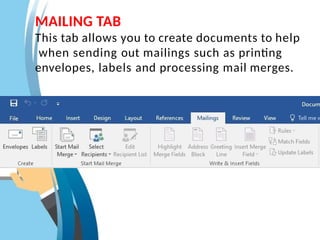
MAILING TAB
This tab allows you to create documents to help
when sending out mailings such as printing
envelopes, labels and processing mail merges.
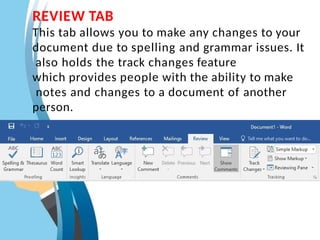
REVIEW TAB
This tab allows you to make any changes to your
document due to spelling and grammar issues. It
also holds the track changes feature
which provides people with the ability to make
notes and changes to a document of another
person.
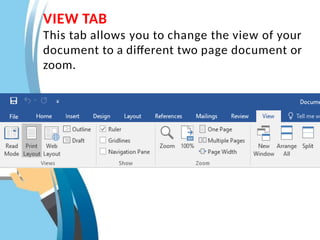
VIEW TAB
This tab allows you to change the view of your
document to a different two page document or
zoom.
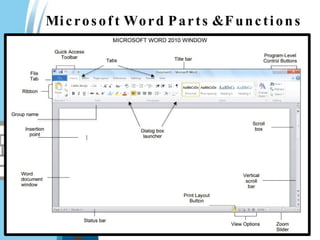
Microsof t Word Parts &Functions
Microsoft Office
PowerPoint
(ICT)
What is Microsoft Power Point?
Microsoft PowerPoint is a presentation program
that offers various effects, Themes, Layouts and
formatting options that can be used to quickly
and efficiently create and share dynamic
presentations with your audience.
By default, documents saved in PowerPoint are
saved with the .pptx extension whereas, the file
extension of the prior PowerPoint versions is .ppt.
Benefits of Power Point
PowerPoint provides multiple benefits to users, including:
• It is widely used, and considered the "standard" for
presentation software. If you create a PowerPoint
presentation, it's likely that anyone you want to share it
with will be able to open and view it, either with
PowerPoint or with a compatible application.
• It includes many optional presentation features,
including slide transitions, animations, layouts,
templates, and more.
• It offers the option to export its slides to alternative file
formats, including GIF and JPG images, MPEG-4 video,
PDF, RTF (rich text format), WMV (Windows Media
Video), and PowerPoint XML.
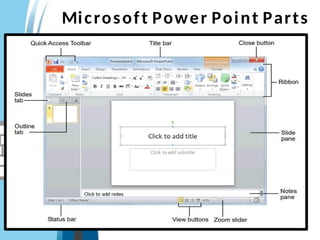
Microsoft Power Point Parts
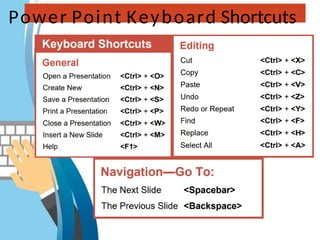
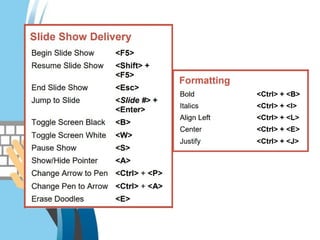
Power Point Keyboard Shortcuts
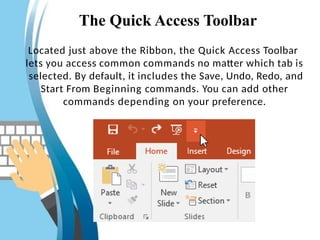
The Quick Access Toolbar
Located just above the Ribbon, the Quick Access Toolbar
lets you access common commands no matter which tab is
selected. By default, it includes the Save, Undo, Redo, and
Start From Beginning commands. You can add other
commands depending on your preference.
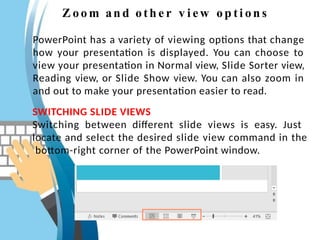
Z oo m an d oth e r v i ew op ti on s
PowerPoint has a variety of viewing options that change
how your presentation is displayed. You can choose to
view your presentation in Normal view, Slide Sorter view,
Reading view, or Slide Show view. You can also zoom in
and out to make your presentation easier to read.
SWITCHING SLIDE VIEWS
Switching between different slide views is easy. Just
locate and select the desired slide view command in the
bottom-right corner of the PowerPoint window.
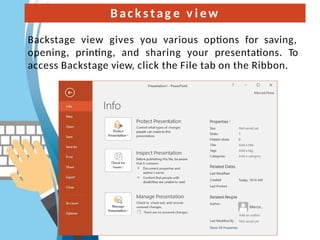
Bac k s tag e v i ew
Backstage view gives you various options for saving,
opening, printing, and sharing your presentations. To
access Backstage view, click the File tab on the Ribbon.
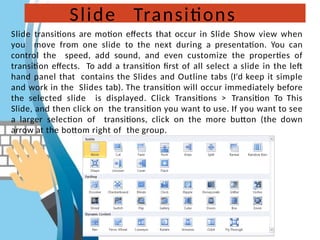
Slide Transitions
Slide transitions are motion effects that occur in Slide Show view when
you move from one slide to the next during a presentation. You can
control the speed, add sound, and even customize the properties of
transition effects. To add a transition first of all select a slide in the left
hand panel that contains the Slides and Outline tabs (I'd keep it simple
and work in the Slides tab). The transition will occur immediately before
the selected slide is displayed. Click Transitions > Transition To This
Slide, and then click on the transition you want to use. If you want to see
a larger selection of transitions, click on the more button (the down
arrow at the bottom right of the group.
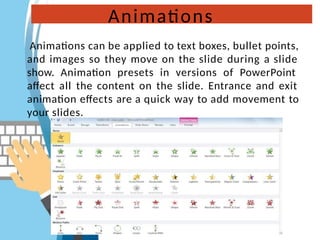
Animations
Animations can be applied to text boxes, bullet points,
and images so they move on the slide during a slide
show. Animation presets in versions of PowerPoint
affect all the content on the slide. Entrance and exit
animation effects are a quick way to add movement to
your slides.
The-Basic-Computer-Skills. Power presentation.

The-Basic-Computer-Skills. Power presentation.

  • 1.
  • 2.
    Learning Objectives: 1. Understandthe Basic Parts of a Desktop Computer and their functions 2. Explain the components of Microsoft Office Application (MS Word and MS Powerpoint) 3. Use presentation software to create, edit, and publish appropriate file.
  • 3.
    Why Learn toUse a Computer?
  • 4.
    Why Learn toUse a Computer? • To open up a world of information • To easily access government & other organizations • To connect with family & friends • To have fun!
  • 5.
    Parts of aDesktop Computer • Monitor • Keyboar d • Mouse • Tower
  • 6.
    Parts of theMouse • Left button (think of this as the “action” button) • Right button (displays menu options) • Center wheel (scrolls pages up and down) • USB Cable (Connects mouse to the Tower)
  • 7.
    Using the Mouse Movingthe cursor • There are three different types of cursors: the arrow, the hand, and the hourglass. • When the mouse is moved along the top of a solid surface such as a table or mouse pad, the cursor on the screen will move in the same direction.
  • 8.
    Using the Mouse SingleClick (selects things) • Quickly click the left mouse button once and let go. Double Click (opens things) • Quickly click the left mouse button two times successively and let go. Think of a quick “knock, knock”.
  • 9.
    Using the Mouse Dragand Drop (moves objects) • Select the item using the left button & keep the button pressed down. • Move the mouse and the item will move with the cursor. • When you have the item where you want it, release the left button. • The item will now remain where you dropped it.
  • 10.
    Using the Mouse RightButton (options display) • Click and release the right mouse button. A menu of options appears. You are then able to move the mouse and select an option from the menu. • To exit the menu, simply move the mouse away from the menu and Left Click. The menu will disappear.
  • 11.
    The Keyboard • NumLock • Return • Backspace • Caps Lock • Shift • Tab • Windows • Arrows • Letters • Numbers • Symbols • Space bar
  • 12.
    Using the Keyboard LetterKeys • Press a letter key to type letters in lower case. • Press the shift key and the letter key at the same time to type the letter in upper case. • To type in all uppercase, press the caps lock key and then the letter keys. Press the caps lock key again to turn caps lock off.
  • 13.
    Using the Keyboard Numbers,Symbols & Num Lock • Press a number key to type numbers. • Press the shift key and a number key at the same time to get the symbol above the number. • The Num Lock button turns the 10 key pad (the numbers at the right of the keyboard) on and off.
  • 14.
    Using the Keyboard Arrowkeys, Windows key & Ctrl+Alt+Del • Press the arrow keys to move the cursor around the page. • The windows key is a feature on most computers. Press the windows key to bring up the windows menu. Press the windows key again to leave the windows menu. • Press the ctrl key, the alt key & the delete key all at the same time to bring up the computer’s user options window. To close the window, press the escape key.
  • 15.
  • 16.
    Using Windows • Whenyou double click on a folder, file or program icon, a window will open. • Windows allow you to use multiple programs, websites, files, etc. at the same time. • The term windows can also be used to refer to a computer’s operating system, such as Windows7, WindowsVista, and WindowsXP.
  • 17.
  • 18.
  • 19.
    Ways to Navigatethe Internet
  • 20.
    Navigating with theAddress Bar • Takes you on a direct path to the webpage of your choice • Eliminates steps required in using a Search Engine • Must know the exact web address – it’s like getting in your car and driving to a destination.
  • 21.
    Navigating with SearchEngines • Good to use when you do not know a specific website address • Uses keywords to scour the internet • Provides a list of relevant sites • Places PAID AD results FIRST on the list. These are highlighted and are usually the first three or so links. • Similar to travel agents – they’ll help you get to where you want to go.
  • 22.
    Navigating with SearchEngines • Google • Bing • Ask • Yahoo
  • 23.
    Navigating with Hyperlinks •Following links = surfing the web • A good way to discover new sites • Fast and easy • It is possible to end up someplace you don’t want to be. • Similar to streets, airplanes and boats – they are gateways between different places.
  • 24.
    Navigating with Tabs •Move within a trusted website • Explore without “leaving the building” • They are similar to elevators, halls, and doorways, all contained within the same structure.
  • 25.
  • 26.
    Using Email • Allowsyou to send/receive massages. • You can attach and send/receive documents and pictures. • Create a contact list and address book • Information is stored in the “cloud” and is unlikely to be lost. • It’s like sending a letter in the mail – except you don’t have to wait for a mail carrier!
  • 27.
    Using Email Many FREEservices are available online • Hotmail • Gmail • Yahoo
  • 28.
    Using Email • Inbox– shows messages that have been received • Sent – shows messages that have been sent to others • New – creates new message • Reply – replies to sender of a message that was received • Forward – sends message received to a new address
  • 29.
    Safety on theInternet • If it’s sounds too good to be true, it is (you will never win P1,000,000 or a car on the internet.) • A website is only secure if the web address begins with https:// • Do not give your debit or credit card information to unsecure websites or businesses you don’t trust. • If you don’t feel comfortable with what you are seeing or doing, don’t proceed. • Be careful with who you give your personal information to. • Overall, just remember to use your best judgment and common sense.
  • 30.
    Microsoft Office Application (Word,Power Point, Excel) (ICT)
  • 31.
  • 32.
    What is MicrosoftWord? Microsoft Word is a word-processing program, designed to help you create professional-quality documents. With the finest document formatting tools, Word helps you organize and write your documents more efficiently. Word also includes powerful editing and revising tools so that you can collaborate with others easily. By default, documents saved in Word are saved with the .docx extension.
  • 33.
    Microsoft Word ProgramFeatures HOME TAB This is the most used tab; it incorporates all text formatting features such as font and paragraph changes
  • 34.
    INSERT TAB This taballows you to insert a variety of items into a document from pictures, clip art, tables and headers and footers.
  • 35.
    PAGE LAY-OUT TAB Thistab has commands to adjust page elements such as margins, orientation, inserting columns, page backgrounds and themes.
  • 36.
    REFERENCE TAB This tabhas commands to use when creating a Table of Contents and citation page for a paper. It provides you with many simple solutions to create these typically difficult to produce documents.
  • 37.
    MAILING TAB This taballows you to create documents to help when sending out mailings such as printing envelopes, labels and processing mail merges.
  • 38.
    REVIEW TAB This taballows you to make any changes to your document due to spelling and grammar issues. It also holds the track changes feature which provides people with the ability to make notes and changes to a document of another person.
  • 39.
    VIEW TAB This taballows you to change the view of your document to a different two page document or zoom.
  • 40.
    Microsof t WordParts &Functions
  • 41.
  • 42.
    What is MicrosoftPower Point? Microsoft PowerPoint is a presentation program that offers various effects, Themes, Layouts and formatting options that can be used to quickly and efficiently create and share dynamic presentations with your audience. By default, documents saved in PowerPoint are saved with the .pptx extension whereas, the file extension of the prior PowerPoint versions is .ppt.
  • 43.
    Benefits of PowerPoint PowerPoint provides multiple benefits to users, including: • It is widely used, and considered the "standard" for presentation software. If you create a PowerPoint presentation, it's likely that anyone you want to share it with will be able to open and view it, either with PowerPoint or with a compatible application. • It includes many optional presentation features, including slide transitions, animations, layouts, templates, and more. • It offers the option to export its slides to alternative file formats, including GIF and JPG images, MPEG-4 video, PDF, RTF (rich text format), WMV (Windows Media Video), and PowerPoint XML.
  • 44.
  • 45.
  • 47.
    The Quick AccessToolbar Located just above the Ribbon, the Quick Access Toolbar lets you access common commands no matter which tab is selected. By default, it includes the Save, Undo, Redo, and Start From Beginning commands. You can add other commands depending on your preference.
  • 48.
    Z oo man d oth e r v i ew op ti on s PowerPoint has a variety of viewing options that change how your presentation is displayed. You can choose to view your presentation in Normal view, Slide Sorter view, Reading view, or Slide Show view. You can also zoom in and out to make your presentation easier to read. SWITCHING SLIDE VIEWS Switching between different slide views is easy. Just locate and select the desired slide view command in the bottom-right corner of the PowerPoint window.
  • 49.
    Bac k stag e v i ew Backstage view gives you various options for saving, opening, printing, and sharing your presentations. To access Backstage view, click the File tab on the Ribbon.
  • 50.
    Slide Transitions Slide transitionsare motion effects that occur in Slide Show view when you move from one slide to the next during a presentation. You can control the speed, add sound, and even customize the properties of transition effects. To add a transition first of all select a slide in the left hand panel that contains the Slides and Outline tabs (I'd keep it simple and work in the Slides tab). The transition will occur immediately before the selected slide is displayed. Click Transitions > Transition To This Slide, and then click on the transition you want to use. If you want to see a larger selection of transitions, click on the more button (the down arrow at the bottom right of the group.
  • 51.
    Animations Animations can beapplied to text boxes, bullet points, and images so they move on the slide during a slide show. Animation presets in versions of PowerPoint affect all the content on the slide. Entrance and exit animation effects are a quick way to add movement to your slides.