IBM Collaboration Solutions
JUMP Session
Date:
Tips and Tricks for IBM Notes Mail
18th May 2017
IBM Corporation ©2015
2
JUMP Session Team
 Maitreyee Patukale - Senior Notes Developer, Notes Client Development.
 Presenter
 Ranjit Rai - IBM ICS SWAT
 Focusing on entire Notes/Domino
 Narendra Nesarikar – IBM ICS Support Facilitator for JUMP sessions
IBM Corporation ©2015
Abstract
IBM Notes Users spend majority of their time with their Mail.
Mail is the central resource throughout the day.
We have put together few tips and tricks for you to use it more effectively.
Lets discover the power of IBM Notes Mail.
3
IBM Corporation ©2015
Agenda
✓ Want to backup your mobile contacts? Export them to Notes contacts…
✓ Want to take a Poll? Just send Notes Mail!...
✓ Add News Blinks in your signature…
✓ Q & A
4
IBM Corporation ©2015
Want to backup your mobile contacts?
Export them to Notes contacts. Here is how…
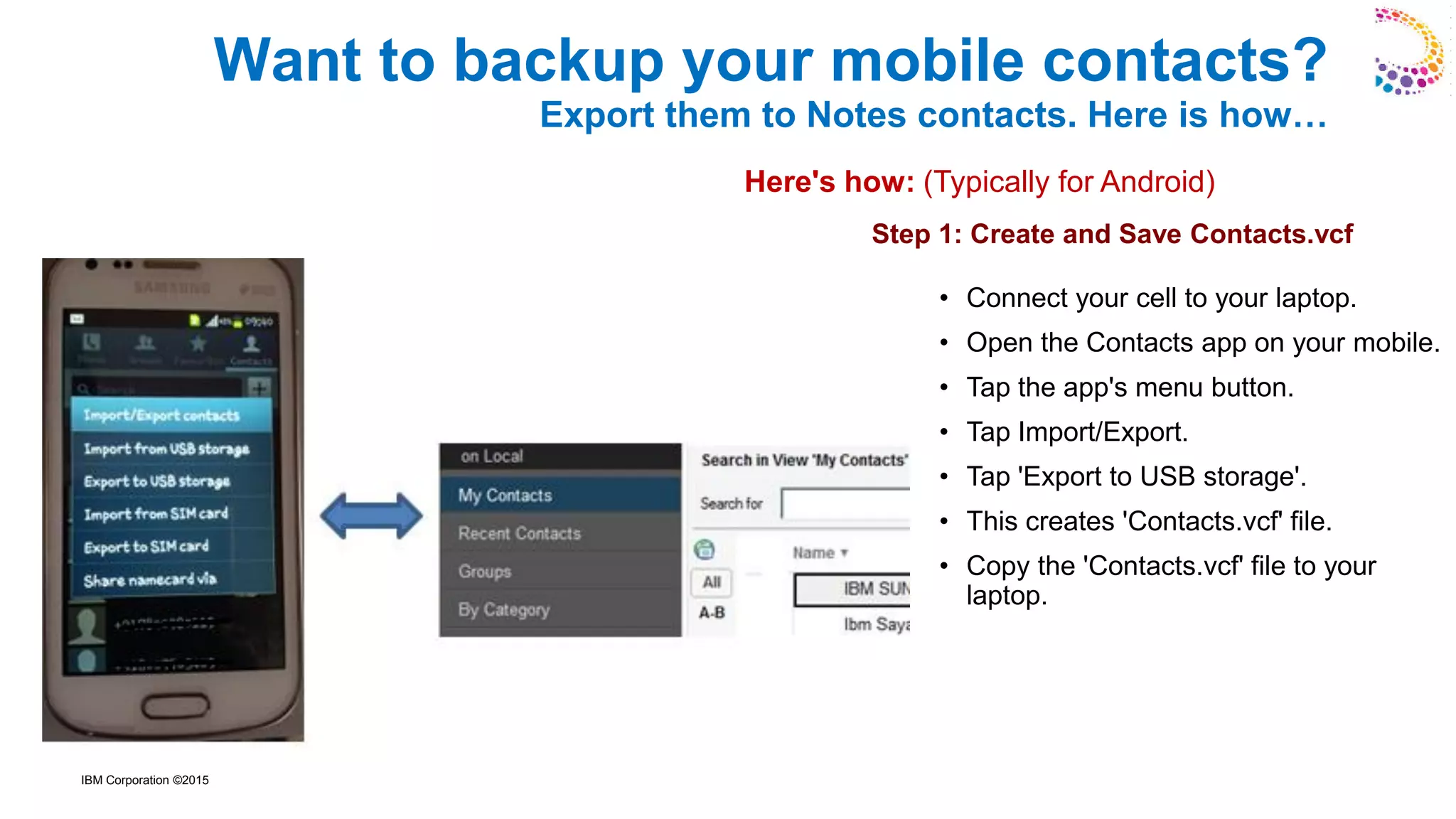
• Connect your cell to your laptop.
• Open the Contacts app on your mobile.
• Tap the app's menu button.
• Tap Import/Export.
• Tap 'Export to USB storage'.
• This creates 'Contacts.vcf' file.
• Copy the 'Contacts.vcf' file to your
laptop.
Here's how: (Typically for Android)
Step 1: Create and Save Contacts.vcf
IBM Corporation ©2015
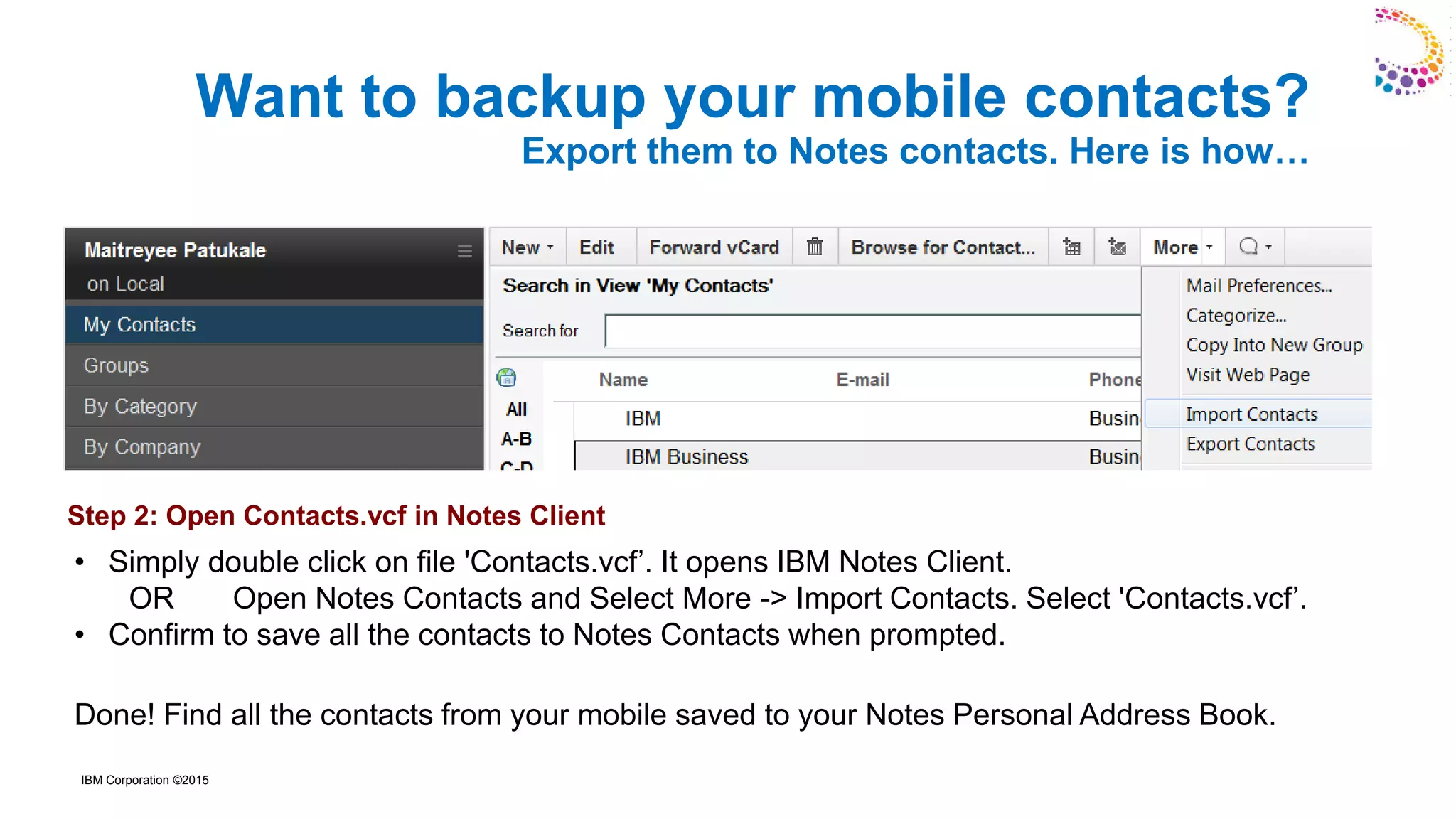
• Simply double click on file 'Contacts.vcf’. It opens IBM Notes Client.
OR Open Notes Contacts and Select More -> Import Contacts. Select 'Contacts.vcf’.
• Confirm to save all the contacts to Notes Contacts when prompted.
Done! Find all the contacts from your mobile saved to your Notes Personal Address Book.
Want to backup your mobile contacts?
Export them to Notes contacts. Here is how…
Step 2: Open Contacts.vcf in Notes Client
IBM Corporation ©2015
Why are opinion polls important?
Helping regular people be heard. May it be any product UI style decision or just
choosing a party venue.... Polls tell us what proportion of a population has a
specific viewpoint
Here's one easy to use way... Quite handy... Right in your Notes mailbox!
Want to take a Poll? Just send Notes Mail!...
IBM Corporation ©2015
Want to take a Poll? Just send Notes Mail!...
Here's How: - (Refer the screens enclosed below)
Step 1: Compose and Send a mail to initiate poll
1.Compose a mail and Enter your Subject.
2. In the body of the message, enter the information related to your poll.
3. Then you need to add one hotspot per poll choice. Users will click the hotspot to caste
vote
Add new hotspot button or Action hotspot using Create -> Hotspot -> Button (or Action
hotspot). This opens the Programmer's pane & hotspot properties dialog.
4. Customize the buttons to suit your poll choices
5. Add simple logic using Notes formula language behind the hotspots.
6. Send the mail to intended users to take a poll.
7. User receives this mail and hits one of the hotspots to cast the vote.
8. You receive reply mails with the user’s votes.
1. Compose a mail.
IBM Corporation ©2015
Want to take a Poll? Just send Notes Mail!...
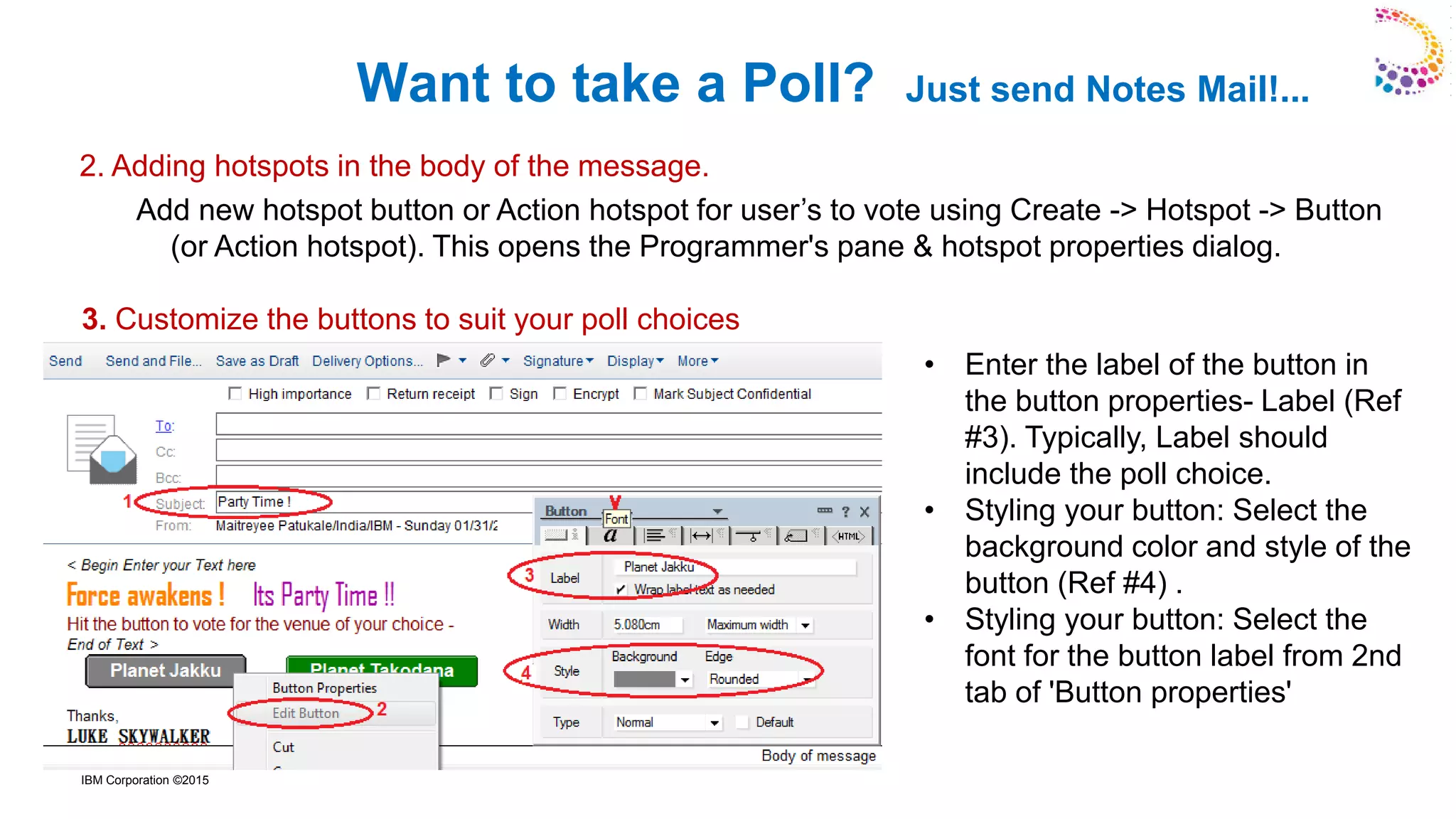
• Enter the label of the button in
the button properties- Label (Ref
#3). Typically, Label should
include the poll choice.
• Styling your button: Select the
background color and style of the
button (Ref #4) .
• Styling your button: Select the
font for the button label from 2nd
tab of 'Button properties'
Add new hotspot button or Action hotspot for user’s to vote using Create -> Hotspot -> Button
(or Action hotspot). This opens the Programmer's pane & hotspot properties dialog.
3. Customize the buttons to suit your poll choices
2. Adding hotspots in the body of the message.
IBM Corporation ©2015
Formula language provides syntax and @functions for evaluating
constants and variables, and for performing simple logic.
@MailSend
@MailSend( sendTo ; copyTo ; blindCopyTo ; subject ; message )
@MailSend composes a new mail memo based on the information you supply in the
arguments list, and sends it to the recipients listed in the sendTo, copyTo, and
blindcopyTo arguments
@Prompt
@Prompt( [OK] ; title ; prompt)
Displays a dialog box to the user. @Prompt is useful for prompting a user for
confirmation after user hits the hotspot while casting vote.
Formula Language
4: Add simple logic using Notes formula language behind the hotspots.
IBM Corporation ©2015
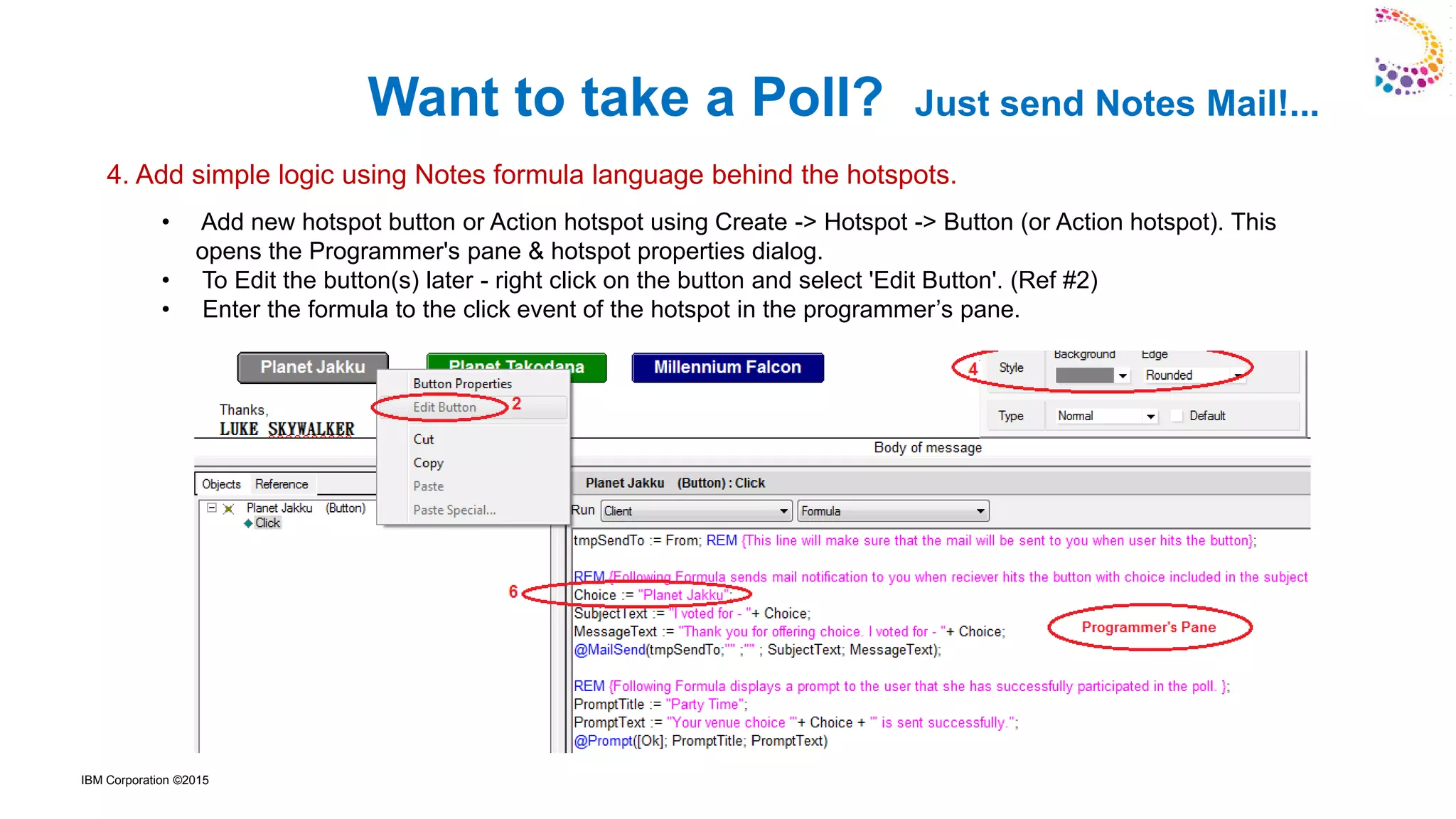
• Add new hotspot button or Action hotspot using Create -> Hotspot -> Button (or Action hotspot). This
opens the Programmer's pane & hotspot properties dialog.
• To Edit the button(s) later - right click on the button and select 'Edit Button'. (Ref #2)
• Enter the formula to the click event of the hotspot in the programmer’s pane.
Want to take a Poll? Just send Notes Mail!...
4. Add simple logic using Notes formula language behind the hotspots.
IBM Corporation ©2015
tmpSendTo := From;
REM {Above line will make sure that the mail will be sent to you when user hits the button};
REM {Following Formula sends mail notification to you when receiver hits the button with choice
included in the subject of the mail. };
Choice := "Planet Jakku";
SubjectText := "I voted for - "+ Choice;
MessageText := "Thank you for offering choice. I voted for - "+ Choice;
@MailSend(tmpSendTo;"" ;"" ; SubjectText; MessageText);
REM {Following Formula displays a prompt to the user that she has successfully participated in the
poll. };
PromptTitle := "Party Time";
PromptText := "Your venue choice '"+ Choice + "' is sent successfully.";
@Prompt([Ok]; PromptTitle; PromptText)
Want to take a Poll? Just send Notes Mail!...
IBM Corporation ©2015
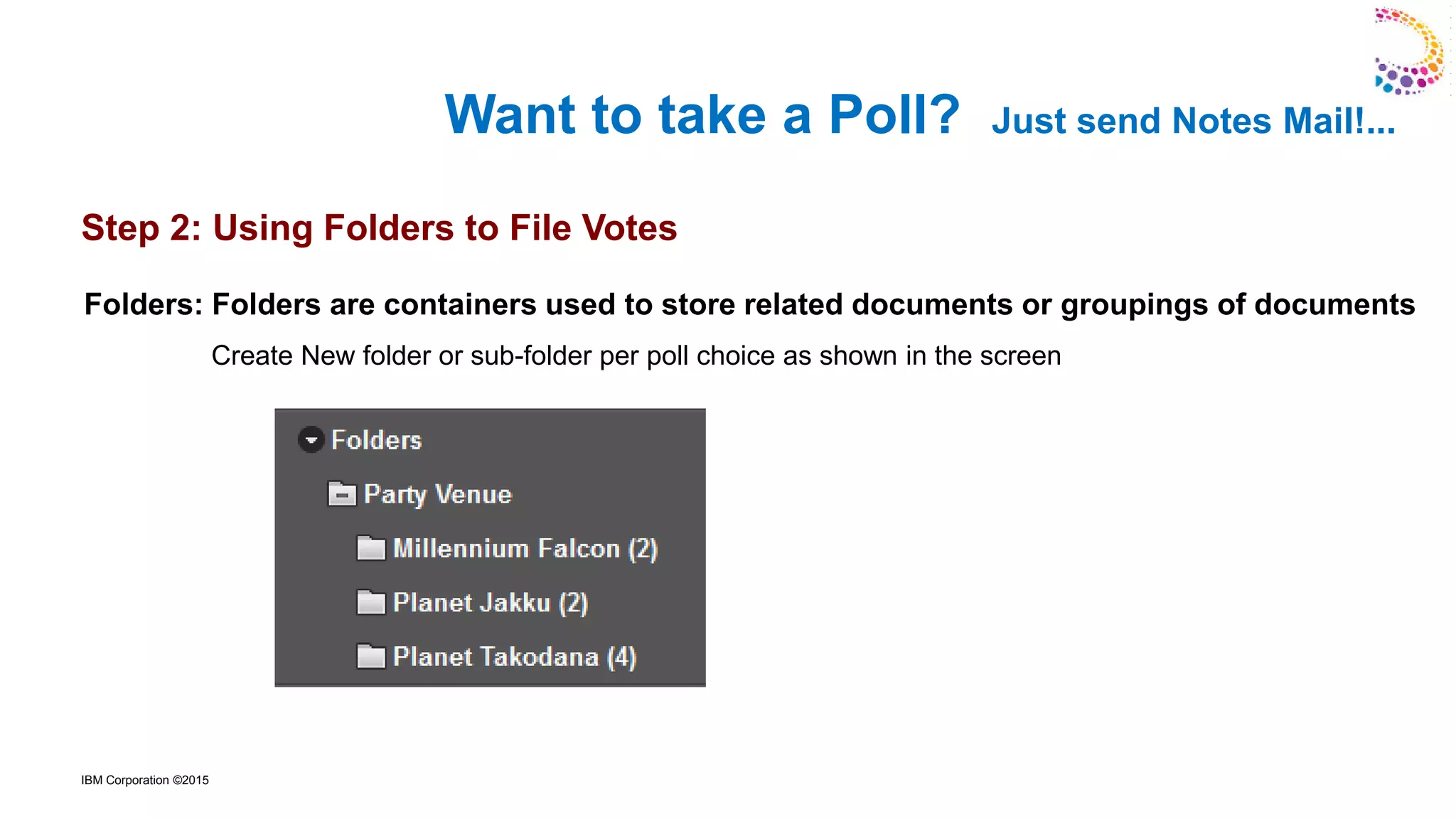
Step 2: Using Folders to File Votes
Want to take a Poll? Just send Notes Mail!...
Folders: Folders are containers used to store related documents or groupings of documents
Create New folder or sub-folder per poll choice as shown in the screen
IBM Corporation ©2015
Want to take a Poll? Just send Notes Mail!...
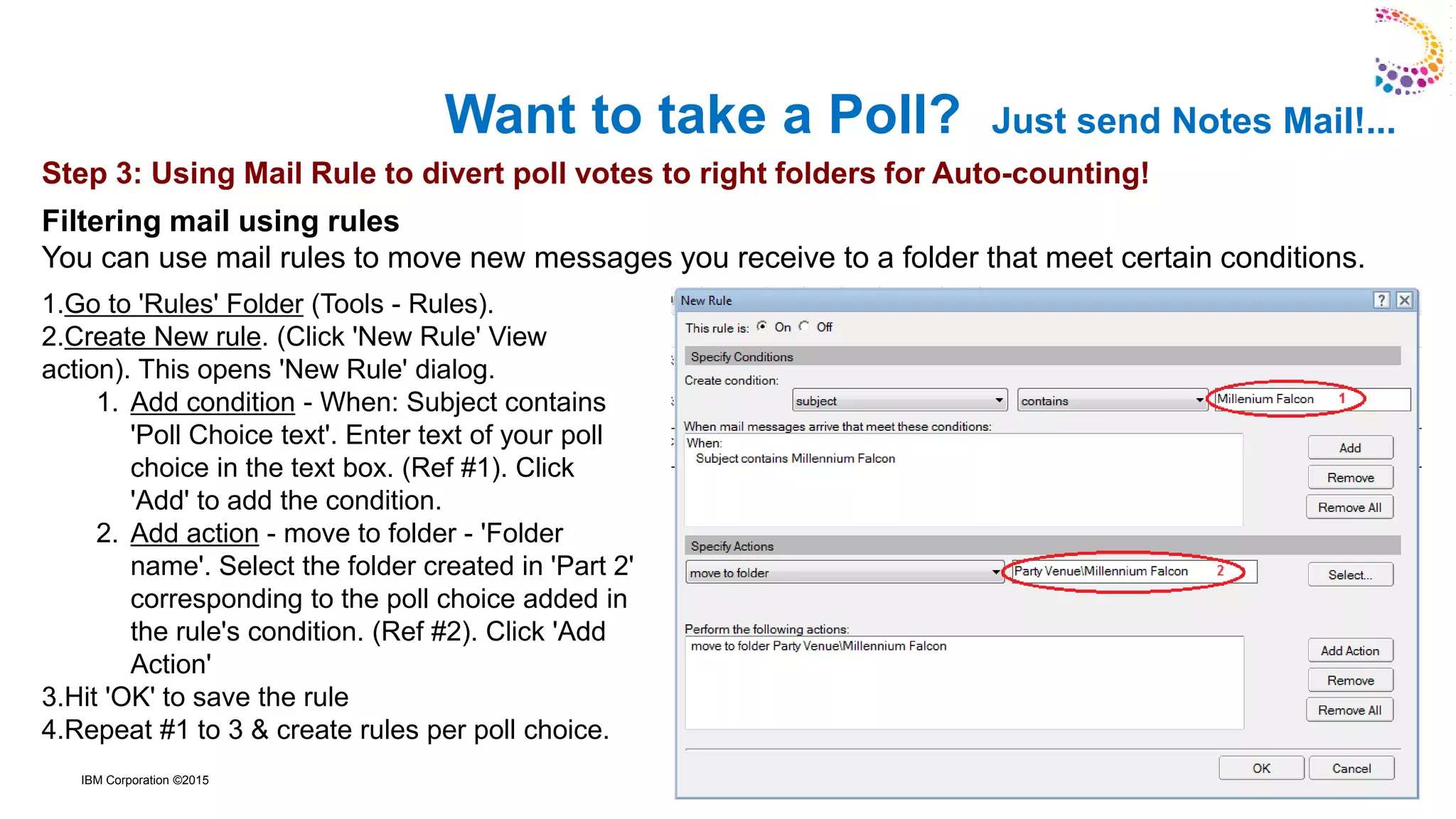
1.Go to 'Rules' Folder (Tools - Rules).
2.Create New rule. (Click 'New Rule' View
action). This opens 'New Rule' dialog.
1. Add condition - When: Subject contains
'Poll Choice text'. Enter text of your poll
choice in the text box. (Ref #1). Click
'Add' to add the condition.
2. Add action - move to folder - 'Folder
name'. Select the folder created in 'Part 2'
corresponding to the poll choice added in
the rule's condition. (Ref #2). Click 'Add
Action'
3.Hit 'OK' to save the rule
4.Repeat #1 to 3 & create rules per poll choice.
Step 3: Using Mail Rule to divert poll votes to right folders for Auto-counting!
Filtering mail using rules
You can use mail rules to move new messages you receive to a folder that meet certain conditions.
IBM Corporation ©2015
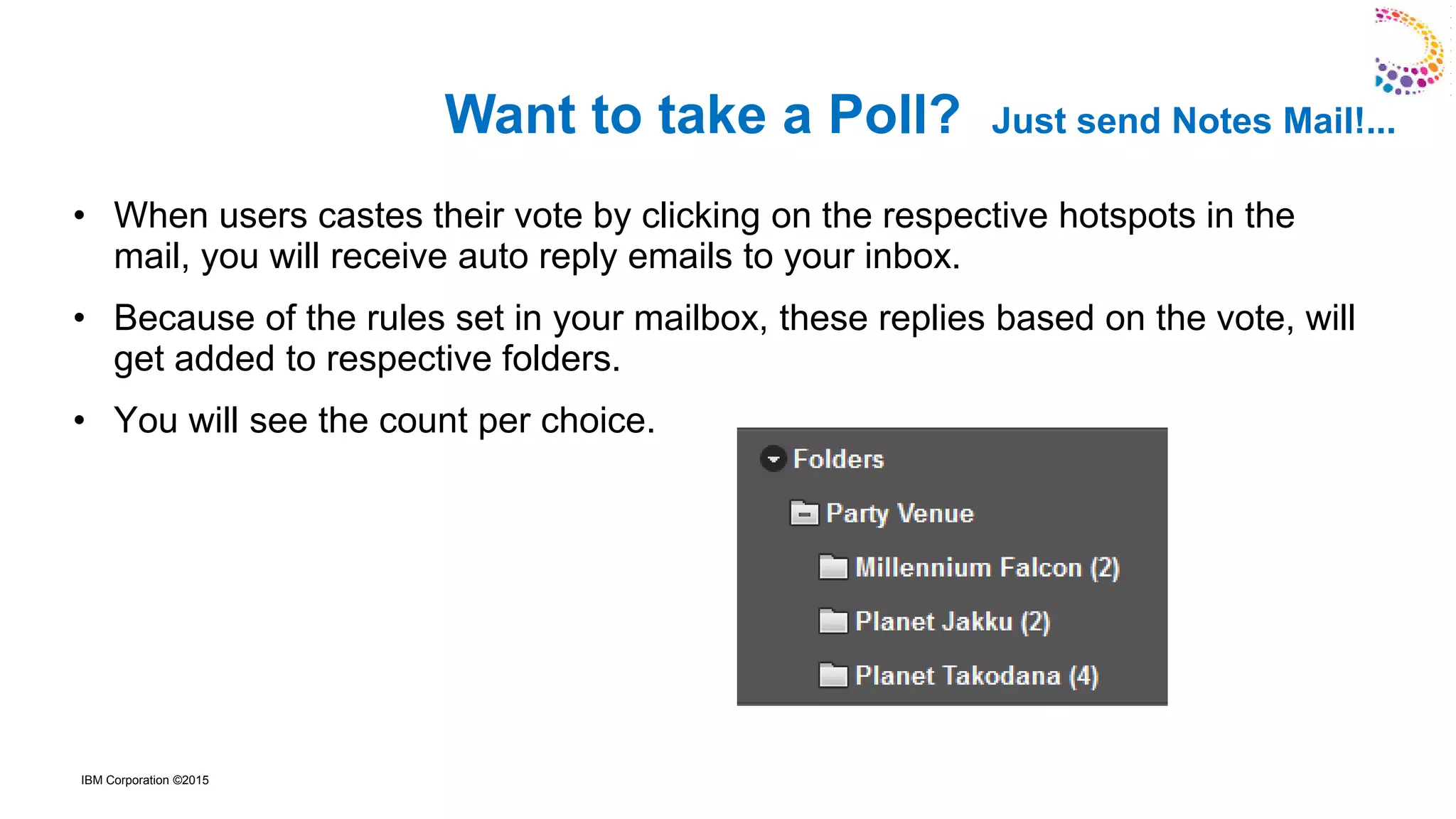
• When users castes their vote by clicking on the respective hotspots in the
mail, you will receive auto reply emails to your inbox.
• Because of the rules set in your mailbox, these replies based on the vote, will
get added to respective folders.
• You will see the count per choice.
Want to take a Poll? Just send Notes Mail!...
IBM Corporation ©2015
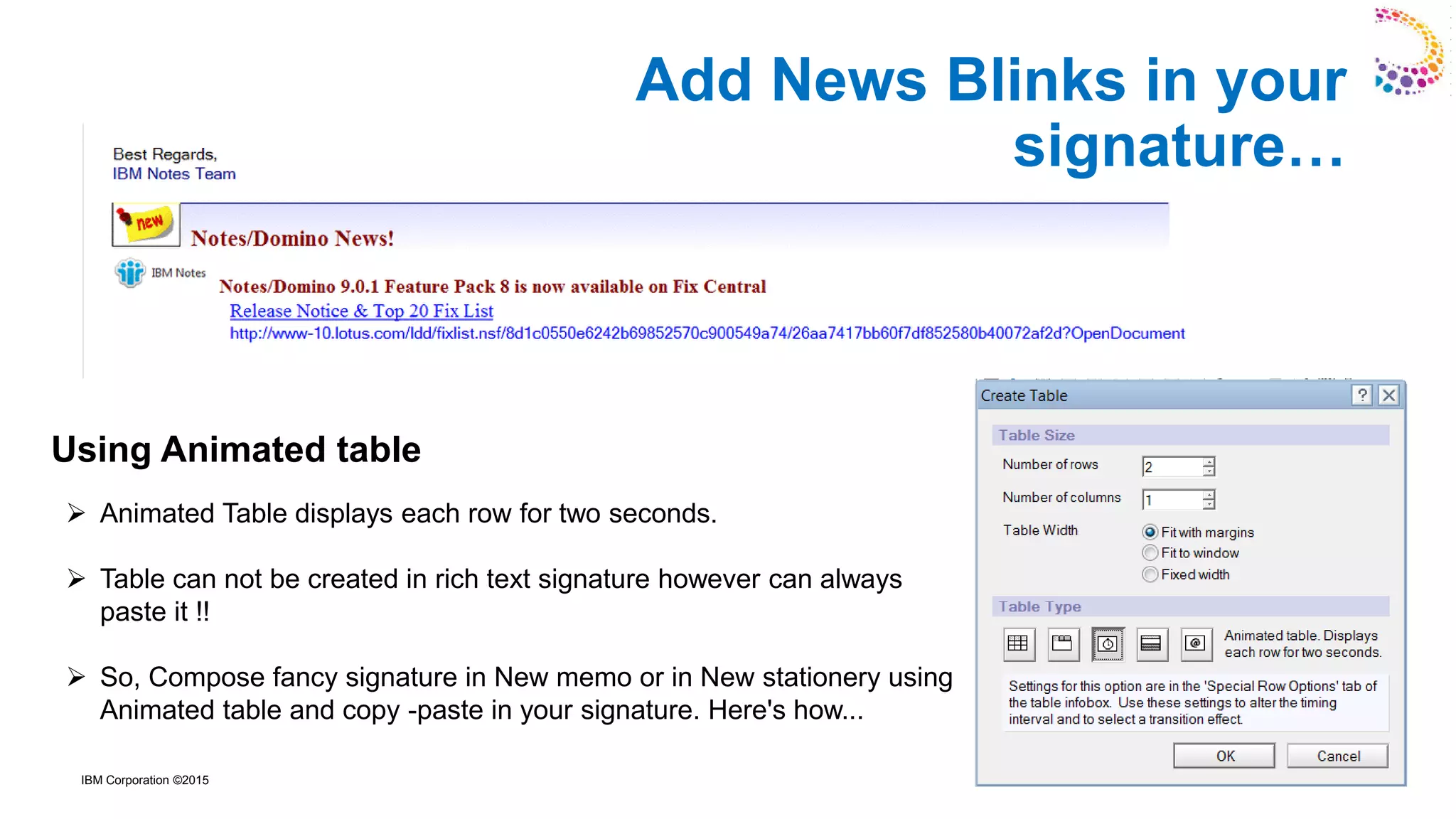
➢ Animated Table displays each row for two seconds.
➢ Table can not be created in rich text signature however can always
paste it !!
➢ So, Compose fancy signature in New memo or in New stationery using
Animated table and copy -paste in your signature. Here's how...
Using Animated table
Add News Blinks in your
signature…
IBM Corporation ©2015
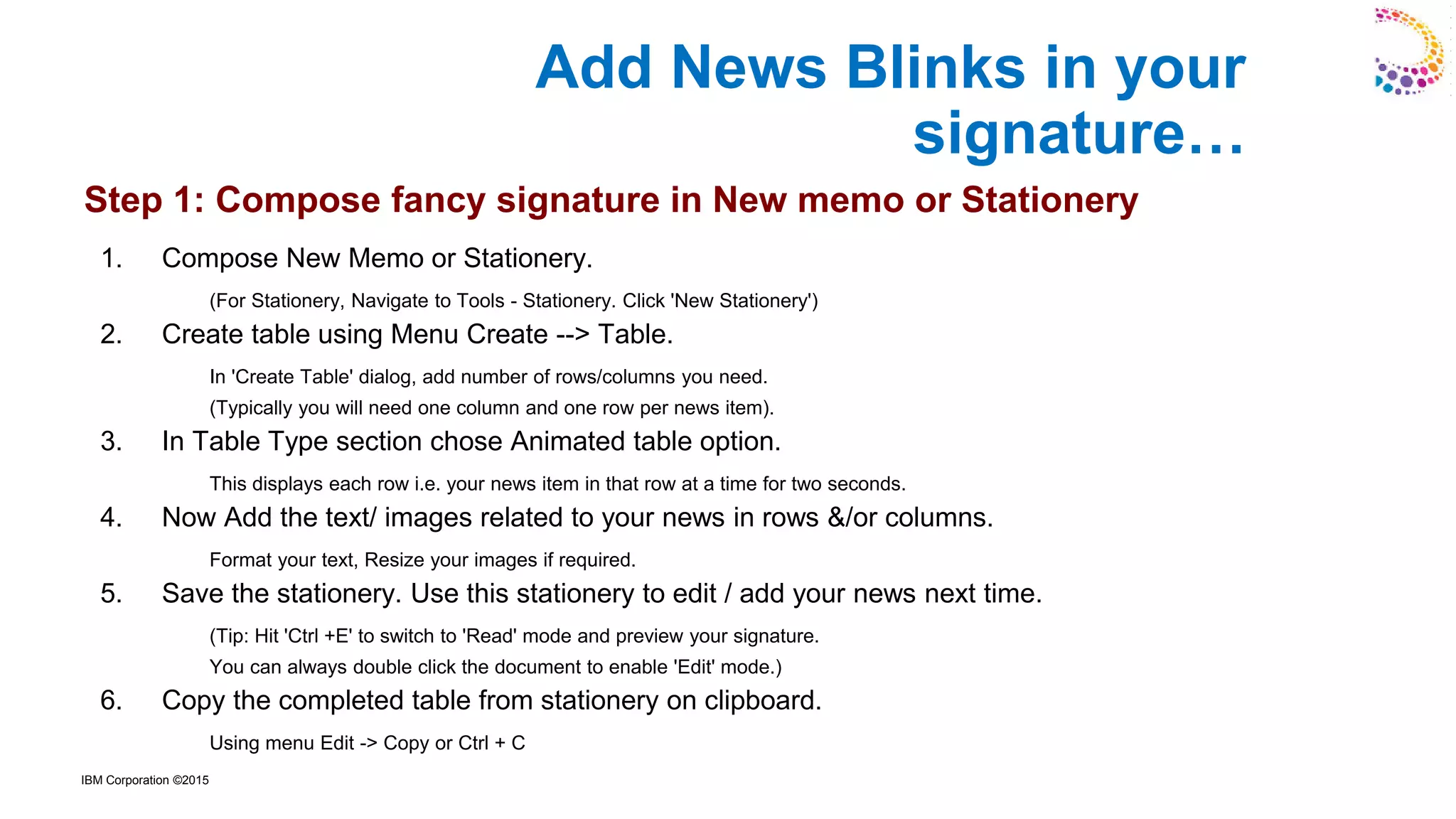
1. Compose New Memo or Stationery.
(For Stationery, Navigate to Tools - Stationery. Click 'New Stationery')
2. Create table using Menu Create --> Table.
In 'Create Table' dialog, add number of rows/columns you need.
(Typically you will need one column and one row per news item).
3. In Table Type section chose Animated table option.
This displays each row i.e. your news item in that row at a time for two seconds.
4. Now Add the text/ images related to your news in rows &/or columns.
Format your text, Resize your images if required.
5. Save the stationery. Use this stationery to edit / add your news next time.
(Tip: Hit 'Ctrl +E' to switch to 'Read' mode and preview your signature.
You can always double click the document to enable 'Edit' mode.)
6. Copy the completed table from stationery on clipboard.
Using menu Edit -> Copy or Ctrl + C
Add News Blinks in your
signature…
Step 1: Compose fancy signature in New memo or Stationery
IBM Corporation ©2015
1. Open Mail Preference using action More -> Preference
2. Go to Signature tab of Mail preference.
3. Select option ‘Automatically append a signature to the bottom of my outgoing mail messages.’
4. Set ‘Rich Text’ as Type of Signature. Paste this table in the Signature area.
5. Click on ‘OK’ to save your new signature to your preference.
6. Compose new memo and see the new signature.
Note:
➢ All Rows of the news table will be displayed to you when you are composing/ drafting Memo/ Reply/ Forward as this is Edit mode.
➢ Switching row effect will be seen in Read mode only. (In sent or received mail)
Advance effects:
➢ You can change the effects for News Blink i,e, Rolling, Left to right, Top to Bottom etc from 'Table' rows tab using Table properties.
➢ If you are adding links in your news then for right functioning of the links, for setting 'Cycle through row', 'Once when opened' option is
suggested.
Step 2: Paste the fancy signature into your Signature preference
Add News Blinks in your
signature…
IBM Corporation ©2015
The Paste Information application
https://www-10.lotus.com/ldd/dominowiki.nsf/dx/03182009025440PMWEBQ78.htm
Setting up Archive Database Auto Roll-over (Needs Notes designer)
https://www-10.lotus.com/ldd/dominowiki.nsf/dx/Setting_up_Archive_Database_Auto_Roll-over
Additional resources…
IBM Corporation ©2015
IBM 9.0.1 Social Edition documentation
https://www.ibm.com/support/knowledgecenter/en/SSKTMJ_9.0.1/welcome/domino_9.0.1.html
Welcome to the IBM Notes and Domino Wiki
https://www-10.lotus.com/ldd/dominowiki.nsf/
References
IBM Corporation ©2015
Thank You

Tip and tricks for IBM Notes Mail - JUMP Session

  • 1.
    IBM Collaboration Solutions JUMPSession Date: Tips and Tricks for IBM Notes Mail 18th May 2017
  • 2.
    IBM Corporation ©2015 2 JUMPSession Team  Maitreyee Patukale - Senior Notes Developer, Notes Client Development.  Presenter  Ranjit Rai - IBM ICS SWAT  Focusing on entire Notes/Domino  Narendra Nesarikar – IBM ICS Support Facilitator for JUMP sessions
  • 3.
    IBM Corporation ©2015 Abstract IBMNotes Users spend majority of their time with their Mail. Mail is the central resource throughout the day. We have put together few tips and tricks for you to use it more effectively. Lets discover the power of IBM Notes Mail. 3
  • 4.
    IBM Corporation ©2015 Agenda ✓Want to backup your mobile contacts? Export them to Notes contacts… ✓ Want to take a Poll? Just send Notes Mail!... ✓ Add News Blinks in your signature… ✓ Q & A 4
  • 5.
    IBM Corporation ©2015 Wantto backup your mobile contacts? Export them to Notes contacts. Here is how… • Connect your cell to your laptop. • Open the Contacts app on your mobile. • Tap the app's menu button. • Tap Import/Export. • Tap 'Export to USB storage'. • This creates 'Contacts.vcf' file. • Copy the 'Contacts.vcf' file to your laptop. Here's how: (Typically for Android) Step 1: Create and Save Contacts.vcf
  • 6.
    IBM Corporation ©2015 •Simply double click on file 'Contacts.vcf’. It opens IBM Notes Client. OR Open Notes Contacts and Select More -> Import Contacts. Select 'Contacts.vcf’. • Confirm to save all the contacts to Notes Contacts when prompted. Done! Find all the contacts from your mobile saved to your Notes Personal Address Book. Want to backup your mobile contacts? Export them to Notes contacts. Here is how… Step 2: Open Contacts.vcf in Notes Client
  • 7.
    IBM Corporation ©2015 Whyare opinion polls important? Helping regular people be heard. May it be any product UI style decision or just choosing a party venue.... Polls tell us what proportion of a population has a specific viewpoint Here's one easy to use way... Quite handy... Right in your Notes mailbox! Want to take a Poll? Just send Notes Mail!...
  • 8.
    IBM Corporation ©2015 Wantto take a Poll? Just send Notes Mail!... Here's How: - (Refer the screens enclosed below) Step 1: Compose and Send a mail to initiate poll 1.Compose a mail and Enter your Subject. 2. In the body of the message, enter the information related to your poll. 3. Then you need to add one hotspot per poll choice. Users will click the hotspot to caste vote Add new hotspot button or Action hotspot using Create -> Hotspot -> Button (or Action hotspot). This opens the Programmer's pane & hotspot properties dialog. 4. Customize the buttons to suit your poll choices 5. Add simple logic using Notes formula language behind the hotspots. 6. Send the mail to intended users to take a poll. 7. User receives this mail and hits one of the hotspots to cast the vote. 8. You receive reply mails with the user’s votes. 1. Compose a mail.
  • 9.
    IBM Corporation ©2015 Wantto take a Poll? Just send Notes Mail!... • Enter the label of the button in the button properties- Label (Ref #3). Typically, Label should include the poll choice. • Styling your button: Select the background color and style of the button (Ref #4) . • Styling your button: Select the font for the button label from 2nd tab of 'Button properties' Add new hotspot button or Action hotspot for user’s to vote using Create -> Hotspot -> Button (or Action hotspot). This opens the Programmer's pane & hotspot properties dialog. 3. Customize the buttons to suit your poll choices 2. Adding hotspots in the body of the message.
  • 10.
    IBM Corporation ©2015 Formulalanguage provides syntax and @functions for evaluating constants and variables, and for performing simple logic. @MailSend @MailSend( sendTo ; copyTo ; blindCopyTo ; subject ; message ) @MailSend composes a new mail memo based on the information you supply in the arguments list, and sends it to the recipients listed in the sendTo, copyTo, and blindcopyTo arguments @Prompt @Prompt( [OK] ; title ; prompt) Displays a dialog box to the user. @Prompt is useful for prompting a user for confirmation after user hits the hotspot while casting vote. Formula Language 4: Add simple logic using Notes formula language behind the hotspots.
  • 11.
    IBM Corporation ©2015 •Add new hotspot button or Action hotspot using Create -> Hotspot -> Button (or Action hotspot). This opens the Programmer's pane & hotspot properties dialog. • To Edit the button(s) later - right click on the button and select 'Edit Button'. (Ref #2) • Enter the formula to the click event of the hotspot in the programmer’s pane. Want to take a Poll? Just send Notes Mail!... 4. Add simple logic using Notes formula language behind the hotspots.
  • 12.
    IBM Corporation ©2015 tmpSendTo:= From; REM {Above line will make sure that the mail will be sent to you when user hits the button}; REM {Following Formula sends mail notification to you when receiver hits the button with choice included in the subject of the mail. }; Choice := "Planet Jakku"; SubjectText := "I voted for - "+ Choice; MessageText := "Thank you for offering choice. I voted for - "+ Choice; @MailSend(tmpSendTo;"" ;"" ; SubjectText; MessageText); REM {Following Formula displays a prompt to the user that she has successfully participated in the poll. }; PromptTitle := "Party Time"; PromptText := "Your venue choice '"+ Choice + "' is sent successfully."; @Prompt([Ok]; PromptTitle; PromptText) Want to take a Poll? Just send Notes Mail!...
  • 13.
    IBM Corporation ©2015 Step2: Using Folders to File Votes Want to take a Poll? Just send Notes Mail!... Folders: Folders are containers used to store related documents or groupings of documents Create New folder or sub-folder per poll choice as shown in the screen
  • 14.
    IBM Corporation ©2015 Wantto take a Poll? Just send Notes Mail!... 1.Go to 'Rules' Folder (Tools - Rules). 2.Create New rule. (Click 'New Rule' View action). This opens 'New Rule' dialog. 1. Add condition - When: Subject contains 'Poll Choice text'. Enter text of your poll choice in the text box. (Ref #1). Click 'Add' to add the condition. 2. Add action - move to folder - 'Folder name'. Select the folder created in 'Part 2' corresponding to the poll choice added in the rule's condition. (Ref #2). Click 'Add Action' 3.Hit 'OK' to save the rule 4.Repeat #1 to 3 & create rules per poll choice. Step 3: Using Mail Rule to divert poll votes to right folders for Auto-counting! Filtering mail using rules You can use mail rules to move new messages you receive to a folder that meet certain conditions.
  • 15.
    IBM Corporation ©2015 •When users castes their vote by clicking on the respective hotspots in the mail, you will receive auto reply emails to your inbox. • Because of the rules set in your mailbox, these replies based on the vote, will get added to respective folders. • You will see the count per choice. Want to take a Poll? Just send Notes Mail!...
  • 16.
    IBM Corporation ©2015 ➢Animated Table displays each row for two seconds. ➢ Table can not be created in rich text signature however can always paste it !! ➢ So, Compose fancy signature in New memo or in New stationery using Animated table and copy -paste in your signature. Here's how... Using Animated table Add News Blinks in your signature…
  • 17.
    IBM Corporation ©2015 1.Compose New Memo or Stationery. (For Stationery, Navigate to Tools - Stationery. Click 'New Stationery') 2. Create table using Menu Create --> Table. In 'Create Table' dialog, add number of rows/columns you need. (Typically you will need one column and one row per news item). 3. In Table Type section chose Animated table option. This displays each row i.e. your news item in that row at a time for two seconds. 4. Now Add the text/ images related to your news in rows &/or columns. Format your text, Resize your images if required. 5. Save the stationery. Use this stationery to edit / add your news next time. (Tip: Hit 'Ctrl +E' to switch to 'Read' mode and preview your signature. You can always double click the document to enable 'Edit' mode.) 6. Copy the completed table from stationery on clipboard. Using menu Edit -> Copy or Ctrl + C Add News Blinks in your signature… Step 1: Compose fancy signature in New memo or Stationery
  • 18.
    IBM Corporation ©2015 1.Open Mail Preference using action More -> Preference 2. Go to Signature tab of Mail preference. 3. Select option ‘Automatically append a signature to the bottom of my outgoing mail messages.’ 4. Set ‘Rich Text’ as Type of Signature. Paste this table in the Signature area. 5. Click on ‘OK’ to save your new signature to your preference. 6. Compose new memo and see the new signature. Note: ➢ All Rows of the news table will be displayed to you when you are composing/ drafting Memo/ Reply/ Forward as this is Edit mode. ➢ Switching row effect will be seen in Read mode only. (In sent or received mail) Advance effects: ➢ You can change the effects for News Blink i,e, Rolling, Left to right, Top to Bottom etc from 'Table' rows tab using Table properties. ➢ If you are adding links in your news then for right functioning of the links, for setting 'Cycle through row', 'Once when opened' option is suggested. Step 2: Paste the fancy signature into your Signature preference Add News Blinks in your signature…
  • 19.
    IBM Corporation ©2015 ThePaste Information application https://www-10.lotus.com/ldd/dominowiki.nsf/dx/03182009025440PMWEBQ78.htm Setting up Archive Database Auto Roll-over (Needs Notes designer) https://www-10.lotus.com/ldd/dominowiki.nsf/dx/Setting_up_Archive_Database_Auto_Roll-over Additional resources…
  • 20.
    IBM Corporation ©2015 IBM9.0.1 Social Edition documentation https://www.ibm.com/support/knowledgecenter/en/SSKTMJ_9.0.1/welcome/domino_9.0.1.html Welcome to the IBM Notes and Domino Wiki https://www-10.lotus.com/ldd/dominowiki.nsf/ References
  • 21.