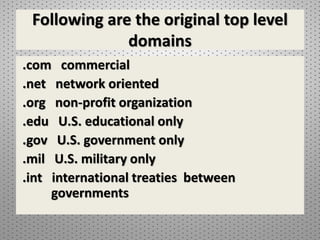
Following are the original top level
domains
.com commercial
.net network oriented
.org non-profit organization
.edu U.S. educational only
.gov U.S. government only
.mil U.S. military only
.int international treaties between
governments
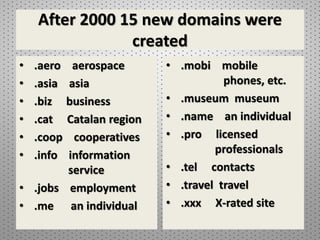
After 2000 15 new domains were
created
• .aero aerospace
• .asia asia
• .biz business
• .cat Catalan region
• .coop cooperatives
• .info information
service
• .jobs employment
• .me an individual
• .mobi mobile
phones, etc.
• .museum museum
• .name an individual
• .pro licensed
professionals
• .tel contacts
• .travel travel
• .xxx X-rated site
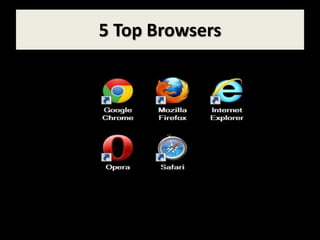
5 Top Browsers
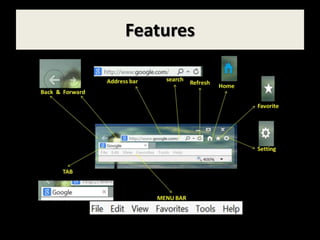
Features
Search Engines
Keywords Search
Many search engines by default offer a
keyword search. This kind of search will find all
pages that contain any of the words you have
specified. Moreover, the search will find the
words in any order and in any location. For
example…
Phrase Search
Many search engines allow you to perform an
exact phrase search, so that pages with only
the words you type in, in that exact order and
with no words in between them, will be found.
The exact phrase search is often a remedy for
too many irrelevant hits. To perform an exact
phrase search at a search engine that permits
it, put the phrase in quotation marks: “your
phrase here”
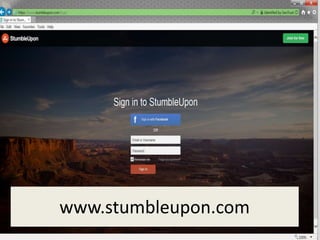
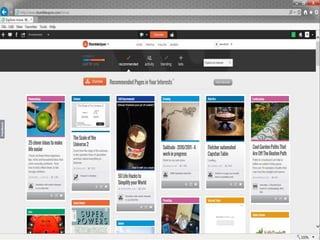
www.stumbleupon.com
NEVER KNOW WHAT YOU WILL FIND!
Conclusion
For any further training make an appointment with Resident IT Support
Thursday’s 9 am – 2 pm or by appointment
Call xxx-xxx-xxxx
For a copy of this Presentation see Adam Ripsam
Any questions?
Email 101
• Part 1 - Introduction
– Explaining email
– Parts of an email address
– Types of email services
– Acquiring an email account
• Part 2 – Sending and Receiving
Email
– Signing in
– Composing and sending
– Checking mail
– Replying and Forwarding
Part 3 – Managing Your Messages
– Deleting messages
– The “Trash” folder
– Email security
– Signing out
Part 1: Introduction
What is Email and Why is it Popular?
• An electronic message sent from one computer to another.
• Email saves money and time compared to regular mail.
• An email message takes seconds to reach destination.
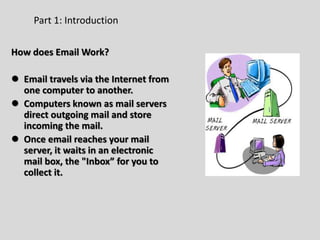
How does Email Work?
 Email travels via the Internet from
one computer to another.
 Computers known as mail servers
direct outgoing mail and store
incoming the mail.
 Once email reaches your mail
server, it waits in an electronic
mail box, the "Inbox” for you to
collect it.
Part 1: Introduction
Things You Can Do with Email
• Compose and Send: write an email and send it to others.
• Reply: reply to an email that you received.
• Forward: pass on an email that you received to others.
• Attachment: You can send files with your email such as:
pictures, music, software and documents
Part 1: Introduction
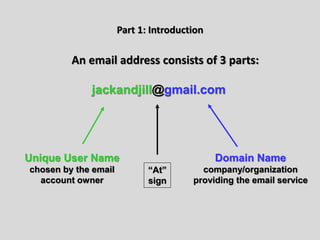
An email address consists of 3 parts:
Unique User Name
chosen by the email
account owner
Domain Name
company/organization
providing the email service
jackandjill@gmail.com
“At”
sign
Part 1: Introduction
Two Ways to Get Email
1. Provided by your Internet Service Provider
Monthly fee for internet connection often includes email service.
• ATT - ...@att.net
• Comcast - …@comcast.com
2. Free Web-Based Service Providers
Advertising on the site pays for the service.
• Gmail - …@gmail.com
• Hotmail - …@hotmail.com
• Yahoo - …@yahoo.com
Part 1: Introduction
Two Ways People Check Email
1. Web-Based Email
• Login to a web site
• Messages stay on the mail server
• Can be accessed from any computer with internet connection
2. Using Email Software
• Open and login to your email software application (e.g. Outlook)
• The application retrieves your messages from the mail server and saves
them to your computer’s hard drive
Part 1: Introduction
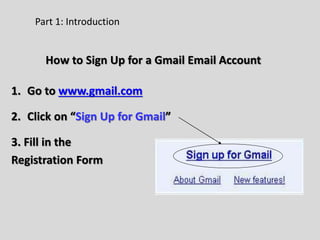
How to Sign Up for a Gmail Email Account
1. Go to www.gmail.com
2. Click on “Sign Up for Gmail”
3. Fill in the
Registration Form
Part 1: Introduction
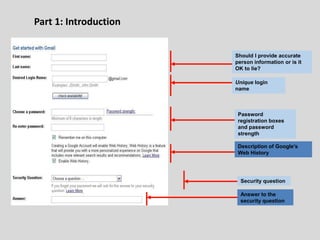
Should I provide accurate
person information or is it
OK to lie?
Unique login
name
Password
registration boxes
and password
strength
Security question
Answer to the
security question
Description of Google’s
Web History
Part 1: Introduction
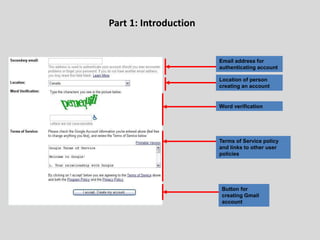
Email address for
authenticating account
Location of person
creating an account
Word verification
Terms of Service policy
and links to other user
policies
Button for
creating Gmail
account
Part 1: Introduction
Getting Registration Help
1. Gmail provides a registration help section. Click on
“Help” at the bottom of the registration page.
2. Book a computer at the library and ask the
Information Desk staff for assistance.
Part 2: Sending and Receiving Email
Three Exercises
1. Signing in (“Logging In”) to Gmail
2. Sending a message to your class partner
3. Reading new messages in your “Inbox”
Part 2: Sending and Receiving Email
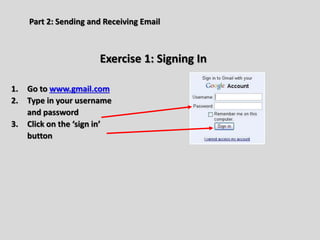
Exercise 1: Signing In
1. Go to www.gmail.com
2. Type in your username
and password
3. Click on the ‘sign in’
button
Part 2: Sending and Receiving Email
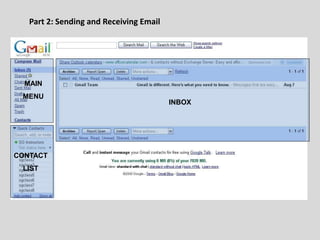
INBOX
MAIN
MENU
CONTACT
LIST
Part 2: Sending and Receiving Email
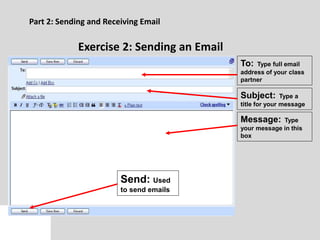
Exercise 2: Sending an Email
To: Type full email
address of your class
partner
Subject: Type a
title for your message
Message: Type
your message in this
box
Send: Used
to send emails
Part 2: Sending and Receiving Email
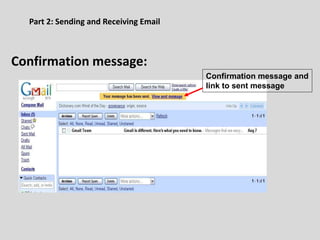
Confirmation message:
Confirmation message and
link to sent message
Part 2: Sending and Receiving Email
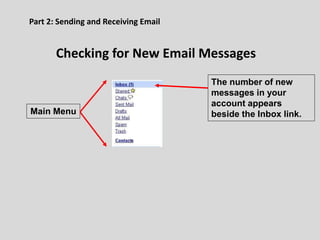
Checking for New Email Messages
The number of new
messages in your
account appears
beside the Inbox link.Main Menu
Part 2: Sending and Receiving Email
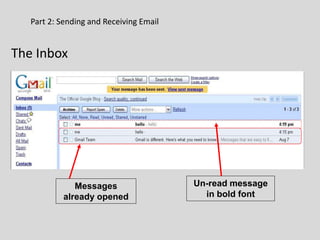
The Inbox
Messages
already opened
Un-read message
in bold font
Part 2: Sending and Receiving Email
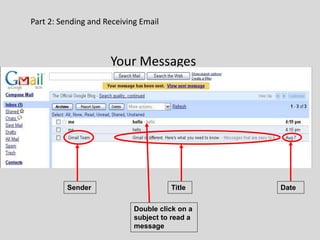
Your Messages
TitleSender Date
Double click on a
subject to read a
message
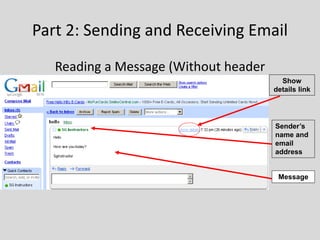
Reading a Message (Without header
information)
Part 2: Sending and Receiving Email
Message
Sender’s
name and
email
address
Show
details link
Part 2: Sending and Receiving Email
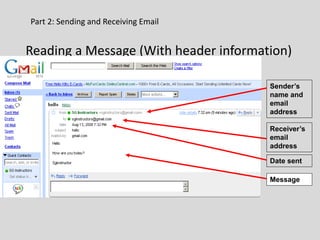
Reading a Message (With header information)
Message
Date sent
Sender’s
name and
email
address
Receiver’s
email
address
Part 3: Managing your Messages
Replying to a Message
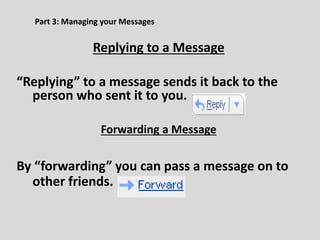
“Replying” to a message sends it back to the
person who sent it to you.
Forwarding a Message
By “forwarding” you can pass a message on to
other friends.
Part 3: Managing your Messages
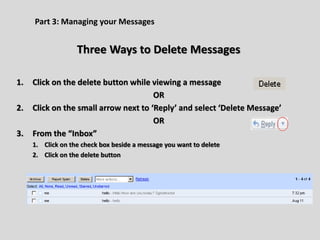
Three Ways to Delete Messages
1. Click on the delete button while viewing a message
OR
2. Click on the small arrow next to ‘Reply’ and select ‘Delete Message’
OR
3. From the “Inbox”
1. Click on the check box beside a message you want to delete
2. Click on the delete button
Part 3: Managing your Messages
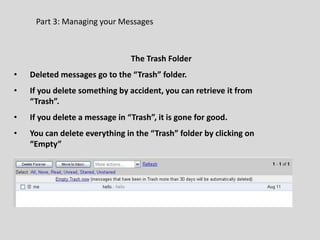
The Trash Folder
• Deleted messages go to the “Trash” folder.
• If you delete something by accident, you can retrieve it from
“Trash”.
• If you delete a message in “Trash”, it is gone for good.
• You can delete everything in the “Trash” folder by clicking on
“Empty”
Protect yourself
• Many online thieves go after senior citizens
because they likely have a solid nest egg and
have excellent credit, two appealing traits for
thieves.
• Unfortunately, seniors are more likely to fall
victim to Internet fraud such as non-delivery
of items ordered online and credit and debit
card scams.
Conclusion
Email Security
• Always sign out, especially if you are using a public computer!
• Never send your SIN or bank account number by email.
• Beware of messages that:
– Ask for your bank account information, even if they say they want to put money into
your account (e.g. The Nigerian Scam)
– Ask you to click on a link, login and verify personal information (e.g. Phishing bank
scams)
– inform you that you have won a prize/money and ask for personal information in order
to give you your prize
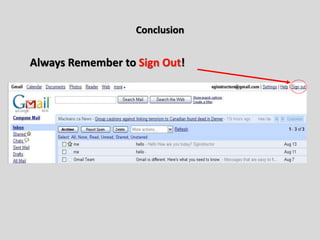
Conclusion
Always Remember to Sign Out!
Conclusion
For any further training make an appointment with Resident IT Support
Thursday’s 9 am – 2 pm or by appointment
Call xxx-xxx-xxxx
For a copy of this Presentation see Adam Ripsam
Any questions?

Internet and Email 101 v1

  • 4.
    Following are theoriginal top level domains .com commercial .net network oriented .org non-profit organization .edu U.S. educational only .gov U.S. government only .mil U.S. military only .int international treaties between governments
  • 5.
    After 2000 15new domains were created • .aero aerospace • .asia asia • .biz business • .cat Catalan region • .coop cooperatives • .info information service • .jobs employment • .me an individual • .mobi mobile phones, etc. • .museum museum • .name an individual • .pro licensed professionals • .tel contacts • .travel travel • .xxx X-rated site
  • 6.
  • 7.
  • 8.
  • 9.
    Keywords Search Many searchengines by default offer a keyword search. This kind of search will find all pages that contain any of the words you have specified. Moreover, the search will find the words in any order and in any location. For example…
  • 10.
    Phrase Search Many searchengines allow you to perform an exact phrase search, so that pages with only the words you type in, in that exact order and with no words in between them, will be found. The exact phrase search is often a remedy for too many irrelevant hits. To perform an exact phrase search at a search engine that permits it, put the phrase in quotation marks: “your phrase here”
  • 12.
  • 14.
    NEVER KNOW WHATYOU WILL FIND!
  • 15.
    Conclusion For any furthertraining make an appointment with Resident IT Support Thursday’s 9 am – 2 pm or by appointment Call xxx-xxx-xxxx For a copy of this Presentation see Adam Ripsam Any questions?
  • 17.
    Email 101 • Part1 - Introduction – Explaining email – Parts of an email address – Types of email services – Acquiring an email account • Part 2 – Sending and Receiving Email – Signing in – Composing and sending – Checking mail – Replying and Forwarding Part 3 – Managing Your Messages – Deleting messages – The “Trash” folder – Email security – Signing out
  • 18.
    Part 1: Introduction Whatis Email and Why is it Popular? • An electronic message sent from one computer to another. • Email saves money and time compared to regular mail. • An email message takes seconds to reach destination.
  • 19.
    How does EmailWork?  Email travels via the Internet from one computer to another.  Computers known as mail servers direct outgoing mail and store incoming the mail.  Once email reaches your mail server, it waits in an electronic mail box, the "Inbox” for you to collect it. Part 1: Introduction
  • 20.
    Part 1: Introduction ThingsYou Can Do with Email • Compose and Send: write an email and send it to others. • Reply: reply to an email that you received. • Forward: pass on an email that you received to others. • Attachment: You can send files with your email such as: pictures, music, software and documents
  • 21.
    Part 1: Introduction Anemail address consists of 3 parts: Unique User Name chosen by the email account owner Domain Name company/organization providing the email service jackandjill@gmail.com “At” sign
  • 22.
    Part 1: Introduction TwoWays to Get Email 1. Provided by your Internet Service Provider Monthly fee for internet connection often includes email service. • ATT - ...@att.net • Comcast - …@comcast.com 2. Free Web-Based Service Providers Advertising on the site pays for the service. • Gmail - …@gmail.com • Hotmail - …@hotmail.com • Yahoo - …@yahoo.com
  • 23.
    Part 1: Introduction TwoWays People Check Email 1. Web-Based Email • Login to a web site • Messages stay on the mail server • Can be accessed from any computer with internet connection 2. Using Email Software • Open and login to your email software application (e.g. Outlook) • The application retrieves your messages from the mail server and saves them to your computer’s hard drive
  • 24.
    Part 1: Introduction Howto Sign Up for a Gmail Email Account 1. Go to www.gmail.com 2. Click on “Sign Up for Gmail” 3. Fill in the Registration Form
  • 25.
    Part 1: Introduction ShouldI provide accurate person information or is it OK to lie? Unique login name Password registration boxes and password strength Security question Answer to the security question Description of Google’s Web History
  • 26.
    Part 1: Introduction Emailaddress for authenticating account Location of person creating an account Word verification Terms of Service policy and links to other user policies Button for creating Gmail account
  • 27.
    Part 1: Introduction GettingRegistration Help 1. Gmail provides a registration help section. Click on “Help” at the bottom of the registration page. 2. Book a computer at the library and ask the Information Desk staff for assistance.
  • 28.
    Part 2: Sendingand Receiving Email Three Exercises 1. Signing in (“Logging In”) to Gmail 2. Sending a message to your class partner 3. Reading new messages in your “Inbox”
  • 29.
    Part 2: Sendingand Receiving Email Exercise 1: Signing In 1. Go to www.gmail.com 2. Type in your username and password 3. Click on the ‘sign in’ button
  • 30.
    Part 2: Sendingand Receiving Email INBOX MAIN MENU CONTACT LIST
  • 31.
    Part 2: Sendingand Receiving Email Exercise 2: Sending an Email To: Type full email address of your class partner Subject: Type a title for your message Message: Type your message in this box Send: Used to send emails
  • 32.
    Part 2: Sendingand Receiving Email Confirmation message: Confirmation message and link to sent message
  • 33.
    Part 2: Sendingand Receiving Email Checking for New Email Messages The number of new messages in your account appears beside the Inbox link.Main Menu
  • 34.
    Part 2: Sendingand Receiving Email The Inbox Messages already opened Un-read message in bold font
  • 35.
    Part 2: Sendingand Receiving Email Your Messages TitleSender Date Double click on a subject to read a message
  • 36.
    Reading a Message(Without header information) Part 2: Sending and Receiving Email Message Sender’s name and email address Show details link
  • 37.
    Part 2: Sendingand Receiving Email Reading a Message (With header information) Message Date sent Sender’s name and email address Receiver’s email address
  • 38.
    Part 3: Managingyour Messages Replying to a Message “Replying” to a message sends it back to the person who sent it to you. Forwarding a Message By “forwarding” you can pass a message on to other friends.
  • 39.
    Part 3: Managingyour Messages Three Ways to Delete Messages 1. Click on the delete button while viewing a message OR 2. Click on the small arrow next to ‘Reply’ and select ‘Delete Message’ OR 3. From the “Inbox” 1. Click on the check box beside a message you want to delete 2. Click on the delete button
  • 40.
    Part 3: Managingyour Messages The Trash Folder • Deleted messages go to the “Trash” folder. • If you delete something by accident, you can retrieve it from “Trash”. • If you delete a message in “Trash”, it is gone for good. • You can delete everything in the “Trash” folder by clicking on “Empty”
  • 41.
    Protect yourself • Manyonline thieves go after senior citizens because they likely have a solid nest egg and have excellent credit, two appealing traits for thieves. • Unfortunately, seniors are more likely to fall victim to Internet fraud such as non-delivery of items ordered online and credit and debit card scams.
  • 42.
    Conclusion Email Security • Alwayssign out, especially if you are using a public computer! • Never send your SIN or bank account number by email. • Beware of messages that: – Ask for your bank account information, even if they say they want to put money into your account (e.g. The Nigerian Scam) – Ask you to click on a link, login and verify personal information (e.g. Phishing bank scams) – inform you that you have won a prize/money and ask for personal information in order to give you your prize
  • 43.
  • 44.
    Conclusion For any furthertraining make an appointment with Resident IT Support Thursday’s 9 am – 2 pm or by appointment Call xxx-xxx-xxxx For a copy of this Presentation see Adam Ripsam Any questions?