PAGE
FORMATTING
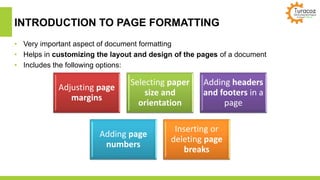
INTRODUCTION TO PAGE FORMATTING
• Very important aspect of document formatting
• Helps in customizing the layout and design of the pages of a document
• Includes the following options:
Adjusting page
margins
Selecting paper
size and
orientation
Adding headers
and footers in a
page
Adding page
numbers
Inserting or
deleting page
breaks
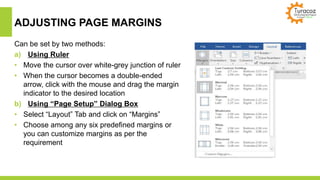
ADJUSTING PAGE MARGINS
Can be set by two methods:
a) Using Ruler
• Move the cursor over white-grey junction of ruler
• When the cursor becomes a double-ended
arrow, click with the mouse and drag the margin
indicator to the desired location
b) Using “Page Setup” Dialog Box
• Select “Layout” Tab and click on “Margins”
• Choose among any six predefined margins or
you can customize margins as per the
requirement
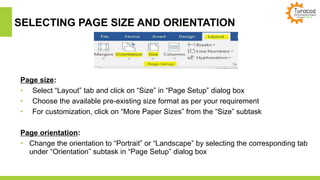
SELECTING PAGE SIZE AND ORIENTATION
Page size:
• Select “Layout” tab and click on “Size” in “Page Setup” dialog box
• Choose the available pre-existing size format as per your requirement
• For customization, click on “More Paper Sizes” from the “Size” subtask
Page orientation:
• Change the orientation to “Portrait” or “Landscape” by selecting the corresponding tab
under “Orientation” subtask in “Page Setup” dialog box
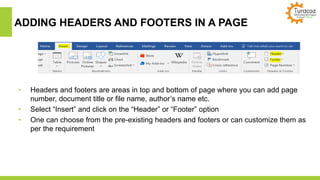
ADDING HEADERS AND FOOTERS IN A PAGE
• Headers and footers are areas in top and bottom of page where you can add page
number, document title or file name, author’s name etc.
• Select “Insert” and click on the “Header” or “Footer” option
• One can choose from the pre-existing headers and footers or can customize them as
per the requirement
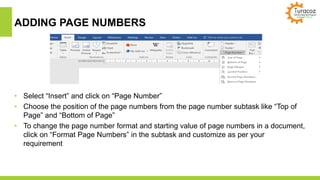
ADDING PAGE NUMBERS
• Select “Insert” and click on “Page Number”
• Choose the position of the page numbers from the page number subtask like “Top of
Page” and “Bottom of Page”
• To change the page number format and starting value of page numbers in a document,
click on “Format Page Numbers” in the subtask and customize as per your
requirement
INSERTING/DELETING PAGE BREAKS
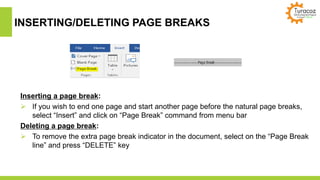
Inserting a page break:
 If you wish to end one page and start another page before the natural page breaks,
select “Insert” and click on “Page Break” command from menu bar
Deleting a page break:
 To remove the extra page break indicator in the document, select on the “Page Break
line” and press “DELETE” key
Turacoz Skill Development Program
973, H-block First Floor Sector-7,
Dwarka, New Delhi-110075.
+91 – 9810036125
011 – 47039856
hello@turacoz.in
www.tmedicalwritingtraining.com
Thank you

Page Formatting

  • 1.
  • 2.
    INTRODUCTION TO PAGEFORMATTING • Very important aspect of document formatting • Helps in customizing the layout and design of the pages of a document • Includes the following options: Adjusting page margins Selecting paper size and orientation Adding headers and footers in a page Adding page numbers Inserting or deleting page breaks
  • 3.
    ADJUSTING PAGE MARGINS Canbe set by two methods: a) Using Ruler • Move the cursor over white-grey junction of ruler • When the cursor becomes a double-ended arrow, click with the mouse and drag the margin indicator to the desired location b) Using “Page Setup” Dialog Box • Select “Layout” Tab and click on “Margins” • Choose among any six predefined margins or you can customize margins as per the requirement
  • 4.
    SELECTING PAGE SIZEAND ORIENTATION Page size: • Select “Layout” tab and click on “Size” in “Page Setup” dialog box • Choose the available pre-existing size format as per your requirement • For customization, click on “More Paper Sizes” from the “Size” subtask Page orientation: • Change the orientation to “Portrait” or “Landscape” by selecting the corresponding tab under “Orientation” subtask in “Page Setup” dialog box
  • 5.
    ADDING HEADERS ANDFOOTERS IN A PAGE • Headers and footers are areas in top and bottom of page where you can add page number, document title or file name, author’s name etc. • Select “Insert” and click on the “Header” or “Footer” option • One can choose from the pre-existing headers and footers or can customize them as per the requirement
  • 6.
    ADDING PAGE NUMBERS •Select “Insert” and click on “Page Number” • Choose the position of the page numbers from the page number subtask like “Top of Page” and “Bottom of Page” • To change the page number format and starting value of page numbers in a document, click on “Format Page Numbers” in the subtask and customize as per your requirement
  • 7.
    INSERTING/DELETING PAGE BREAKS Insertinga page break:  If you wish to end one page and start another page before the natural page breaks, select “Insert” and click on “Page Break” command from menu bar Deleting a page break:  To remove the extra page break indicator in the document, select on the “Page Break line” and press “DELETE” key
  • 8.
    Turacoz Skill DevelopmentProgram 973, H-block First Floor Sector-7, Dwarka, New Delhi-110075. +91 – 9810036125 011 – 47039856 hello@turacoz.in www.tmedicalwritingtraining.com Thank you