Formatting and
Editing Skills
Apply formatting and editing
features and operational keys
appropriately.
Word Processing
Word processing software is a type of
application software that is used for creating
text documents, such as:
 letters,
 memos, and
 reports
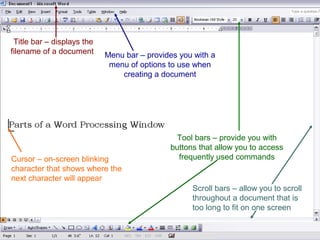
Title bar – displays the
filename of a document Menu bar – provides you with a
menu of options to use when
creating a document
Tool bars – provide you with
buttons that allow you to access
frequently used commands
Scroll bars – allow you to scroll
throughout a document that is
too long to fit on one screen
Cursor – on-screen blinking
character that shows where the
next character will appear
Typing Paper
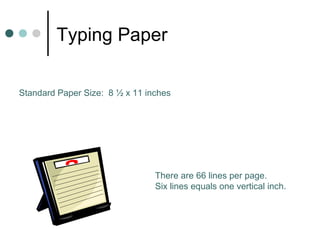
Standard Paper Size: 8 ½ x 11 inches
There are 66 lines per page.
Six lines equals one vertical inch.
Page Orientation
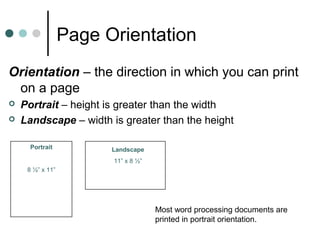
Orientation – the direction in which you can print
on a page
 Portrait – height is greater than the width
 Landscape – width is greater than the height
Portrait
8 ½” x 11”
Landscape
11” x 8 ½”
Most word processing documents are
printed in portrait orientation.
Document Margins
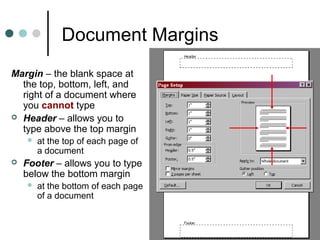
Margin – the blank space at
the top, bottom, left, and
right of a document where
you cannot type
 Header – allows you to
type above the top margin
 at the top of each page of
a document
 Footer – allows you to type
below the bottom margin
 at the bottom of each page
of a document
Text Alignment
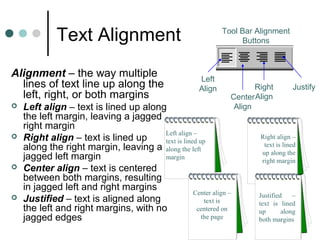
Alignment – the way multiple
lines of text line up along the
left, right, or both margins
 Left align – text is lined up along
the left margin, leaving a jagged
right margin
 Right align – text is lined up
along the right margin, leaving a
jagged left margin
 Center align – text is centered
between both margins, resulting
in jagged left and right margins
 Justified – text is aligned along
the left and right margins, with no
jagged edges
Tool Bar Alignment
Buttons
Left
Align
Center
Align
Right
Align
Justify
Left align –
text is lined up
along the left
margin
Center align –
text is
centered on
the page
Right align –
text is lined
up along the
right margin
Justified –
text is lined
up along
both margins
Line Spacing
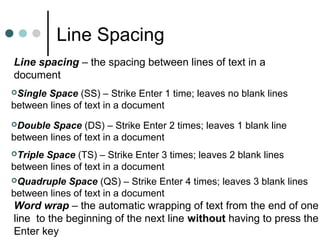
Line spacing – the spacing between lines of text in a
document
Single Space (SS) – Strike Enter 1 time; leaves no blank lines
between lines of text in a document
Double Space (DS) – Strike Enter 2 times; leaves 1 blank line
between lines of text in a document
Triple Space (TS) – Strike Enter 3 times; leaves 2 blank lines
between lines of text in a document
Quadruple Space (QS) – Strike Enter 4 times; leaves 3 blank lines
between lines of text in a document
Word wrap – the automatic wrapping of text from the end of one
line to the beginning of the next line without having to press the
Enter key
Horizontal Centering
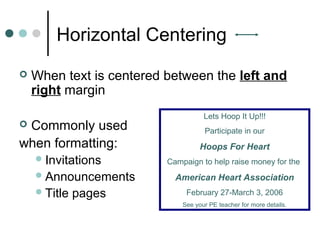
 When text is centered between the left and
right margin
 Commonly used
when formatting:
Invitations
Announcements
Title pages
Lets Hoop It Up!!!
Participate in our
Hoops For Heart
Campaign to help raise money for the
American Heart Association
February 27-March 3, 2006
See your PE teacher for more details.
Horizontal Centering
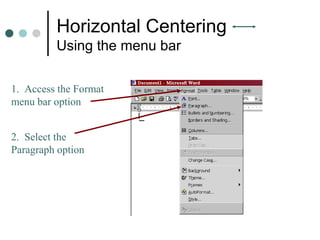
Using the menu bar
1. Access the Format
menu bar option
2. Select the
Paragraph option
Horizontal Centering
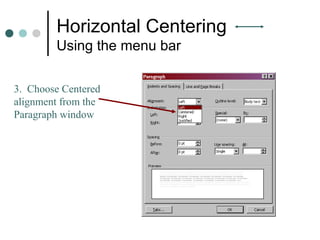
Using the menu bar
3. Choose Centered
alignment from the
Paragraph window
Horizontal Centering
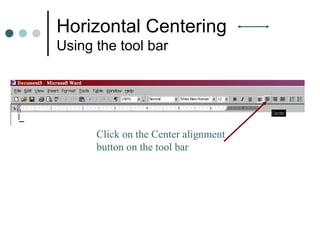
Using the tool bar
Click on the Center alignment
button on the tool bar
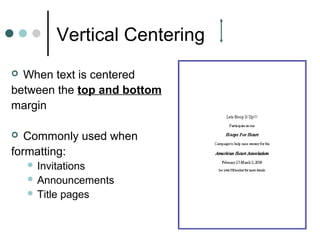
Vertical Centering
 When text is centered
between the top and bottom
margin
 Commonly used when
formatting:
 Invitations
 Announcements
 Title pages
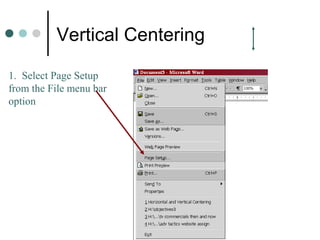
Vertical Centering
1. Select Page Setup
from the File menu bar
option
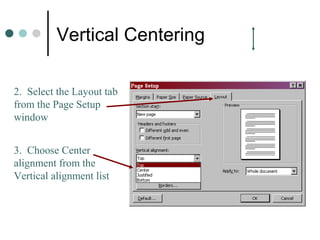
Vertical Centering
2. Select the Layout tab
from the Page Setup
window
3. Choose Center
alignment from the
Vertical alignment list
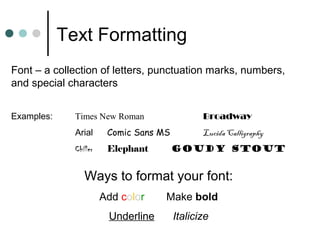
Text Formatting
Font – a collection of letters, punctuation marks, numbers,
and special characters
Examples: Times New Roman Broadway
Arial Comic Sans MS Lucida Calligraphy
Chiller Elephant Goudy Stout
Ways to format your font:
Add color Make bold
Underline Italicize
Text Formatting
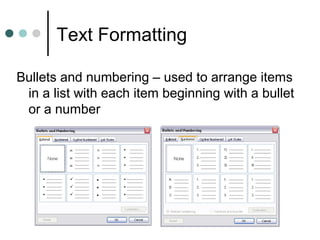
Bullets and numbering – used to arrange items
in a list with each item beginning with a bullet
or a number
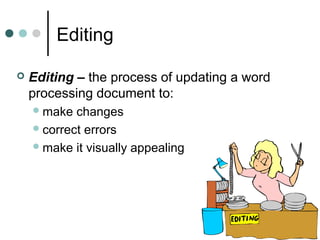
Editing
 Editing – the process of updating a word
processing document to:
make changes
correct errors
make it visually appealing
Editing Features
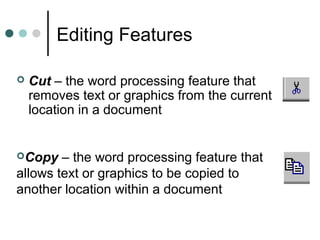
 Cut – the word processing feature that
removes text or graphics from the current
location in a document
Copy – the word processing feature that
allows text or graphics to be copied to
another location within a document
Editing Features
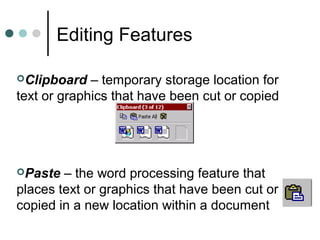
Paste – the word processing feature that
places text or graphics that have been cut or
copied in a new location within a document
Clipboard – temporary storage location for
text or graphics that have been cut or copied
Editing Features
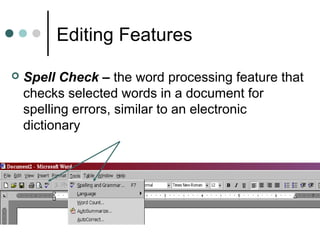
 Spell Check – the word processing feature that
checks selected words in a document for
spelling errors, similar to an electronic
dictionary
Editing Features
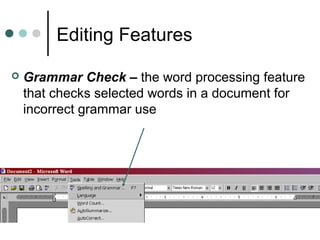
 Grammar Check – the word processing feature
that checks selected words in a document for
incorrect grammar use
Editing Features
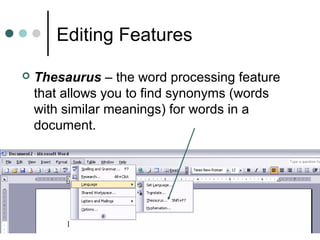
 Thesaurus – the word processing feature
that allows you to find synonyms (words
with similar meanings) for words in a
document.
Operational Keys
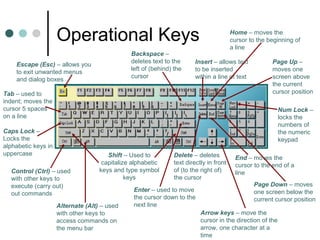
Escape (Esc) – allows you
to exit unwanted menus
and dialog boxes
Tab – used to
indent; moves the
cursor 5 spaces
on a line
Caps Lock –
Locks the
alphabetic keys in
uppercase
Control (Ctrl) – used
with other keys to
execute (carry out)
out commands
Shift – Used to
capitalize alphabetic
keys and type symbol
keys
Alternate (Alt) – used
with other keys to
access commands on
the menu bar
Enter – used to move
the cursor down to the
next line
Delete – deletes
text directly in front
of (to the right of)
the cursor
Arrow keys – move the
cursor in the direction of the
arrow, one character at a
time
End – moves the
cursor to the end of a
line
Page Down – moves
one screen below the
current cursor position
Backspace –
deletes text to the
left of (behind) the
cursor
Insert – allows text
to be inserted
within a line of text
Home – moves the
cursor to the beginning of
a line
Page Up –
moves one
screen above
the current
cursor position
Num Lock –
locks the
numbers of
the numeric
keypad
Combine operational keys to
save time!!!
 Control and Page Up – quickly moves you to
the first page of a multi-page document
 Control and Home – quickly takes you to the
first line of a document
 Control and End – quickly takes you to the
last line of a document
 Control and Page Down – moves you to the
next page of a multi-page document
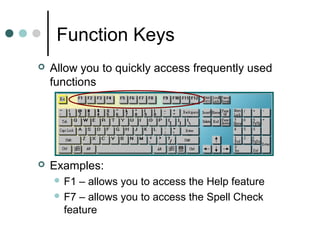
Function Keys
 Allow you to quickly access frequently used
functions
 Examples:
 F1 – allows you to access the Help feature
 F7 – allows you to access the Spell Check
feature

Formatting and editing skills (1)

  • 1.
    Formatting and Editing Skills Applyformatting and editing features and operational keys appropriately.
  • 2.
    Word Processing Word processingsoftware is a type of application software that is used for creating text documents, such as:  letters,  memos, and  reports
  • 3.
    Title bar –displays the filename of a document Menu bar – provides you with a menu of options to use when creating a document Tool bars – provide you with buttons that allow you to access frequently used commands Scroll bars – allow you to scroll throughout a document that is too long to fit on one screen Cursor – on-screen blinking character that shows where the next character will appear
  • 4.
    Typing Paper Standard PaperSize: 8 ½ x 11 inches There are 66 lines per page. Six lines equals one vertical inch.
  • 5.
    Page Orientation Orientation –the direction in which you can print on a page  Portrait – height is greater than the width  Landscape – width is greater than the height Portrait 8 ½” x 11” Landscape 11” x 8 ½” Most word processing documents are printed in portrait orientation.
  • 6.
    Document Margins Margin –the blank space at the top, bottom, left, and right of a document where you cannot type  Header – allows you to type above the top margin  at the top of each page of a document  Footer – allows you to type below the bottom margin  at the bottom of each page of a document
  • 7.
    Text Alignment Alignment –the way multiple lines of text line up along the left, right, or both margins  Left align – text is lined up along the left margin, leaving a jagged right margin  Right align – text is lined up along the right margin, leaving a jagged left margin  Center align – text is centered between both margins, resulting in jagged left and right margins  Justified – text is aligned along the left and right margins, with no jagged edges Tool Bar Alignment Buttons Left Align Center Align Right Align Justify Left align – text is lined up along the left margin Center align – text is centered on the page Right align – text is lined up along the right margin Justified – text is lined up along both margins
  • 8.
    Line Spacing Line spacing– the spacing between lines of text in a document Single Space (SS) – Strike Enter 1 time; leaves no blank lines between lines of text in a document Double Space (DS) – Strike Enter 2 times; leaves 1 blank line between lines of text in a document Triple Space (TS) – Strike Enter 3 times; leaves 2 blank lines between lines of text in a document Quadruple Space (QS) – Strike Enter 4 times; leaves 3 blank lines between lines of text in a document Word wrap – the automatic wrapping of text from the end of one line to the beginning of the next line without having to press the Enter key
  • 9.
    Horizontal Centering  Whentext is centered between the left and right margin  Commonly used when formatting: Invitations Announcements Title pages Lets Hoop It Up!!! Participate in our Hoops For Heart Campaign to help raise money for the American Heart Association February 27-March 3, 2006 See your PE teacher for more details.
  • 10.
    Horizontal Centering Using themenu bar 1. Access the Format menu bar option 2. Select the Paragraph option
  • 11.
    Horizontal Centering Using themenu bar 3. Choose Centered alignment from the Paragraph window
  • 12.
    Horizontal Centering Using thetool bar Click on the Center alignment button on the tool bar
  • 13.
    Vertical Centering  Whentext is centered between the top and bottom margin  Commonly used when formatting:  Invitations  Announcements  Title pages
  • 14.
    Vertical Centering 1. SelectPage Setup from the File menu bar option
  • 15.
    Vertical Centering 2. Selectthe Layout tab from the Page Setup window 3. Choose Center alignment from the Vertical alignment list
  • 16.
    Text Formatting Font –a collection of letters, punctuation marks, numbers, and special characters Examples: Times New Roman Broadway Arial Comic Sans MS Lucida Calligraphy Chiller Elephant Goudy Stout Ways to format your font: Add color Make bold Underline Italicize
  • 17.
    Text Formatting Bullets andnumbering – used to arrange items in a list with each item beginning with a bullet or a number
  • 18.
    Editing  Editing –the process of updating a word processing document to: make changes correct errors make it visually appealing
  • 19.
    Editing Features  Cut– the word processing feature that removes text or graphics from the current location in a document Copy – the word processing feature that allows text or graphics to be copied to another location within a document
  • 20.
    Editing Features Paste –the word processing feature that places text or graphics that have been cut or copied in a new location within a document Clipboard – temporary storage location for text or graphics that have been cut or copied
  • 21.
    Editing Features  SpellCheck – the word processing feature that checks selected words in a document for spelling errors, similar to an electronic dictionary
  • 22.
    Editing Features  GrammarCheck – the word processing feature that checks selected words in a document for incorrect grammar use
  • 23.
    Editing Features  Thesaurus– the word processing feature that allows you to find synonyms (words with similar meanings) for words in a document.
  • 24.
    Operational Keys Escape (Esc)– allows you to exit unwanted menus and dialog boxes Tab – used to indent; moves the cursor 5 spaces on a line Caps Lock – Locks the alphabetic keys in uppercase Control (Ctrl) – used with other keys to execute (carry out) out commands Shift – Used to capitalize alphabetic keys and type symbol keys Alternate (Alt) – used with other keys to access commands on the menu bar Enter – used to move the cursor down to the next line Delete – deletes text directly in front of (to the right of) the cursor Arrow keys – move the cursor in the direction of the arrow, one character at a time End – moves the cursor to the end of a line Page Down – moves one screen below the current cursor position Backspace – deletes text to the left of (behind) the cursor Insert – allows text to be inserted within a line of text Home – moves the cursor to the beginning of a line Page Up – moves one screen above the current cursor position Num Lock – locks the numbers of the numeric keypad
  • 25.
    Combine operational keysto save time!!!  Control and Page Up – quickly moves you to the first page of a multi-page document  Control and Home – quickly takes you to the first line of a document  Control and End – quickly takes you to the last line of a document  Control and Page Down – moves you to the next page of a multi-page document
  • 26.
    Function Keys  Allowyou to quickly access frequently used functions  Examples:  F1 – allows you to access the Help feature  F7 – allows you to access the Spell Check feature