HOW TO INSERT
PAGE NUMBERING
IN SPECIFIC PAGE?
(for Microsoft Word 2007)
Prepared by CHIA SIEW LIAN
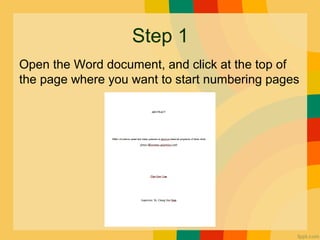
Step 1
Open the Word document, and click at the top of
the page where you want to start numbering pages
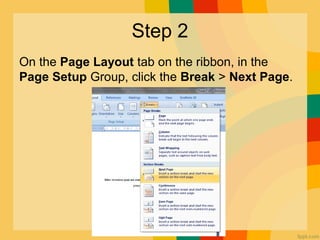
Step 2
On the Page Layout tab on the ribbon, in the
Page Setup Group, click the Break > Next Page.
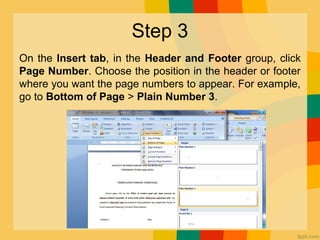
Step 3
On the Insert tab, in the Header and Footer group, click
Page Number. Choose the position in the header or footer
where you want the page numbers to appear. For example,
go to Bottom of Page > Plain Number 3.
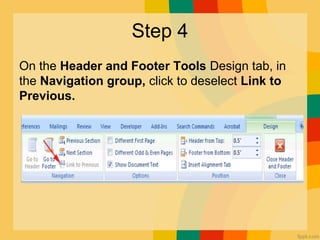
Step 4
On the Header and Footer Tools Design tab, in
the Navigation group, click to deselect Link to
Previous.
Step 5
Scroll up one page and delete the page number
from the header or footer. You should now have no
page numbers at the beginning of your document;
only pages from where you inserted the
continuous break to the end of the document will
have page numbers.
Scroll back down one page (to the page where you
inserted the continuous break) and highlight the
page number in the header or footer.
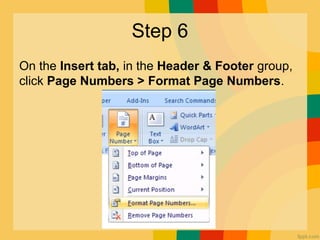
Step 6
On the Insert tab, in the Header & Footer group,
click Page Numbers > Format Page Numbers.
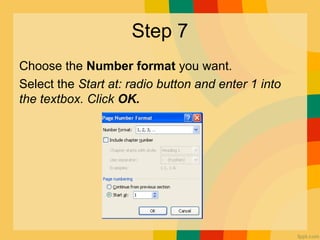
Step 7
Choose the Number format you want.
Select the Start at: radio button and enter 1 into
the textbox. Click OK.
DONE!
Double click anywhere in the body of the‐
document to exit the header and footer. Page
numbers have been added to the document.
The same steps are repeated if you want to insert
Roman type numbering (eg. Abstract to list of
content) and Arabic type numbering (eg.
Introduction till the end ) in the same document,
just at the STEP 7 , you will need to choose the
desired Number format.

HOW TO INSERT PAGE NUMBERING IN SPECIFIC PAGE?

  • 1.
    HOW TO INSERT PAGENUMBERING IN SPECIFIC PAGE? (for Microsoft Word 2007) Prepared by CHIA SIEW LIAN
  • 2.
    Step 1 Open theWord document, and click at the top of the page where you want to start numbering pages
  • 3.
    Step 2 On thePage Layout tab on the ribbon, in the Page Setup Group, click the Break > Next Page.
  • 4.
    Step 3 On theInsert tab, in the Header and Footer group, click Page Number. Choose the position in the header or footer where you want the page numbers to appear. For example, go to Bottom of Page > Plain Number 3.
  • 5.
    Step 4 On theHeader and Footer Tools Design tab, in the Navigation group, click to deselect Link to Previous.
  • 6.
    Step 5 Scroll upone page and delete the page number from the header or footer. You should now have no page numbers at the beginning of your document; only pages from where you inserted the continuous break to the end of the document will have page numbers. Scroll back down one page (to the page where you inserted the continuous break) and highlight the page number in the header or footer.
  • 8.
    Step 6 On theInsert tab, in the Header & Footer group, click Page Numbers > Format Page Numbers.
  • 9.
    Step 7 Choose theNumber format you want. Select the Start at: radio button and enter 1 into the textbox. Click OK.
  • 10.
    DONE! Double click anywherein the body of the‐ document to exit the header and footer. Page numbers have been added to the document. The same steps are repeated if you want to insert Roman type numbering (eg. Abstract to list of content) and Arabic type numbering (eg. Introduction till the end ) in the same document, just at the STEP 7 , you will need to choose the desired Number format.