Page Features
• Footnotes and endnotes
• Headers and footers
• Page numbering
• Margins
• Columns
Footnotes and endnotes
• Footnotes and endnotes are attached to
individual words.
• Word automatically handles their insertion,
numbering, re-numbering, and placement.
When to use footnotes
• The purpose of footnotes is to give the
reader additional information about a topic
but without causing them to be sidetracked
from the main point of the current text.
How to insert footnotes
• Put your insertion point right at the end of
the word you want to footnote, then do
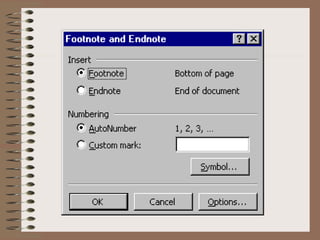
Insert => Footnote… to bring up the
following dialog box:
• In this window you choose whether you
want
– a footnote, which will appear at the bottom of
the page, or
– an endnote, which will appear at the end of the
section or document.
Headers and footers
• Headers and footers are repeated texts that
appear at the top and the bottom of every
page of a document.
• They include text or graphics, for
example,
– page numbers,
– the date,
– a company logo,
– the document's title or file name,
– the author's name, and so on.
• You can use the same header and footer
throughout a document or change the
header and footer for parts of the
document.
• For example, use a unique header or footer
on the first page, or leave the header or
footer off the first page (a standard
practice).
• You can also use different headers and
footers on odd and even pages or for
different parts of a document.
To create a header or footer:
• 1 On the View menu (and not the Insert
menu, as with footnotes), click Header and
Footer.
• 2 To create a header, enter text or
graphics in the header area.
• Or click a button on the Header and Footer
toolbar.
The buttons are:
• To insert:
• Page numbers
• The current date
• The current time
• Common header or footer
items, such as running
total page numbers (e.g.
Page 1 of 10), the file
name, or the author's
name.
• Click:
• Page numbers icon
• Date icon
• Time icon
• Insert Auto Text,
point to Header, and
then click the item
you want.
• 3 To create a footer, click Switch Between
Header and Footer to move to the footer
area. Then repeat step 2.
• 4 When you finish, click Close.
Tip
• The text or graphic you enter in a header or
footer is automatically left aligned.
• You may want to center the item instead or
include multiple items (for example, a left-
aligned date and a right-aligned page number).
• Note that three tabs are already given to you. To
center an item, press TAB; to right align an item,
press TAB twice.
First page different
• Normally the headers and footers on the
first page of a document are suppressed.
To suppress the headers and
footers on the first page
• The simplest way is to:
• 1 If your document is divided into sections,
click in a section or select multiple
sections you want to change.
• 2 On the View menu, click Header and
Footer.
• 3 On the Header and Footer toolbar, click
Page Setup.
• 4 Click the Layout tab.
• 5 Select the Different first page check box,
and then click OK.
Different headers and footers on
alternating pages
• Often, as in most of your textbooks, the
headers and footers on facing pages are
different.
To place different headers and
footers on alternating pages
• 1 On the View menu, click Header and
Footer.
• 2 On the Header and Footer toolbar, click
Page Setup .
• 3 Click the Layout tab.
• 4 Select the Different odd and even check
box, and then click OK.
• If necessary, move to the Even Page
Header area or Even Page Footer box.
• 6 Create the header or footer for each
even-numbered page.
• 7 To move to the header or footer for each
odd-numbered page, click Show Next on
the Header and Footer toolbar.
• Then create the header or footer you want.
Page numbering
• In a single document you can have more
than one page numbering scheme.
• For example, your Introduction could use
small Roman numerals while the rest of
your document uses Arabic numerals.
• To do this, your document has to be
divided into two sections, the Introduction
and the rest.
• Then, to control how page numbers appear,
put your insertion point into the section
whose page numbering you want to set,
then go the Insert => Page Numbers…
dialog box.
• If no section breaks have been inserted, the
whole document is considered to be one
section.
• In this dialog box you can specify whether
page numbers are to be:
• at the top of the page or at the bottom
(specifically in the header or the footer)
• positioned left, center, or right on the page
Margins
• Margins refer to the space between the
edges of your printed paper and the text.
How do you set your margins?
• One way is through the File => Page
Setup… dialog box:
• If you plan on binding/stapling a document
along its left edge, use a gutter margin to
add extra space to the inside margin.
• If you want to print a document on both
sides of the paper, you can set the margins
on facing pages so that they mirror each
other.
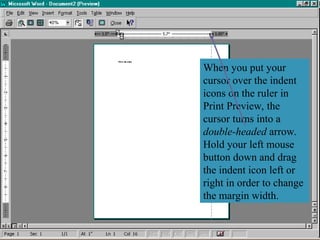
• You can also set your margins in Print
Preview:
When you put your
cursor over the indent
icons on the ruler in
Print Preview, the
cursor turns into a
double-headed arrow.
Hold your left mouse
button down and drag
the indent icon left or
right in order to change
the margin width.
Columns
• Here we mean newspaper style columns.
• Text in newspaper columns (versus table
columns) flows from the bottom of one
column to the top of the next.
To specify the number of
columns
• The portion of the document that will be turned
into column format is either:
• a portion that has been selected, if any; or
• the entire section where the insertion point is.
• To set the number of columns, either:
• click the columns button on the standard toolbar; or
• do Format => Columns… and fill in the resulting
dialog box.
• If you use Format => Columns you can also
set
• Whether there are vertical lines between
columns
• The width of the columns
• The spacing between columns
• These last two can also be set using the
ruler, in Page Layout view.
To adjust column width and space
between columns

Footnotes and Endnotes and their features

  • 1.
    Page Features • Footnotesand endnotes • Headers and footers • Page numbering • Margins • Columns
  • 2.
    Footnotes and endnotes •Footnotes and endnotes are attached to individual words. • Word automatically handles their insertion, numbering, re-numbering, and placement.
  • 3.
    When to usefootnotes • The purpose of footnotes is to give the reader additional information about a topic but without causing them to be sidetracked from the main point of the current text.
  • 4.
    How to insertfootnotes • Put your insertion point right at the end of the word you want to footnote, then do Insert => Footnote… to bring up the following dialog box:
  • 6.
    • In thiswindow you choose whether you want – a footnote, which will appear at the bottom of the page, or – an endnote, which will appear at the end of the section or document.
  • 7.
    Headers and footers •Headers and footers are repeated texts that appear at the top and the bottom of every page of a document.
  • 8.
    • They includetext or graphics, for example, – page numbers, – the date, – a company logo, – the document's title or file name, – the author's name, and so on.
  • 9.
    • You canuse the same header and footer throughout a document or change the header and footer for parts of the document. • For example, use a unique header or footer on the first page, or leave the header or footer off the first page (a standard practice).
  • 10.
    • You canalso use different headers and footers on odd and even pages or for different parts of a document.
  • 11.
    To create aheader or footer: • 1 On the View menu (and not the Insert menu, as with footnotes), click Header and Footer. • 2 To create a header, enter text or graphics in the header area. • Or click a button on the Header and Footer toolbar.
  • 12.
    The buttons are: •To insert: • Page numbers • The current date • The current time • Common header or footer items, such as running total page numbers (e.g. Page 1 of 10), the file name, or the author's name. • Click: • Page numbers icon • Date icon • Time icon • Insert Auto Text, point to Header, and then click the item you want.
  • 13.
    • 3 Tocreate a footer, click Switch Between Header and Footer to move to the footer area. Then repeat step 2. • 4 When you finish, click Close.
  • 14.
    Tip • The textor graphic you enter in a header or footer is automatically left aligned. • You may want to center the item instead or include multiple items (for example, a left- aligned date and a right-aligned page number). • Note that three tabs are already given to you. To center an item, press TAB; to right align an item, press TAB twice.
  • 15.
    First page different •Normally the headers and footers on the first page of a document are suppressed.
  • 16.
    To suppress theheaders and footers on the first page • The simplest way is to: • 1 If your document is divided into sections, click in a section or select multiple sections you want to change.
  • 17.
    • 2 Onthe View menu, click Header and Footer. • 3 On the Header and Footer toolbar, click Page Setup. • 4 Click the Layout tab. • 5 Select the Different first page check box, and then click OK.
  • 19.
    Different headers andfooters on alternating pages • Often, as in most of your textbooks, the headers and footers on facing pages are different.
  • 20.
    To place differentheaders and footers on alternating pages • 1 On the View menu, click Header and Footer. • 2 On the Header and Footer toolbar, click Page Setup . • 3 Click the Layout tab. • 4 Select the Different odd and even check box, and then click OK.
  • 21.
    • If necessary,move to the Even Page Header area or Even Page Footer box. • 6 Create the header or footer for each even-numbered page. • 7 To move to the header or footer for each odd-numbered page, click Show Next on the Header and Footer toolbar. • Then create the header or footer you want.
  • 22.
    Page numbering • Ina single document you can have more than one page numbering scheme. • For example, your Introduction could use small Roman numerals while the rest of your document uses Arabic numerals. • To do this, your document has to be divided into two sections, the Introduction and the rest.
  • 23.
    • Then, tocontrol how page numbers appear, put your insertion point into the section whose page numbering you want to set, then go the Insert => Page Numbers… dialog box. • If no section breaks have been inserted, the whole document is considered to be one section.
  • 25.
    • In thisdialog box you can specify whether page numbers are to be: • at the top of the page or at the bottom (specifically in the header or the footer) • positioned left, center, or right on the page
  • 26.
    Margins • Margins referto the space between the edges of your printed paper and the text.
  • 28.
    How do youset your margins? • One way is through the File => Page Setup… dialog box:
  • 30.
    • If youplan on binding/stapling a document along its left edge, use a gutter margin to add extra space to the inside margin. • If you want to print a document on both sides of the paper, you can set the margins on facing pages so that they mirror each other.
  • 31.
    • You canalso set your margins in Print Preview:
  • 32.
    When you putyour cursor over the indent icons on the ruler in Print Preview, the cursor turns into a double-headed arrow. Hold your left mouse button down and drag the indent icon left or right in order to change the margin width.
  • 33.
    Columns • Here wemean newspaper style columns. • Text in newspaper columns (versus table columns) flows from the bottom of one column to the top of the next.
  • 35.
    To specify thenumber of columns • The portion of the document that will be turned into column format is either: • a portion that has been selected, if any; or • the entire section where the insertion point is. • To set the number of columns, either: • click the columns button on the standard toolbar; or • do Format => Columns… and fill in the resulting dialog box.
  • 36.
    • If youuse Format => Columns you can also set • Whether there are vertical lines between columns • The width of the columns • The spacing between columns • These last two can also be set using the ruler, in Page Layout view.
  • 37.
    To adjust columnwidth and space between columns