School: Bay-ang Magpag-ong National High School
Email: deped.bmnhs@gmail.com
MS-WORD
MS-Word is available either as a stand-alone
program or bundled with Complete MS-Office
program software.
It helps you to create letters, memos, reports
and term papers. It also helps to send
documents to a group of people for feedback.
You can maintain mailing lists, create
personalized documents and create a
newsletter etc.
INTRODUCTION
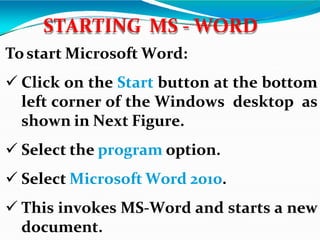
Tostart Microsoft Word:
 Click on the Start button at the bottom
left corner of the Windows desktop as
shown in Next Figure.
 Select the program option.
 Select Microsoft Word 2010.
 This invokes MS-Word and starts a new
document.
STARTING MS - WORD
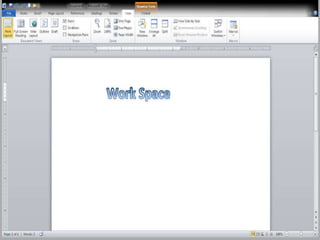
Work Space
To create a document, follow these
steps:
Click the File tab.
A New Document window will be
displayed.
 Select the Blank Document.
CREATING A DOCUMENT
A Blank New Document is displayed.
Or
Use the shortcut key CTRL + N
To open an existing document, follow
these steps:
Click the File tab.
An Open dialog box will be displayed
as shown in Fig.
 Select the appropriate drive and
folder in Look in.
OPENING A DOCUMENT
Select the desired filename then click
on Open button.
Or
Press CTRL+O.
Open Dialog Box
When you start typing in your Blank
New Document, the document is stored
in the internal memory of the computer.
In order to preserve the document for
future use, you must save it on the
disk. To do so:
 Click the File tab, and then click
save/save as.
SAVING DOCUMENT
The Save As dialog box gets invoked
as displayed in Fig.
Select the directory or folder in Save
in box.
Enter the name of the file in
Filename box.
Click on Save button.
Save As Dialog Box
By default, the new document is saved
as a Word document with an extension
.doc.
 Click on icon on the standard
toolbar.
or press CTRL+S from keyboard.
While working with a file (adding more text
lines, format it, delete something etc.), we
need to save the changes in the existing
document. Tosave the changes:
 Click on the Save Command .
Or
 press CTRL + S from keyboard.
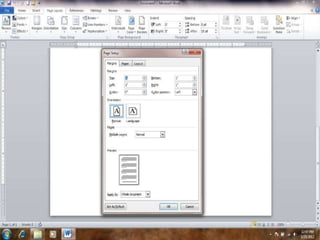
It is used for setting margins, paper
size, paper source and layout of
active documents.
PAGE SETUP
Change or set page margins and other properties
Page margins are the blank space around the edges of
the page. In general, you insert text and graphics in the
printable area between the margins. However, you can
position some items in the margins — for example,
headers, footers, and page numbers.
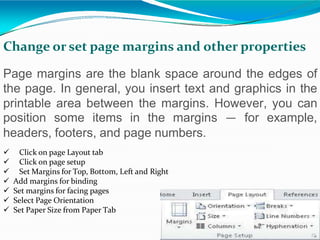
 Click on page Layout tab
 Click on page setup
 Set Margins for Top, Bottom, Left and Right
 Add margins for binding
 Set margins for facing pages
 Select Page Orientation
 Set Paper Size from Paper Tab
Headers and Footers
Insert headers and footers
Headers and footers are areas in the top, bottom, and side
margins (margin: The blank space outside the printing area on a
page.) of each page in a document.
We can insert or change text or graphics in headers and footers. For
example, you can add page numbers, the time and date, a company
logo, the document title or file name, or the author's name.
If you want to change a header or footer that you inserted, the
Headers & Footers tab under Header & Footer Tools gives you
more header and footer options.
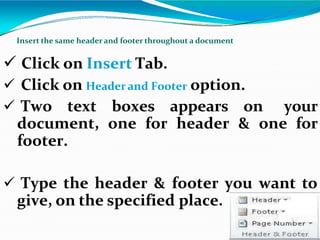
 Click on Insert Tab.
 Click on Header and Footer option.
 Two text boxes appears on your
document, one for header & one for
footer.
 Type the header & footer you want to
give, on the specified place.
Insert the same header and footer throughout a document
Insert headers or footers different for odd and even pages
 On the Page Layout tab, click the Page Setup Dialog
Box Launcher, and then click the Layout tab.
Select the Different odd and even check box.
Now you can insert the header or footer for even pages
on an even page and the header or footer for odd pages
on an odd page.
Remove the header or footer from the first page
1.On the Page Layout tab, click the Page Setup
Dialog Box Launcher, and then click the Layout
tab.
2.Select the Different first page check box under
Headers and footers.
Headers and footers are removed from the first
page of the document.
These edit
move/copy a
functions
selected
are use to
text from one
place to another.
Followings are the icons for cut, copy
and paste respectively, displayed on
StanC
d
Ua
T rd ToolC
b
OP
a
Yr. PASTE
CUT / COPY AND PASTE
 Select the text.
 Go to Home Tab Cut or
 Press CTRL + X
 Go to the target position
 Go to Home tab Paste or
 Press CTRL + V
CUT AND PASTE
Select the text.
Go to Home tab Copy or
Press CTRL + C.
Go to the target position
Go to Home tab Paste or
Press CTRL + V
COPY AND PASTE
FIND
Search for specified text, formatting,
symbols, comments, footnotes,
endnotes in the active document.
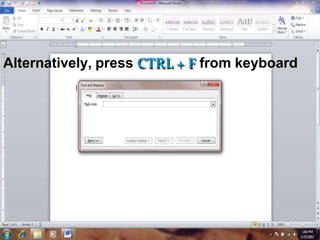
 Go to Home tab
Find and Replace
A dialog box will be
displayed on Right side.
 In Find What box, enter the word you want
to find.
 Click Find Next button.
Alternatively, press CTRL + F from keyboard
REPLACE
Searches for and replaces specified
text in the active document. To replace
text:
 Click on Home tab Replace.
Find And Replace
 A dialog box will be
displayed right side.
 Click on the Replace tab.
 In Find what box, enter the text you want
to find & replace.
In Replace with box, enter text you want to
use as the replacement.
To search the next occurrence of the
text, click Find Next button.
To replace the occurred text, click
Replace.
 To replace all occurrences of the text,
click Replace All.
 You can also use CTRL + H as shortcut key.
Move the insertion pointer to the item
where you want to go. Go to a specific
page, table or other item:
 Click on home menu
A find and replace dialog box appears
on your screen.
Click on Find that display Goto button
 In Go Towhat box, click the type of item.
GOTO
BOOKMARK
A bookmark identifies a location or
selection of text that you name and
identify for future reference. Instead
of scrolling though out the document
bookmark identifies a location or
selection of text that you name and
identify for future reference. For
example, you might use a bookmark to
identify text that you want to revise at
a later time.
Instead of scrolling through the
document to locate the text, you can
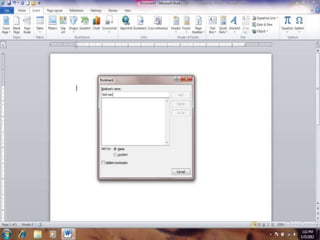
go to it by using the Bookmark dialog
box.
 Select an item you want a bookmark
assigned to, or click where you want
to insert a bookmark.
 On the Insert Tab, click Bookmark.
Under Bookmark name, enter a name.
Bookmark names must begin with a
letter and can contain numbers. You
can't include spaces in
name. However, you use the
underscore character
a bookmark
can
to separate
words — for example, "First_heading."
Click Add.
 CHANGING FONT STYLES
To change font size and font styles,
follow these steps:
 Click Home tab. Next. type the name
of desired font directly into the font
name box on the format toolbar and
press the Enter key.
FORMAT OPTIONS
Font Drop-down List
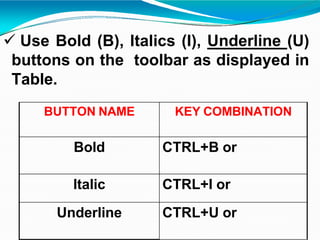
 Use Bold (B), Italics (I), Underline (U)
buttons on the toolbar as displayed in
Table.
BUTTON NAME KEY COMBINATION
Bold CTRL+B or
Italic CTRL+I or
Underline CTRL+U or
Toadd bold formatting to the
text, follow these steps
Select the text and click on the bold
button.
Alternatively, click on the bold button
and type the text.
Similarly, the characters can be
underlined and italicized.
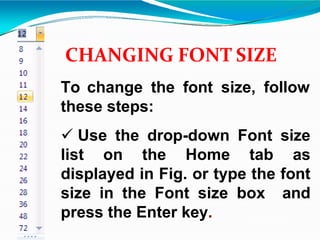
CHANGING FONT SIZE
To change the font size, follow
these steps:
 Use the drop-down Font size
list on the Home tab as
displayed in Fig. or type the font
size in the Font size box and
press the Enter key.
 Use any of these keyboard shortcuts
to increase or decrease the font size as
shown in Table
SHORTCUT KEY COMBINATION
CTRL+] Increase one point at a time.
CTRL+[ Decrease one point at a time.
CTRL+SHIFT+
>
Increase by 10 points, 12 points,
14 points and so on.
CTRL+SHIFT+
<
Decrease by 10 points, 12
points, 14 points and so on.
PARAGRAPHS
In Word, each time
Enter key
you press the
a new
paragraph.
you create
Word paragraph always
ends with a paragraph mark. When
you open a new document, the default
paragraph setting stored as a style
(Normal) is applied.
Adjust Line or Paragraph Spacing
You can change the spacing between
the lines or the spacing before or after
each paragraph.
 Select the paragraphs in which you
want to change spacing.
 On the Page layout Tab, click
Paragraph.
Under Spacing, enter the spacing
you want in the Before or After box.
Set Line Spacing as you want.
Click OK button.
BULLETS AND NUMBERING
Bullets and Numbering highlight the
portions that you want to highlight.
You can use bullets or numbers to
create the lists in your document, to
make your document attractive and
easy to read.
Add bullets and numbering with
the list as you type
 Type 1. to start a numbered list or *
(asterisk) to start a bulleted list, and
then press SPACEBAR or TAB.
 Type any text you want.
 Press ENTER to add the next list
item.
Word automatically inserts the next
number or bullet.
To finish the list, press ENTER twice,
or press BACKSPACE to delete the
last bullet or number in the list.
Add Bullets or Numbering to an
Existing List
 Select the items you want to add
bullets or numbering to.
 On the Home Tab, click Bullets or
Numbering .
 Select the style of bullet or number.
 Click OK button.
BORDER AND SHADING
Applying shading effects
around the selected area
& borders
or page.
You can add borders to pages, text,
tables and table cells, graphic objects
and pictures. You can shade paragraphs
and text. You can apply colored or
textured fills to your graphic objects.
Click on Page layout Tab and select page border
Toapply Border and Shading
 Click on Home Tab.
 Click on Page Border option.
 Select the Border for a selected text,
Page Border or Shading.
 Click OK .
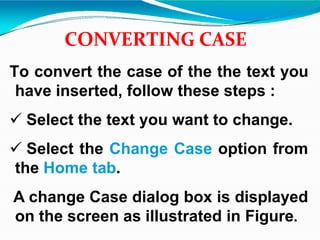
CONVERTING CASE
To convert the case of the the text you
have inserted, follow these steps :
 Select the text you want to change.
 Select the Change Case option from
the Home tab.
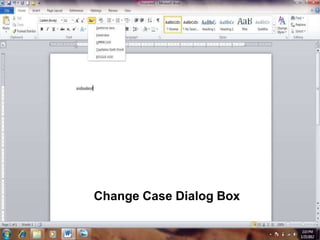
A change Case dialog box is displayed
on the screen as illustrated in Figure.
Change Case Dialog Box
The Change case dialog box has the
following options:
SENTENCE CASE: Capitalizes only the
first letter in the selected sentences.
LOWER CASE: Converts all selected
text to lowercase letters.
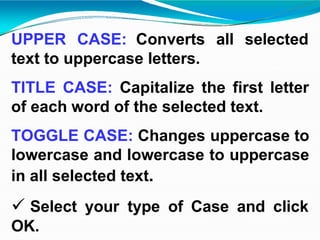
UPPER CASE: Converts all selected
text to uppercase letters.
TITLE CASE: Capitalize the first letter
of each word of the selected text.
TOGGLE CASE: Changes uppercase to
lowercase and lowercase to uppercase
in all selected text.
 Select your type of Case and click
OK.
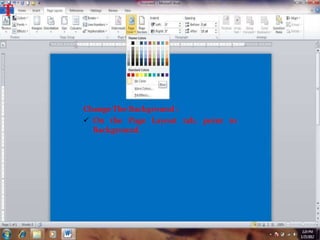
BACKGROUND
By this option we can change the
background of our active document.
T
tab, point to
Change The Background :
 On the Page Layout
Background.
FORMAT PAINTER
You can use the Format Painter to
format an entire document quickly and
easily. The Format Painter copies
formats from the selected text to the
text you want to format. Suppose you
have formatted a line as 12 point
italic,
,Times New Roman, bold,
underline and left aligned.
Rather than Formatting each paragraph
of the document separately, use the
Format Painter to format the entire
document. To do so, follow these
steps:
Select the formatted text (the text with
the format you want to copy).
 Click on the Format Painter button in
the Home tab as displayed in Fig
Select the text to be formatted.
The text automatically changes to the
copied format.
 Press the Esc key when formatting is
over.
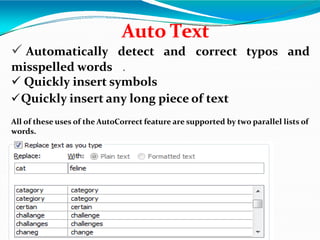
Auto Text
 Automatically detect and correct typos and
misspelled words .
 Quickly insert symbols
Quickly insert any long piece of text
All of these uses of the AutoCorrect feature are supported by two parallel lists of
words.
SPELLING AND GRAMMAR
By default, Microsoft Word checks
spelling and grammar automatically as
you type, using wavy red underlines to
indicate possible spelling problems and
wavy green underlines to indicate
possible grammatical problems.
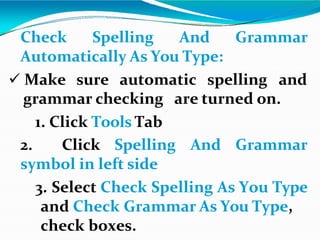
Check Spelling And Grammar
Automatically As You Type:
 Make sure automatic spelling and
are turned on.
grammar checking
1. Click Tools Tab
2. Click Spelling And Grammar
symbol in left side
3. Select Check Spelling As You Type
and Check Grammar As You Type,
check boxes.
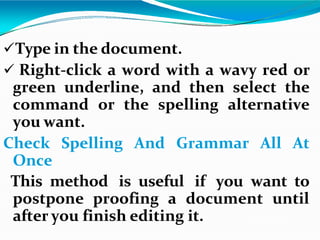
Type in the document.
 Right-click a word with a wavy red or
green underline, and then select the
command or the spelling alternative
you want.
Check Spelling And Grammar All At
Once
This method is useful if you want to
postpone proofing a document until
after you finish editing it.
You can check for possible spelling
and grammatical problems, and then
confirm each correction.
For Spelling And Grammar checking
Click on Review tab Spelling And Grammar.
A Dialog box appears :
 If you want to ignore the checking click
on Ignore Once/Ignore All button.
 if you want to add your word in the
dictionary then click Add To Dictionary
button.
 To change the word with the suggested
word , click Change/Change All button.
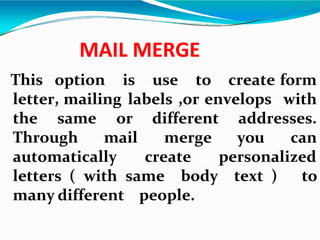
MAIL MERGE
This option is use to create form
letter, mailing labels ,or envelops with
the same addresses.
or different
Through mail merge you can
automatically create personalized
letters ( with same body text ) to

many different people.
For Mail Merge
 Open a document.
 Click on Mailing tab,
Click on Start mail merger And click
letters
Click on Recipients and click on Type
new list
Enter record in Boxes.
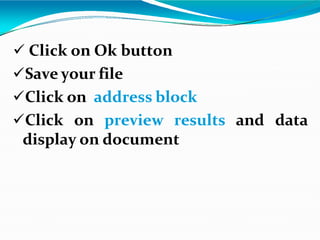
 Click on Ok button
Save your file
Click on address block
Click on preview results and data
display on document
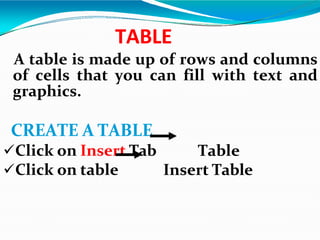
TABLE
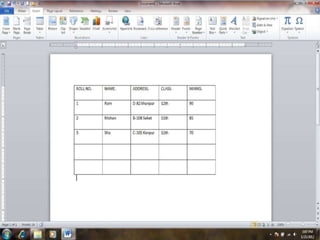
A table is made up of rows and columns
of cells that you can fill with text and
graphics.
CREATE A TABLE
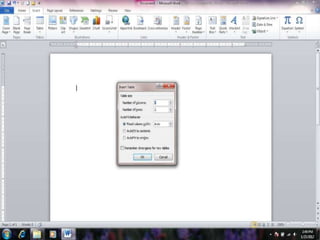
Click on Insert Tab
Click on table
Table
Insert Table
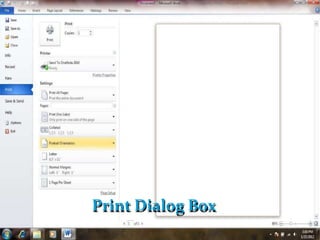
 Click the File tab, and then click Print.
 The Print dialog box will appear as
shown in the figure.
 Apply the printing settings and click on
OK button.
TO TAKE THE PRINTOUT OF
YOUR DOCUMENT
Print Dialog Box
MS WORD.pptx

MS WORD.pptx

  • 1.
    School: Bay-ang Magpag-ongNational High School Email: deped.bmnhs@gmail.com
  • 2.
  • 3.
    MS-Word is availableeither as a stand-alone program or bundled with Complete MS-Office program software. It helps you to create letters, memos, reports and term papers. It also helps to send documents to a group of people for feedback. You can maintain mailing lists, create personalized documents and create a newsletter etc. INTRODUCTION
  • 4.
    Tostart Microsoft Word: Click on the Start button at the bottom left corner of the Windows desktop as shown in Next Figure.  Select the program option.  Select Microsoft Word 2010.  This invokes MS-Word and starts a new document. STARTING MS - WORD
  • 6.
  • 7.
    To create adocument, follow these steps: Click the File tab. A New Document window will be displayed.  Select the Blank Document. CREATING A DOCUMENT
  • 8.
    A Blank NewDocument is displayed. Or Use the shortcut key CTRL + N
  • 9.
    To open anexisting document, follow these steps: Click the File tab. An Open dialog box will be displayed as shown in Fig.  Select the appropriate drive and folder in Look in. OPENING A DOCUMENT
  • 10.
    Select the desiredfilename then click on Open button. Or Press CTRL+O.
  • 11.
  • 12.
    When you starttyping in your Blank New Document, the document is stored in the internal memory of the computer. In order to preserve the document for future use, you must save it on the disk. To do so:  Click the File tab, and then click save/save as. SAVING DOCUMENT
  • 13.
    The Save Asdialog box gets invoked as displayed in Fig. Select the directory or folder in Save in box. Enter the name of the file in Filename box. Click on Save button.
  • 14.
  • 15.
    By default, thenew document is saved as a Word document with an extension .doc.  Click on icon on the standard toolbar. or press CTRL+S from keyboard.
  • 16.
    While working witha file (adding more text lines, format it, delete something etc.), we need to save the changes in the existing document. Tosave the changes:  Click on the Save Command . Or  press CTRL + S from keyboard.
  • 17.
    It is usedfor setting margins, paper size, paper source and layout of active documents. PAGE SETUP
  • 19.
    Change or setpage margins and other properties Page margins are the blank space around the edges of the page. In general, you insert text and graphics in the printable area between the margins. However, you can position some items in the margins — for example, headers, footers, and page numbers.  Click on page Layout tab  Click on page setup  Set Margins for Top, Bottom, Left and Right  Add margins for binding  Set margins for facing pages  Select Page Orientation  Set Paper Size from Paper Tab
  • 20.
    Headers and Footers Insertheaders and footers Headers and footers are areas in the top, bottom, and side margins (margin: The blank space outside the printing area on a page.) of each page in a document. We can insert or change text or graphics in headers and footers. For example, you can add page numbers, the time and date, a company logo, the document title or file name, or the author's name. If you want to change a header or footer that you inserted, the Headers & Footers tab under Header & Footer Tools gives you more header and footer options.
  • 21.
     Click onInsert Tab.  Click on Header and Footer option.  Two text boxes appears on your document, one for header & one for footer.  Type the header & footer you want to give, on the specified place. Insert the same header and footer throughout a document
  • 23.
    Insert headers orfooters different for odd and even pages  On the Page Layout tab, click the Page Setup Dialog Box Launcher, and then click the Layout tab. Select the Different odd and even check box. Now you can insert the header or footer for even pages on an even page and the header or footer for odd pages on an odd page.
  • 24.
    Remove the headeror footer from the first page 1.On the Page Layout tab, click the Page Setup Dialog Box Launcher, and then click the Layout tab. 2.Select the Different first page check box under Headers and footers. Headers and footers are removed from the first page of the document.
  • 25.
    These edit move/copy a functions selected areuse to text from one place to another. Followings are the icons for cut, copy and paste respectively, displayed on StanC d Ua T rd ToolC b OP a Yr. PASTE CUT / COPY AND PASTE
  • 26.
     Select thetext.  Go to Home Tab Cut or  Press CTRL + X  Go to the target position  Go to Home tab Paste or  Press CTRL + V CUT AND PASTE
  • 27.
    Select the text. Goto Home tab Copy or Press CTRL + C. Go to the target position Go to Home tab Paste or Press CTRL + V COPY AND PASTE
  • 28.
    FIND Search for specifiedtext, formatting, symbols, comments, footnotes, endnotes in the active document.  Go to Home tab Find and Replace A dialog box will be displayed on Right side.  In Find What box, enter the word you want to find.  Click Find Next button.
  • 29.
    Alternatively, press CTRL+ F from keyboard
  • 30.
    REPLACE Searches for andreplaces specified text in the active document. To replace text:  Click on Home tab Replace. Find And Replace  A dialog box will be displayed right side.  Click on the Replace tab.  In Find what box, enter the text you want to find & replace.
  • 31.
    In Replace withbox, enter text you want to use as the replacement. To search the next occurrence of the text, click Find Next button. To replace the occurred text, click Replace.  To replace all occurrences of the text, click Replace All.  You can also use CTRL + H as shortcut key.
  • 32.
    Move the insertionpointer to the item where you want to go. Go to a specific page, table or other item:  Click on home menu A find and replace dialog box appears on your screen. Click on Find that display Goto button  In Go Towhat box, click the type of item. GOTO
  • 34.
    BOOKMARK A bookmark identifiesa location or selection of text that you name and identify for future reference. Instead of scrolling though out the document bookmark identifies a location or selection of text that you name and identify for future reference. For example, you might use a bookmark to identify text that you want to revise at a later time.
  • 35.
    Instead of scrollingthrough the document to locate the text, you can go to it by using the Bookmark dialog box.  Select an item you want a bookmark assigned to, or click where you want to insert a bookmark.  On the Insert Tab, click Bookmark.
  • 36.
    Under Bookmark name,enter a name. Bookmark names must begin with a letter and can contain numbers. You can't include spaces in name. However, you use the underscore character a bookmark can to separate words — for example, "First_heading." Click Add.
  • 38.
     CHANGING FONTSTYLES To change font size and font styles, follow these steps:  Click Home tab. Next. type the name of desired font directly into the font name box on the format toolbar and press the Enter key. FORMAT OPTIONS
  • 39.
  • 40.
     Use Bold(B), Italics (I), Underline (U) buttons on the toolbar as displayed in Table. BUTTON NAME KEY COMBINATION Bold CTRL+B or Italic CTRL+I or Underline CTRL+U or
  • 41.
    Toadd bold formattingto the text, follow these steps Select the text and click on the bold button. Alternatively, click on the bold button and type the text. Similarly, the characters can be underlined and italicized.
  • 42.
    CHANGING FONT SIZE Tochange the font size, follow these steps:  Use the drop-down Font size list on the Home tab as displayed in Fig. or type the font size in the Font size box and press the Enter key.
  • 43.
     Use anyof these keyboard shortcuts to increase or decrease the font size as shown in Table SHORTCUT KEY COMBINATION CTRL+] Increase one point at a time. CTRL+[ Decrease one point at a time. CTRL+SHIFT+ > Increase by 10 points, 12 points, 14 points and so on. CTRL+SHIFT+ < Decrease by 10 points, 12 points, 14 points and so on.
  • 44.
    PARAGRAPHS In Word, eachtime Enter key you press the a new paragraph. you create Word paragraph always ends with a paragraph mark. When you open a new document, the default paragraph setting stored as a style (Normal) is applied.
  • 45.
    Adjust Line orParagraph Spacing You can change the spacing between the lines or the spacing before or after each paragraph.  Select the paragraphs in which you want to change spacing.  On the Page layout Tab, click Paragraph.
  • 46.
    Under Spacing, enterthe spacing you want in the Before or After box. Set Line Spacing as you want. Click OK button.
  • 48.
    BULLETS AND NUMBERING Bulletsand Numbering highlight the portions that you want to highlight. You can use bullets or numbers to create the lists in your document, to make your document attractive and easy to read.
  • 49.
    Add bullets andnumbering with the list as you type  Type 1. to start a numbered list or * (asterisk) to start a bulleted list, and then press SPACEBAR or TAB.  Type any text you want.  Press ENTER to add the next list item.
  • 50.
    Word automatically insertsthe next number or bullet. To finish the list, press ENTER twice, or press BACKSPACE to delete the last bullet or number in the list.
  • 51.
    Add Bullets orNumbering to an Existing List  Select the items you want to add bullets or numbering to.  On the Home Tab, click Bullets or Numbering .  Select the style of bullet or number.  Click OK button.
  • 53.
    BORDER AND SHADING Applyingshading effects around the selected area & borders or page. You can add borders to pages, text, tables and table cells, graphic objects and pictures. You can shade paragraphs and text. You can apply colored or textured fills to your graphic objects.
  • 54.
    Click on Pagelayout Tab and select page border
  • 55.
    Toapply Border andShading  Click on Home Tab.  Click on Page Border option.  Select the Border for a selected text, Page Border or Shading.  Click OK .
  • 56.
    CONVERTING CASE To convertthe case of the the text you have inserted, follow these steps :  Select the text you want to change.  Select the Change Case option from the Home tab. A change Case dialog box is displayed on the screen as illustrated in Figure.
  • 57.
  • 58.
    The Change casedialog box has the following options: SENTENCE CASE: Capitalizes only the first letter in the selected sentences. LOWER CASE: Converts all selected text to lowercase letters.
  • 59.
    UPPER CASE: Convertsall selected text to uppercase letters. TITLE CASE: Capitalize the first letter of each word of the selected text. TOGGLE CASE: Changes uppercase to lowercase and lowercase to uppercase in all selected text.  Select your type of Case and click OK.
  • 60.
    BACKGROUND By this optionwe can change the background of our active document.
  • 61.
    T tab, point to ChangeThe Background :  On the Page Layout Background.
  • 62.
    FORMAT PAINTER You canuse the Format Painter to format an entire document quickly and easily. The Format Painter copies formats from the selected text to the text you want to format. Suppose you have formatted a line as 12 point italic, ,Times New Roman, bold, underline and left aligned.
  • 63.
    Rather than Formattingeach paragraph of the document separately, use the Format Painter to format the entire document. To do so, follow these steps: Select the formatted text (the text with the format you want to copy).  Click on the Format Painter button in the Home tab as displayed in Fig
  • 64.
    Select the textto be formatted. The text automatically changes to the copied format.  Press the Esc key when formatting is over.
  • 65.
    Auto Text  Automaticallydetect and correct typos and misspelled words .  Quickly insert symbols Quickly insert any long piece of text All of these uses of the AutoCorrect feature are supported by two parallel lists of words.
  • 66.
    SPELLING AND GRAMMAR Bydefault, Microsoft Word checks spelling and grammar automatically as you type, using wavy red underlines to indicate possible spelling problems and wavy green underlines to indicate possible grammatical problems.
  • 67.
    Check Spelling AndGrammar Automatically As You Type:  Make sure automatic spelling and are turned on. grammar checking 1. Click Tools Tab 2. Click Spelling And Grammar symbol in left side 3. Select Check Spelling As You Type and Check Grammar As You Type, check boxes.
  • 68.
    Type in thedocument.  Right-click a word with a wavy red or green underline, and then select the command or the spelling alternative you want. Check Spelling And Grammar All At Once This method is useful if you want to postpone proofing a document until after you finish editing it.
  • 69.
    You can checkfor possible spelling and grammatical problems, and then confirm each correction.
  • 70.
    For Spelling AndGrammar checking Click on Review tab Spelling And Grammar. A Dialog box appears :
  • 71.
     If youwant to ignore the checking click on Ignore Once/Ignore All button.  if you want to add your word in the dictionary then click Add To Dictionary button.  To change the word with the suggested word , click Change/Change All button.
  • 72.
    MAIL MERGE This optionis use to create form letter, mailing labels ,or envelops with the same addresses. or different Through mail merge you can automatically create personalized letters ( with same body text ) to many different people.
  • 73.
    For Mail Merge Open a document.  Click on Mailing tab, Click on Start mail merger And click letters Click on Recipients and click on Type new list Enter record in Boxes.
  • 75.
     Click onOk button Save your file Click on address block Click on preview results and data display on document
  • 77.
    TABLE A table ismade up of rows and columns of cells that you can fill with text and graphics. CREATE A TABLE Click on Insert Tab Click on table Table Insert Table
  • 80.
     Click theFile tab, and then click Print.  The Print dialog box will appear as shown in the figure.  Apply the printing settings and click on OK button. TO TAKE THE PRINTOUT OF YOUR DOCUMENT
  • 81.