Mail Merge
What is Mail Merge?
A Mail Merge is the result of merging
(joining) together a document and a
data file. The document can be a
letter or another file. The data file
contains unique data, like a database.
Step by Step Mail Merge
Step 1: Open a new File by
clicking on File then New
Step 2: Select Letters
and Mailings from the
Tools menu and click on
Mail Merge Wizard
Step 3: When the following appears
Leave the ‘dot’ next to
Letters
Click Next: Starting document.
This goes to the second step
of the mail merge wizard
For this example we will
be using the Caravel
Step 4: Click Start from a template and then
click on Select Template…
Select a template. Then click Next:
Select recipients
If you already have a list
that you would like to use (eg
from Microsoft Access, etc),
select this option, then click
on Browse
If you do not have any lists, select
this option, then click Create. For
this example use this option
If you have an Outlook contacts
list, select this option, then click
on Choose Contacts Folder
Click Customise and ensure that only the
following headings are present and click OK
You should start with something like this
Finally click on Next: Write your letter. You
will end up on Step 4 of the wizard
Enter the following data and click OK and save the
file
Click on Insert, then on Date and
Time and select a date format
Click on
address block
to insert
addresses
Click Insert company name to
remove the tick next to it and
click OK and push Enter twice
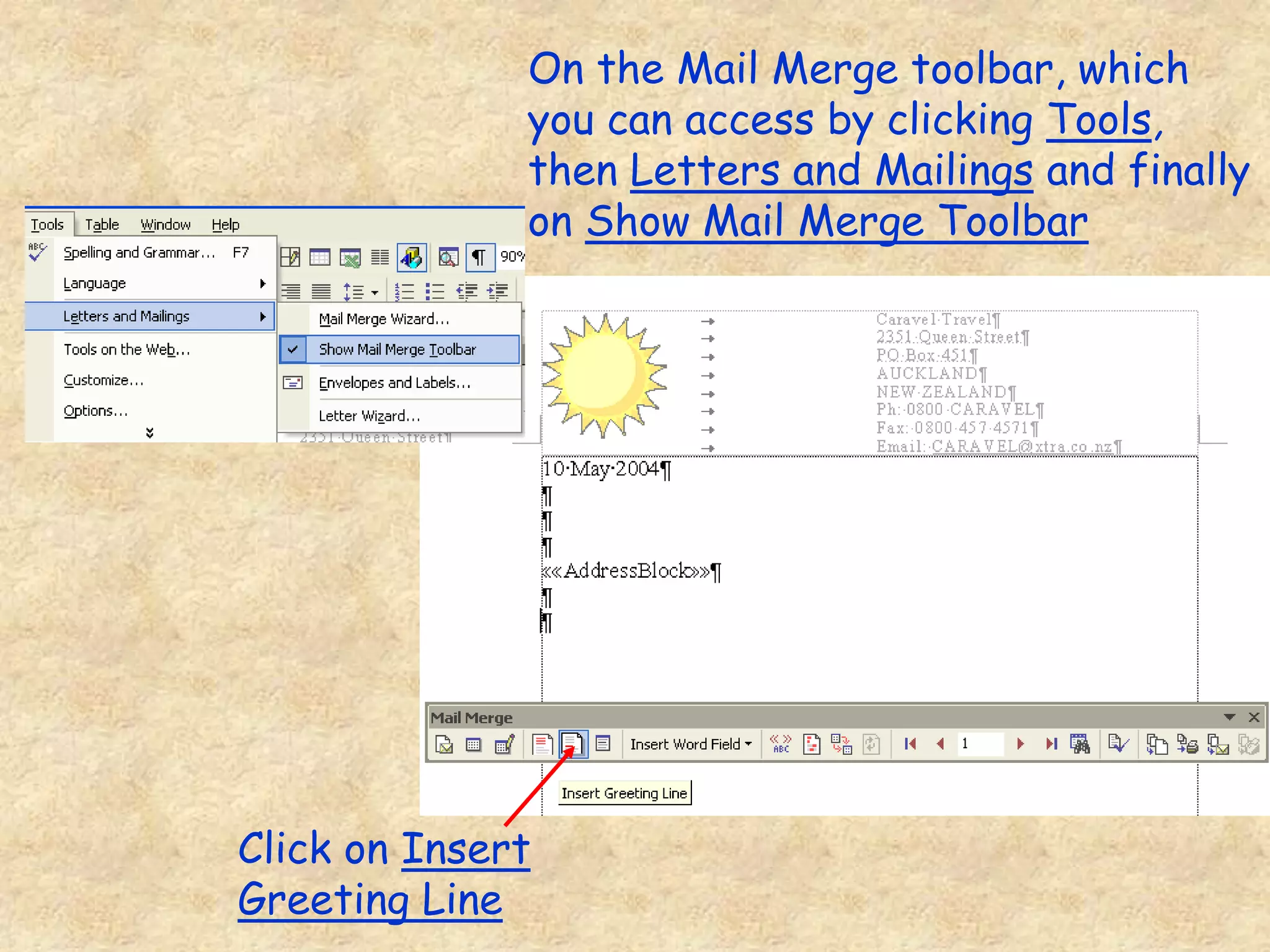
On the Mail Merge toolbar, which
you can access by clicking Tools,
then Letters and Mailings and finally
on Show Mail Merge Toolbar
Click on Insert
Greeting Line
At this screen click
OK and push Enter
twice. Click Next:
Preview your letter
You can use this screen,
and the two buttons (<<
and >>), to preview your
addresses
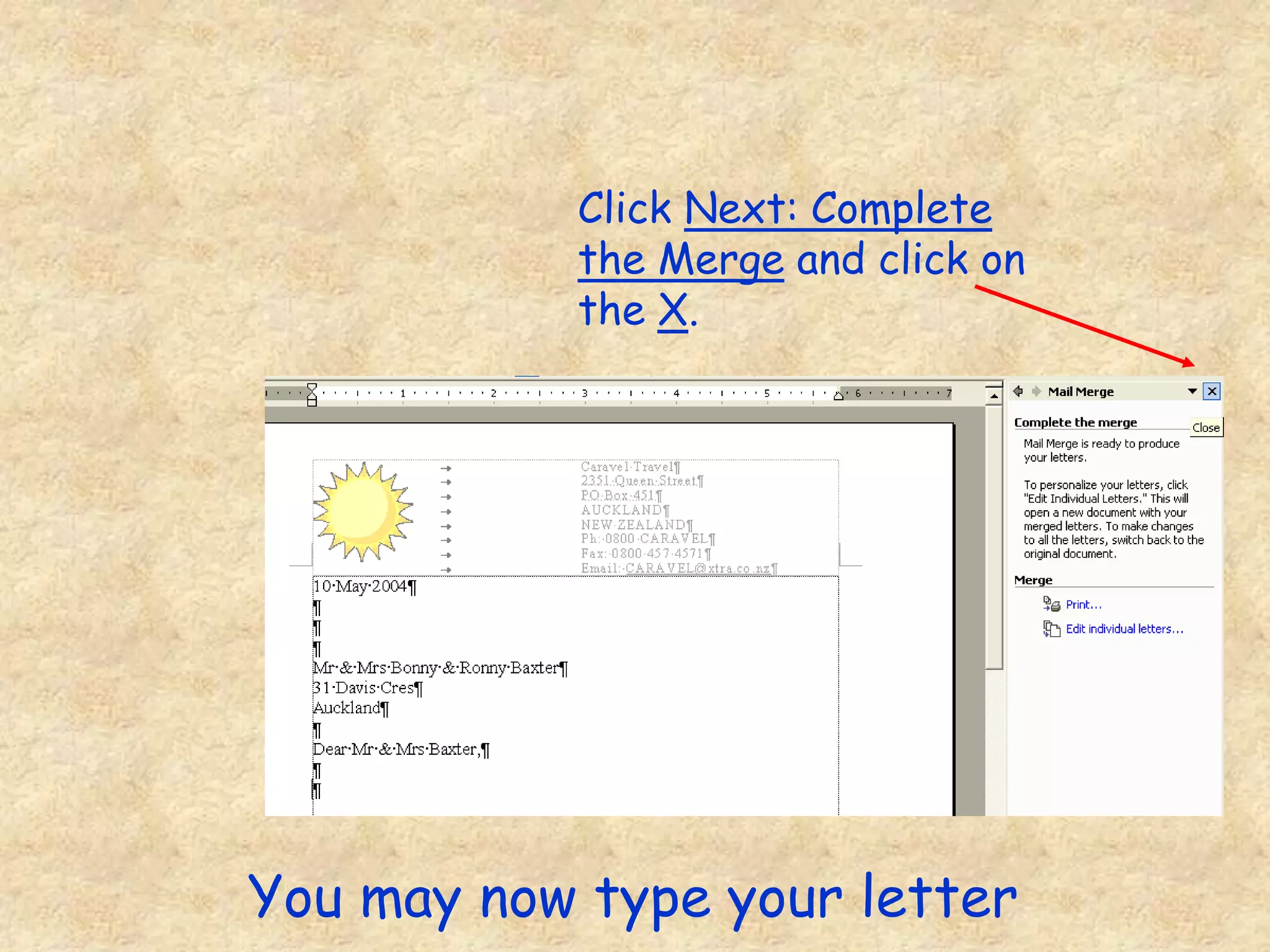
Click Next: Complete
the Merge and click on
the X.
You may now type your letter

MAIL MERGE.ppt

  • 1.
  • 2.
    What is MailMerge? A Mail Merge is the result of merging (joining) together a document and a data file. The document can be a letter or another file. The data file contains unique data, like a database.
  • 3.
    Step by StepMail Merge Step 1: Open a new File by clicking on File then New
  • 4.
    Step 2: SelectLetters and Mailings from the Tools menu and click on Mail Merge Wizard
  • 5.
    Step 3: Whenthe following appears Leave the ‘dot’ next to Letters Click Next: Starting document. This goes to the second step of the mail merge wizard
  • 6.
    For this examplewe will be using the Caravel Step 4: Click Start from a template and then click on Select Template… Select a template. Then click Next: Select recipients
  • 7.
    If you alreadyhave a list that you would like to use (eg from Microsoft Access, etc), select this option, then click on Browse If you do not have any lists, select this option, then click Create. For this example use this option If you have an Outlook contacts list, select this option, then click on Choose Contacts Folder
  • 8.
    Click Customise andensure that only the following headings are present and click OK You should start with something like this
  • 9.
    Finally click onNext: Write your letter. You will end up on Step 4 of the wizard Enter the following data and click OK and save the file
  • 10.
    Click on Insert,then on Date and Time and select a date format Click on address block to insert addresses
  • 11.
    Click Insert companyname to remove the tick next to it and click OK and push Enter twice
  • 12.
    On the MailMerge toolbar, which you can access by clicking Tools, then Letters and Mailings and finally on Show Mail Merge Toolbar Click on Insert Greeting Line
  • 13.
    At this screenclick OK and push Enter twice. Click Next: Preview your letter You can use this screen, and the two buttons (<< and >>), to preview your addresses
  • 14.
    Click Next: Complete theMerge and click on the X. You may now type your letter