Tutorial 5

Creating Advanced Queries and Enhancing
              Table Design
 Microsoft Access 2010
                ®
Objectives                                       XP


      • Review table and object naming standards
      • Use the Like, In, Not, and & operators in
        queries
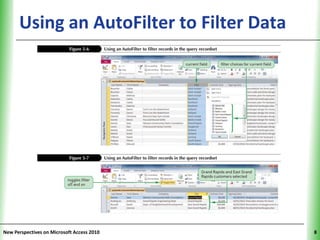
      • Filter data using an AutoFilter
      • Use the IIf function to assign a conditional
        value to a calculated field in a query
      • Create a parameter query


New Perspectives on Microsoft Access 2010                   2
Objectives                                     XP

      • Use query wizards to create a crosstab
        query, a find duplicates query, and a find
        unmatched query
      • Create a top values query
      • Modify table designs using lookup fields, input
        masks, and data validation rules
      • Identify object dependencies
      • Review a Memo field’s properties
      • Designate a trusted folder

New Perspectives on Microsoft Access 2010                 3
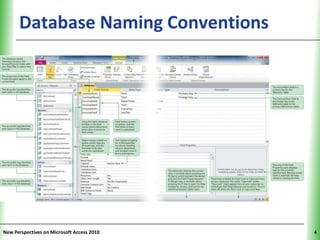
Database Naming Conventions           XP


New Perspectives on Microsoft Access 2010        4
Using a Pattern Match in a Query XP
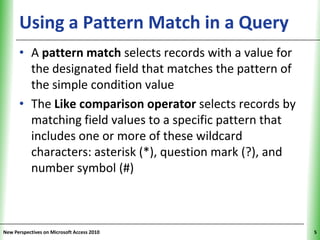
      • A pattern match selects records with a value for
        the designated field that matches the pattern of
        the simple condition value
      • The Like comparison operator selects records by
        matching field values to a specific pattern that
        includes one or more of these wildcard
        characters: asterisk (*), question mark (?), and
        number symbol (#)


New Perspectives on Microsoft Access 2010                  5
Using a List-of-Values Match in a               XP
      Query
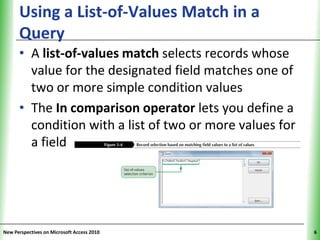
      • A list-of-values match selects records whose
        value for the designated field matches one of
        two or more simple condition values
      • The In comparison operator lets you define a
        condition with a list of two or more values for
        a field


New Perspectives on Microsoft Access 2010                  6
Using the Not Logical Operator                 XP
      in a Query
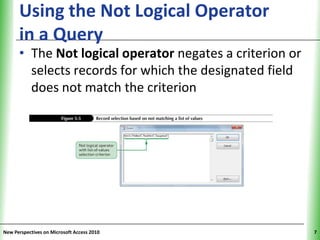
      • The Not logical operator negates a criterion or
        selects records for which the designated field
        does not match the criterion


New Perspectives on Microsoft Access 2010                 7
Using an AutoFilter to Filter Data XP


New Perspectives on Microsoft Access 2010     8
Assigning a Conditional Value                            XP
      to a Calculated Field
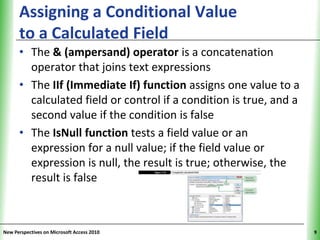
      • The & (ampersand) operator is a concatenation
        operator that joins text expressions
      • The IIf (Immediate If) function assigns one value to a
        calculated field or control if a condition is true, and a
        second value if the condition is false
      • The IsNull function tests a field value or an
        expression for a null value; if the field value or
        expression is null, the result is true; otherwise, the
        result is false


New Perspectives on Microsoft Access 2010                           9
Creating a Parameter Query                             XP

      • A parameter query displays a dialog box that
        prompts the user to enter one or more criteria values
        when the query is run
      • Create a select query that includes all fields to appear
        in the query results. Also choose the sort fields and
        set the criteria that do not change when you run the
        query
      • Decide which fields to use as prompts when the
        query runs. In the Criteria box for each of these
        fields, type the prompt you want to appear in a
        dialog box when you run the query, and enclose the
        prompt in brackets
New Perspectives on Microsoft Access 2010                          10
Creating a Parameter Query            XP


New Perspectives on Microsoft Access 2010        11
Creating a Crosstab Query             XP


New Perspectives on Microsoft Access 2010        12
Creating a Crosstab Query                    XP


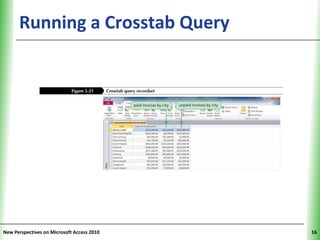
      • A crosstab query uses aggregate functions to
        perform arithmetic operations on selected
        records


New Perspectives on Microsoft Access 2010               13
Creating a Crosstab Query                           XP

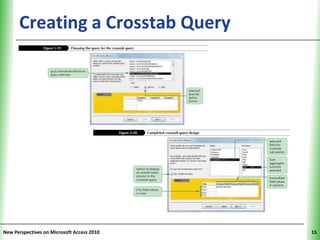
      • In the Queries group on the Create tab, click the
        Query Wizard button
      • In the New Query dialog box, click Crosstab Query
        Wizard, and then click the OK button
      • Complete the Wizard dialog boxes to select the table
        or query on which to base the crosstab query, select
        the row heading field (or fields), select the column
        heading field, select the calculation field and its
        aggregate function, and enter a name for the
        crosstab query


New Perspectives on Microsoft Access 2010                      14
Creating a Crosstab Query             XP


New Perspectives on Microsoft Access 2010        15
Running a Crosstab Query              XP


New Perspectives on Microsoft Access 2010        16
Creating a Find Duplicates Query                       XP

      • A find duplicates query is a select query that finds
        duplicate records in a table or query
      • In the Queries group on the Create tab, click the
        Query Wizard button
      • Click Find Duplicates Query Wizard, and then click the
        OK button
      • Complete the Wizard dialog boxes to select the table
        or query on which to base the query, select the field
        (or fields) to check for duplicate values, select the
        additional fields to include in the query results, enter
        a name for the query, and then click the Finish button
New Perspectives on Microsoft Access 2010                          17
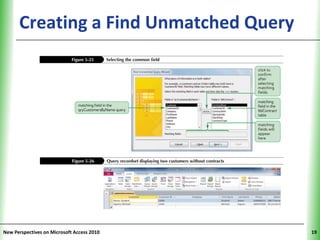
Creating a Find Unmatched QueryXP
      • A find unmatched query is a select query that finds all records
        in a table or query that have no related records in a second
        table or query
      • In the Queries group on the Create tab, click the Query Wizard
        button
      • Click Find Unmatched Query Wizard, and then click the OK
        button
      • Complete the Wizard dialog boxes to select the table or query
        on which to base the new query, select the table or query that
        contains the related records, specify the common field in each
        table or query, select the additional fields to include in the
        query results, enter a name for the query, and then click the
        Finish button

New Perspectives on Microsoft Access 2010                                 18
Creating a Find Unmatched QueryXP


New Perspectives on Microsoft Access 2010   19
Creating a Top Values Query                    XP


      • The Top Values property for a query lets you
        limit the number of records in the query
        results
      • Create a select query with the necessary fields
        and sorting and selection criteria
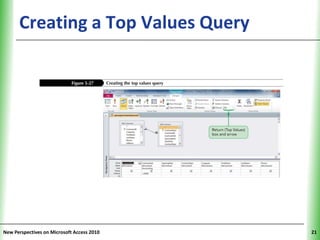
      • In the Query Setup group on the Design
        tab, enter the number of records (or
        percentage of records) you want selected in
        the Return (Top Values) text box

New Perspectives on Microsoft Access 2010                 20
Creating a Top Values Query           XP


New Perspectives on Microsoft Access 2010        21
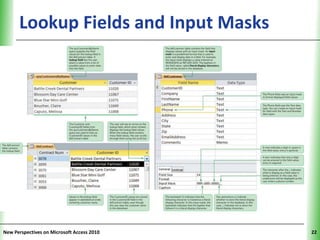
Lookup Fields and Input Masks         XP


New Perspectives on Microsoft Access 2010        22
Creating a Lookup Field                         XP


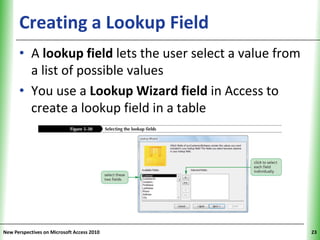
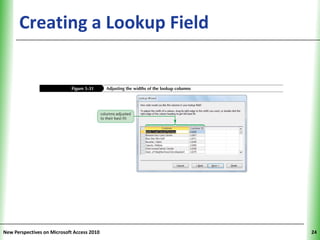
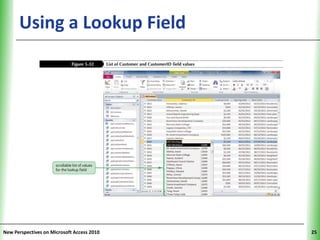
      • A lookup field lets the user select a value from
        a list of possible values
      • You use a Lookup Wizard field in Access to
        create a lookup field in a table


New Perspectives on Microsoft Access 2010                  23
Creating a Lookup Field               XP


New Perspectives on Microsoft Access 2010        24
Using a Lookup Field                  XP


New Perspectives on Microsoft Access 2010        25
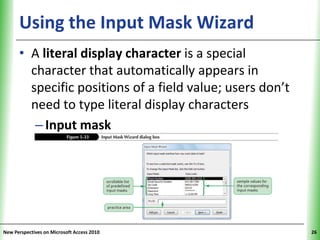
Using the Input Mask Wizard                          XP


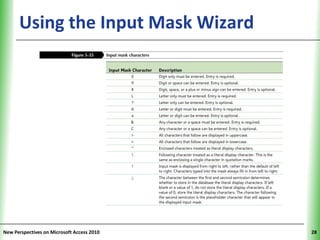
      • A literal display character is a special
        character that automatically appears in
        specific positions of a field value; users don’t
        need to type literal display characters
         – Input mask


New Perspectives on Microsoft Access 2010                       26
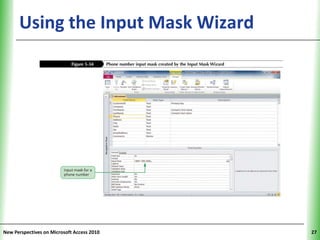
Using the Input Mask Wizard           XP


New Perspectives on Microsoft Access 2010        27
Using the Input Mask Wizard           XP


New Perspectives on Microsoft Access 2010        28
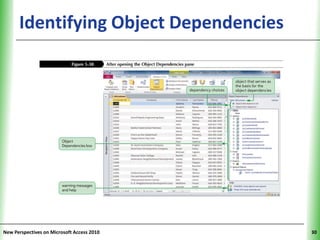
Identifying Object Dependencies               XP


      • An object dependency exists between two
        objects when a change to the properties of
        data in one object affects the properties of
        data in the other object
      • The Object Dependencies pane displays a
        collapsible list of the dependencies among the
        objects in an Access database; you click the
        list’s expand indicators to show or hide
        different levels of dependencies

New Perspectives on Microsoft Access 2010                29
Identifying Object Dependencies       XP


New Perspectives on Microsoft Access 2010        30
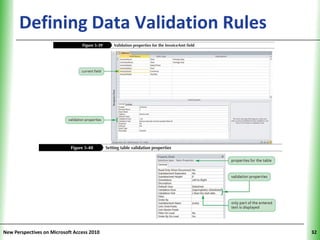
Defining Data Validation Rules                       XP

      • To prevent a user from entering an incorrect value in
        the Zip field, you can create a field validation rule
      • The Validation Rule property value specifies the valid
        values that users can enter in a field
      • The Validation Text property value will be displayed
        in a dialog box if the user enters an invalid value
      • A table validation rule compares one field value in a
        table record to another field value in the same record
        to verify their relative accuracy


New Perspectives on Microsoft Access 2010                        31
Defining Data Validation Rules        XP


New Perspectives on Microsoft Access 2010        32
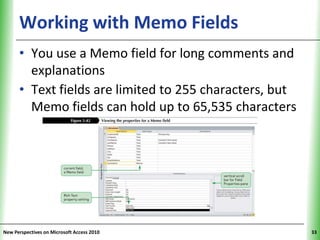
Working with Memo Fields                       XP


      • You use a Memo field for long comments and
        explanations
      • Text fields are limited to 255 characters, but
        Memo fields can hold up to 65,535 characters


New Perspectives on Microsoft Access 2010                 33
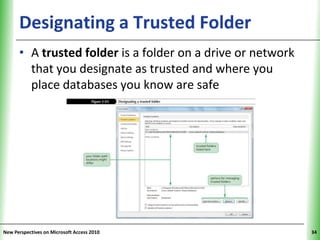
Designating a Trusted Folder                       XP

      • A trusted folder is a folder on a drive or network
        that you designate as trusted and where you
        place databases you know are safe


New Perspectives on Microsoft Access 2010                     34

New Perspectives: Access.05

  • 1.
    Tutorial 5 Creating AdvancedQueries and Enhancing Table Design Microsoft Access 2010 ®
  • 2.
    Objectives XP • Review table and object naming standards • Use the Like, In, Not, and & operators in queries • Filter data using an AutoFilter • Use the IIf function to assign a conditional value to a calculated field in a query • Create a parameter query New Perspectives on Microsoft Access 2010 2
  • 3.
    Objectives XP • Use query wizards to create a crosstab query, a find duplicates query, and a find unmatched query • Create a top values query • Modify table designs using lookup fields, input masks, and data validation rules • Identify object dependencies • Review a Memo field’s properties • Designate a trusted folder New Perspectives on Microsoft Access 2010 3
  • 4.
    Database Naming Conventions XP New Perspectives on Microsoft Access 2010 4
  • 5.
    Using a PatternMatch in a Query XP • A pattern match selects records with a value for the designated field that matches the pattern of the simple condition value • The Like comparison operator selects records by matching field values to a specific pattern that includes one or more of these wildcard characters: asterisk (*), question mark (?), and number symbol (#) New Perspectives on Microsoft Access 2010 5
  • 6.
    Using a List-of-ValuesMatch in a XP Query • A list-of-values match selects records whose value for the designated field matches one of two or more simple condition values • The In comparison operator lets you define a condition with a list of two or more values for a field New Perspectives on Microsoft Access 2010 6
  • 7.
    Using the NotLogical Operator XP in a Query • The Not logical operator negates a criterion or selects records for which the designated field does not match the criterion New Perspectives on Microsoft Access 2010 7
  • 8.
    Using an AutoFilterto Filter Data XP New Perspectives on Microsoft Access 2010 8
  • 9.
    Assigning a ConditionalValue XP to a Calculated Field • The & (ampersand) operator is a concatenation operator that joins text expressions • The IIf (Immediate If) function assigns one value to a calculated field or control if a condition is true, and a second value if the condition is false • The IsNull function tests a field value or an expression for a null value; if the field value or expression is null, the result is true; otherwise, the result is false New Perspectives on Microsoft Access 2010 9
  • 10.
    Creating a ParameterQuery XP • A parameter query displays a dialog box that prompts the user to enter one or more criteria values when the query is run • Create a select query that includes all fields to appear in the query results. Also choose the sort fields and set the criteria that do not change when you run the query • Decide which fields to use as prompts when the query runs. In the Criteria box for each of these fields, type the prompt you want to appear in a dialog box when you run the query, and enclose the prompt in brackets New Perspectives on Microsoft Access 2010 10
  • 11.
    Creating a ParameterQuery XP New Perspectives on Microsoft Access 2010 11
  • 12.
    Creating a CrosstabQuery XP New Perspectives on Microsoft Access 2010 12
  • 13.
    Creating a CrosstabQuery XP • A crosstab query uses aggregate functions to perform arithmetic operations on selected records New Perspectives on Microsoft Access 2010 13
  • 14.
    Creating a CrosstabQuery XP • In the Queries group on the Create tab, click the Query Wizard button • In the New Query dialog box, click Crosstab Query Wizard, and then click the OK button • Complete the Wizard dialog boxes to select the table or query on which to base the crosstab query, select the row heading field (or fields), select the column heading field, select the calculation field and its aggregate function, and enter a name for the crosstab query New Perspectives on Microsoft Access 2010 14
  • 15.
    Creating a CrosstabQuery XP New Perspectives on Microsoft Access 2010 15
  • 16.
    Running a CrosstabQuery XP New Perspectives on Microsoft Access 2010 16
  • 17.
    Creating a FindDuplicates Query XP • A find duplicates query is a select query that finds duplicate records in a table or query • In the Queries group on the Create tab, click the Query Wizard button • Click Find Duplicates Query Wizard, and then click the OK button • Complete the Wizard dialog boxes to select the table or query on which to base the query, select the field (or fields) to check for duplicate values, select the additional fields to include in the query results, enter a name for the query, and then click the Finish button New Perspectives on Microsoft Access 2010 17
  • 18.
    Creating a FindUnmatched QueryXP • A find unmatched query is a select query that finds all records in a table or query that have no related records in a second table or query • In the Queries group on the Create tab, click the Query Wizard button • Click Find Unmatched Query Wizard, and then click the OK button • Complete the Wizard dialog boxes to select the table or query on which to base the new query, select the table or query that contains the related records, specify the common field in each table or query, select the additional fields to include in the query results, enter a name for the query, and then click the Finish button New Perspectives on Microsoft Access 2010 18
  • 19.
    Creating a FindUnmatched QueryXP New Perspectives on Microsoft Access 2010 19
  • 20.
    Creating a TopValues Query XP • The Top Values property for a query lets you limit the number of records in the query results • Create a select query with the necessary fields and sorting and selection criteria • In the Query Setup group on the Design tab, enter the number of records (or percentage of records) you want selected in the Return (Top Values) text box New Perspectives on Microsoft Access 2010 20
  • 21.
    Creating a TopValues Query XP New Perspectives on Microsoft Access 2010 21
  • 22.
    Lookup Fields andInput Masks XP New Perspectives on Microsoft Access 2010 22
  • 23.
    Creating a LookupField XP • A lookup field lets the user select a value from a list of possible values • You use a Lookup Wizard field in Access to create a lookup field in a table New Perspectives on Microsoft Access 2010 23
  • 24.
    Creating a LookupField XP New Perspectives on Microsoft Access 2010 24
  • 25.
    Using a LookupField XP New Perspectives on Microsoft Access 2010 25
  • 26.
    Using the InputMask Wizard XP • A literal display character is a special character that automatically appears in specific positions of a field value; users don’t need to type literal display characters – Input mask New Perspectives on Microsoft Access 2010 26
  • 27.
    Using the InputMask Wizard XP New Perspectives on Microsoft Access 2010 27
  • 28.
    Using the InputMask Wizard XP New Perspectives on Microsoft Access 2010 28
  • 29.
    Identifying Object Dependencies XP • An object dependency exists between two objects when a change to the properties of data in one object affects the properties of data in the other object • The Object Dependencies pane displays a collapsible list of the dependencies among the objects in an Access database; you click the list’s expand indicators to show or hide different levels of dependencies New Perspectives on Microsoft Access 2010 29
  • 30.
    Identifying Object Dependencies XP New Perspectives on Microsoft Access 2010 30
  • 31.
    Defining Data ValidationRules XP • To prevent a user from entering an incorrect value in the Zip field, you can create a field validation rule • The Validation Rule property value specifies the valid values that users can enter in a field • The Validation Text property value will be displayed in a dialog box if the user enters an invalid value • A table validation rule compares one field value in a table record to another field value in the same record to verify their relative accuracy New Perspectives on Microsoft Access 2010 31
  • 32.
    Defining Data ValidationRules XP New Perspectives on Microsoft Access 2010 32
  • 33.
    Working with MemoFields XP • You use a Memo field for long comments and explanations • Text fields are limited to 255 characters, but Memo fields can hold up to 65,535 characters New Perspectives on Microsoft Access 2010 33
  • 34.
    Designating a TrustedFolder XP • A trusted folder is a folder on a drive or network that you designate as trusted and where you place databases you know are safe New Perspectives on Microsoft Access 2010 34