XP
XP
XP
Objectives
• Session 1
–Learn basic database concepts and terms
– Start and exit Access
– Explore the Microsoft Access window and
Backstage view
– Create a blank database
– Create and save a table in Datasheet view
– Enter field names and records in a table datasheet
– Open a table using the Navigation Pane
3.
XP
XP
XP
Objectives
• Session 2
–Open an Access database
– Copy and paste records from another Access database
– Navigate a table datasheet
– Create and navigate a simple query
– Create and navigate a simple form
– Create, preview, navigate, and print a simple report
– Use Help in Access
– Learn how to compact, back up, and restore a database
4.
XP
XP
XP
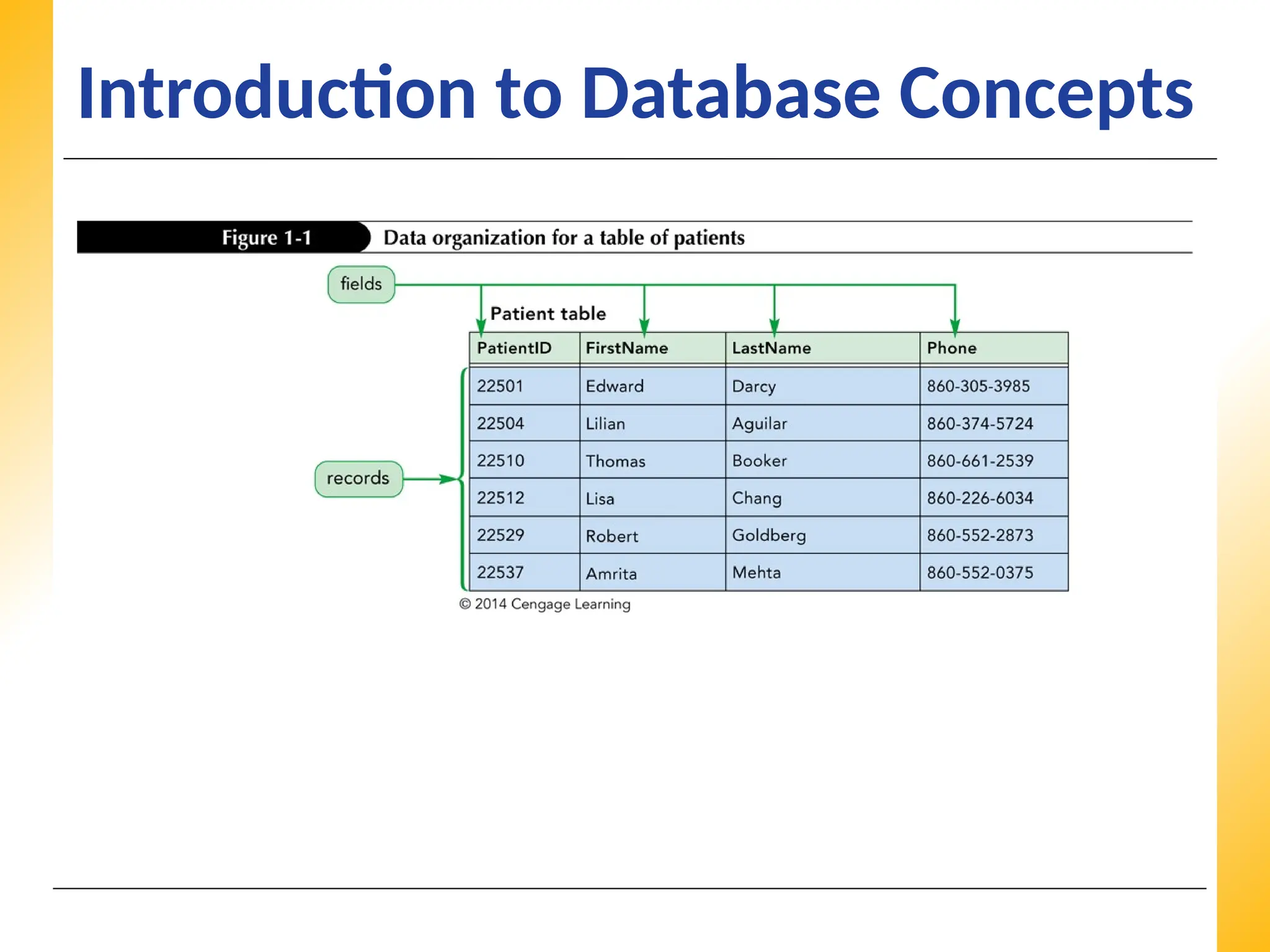
Introduction to DatabaseConcepts
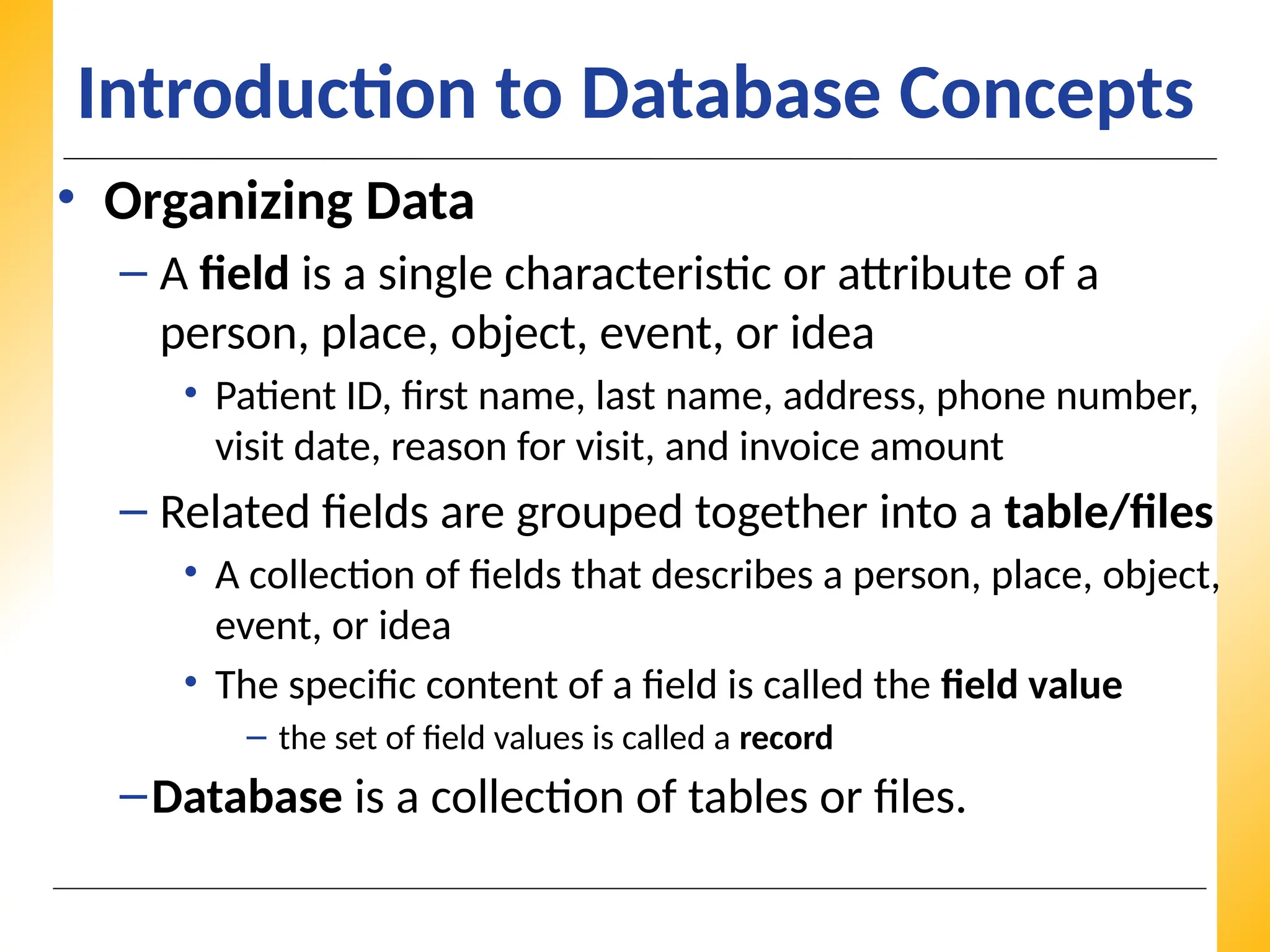
• Organizing Data
– A field is a single characteristic or attribute of a
person, place, object, event, or idea
• Patient ID, first name, last name, address, phone number,
visit date, reason for visit, and invoice amount
– Related fields are grouped together into a table/files
• A collection of fields that describes a person, place, object,
event, or idea
• The specific content of a field is called the field value
– the set of field values is called a record
–Database is a collection of tables or files.
XP
XP
XP
Databases and Relationships
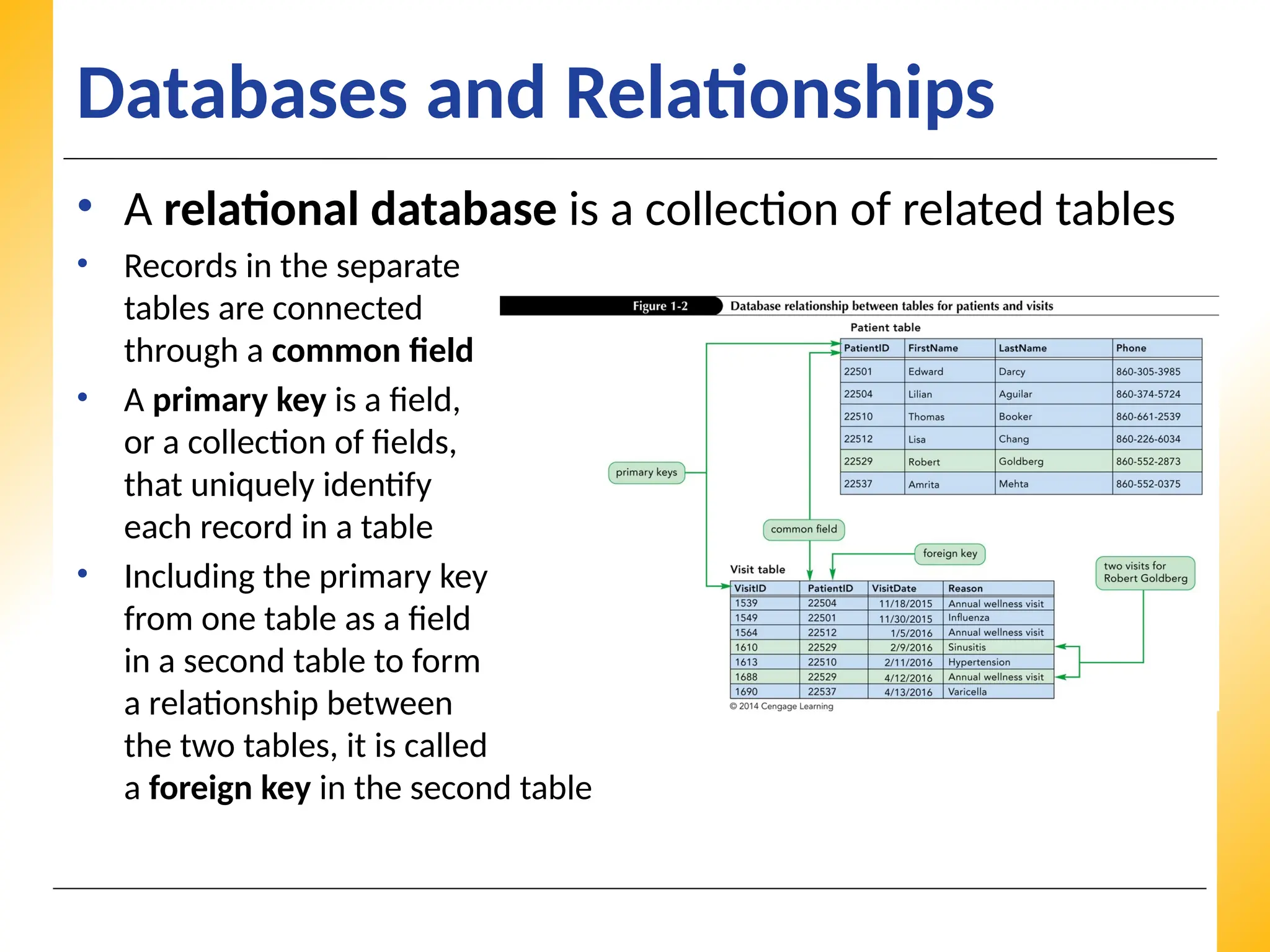
•A relational database is a collection of related tables
• Records in the separate
tables are connected
through a common field
• A primary key is a field,
or a collection of fields,
that uniquely identify
each record in a table
• Including the primary key
from one table as a field
in a second table to form
a relationship between
the two tables, it is called
a foreign key in the second table
7.
XP
XP
XP
Relational Database ManagementSystems
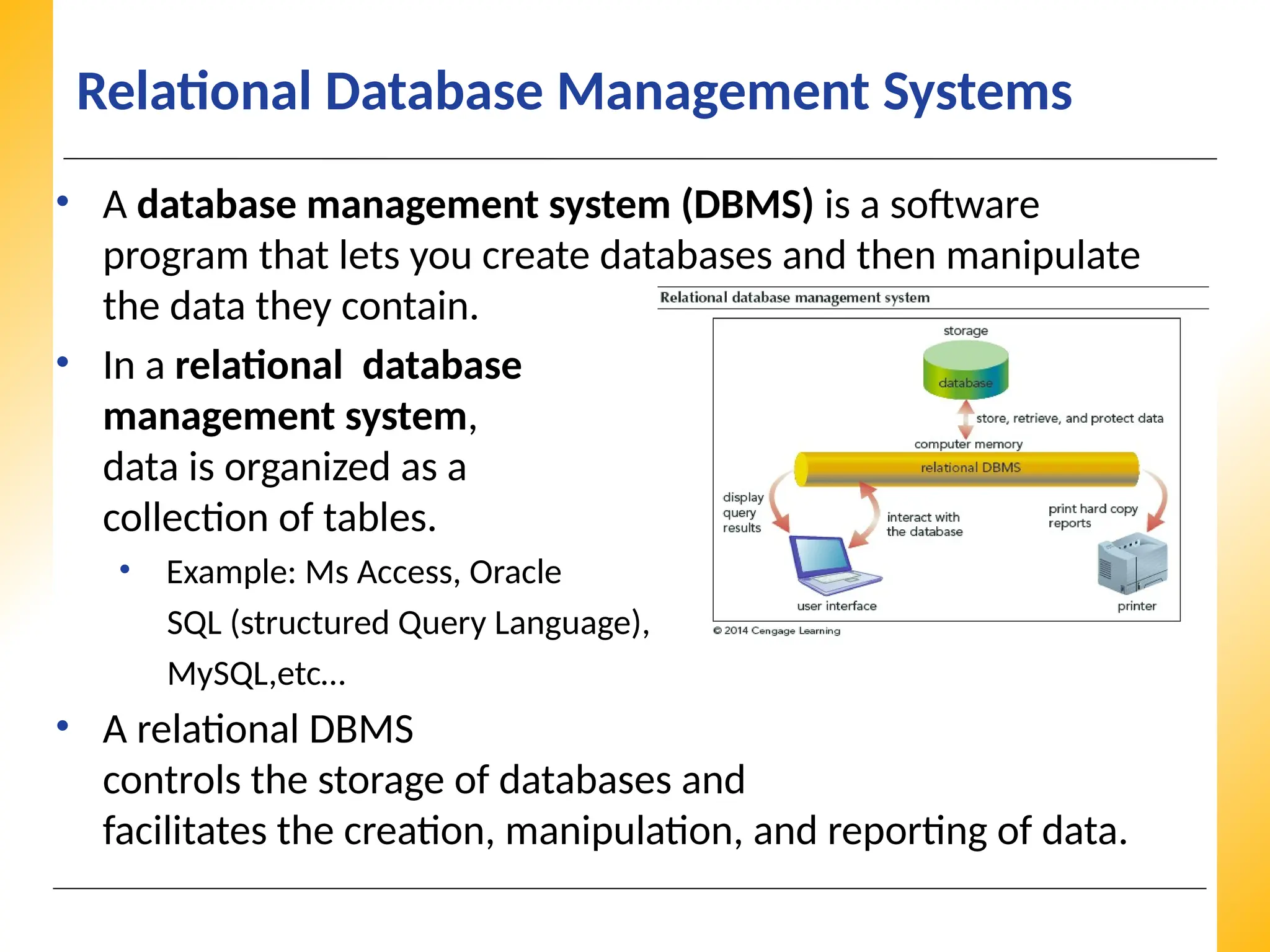
• A database management system (DBMS) is a software
program that lets you create databases and then manipulate
the data they contain.
• In a relational database
management system,
data is organized as a
collection of tables.
• Example: Ms Access, Oracle
SQL (structured Query Language),
MySQL,etc…
• A relational DBMS
controls the storage of databases and
facilitates the creation, manipulation, and reporting of data.
8.
XP
XP
XP
Relational Database ManagementSystems
• A relational DBMS provides the following functions:
– Allows you to create database structures containing fields,
tables, and table relationships
– Lets you easily add new records, change field values in
existing records, and delete records
– Contains a built-in query language, which lets you obtain
immediate answers to the questions (or queries) you ask
about your data
– Contains a built-in report generator, which lets you produce
professional-looking, formatted reports from your data
– Protects databases through security, control, and recovery
facilities
XP
XP
XP
Starting Access andCreating a Database
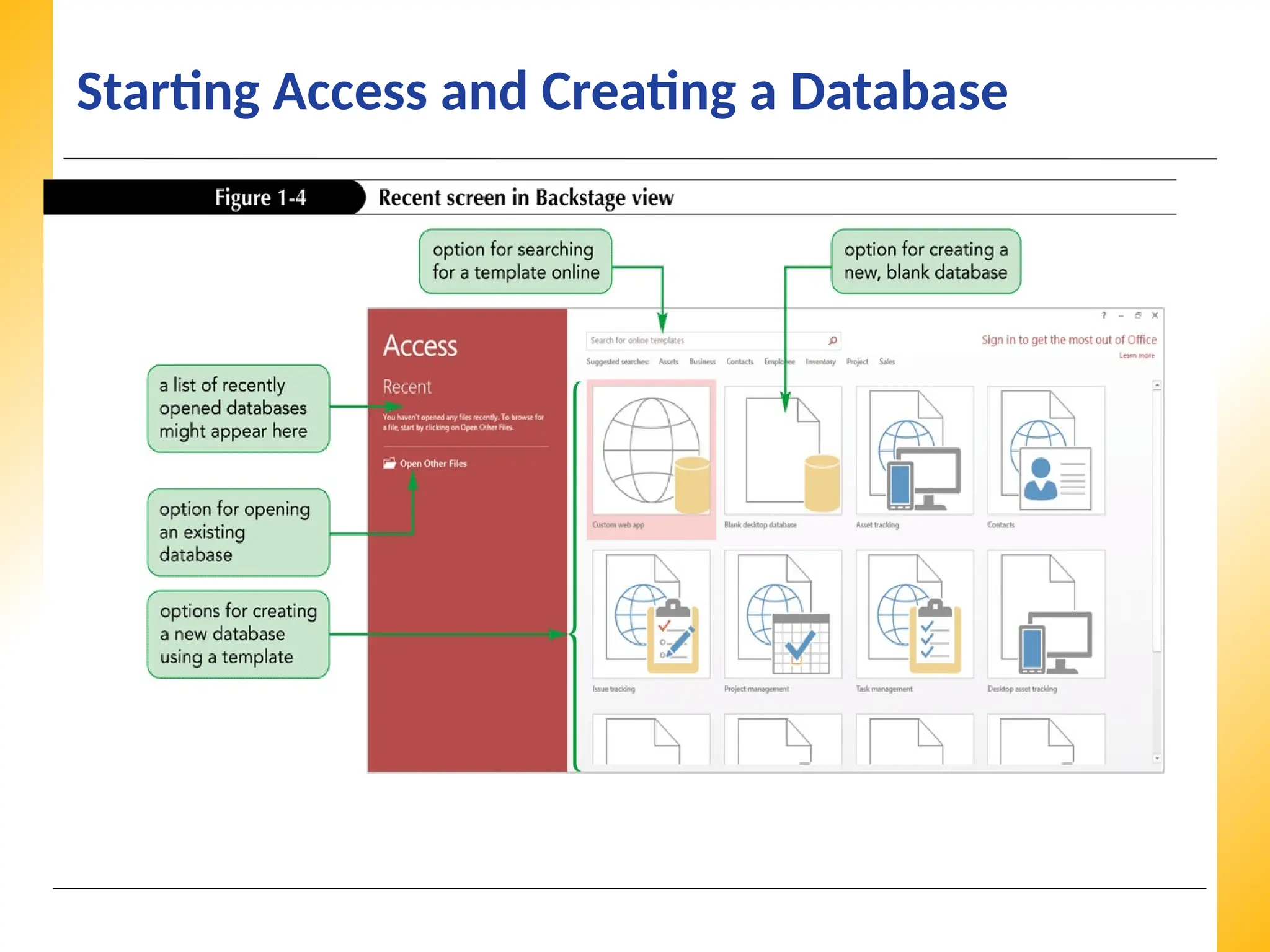
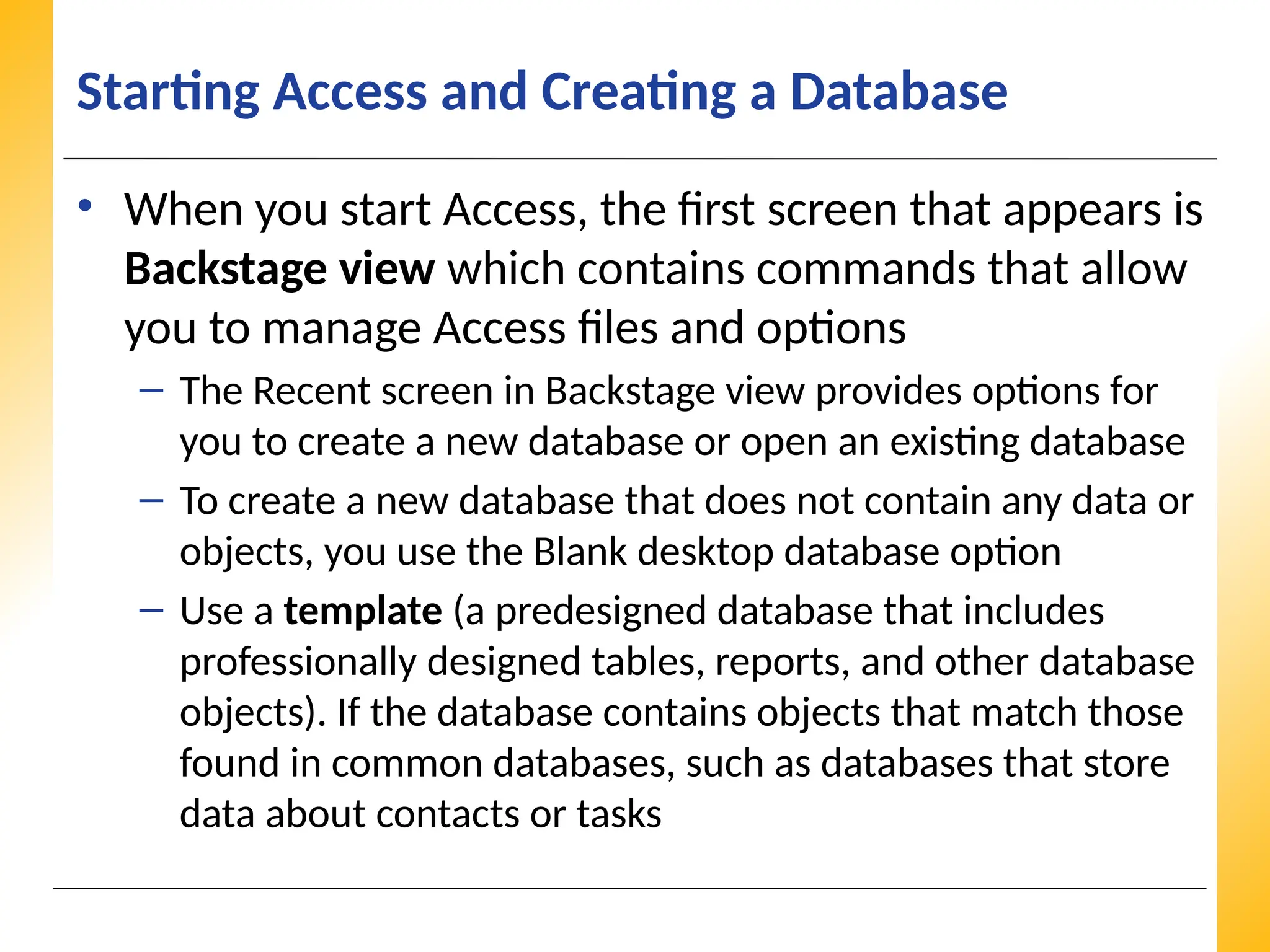
• When you start Access, the first screen that appears is
Backstage view which contains commands that allow
you to manage Access files and options
– The Recent screen in Backstage view provides options for
you to create a new database or open an existing database
– To create a new database that does not contain any data or
objects, you use the Blank desktop database option
– Use a template (a predesigned database that includes
professionally designed tables, reports, and other database
objects). If the database contains objects that match those
found in common databases, such as databases that store
data about contacts or tasks
XP
XP
XP
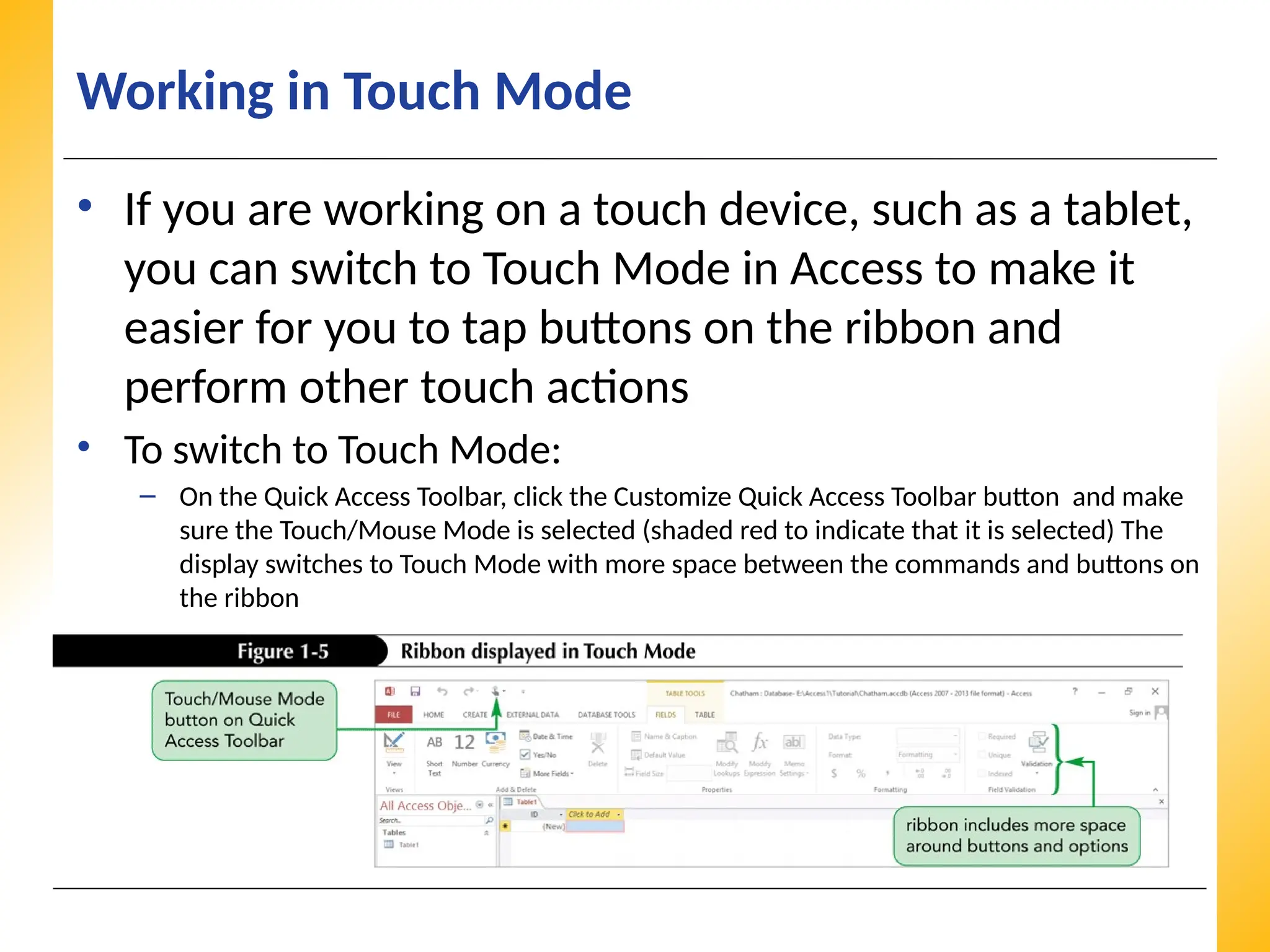
Working in TouchMode
• If you are working on a touch device, such as a tablet,
you can switch to Touch Mode in Access to make it
easier for you to tap buttons on the ribbon and
perform other touch actions
• To switch to Touch Mode:
– On the Quick Access Toolbar, click the Customize Quick Access Toolbar button and make
sure the Touch/Mouse Mode is selected (shaded red to indicate that it is selected) The
display switches to Touch Mode with more space between the commands and buttons on
the ribbon
13.
XP
XP
XP
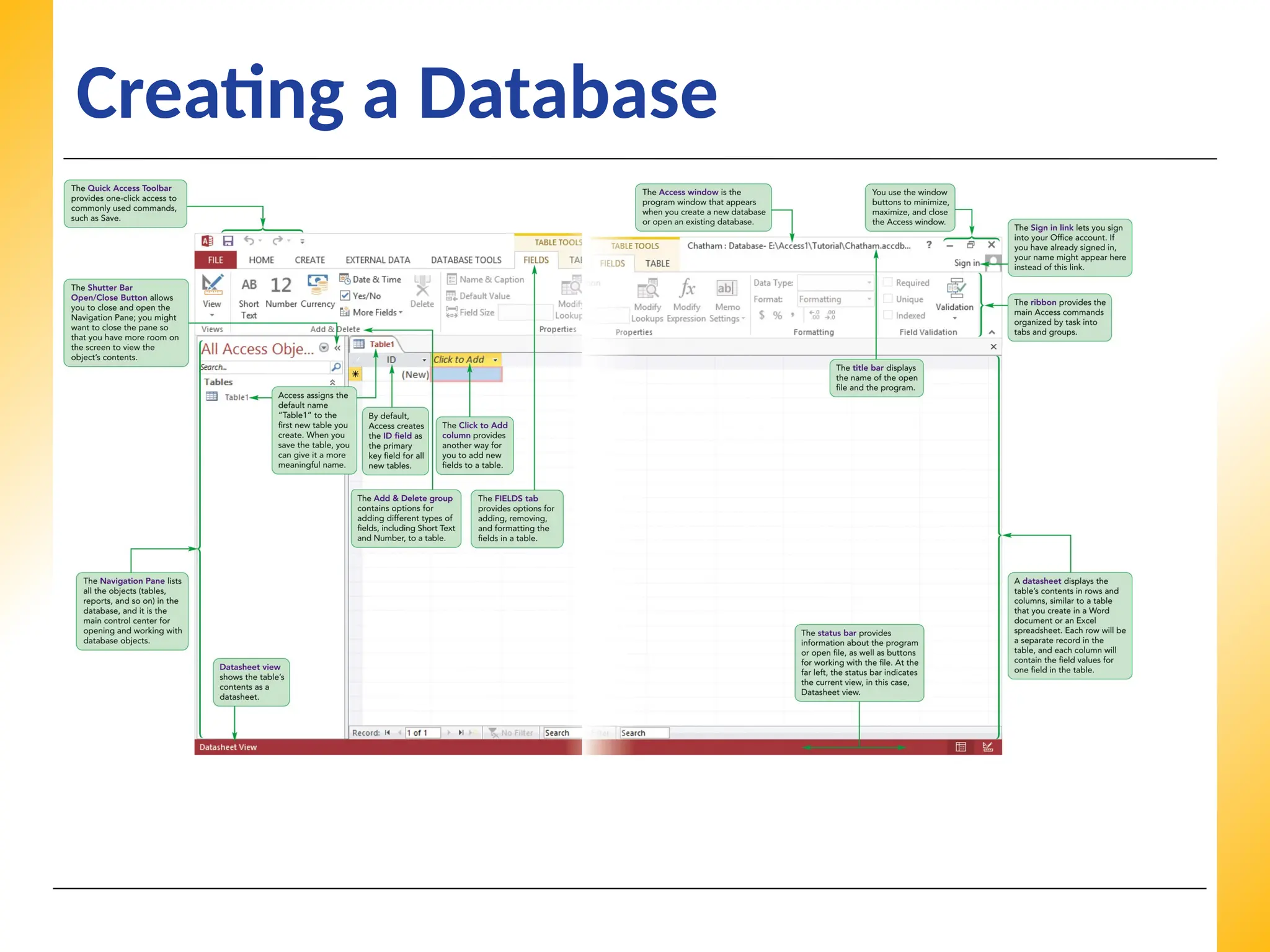
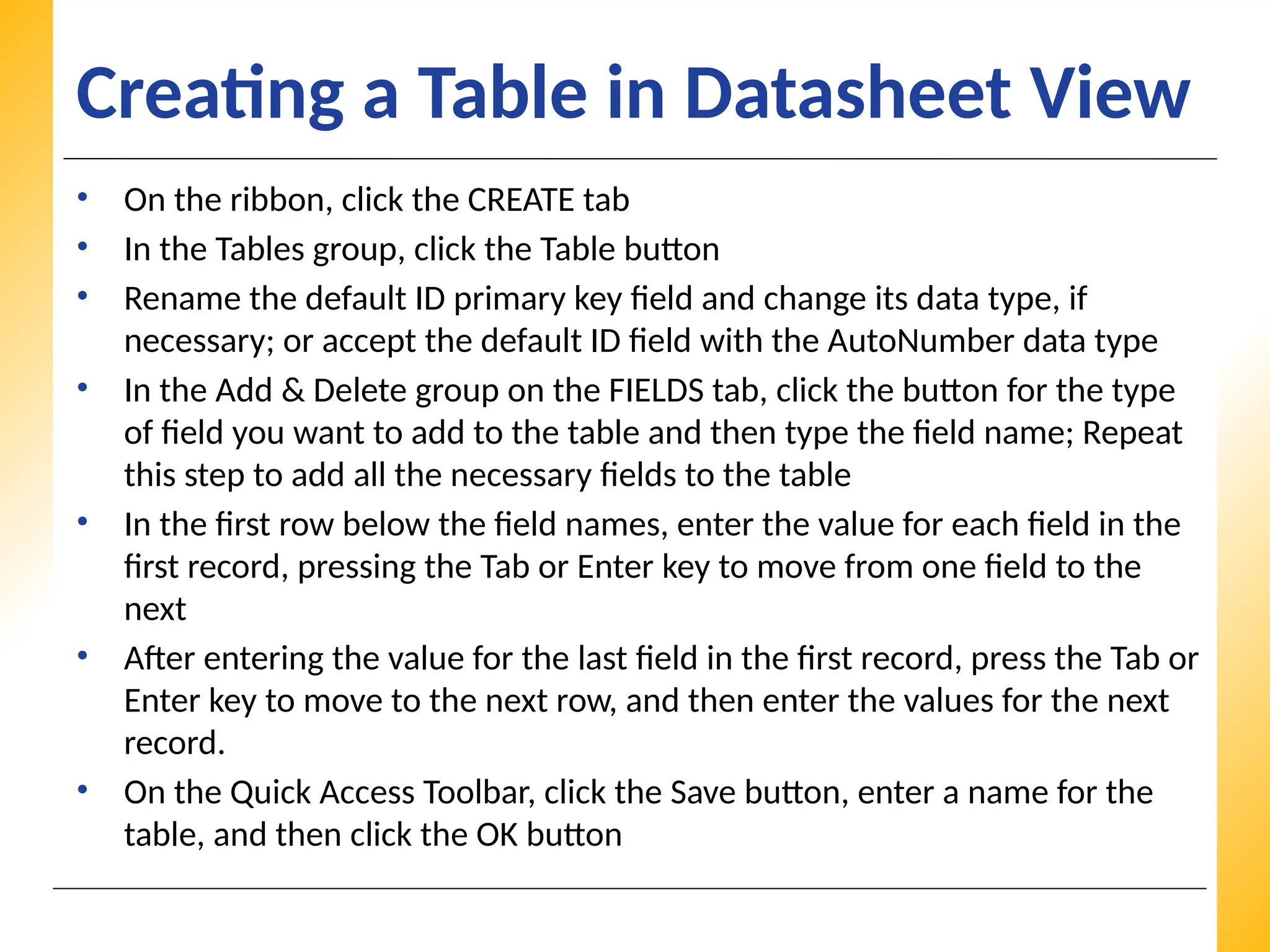
Creating a Tablein Datasheet View
• On the ribbon, click the CREATE tab
• In the Tables group, click the Table button
• Rename the default ID primary key field and change its data type, if
necessary; or accept the default ID field with the AutoNumber data type
• In the Add & Delete group on the FIELDS tab, click the button for the type
of field you want to add to the table and then type the field name; Repeat
this step to add all the necessary fields to the table
• In the first row below the field names, enter the value for each field in the
first record, pressing the Tab or Enter key to move from one field to the
next
• After entering the value for the last field in the first record, press the Tab or
Enter key to move to the next row, and then enter the values for the next
record.
• On the Quick Access Toolbar, click the Save button, enter a name for the
table, and then click the OK button
14.
XP
XP
XP
Creating a Tablein Datasheet View
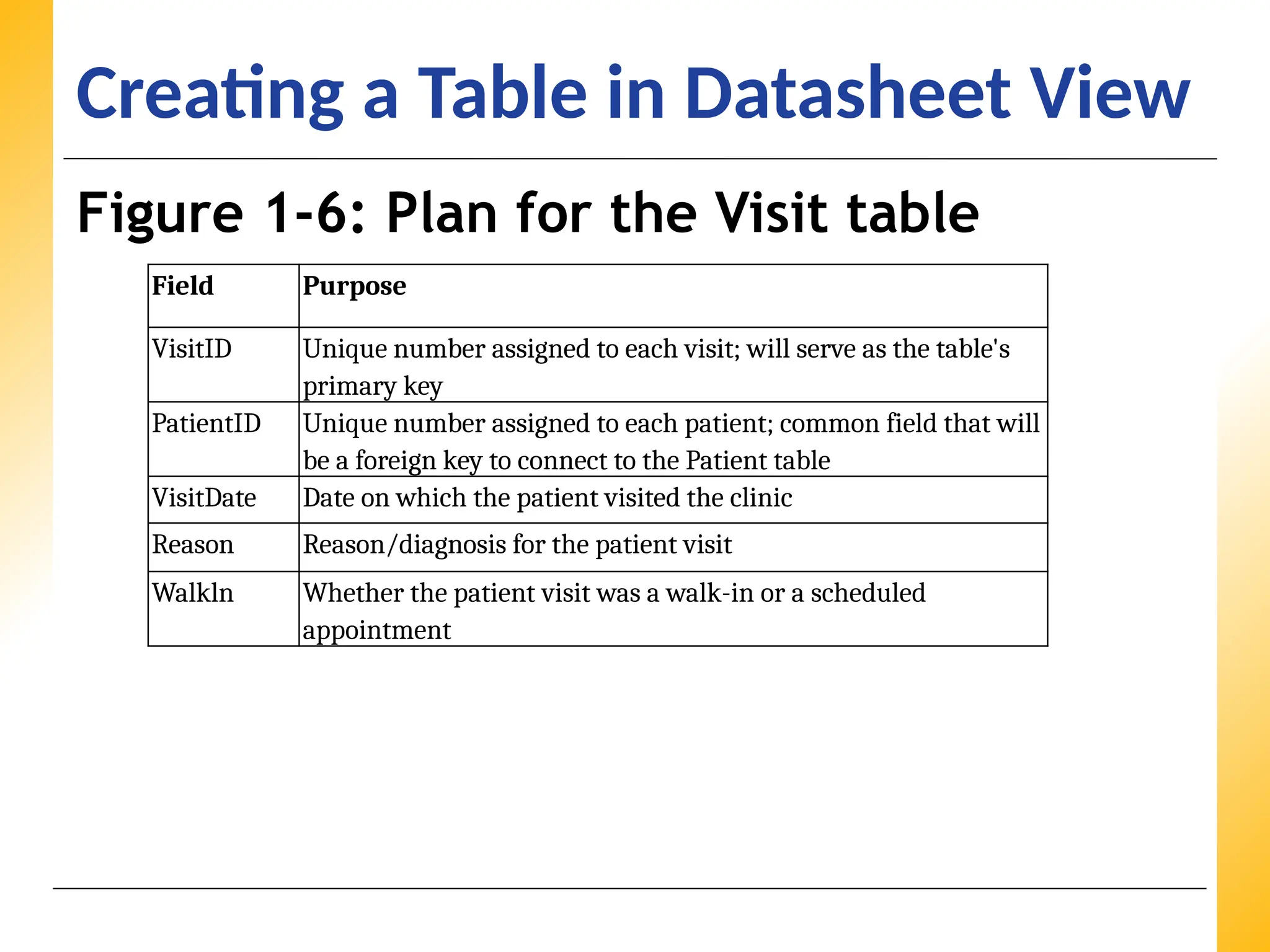
Figure 1-6: Plan for the Visit table
Field Purpose
VisitID Unique number assigned to each visit; will serve as the table's
primary key
PatientID Unique number assigned to each patient; common field that will
be a foreign key to connect to the Patient table
VisitDate Date on which the patient visited the clinic
Reason Reason/diagnosis for the patient visit
Walkln Whether the patient visit was a walk-in or a scheduled
appointment
15.
XP
XP
XP
Creating a Tablein Datasheet View
• Decision Making: Naming Fields in Access Tables
– One of the most important tasks in creating a table is deciding what names to
specify for the table’s fields. Keep the following guidelines in mind when you
assign field names:
• A field name can consist of up to 64 characters, including letters, numbers,
spaces, and special characters, except for the period (.), exclamation mark (!),
grave accent (`), and square brackets ([ ])
• A field name cannot begin with a space
• Capitalize the first letter of each word in a field name that combines multiple
words, for example VisitDate
• Use concise field names that are easy to remember and reference, and that won’t
take up a lot of space in the table datasheet
• Use standard abbreviations, such as Num for Number, Amt for Amount, and Qty
for Quantity, and use them consistently throughout the database.
• For example, if you use Num for Number in one field name, do not use the
number sign (#) for Number in another
• Give fields descriptive names so that you can easily identify them when you view
or edit records
16.
XP
XP
XP
Creating a Tablein Datasheet View
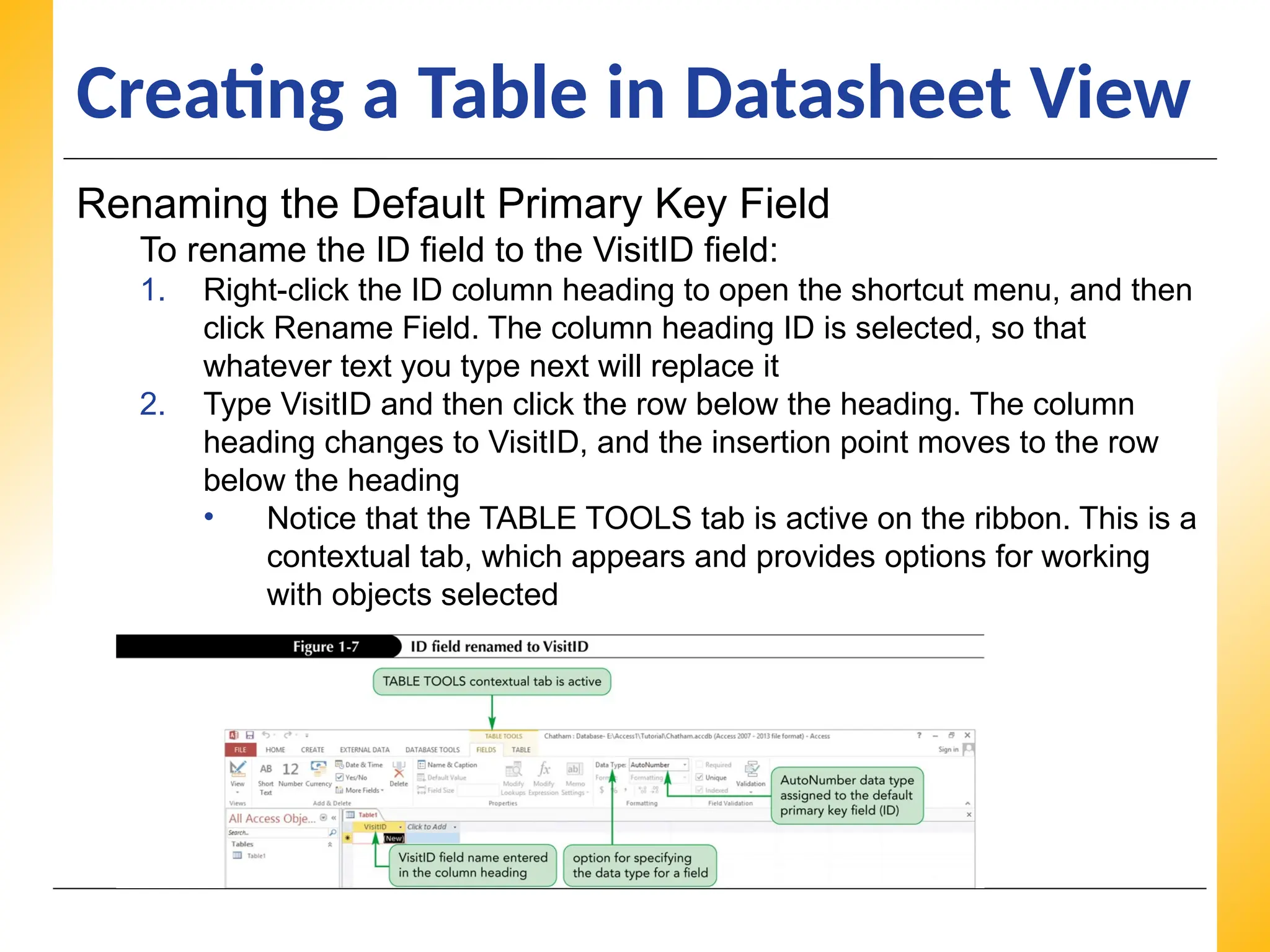
Renaming the Default Primary Key Field
To rename the ID field to the VisitID field:
1. Right-click the ID column heading to open the shortcut menu, and then
click Rename Field. The column heading ID is selected, so that
whatever text you type next will replace it
2. Type VisitID and then click the row below the heading. The column
heading changes to VisitID, and the insertion point moves to the row
below the heading
• Notice that the TABLE TOOLS tab is active on the ribbon. This is a
contextual tab, which appears and provides options for working
with objects selected
17.
XP
XP
XP
Creating a Tablein Datasheet View
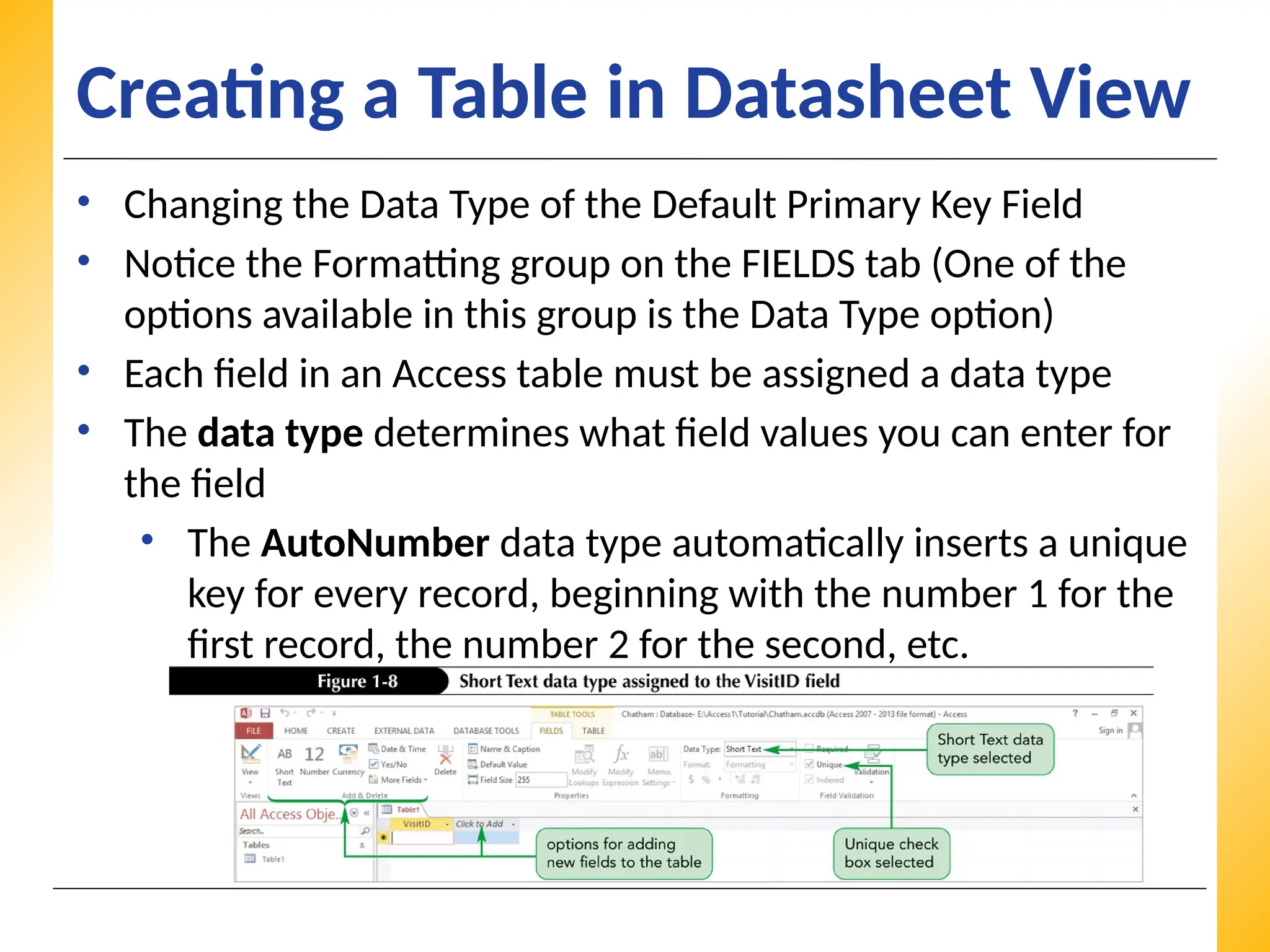
• Changing the Data Type of the Default Primary Key Field
• Notice the Formatting group on the FIELDS tab (One of the
options available in this group is the Data Type option)
• Each field in an Access table must be assigned a data type
• The data type determines what field values you can enter for
the field
• The AutoNumber data type automatically inserts a unique
key for every record, beginning with the number 1 for the
first record, the number 2 for the second, etc.
18.
XP
XP
XP
Creating a Tablein Datasheet View
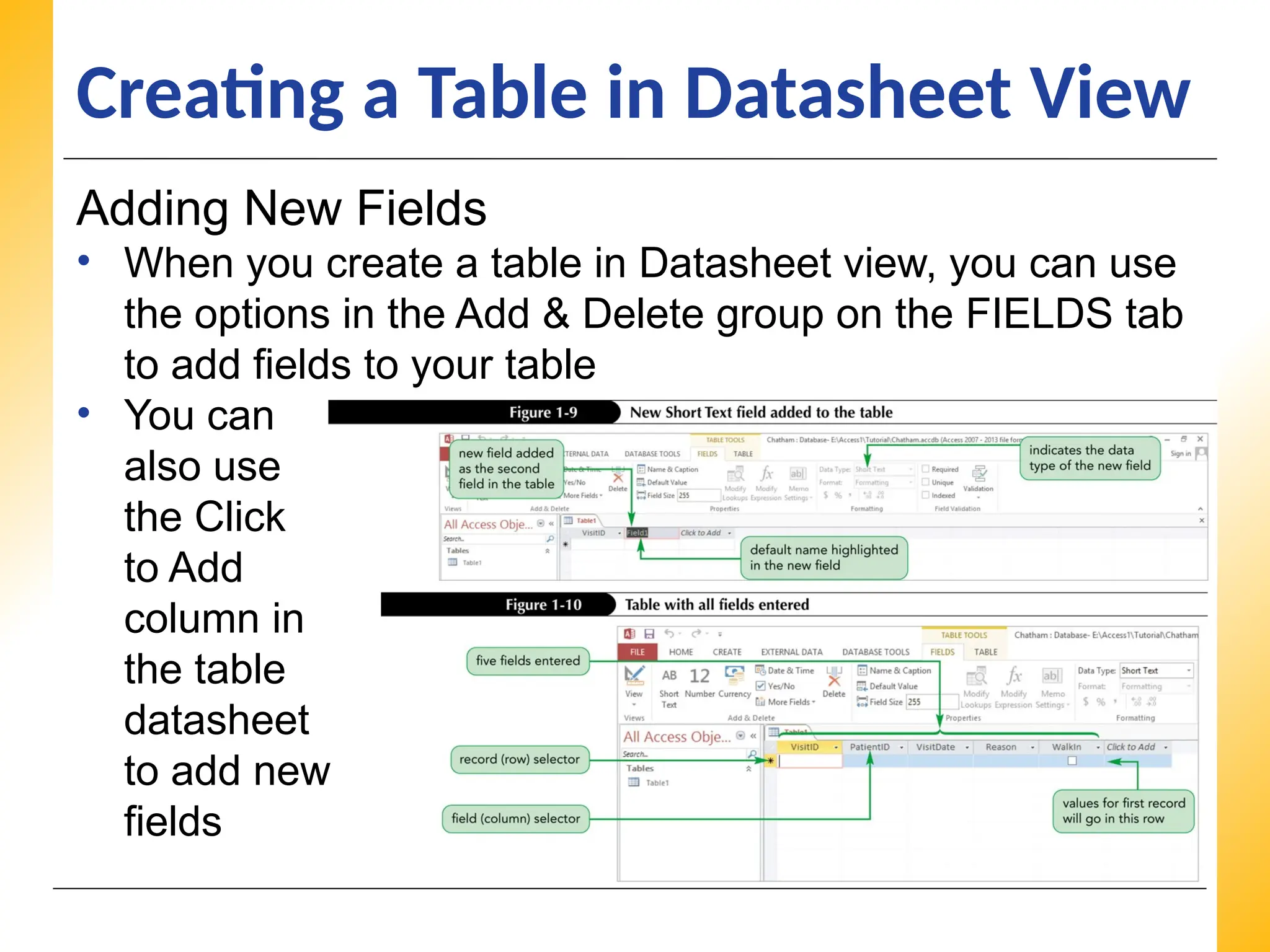
Adding New Fields
• When you create a table in Datasheet view, you can use
the options in the Add & Delete group on the FIELDS tab
to add fields to your table
• You can
also use
the Click
to Add
column in
the table
datasheet
to add new
fields
19.
XP
XP
XP
Creating a Tablein Datasheet View
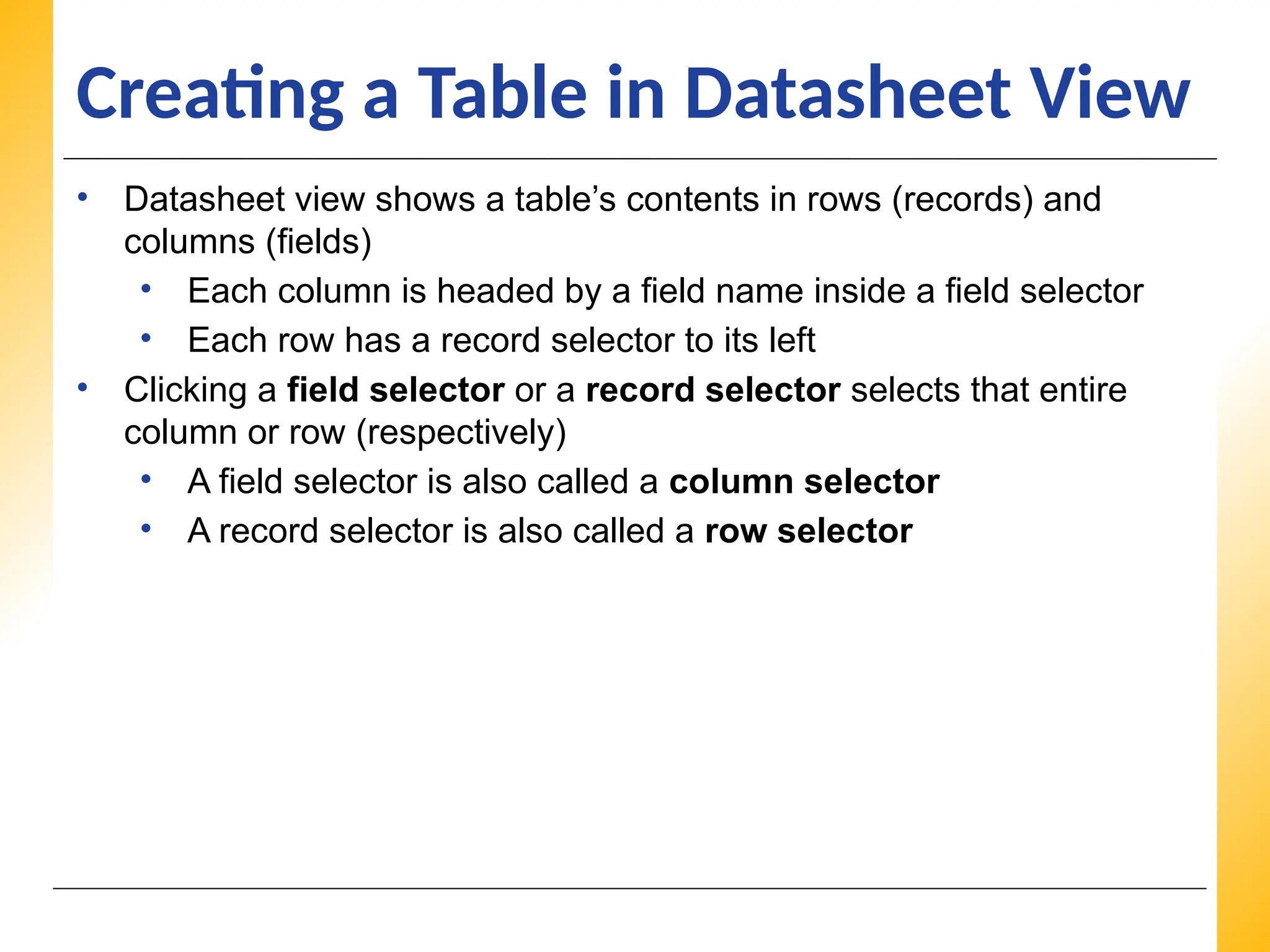
• Datasheet view shows a table’s contents in rows (records) and
columns (fields)
• Each column is headed by a field name inside a field selector
• Each row has a record selector to its left
• Clicking a field selector or a record selector selects that entire
column or row (respectively)
• A field selector is also called a column selector
• A record selector is also called a row selector
20.
XP
XP
XP
Creating a Tablein Datasheet View
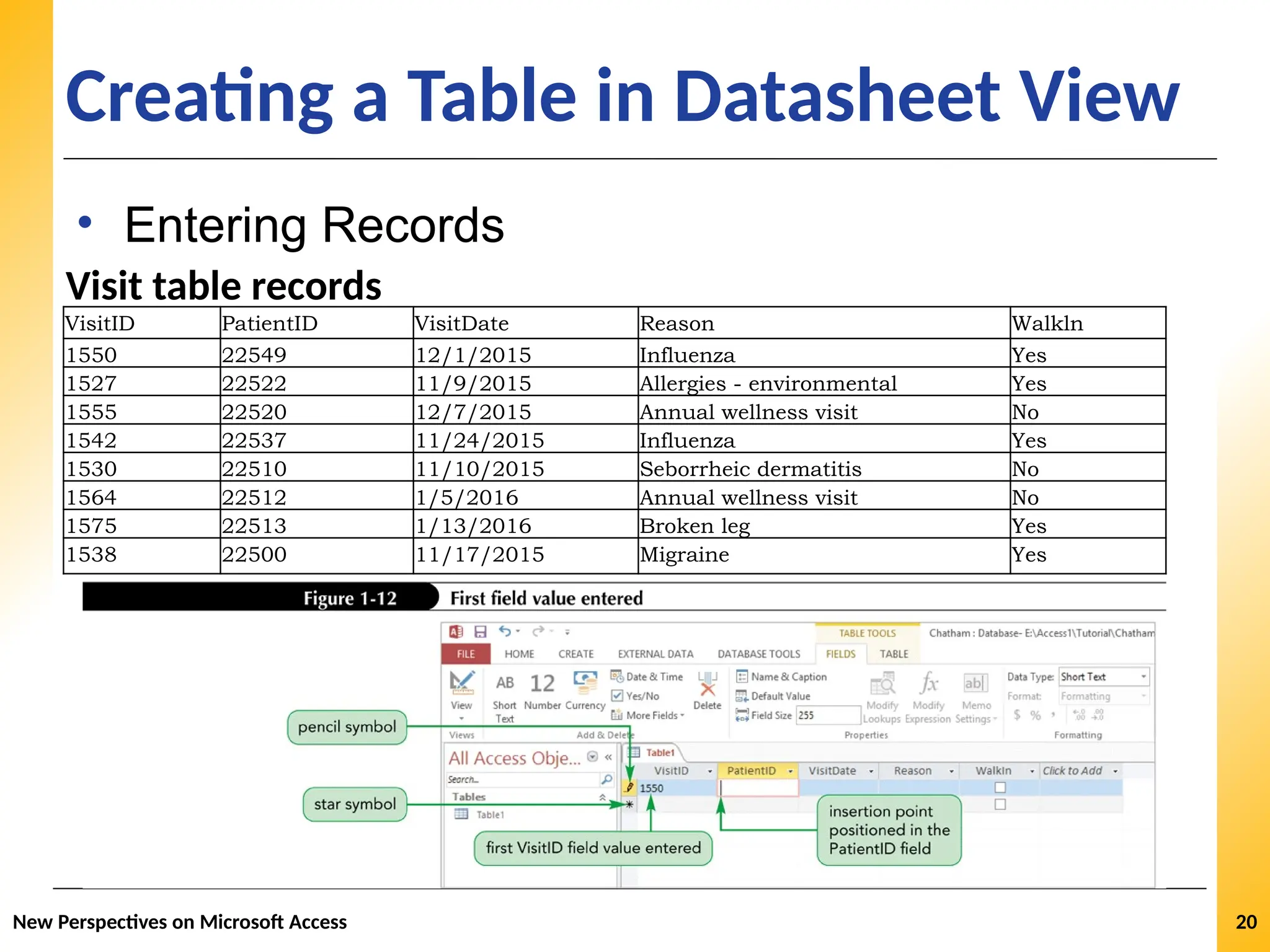
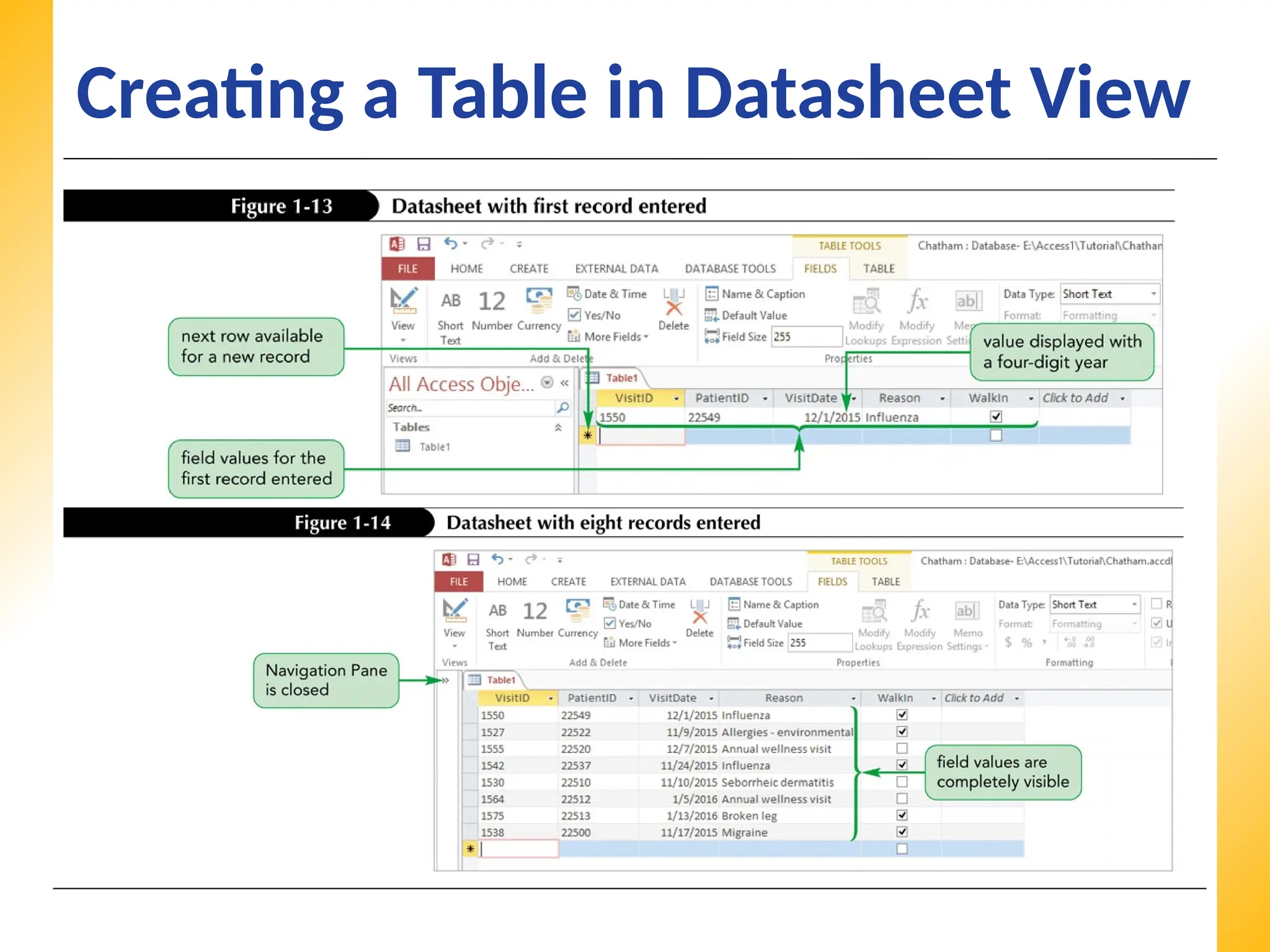
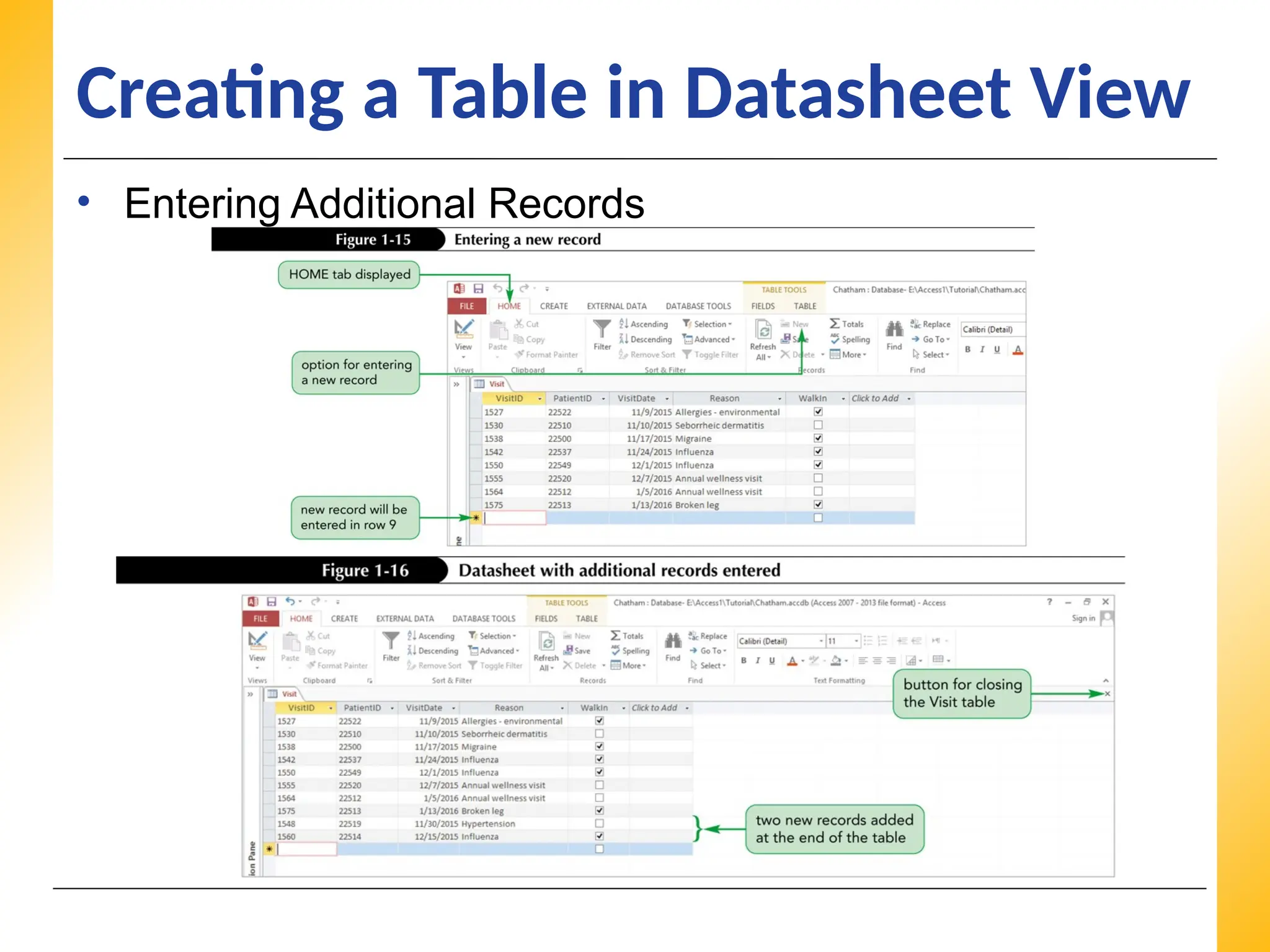
• Entering Records
Visit table records
VisitID PatientID VisitDate Reason Walkln
1550 22549 12/1/2015 Influenza Yes
1527 22522 11/9/2015 Allergies - environmental Yes
1555 22520 12/7/2015 Annual wellness visit No
1542 22537 11/24/2015 Influenza Yes
1530 22510 11/10/2015 Seborrheic dermatitis No
1564 22512 1/5/2016 Annual wellness visit No
1575 22513 1/13/2016 Broken leg Yes
1538 22500 11/17/2015 Migraine Yes
New Perspectives on Microsoft Access 20
XP
XP
XP
Creating a Tablein Datasheet View
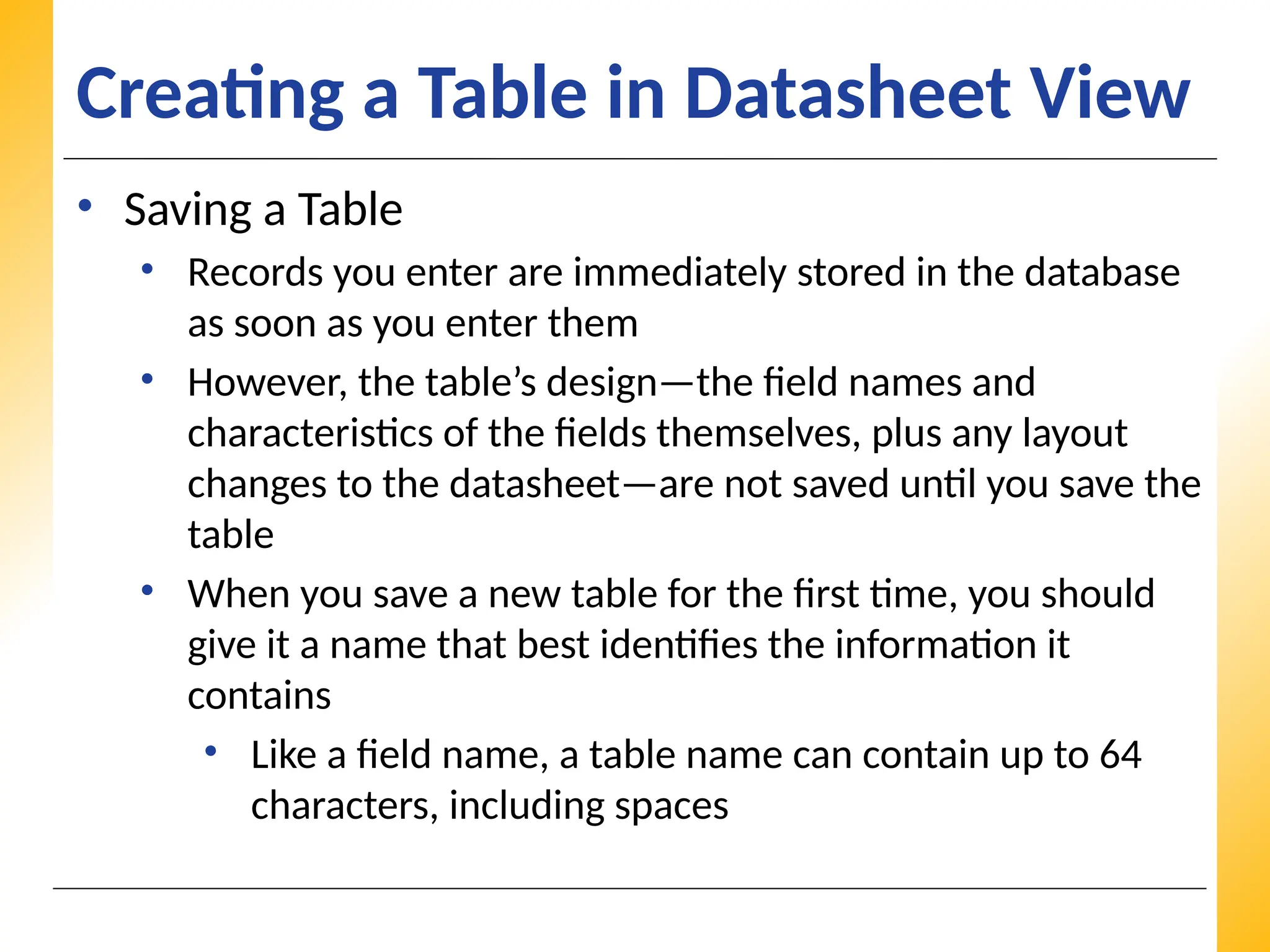
• Saving a Table
• Records you enter are immediately stored in the database
as soon as you enter them
• However, the table’s design—the field names and
characteristics of the fields themselves, plus any layout
changes to the datasheet—are not saved until you save the
table
• When you save a new table for the first time, you should
give it a name that best identifies the information it
contains
• Like a field name, a table name can contain up to 64
characters, including spaces
XP
XP
XP
Creating a Tablein Datasheet View
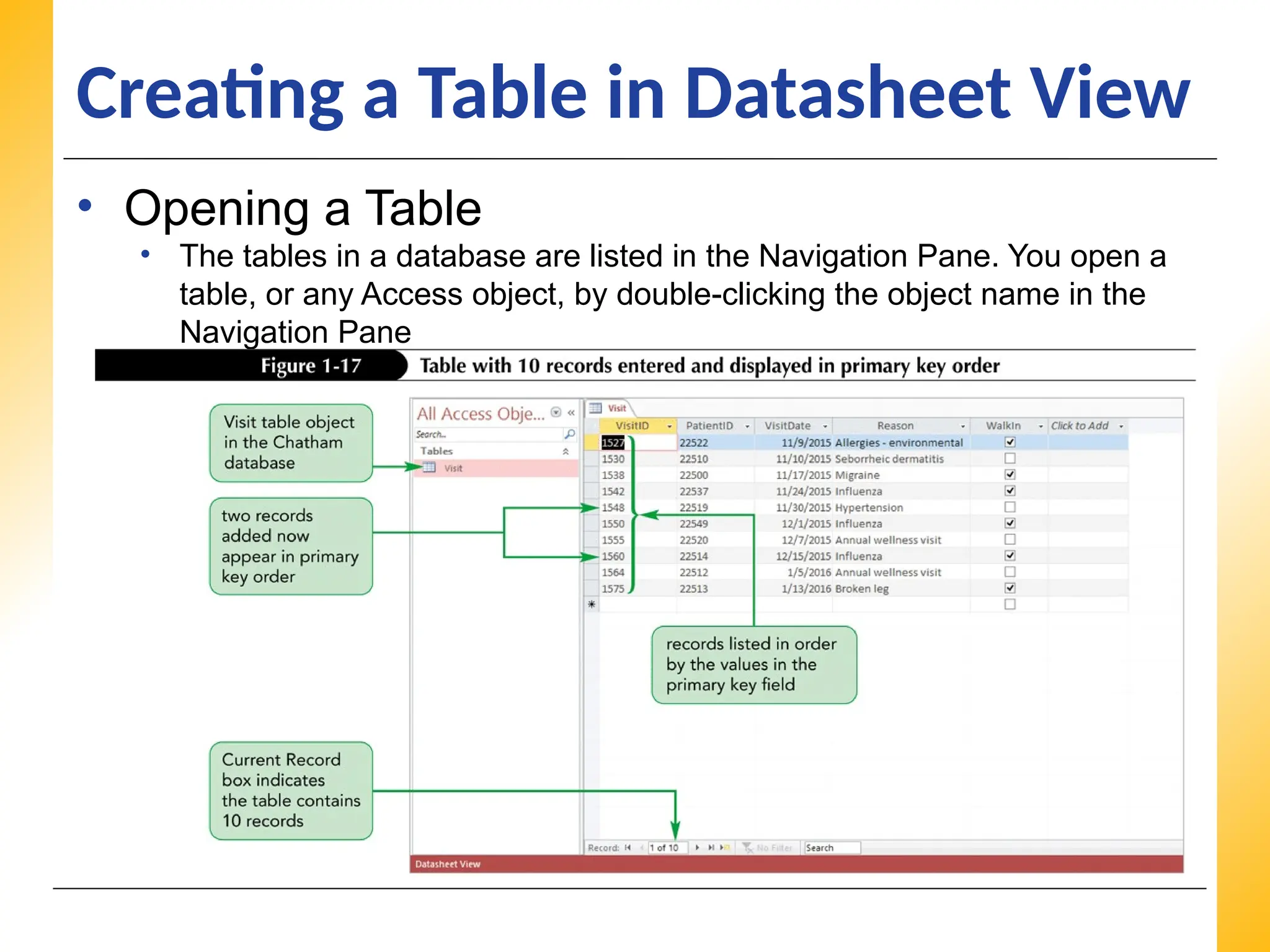
• Opening a Table
• The tables in a database are listed in the Navigation Pane. You open a
table, or any Access object, by double-clicking the object name in the
Navigation Pane
25.
XP
XP
XP
Closing a Tableand Exiting Access
• Close a table by clicking its Close button on the object
tab, as you did earlier
• If you want to close the Access program as well, you can
click the program’s Close button
• When you do, any open tables are closed, the active database is
closed, and you exit the Access Program
• If you want to close a table without exiting Access, click the
FILE tab to display Backstage view, and then click Close
XP
XP
XP
Copying Records fromAnother Access
Database
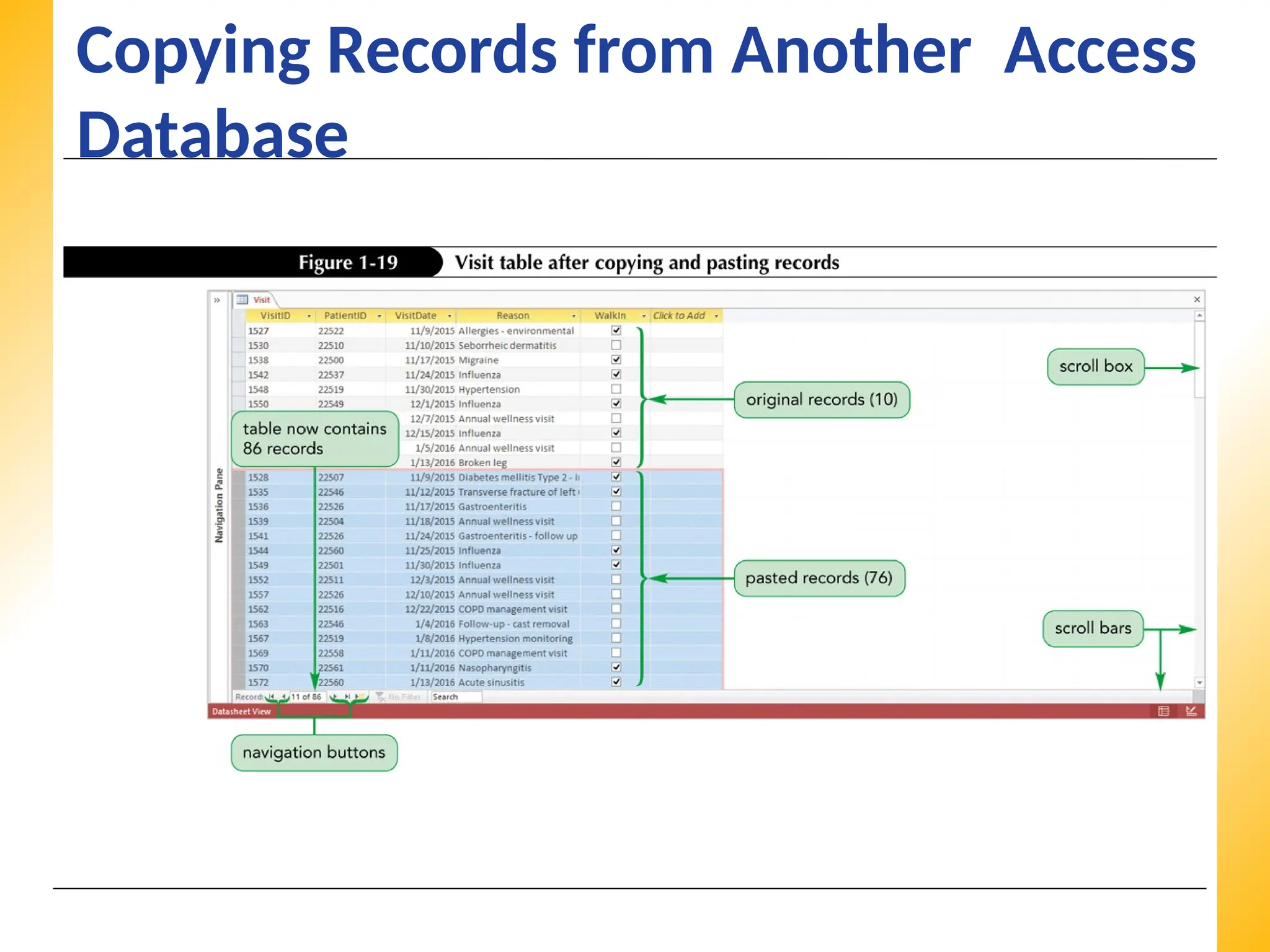
• There are many ways to enter records in a table,
including copying and pasting records from a table into
the same database or into a different database
• The two tables must have the same structure—that is,
the tables must contain the same fields, with the same
design, in the same order
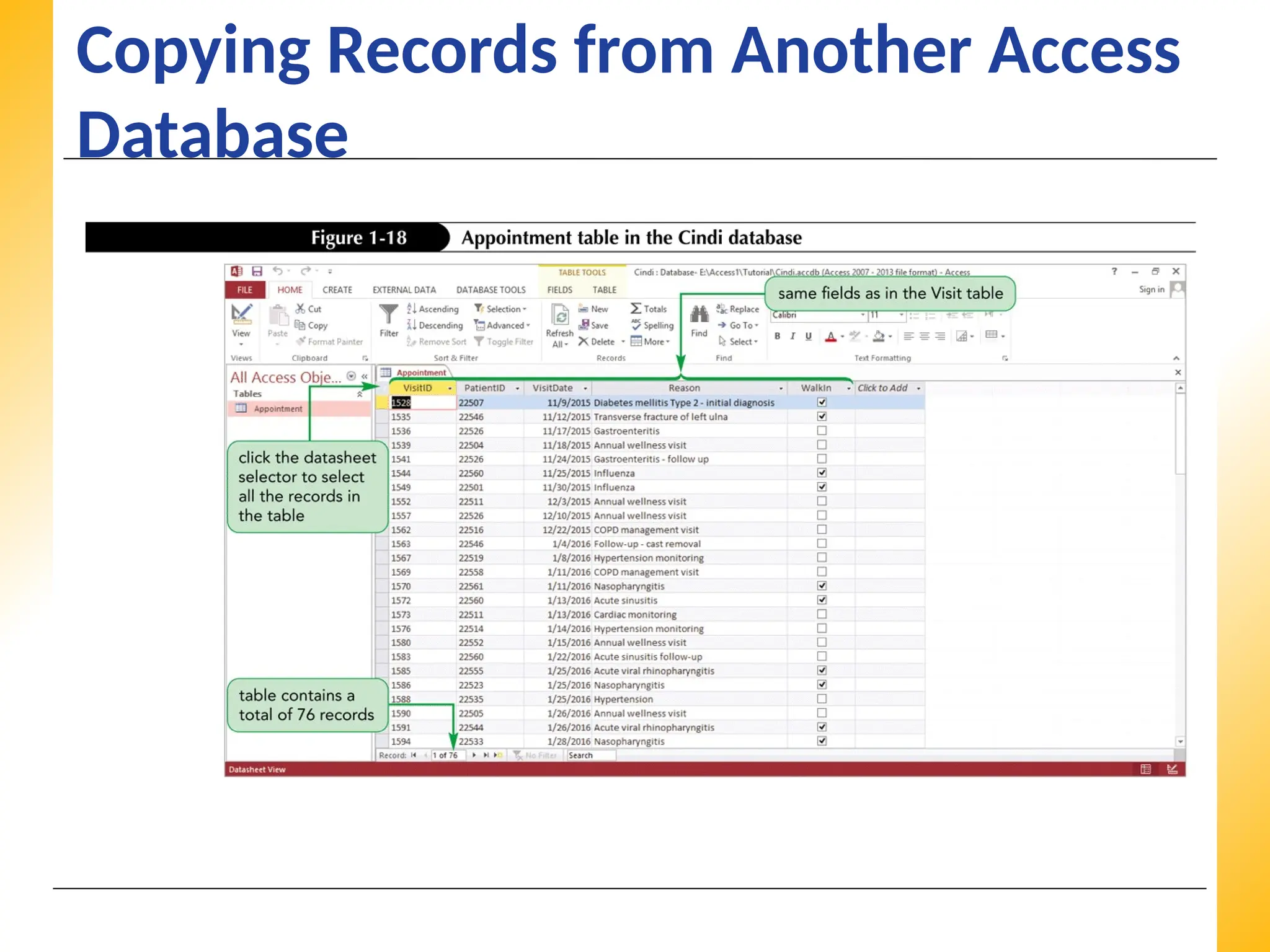
• Cindi has already created a table named Appointment
that contains additional records with visit data
• The Appointment table is contained in a database
named Cindi located in the Access1 Tutorial folder
included with your Data Files
• The Appointment table has the same table structure as
the Visit table you created
XP
XP
XP
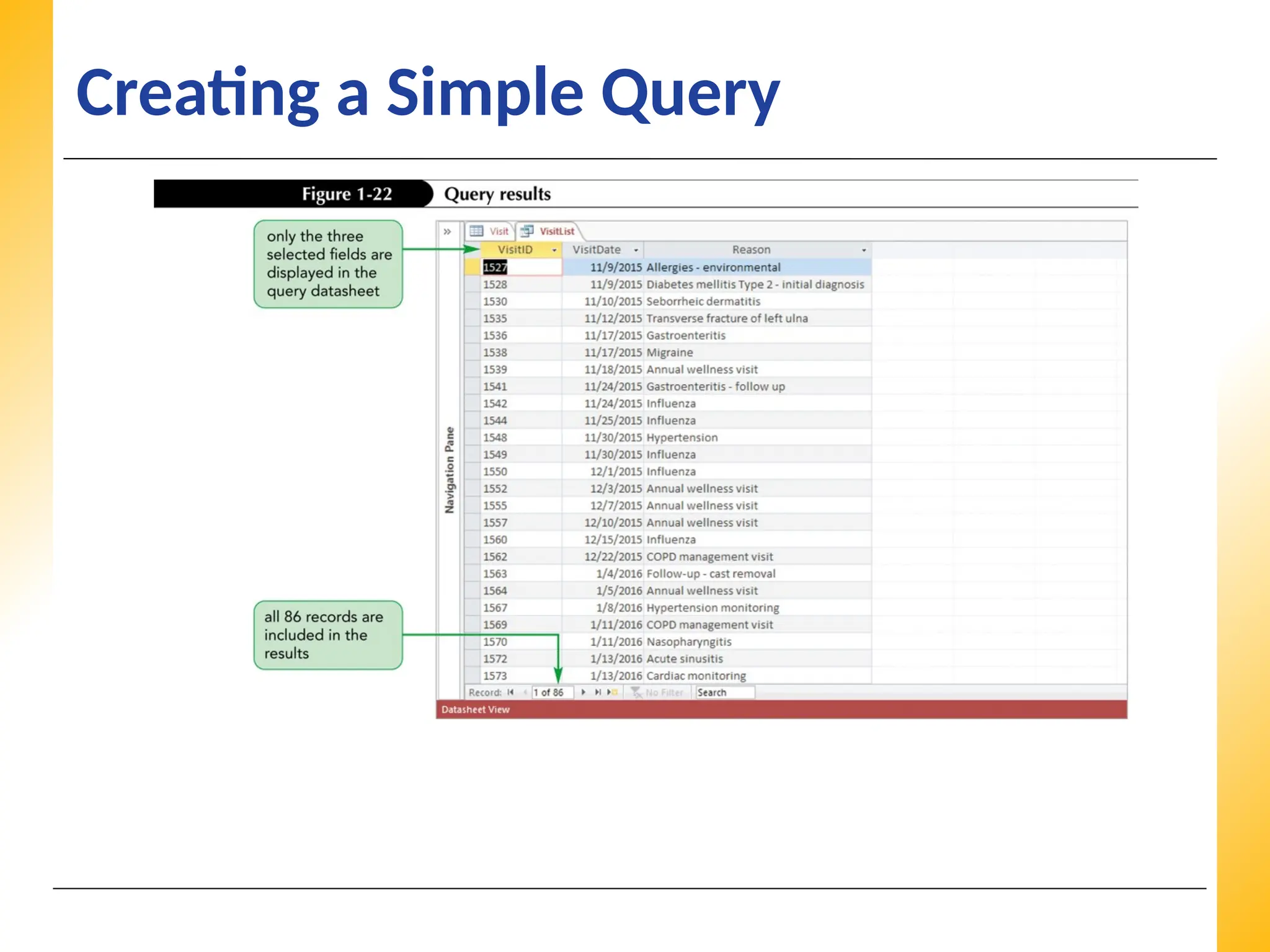
Navigating a Dataset
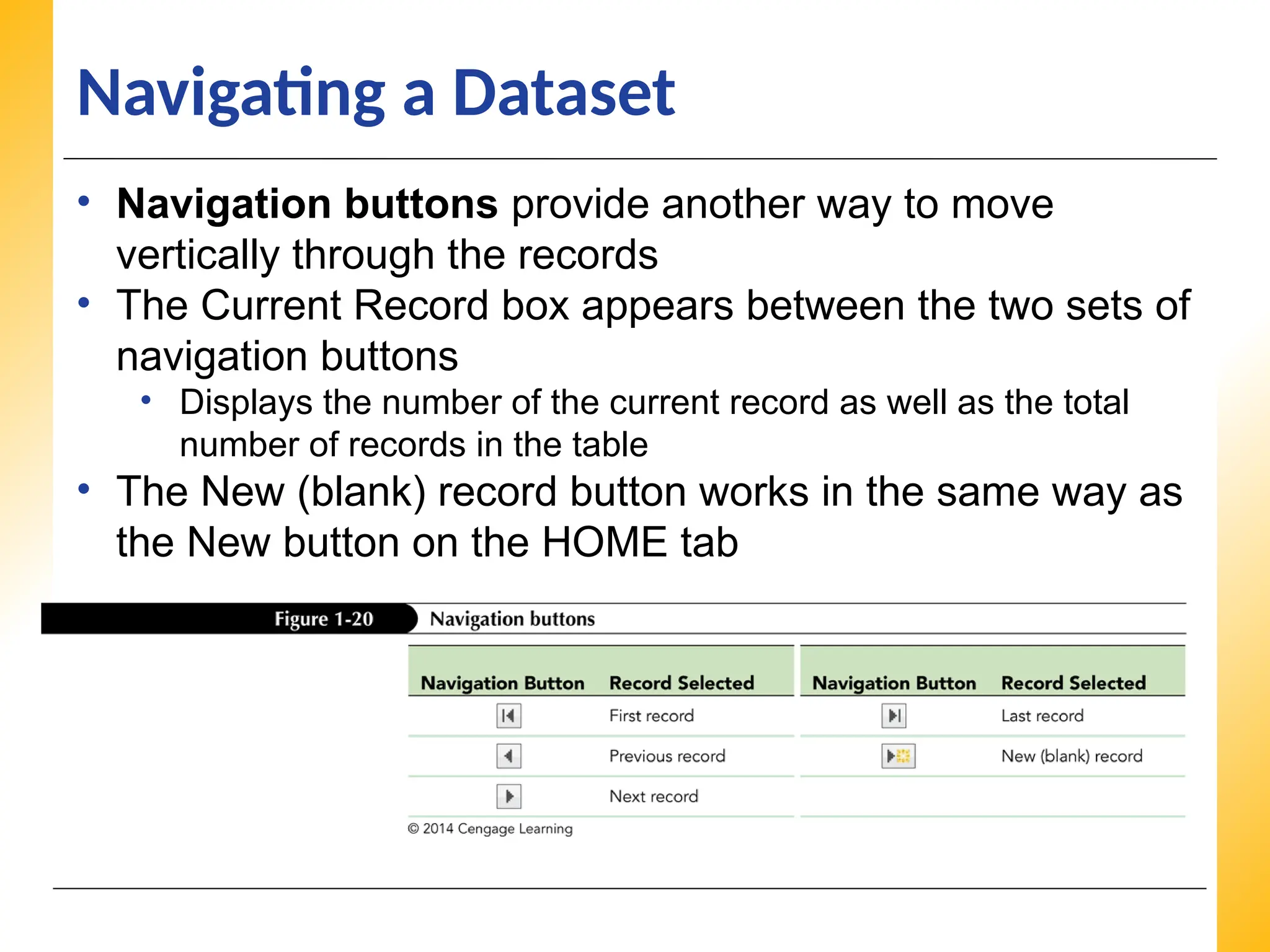
•Navigation buttons provide another way to move
vertically through the records
• The Current Record box appears between the two sets of
navigation buttons
• Displays the number of the current record as well as the total
number of records in the table
• The New (blank) record button works in the same way as
the New button on the HOME tab
XP
XP
XP
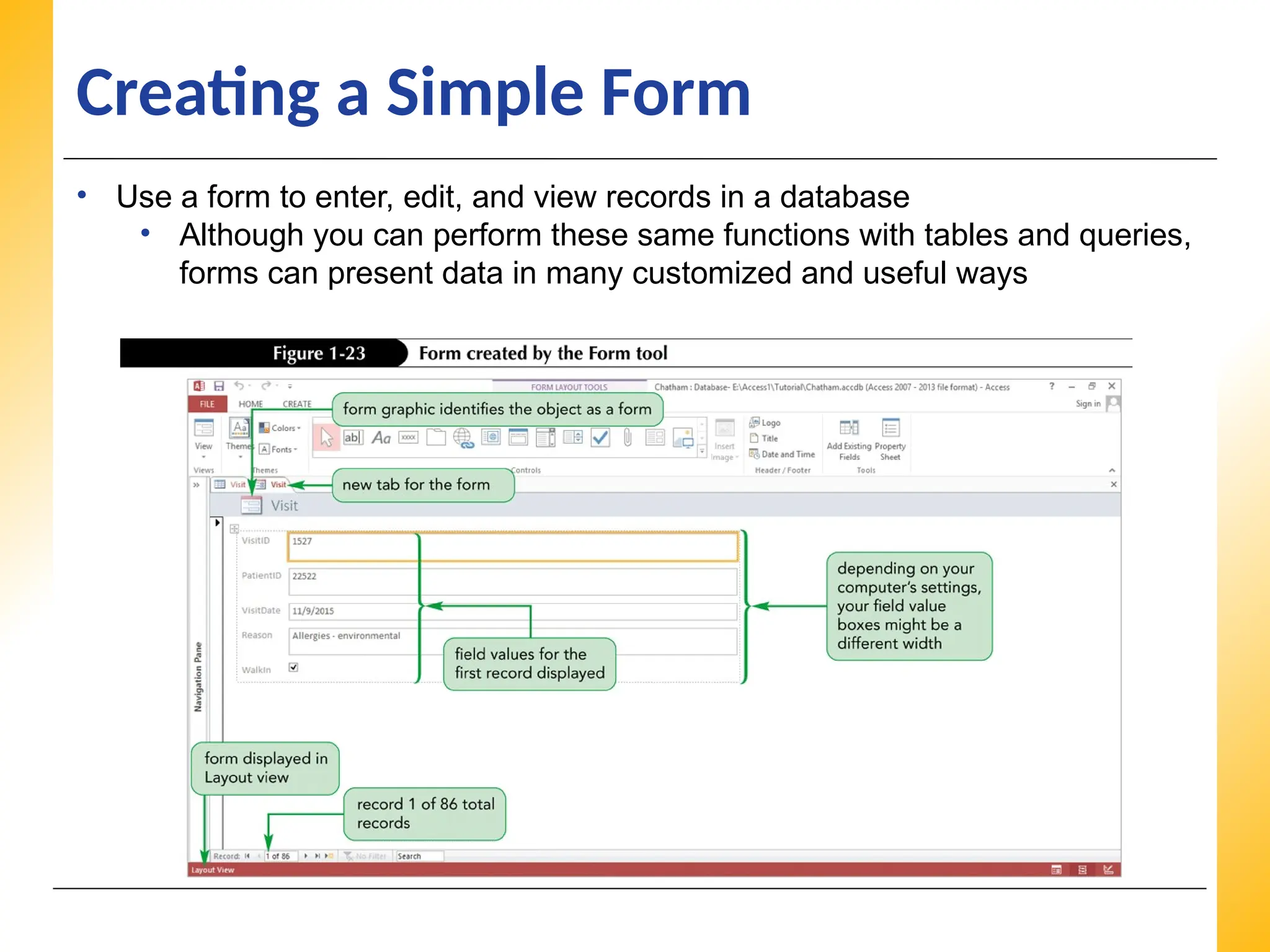
Creating a SimpleForm
• Forms display one record at a time
• Provide another view of the data that is stored in the table
• Allowing you to focus on the values for one record
• Access displays the field values for the first record in the table
• Each field appears on a separate line
• As indicated in the status bar, the form is displayed in Layout
view
• In Layout view, you can make design changes to the form while it is
displaying data, so that you can see the effects of the changes you
make immediately
33.
XP
XP
XP
Creating a SimpleForm
• Use a form to enter, edit, and view records in a database
• Although you can perform these same functions with tables and queries,
forms can present data in many customized and useful ways
34.
XP
XP
XP
Creating a SimpleReport
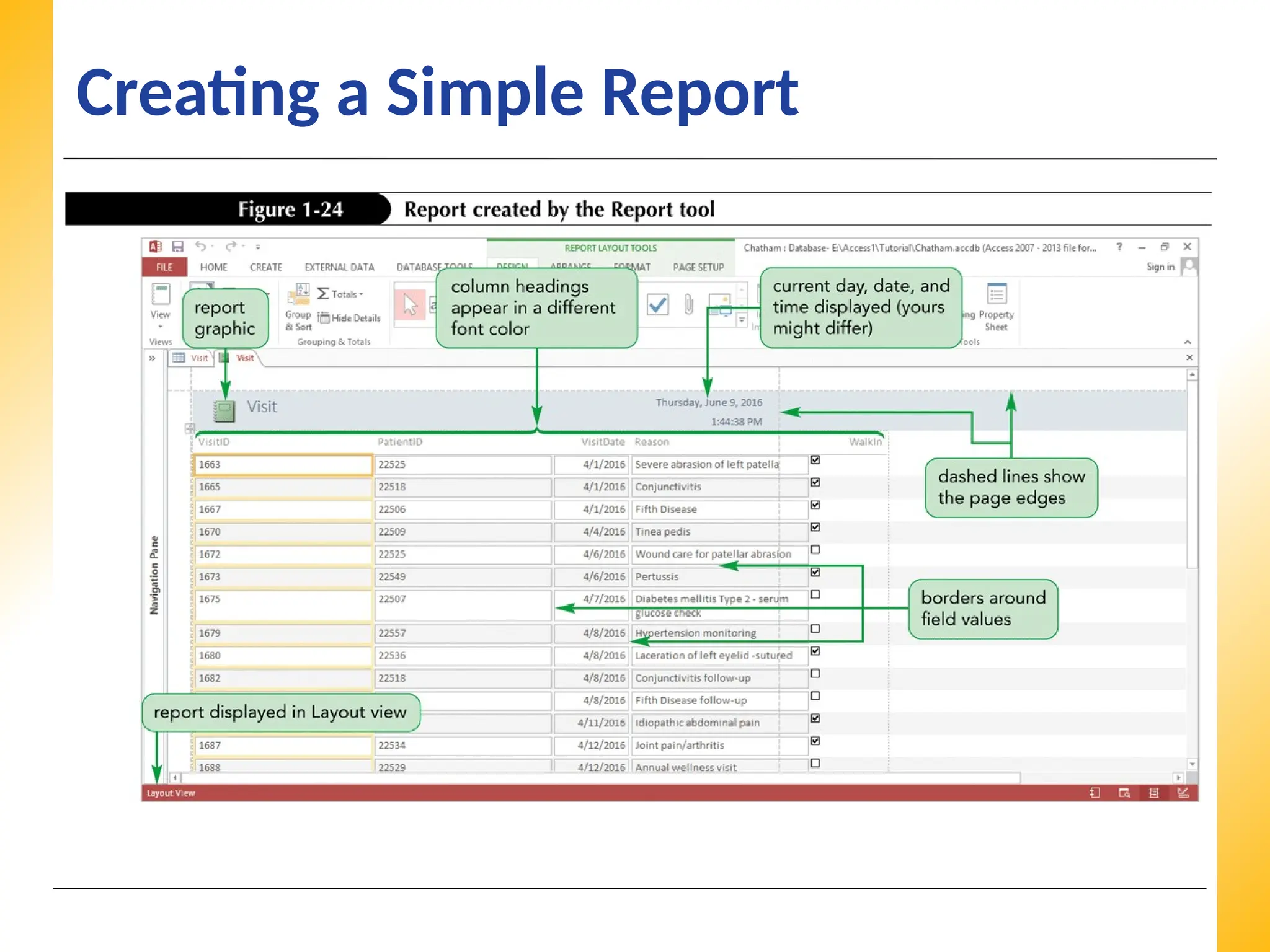
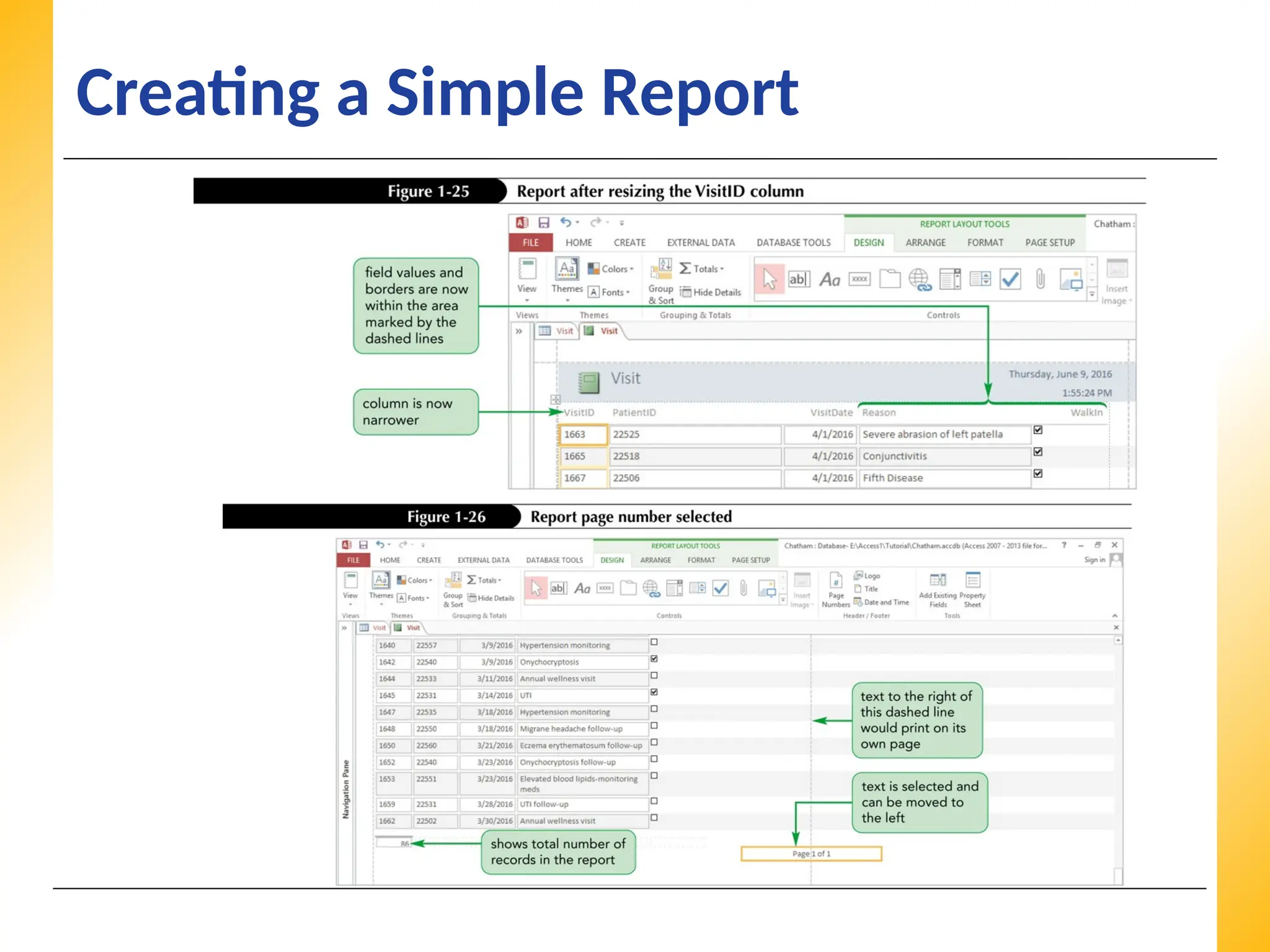
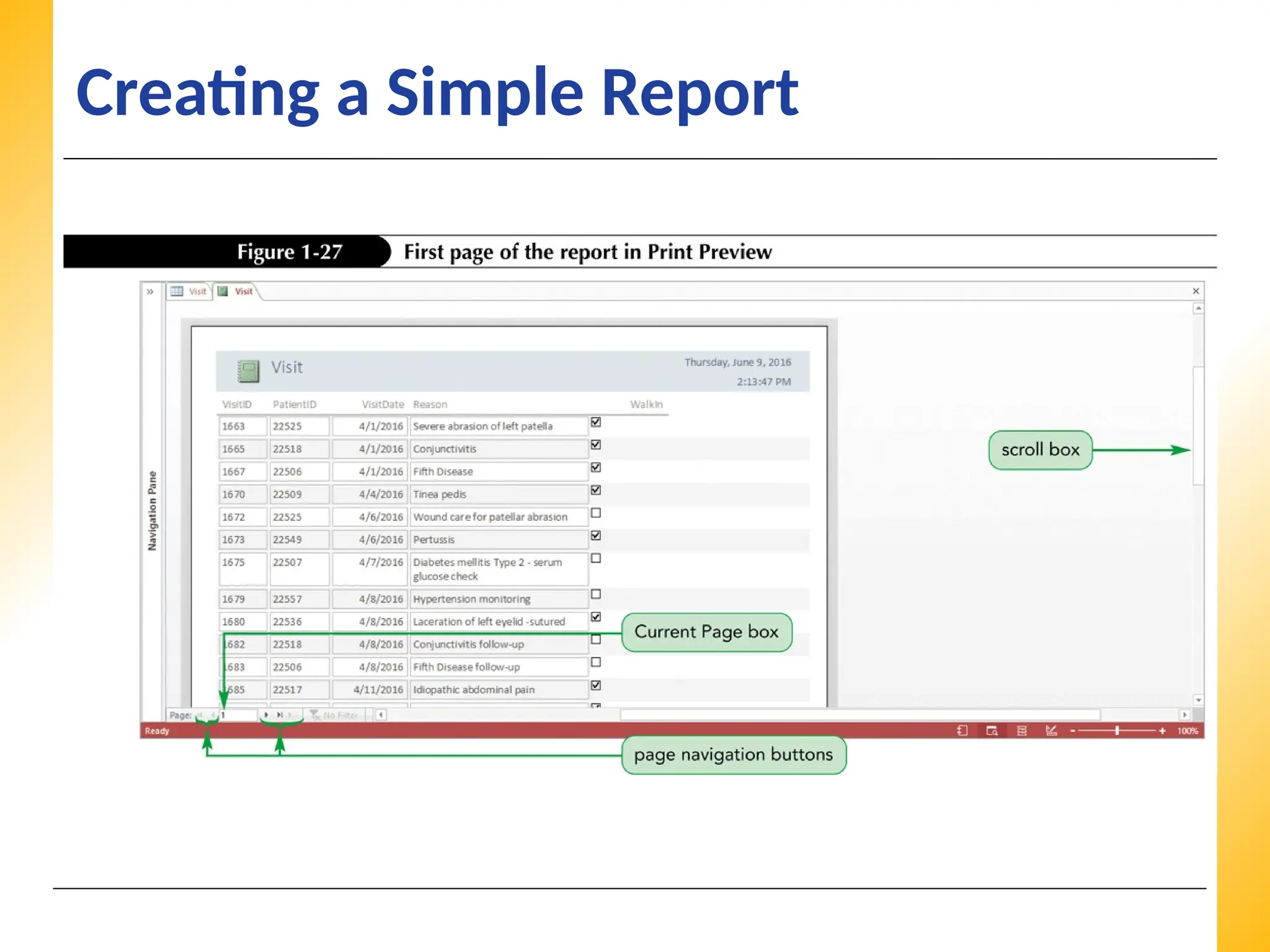
• A report is a formatted printout (or screen
display) of the contents of one or more tables or
queries
• Reports show each field in a column, with the
field values for each record in a row, similar to a
table or query datasheet
• Reports offers a more visually appealing format
for the data, with the column headings in a
different color, borders around each field value, a
graphic of a report at the top left, and the current
day, date, and time at the top right
XP
XP
XP
Creating a SimpleReport
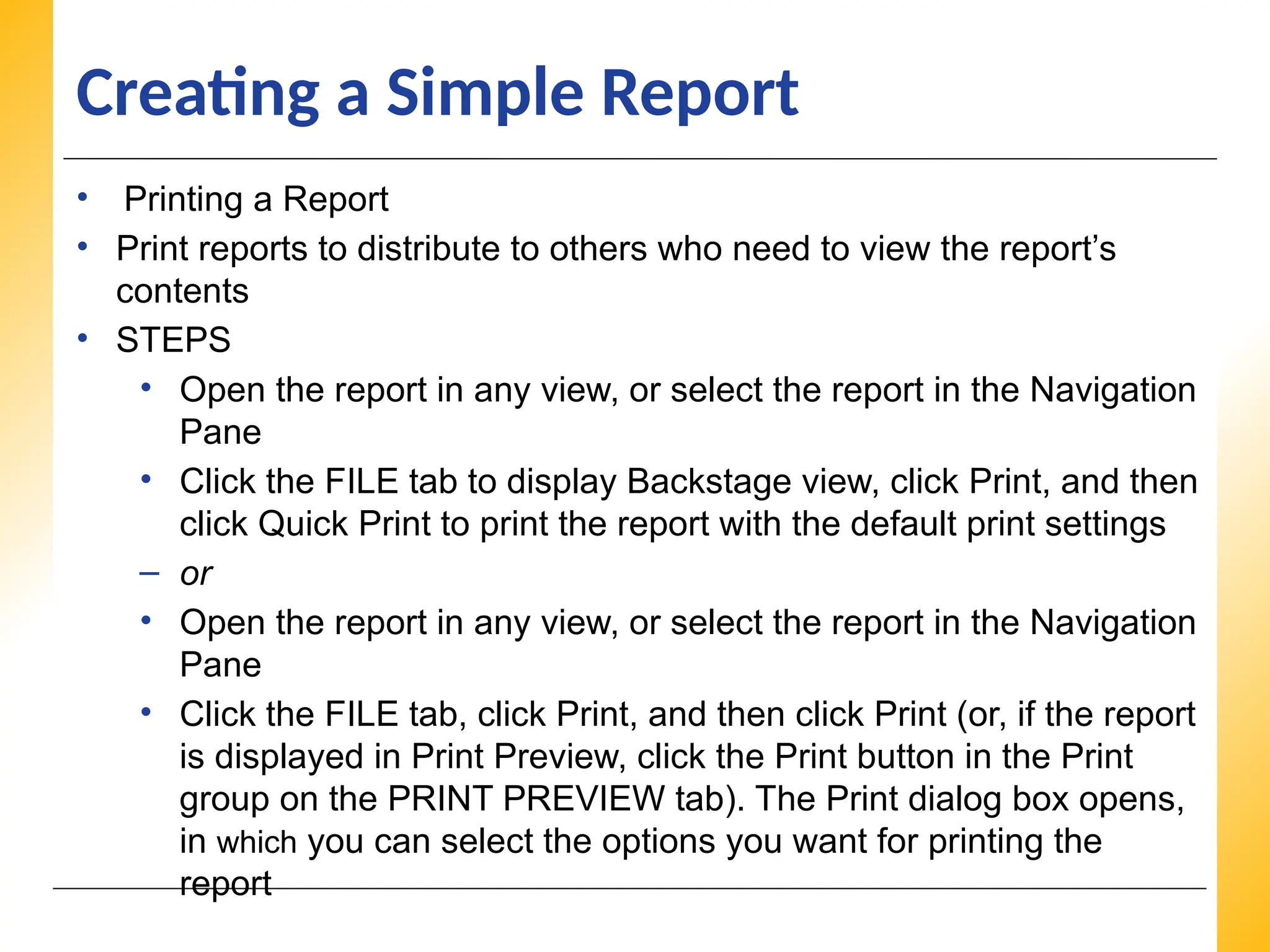
• Printing a Report
• Print reports to distribute to others who need to view the report’s
contents
• STEPS
• Open the report in any view, or select the report in the Navigation
Pane
• Click the FILE tab to display Backstage view, click Print, and then
click Quick Print to print the report with the default print settings
– or
• Open the report in any view, or select the report in the Navigation
Pane
• Click the FILE tab, click Print, and then click Print (or, if the report
is displayed in Print Preview, click the Print button in the Print
group on the PRINT PREVIEW tab). The Print dialog box opens,
in which you can select the options you want for printing the
report
39.
XP
XP
XP
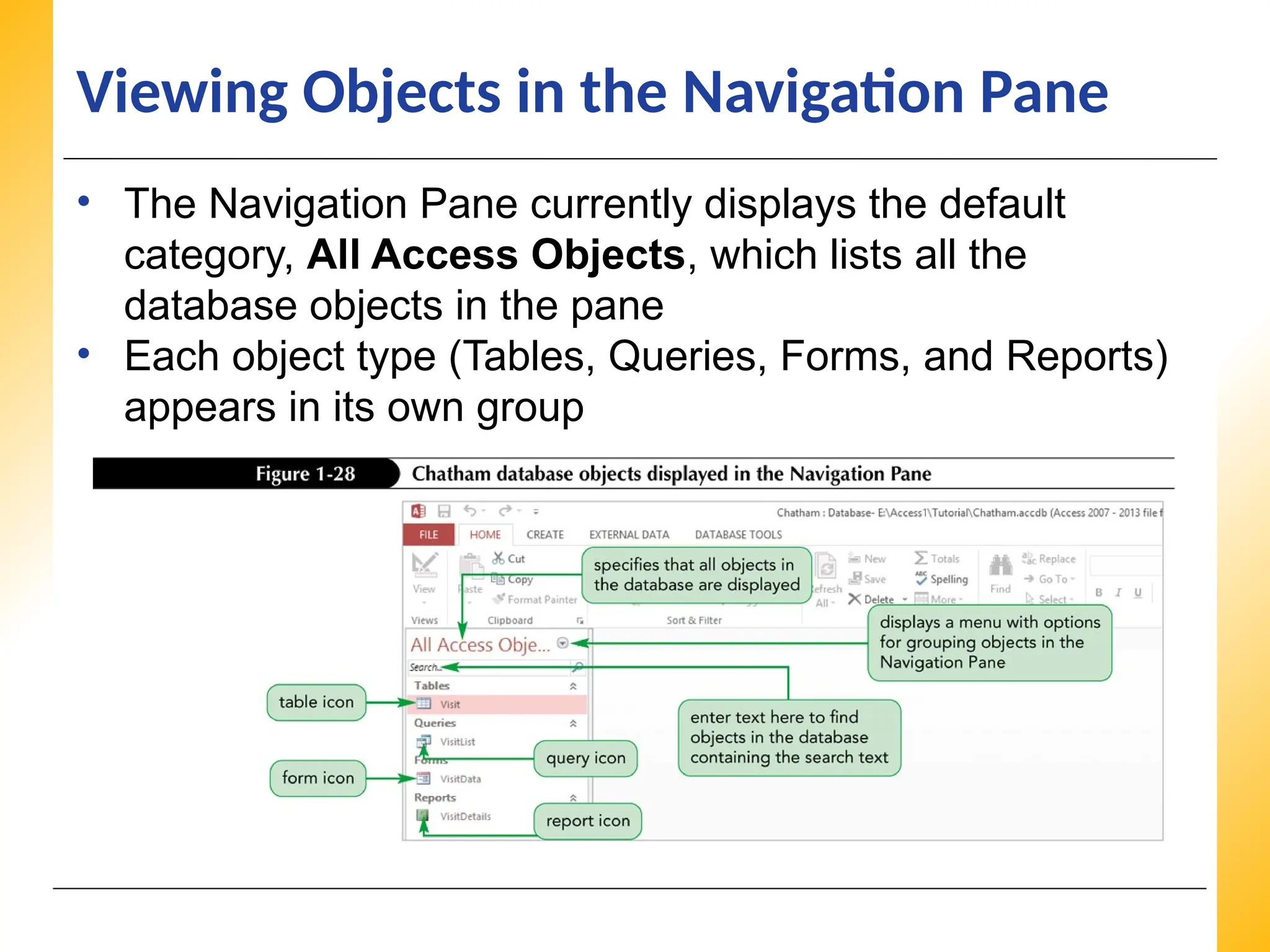
Viewing Objects inthe Navigation Pane
• The Navigation Pane currently displays the default
category, All Access Objects, which lists all the
database objects in the pane
• Each object type (Tables, Queries, Forms, and Reports)
appears in its own group
40.
XP
XP
XP
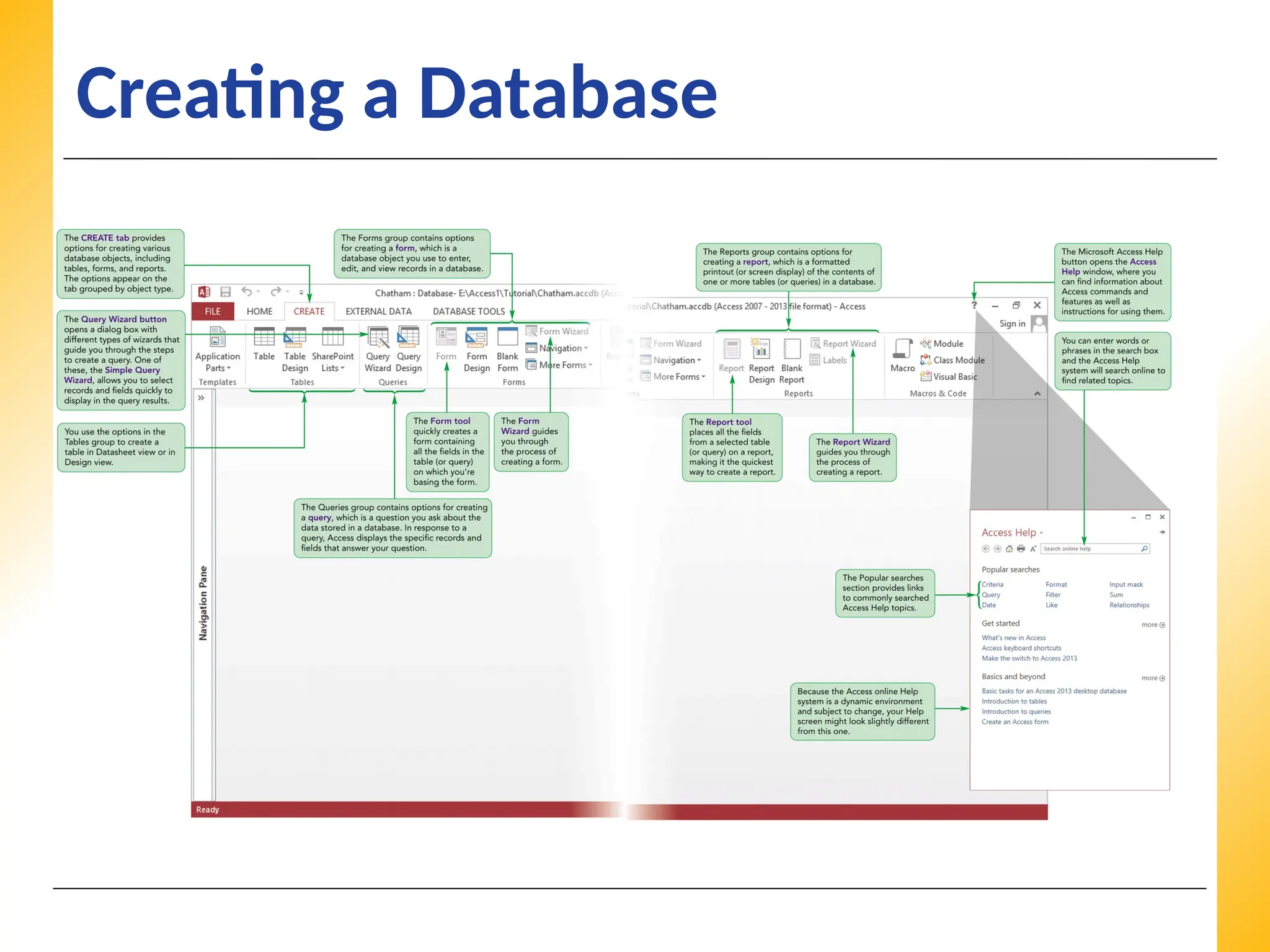
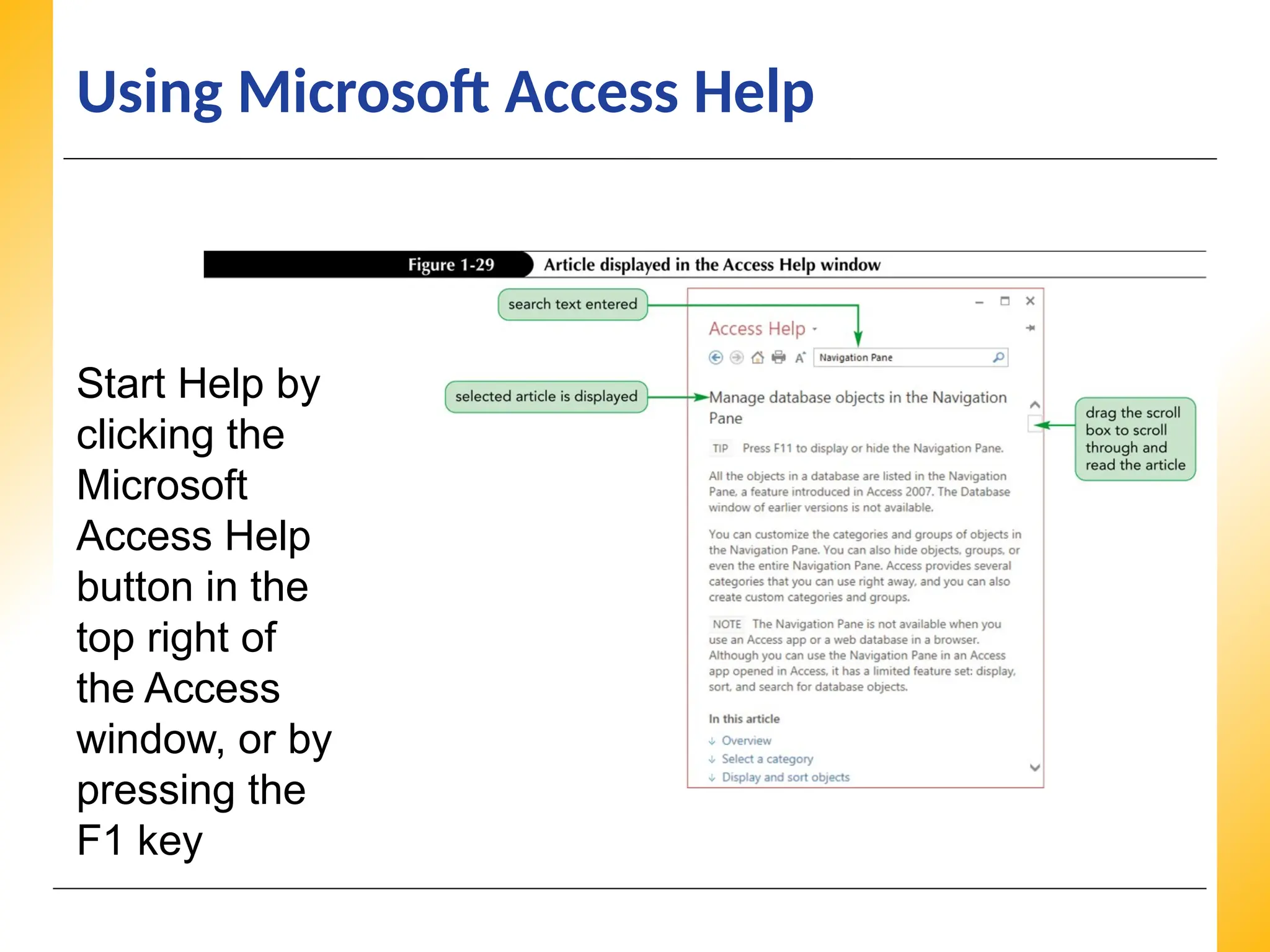
Using Microsoft AccessHelp
Start Help by
clicking the
Microsoft
Access Help
button in the
top right of
the Access
window, or by
pressing the
F1 key
41.
XP
XP
XP
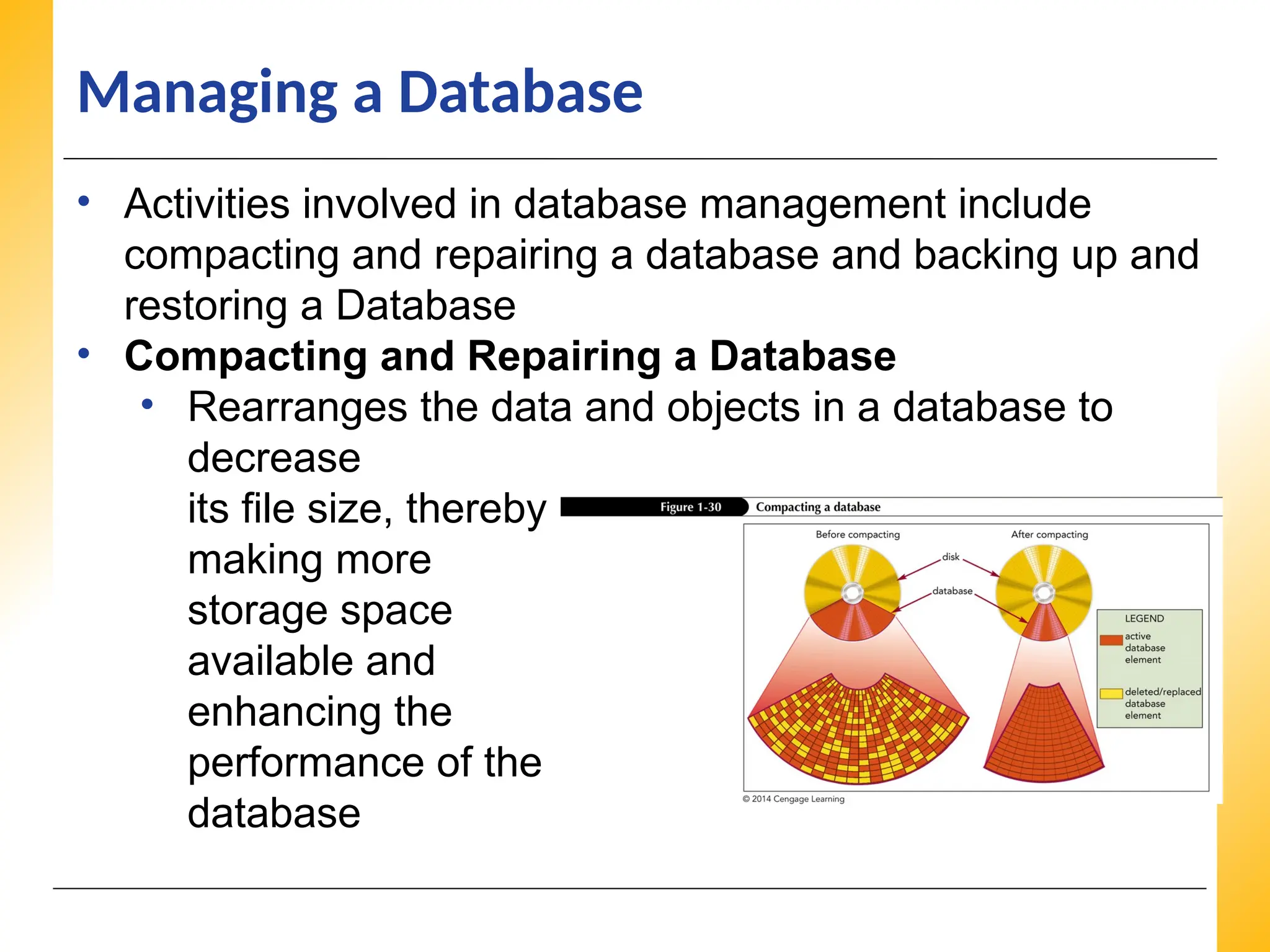
Managing a Database
•Activities involved in database management include
compacting and repairing a database and backing up and
restoring a Database
• Compacting and Repairing a Database
• Rearranges the data and objects in a database to
decrease
its file size, thereby
making more
storage space
available and
enhancing the
performance of the
database
42.
XP
XP
XP
Managing a Database
•Backing Up and Restoring a Database
• The process of making a copy of the database file to protect
your database against loss or damage
• The Back Up Database command enables you to back up your
database file from within the Access program, while you are
working
• Steps:
• Click the FILE tab to display the Info screen in Backstage
view
• Click Save As in the navigation bar
• Click Back Up Database in the Advanced section of the
Save Database As pane
• Click the Save As button
43.
XP
XP
XP
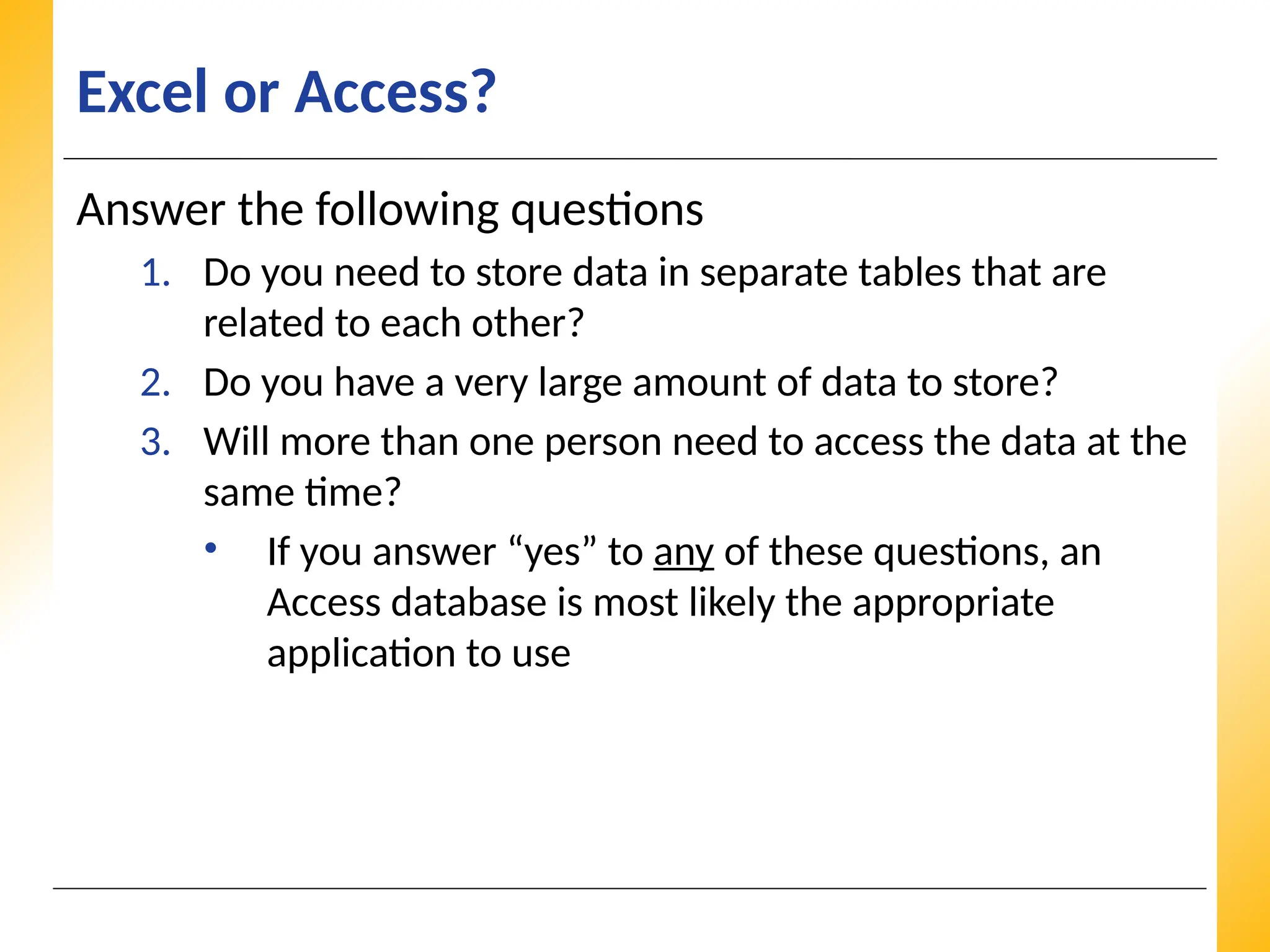
Excel or Access?
Answerthe following questions
1. Do you need to store data in separate tables that are
related to each other?
2. Do you have a very large amount of data to store?
3. Will more than one person need to access the data at the
same time?
• If you answer “yes” to any of these questions, an
Access database is most likely the appropriate
application to use
Editor's Notes
#14 Table Description: The fields intended for the Visit table and their corresponding purposes.
#20 Table Description: A sample of the table with 8 records to be entered into the database.

![XP
XP
XP
Creating a Table in Datasheet View
• Decision Making: Naming Fields in Access Tables
– One of the most important tasks in creating a table is deciding what names to
specify for the table’s fields. Keep the following guidelines in mind when you
assign field names:
• A field name can consist of up to 64 characters, including letters, numbers,
spaces, and special characters, except for the period (.), exclamation mark (!),
grave accent (`), and square brackets ([ ])
• A field name cannot begin with a space
• Capitalize the first letter of each word in a field name that combines multiple
words, for example VisitDate
• Use concise field names that are easy to remember and reference, and that won’t
take up a lot of space in the table datasheet
• Use standard abbreviations, such as Num for Number, Amt for Amount, and Qty
for Quantity, and use them consistently throughout the database.
• For example, if you use Num for Number in one field name, do not use the
number sign (#) for Number in another
• Give fields descriptive names so that you can easily identify them when you view
or edit records](https://image.slidesharecdn.com/week10-accesstutoriallecture01-250924183324-1fb41c69/75/Week-10-Access-Tutorial-Lecture-01-pptx-15-2048.jpg)

![Siddikulla_MS_Access[1].pptx Roll - 220711130077](https://cdn.slidesharecdn.com/ss_thumbnails/siddikullamsaccess1-240713075224-8edf02d1-thumbnail.jpg?width=640&height=640&fit=bounds)
![Siddikulla_MS_Access[1].pdf ROLL - 220711130077](https://cdn.slidesharecdn.com/ss_thumbnails/siddikullamsaccess1-240713073829-6af27082-thumbnail.jpg?width=640&height=640&fit=bounds)


![ECDL module 5: using databases [To be continued]](https://cdn.slidesharecdn.com/ss_thumbnails/icdlmodule5usingdatabases-150417150536-conversion-gate02-thumbnail.jpg?width=640&height=640&fit=bounds)


![Vibe Coding vs. Spec-Driven Development [Free Meetup]](https://cdn.slidesharecdn.com/ss_thumbnails/vibecodingvsspecdrivendevelopment-251209105622-43f455e7-thumbnail.jpg?width=640&height=640&fit=bounds)


