Tutorial 2

Building a Database and Defining Table
             Relationships
Microsoft Access 2010
               ®
Objectives                                     XP


      • Learn the guidelines for designing databases
        and setting field properties
      • Modify the format of a field in Datasheet view
      • Create a table in Design view
      • Define fields and specify a table’s primary key
      • Modify the structure of a table


New Perspectives on Microsoft Access 2010                 2
Objectives                                      XP


      • Import data from an Excel worksheet
      • Create a table by importing an existing table
        structure
      • Add fields to a table with the Data Type gallery
      • Delete, rename, and move fields
      • Add data to a table by importing a text file
      • Define a relationship between two tables


New Perspectives on Microsoft Access 2010                  3
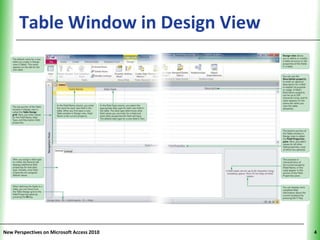
Table Window in Design View           XP


New Perspectives on Microsoft Access 2010        4
Guidelines for Designing Databases                XP

      • Identify all the fields needed to produce the
        required information
      • Organize each piece of data into its smallest
        useful part
      • Group related fields into tables
      • Determine each table’s primary key
      • Include a common field in related tables
      • Avoid data redundancy
      • Determine the properties of each field

New Perspectives on Microsoft Access 2010                    5
Guidelines for Setting Field          XP
      Properties
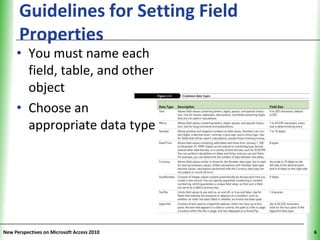
     • You must name each
       field, table, and other
       object
     • Choose an
       appropriate data type


New Perspectives on Microsoft Access 2010        6
Guidelines for Setting Field Properties
                                            XP

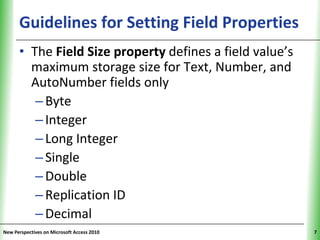
      • The Field Size property defines a field value’s
        maximum storage size for Text, Number, and
        AutoNumber fields only
         – Byte
         – Integer
         – Long Integer
         – Single
         – Double
         – Replication ID
         – Decimal
New Perspectives on Microsoft Access 2010                 7
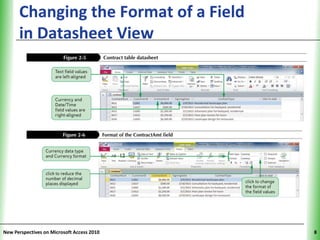
Changing the Format of a Field        XP
      in Datasheet View


New Perspectives on Microsoft Access 2010        8
Creating a Table in Design View                 XP


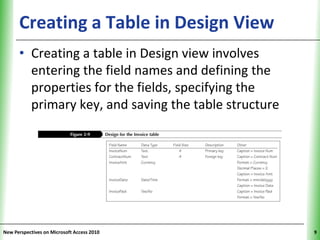
      • Creating a table in Design view involves
        entering the field names and defining the
        properties for the fields, specifying the
        primary key, and saving the table structure


New Perspectives on Microsoft Access 2010                  9
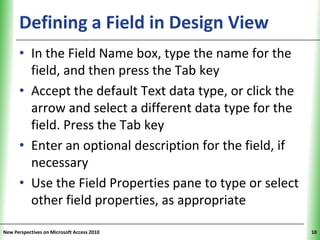
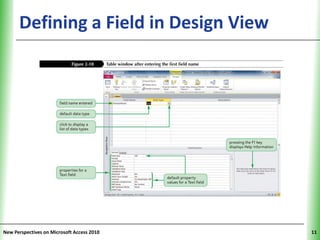
Defining a Field in Design View                XP


      • In the Field Name box, type the name for the
        field, and then press the Tab key
      • Accept the default Text data type, or click the
        arrow and select a different data type for the
        field. Press the Tab key
      • Enter an optional description for the field, if
        necessary
      • Use the Field Properties pane to type or select
        other field properties, as appropriate

New Perspectives on Microsoft Access 2010                 10
Defining a Field in Design View       XP


New Perspectives on Microsoft Access 2010        11
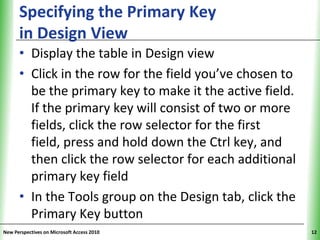
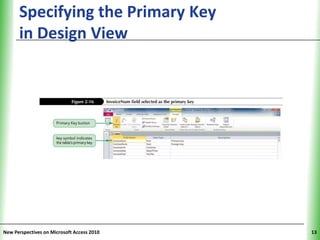
Specifying the Primary Key                      XP
      in Design View
      • Display the table in Design view
      • Click in the row for the field you’ve chosen to
        be the primary key to make it the active field.
        If the primary key will consist of two or more
        fields, click the row selector for the first
        field, press and hold down the Ctrl key, and
        then click the row selector for each additional
        primary key field
      • In the Tools group on the Design tab, click the
        Primary Key button
New Perspectives on Microsoft Access 2010                  12
Specifying the Primary Key            XP
      in Design View


New Perspectives on Microsoft Access 2010        13
Moving a Field                                XP


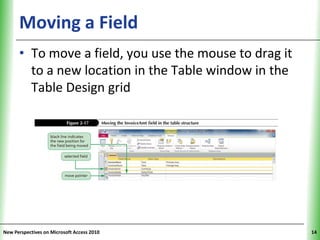
      • To move a field, you use the mouse to drag it
        to a new location in the Table window in the
        Table Design grid


New Perspectives on Microsoft Access 2010                14
Adding a Field                                 XP
      Between Two Existing Fields
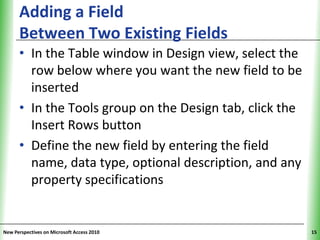
      • In the Table window in Design view, select the
        row below where you want the new field to be
        inserted
      • In the Tools group on the Design tab, click the
        Insert Rows button
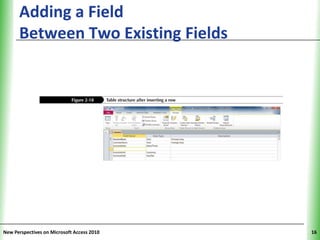
      • Define the new field by entering the field
        name, data type, optional description, and any
        property specifications


New Perspectives on Microsoft Access 2010                 15
Adding a Field                        XP
      Between Two Existing Fields


New Perspectives on Microsoft Access 2010        16
Table Relationship                    XP


New Perspectives on Microsoft Access 2010        17
Importing Data from an Excel                 XP
      Worksheet
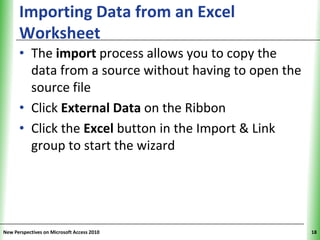
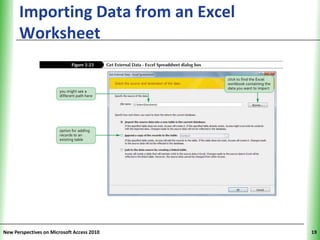
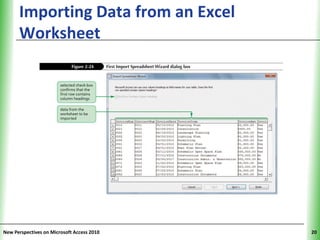
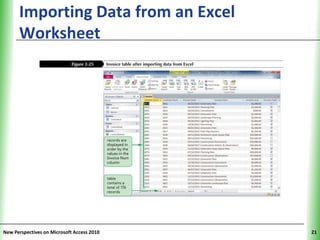
      • The import process allows you to copy the
        data from a source without having to open the
        source file
      • Click External Data on the Ribbon
      • Click the Excel button in the Import & Link
        group to start the wizard


New Perspectives on Microsoft Access 2010               18
Importing Data from an Excel          XP
      Worksheet


New Perspectives on Microsoft Access 2010        19
Importing Data from an Excel          XP
      Worksheet


New Perspectives on Microsoft Access 2010        20
Importing Data from an Excel          XP
      Worksheet


New Perspectives on Microsoft Access 2010        21
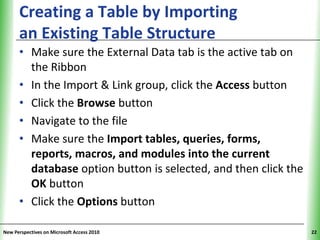
Creating a Table by Importing                        XP
      an Existing Table Structure
      • Make sure the External Data tab is the active tab on
        the Ribbon
      • In the Import & Link group, click the Access button
      • Click the Browse button
      • Navigate to the file
      • Make sure the Import tables, queries, forms,
        reports, macros, and modules into the current
        database option button is selected, and then click the
        OK button
      • Click the Options button

New Perspectives on Microsoft Access 2010                        22
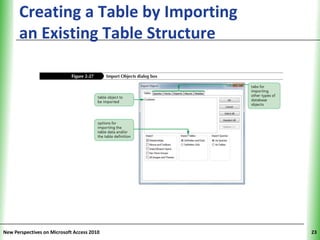
Creating a Table by Importing         XP
      an Existing Table Structure


New Perspectives on Microsoft Access 2010        23
Adding Fields to a Table Using                  XP
      the Data Type Gallery
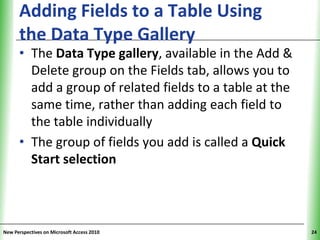
      • The Data Type gallery, available in the Add &
        Delete group on the Fields tab, allows you to
        add a group of related fields to a table at the
        same time, rather than adding each field to
        the table individually
      • The group of fields you add is called a Quick
        Start selection


New Perspectives on Microsoft Access 2010                  24
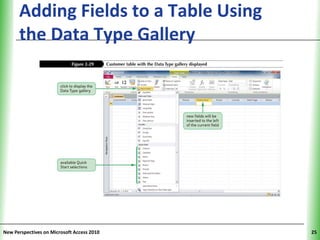
Adding Fields to a Table Using        XP
      the Data Type Gallery


New Perspectives on Microsoft Access 2010        25
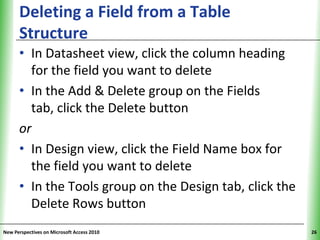
Deleting a Field from a Table                   XP
      Structure
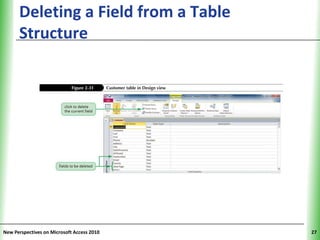
      • In Datasheet view, click the column heading
        for the field you want to delete
      • In the Add & Delete group on the Fields
        tab, click the Delete button
      or
      • In Design view, click the Field Name box for
        the field you want to delete
      • In the Tools group on the Design tab, click the
        Delete Rows button
New Perspectives on Microsoft Access 2010                  26
Deleting a Field from a Table         XP
      Structure


New Perspectives on Microsoft Access 2010        27
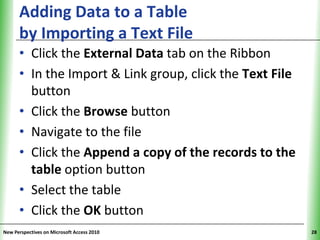
Adding Data to a Table                          XP
      by Importing a Text File
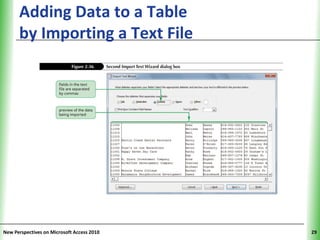
      • Click the External Data tab on the Ribbon
      • In the Import & Link group, click the Text File
        button
      • Click the Browse button
      • Navigate to the file
      • Click the Append a copy of the records to the
        table option button
      • Select the table
      • Click the OK button
New Perspectives on Microsoft Access 2010                  28
Adding Data to a Table                XP
      by Importing a Text File


New Perspectives on Microsoft Access 2010        29
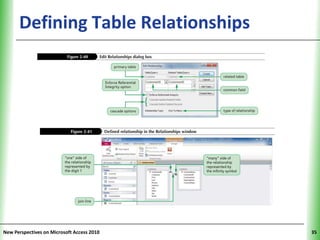
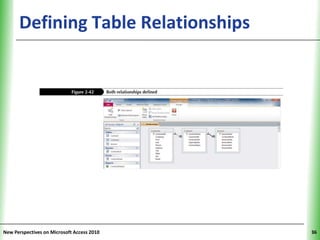
Defining Table Relationships                   XP


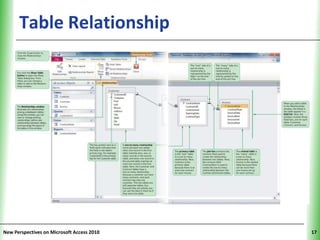
      • One of the most powerful features of a
        relational database management system is its
        ability to define relationships between tables
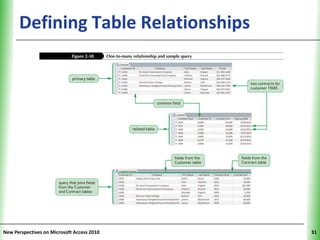
      • You use a common field to relate one table to
        another


New Perspectives on Microsoft Access 2010                 30
Defining Table Relationships          XP


New Perspectives on Microsoft Access 2010        31
Defining Table Relationships                   XP


      • A one-to-many relationship exists between
        two tables when one record in the first table
        matches zero, one, or many records in the
        second table, and when one record in the
        second table matches at most one record in
        the first table
         – The Primary table is the “one” in a one-to-
           many relationship
         – The Related table is the “many” table

New Perspectives on Microsoft Access 2010                 32
Defining Table Relationships                XP


      • Referential integrity is a set of rules that
        Access enforces to maintain consistency
        between related tables when you update data
        in a database
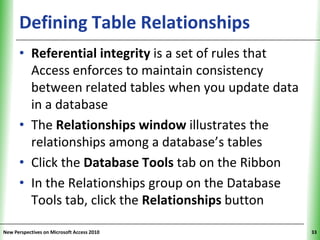
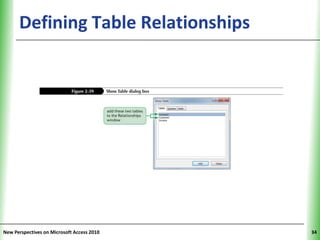
      • The Relationships window illustrates the
        relationships among a database’s tables
      • Click the Database Tools tab on the Ribbon
      • In the Relationships group on the Database
        Tools tab, click the Relationships button

New Perspectives on Microsoft Access 2010              33
Defining Table Relationships          XP


New Perspectives on Microsoft Access 2010        34
Defining Table Relationships          XP


New Perspectives on Microsoft Access 2010        35
Defining Table Relationships          XP


New Perspectives on Microsoft Access 2010        36

New Perspectives: Access.02

  • 1.
    Tutorial 2 Building aDatabase and Defining Table Relationships Microsoft Access 2010 ®
  • 2.
    Objectives XP • Learn the guidelines for designing databases and setting field properties • Modify the format of a field in Datasheet view • Create a table in Design view • Define fields and specify a table’s primary key • Modify the structure of a table New Perspectives on Microsoft Access 2010 2
  • 3.
    Objectives XP • Import data from an Excel worksheet • Create a table by importing an existing table structure • Add fields to a table with the Data Type gallery • Delete, rename, and move fields • Add data to a table by importing a text file • Define a relationship between two tables New Perspectives on Microsoft Access 2010 3
  • 4.
    Table Window inDesign View XP New Perspectives on Microsoft Access 2010 4
  • 5.
    Guidelines for DesigningDatabases XP • Identify all the fields needed to produce the required information • Organize each piece of data into its smallest useful part • Group related fields into tables • Determine each table’s primary key • Include a common field in related tables • Avoid data redundancy • Determine the properties of each field New Perspectives on Microsoft Access 2010 5
  • 6.
    Guidelines for SettingField XP Properties • You must name each field, table, and other object • Choose an appropriate data type New Perspectives on Microsoft Access 2010 6
  • 7.
    Guidelines for SettingField Properties XP • The Field Size property defines a field value’s maximum storage size for Text, Number, and AutoNumber fields only – Byte – Integer – Long Integer – Single – Double – Replication ID – Decimal New Perspectives on Microsoft Access 2010 7
  • 8.
    Changing the Formatof a Field XP in Datasheet View New Perspectives on Microsoft Access 2010 8
  • 9.
    Creating a Tablein Design View XP • Creating a table in Design view involves entering the field names and defining the properties for the fields, specifying the primary key, and saving the table structure New Perspectives on Microsoft Access 2010 9
  • 10.
    Defining a Fieldin Design View XP • In the Field Name box, type the name for the field, and then press the Tab key • Accept the default Text data type, or click the arrow and select a different data type for the field. Press the Tab key • Enter an optional description for the field, if necessary • Use the Field Properties pane to type or select other field properties, as appropriate New Perspectives on Microsoft Access 2010 10
  • 11.
    Defining a Fieldin Design View XP New Perspectives on Microsoft Access 2010 11
  • 12.
    Specifying the PrimaryKey XP in Design View • Display the table in Design view • Click in the row for the field you’ve chosen to be the primary key to make it the active field. If the primary key will consist of two or more fields, click the row selector for the first field, press and hold down the Ctrl key, and then click the row selector for each additional primary key field • In the Tools group on the Design tab, click the Primary Key button New Perspectives on Microsoft Access 2010 12
  • 13.
    Specifying the PrimaryKey XP in Design View New Perspectives on Microsoft Access 2010 13
  • 14.
    Moving a Field XP • To move a field, you use the mouse to drag it to a new location in the Table window in the Table Design grid New Perspectives on Microsoft Access 2010 14
  • 15.
    Adding a Field XP Between Two Existing Fields • In the Table window in Design view, select the row below where you want the new field to be inserted • In the Tools group on the Design tab, click the Insert Rows button • Define the new field by entering the field name, data type, optional description, and any property specifications New Perspectives on Microsoft Access 2010 15
  • 16.
    Adding a Field XP Between Two Existing Fields New Perspectives on Microsoft Access 2010 16
  • 17.
    Table Relationship XP New Perspectives on Microsoft Access 2010 17
  • 18.
    Importing Data froman Excel XP Worksheet • The import process allows you to copy the data from a source without having to open the source file • Click External Data on the Ribbon • Click the Excel button in the Import & Link group to start the wizard New Perspectives on Microsoft Access 2010 18
  • 19.
    Importing Data froman Excel XP Worksheet New Perspectives on Microsoft Access 2010 19
  • 20.
    Importing Data froman Excel XP Worksheet New Perspectives on Microsoft Access 2010 20
  • 21.
    Importing Data froman Excel XP Worksheet New Perspectives on Microsoft Access 2010 21
  • 22.
    Creating a Tableby Importing XP an Existing Table Structure • Make sure the External Data tab is the active tab on the Ribbon • In the Import & Link group, click the Access button • Click the Browse button • Navigate to the file • Make sure the Import tables, queries, forms, reports, macros, and modules into the current database option button is selected, and then click the OK button • Click the Options button New Perspectives on Microsoft Access 2010 22
  • 23.
    Creating a Tableby Importing XP an Existing Table Structure New Perspectives on Microsoft Access 2010 23
  • 24.
    Adding Fields toa Table Using XP the Data Type Gallery • The Data Type gallery, available in the Add & Delete group on the Fields tab, allows you to add a group of related fields to a table at the same time, rather than adding each field to the table individually • The group of fields you add is called a Quick Start selection New Perspectives on Microsoft Access 2010 24
  • 25.
    Adding Fields toa Table Using XP the Data Type Gallery New Perspectives on Microsoft Access 2010 25
  • 26.
    Deleting a Fieldfrom a Table XP Structure • In Datasheet view, click the column heading for the field you want to delete • In the Add & Delete group on the Fields tab, click the Delete button or • In Design view, click the Field Name box for the field you want to delete • In the Tools group on the Design tab, click the Delete Rows button New Perspectives on Microsoft Access 2010 26
  • 27.
    Deleting a Fieldfrom a Table XP Structure New Perspectives on Microsoft Access 2010 27
  • 28.
    Adding Data toa Table XP by Importing a Text File • Click the External Data tab on the Ribbon • In the Import & Link group, click the Text File button • Click the Browse button • Navigate to the file • Click the Append a copy of the records to the table option button • Select the table • Click the OK button New Perspectives on Microsoft Access 2010 28
  • 29.
    Adding Data toa Table XP by Importing a Text File New Perspectives on Microsoft Access 2010 29
  • 30.
    Defining Table Relationships XP • One of the most powerful features of a relational database management system is its ability to define relationships between tables • You use a common field to relate one table to another New Perspectives on Microsoft Access 2010 30
  • 31.
    Defining Table Relationships XP New Perspectives on Microsoft Access 2010 31
  • 32.
    Defining Table Relationships XP • A one-to-many relationship exists between two tables when one record in the first table matches zero, one, or many records in the second table, and when one record in the second table matches at most one record in the first table – The Primary table is the “one” in a one-to- many relationship – The Related table is the “many” table New Perspectives on Microsoft Access 2010 32
  • 33.
    Defining Table Relationships XP • Referential integrity is a set of rules that Access enforces to maintain consistency between related tables when you update data in a database • The Relationships window illustrates the relationships among a database’s tables • Click the Database Tools tab on the Ribbon • In the Relationships group on the Database Tools tab, click the Relationships button New Perspectives on Microsoft Access 2010 33
  • 34.
    Defining Table Relationships XP New Perspectives on Microsoft Access 2010 34
  • 35.
    Defining Table Relationships XP New Perspectives on Microsoft Access 2010 35
  • 36.
    Defining Table Relationships XP New Perspectives on Microsoft Access 2010 36