What is MSAccess?
A database management system (DBMS) developed by
Microsoft
Combines the relational Jet Database Engine with a
graphical interface
Enables users to create and manage databases for small
to medium- sized applications
Part of Microsoft Office Suite
3
4.
Key Components ofMS Access
Tables: Store data in rows and columns
Forms: Provide a user-friendly way to input and view data
Queries: Retrieve and filter data based on conditions
Reports: Format and summarize data for printing or sharing
Macros and Modules: Automate tasks and enhance functionality
4
5.
Key Components ofMS Access
Tables: Store data in rows and columns
Forms: Provide a user-friendly way to input and view data
Queries: Retrieve and filter data based on conditions
Reports: Format and summarize data for printing or sharing
Macros and Modules: Automate tasks and enhance functionality
5
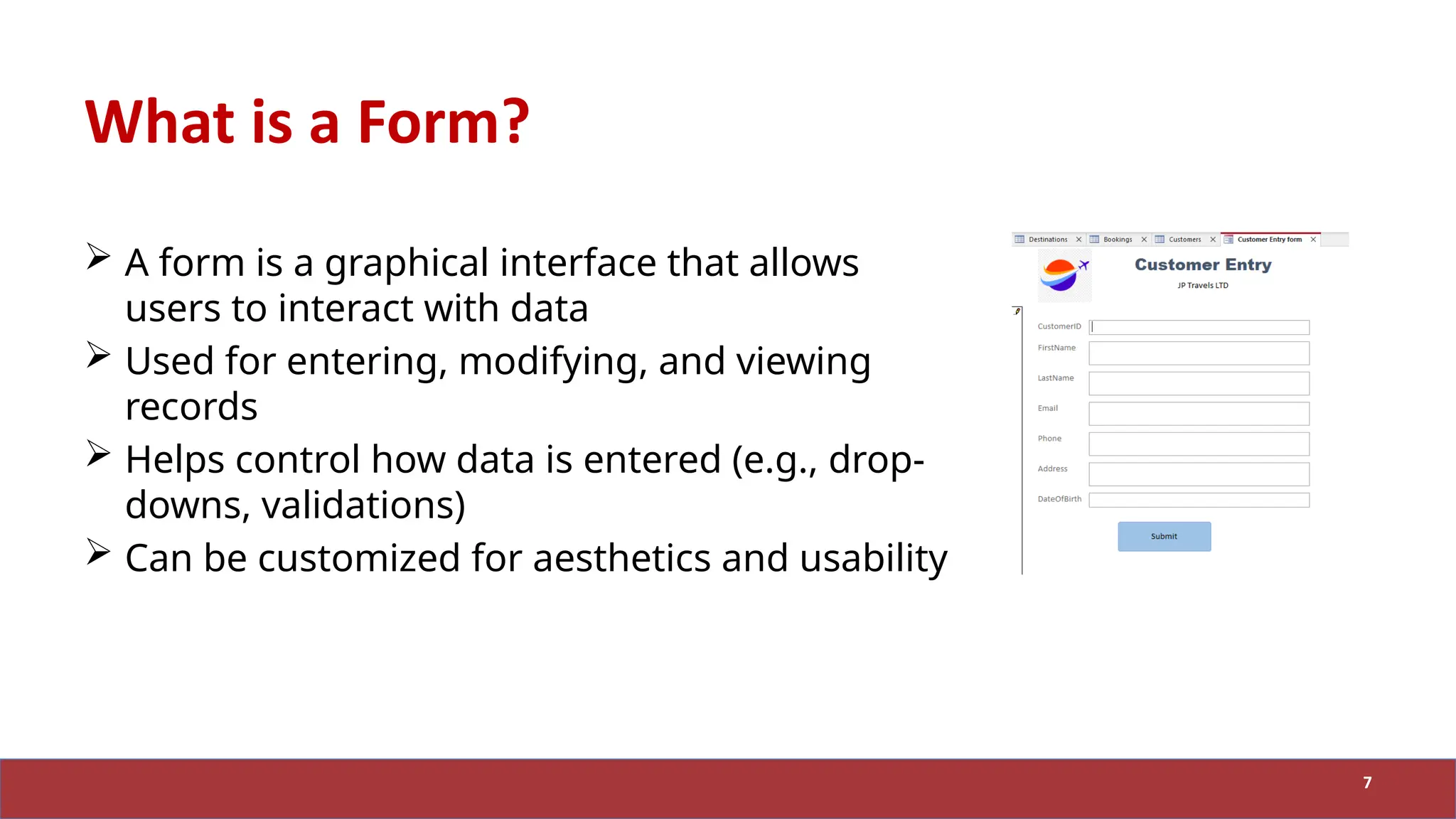
What is aForm?
A form is a graphical interface that allows
users to interact with data
Used for entering, modifying, and viewing
records
Helps control how data is entered (e.g., drop-
downs, validations)
Can be customized for aesthetics and usability
7
9
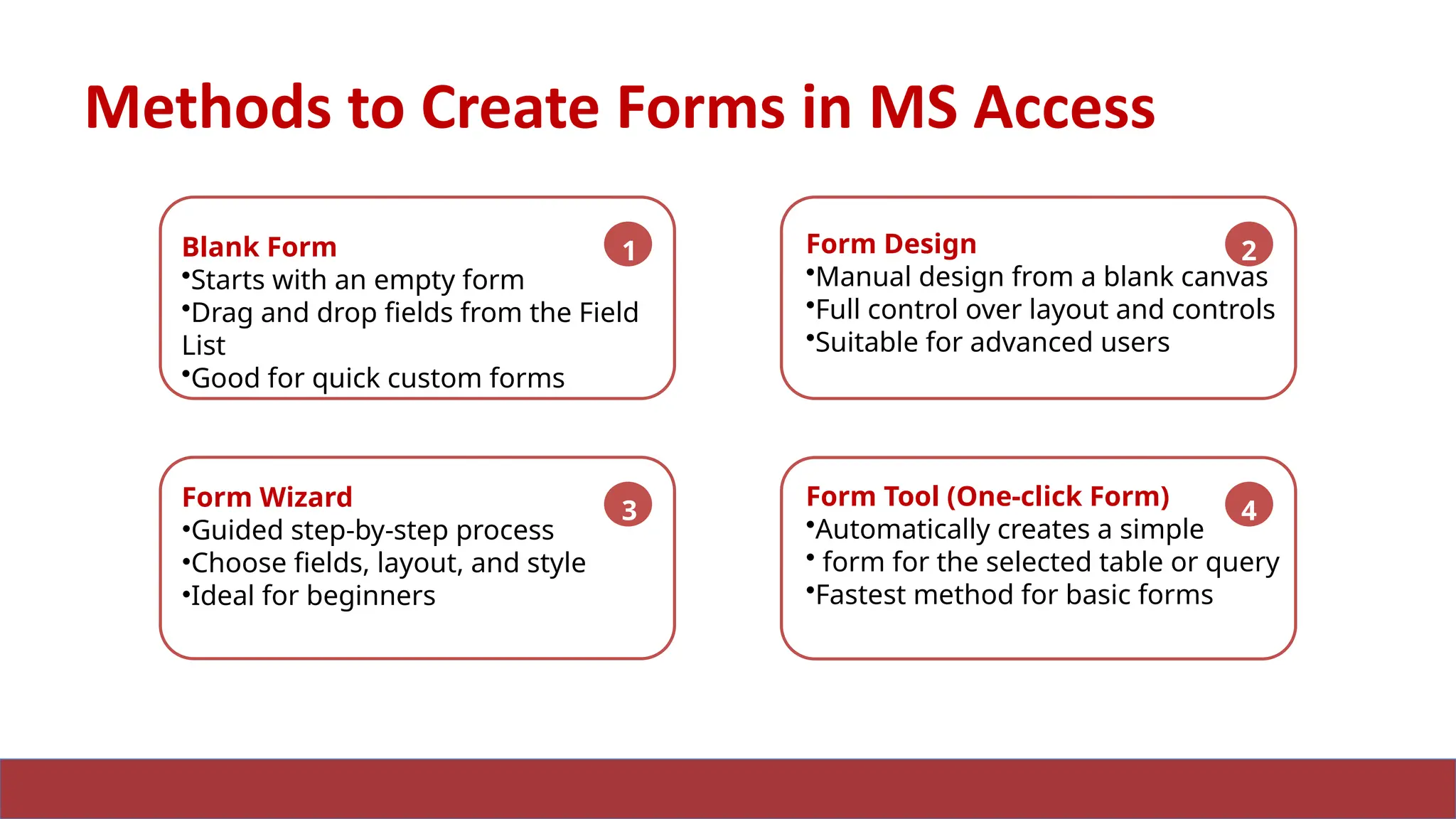
Methods to CreateForms in MS Access
Form Wizard
•Guided step-by-step process
•Choose fields, layout, and style
•Ideal for beginners
Blank Form
•Starts with an empty form
•Drag and drop fields from the Field
List
•Good for quick custom forms
Form Tool (One-click Form)
•Automatically creates a simple
• form for the selected table or query
•Fastest method for basic forms
Form Design
•Manual design from a blank canvas
•Full control over layout and controls
•Suitable for advanced users
1 2
3 4
10.
10
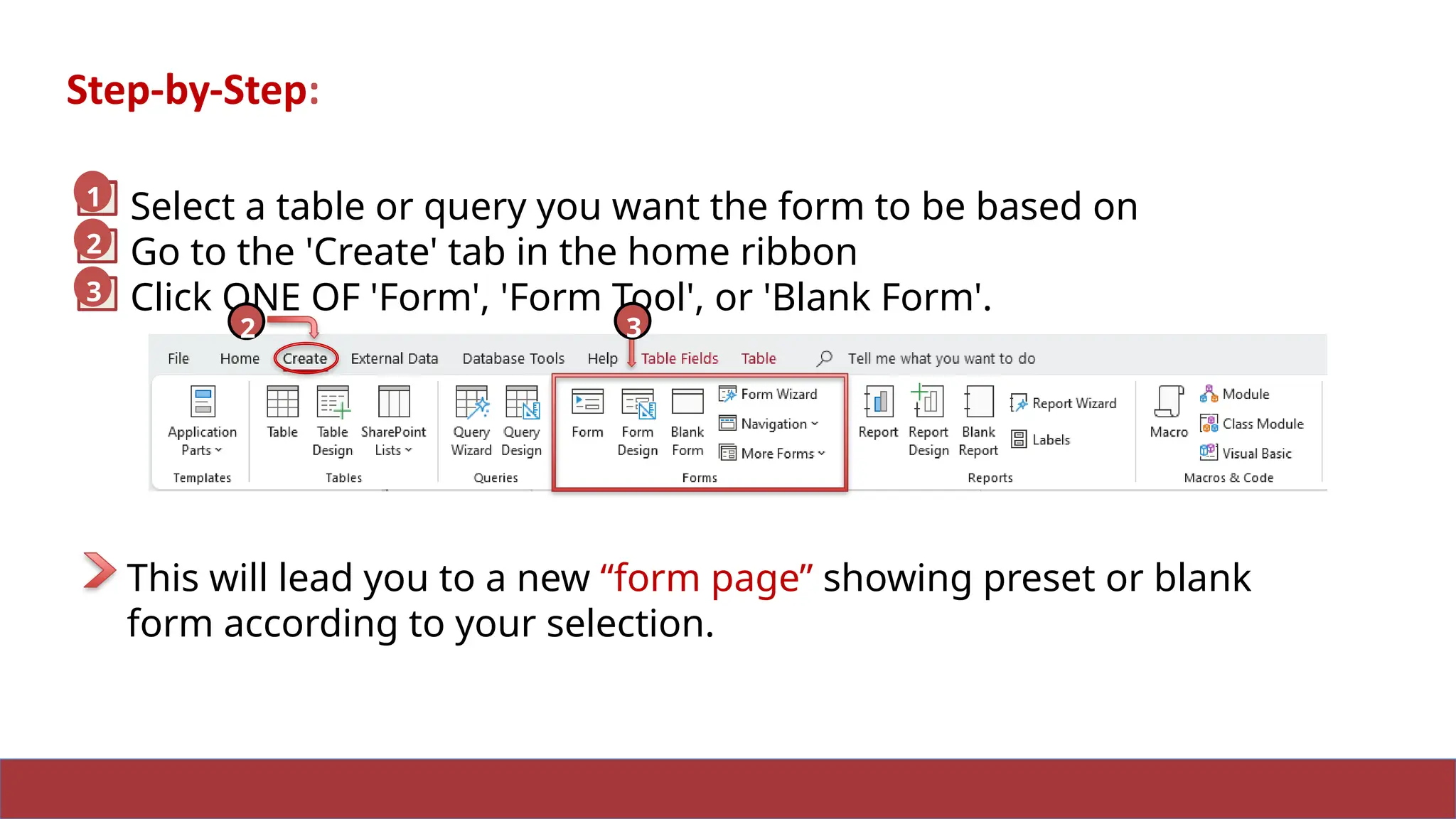
Step-by-Step:
Select a tableor query you want the form to be based on
Go to the 'Create' tab in the home ribbon
Click ONE OF 'Form', 'Form Tool', or 'Blank Form'.
2
3
1
2 3
This will lead you to a new “form page” showing preset or blank
form according to your selection.
1
11.
11
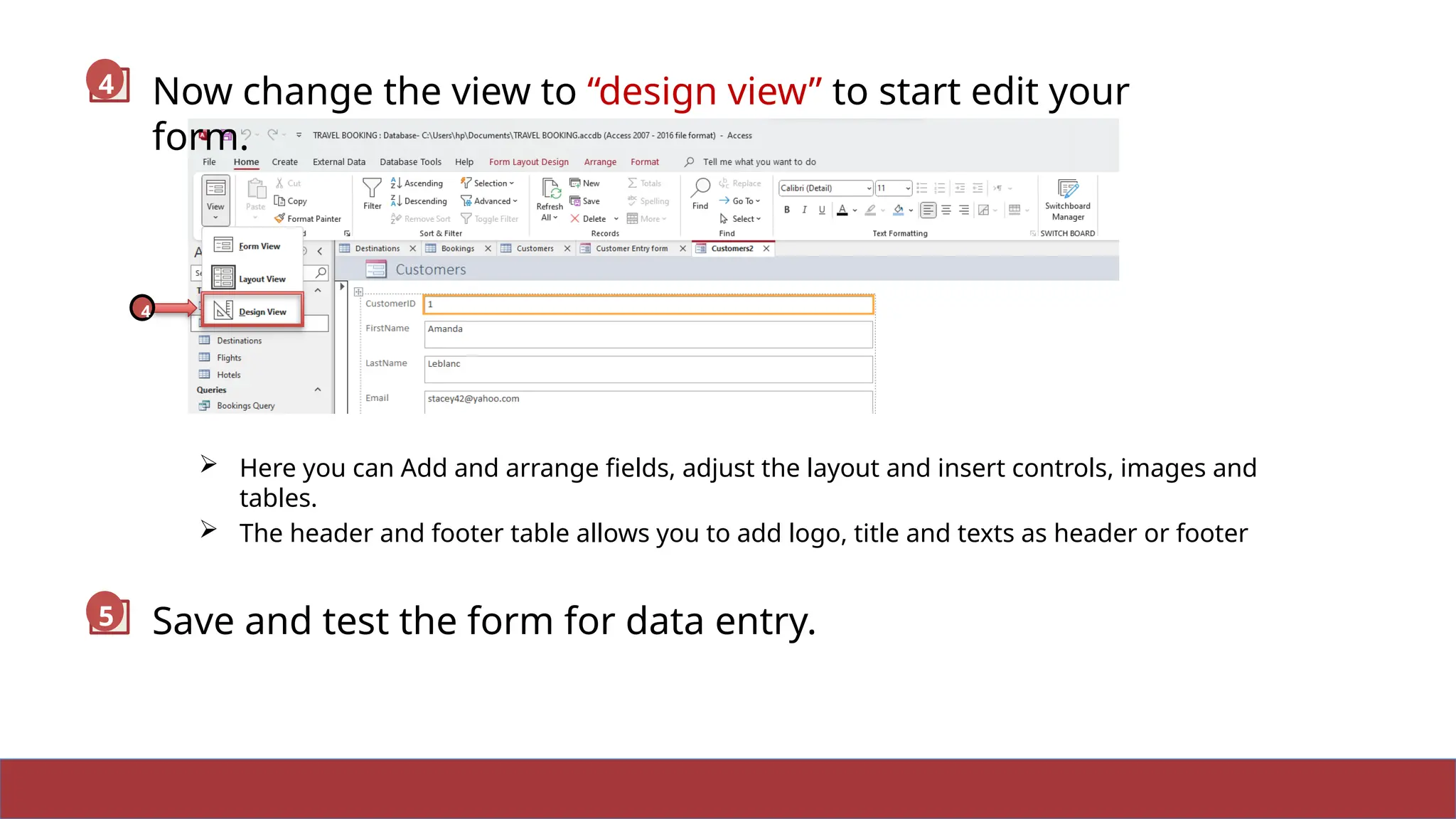
Here youcan Add and arrange fields, adjust the layout and insert controls, images and
tables.
The header and footer table allows you to add logo, title and texts as header or footer
Now change the view to “design view” to start edit your
form.
4
4
Save and test the form for data entry.
5
12.
12
Creating a formusing form wizard
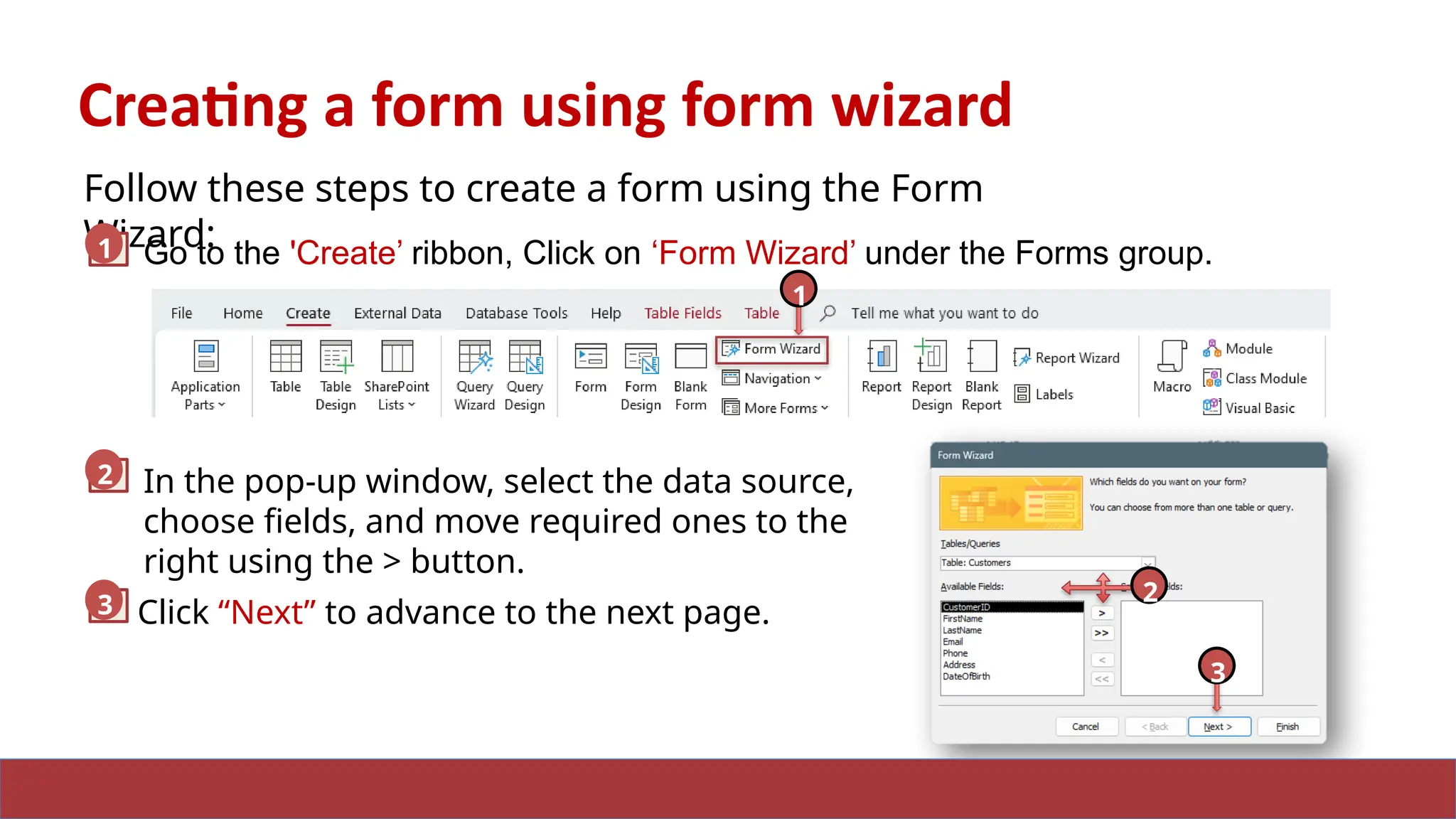
Follow these steps to create a form using the Form
Wizard:
Go to the 'Create’ ribbon, Click on ‘Form Wizard’ under the Forms group.
1
2 In the pop-up window, select the data source,
choose fields, and move required ones to the
right using the > button.
2
3 Click “Next” to advance to the next page.
1
3
2
13.
13
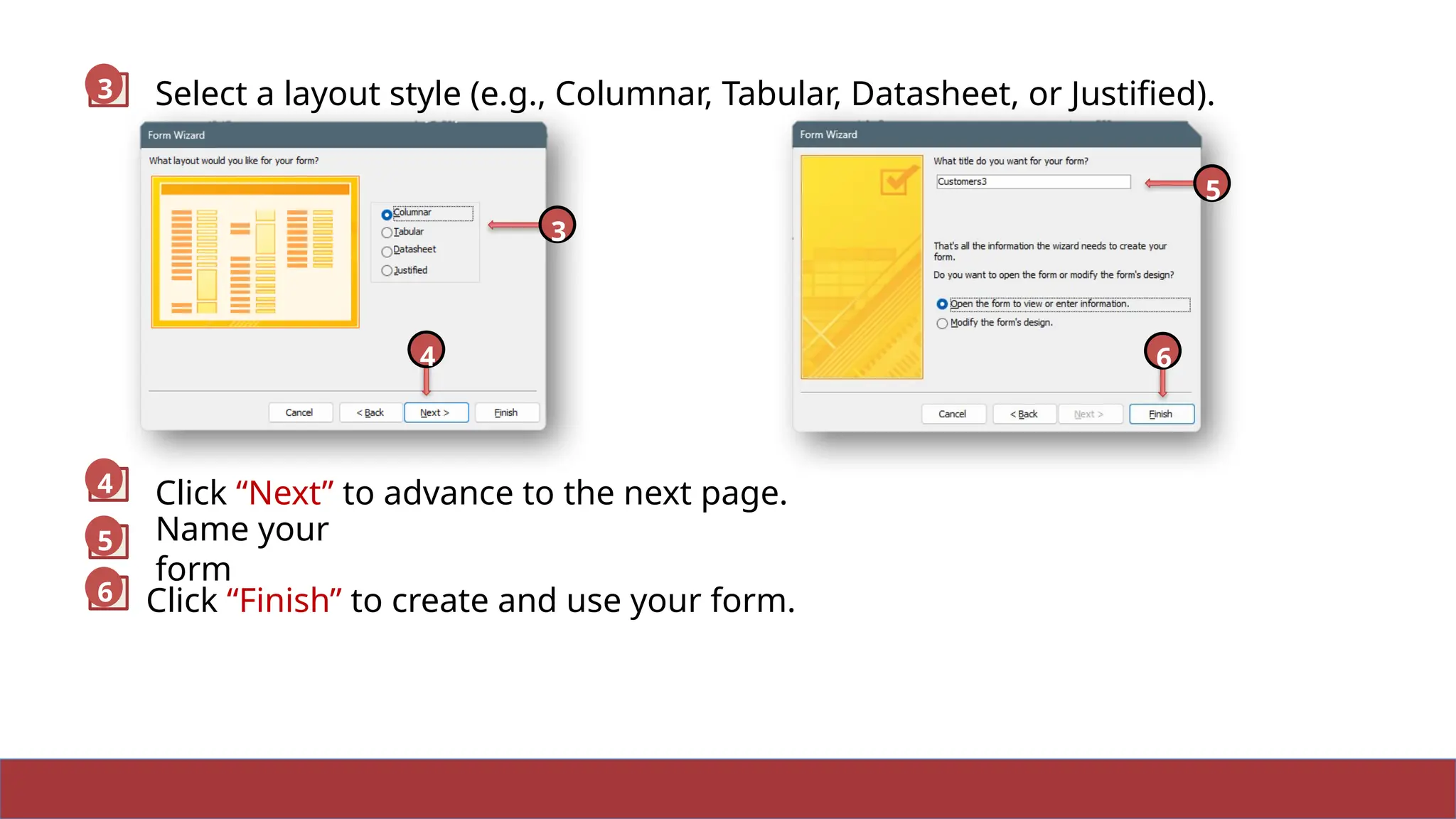
Name your
form
Select alayout style (e.g., Columnar, Tabular, Datasheet, or Justified).
3
Click “Next” to advance to the next page.
Click “Finish” to create and use your form.
4
5
6
3
4
5
6
14.
14
Types of Controlsin MS Access Forms
Bound Control
• Connected directly to a field in a table or query.
• Displays or updates data stored in the database.
• Example: A text box showing a customer’s name from the “Customers” table
1
Unbound Control
• Not connected to any data source.
• Used for labels, titles, or custom navigation.
• Example: A label saying “Welcome to the Student Form”.
2
Calculated Control
•Displays a value calculated from other fields.
•The value is not stored in the table—it is computed each time the form is
viewed.
•Example: A text box showing [=(Quantity)x(Price)] to calculate total cost.
3
What is aQuery?
A query is a way to search, filter, and manipulate data stored in one or
more tables in MS Access based on specific criteria.
It allows you to get answer for specific questions like: “Which students
scored above 80%?”,“How many orders were placed in April?”
Queries can also be used to update, delete, or add data in bulk (called
action queries).
You can set conditions (called criteria) to display only the information
you need.
Queries help turn raw data into meaningful reports and decisions.
Essential for analysis and reporting
16
17.
17
Methods to CreateQueries in MS Access
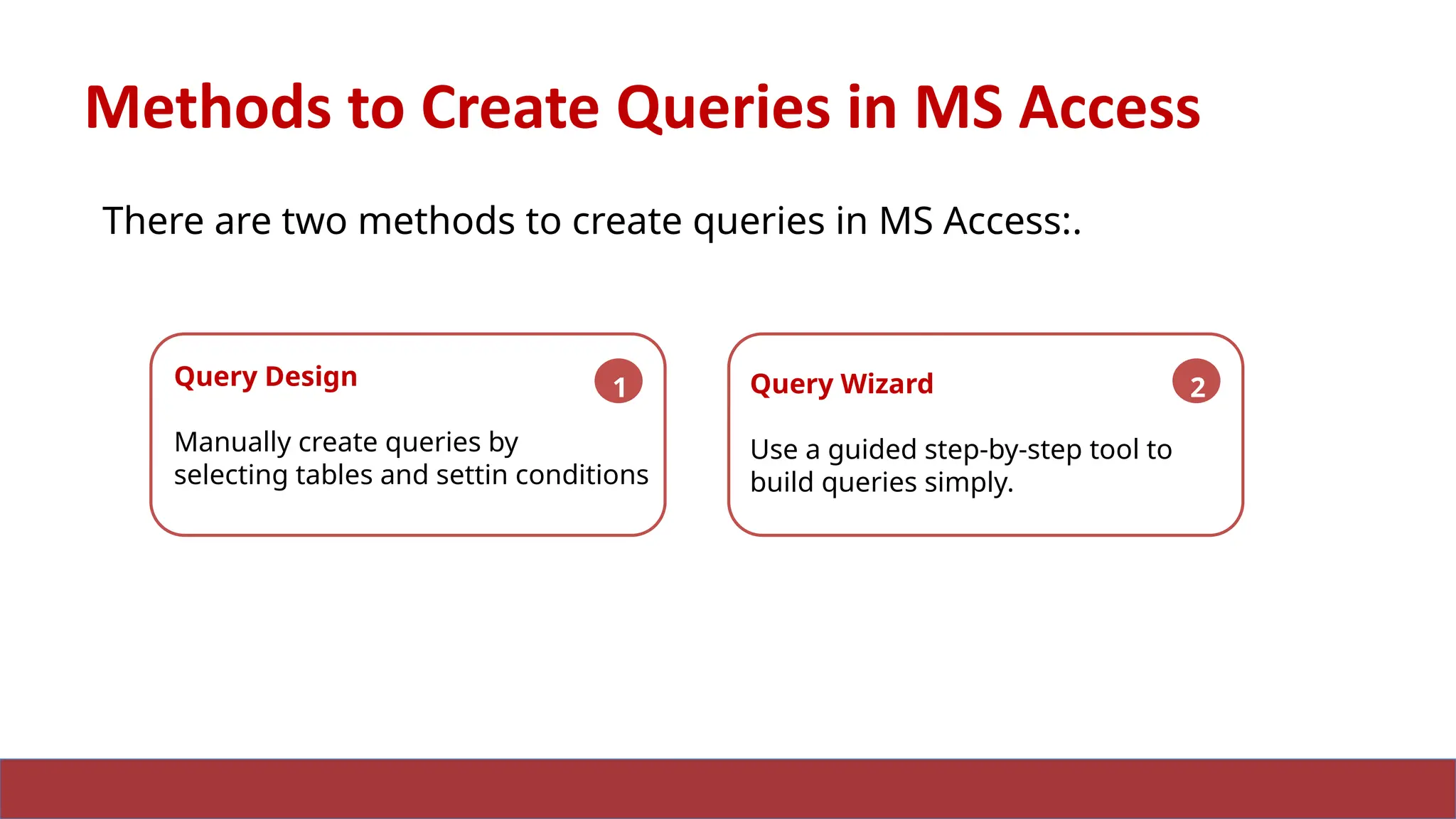
There are two methods to create queries in MS Access:.
Query Design
Manually create queries by
selecting tables and settin conditions
1 Query Wizard
Use a guided step-by-step tool to
build queries simply.
2
18.
Step-by-Step:
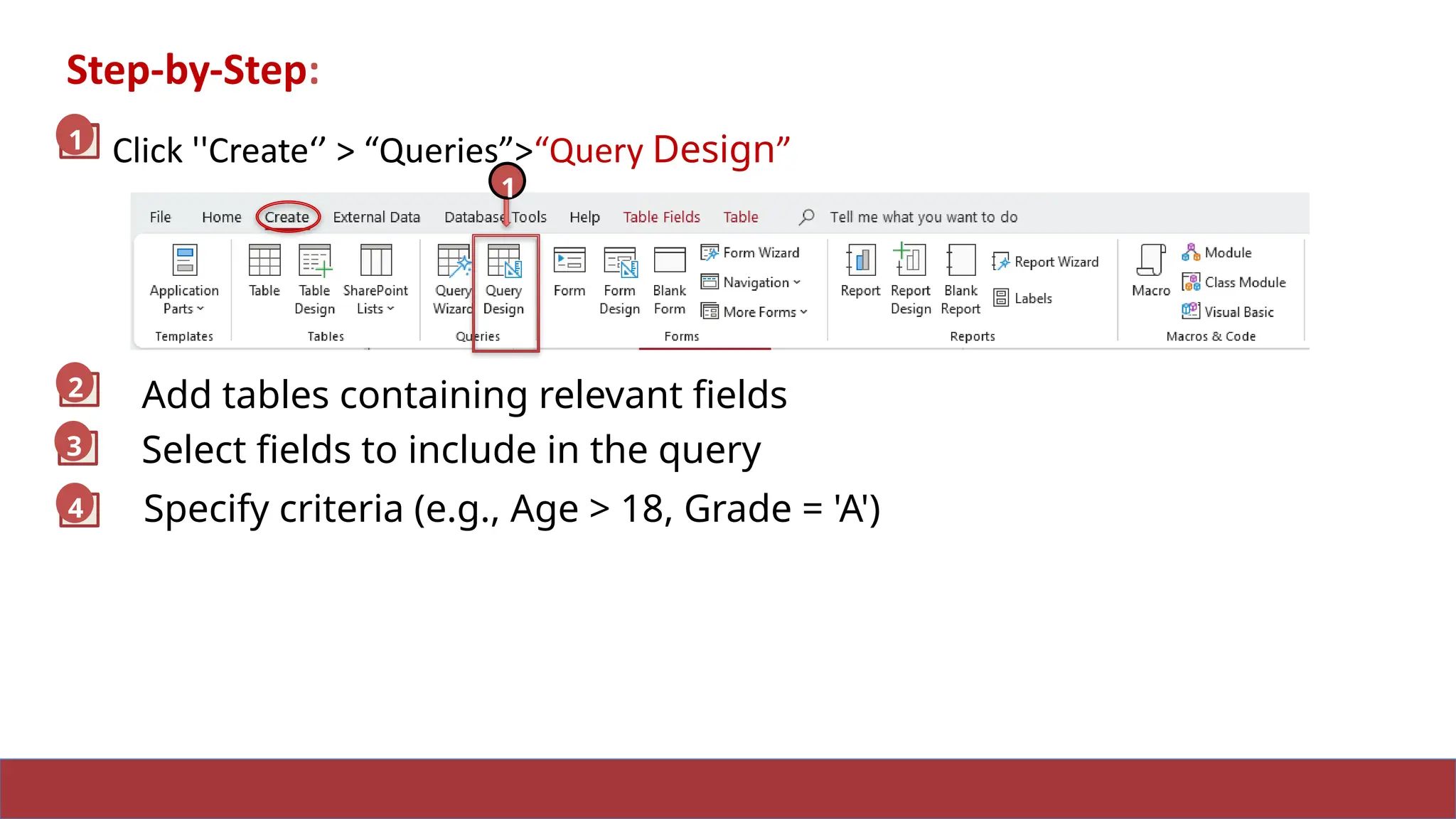
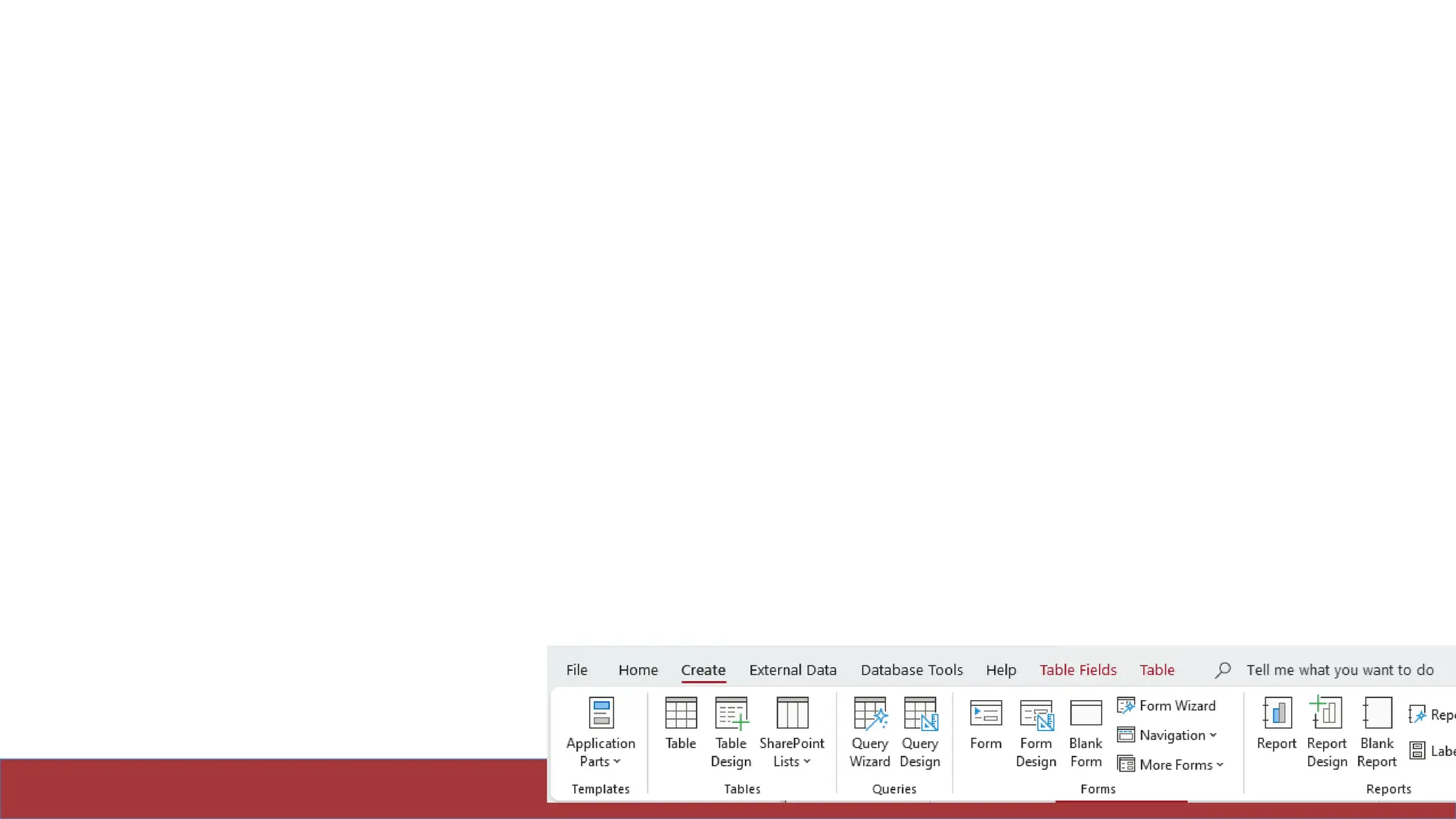
Click ''Create‘’ >“Queries”>“Query Design”
2
3
1
1
1
2
3
Add tables containing relevant fields
Select fields to include in the query
4 Specify criteria (e.g., Age > 18, Grade = 'A')
19.
19
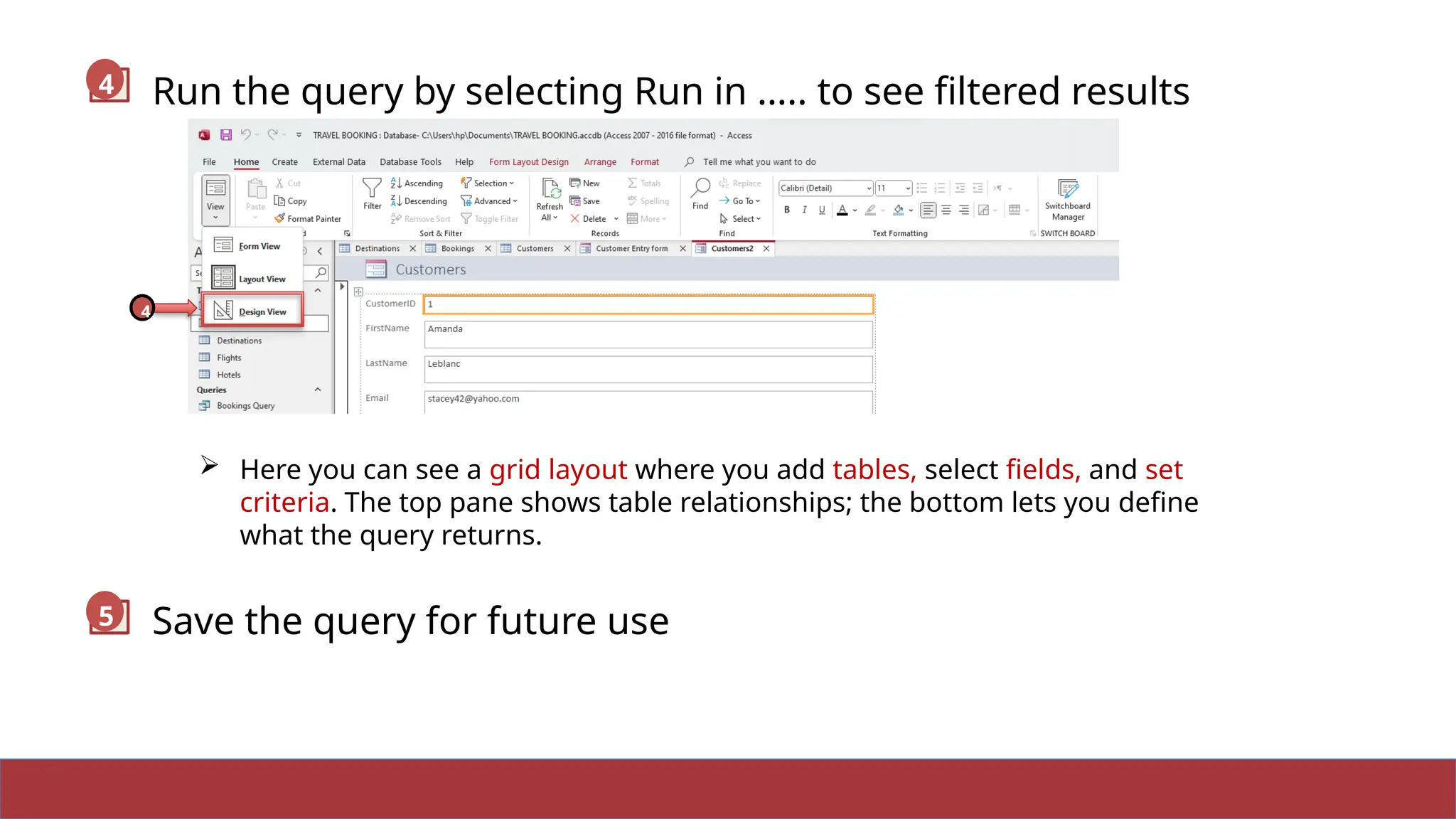
Here youcan see a grid layout where you add tables, select fields, and set
criteria. The top pane shows table relationships; the bottom lets you define
what the query returns.
Run the query by selecting Run in ….. to see filtered results
4
4
Save the query for future use
5
21
Query Wizard inMS Access
• Purpose of the Query Wizard: The Query Wizard in MS Access is a guided tool that
streamlines the process of creating queries. It helps you build queries without needing to
write SQL code manually, making it accessible for both beginners and experienced users.
• Overview of the Four Primary Query Wizards:
– Simple Query Wizard: Quickly sets up a basic query by allowing you to choose fields from one or
more tables, ideal for straightforward data retrieval.
– Crosstab Query Wizard: Organizes data into a matrix format (rows and columns), perfect for
comparing and summarizing data, such as totals per category.
– Find Duplicates Query Wizard: Identifies duplicate records in a table to help maintain data integrity
and avoid redundancy.
– Find Unmatched Query Wizard: Locates records in one table that have no corresponding records in
a related table, which is useful for spotting data mismatches or missing relationships.
22.
22
• Steps toCreate a Query using query wizard
• 1. Click ‘Create’ > ‘Queries’ > ‘Query Design’
• 2. Select one of the four wizards according to the need
i. Simple Query Wizard: Selects fields from tables/queries quickly.
ii. Crosstab Query Wizard: Summarizes data in row/column format.
iii. Find Duplicates Query Wizard: Identifies duplicate records.
iv. Find Unmatched Query Wizard: Finds records missing a match in
another table.
23.
23
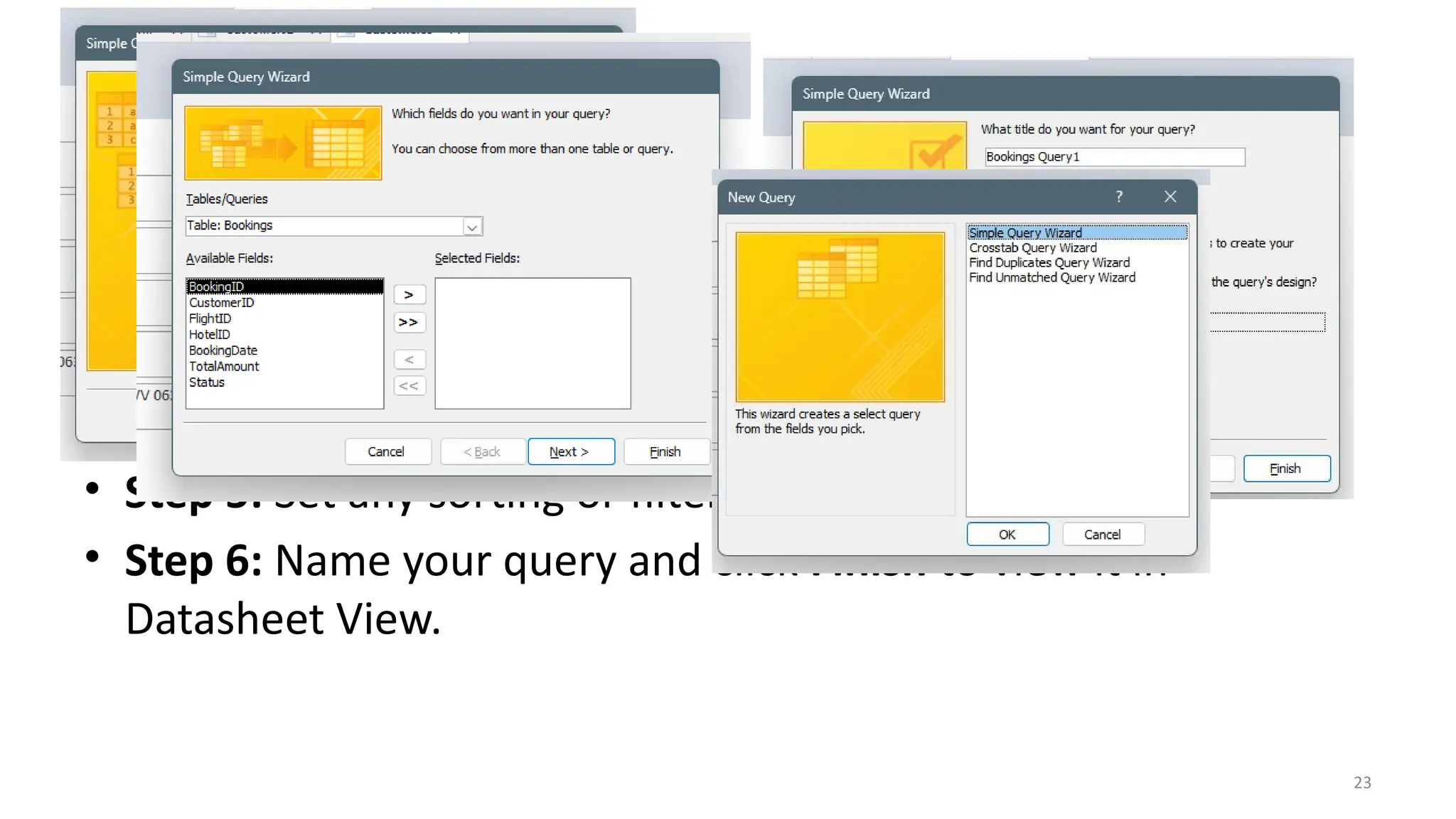
• Step 2:Select the Simple Query Wizard option and click OK.
• Step 3: Choose the table or query that contains the data you
need.
• Step 4: Select the fields you want to include in your query.
• Step 5: Set any sorting or filtering options if prompted.
• Step 6: Name your query and click Finish to view it in
Datasheet View.
24.
24
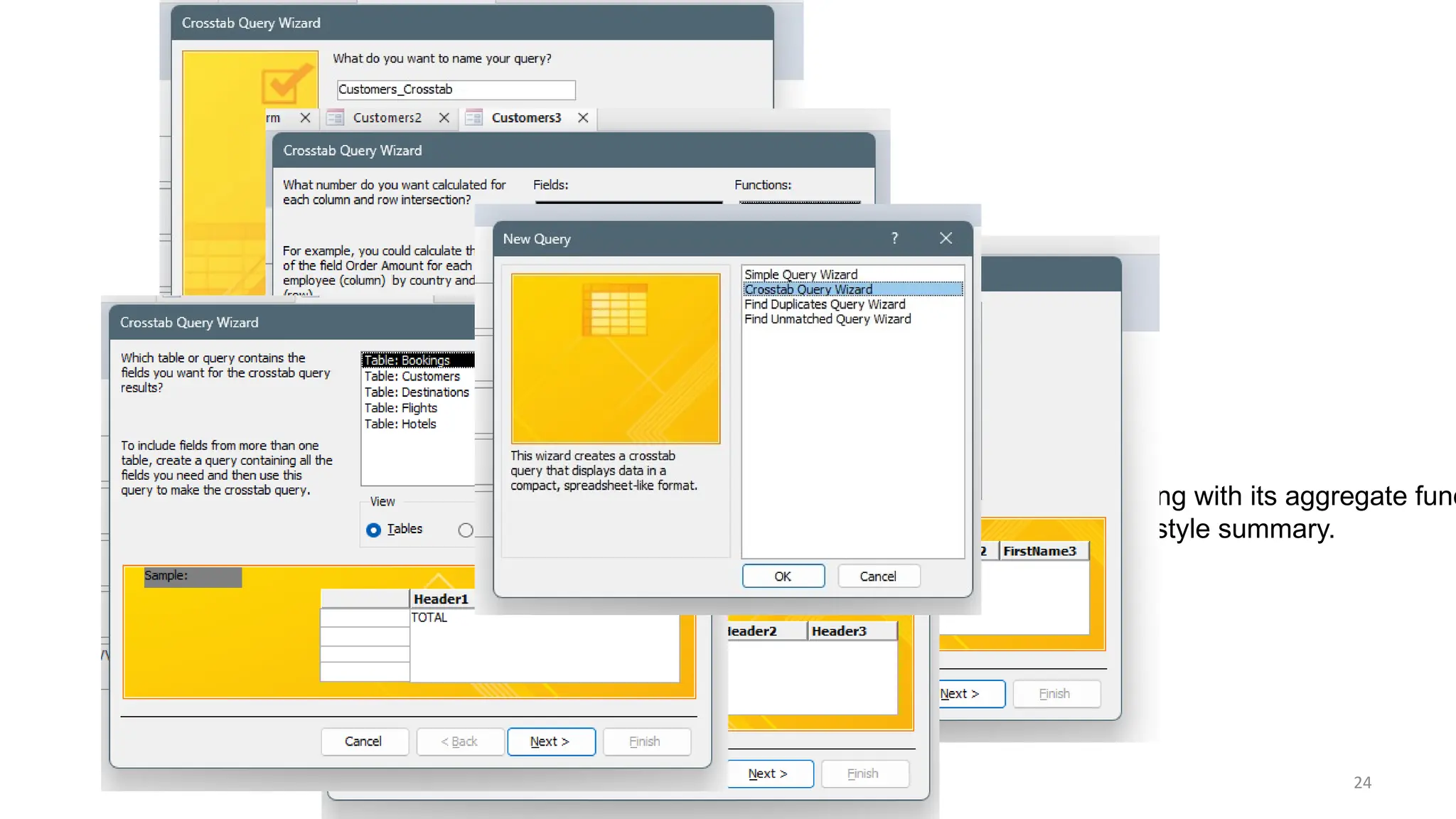
•Step 2: Selectthe Crosstab Query Wizard option and click OK.
•Step 3: Choose the table or query that holds the relevant data.
•Step 4: Define a field to use as the row heading and click Next.
•Step 5: Define a field for the column heading and select the data field along with its aggregate func
•Step 6: Name your crosstab query and click Finish to display the matrix-style summary.
25.
25
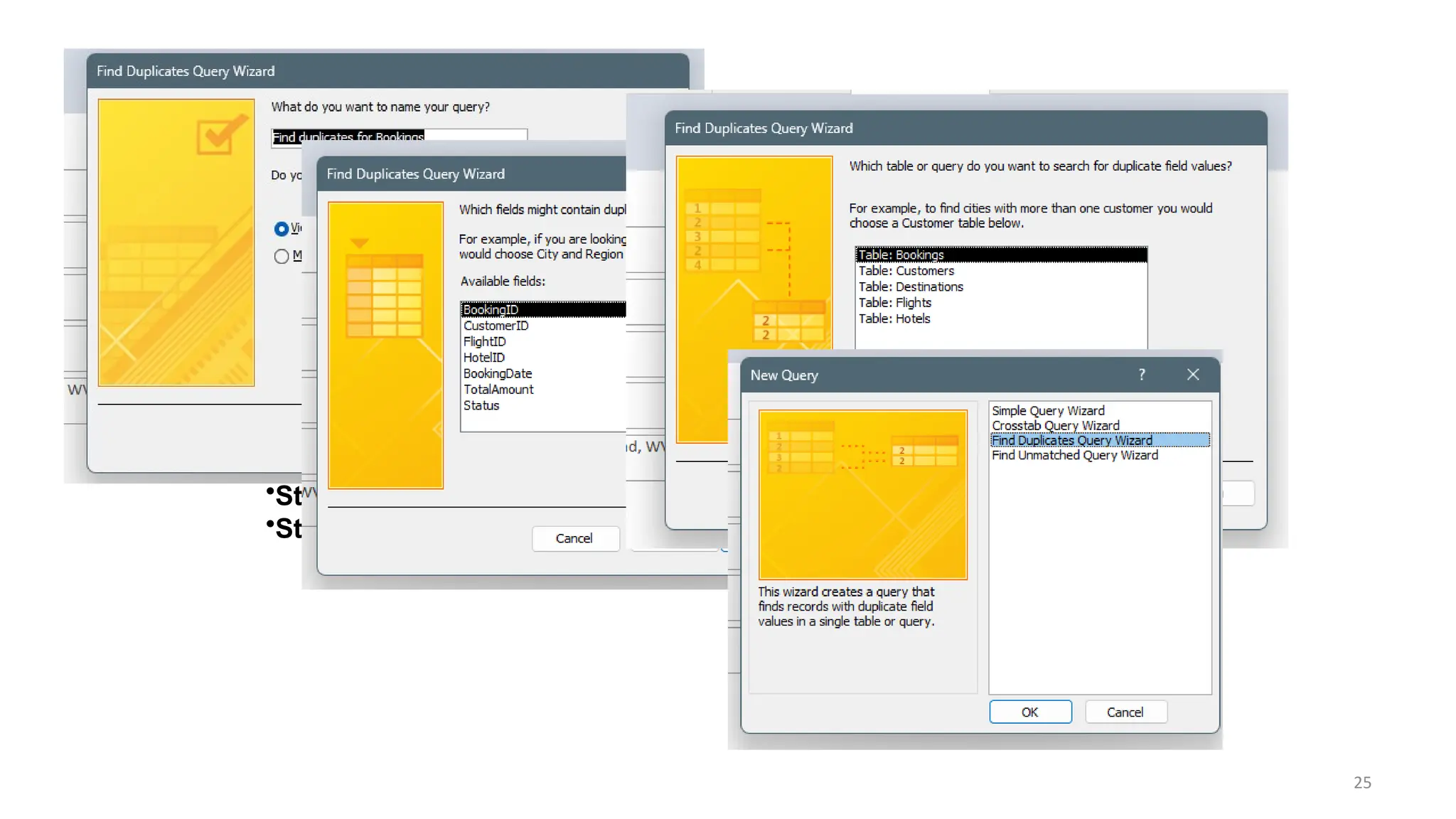
•Step 2: Selectthe Find Duplicates Query Wizard option and click OK.
•Step 3: Choose the table that may contain duplicate records and click Next.
•Step 4: Select the field(s) that should be unique to identify duplicates.
•Step 5: (Optional) Add additional fields to display in the results and click Next.
•Step 6: Name your query and click Finish to view the highlighted duplicate records.
26.
26
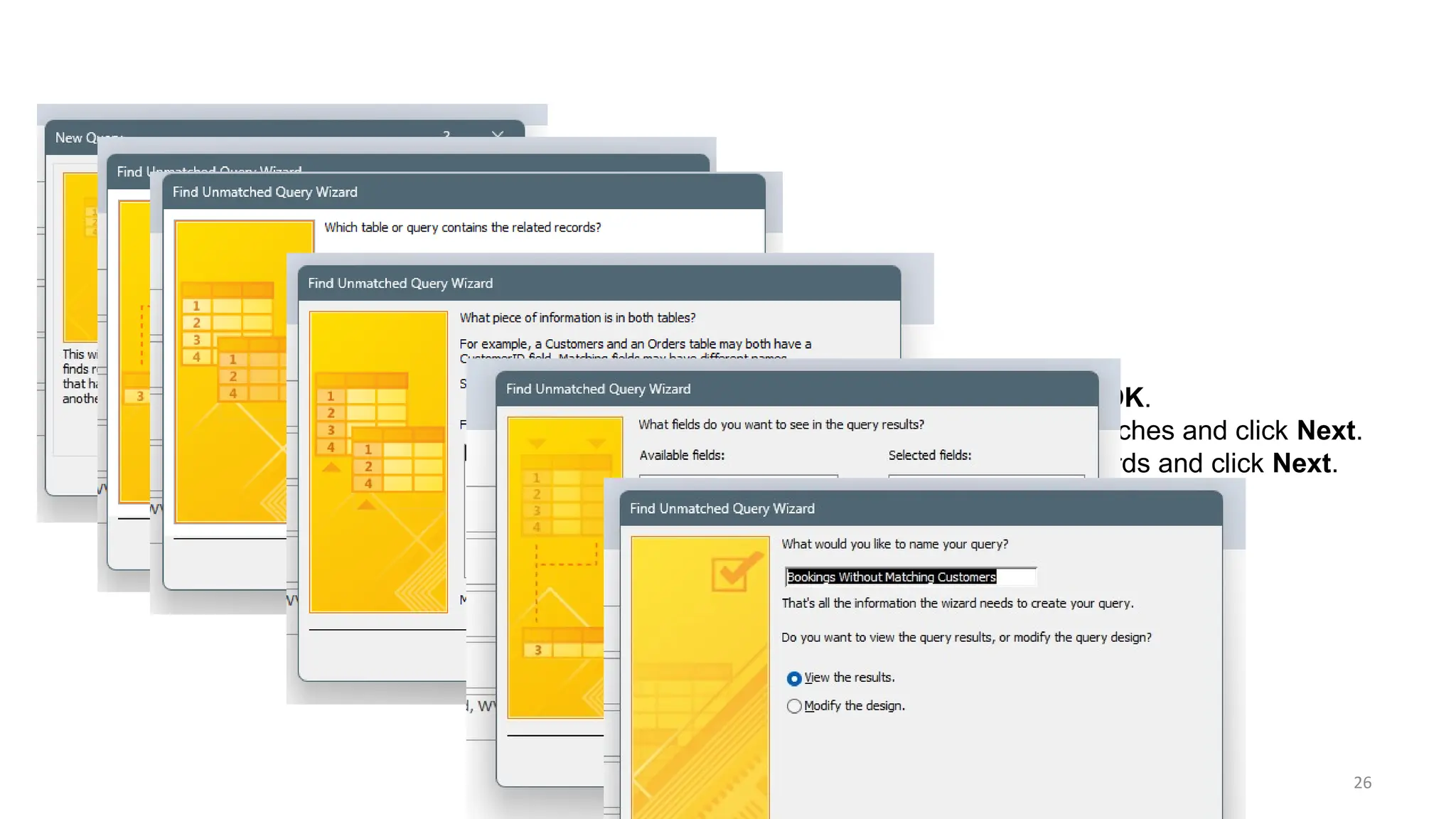
•Step 2: Selectthe Find Unmatched Query Wizard option and click OK.
•Step 3: Choose the primary table that might have records without matches and click Next.
•Step 4: Select the related table that should contain the matching records and click Next.
•Step 5: Identify the field(s) used to match data between the tables.
•Step 6: Name your query and click Finish to display the unmatched records.
27.
27
Practical Example
•Scenario:
You managea travel agency database with tables like Customers, Bookings, Destinations, Flights, and Hotels.
•Form:
Used by staff to quickly enter new customer details or make a new hotel booking.
•Query:
To find all bookings for customers traveling to "Paris" or to list all flights on a specific date.
•Benefits:
Easier data entry, faster retrieval of travel info, and improved booking management.
28.
28
Types of Queries
1.Parameter Query
1. Prompts the user to input criteria when the query runs (e.g., enter a date range or a
name).
2. Example: “Show all orders where OrderDate ≥ [Start Date] and ≤ [End Date].”
2. Append Query
1. Takes the result set of one query and adds those records into another table.
2. Example: Add this month’s new customer records into the main “Customers” table.
3. Group By (Totals) Query
1. Groups records on one or more fields and calculates summary statistics (SUM, COUNT,
AVG, etc.).
2. Example: Count the number of sales per region or sum total sales by product category.
29.
29
Advantages of Formsand Queries
• - **Forms**:
• - Simplify data input
• - Reduce data entry errors
• - Provide a clean user interface
• - **Queries**:
• - Help in analyzing data efficiently
• - Allow filtering, sorting, and calculations
• - Provide the basis for reports
30.
30
Summary
•MS Access isa user-friendly database management system used to store and manage data.
•Forms are used to enter, view, and edit data in a structured and interactive way.
•Types of controls include: Bound, Unbound, and Calculated controls.
•Forms can be created using the Form tool, Form Wizard, or Blank Form.
•Queries help retrieve, filter, and analyze data based on specific conditions.
•Common types include: Parameter, Append, and Group By queries.
Together, forms and queries make data handling in MS Access simple, accurate, and efficient.
32
In Access, a“form” is typically used to:
A. Input, modify, and display data
B. Summarize data
C. Print data
D. Storage large amount of data
33.
33
………… is usedto create forms simply
A. Form Wizard
B. Form Tool
C. Blank Form
D. Form Design
34.
34
A form withinanother form is called…………
A. Main Form
B. Split Form
C. Subform
D. Bound Form
35.
35
Which database objectis used to sort and filter data in MS Access ?
A. Form
B. Query
C. Table
D. report
36.
36
Which of thefollowing is not a type of query view in MS Access?
A. Design View
B. Datasheet View
C. Layout View
D. SQL View
37.
37
Thank You
• Isincerely appreciate your time and attention.
• I hope this presentation has provided you with a clear
understanding of Forms and Queries in MS Access.
• Please feel free to share any questions or feedback.


![14
Types of Controls in MS Access Forms
Bound Control
• Connected directly to a field in a table or query.
• Displays or updates data stored in the database.
• Example: A text box showing a customer’s name from the “Customers” table
1
Unbound Control
• Not connected to any data source.
• Used for labels, titles, or custom navigation.
• Example: A label saying “Welcome to the Student Form”.
2
Calculated Control
•Displays a value calculated from other fields.
•The value is not stored in the table—it is computed each time the form is
viewed.
•Example: A text box showing [=(Quantity)x(Price)] to calculate total cost.
3](https://image.slidesharecdn.com/detailedintroductiontomsaccessformsandquery-251006072342-c5f7ee10/75/Detailed_Introduction_to_MS_Access_Forms_and_Query-pptx-14-2048.jpg)

![28
Types of Queries
1. Parameter Query
1. Prompts the user to input criteria when the query runs (e.g., enter a date range or a
name).
2. Example: “Show all orders where OrderDate ≥ [Start Date] and ≤ [End Date].”
2. Append Query
1. Takes the result set of one query and adds those records into another table.
2. Example: Add this month’s new customer records into the main “Customers” table.
3. Group By (Totals) Query
1. Groups records on one or more fields and calculates summary statistics (SUM, COUNT,
AVG, etc.).
2. Example: Count the number of sales per region or sum total sales by product category.](https://image.slidesharecdn.com/detailedintroductiontomsaccessformsandquery-251006072342-c5f7ee10/75/Detailed_Introduction_to_MS_Access_Forms_and_Query-pptx-28-2048.jpg)