BSYS 2060 Lecture 2 – Data Literacy & Data Modeling
We live in an information age where data is king.
Data often most valuable asset of a companye.g. Aeroplan worth more than Air Canada
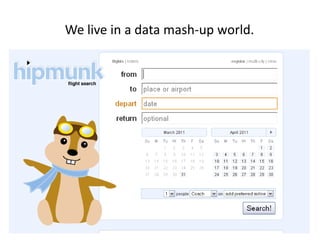
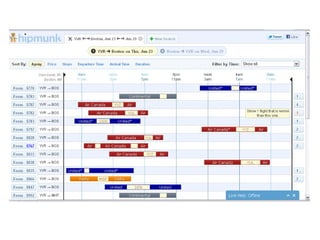
We live in a data mash-up world.
Where does data belong?
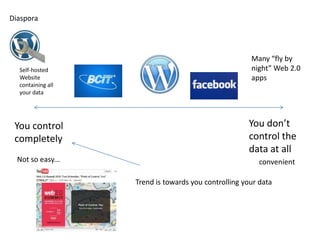
DiasporaMany “fly by night” Web 2.0 appsSelf-hostedWebsite containing all your dataYou don’t control the data at allYou control completelyNot so easy...convenientTrend is towards you controlling your data
Who owns data?
Building a database for an organization?
What is the organization’s mission?
What is the project’s mission?
What data is required to make good decisions or for other reporting needs?
What data is currently being collected?
How is the data collected being used?
What data should be collected?
What are the main data entities?These will become your tables
What are the required fields and field data types?
What are the relationships between the tables?
Select your tools?e.g. MS Access, MS SQL, MySQL, OracleWhat is being used now if anything?
Be careful of the hammer!To a hammer, everything looks like a nail. If you only know MS Access, you may see always see MS Access as the solution even when it’s not. If you only know MS Excel, it seems like the perfect choice!Source:http://www.flickr.com/photos/fixersphotos/3199566032/
NormalizationA brief introduction to the first three forms...
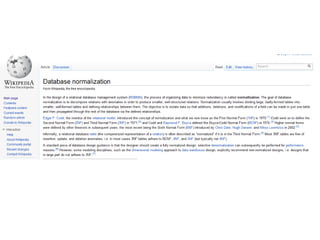
“Normalization”In the field of relational database design, normalization is a systematic way of ensuring that a database structure is suitable for general-purpose querying and free of certain undesirable characteristics—insertion, update, and deletion anomalies—that could lead to a loss of data integrity.Codd, E.F. The Relational Model for Database Management: Version 2. Addison-Wesley (1990), p. 271
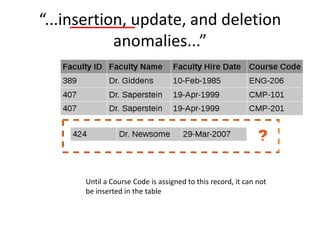
“...insertion, update, and deletion anomalies...”Until a Course Code is assigned to this record, it can not be inserted in the table
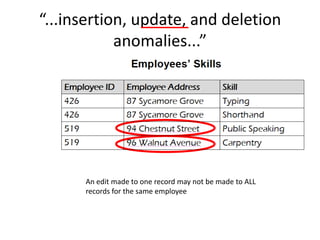
“...insertion, update, and deletion anomalies...”An edit made to one record may not be made to ALL records for the same employee
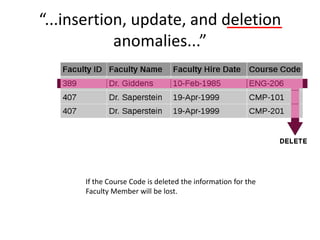
“...insertion, update, and deletion anomalies...”If the Course Code is deleted the information for the Faculty Member will be lost.
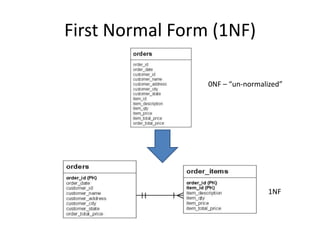
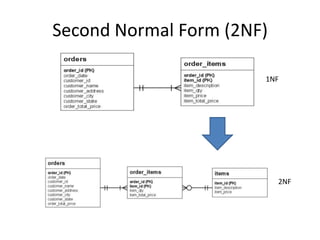
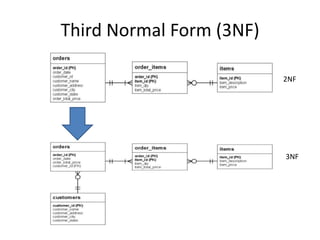
Three Normal Forms1NFEliminate repeating groupsNo redundant data2NFEliminate independent dataAll fields depend on Primary Key3NFEliminate dependency on non-key fieldsFields do not depend on each other
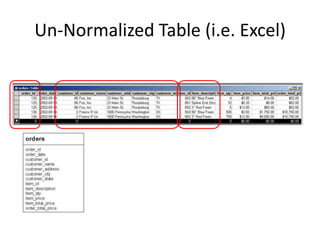
Un-Normalized Table (i.e. Excel)
First Normal Form (1NF)0NF – “un-normalized”1NF
Second Normal Form (2NF)1NF2NF
Third Normal Form (3NF)2NF3NF
Access Tutorial 2Building a Database and Defining Table Relationships
ObjectivesLearn the guidelines for designing databases and setting field propertiesView and modify field data types and formattingCreate a table in Design viewDefine fields and specify a table’s primary keyModify the structure of a tableNew Perspectives on Microsoft Office Access 200741
ObjectivesImport data from an Excel worksheetCreate a table by importing an existing table structureDelete, rename, and move fieldsAdd data to a table by importing a text fileDefine a relationship between two tablesNew Perspectives on Microsoft Office Access 200742
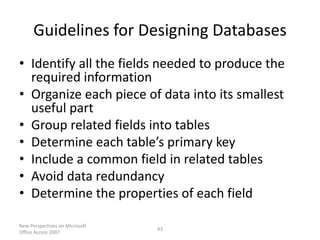
Guidelines for Designing DatabasesIdentify all the fields needed to produce the required informationOrganize each piece of data into its smallest useful partGroup related fields into tablesDetermine each table’s primary keyInclude a common field in related tablesAvoid data redundancyDetermine the properties of each fieldNew Perspectives on Microsoft Office Access 200743
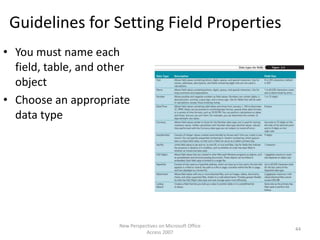
Guidelines for Setting Field PropertiesYou must name each field, table, and other objectChoose an appropriate data typeNew Perspectives on Microsoft Office Access 200744
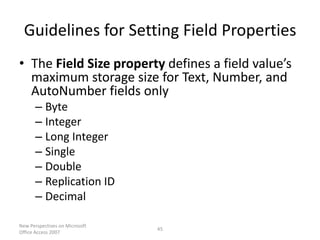
Guidelines for Setting Field PropertiesThe Field Size property defines a field value’s maximum storage size for Text, Number, and AutoNumber fields onlyByteIntegerLong IntegerSingleDoubleReplication IDDecimalNew Perspectives on Microsoft Office Access 200745
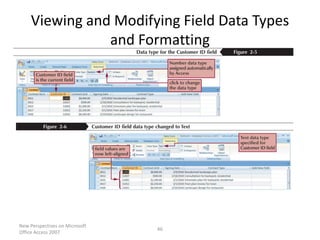
Viewing and Modifying Field Data Types and FormattingNew Perspectives on Microsoft Office Access 200746
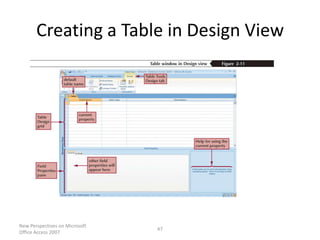
Creating a Table in Design ViewNew Perspectives on Microsoft Office Access 200747
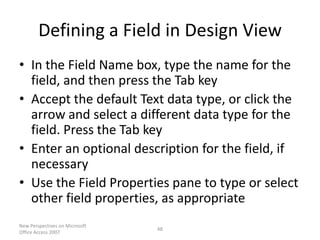
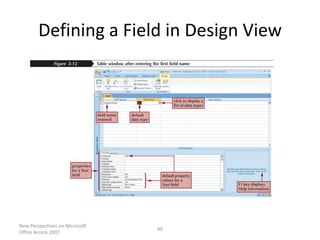
Defining a Field in Design ViewIn the Field Name box, type the name for the field, and then press the Tab keyAccept the default Text data type, or click the arrow and select a different data type for the field. Press the Tab keyEnter an optional description for the field, if necessaryUse the Field Properties pane to type or select other field properties, as appropriateNew Perspectives on Microsoft Office Access 200748
Defining a Field in Design ViewNew Perspectives on Microsoft Office Access 200749
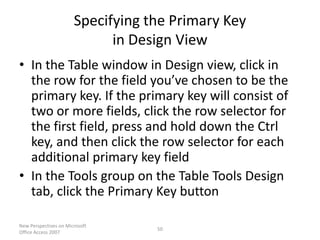
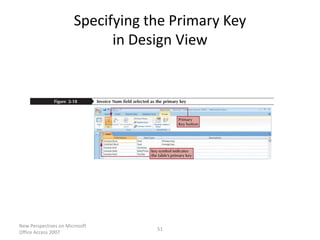
Specifying the Primary Key in Design ViewIn the Table window in Design view, click in the row for the field you’ve chosen to be the primary key. If the primary key will consist of two or more fields, click the row selector for the first field, press and hold down the Ctrl key, and then click the row selector for each additional primary key fieldIn the Tools group on the Table Tools Design tab, click the Primary Key buttonNew Perspectives on Microsoft Office Access 200750
Specifying the Primary Key in Design ViewNew Perspectives on Microsoft Office Access 200751
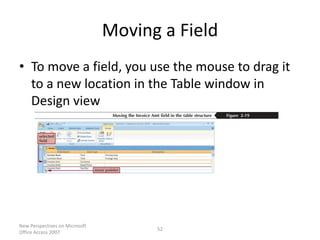
Moving a FieldTo move a field, you use the mouse to drag it to a new location in the Table window in Design viewNew Perspectives on Microsoft Office Access 200752
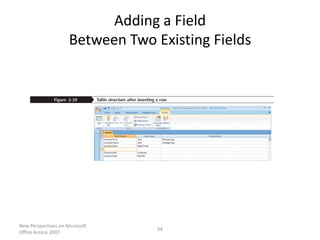
Adding a Field Between Two Existing FieldsIn the Table window in Design view, select the row for the field above which you want to add a new fieldIn the Tools group on the Table Tools Design tab, click the Insert Rows buttonDefine the new field by entering the field name, data type, optional description, and any property specificationsNew Perspectives on Microsoft Office Access 200753
Adding a Field Between Two Existing FieldsNew Perspectives on Microsoft Office Access 200754
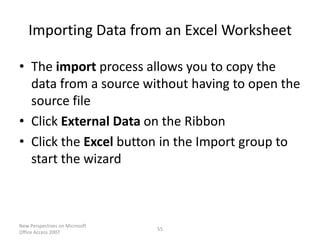
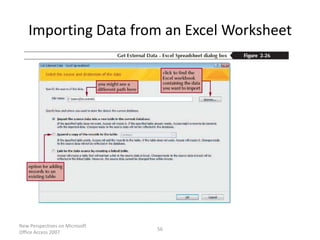
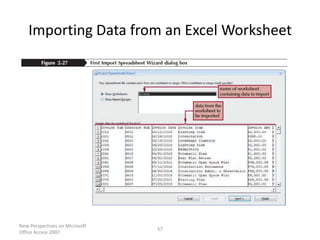
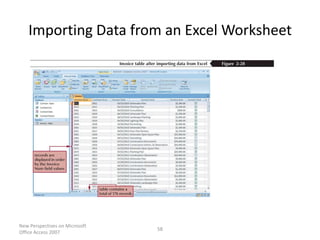
Importing Data from an Excel WorksheetThe import process allows you to copy the data from a source without having to open the source fileClick External Data on the RibbonClick the Excel button in the Import group to start the wizardNew Perspectives on Microsoft Office Access 200755
Importing Data from an Excel WorksheetNew Perspectives on Microsoft Office Access 200756
Importing Data from an Excel WorksheetNew Perspectives on Microsoft Office Access 200757
Importing Data from an Excel WorksheetNew Perspectives on Microsoft Office Access 200758
Creating a Table by Importingan Existing Table StructureMake sure the External Data tab is the active tab on the RibbonIn the Import group, click the Access buttonClick the Browse buttonNavigate to the fileMake sure the Import tables, queries, forms, reports, macros, and modules into the current database option button is selected, and then click the OK buttonClick the Options buttonNew Perspectives on Microsoft Office Access 200759
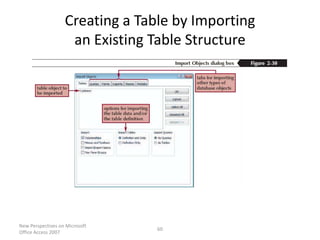
Creating a Table by Importingan Existing Table StructureNew Perspectives on Microsoft Office Access 200760
Deleting a Field from a Table StructureIn Datasheet view, select the column heading for the field you want to deleteIn the Fields & Columns group on the Datasheet tab, click the Delete buttonorIn Design view, click in the Field Name box for the field you want to deleteIn the Tools group on the Table Tools Design tab, click the Delete Rows buttonNew Perspectives on Microsoft Office Access 200761
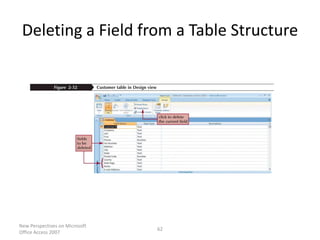
Deleting a Field from a Table StructureNew Perspectives on Microsoft Office Access 200762
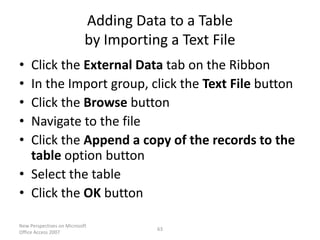
Adding Data to a Table by Importing a Text FileClick the External Data tab on the RibbonIn the Import group, click the Text File buttonClick the Browse buttonNavigate to the fileClick the Append a copy of the records to the table option buttonSelect the tableClick the OK buttonNew Perspectives on Microsoft Office Access 200763
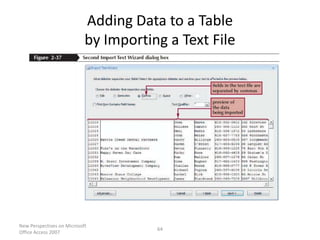
Adding Data to a Table by Importing a Text FileNew Perspectives on Microsoft Office Access 200764
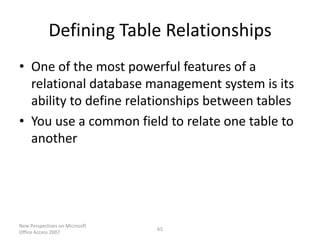
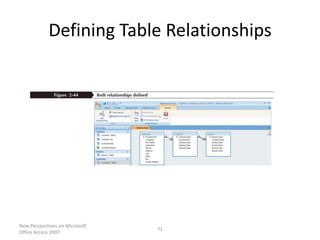
Defining Table RelationshipsOne of the most powerful features of a relational database management system is its ability to define relationships between tablesYou use a common field to relate one table to anotherNew Perspectives on Microsoft Office Access 200765
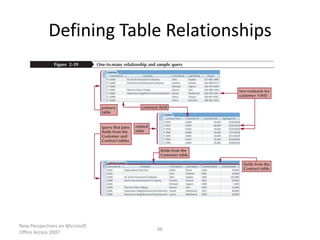
Defining Table RelationshipsNew Perspectives on Microsoft Office Access 200766
Defining Table RelationshipsA one-to-many relationship exists between two tables when one record in the first table matches zero, one, or many records in the second table, and when one record in the second table matches at most one record in the first tableThe Primary table is the “one” in a one-to-many relationshipThe Related table is the “many” table New Perspectives on Microsoft Office Access 200767
Defining Table RelationshipsReferential integrity is a set of rules that Access enforces to maintain consistency between related tables when you update data in a databaseThe Relationships window illustrates the relationships among a database’s tablesClick the Database Tools tab on the RibbonIn the Show/Hide group on the Database Tools tab, click the Relationships buttonNew Perspectives on Microsoft Office Access 200768
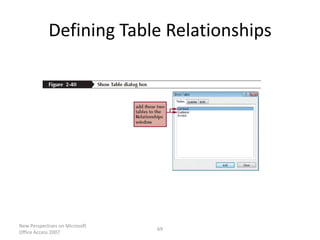
Defining Table RelationshipsNew Perspectives on Microsoft Office Access 200769
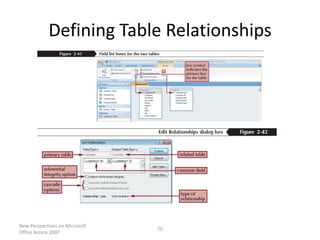
Defining Table RelationshipsNew Perspectives on Microsoft Office Access 200770
Defining Table RelationshipsNew Perspectives on Microsoft Office Access 200771

Lecture2 slides

  • 1.
    BSYS 2060 Lecture2 – Data Literacy & Data Modeling
  • 2.
    We live inan information age where data is king.
  • 3.
    Data often mostvaluable asset of a companye.g. Aeroplan worth more than Air Canada
  • 4.
    We live ina data mash-up world.
  • 9.
  • 10.
    DiasporaMany “fly bynight” Web 2.0 appsSelf-hostedWebsite containing all your dataYou don’t control the data at allYou control completelyNot so easy...convenientTrend is towards you controlling your data
  • 15.
  • 17.
    Building a databasefor an organization?
  • 18.
    What is theorganization’s mission?
  • 19.
    What is theproject’s mission?
  • 20.
    What data isrequired to make good decisions or for other reporting needs?
  • 21.
    What data iscurrently being collected?
  • 22.
    How is thedata collected being used?
  • 23.
    What data shouldbe collected?
  • 24.
    What are themain data entities?These will become your tables
  • 25.
    What are therequired fields and field data types?
  • 26.
    What are therelationships between the tables?
  • 27.
    Select your tools?e.g.MS Access, MS SQL, MySQL, OracleWhat is being used now if anything?
  • 28.
    Be careful ofthe hammer!To a hammer, everything looks like a nail. If you only know MS Access, you may see always see MS Access as the solution even when it’s not. If you only know MS Excel, it seems like the perfect choice!Source:http://www.flickr.com/photos/fixersphotos/3199566032/
  • 29.
    NormalizationA brief introductionto the first three forms...
  • 30.
    “Normalization”In the fieldof relational database design, normalization is a systematic way of ensuring that a database structure is suitable for general-purpose querying and free of certain undesirable characteristics—insertion, update, and deletion anomalies—that could lead to a loss of data integrity.Codd, E.F. The Relational Model for Database Management: Version 2. Addison-Wesley (1990), p. 271
  • 32.
    “...insertion, update, anddeletion anomalies...”Until a Course Code is assigned to this record, it can not be inserted in the table
  • 33.
    “...insertion, update, anddeletion anomalies...”An edit made to one record may not be made to ALL records for the same employee
  • 34.
    “...insertion, update, anddeletion anomalies...”If the Course Code is deleted the information for the Faculty Member will be lost.
  • 35.
    Three Normal Forms1NFEliminaterepeating groupsNo redundant data2NFEliminate independent dataAll fields depend on Primary Key3NFEliminate dependency on non-key fieldsFields do not depend on each other
  • 36.
  • 37.
    First Normal Form(1NF)0NF – “un-normalized”1NF
  • 38.
  • 39.
  • 40.
    Access Tutorial 2Buildinga Database and Defining Table Relationships
  • 41.
    ObjectivesLearn the guidelinesfor designing databases and setting field propertiesView and modify field data types and formattingCreate a table in Design viewDefine fields and specify a table’s primary keyModify the structure of a tableNew Perspectives on Microsoft Office Access 200741
  • 42.
    ObjectivesImport data froman Excel worksheetCreate a table by importing an existing table structureDelete, rename, and move fieldsAdd data to a table by importing a text fileDefine a relationship between two tablesNew Perspectives on Microsoft Office Access 200742
  • 43.
    Guidelines for DesigningDatabasesIdentify all the fields needed to produce the required informationOrganize each piece of data into its smallest useful partGroup related fields into tablesDetermine each table’s primary keyInclude a common field in related tablesAvoid data redundancyDetermine the properties of each fieldNew Perspectives on Microsoft Office Access 200743
  • 44.
    Guidelines for SettingField PropertiesYou must name each field, table, and other objectChoose an appropriate data typeNew Perspectives on Microsoft Office Access 200744
  • 45.
    Guidelines for SettingField PropertiesThe Field Size property defines a field value’s maximum storage size for Text, Number, and AutoNumber fields onlyByteIntegerLong IntegerSingleDoubleReplication IDDecimalNew Perspectives on Microsoft Office Access 200745
  • 46.
    Viewing and ModifyingField Data Types and FormattingNew Perspectives on Microsoft Office Access 200746
  • 47.
    Creating a Tablein Design ViewNew Perspectives on Microsoft Office Access 200747
  • 48.
    Defining a Fieldin Design ViewIn the Field Name box, type the name for the field, and then press the Tab keyAccept the default Text data type, or click the arrow and select a different data type for the field. Press the Tab keyEnter an optional description for the field, if necessaryUse the Field Properties pane to type or select other field properties, as appropriateNew Perspectives on Microsoft Office Access 200748
  • 49.
    Defining a Fieldin Design ViewNew Perspectives on Microsoft Office Access 200749
  • 50.
    Specifying the PrimaryKey in Design ViewIn the Table window in Design view, click in the row for the field you’ve chosen to be the primary key. If the primary key will consist of two or more fields, click the row selector for the first field, press and hold down the Ctrl key, and then click the row selector for each additional primary key fieldIn the Tools group on the Table Tools Design tab, click the Primary Key buttonNew Perspectives on Microsoft Office Access 200750
  • 51.
    Specifying the PrimaryKey in Design ViewNew Perspectives on Microsoft Office Access 200751
  • 52.
    Moving a FieldTomove a field, you use the mouse to drag it to a new location in the Table window in Design viewNew Perspectives on Microsoft Office Access 200752
  • 53.
    Adding a FieldBetween Two Existing FieldsIn the Table window in Design view, select the row for the field above which you want to add a new fieldIn the Tools group on the Table Tools Design tab, click the Insert Rows buttonDefine the new field by entering the field name, data type, optional description, and any property specificationsNew Perspectives on Microsoft Office Access 200753
  • 54.
    Adding a FieldBetween Two Existing FieldsNew Perspectives on Microsoft Office Access 200754
  • 55.
    Importing Data froman Excel WorksheetThe import process allows you to copy the data from a source without having to open the source fileClick External Data on the RibbonClick the Excel button in the Import group to start the wizardNew Perspectives on Microsoft Office Access 200755
  • 56.
    Importing Data froman Excel WorksheetNew Perspectives on Microsoft Office Access 200756
  • 57.
    Importing Data froman Excel WorksheetNew Perspectives on Microsoft Office Access 200757
  • 58.
    Importing Data froman Excel WorksheetNew Perspectives on Microsoft Office Access 200758
  • 59.
    Creating a Tableby Importingan Existing Table StructureMake sure the External Data tab is the active tab on the RibbonIn the Import group, click the Access buttonClick the Browse buttonNavigate to the fileMake sure the Import tables, queries, forms, reports, macros, and modules into the current database option button is selected, and then click the OK buttonClick the Options buttonNew Perspectives on Microsoft Office Access 200759
  • 60.
    Creating a Tableby Importingan Existing Table StructureNew Perspectives on Microsoft Office Access 200760
  • 61.
    Deleting a Fieldfrom a Table StructureIn Datasheet view, select the column heading for the field you want to deleteIn the Fields & Columns group on the Datasheet tab, click the Delete buttonorIn Design view, click in the Field Name box for the field you want to deleteIn the Tools group on the Table Tools Design tab, click the Delete Rows buttonNew Perspectives on Microsoft Office Access 200761
  • 62.
    Deleting a Fieldfrom a Table StructureNew Perspectives on Microsoft Office Access 200762
  • 63.
    Adding Data toa Table by Importing a Text FileClick the External Data tab on the RibbonIn the Import group, click the Text File buttonClick the Browse buttonNavigate to the fileClick the Append a copy of the records to the table option buttonSelect the tableClick the OK buttonNew Perspectives on Microsoft Office Access 200763
  • 64.
    Adding Data toa Table by Importing a Text FileNew Perspectives on Microsoft Office Access 200764
  • 65.
    Defining Table RelationshipsOneof the most powerful features of a relational database management system is its ability to define relationships between tablesYou use a common field to relate one table to anotherNew Perspectives on Microsoft Office Access 200765
  • 66.
    Defining Table RelationshipsNewPerspectives on Microsoft Office Access 200766
  • 67.
    Defining Table RelationshipsAone-to-many relationship exists between two tables when one record in the first table matches zero, one, or many records in the second table, and when one record in the second table matches at most one record in the first tableThe Primary table is the “one” in a one-to-many relationshipThe Related table is the “many” table New Perspectives on Microsoft Office Access 200767
  • 68.
    Defining Table RelationshipsReferentialintegrity is a set of rules that Access enforces to maintain consistency between related tables when you update data in a databaseThe Relationships window illustrates the relationships among a database’s tablesClick the Database Tools tab on the RibbonIn the Show/Hide group on the Database Tools tab, click the Relationships buttonNew Perspectives on Microsoft Office Access 200768
  • 69.
    Defining Table RelationshipsNewPerspectives on Microsoft Office Access 200769
  • 70.
    Defining Table RelationshipsNewPerspectives on Microsoft Office Access 200770
  • 71.
    Defining Table RelationshipsNewPerspectives on Microsoft Office Access 200771

Editor's Notes

  • #2 http://www.google.ca/imgres?imgurl=http://tctechcrunch.files.wordpress.com/2010/03/binary_data.jpg&imgrefurl=http://techcrunch.com/2010/03/16/big-data-freedom/&usg=__Sh_4EN0mwwOH35FqrsJRtvJEZuA=&h=600&w=800&sz=187&hl=en&start=30&zoom=1&tbnid=7t1PdGOKt490rM:&tbnh=127&tbnw=169&ei=ONmUTf_3KYf6swPKweDVBQ&prev=/images%3Fq%3Ddata%26um%3D1%26hl%3Den%26sa%3DN%26biw%3D1024%26bih%3D574%26tbs%3Disch:10%2C976&um=1&itbs=1&iact=rc&dur=284&oei=LtmUTY7OAs_OiAKz0cX_CA&page=3&ndsp=15&ved=1t:429,r:7,s:30&tx=105&ty=34&biw=1024&bih=574
  • #3 http://www.flickr.com/photos/alismith44/269843032/