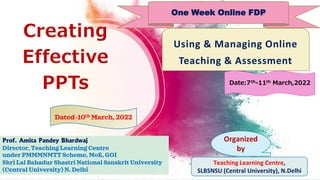
Creating
Effective
PPTs
Organized
by
Teaching Learning Centre,
SLBSNSU (Central University), N.Delhi
One Week Online FDP
Using & Managing Online
Teaching & Assessment
Dated-10th March, 2022
Prof. Amita Pandey Bhardwaj
Director, Teaching Learning Centre
under PMMMNMTT Scheme, MoE, GOI
Shri Lal Bahadur Shastri National Sanskrit University
(Central University) N. Delhi
Date:7th-11th March,2022
Converting ppt to video
Demonstration
Creating Effective
Power Point Presentations
About MS PPt
Ways for Developing
Effective PPTs
Add Contents Title
Add Contents Title
Focus of the Presentation.
Title Slides, Animation,
Transition
Insert- Picture, Smart Art,
Chart , Link ,Header & Footer
About
MS Power Point
➢ It is included in the Microsoft Office suite.
➢ It is used to make presentations for personal and professional purposes.
•It is a presentation-based program that uses graphics, videos, etc. to
make a presentation more interactive and interesting.
•The file extension of a saved PPt is “.ppt”.
It is a powerful & easy-to-use presentation graphics
software program that allows you to create
professional-looking electronic slide shows.
A combination of various slides depicting a
graphical and visual interpretation of data, to
present information in a more creative and
interactive manner
• the standard view used to
create, design, edit & view
presentation slides.
normal
view
• view all slides
• easy to sort & organize
the sequence of the slides
slide
sorter
view
• display the presentation
on
slide show
view.
Three Main Views
3/14/2022
Prof Amita Pandey Bhardwaj, School of Education, SLBSNSU,
N. Delhi 4
1. Design your presentation on the basis of your purpose.
2. User readable font size (minimum 20 to 28).
3. Don't present the text in paragraph.
4. Break large paragraph into points.
5. Points help to sustain interest and retain information.
6. Use image to make content more useful.
3/14/2022
Prof Amita Pandey Bhardwaj, School of Education, SLBSNSU, N. Delhi 5
Points to Remember
7. Reduce or replace text with images and
diagrams.
8. Use a color theme for entire presentation
(Click design-> variants-> click Down Arrow -> Color and
theme).
9.Use graphs to present numerical content.
3/14/2022
Prof Amita Pandey Bhardwaj, School of Education, SLBSNSU, N. Delhi 6
Points to Remember
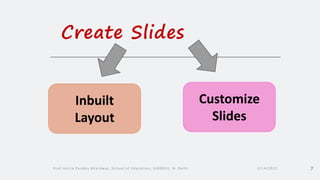
Create Slides
3/14/2022
Prof Amita Pandey Bhardwaj, School of Education, SLBSNSU, N. Delhi 7
Inbuilt
Layout
Customize
Slides
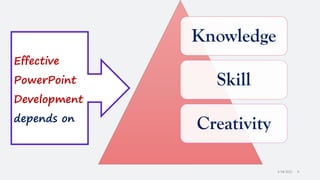
Knowledge
Skill
Creativity
Effective
PowerPoint
Development
depends on
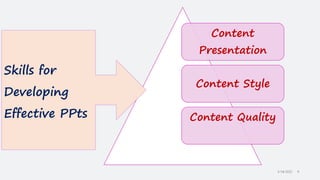
Content
Presentation
Content Style
Content Quality
Skills for
Developing
Effective PPts
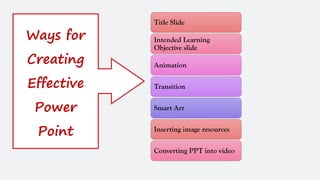
Title Slide
Intended Learning
Objective slide
Animation
Transition
Smart Art
Inserting image resources
Converting PPT into video
Ways for
Creating
Effective
Power
Point
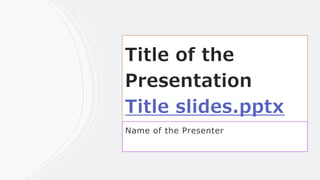
Title of the
Presentation
Title slides.pptx
Name of the Presenter
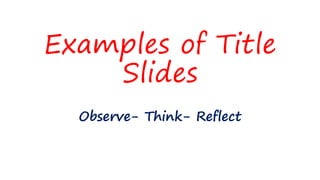
Examples of Title
Slides
Observe- Think- Reflect
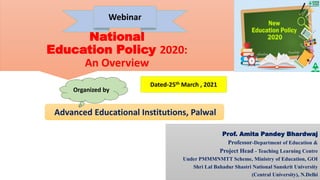
National
Education Policy 2020:
An Overview
Prof. Amita Pandey Bhardwaj
Professor-Department of Education &
Project Head - Teaching Learning Centre
Under PMMMNMTT Scheme, Ministry of Education, GOI
Shri Lal Bahadur Shastri National Sanskrit University
(Central University), N.Delhi
Webinar
Advanced Educational Institutions, Palwal
Dated-25th March , 2021
Organized by
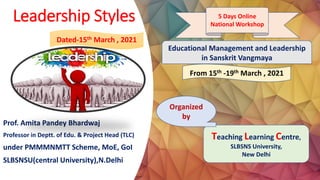
Leadership Styles
Prof. Amita Pandey Bhardwaj
Professor in Deptt. of Edu. & Project Head (TLC)
under PMMMNMTT Scheme, MoE, GoI
SLBSNSU(central University),N.Delhi
Educational Management and Leadership
in Sanskrit Vangmaya
5 Days Online
National Workshop
Teaching Learning Centre,
SLBSNS University,
New Delhi
From 15th -19th March , 2021
Dated-15th March , 2021
Organized
by
Choice Based
Credit System
(CBCS)
HRDC, Guru Jambheshwar
University of Science & Technology, HISAR
Dated-25th Sept.,2020
Prof Amita Pandey Bhardwaj
Project Head
Teaching Learning Centre
Under PMMMNMTT Scheme, Ministry of Education
SLBSNSU (Central University), N. Delhi-16
Organized By
Dr. Amita Pandey Bhardwaj
Project Head
Teaching Learning Centre
Shri Lal Bahadur Shastri Rashtriya Sanskrit
Vidyapeetha,
B-4, Qutub Institutional Area, Katwaria Sarai, New
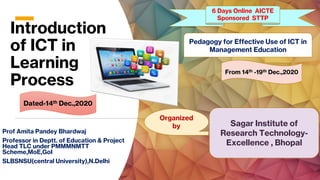
Introduction
of ICT in
Learning
Process
Prof Amita Pandey Bhardwaj
Professor in Deptt. of Education & Project
Head TLC under PMMMNMTT
Scheme,MoE,GoI
SLBSNSU(central University),N.Delhi
Pedagogy for Effective Use of ICT in
Management Education
6 Days Online AICTE
Sponsored STTP
Organized
by Sagar Institute of
Research Technology-
Excellence , Bhopal
From 14th -19th Dec.,2020
Dated-14th Dec.,2020
Various Online
Assessment
Tools
7 Days
Workshop
Techniques of Evaluation
Org anis e d By
Jananayak Chandrashekhar University,
Ballia (U.P.)
Prof. Amita Pandey Bhardwaj
Dir e c tor , Tea chin g L e a r nin g Ce n tr e
Sh r i L a l Ba h adur Sh a str i N a tion al
Sa n skr it U n iv ersity , ( Ce n tr al
U n iv er sity) N ew Delh i
Welcome
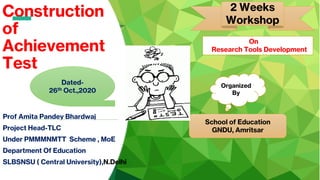
Construction
of
Achievement
Test
Prof Amita Pandey Bhardwaj
Project Head-TLC
Under PMMMNMTT Scheme , MoE
Department Of Education
SLBSNSU ( Central University),N.Delhi
2 Weeks
Workshop
Organized
By
School of Education
GNDU, Amritsar
Dated-
26th Oct.,2020
On
Research Tools Development
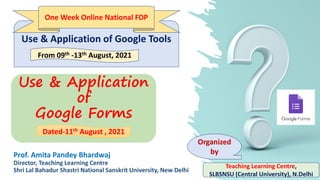
Use & Application
of
Google Forms
Prof. Amita Pandey Bhardwaj
Director, Teaching Learning Centre
Shri Lal Bahadur Shastri National Sanskrit University, New Delhi
Use & Application of Google Tools
From 09th -13th August, 2021
Teaching Learning Centre,
SLBSNSU (Central University), N.Delhi
Organized
by
Dated-11th August , 2021
One Week Online National FDP
Points to be Reflected on TiTle Slide
✓ Title of Presentation
✓ Name of the Presenter
✓ Purpose-Classroom
teaching/ Program
Presentation
✓ If Classroom teaching –
Name of the Paper,
Name of the Unit& Topic
✓ If Prog Presentation –
Name & Type of the Prog,
Date of the prog, Name of
Organizers
Name of the Topic &
Date of Presentation
❖ Picture related to
Prog theme or
Topic of the
Presentation
❖ Icons / Logo, Word
Cloud or Concept
Map related to the
topic or theme of
the Prog
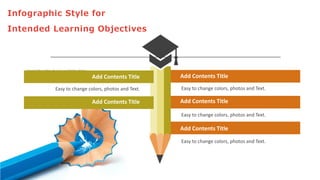
Infographic Style for
Intended Learning Objectives
I n s e r t t h e t i t l e o f y o u r s u b t i t l e H e r e
Add Contents Title
Add Contents Title
Add Contents Title
Add Contents Title
Add Contents Title
Easy to change colors, photos and Text.
3/14/2022
Prof Amita Pandey Bhardwaj, School of Education, SLBSNSU,
N. Delhi 23
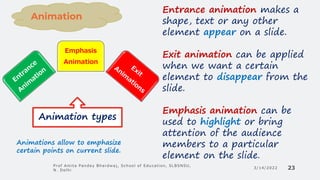
Emphasis
Animation
Animation types
Animations allow to emphasize
certain points on current slide.
Entrance animation makes a
shape, text or any other
element appear on a slide.
Exit animation can be applied
when we want a certain
element to disappear from the
slide.
Emphasis animation can be
used to highlight or bring
attention of the audience
members to a particular
element on the slide.
Animation
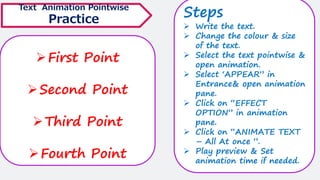
➢First Point
➢Second Point
➢Third Point
➢Fourth Point
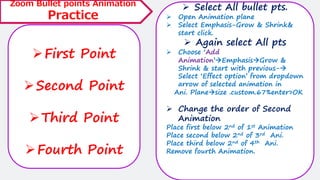
Zoom Bullet points Animation
Practice
➢ Select All bullet pts.
➢ Open Animation plane
➢ Select Emphasis-Grow & Shrink&
start click.
➢ Again select All pts
➢ Choose ‘Add
Animation’→Emphasis→Grow &
Shrink & start with previous-→
Select ‘Effect option’ from dropdown
arrow of selected animation in
Ani. Plane→size .custom.67%enter>OK
➢ Change the order of Second
Animation
Place first below 2nd of 1st Animation
Place second below 2nd of 3rd Ani.
Place third below 2nd of 4th Ani.
Remove fourth Animation.
➢First Point
➢Second Point
➢Third Point
➢Fourth Point
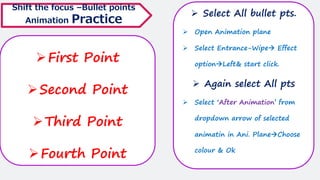
Shift the focus –Bullet points
Animation Practice
➢ Select All bullet pts.
➢ Open Animation plane
➢ Select Entrance-Wipe→ Effect
option→Left& start click.
➢ Again select All pts
➢ Select ‘After Animation’ from
dropdown arrow of selected
animatin in Ani. Plane→Choose
colour & Ok
➢First Point
➢Second Point
➢Third Point
➢Fourth Point
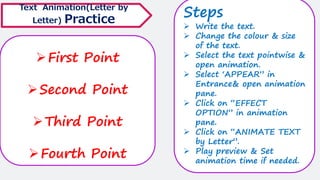
Text Animation(Letter by
Letter) Practice
Steps
➢ Write the text.
➢ Change the colour & size
of the text.
➢ Select the text pointwise &
open animation.
➢ Select ‘APPEAR” in
Entrance& open animation
pane.
➢ Click on “EFFECT
OPTION” in animation
pane.
➢ Click on “ANIMATE TEXT
by Letter”.
➢ Play preview & Set
animation time if needed.
➢First Point
➢Second Point
➢Third Point
➢Fourth Point
Text Animation Pointwise
Practice
Steps
➢ Write the text.
➢ Change the colour & size
of the text.
➢ Select the text pointwise &
open animation.
➢ Select ‘APPEAR” in
Entrance& open animation
pane.
➢ Click on “EFFECT
OPTION” in animation
pane.
➢ Click on “ANIMATE TEXT
– All At once ”.
➢ Play preview & Set
animation time if needed.
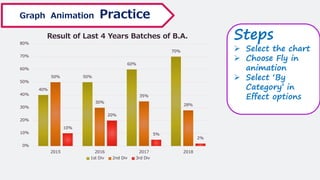
Graph Animation Practice
Steps
➢ Select the chart
➢ Choose Fly in
animation
➢ Select ‘By
Category’ in
Effect options
40%
50%
60%
70%
50%
30%
35%
28%
10%
20%
5%
2%
0%
10%
20%
30%
40%
50%
60%
70%
80%
2015 2016 2017 2018
Result of Last 4 Years Batches of B.A.
1st Div 2nd Div 3rd Div
3/14/2022
Prof Amita Pandey Bhardwaj, School of Education, SLBSNSU,
N. Delhi 29
While animation gives the ability to
animate elements within the slide
whereas transitions gives the ability
to change how slides change from one
to another.
➢The use of
transitions can
alter the entire feel
of a presentation
without changing its
theme.
➢Each transition
doesn’t feel forced
but feels natural to
the presentation.
Transitions
Some of the most notable
transitions are:
•Cut
•Reveal
•Shapes
•Uncover
•Wipe
3/14/2022
Prof Amita Pandey Bhardwaj, School of Education,
SLBSNSU, N. Delhi
30
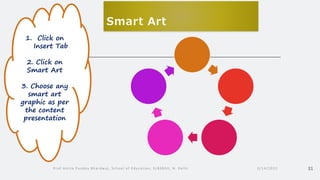
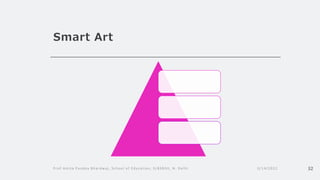
1. Click on Insert Tab
2. Click on Smart Art
3. Choose any smart
art graphic as per the
cotent presentation
Smart
Art
Smart Art
3/14/2022
Prof Amita Pandey Bhardwaj, School of Education, SLBSNSU, N. Delhi 31
1. Click on
Insert Tab
2. Click on
Smart Art
3. Choose any
smart art
graphic as per
the content
presentation
Smart Art
3/14/2022
Prof Amita Pandey Bhardwaj, School of Education, SLBSNSU, N. Delhi 32
Smart Art
3/14/2022
Prof Amita Pandey Bhardwaj, School of Education, SLBSNSU, N. Delhi 33
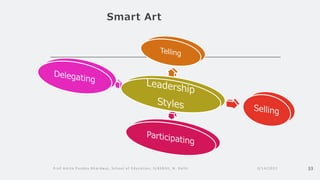
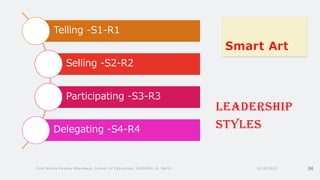
Smart Art
Telling -S1-R1
Selling -S2-R2
Participating -S3-R3
Delegating -S4-R4
Leadership
Styles
3/14/2022
Prof Amita Pandey Bhardwaj, School of Education, SLBSNSU, N. Delhi 34
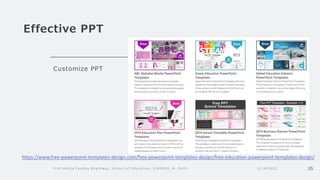
Effective PPT
Customize PPT
3/14/2022
Prof Amita Pandey Bhardwaj, School of Education, SLBSNSU, N. Delhi 35
https://www.free-powerpoint-templates-design.com/free-powerpoint-templates-design/free-education-powerpoint-templates-design/
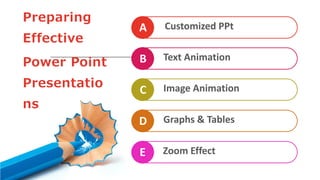
Customized PPt
A
B
C
D
Text Animation
Image Animation
Graphs & Tables
Preparing
Effective
Power Point
Presentatio
ns
E Zoom Effect
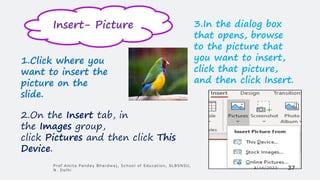
1.Click where you
want to insert the
picture on the
slide.
2.On the Insert tab, in
the Images group,
click Pictures and then click This
Device.
3.In the dialog box
that opens, browse
to the picture that
you want to insert,
click that picture,
and then click Insert.
Insert- Picture
3/14/2022
Prof Amita Pandey Bhardwaj, School of Education, SLBSNSU,
N. Delhi 37
3/14/2022
Prof Amita Pandey Bhardwaj, School of Education, SLBSNSU, N. Delhi 38
1. Click on CHART on Insert Tab
2. Select PIE or COLUMN.
3. Click OK on any option.
4. Dialogue Box opens.
5. Enter the data & close it.
6. Add the chart title.
7. Use Data Labels & Data Axis 0r
Chart Styles in Design for
display of data on the graph.
S
T
E
P
S
Charts
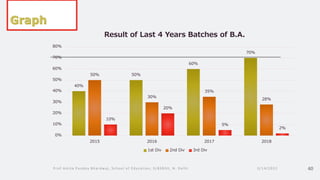
Graphs(Pie Diagram)
3/14/2022
Prof Amita Pandey Bhardwaj, School of Education, SLBSNSU, N. Delhi 39
40%
50%
60%
70%
50%
30%
35%
28%
10%
20%
5%
2%
0%
10%
20%
30%
40%
50%
60%
70%
80%
2015 2016 2017 2018
Result of Last 4 Years Batches of B.A.
1st Div 2nd Div 3rd Div
3/14/2022
Prof Amita Pandey Bhardwaj, School of Education, SLBSNSU, N. Delhi 40
3/14/2022
Prof Amita Pandey Bhardwaj, School of Education, SLBSNSU,
N. Delhi 41
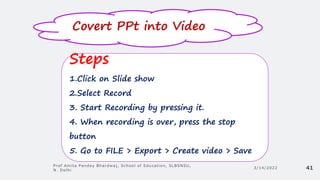
Covert PPt into Video
Steps
1.Click on Slide show
2.Select Record
3. Start Recording by pressing it.
4. When recording is over, press the stop
button
5. Go to FILE > Export > Create video > Save
An effective tool to present material in the
classroom and encourage student learning.
•It saves time and energy(once the presentation
has been created, it is easy to update or modify
for other courses).
•PowerPoint is portable and can be shared easily
with students and colleagues.
•PowerPoint supports multimedia, such as video,
audio, images, and links
Innovative tool for teaching and learning
Benefits
3/14/2022
Prof Amita Pandey Bhardwaj, School of Education, SLBSNSU,
N. Delhi 42
Helpful PowerPoint Keyboard Shortcuts
To Press
Save a presentation CTRL+S
Print a presentation CTRL+P
Open a presentation CTRL+O
Create a new
presentation
CTRL+N
New slide CTRL+M
Duplicate CTRL+D
Cut CTRL+X
Copy CTRL+C
Paste CTRL+V
Undo (last action) CTRL+Z
Redo (last action) CTRL+Y or F4
Select all CTRL+A
Close active
presentation
CTRL+W or
CTRL+F4
To Move Press
Change the pointer to pen CTRL+P
Change the pointer to arrow
CTRL+A or
CTRL+U
Change the pointer to eraser CTRL+E
Change the pointer to
highlighter
CTRL+I
Hide the pointer and
navigation buttons
CTRL+H
Zoom in on a slide + (plus)
Zoom out/display slide
navigator
- (minus)
Displaying & Annotating
3/14/2022 P r o f A m i t a P a n d e y B h a r d w a j , S c h o o l o f E d u c a t i o n , S L B S N S U , N . D e l h i 44
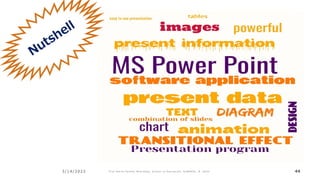
Making effective power point presentations

Making effective power point presentations

  • 1.
    Creating Effective PPTs Organized by Teaching Learning Centre, SLBSNSU(Central University), N.Delhi One Week Online FDP Using & Managing Online Teaching & Assessment Dated-10th March, 2022 Prof. Amita Pandey Bhardwaj Director, Teaching Learning Centre under PMMMNMTT Scheme, MoE, GOI Shri Lal Bahadur Shastri National Sanskrit University (Central University) N. Delhi Date:7th-11th March,2022
  • 2.
    Converting ppt tovideo Demonstration Creating Effective Power Point Presentations About MS PPt Ways for Developing Effective PPTs Add Contents Title Add Contents Title Focus of the Presentation. Title Slides, Animation, Transition Insert- Picture, Smart Art, Chart , Link ,Header & Footer
  • 3.
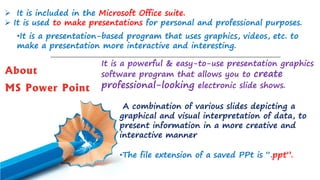
    About MS Power Point ➢It is included in the Microsoft Office suite. ➢ It is used to make presentations for personal and professional purposes. •It is a presentation-based program that uses graphics, videos, etc. to make a presentation more interactive and interesting. •The file extension of a saved PPt is “.ppt”. It is a powerful & easy-to-use presentation graphics software program that allows you to create professional-looking electronic slide shows. A combination of various slides depicting a graphical and visual interpretation of data, to present information in a more creative and interactive manner
  • 4.
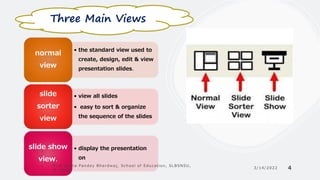
    • the standardview used to create, design, edit & view presentation slides. normal view • view all slides • easy to sort & organize the sequence of the slides slide sorter view • display the presentation on slide show view. Three Main Views 3/14/2022 Prof Amita Pandey Bhardwaj, School of Education, SLBSNSU, N. Delhi 4
  • 5.
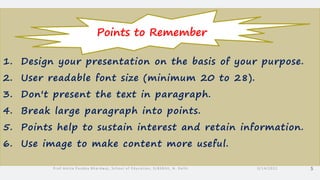
    1. Design yourpresentation on the basis of your purpose. 2. User readable font size (minimum 20 to 28). 3. Don't present the text in paragraph. 4. Break large paragraph into points. 5. Points help to sustain interest and retain information. 6. Use image to make content more useful. 3/14/2022 Prof Amita Pandey Bhardwaj, School of Education, SLBSNSU, N. Delhi 5 Points to Remember
  • 6.
    7. Reduce orreplace text with images and diagrams. 8. Use a color theme for entire presentation (Click design-> variants-> click Down Arrow -> Color and theme). 9.Use graphs to present numerical content. 3/14/2022 Prof Amita Pandey Bhardwaj, School of Education, SLBSNSU, N. Delhi 6 Points to Remember
  • 7.
    Create Slides 3/14/2022 Prof AmitaPandey Bhardwaj, School of Education, SLBSNSU, N. Delhi 7 Inbuilt Layout Customize Slides
  • 8.
  • 9.
  • 10.
    Title Slide Intended Learning Objectiveslide Animation Transition Smart Art Inserting image resources Converting PPT into video Ways for Creating Effective Power Point
  • 11.
    Title of the Presentation Titleslides.pptx Name of the Presenter
  • 12.
  • 13.
    National Education Policy 2020: AnOverview Prof. Amita Pandey Bhardwaj Professor-Department of Education & Project Head - Teaching Learning Centre Under PMMMNMTT Scheme, Ministry of Education, GOI Shri Lal Bahadur Shastri National Sanskrit University (Central University), N.Delhi Webinar Advanced Educational Institutions, Palwal Dated-25th March , 2021 Organized by
  • 14.
    Leadership Styles Prof. AmitaPandey Bhardwaj Professor in Deptt. of Edu. & Project Head (TLC) under PMMMNMTT Scheme, MoE, GoI SLBSNSU(central University),N.Delhi Educational Management and Leadership in Sanskrit Vangmaya 5 Days Online National Workshop Teaching Learning Centre, SLBSNS University, New Delhi From 15th -19th March , 2021 Dated-15th March , 2021 Organized by
  • 15.
    Choice Based Credit System (CBCS) HRDC,Guru Jambheshwar University of Science & Technology, HISAR Dated-25th Sept.,2020 Prof Amita Pandey Bhardwaj Project Head Teaching Learning Centre Under PMMMNMTT Scheme, Ministry of Education SLBSNSU (Central University), N. Delhi-16 Organized By
  • 16.
    Dr. Amita PandeyBhardwaj Project Head Teaching Learning Centre Shri Lal Bahadur Shastri Rashtriya Sanskrit Vidyapeetha, B-4, Qutub Institutional Area, Katwaria Sarai, New
  • 17.
    Introduction of ICT in Learning Process ProfAmita Pandey Bhardwaj Professor in Deptt. of Education & Project Head TLC under PMMMNMTT Scheme,MoE,GoI SLBSNSU(central University),N.Delhi Pedagogy for Effective Use of ICT in Management Education 6 Days Online AICTE Sponsored STTP Organized by Sagar Institute of Research Technology- Excellence , Bhopal From 14th -19th Dec.,2020 Dated-14th Dec.,2020
  • 18.
    Various Online Assessment Tools 7 Days Workshop Techniquesof Evaluation Org anis e d By Jananayak Chandrashekhar University, Ballia (U.P.) Prof. Amita Pandey Bhardwaj Dir e c tor , Tea chin g L e a r nin g Ce n tr e Sh r i L a l Ba h adur Sh a str i N a tion al Sa n skr it U n iv ersity , ( Ce n tr al U n iv er sity) N ew Delh i Welcome
  • 19.
    Construction of Achievement Test Prof Amita PandeyBhardwaj Project Head-TLC Under PMMMNMTT Scheme , MoE Department Of Education SLBSNSU ( Central University),N.Delhi 2 Weeks Workshop Organized By School of Education GNDU, Amritsar Dated- 26th Oct.,2020 On Research Tools Development
  • 20.
    Use & Application of GoogleForms Prof. Amita Pandey Bhardwaj Director, Teaching Learning Centre Shri Lal Bahadur Shastri National Sanskrit University, New Delhi Use & Application of Google Tools From 09th -13th August, 2021 Teaching Learning Centre, SLBSNSU (Central University), N.Delhi Organized by Dated-11th August , 2021 One Week Online National FDP
  • 21.
    Points to beReflected on TiTle Slide ✓ Title of Presentation ✓ Name of the Presenter ✓ Purpose-Classroom teaching/ Program Presentation ✓ If Classroom teaching – Name of the Paper, Name of the Unit& Topic ✓ If Prog Presentation – Name & Type of the Prog, Date of the prog, Name of Organizers Name of the Topic & Date of Presentation ❖ Picture related to Prog theme or Topic of the Presentation ❖ Icons / Logo, Word Cloud or Concept Map related to the topic or theme of the Prog
  • 22.
    Infographic Style for IntendedLearning Objectives I n s e r t t h e t i t l e o f y o u r s u b t i t l e H e r e Add Contents Title Add Contents Title Add Contents Title Add Contents Title Add Contents Title Easy to change colors, photos and Text. Easy to change colors, photos and Text. Easy to change colors, photos and Text. Easy to change colors, photos and Text.
  • 23.
    3/14/2022 Prof Amita PandeyBhardwaj, School of Education, SLBSNSU, N. Delhi 23 Emphasis Animation Animation types Animations allow to emphasize certain points on current slide. Entrance animation makes a shape, text or any other element appear on a slide. Exit animation can be applied when we want a certain element to disappear from the slide. Emphasis animation can be used to highlight or bring attention of the audience members to a particular element on the slide. Animation
  • 24.
    ➢First Point ➢Second Point ➢ThirdPoint ➢Fourth Point Zoom Bullet points Animation Practice ➢ Select All bullet pts. ➢ Open Animation plane ➢ Select Emphasis-Grow & Shrink& start click. ➢ Again select All pts ➢ Choose ‘Add Animation’→Emphasis→Grow & Shrink & start with previous-→ Select ‘Effect option’ from dropdown arrow of selected animation in Ani. Plane→size .custom.67%enter>OK ➢ Change the order of Second Animation Place first below 2nd of 1st Animation Place second below 2nd of 3rd Ani. Place third below 2nd of 4th Ani. Remove fourth Animation.
  • 25.
    ➢First Point ➢Second Point ➢ThirdPoint ➢Fourth Point Shift the focus –Bullet points Animation Practice ➢ Select All bullet pts. ➢ Open Animation plane ➢ Select Entrance-Wipe→ Effect option→Left& start click. ➢ Again select All pts ➢ Select ‘After Animation’ from dropdown arrow of selected animatin in Ani. Plane→Choose colour & Ok
  • 26.
    ➢First Point ➢Second Point ➢ThirdPoint ➢Fourth Point Text Animation(Letter by Letter) Practice Steps ➢ Write the text. ➢ Change the colour & size of the text. ➢ Select the text pointwise & open animation. ➢ Select ‘APPEAR” in Entrance& open animation pane. ➢ Click on “EFFECT OPTION” in animation pane. ➢ Click on “ANIMATE TEXT by Letter”. ➢ Play preview & Set animation time if needed.
  • 27.
    ➢First Point ➢Second Point ➢ThirdPoint ➢Fourth Point Text Animation Pointwise Practice Steps ➢ Write the text. ➢ Change the colour & size of the text. ➢ Select the text pointwise & open animation. ➢ Select ‘APPEAR” in Entrance& open animation pane. ➢ Click on “EFFECT OPTION” in animation pane. ➢ Click on “ANIMATE TEXT – All At once ”. ➢ Play preview & Set animation time if needed.
  • 28.
    Graph Animation Practice Steps ➢Select the chart ➢ Choose Fly in animation ➢ Select ‘By Category’ in Effect options 40% 50% 60% 70% 50% 30% 35% 28% 10% 20% 5% 2% 0% 10% 20% 30% 40% 50% 60% 70% 80% 2015 2016 2017 2018 Result of Last 4 Years Batches of B.A. 1st Div 2nd Div 3rd Div
  • 29.
    3/14/2022 Prof Amita PandeyBhardwaj, School of Education, SLBSNSU, N. Delhi 29 While animation gives the ability to animate elements within the slide whereas transitions gives the ability to change how slides change from one to another. ➢The use of transitions can alter the entire feel of a presentation without changing its theme. ➢Each transition doesn’t feel forced but feels natural to the presentation. Transitions Some of the most notable transitions are: •Cut •Reveal •Shapes •Uncover •Wipe
  • 30.
    3/14/2022 Prof Amita PandeyBhardwaj, School of Education, SLBSNSU, N. Delhi 30 1. Click on Insert Tab 2. Click on Smart Art 3. Choose any smart art graphic as per the cotent presentation Smart Art
  • 31.
    Smart Art 3/14/2022 Prof AmitaPandey Bhardwaj, School of Education, SLBSNSU, N. Delhi 31 1. Click on Insert Tab 2. Click on Smart Art 3. Choose any smart art graphic as per the content presentation
  • 32.
    Smart Art 3/14/2022 Prof AmitaPandey Bhardwaj, School of Education, SLBSNSU, N. Delhi 32
  • 33.
    Smart Art 3/14/2022 Prof AmitaPandey Bhardwaj, School of Education, SLBSNSU, N. Delhi 33
  • 34.
    Smart Art Telling -S1-R1 Selling-S2-R2 Participating -S3-R3 Delegating -S4-R4 Leadership Styles 3/14/2022 Prof Amita Pandey Bhardwaj, School of Education, SLBSNSU, N. Delhi 34
  • 35.
    Effective PPT Customize PPT 3/14/2022 ProfAmita Pandey Bhardwaj, School of Education, SLBSNSU, N. Delhi 35 https://www.free-powerpoint-templates-design.com/free-powerpoint-templates-design/free-education-powerpoint-templates-design/
  • 36.
    Customized PPt A B C D Text Animation ImageAnimation Graphs & Tables Preparing Effective Power Point Presentatio ns E Zoom Effect
  • 37.
    1.Click where you wantto insert the picture on the slide. 2.On the Insert tab, in the Images group, click Pictures and then click This Device. 3.In the dialog box that opens, browse to the picture that you want to insert, click that picture, and then click Insert. Insert- Picture 3/14/2022 Prof Amita Pandey Bhardwaj, School of Education, SLBSNSU, N. Delhi 37
  • 38.
    3/14/2022 Prof Amita PandeyBhardwaj, School of Education, SLBSNSU, N. Delhi 38 1. Click on CHART on Insert Tab 2. Select PIE or COLUMN. 3. Click OK on any option. 4. Dialogue Box opens. 5. Enter the data & close it. 6. Add the chart title. 7. Use Data Labels & Data Axis 0r Chart Styles in Design for display of data on the graph. S T E P S Charts
  • 39.
    Graphs(Pie Diagram) 3/14/2022 Prof AmitaPandey Bhardwaj, School of Education, SLBSNSU, N. Delhi 39
  • 40.
    40% 50% 60% 70% 50% 30% 35% 28% 10% 20% 5% 2% 0% 10% 20% 30% 40% 50% 60% 70% 80% 2015 2016 20172018 Result of Last 4 Years Batches of B.A. 1st Div 2nd Div 3rd Div 3/14/2022 Prof Amita Pandey Bhardwaj, School of Education, SLBSNSU, N. Delhi 40
  • 41.
    3/14/2022 Prof Amita PandeyBhardwaj, School of Education, SLBSNSU, N. Delhi 41 Covert PPt into Video Steps 1.Click on Slide show 2.Select Record 3. Start Recording by pressing it. 4. When recording is over, press the stop button 5. Go to FILE > Export > Create video > Save
  • 42.
    An effective toolto present material in the classroom and encourage student learning. •It saves time and energy(once the presentation has been created, it is easy to update or modify for other courses). •PowerPoint is portable and can be shared easily with students and colleagues. •PowerPoint supports multimedia, such as video, audio, images, and links Innovative tool for teaching and learning Benefits 3/14/2022 Prof Amita Pandey Bhardwaj, School of Education, SLBSNSU, N. Delhi 42
  • 43.
    Helpful PowerPoint KeyboardShortcuts To Press Save a presentation CTRL+S Print a presentation CTRL+P Open a presentation CTRL+O Create a new presentation CTRL+N New slide CTRL+M Duplicate CTRL+D Cut CTRL+X Copy CTRL+C Paste CTRL+V Undo (last action) CTRL+Z Redo (last action) CTRL+Y or F4 Select all CTRL+A Close active presentation CTRL+W or CTRL+F4 To Move Press Change the pointer to pen CTRL+P Change the pointer to arrow CTRL+A or CTRL+U Change the pointer to eraser CTRL+E Change the pointer to highlighter CTRL+I Hide the pointer and navigation buttons CTRL+H Zoom in on a slide + (plus) Zoom out/display slide navigator - (minus) Displaying & Annotating
  • 44.
    3/14/2022 P ro f A m i t a P a n d e y B h a r d w a j , S c h o o l o f E d u c a t i o n , S L B S N S U , N . D e l h i 44