Powerpoint Training
Doesn’t this look dull?
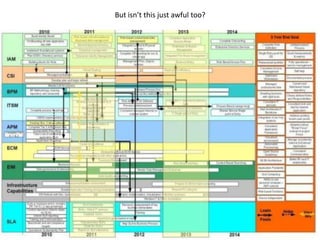
But isn’t this just awful too?
Powerpoint Training Session
        Laura Hampton
Understanding the Purpose

                Document Style
                A presentation which uses a document style will
                include a lot of text which makes it easy for the
                receiver to return to it in the future and have it
                still make sense.

                They still don’t want to have to view reams of
                bullet points, nor do they want to be bored by the
                style of the slides as they read.

                Make it engaging and informative and they’ll be
                more likely to make use of it.
Presentation Style
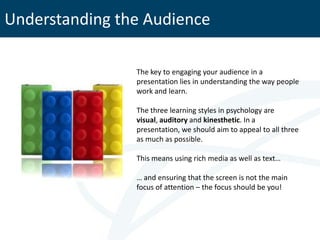
Understanding the Audience

                The key to engaging your audience in a
                presentation lies in understanding the way people
                work and learn.

                The three learning styles in psychology are
                visual, auditory and kinesthetic. In a
                presentation, we should aim to appeal to all three
                as much as possible.

                This means using rich media as well as text…

                … and ensuring that the screen is not the main
                focus of attention – the focus should be you!
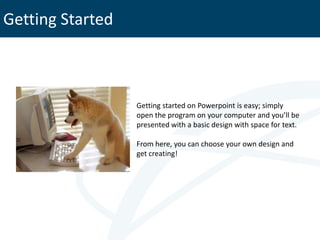
Getting Started


                  Getting started on Powerpoint is easy; simply
                  open the program on your computer and you’ll be
                  presented with a basic design with space for text.

                  From here, you can choose your own design and
                  get creating!
Slide Title
Adding Text


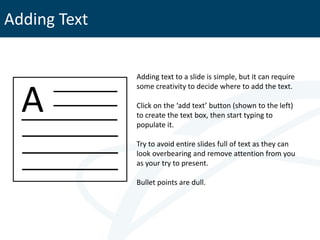
              Adding text to a slide is simple, but it can require


  A
              some creativity to decide where to add the text.

              Click on the ‘add text’ button (shown to the left)
              to create the text box, then start typing to
              populate it.

              Try to avoid entire slides full of text as they can
              look overbearing and remove attention from you
              as your try to present.

              Bullet points are dull.
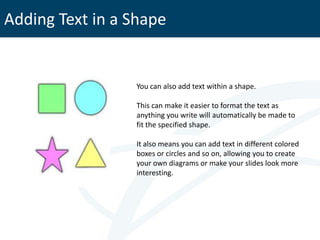
Adding Text in a Shape


                 You can also add text within a shape.

                 This can make it easier to format the text as
                 anything you write will automatically be made to
                 fit the specified shape.

                 It also means you can add text in different colored
                 boxes or circles and so on, allowing you to create
                 your own diagrams or make your slides look more
                 interesting.
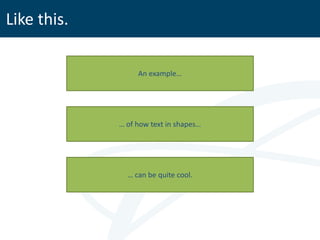
Like this.

                  An example…


             … of how text in shapes…


               … can be quite cool.
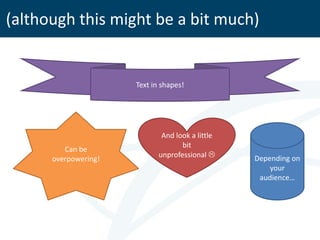
(although this might be a bit much)


                      Text in shapes!


                              And look a little
                                    bit
         Can be
                             unprofessional      Depending on
      overpowering!
                                                      your
                                                   audience…
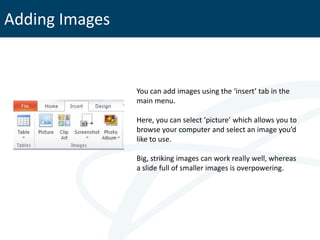
Adding Images


                You can add images using the ‘insert’ tab in the
                main menu.

                Here, you can select ‘picture’ which allows you to
                browse your computer and select an image you’d
                like to use.

                Big, striking images can work really well, whereas
                a slide full of smaller images is overpowering.
Adding Images


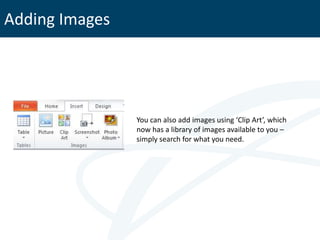
                You can also add images using ‘Clip Art’, which
                now has a library of images available to you –
                simply search for what you need.
Adding Images


                Taking images directly from Google or other
                search engines is another nice way of getting
                good imagery for your slides.

                Providing the imagery is not copyrighted, you
                can take it directly from Google Images.

                Try using search terms like ‘people white
                background’ or ‘dog transparent background’
                to find images which look more in sync with
                the rest of the slide.
Adding Video

               You can add videos to your presentation if you
               believe they will support what you’re
               saying, but beware of detracting focus or
               losing your audience.

               Like with this example, you’re probably
               watching the Furby and not me. No really, I
               could be saying anything right now but you’re
               hypnotized by the exciting dialogue between
               the 90’s toy and the iPhone.

               Which luckily for me, does enhance what I’m
               saying because I’ve just proven it to you!
Adding Video
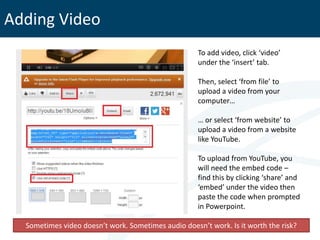
                                                     To add video, click ‘video’
                                                     under the ‘insert’ tab.

                                                     Then, select ‘from file’ to
                                                     upload a video from your
                                                     computer…

                                                     … or select ‘from website’ to
                                                     upload a video from a website
                                                     like YouTube.

                                                     To upload from YouTube, you
                                                     will need the embed code –
                                                     find this by clicking ‘share’ and
                                                     ‘embed’ under the video then
                                                     paste the code when prompted
                                                     in Powerpoint.

  Sometimes video doesn’t work. Sometimes audio doesn’t work. Is it worth the risk?
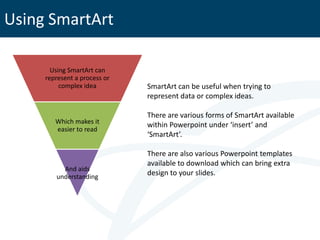
Using SmartArt

       Using SmartArt can
     represent a process or
          complex idea        SmartArt can be useful when trying to
                              represent data or complex ideas.

                              There are various forms of SmartArt available
        Which makes it        within Powerpoint under ‘insert’ and
        easier to read
                              ‘SmartArt’.

                              There are also various Powerpoint templates
                              available to download which can bring extra
          And aids
        understanding
                              design to your slides.
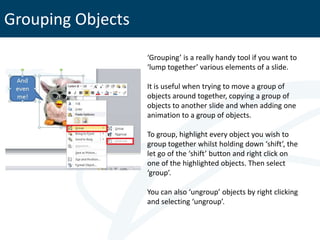
Grouping Objects
                   ‘Grouping’ is a really handy tool if you want to
                   ‘lump together’ various elements of a slide.

                   It is useful when trying to move a group of
                   objects around together, copying a group of
                   objects to another slide and when adding one
                   animation to a group of objects.

                   To group, highlight every object you wish to
                   group together whilst holding down ‘shift’, the
                   let go of the ‘shift’ button and right click on
                   one of the highlighted objects. Then select
                   ‘group’.

                   You can also ‘ungroup’ objects by right clicking
                   and selecting ‘ungroup’.
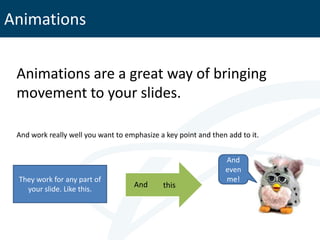
Animations


 Animations are a great way of bringing
 movement to your slides.

 And work really well you want to emphasize a key point and then add to it.


                                                                And
                                                                even
 They work for any part of                                      me!
                                    And      this
   your slide. Like this.
Animations


             Simply click on the element you want to add
             an animation to and then select ‘Animations’ in
             the main menu.

             You can then choose from an array of different
             animations.

             Hover over the animation button to see an
             example of it using your chosen element.
Transitions


 Transitions are different ways of moving
 between slides.
Transitions


 They can add interest to your
 presentation and make it appear more
 sleek.
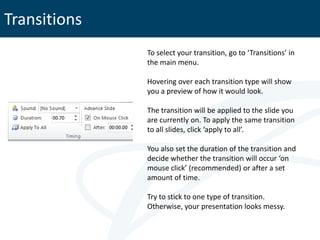
Transitions
              To select your transition, go to ‘Transitions’ in
              the main menu.

              Hovering over each transition type will show
              you a preview of how it would look.

              The transition will be applied to the slide you
              are currently on. To apply the same transition
              to all slides, click ‘apply to all’.

              You also set the duration of the transition and
              decide whether the transition will occur ‘on
              mouse click’ (recommended) or after a set
              amount of time.

              Try to stick to one type of transition.
              Otherwise, your presentation looks messy.
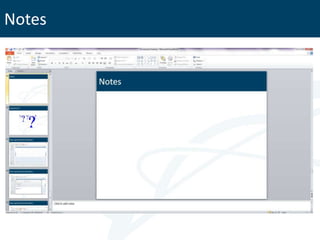
Notes
Questions?

Beginners' Guide to Powerpoint

  • 1.
  • 2.
  • 3.
    But isn’t thisjust awful too?
  • 4.
  • 5.
    Understanding the Purpose Document Style A presentation which uses a document style will include a lot of text which makes it easy for the receiver to return to it in the future and have it still make sense. They still don’t want to have to view reams of bullet points, nor do they want to be bored by the style of the slides as they read. Make it engaging and informative and they’ll be more likely to make use of it.
  • 6.
  • 7.
    Understanding the Audience The key to engaging your audience in a presentation lies in understanding the way people work and learn. The three learning styles in psychology are visual, auditory and kinesthetic. In a presentation, we should aim to appeal to all three as much as possible. This means using rich media as well as text… … and ensuring that the screen is not the main focus of attention – the focus should be you!
  • 8.
    Getting Started Getting started on Powerpoint is easy; simply open the program on your computer and you’ll be presented with a basic design with space for text. From here, you can choose your own design and get creating!
  • 9.
  • 10.
    Adding Text Adding text to a slide is simple, but it can require A some creativity to decide where to add the text. Click on the ‘add text’ button (shown to the left) to create the text box, then start typing to populate it. Try to avoid entire slides full of text as they can look overbearing and remove attention from you as your try to present. Bullet points are dull.
  • 11.
    Adding Text ina Shape You can also add text within a shape. This can make it easier to format the text as anything you write will automatically be made to fit the specified shape. It also means you can add text in different colored boxes or circles and so on, allowing you to create your own diagrams or make your slides look more interesting.
  • 12.
    Like this. An example… … of how text in shapes… … can be quite cool.
  • 13.
    (although this mightbe a bit much) Text in shapes! And look a little bit Can be unprofessional  Depending on overpowering! your audience…
  • 14.
    Adding Images You can add images using the ‘insert’ tab in the main menu. Here, you can select ‘picture’ which allows you to browse your computer and select an image you’d like to use. Big, striking images can work really well, whereas a slide full of smaller images is overpowering.
  • 15.
    Adding Images You can also add images using ‘Clip Art’, which now has a library of images available to you – simply search for what you need.
  • 16.
    Adding Images Taking images directly from Google or other search engines is another nice way of getting good imagery for your slides. Providing the imagery is not copyrighted, you can take it directly from Google Images. Try using search terms like ‘people white background’ or ‘dog transparent background’ to find images which look more in sync with the rest of the slide.
  • 17.
    Adding Video You can add videos to your presentation if you believe they will support what you’re saying, but beware of detracting focus or losing your audience. Like with this example, you’re probably watching the Furby and not me. No really, I could be saying anything right now but you’re hypnotized by the exciting dialogue between the 90’s toy and the iPhone. Which luckily for me, does enhance what I’m saying because I’ve just proven it to you!
  • 18.
    Adding Video To add video, click ‘video’ under the ‘insert’ tab. Then, select ‘from file’ to upload a video from your computer… … or select ‘from website’ to upload a video from a website like YouTube. To upload from YouTube, you will need the embed code – find this by clicking ‘share’ and ‘embed’ under the video then paste the code when prompted in Powerpoint. Sometimes video doesn’t work. Sometimes audio doesn’t work. Is it worth the risk?
  • 19.
    Using SmartArt Using SmartArt can represent a process or complex idea SmartArt can be useful when trying to represent data or complex ideas. There are various forms of SmartArt available Which makes it within Powerpoint under ‘insert’ and easier to read ‘SmartArt’. There are also various Powerpoint templates available to download which can bring extra And aids understanding design to your slides.
  • 20.
    Grouping Objects ‘Grouping’ is a really handy tool if you want to ‘lump together’ various elements of a slide. It is useful when trying to move a group of objects around together, copying a group of objects to another slide and when adding one animation to a group of objects. To group, highlight every object you wish to group together whilst holding down ‘shift’, the let go of the ‘shift’ button and right click on one of the highlighted objects. Then select ‘group’. You can also ‘ungroup’ objects by right clicking and selecting ‘ungroup’.
  • 21.
    Animations Animations area great way of bringing movement to your slides. And work really well you want to emphasize a key point and then add to it. And even They work for any part of me! And this your slide. Like this.
  • 22.
    Animations Simply click on the element you want to add an animation to and then select ‘Animations’ in the main menu. You can then choose from an array of different animations. Hover over the animation button to see an example of it using your chosen element.
  • 23.
    Transitions Transitions aredifferent ways of moving between slides.
  • 24.
    Transitions They canadd interest to your presentation and make it appear more sleek.
  • 25.
    Transitions To select your transition, go to ‘Transitions’ in the main menu. Hovering over each transition type will show you a preview of how it would look. The transition will be applied to the slide you are currently on. To apply the same transition to all slides, click ‘apply to all’. You also set the duration of the transition and decide whether the transition will occur ‘on mouse click’ (recommended) or after a set amount of time. Try to stick to one type of transition. Otherwise, your presentation looks messy.
  • 26.
  • 27.