

Training in Audio Visual Techniques and PowerPoint @ Bezerra de Menezes MiamiClaudia Nunes
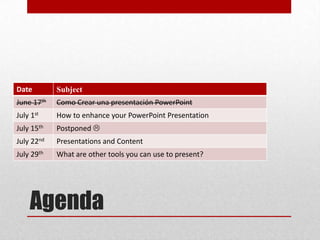
Agenda
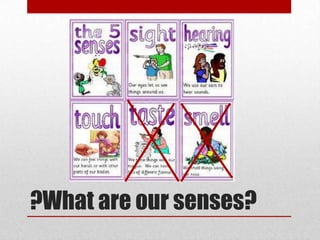
?What are our senses?
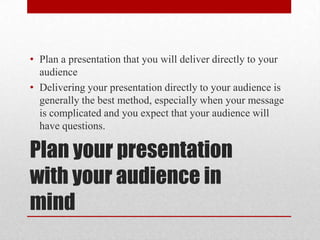
Plan your presentation with your audience in mindPlan a presentation that you will deliver directly to your audienceDelivering your presentation directly to your audience is generally the best method, especially when your message is complicated and you expect that your audience will have questions.
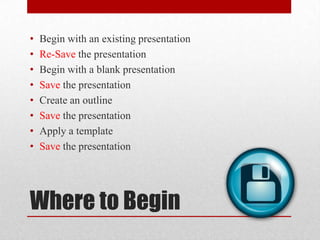
Where to BeginBegin with an existing presentationRe-Savethe presentationBegin with a blank presentationSave the presentationCreate an outlineSave the presentationApply a templateSave the presentation
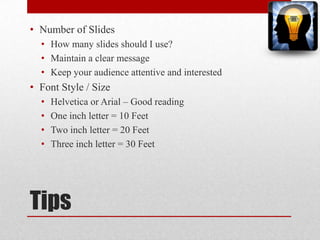
TipsNumber of SlidesHow many slides should I use?Maintain a clear messageKeep your audience attentive and interestedFont Style / SizeHelvetica or Arial – Good readingOne inch letter = 10 FeetTwo inch letter = 20 FeetThree inch letter = 30 Feet
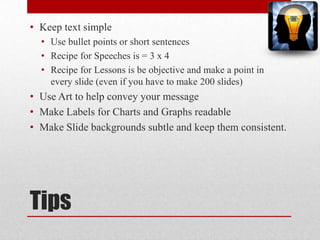
TipsKeep text simpleUse bullet points or short sentencesRecipe for Speeches is = 3 x 4 Recipe for Lessons is be objective and make a point in every slide (even if you have to make 200 slides)Use Art to help convey your messageMake Labels for Charts and Graphs readableMake Slide backgrounds subtle and keep them consistent.
TipsUse high contrast between background color and text color.Check the spelling and grammar.
Slides with or without slide contentAdd a blank slide from the slide layout galleryAdd a slide from a fileDuplicate slides within a presentationCopy and paste slidesAdd a slide from a Slide LibraryCopy and paste slide content
Pictures, shapes, graphics, and other objectsAdd a SmartArt graphic	Add a chart	Add a picture or clip art	Add a soundAdd narration to a presentationAdd a movieAdd a hyperlinkAdd WordArt
Add headers and footersAdd a header or footer	FormatPositionResize
Visual effectsAnimate text or objects	You can animate hyperlinks, text, graphics (including SmartArt graphics), diagrams, charts, and objects to focus on important points, control the flow of information, and add interest to your presentation.Add transitions between slides	Slide transitions are the animation-like effects that occur in Slide Show view when you move from one slide to the next. You can control the speed of each slide transition effect, and you can also add sound.
Check the spelling and request feedback from your peers
Rehearse and time the delivery of your presentation	Install PowerPoint ViewerIf the computer that will run the presentation that you created does not have PowerPoint installed, you must install PowerPoint Viewer on it.Create and print handouts	Create and print notes pages	Preview before you print	Print your slides	Print a presentation in black and white or grayscaleYou can print your entire presentation — the slides, outline, notes pages, and audience handouts — in color, grayscale, or pure black and white. Save as a Portable Document Format (PDF) or XML Paper Specification (XPS) filePrepare for the delivery or distribution of a presentation
Deliver or distribute your presentationDeliver a presentation on two monitorsat a podium while your audience views it on a second monitor, see Deliver a presentation on two monitors by using Presenter view.Copy a presentationCD, Pen drive, network, or local disk drive or website (slideshare.net for eg)Create and present a custom show.Write on slides during a presentation	Always show the pointer during a presentation	Publish your presentation to the Web	Publish your photo album to the Web	Publish slides to a Slide Library
http://office.microsoft.com/en-us/help/roadmap-to-building-a-powerpoint-2007-presentation-HA010206711.aspx

Training in audio visual techniques and powerpoint class 2

  • 1.
    Training in AudioVisual Techniques and PowerPoint @ Bezerra de Menezes MiamiClaudia Nunes
  • 2.
  • 3.
  • 5.
    Plan your presentationwith your audience in mindPlan a presentation that you will deliver directly to your audienceDelivering your presentation directly to your audience is generally the best method, especially when your message is complicated and you expect that your audience will have questions.
  • 6.
    Where to BeginBeginwith an existing presentationRe-Savethe presentationBegin with a blank presentationSave the presentationCreate an outlineSave the presentationApply a templateSave the presentation
  • 7.
    TipsNumber of SlidesHowmany slides should I use?Maintain a clear messageKeep your audience attentive and interestedFont Style / SizeHelvetica or Arial – Good readingOne inch letter = 10 FeetTwo inch letter = 20 FeetThree inch letter = 30 Feet
  • 8.
    TipsKeep text simpleUsebullet points or short sentencesRecipe for Speeches is = 3 x 4 Recipe for Lessons is be objective and make a point in every slide (even if you have to make 200 slides)Use Art to help convey your messageMake Labels for Charts and Graphs readableMake Slide backgrounds subtle and keep them consistent.
  • 9.
    TipsUse high contrastbetween background color and text color.Check the spelling and grammar.
  • 10.
    Slides with orwithout slide contentAdd a blank slide from the slide layout galleryAdd a slide from a fileDuplicate slides within a presentationCopy and paste slidesAdd a slide from a Slide LibraryCopy and paste slide content
  • 11.
    Pictures, shapes, graphics,and other objectsAdd a SmartArt graphic Add a chart Add a picture or clip art Add a soundAdd narration to a presentationAdd a movieAdd a hyperlinkAdd WordArt
  • 12.
    Add headers andfootersAdd a header or footer FormatPositionResize
  • 13.
    Visual effectsAnimate textor objects You can animate hyperlinks, text, graphics (including SmartArt graphics), diagrams, charts, and objects to focus on important points, control the flow of information, and add interest to your presentation.Add transitions between slides Slide transitions are the animation-like effects that occur in Slide Show view when you move from one slide to the next. You can control the speed of each slide transition effect, and you can also add sound.
  • 14.
    Check the spellingand request feedback from your peers
  • 15.
    Rehearse and timethe delivery of your presentation Install PowerPoint ViewerIf the computer that will run the presentation that you created does not have PowerPoint installed, you must install PowerPoint Viewer on it.Create and print handouts Create and print notes pages Preview before you print Print your slides Print a presentation in black and white or grayscaleYou can print your entire presentation — the slides, outline, notes pages, and audience handouts — in color, grayscale, or pure black and white. Save as a Portable Document Format (PDF) or XML Paper Specification (XPS) filePrepare for the delivery or distribution of a presentation
  • 16.
    Deliver or distributeyour presentationDeliver a presentation on two monitorsat a podium while your audience views it on a second monitor, see Deliver a presentation on two monitors by using Presenter view.Copy a presentationCD, Pen drive, network, or local disk drive or website (slideshare.net for eg)Create and present a custom show.Write on slides during a presentation Always show the pointer during a presentation Publish your presentation to the Web Publish your photo album to the Web Publish slides to a Slide Library
  • 17.