Intro to Microsoft Teams
- Greg McMurray -
Utah SharePoint User Group – January 2017
Photo Credit: CC 2.0 Generic - Garret via https://www.flickr.com/photos/countylemonade/7169130178
First Step – You Need to Request Access
▪ Microsoft Teams is currently limited to accounts within an organization
▪ External sharing and collaborating is high on their list
▪ Luckily, the Utah SharePoint User Group has an Office 365 Tenant!
▪ All members / attendees are welcome to request an account:
▪ Excel Online Form: www.utsharepoint.com/access
▪ Note: You may want to use an InPrivate or Incognito browser tab to avoid conflicts with other
Office 365 credentials you might use
Methods of Accessing Microsoft Teams
▪ Via the Web
▪ https://teams.microsoft.com/
▪ IE 11+, Edge 12+, Firefox 47+, Chrome 31+
▪ Desktop Application
▪ http://teams.microsoft.com/downloads
▪ OS Requirements: Windows 7+ and Max OS X 10.10+
▪ Mobile Applications
▪ Android: https://aka.ms/androidteams
▪ iOS: https://aka.ms/iosteams
▪ Windows Phone: https://aka.ms/wpteams
Greg McMurray
▪ Currently Business Solutions Developer at WECC
▪ Manager at Aritus Computer Services for 18 years
▪ Aerospace, Branding & Marketing, Energy, Healthcare, Software
▪ Active in many local user groups
▪ Find me online
▪ @goyuix
▪ https://www.linkedin.com/in/goyuix
▪ https://stackoverflow.com/cv/goyuix - top 3% of users
Western Electricity Coordinating Council (WECC)
▪ Non-profit to ensure the reliability of the western interconnection
▪ Approved Regional Entity by Federal Energy Regulatory Commission
▪ Create, monitor & enforce reliability standards
▪ Publish various models and independent perspective
▪ Covers 14 western states, 2 Canadian provinces and Baja Mexico
A few words on asynchronous communications
▪ A lot of communication – and collaboration happens asynchronously today
▪ Email
▪ Text messages
▪ Microsoft Teams
▪ SharePoint, Yammer, Skype for Business, etc…
▪ Some tools are better for real-time or near real-time communication
▪ Me Personally:
▪ Email: Definitely expect to wait. Waits are getting longer too.
▪ Text: Shorter waits than email, though possibly not immediate either
▪ Chat: Pretty quick replies typically, but no guarantees
▪ Where does the Teams functionality fit in with your communications styles?
What is Microsoft Teams
▪ Collaborative chat-based environment
▪ Enabled as a license for users in an organization
▪ Similar to Power BI and other services
▪ Licensing is a new feature enabled in January 2017 – prior it was org wide setting
▪ Where does this fit in?
▪ Outlook: Calendar and Email
▪ SharePoint: Sites and Content Management
▪ Skype: Voice, Chat, Meetings / Conferencing
▪ Yammer: Enterprise Social
▪ Teams: All of the above?
Security and Privacy of Data
▪ Teams is part of Office 365 – inherits much of the same benefits
▪ Tier C compliant: ISO 27001 & 27018, EUMC, SSAE16, SOC I & II, HIPAA, FERPA, etc.
▪ https://www.microsoft.com/en-us/trustcenter/compliance/
▪ Multi-factor authentication, encryption of data in transit as well as at rest
▪ Teams is currently restricted to organizational accounts
▪ Future enhancement is to allow sharing with external accounts too
▪ Special Note: The data resides in the data center region where you tenant is created
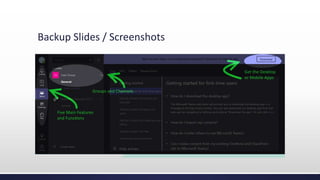
The Basics
▪ Five Major Functions / Features
▪ Activity: What has happened recently / did you potentially miss a notification
▪ Chat: Smaller groups – more focused. Often 1:1 conversations.
▪ Teams: The big feature with tabs for different conversations / collaborations
▪ Meetings: Shows your calendar, setup team meetings to include Teams
▪ Files: Brings in files from OneDrive, SharePoint, etc.
▪ Important Reminder: New Team = New Office 365 Group
▪ Which also tends to bring along OneNote, OneDrive, SharePoint, etc.
▪ You can also add Teams functionality to existing Groups or Distribution Lists
▪ Warning: This will create an Office 365 Group from your DL
Channels
▪ Every team gets a default General channel
▪ Channels are where a lot of the action happens
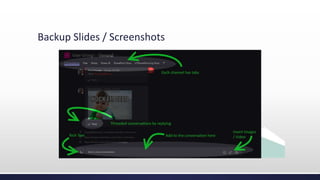
▪ Each channel has tabs
▪ Conversations – Chat (plain and rich text), Attachments, Cards
▪ Video is available from Desktop Apps – coming soon to web clients
▪ Files – typically from the SharePoint site for the group / OneDrive
▪ Notes – shared OneNote notebook, stored on O365 Group team site
▪ Custom Tabs – things like Planner, Power BI, SharePoint, etc.
▪ Connectors and Bots – bring external info in. More on these in a bit.
Extensibility
▪ Packages are basically zip archives with a manifest file that describes the service and
necessary files. Similar to add-ins for other Office products.
▪ Warning: During the preview, custom code expires after 29 days
▪ Helpful Links:
▪ Getting Started Center: https://msdn.microsoft.com/en-us/microsoft-teams/
▪ Custom Tabs: https://msdn.microsoft.com/en-us/microsoft-teams/tabs
▪ Custom Bots: https://msdn.microsoft.com/en-us/microsoft-teams/bots
▪ Custom Connectors: https://msdn.microsoft.com/en-us/microsoft-teams/connectors
▪ Great videos on Channel 9 showing a quick intro to developing for Teams. Shown as
part of 2016 Connect() conference.
Additional Resources
▪ Microsoft Teams Help
▪ Administration, Desktop / Web / Mobile, and Training Videos
▪ https://support.office.com/en-us/article/Microsoft-Teams-Help-23156c0c-2c6e-49dd-8b7b-
7c564b76508c?ui=en-US&rs=en-US&ad=US&fromAR=1
▪ Frequently Asked Questions
▪ https://support.office.com/en-us/article/Frequently-asked-questions-about-Microsoft-Teams-
%E2%80%93-Admin-Help-05cbe533-2181-4e95-a4b0-52cd7695fafc?ui=en-US&rs=en-US&ad=US
▪ MSDN Reference for Microsoft Teams
▪ https://msdn.microsoft.com/en-us/microsoft-teams/
▪ Microsoft Bot Framework
▪ https://docs.botframework.com/en-us/
More Questions?
▪ I am sure you have lots
▪ Something to consider: Would you like to do a deeper dive on some of these topics like
building a bot in a future user group meeting?
▪ Let’s get to the live demo – and feel free to keep using it after today
▪ Discussion: Should we have team channels for user group meetings / SharePoint Saturday?
Feel free to reach out to me
▪ Twitter: @goyuix
▪ LinkedIn: linked.com/in/goyuix
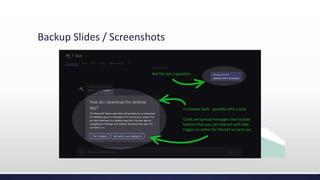
Backup Slides / Screenshots

Introduction to Microsoft Teams

  • 1.
    Intro to MicrosoftTeams - Greg McMurray - Utah SharePoint User Group – January 2017 Photo Credit: CC 2.0 Generic - Garret via https://www.flickr.com/photos/countylemonade/7169130178
  • 2.
    First Step –You Need to Request Access ▪ Microsoft Teams is currently limited to accounts within an organization ▪ External sharing and collaborating is high on their list ▪ Luckily, the Utah SharePoint User Group has an Office 365 Tenant! ▪ All members / attendees are welcome to request an account: ▪ Excel Online Form: www.utsharepoint.com/access ▪ Note: You may want to use an InPrivate or Incognito browser tab to avoid conflicts with other Office 365 credentials you might use
  • 3.
    Methods of AccessingMicrosoft Teams ▪ Via the Web ▪ https://teams.microsoft.com/ ▪ IE 11+, Edge 12+, Firefox 47+, Chrome 31+ ▪ Desktop Application ▪ http://teams.microsoft.com/downloads ▪ OS Requirements: Windows 7+ and Max OS X 10.10+ ▪ Mobile Applications ▪ Android: https://aka.ms/androidteams ▪ iOS: https://aka.ms/iosteams ▪ Windows Phone: https://aka.ms/wpteams
  • 4.
    Greg McMurray ▪ CurrentlyBusiness Solutions Developer at WECC ▪ Manager at Aritus Computer Services for 18 years ▪ Aerospace, Branding & Marketing, Energy, Healthcare, Software ▪ Active in many local user groups ▪ Find me online ▪ @goyuix ▪ https://www.linkedin.com/in/goyuix ▪ https://stackoverflow.com/cv/goyuix - top 3% of users
  • 5.
    Western Electricity CoordinatingCouncil (WECC) ▪ Non-profit to ensure the reliability of the western interconnection ▪ Approved Regional Entity by Federal Energy Regulatory Commission ▪ Create, monitor & enforce reliability standards ▪ Publish various models and independent perspective ▪ Covers 14 western states, 2 Canadian provinces and Baja Mexico
  • 6.
    A few wordson asynchronous communications ▪ A lot of communication – and collaboration happens asynchronously today ▪ Email ▪ Text messages ▪ Microsoft Teams ▪ SharePoint, Yammer, Skype for Business, etc… ▪ Some tools are better for real-time or near real-time communication ▪ Me Personally: ▪ Email: Definitely expect to wait. Waits are getting longer too. ▪ Text: Shorter waits than email, though possibly not immediate either ▪ Chat: Pretty quick replies typically, but no guarantees ▪ Where does the Teams functionality fit in with your communications styles?
  • 7.
    What is MicrosoftTeams ▪ Collaborative chat-based environment ▪ Enabled as a license for users in an organization ▪ Similar to Power BI and other services ▪ Licensing is a new feature enabled in January 2017 – prior it was org wide setting ▪ Where does this fit in? ▪ Outlook: Calendar and Email ▪ SharePoint: Sites and Content Management ▪ Skype: Voice, Chat, Meetings / Conferencing ▪ Yammer: Enterprise Social ▪ Teams: All of the above?
  • 8.
    Security and Privacyof Data ▪ Teams is part of Office 365 – inherits much of the same benefits ▪ Tier C compliant: ISO 27001 & 27018, EUMC, SSAE16, SOC I & II, HIPAA, FERPA, etc. ▪ https://www.microsoft.com/en-us/trustcenter/compliance/ ▪ Multi-factor authentication, encryption of data in transit as well as at rest ▪ Teams is currently restricted to organizational accounts ▪ Future enhancement is to allow sharing with external accounts too ▪ Special Note: The data resides in the data center region where you tenant is created
  • 9.
    The Basics ▪ FiveMajor Functions / Features ▪ Activity: What has happened recently / did you potentially miss a notification ▪ Chat: Smaller groups – more focused. Often 1:1 conversations. ▪ Teams: The big feature with tabs for different conversations / collaborations ▪ Meetings: Shows your calendar, setup team meetings to include Teams ▪ Files: Brings in files from OneDrive, SharePoint, etc. ▪ Important Reminder: New Team = New Office 365 Group ▪ Which also tends to bring along OneNote, OneDrive, SharePoint, etc. ▪ You can also add Teams functionality to existing Groups or Distribution Lists ▪ Warning: This will create an Office 365 Group from your DL
  • 10.
    Channels ▪ Every teamgets a default General channel ▪ Channels are where a lot of the action happens ▪ Each channel has tabs ▪ Conversations – Chat (plain and rich text), Attachments, Cards ▪ Video is available from Desktop Apps – coming soon to web clients ▪ Files – typically from the SharePoint site for the group / OneDrive ▪ Notes – shared OneNote notebook, stored on O365 Group team site ▪ Custom Tabs – things like Planner, Power BI, SharePoint, etc. ▪ Connectors and Bots – bring external info in. More on these in a bit.
  • 11.
    Extensibility ▪ Packages arebasically zip archives with a manifest file that describes the service and necessary files. Similar to add-ins for other Office products. ▪ Warning: During the preview, custom code expires after 29 days ▪ Helpful Links: ▪ Getting Started Center: https://msdn.microsoft.com/en-us/microsoft-teams/ ▪ Custom Tabs: https://msdn.microsoft.com/en-us/microsoft-teams/tabs ▪ Custom Bots: https://msdn.microsoft.com/en-us/microsoft-teams/bots ▪ Custom Connectors: https://msdn.microsoft.com/en-us/microsoft-teams/connectors ▪ Great videos on Channel 9 showing a quick intro to developing for Teams. Shown as part of 2016 Connect() conference.
  • 12.
    Additional Resources ▪ MicrosoftTeams Help ▪ Administration, Desktop / Web / Mobile, and Training Videos ▪ https://support.office.com/en-us/article/Microsoft-Teams-Help-23156c0c-2c6e-49dd-8b7b- 7c564b76508c?ui=en-US&rs=en-US&ad=US&fromAR=1 ▪ Frequently Asked Questions ▪ https://support.office.com/en-us/article/Frequently-asked-questions-about-Microsoft-Teams- %E2%80%93-Admin-Help-05cbe533-2181-4e95-a4b0-52cd7695fafc?ui=en-US&rs=en-US&ad=US ▪ MSDN Reference for Microsoft Teams ▪ https://msdn.microsoft.com/en-us/microsoft-teams/ ▪ Microsoft Bot Framework ▪ https://docs.botframework.com/en-us/
  • 13.
    More Questions? ▪ Iam sure you have lots ▪ Something to consider: Would you like to do a deeper dive on some of these topics like building a bot in a future user group meeting? ▪ Let’s get to the live demo – and feel free to keep using it after today ▪ Discussion: Should we have team channels for user group meetings / SharePoint Saturday? Feel free to reach out to me ▪ Twitter: @goyuix ▪ LinkedIn: linked.com/in/goyuix
  • 14.
    Backup Slides /Screenshots
  • 15.
    Backup Slides /Screenshots
  • 16.
    Backup Slides /Screenshots